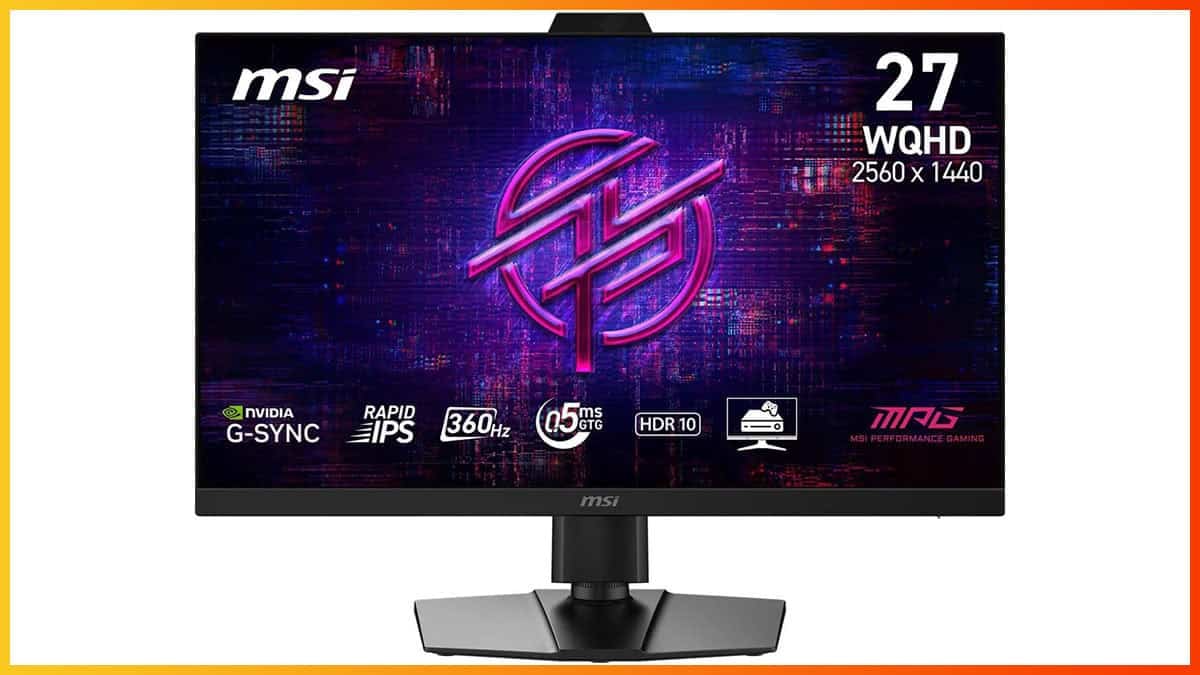
Bottom Line
The MSI MPG 272QRF X36 offers incredible CRT-like motion clarity with high brightness, low latency and no screen tearing within ~80 – 360FPS range thanks to its G-SYNC Pulsar scaler. It also packs a bunch of useful features (exceptional 60Hz and 120Hz global flash strobing, crosshair overlays, Dark Boost, 25″ emulation mode, ergonomic stand, USB hub, etc.) and a 27″ 1440p IPS screen with vibrant colors and wide viewing angles.
Update: The new FW 1.1.10 firmware update is now available. We re-tested the monitor – check out the new pursuit photos.
FW 1.1.10 Updates
- improved Pulsar on-time, reduced Pulsar turning off with high entropy games
- improved moving image sharpness for 240 and 360 ULMB2 and Pulsar
- the sharpness of ULMB 60 will now be available for 240 and 360 ULMB, but at full 480 nits brightness
- measured MPRT (Moving Picture Response Time) of 240 Hz at Pulse Width 50 is below 1.0 ms, or > 1000 Hz equivalent
The MSI MPG 272QRF X36 is a 27″ 1440p 360Hz IPS gaming monitor with a dedicated G-SYNC Pulsar scaler developed by NVIDIA and MediaTek.
It provides simultaneous VRR and backlight strobing performance within the 75 – 360Hz range, and allows for strobing at 60Hz, making it one of the best monitors for fans of CRT-like motion clarity.
Let’s put it to the test!
Image Quality
The monitor is based on a fast IPS panel with 90% DCI-P3 color space coverage, 178° wide viewing angles, a 1,000:1 static contrast ratio, a 500-nits peak brightness and dithered 10-bit color depth support.
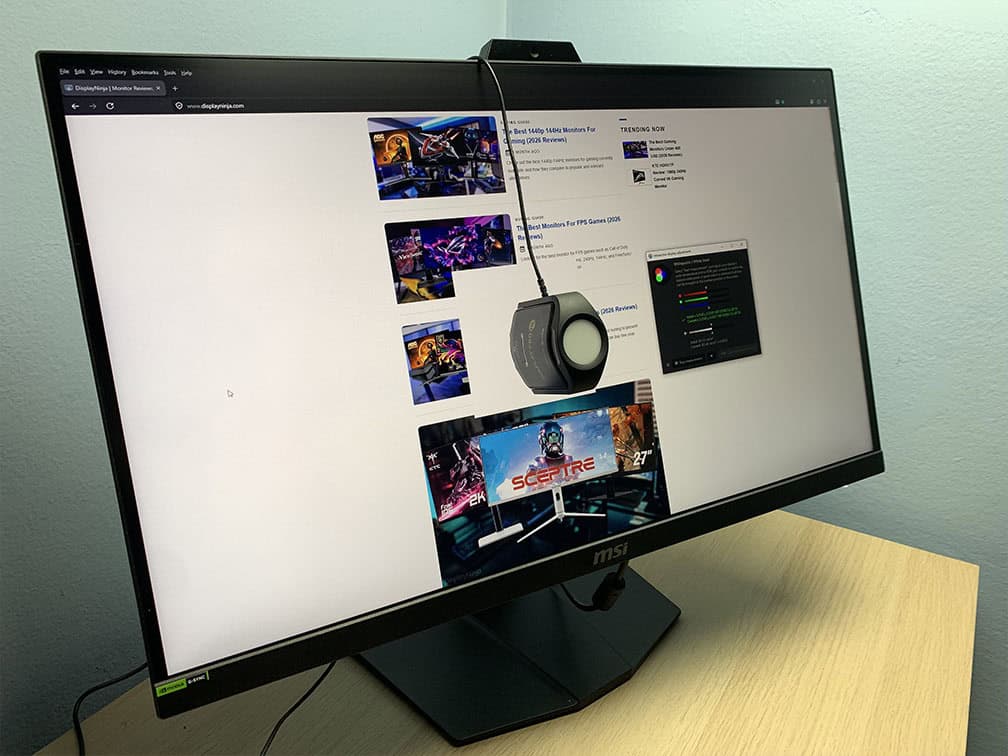
To test the display’s capabilities and accuracy, we’re using our Calibrite Display Pro HL colorimeter paired with DisplayCAL.
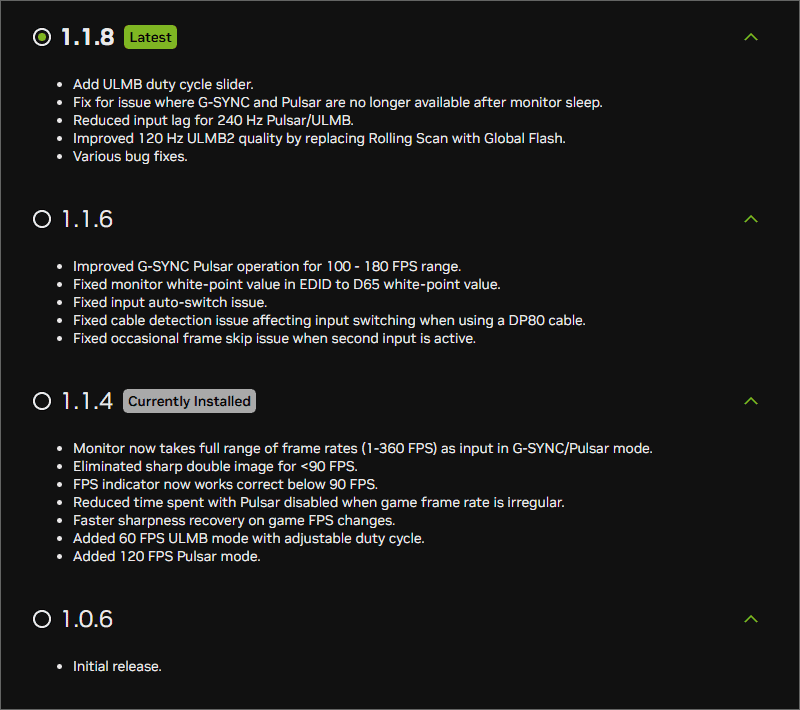
We tested FW.045 (G-SYNC Pulsar v1.1.8 and v1.1.10), FW.038 (v1.1.4) and FW.035 (v1.0.6) firmware versions.
To update or roll back the firmware, simply go to the monitor update page, make sure the monitor is connected to your PC via the USB-A to micro-USB cable and that ‘Firmware Update Mode’ is enabled in the OSD menu, and update the firmware.

In the OSD (On-Screen Display) menu, you’ll find six different picture modes: Eco, User, Standard, NVIDIA Esports, sRGB and Native.
The Eco mode limits the brightness to around 186-nits, so if you wish to unlock the full 500-nit peak brightness, you’ll have to use one of the other modes.
The sRGB and Native modes lock out some image settings, while NVIDIA Esports introduces too much saturation, so we recommend sticking with the Standard mode, or sRGB if you want more accurate colors.
Color Gamut
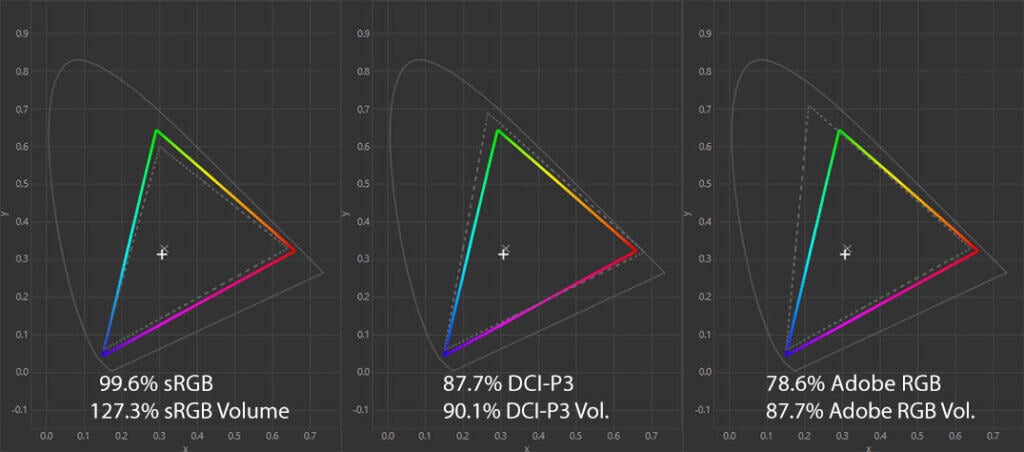
The MSI MPG 272QRF X36 has a wide color gamut with a 127.3% sRGB volume, providing you with a bit of over-saturation. It’s not too intrusive and most users will prefer this for the extra color vibrancy.
In competitive games, the wider color gamut can also make certain objects stand out more in specific environments, which can sometimes make it slightly easier to spot enemies.
You can also clamp the gamut down to 96.7% volume and 96.2% coverage if you’d rather have more natural and accurate colors by using the dedicated sRGB mode or by selecting the ‘sRGB’ option under ‘SDR Color Space’ setting.
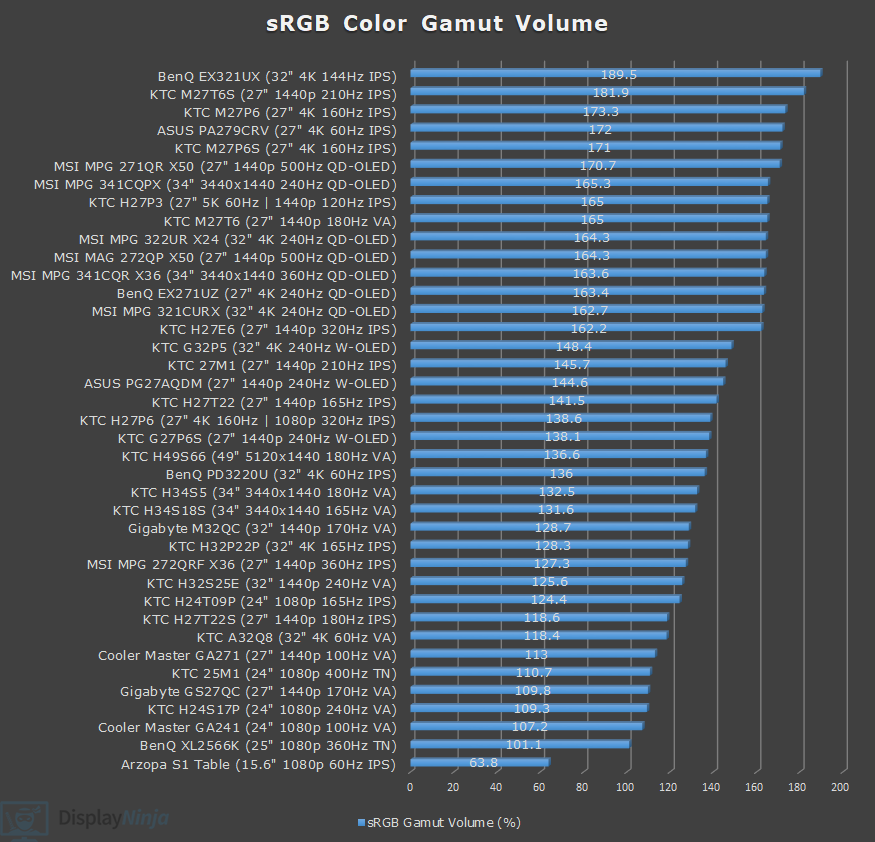
Image Accuracy
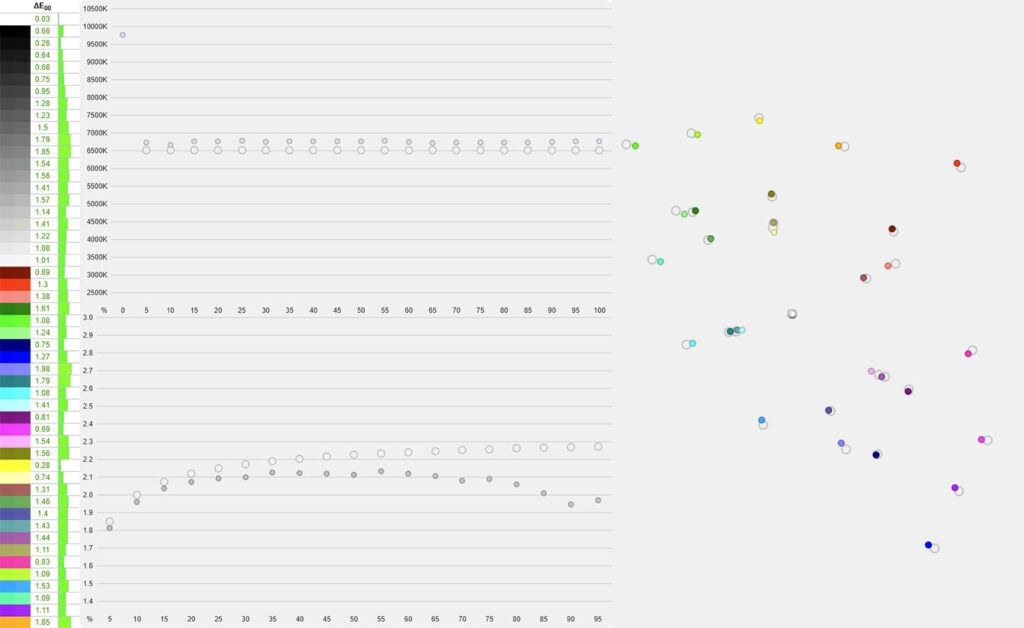
In the wide color gamut mode, we measured a high Delta E of 1.97 average (color deviation from the target, less than 1.5 is considered good) and 6.68 maximum (target is less than 3) since Windows doesn’t do color management by default.
Selecting the sRGB mode or using sRGB SDR Color Space, reduces the average Delta E to 1.19 and maximum to 1.98, providing you with accurate colors.
Thanks to the monitor’s IPS panel with wide viewing angles and consistent image quality, the accurate factory calibration makes it suitable for entry-level color-critical work out of the box. For more professional color work, you’ll need a colorimeter.
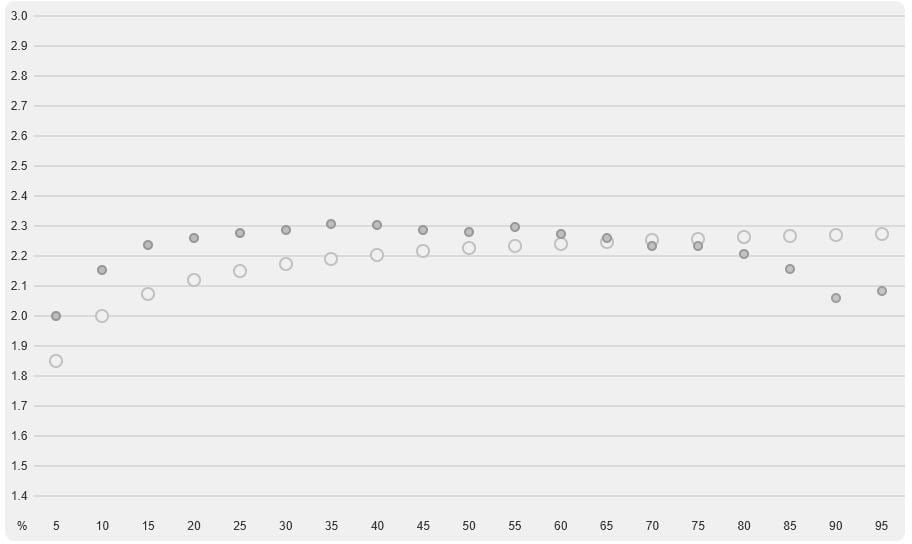
Sadly, gamma tracking isn’t very accurate, with an average of around 2.05 (target is 2.2). This leads to slightly elevated midtones and highlights, making brighter areas appear lighter than intended and reducing perceived contrast.
In games, this provides a bit better visibility in shadows and highlights, so having a bit lower gamma might’ve been intentional.
Changing the gamma to 2.4 in the OSD menu offers a more accurate 2.22 average result, but then the image is a bit darker than intended for the most part, except for 85 – 95% white.
Color temperature, on the other hand, is good. We measured 6765K, which is a bit higher than the 6500K target, but there’s no noticeable tinting to the whitepoint.
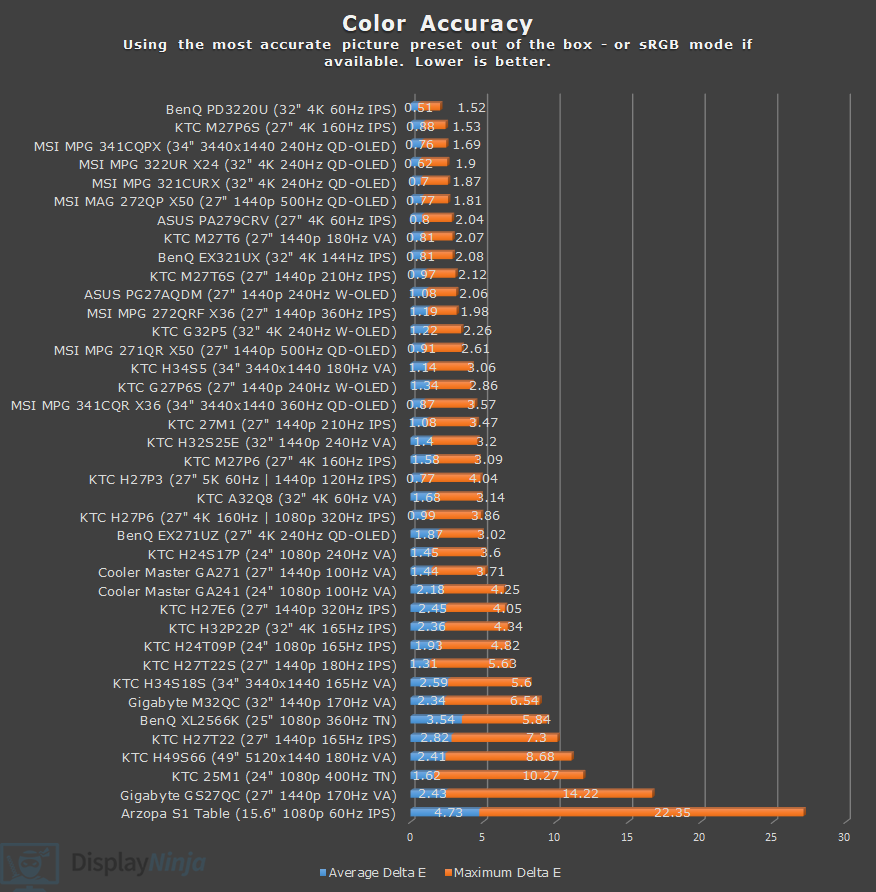
Keep in mind that all IPS monitors exhibit IPS glow, which can be characterized as a faint glow that’s sometimes visible in the corners of the screen when viewed from certain angles. Its intensity can vary from unit to unit, so some panels may show it more than others.
It’s most noticeable when viewing dark content in a dark room at higher brightness levels, but you can minimize it with a proper setup, for example, by lowering the brightness in dim environments and adding some ambient lighting behind the screen. Our unit didn’t show any excessive IPS glow or backlight bleed.
Calibration
For full calibration, we set the brightness to 0/100 for 123-nits in the Standard mode, ‘Wide Color Gamut’ SDR Color Space and ‘Custom’ color temperature with red, green and blue channels set to 100, 100 and 95, respectively, to get 6501K.
Delta E improved to 0.37 average and 1.32 maximum with accurate gamma tracking (2.2 average). You can download our ICC profile here. You can use this profile to fix the gamma tracking and have accurate colors in color-managed apps with a wide color gamut in other apps, such as games.
If you want the fixed gamma and accurate colors in all apps, you can use this ICC profile instead. In this case, you should use the Standard mode with the ‘sRGB’ SDR Color Space option.
Brightness & Contrast
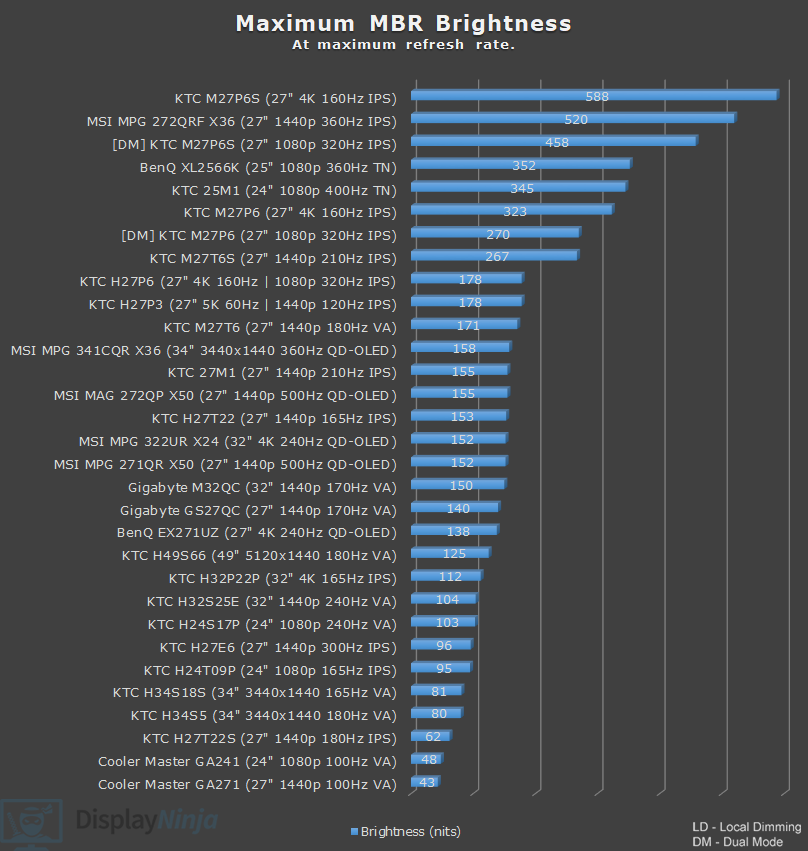
In the Standard mode, we measured a maximum brightness of 520-nits, and a minimum of 123-nits. The maximum brightness is more than enough to combat glare even in well-lit rooms, but the minimum brightness may be too high in a dark room for some users.
In that case, you can change Mode to ‘Eco’, which has a low minimum brightness of 18-nits, but the maximum is 186-nits. In the sRGB and Native modes, the maximum and minimum brightness are 498-nits and 49-nits, respectively.
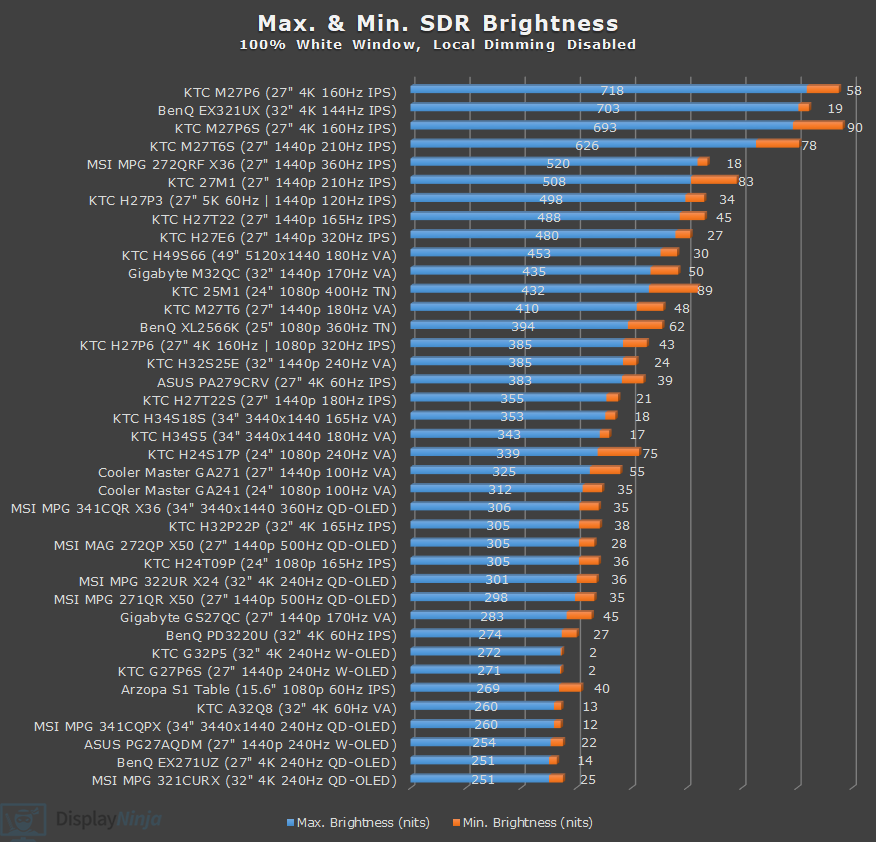
At around 200-nits, we measured a contrast ratio of 1046:1, which is a typical result for an IPS panel.
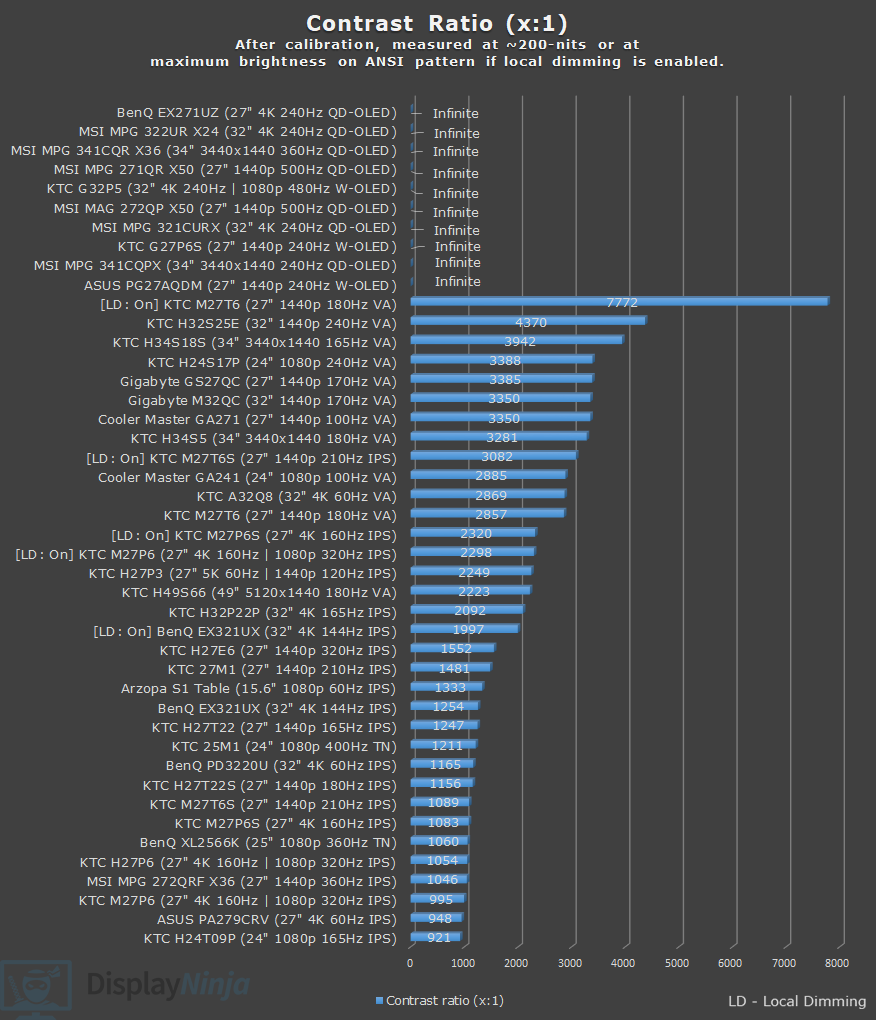
Blacks won’t be as deep as that of VA panels (usually around 3,000:1 contrast ratio), OLED panels, or monitors with full-array local dimming (FALD).
Of course, OLED and FALD displays have their own drawbacks, while VA monitors in this price range suffer from slower response time, VRR brightness flickering and narrower viewing angles.
Subpixel Layout & Pixel Density
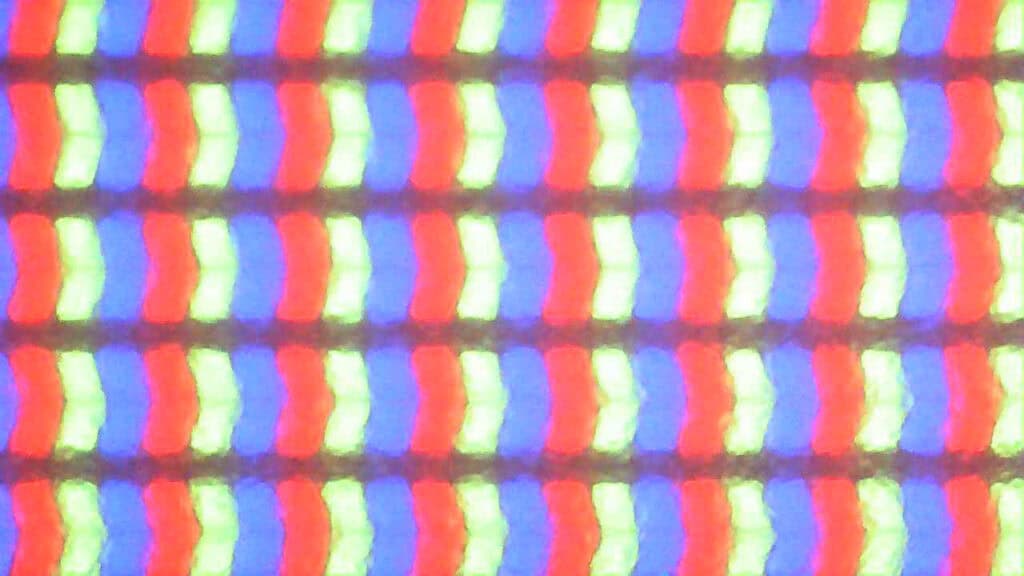
The MSI MPG 272QRF X36 has a typical RGB subpixel layout, meaning that text and fine lines are sharp and without any colored fringing.
It has a pixel density of 108.79 PPI (pixels per inch), which results in reasonably crisp details and no scaling necessary. 1440p is also considerably less demanding on the GPU than 4K UHD, allowing for higher frame rates.
A lot of competitive FPS players prefer smaller ~24″ sized screens and a lower 1080p resolution to achieve even higher frame rates, but 1440p has its advantages too. As the image is sharper, it can make it easier to distinguish certain objects, while 27″ is not too big for most gamers.
The MSI MPG 272QRF X36 also has a 25″ screen size emulation mode with 960p (4:3), 1080p (16:9) and 1332p (16:9) options, which we’ll explore later in the article.
HDR
The monitor supports HDR (High Dynamic Range), but while it can accept and display the HDR10 signal, it lacks proper display hardware (OLED panel or FALD) for a true HDR viewing experience.
You can still get some benefit from HDR, such as proper DCI-P3 color mapping and dithered 10-bit color for smoother gradients with less banding. However, you’ll lose detail in the shadows and highlights, and the image won’t fully reflect the creator’s original intent.
Performance
For latency and response time testing, we’re using OSRTT.
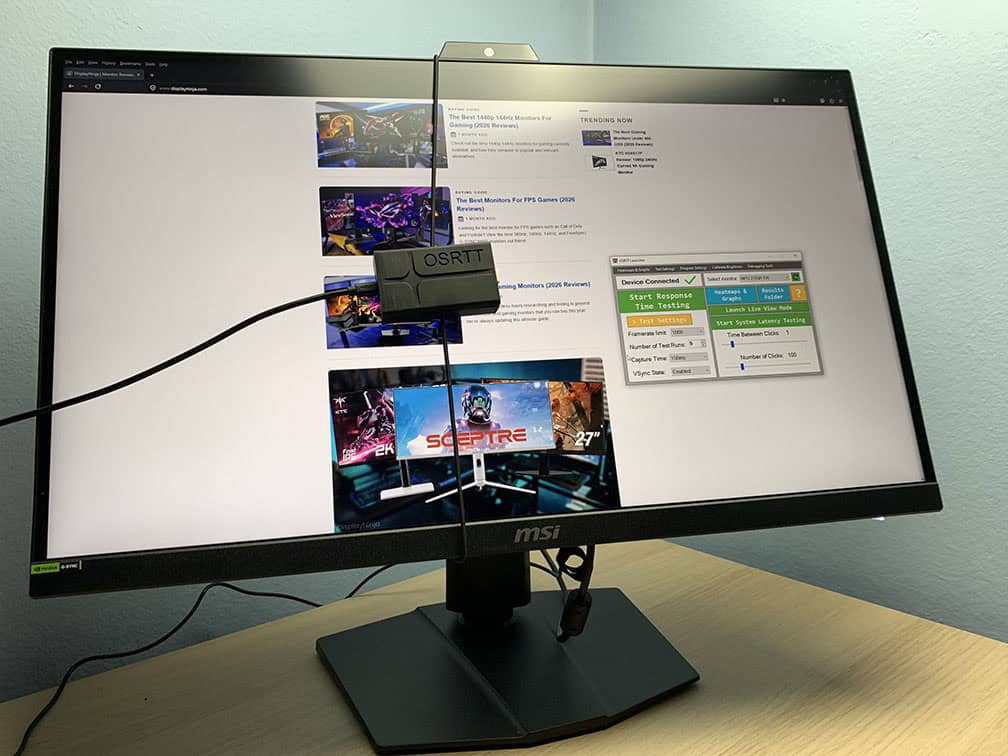
The MSI MPG 272QRF X36 has a maximum refresh rate of 360Hz, which provides you with a huge boost in motion clarity and responsiveness as opposed to regular 60-75Hz displays.
Response Time
There are six overdrive modes: Native, Weak, Normal, Strong, Stronger and Extreme, as well as a user-adjustable ‘OD Strength’ option from 0 to 400 in increments of 1.
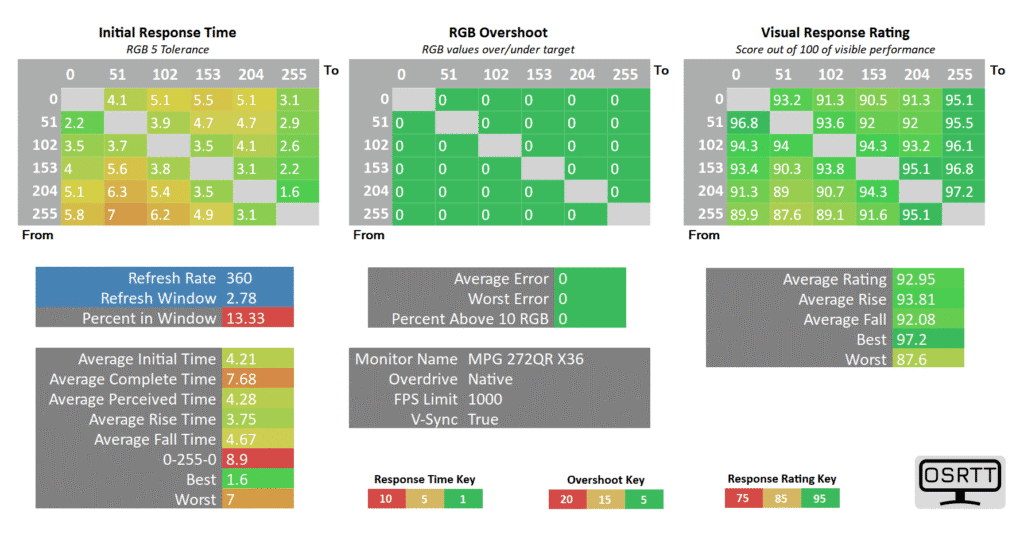
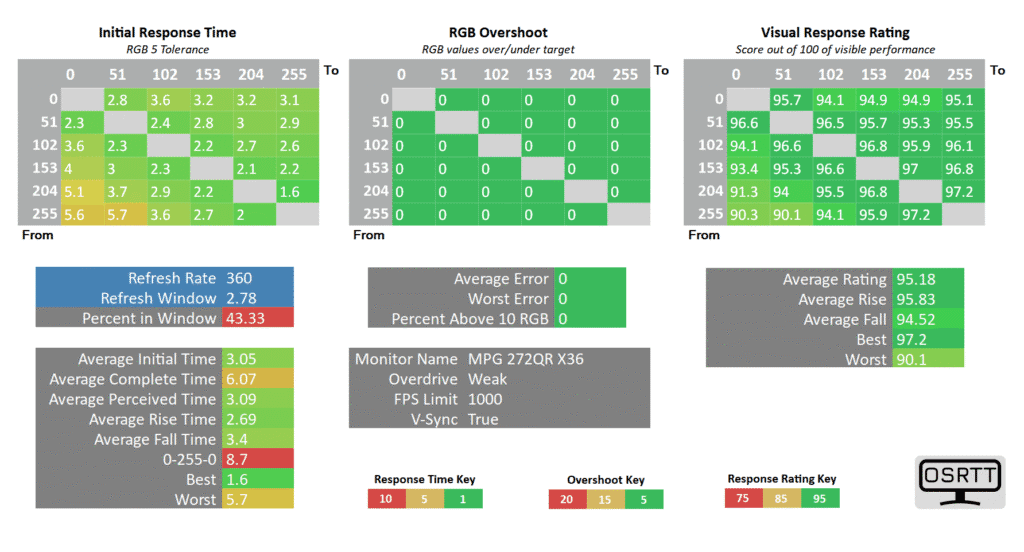
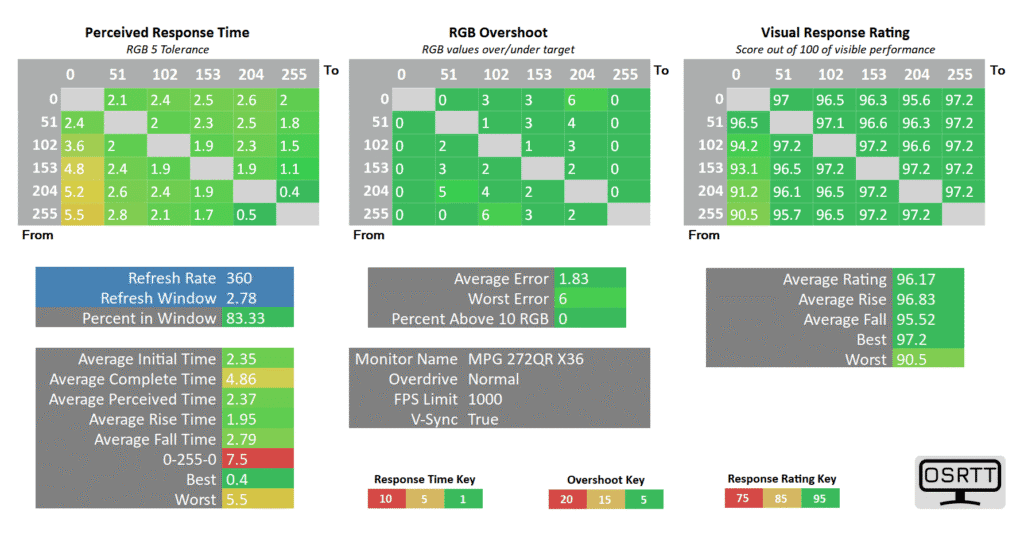
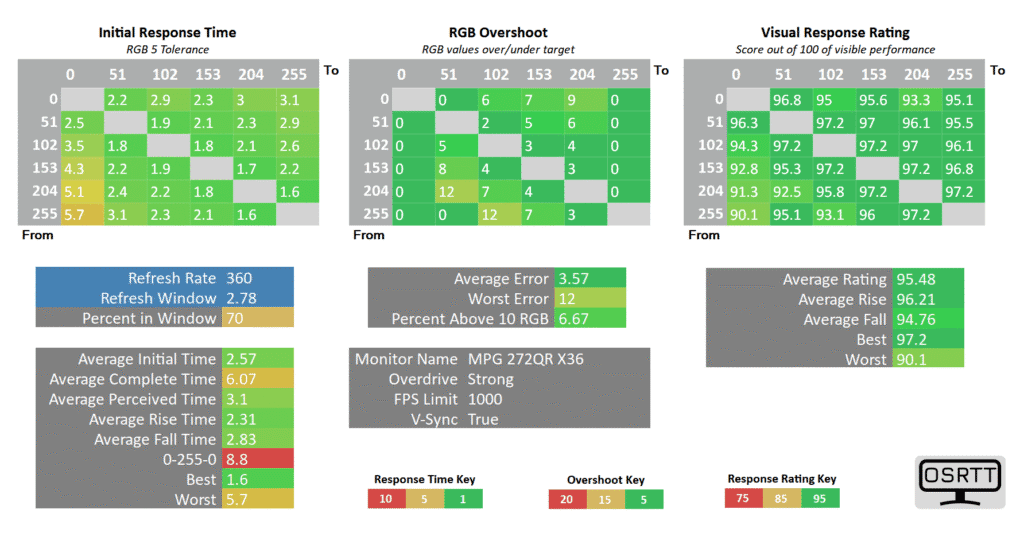
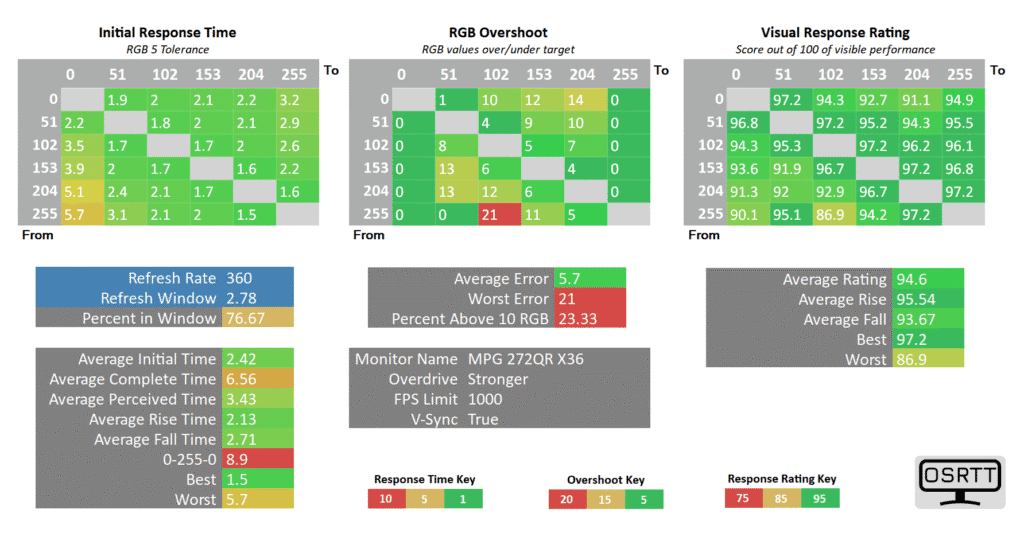
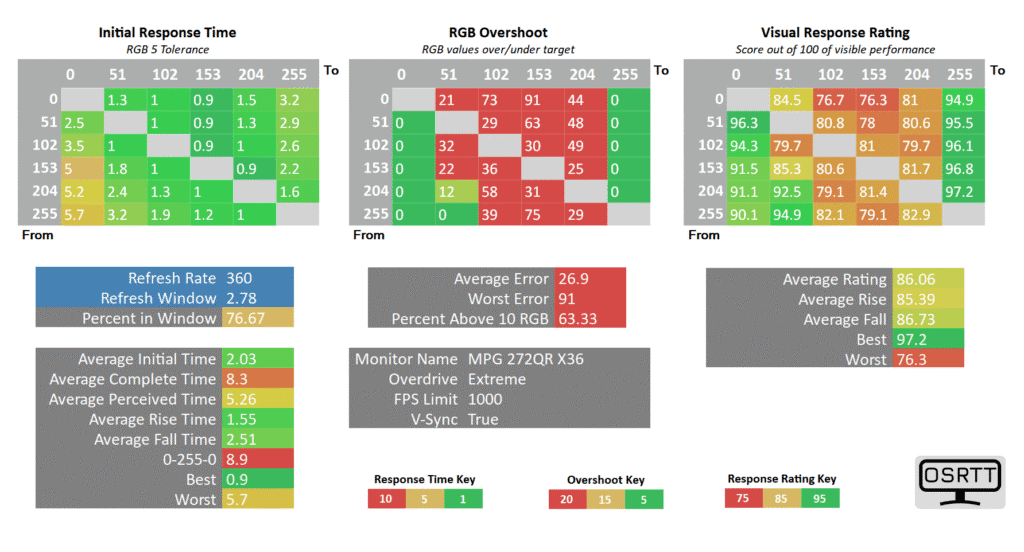
The default Normal mode is the best with a 2.35ms average GtG (gray to gray) pixel transition speed, low 1.83% average overshoot error and 83.33% refresh rate compliance. ‘Strong’ and ‘Stronger’ simply add overshoot to transitions that are already fast enough, while ‘Extreme’ has too much overshoot overall.
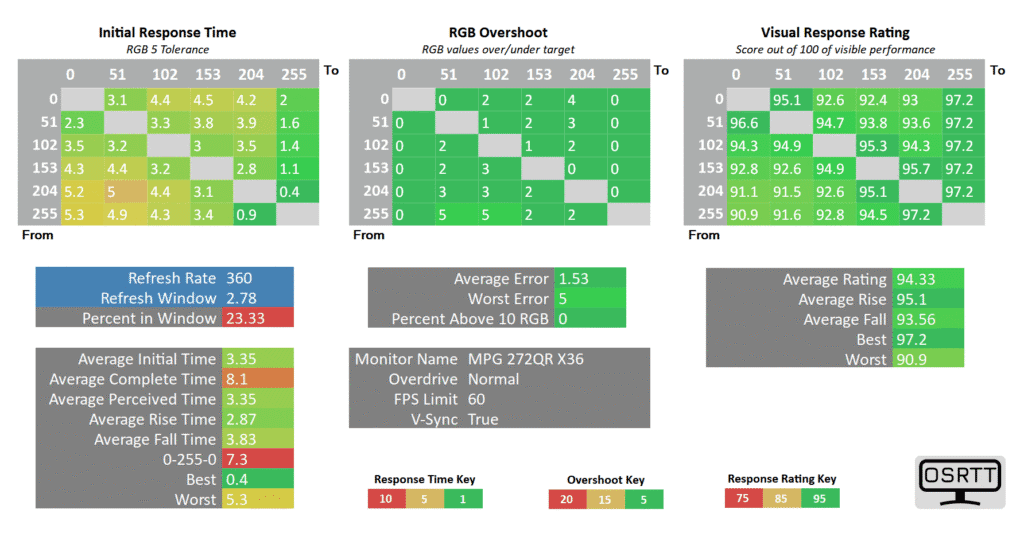
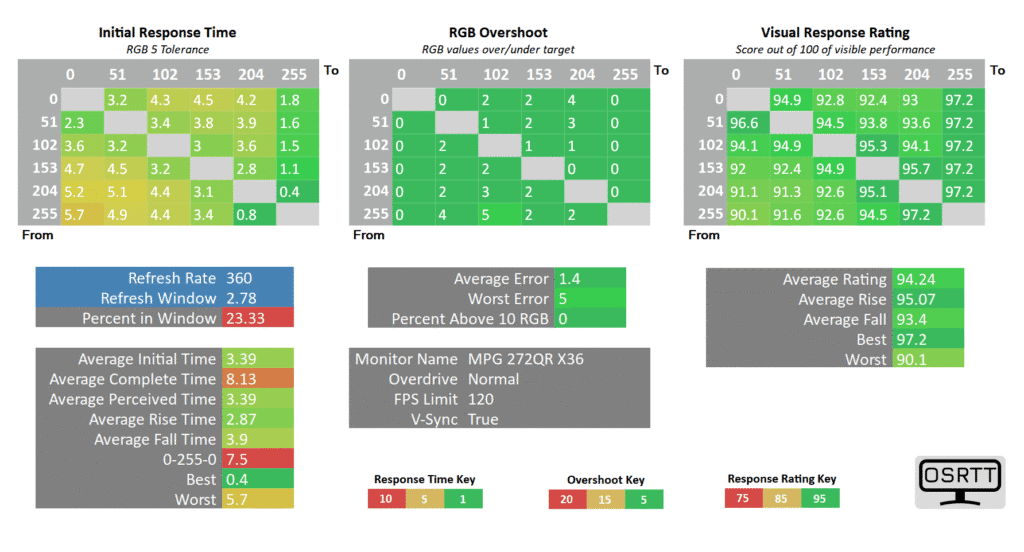
Thanks to the variable overdrive of the dedicated G-SYNC scaler, the Normal mode works great across the entire refresh rate range.
When G-SYNC Pulsar or ULMB2 are enabled, the overdrive settings are grayed out. We weren’t able to test the response times of this locked mode since OSRTT cannot measure response times when the backlight is strobing.
Overall, the response time performance is excellent as there’s no visible ghosting behind fast-moving objects regardless of the refresh rate, which you’ll be able to see in Blur Busters’ UFO ghosting test.
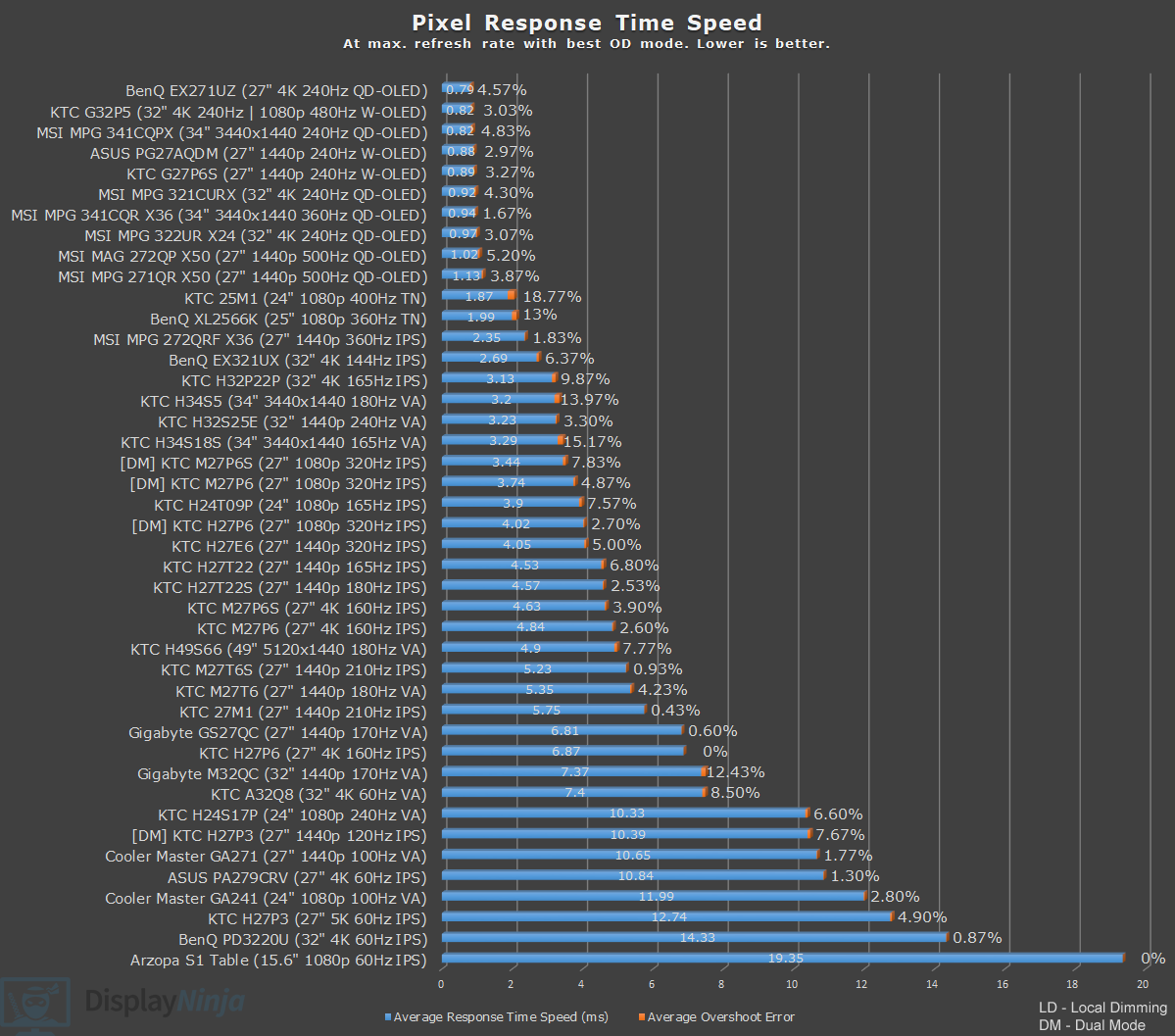
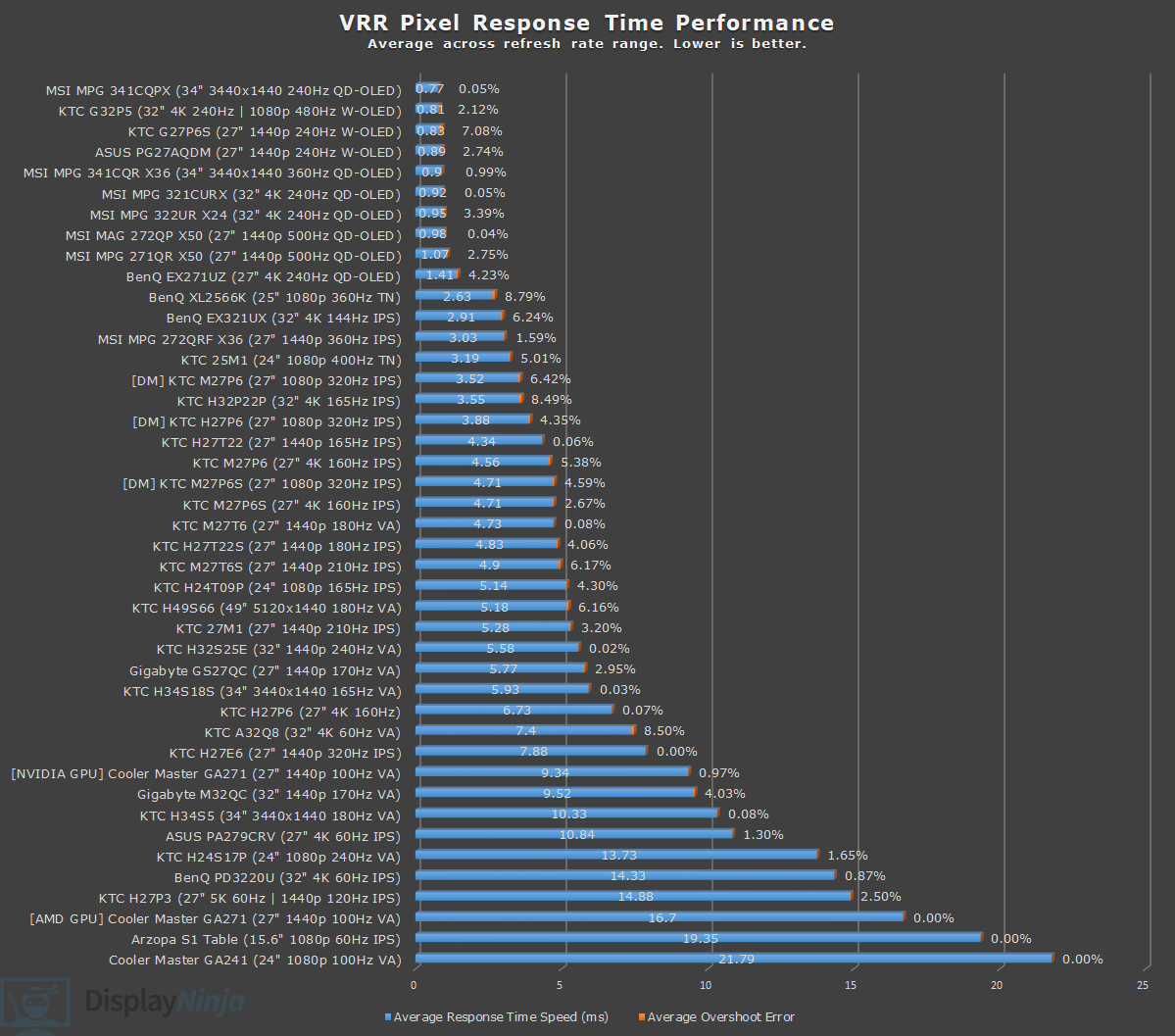
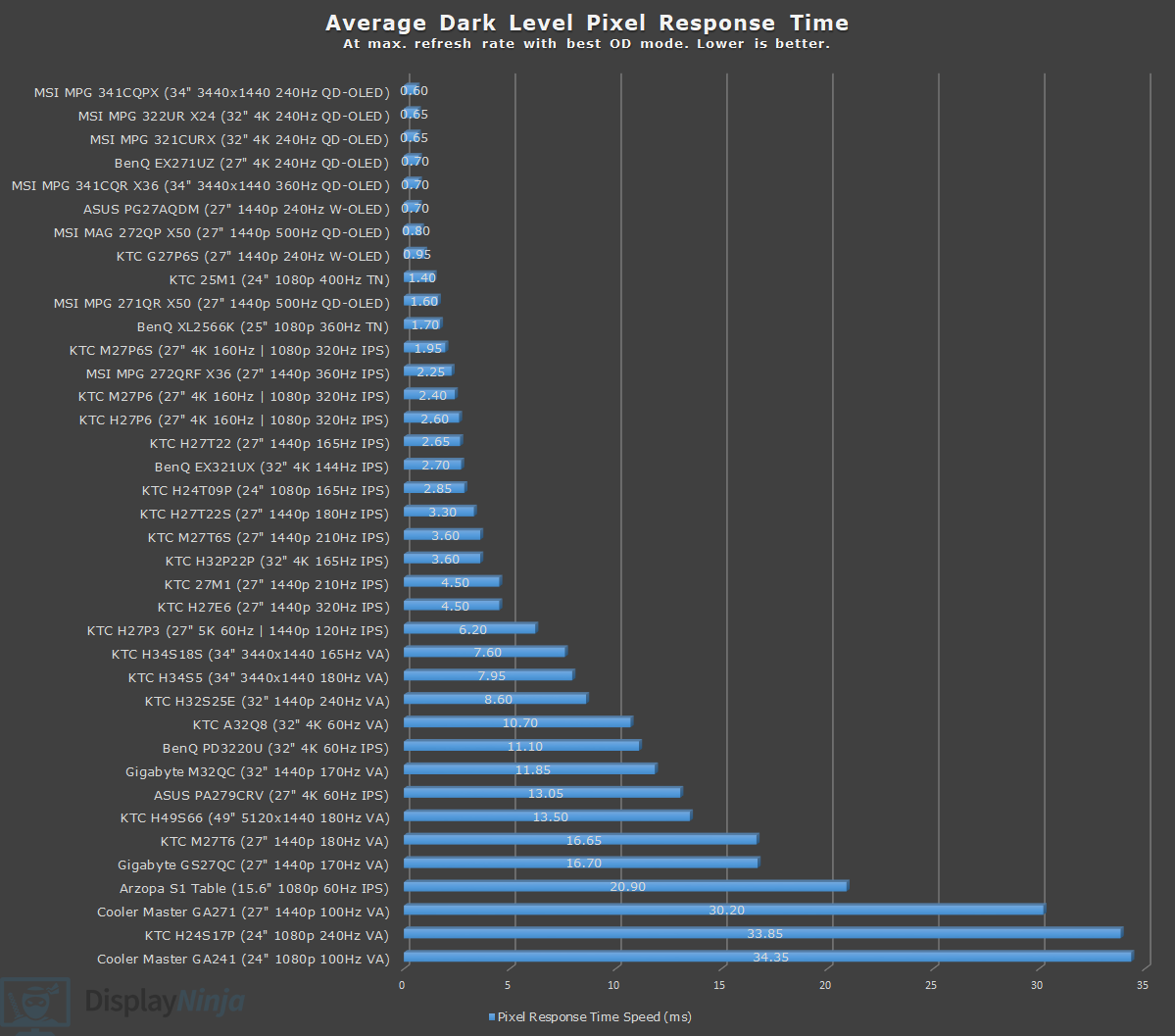
Motion Blur Reduction & Variable Refresh Rate
The MSI MPG 272QRF X36 has four operation modes: Normal, G-SYNC, Pulsar and ULMB2.
To enable G-SYNC Pulsar, you need to enable G-SYNC in NVCP (NVIDIA Control Panel) and set your refresh rate to either 360Hz or 240Hz. Then, make sure the G-SYNC Pulsar option is enabled in the OSD menu.
To enable ULMB2, G-SYNC needs to be disabled in NVCP and then ULMB2 enabled in the OSD menu. You can enable ULMB2 at 360Hz and 240Hz.
To enable ULMB2 at 120Hz or 60Hz, you need the newer v1.1.4 firmware version and to make sure the ‘Allow ULMB2 60Hz’ option in the OSD menu is enabled.
For regular VRR (variable refresh rate) performance without strobing, you just enable G-SYNC in NVCP and set Pulsar to ‘Off’ in the OSD menu.
Finally, for normal operation without VRR or backlight strobing, you need to disable G-SYNC in NVCP and set ULMB2 to ‘Off’ in the OSD menu.
For G-SYNC Pulsar, you will need an NVIDIA RTX GPU (30-series or newer, though we didn’t have an RTX 20-series GPU to test if it works). With other cards, you can only use ULMB2 or regular operation (VRR on or off).
Blur Busters UFO Ghosting Test
G-SYNC Pulsar is an impeccable backlight strobing implementation. It allows for simultaneous VRR and backlight strobing performance across a wide refresh rate range with no brightness penalty and minimum strobe crosstalk (image duplications) visual artifacts.
Some manufacturers have attempted this on LCDs via implementations such as Aim Stabilizer Sync by Gigabyte or ASUS’ ELMB-Sync, but the results haven’t been very good.
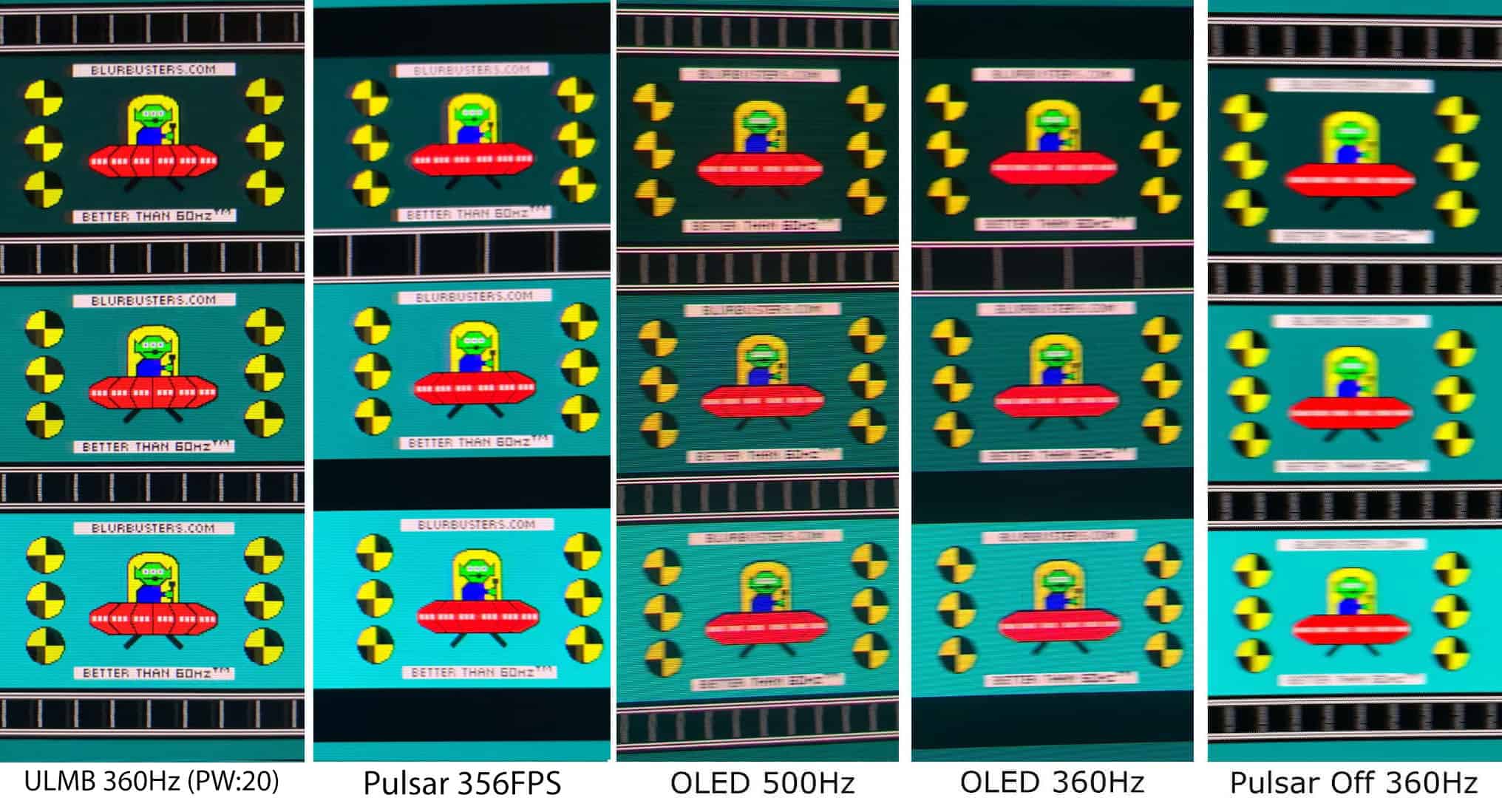
Blur Busters’ ghosting UFO test photos speak for themselves. We used the 1920 Pixels Per Sec test with shutter speed set to 1/4 of the refresh rate. For testing Pulsar at lower frame rates, we used the SmoothFrog application.
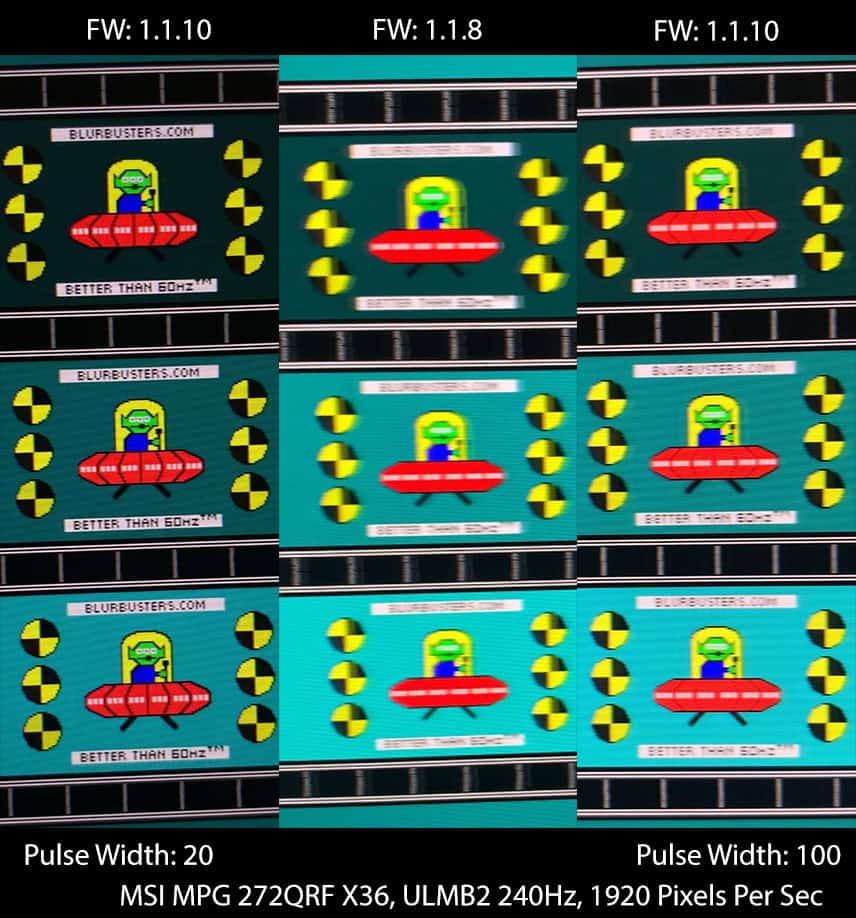
Here’s how the latest v1.1.10 firmware improves backlight strobing performance of ULMB2 and Pulsar at 360Hz.
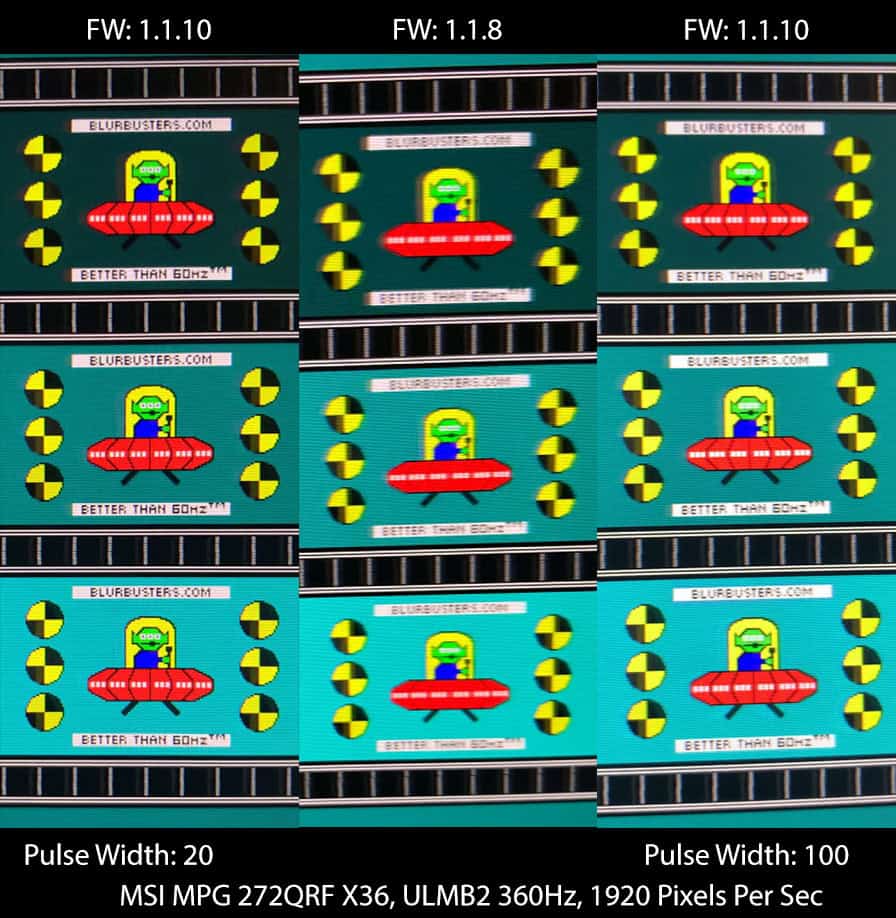
With the 1.1.10 firmware, you can now change Pulse Width of ULMB2 at 240Hz and 360Hz, just like you could at 60Hz and 120Hz on previous firmware versions.
Even at Pulse Width of 100 with maximum brightness, motion clarity is now improved!
G-SYNC Pulsar performance is also improved. Sadly, you cannot adjust Pulse Width here for even clearer motion at the cost of image brightness (at least not yet).
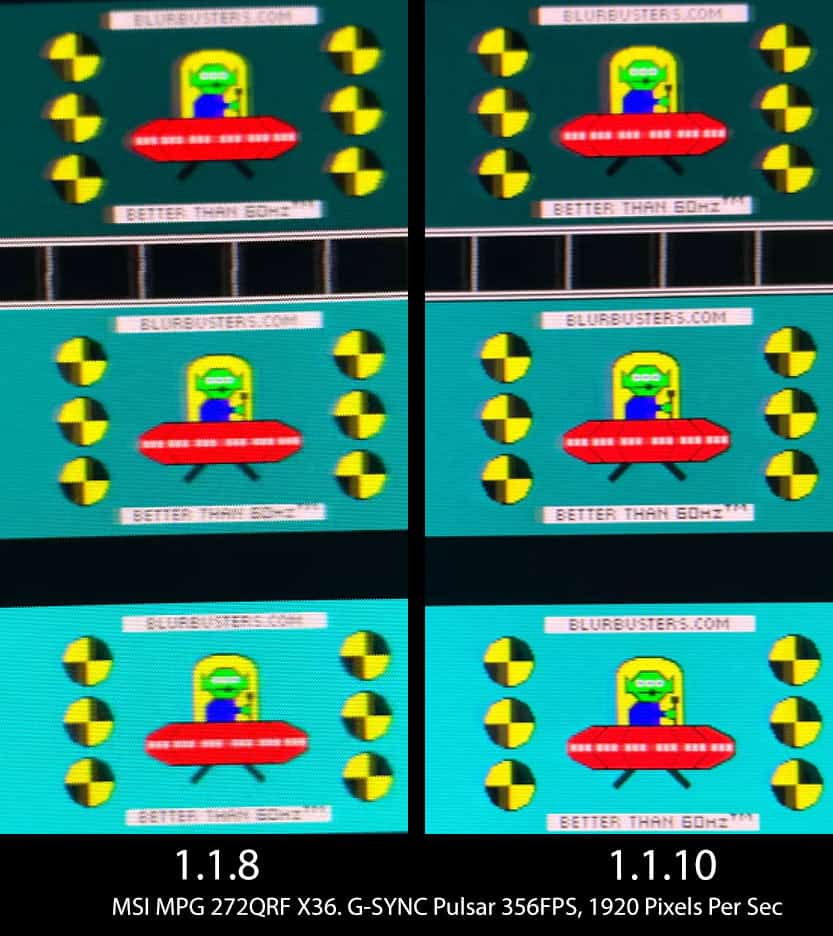
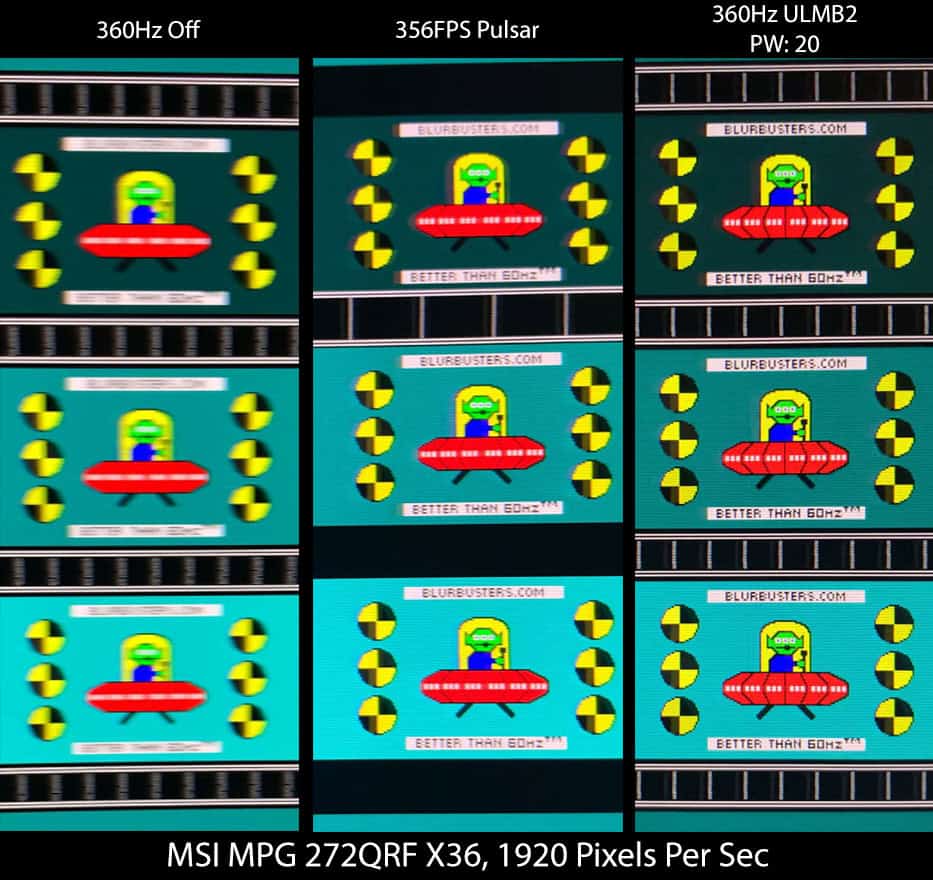
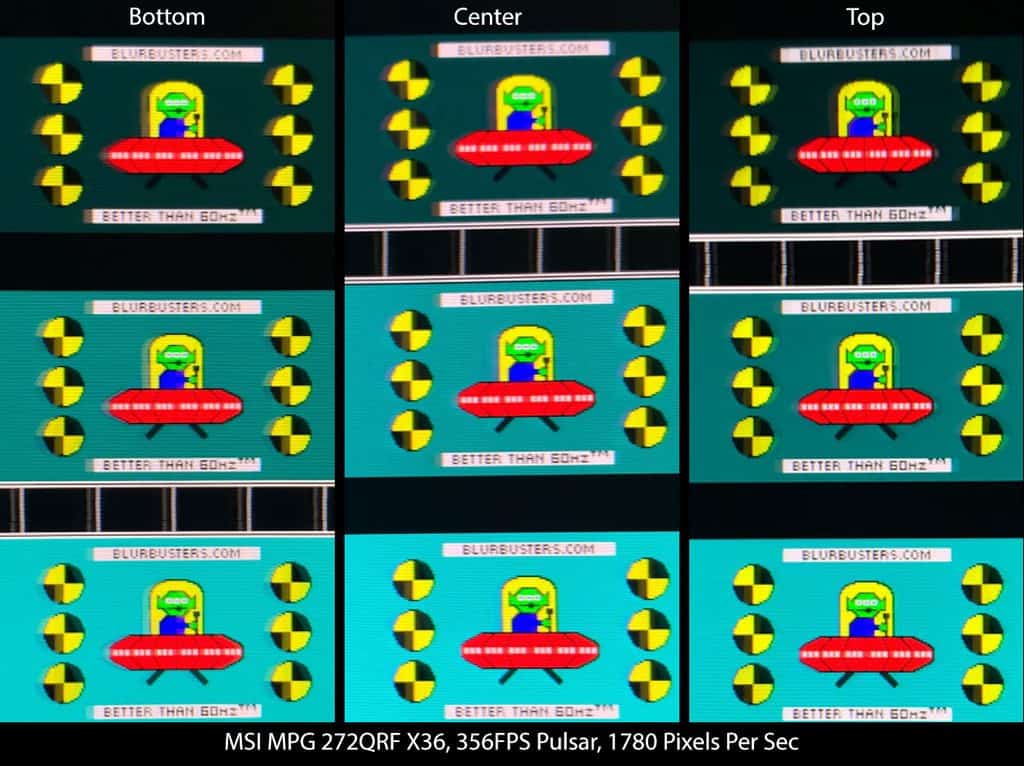
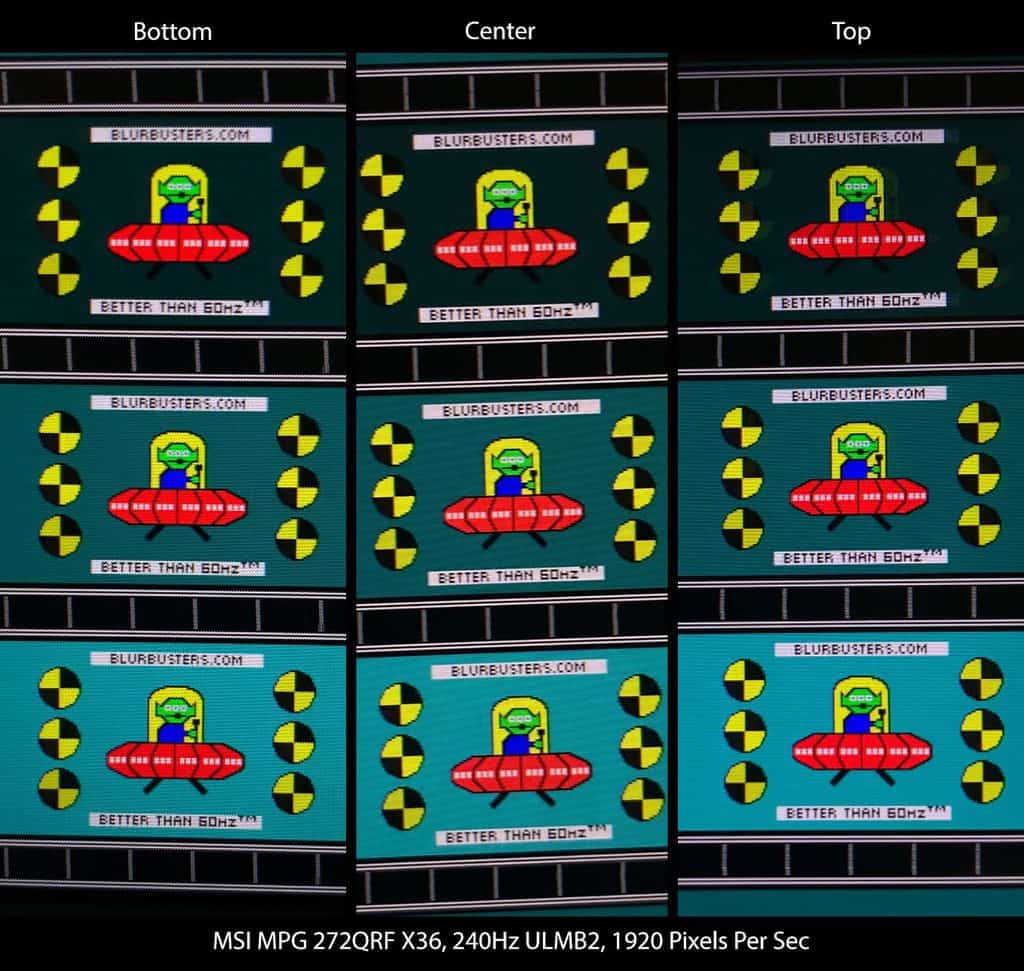
Next, here are the strobe crosstalk photos using ULMB2 and Pulsar. G-SYNC Pulsar has a bit more crosstalk throughout the screen than ULMB2, but it’s negligible in both scenarios.
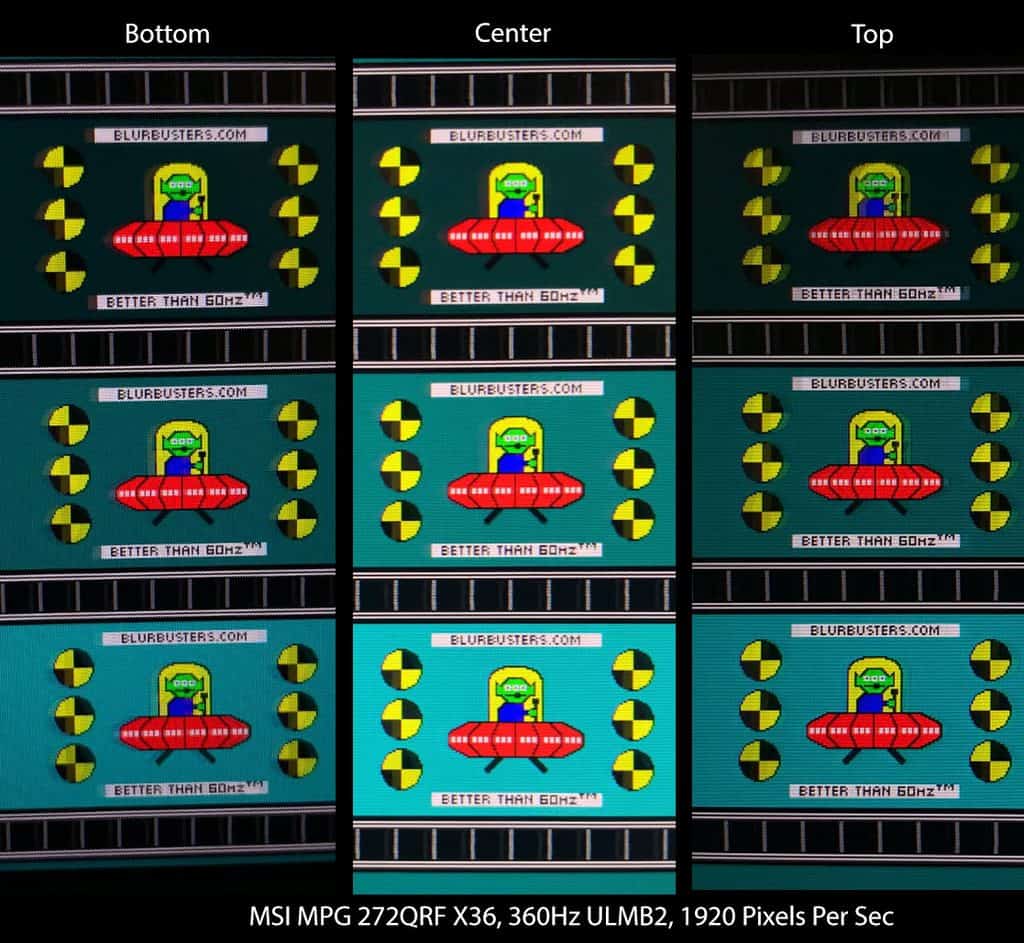
Below you can see crosstalk when using Pulsar at 356FPS.
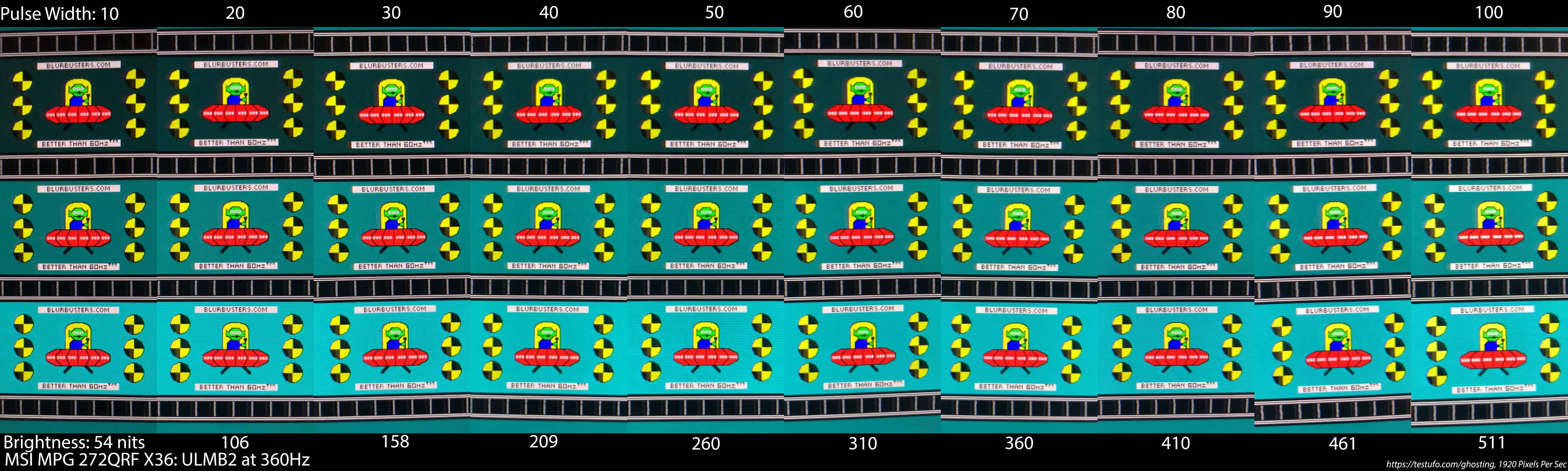
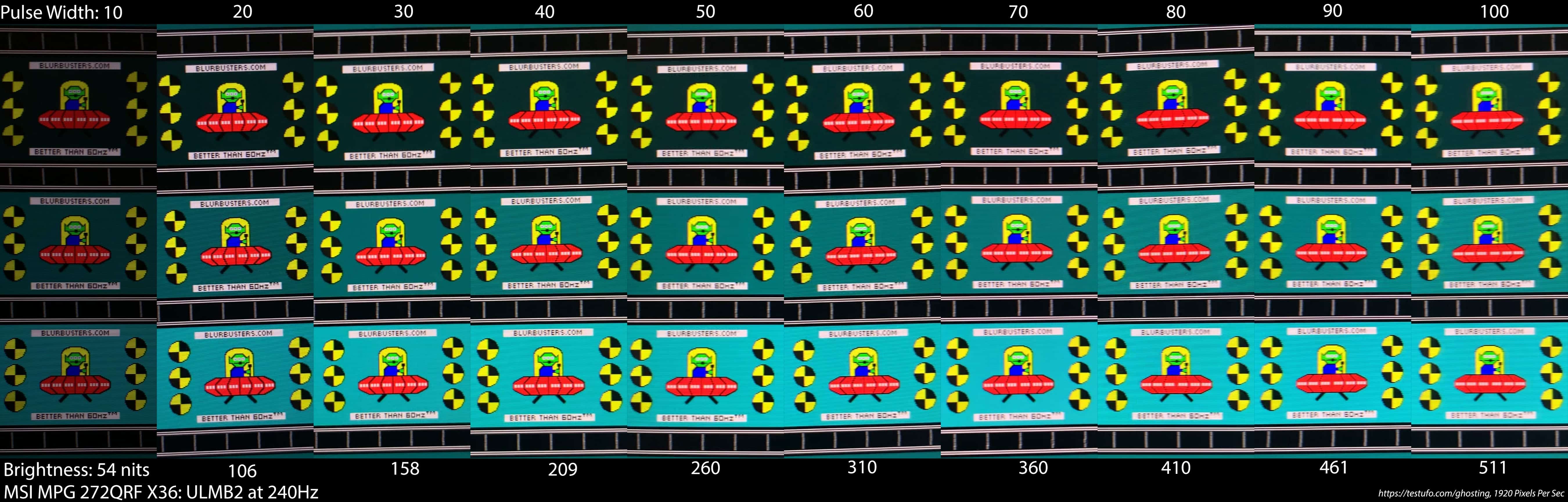
Finally, here is the pursuit photo of different Pulse Width settings using ULMB2.
Here are the results at 240Hz using ULMB2.
Below you can see the difference between 1.1.8 and 1.1.10 firmware versions when using Pulsar at 240FPS.
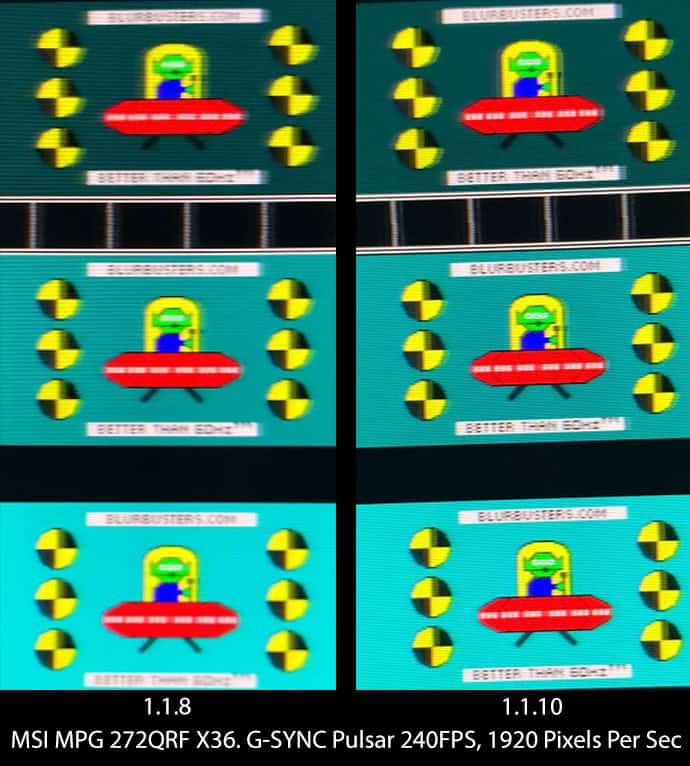
We’re seeing the same improvements in motion clarity at 240Hz as we did at 360Hz, which is great news.
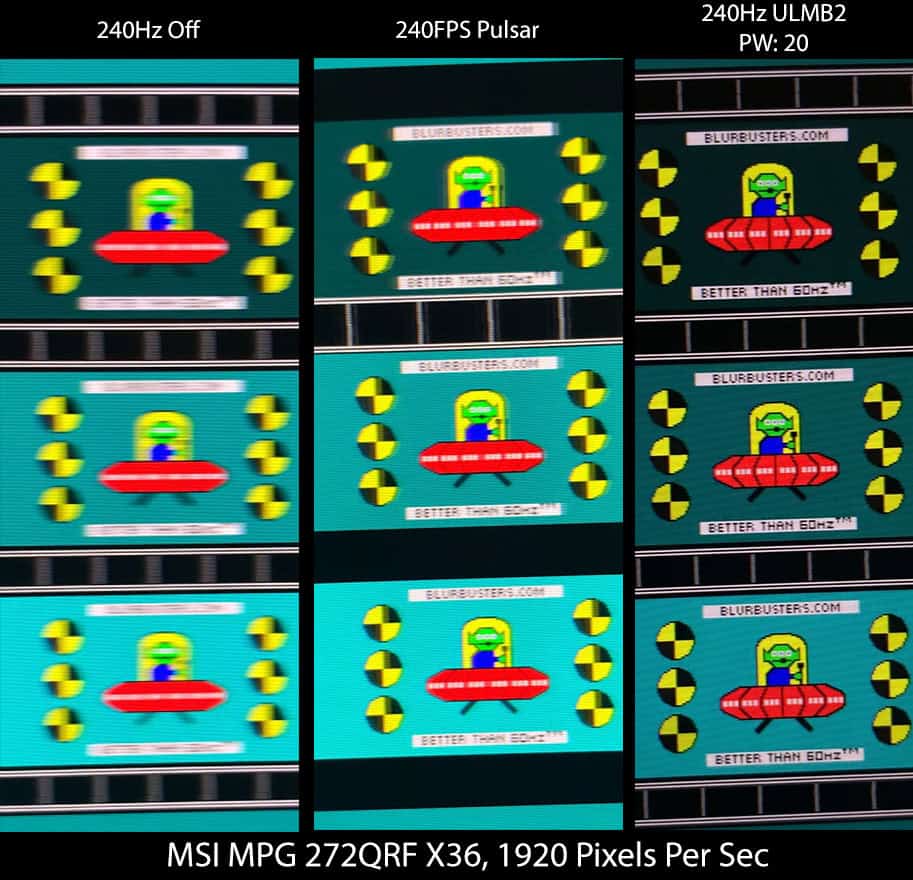
Below, you can see strobe crosstalk at 240Hz. Again, ULMB2 is clearer and has less image duplication, but the amount of crosstalk is tolerable and even negligible.
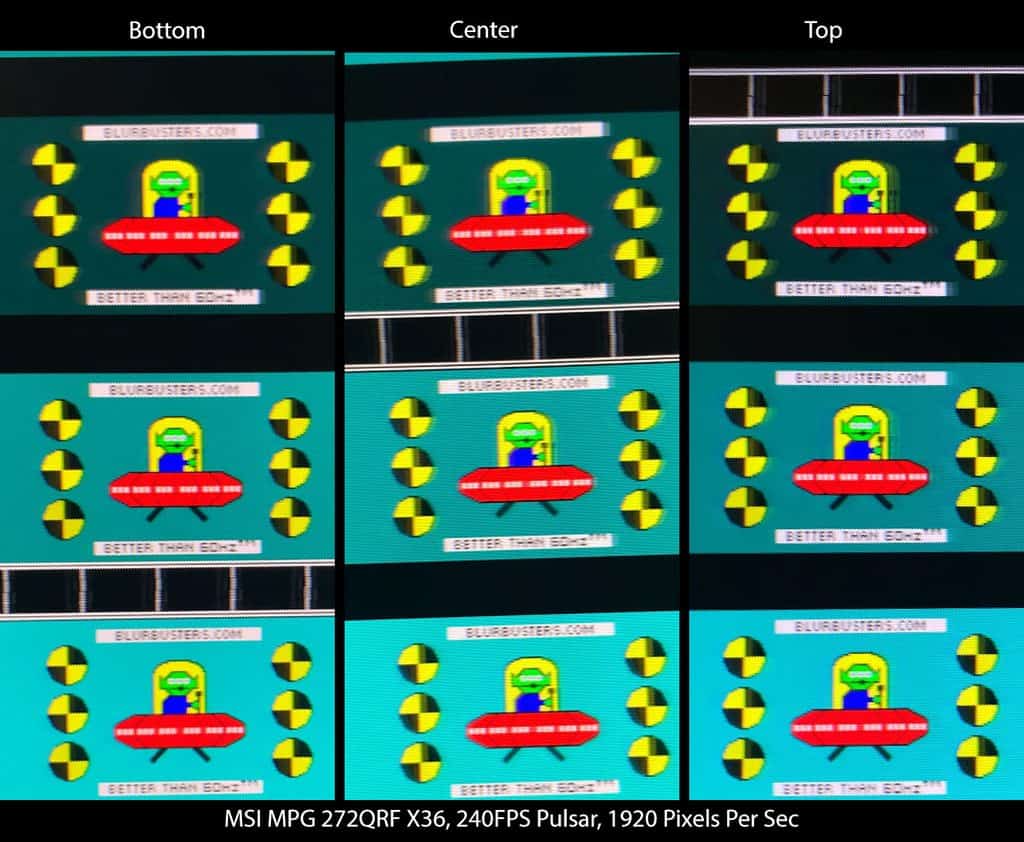
Here you can see strobe crosstalk when using ULMB2 at 240Hz.
Here is the pursuit photo of different Pulse Width settings using ULMB2 at 240Hz.
You cannot enable Pulsar at a fixed 120Hz refresh rate since the VRR range would be too narrow. However, if you enable Pulsar at 360Hz or 240Hz, and your frame rate drops to 120FPS, the screen will be running Pulsar at 120Hz.
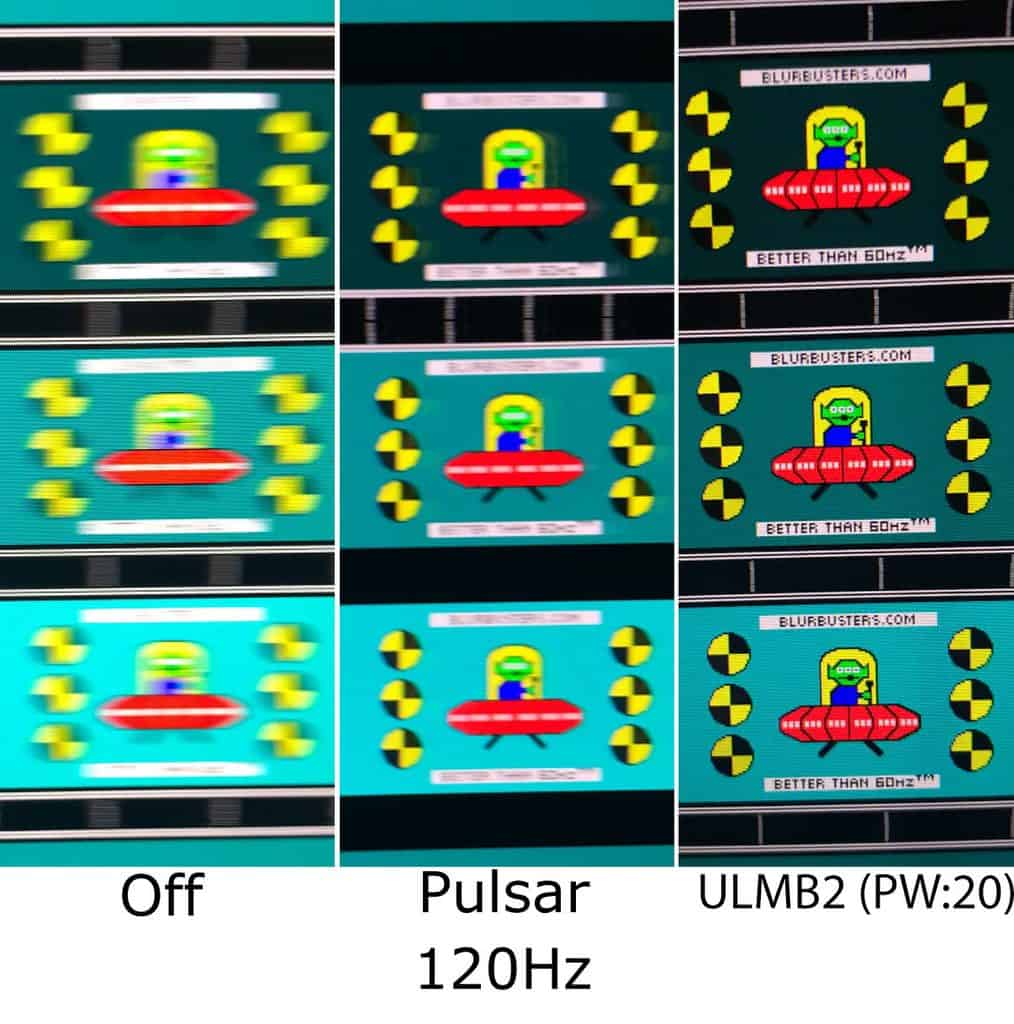
With the old firmware, you cannot enable ULMB2 at 60Hz or 120Hz. Updating the firmware adds the ‘Allow ULMB2 60Hz’ and ‘Pulse Width’ options to the OSD menu.
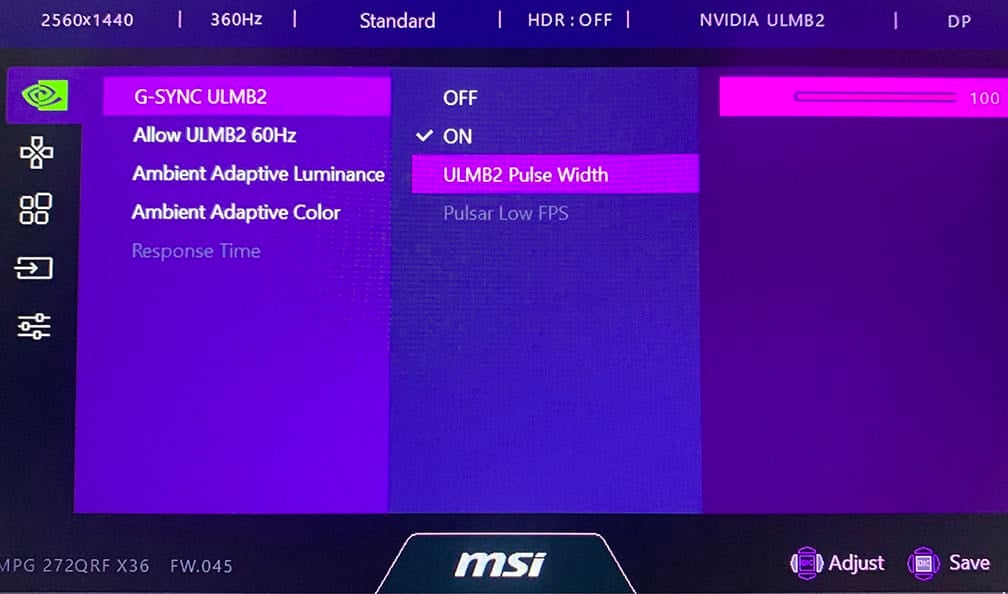
Once ‘Allow ULMB2 60Hz’ is enabled, you can use ULMB2 at 60Hz and 120Hz.
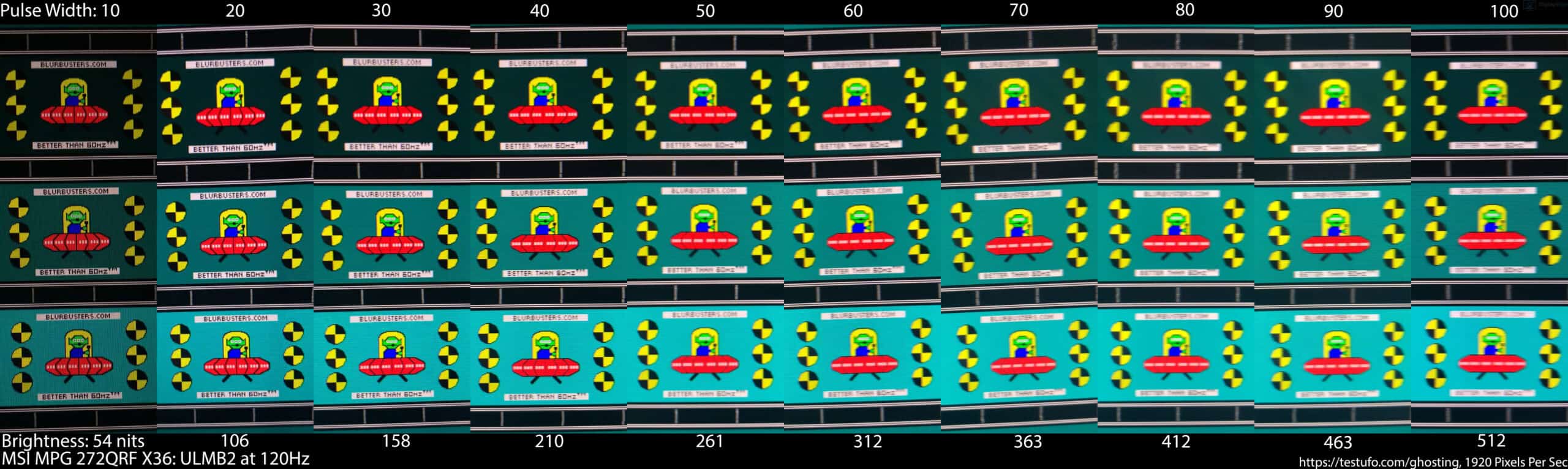
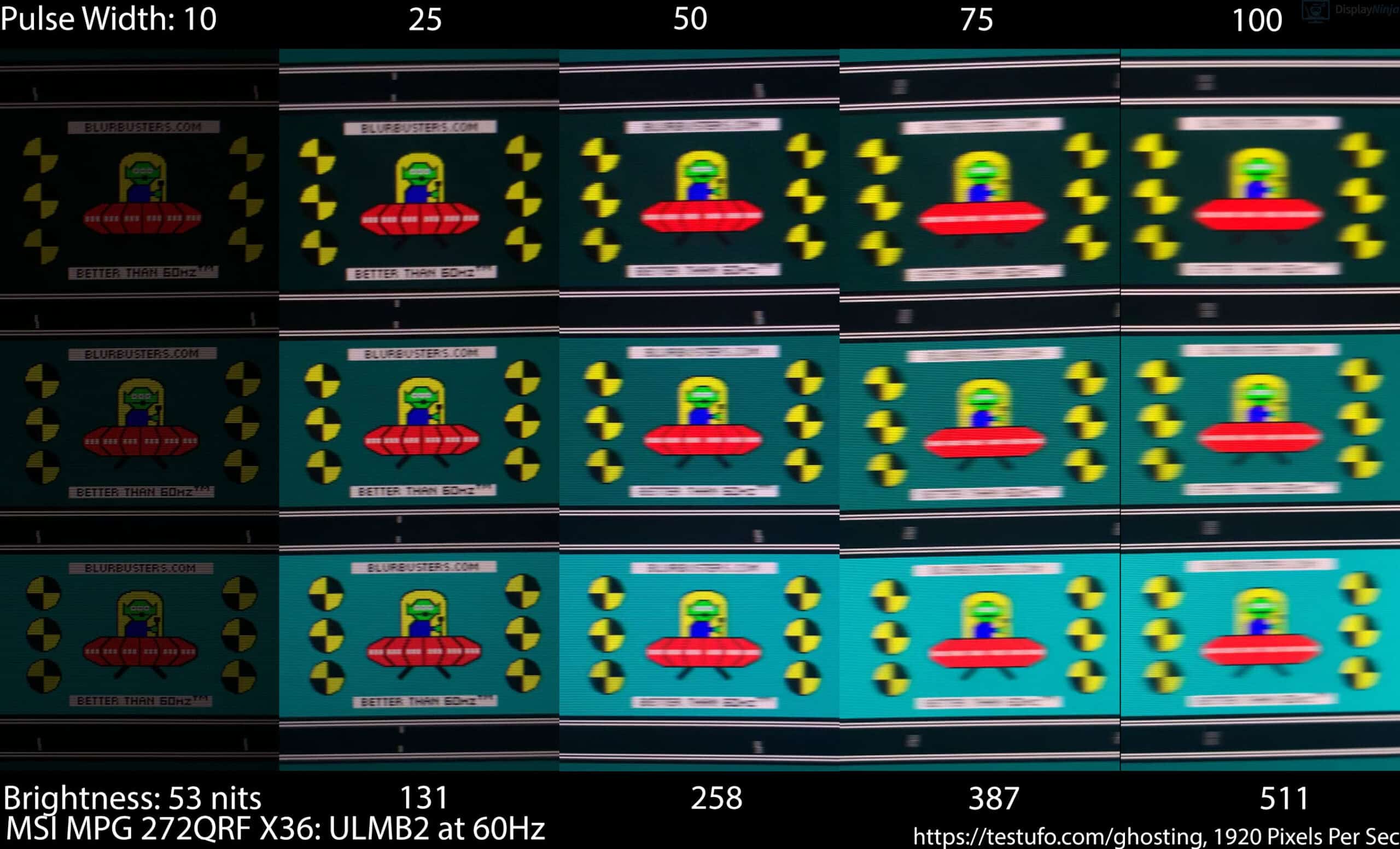
The ULMB2 Pulse Width option allows you to adjust the trade-off between image clarity and brightness at 60Hz and 120Hz.
Here’s how the 1.0.8 firmware improved (from 1.06) backlight strobing at 120Hz by replacing the 120Hz rolling-scan implementation with global flash strobing.
Even with Pulse Width set to 100 (maximum brightness), the image is significantly clearer and free of strobe crosstalk.
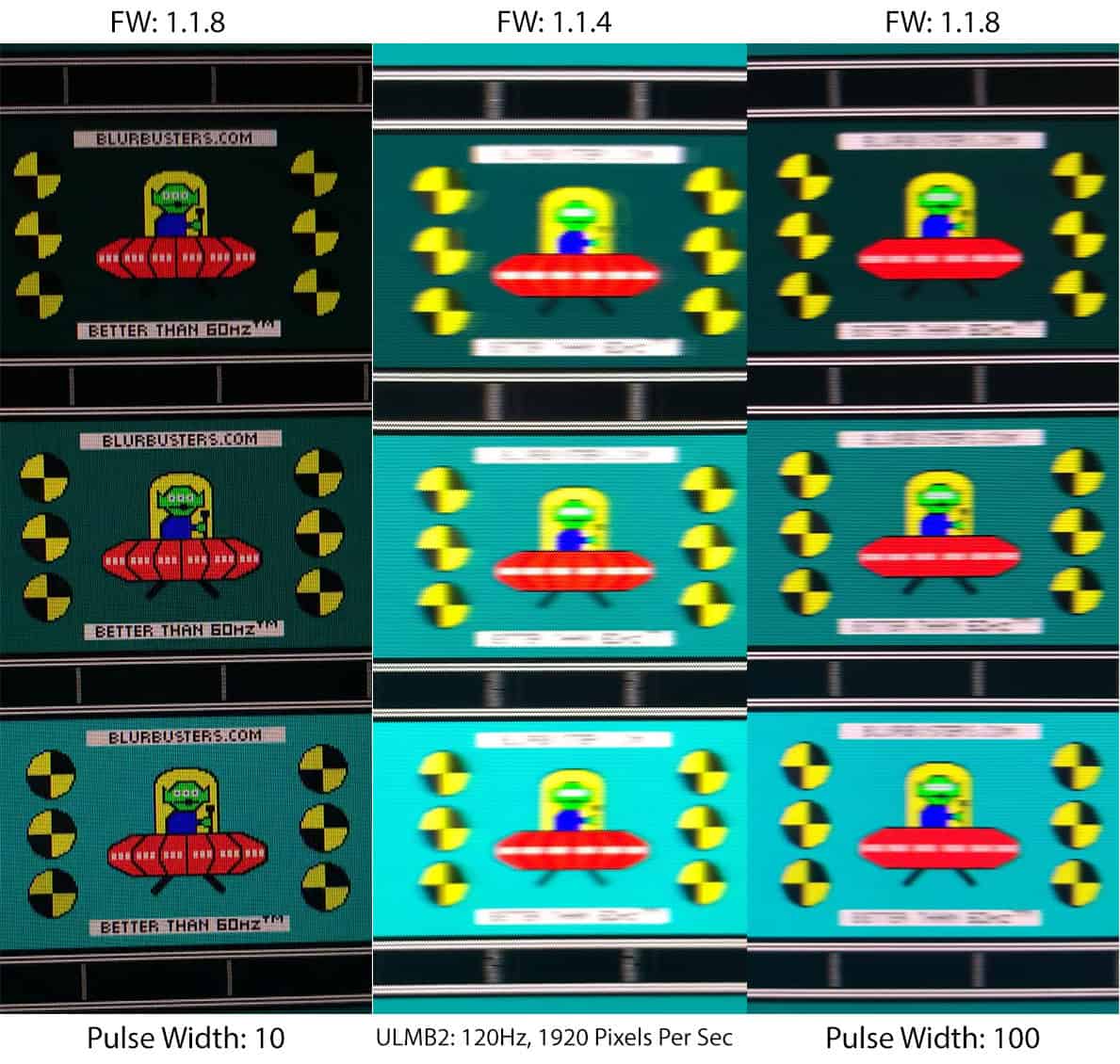
The image is clear across the entire screen. There’s no strobe crosstalk regardless of the refresh rate (60Hz or 120Hz) or Pulse Width.
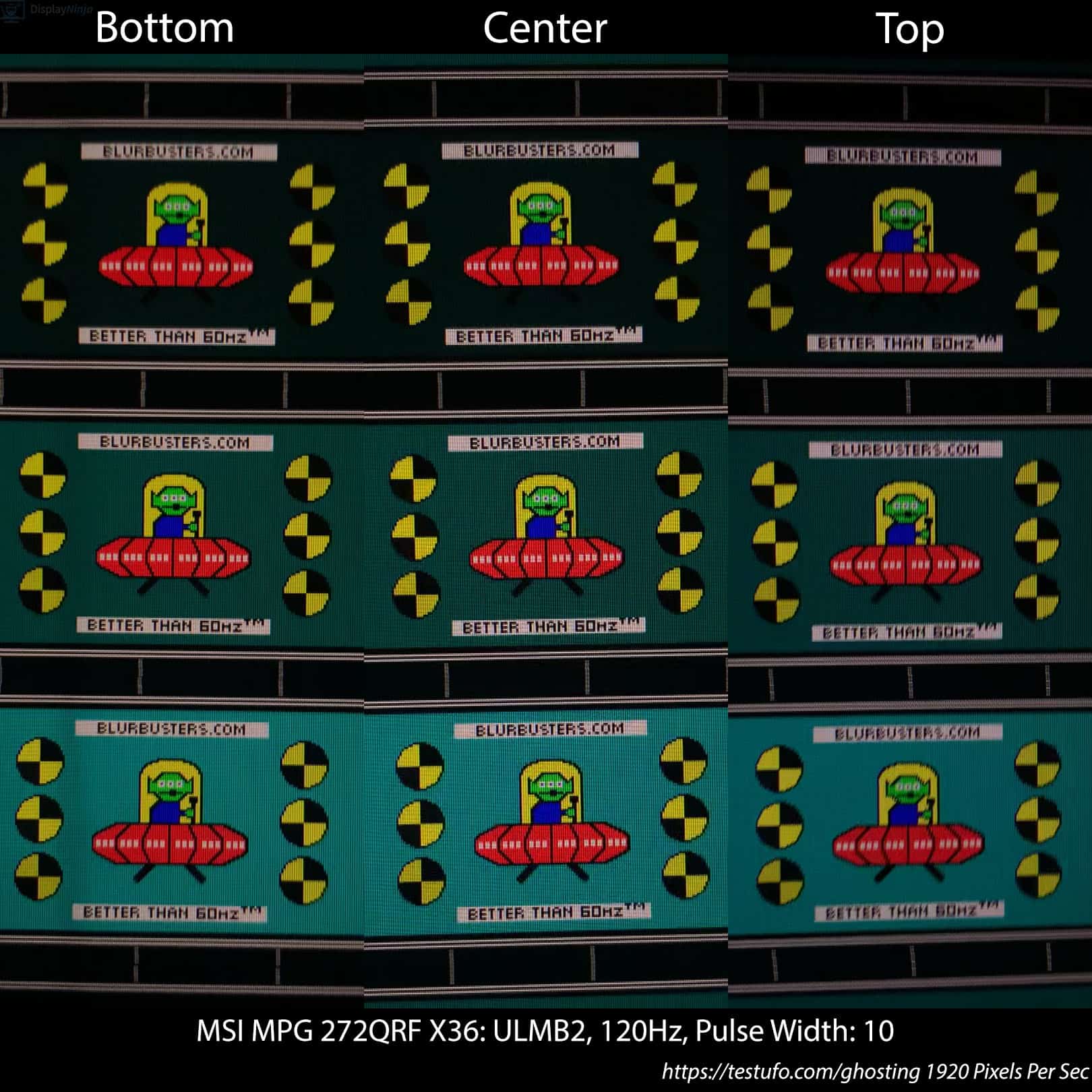
Here’s how image clarity looks at different Pulse Width settings at 120Hz.
The image below shows 60Hz strobing performance at different Pulse Width settings.
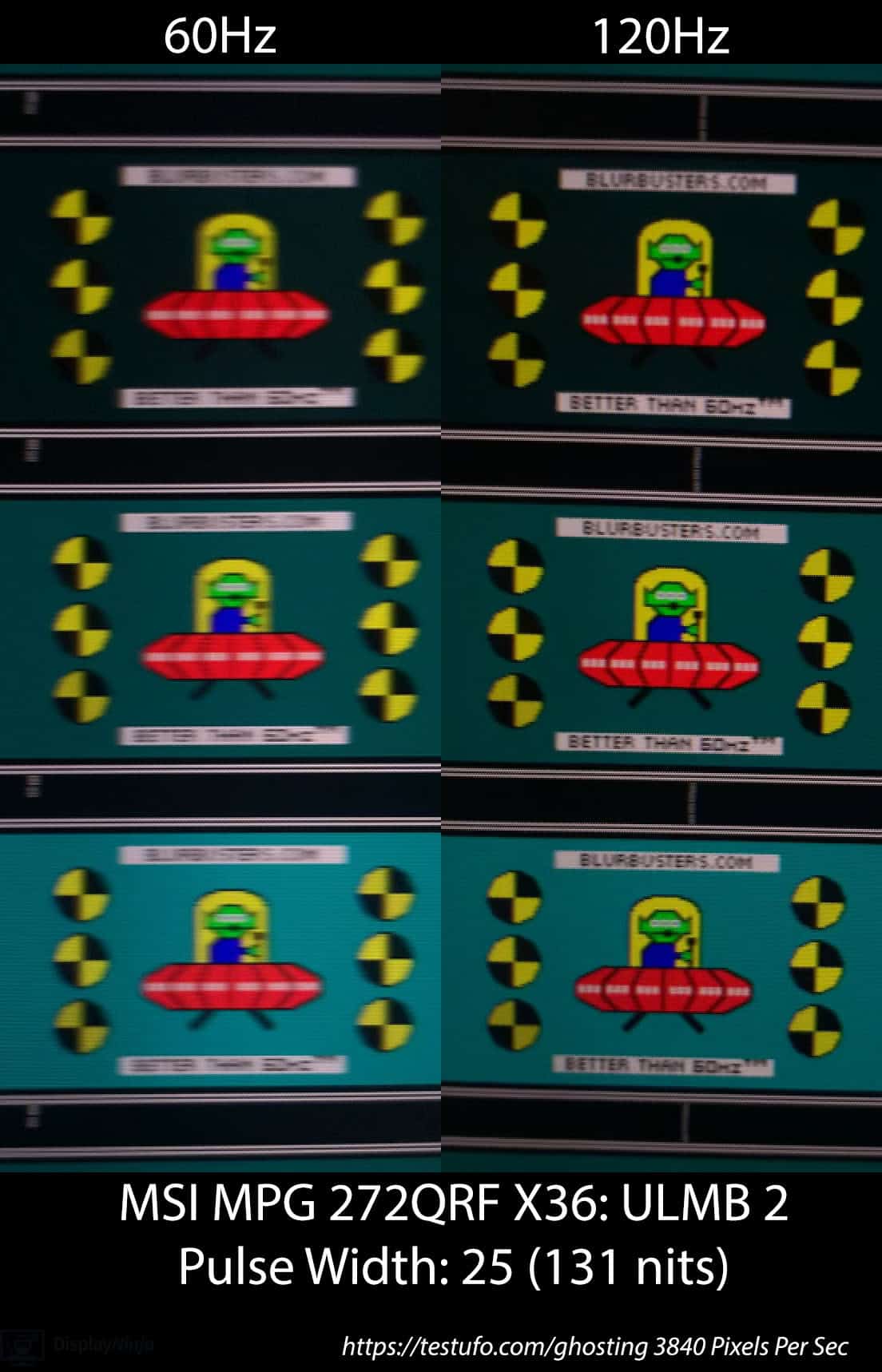
We also captured strobing performance at 60Hz and 120Hz using the even faster 3840 Pixels Per Second test.
You should also keep in mind that when strobing at 60Hz, flickering is very noticeable, especially on static images, so those sensitive to it will likely find it unusable. Here’s how 60Hz strobing looks shot at 240FPS in slow motion
At 120Hz, the flickering isn’t noticeable on static images. The 240 FPS slow-motion footage shows the same global-flash strobing technology in action.
In the G-SYNC Pulsar settings, you can adjust ‘Pulsar Low FPS’. By default, it’s set to 90, but you can decrease it to 75. However, in our testing, Pulsar would disengage once the frame rate dropped to around 80 FPS, sometimes causing brief screen blackouts.
So, for games where you cannot maintain over 80FPS consistently, we don’t recommend using Pulsar unless you use frame generation technology.
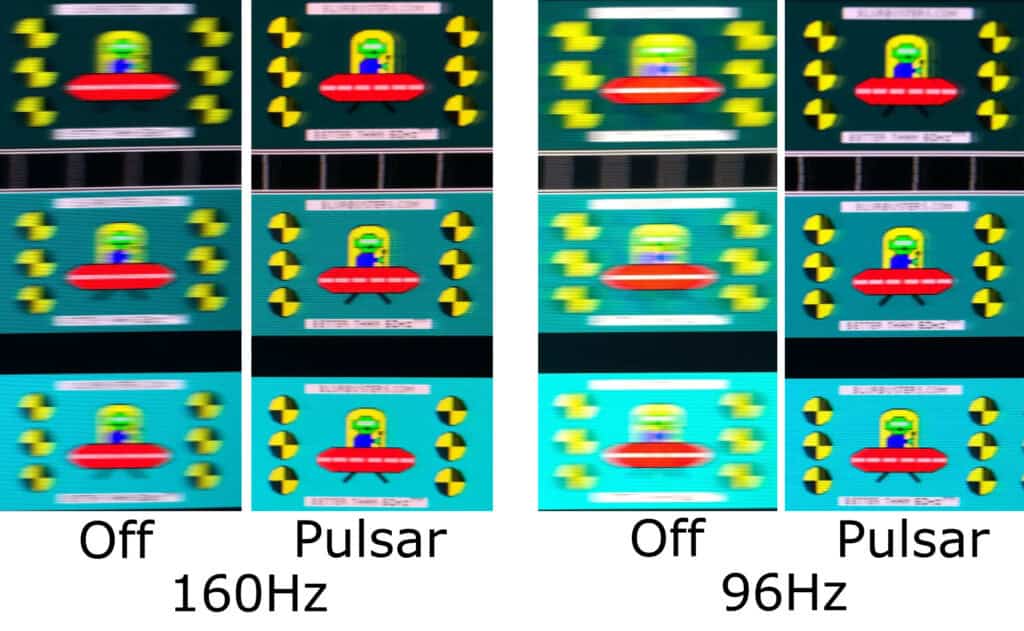
Some users have reported that the 1.0.8 Pulsar firmware added ghosting between 90 and 180FPS, which wasn’t present in the older firmware. However, we weren’t able to reproduce this. Here are the Blur Busters UFO pursuit photos at 160FPS and 96FPS.
Finally, let’s look at the brightness penalty when using Pulsar and ULMB2.
| Max. Brightness | 360Hz | 240Hz | 120Hz | 60Hz |
| Pulsar | 520-nits | 514-nits | N/A | N/A |
| Pulse Width / Refresh Rate | 10 | 20 | 30 | 40 | 50 | 60 | 70 | 80 | 90 | 100 |
| 60Hz | 53 nits | 105 nits | 156 nits | 207 nits | 258 nits | 309 nits | 359 nits | 409 nits | 460 nits | 511 nits |
| 120Hz | 54 nits | 106 nits | 158 nits | 210 nits | 261 nits | 312 nits | 363 nits | 412 nits | 463 nits | 512 nits |
| 240Hz | 54 nits | 106 nits | 158 nits | 209 nits | 260 nits | 311 nits | 362 nits | 412 nits | 462 nits | 512 nits |
| 360Hz | 54 nits | 106 nits | 158 nits | 209 nits | 260 nits | 310 nits | 360 nits | 410 nits | 461 nits | 511 nits |
Here’s how the MSI MPG 272QRF X36 compares to the MSI MPG 271QR X50 with a 500Hz QD-OLED panel, also shot at 1920 Pixels Per Sec.
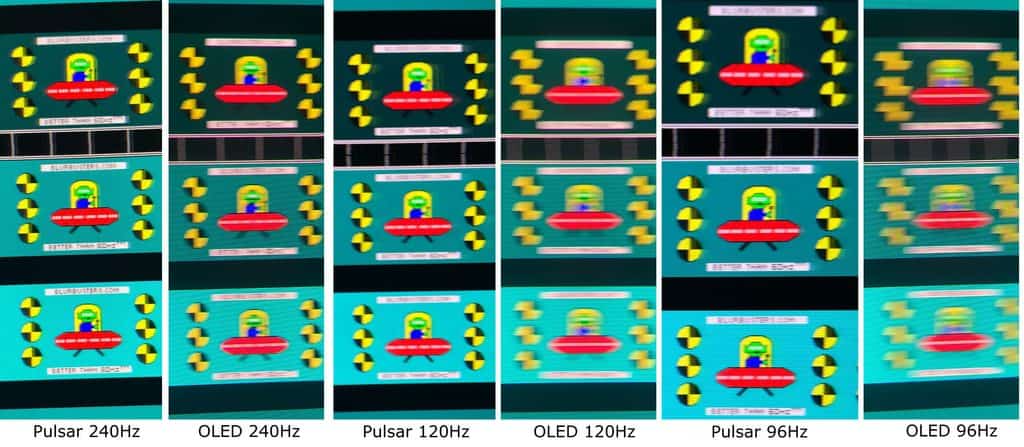
Below, you can see how Pulsar compares to OLED at lower refresh rates.
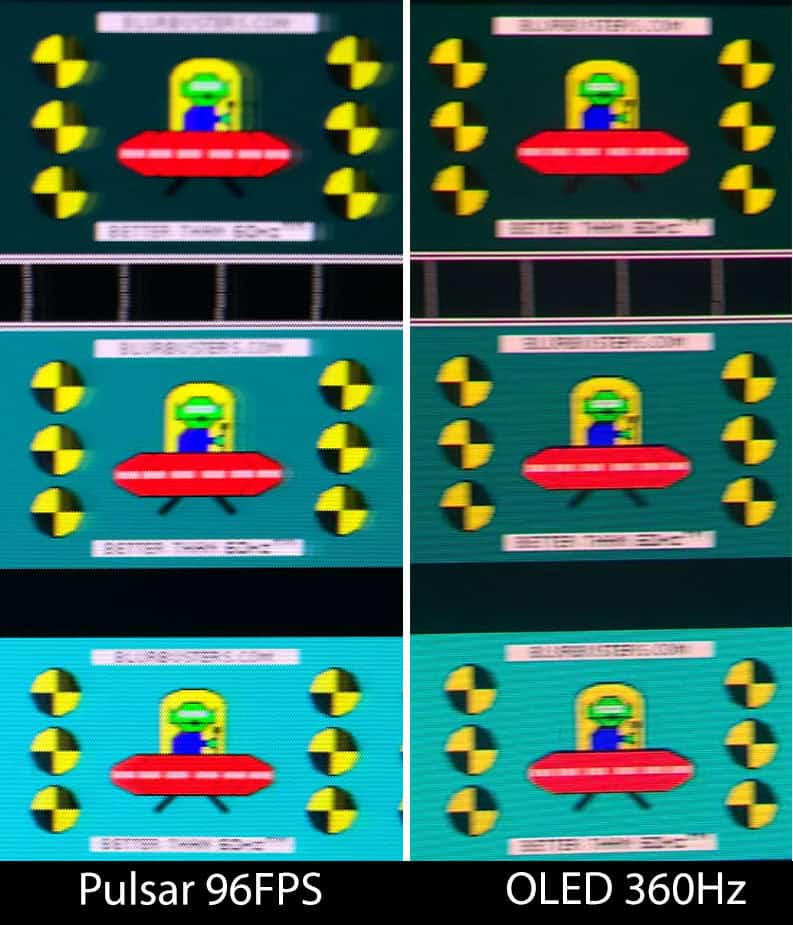
According to NVIDIA, G-SYNC Pulsar delivers up to four times the effective motion clarity compared to standard sample-and-hold operation.
When we compare Blur Busters UFO pursuit photos, we can see how Pulsar at 96FPS does indeed look similar to OLED at 360Hz, for instance.
Latency (v1.0.6)
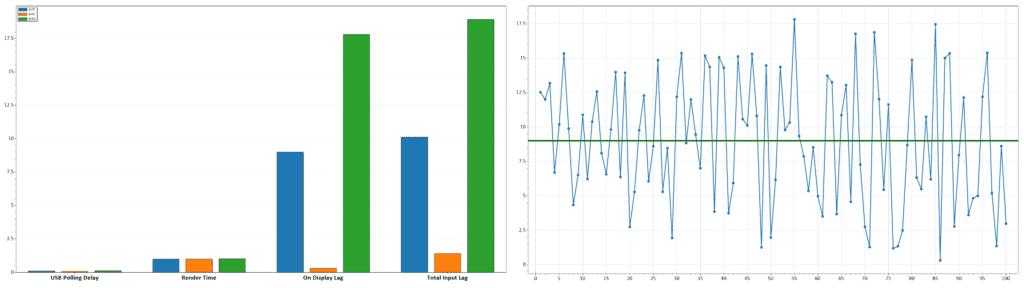
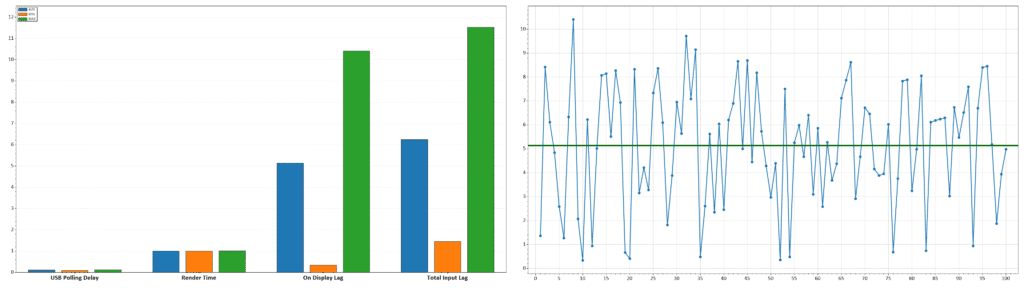
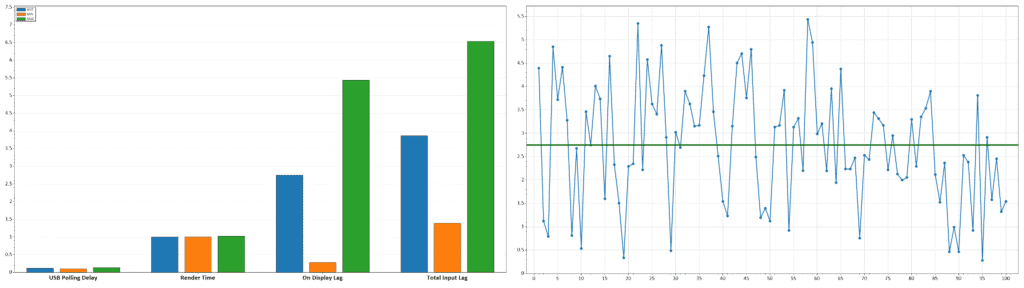
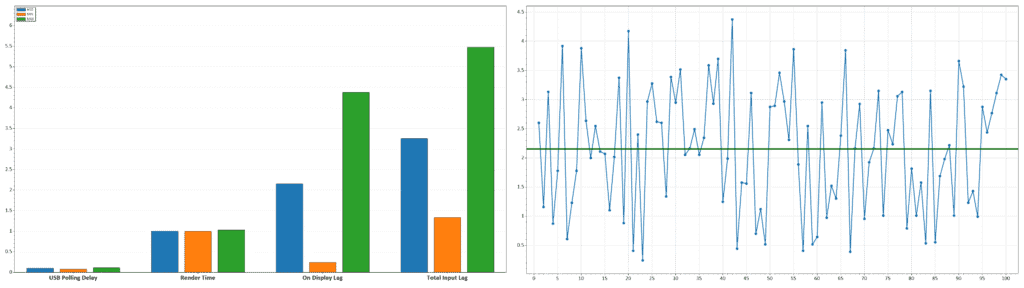
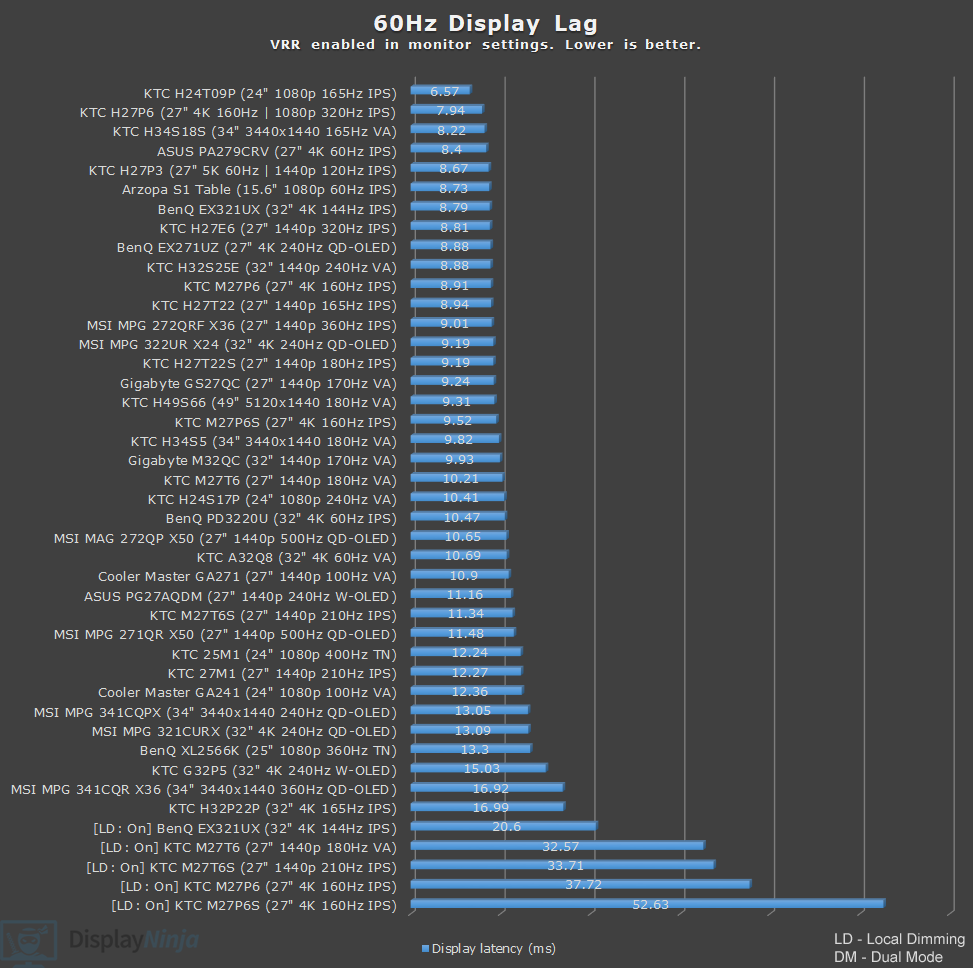
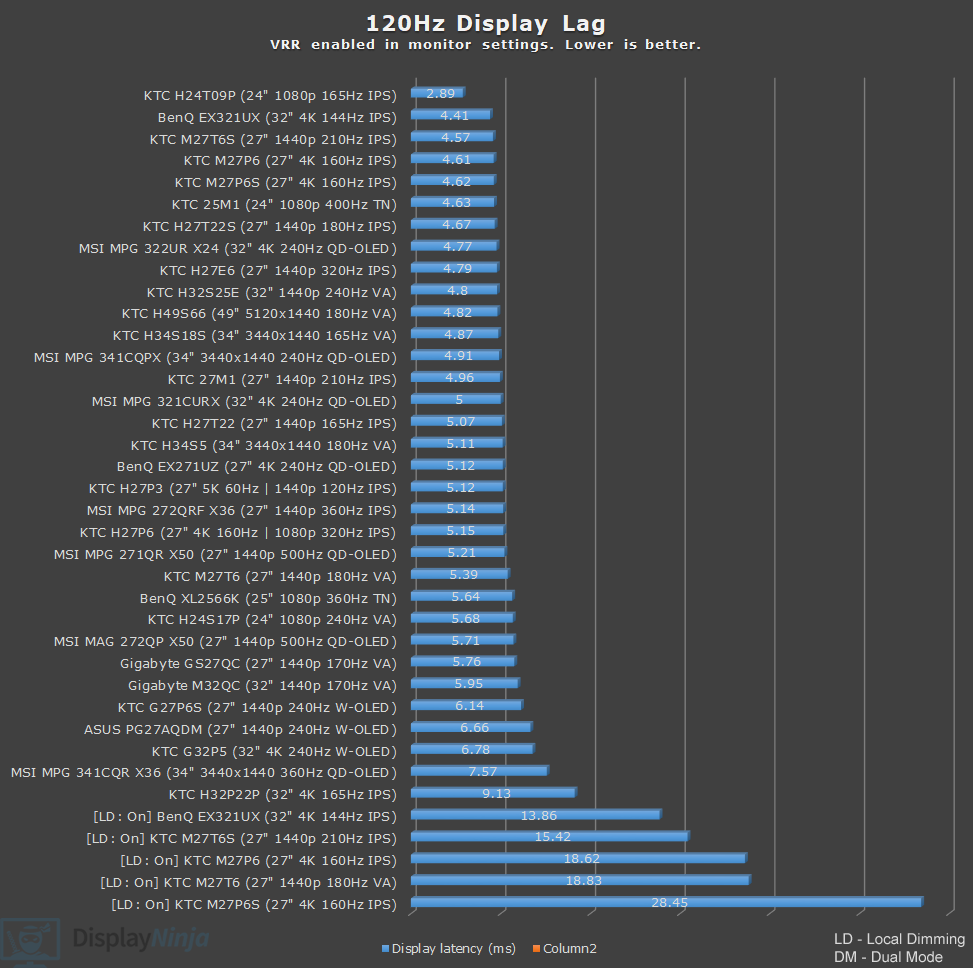
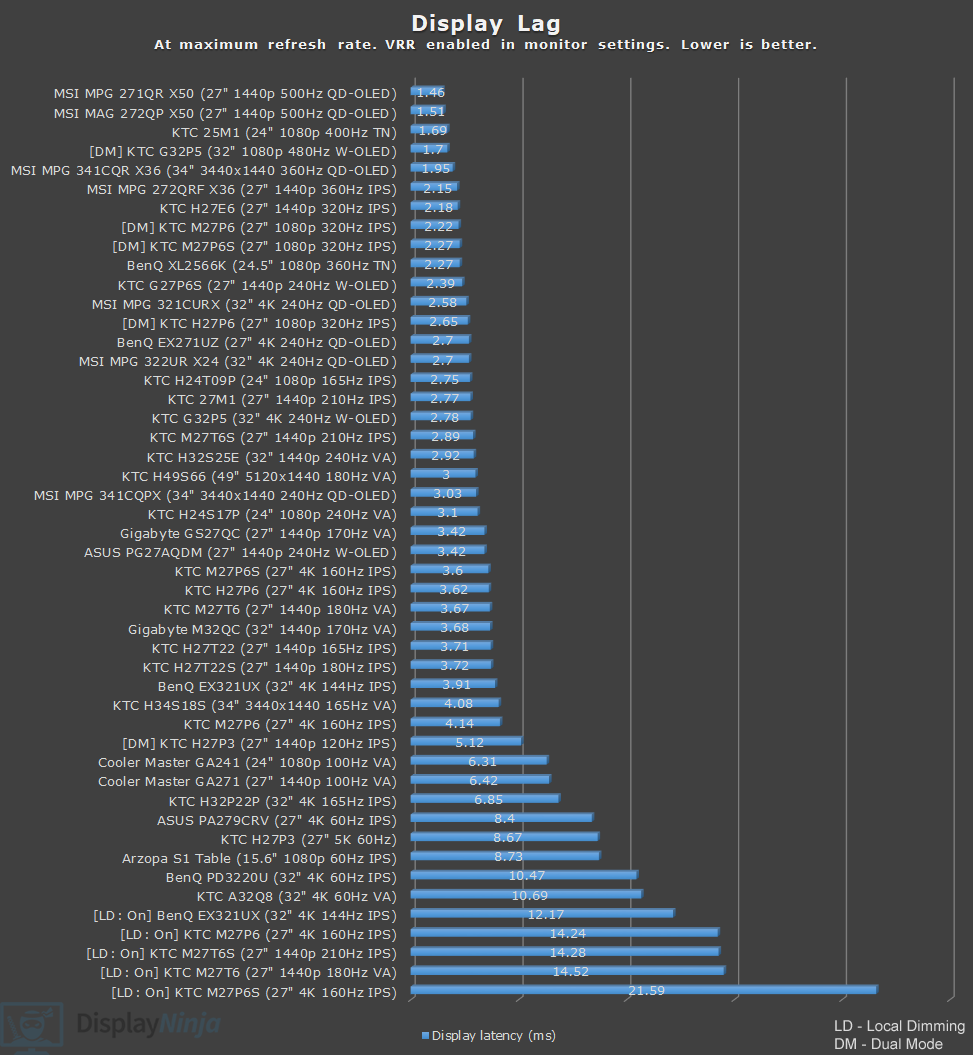
With G-SYNC Pulsar and ULMB2 disabled, we measured display latency of 2.15ms at 360Hz, 2.75ms at 240Hz, 5.14ms at 120Hz, and 9.01ms at 60Hz.
These are all excellent results with no perceptible delay between your actions and the result on the screen.
Here’s how latency increases when we enable ULMB2 or Pulsar. Sadly, we weren’t able to measure latency at 60Hz with ULMB2 enabled due to heavy flickering.
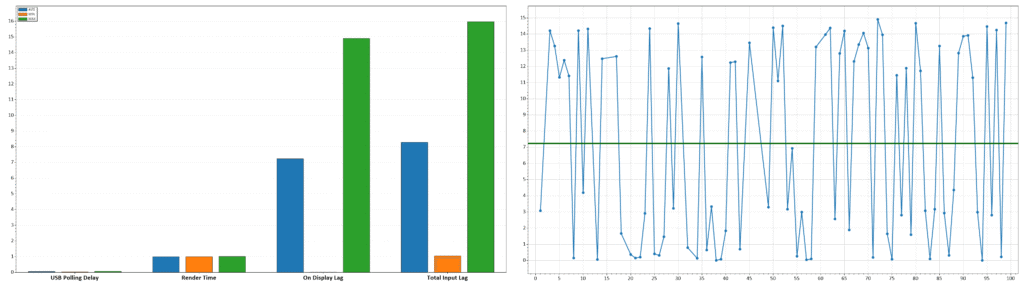
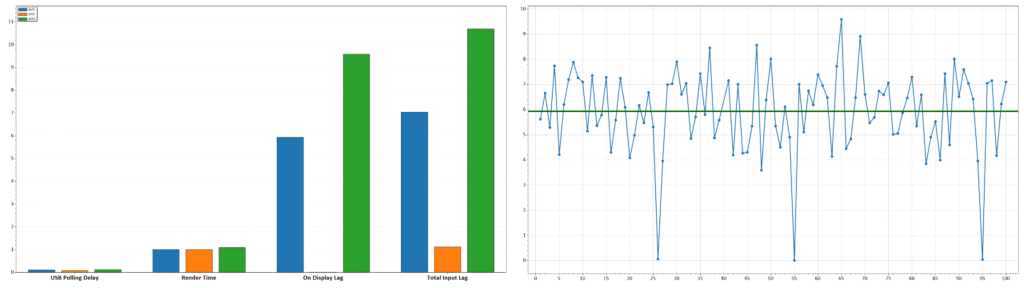
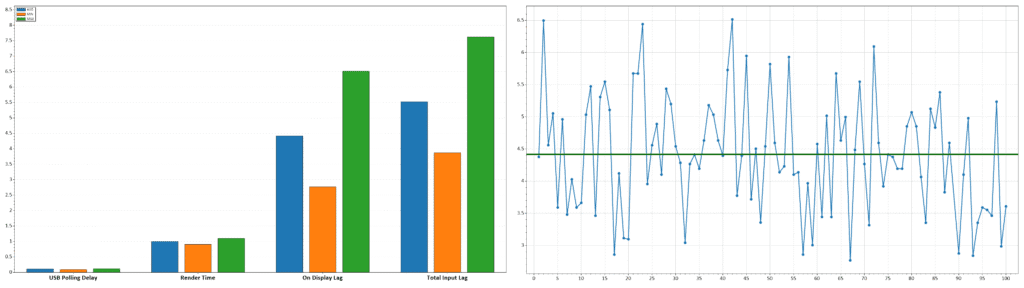
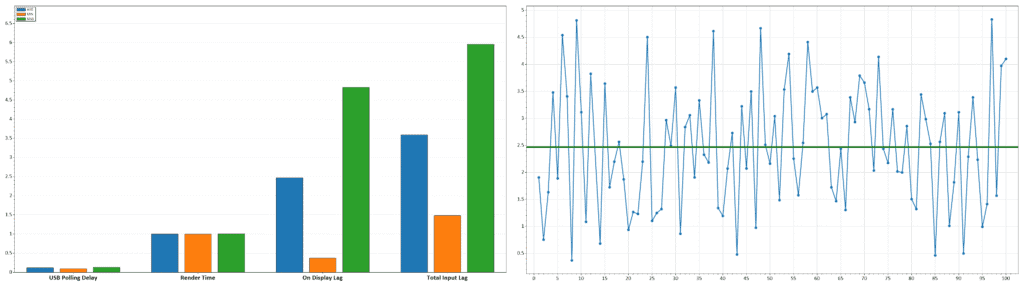
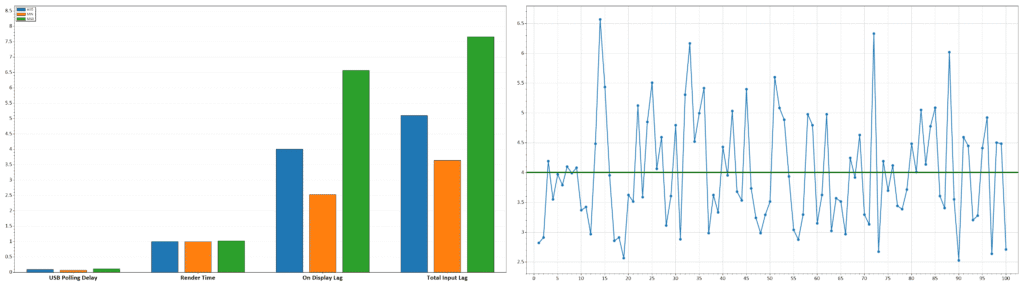
| 360Hz | 240Hz | 120Hz | 60Hz | 25” Emulation Mode (360Hz) | |
| Off | 2.15 | 2.75 | 5.14 | 9.01 | 2.47 |
| Pulsar | 4.42 | 5.93 | N/A | N/A | 4.1 |
| ULMB2 | 4.43 | 5.86 | 7.24 | N/A | 4 |
Latency increases by just under a single frame at 360Hz or 240Hz when Pulsar or ULMB2 is enabled, but we don’t expect most gamers to notice this in practice. A modest latency increase is expected when using backlight strobing.
Latency (v1.1.8)
| 360Hz | 240Hz | 120Hz | 60Hz | 25” Emulation Mode (1332p, 360Hz) | |
| Off | 2.75 | 3.53 | 6.55 | 12.01 | 2.78 |
| Pulsar | 4.74 | 4.02 | N/A | N/A | 4.72 |
| ULMB | 4.53 | 3.76 | – | – | 4.67 |
As noted in the firmware update, ULMB2 latency at 240Hz has been reduced. We measured 4.02ms (Pulsar) and 3.76ms (ULMB2), which is about a ~2ms, or ~35%, improvement compared to the previous results of 5.93ms and 5.86ms. This brings latency below a full refresh cycle at 240Hz, making it effectively imperceptible.
However, we also observed that latency at fixed refresh rates without strobing has increased by around 30%. This increase was already present in v1.1.4 and newer updates. Fortunately, it still remains below a full refresh cycle, so it does not have a practical impact.
Uniformity & Quality Control
The top right corner of the screen is around 18% dimmer than the center for 100% white, around 10% dimmer for 75% white, and 5% dimmer for 50% white, but this wasn’t noticeable during everyday use.
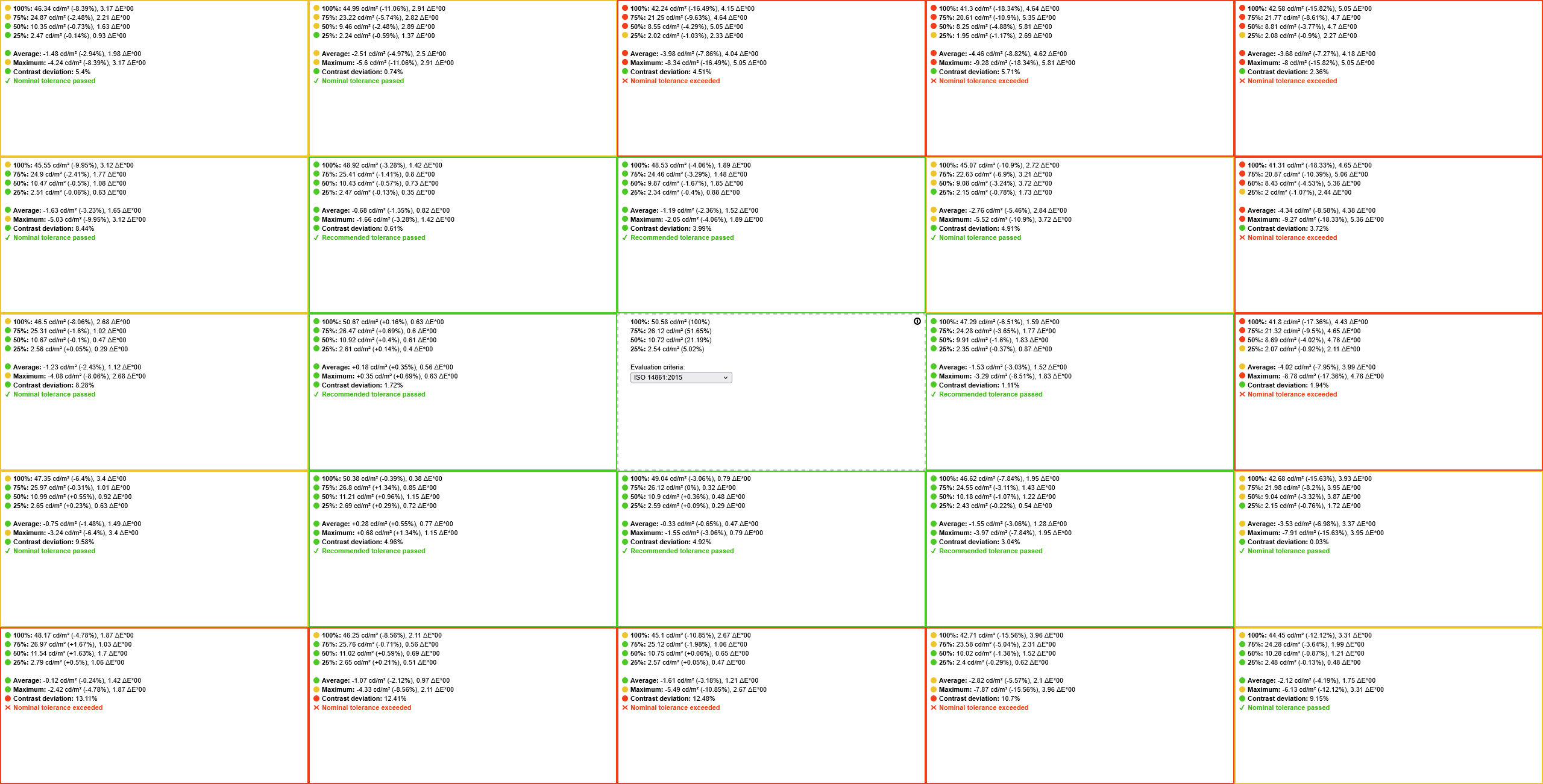
Next, we didn’t find any dead or stuck pixels, no frame skipping, pixel inversion artifacts, excessive IPS glow or backlight bleeding.
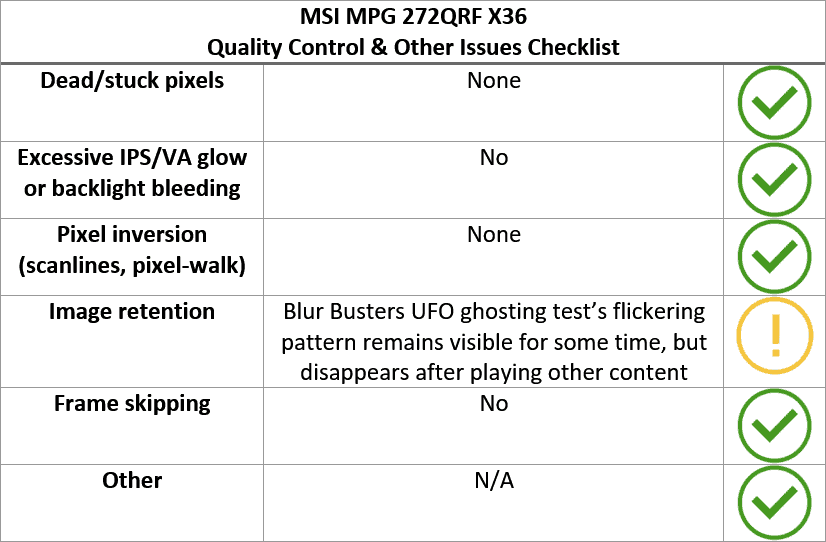
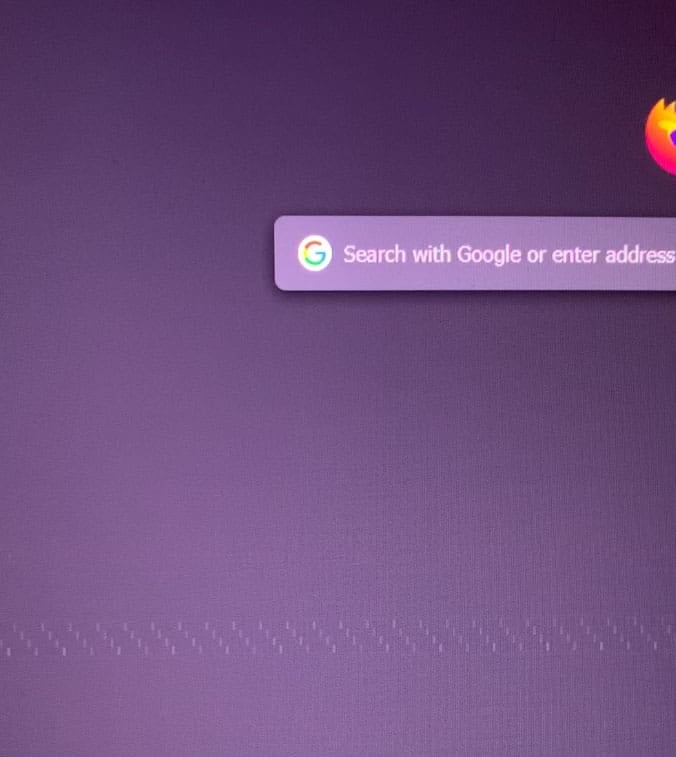
During the Blur Busters’ UFO ghosting test, the flickering pattern was briefly visible as an afterimage on dark backgrounds, but it faded quickly once varied content was displayed. We didn’t experience any image retention in regular use.
The monitor uses a flicker-free backlight (unless Pulsar/ULMB2 is enabled), ensuring a comfortable viewing experience without the risk of eye strain or headaches for sensitive users during extended use.
There’s also a low blue light mode that can bring down the color temperature to 4082K, which can be helpful if you have trouble falling asleep at night after prolonged screen time.
Features
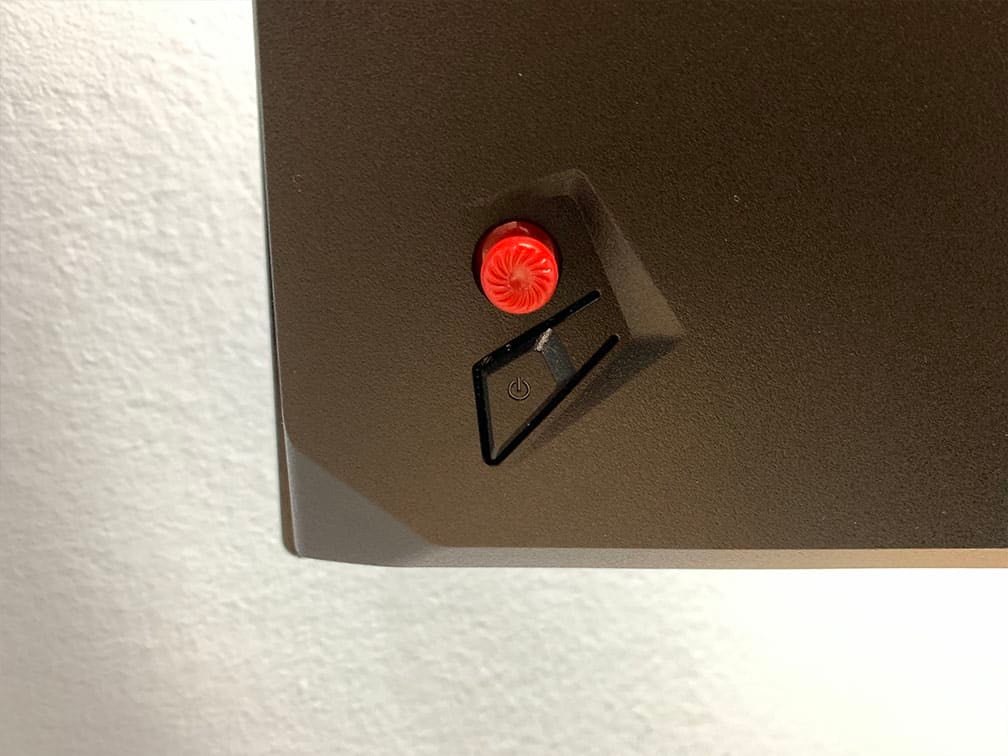
On the rear of the monitor, there’s a directional joystick for navigating the OSD menu. It’s somewhat finicky and sensitive, so it’s easy to misclick when adjusting settings in a hurry. Below it is a dedicated power button.
Moving the joystick up, down, left or right also serves as a quick menu for brightness, input source selection, audio volume and mode (Eco, User, Standard, NVIDIA Esports, sRGB and Native).
Since User and Standard have the same image quality, you can assign one to Pulsar/ULMB2 Off and the other to Pulsar/ULMB2 On to more quickly change between these two operation modes.
Besides typical image adjustment tools (brightness, contrast, color temperature), there are some advanced settings available too, including gamma (from 1.8 to 2.6), 6-axis saturation and automatic input detection. There’s no sharpness setting.
The MSI MPG 272QRF X36 doesn’t support MSI’s Gaming Intelligence desktop application for adjusting OSD-related settings, at least at the time of this writing. You can use third-party apps to adjust the following settings.
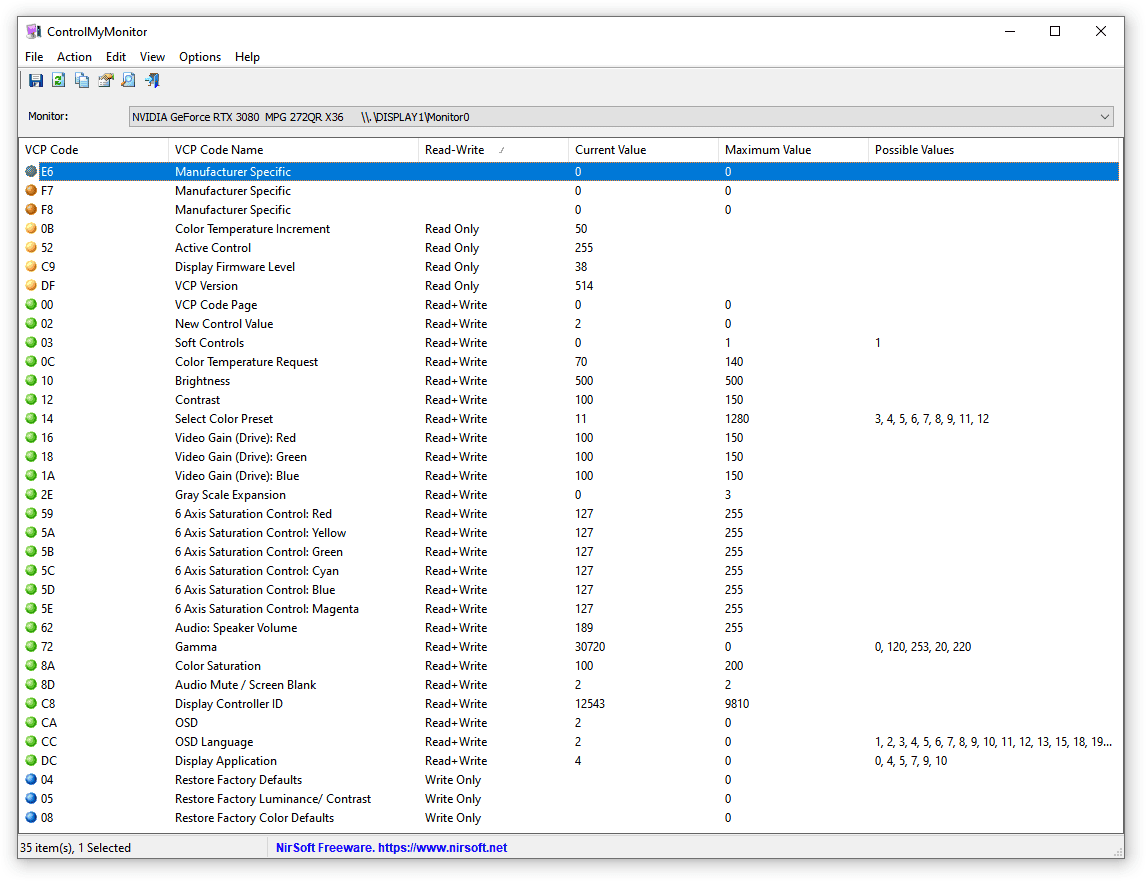
Useful gaming features include:
- Esports Vibrance – saturation from 0 to 200 in increments of 1, default is 100
- Game Assistant – crosshair overlays (red or white)
- Screen Size – 27″ (auto, full screen 16:9, full screen forced) and 25″ (960p 4:3, 1080p 16:9 and 1332p 16:9)
- Dark Boost – improves visibility in dark scenes (3 adjustable levels)
- Refresh Rate tracker
We couldn’t get the 25″ (1280×960) mode to work, as the monitor would lose signal and wouldn’t reconnect until we restarted the PC and changed the setting. It’s most likely a driver issue, as we managed to get it to work when connected to another PC with an AMD GPU. Update: With the new v1.1.8 firmware (or NVIDIA driver), this is no longer an issue.
Other modes, including 25″ 2368×1332, worked without issues. The 2368×1332 resolution looked crisp thanks to pixel-perfect scaling.
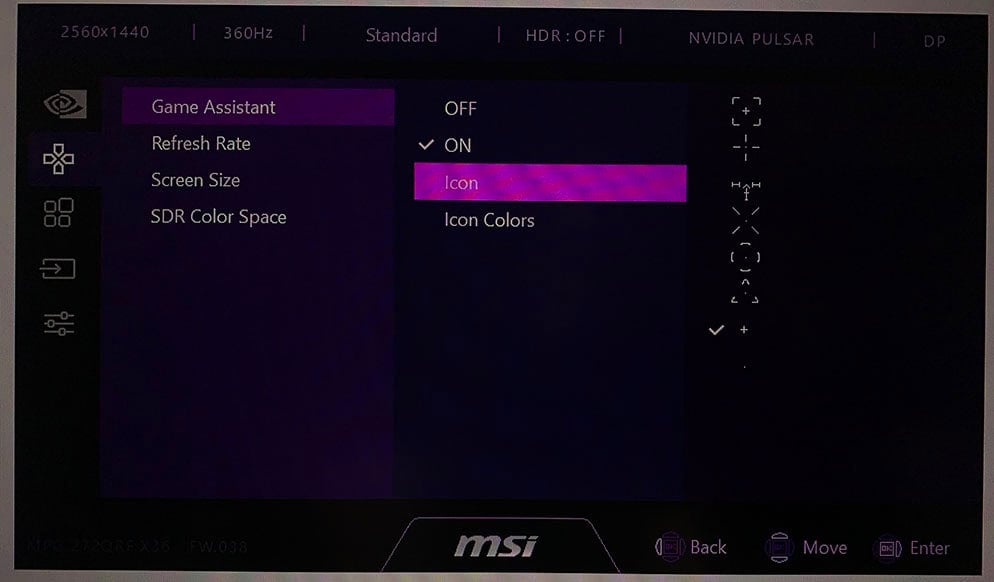
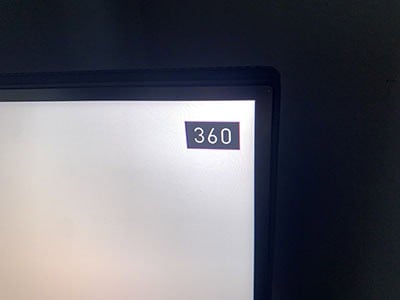
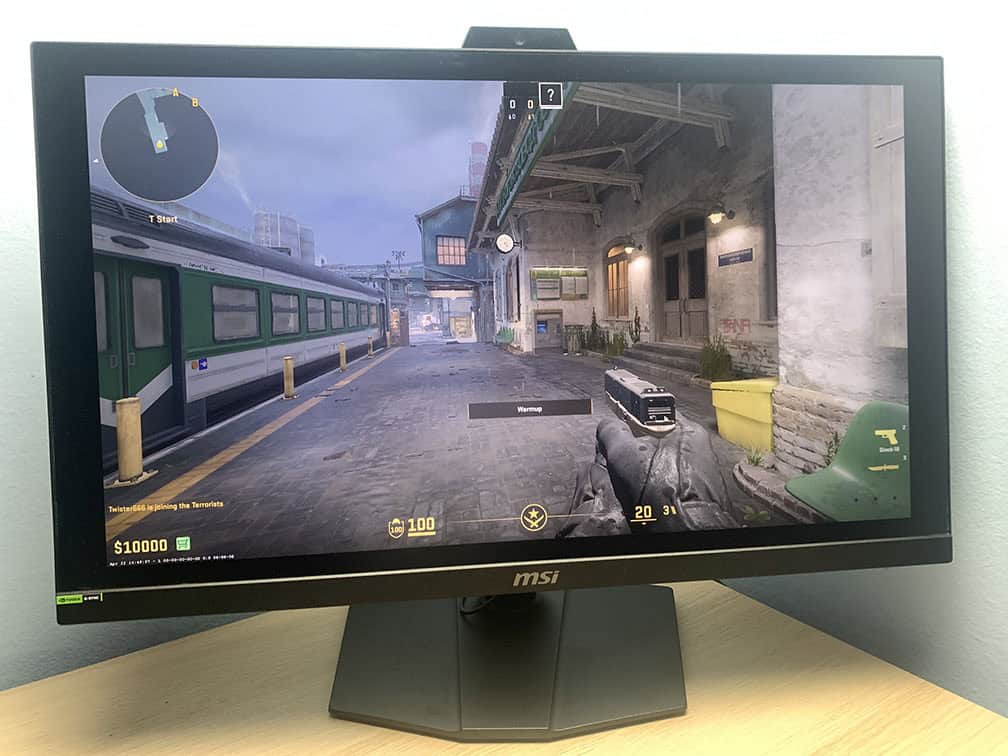
Other OSD settings include language, OSD setup (timeout, transparency), power LED indicator (on, off), RGB LED (on, off), audio (volume, mute), Ultra Low Power (we recommend disabling it for best image quality), Firmware Update Mode, Info. On Screen (shows current resolution, refresh rate, mode, input source, color space and bit depth) and factory reset.
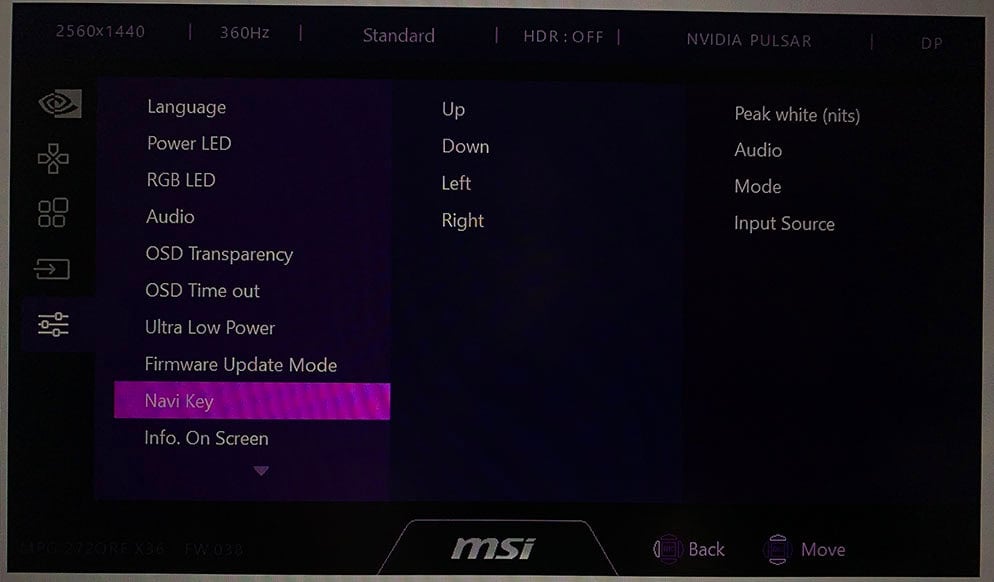
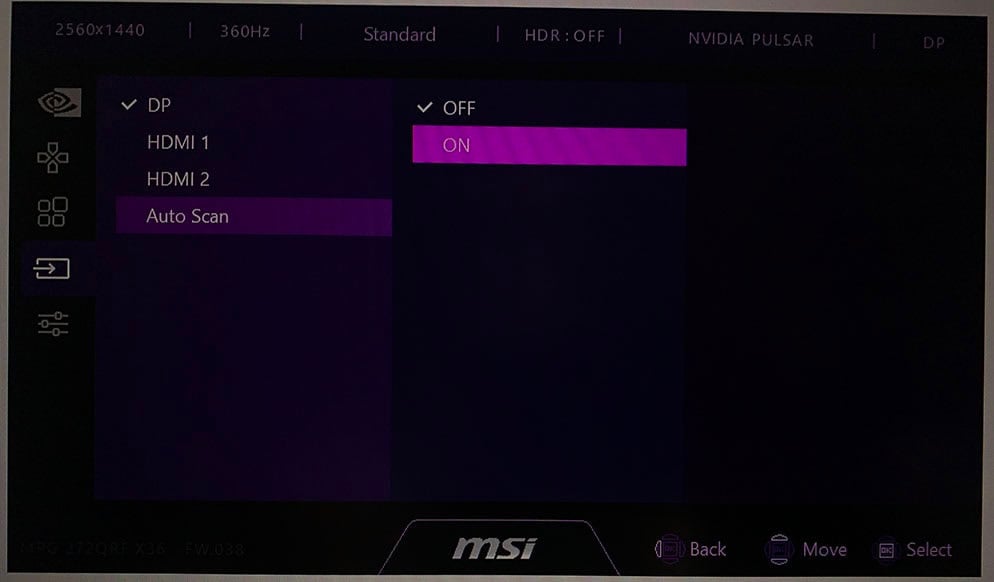
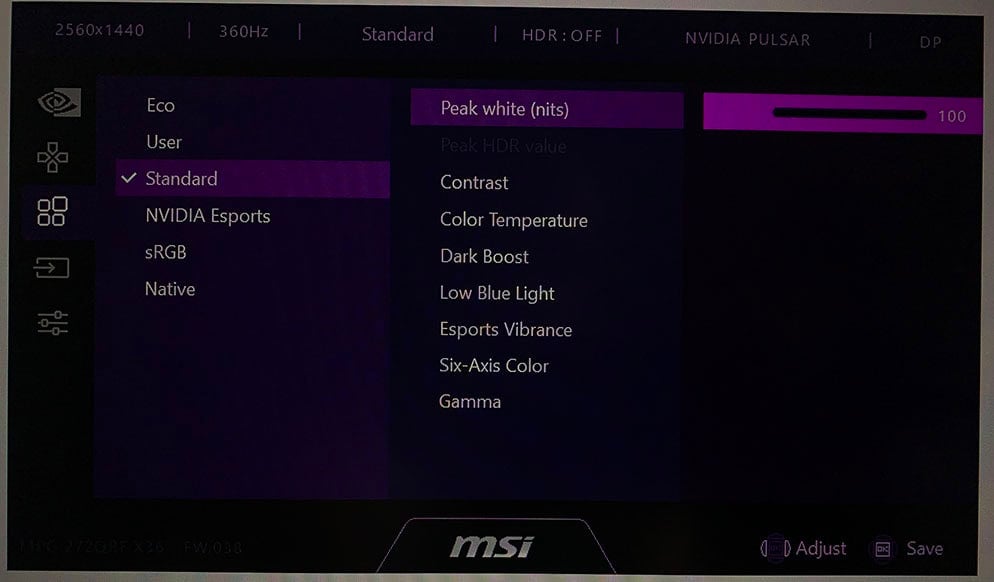
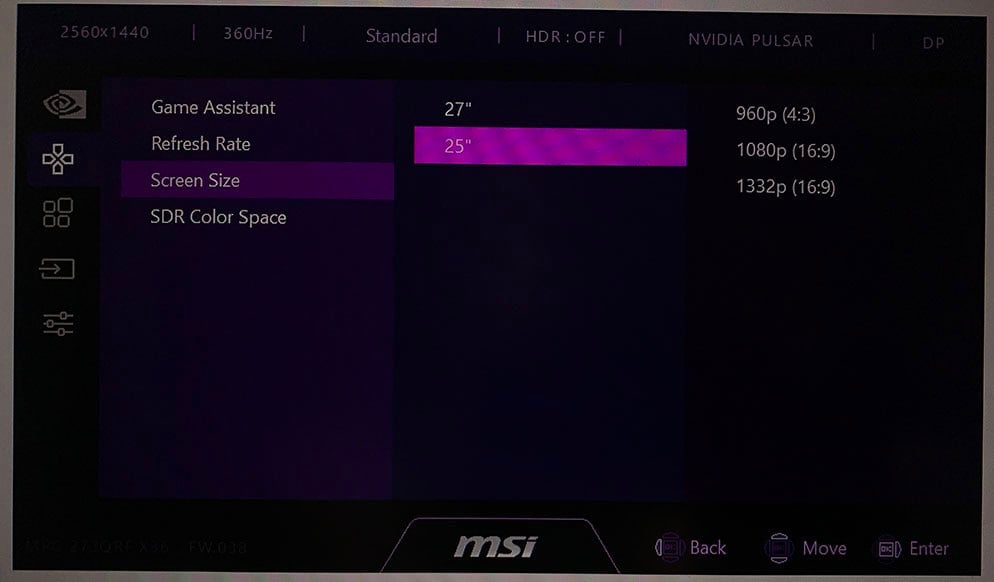
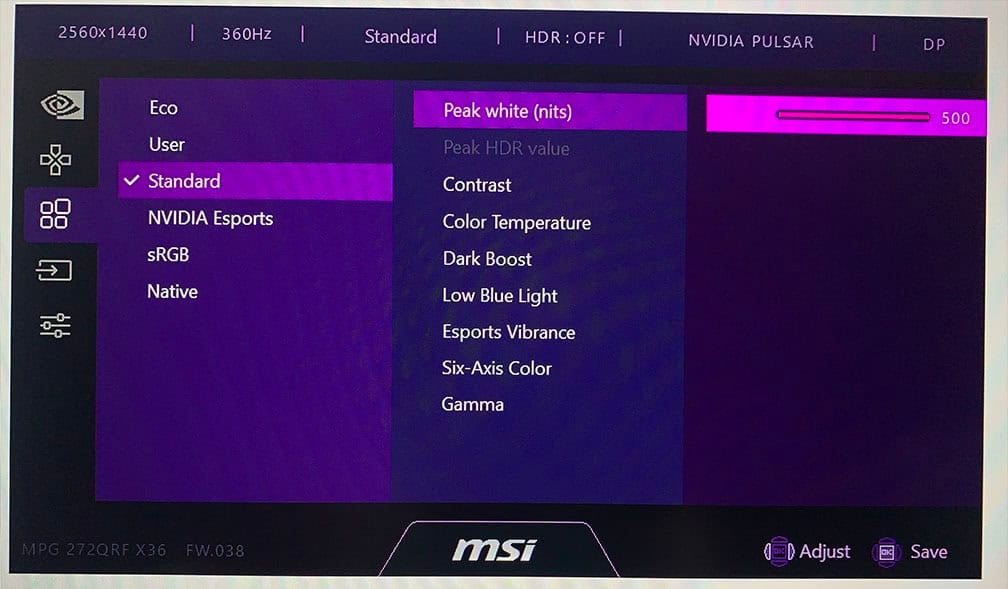
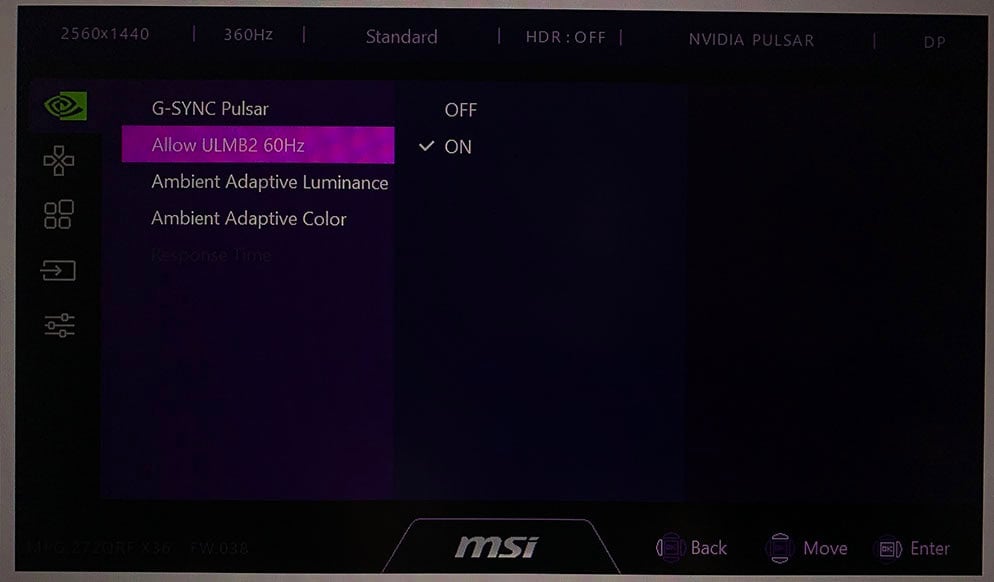
The monitor also has a built-in sensor that can automatically adjust screen brightness and color temperature according to ambient lighting.
Design & Connectivity
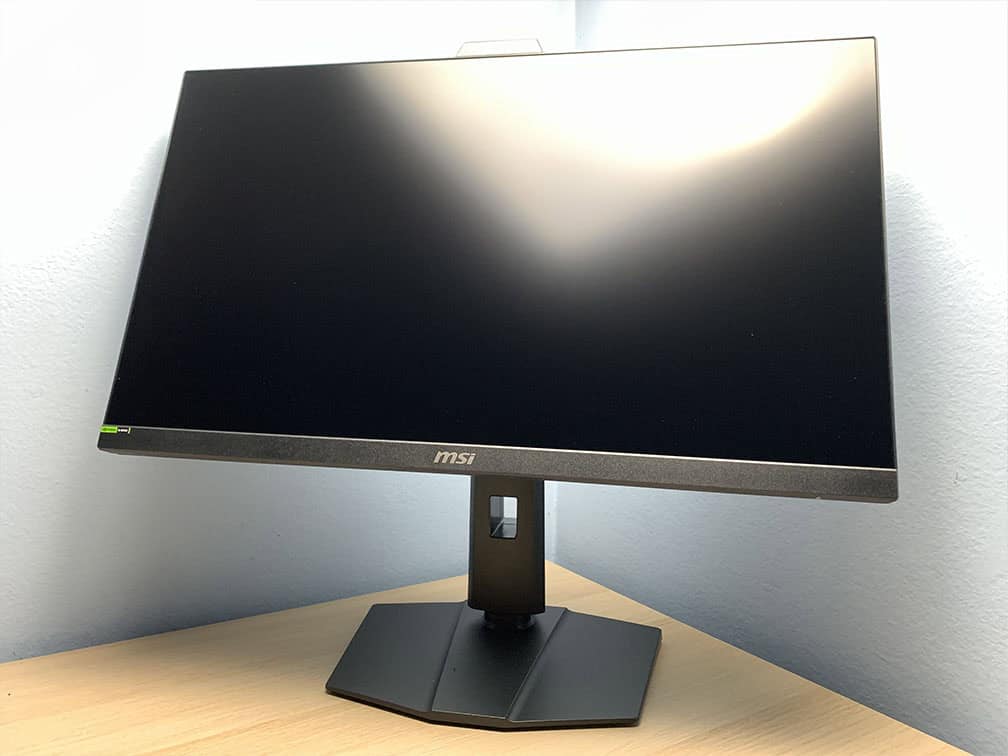
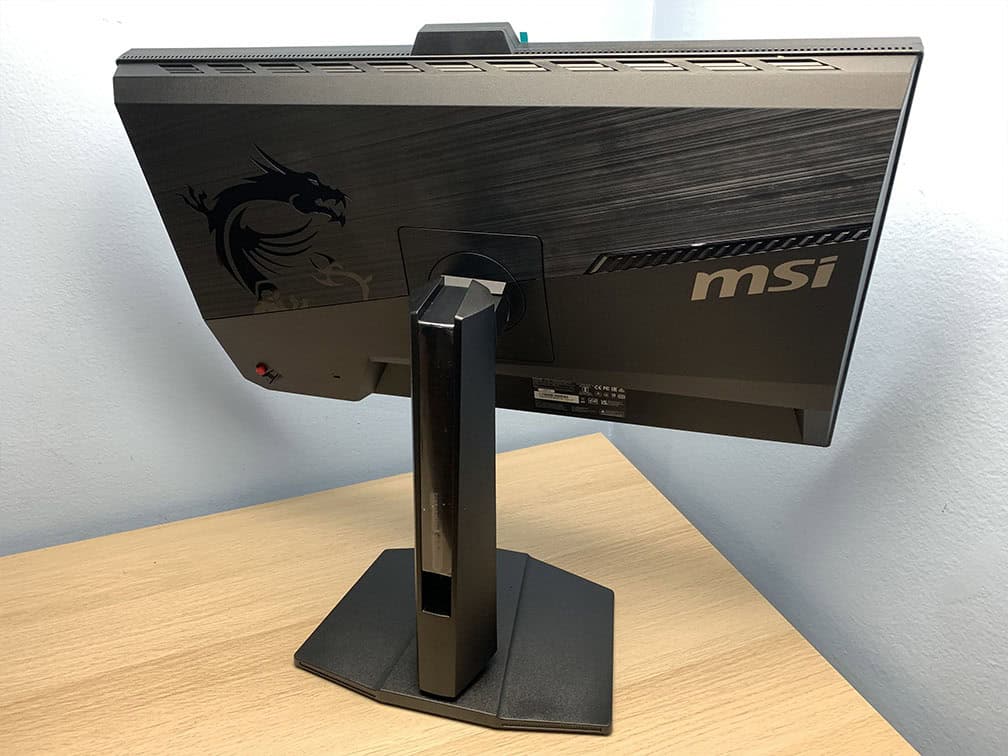
The MSI MPG 272QRF X36 has a robust design with full ergonomic support, including up to 130mm height adjustment, -5°/20° tilt, +/- 90° pivot, +/- 30° swivel and 100x100mm VESA mount compatibility.
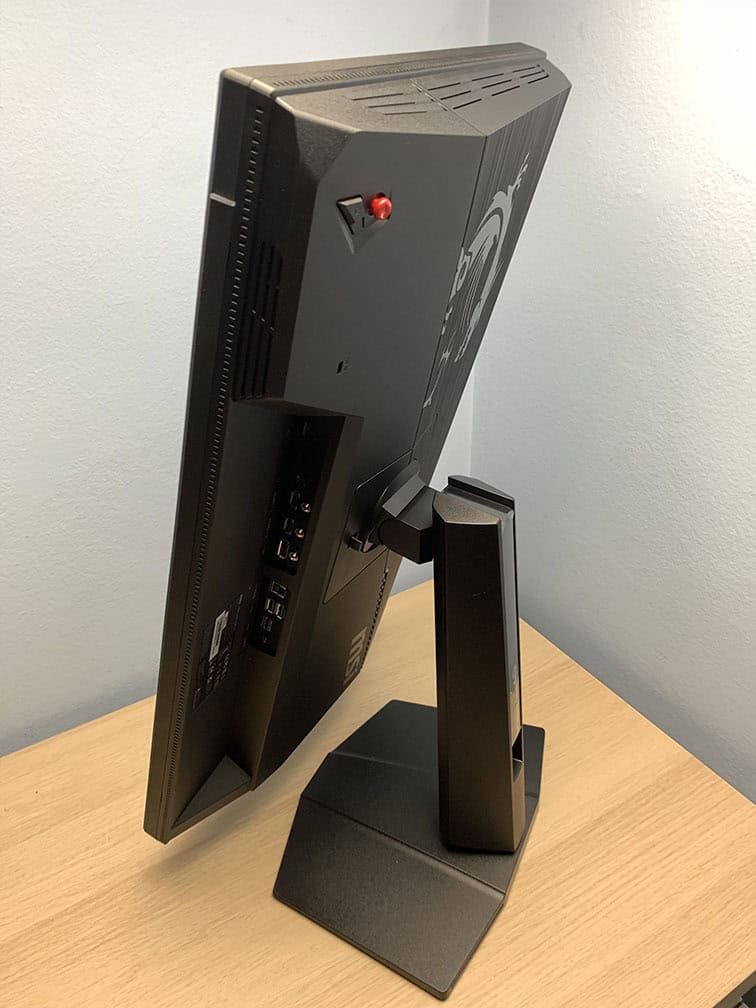
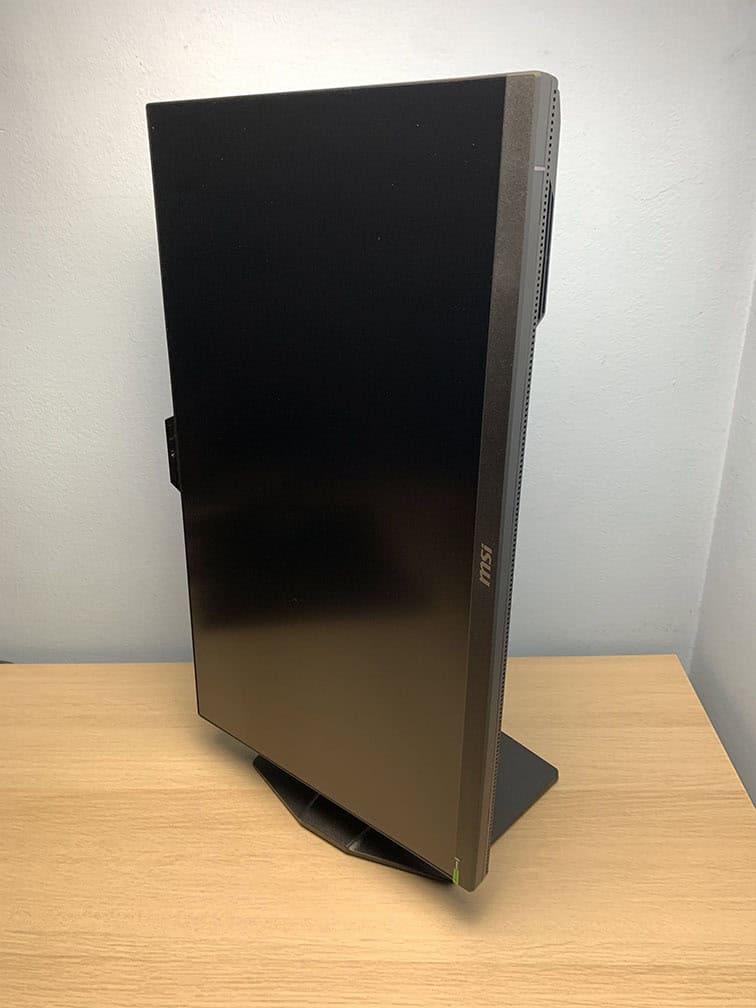
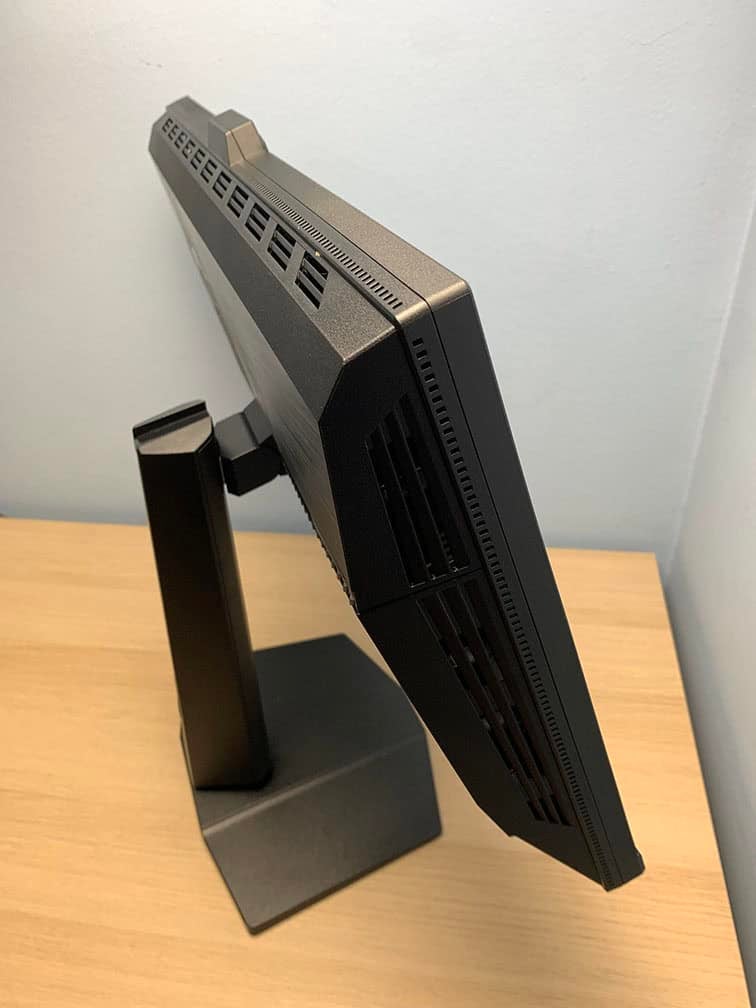
It’s mostly textured with a matte finish, along with a few glossy accents and RGB lighting on the back.
The screen has a light matte anti-glare coating that’s efficient at mitigating reflections without making the image too grainy. The flat stand doesn’t take up a lot of space, allowing you to place your keyboard and mouse close to it.
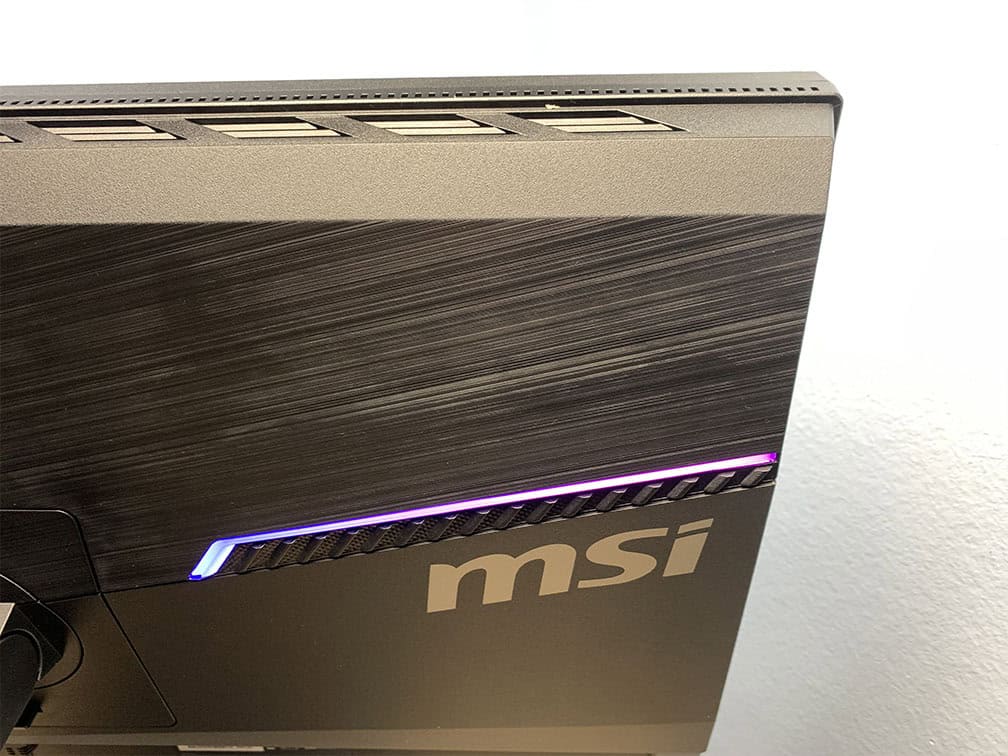
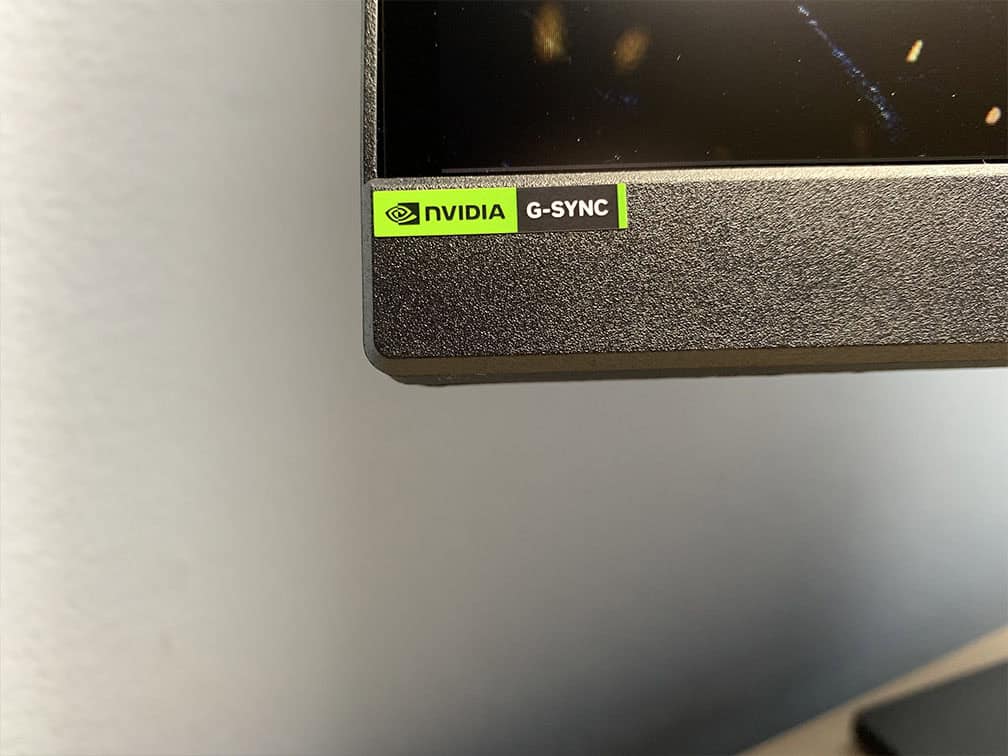
The bezels are ultra-thin (1mm at the top and sides, 21mm at the bottom) and there’s a 6mm black border before the image starts around the screen (1mm at the bottom).
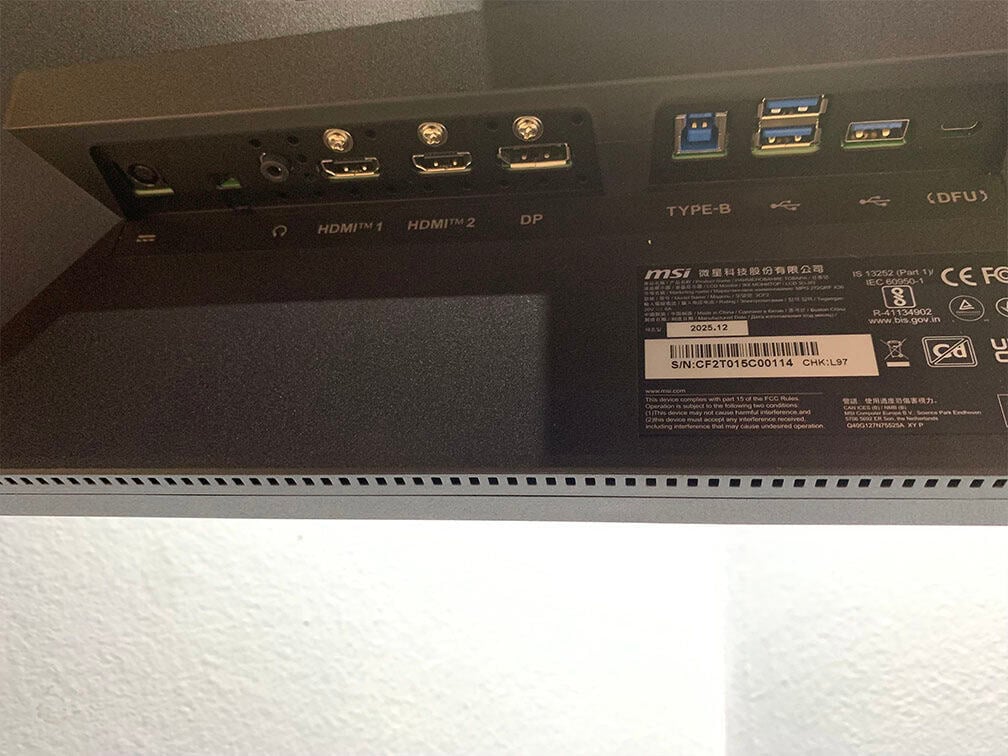
Connectivity options include DisplayPort 1.4 with DSC, two HDMI 2.1 ports with 40 Gbps bandwidth, three USB-A 3.0 ports, USB-B, a headphone jack and a micro-USB port for firmware updates. It uses an external power supply.
The HDMI port is limited to 120Hz at 2560×1440, but it supports 4K 120Hz upscaling for consoles. Over HDMI, you cannot use the 25″ emulation mode and Adaptive-Sync isn’t supported (only HDMI 2.1 VRR).
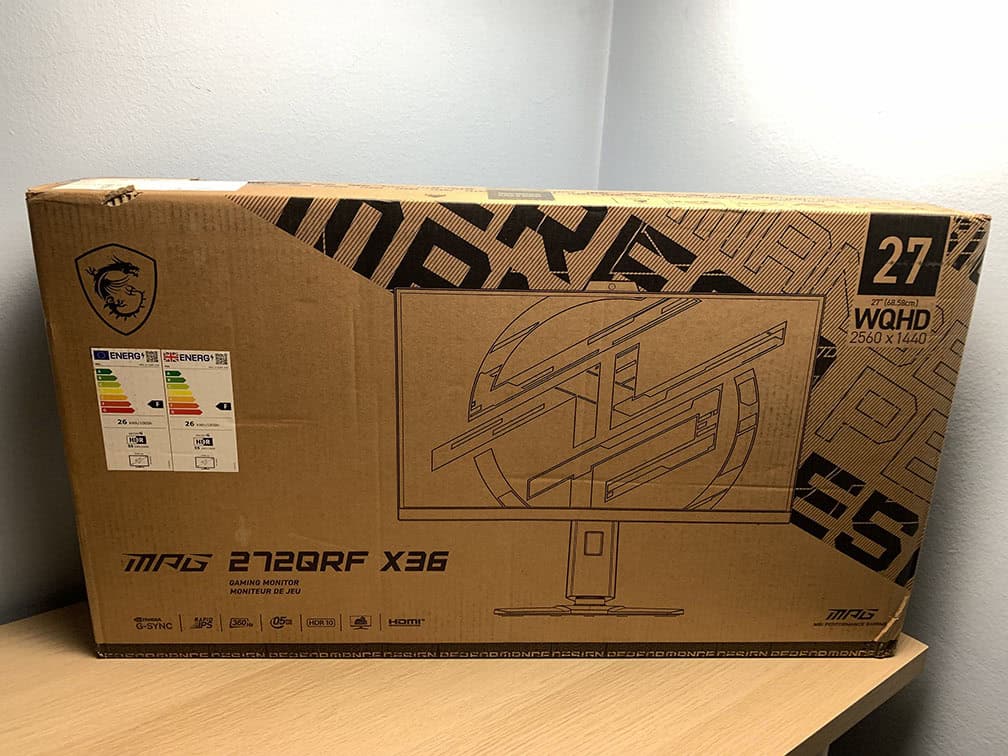
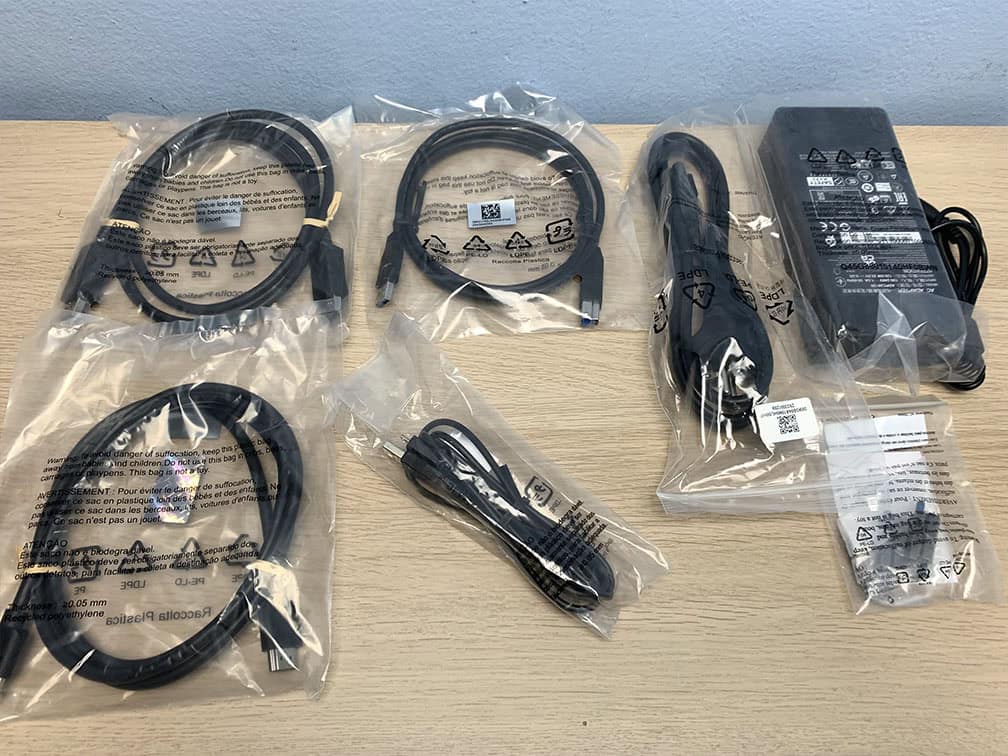
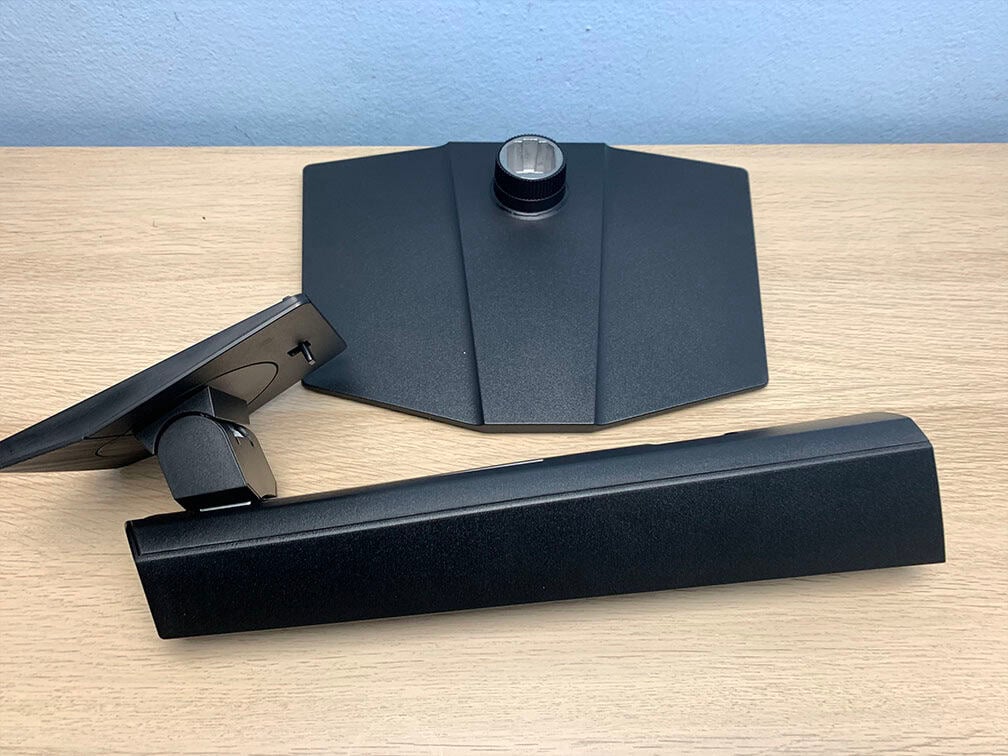
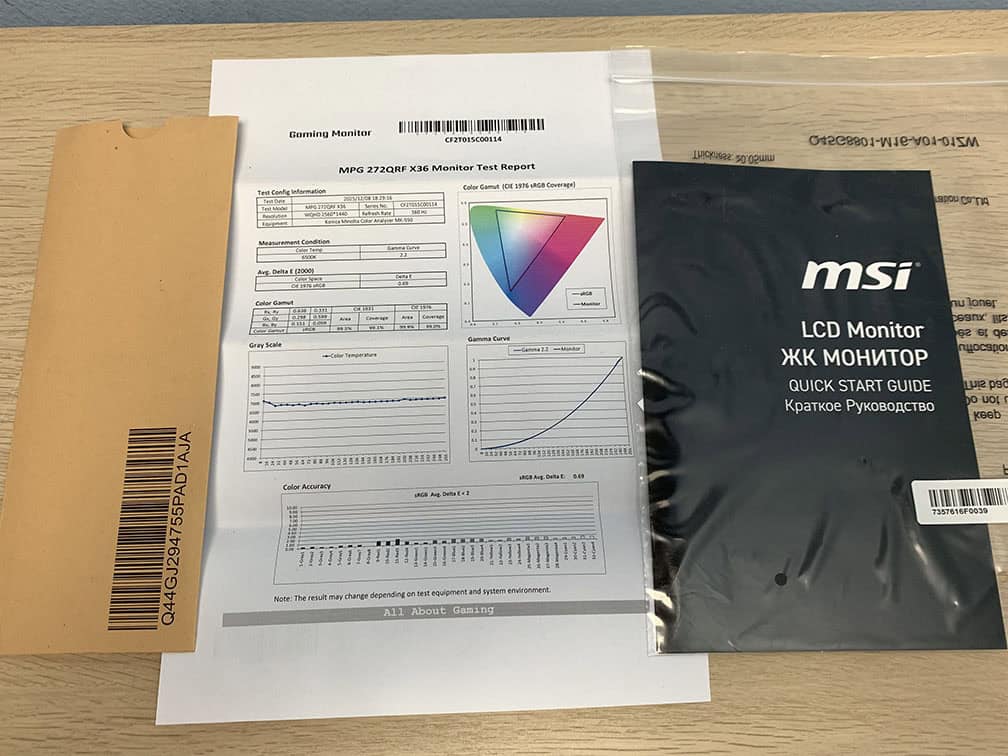
In the box, along with the monitor and its stand, you’ll get a factory calibration report, a quick start guide, the external power supply, power cord and DisplayPort, HDMI, USB-B to USB-A and USB-A to micro-USB cables.
Price & Similar Monitors
The MSI MPG 272QRF X36 price amounts to $650, which is a similar price to that of the other G-SYNC Pulsar models.
You might be able to get it as an open-box item on Newegg for $400.
The ASUS XG27AQNGV goes for the same price, while the AOC AG276QSG2 and the Acer XB273U F5 can be found on sale for around $550.
While these are expensive, they do deliver a unique gaming experience with unprecedented motion clarity, so for enthusiasts, the price can be well worth it.
For others, we feel that including a mini-LED backlight for proper HDR support at this price point would have made the deal much more appealing, but it would also be significantly more complex to implement and would likely end up increasing the cost even further. That kind of solution may become more realistic in the future, as Pulsar technology is still in its early stages.
Between the four G-SYNC Pulsar models, you can simply choose according to your personal preference or regional pricing, as the general image quality, performance and features are similar across all four models.
NVIDIA and monitor manufacturers are also working on 32″ 5K 165Hz IPS G-SYNC Pulsar models with 1440p 330Hz Dual Mode, such as the Acer XB323QX, though there’s no pricing information or release dates planned yet.
For more information and monitor deals, check out our dedicated best gaming monitors buyer’s guide.
Conclusion
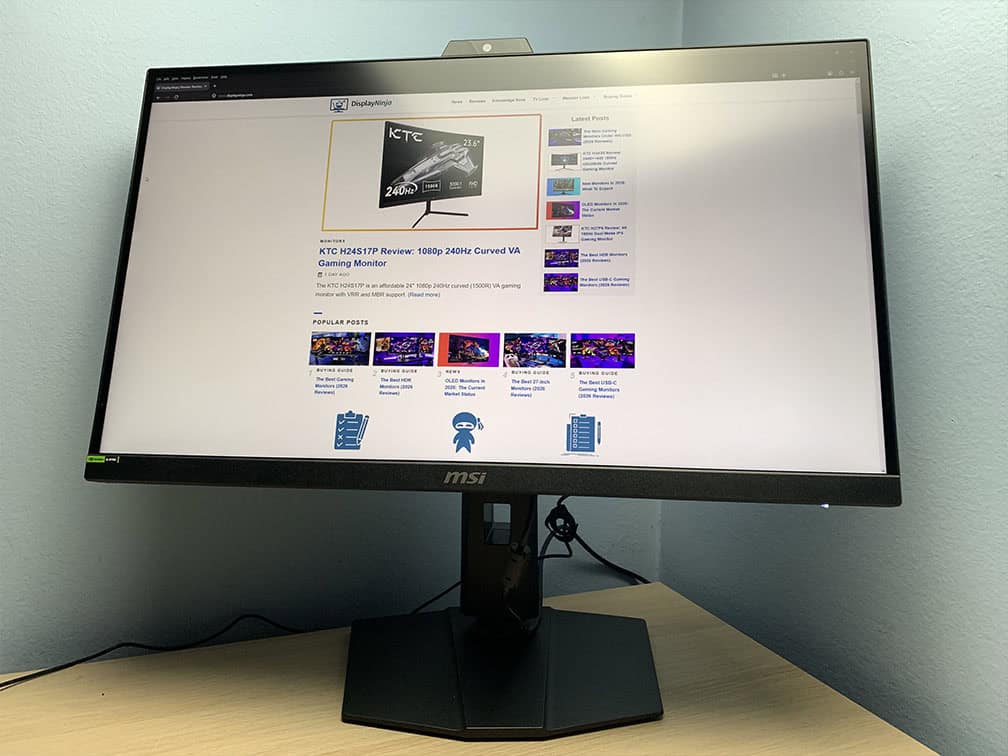
All in all, the MSI MPG 272QRF X36 is an excellent gaming monitor for those who enjoy CRT-like motion clarity.
G-SYNC Pulsar delivers outstanding motion clarity with high brightness, fast response times and low latency, as long as your frame rate stays within the 80 – 360 FPS range. Below that, some artifacts can start to appear, though (multi) frame generation can help mitigate this if your GPU supports it.
Other than that, you get a fully ergonomic stand with solid connectivity options, along with plenty of useful gaming features such as crosshair overlays, a 25″ emulation mode, and Dark Boost. It also comes with decent factory calibration and a slightly wider color gamut for added vibrancy.
Specifications
| Screen Size | 27-inch |
| Resolution | 2560×1440 (Quad HD) |
| Panel Type | IPS |
| Aspect Ratio | 16:9 (Widescreen) |
| Refresh Rate | 360Hz |
| Response Time | 0.5ms (GtG) |
| Motion Blur Reduction | G-SYNC Pulsar |
| Adaptive-Sync | G-SYNC (1-360Hz), HDMI 2.1 VRR |
| Ports | DisplayPort 1.4, 2x HDMI 2.1 |
| Other Ports | Headphone Jack, 3x USB-A 3.0, USB-B, Micro USB-B |
| Brightness | 500 cd/m² |
| Contrast Ratio | 1000:1 |
| Colors | 1.07 billion (8-bit + FRC) 90% DCI-P3 |
| HDR | HDR10 |
| VESA | Yes (100x100mm) |
The Pros:
- Exceptional tear-free motion clarity within the ~80-360Hz range
- Quick response time, low input lag
- High peak brightness, decent pixel density
- Excellent 60Hz and 120Hz ULBM2 strobing implementation
- Fully ergonomic stand, USB hub
The Cons:
- IPS glow and mediocre contrast ratio (as expected from this panel technology)
- Pulsar only supported by NVIDIA RTX cards