Bottom Line
The KTC M27T6S is one of the best monitors you can get under $300 if you’re interested in HDR thanks to its 1440p 210Hz IPS panel with 1152-zone mini LED FALD backlight, DisplayHDR 1000, wide color gamut, fast response times, smooth VRR performance, etc.
10% off code: 10DNPKTC
The KTC M27T6S is a 27″ 1440p 200Hz (210Hz OC) IPS gaming monitor with a 1152-zone mini LED FALD backlight and DisplayHDR 1000 certification.
Not to be confused with the KTC M27T6 model, which is a 27″ 1440p 180Hz model with a flat-screen VA panel and DisplayHDR 1400.
Let’s see how the M27T6S handles our tests!
Image Quality
The monitor is based on a fast IPS panel with quoted 98% DCI-P3 color space coverage, 178° wide viewing angles, a 1,000:1 static contrast ratio, a 450-nits SDR peak brightness (1000-nits HDR peak), Delta E < 2 factory calibration and dithered 10-bit color depth support (8-bit + 2-bit FRC).
To test the display’s capabilities and accuracy, we’re using our Calibrite Display Pro HL colorimeter paired with DisplayCAL and HCFR.
Note that we’re testing the USA-1.0.1 firmware version.
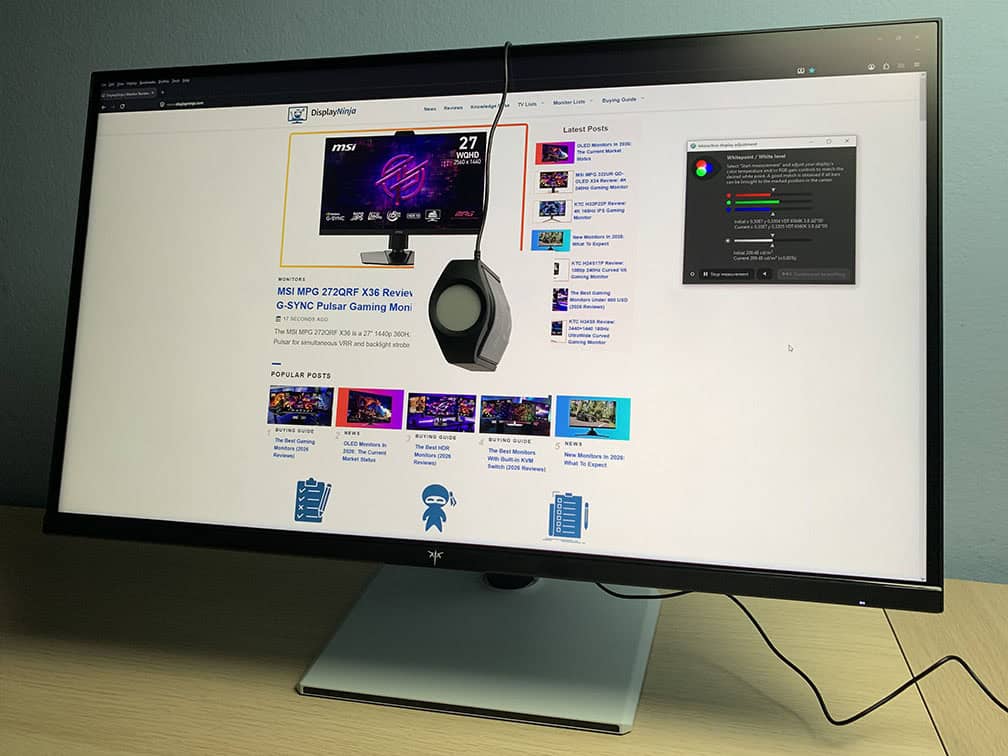
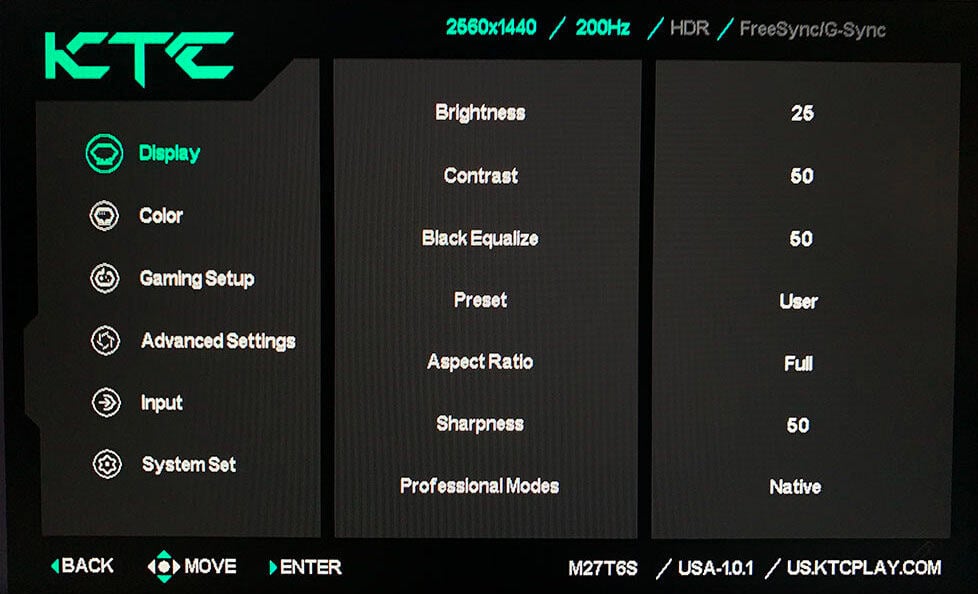
In the OSD (On-Screen Display) menu, under the ‘Display’ settings, you’ll find several ‘Preset’ options: User (Default), Standard, Movie, Photo, ECO, Reader, RTS and FPS.
Options other than ‘User’ and ‘Standard’ simply apply preset brightness, contrast, hue, saturation, and Black Equalize values, which you can’t adjust. So, for full customization, we recommend using the most accurate default ‘User’ mode.
If you scroll a bit further in the ‘Display’ section, you’ll find the ‘Professional Modes’ options, including Native, sRGB, DCI-P3, Adobe RGB and BT.2020.
Color Gamut
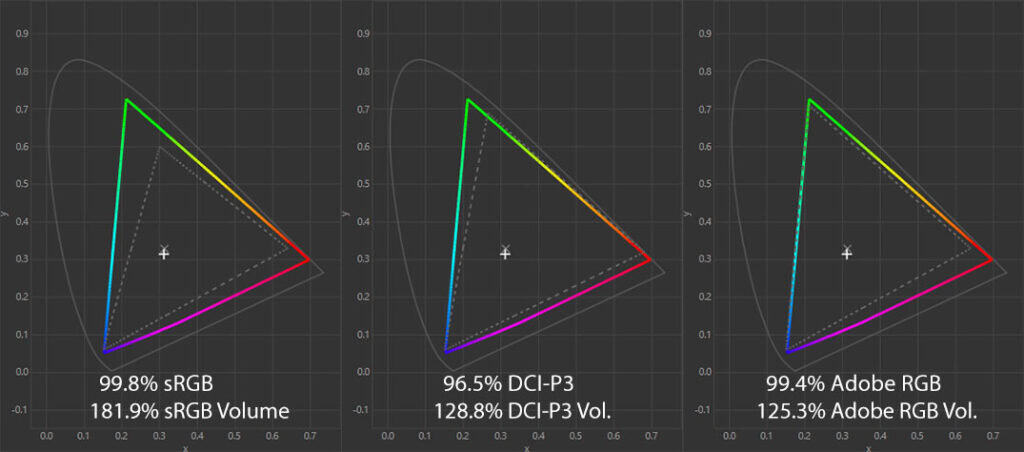
The KTC M27T6S has an impressive color gamut with 181.9% sRGB volume, providing you with rich and vibrant colors!
We measured a bit lower DCI-P3 color space coverage of 96.5% than the specified 98%, but this is most likely due to the different colorimeters and testing methodologies.
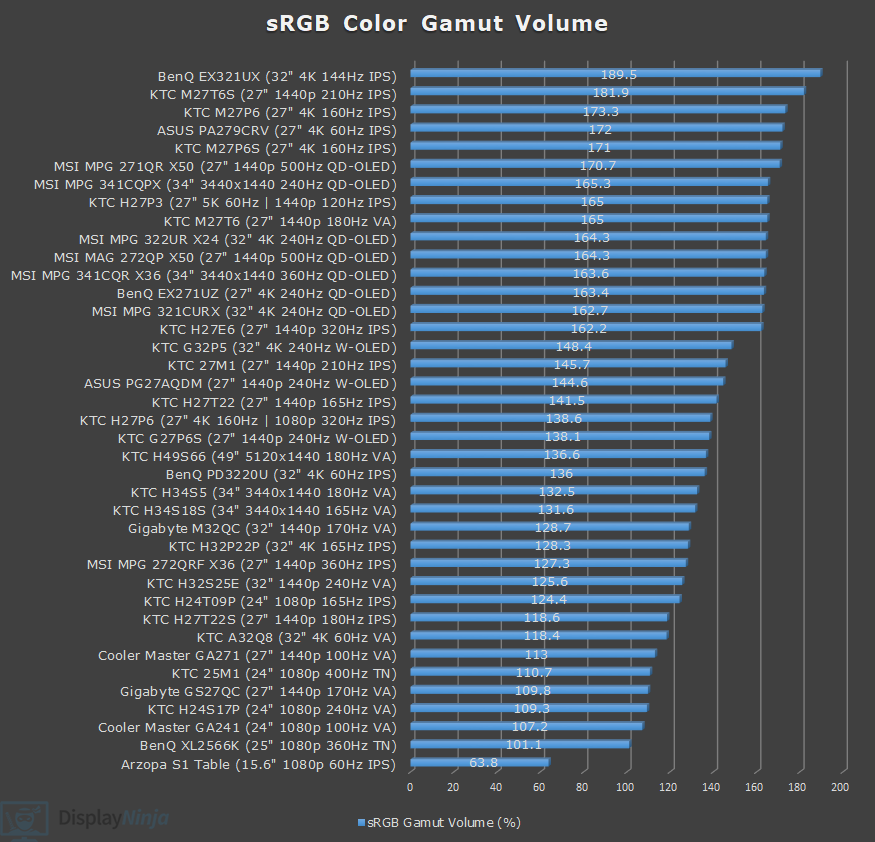
Image Accuracy
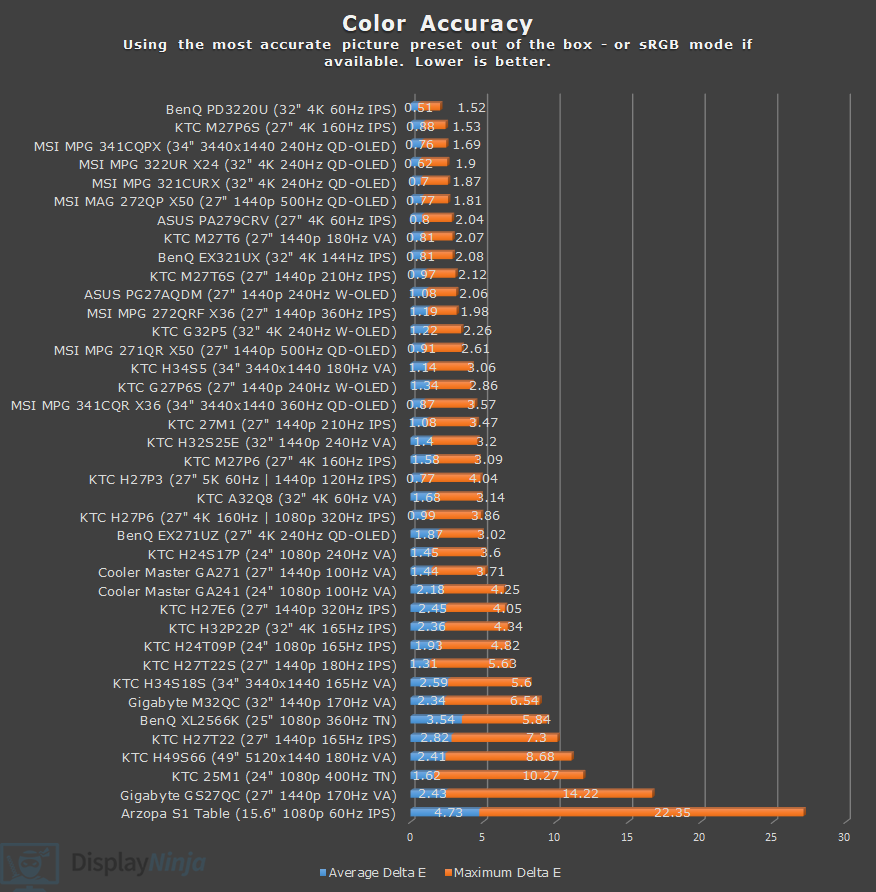
By default, Windows doesn’t do proper color management, which results in SDR colors being oversaturated, with a high average Delta E of 3.81 (color deviation from the target, less than 1.5 is considered good) and a maximum Delta E of 8.93 (target is less than 3).
The default Native Professional Mode also has a bit lower gamma than intended at 2.07 (target is 2.2), especially for 70 – 95% white, which makes whites and light grays look too bright, causing highlight details to be less defined.
Changing the gamma to 2.4 brings the average closer to the 2.2 target, but now the image is too dark up to 45% white, and too bright for 90 – 95%, so we recommend sticking with 2.2 for gaming and perhaps trying out 2.4 for movies.
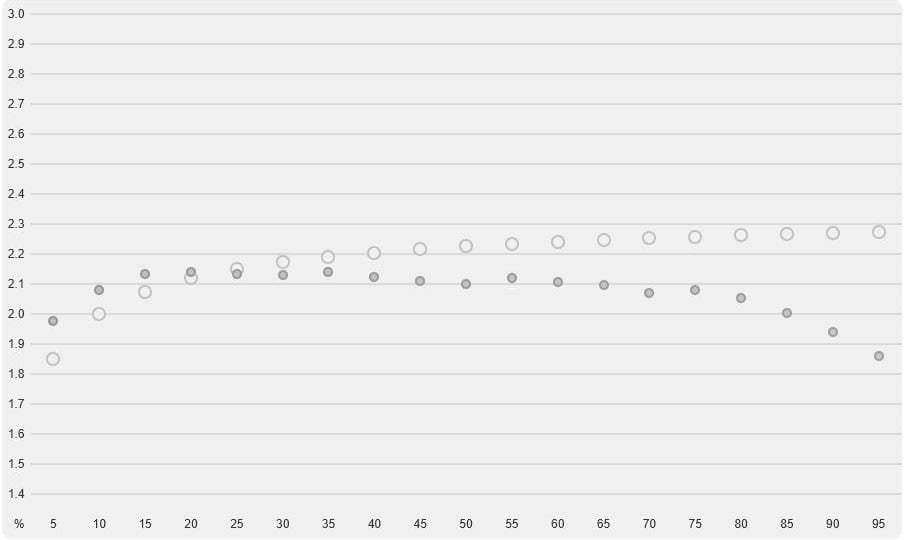
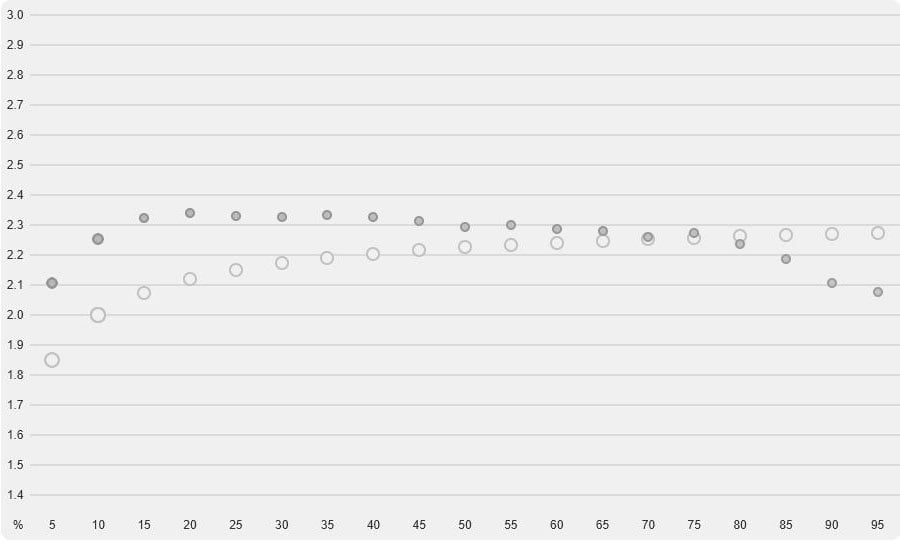
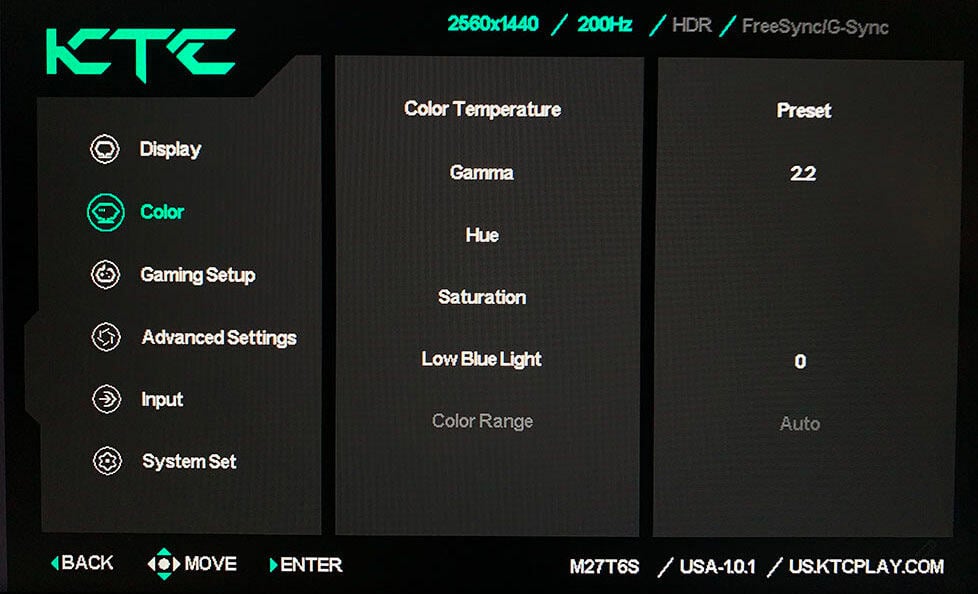
Color temperature in the default ‘Preset’ option is decent at 6793K (target is 6500K). It’s a bit higher than ideal, but there’s no noticeable tinting to the whitepoint in real use.
Some users might prefer the oversaturated colors in the Native mode, but if you want better accuracy, you should use the ‘sRGB’ Professional Mode instead, which clamps the gamut down to 97.2% volume and a respectable 96% coverage.
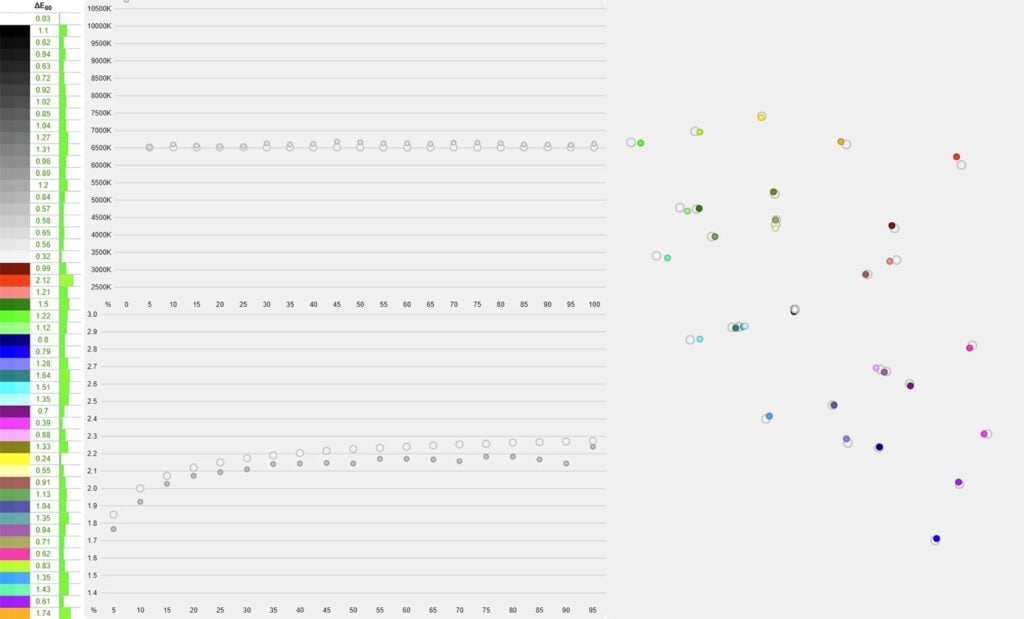
The color accuracy is now excellent, with a low Delta E of 0.97 average and 2.12 maximum. Color temperature is also improved at 6603K in the default ‘User’ color temperature mode, but you can improve it further by using the ‘Preset’ option for 6500K.
Gamma tracking is decent with a 2.11 average. It follows the sRGB tone curve properly, but the image is slightly brighter than intended.
You can also adjust brightness and color temperature in the sRGB and other modes, but gamma settings are locked.
We also tested the other modes.
The Adobe RGB mode clamps the gamut volume from 125.3% to 97.7% with 96.9% coverage, a low Delta E of 1.09 average and 2.4 maximum, 6588K and a similar 2.11 gamma average to that of the sRGB mode.
The DCI-P3 mode brings the gamut volume down to 99.1% from 128.8% with 96.3% covearge, a low Delta E of 1.09 average and 2.08 maximum, 6577K color temperature and the same 2.11 gamma.
Overall, all three modes provide excellent factory calibration, which, together with the IPS panel’s wide viewing angles and consistent image quality, makes the monitor suitable for professional color-critical work for both web and print applications.
We also tested the color accuracy when using software clamp (in AMD drivers, via the novideo_sRGB tool for NVIDIA GPUs or Windows 11 Automatic Color Management), but the results weren’t as good due to incorrect EDID data with a Delta E of 1.94 average and 5.79 maximum, so we don’t recommend this method.
Keep in mind that IPS monitors exhibit IPS glow, which can be characterized as a faint glow that’s sometimes visible in the corners of the screen when viewed from certain angles. Its intensity can vary from unit to unit, so some panels may show it more than others.
It’s most noticeable when viewing dark content in a dark room at higher brightness levels, but you can minimize it with a proper setup, for example, by lowering the brightness in dim environments and adding some ambient lighting behind the screen. Our KTC M27T6S unit didn’t show any excessive IPS glow or backlight bleed.
Calibration
For full calibration, we set the brightness to 10/100 for 119-nits, used the ‘Native’ mode, and ‘Custom’ color temperature with red, green and blue channels set to 49, 47 and 45, respectively, to get 6421K.
Delta E improved to 0.45 average and 1.57 maximum with accurate gamma tracking (2.19 average). You can download our ICC profile here.
Subpixel Layout & Pixel Density
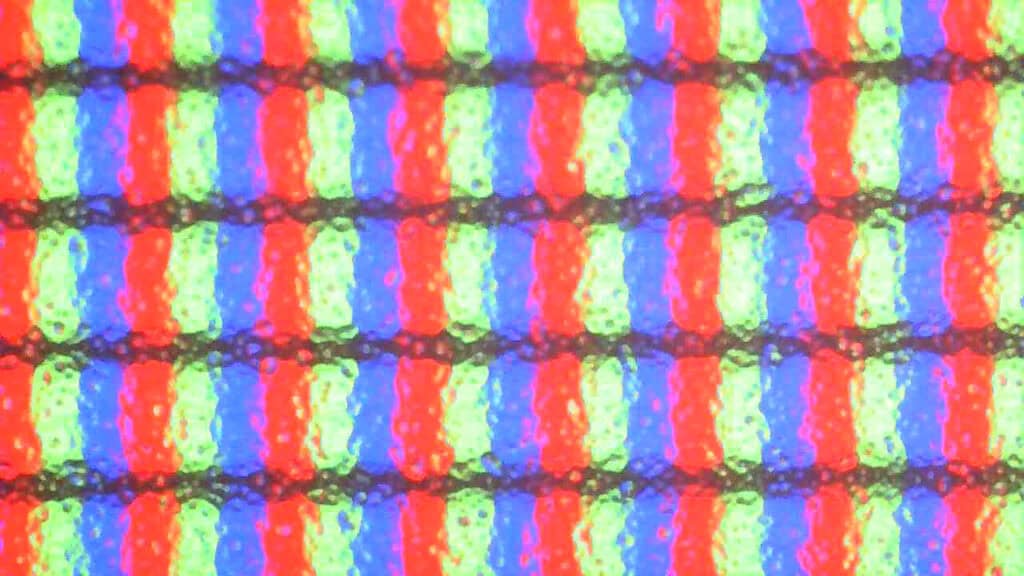
The KTC M27T6S has a standard RGB subpixel layout, so there’s no colored fringing on small text and fine details.
The 2560×1440 Quad HD resolution on a 27″ sized screen results in a pixel density of 108.79 PPI (pixels per inch), delivering reasonably sharp details and text.
More importantly, it’s far less demanding on the GPU than 4K UHD, making it easier to achieve higher frame rates.
Brightness & Contrast
In SDR, with local dimming disabled, we measured a peak brightness of 626-nits and a minimum of 78-nits. The high peak brightness makes the monitor suitable even for particularly bright rooms, though some users might find the minimum brightness a bit too high for comfortable use in darker environments.
In the sRGB mode, we measured a peak brightness of 584-nits and 73-nits minimum.
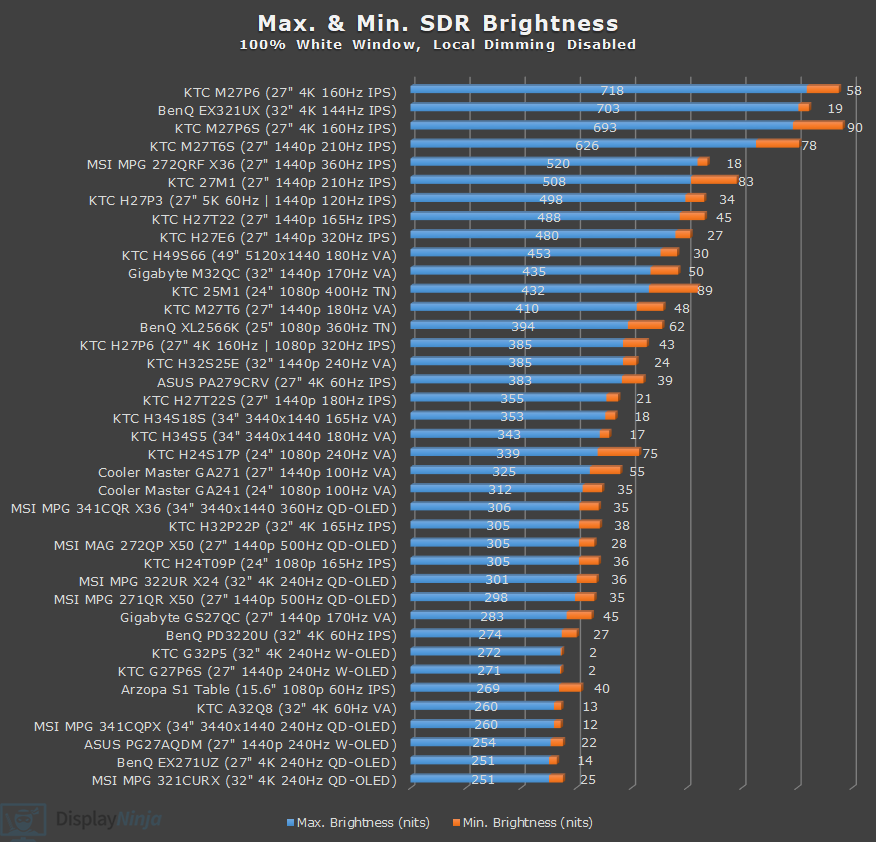
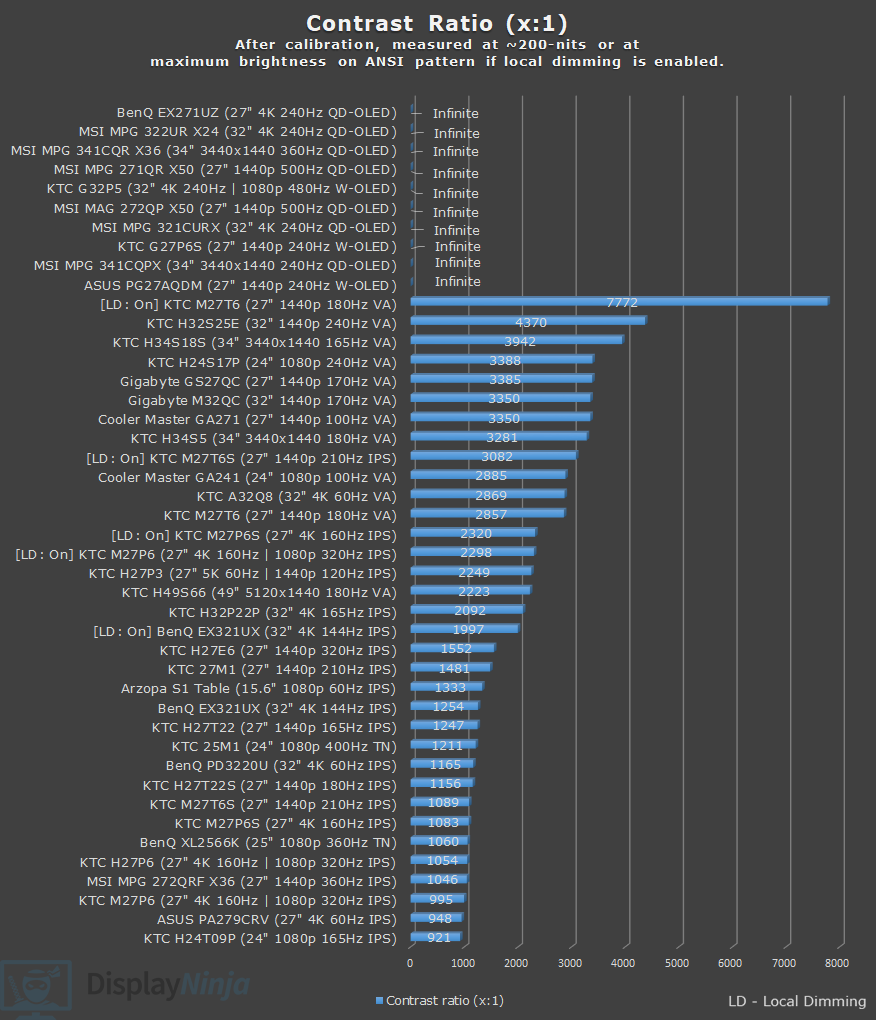
At 200-nits, we measured a contrast ratio of 1089:1 with local dimming disabled, which is a typical result for an IPS panel.
With local dimming enabled, contrast ratio increases up to 9111:1 on a 2×4 checkerboard pattern using the High local dimming mode.
OLED panels have an infinite contrast ratio as each pixel produces its own light, allowing them to completely turn off for true blacks.
You can also achieve ‘infinite’ contrast on a mini LED panel, but only in scenes where the dark and bright objects are far apart so that the light from a bright zone doesn’t bleed into the surrounding dimmed zones.
Since our colorimeter cannot accurately measure really low black depth, we only measure contrast ratio on 2×4, 4×4 and ANSI checkerboard patterns.
 |  |  | |
| KTC M27P6S (LD: Low) | 4388:1 | 2474:1 | 1798:1 |
| KTC M27P6S (LD: High) | 7116:1 | 3417:1 | 2320:1 |
| KTC M27T6 (LD: Low) | 16732:1 | 9523:1 | 6889:1 |
| KTC M27T6 (LD: High) | 24912:1 | 11575:1 | 7772:1 |
| KTC M27T6S (LD: Low) | 7932:1 | 3762:1 | 2768:1 |
| KTC M27T6S (LD: High) | 9111:1 | 4616:1 | 3082:1 |
| KTC M27P6 (LD: Low) | 6624:1 | 3101:1 | 2288:1 |
| KTC M27P6 (LD: High) | 6569:1 | 3145:1 | 2298:1 |
| BenQ EX321UX | 6695:1 | 3322:1 | 1997:1 |
As you can see, the KTC M27T6 with a VA panel and a higher native contrast ratio can achieve up to four times the contrast of the M27T6S.
You can also notice how on the KTC M27P6, local dimming modes don’t affect contrast that much, and thanks to the more aggressive algorithm on the M27T6S, it achieves around 40% higher contrast.
More on local dimming performance in the next section.
HDR
The KTC M27T6S has a mini LED backlight with 1152 full-array local dimming (FALD) zones, which can individually turn on and off depending on the content. As a result, you can get both deep blacks and bright whites simultaneously for a proper HDR viewing experience.
The downside is that sometimes the light from an illuminated object will bleed into the surrounding dimmed zones and create blooming. It only occurs in demanding scenes, such as fireworks, stars in a night sky, etc.
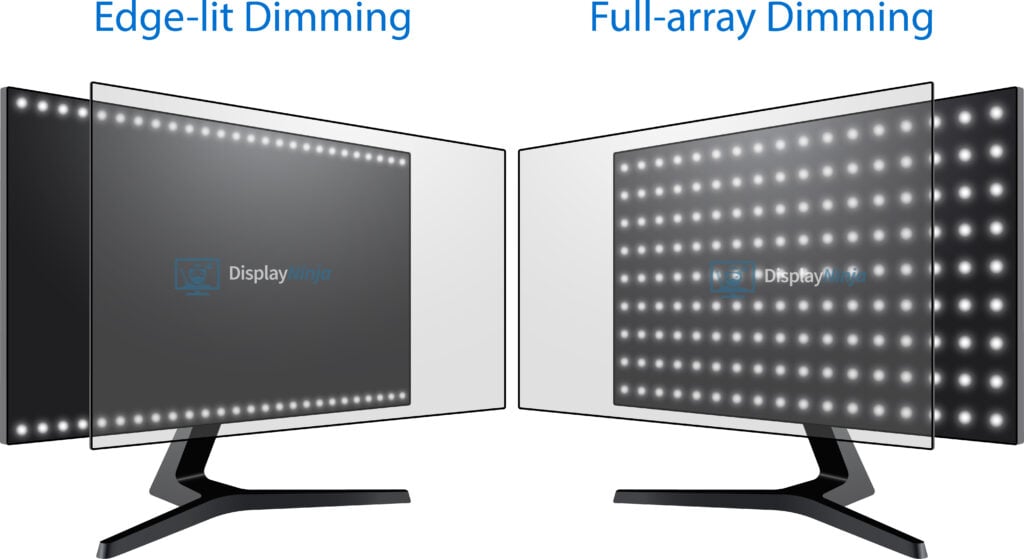
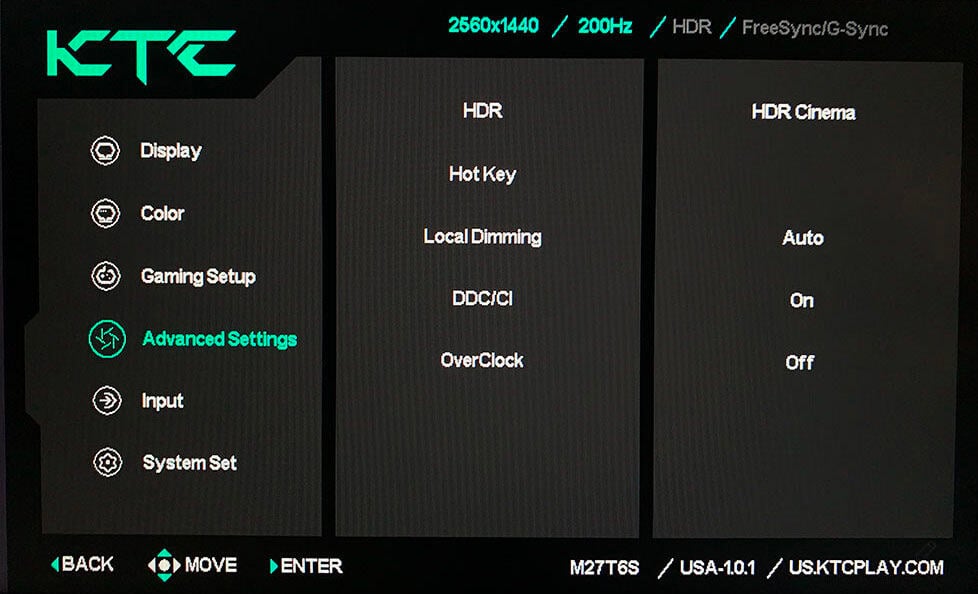
The monitor has five local dimming options: Off, Auto, Low, Standard and High.
The ‘Auto’ option means that local dimming is disabled in SDR and set to ‘Standard’ in HDR mode.
The High mode is the most aggressive as it’s the only mode that dims black all the way; however, it also has the lowest brightness for small highlights as it tries to minimize blooming.
The Low mode has the highest brightness but also the most visible blooming and raised blacks. The Standard mode strikes a balance between the two.
Brightness & EOTF Tracking
There are four HDR modes: VESA DisplayHDR, HDR Game, HDR Cinema and HDR 600. With three different local dimming modes, this means there are 12 different combinations you could use. Here’s how they compare.
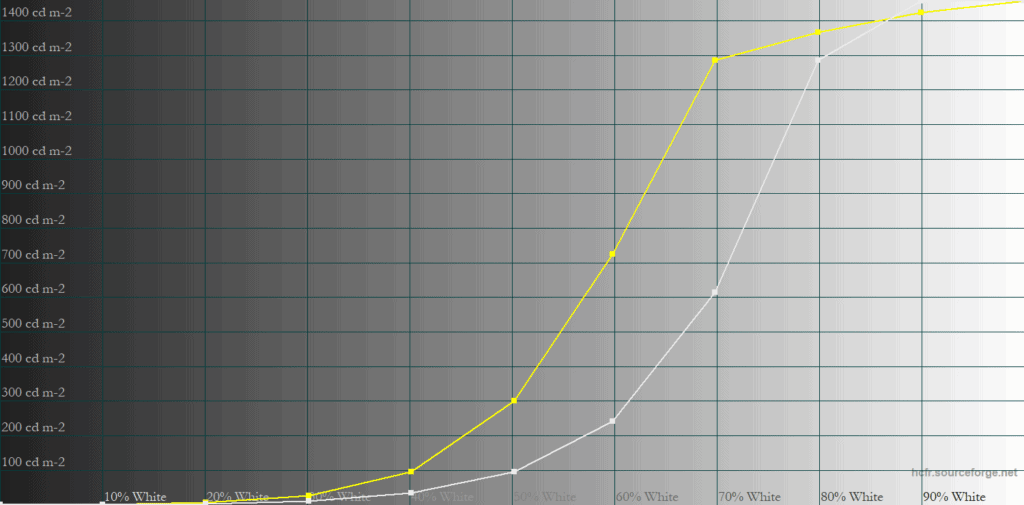
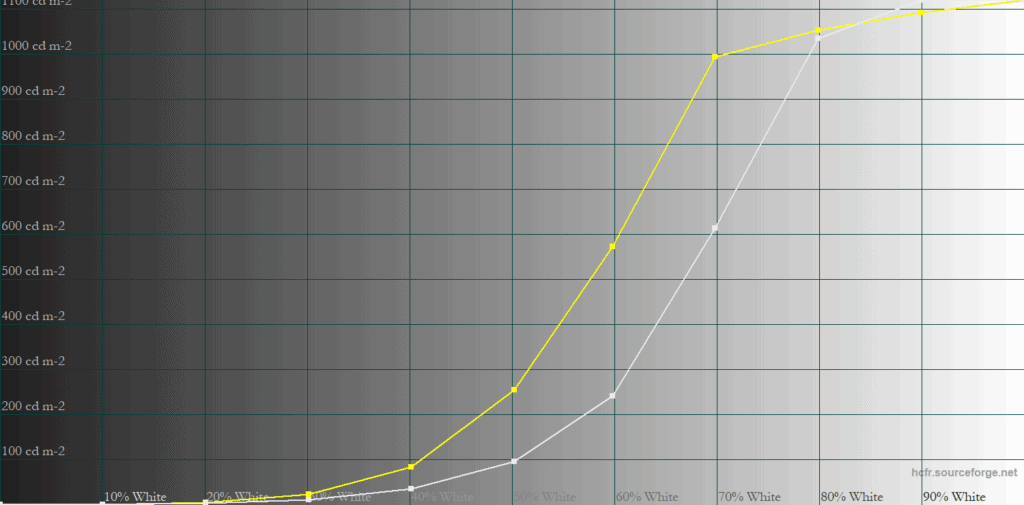
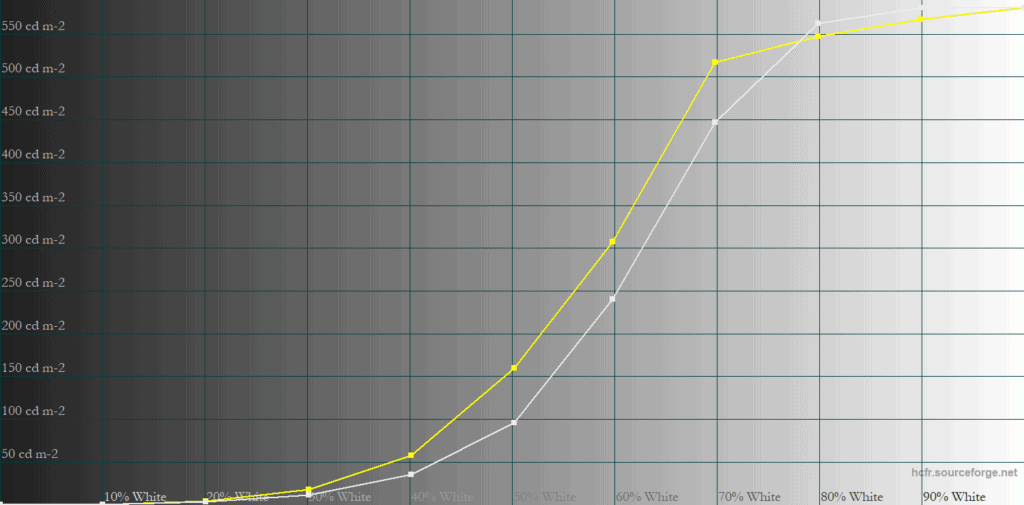
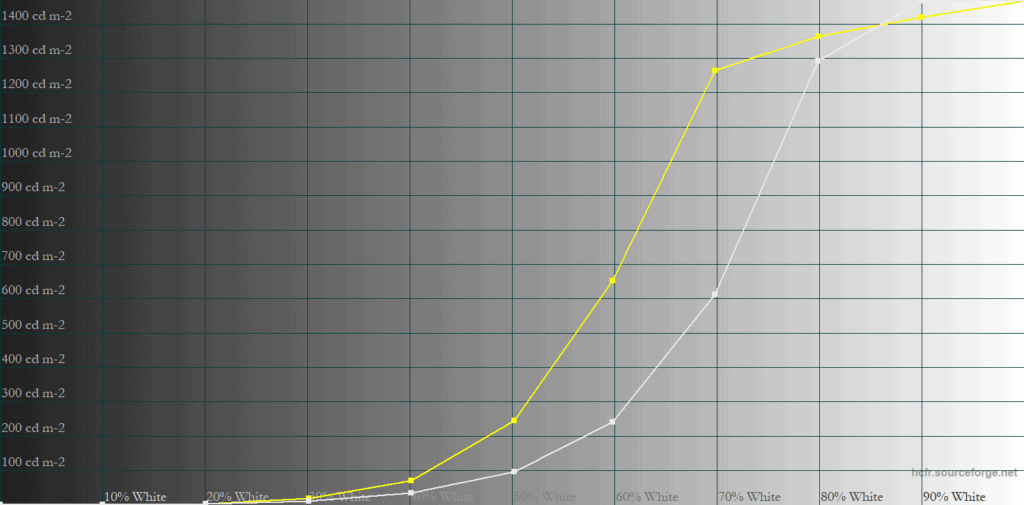
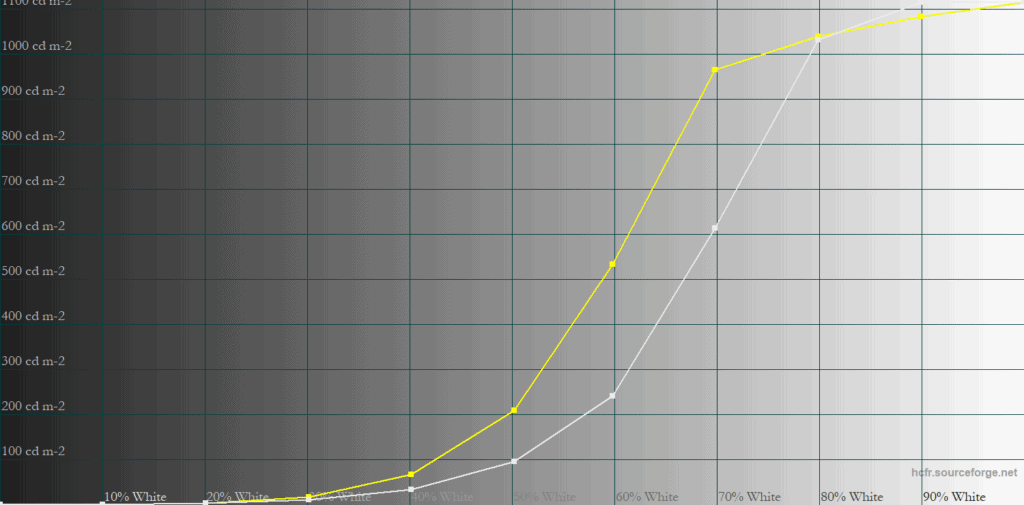
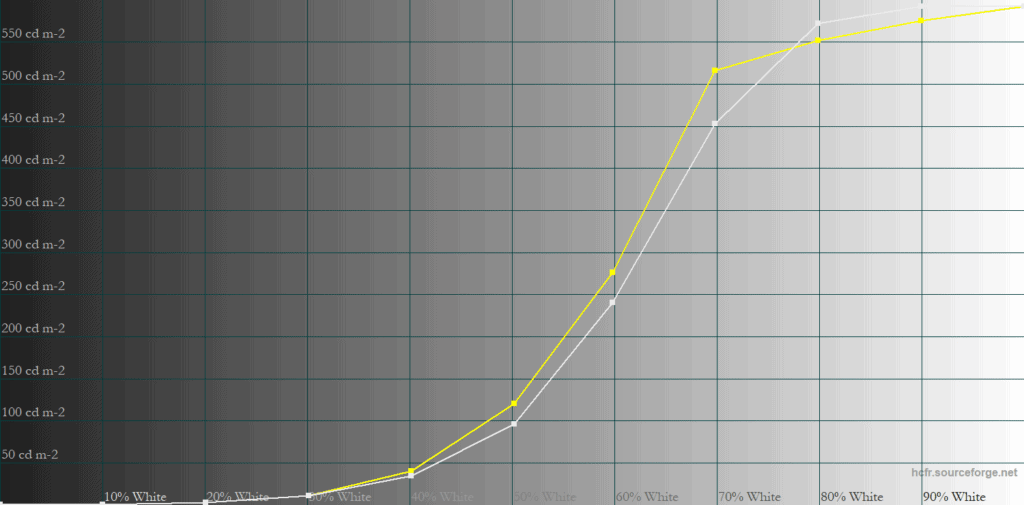
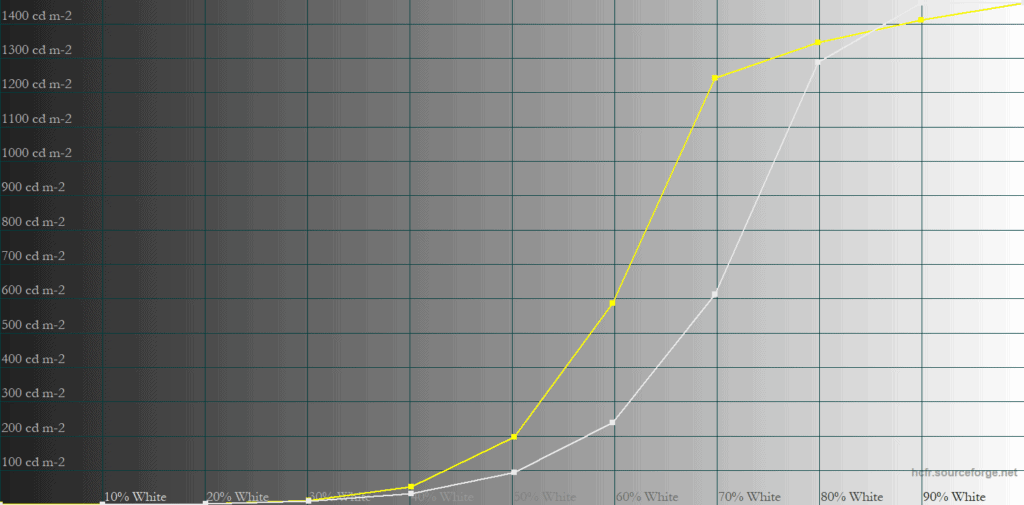
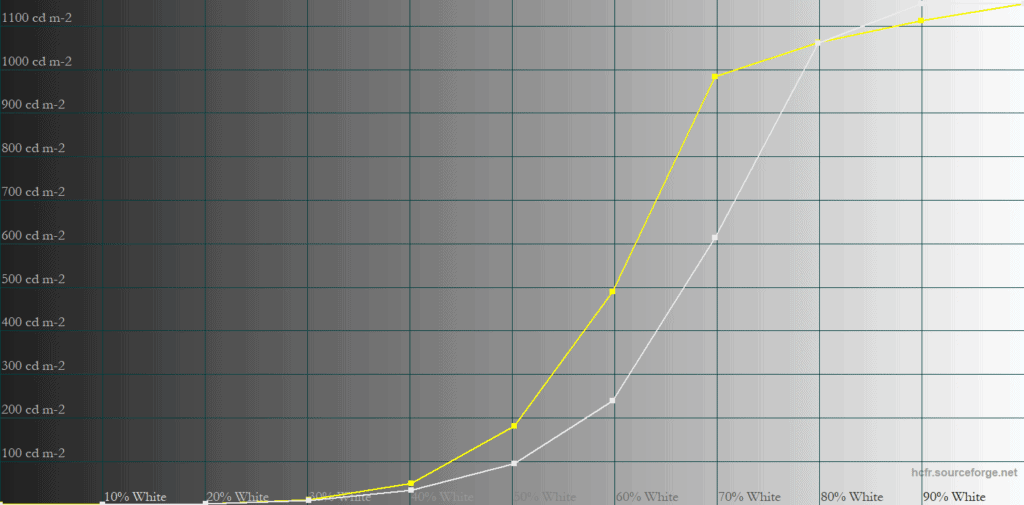
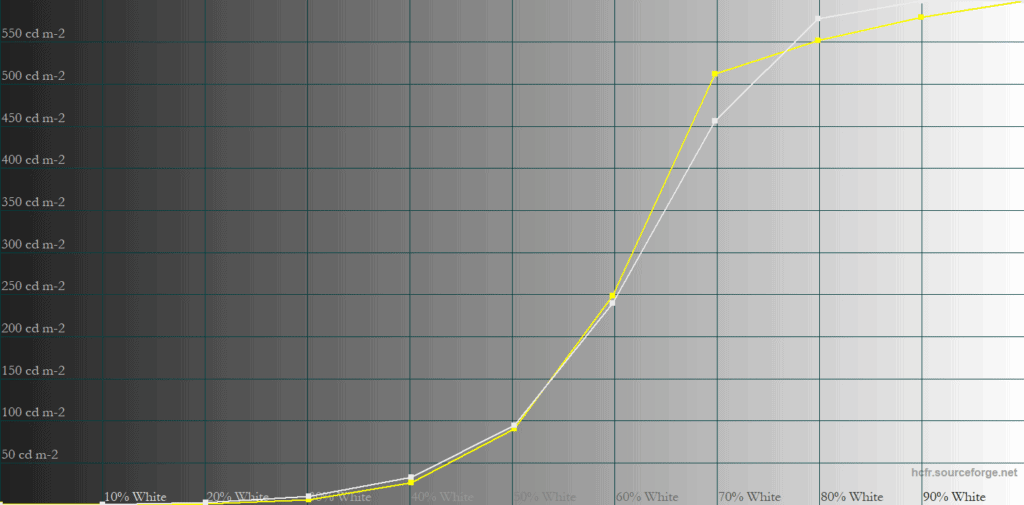
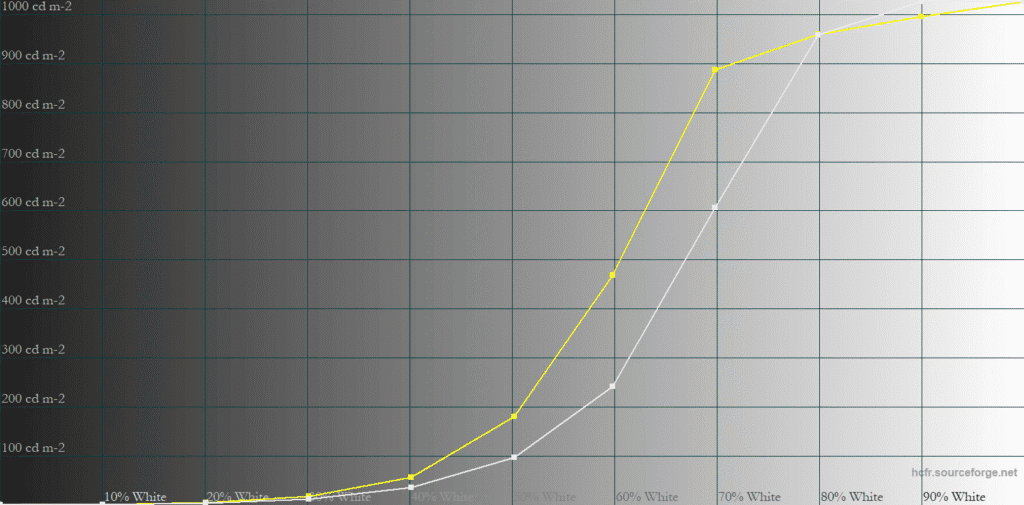
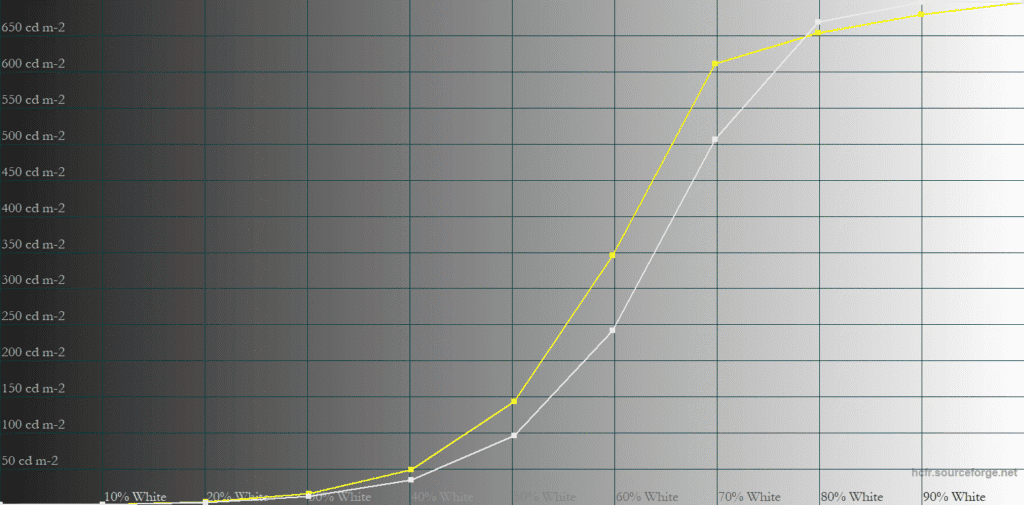
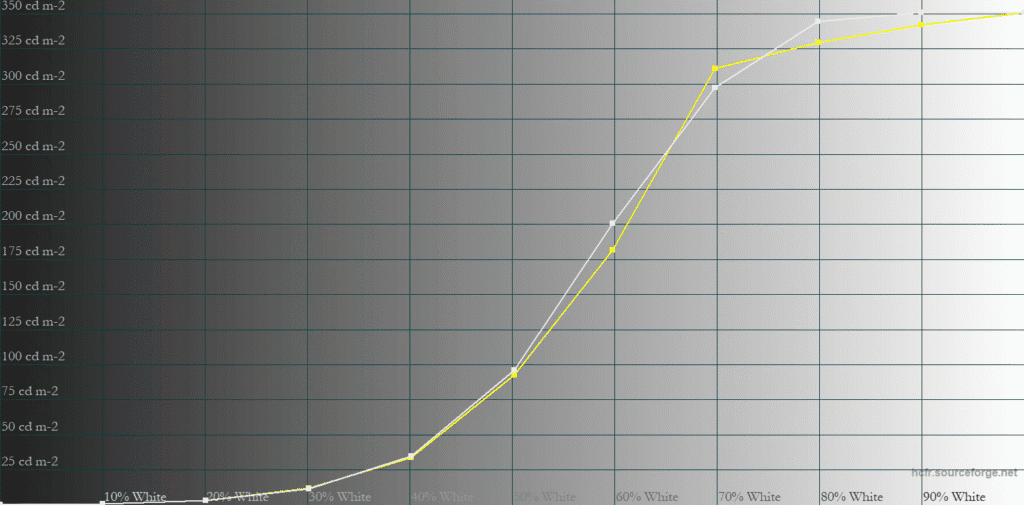
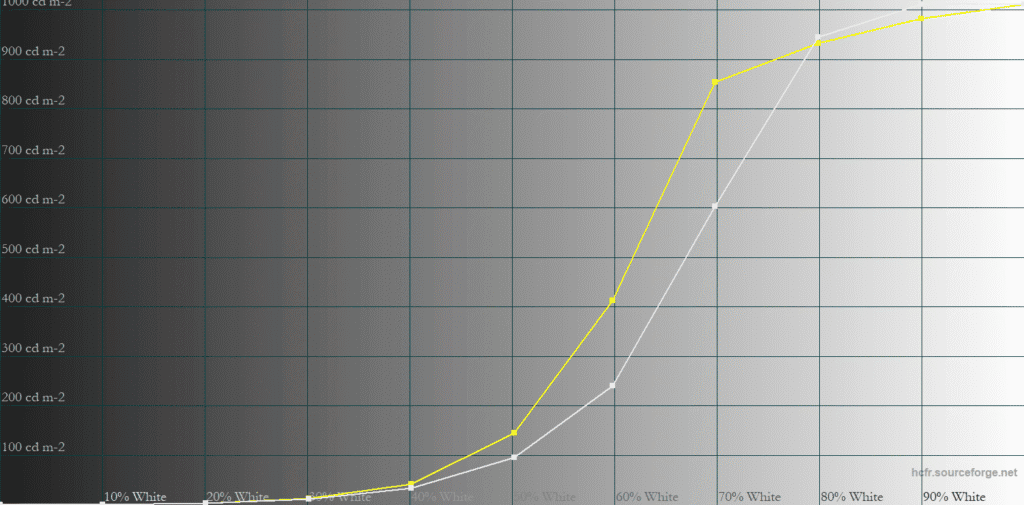
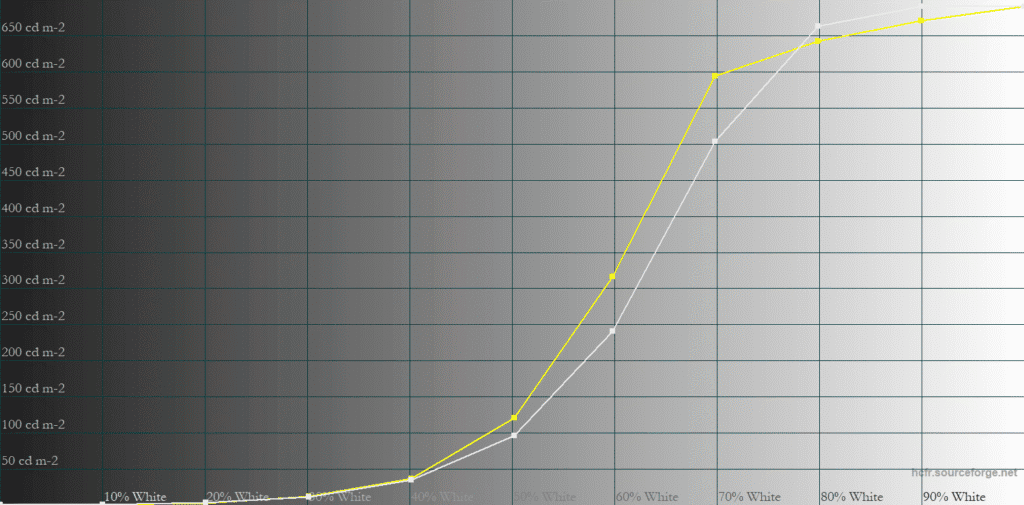
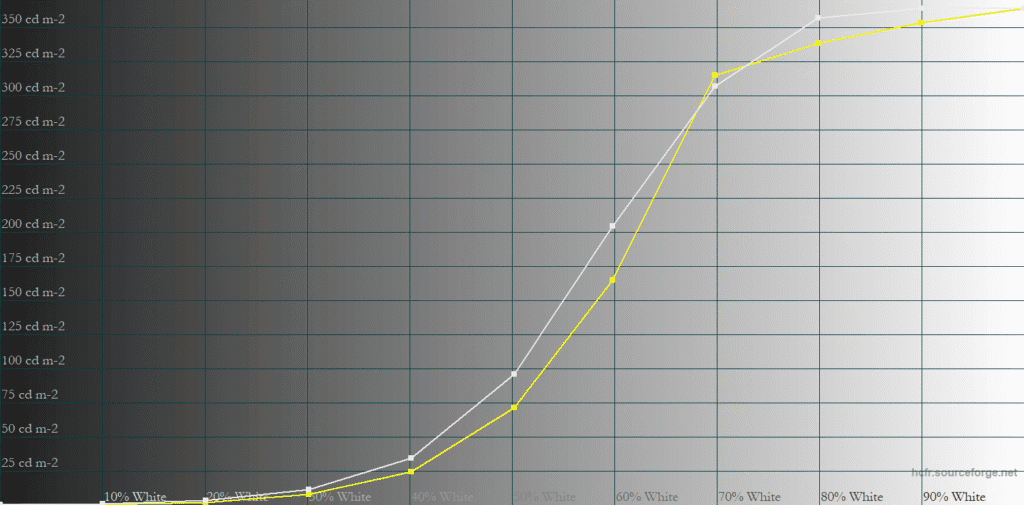
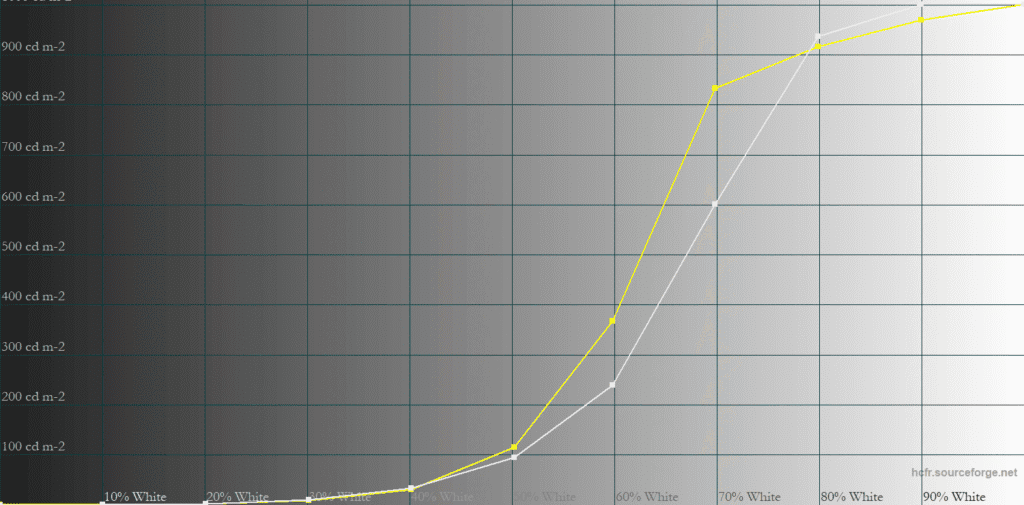
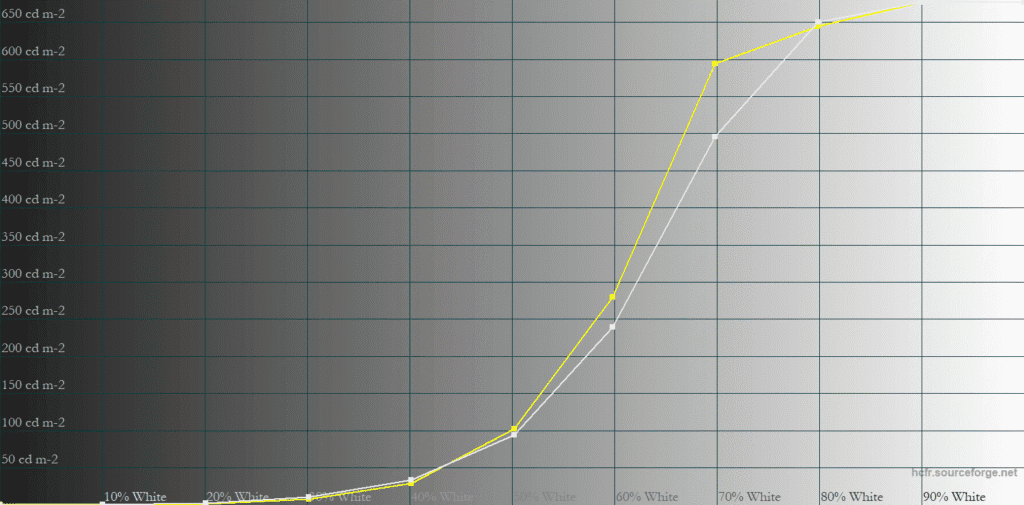
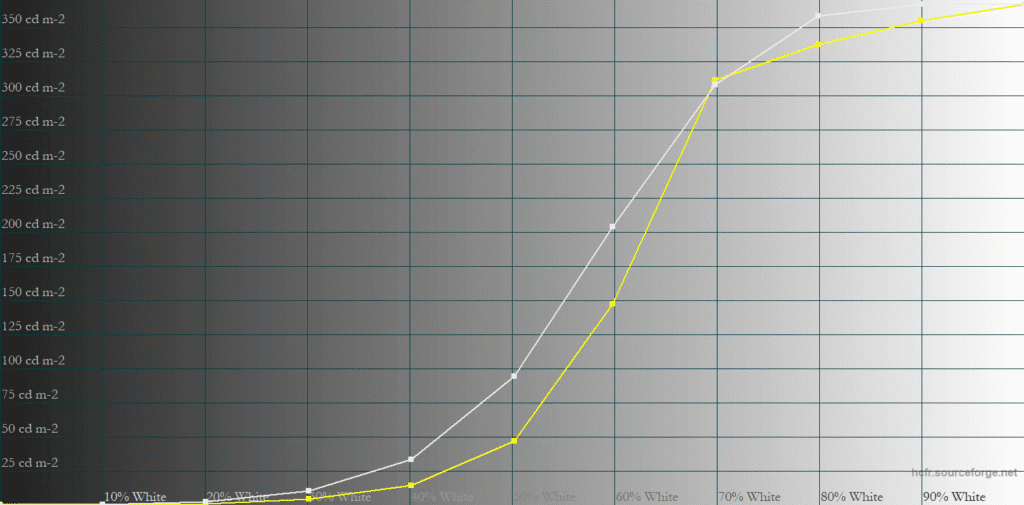
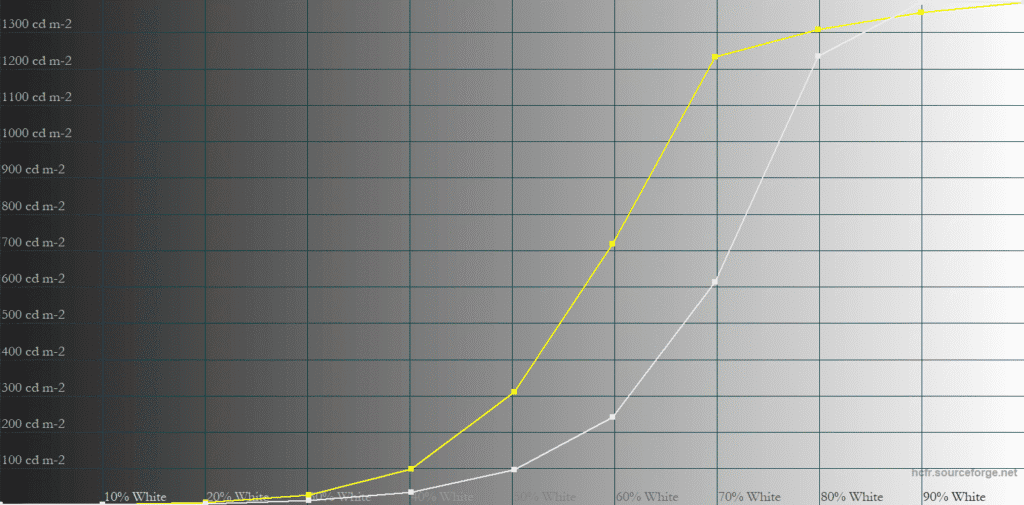
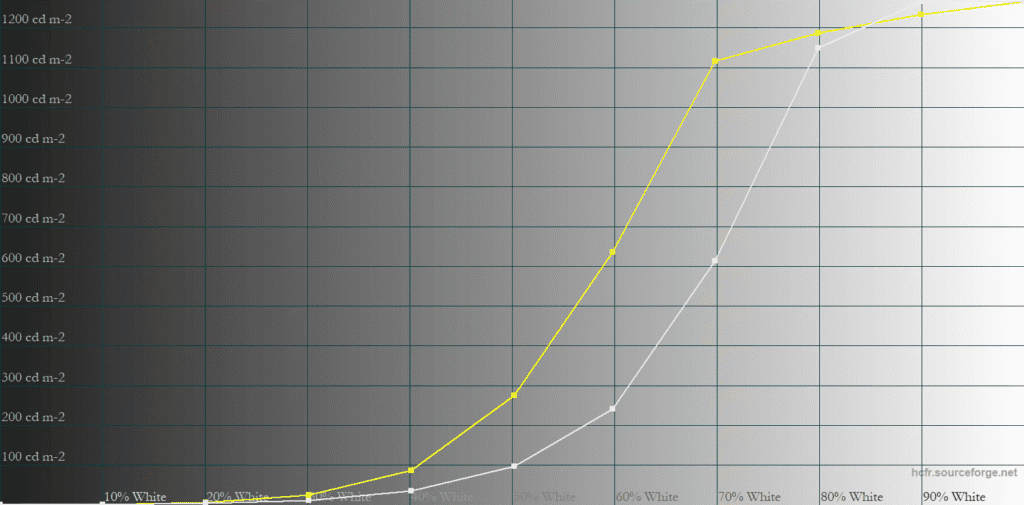
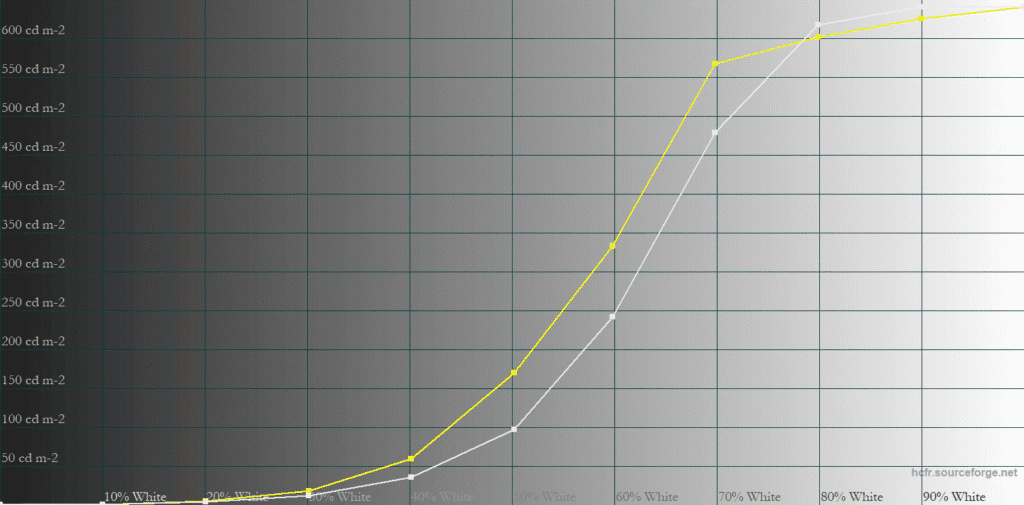
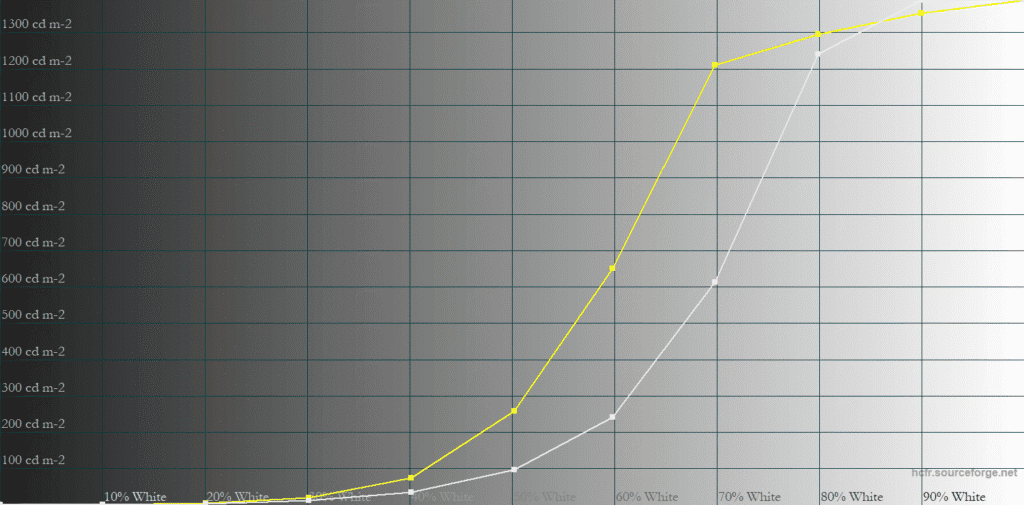
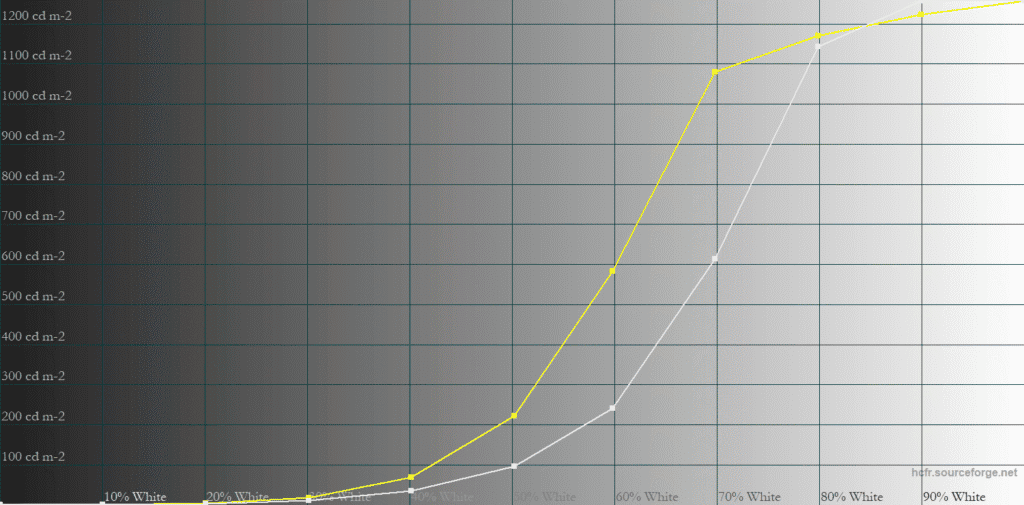
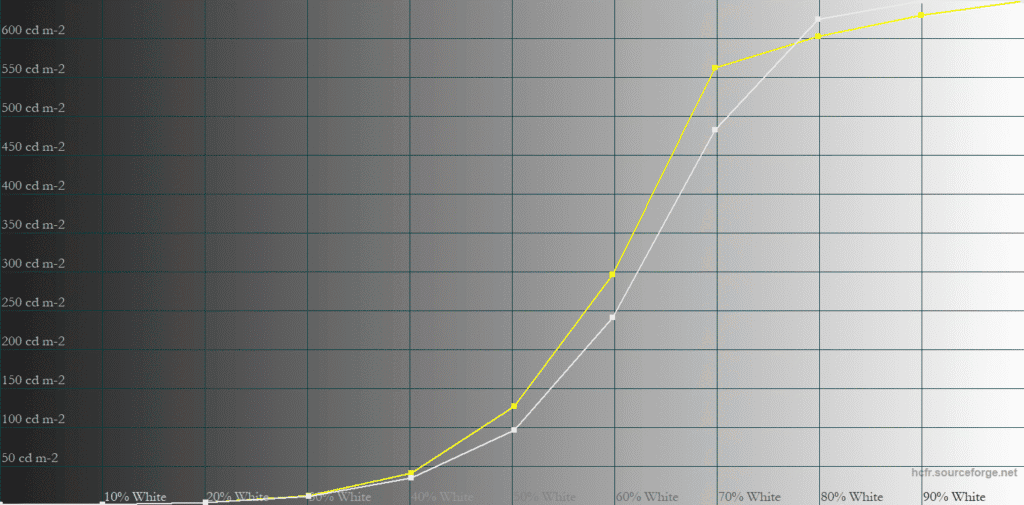
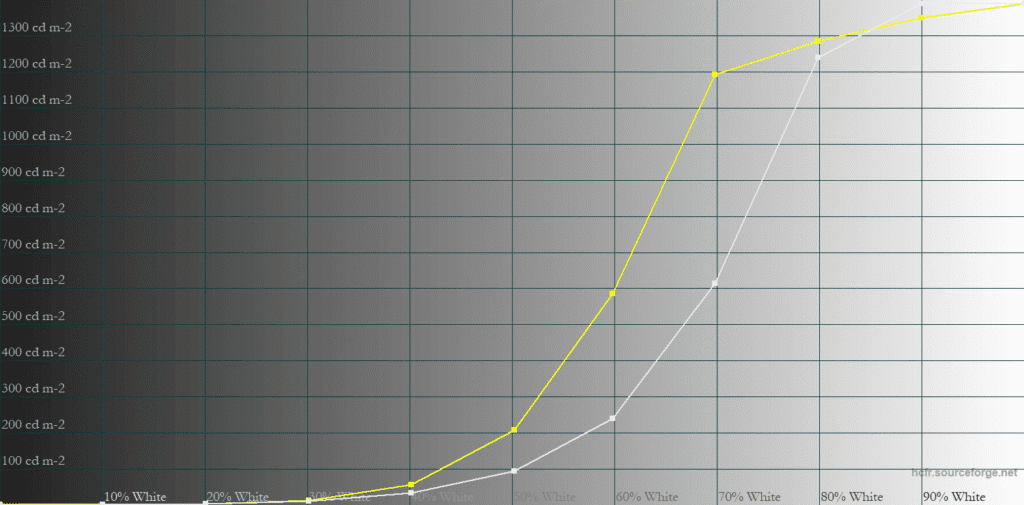
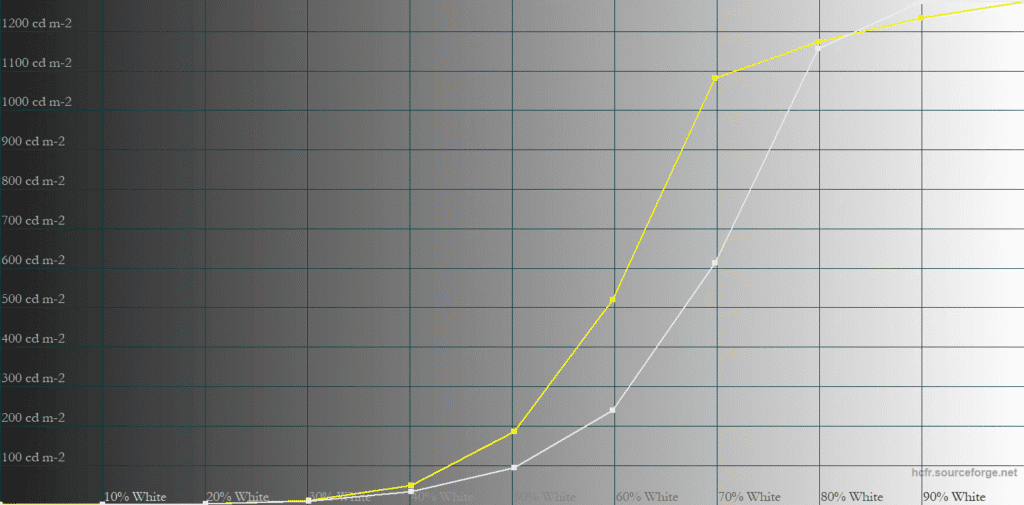
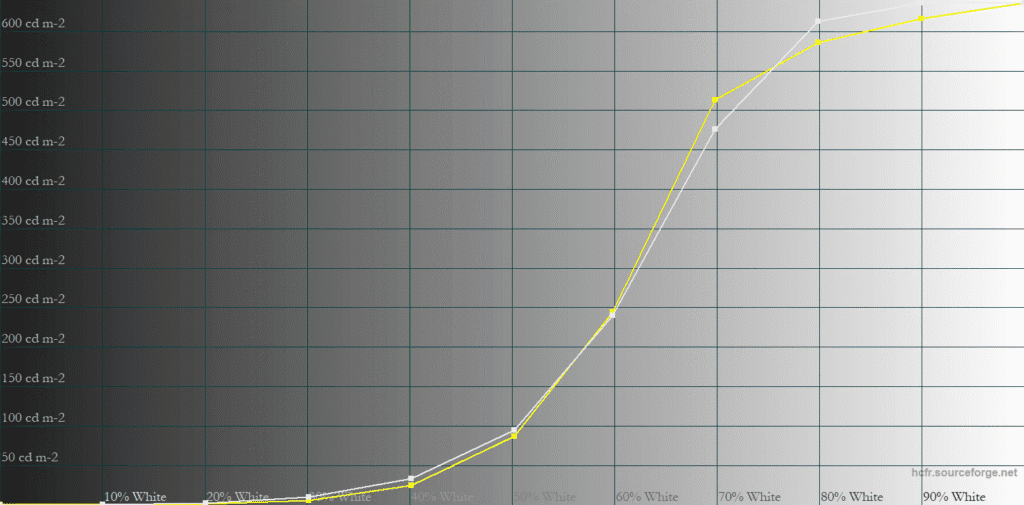
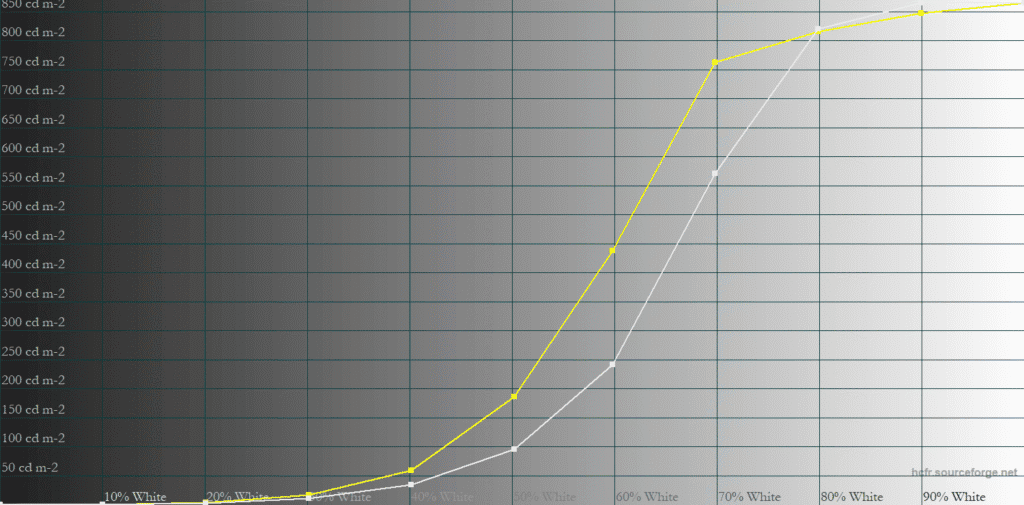
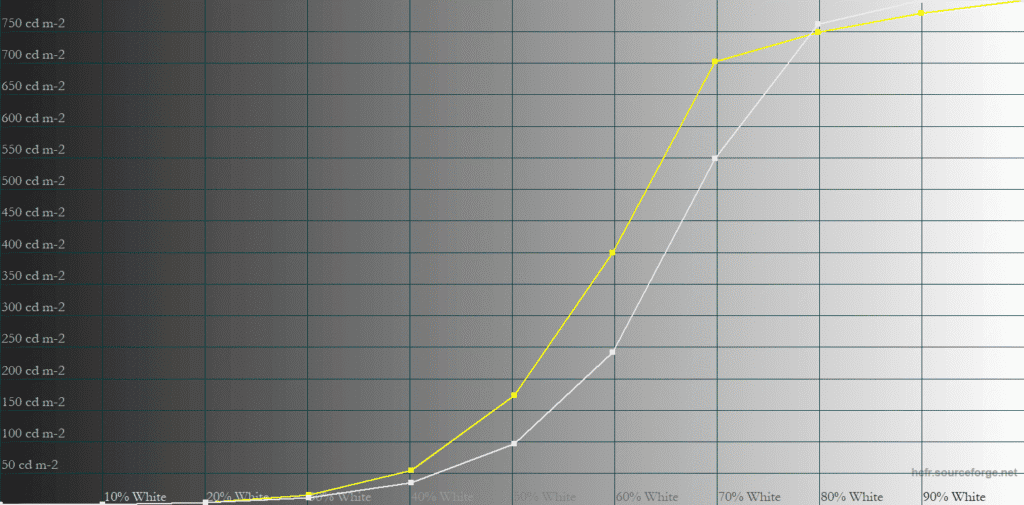
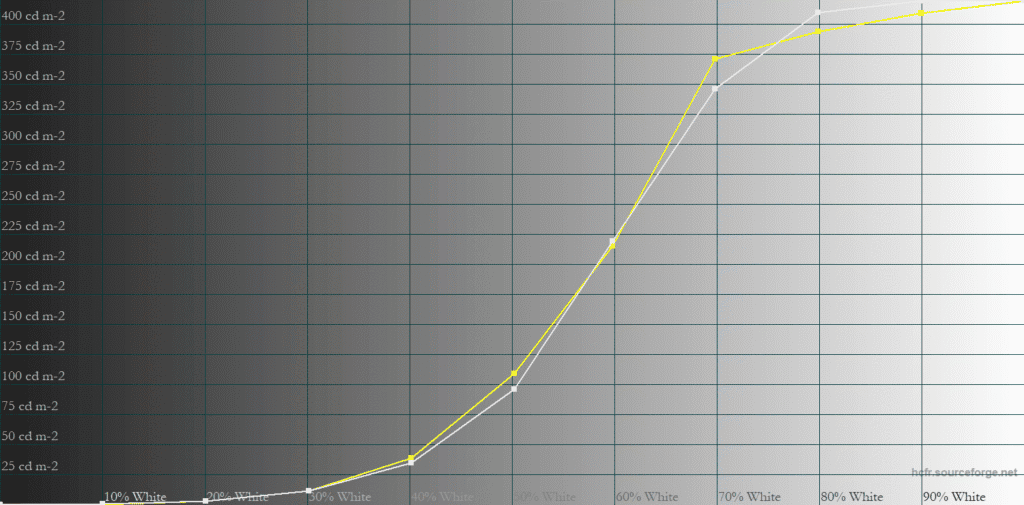
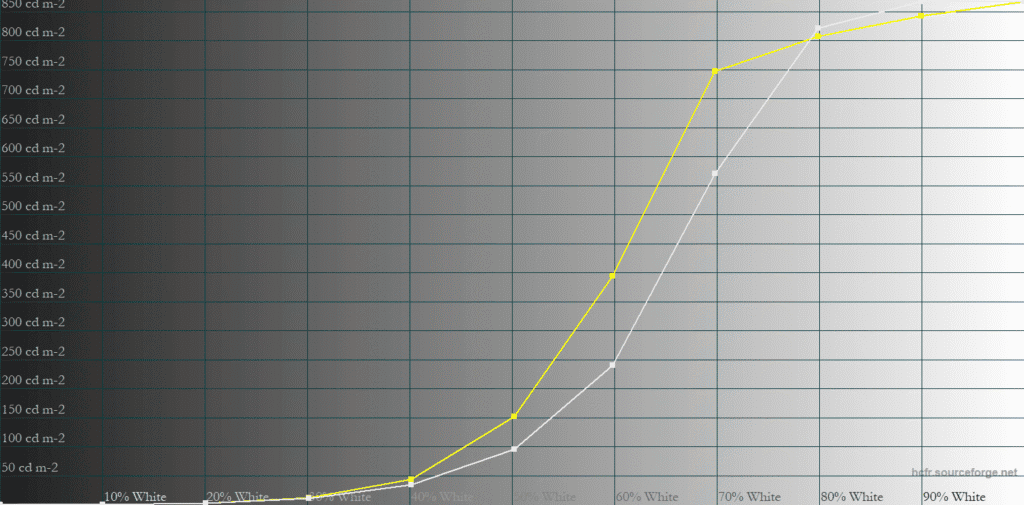
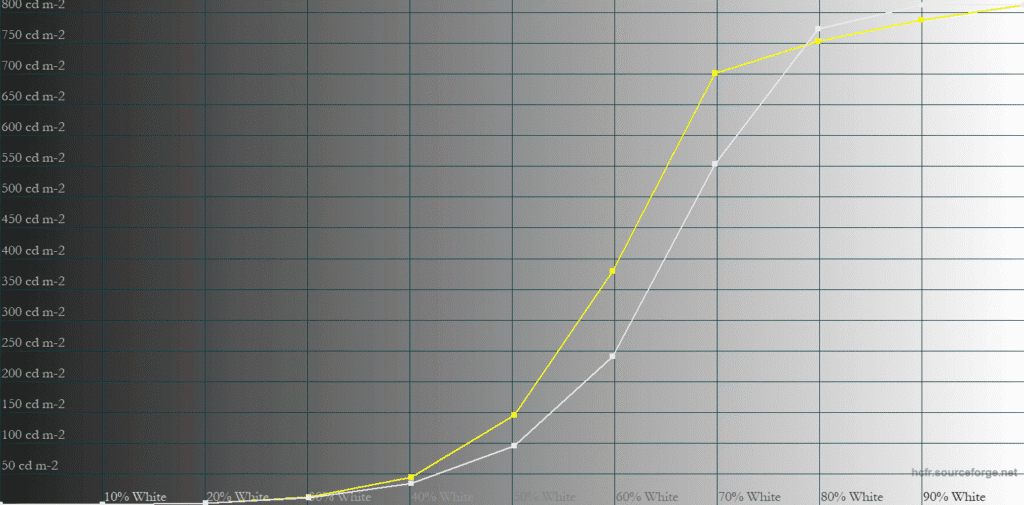
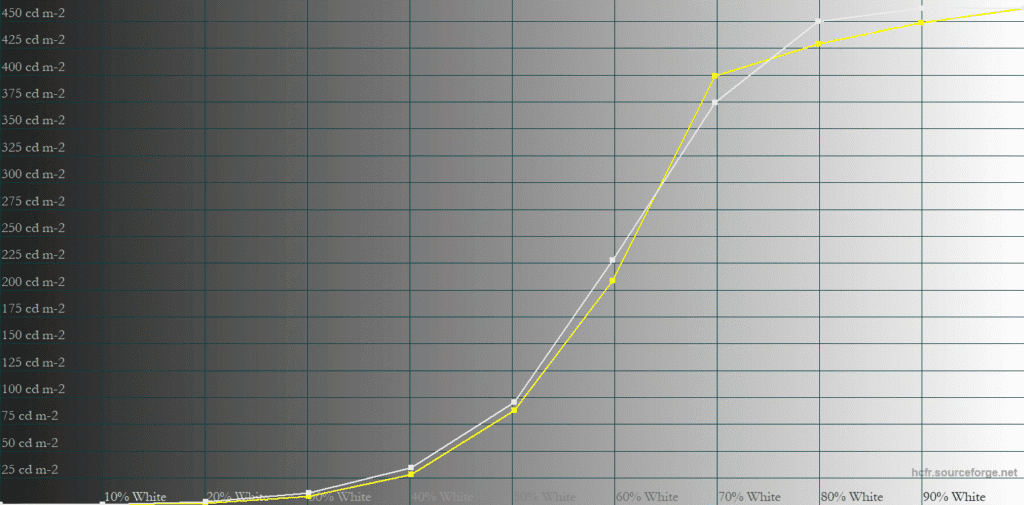
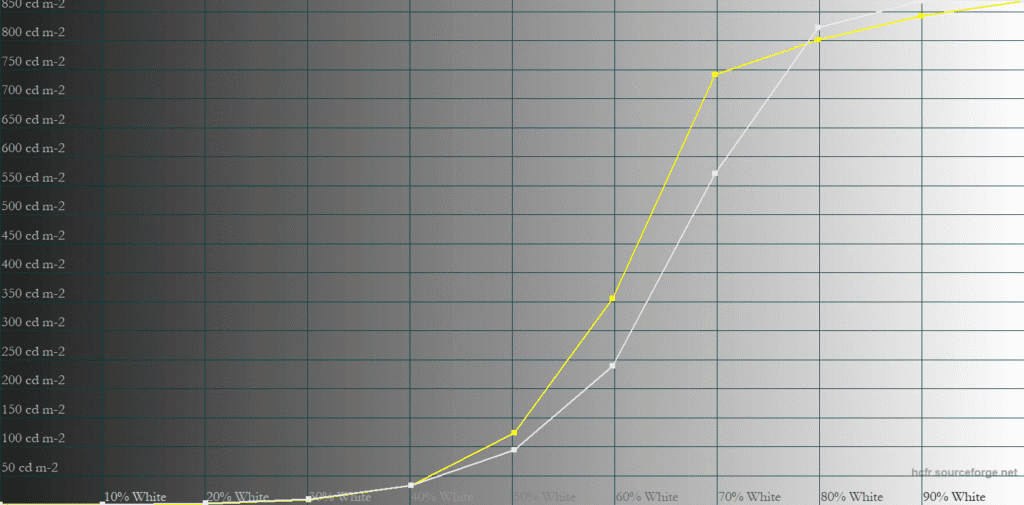
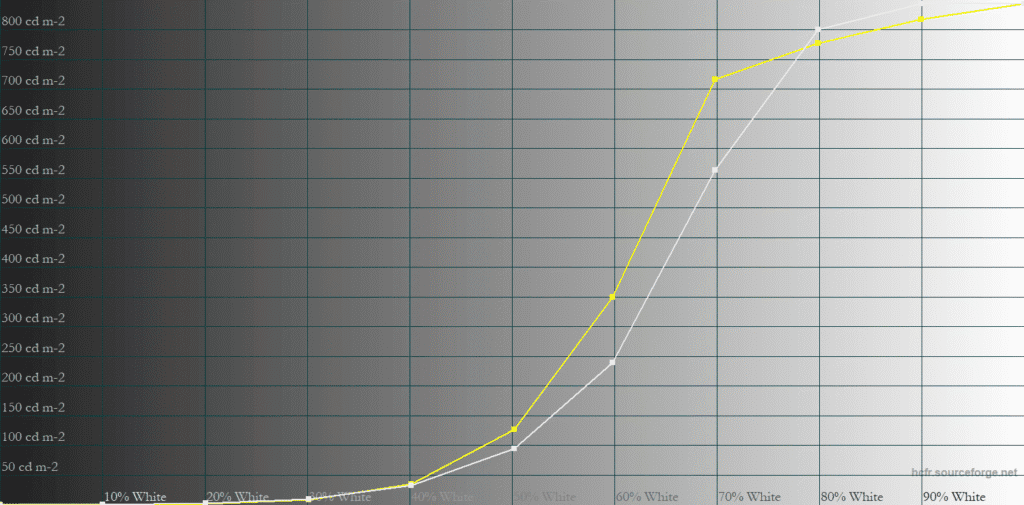
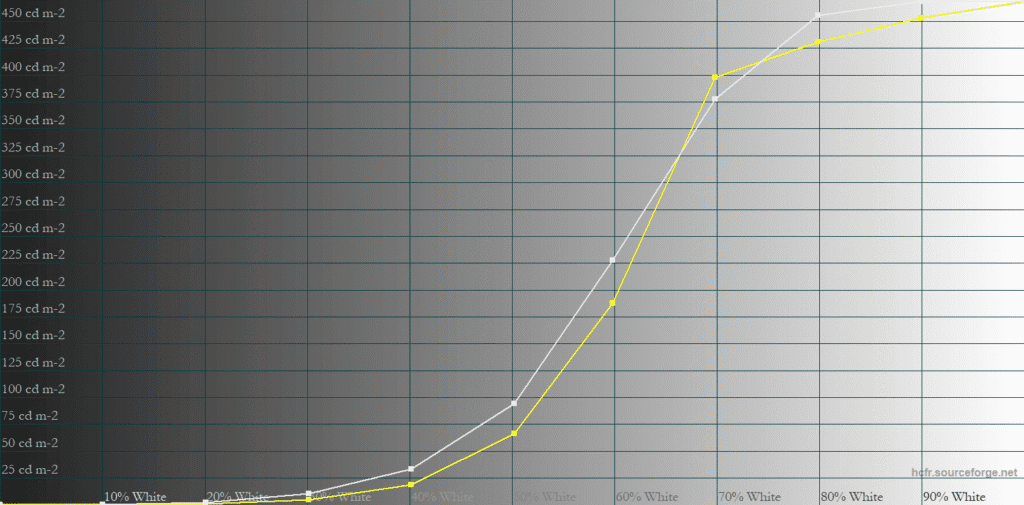
The results for 100% and 25% APL are similar to those of 50% and 10% APL. With all four modes, we’re getting a viewing experience similar to that of the KTC M27T6.
Midtones appear brighter than intended, which reduces perceived contrast and depth. While highlights remain bright, their impact is diminished due to lifted midtones. You still get an immersive HDR viewing experience, but the monitor prioritizes high perceived brightness over accuracy.
Next, we measured the peak brightness of all modes.
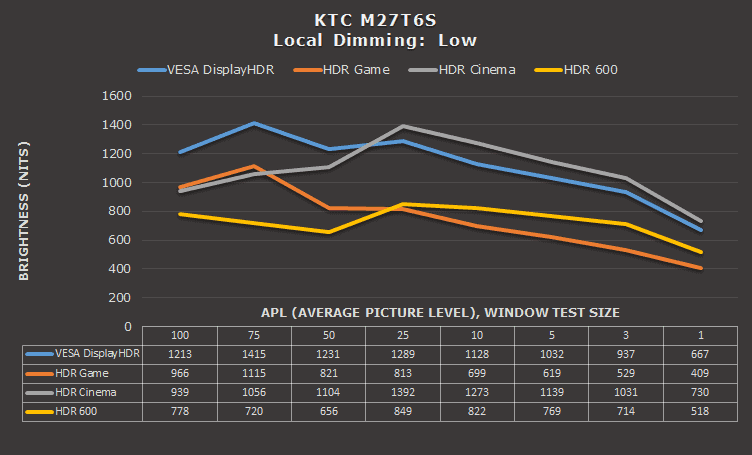
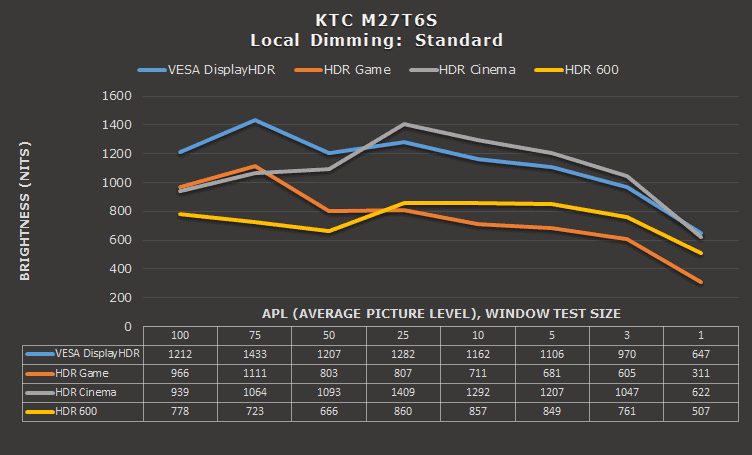
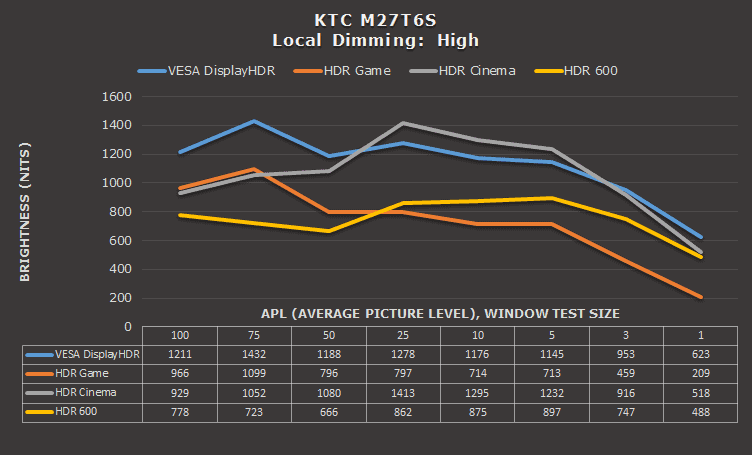
The HDR Game mode is the closest to the intended luminance, but it also has the lowest brightness, reaching only 209-nits for 1% APL in the High mode or 409-nits in the Low mode, which is why most users won’t be happy with it.
The HDR-600 is the next most accurate mode, but it has the lowest brightness for large APLs and can only reach up to around 900-nits. For 75% APL, for instance, it reaches only 723-nits, whereas the DisplayHDR mode goes up to 1432-nits.
Sustained Brightness Test
For large APLs, the brightness drops over time in order for the monitor to save on power and/or thermals.
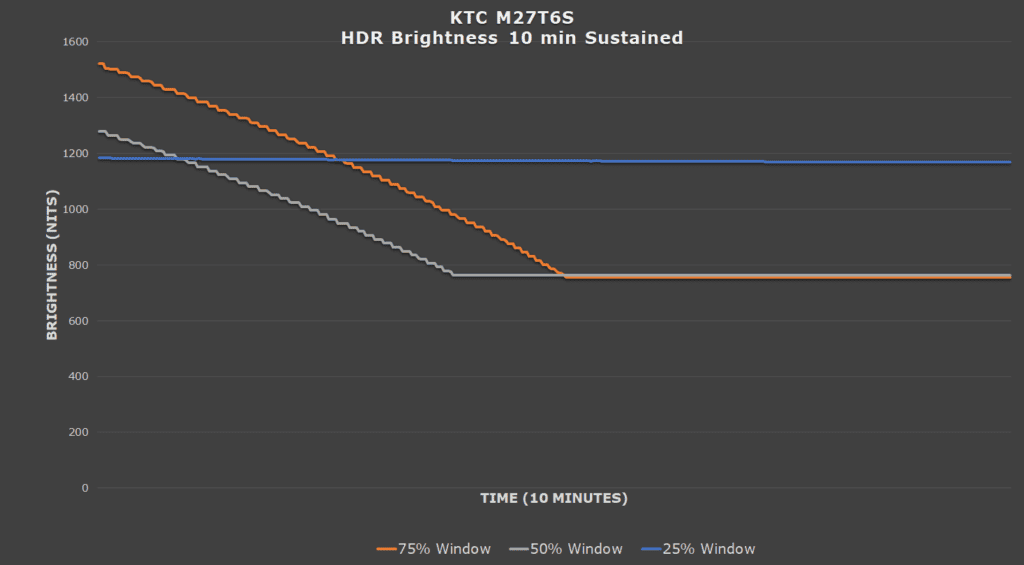
However, this only occurs during our static stress test. With regular content, the brightness goes back to maximum as soon as the picture moves.
HDR Saturation & Color Temperature
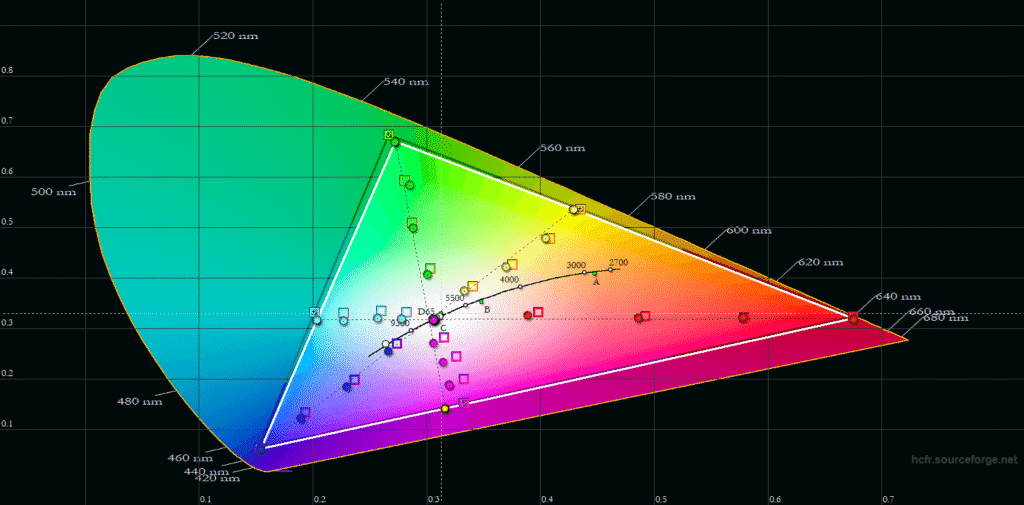
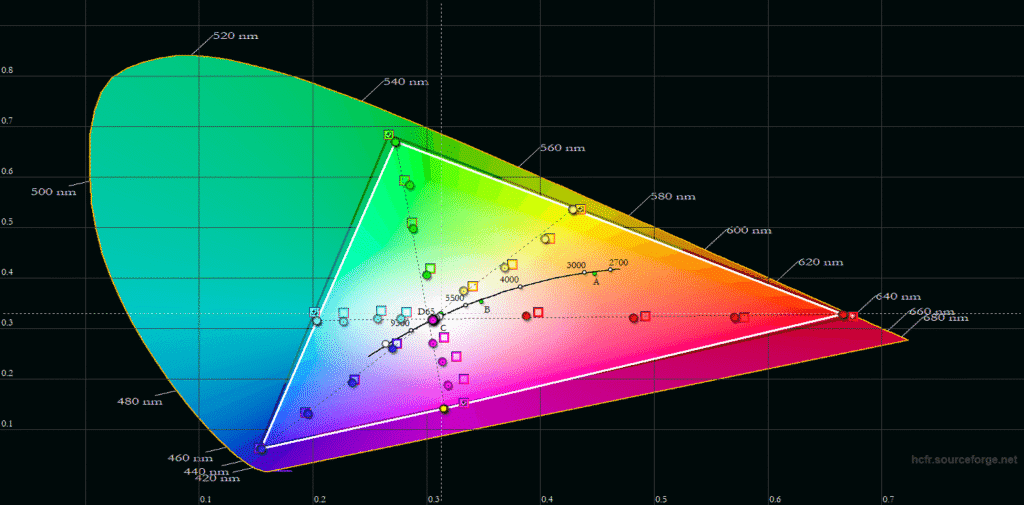
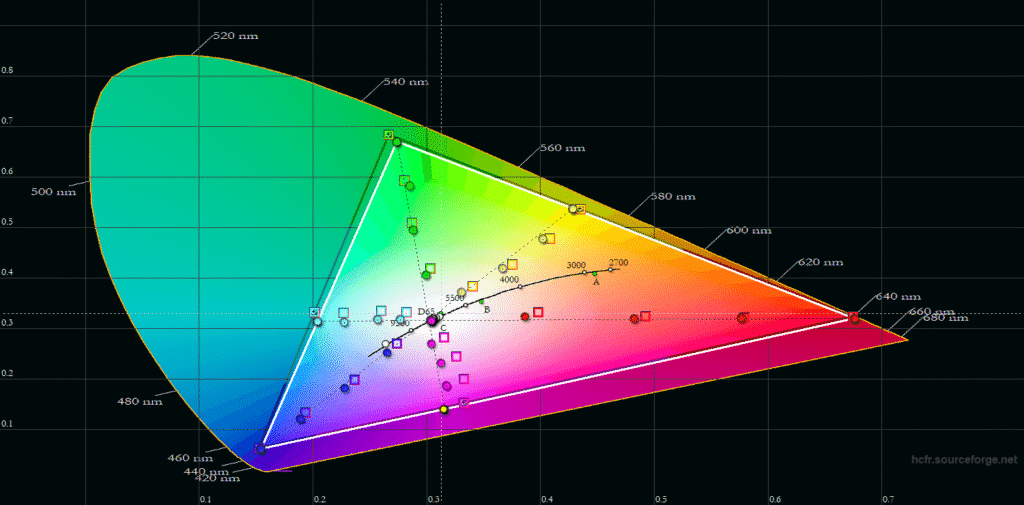
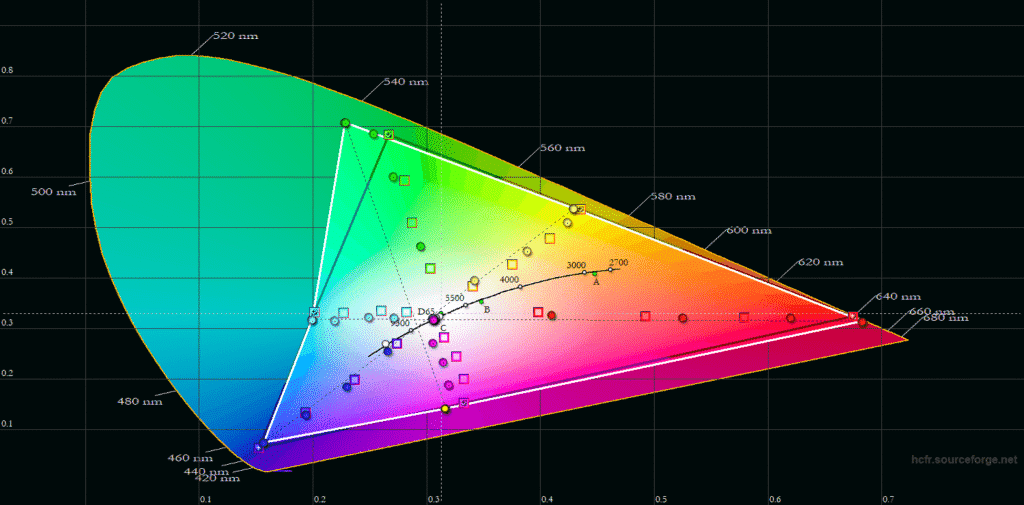
We don’t recommend using the HDR Cinema mode because it heavily oversaturates the colors. It goes beyond the target DCI-P3 color space in greens, and all colors in general are oversaturated, resulting in an unnatural image and even color clipping.
Between the other three modes, all have some over-saturation and undersaturation at places, but the accuracy overall is decent.
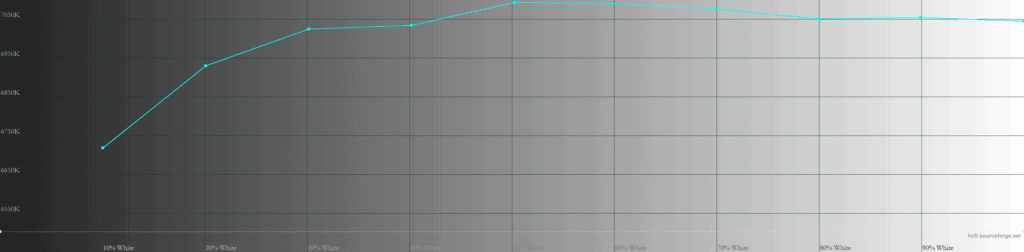
All four modes have similar color temperature, averaging around 6900K, which is a bit higher than the 6500K target, but there’s no noticeable bluish tint to the whitepoint.
Backlight Dimming Brightness Flicker
With local dimming enabled, transitions between dark and bright scenes can cause visible brightness flickering, as shown in the videos below. Watch them on YouTube with ‘loop’ enabled to spot it easily.
It’s more noticeable at 60Hz and can occasionally be seen during regular use. At 210Hz, the flickering is still present, but it’s much less likely to be noticeable in everyday usage.
We also observed this behavior on the M27P6, and to a lesser extent, on the M27T6.
Best HDR Settings
So, which mode to go with?
As far as local dimming goes, we recommend sticking with ‘High.’ It’s the only mode that dims the blacks all the way down to 0-nits, as blacks with Standard or Low can look grayish in comparison.
The heavy oversaturation of HDR Cinema and the very low brightness of HDR Game make them unusable.
This leaves out the VESA DisplayHDR and HDR 600 modes.
While more accurate, we find that most users will find the HDR 600 mode too dim as well. The 488-nits at 1% APL is even acceptable as it’s not that darker than 623-nits of the DisplayHDR mode, but larger APLs are simply too dark.
What you could do, if you wanted to trade a bit of brightness for accuracy, is pick the DisplayHDR mode and manually decrease the brightness in the OSD menu.
You’d need to decrease it all the way to 40/100 to fix the midtones, but the brightness penalty would be around 50%. On top of that, the 1% APL highlights are then also darker than intended.
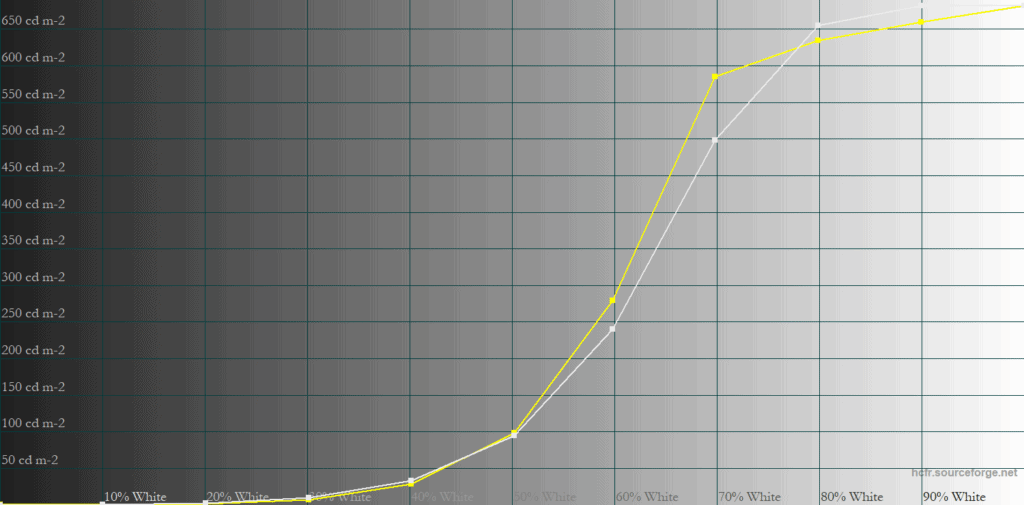
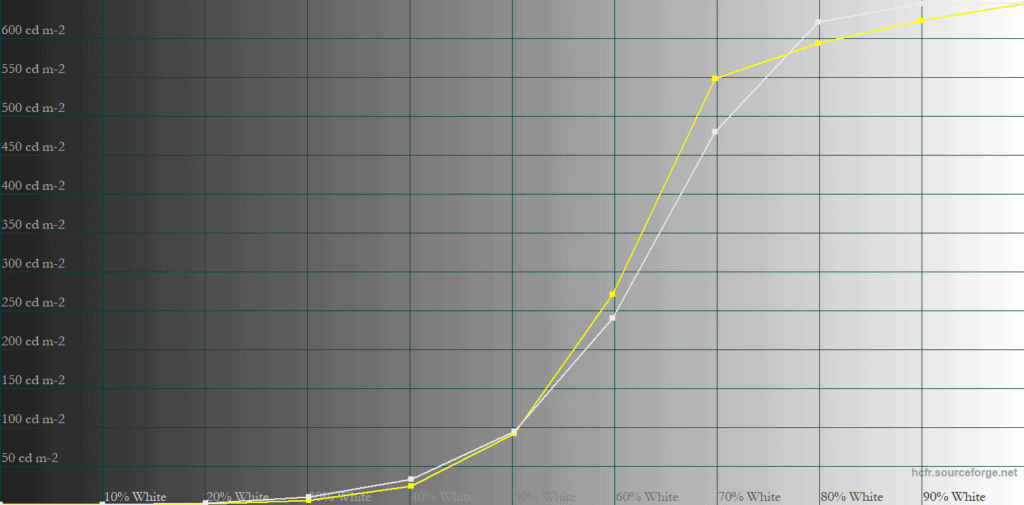
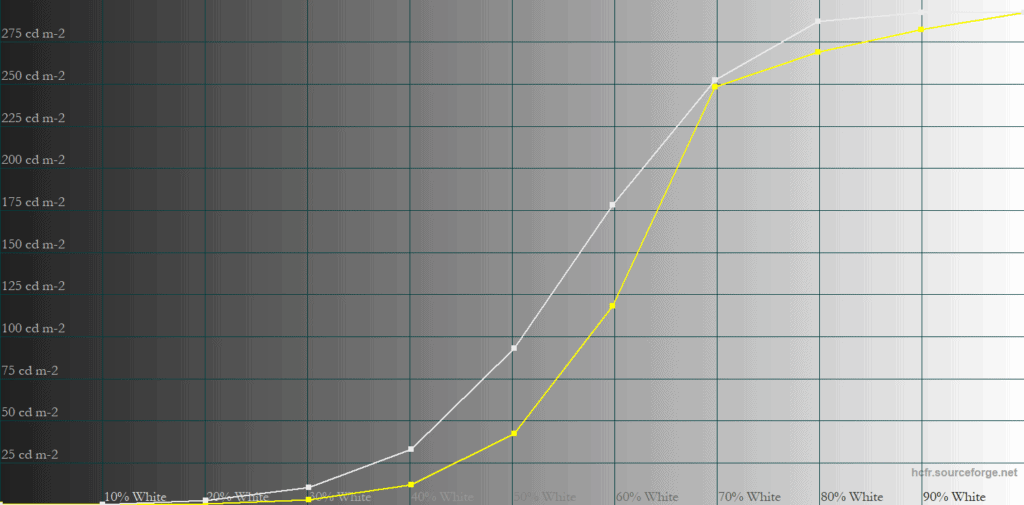
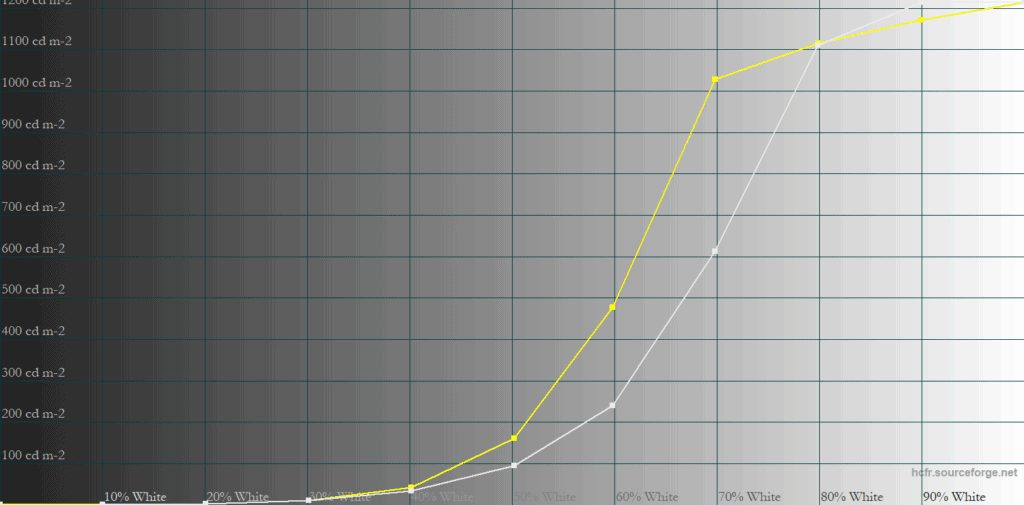
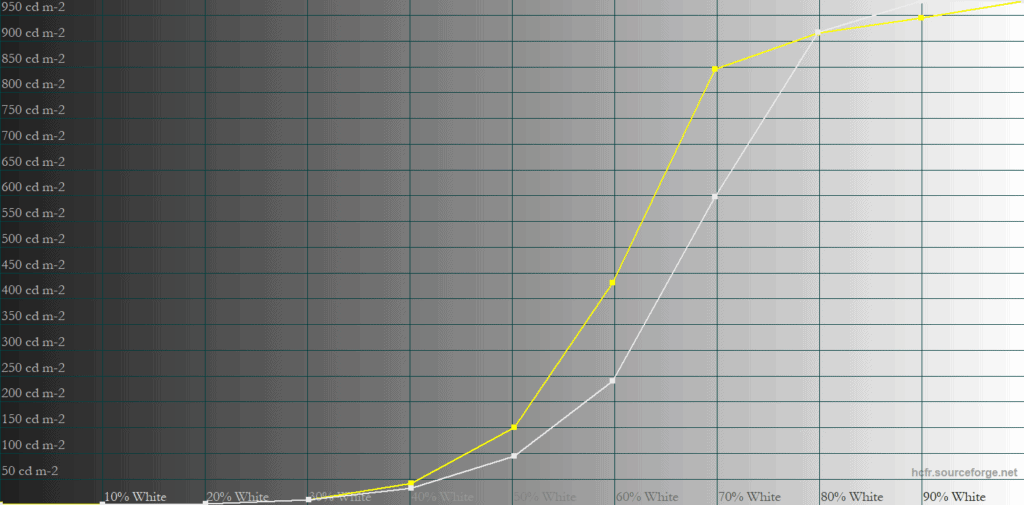
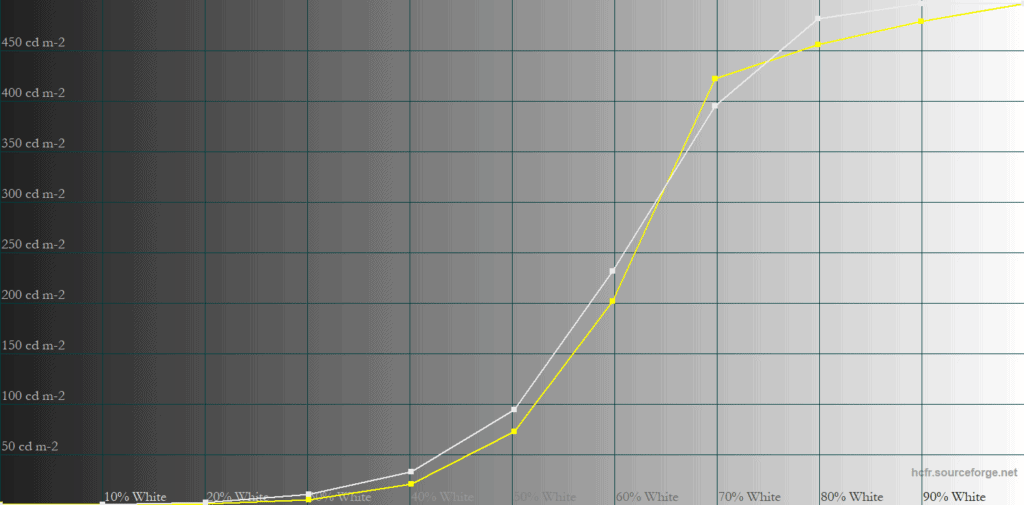
So, if you find lifted midtones bothersome in some scenes (over-lit skin tones, weaker highlights, etc.), decreasing the brightness is the only way to improve EOTF tracking.
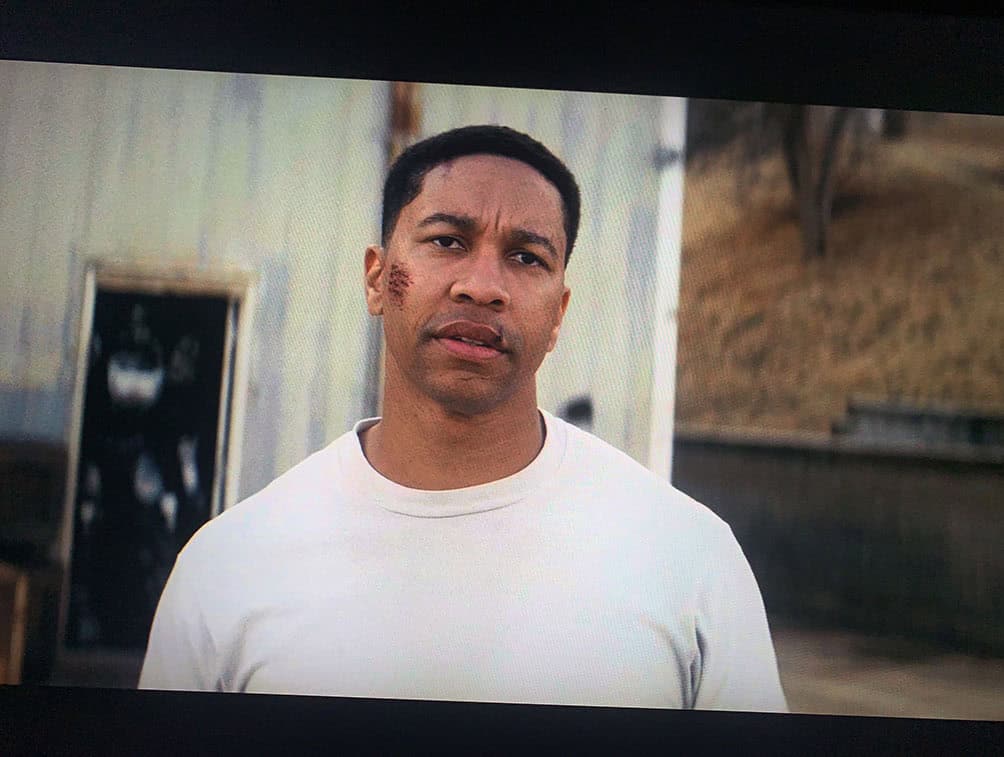
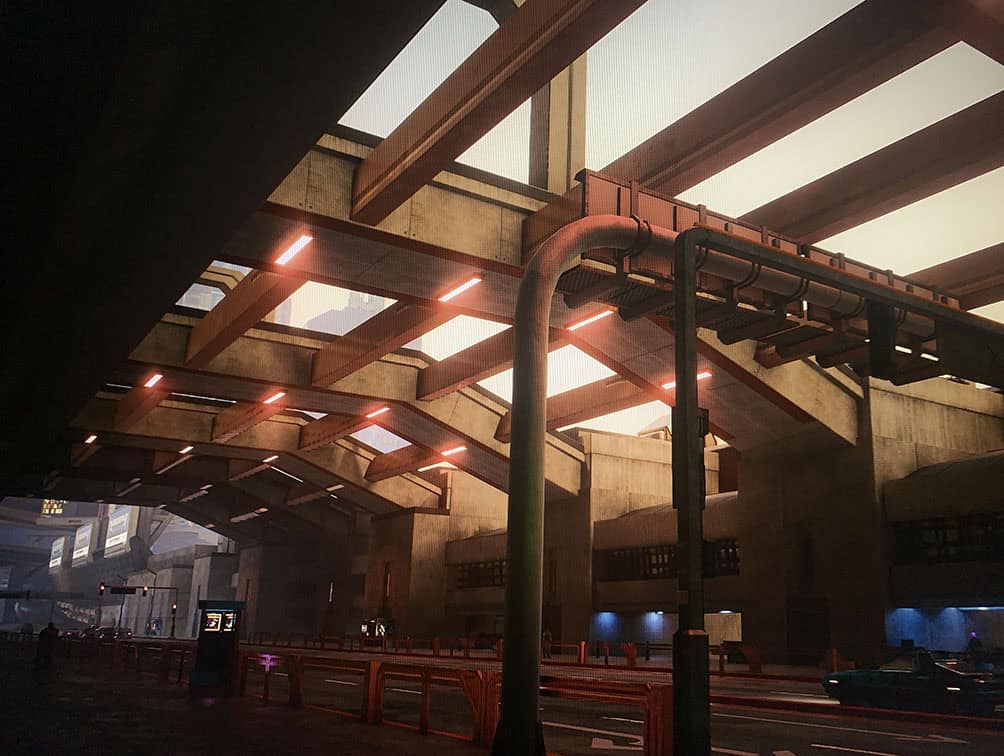
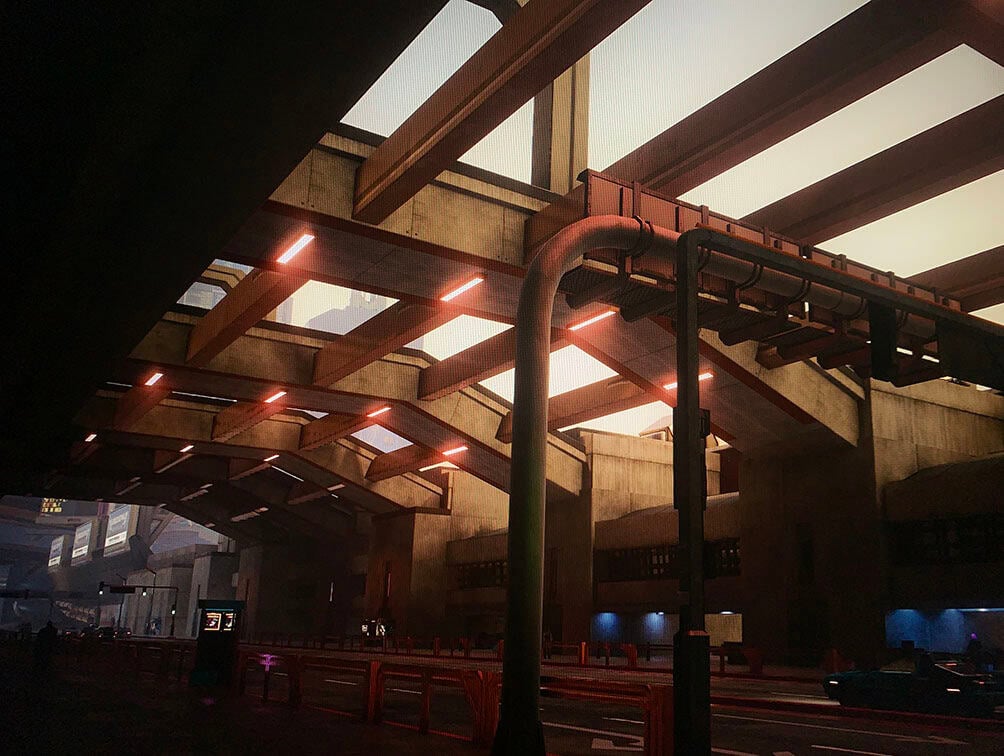
Having said all that, most users will probably prefer the punchier and overall brighter image quality of the DisplayHDR mode at full brightness.
Real Scene Tests
Sunlight in ‘A Perfect Planet’ | Small flash from ‘Chasing The Light’ | Large flash from ‘Chasing The Light’ | Lightning in ‘A Perfect Planet’ | Solar flare in ‘A Perfect Planet’ | Sunlight in‘ A Perfect Planet’ | |
| MSI MPG 341QR X36 (QD-OLED) True Black 500 | 466 | 500 | 389 | 499 | 210 | 221 |
| MSI MPG 341QR X36 (QD-OLED) Peak 1300 nits | 647 | 1228 | 400 | 545 | 112 | 129 |
| MSI MPG 341QR X36 (QD-OLED) EOTF Boost FW.009 | 379 | 815 | 293 | 511 | 148 | 152 |
| MSI MPG 341QR X36 (QD-OLED) EOTF Boost FW.014 | 765 | 1295 | 409 | 760 | 129 | 137 |
| MSI MPG 322UR X24 (QD-OLED) True Black 500 | 514 | 521 | 374 | 507 | 225 | 239 |
| MSI MPG 322UR X24 (QD-OLED) Peak 1000 nits | 596 | 854 | 396 | 565 | 138 | 147 |
| MSI MPG 322UR X24 (QD-OLED) EOTF Boost | 585 | 749 | 386 | 665 | 182 | 193 |
| MSI MAG 272QP X50 (QD-OLED) True Black 500 | 497 | 525 | 377 | 514 | 209 | 224 |
| MSI MAG 272QP X50 (QD-OLED) Peak 1000 nits | 558 | 863 | 395 | 567 | 129 | 140 |
| MSI MAG 272QP X50 (QD-OLED) EOTF Boost | 580 | 845 | 366 | 556 | 319 | 322 |
| MSI MPG 271QR X50 (QD-OLED) True Black 500 | 481 | 502 | 368 | 495 | 210 | 230 |
| MSI MPG 271QR X50 (QD-OLED) Peak 1000 nits | 544 | 814 | 385 | 539 | 127 | 139 |
| MSI MPG 271QR X50 (QD-OLED) EOTF Boost | 553 | 724 | 376 | 760 | 174 | 184 |
| MSI MPG 321CURX (QD-OLED) True Black 400 | 429 | 452 | 310 | 450 | 201 | 207 |
| MSI MPG 321CURX (QD-OLED) Peak 1000 nits | 538 | 974 | 328 | 549 | 108 | 113 |
| KTC G27P6S (W-OLED MLA+) | 317 | 739 | 313 | 602 | 183 | 216 |
| KTC G32P5 (W-OLED MLA+) | 240 | 467 | 305 | 572 | 170 | 205 |
| KTC M27T6S (Mini LED IPS) VESA DisplayHDR, High | 942 | 990 | 1388 | 813 | 757 | 824 |
| KTC M27P6 (Mini LED IPS) VESA DisplayHDR, Low | 837 | 1224 | 1751 | 645 | 385 | 394 |
| KTC M27P6 (Mini LED IPS) HDR Cinema, Low | 745 | 1096 | 1416 | 591 | 334 | 349 |
| KTC M27T6 (Mini LED VA) Display HDR, Low | 1263 | 1298 | 1642 | 1173 | 837 | 859 |
| KTC M27T6 (Mini LED VA) HDR Game, Standard | 695 | 674 | 1316 | 615 | 536 | 542 |
| BenQ EX321UX (Mini LED IPS) | 792 | 1140 | 1440 | 579 | 309 | 317 |
Using the Low local dimming mode instead of High offers only 3% to 12% higher brightness, so it’s not worth using it, as High provides much deeper blacks.
The brightness of the M27T6S in real scenes is as expected. It’s similar to the M27T6, which has a similar lifted EOTF. Both the M27T6 and M27T6S, for instance, show the last two scenes a lot brighter than intended, compared to M27P6 or BenQ EX321UX, which are more accurate. As for the other scenes, it trades blows with other mini LED displays.
Naturally, it’s a lot brighter than any OLED display, but OLED monitors have their own advantages, such as an infinite contrast ratio thanks to per-pixel dimming, as well as faster response time.
KTC M27T6S vs KTC M27P6
Keep in mind that these videos can only provide a rough comparison and won’t accurately represent how the HDR monitors look in real use. The footage is captured through a camera, processed and encoded by video editing software, compressed again by YouTube, and finally displayed on your own screen, where the image still depends on your device, browser, display settings and viewing conditions.
When comparing the M27T6S on the left and the M27P6 on the right (both using High local dimming mode and DisplayHDR mode), the most obvious difference in EOTF tracking can be observed with the sunflowers scene (around 0:22), as you can easily notice how there’s clipping on the M27T6S (the sunlight and the sunflower leaves blend). Clipping and lifted midtones are also obvious at 0:10 and 0:27.
In the video, the M27T6S may appear brighter, but in real use, the M27P6 appeared slightly brighter in some scenes, but this wasn’t possible to capture on camera.
The M27P6 also has more saturated colors since its gamut skews towards the Adobe RGB color space, so the color presentation on the M27T6S is more accurate.
Next, unlike the KTC M27P6 and the BenQ EX321UX mini LED IPS monitors, the KTC M27T6S didn’t have subtle flickering in the scenes with flying flamingos from around 6:37 in the video.
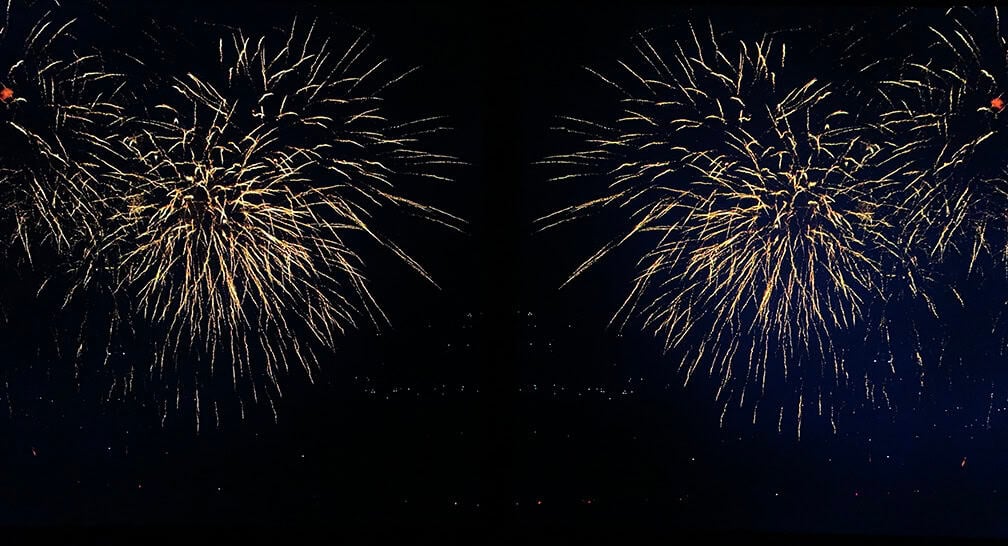
Finally, both monitors have low amounts of blooming that’s difficult to properly capture on camera. Here’s a photo with increased ISO. Blooming doesn’t look as bad in real use, but the photo is used to illustrate that the M27P6 has more blooming than the M27T6S; however, it also has a higher brightness for small details, such as fireworks.
KTC M27T6S vs KTC M27T6
This is an interesting comparison because both monitors have similarly lifted EOTF tracking, but the M27T6S (on the left) uses an IPS panel with DisplayHDR 1000, whereas the M27T6 (on the right) has a VA panel with a higher-tier DisplayHDR 1400 certification. Both monitors are using ‘DisplayHDR’ and High local dimming mode.
For the most part, the HDR image is similar on both displays. Perhaps the biggest difference is in colors, since the M27T6 has only 88.8% DCI-P3 coverage in comparison to 96.5% of the M27T6S.
Naturally, the M27T6 also appeared brighter in real use and had fewer blooming artifacts, but we weren’t able to properly capture this with our camera.
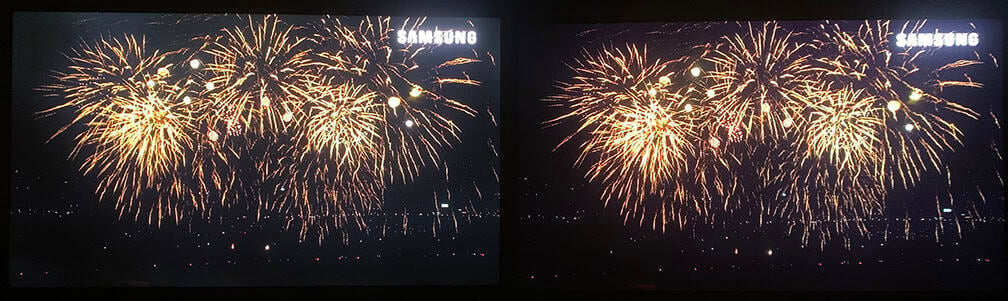
Again, here’s a photo with increased ISO to illustrate how the M27T6S has more visible blooming, but it isn’t this noticeable in real use.
KTC M27T6S vs MSI MPG 271QR QD-OLED X50
Finally, here’s a comparison between the KTC M27T6S (on the left) and the MSI MPG 271QR QD-OLED X50 (on the right).
Again, just like in the comparison with the KTC M27P6, we can see how the lifted EOTF tracking of the M27T6S compares to the more accurate EOTF tracking of the 271QR X50 in scenes such as the one with the sunflowers at 3:08.
In reality, when watching both screens simultaneously and side by side, they traded blows. Dark scenes looked better on OLED (especially when viewing in a dark room), while scenes with more bright elements looked better on the mini LED monitor.
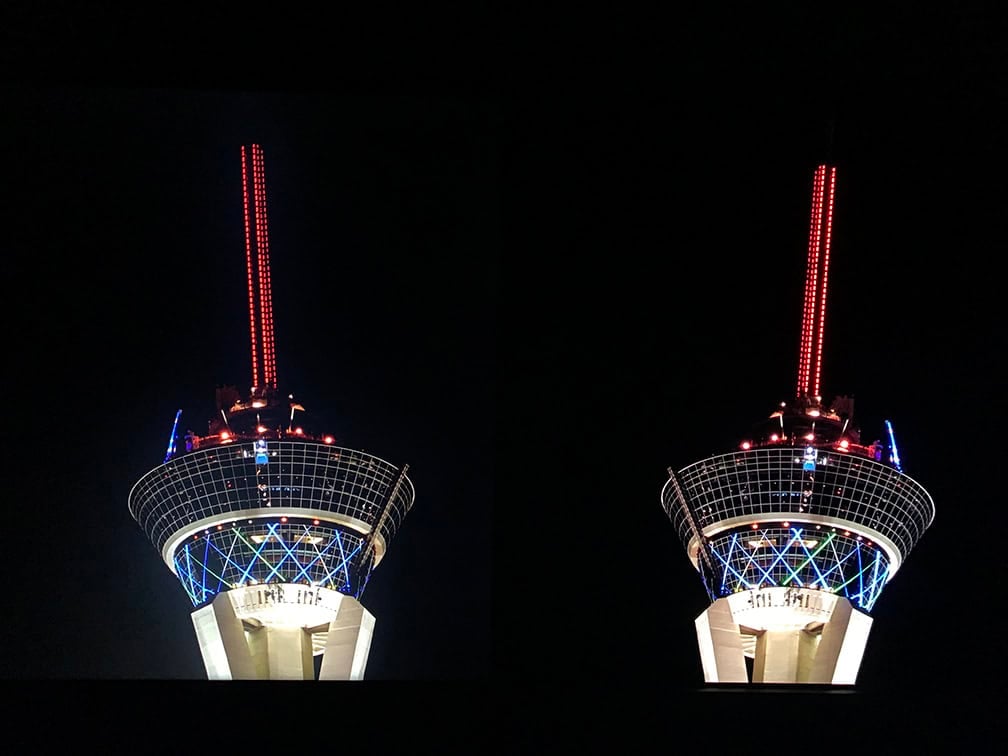
Here’s another photo with increased ISO to illustrate blooming. It’s not quite this noticeable on the M27T6S, but it’s close.
QD-OLED vs W-OLED vs Mini LED
Here’s how the monitor’s brightness compares to a few other HDR displays we tested.
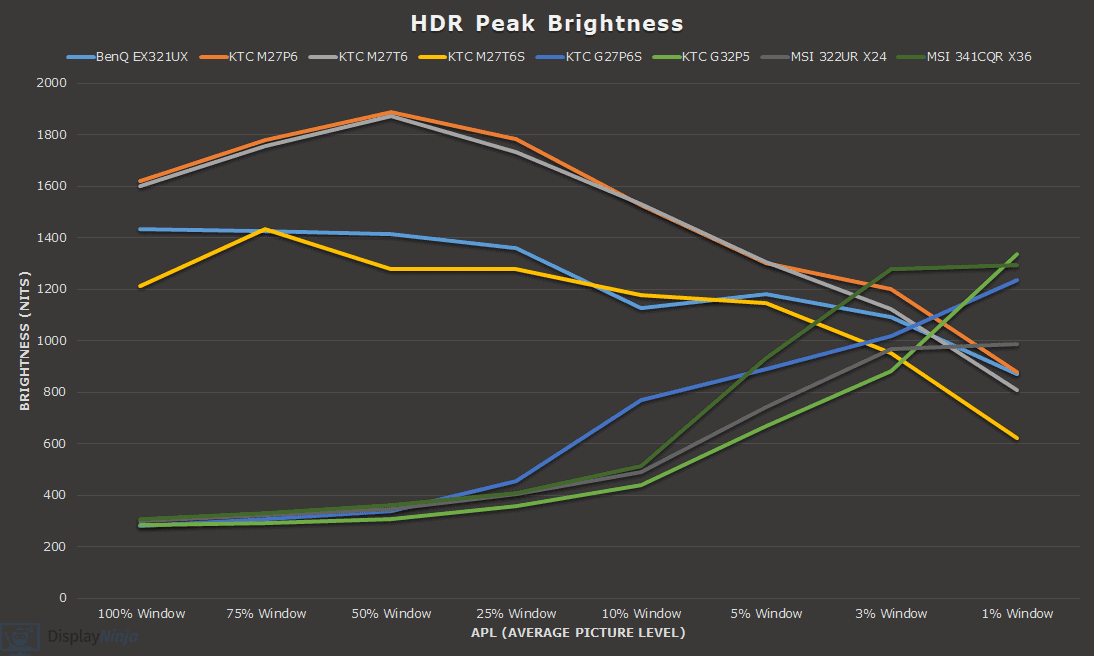
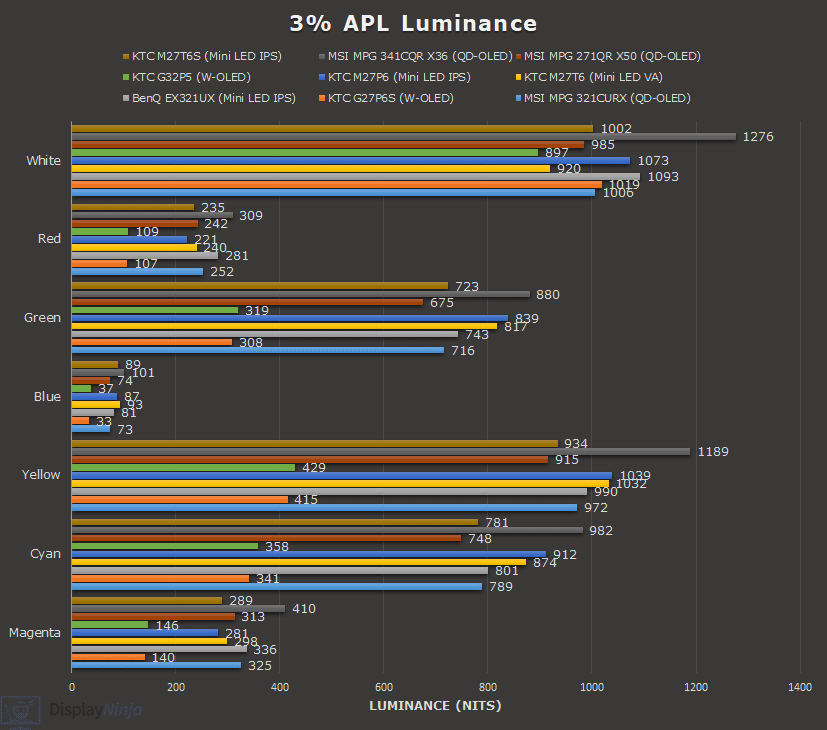
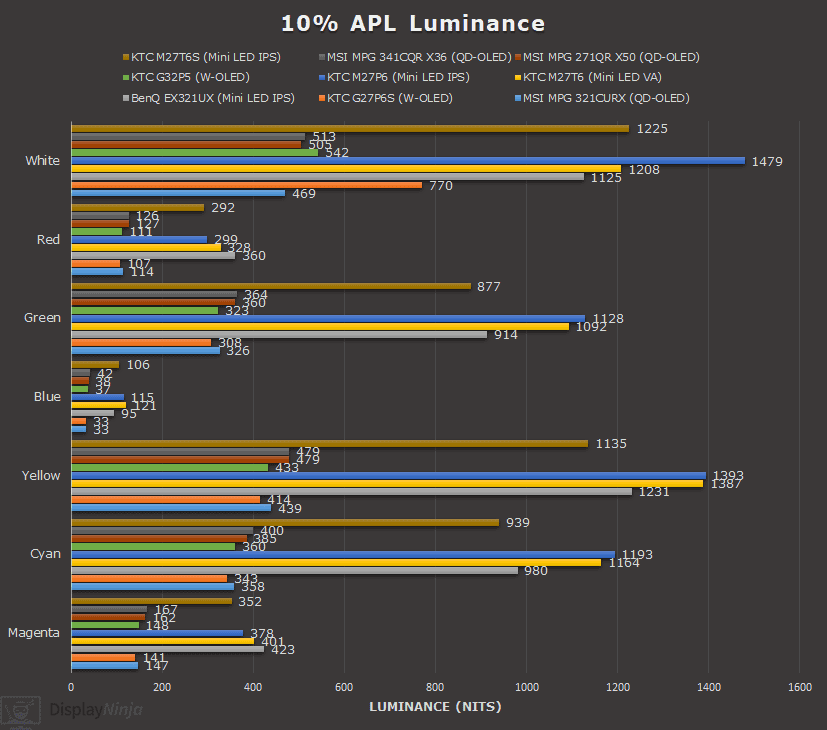
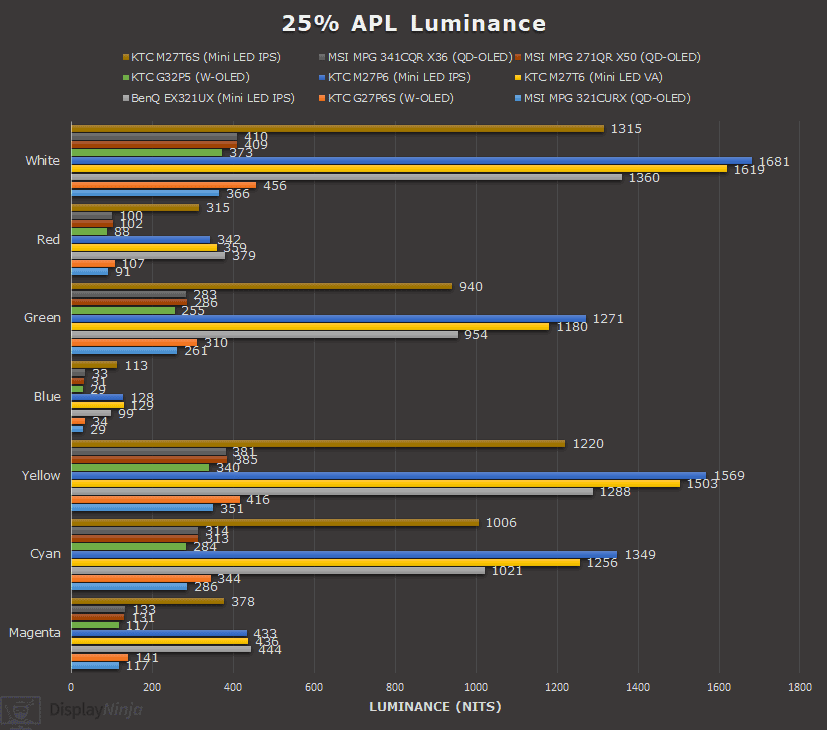
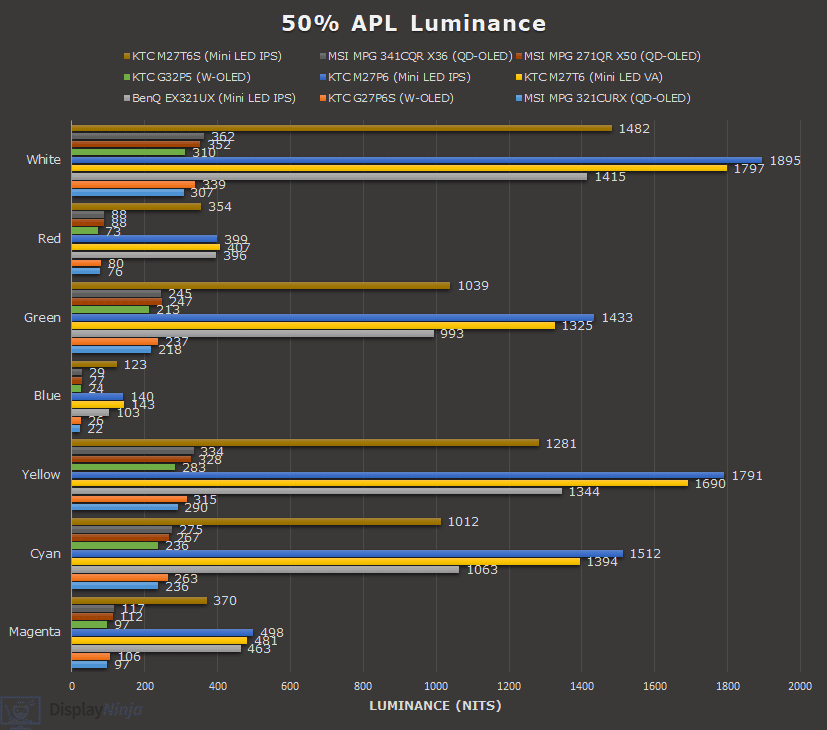
As you can see, mini LED monitors are a lot brighter than OLED displays for large APLs, but for 3% and smaller APLs, OLED monitors provide a lot punchier small highlights, while mini LED displays try to minimize blooming.
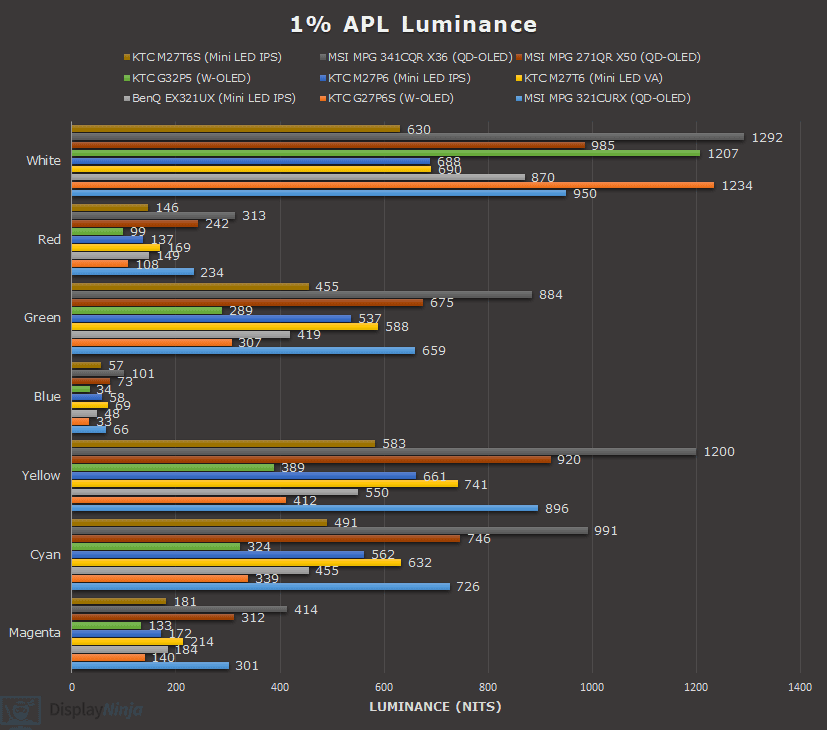
The chart above only includes white luminance. Here are the color luminance charts.
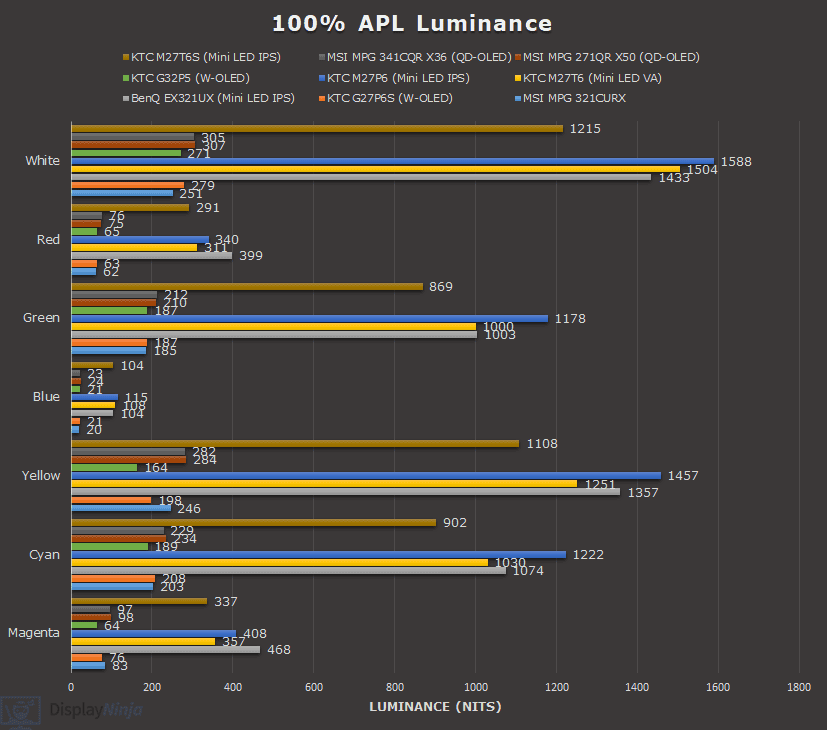
Local Dimming in SDR
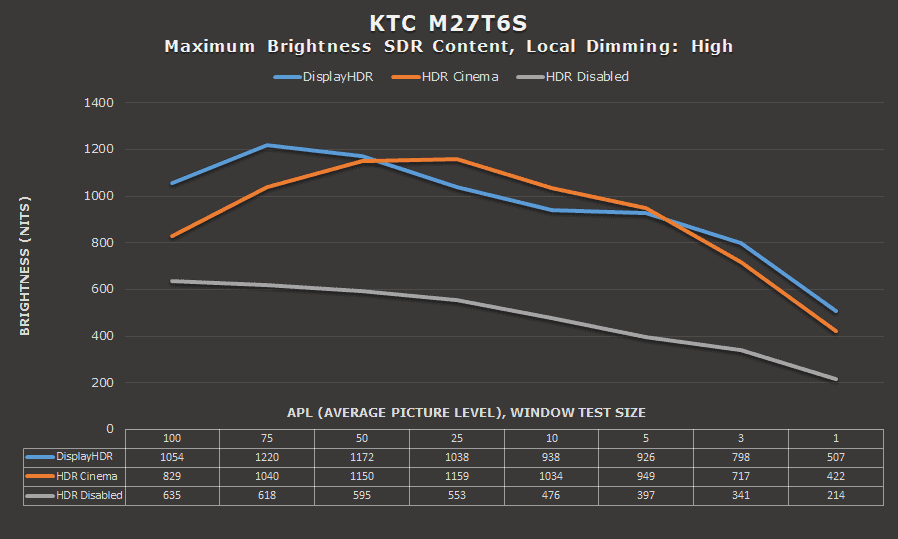
You can also enable local dimming in SDR. With HDR disabled in Windows, the maximum 100% APL brightness is 635-nits, but it drops down to 214-nits for small 1% APL.
If you enable HDR in Windows and set the ‘HDR/SDR brightness balance’ to maximum in ‘Windows HD Color settings’, the peak brightness for SDR content can increase up to 1220-nits for 75% APL and 507-nits for 1% APL.
However, this also causes clipping, so if you want higher brightness, you should only increase the HDR/SDR brightness balance until all light-gray checkerboard patterns are visible in Lagom’s test images.
When HDR is enabled in Windows with DisplayHDR mode, colors are mapped to sRGB with an average Delta E of 1.9 and a maximum of 3.78, 6951K whitepoint and 2.01 average gamma, causing the image to be brighter than intended, but this will change across different APLs.
HDR Cinema is the only mode that doesn’t clamp the gamut, with a 127.2% sRGB gamut volume for some extra color saturation. Average Delta E is 3.15, while the maximum is 9.48.
The maximum brightness remains the same regardless of local dimming mode.
For the best accuracy, you should use the sRGB mode with local dimming disabled. However, local dimming greatly increases the contrast ratio, so most users will prefer it despite the image accuracy hit.
We recommend using the ‘High’ mode for the deepest blacks with HDR disabled in Windows. The best settings will also depend on the type of content you’re watching. Low-bit-rate and streamed SDR videos may show more compression artifacts when local dimming and HDR are enabled.
Performance
The KTC M27T6S has a maximum refresh rate of 210Hz, providing you with a huge boost in motion clarity as opposed to the standard 60-75Hz displays.
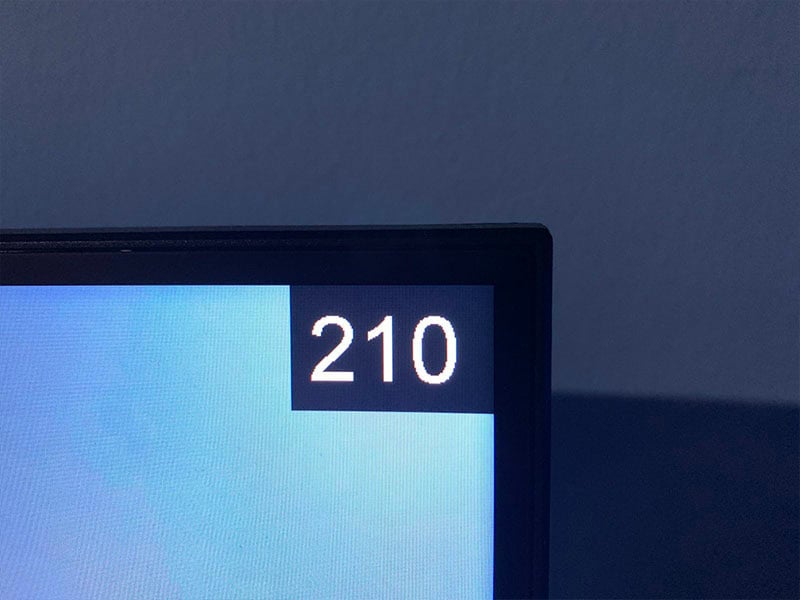
You first need to enable the ‘Overclock’ option in the OSD menu to unlock 210Hz; otherwise, you’re limited to 200Hz. There’s no noticeable difference between 200Hz and 210Hz, though.
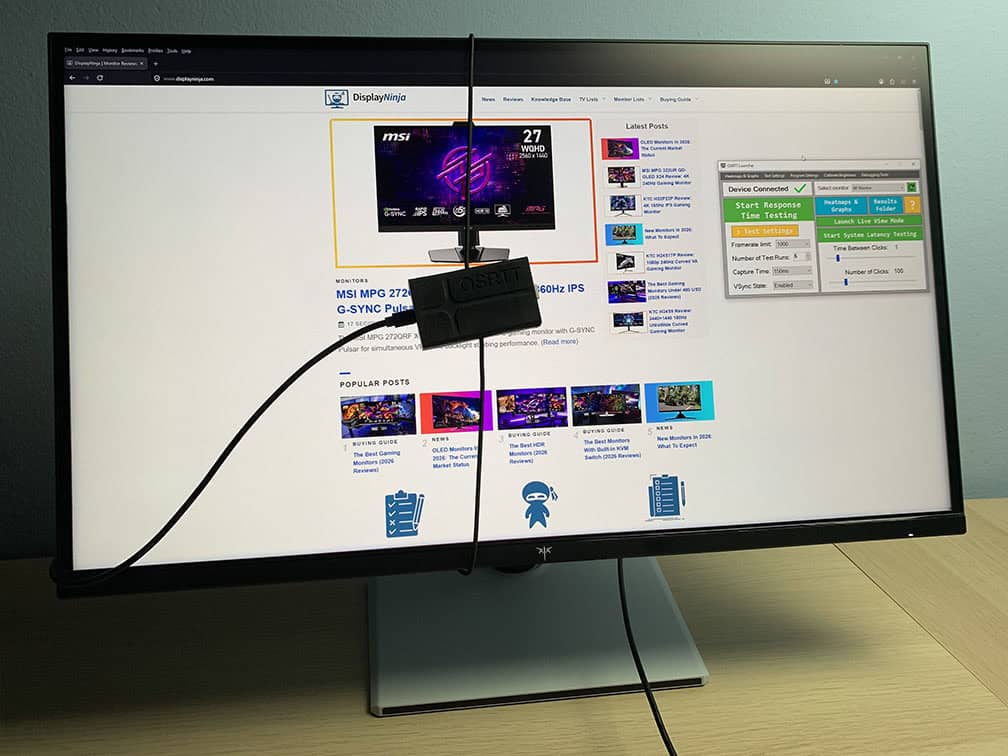
For response time and latency testing, we’re using OSRTT.
Response Time
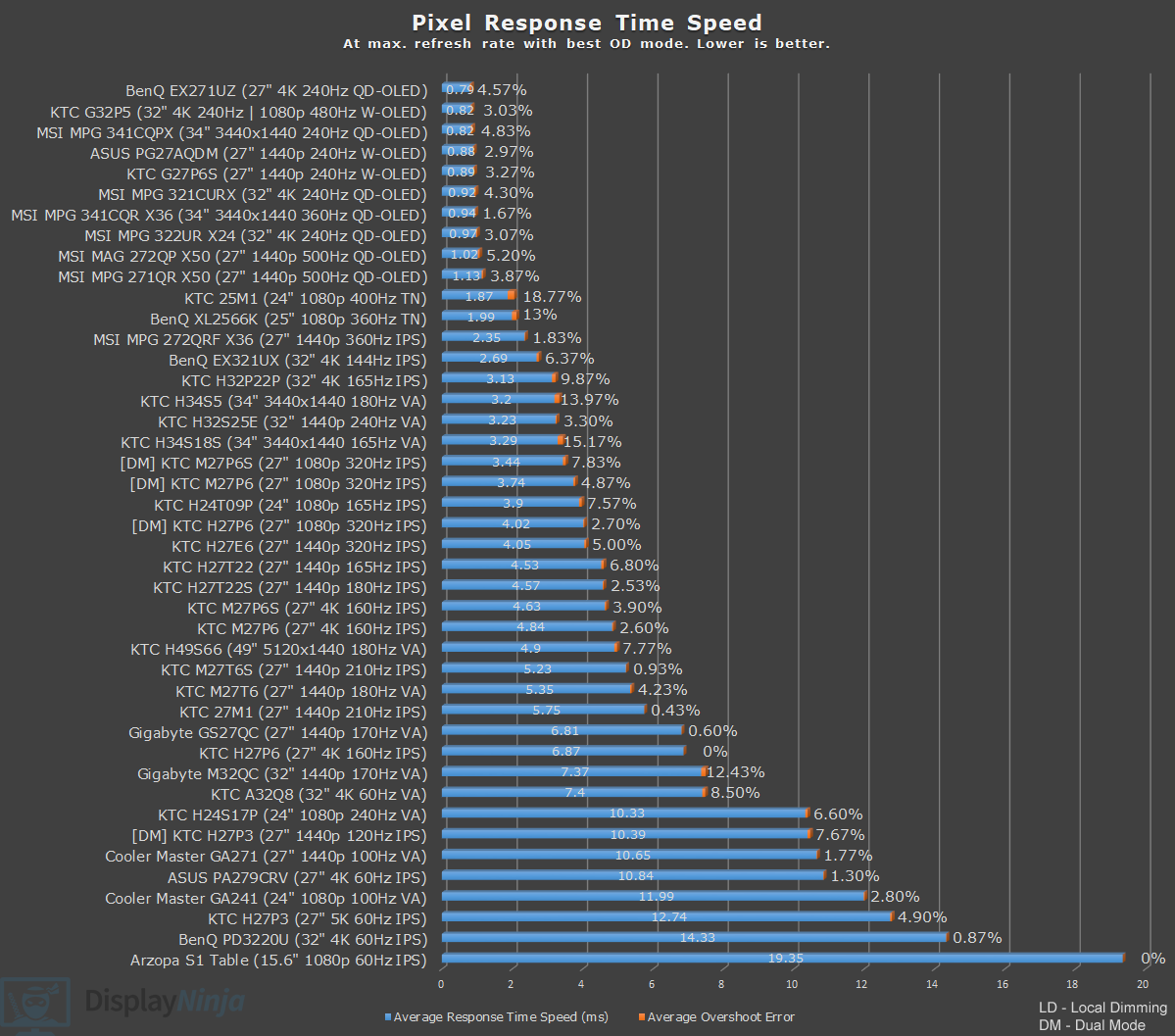
The KTC M27T6S has five response time overdrive modes: Off, Standard, Advanced, Ultra Fast and Dynamic Overdrive.
Here’s how the monitor performs at 210Hz, 120Hz and 60Hz.
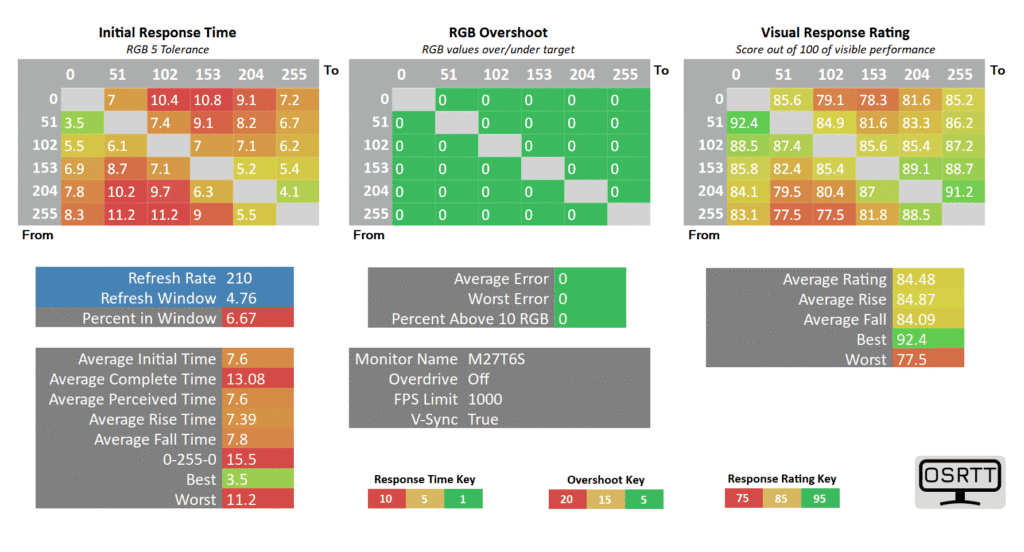
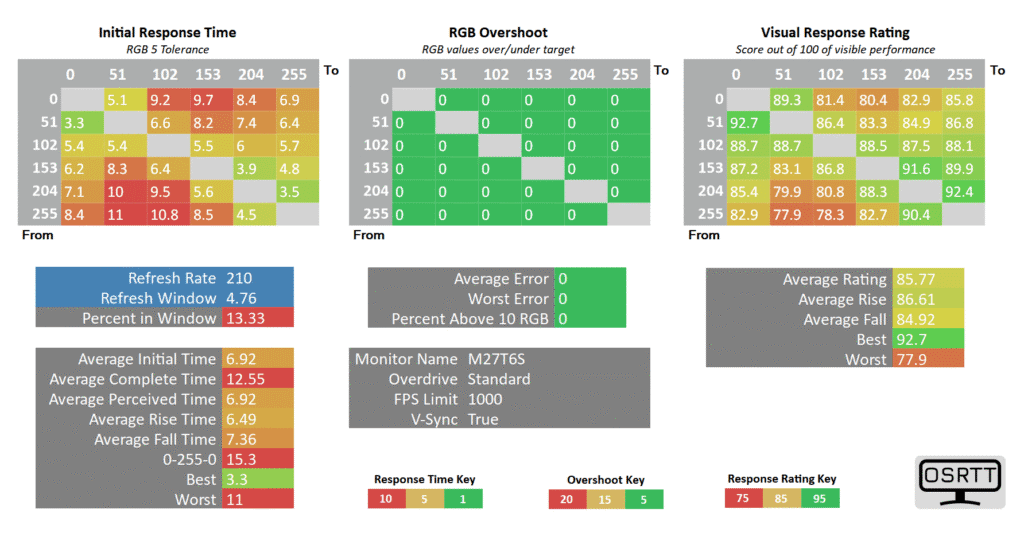
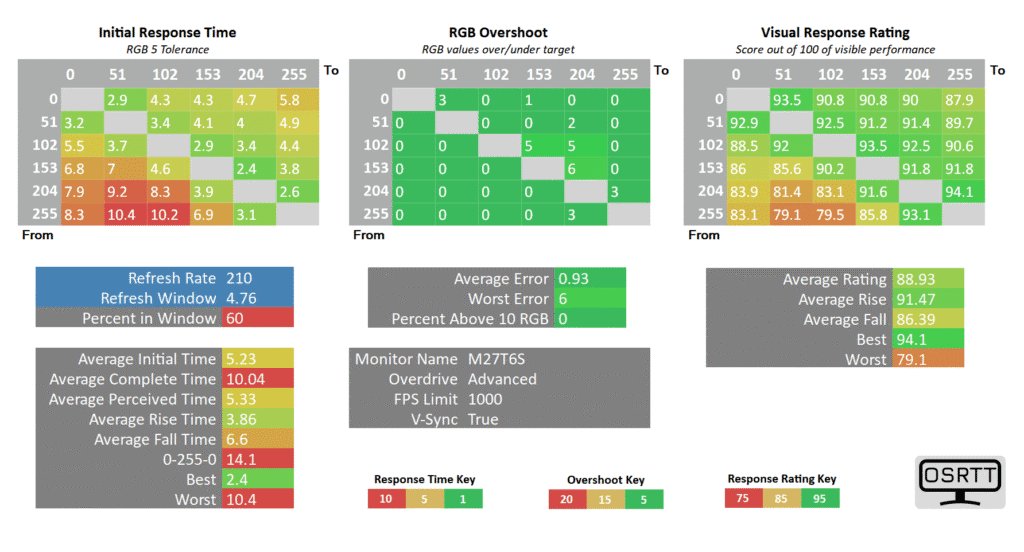
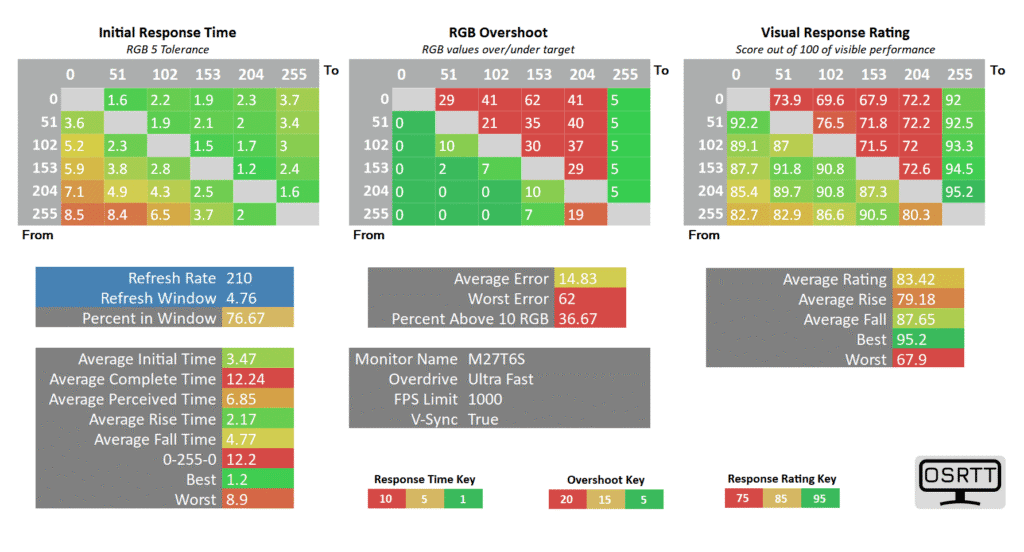
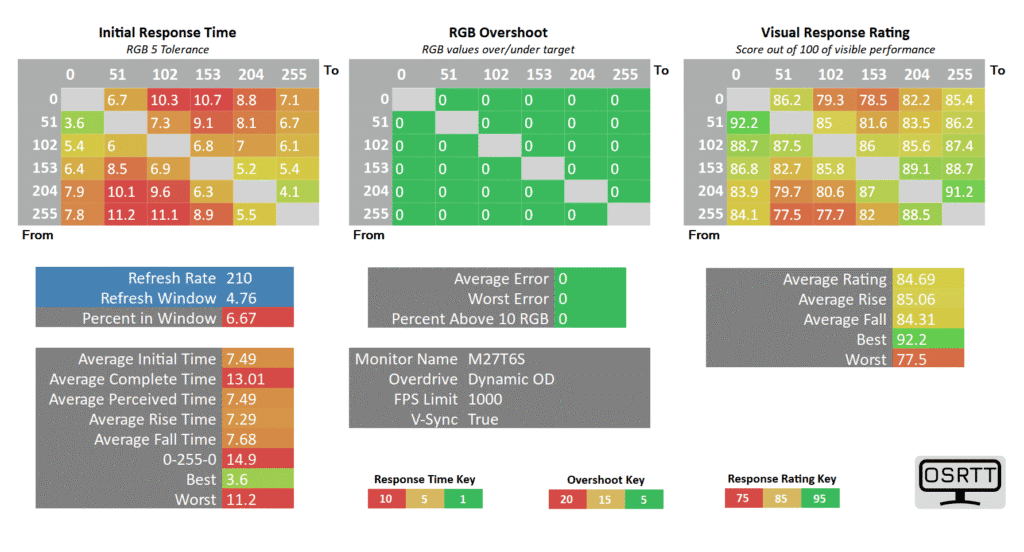
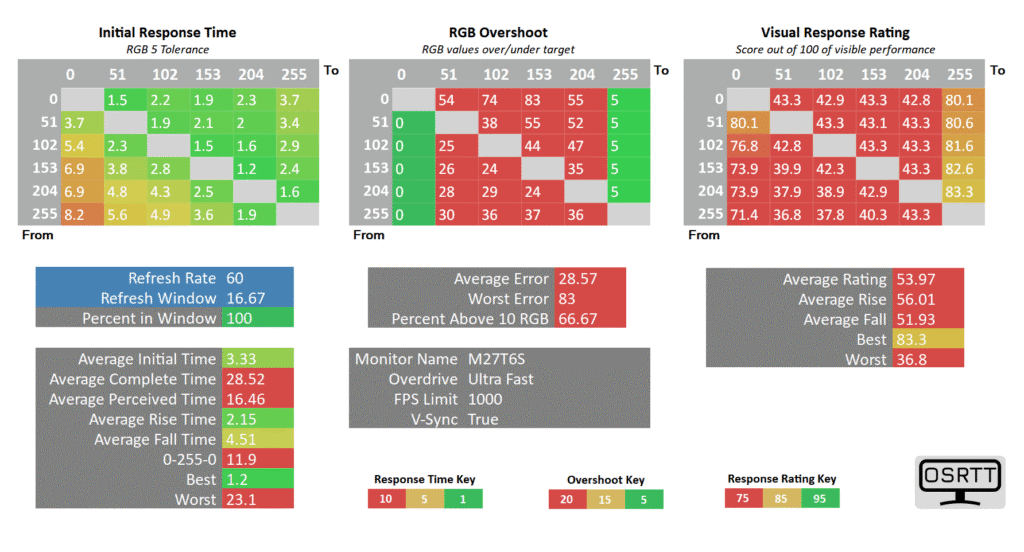
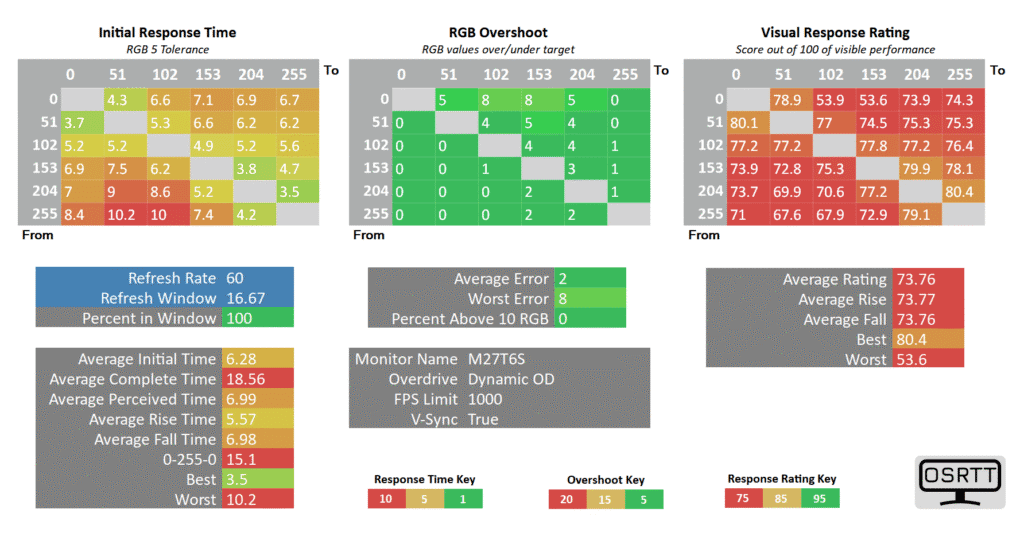
The Dynamic Overdrive mode is supposed to act as variable overdrive (adjust the best mode according to frame rate), but it just has the same performance as ‘Off’, which is too slow. Next, the Ultra Fast mode is too aggressive as it adds too much overshoot (inverse ghosting).
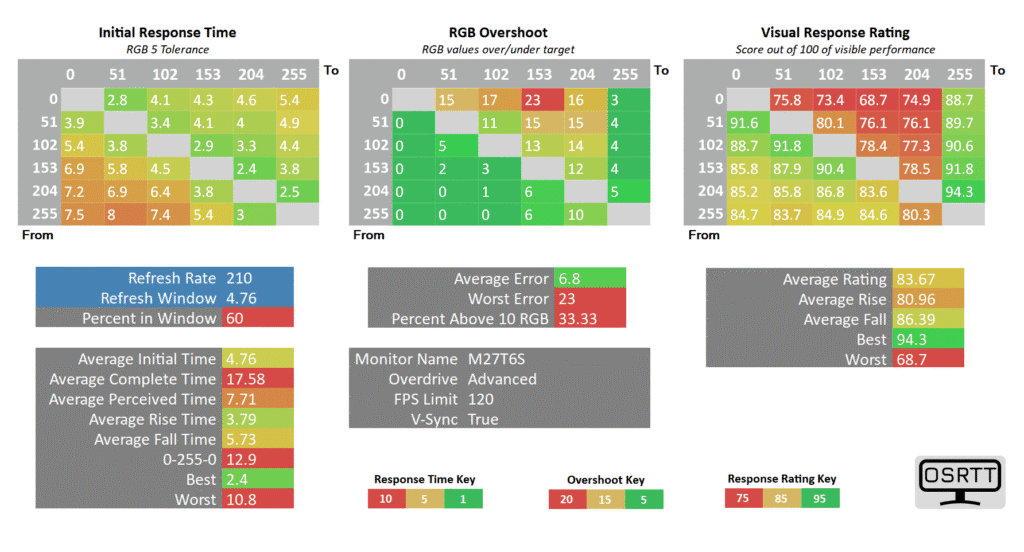
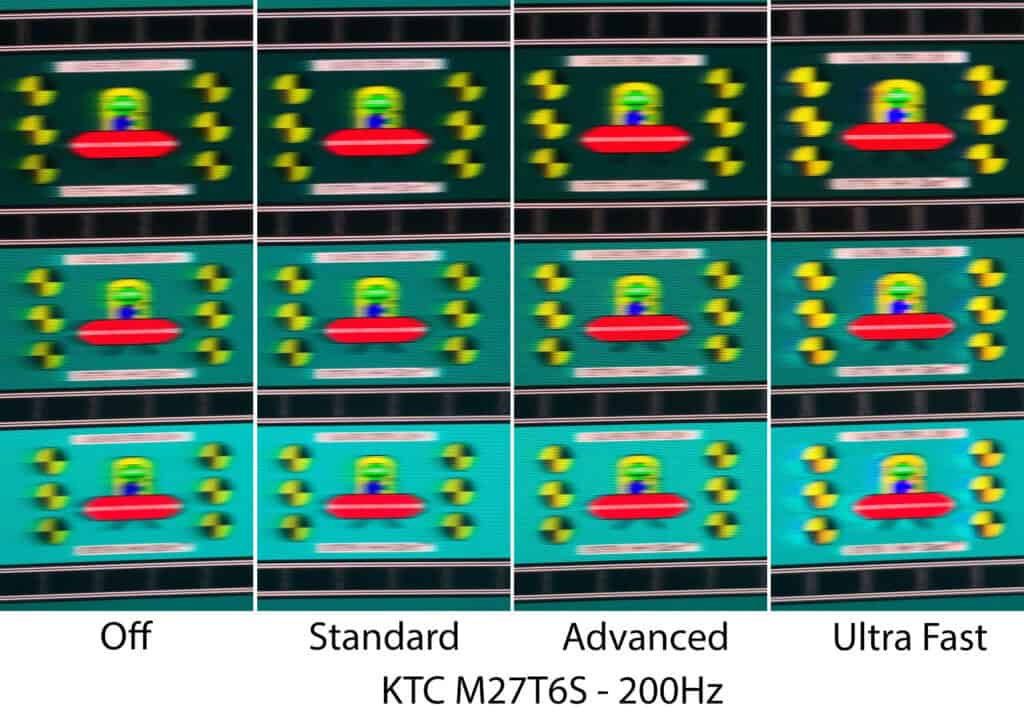
The best mode to use at 210Hz is ‘Advanced’ with a 5.23ms average GtG (gray to gray pixel transition) response time. It has 60% refresh rate compliance, meaning that only 60% of all transitions make it in time with the 4.76ms refresh rate window.
Overshoot is very low at 0.93% average error. So, a mode with a performance between Advanced and Ultra Fast would’ve been a welcome addition.
Still, the pixel response time performance is decent. There’s only some minor ghosting that won’t bother most gamers. Most importantly, there’s no dark level smearing associated with VA panels, such as the KTC M27T6.
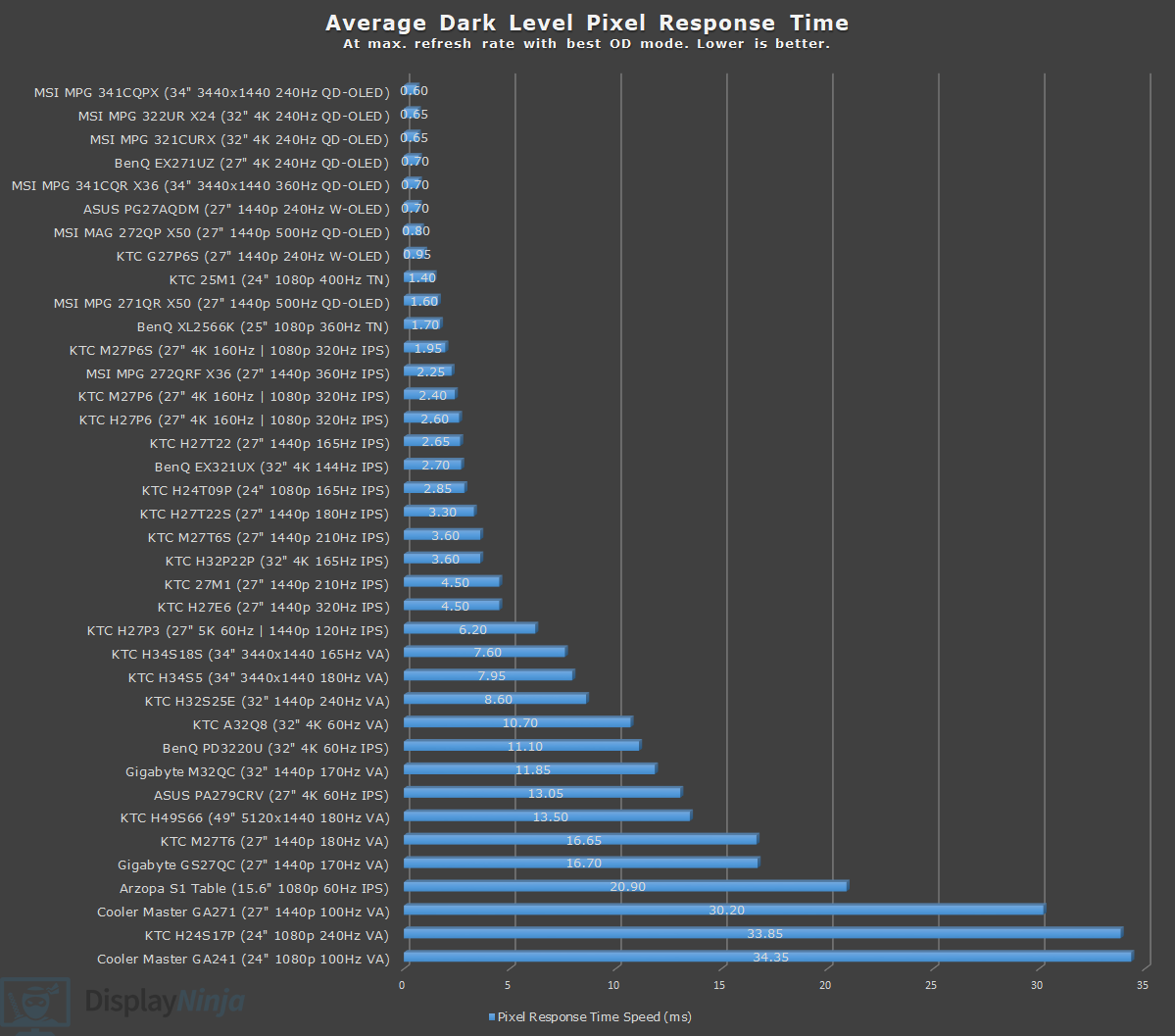
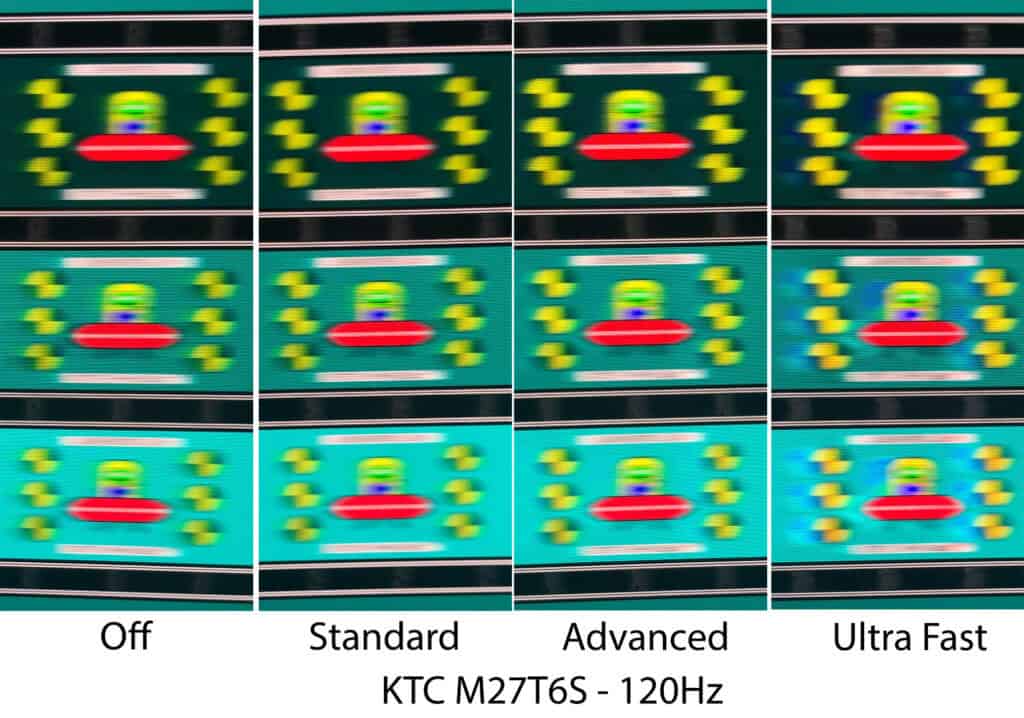
At 120Hz, the ‘Advanced’ mode is still usable as there’s a low 6.8% average overshoot error. The pixel response time speed is slightly faster at 4.76ms, and you get a 100% refresh rate compliance.
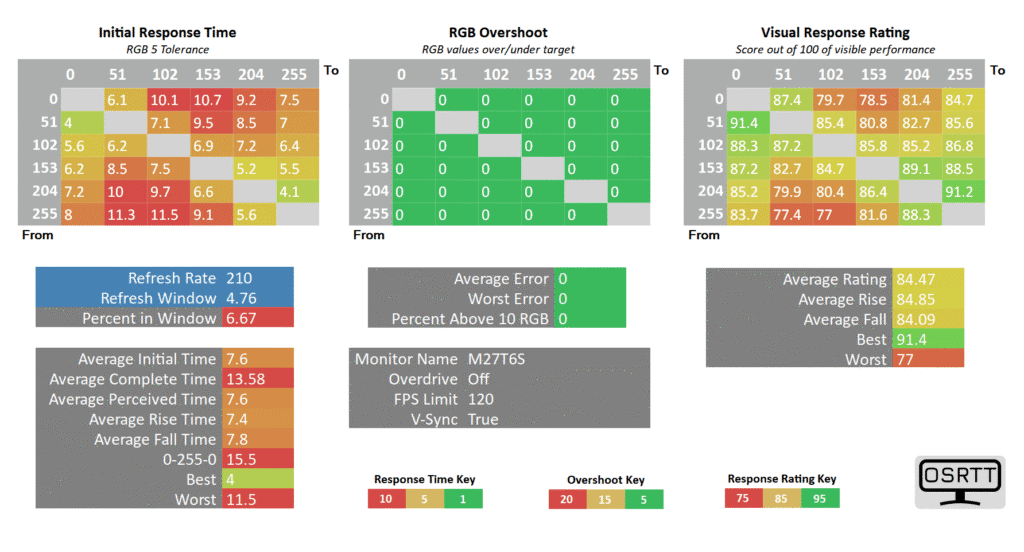
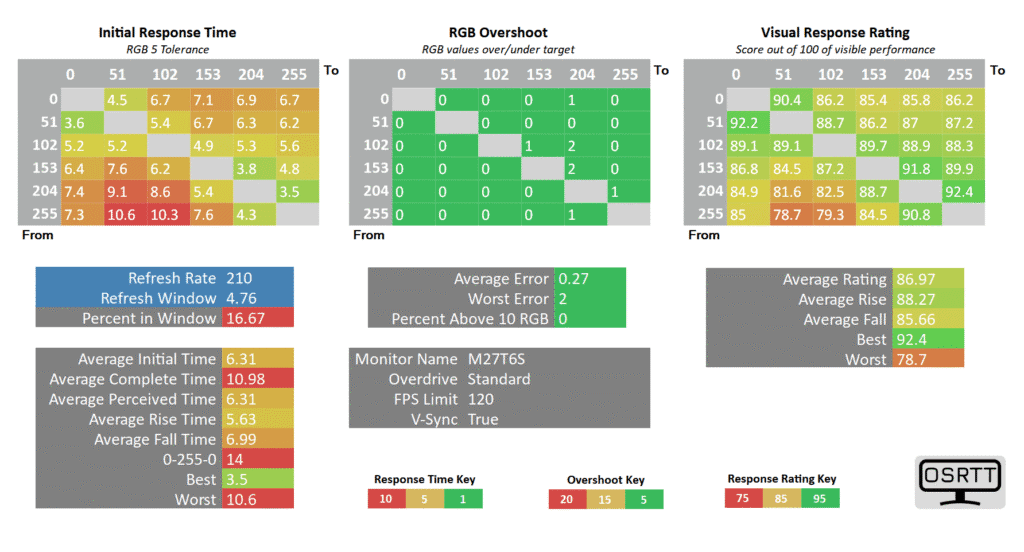
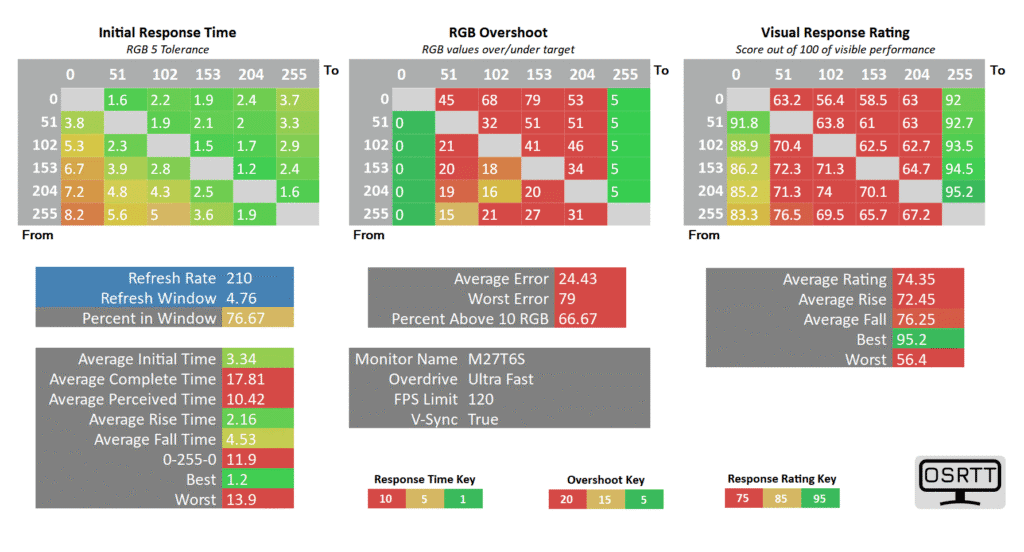
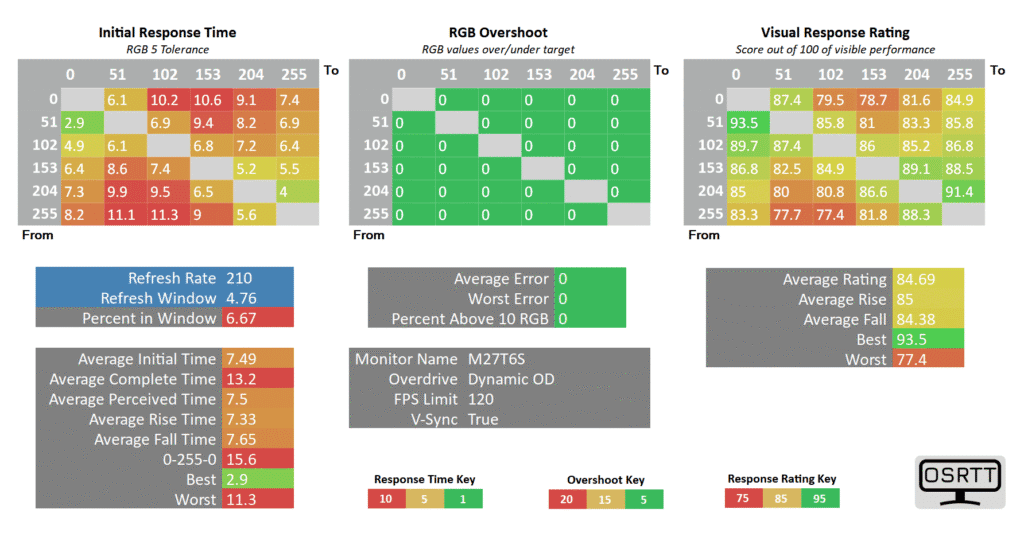
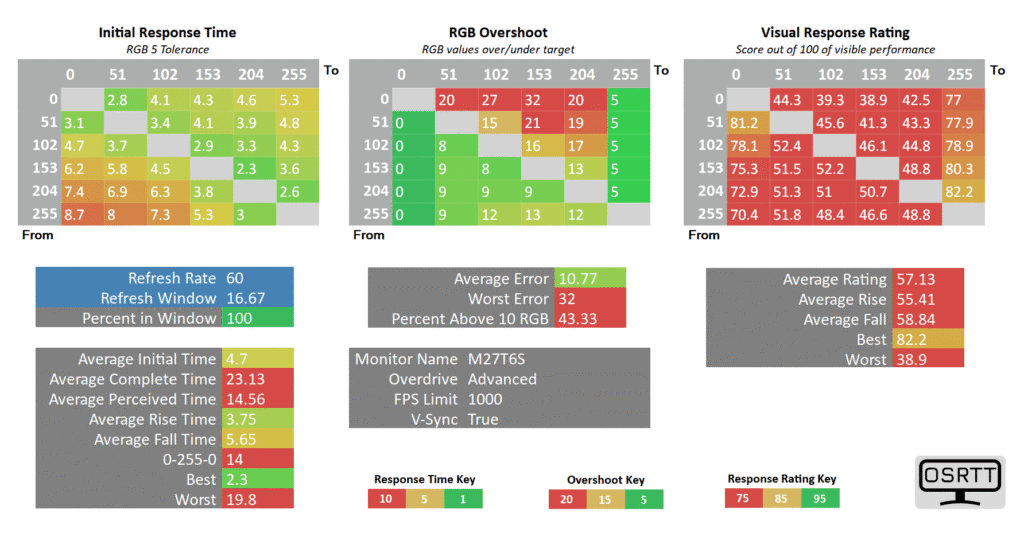
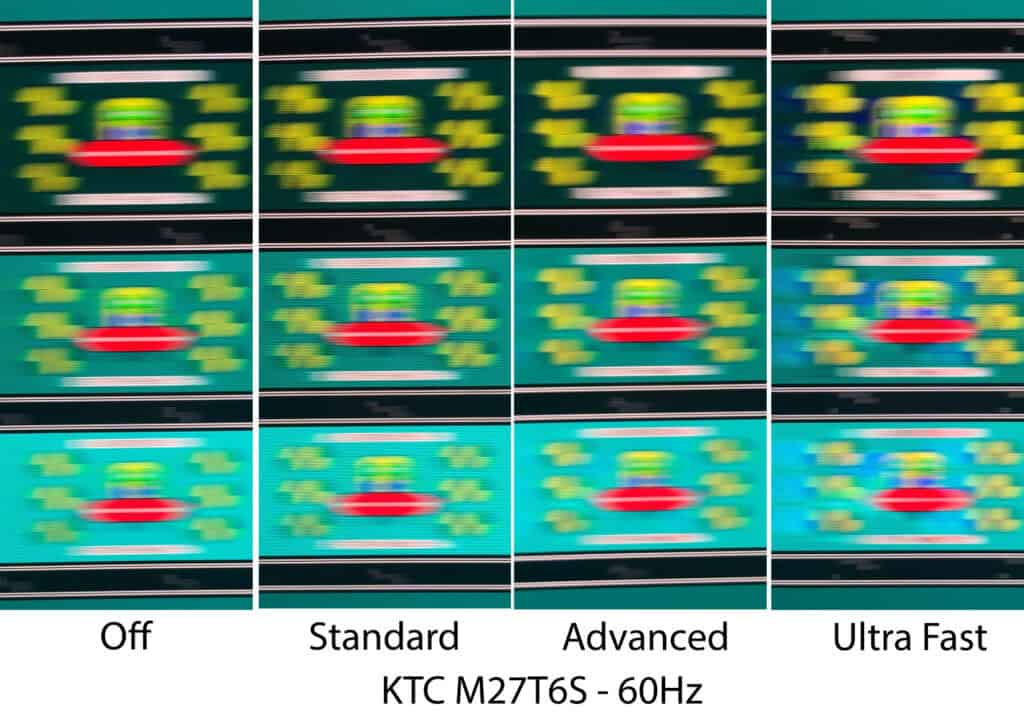
At 60Hz, ‘Advanced’ starts to show some overshoot artifacts with 10.77% average overshoot error, but it’s manageable. You get a fast 4.7ms GtG response time and 100% refresh rate compliance.
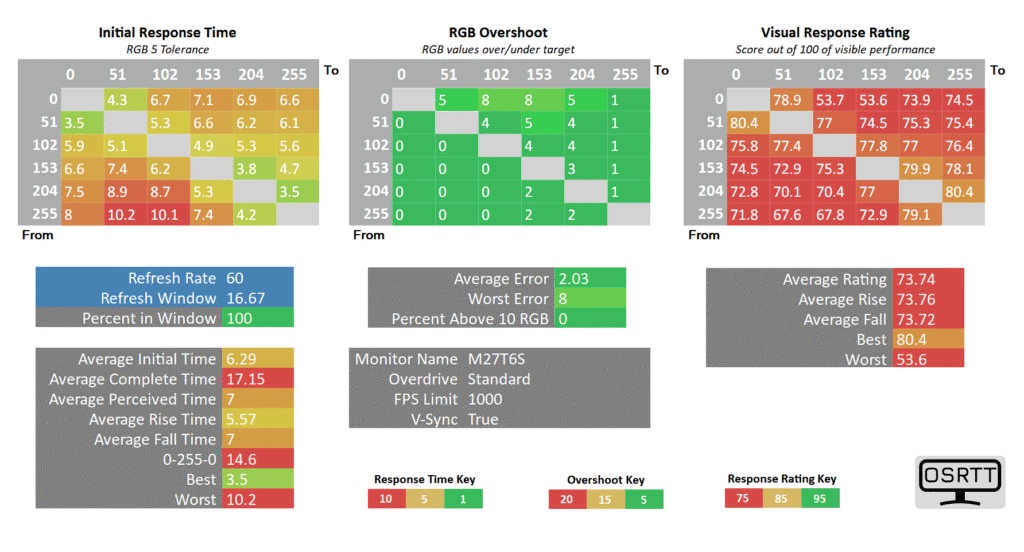
In case you find overshoot too bothersome, you can dial back the overdrive to ‘Standard’. It’s still fast for 60Hz with 6.29ms GtG response time and 100% refresh rate compliance. Overshoot is low at 2.03%.
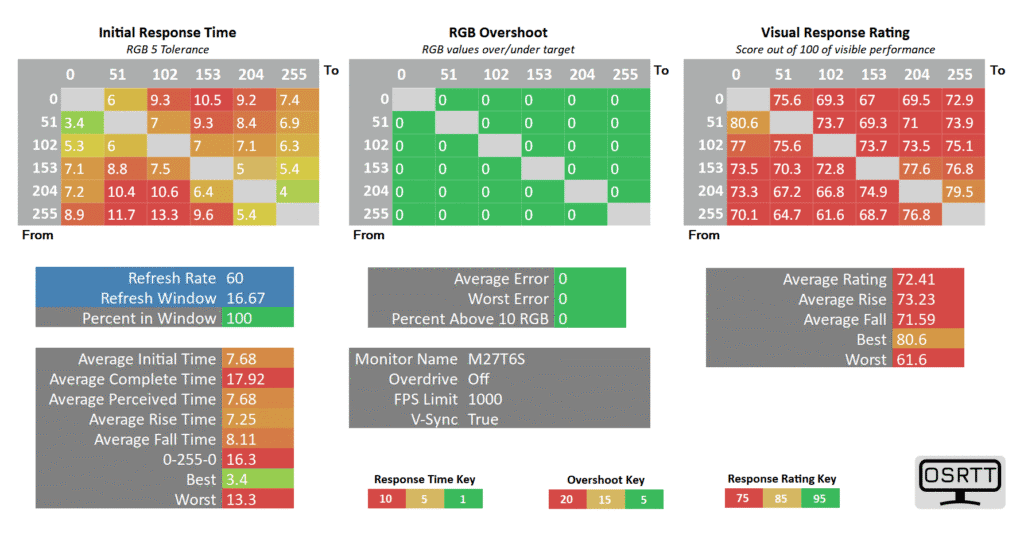
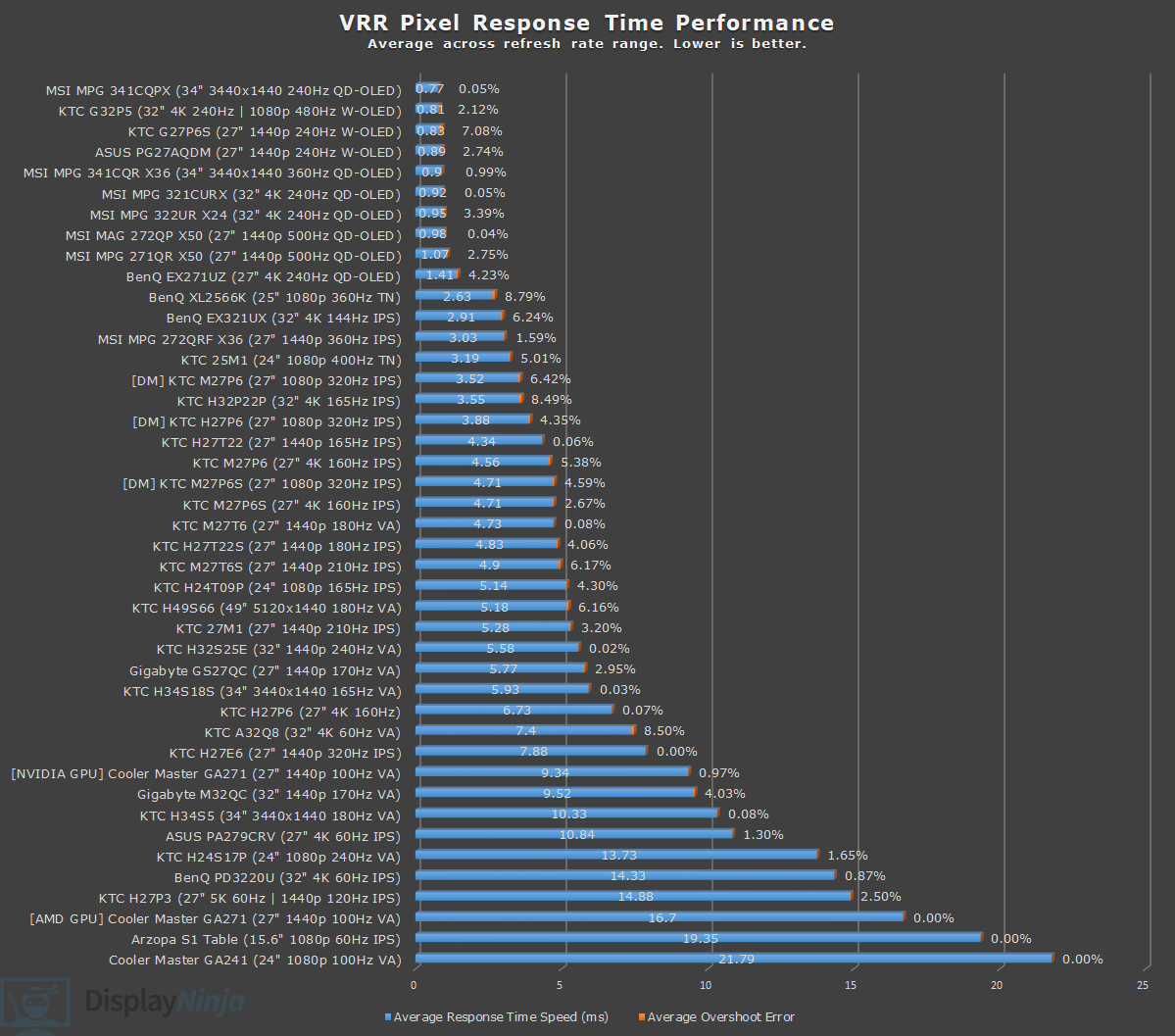
Overall, the response time performance is decent. The amount of ghosting at high frame rates is tolerable or even negligible for most gamers.
You also get a single overdrive experience as you can set it to ‘Advanced’ throughout the entire refresh rate range, which is great for VRR (variable refresh rate) gaming.
Here’s how these tests look in Blur Busters’ UFO ghosting test. We used 1920 Pixels Per Sec, shutter speed set to 1/4 of the refresh rate with fixed focus, ISO and color temperature (6500K).
Motion Blur Reduction
The monitor also supports MBR (Motion Blur Reduction) via its MPRT feature, which uses backlight strobing to reduce perceived motion blur at the cost of image brightness.
It cannot be enabled at the same time as VRR or HDR, and it introduces screen flickering that’s invisible to the human eye, but can cause headaches to sensitive users after prolonged use.
To enable it, you must set a fixed refresh rate of at least 100Hz.
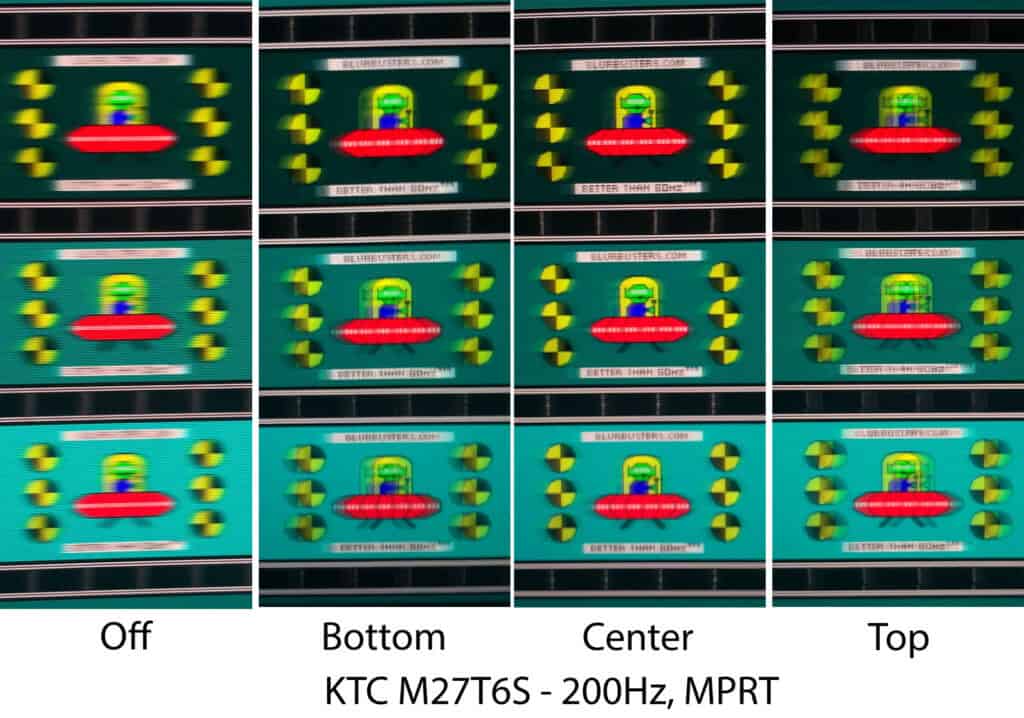
As you can see, it improves motion clarity, but it has noticeable strobe crosstalk (image duplications), especially at the top and bottom of the screen. There’s the same crosstalk regardless of the refresh rate.
Therefore, we don’t find this implementation particularly useful.
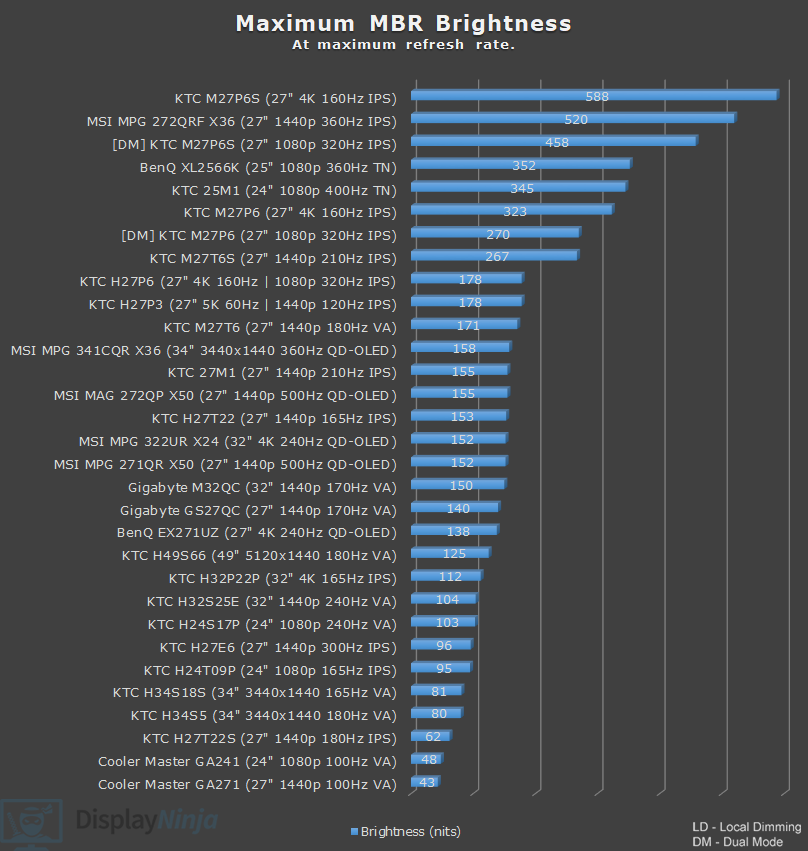
With MPRT enabled, we measured a peak brightness of 267-nits at 210Hz, 250-nits at 180Hz, 229-nits at 144Hz and 214-nits at 120Hz. Enabling local dimming increases the brightness by 50 to 70-nits, though it will vary depending on the mix of bright and dark content on the screen.
Variable Refresh Rate
With ‘Adaptive-Sync’ set to ‘On’, you can enable variable refresh rate (VRR) in your GPU drivers, which allows the monitor’s refresh rate to change dynamically according to your frame rates in order to prevent screen tearing at no perceptible latency cost.
So, if you’re gaming at 210Hz, but you’re getting 120FPS, the monitor will run at 120Hz in order to provide you with 120 whole frames per second without the screen-tearing artifacts.
The supported VRR range is 48-210Hz, but even if your FPS dips below 48, the monitor uses LFC (Low Framerate Compensation) to refresh the screen at a multiple of your current frame rate. For example, 40FPS would be displayed at 80Hz or 120Hz to keep tearing at bay.
We didn’t encounter any VRR brightness flickering, a common issue on high refresh rate VA and OLED panels.
Latency
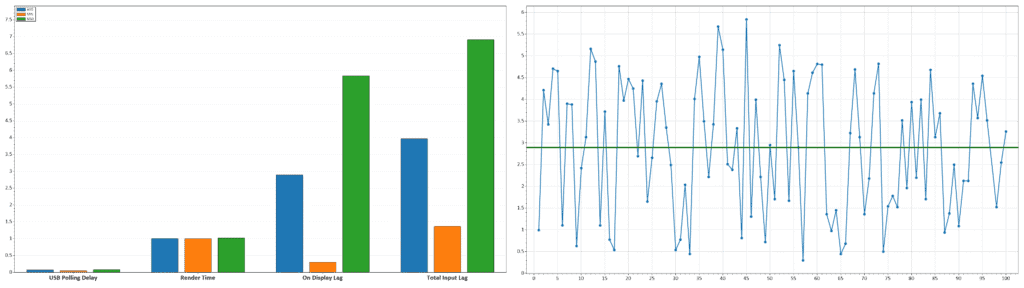
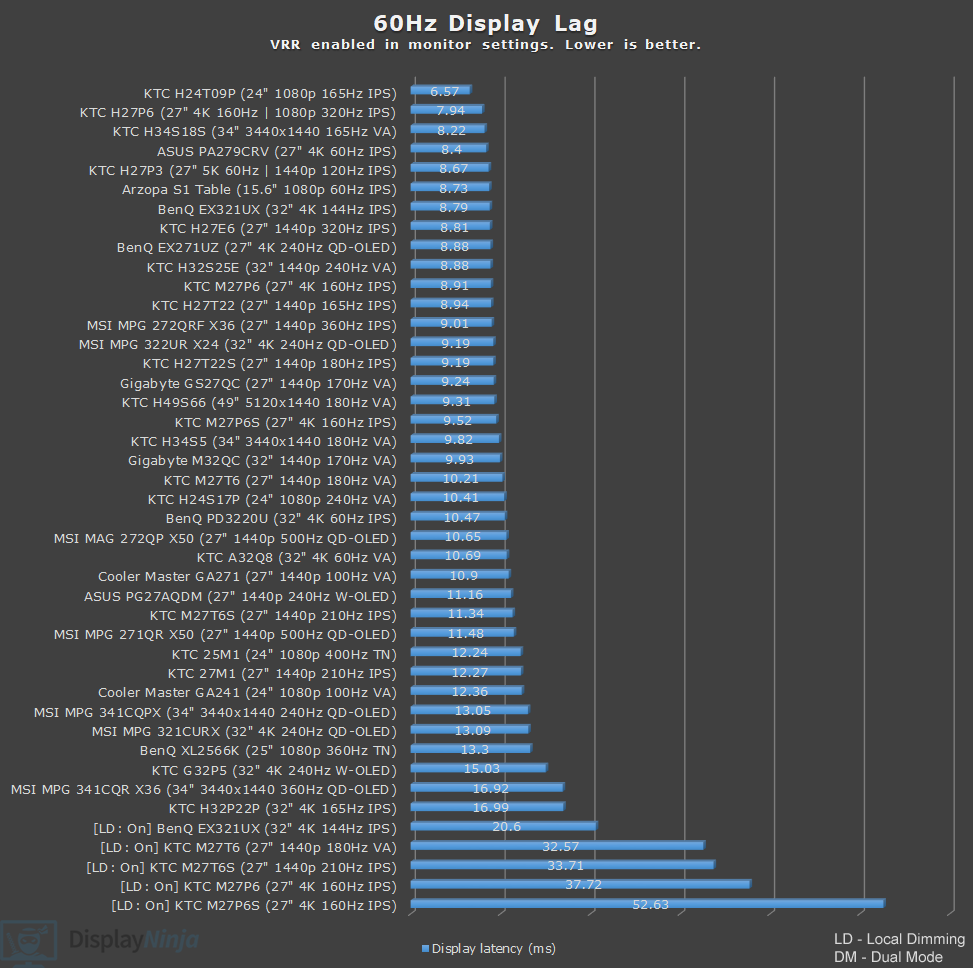
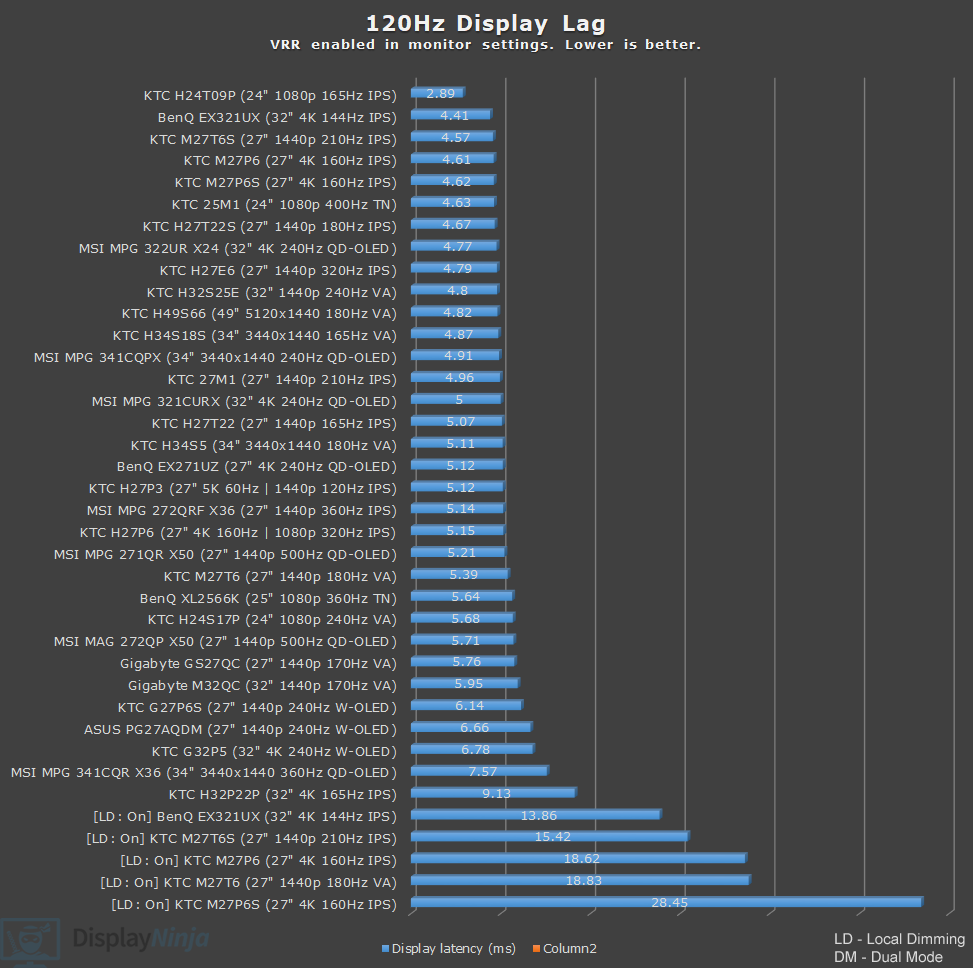
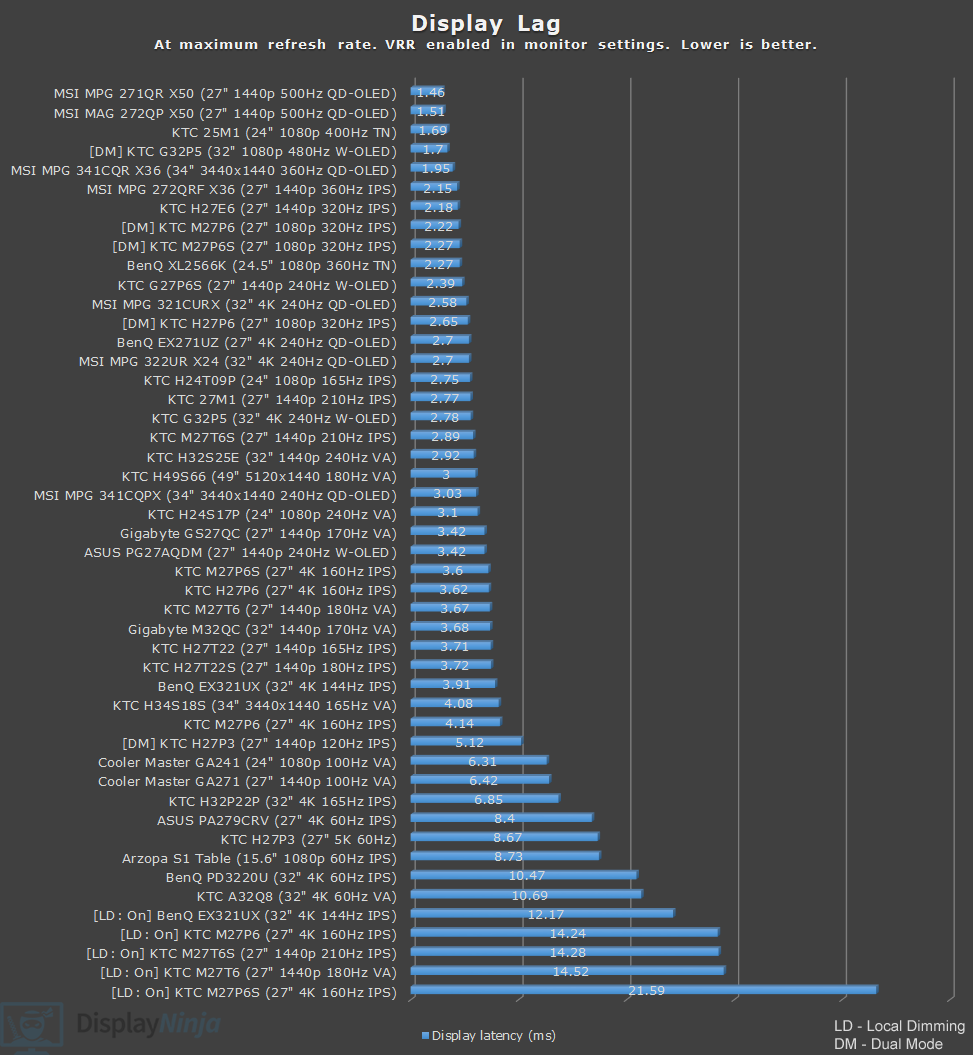
With ‘Adaptive-Sync’ and ‘Low Input Lag’ enabled, and local dimming disabled in the OSD menu, we measured low display latency of 2.89ms at 210Hz, 4.57ms at 120Hz and 11.34ms at 60Hz.
These are great results as there’s no perceptible delay between your actions and the result on the screen.
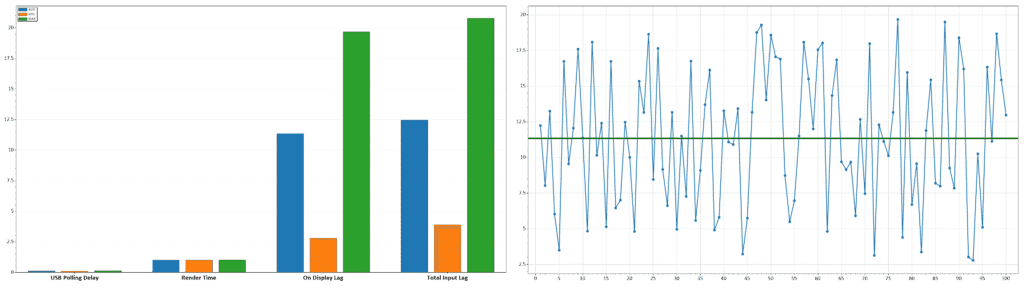
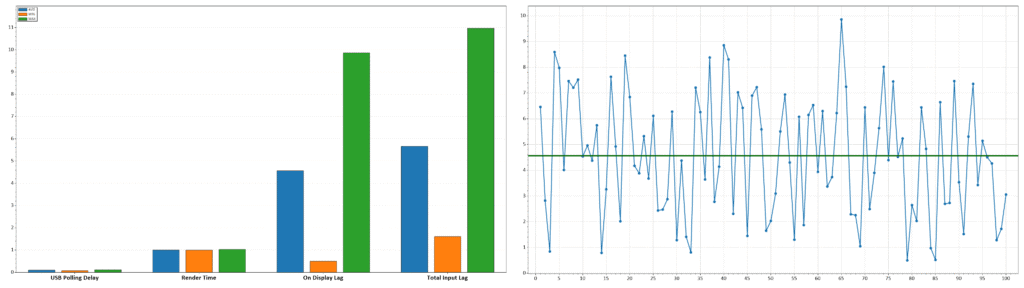
However, as expected, enabling local dimming increases display latency.
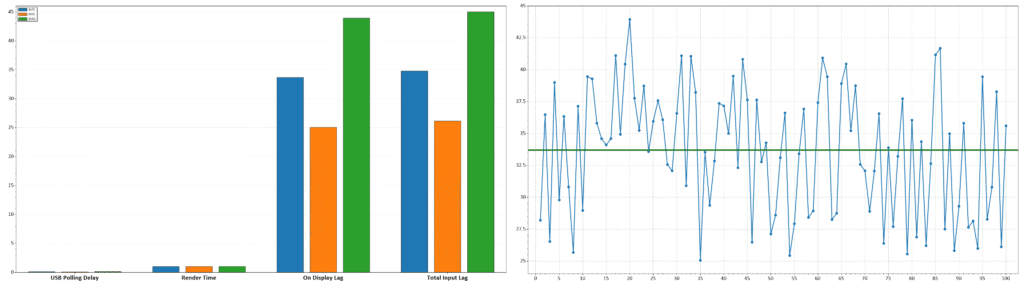
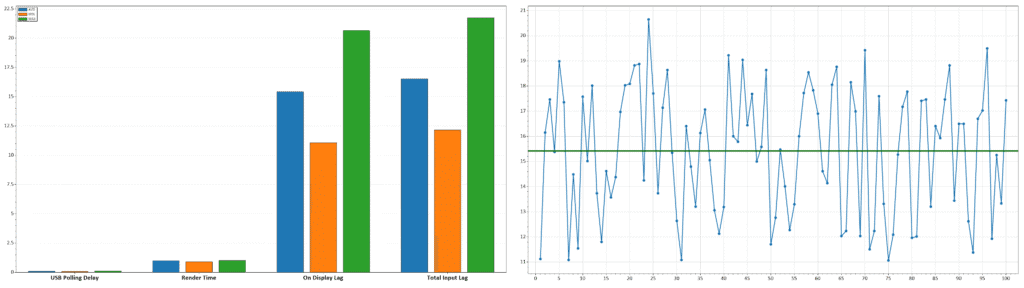
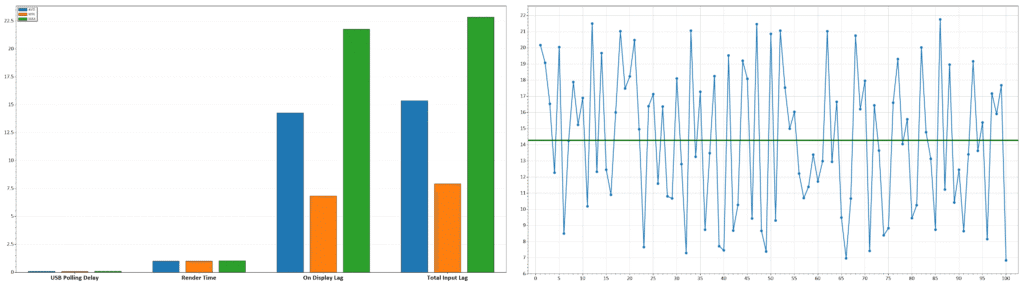
We measured 14.28ms at 210Hz, 15.42ms at 120Hz and 33.71ms at 60Hz. This is the typical 10 – 20ms of delay that local dimming adds to all FALD monitors we’ve encountered so far.
We didn’t find the increased latency to be noticeable during everyday use and gaming. Of course, for competitive gaming, you’ll want to disable local dimming for the best performance.
Uniformity & Quality Control
We didn’t find any dead or stuck pixels, excessive IPS glow or backlight bleeding, no pixel inversion artifacts or frame skipping.
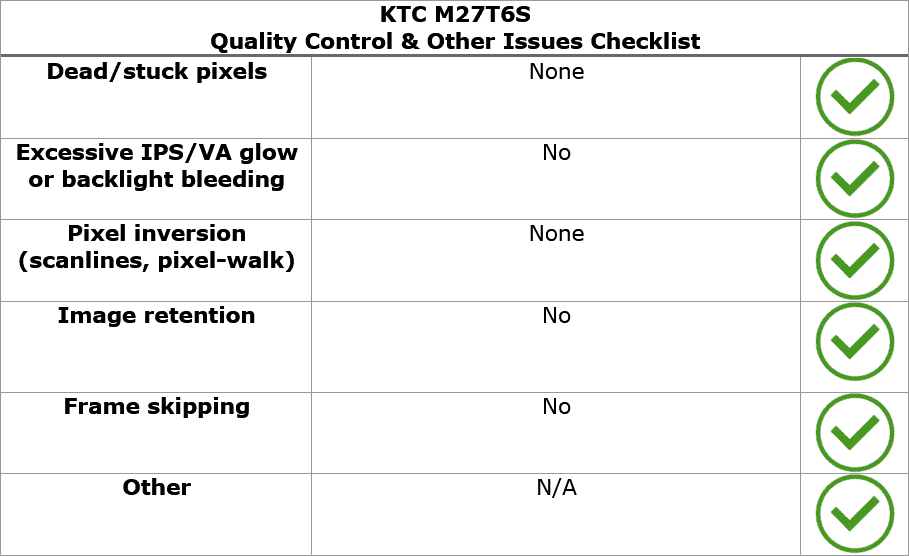
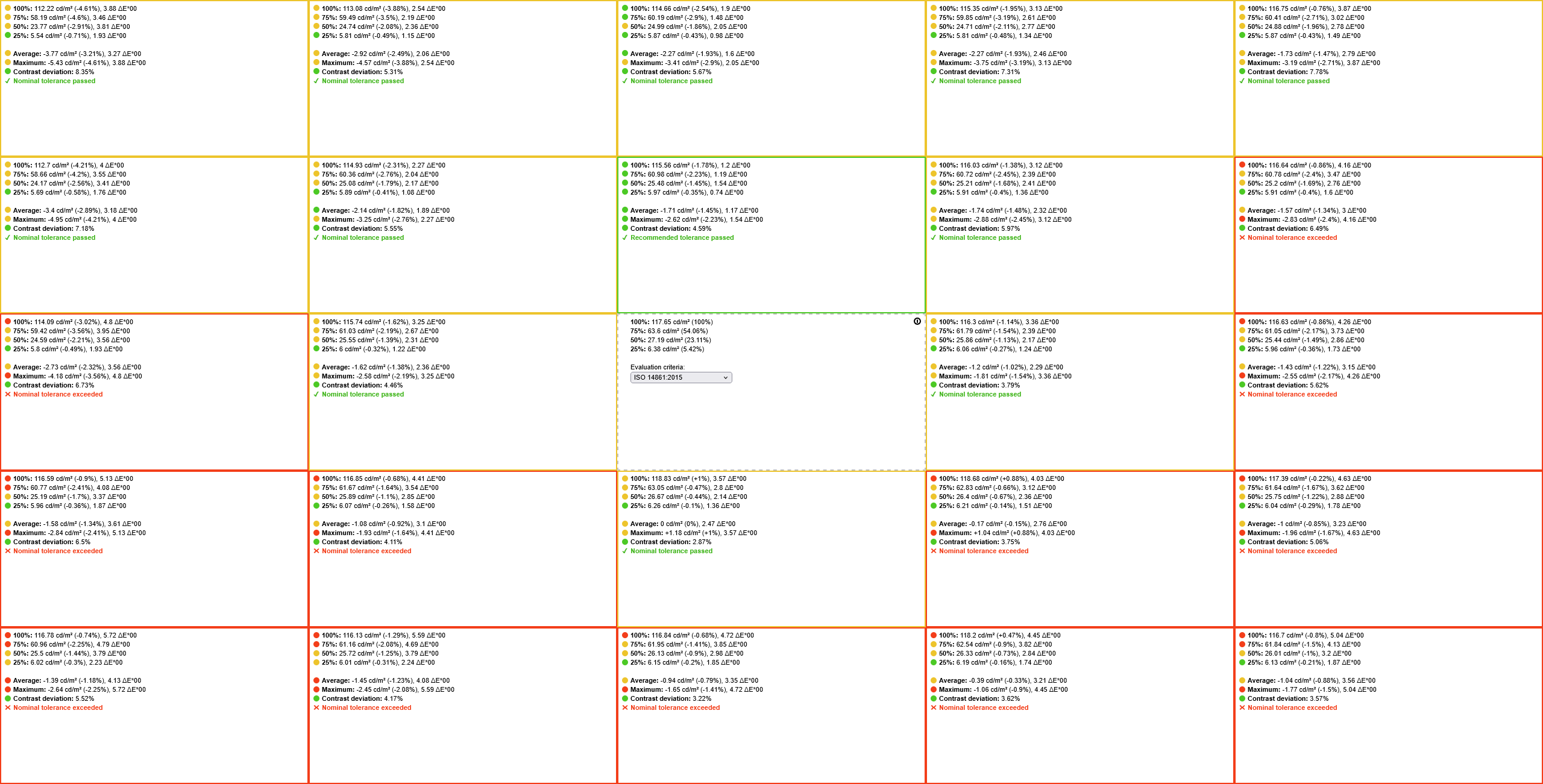
Image uniformity is very good as well, with only around 5% brightness and 8% contrast deviation across the entire screen. The bottom corners showed slightly higher Delta E values of around 5 when measuring color/tint uniformity on 100% and 75% white patterns, though this wasn’t noticeable during everyday use.
The monitor uses a flicker-free backlight (unless MPRT is enabled), ensuring a comfortable viewing experience without the risk of eye strain or headaches for sensitive users during extended use.
There’s also a low blue light mode with four intensity levels (we measured color temperatures of 6032K, 5589K, 5210K and 4891K, which can be helpful if you have trouble falling asleep at night after prolonged screen time.
Features
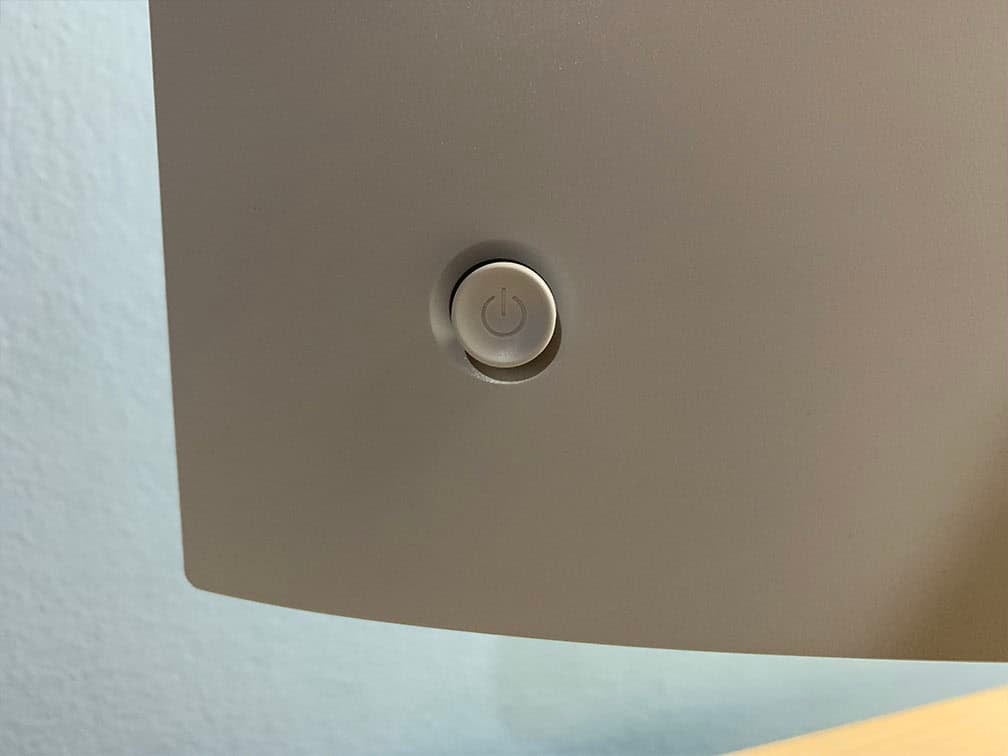
On the rear of the monitor, there’s a directional joystick for quick and easy navigation through the menu. Moving the joystick up, down, left or right also serves as a quick menu for certain functions that can be changed in the menu.
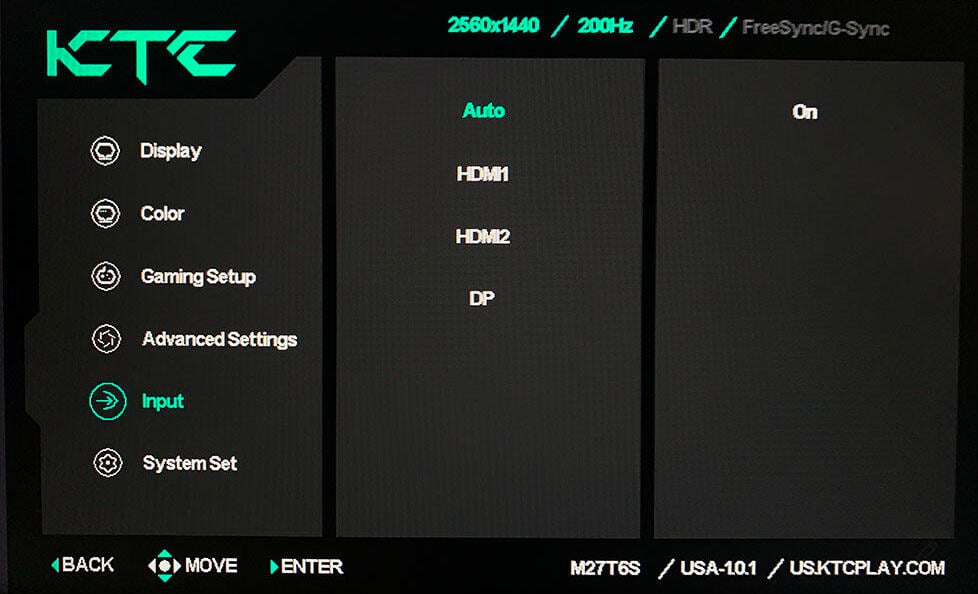
Possible hot key shortcuts include brightness, contrast, volume, mute, Game Assist, Preset, HDR, color temperature, Professional Modes, Overdrive and most importantly, local dimming, allowing you to easily try out different modes. Moving the joystick up is reserved for input source selection.
Besides typical image adjustment tools (brightness, contrast, color temperature), there are some advanced settings available too, including sharpness, aspect ratio (full, 16:9, 4:3), gamma (from 1.8 to 2.4), color range (auto, full, limited), 6-axis hue/saturation and automatic input detection.
KTC also offers a desktop application called MMC (Monitor Management Center), which you can use to make some OSD-related adjustments, assign keyboard hotkeys for certain functions or picture modes to different applications.
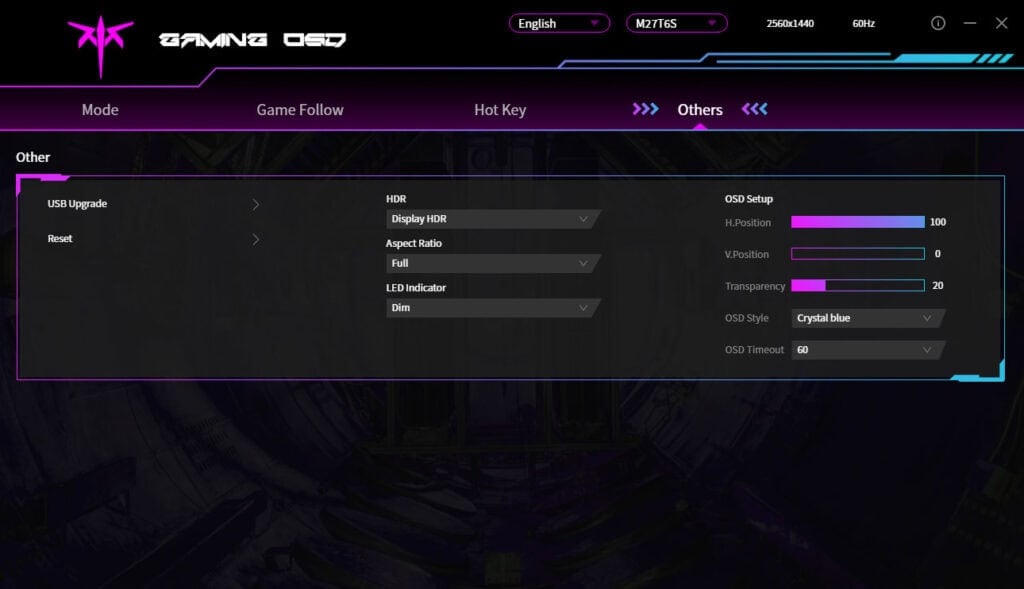
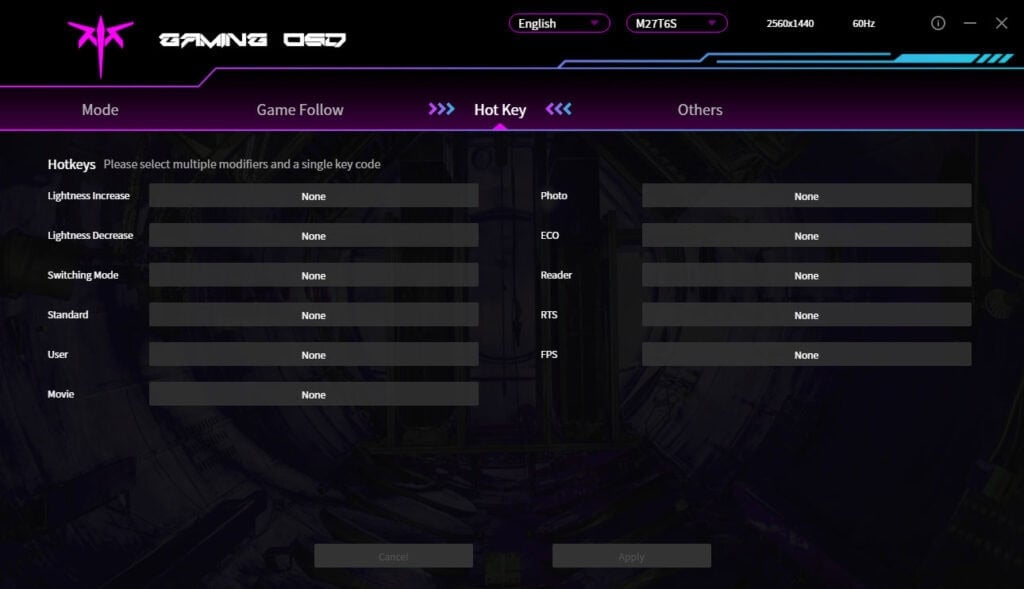
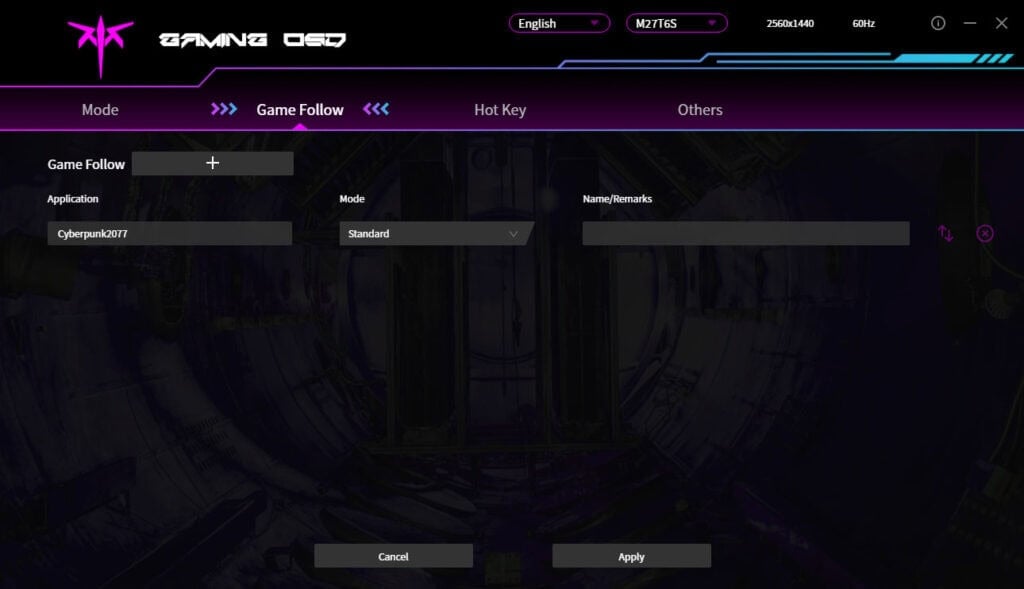
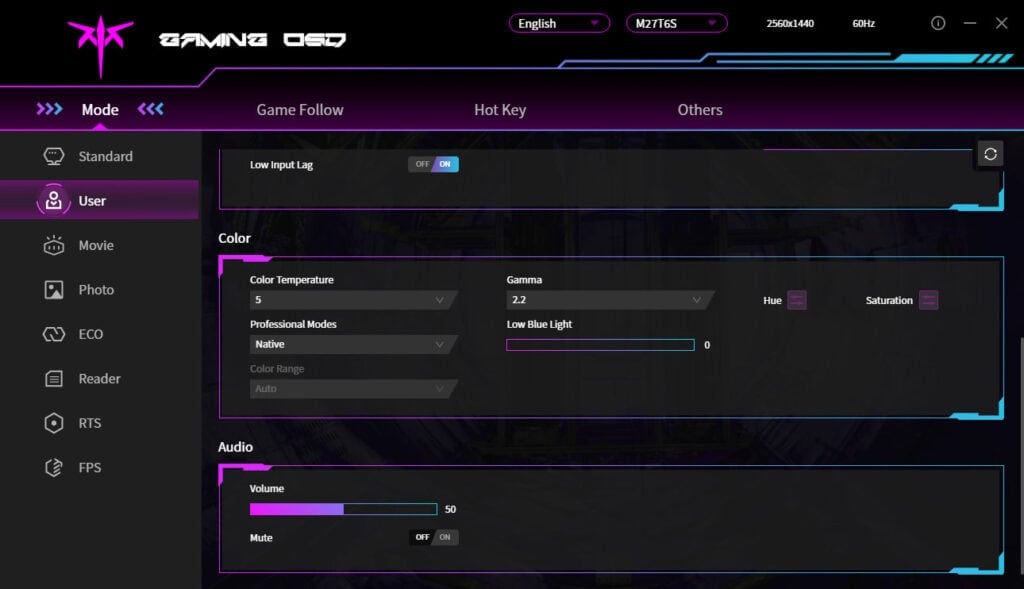
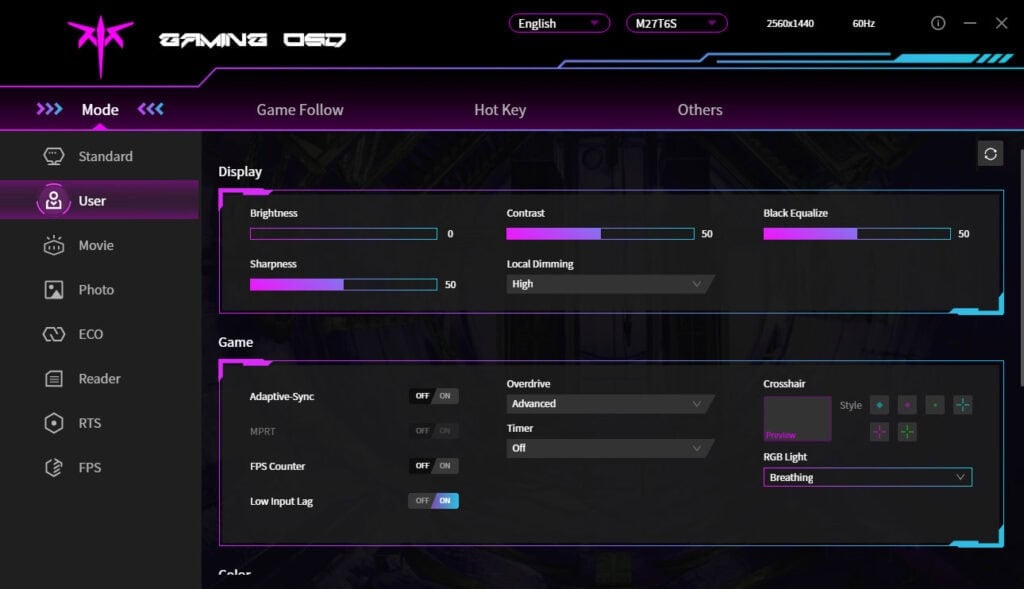
You can download the MMC app here, though you’ll need to change your browser’s preferred language to ‘Chinese (Simplified)’; otherwise, it will just take you to the English homepage. Alternatively, use this direct download link (clicking it will start the download immediately).
You can also use third-party apps, such as ControlMyMonitor, to make the following OSD settings:
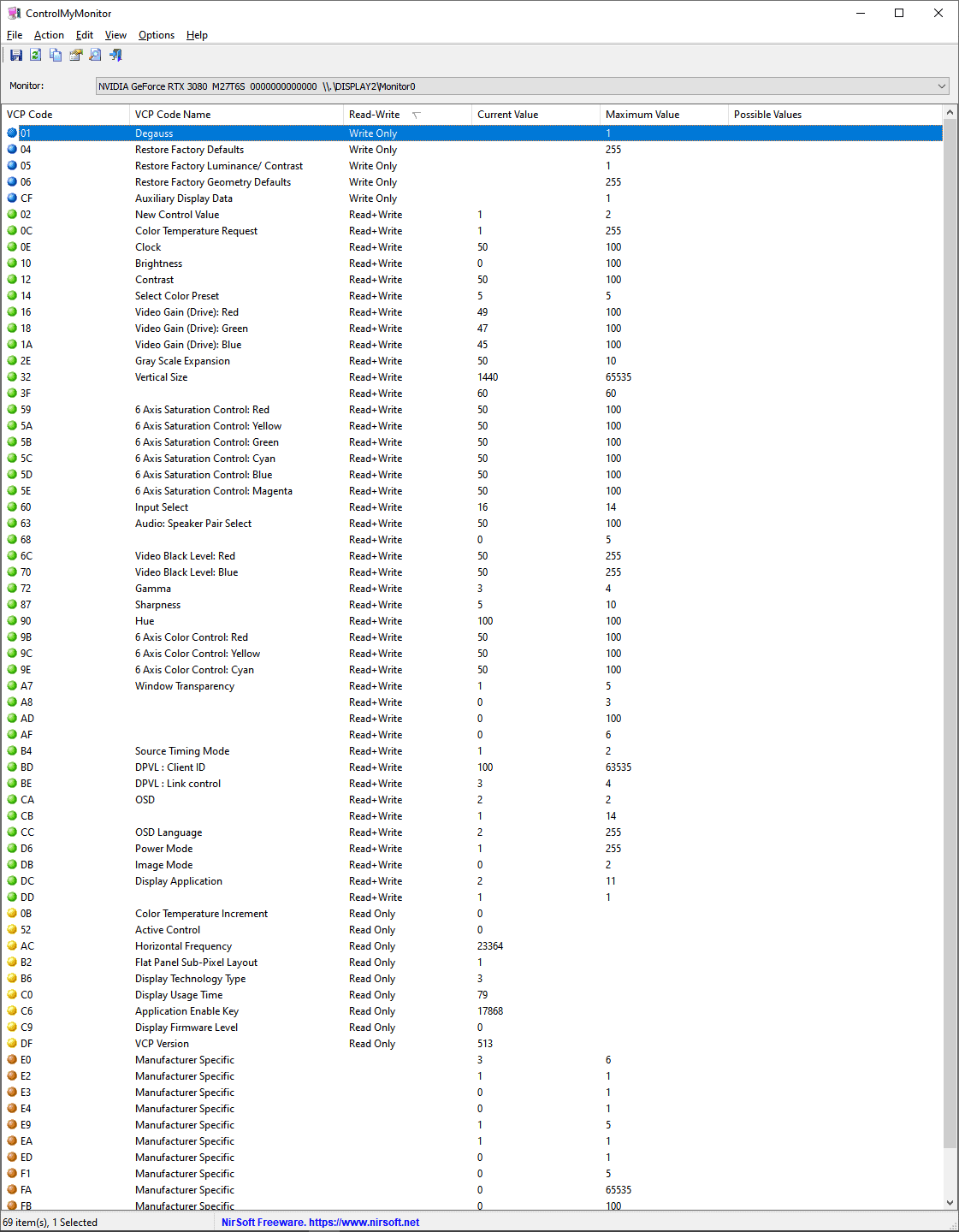
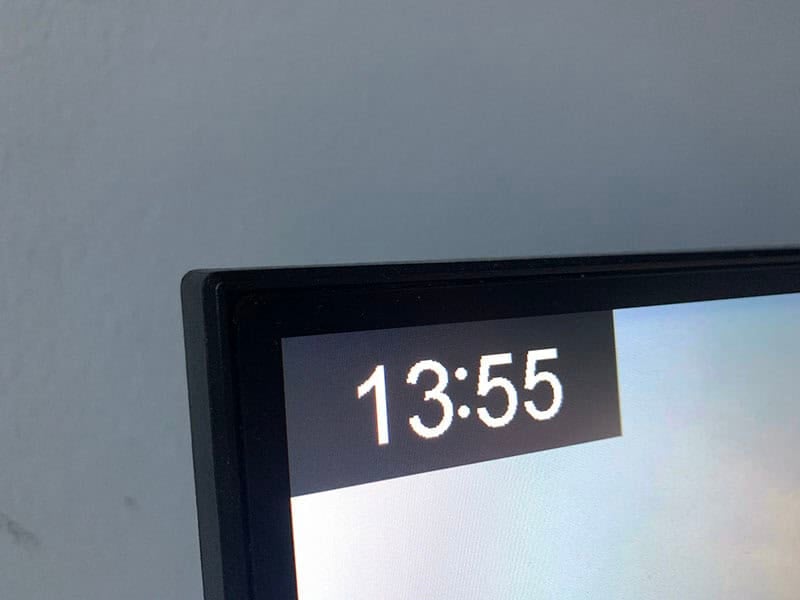
Useful gaming features include Black Equalize (improves visibility in dark scenes by altering the gamma curvature), crosshair overlays, a refresh rate tracker and an on-screen timer.
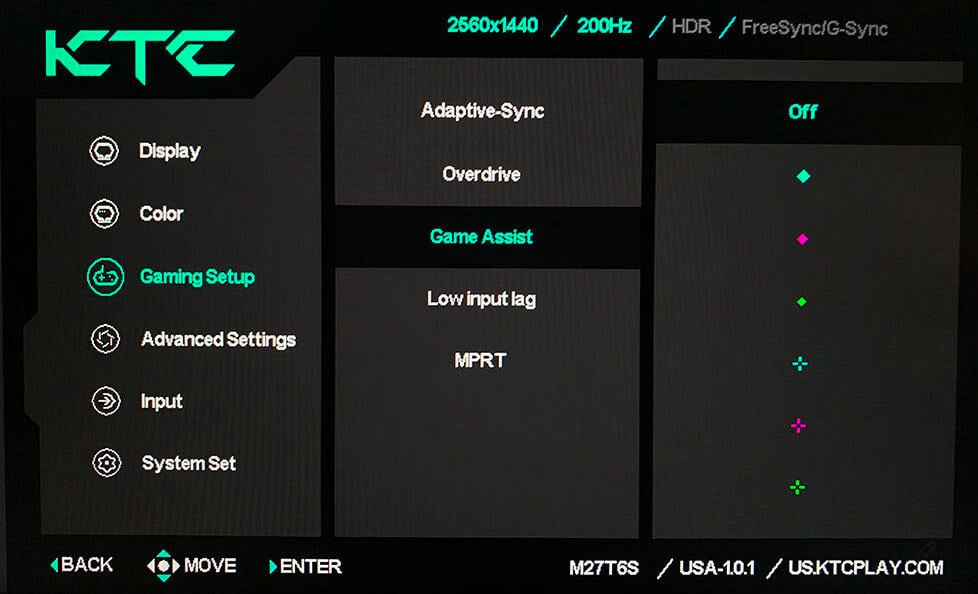
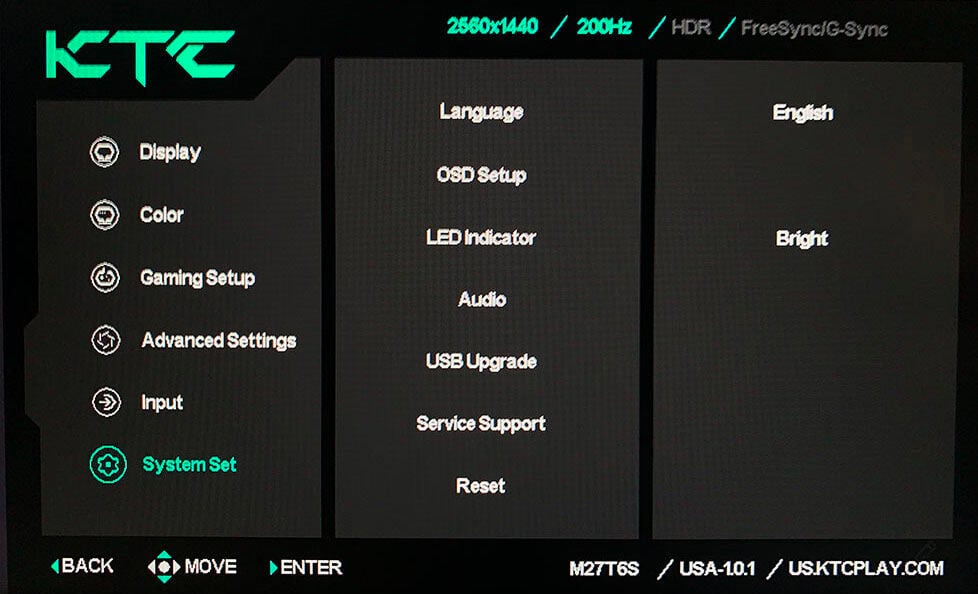
Other OSD settings include language, OSD setup (position, timeout, transparency, rotation, style), power LED indicator (off, dim, bright), audio (mute, volume), USB Upgrade, Service Support (QR code) and factory reset.
Design & Connectivity
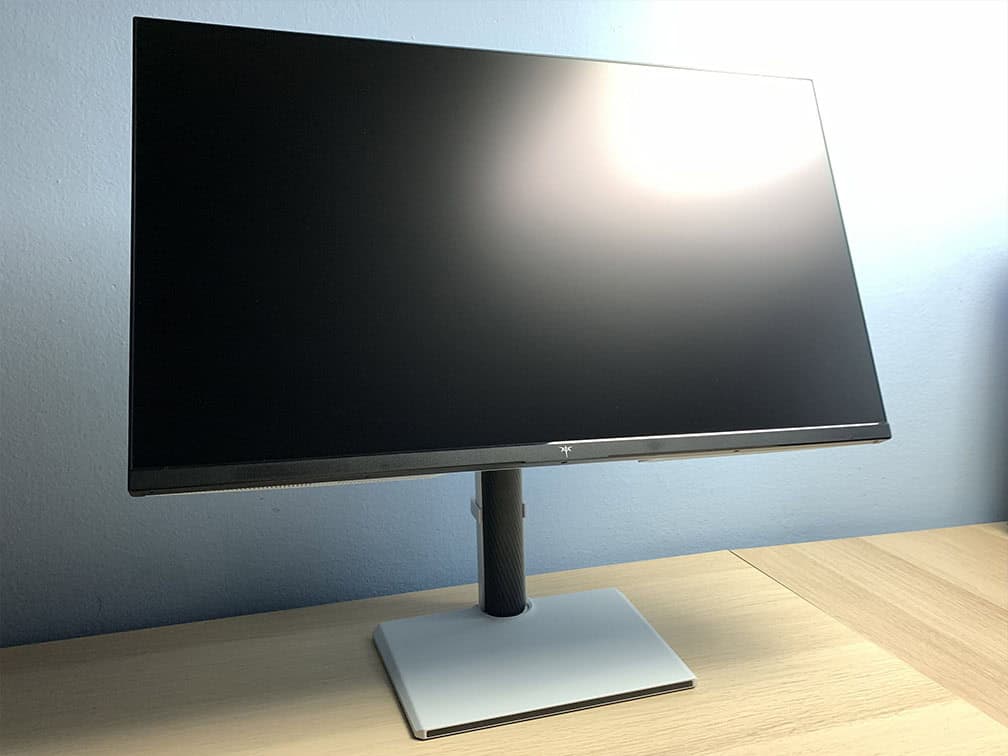
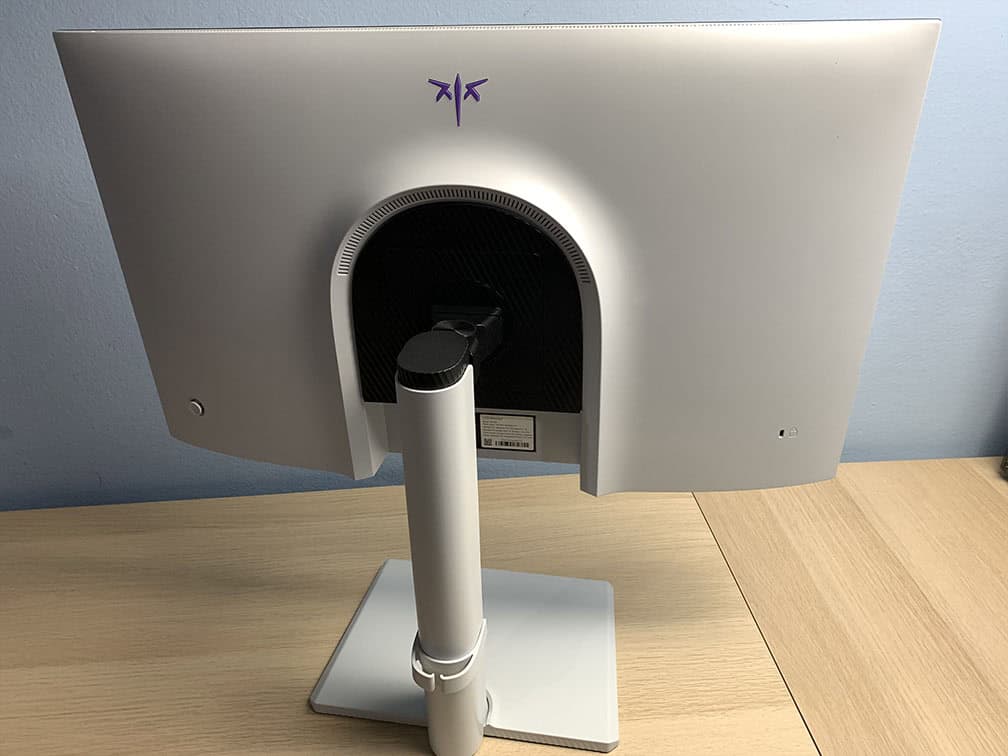
The stand of the monitor is robust and offers full ergonomic support, including up to 135mm height adjustment, +/- 90° pivot, -5°/20° tilt, +/- 45° swivel and 100x100mm VESA mount compatibility (recommended screw size M4*10mm).
The screen has a light 25% low-haze matte anti-glare coating, which diffuses reflections without adding too much graininess to the image.
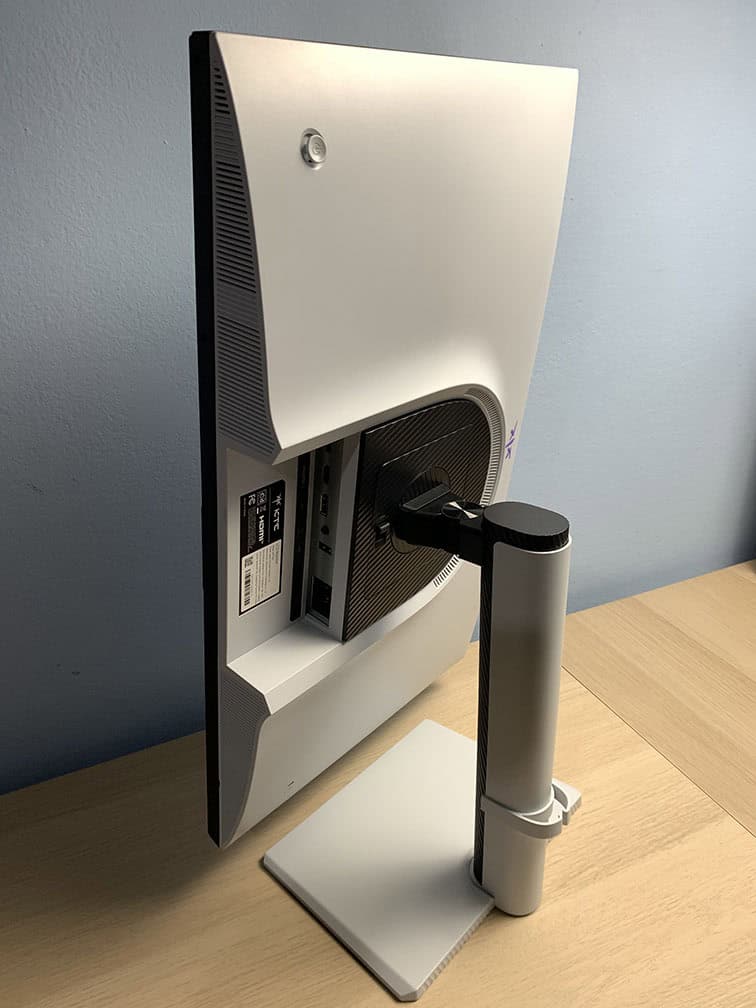
The bezels are ultra-thin (1mm) at the top and at the sides, while the bottom bezel is a bit thicker at 15mm. There’s also a 6mm black border (2mm at the bottom) around the screen before the image starts.
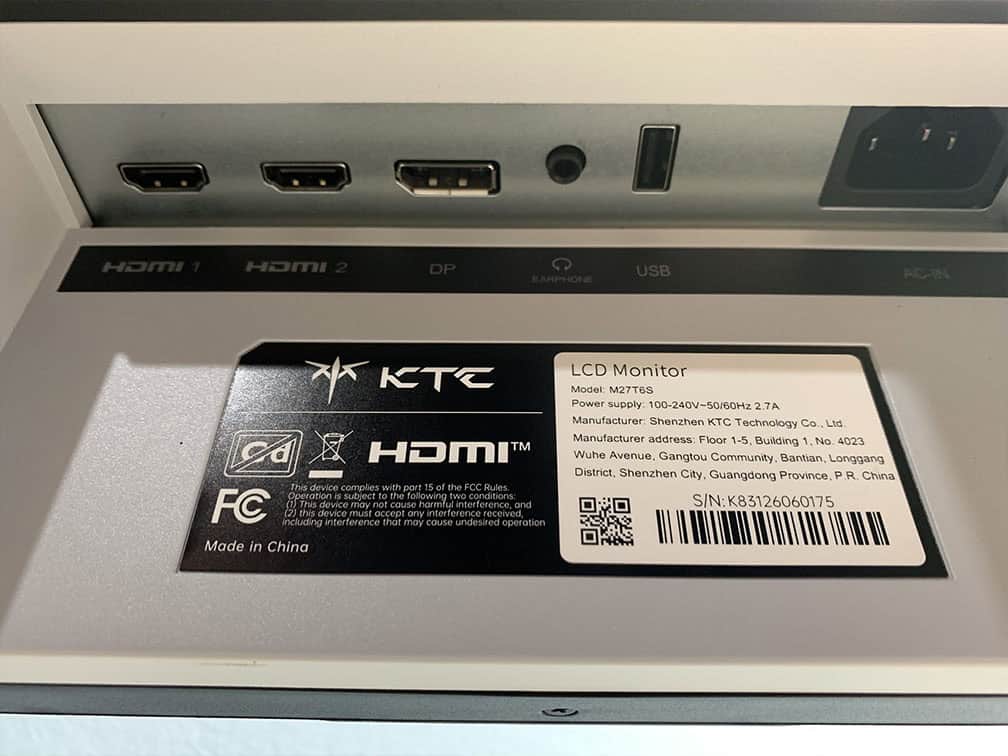
Connectivity options include DisplayPort 1.4, two HDMI 2.0 ports (limited to 144Hz at 2560×1440 with 8-bit color), a headphone jack and a USB-A port for firmware updates only. It has an integrated power supply.
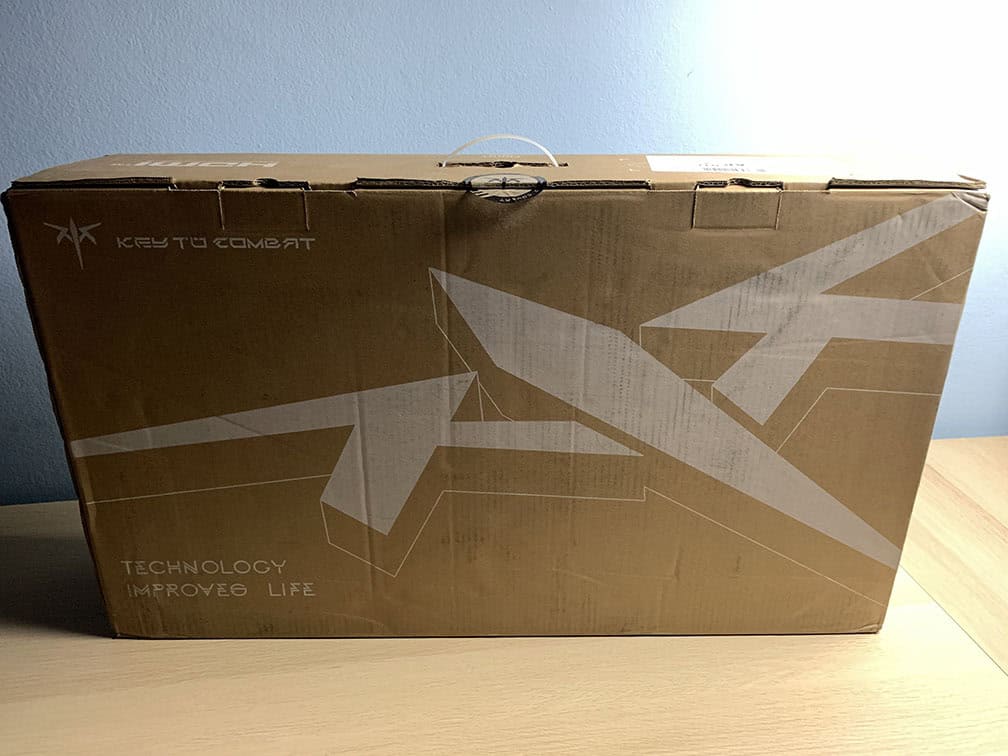
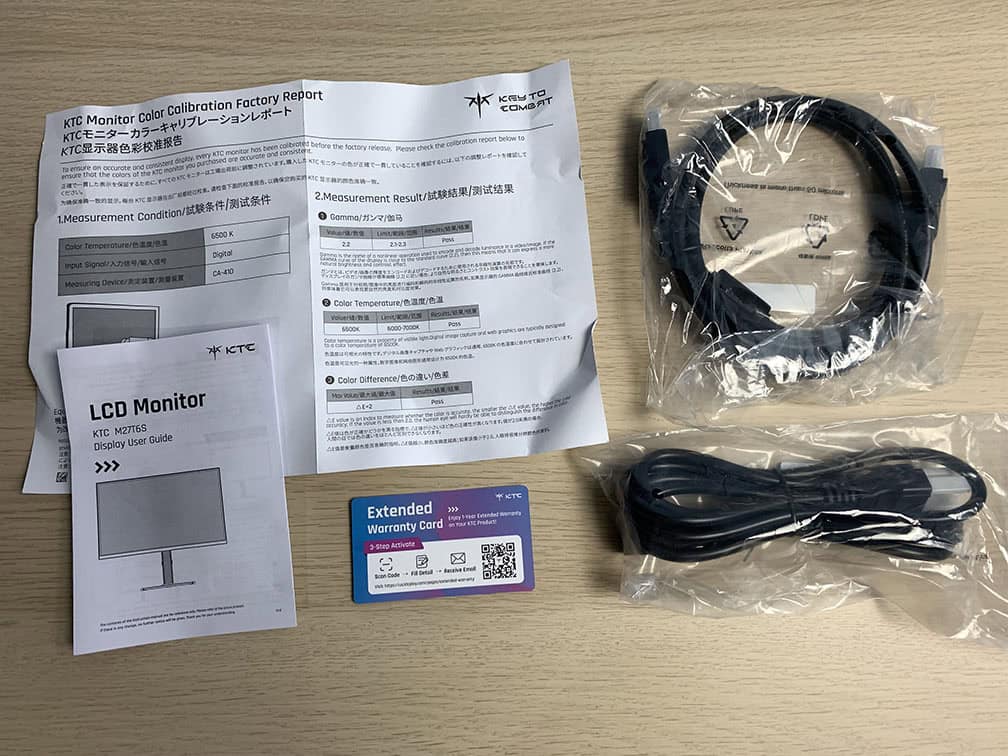
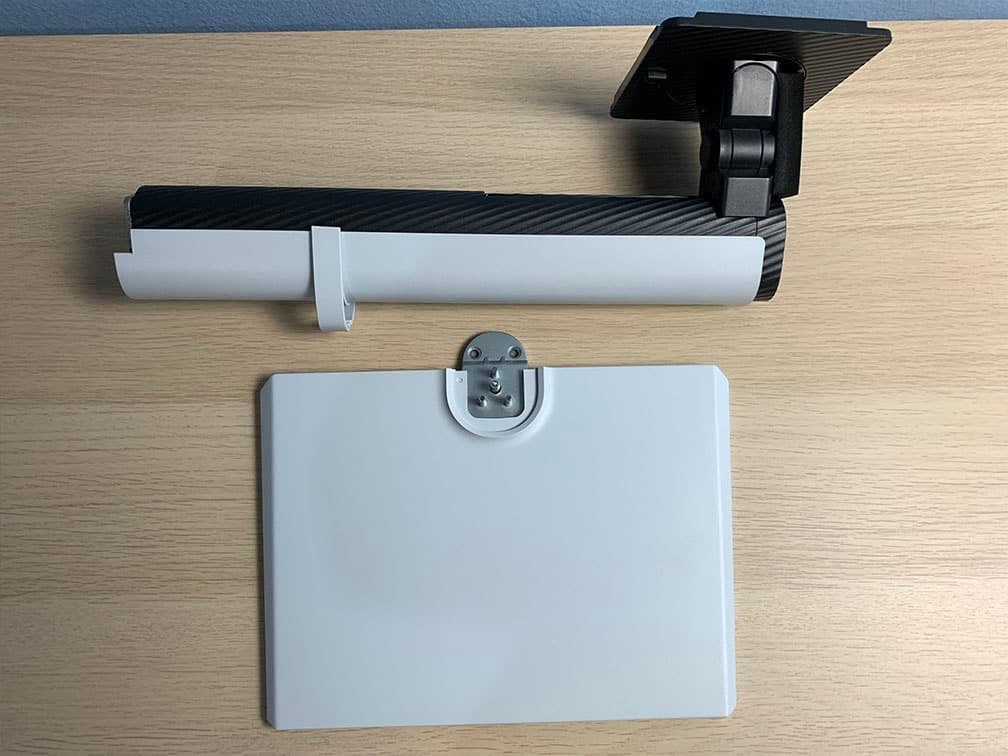
In the box, along with the monitor, you also get a power cord, a DisplayPort cable, a warranty card, a factory calibration report and a quick start guide.
Price & Similar Monitors
The KTC M27T6S price ranges from $280 to $350, which is a good value for the money.
10% off code: 10DNPKTC
The KTC M27T6 variant with a VA panel, a higher brightness (DisplayHDR 1400) and a higher native contrast ratio for deeper blacks and less blooming goes for around the same price.
However, the IPS panel of the M27T6S has wider viewing angles, faster response times, smoother VRR performance without brightness flickering and a wider color gamut. So, the choice between the two comes down to personal preference.
If you can afford it, we recommend saving up and investing in the KTC M27P6. It goes for $500, but can be found on sale for $425. It has a 27″ 4K 160Hz IPS panel with 1152 dimming zones, DisplayHDR 1400, USB-C with 65W PD, built-in KVM, 1080p 320Hz Dual Mode and more accurate EOTF tracking.
KTC also plans to release the new KTC M27P6S variant with 2304 dimming zones, but we don’t know yet when it will be available or how much it will cost.
Of course, if the 4K models are out of your budget, the M27T6S is an excellent option. There is another 27″ 1440p IPS 1152-zone mini LED option, the Acer XV275U F3. It has a higher 320Hz refresh rate for $300 – $380, but we haven’t tested it.
As far as OLED alternatives go in this price range, we recommend the AOC Q27G4ZD with a 1440p 240Hz QD-OLED panel, which can be found for $420.
There are cheaper 1440p 240Hz QD-OLED models, such as the Dell AW2726DM and the AOC Q27GAZD, but those have limited brightness (200-nits 100% APL, 400-nits HDR) – the Q27G4ZD is the cheapest model that goes up to 250-nits for 100% APL and 1000-nits for 3% APL in HDR.
For more mini LED and OLED options and information, check out our best HDR monitors buyer’s guide. You can also keep track of all upcoming OLED and mini LED monitors in our dedicated articles.
Conclusion
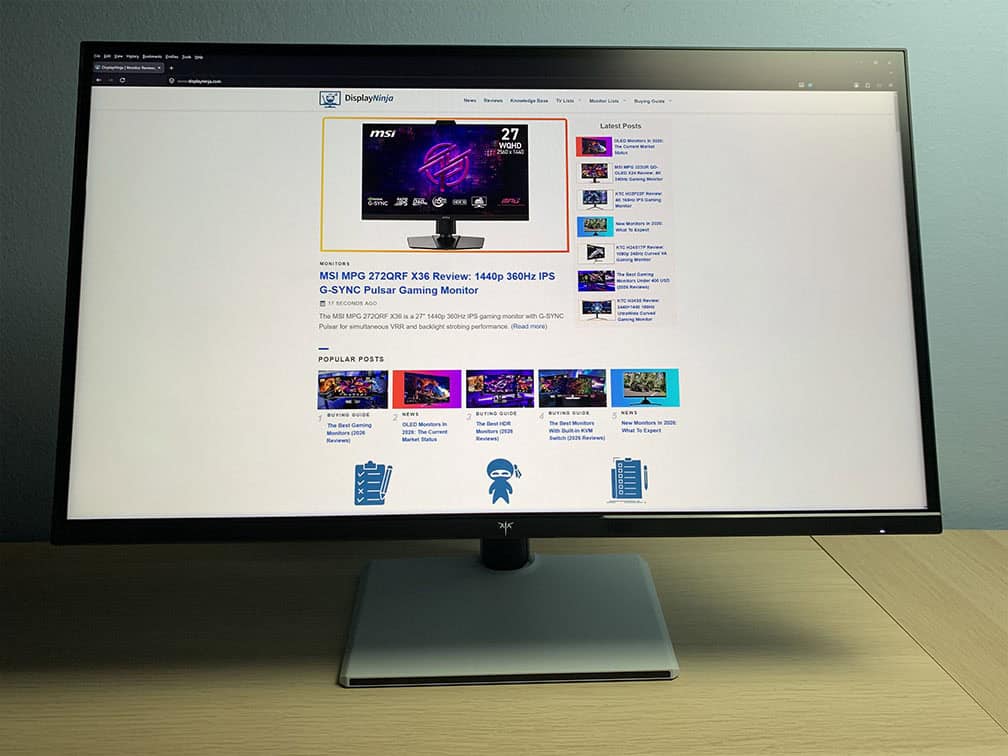
Overall, the KTC M27T6S is an excellent HDR gaming monitor for the price.
The main downside is the lifted EOTF tracking, which makes the image brighter than intended. Because the midtones are lifted, the highlights don’t stand out as much, especially since brightness decreases for small APLs to minimize blooming.
This doesn’t mean that the HDR viewing experience is bad – it’s just not accurate. The M27T6 variant has the same implementation, so this may be by design to make the image more impactful by having a higher perceived brightness.
We would have liked to see more options. A more accurate HDR EOTF mode, like the one on the KTC M27P6 and a local dimming mode that has a higher brightness for small APLs, even if it means more blooming.
Regardless, the HDR image is immersive as you get deep blacks, high brightness and vibrant colors.
Performance is also excellent with low latency (expected added latency with local dimming enabled), smooth VRR performance without brightness flickering and decent response times, though an overdrive mode between Advanced and Ultra Fast would’ve been helpful. Backlight strobing implementation could also use some tweaking for less strobe crosstalk.
Finally, factory calibration is very good and thanks to dedicated sRGB and Adobe RGB color modes along with the wide viewing angles of IPS technology, the screen is also viable for professional color-critical work.
KTC M27T6S Best Settings
General Settings:
Low Input Lag: On
Adaptive-Sync: On
Overdrive: Advanced
For HDR:
Local Dimming: High
HDR: VESA Display HDR
For accurate SDR output:
Professional Modes: sRGB
Color Temperature: Preset
Local Dimming: Off
For playing SDR games or watching SDR videos:
Professional Modes: sRGB or Native (if you want over-saturated colors)
Color Temperature: Preset
Local Dimming: High (for deepest blacks), but it’s up to your preference
HDR in Windows: Enabled (with the HDR/SDR brightness balance slider increased until there’s no clipping) or Disabled, depending on the content
Specifications
| Screen Size | 27-inch |
| Resolution | 2560×1440 (Quad HD) |
| Panel Type | IPS |
| Aspect Ratio | 16:9 (Widescreen) |
| Refresh Rate | 200Hz (210Hz OC) |
| Response Time (GtG) | Not specified |
| Motion Blur Reduction | MPRT |
| Adaptive-Sync | FreeSync Premium (48-210Hz) |
| Ports | DisplayPort 1.4, 2x HDMI 2.0 |
| Other Ports | Headphone Jack, USB-A (firmware update only) |
| Brightness (1% White Window) | 623 cd/m² |
| Brightness (10% White Window) | 1176 cd/m² |
| Brightness (100% White Window) | 1211 cd/m² (HDR) 626 cd/m² (SDR) |
| Contrast Ratio | 1,000:1 (static) |
| Colors | 1.07 billion (8-bit + FRC) 98% DCI-P3 (we measured 96.5%) 99% Adobe RGB |
| HDR | VESA DisplayHDR 1000 |
| Local Dimming | 1152-zone mini LED FALD |
| VESA | Yes (100x100mm) |
The Pros:
- Excellent value for the price
- Wide color gamut with well-calibrated sRGB and Adobe RGB modes
- High peak brightness, high contrast ratio, 1152-zone mini LED FALD backlight
- Plenty of features, including VRR and MBR up to 210Hz
- Fully ergonomic stand
The Cons:
- Very minor blooming noticeable in demanding scenes
- Lifted EOTF causes midtones to be brighter than intended
- Dimming zones cause subtle flicker when transitioning between dark to bright zones, mostly noticeable at 60Hz