Bottom Line
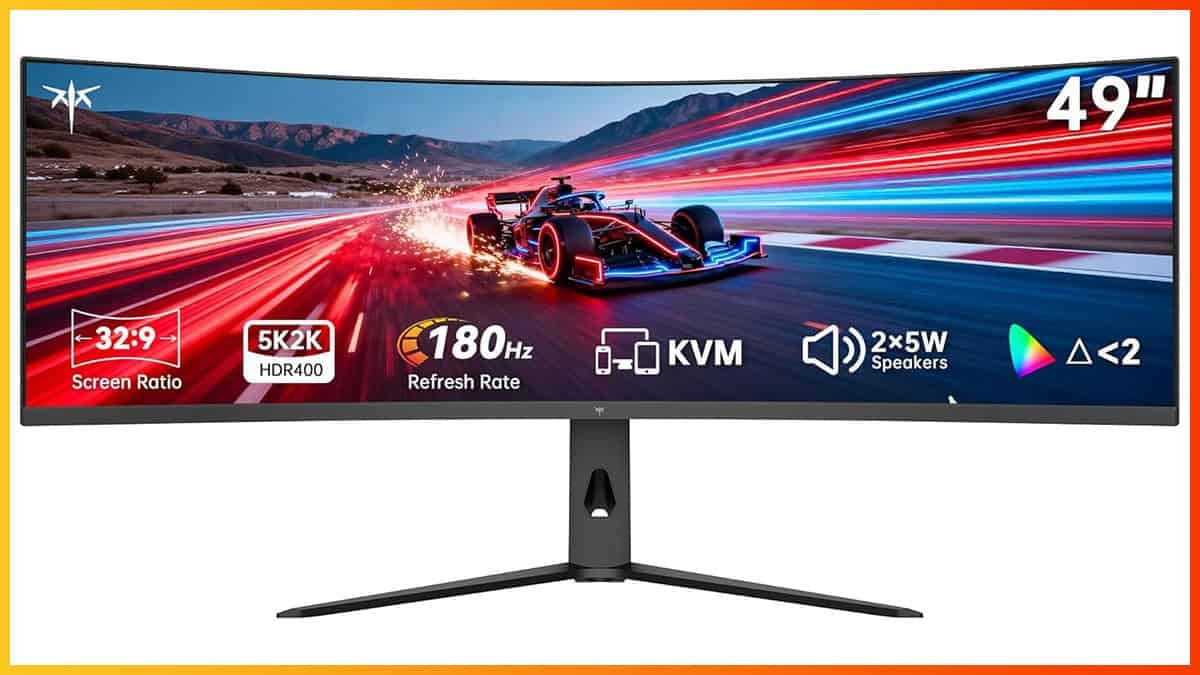
The KTC H49S66 is a strong-value super-ultrawide for mixed gaming and productivity. Its 49-inch curved VA panel delivers an immersive experience with good brightness, strong contrast and useful features like USB-C, PiP/PbP and a built-in KVM switch.
Downsides include limited blue gamut coverage, some dark-scene ghosting, and VRR flicker in games with poor frame pacing. Overall, it’s a versatile option well suited for everyday multitasking and immersive gaming.
10% off code: 10K49S66
The KTC H49S66 is a 49″ 5120×1440 180Hz super-ultrawide gaming monitor based on a 1000R curved VA panel with built-in KVM and USB-C (DP Alt Mode and 90W Power Delivery).
Let’s see how it handles our tests!
Image Quality
The monitor is based on a 49″ VA panel with a steep 1000R screen curvature, a specified 128% sRGB color gamut volume, 178° viewing angles, a 3,000:1 static contrast ratio, a 400-nit peak brightness and dithered 10-bit color depth support.
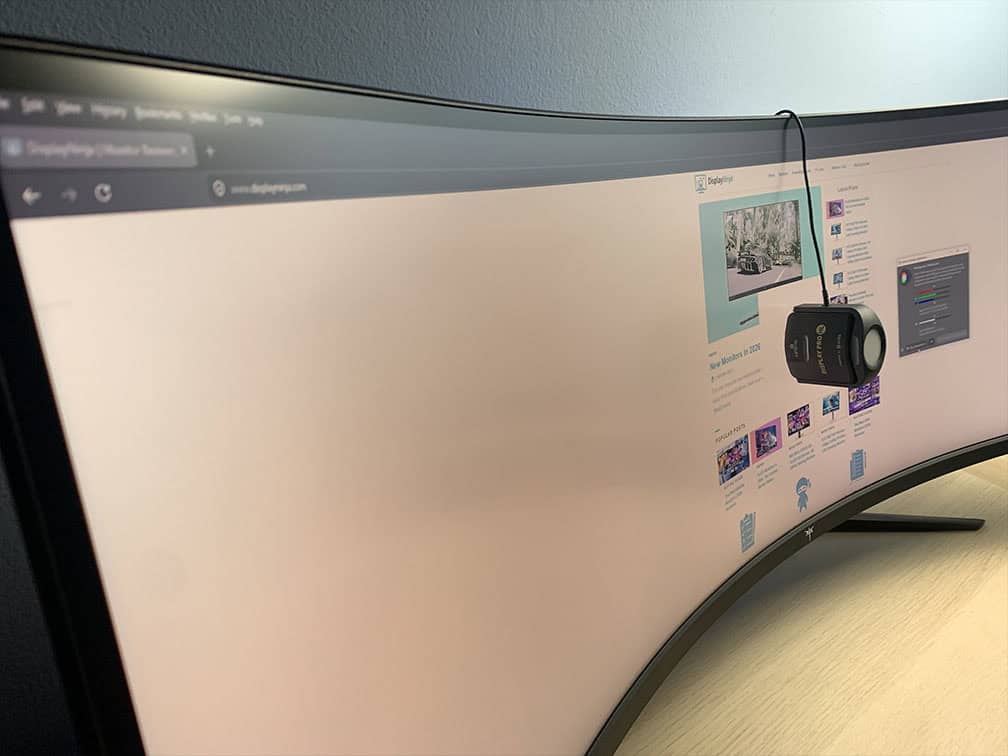
To test the display’s capabilities and accuracy, we’re using our Calibrite Display Pro HL colorimeter paired with DisplayCAL.
Note that we’re testing the USA-1.0.1 firmware version.
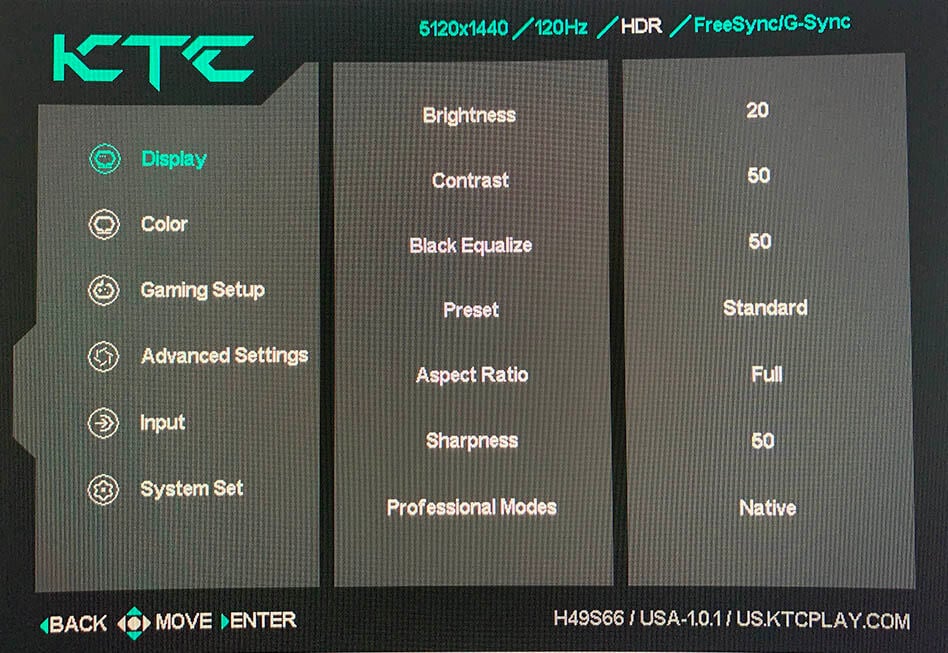
In the OSD (On-Screen Display) menu, under the ‘Display’ settings, you’ll find several ‘Preset’ options: Standard (Default), Movie, Reader, RTS, FPS1, FPS2, Player1, Player2 and Player3.
Options other than ‘Standard’ and ‘Player’ simply apply preset brightness, contrast, hue, saturation and Black Equalize values, which you can’t adjust. So, for full customization, we recommend using the most accurate default ‘Standard’ mode.
If you scroll a bit further in the ‘Display’ section, you’ll find the ‘Professional Modes’ options, including ‘Native’ and ‘sRGB.’
Color Gamut
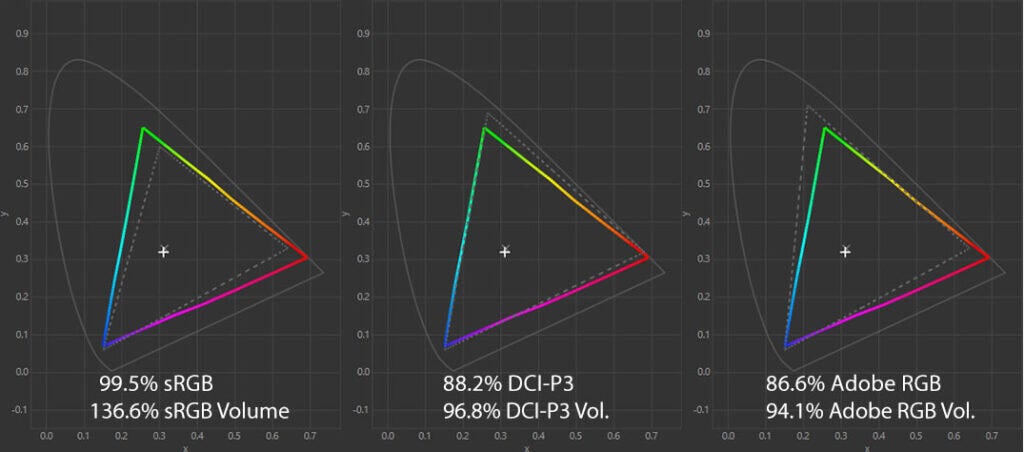
The KTC H49S66 has a color gamut of 99.5% sRGB coverage and 136.6% sRGB volume, exceeding the sRGB color space, which results in a bit more saturated greens and reds.
Some users may prefer this added saturation, but if you want better accuracy, you should use the ‘sRGB’ ‘Professional Mode’ instead, which clamps the gamut down to 115.4% volume and 98.8% coverage.
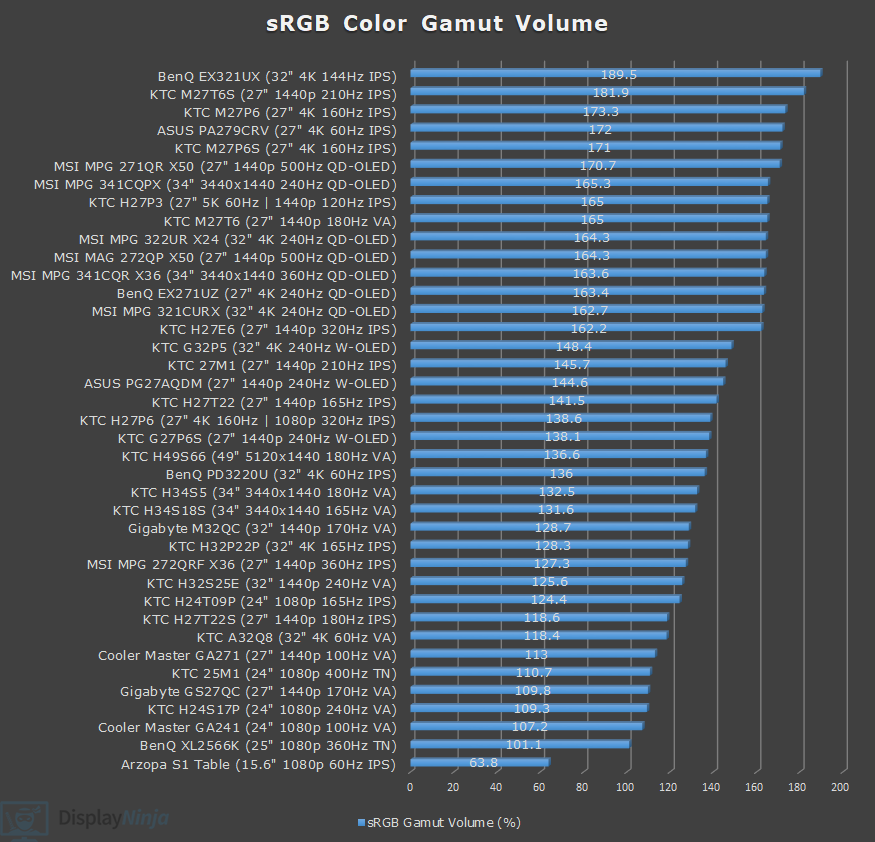
Image Accuracy
By default, Windows doesn’t do color management, which is why in the Native mode, we measured a Delta E of 2.99 average (color deviation from the target, less than 1.5 is considered good) and a high 9.8 maximum (target is less than 3).
On the other hand, gamma tracking is very good, with a 2.14 average (2.2 is the target) and close adherence to the sRGB tone curve.
Color temperature in the default ‘Preset’ mode was 6553K (target is 6500K), which is excellent as there’s no noticeable tinting to the whitepoint.
The sRGB mode offers somewhat better accuracy, but it’s still far from perfect, with an average Delta E of 2.41 and a high maximum of 8.68 for blue.
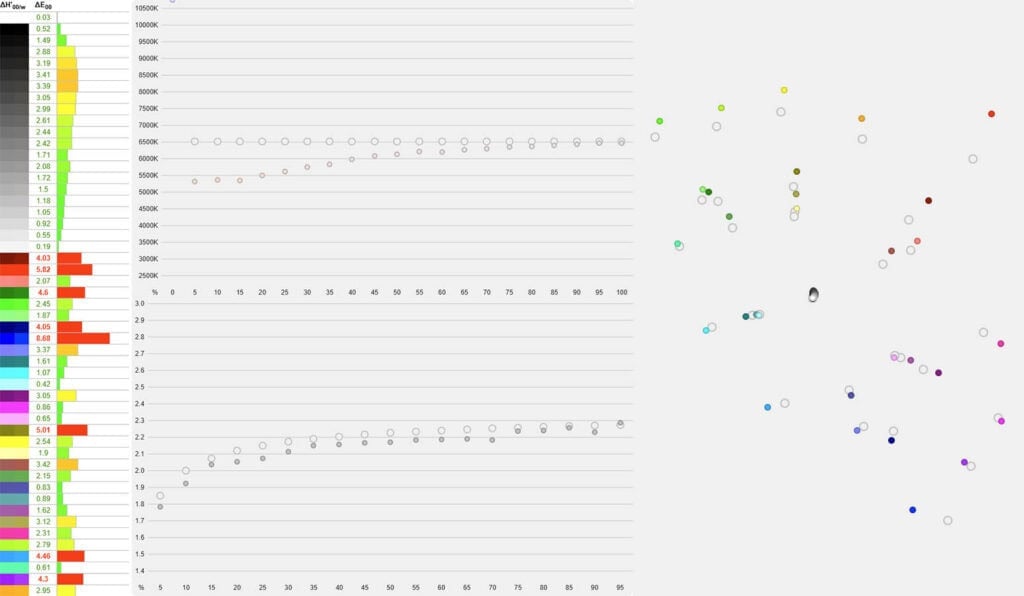
This is because the monitor’s color gamut lacks sufficient blue coverage, causing blue shades to appear undersaturated, while other colors appear slightly oversaturated where the gamut exceeds the sRGB color space, reaching 115.4% volume.
Also, we changed the color temperature mode from the default ‘Warm’ with 5808K to ‘Normal’ with 6667K to eliminate the yellowish tint.
We measured the color temperature of all modes. Note that they are different in sRGB and Native modes:
- Preset – 8008K in the sRGB mode, 6553K in Native
- Normal – 6667K, 7554K
- Warm – 5808K, 6537K
- Cool – 8382K, 9155K
- User – 5816K, 6038K
So, we recommend going with ‘Preset’ in the Native mode and ‘Normal’ in the sRGB mode.
Gamma tracking in the sRGB mode is very good as it tracks the sRGB tone curve, with a 2.14 average.
You can adjust brightness and color temperature in the sRGB mode, but contrast, gamma and hue/saturation settings are locked.
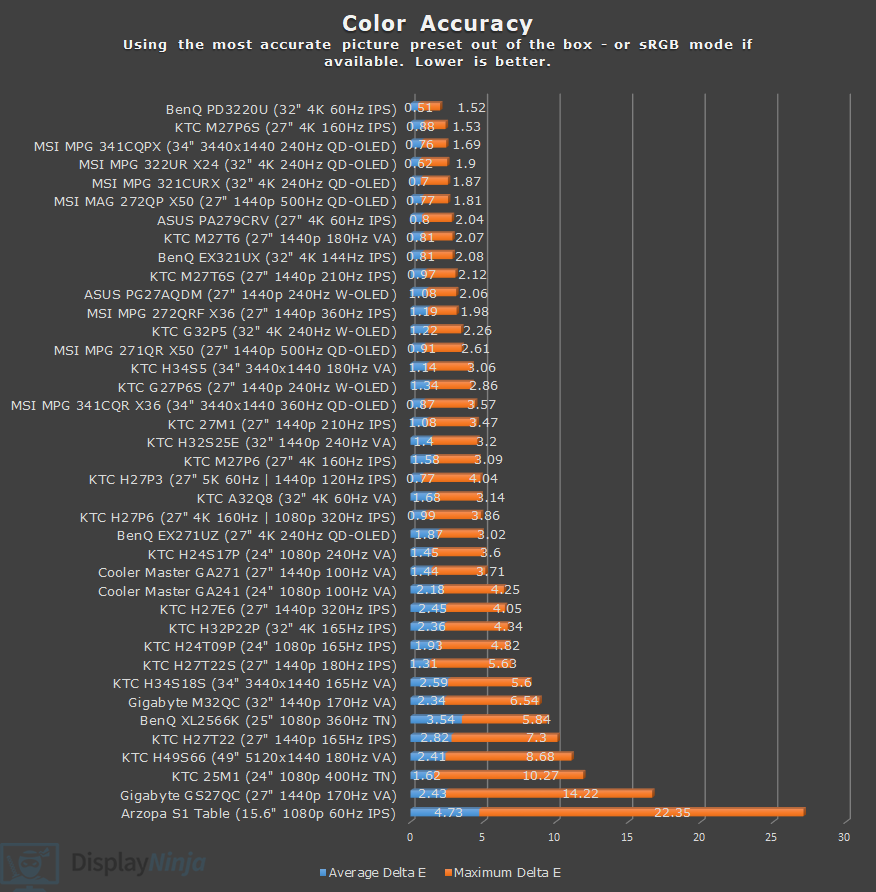
Overall, the factory calibration is subpar. Gamma tracking and color temperature are good, but the monitor’s limited blue coverage and oversaturation in other areas lead to high Delta E results.
This isn’t an issue for everyday use, gaming, or watching videos, but it’s not ideal for color-critical work. To be fair, if you’re specifically looking for a monitor for photo or video editing, an IPS display would generally be the better choice anyway.
Although VA monitors are rated with the same 178° viewing angles as IPS panels, they can still exhibit minor gamma and saturation shifts. In everyday use and even for basic content creation, this usually isn’t very noticeable, but it can become a concern for professional color-critical work.
Calibration
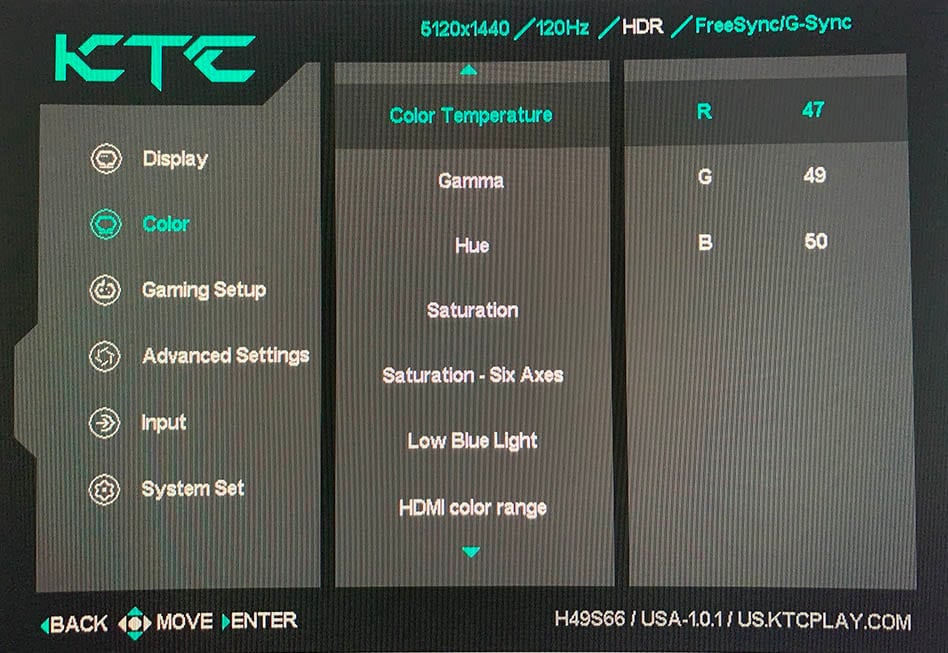
For full calibration, we set the brightness to 20/100 for 124-nits, used the ‘Native’ color temperature mode, and ‘Custom’ color temperature with red, green and blue channels set to 47, 49 and 50, respectively, to get 6543K.
Delta E improved to 0.82 average, but the maximum remained high at 5.06 due to the missing blue coverage. Gamma tracking is accurate with a 2.19 average. You can download our ICC profile here.
HDR
The KTC H49S66 supports HDR (High Dynamic Range), but while it can accept the HDR10 signal and display it, there’s no proper hardware (full-array local dimming or an OLED panel) for a true HDR viewing experience.
When in the HDR mode, the gamut is clamped to 117.7% sRGB volume with an average Delta E of 2.23 and 5.59 maximum. Blue color coverage is also a tad better with a Delta E of 3.94.
However, gamma is a bit lower at 2.07, causing bright scenes to be a bit brighter than intended. Color temperature is 6099K in the User mode, which is a bit lower than the target 6500K, but there’s no noticeable tinting to the whitepoint.
We measured a maximum brightness of 500-nits in the HDR mode.
Playing HDR content also provides you with dithered 10-bit color depth, resulting in smoother gradients, but since there’s no local dimming, some details in shadows and highlights of the image will be lost. So, depending on the content, you may prefer SDR over HDR on this monitor.
Brightness & Contrast
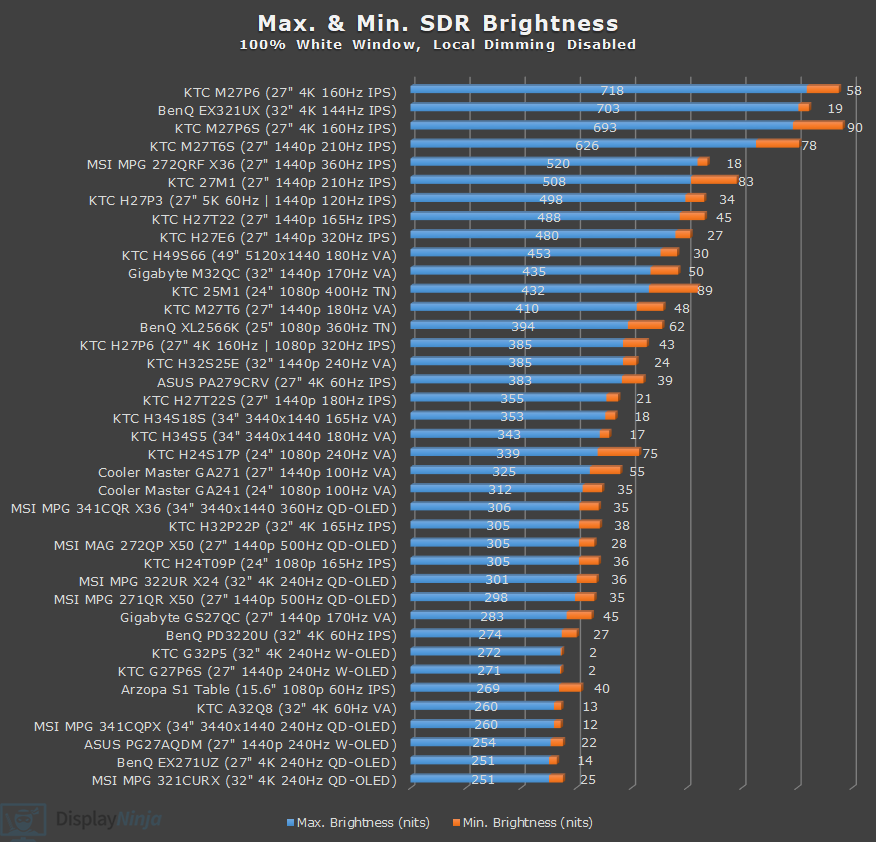
We measured a maximum brightness of 453-nits and a minimum of 30-nits in the Native mode.
The monitor is well-suited for both bright and dark rooms, as its high brightness easily overcomes glare while still being able to get dim enough for comfortable use in darker environments.
In the sRGB mode, we measured a minimum of 24-nits and a maximum of 410-nits in the Warm color temperature preset, and 364-nits in ‘Normal.’
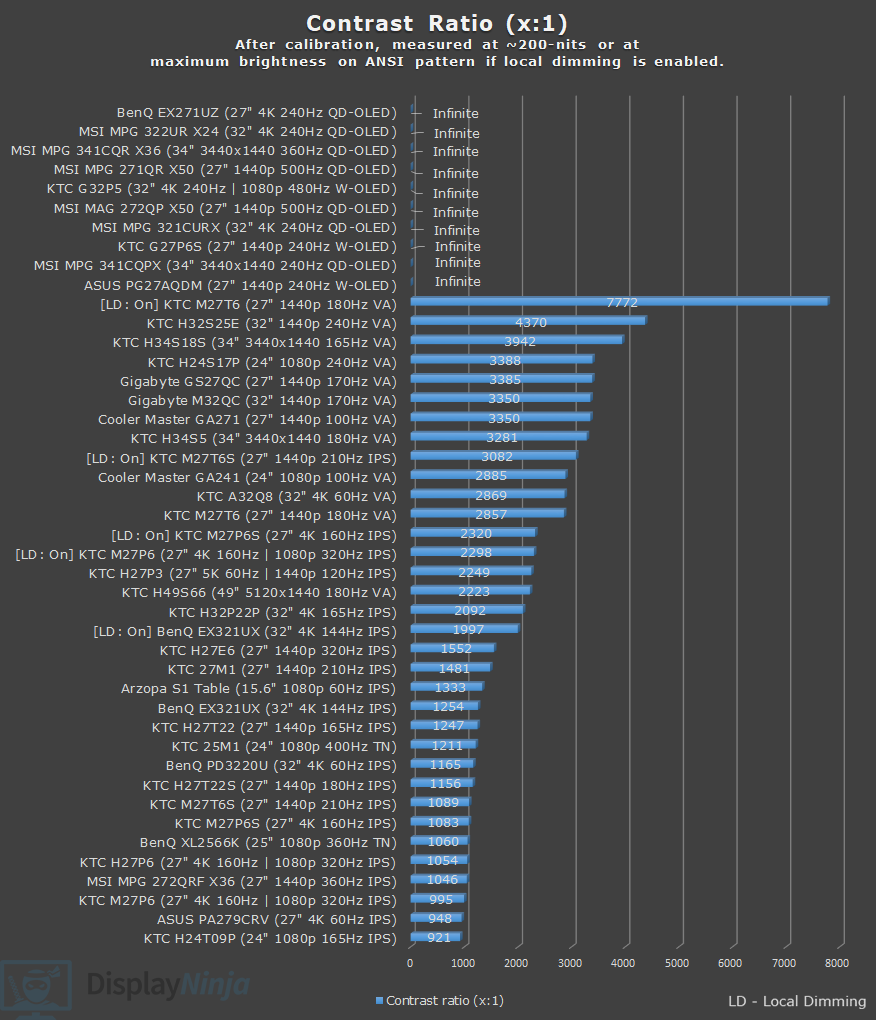
At around 200-nits, we measured a contrast ratio of 2223:1, which results in reasonably deep blacks, notably darker than that of IPS monitors with a typical contrast ratio of around 1,000:1.
Of course, blacks won’t be as deep as those of monitors with self-emissive OLED panels or LED displays with full-array local dimming (FALD), but those technologies come with their own drawbacks.
Subpixel Layout & Pixel Density
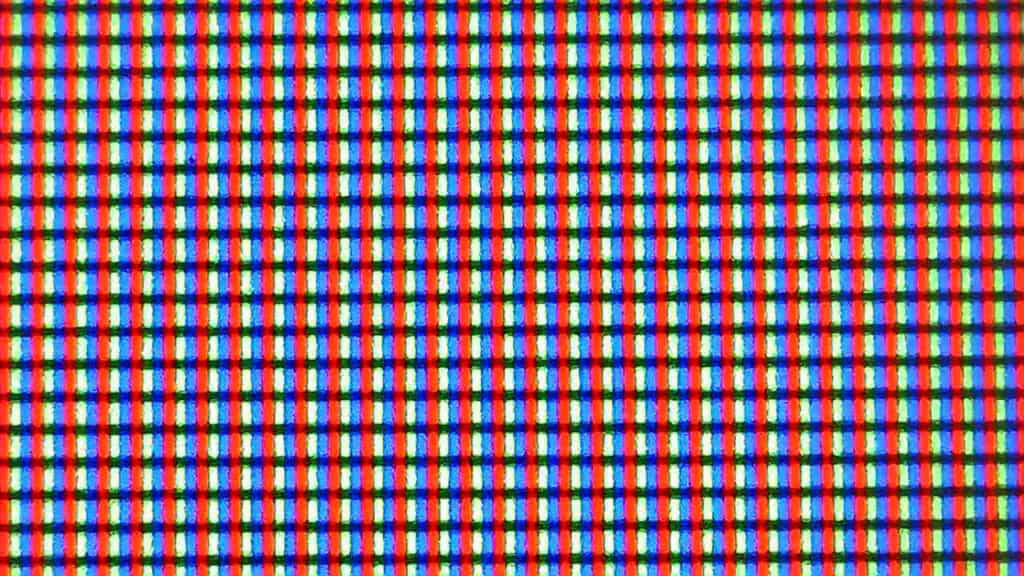
The KTC H49S66 has a typical RGB subpixel layout, meaning that there’s no colored fringing noticeable on small text and fine details.
The 5120×1440 Dual Quad HD resolution on a 49″ screen provides you with a pixel density of 108.54 PPI (pixels per inch), resulting in reasonably sharp details and plenty of screen real estate.
Note that the monitor is incorrectly advertised as ‘5K2K’ in some places, which actually stands for 5120×2160 and is a 21:9 resolution.
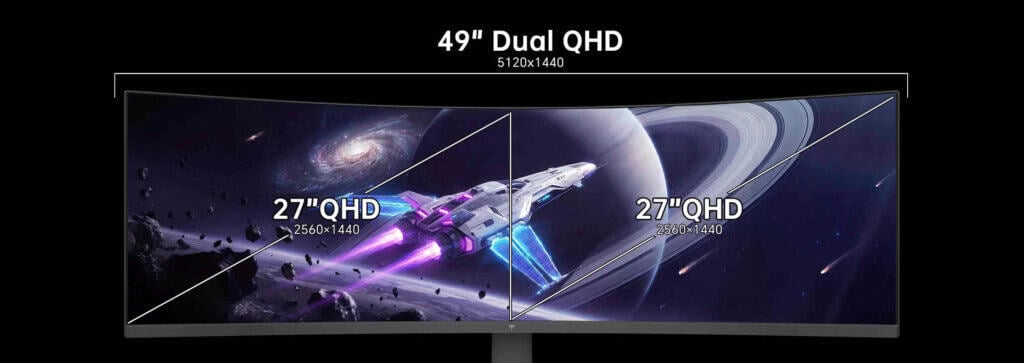
The monitor is basically equivalent to two 27″ 2560×1440 monitors side by side, without the bezels in between them.
Keep in mind that 5120×1440 can be quite demanding on the GPU.
It has twice the pixel count of 2560×1440, about a 50% increase over 3440×1440, and is only roughly 12% less demanding than 4K UHD. Fortunately, with upscaling technologies like FSR and DLSS, achieving smooth frame rates at reasonable settings is still very feasible on mid-range GPUs.
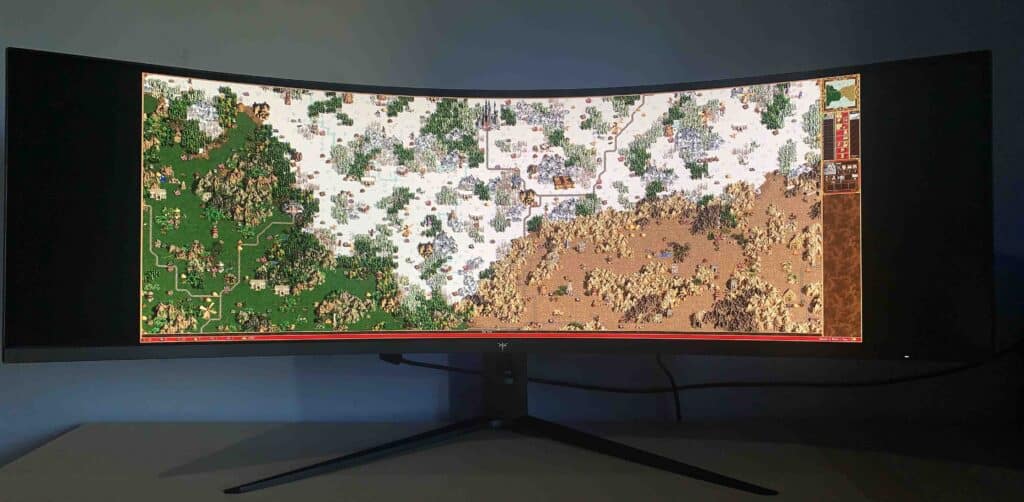
32:9 Super-UltraWide Experience
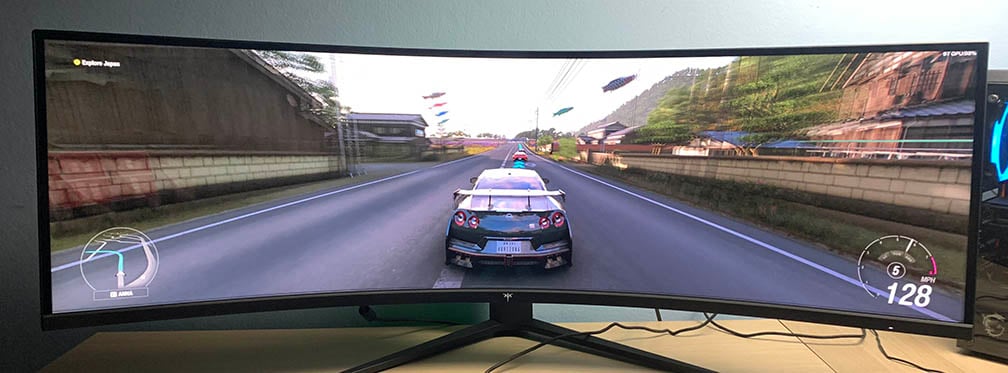
Most modern games support the 32:9 aspect ratio by default, allowing you to enjoy the extended field of view right away. In some titles, you may need to use mods or tinker with some settings for proper support.
There are games with native 32:9 support that may still show in-game cutscenes as 16:9 with black bars at the sides of the image. There’s a quick and easy fix for this using a free HEX editor, such as HxD (link to the official website).
How to fix black bars in cutscenes on ultrawide monitors?
Download HxD, drag and drop the .exe game file to it, go to ‘Replace…‘, select the ‘Hex-values‘ tab, put ‘39 8E E3 3F‘ in the ‘Search for‘ box, and ‘39 8E 63 40‘ in the ‘Replace with‘ box, select ‘All‘ for search direction, ‘Replace All‘ and ‘Save‘. The program will automatically create a backup .exe file as well.

If you have an ultrawide monitor with a different resolution, you’ll need to put a different hex code in the ‘Replace with’ box, depending on the exact aspect ratio:
2560x1080 (2.37:1) - 26 B4 17 40

5120x2160 (2.37:1) - 26 B4 17 40

3440x1440 (2.38:1) - 8E E3 18 40

3840x1600 (2.4:1) - 9A 99 19 40

5120x1440 (32:9) - 39 8E 63 40

7680x2160 (32:9) - 39 8E 63 40
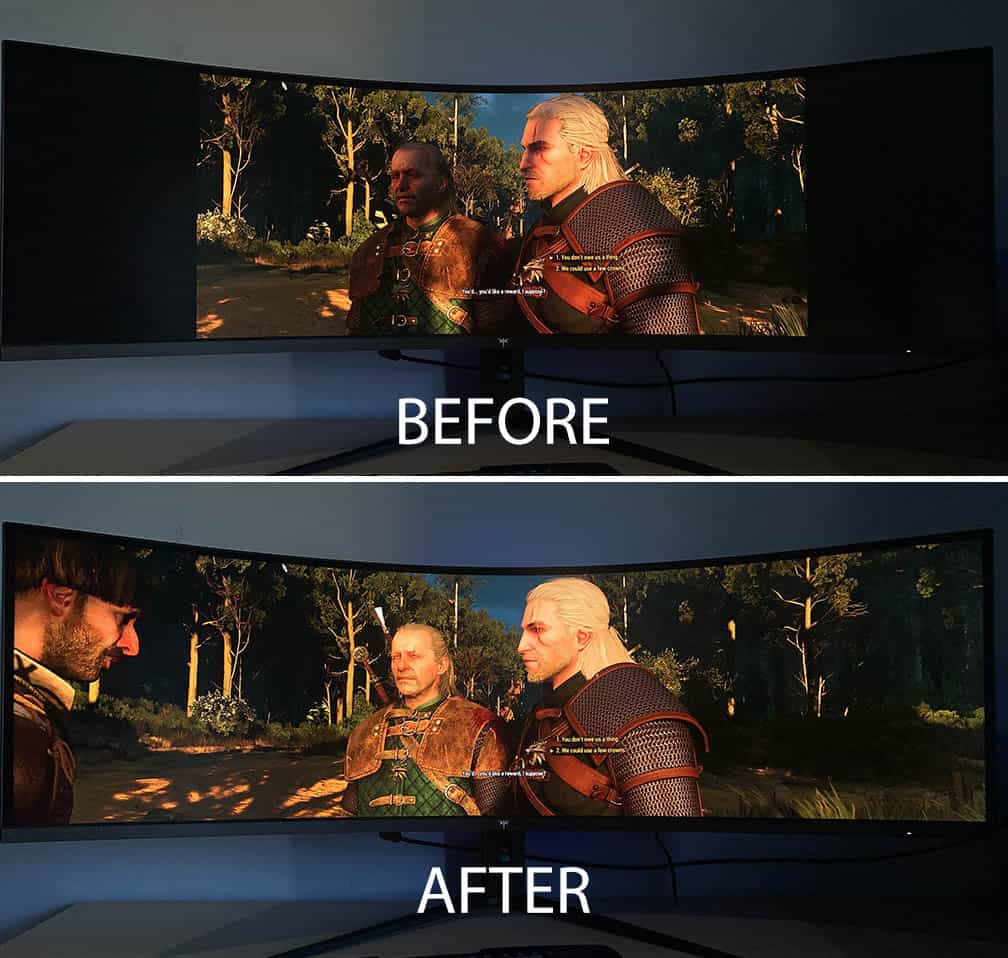
You can also use the Flawless Widescreen application, which can automatically fix ultrawide resolutions in most games.
Note that pre-rendered 16:9 cutscenes will still be shown with black bars, but this won’t be as immersion-breaking, given that there are only a few of those in most games.
On the other hand, some games purposely don’t support ultrawide resolutions as developers think it would give an unfair advantage over other players. Luckily, there aren’t many such titles, the most popular ones include Valorant and Starcraft 2.
Some games, such as Elden Ring and Sekiro, will need a 32:9 mod, but will then only work in offline mode.
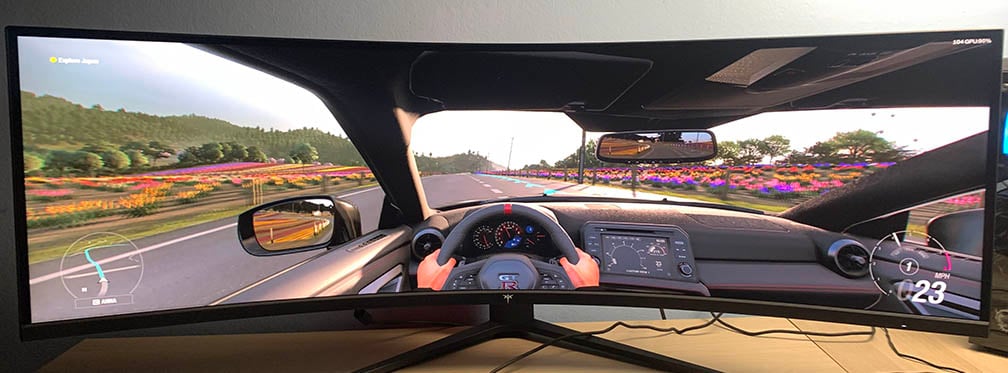
In some games, it can also take a bit of time to get used to the super-ultrawide aspect ratio. In first-person and third-person games, the image near the edges of the screen can appear slightly stretched, which may feel distracting at first. Notice how objects become distorted toward the left and right edges of the screen in the images below.
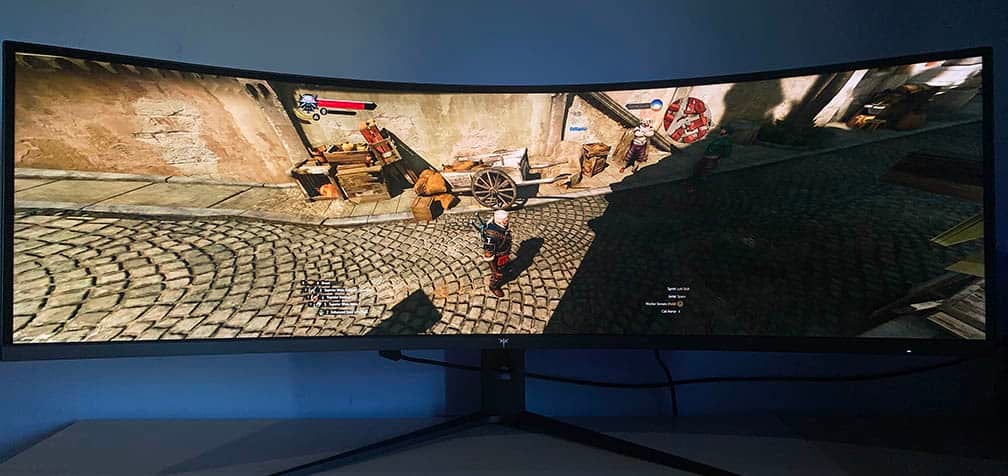
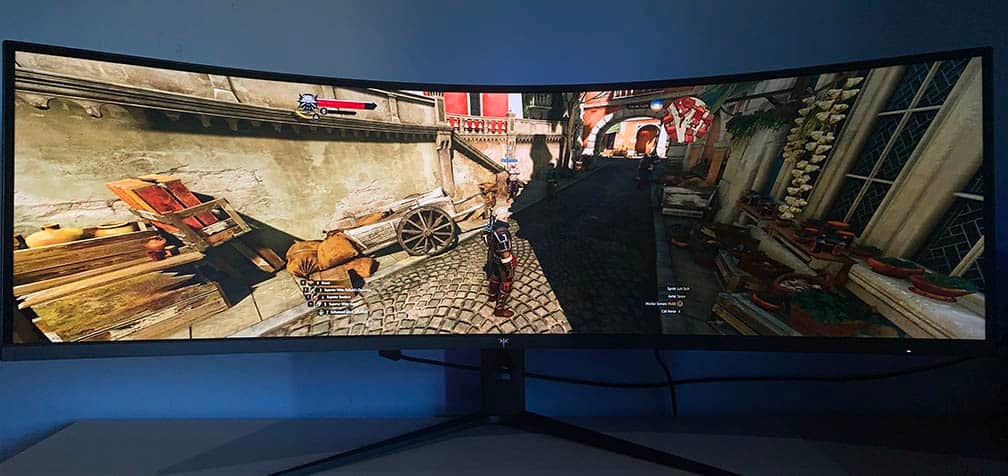
Of course, you’re not meant to focus on the edges of the screen. They’re there to fill your peripheral vision and enhance immersion. Once you adjust to it, it usually stops being noticeable.
So, the overall gaming experience can vary depending on the game. For racing games, for instance, the super-ultrawide aspect ratio is perfect.
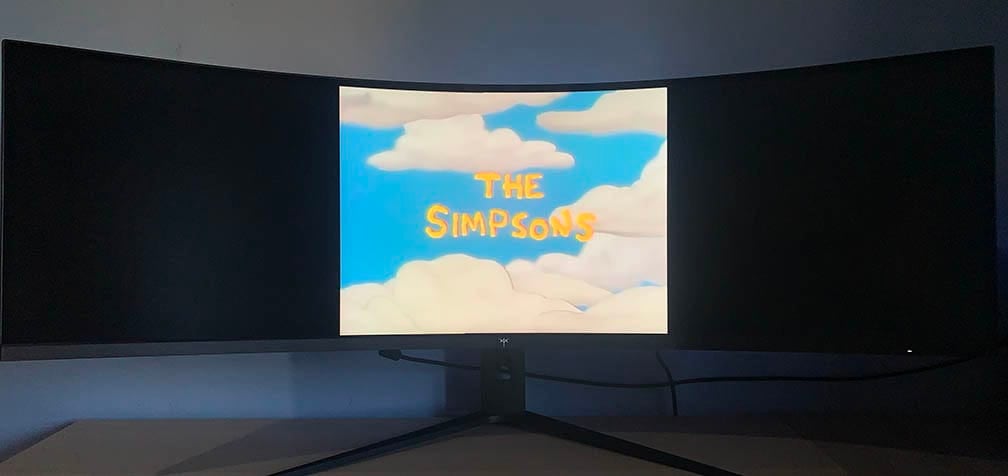
Naturally, when watching 4:3, 16:9 and 21:9 videos, they will be displayed with black bars at the sides of the screen.
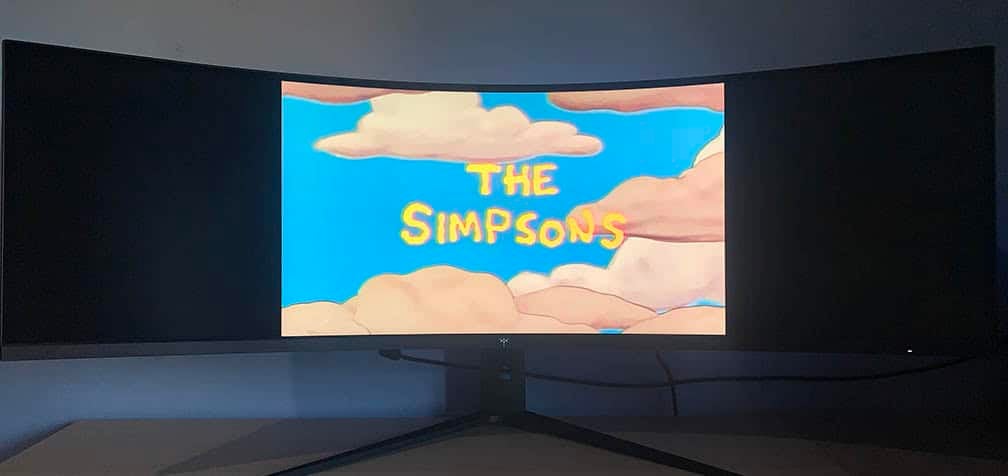
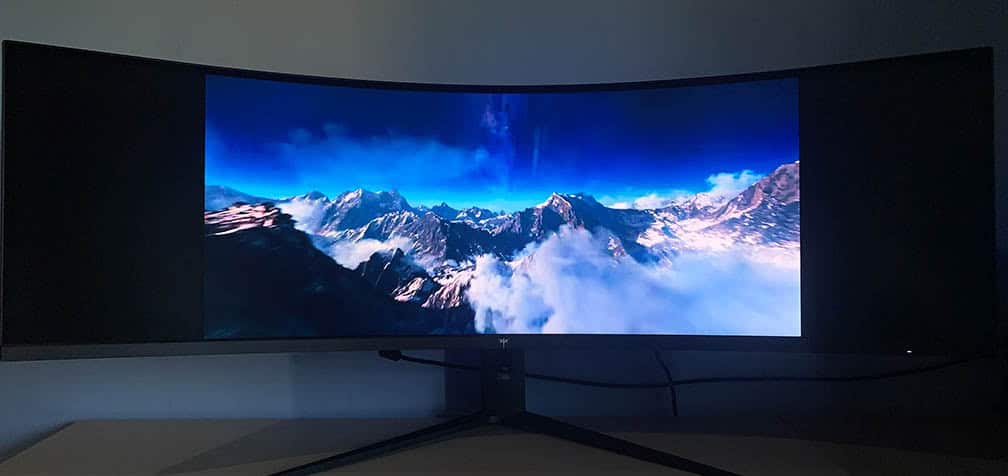
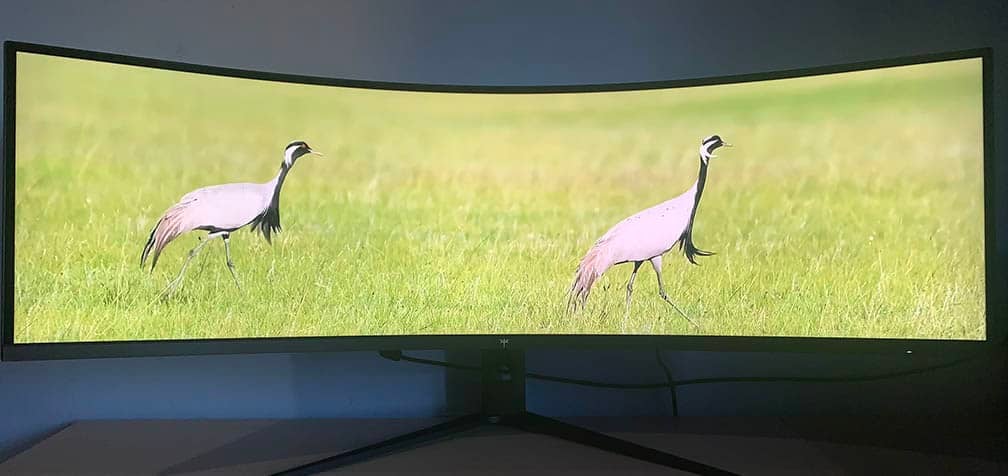
There are some “21:9 videos” that are just 16:9 videos with black bars added at the top and bottom of the image, usually found on streaming services, such as YouTube and Netflix, which will look like this:
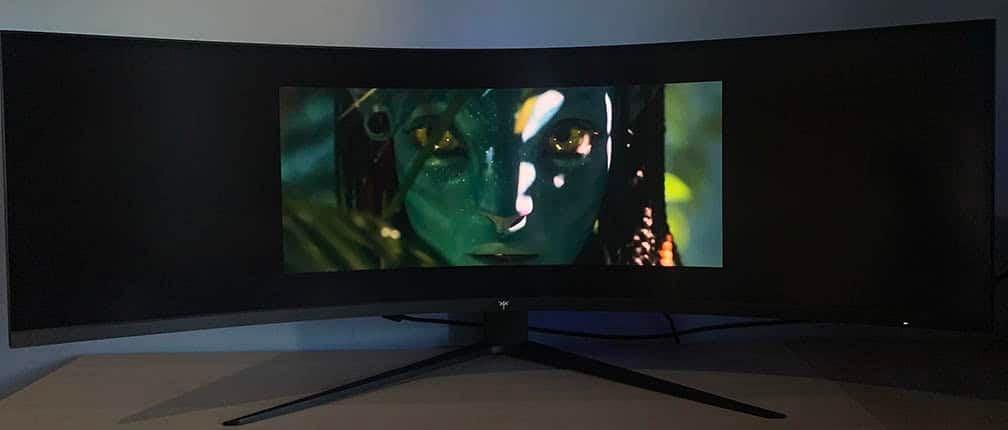
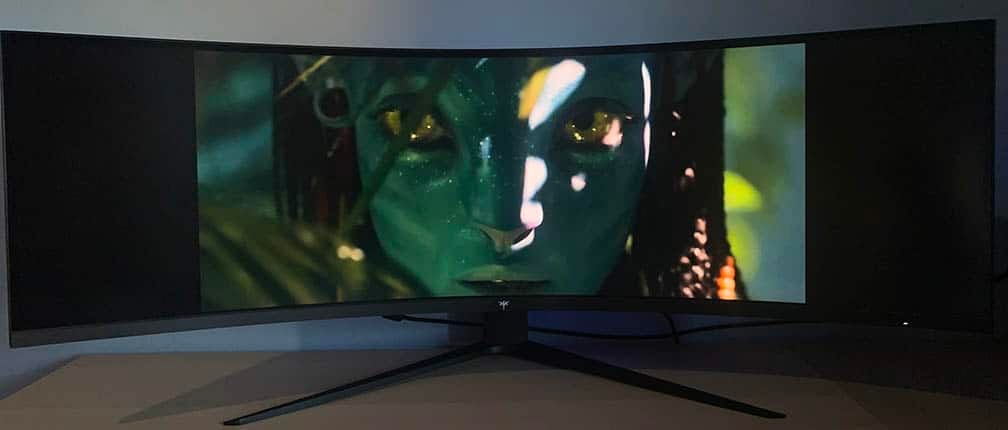
To fix this, you can use Zoom to Fill – UltraWide Video or a similar browser extension to fill the screen without clipping any details or stretching the image.
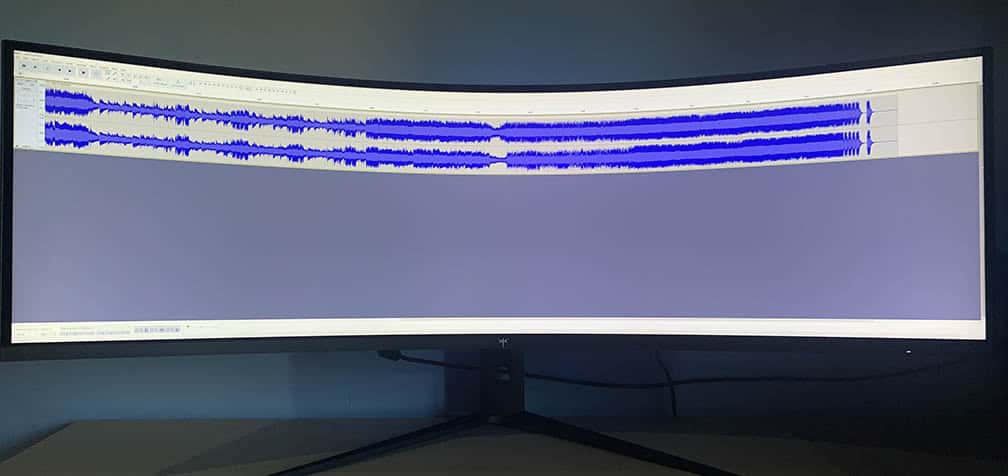
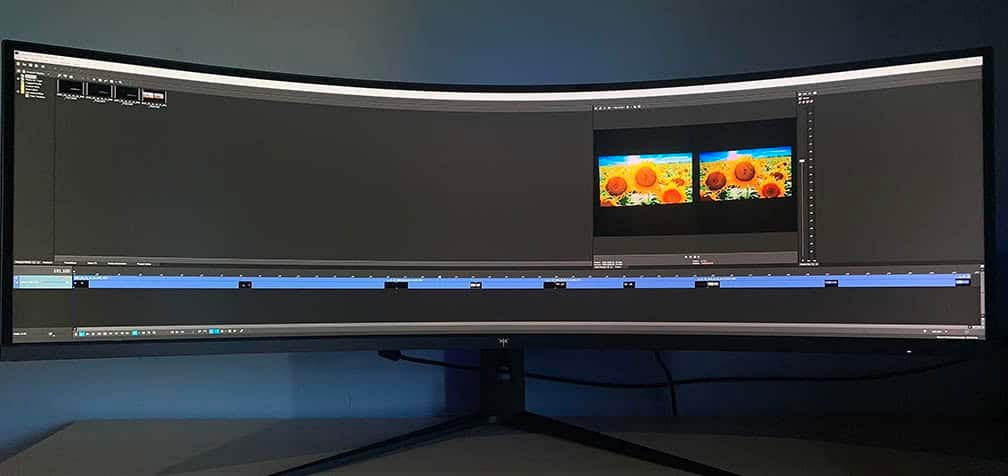
Finally, the ultrawide aspect ratio is also especially useful for productivity work and audio/video editing due to all the extra horizontal screen space.
Performance
The monitor has a maximum refresh rate of 180Hz, which provides you with a huge boost in motion clarity and responsiveness in comparison to typical 60-75Hz displays.
The high refresh rate will also make everyday use appear more fluid as just moving your cursor around or scrolling will look much smoother.
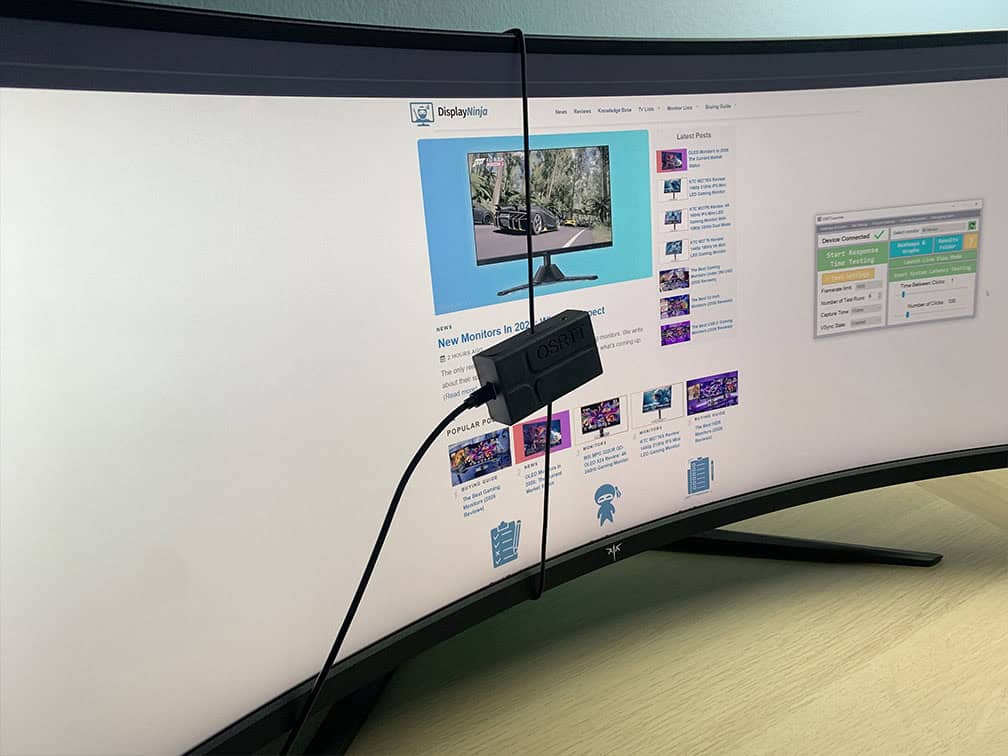
For latency and response time testing, we’re using OSRTT.
Response Time
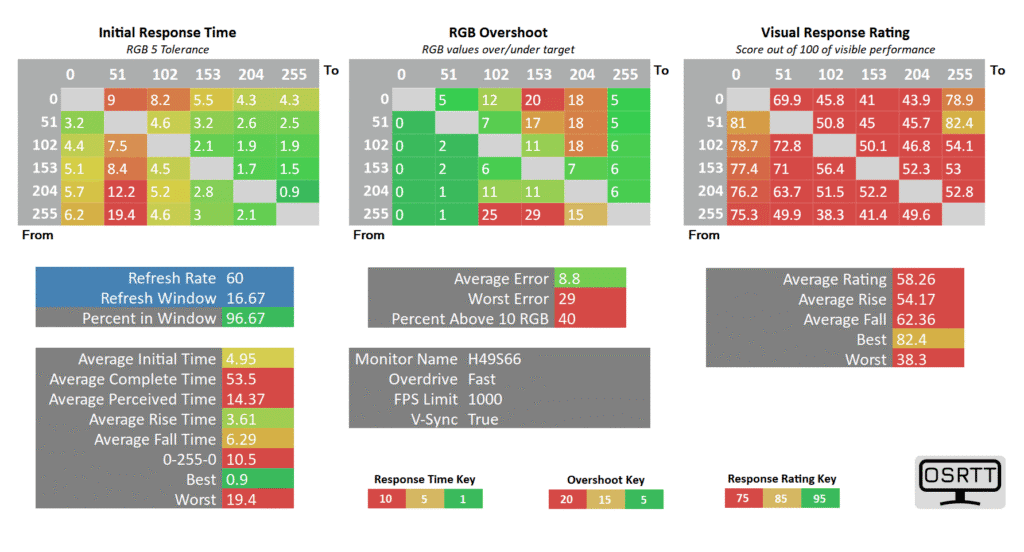
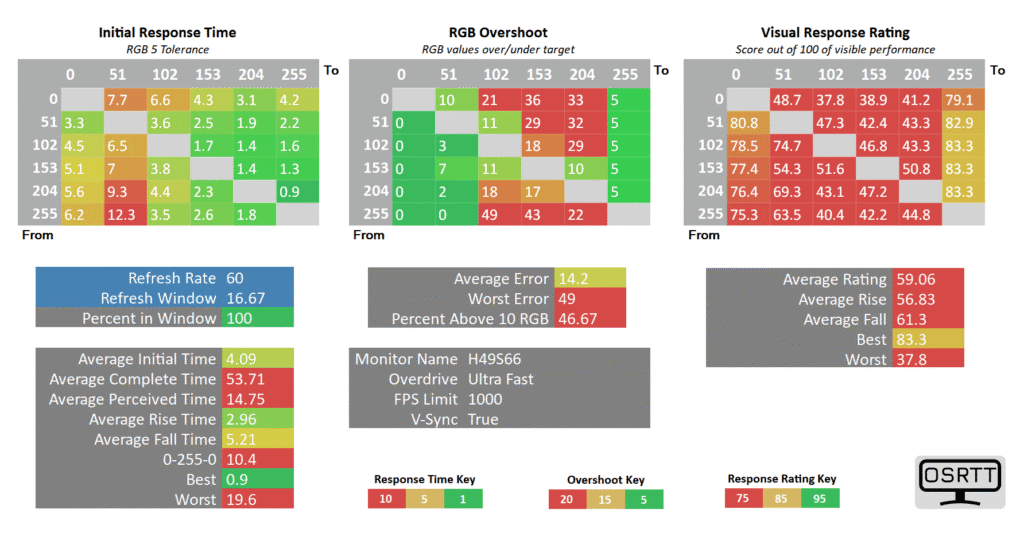
The KTC H49S66 has five response time overdrive modes: Off, Standard, Fast, Ultra Fast and Dynamic Overdrive.
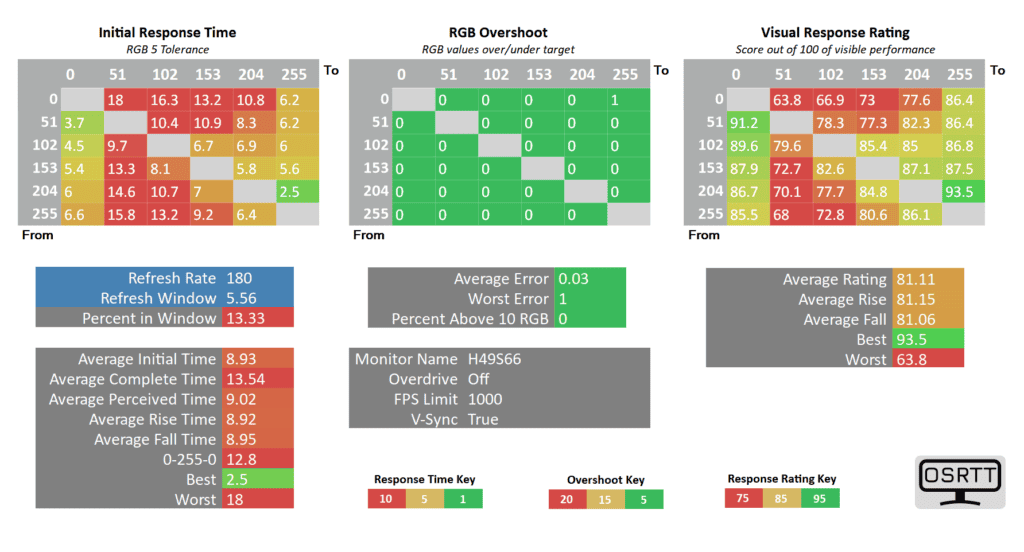
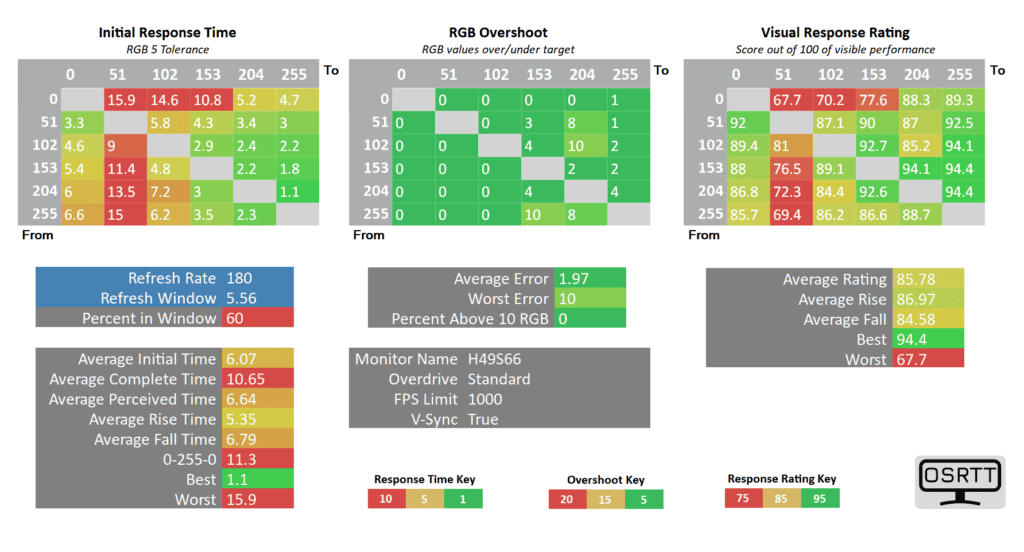
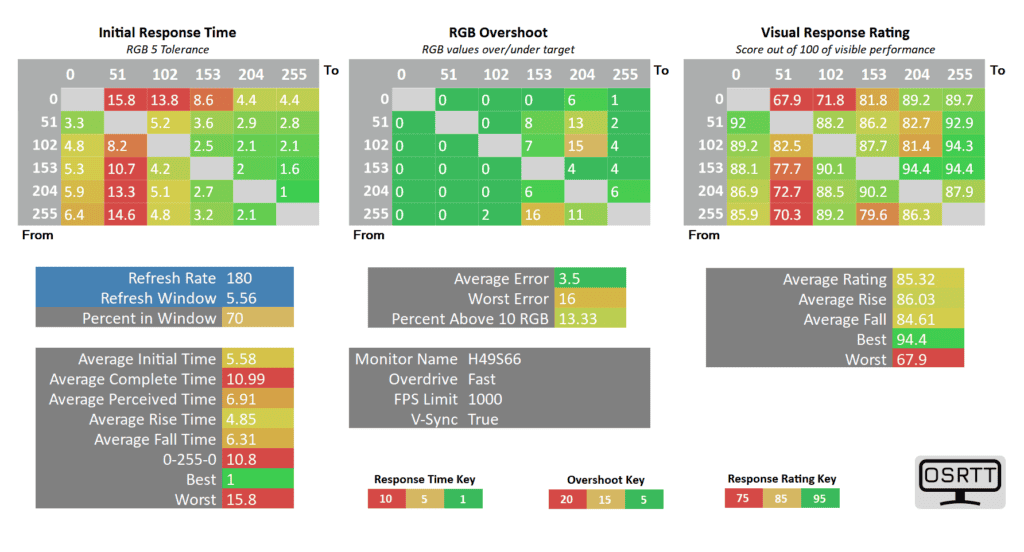
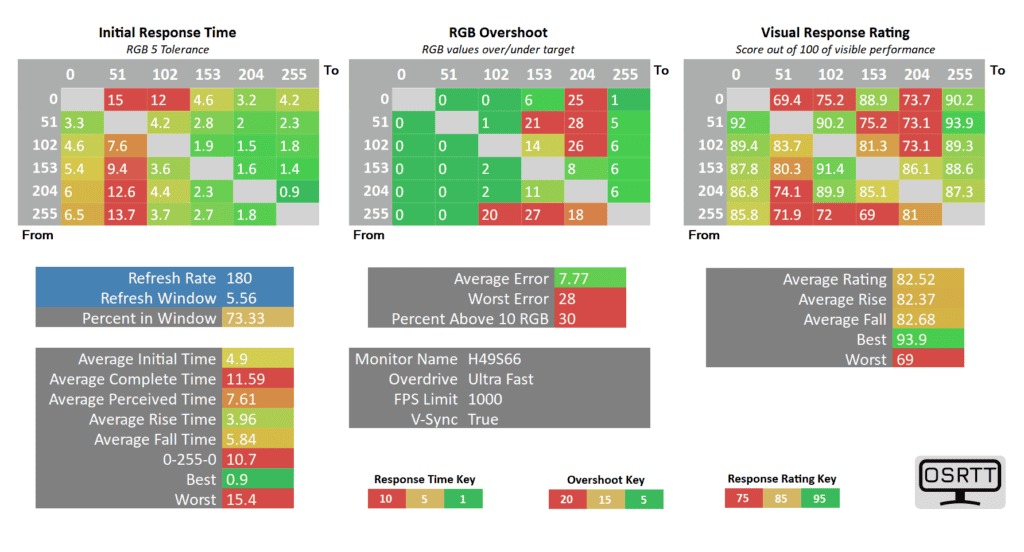
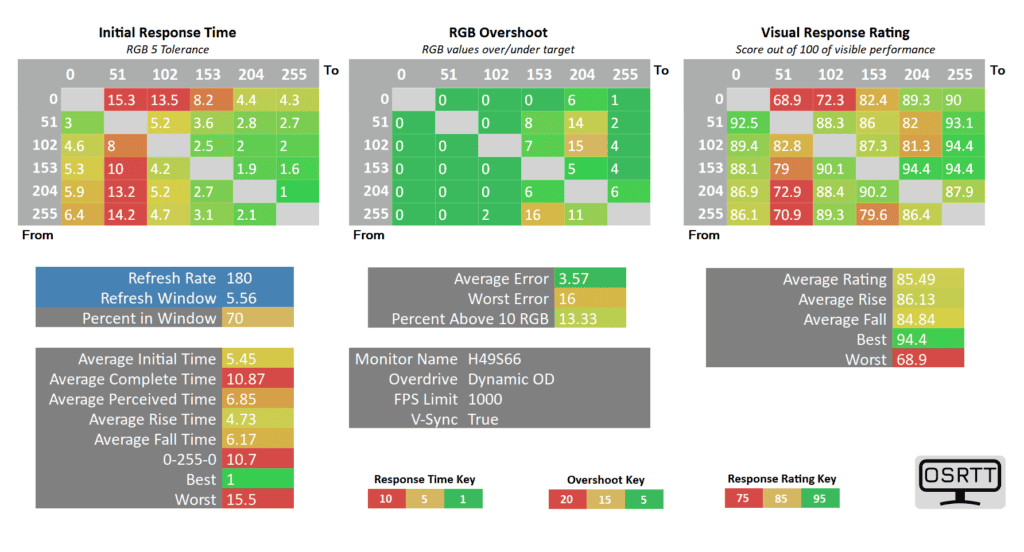
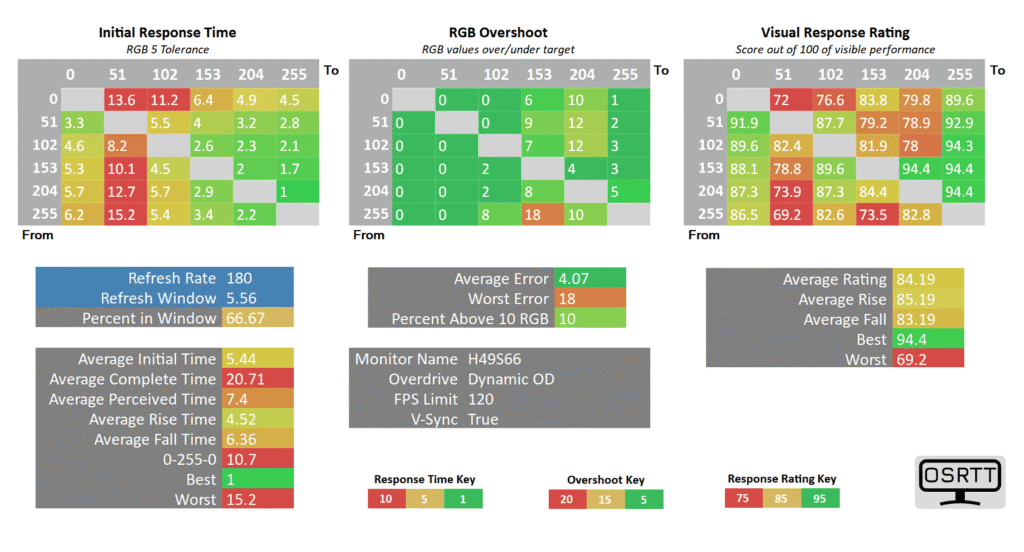
The pixel response time performance is decent. With overdrive, you can improve the average GtG (gray to gray pixel transition time) speed from 8.93ms in the Off mode to 4.9ms in the Ultra Fast mode with low 7.77% average overshoot error and 73.33% refresh rate compliance.
However, as expected from a VA panel, some transitions from black or white to dark gray take longer (up to 15ms for a 5.56ms refresh rate window), which results in some noticeable ghosting behind fast-moving objects in dark scenes.
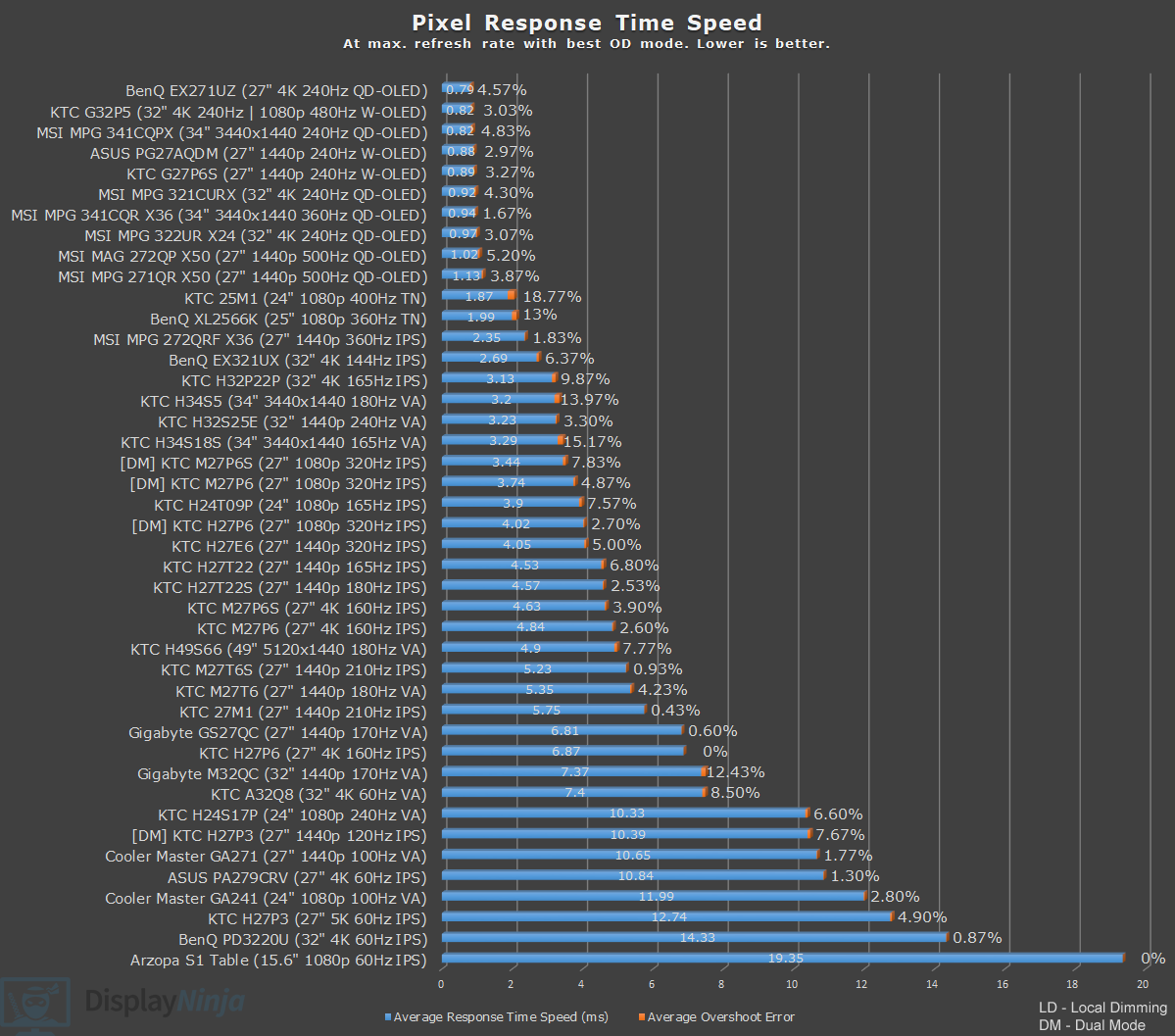
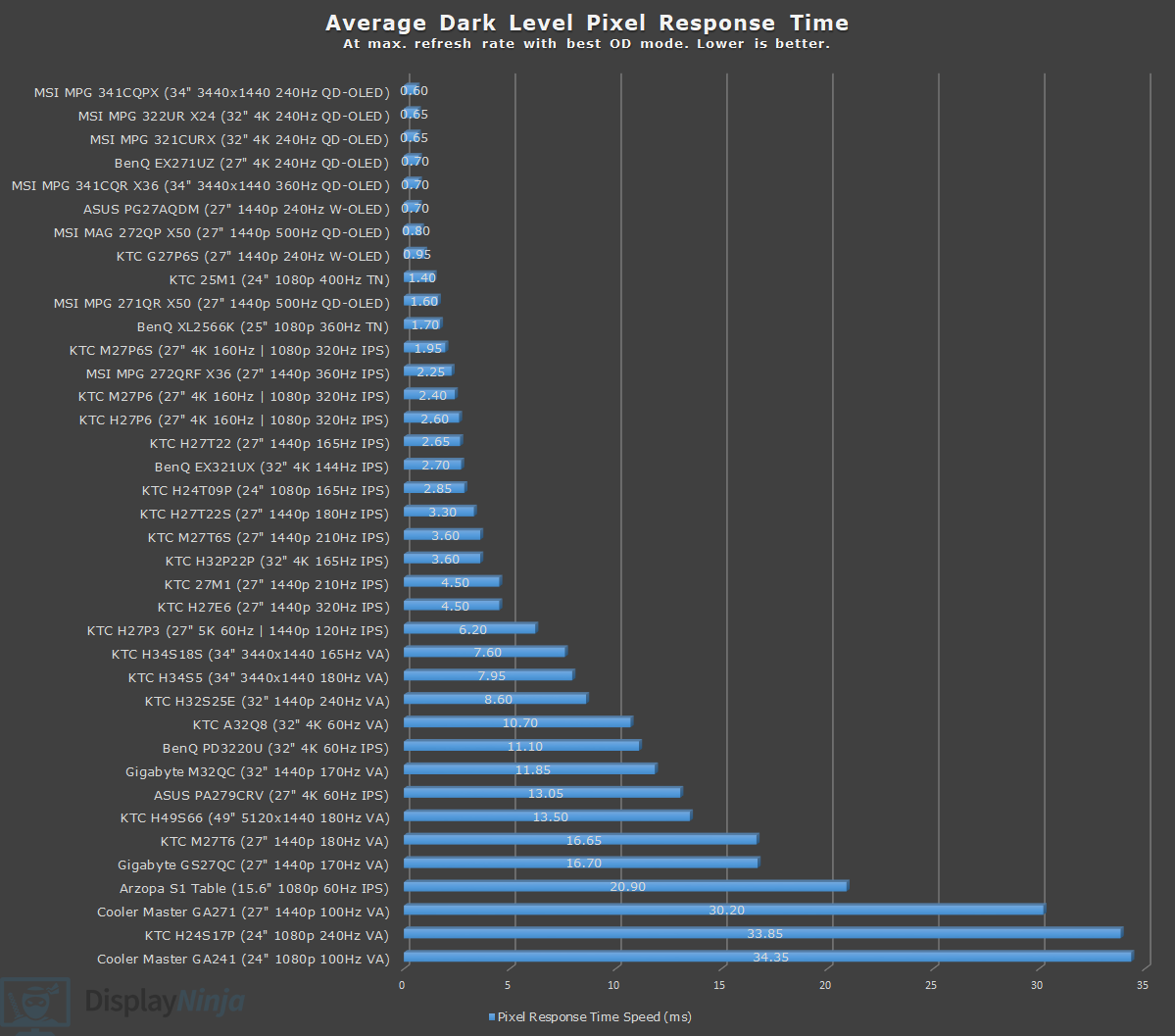
For most gamers, the amount of ghosting in dark scenes will be tolerable or even negligible to some, but if you’re sensitive to this, you should consider a faster gaming monitor instead.
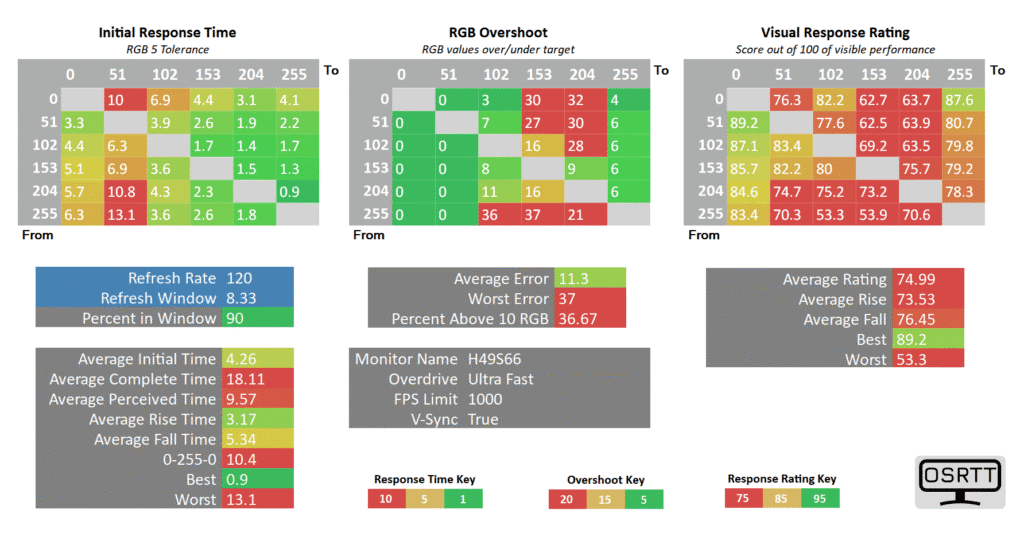
At 120Hz, the refresh rate compliance improves to 90% with a 4.26ms average GtG response time speed and moderate 11.3% overshoot in the Ultra Fast mode, but the black and white to dark gray transitions are still slow (between 10ms and 13ms), so some ghosting in dark scenes is still present (though less severe).
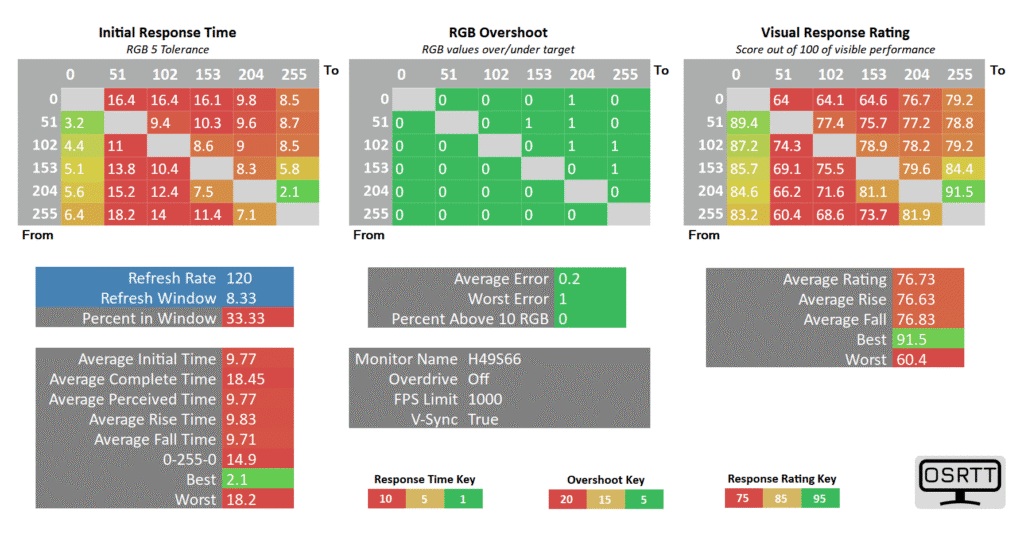
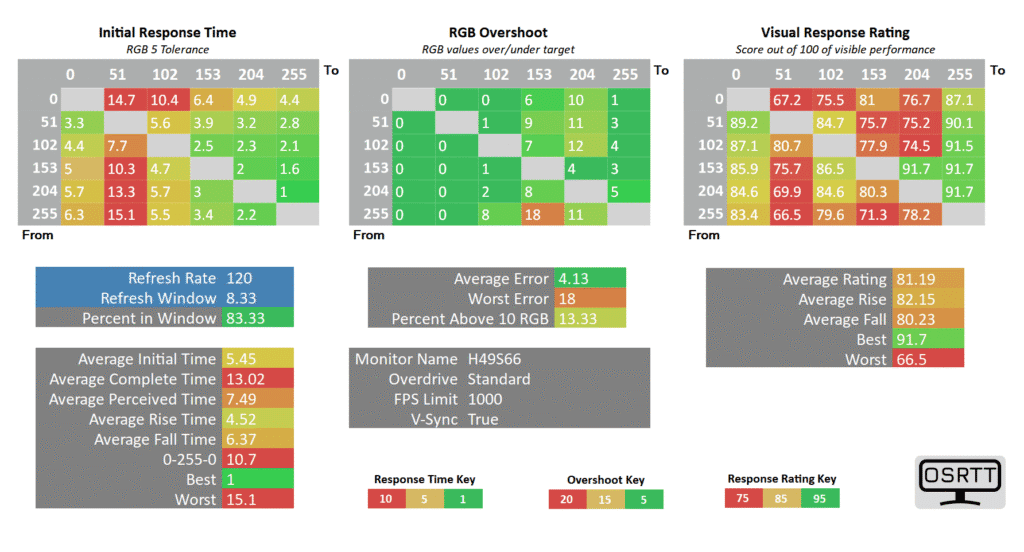
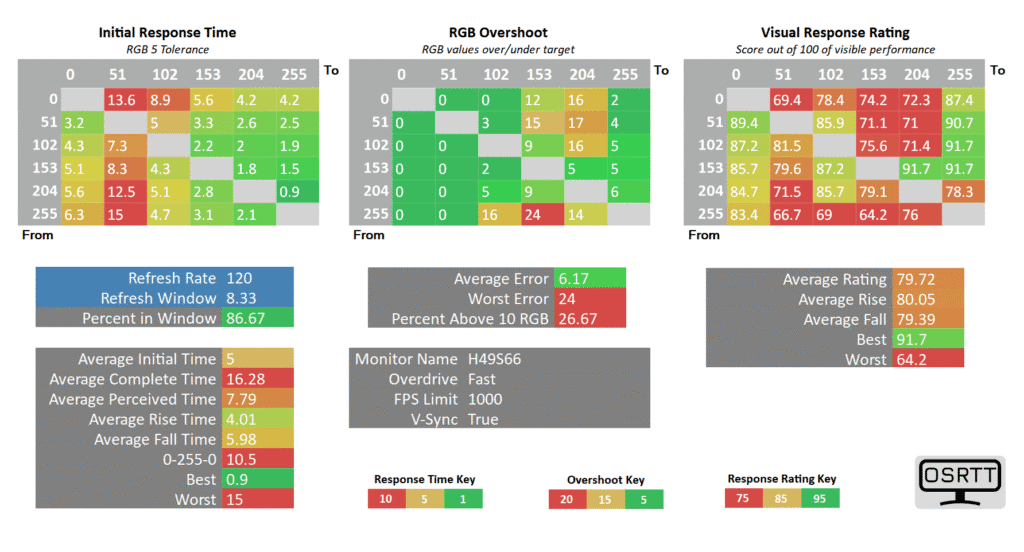
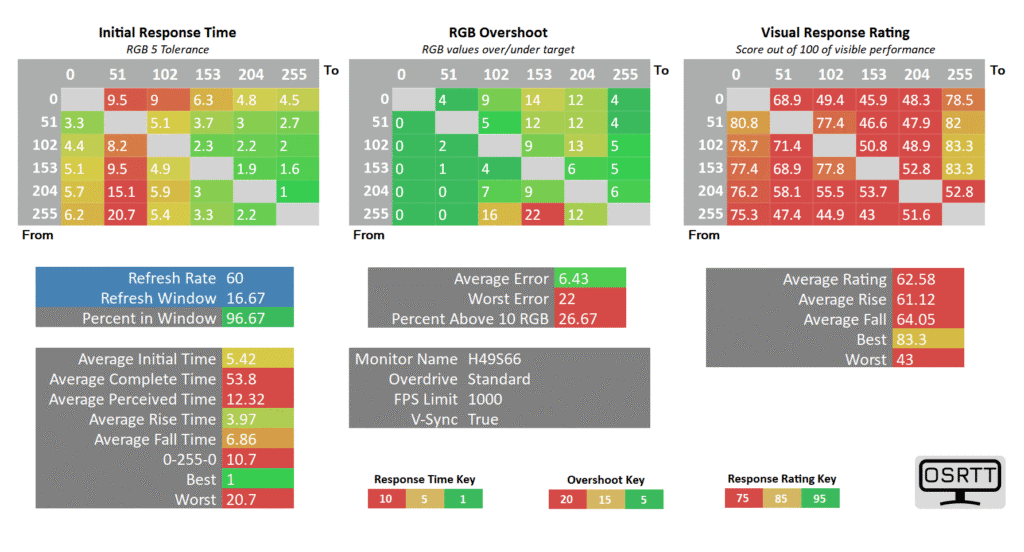
Finally, at 60Hz, overshoot becomes a bit too noticeable with the Ultra Fast mode, with 14.2% overshoot error, so we recommend dialing it back to Standard, which has no noticeable overshoot at 6.43% avearge error, excellent 96.67% refresh rate compliance and fast 5.42ms GtG response time.
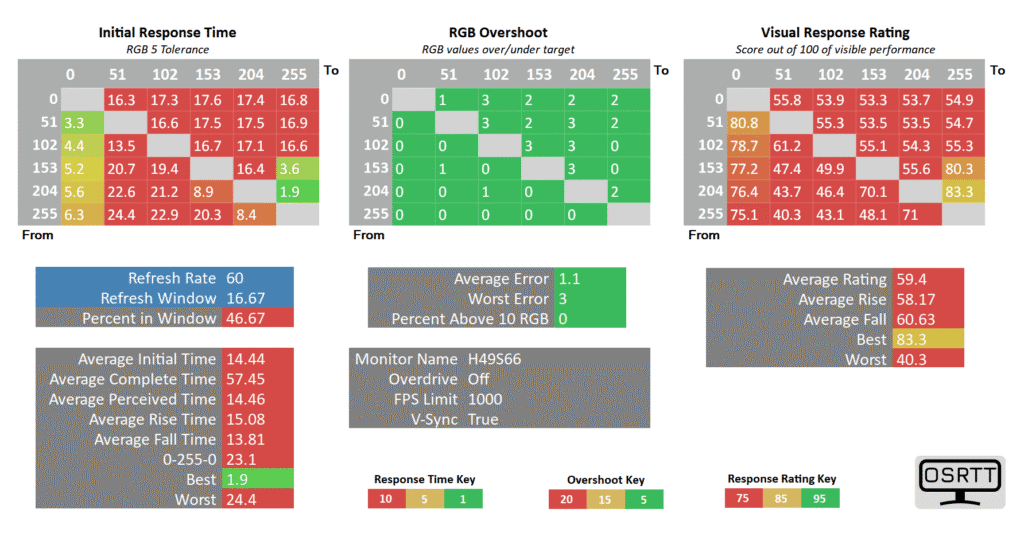
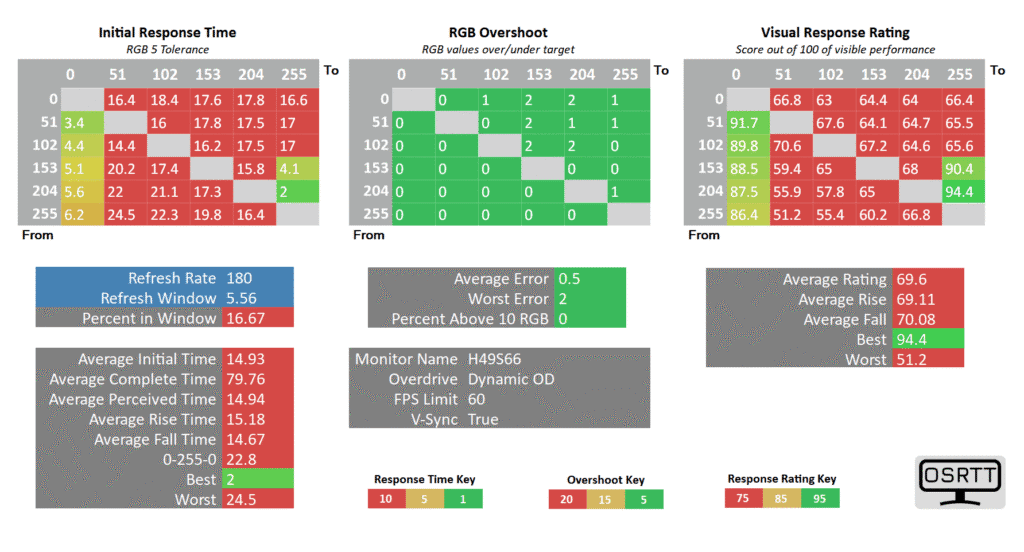
The Dynamic OD mode behaves as variable overdrive when using VRR (variable refresh rate).
At 180FPS, it has the same performance as ‘Fast’, around 120FPS, it behaves like ‘Standard’ and at 60FPS, it performs the same as ‘Off.’ However, we find that ‘Off’ is too slow for 60FPS, while above 120FPS, ‘Ultra Fast’ has better performance.
If you just want to use a single mode for VRR gaming, we’d recommend going with ‘Fast’ instead.
Here’s how these tests look in Blur Busters’ UFO ghosting test. We used 960 Pixels Per Sec, shutter speed set to 1/4 of the refresh rate with fixed focus, ISO and color temperature (6500K).
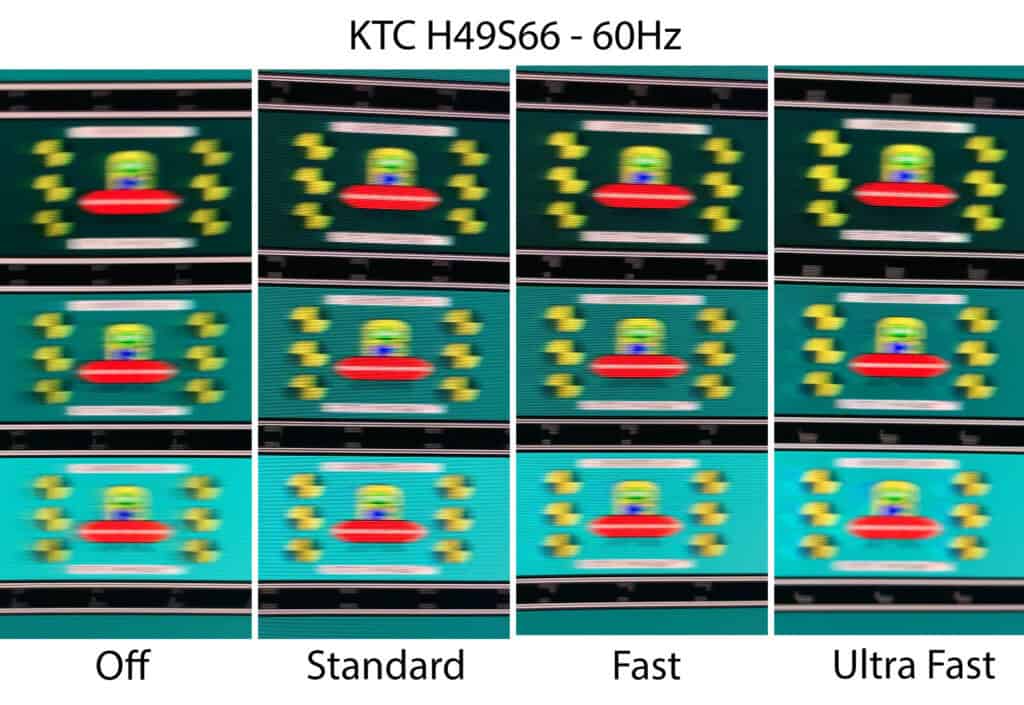
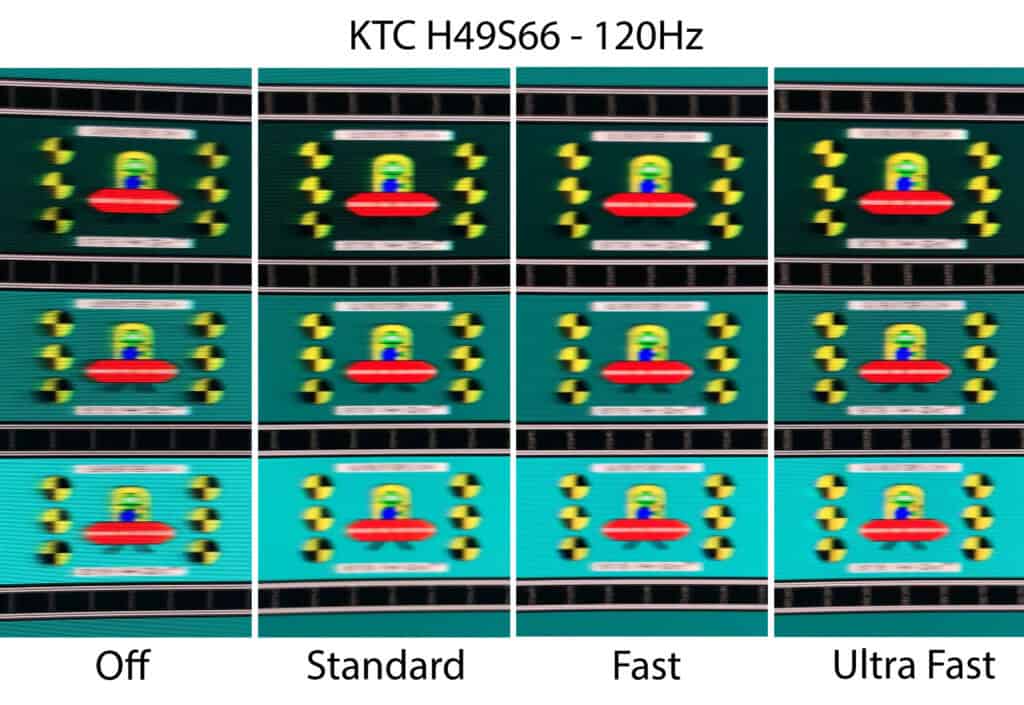
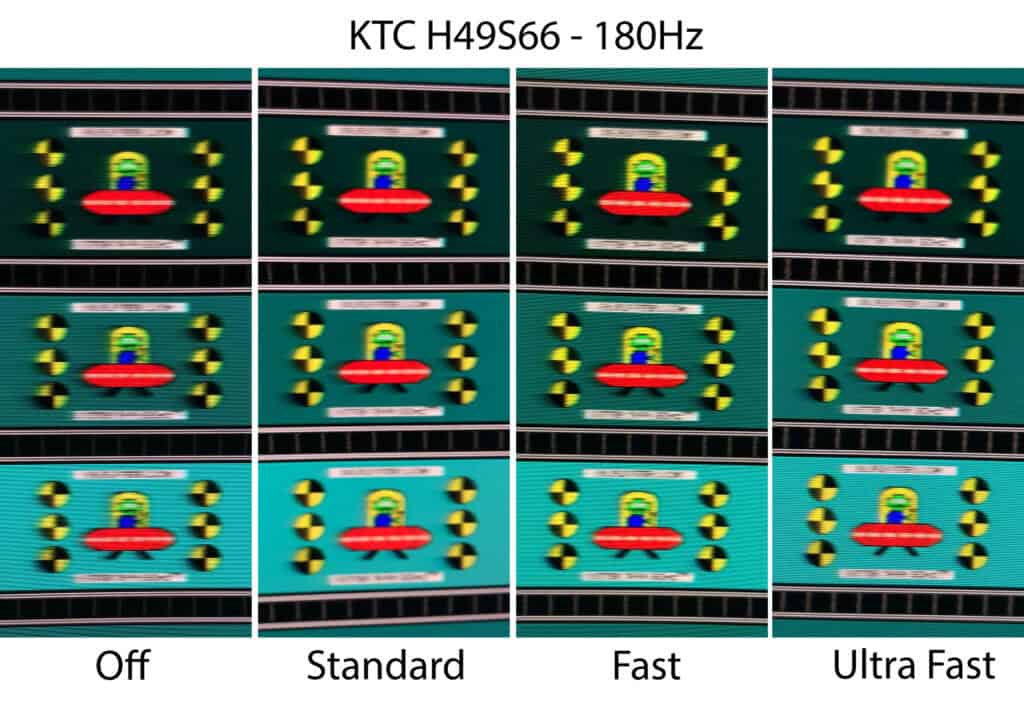
As you can see, even with the Ultra Fast overdrive mode enabled, there’s still noticeable ghosting trailing behind the UFO. The bottom UFO shows virtually no ghosting because it’s displayed on a light background, while the middle and top UFOs appear blurrier due to their darker backgrounds.
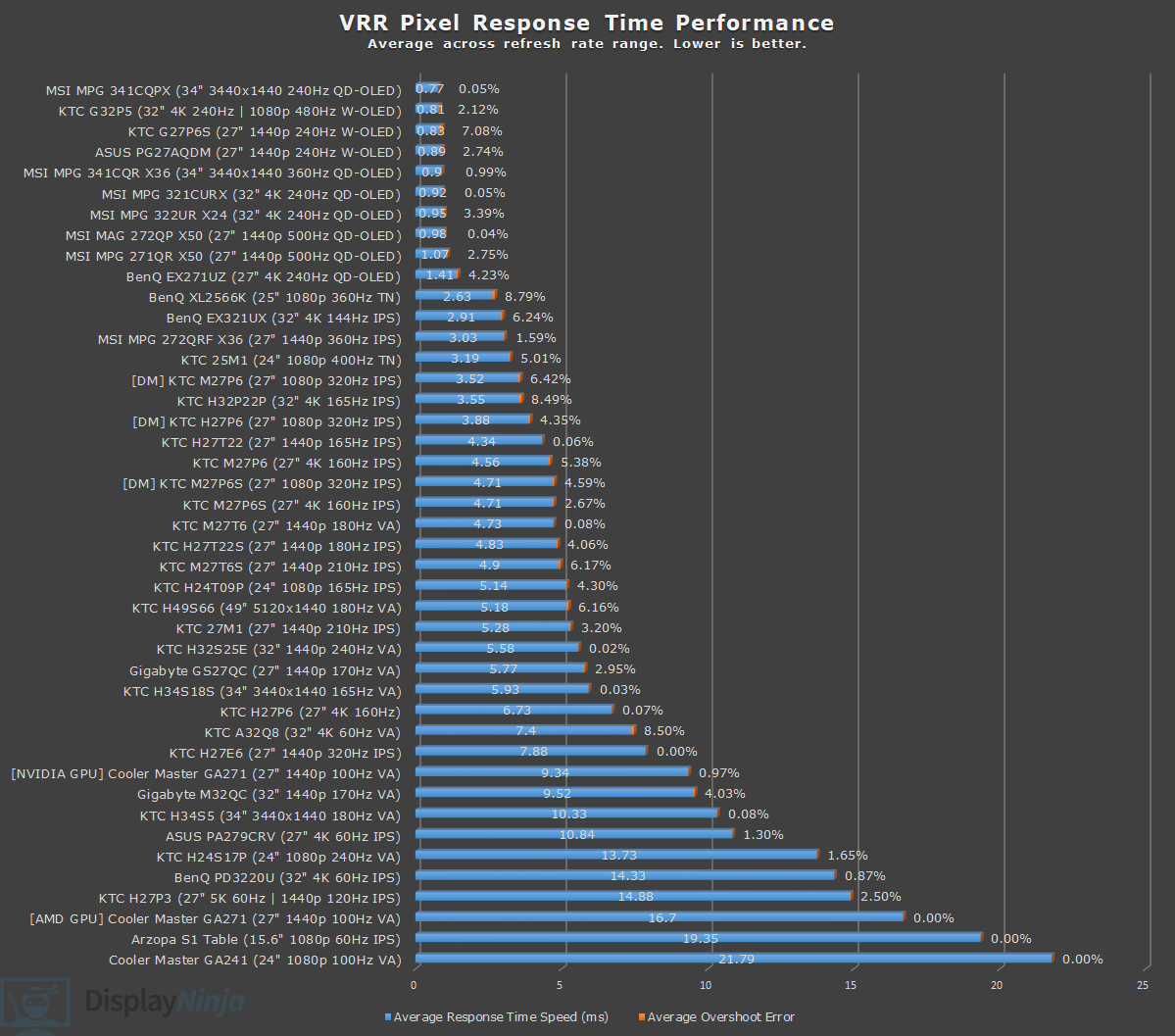
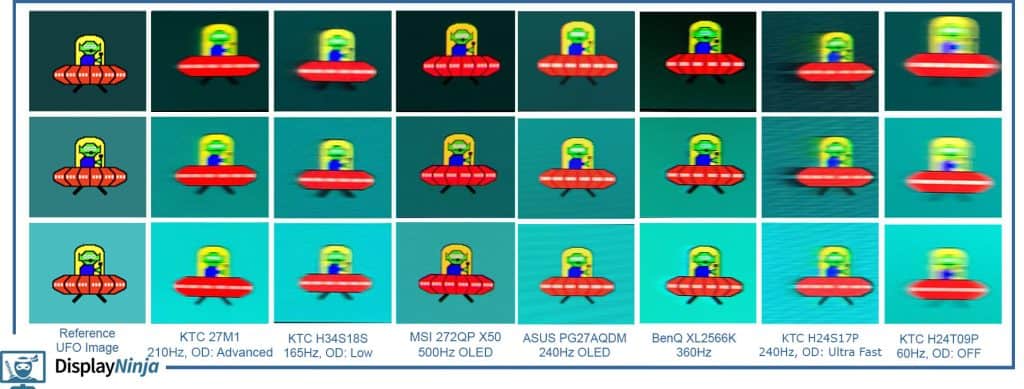
You can compare it to several other displays we tested below, including the KTC H24S17P with even slower response time and the KTC H34S18S with a bit faster VA panel.
Motion Blur Reduction
The monitor also supports MBR (Motion Blur Reduction) via its DAC feature, which uses backlight strobing to reduce perceived motion blur at the cost of image brightness.
It cannot be enabled at the same time as VRR and it introduces screen flickering that’s invisible to the human eye, but can cause headaches to sensitive users after prolonged use.
To enable it, you must first disable ‘FreeSync/G-Sync’ in the OSD menu, set the refresh rate to at least 120Hz, and scroll down in the ‘Gaming Setup’ section of the menu to enable ‘DAC.’ KTC previously referred to this feature as ‘MPRT.’
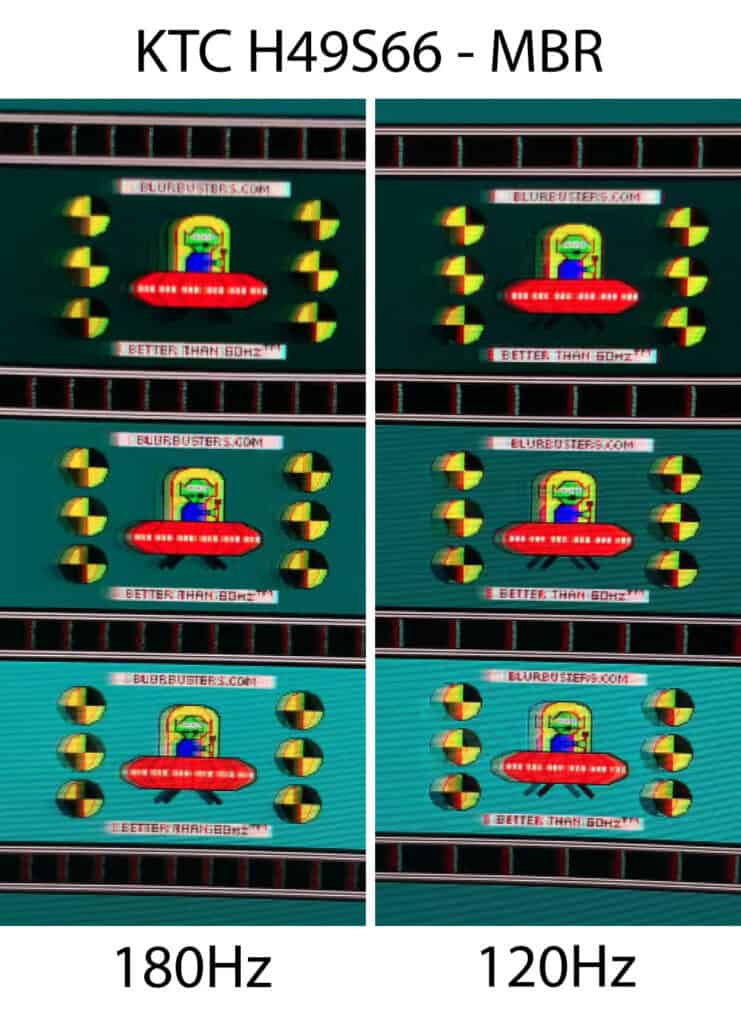
As you can see, motion clarity is significantly improved, though there’s a lot of strobe crosstalk (image duplications).
Keep in mind that for the best results, your frame rate should match the refresh rate. If you can’t maintain 180FPS, you should lower the refresh rate when using MBR.
With MBR active, brightness is reduced to 125-nits 180Hz, 100-nits at 144Hz and 80-nits at 120Hz.
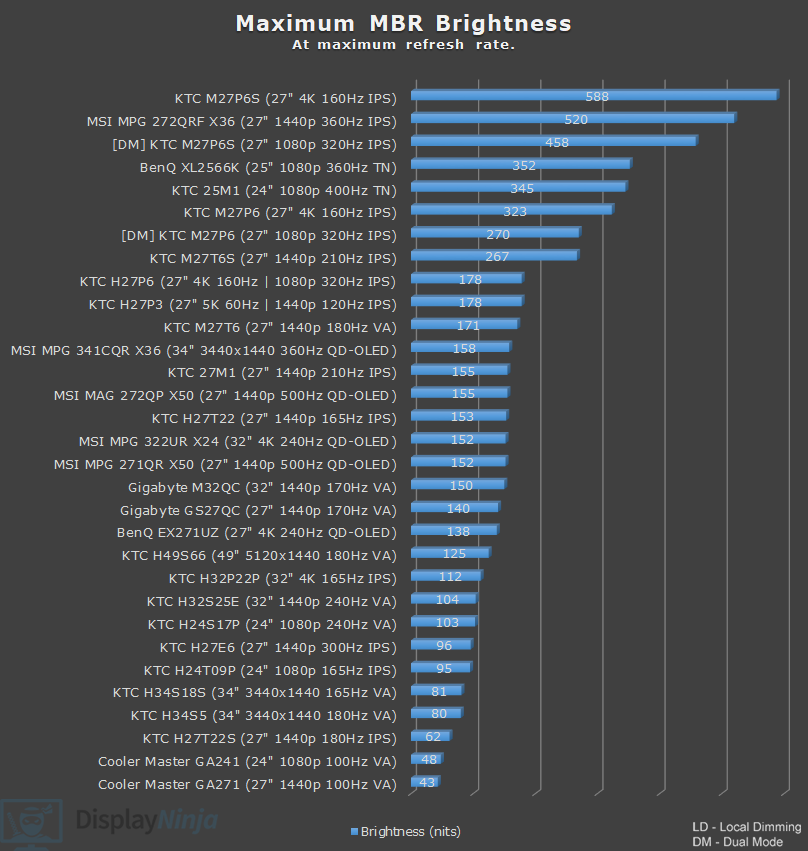
Due to high brightness penalty, strobe crosstalk and generally slow response times, backlight strobing performance isn’t particularly good on this monitor. Competitive FPS players should be looking at faster IPS, TN or OLED displays anyway.
Variable Refresh Rate
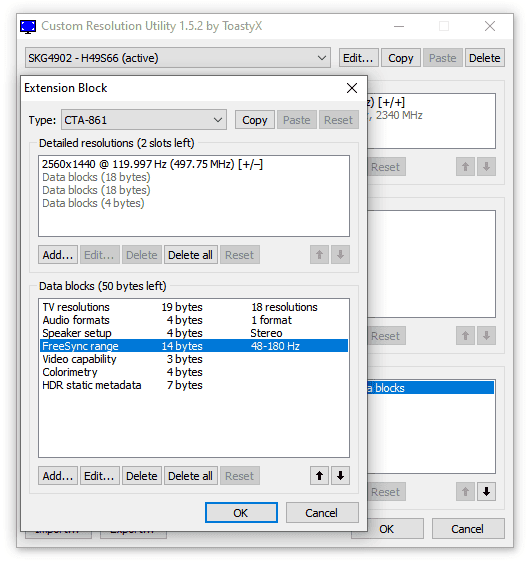
With ‘FreeSync/G-sync’ set to ‘On’, you can enable variable refresh rate (VRR) in your GPU drivers, which allows the monitor’s refresh rate to change dynamically according to your frame rates in order to prevent screen tearing at no perceptible latency cost.
So, if you’re gaming at 180Hz, but you’re getting 120FPS, the monitor will run at 120Hz in order to provide you with 120 whole frames per second without the screen-tearing artifacts.
The supported VRR range is 48-180Hz, but even if your FPS dips below 48, the monitor uses LFC (Low Framerate Compensation) to refresh the screen at a multiple of your current frame rate. For example, 40FPS would be displayed at 80Hz to keep tearing at bay.
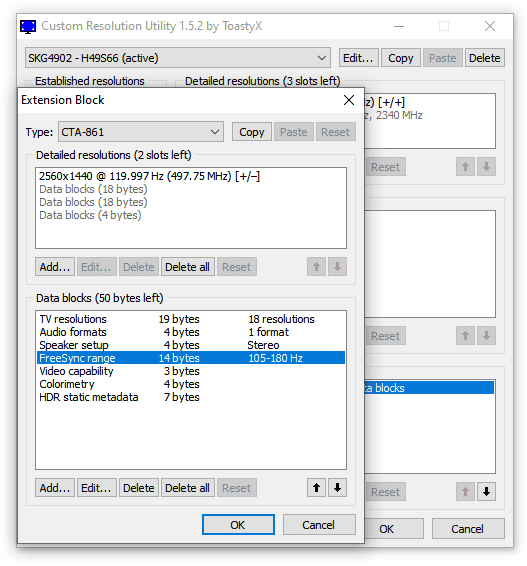
You can also set ‘FreeSync/G-sync’ to ‘Limited’, which has a narrower 105-180Hz dynamic range in order to minimize VRR brightness flickering.
The VRR brightness flickering issue is noticeable in games with heavily fluctuating frame rates and in some in-game menus and loading screens, but this is common for high refresh rate VA and OLED panel displays.
Since screen tearing is not that noticeable at 180Hz (at least in comparison to 60-75Hz), you should simply disable VRR in the affected games or use V-Sync instead.
Latency
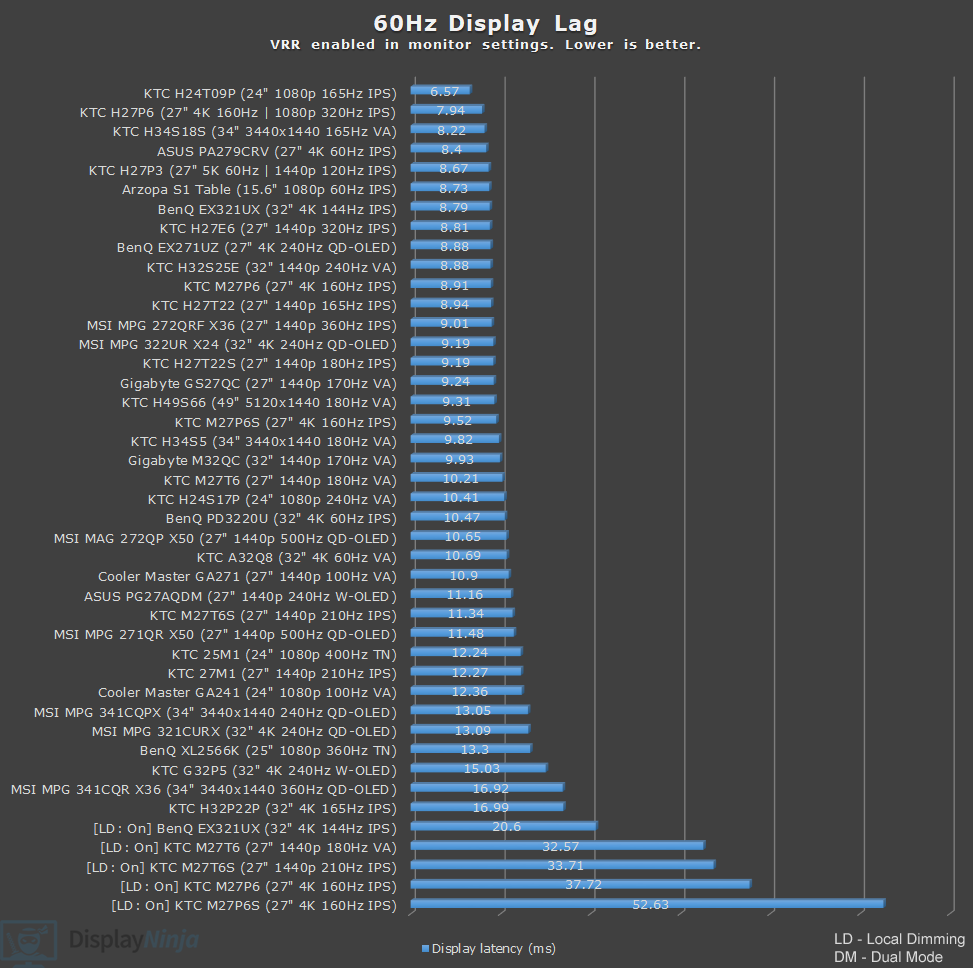
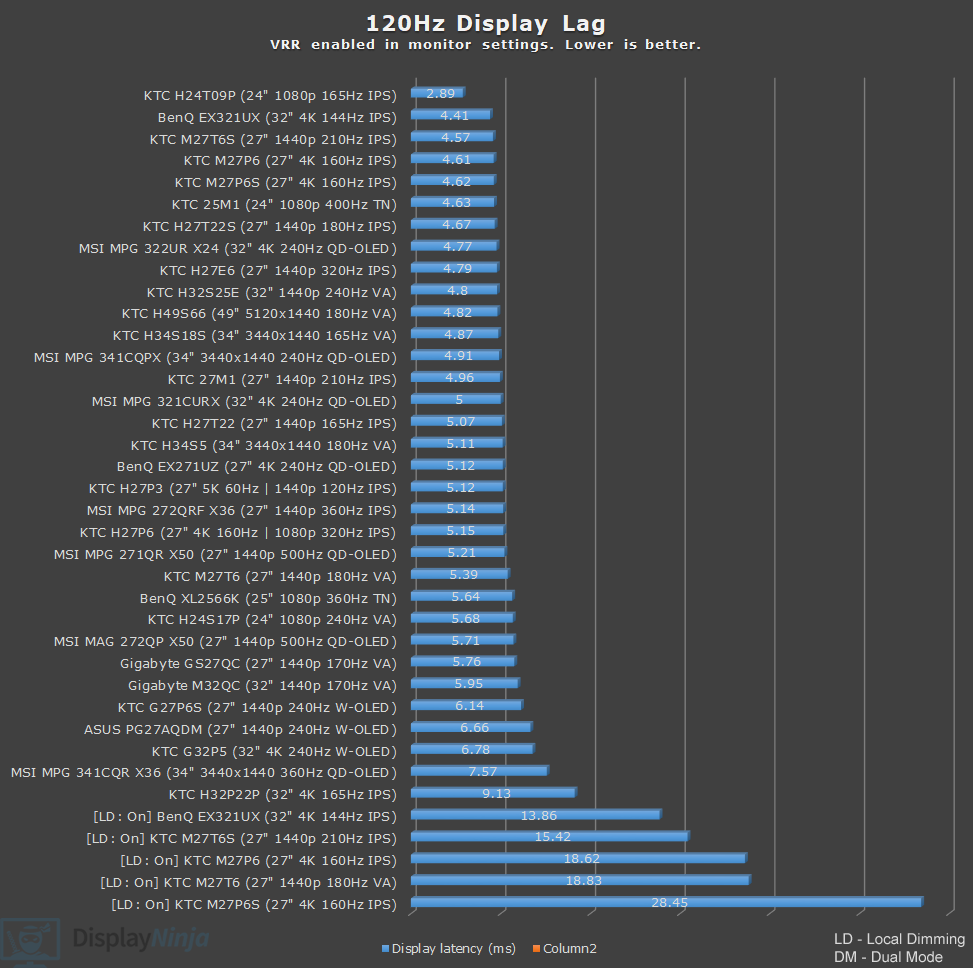
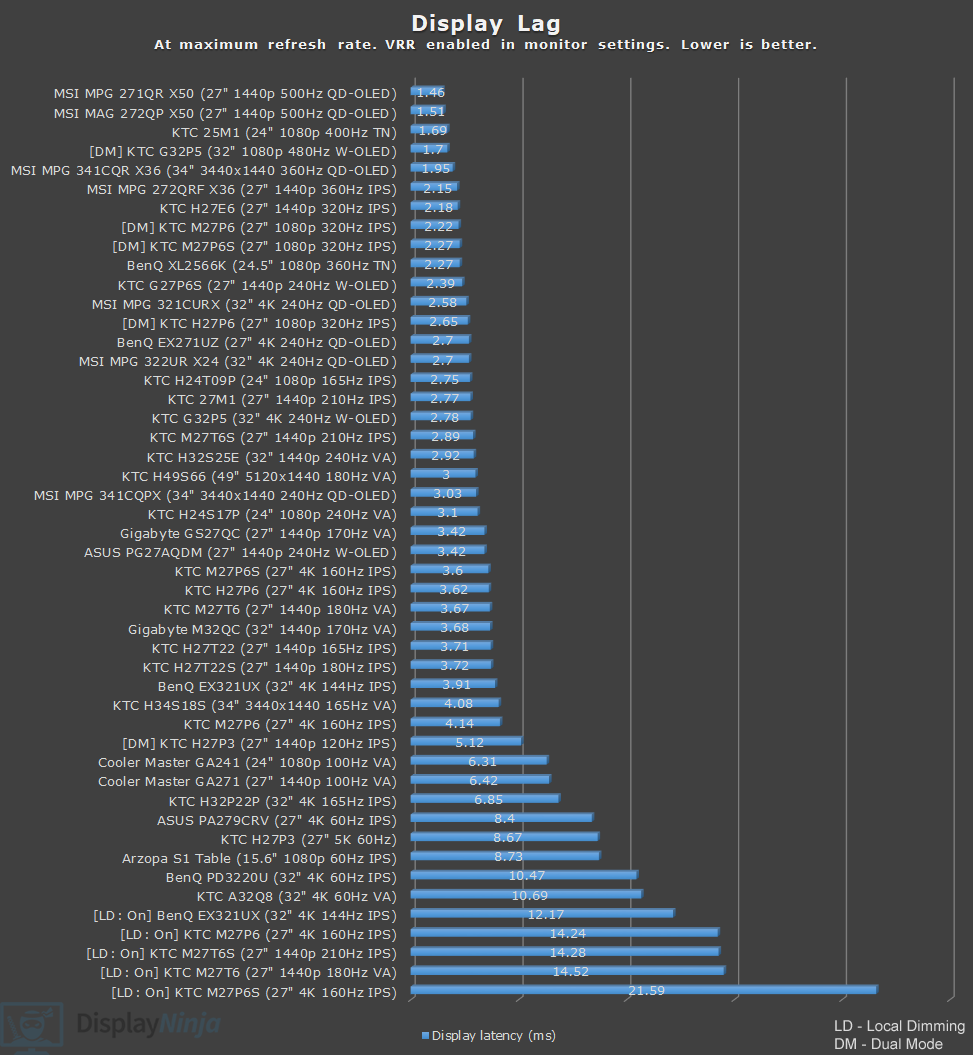
Unlike some KTC monitors, the display’s latency doesn’t change depending on whether ‘Adaptive-Sync’ is enabled or disabled in the OSD menu.
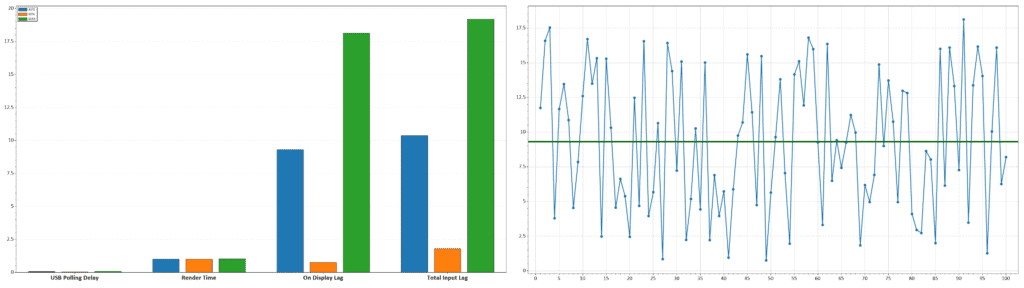
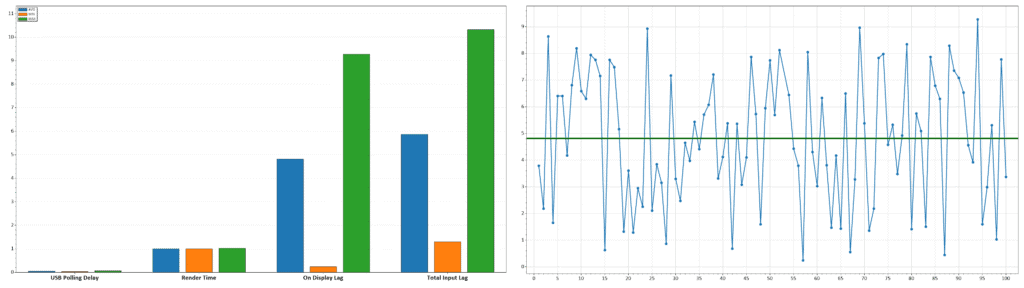
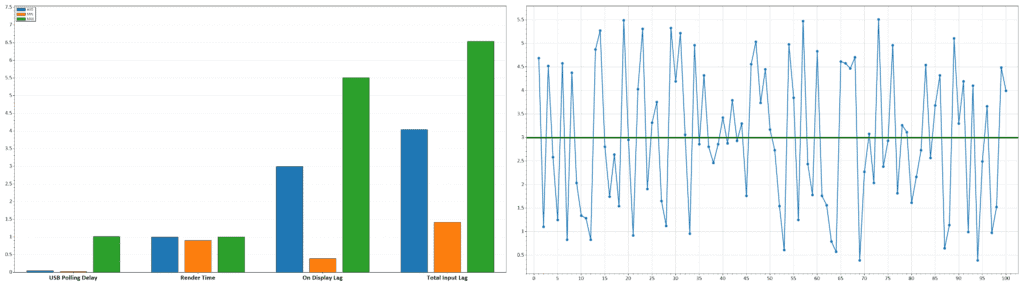
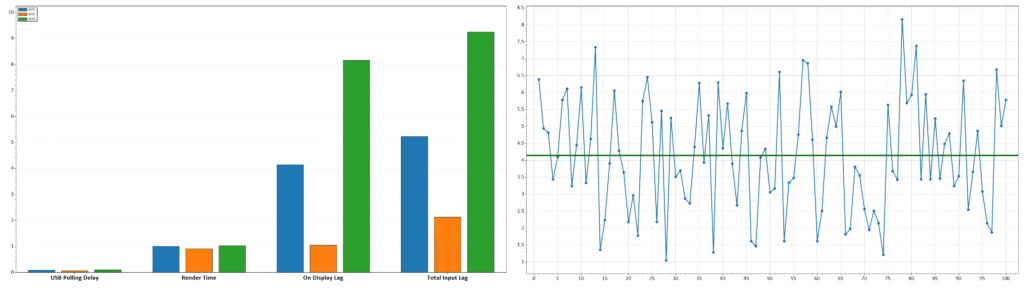
The measured display latency is low and amounts to 3ms at 180Hz, 4.82ms at 120Hz and 9.31ms at 60Hz. When using the 24.5″ emulation mode at 180Hz, the latency increases a bit to 4.15ms.
As the latency is lower than the refresh rate cycle, this means that you won’t be able to notice or feel any delay between your actions and the result on the screen.
Make sure that ‘Low Input Lag’ is enabled in the OSD menu, as we measured 6.27ms of delay at 180Hz with it disabled.
Uniformity & Quality Control
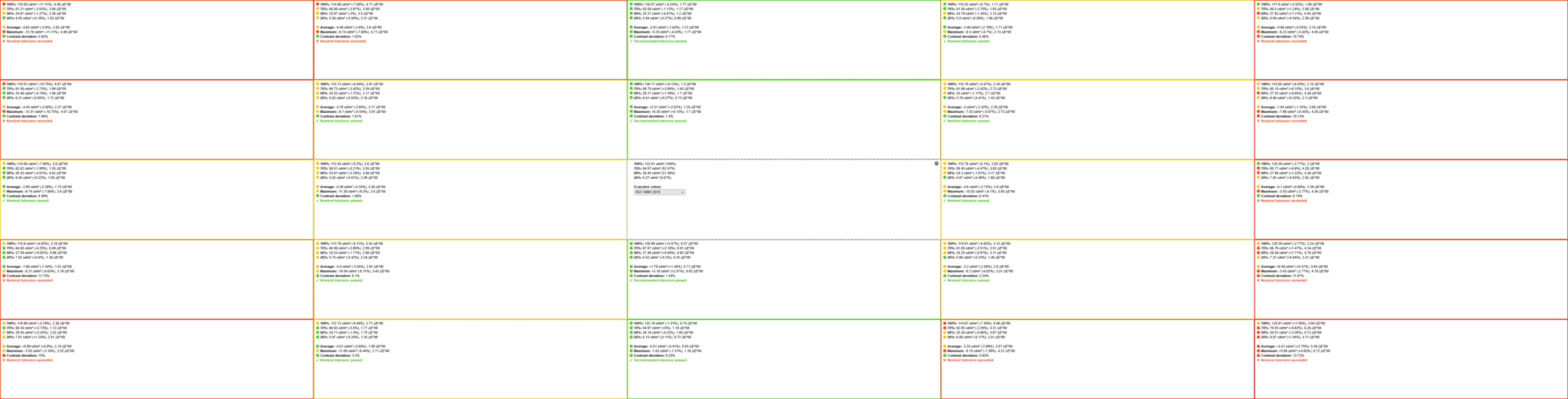
The image uniformity of the KTC H49S66 is average overall. There’s up to 15% contrast deviation and around 11% brightness deviation across the screen, mainly near the left and right edges.
Color and tint uniformity are also decent, with a Delta E of around 5 across most of the panel, rising to 6.72 in the bottom-right corner.
These results are within expectations for this type of display, and no uniformity issues were noticeable during regular use.
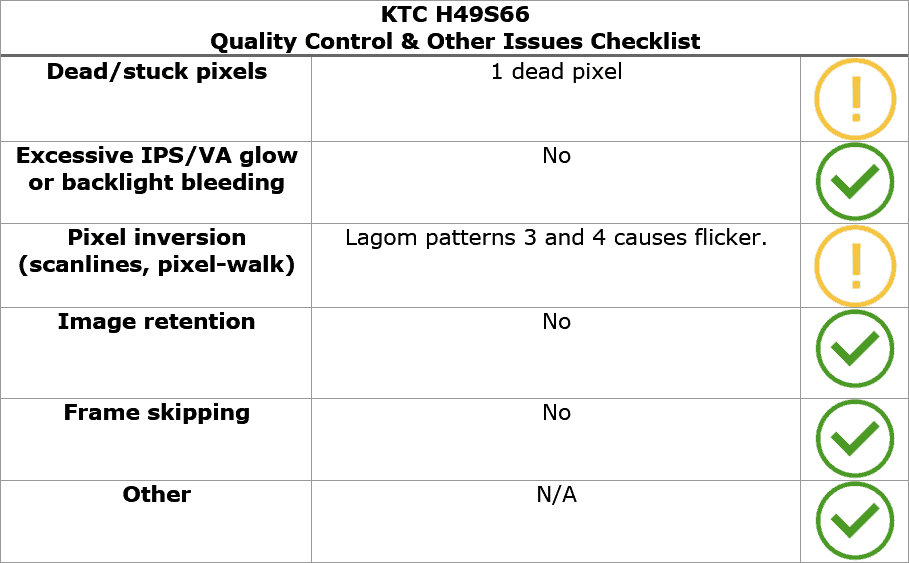
Next, Lagom’s pixel inversion tests reveal flickering with pattern 3 at 60Hz, and some subtle flickering with patterns 3 and 4 at higher refresh rates.
This is a common drawback of VA panels, and these are rarely (if ever) visible in everyday use because the test patterns are intentionally designed to align with the panel’s inversion layout.
Real-world content, such as games, videos and desktop applications, rarely produce the same conditions and can only occasionally appear on webpages or UI elements with very fine mesh or checkerboard-like backgrounds, such as this one.
This test is included mainly for completeness and to help identify the cause if you ever notice similar artifacts on your monitor.
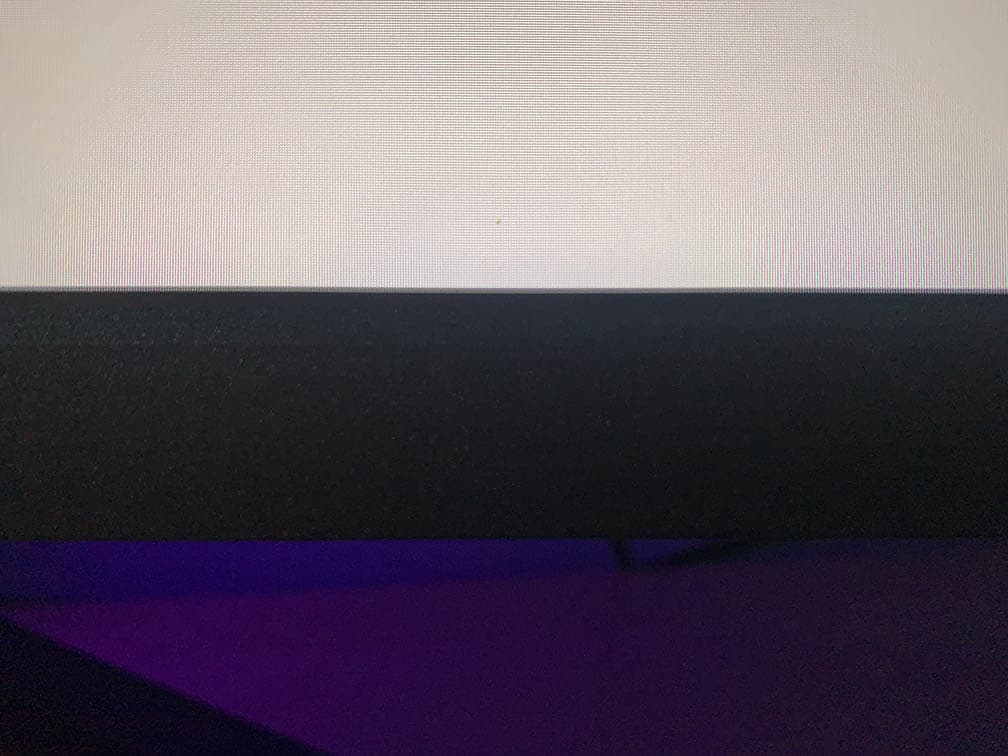
Finally, we didn’t encounter any frame skipping, excessive VA glow or backlight bleeding, but there was one dead pixel. Luckily, it’s near the bottom bezel of the screen, so it’s not noticeable during regular use.
Moving on, the monitor uses a flicker-free backlight (unless DAC is enabled), ensuring a comfortable viewing experience without the risk of eye strain or headaches for sensitive users during extended use.
There’s also a low blue light mode with four intensity levels (we measured color temperatures of 6254K, 6021K, 5784K, and 5576K), which can be helpful if you have trouble falling asleep at night after prolonged screen time.
Features
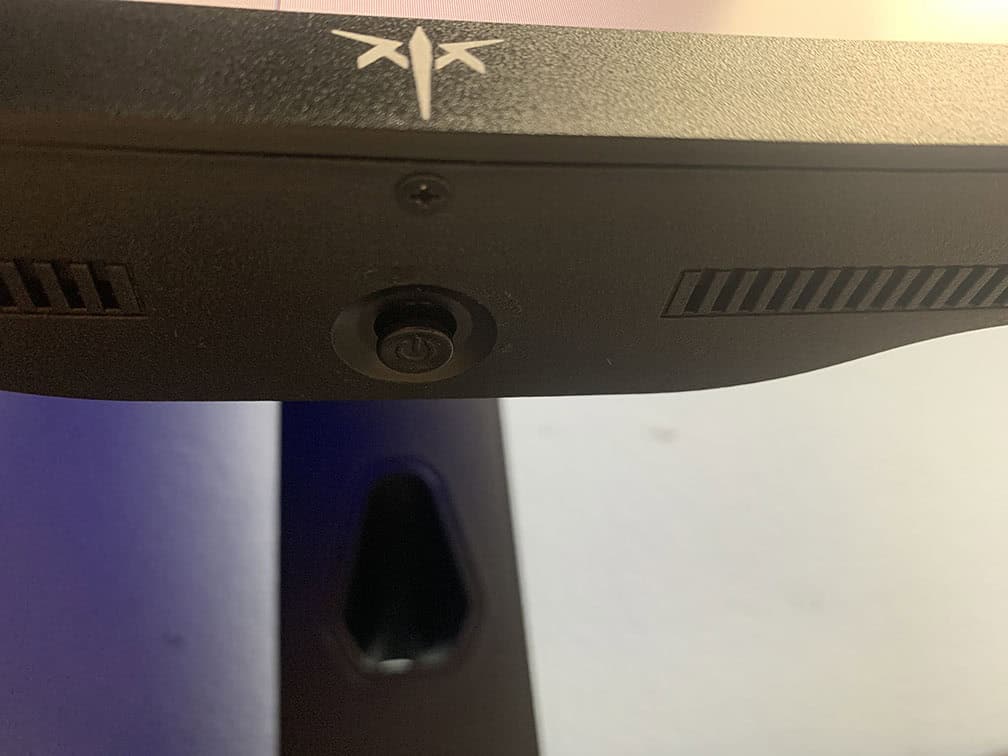
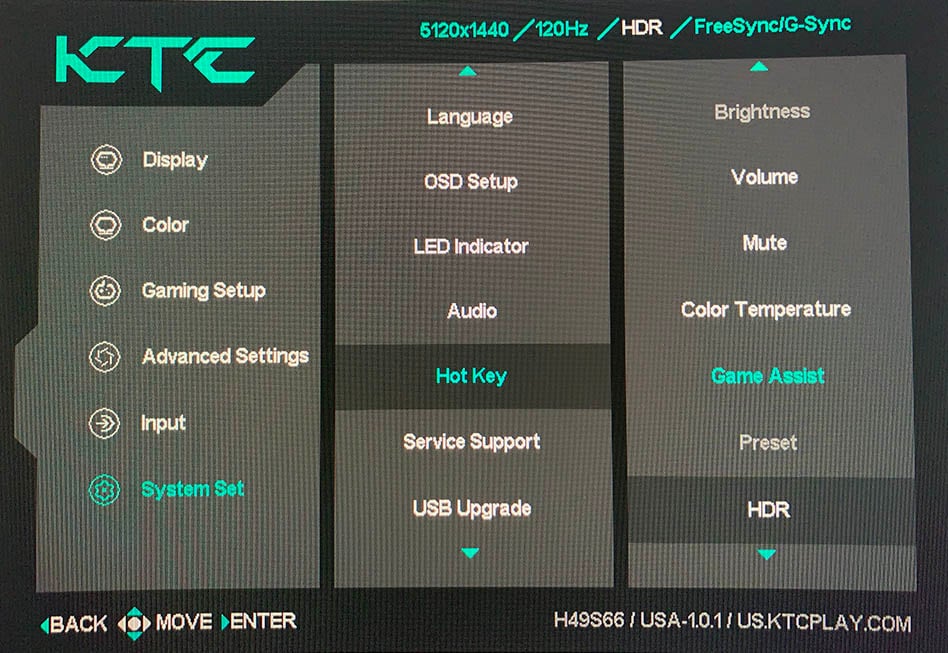
Beneath the bottom bezel of the screen, there’s a directional joystick for quick and easy navigation through the menu. Moving the joystick up, down, left or right also serves as a quick menu for certain functions that can be changed in the menu.
Possible hot key shortcuts include Brightness, Volume, Mute, Game Assist, Preset, Color Temperature, Black Equalize, HDR and Aspect Ratio. Moving the joystick up is reserved for input source selection.
Besides typical image adjustment tools (brightness, contrast, color temperature), there are some advanced settings available too, including sharpness, DSC toggle, aspect ratio (full, 16:9, 4:3, 24.5″), gamma (from 1.8 to 2.4), color range (auto, full, limited), saturation and automatic input detection.
You’ll also find the ‘Dynamic contrast’ option, which we recommend leaving at the default ‘Off’ for best image quality. It adjusts the screen’s brightness and contrast depending on the content being displayed, but causes distracting brightness fluctuations and reduces image accuracy.
There are also 6-axis hue and saturation controls, but the saturation setting appears to be bugged. You can only decrease it, and if you try to raise it again, it maxes out at 26/100. To restore the default 50/100 6-axis saturation values, you’ll need to reset the monitor to factory settings or use the MMC application instead.
KTC offers a desktop application called MMC (Monitor Management Center), which you can use to make some OSD-related adjustments, assign keyboard hotkeys for certain functions or picture modes to different applications.
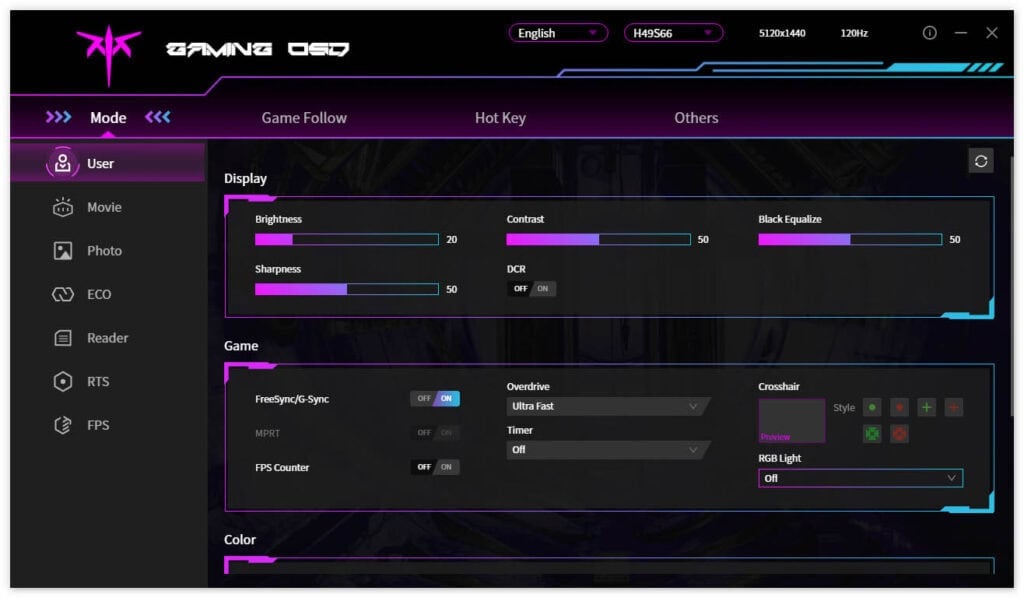
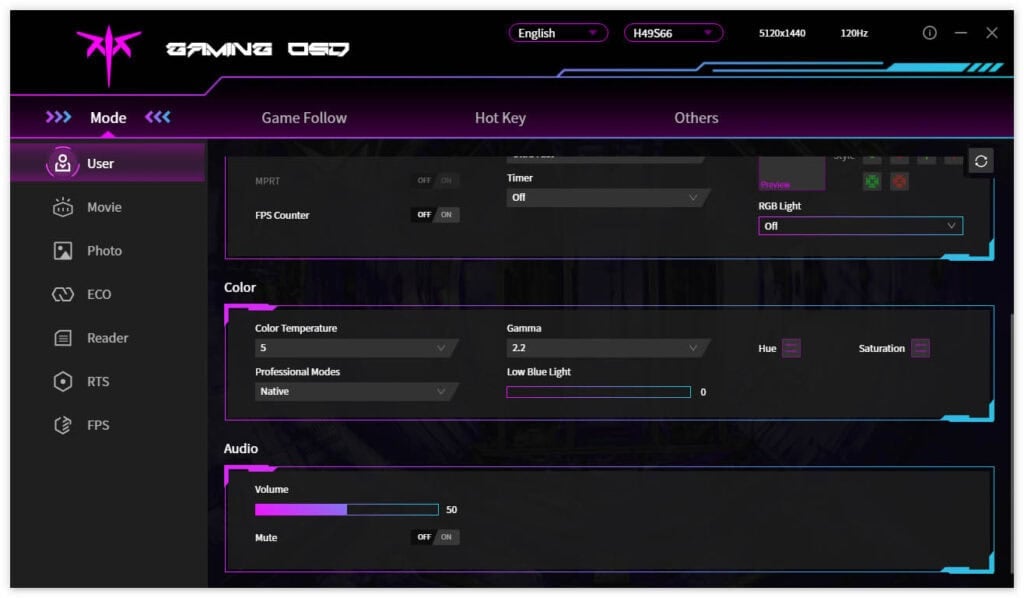
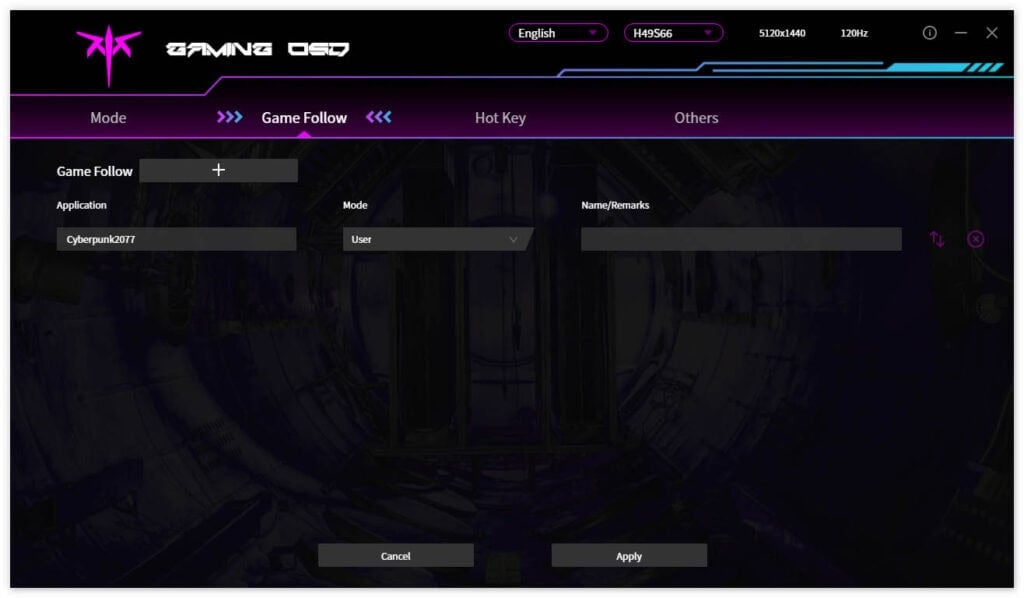
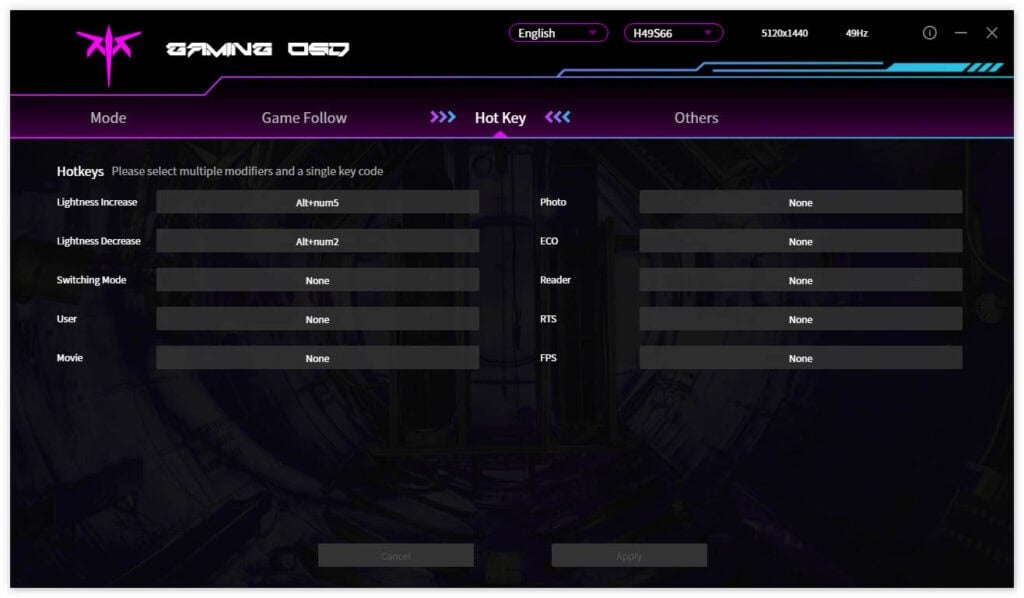
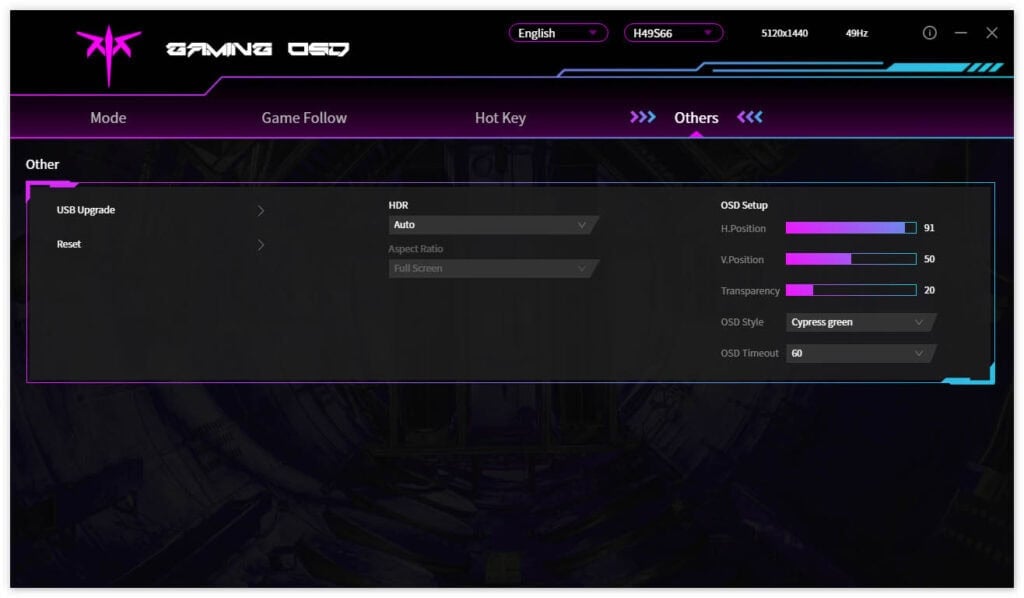
You can download the MMC app here, though you’ll need to change your browser’s preferred language to ‘Chinese (Simplified)’; otherwise, it will just take you to the English homepage. Alternatively, use this direct download link (clicking it will start the download immediately).
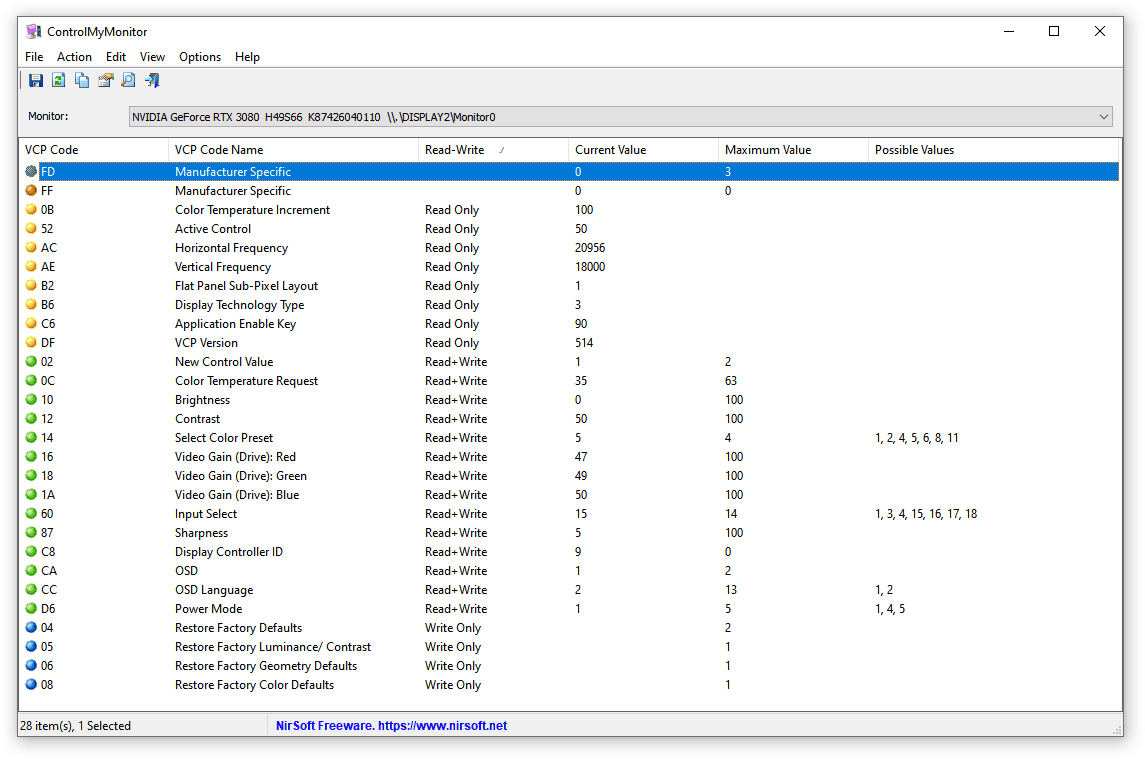
You can also use third-party apps, such as ControlMyMonitor, to make the following OSD settings:
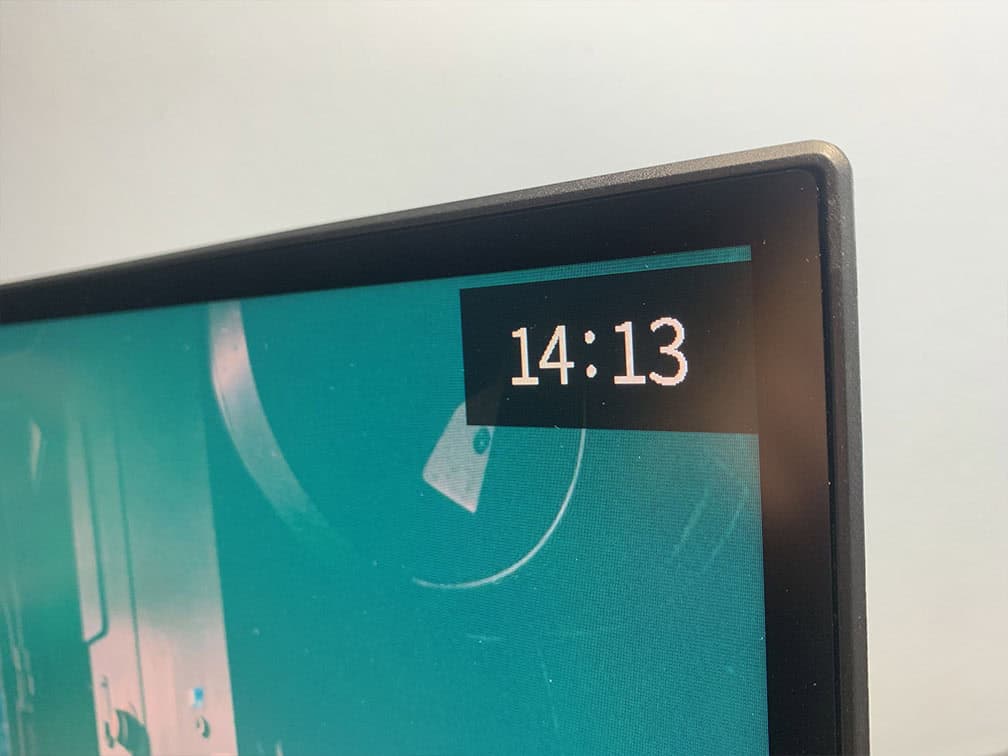
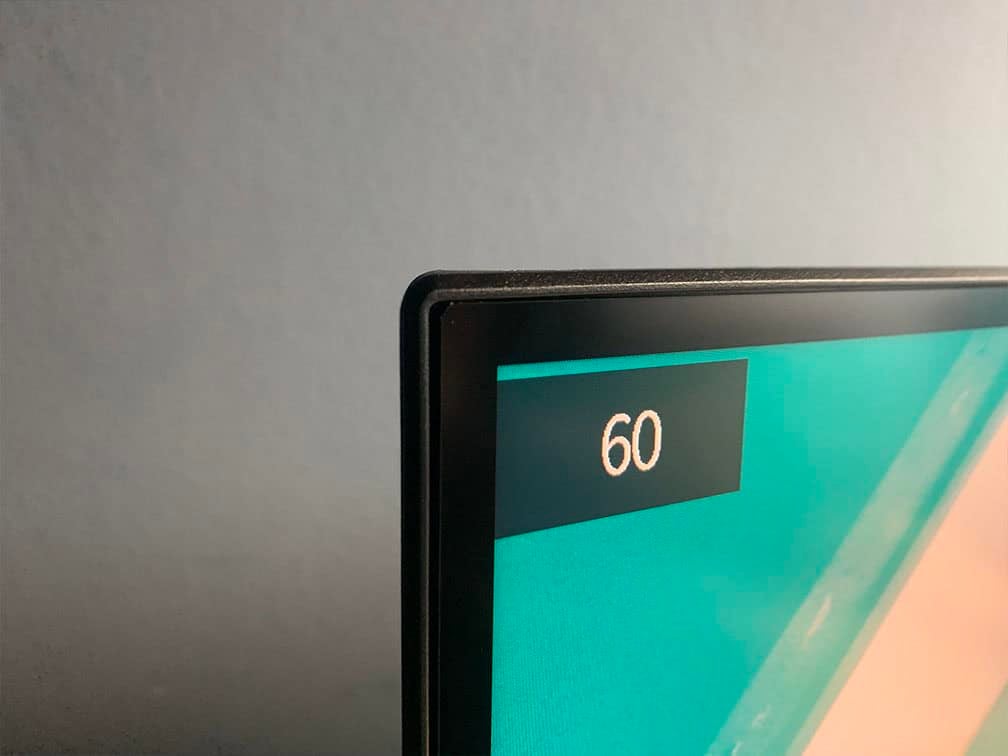
Useful gaming features include Black Equalize (improves visibility in dark scenes by altering the gamma curvature), crosshair overlays, a refresh rate tracker and an on-screen timer.
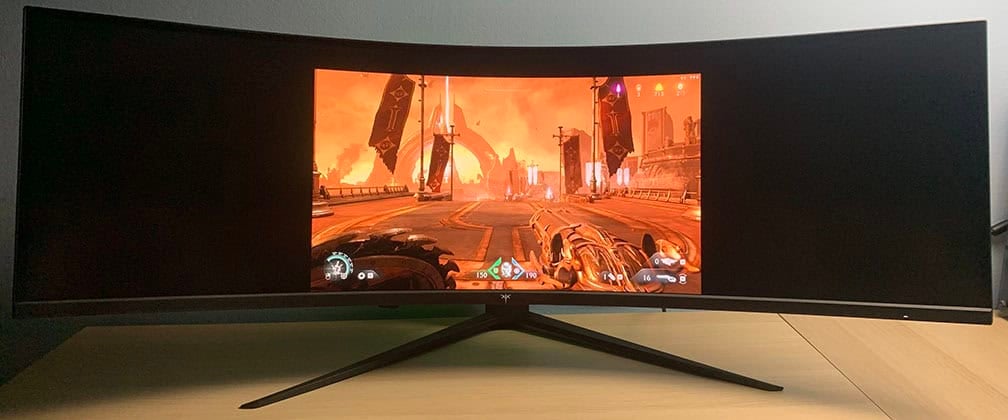
There’s also a 24.5″ aspect ratio mode that emulates a 24.5″ display size at 2304×1296 resolution, delivering a sharp image with no noticeable blurriness.
Next, there’s a separate AI Crosshair option that will dynamically change the crosshair’s color depending on the background.
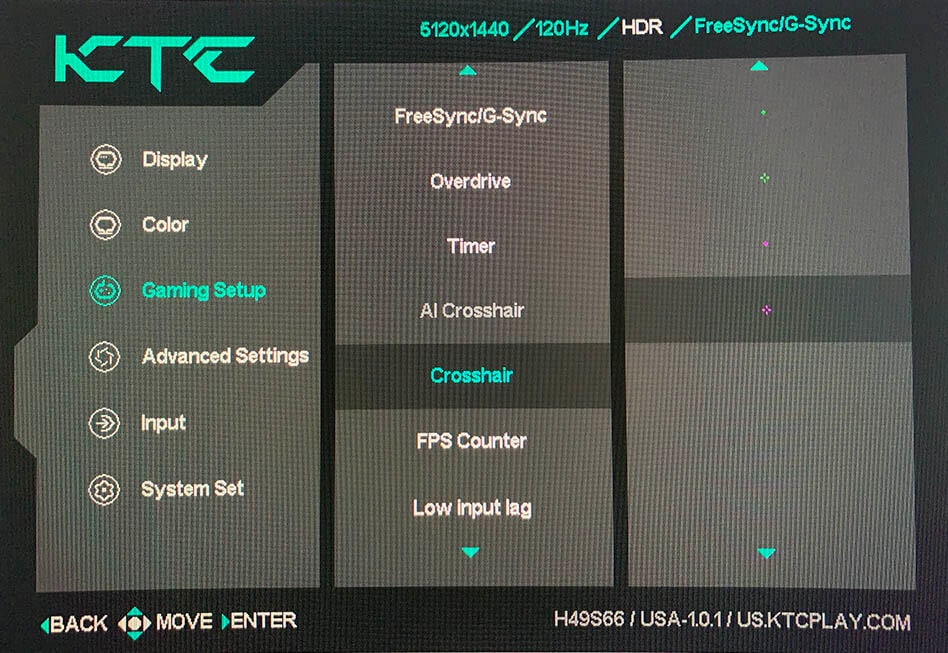
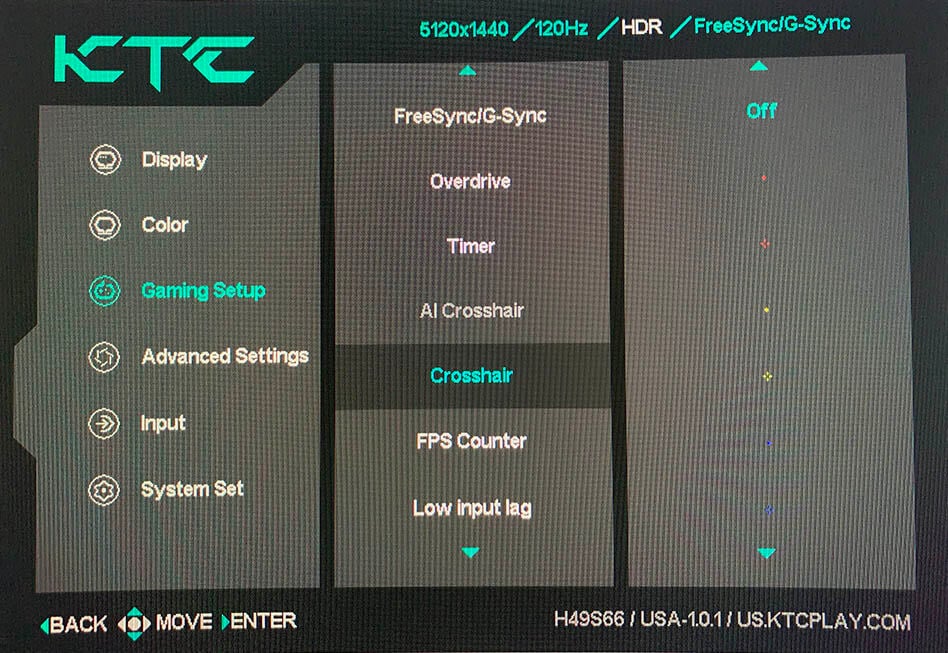
Other OSD settings include language, OSD setup (position, timeout, transparency, style), power LED indicator (on, off), audio (mute, volume), USB Upgrade, USB sleep power, service support QR code and factory reset.
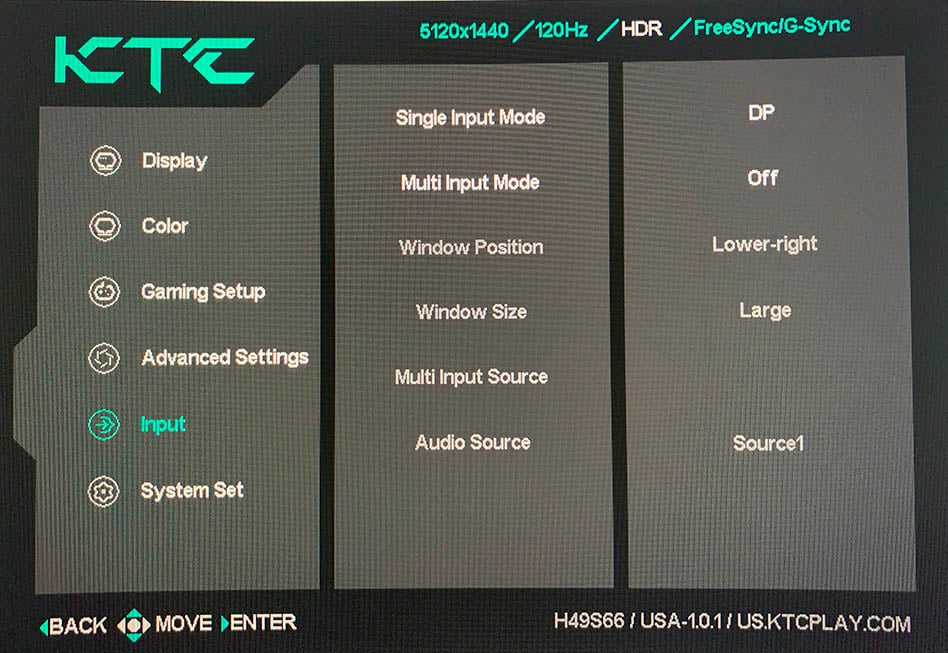
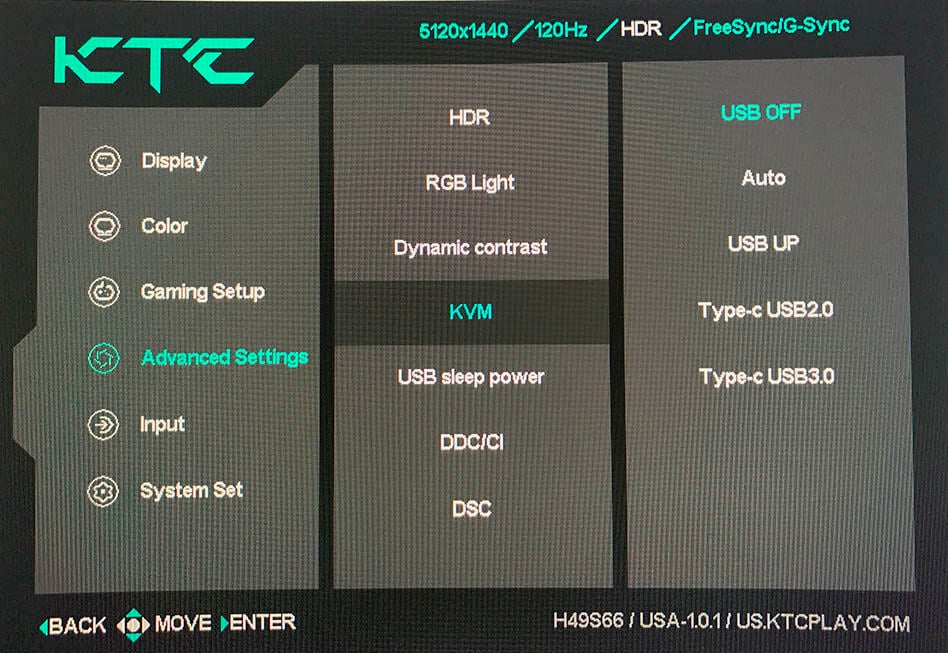
Picture-in-Picture and Picture-by-Picture modes are supported as well.
There’s also a built-in KVM functionality. When you connect two PCs to the monitor (one via USB-C, one via USB-A to USB-B), you can effortlessly swap control between them by connecting your keyboard and mouse to the monitor.
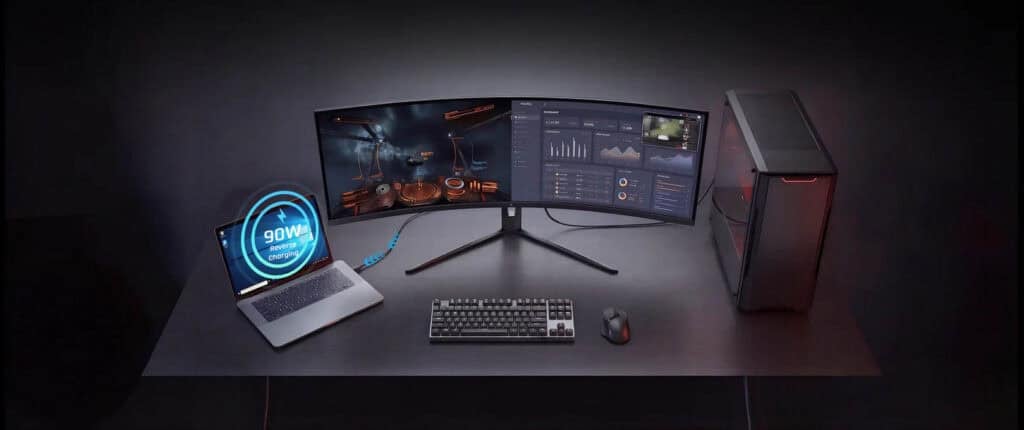
So, if your laptop supports Power Delivery and DisplayPort Alt Mode over USB-C, you can connect both your PC and laptop to the monitor, along with a keyboard and mouse, and display and control both devices simultaneously (as well as charge the laptop up to 90W).
Design & Connectivity
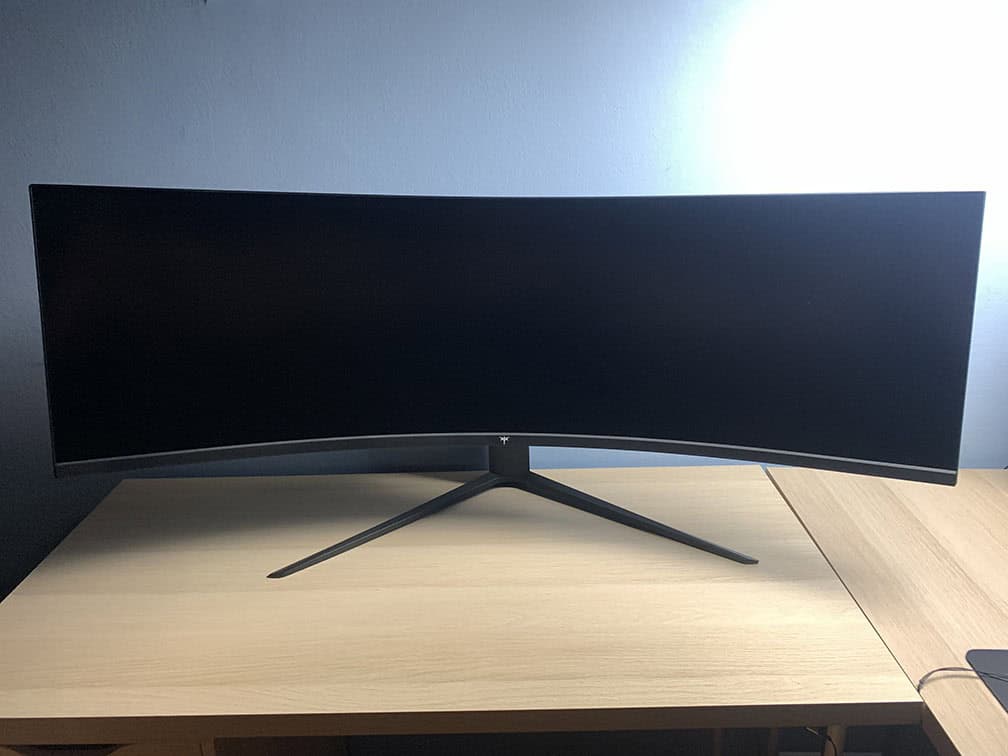
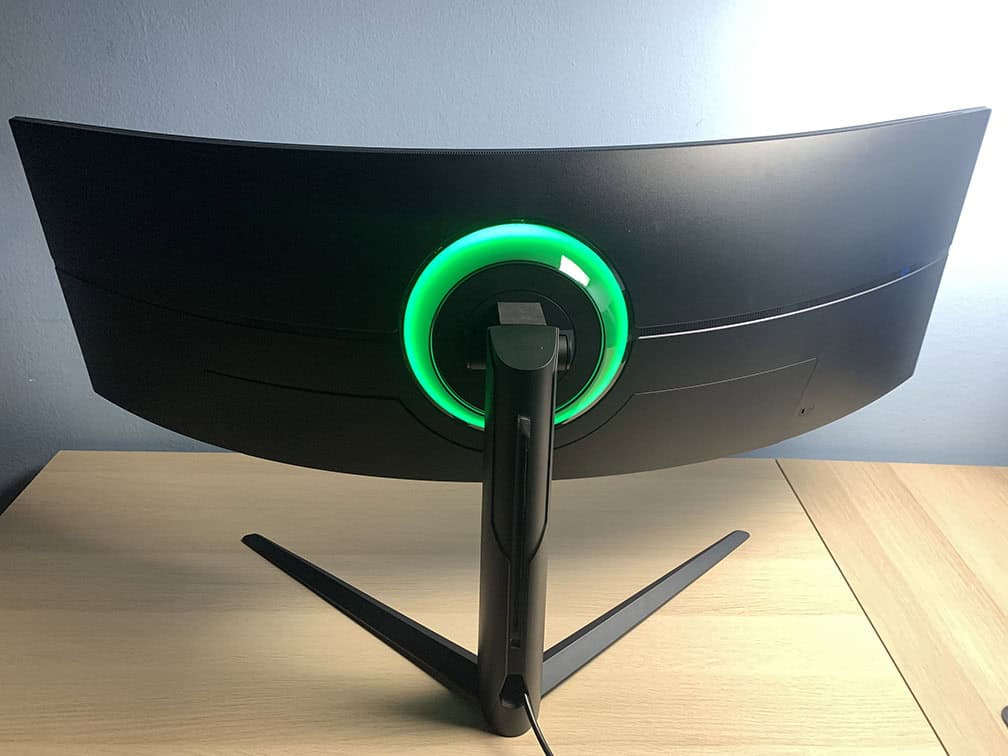
The stand of the monitor is robust and sturdy. It supports up to 135mm height adjustment, +/- 20° swivel, -5°/20° tilt, +/- 4° pivot for balancing and 100x100mm VESA mount compatibility (M4*10mm screws).
There’s a cable management cutout, and you can neatly route cables through the detachable magnetic rear I/O cover.
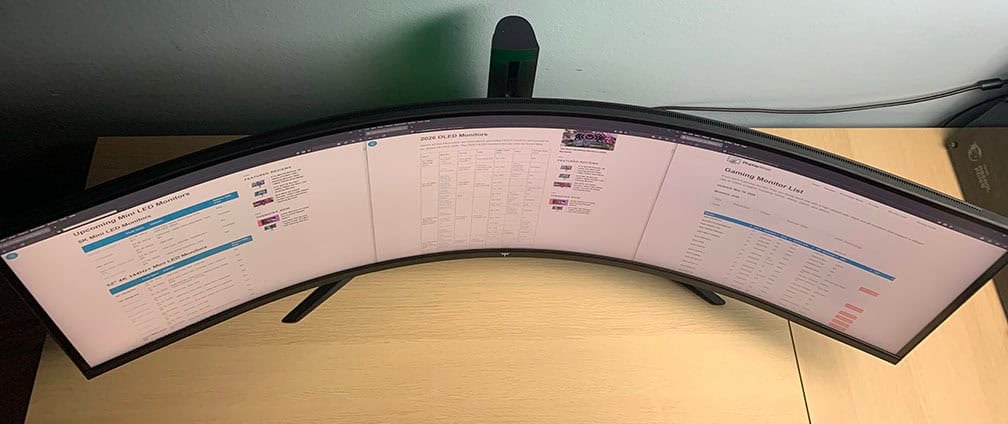
The screen has a light matte anti-glare coating, which diffuses reflections without adding too much graininess to the image. It also has a steep 1000R screen curvature for added immersion.
On the rear, there’s adjustable RGB lighting (off, static red, green or blue, rainbow, breathing, colorful cycle and flowing light effects). It’s bright enough to reflect off the wall and create atmospheric lighting in a dark room.
Next, the bezels are ultra-thin at just 3mm on the top and sides, while the bottom bezel is slightly thicker at 20mm. There’s also an 8mm black border around the screen on the top and sides (and 1mm at the bottom) before the image begins.
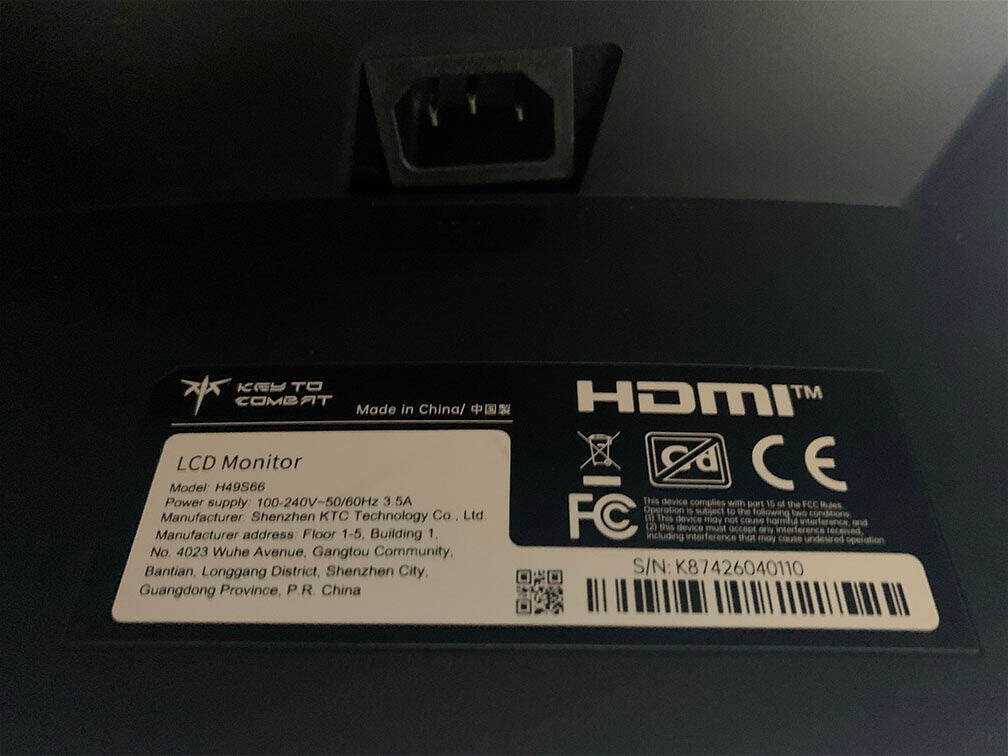
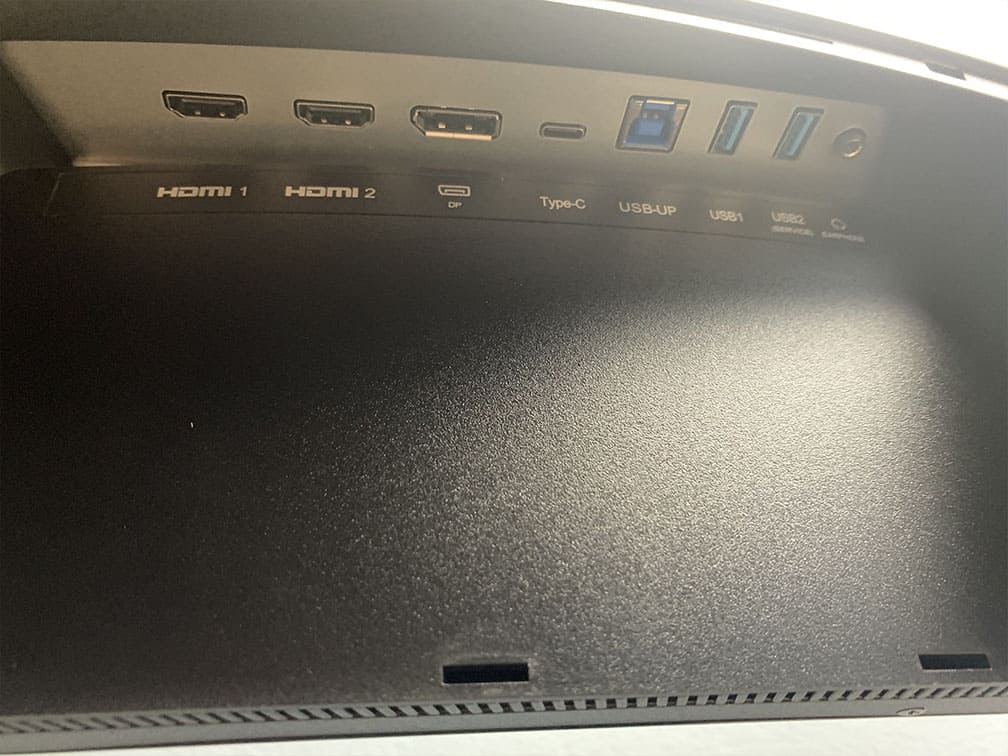
Connectivity options are abundant and include two HDMI 2.1 ports, DisplayPort 1.4 with DSC, USB-C with DP Alt Mode and 90W PD, two USB-A 3.0 ports, USB-B, a headphone jack and dual 5W integrated speakers. It has an integrated power supply.
All four display inputs support 5120×1440 up to 180Hz.
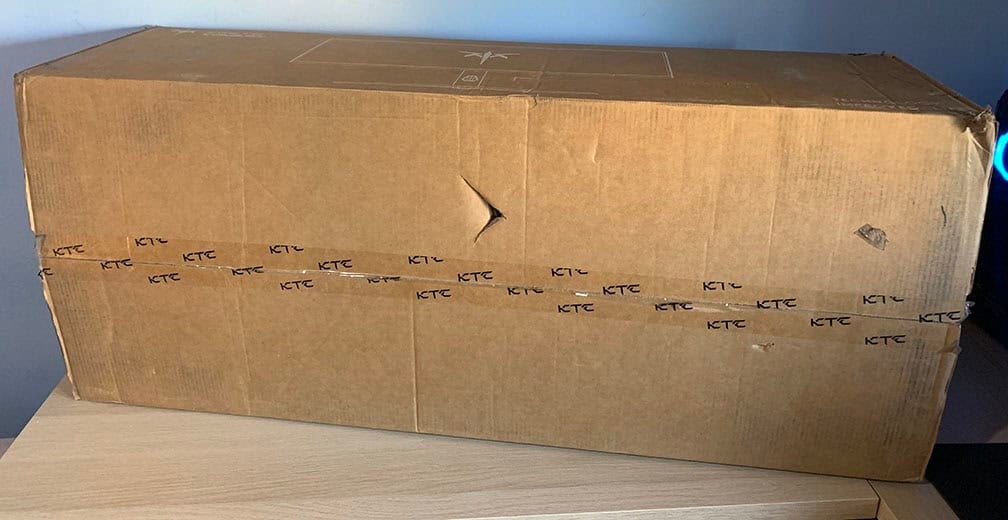
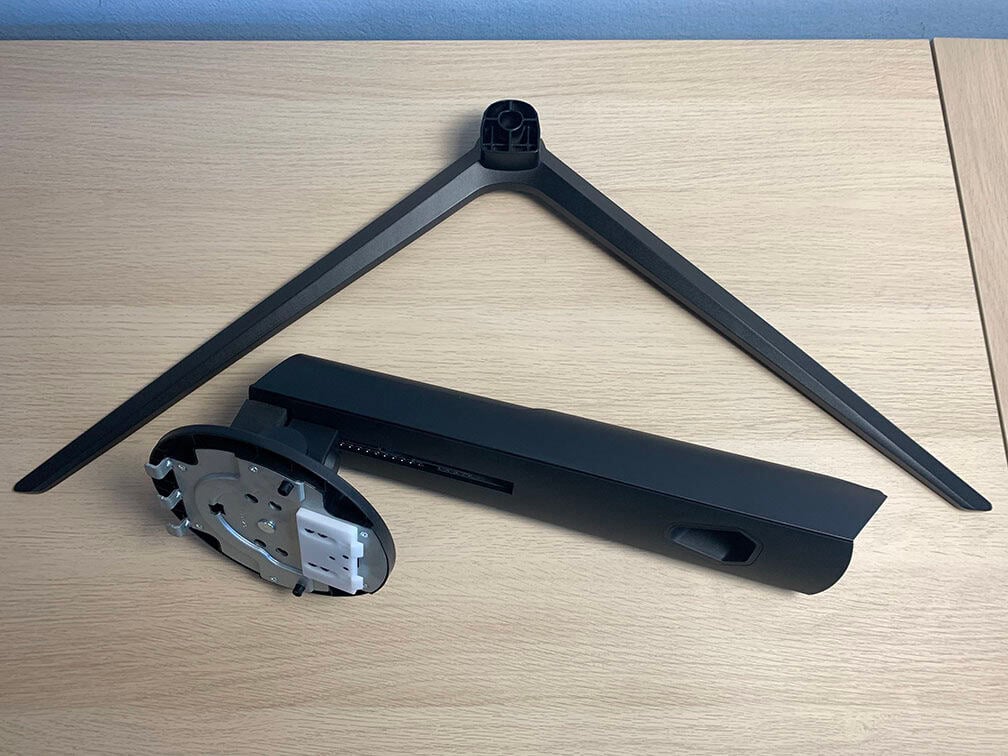
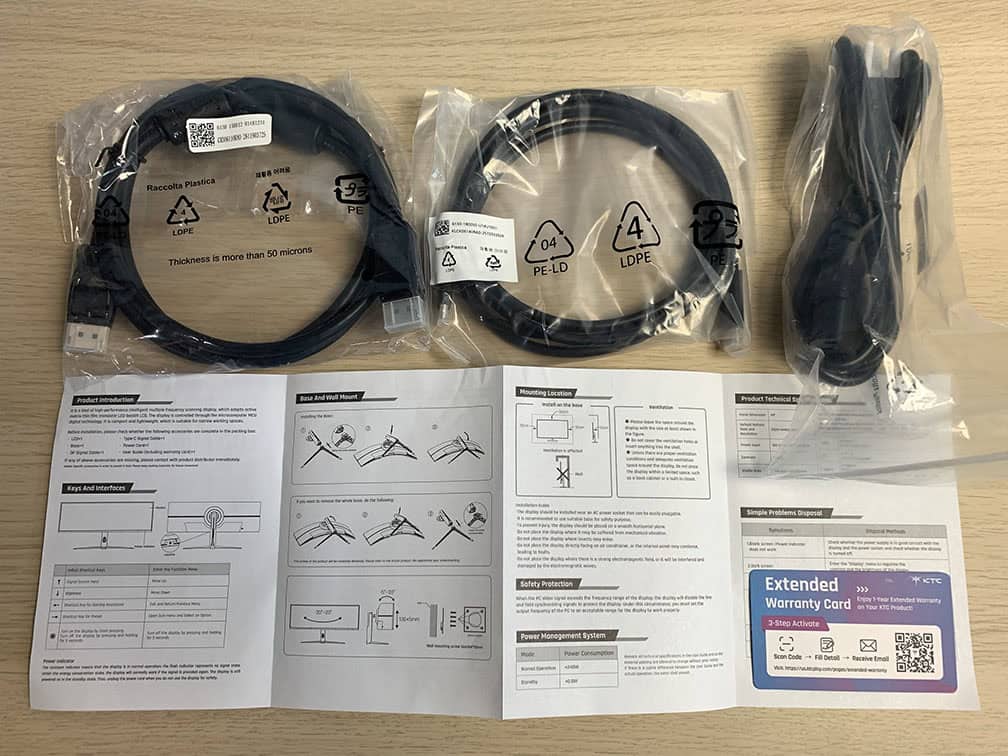
In the box, along with the monitor, you also get a DisplayPort cable, a USB-C cable, a power cord, a quick start guide and a warranty card.
Price & Similar Monitors
The KTC H49S66 can be found for $720, which is a decent price considering its premium features, such as built-in KVM and USB-C with 90W PD.
10% off code: 10K49S66
If you’re interested in OLED displays, the MSI MPG 491CQP with a 5120×1440 144Hz panel, a more subtle 1800R screen curvature, KVM and USB-C 90W PD can be found for $780, while the 240Hz model goes for $900.
In case you don’t want a super-ultrawide model with an OLED panel, the Samsung Odyssey G95C has a 5120×1440 VA panel with a higher 240Hz refresh rate and faster response time for no ghosting in dark scenes for $850, though it lacks KVM and USB-C.
So, the KTC H49S66 is a great option if you want a 49″ 5120×1440 super-ultrawide monitor for both gaming and productivity work. It offers a lot better value than Samsung’s ViewFinity S95UC 5120×1440 120Hz model with KVM and USB-C.
For those with a more limited budget, the Acer EI491CUR J0 is a 49″ 5120×1440 120Hz VA super-ultrawide monitor that can be found for just $550.
As far as IPS models for color-critical work go, those are more expensive, such as the LG 49WQ95C with a 5120×1440 144Hz panel for $1,500.
Finally, there’s the Samsung Odyssey Neo G95NC with a 57″ 7680×2160 240Hz VA panel and a 2392-zone mini LED FALD backlight for $1,500.
For more options and information, check out our dedicated best gaming monitor buyer’s guide.
Conclusion
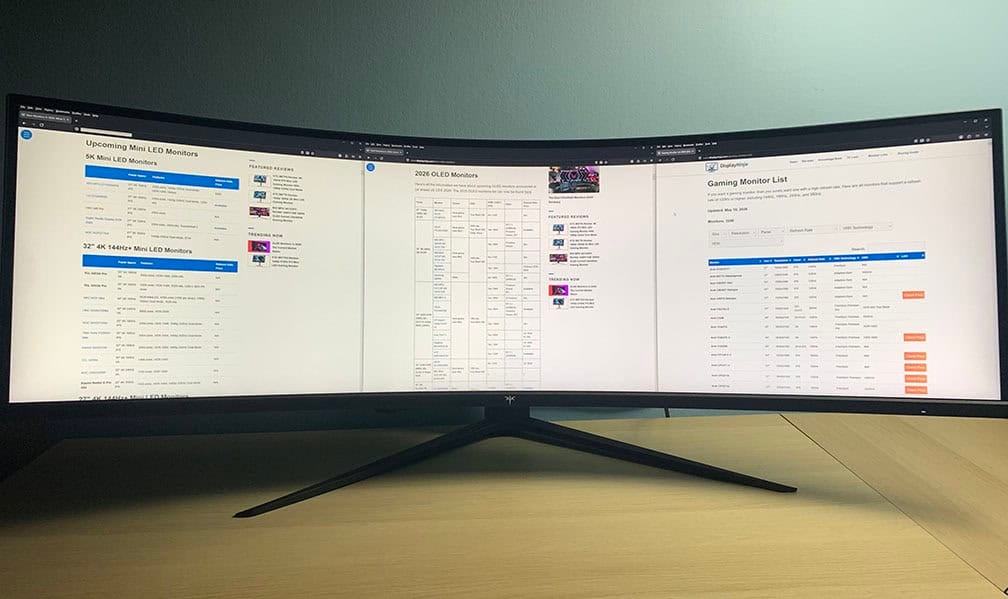
Overall, the KTC H49S66 is an excellent monitor for mixed use.
The 49-inch curved panel delivers a highly immersive experience with deep blacks, rich colors, strong brightness and a solid set of useful features.
Color performance is generally good, although there’s some missing blue coverage in the gamut. In practice, this is unlikely to be noticeable unless you’re doing professional color-critical work, which isn’t the ideal use case for a VA panel anyway.
Some ghosting in dark scenes is also present, but it won’t bother most gamers unless they’re particularly sensitive to it. You may also notice the usual VRR brightness flickering in certain games with poor frame pacing.
If burn-in isn’t a concern, the MSI MPG 491CQP is a better option in this price range. On the other hand, if you want to minimize burn-in risk and primarily focus on gaming, it’s worth spending a bit more on the Samsung G95C with a faster panel (though no USB-C or KVM).
That said, for a mix of gaming, productivity work and basic content creation, the KTC H49S66 is one of the best value super-ultrawide monitors available. Its USB-C connectivity, PiP/PbP support and built-in KVM switch make it especially versatile for multi-device setups and everyday work.
Specifications
| Screen Size | 49-inch |
| Resolution | 5120×1440 (DQHD) |
| Curvature | 1000R |
| Panel Type | VA |
| Aspect Ratio | 32:9 (Super-UltraWide) |
| Refresh Rate | 180Hz |
| Response Time | Not Specified (4.9ms measured) |
| Motion Blur Reduction | DAC |
| Adaptive-Sync | FreeSync Premium (48-180Hz), HDMI 2.1 VRR |
| Ports | DisplayPort 1.4, 2x HDMI 2.1, USB-C (DP Alt Mode, 90W PD) |
| Other Ports | Headphone Jack, 2x USB-A 3.0, USB-B |
| Speakers | 2x5W |
| Brightness | 400 cd/m² (453 cd/m² measured) |
| Brightness (HDR) | 500 cd/m² measured |
| Contrast Ratio | 3000:1 (2223:1 measured) |
| Colors | 1.07 billion (8-bit + FRC) 128% sRGB (136.6% measured) |
| HDR | HDR10 |
| VESA | Yes (100x100mm) |
The Pros:
- High contrast ratio
- Wide color gamut with sRGB mode
- Plenty of features, including VRR up to 180Hz, PiP/PbP
- Ergonomic stand and rich connectivity options with built-in KVM and USB-C 90W PD
The Cons:
- Minor ghosting in dark scenes
- VRR brightness flickering in dark scenes of games with fluctuating frame rates (expected drawback of OLED and VA panels)
- Missing some blue coverage in color gamut