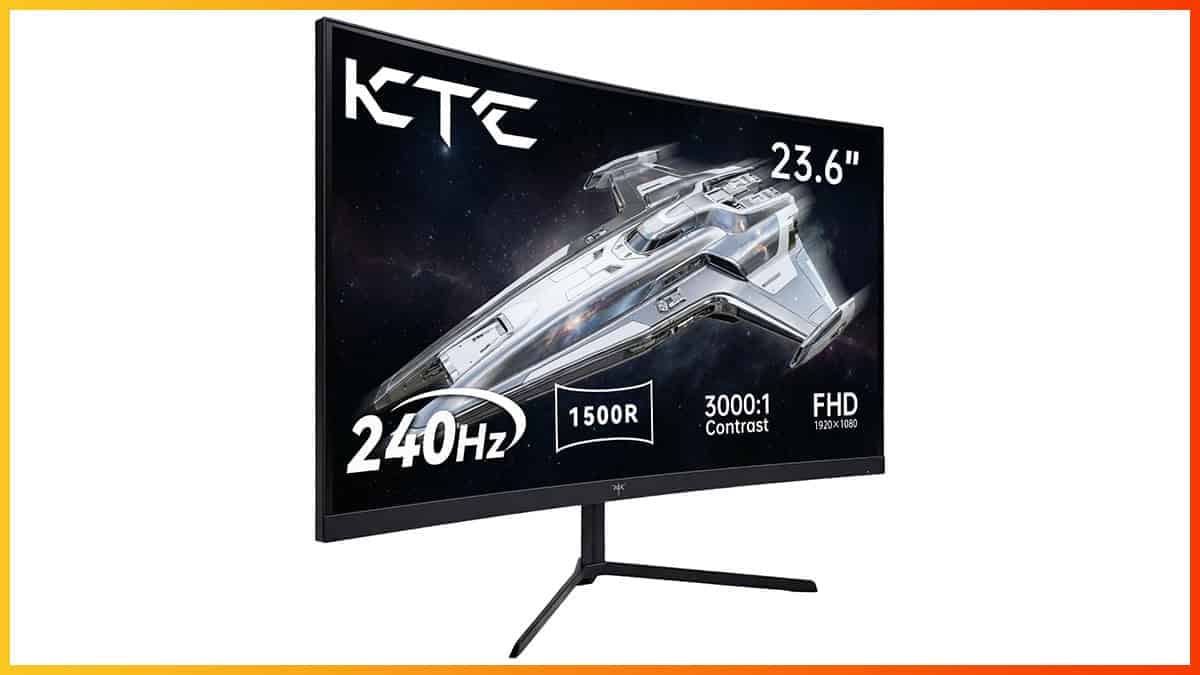
Bottom Line
The KTC H24S17P is an affordable 24″ 1080p 240Hz curved gaming monitor with a high contrast ratio, a VESA-mount compatible design, and a well-calibrated sRGB mode. Unfortunately, as is common with budget VA panels, there’s noticeable ghosting behind fast-moving objects due to the slower response time.
10% off code: 10H24S17P
The KTC H24S17P is an affordable 24″ 1080p curved VA gaming monitor with a high 240Hz refresh rate. Let’s see how it handles our tests!
Image Quality
The monitor is based on a 23.6″ VA panel with a subtle 1500R screen curvature, a specified 106% sRGB color gamut volume, 178° viewing angles, a 3,000:1 static contrast ratio, a 350-nit peak brightness and dithered 10-bit color depth support.
To test the display’s capabilities and accuracy, we’re using our Calibrite Display Pro HL colorimeter paired with DisplayCAL.
Note that we’re testing the USA-1.0.1 firmware version.
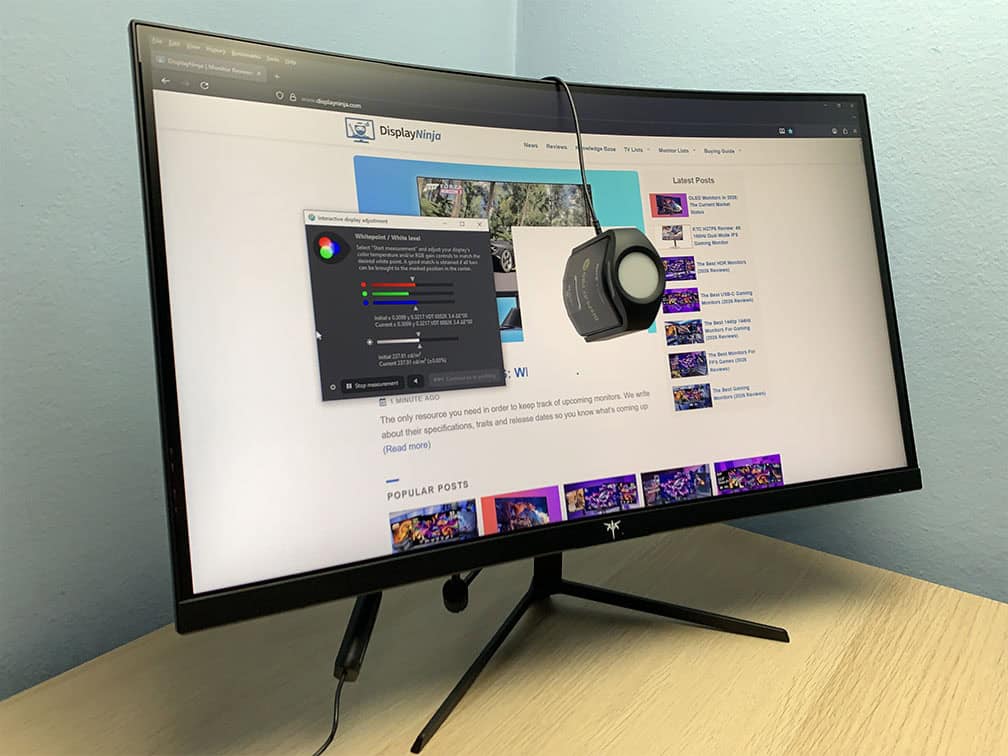
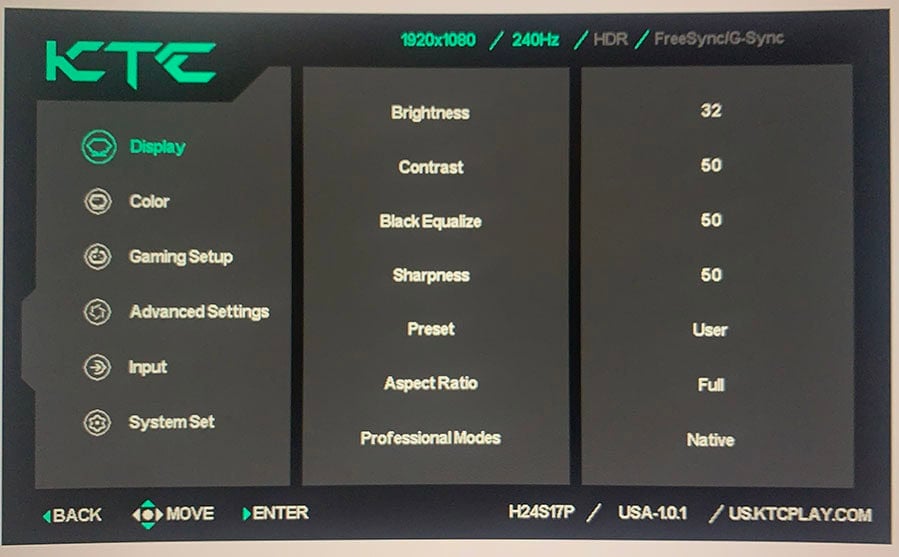
In the OSD (On-Screen Display) menu, under the ‘Display’ settings, you’ll find several ‘Preset’ options: User (Default), Movie, Photo, ECO, Reader, RTS and FPS.
Options other than ‘User’ simply apply preset brightness, contrast, hue, saturation, and Black Equalize values, which you can’t adjust. So, for full customization, we recommend using the most accurate default ‘User’ mode.
If you scroll a bit further in the ‘Display’ section, you’ll find the ‘Professional Modes’ options, including ‘Native’ and ‘sRGB.’
Color Gamut
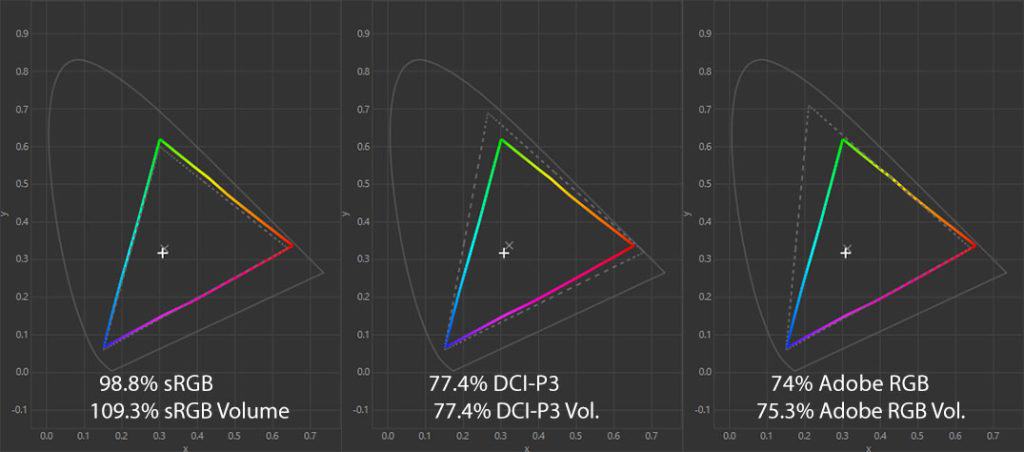
The KTC H24S17P has a color gamut of 98.8% sRGB coverage and 109.3% sRGB volume, slightly exceeding the sRGB color space, resulting in a tad more saturated greens and reds.
Some users may prefer this extra saturation, but if you want better accuracy, you should use the ‘sRGB’ ‘Professional Mode’ instead, which clamps the gamut down to 93.5% volume and a 92.7% coverage.
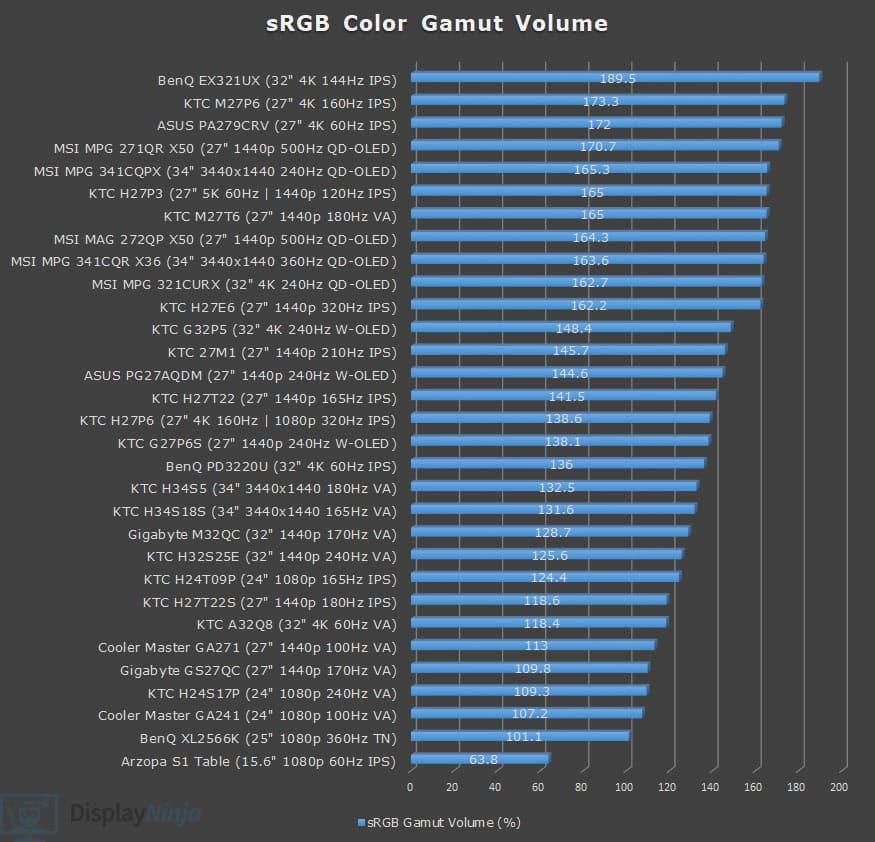
Image Accuracy
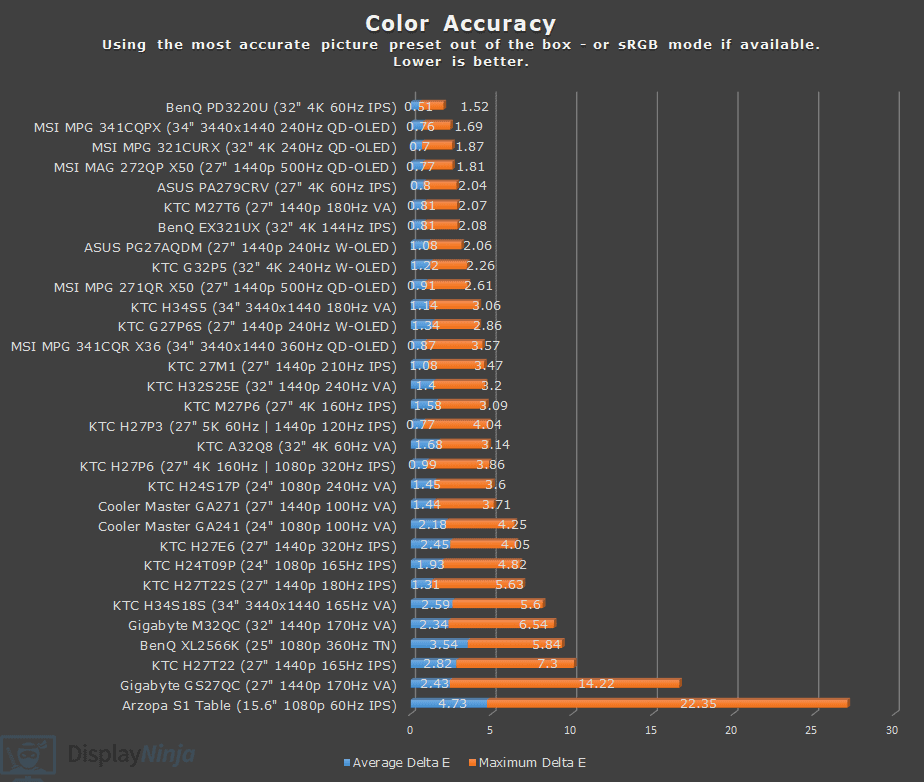
By default, Windows doesn’t do color management, which is why in the Native mode, we measured a Delta E of 1.82 average (color deviation from the target, less than 1.5 is considered good) and a high 8.58 maximum (target is less than 3) for red color, which made reds appear more orange.
On the other hand, gamma tracking is very good, with a 2.15 average (2.2 is the target) and close adherence to the sRGB tone curve.
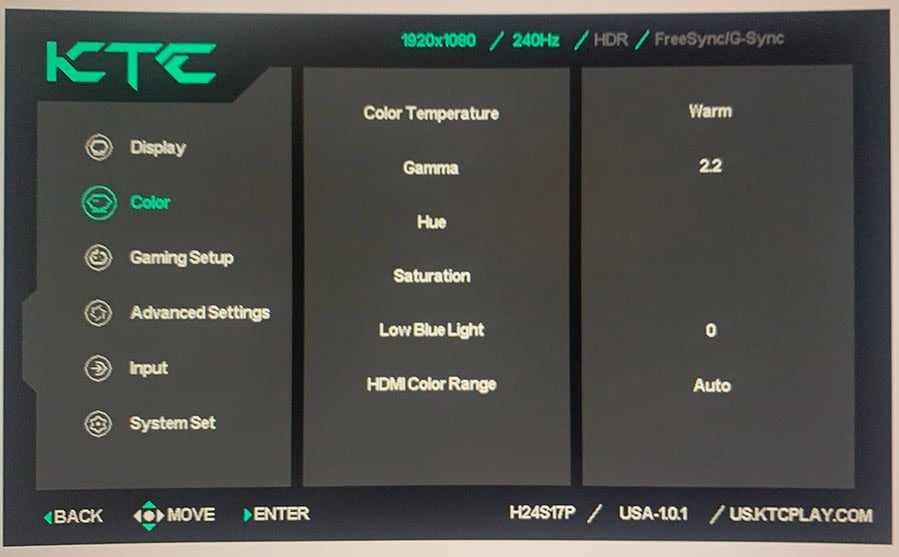
Color temperature in the default ‘Preset’ mode was 6876K (target is 6500K), which is a bit higher than ideal, so we recommend choosing the ‘Warm’ mode instead, measured at 6550K.
We also measured the color temperature of the Normal (7456K), Cool (9181K) and User (5931K) modes.
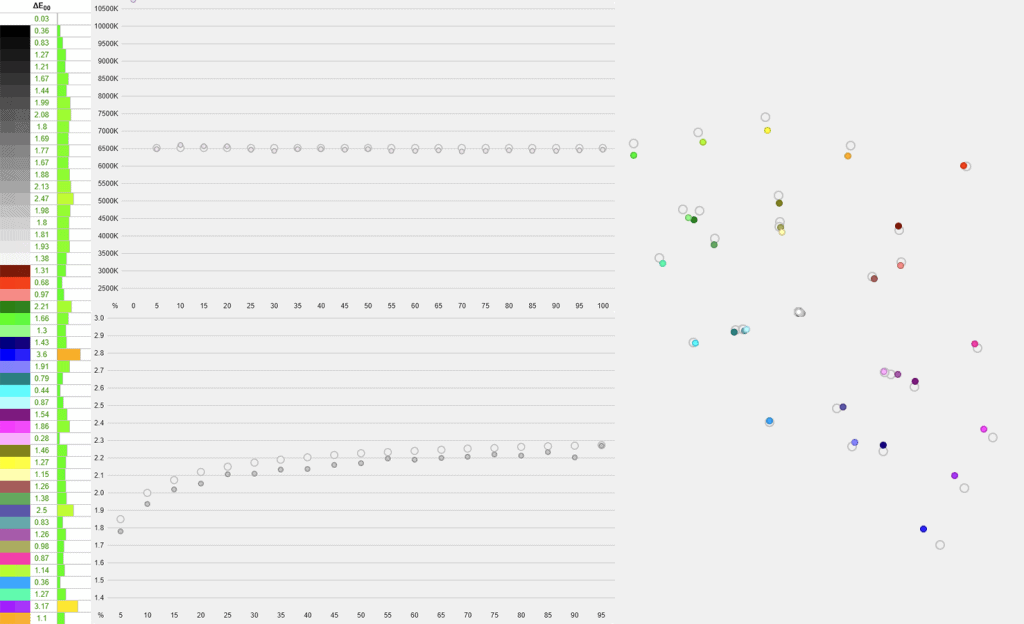
The sRGB mode offers better accuracy with a Delta E of 1.45 average and 3.6 maximum, which is still a bit higher than ideal, but good enough for basic content creation work.
Gamma tracking performance is similar with a 2.13 average and a proper sRGB tone curve. In the sRGB mode, you should also stick with the ‘Warm’ color temperature mode, which was set as the default and we measured at 6563K.
Further, in the sRGB mode, you can adjust brightness and color temperature, but contrast, gamma, and hue/saturation settings are locked.
While VA monitors have 178° wide viewing angles specified just like IPS panels, some minor gamma and saturation shifts can be observed on VA displays. This isn’t that noticeable in everyday use or an issue for basic content creation, but it is a concern for professional color-critical work.
Calibration
For full calibration, we set the brightness to 16/100 for 122-nits, used the ‘Native’ color temperature mode, and ‘Custom’ color temperature with red, green and blue channels set to 48, 47 and 50, respectively, to get 6534K.
Delta E improved to 0.6 average and 3.34 maximum with accurate gamma tracking (2.18 average). You can download our ICC profile here.
Brightness & Contrast
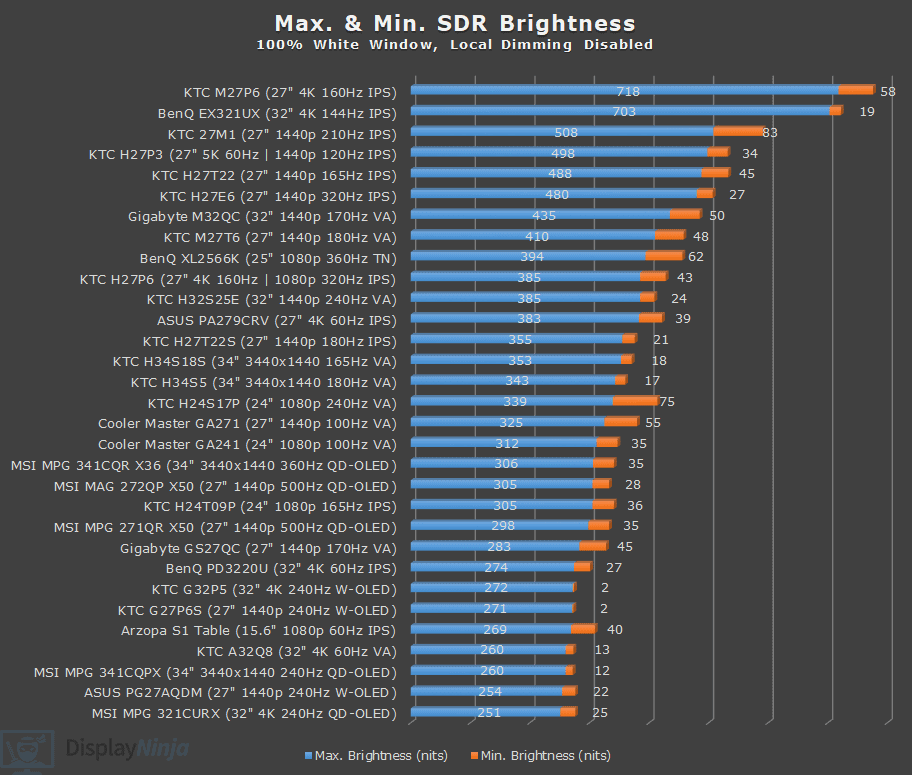
We measured a maximum brightness of 339-nits and a minimum of 75-nits.
The monitor is well-suited for use in bright rooms, as its high brightness can easily overcome glare. Most users will also find it usable in dark rooms at the minimum brightness, though we’d prefer to see it go even lower, since for some users, it may not get dim enough.
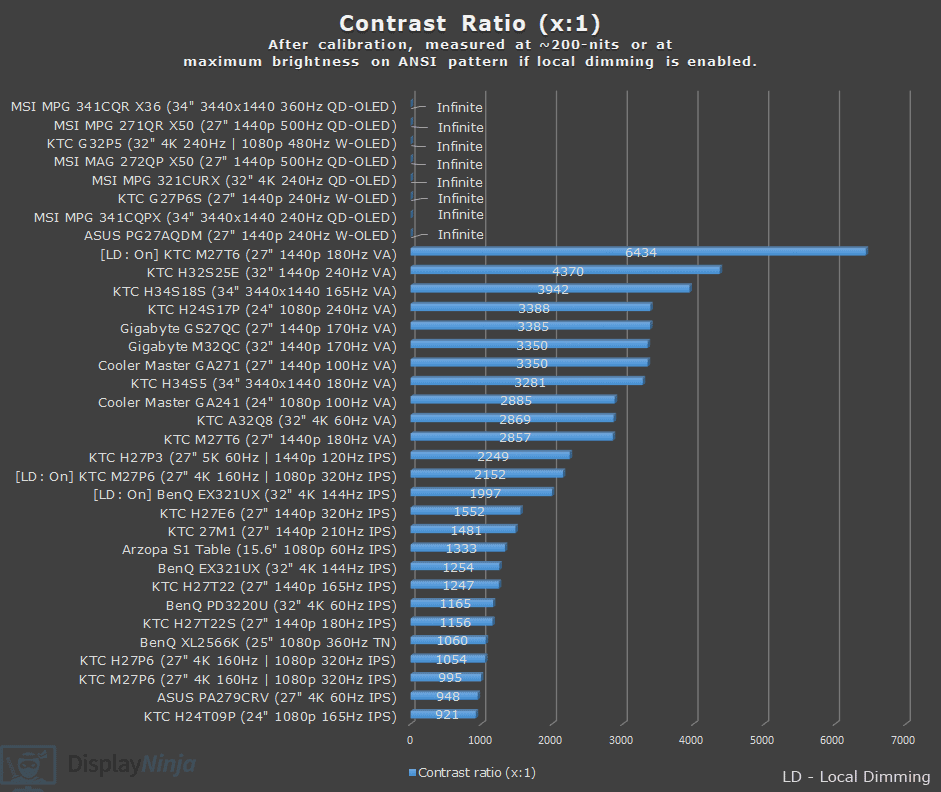
At around 200-nits, we measured a contrast ratio of 3388:1, which results in reasonably deep blacks, notably darker than that of IPS monitors with a typical contrast ratio of around 1,000:1.
Of course, blacks won’t be as deep as that of monitors with self-emissive OLED panels or LED displays with full-array local dimming (FALD), but these are more expensive as well.
HDR
Since the monitor doesn’t have a FALD backlight or an OLED panel, it doesn’t deliver a proper HDR image quality, but it can still accept and display the HDR10 signal.
Some HDR content can take advantage of the display’s dithered 10-bit color support to reduce banding. However, shadow and highlight details won’t stand out or match the creator’s original intent.
For a proper HDR display, you’ll need to invest at least $250 for the AOC Q27G40XMN with a 27″ 1440p 180Hz FALD display, while OLED monitors start at around $380.
Subpixel Layout & Pixel Density
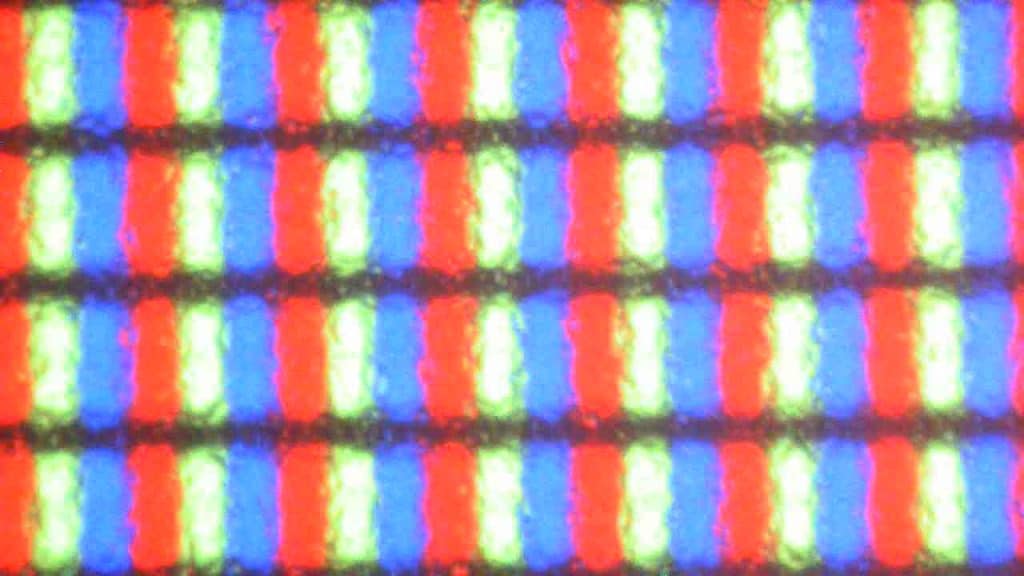
The KTC H24S17P monitor has a pixel density of 92.56 PPI (pixels per inch), which results in a decent amount of screen space and detail clarity. It’s noticeably sharper than 1080p on 27″ sized screens.
More importantly, the 1080p resolution is not demanding on the GPU, allowing you to maintain a high frame rate for smoother gameplay.
It has a standard RGB subpixel layout, meaning that there’s no fringing on small text and fine details.
KTC H24S17P Best Image Settings
Color Temperature: Warm
Color Range: Full Range
For saturated colors:
Professional Mode: Native
For accurate colors:
Professional Mode: sRGB
Performance
The KTC H24S17P has a maximum refresh rate of 240Hz, which provides you with a huge boost in motion clarity in comparison to typical 60-75Hz displays.
Although the jump in smoothness isn’t as noticeable when going from around 144Hz, you still get lower latency and screen tearing becomes less noticeable.
For latency and response time testing, we’re using OSRTT.
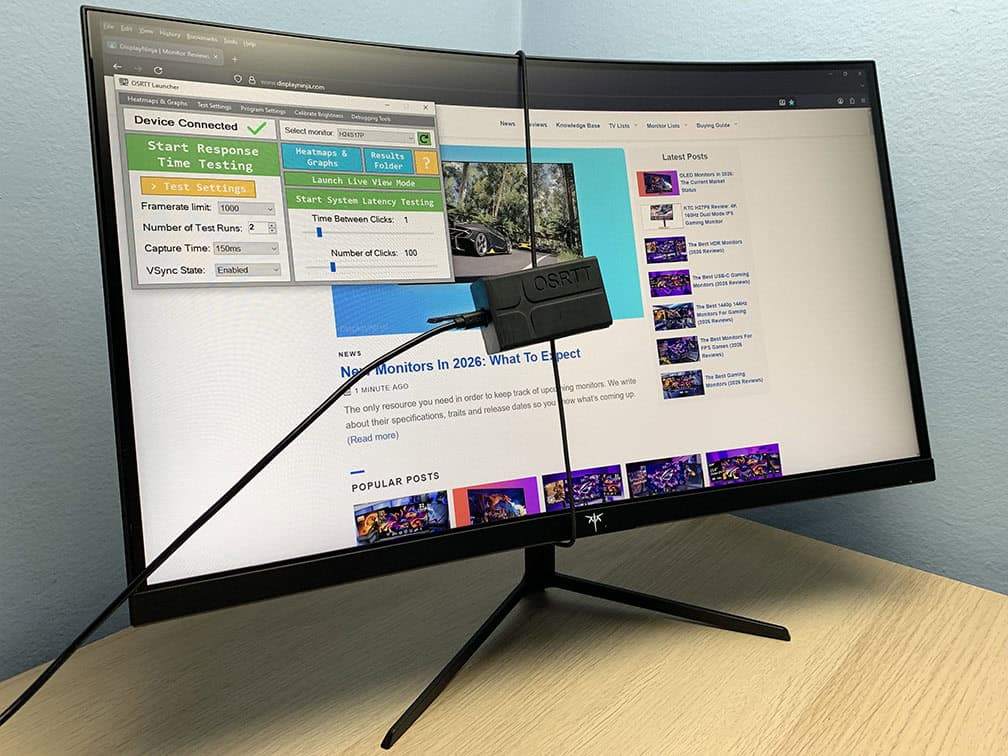
Response Time
The KTC H24S17P has five response time overdrive modes: Off, Standard, Advanced, Ultra Fast and Dynamic Overdrive.
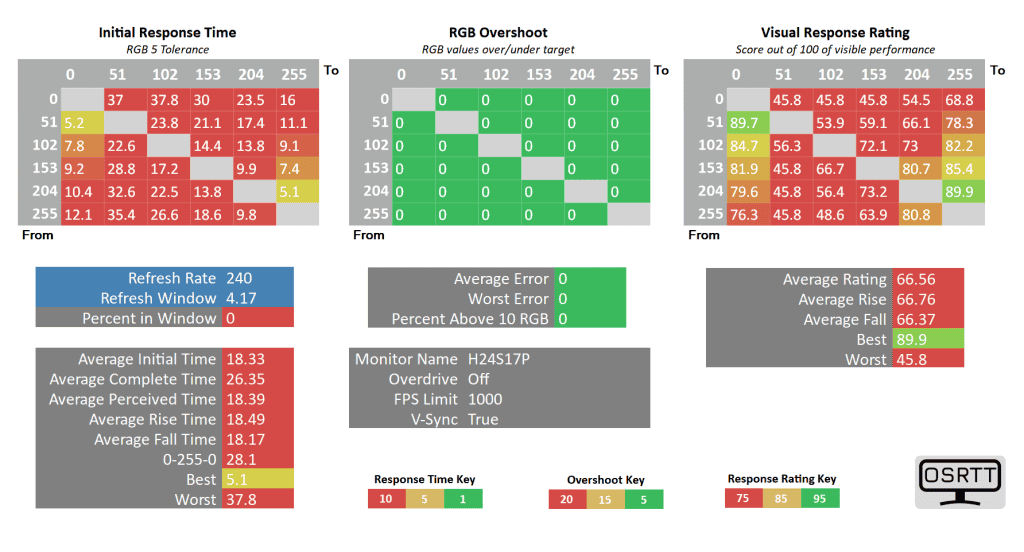
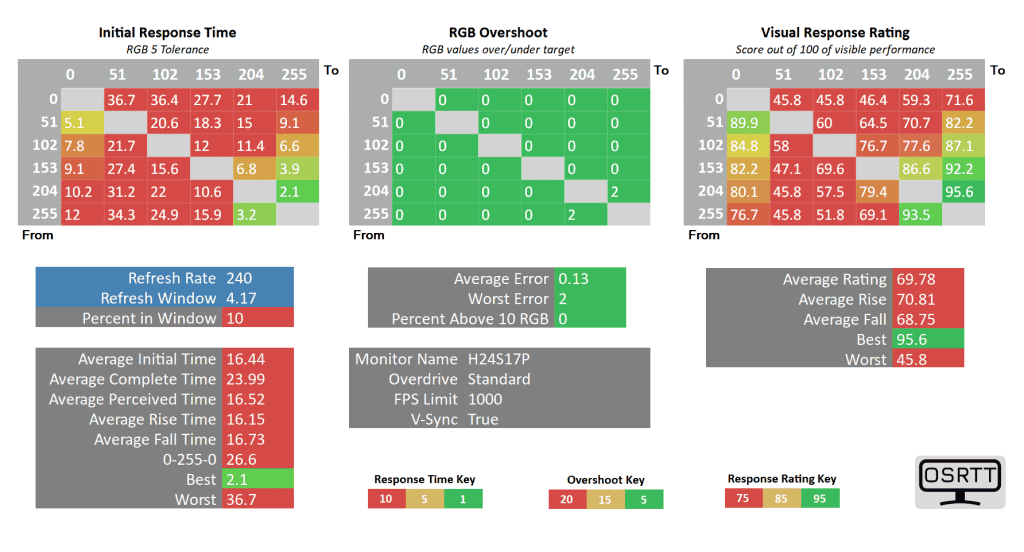
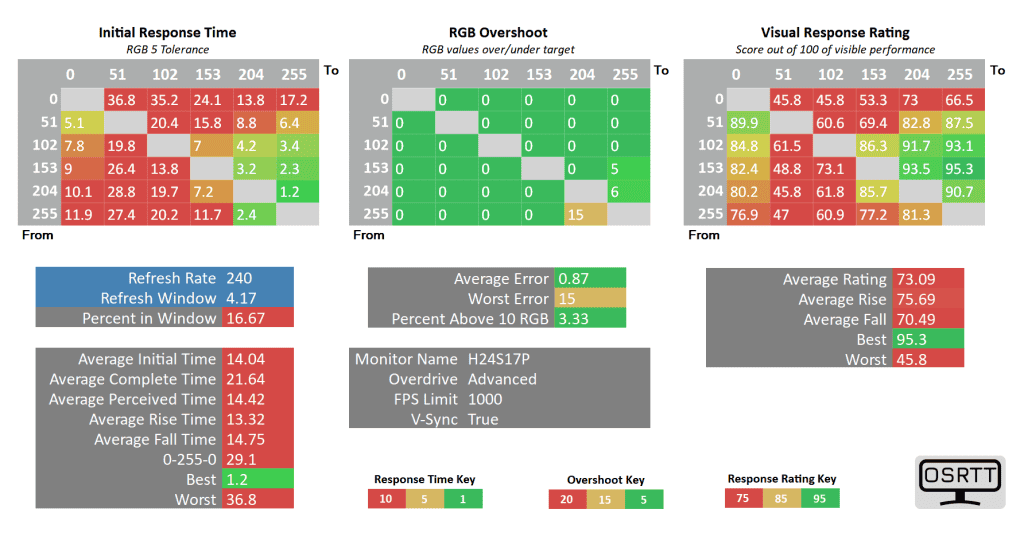
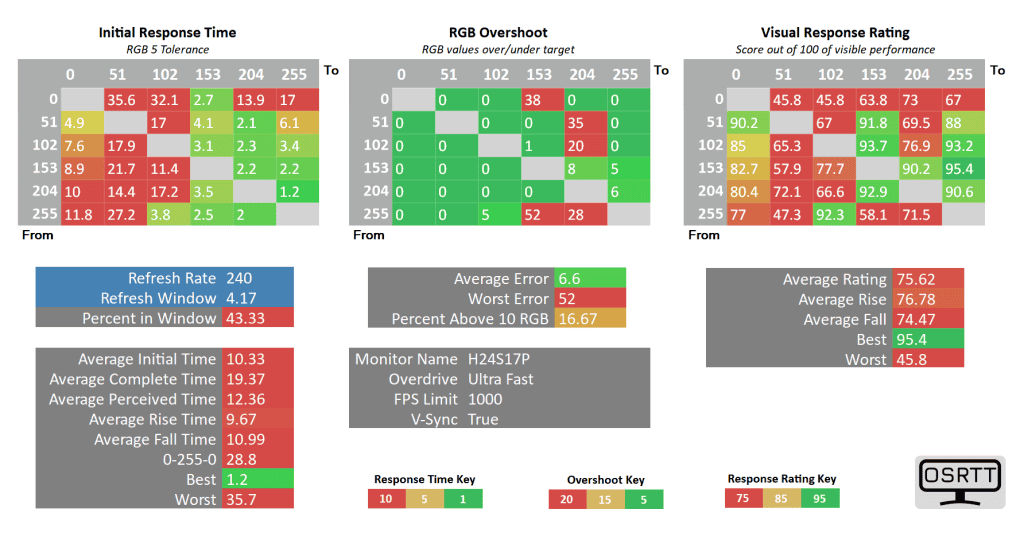
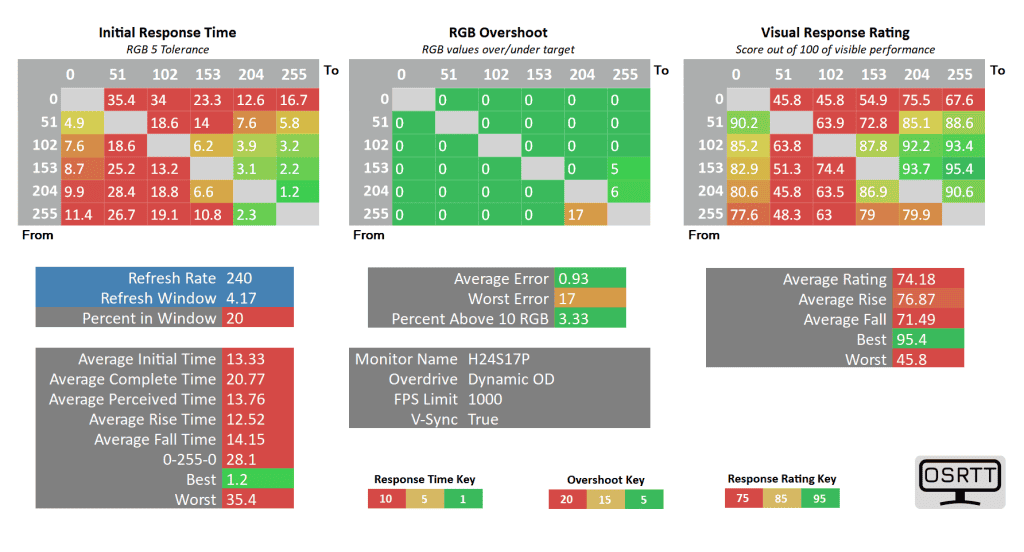
The pixel response time is slow. Even with the most aggressive ‘Ultra Fast’ mode, we’re looking at 10.33ms GtG (gray to gray pixel transition) average, and only 43.33% of transitions complete within the 4.17ms refresh rate window.
There’s some minor overshoot noticeable with a 6.6% average error.
There’s also smearing behind fast-moving objects in darker scenes as transitions from 0 (black) to 51 and 102 (dark gray) take over 30ms. This is typical for budget high refresh rate VA panels, though some manufacturers were able to optimize the overdrive a bit better.
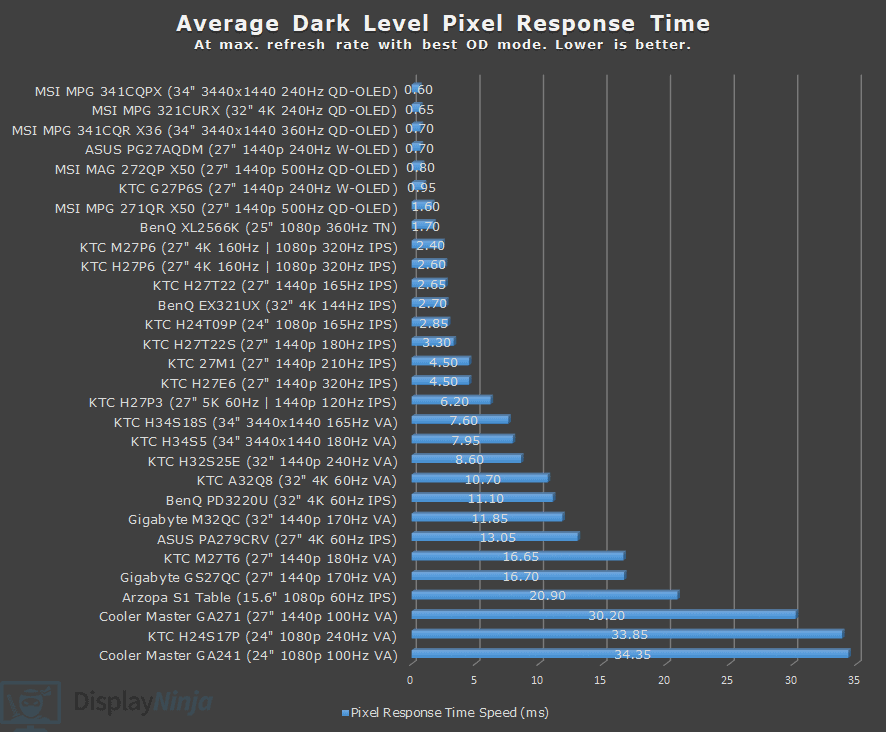
Some gamers may find the amount of ghosting tolerable, but certain users are particularly sensitive to this type of visual artifact.
Here are the results at 120Hz.
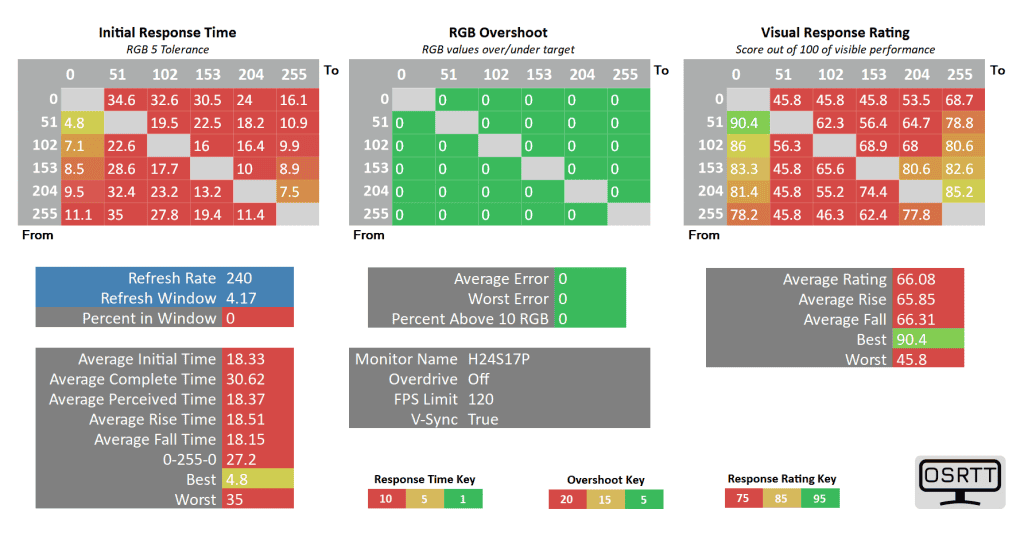
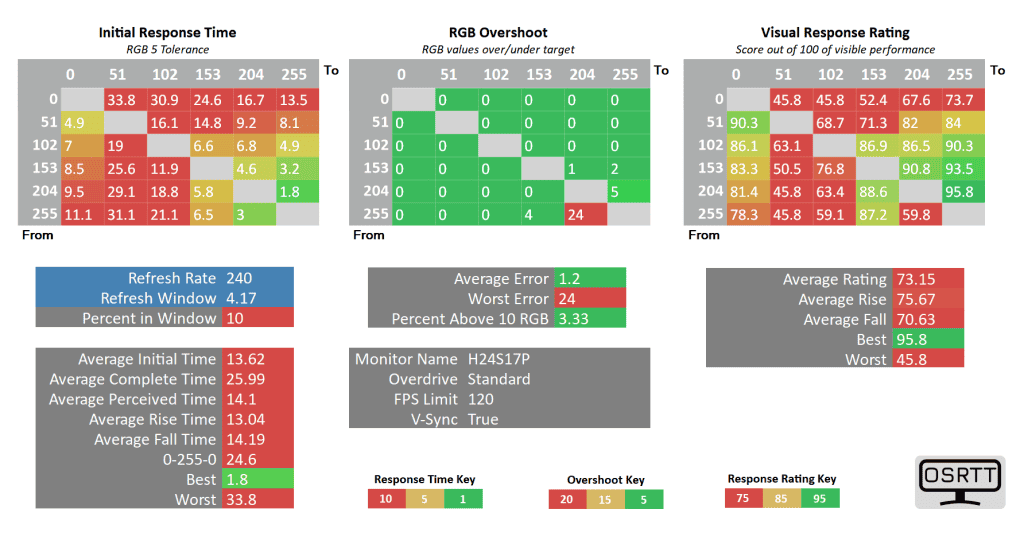
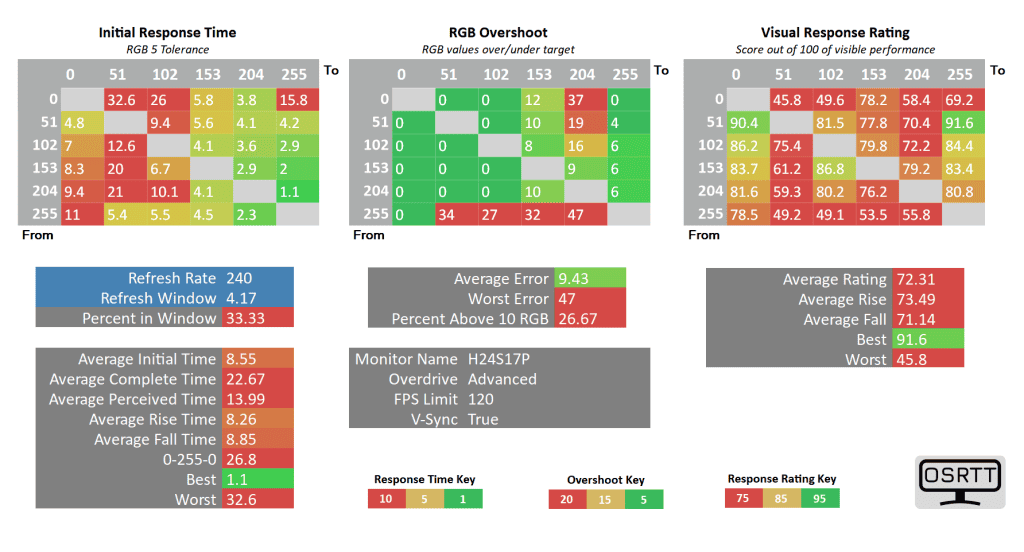
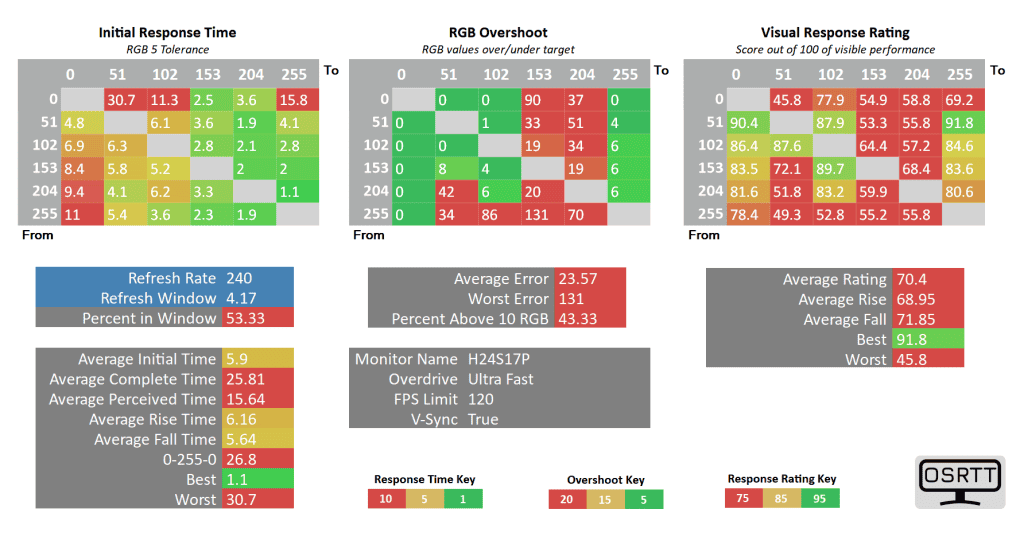
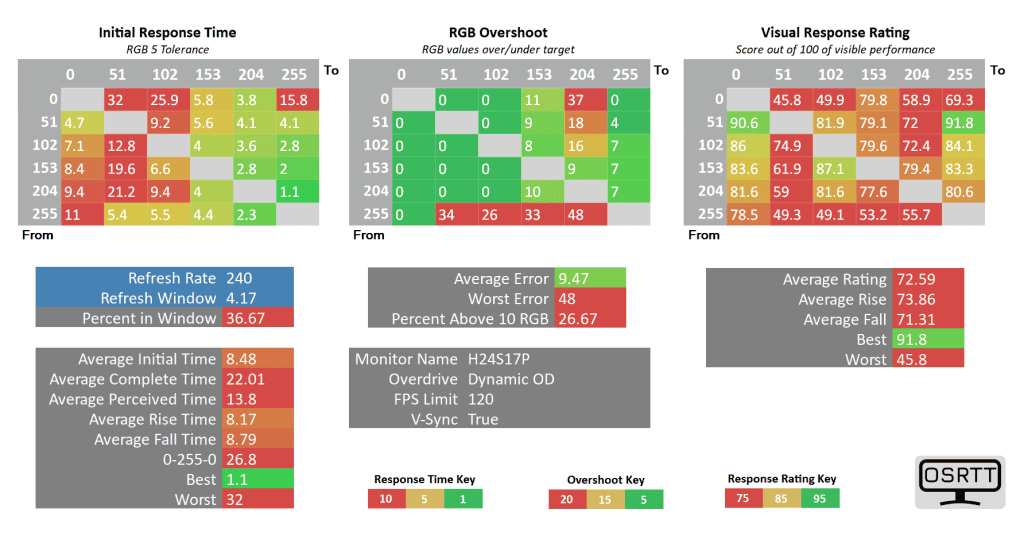
Note that for 120FPS, the ‘refresh rate window’ should be 8.33ms in the charts, so the percentage of pixel transitions within the window should be shown as 66.67% (in the Advanced mode).
At 120Hz/FPS, ‘Ultra Fast’ is too strong, so we recommend going with the ‘Advanced’ mode, which improves the average GtG response time to 8.55ms with moderate 9.43% overshoot error. Refresh rate compliance is now also better at 66.67%.
Still, the black to dark-gray transitions are around 30ms, so there will be smearing in darker scenes.
Finally, here are the results at 60Hz.
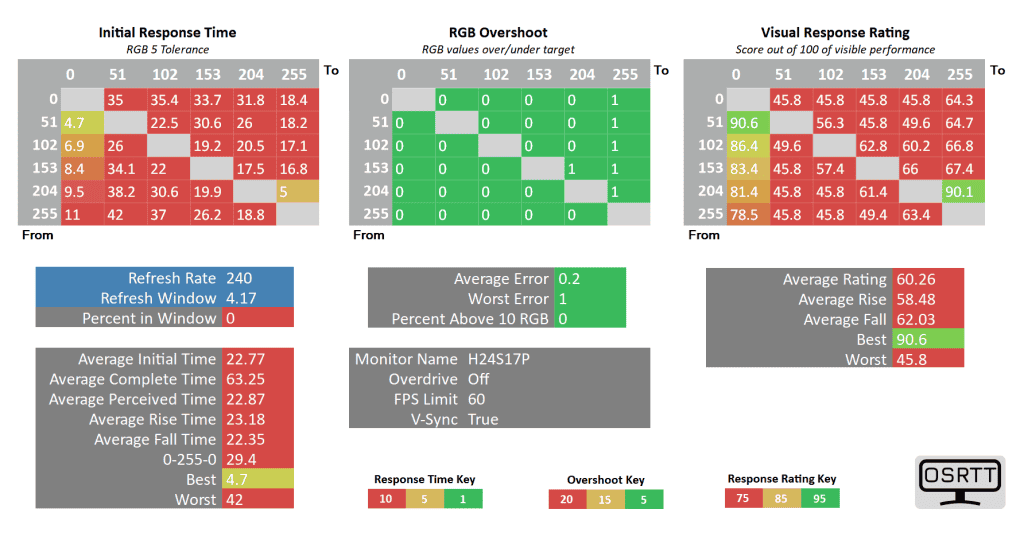
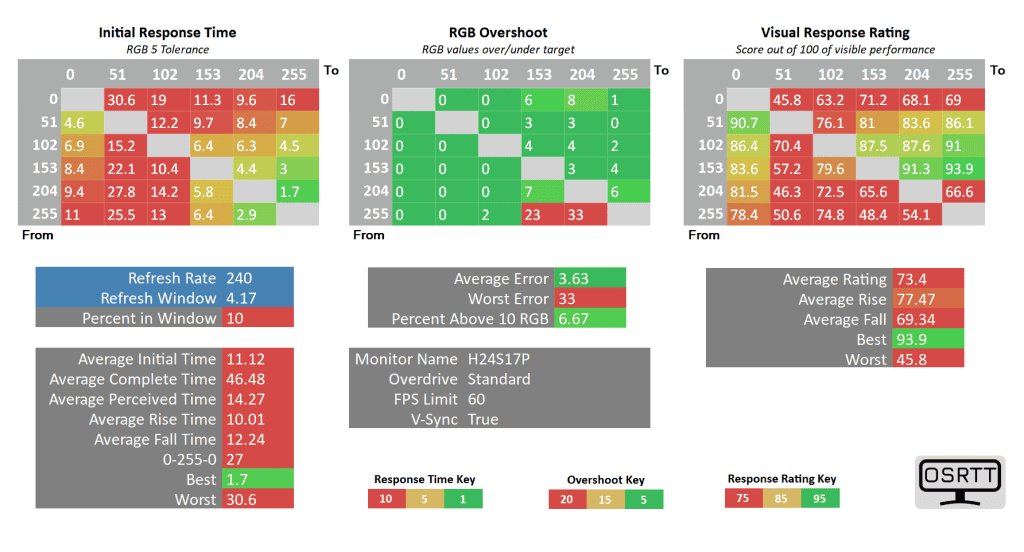
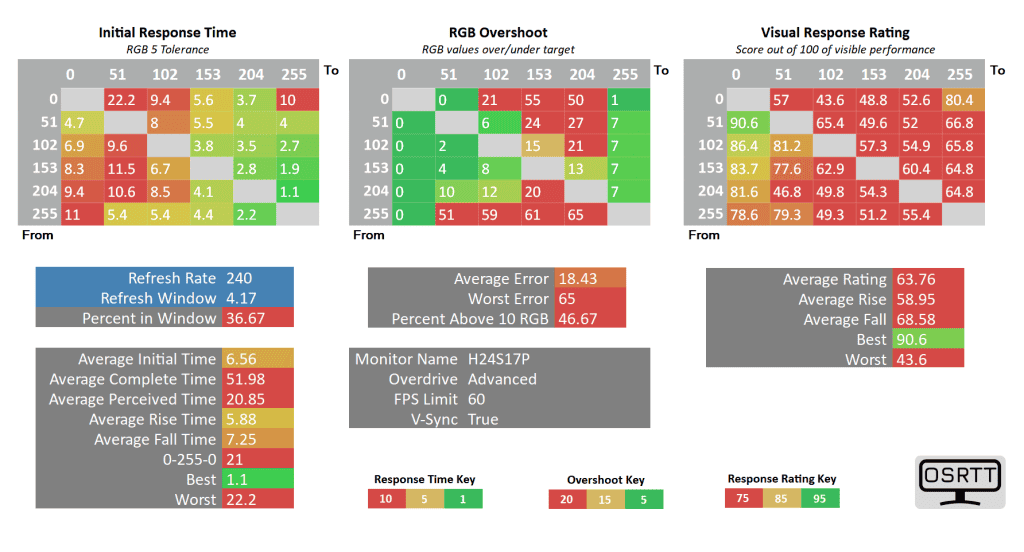
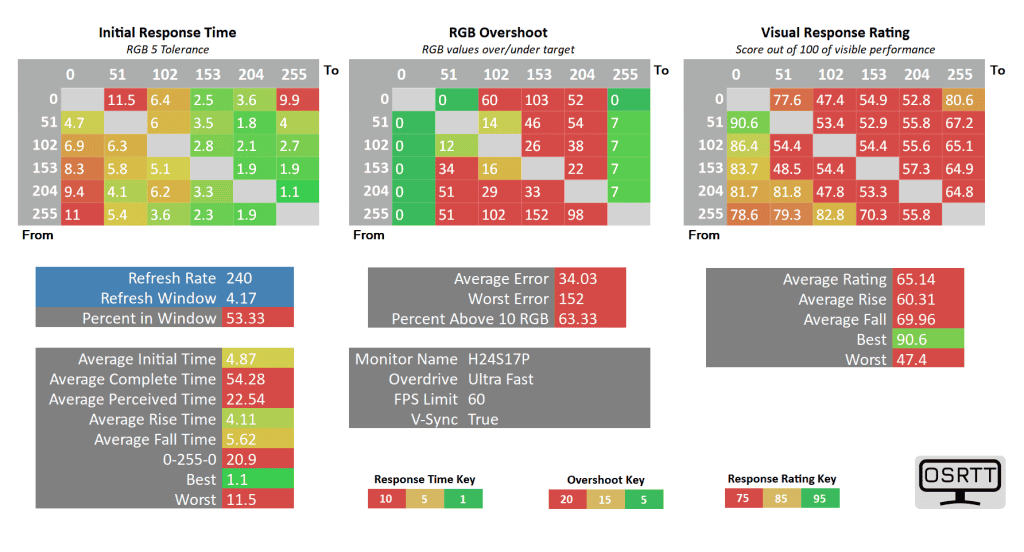
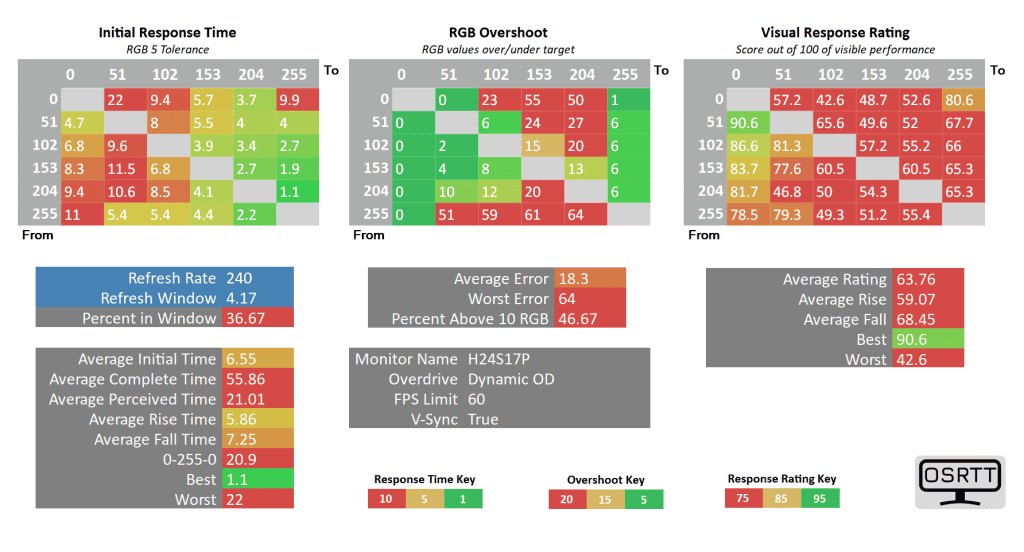
Note that for 60FPS, the ‘refresh rate window’ should be 16.67ms in the charts, so the percentage of pixel transitions within the window should be shown as 83.33% (in the Standard mode).
At 60Hz/FPS, ‘Advanced’ becomes too aggressive, so you’ll have to switch to ‘Standard’ with an 11.12ms GtG average, 3.63% overshoot error and good 83.33% refresh rate compliance due to the undemanding 16.67ms refresh rate window.
Ideally, the ‘Dynamic OD’ mode should automatically switch between ‘Standard’ at 60FPS, ‘Advanced’ at 120FPS and ‘Ultra Fast’ at 240FPS. However, it just has the same performance as ‘Advanced’ instead, so it’s not really useful.
So, if you want just to set one overdrive mode, ‘Standard’ will avoid overshoot at low frame rates, though it will be too slow at high frame rates. Therefore, you’ll have to manually change the overdrive depending on your frame rate for optimal performance.
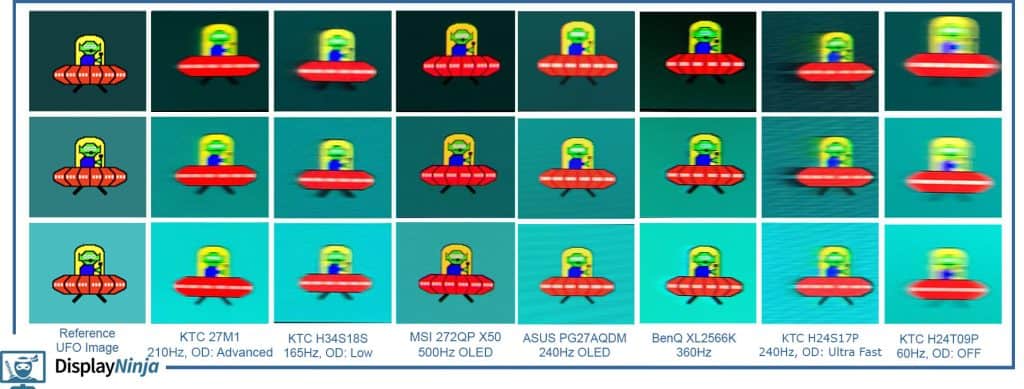
Here’s how these tests look in Blur Busters’ UFO ghosting test. We used 960 Pixels Per Sec, shutter speed set to 1/4 of the refresh rate with fixed focus, ISO and color temperature (6500K).
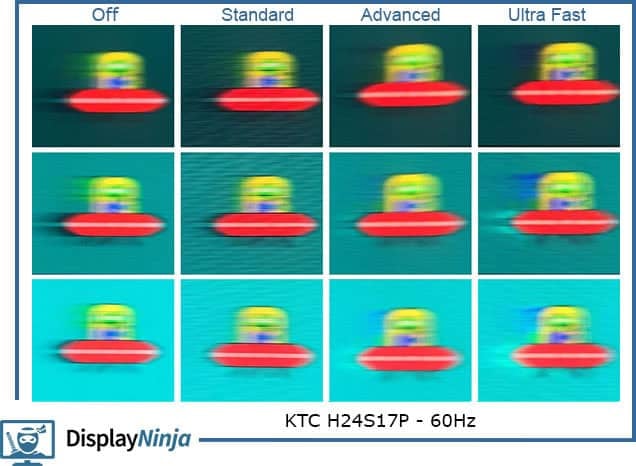
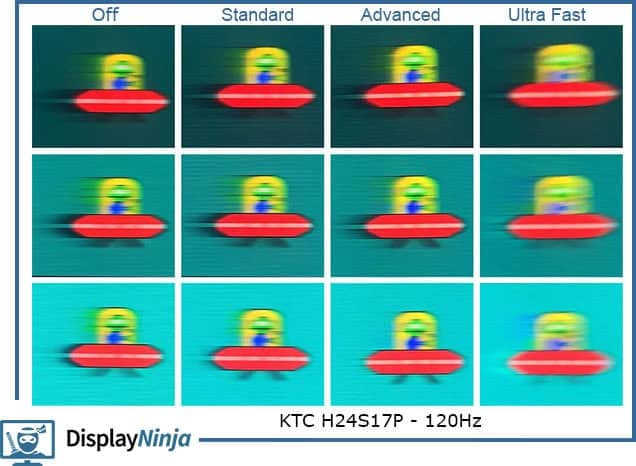
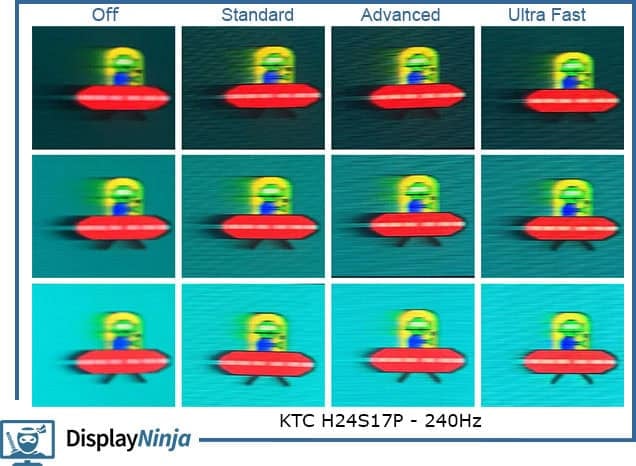
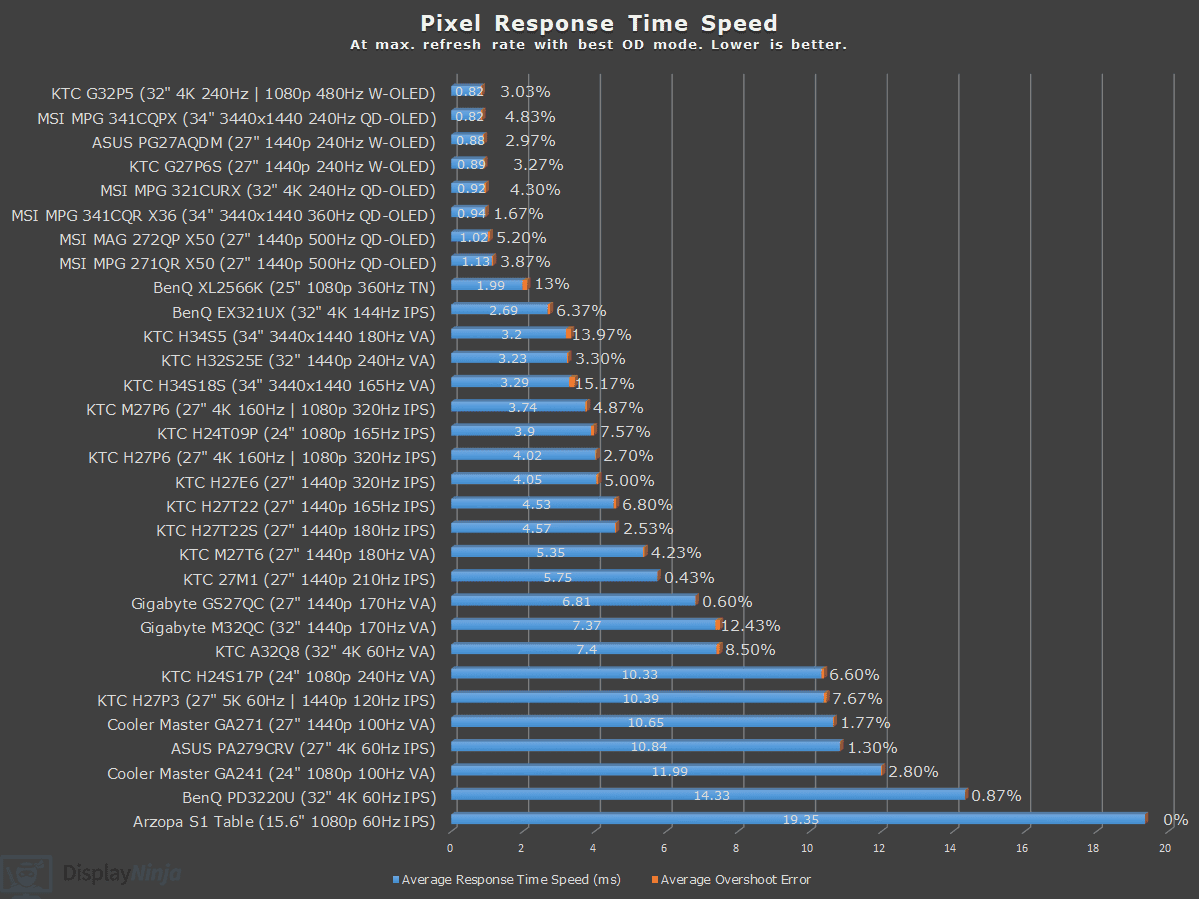
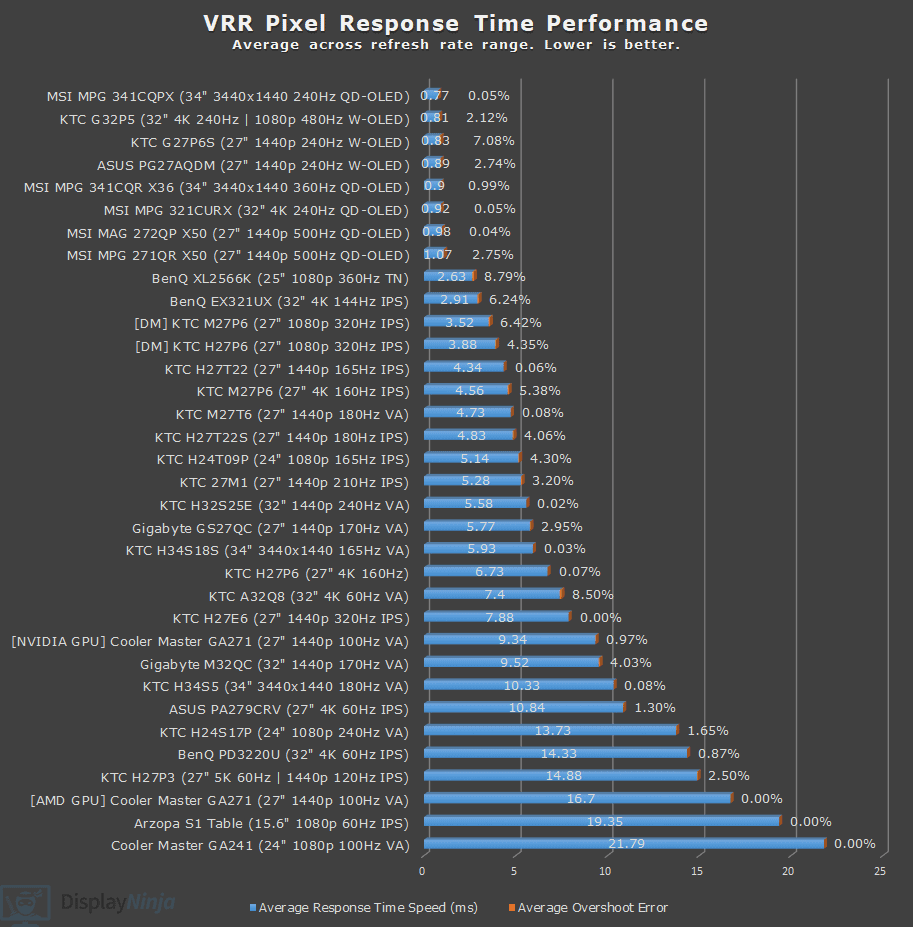
Here’s a comparison to several other monitors we tested.
Motion Blur Reduction
The monitor also supports MBR (Motion Blur Reduction) via its MPRT feature, which uses backlight strobing to reduce perceived motion blur at the cost of image brightness.
It cannot be enabled at the same time as VRR and it introduces screen flickering that’s invisible to the human eye, but can cause headaches to sensitive users after prolonged use.
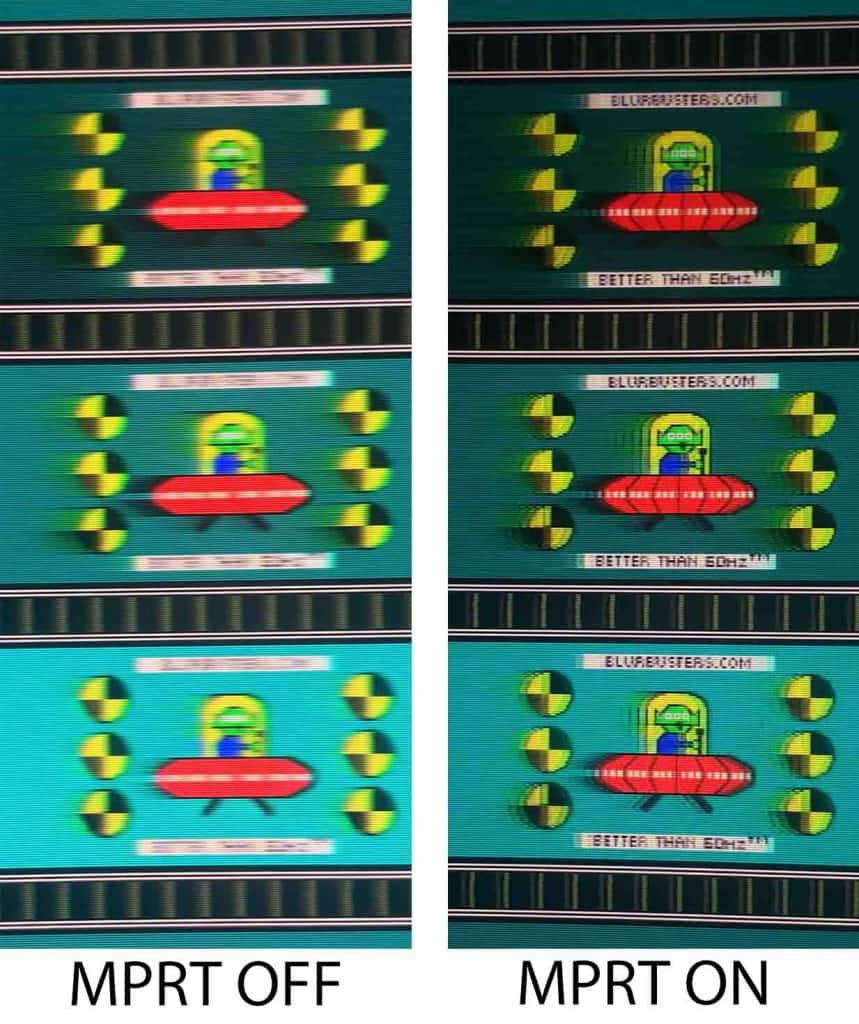
As you can see, motion clarity is significantly improved, though there’s strobe crosstalk (image duplications).
Keep in mind that for the best results, your frame rate should match the refresh rate. If you can’t maintain 240FPS, you should lower the refresh rate when using MPRT.
With MPRT active, brightness is reduced to 103-nits regardless of the refresh rate.
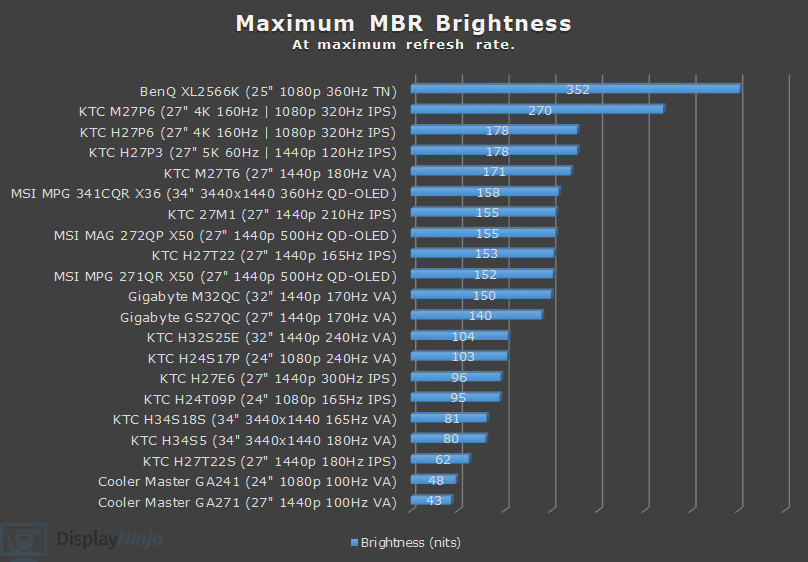
Due to high brightness penalty, strobe crosstalk and generally slow response times, backlight strobing performance isn’t particularly good on this monitor. Competitive FPS players should be looking at faster IPS, TN or OLED displays anyway.
Latency
Unlike some KTC monitors, the display’s latency doesn’t change depending on whether ‘Adaptive-Sync’ is enabled or disabled in the OSD menu.
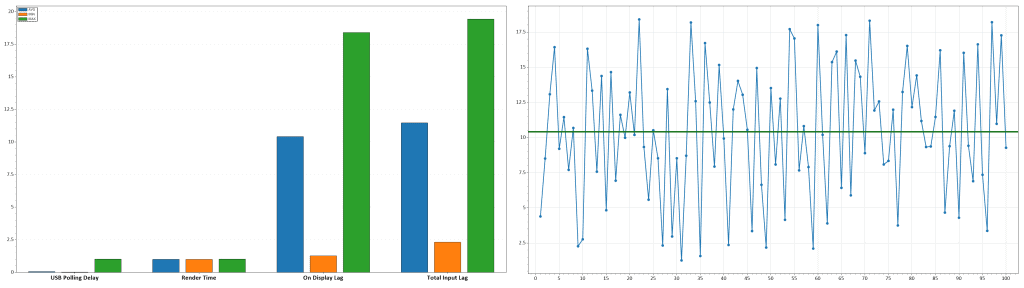
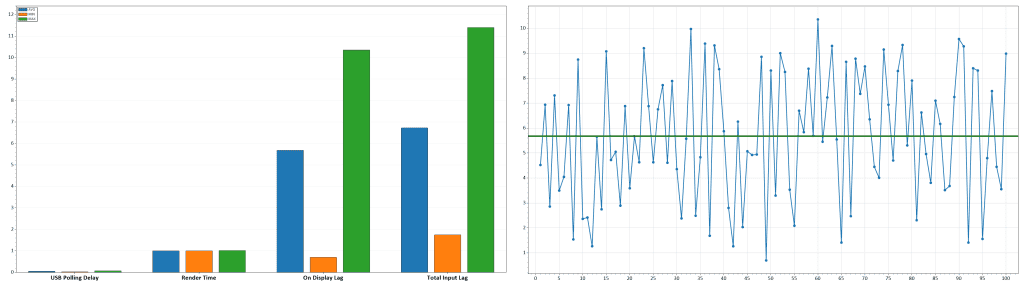
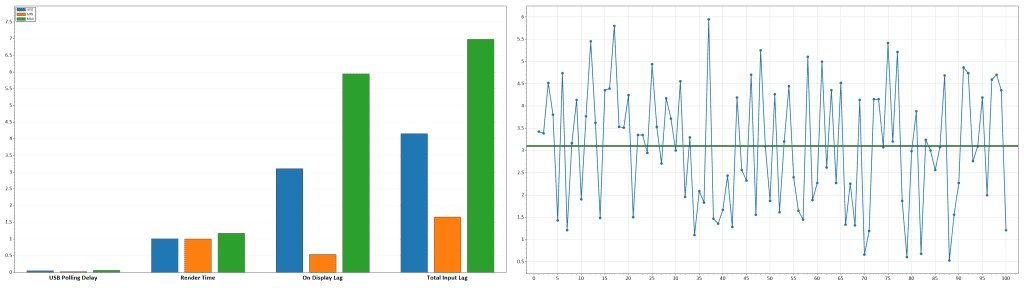
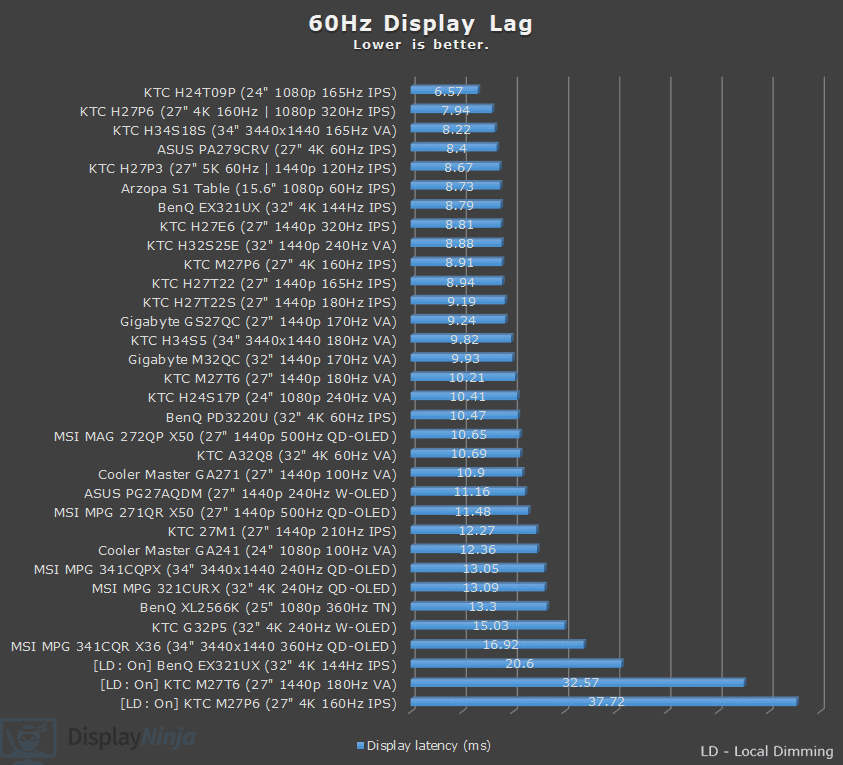
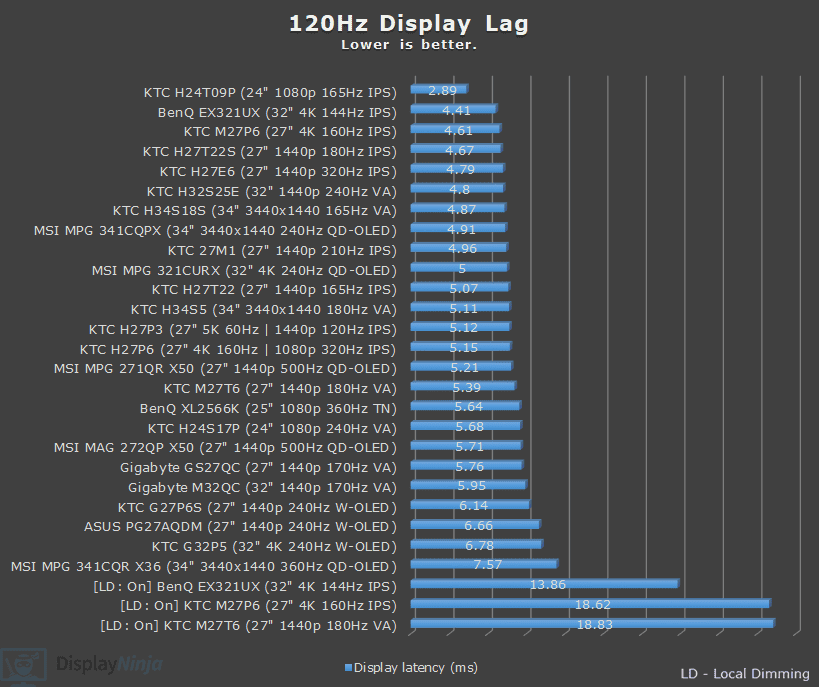
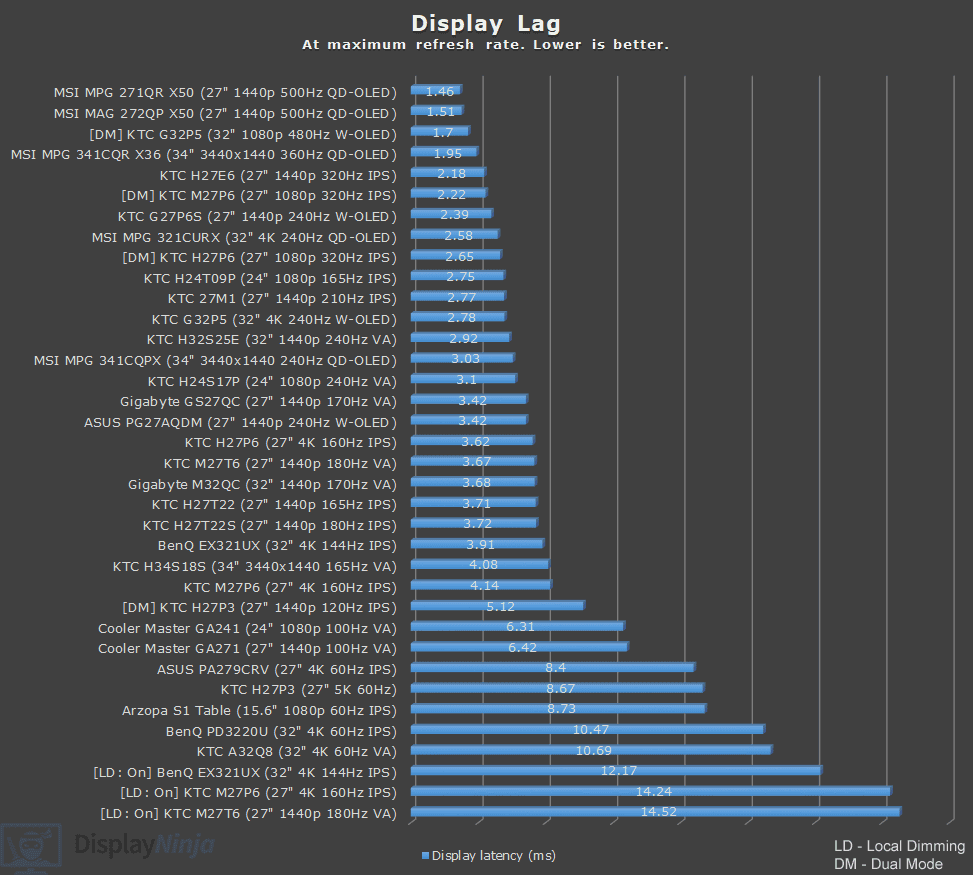
The measured display latency is low and amounts to 3.10ms at 240Hz, 5.68ms at 120Hz and 10.41ms at 60Hz.
As the latency is lower than the refresh rate cycle, this means that you won’t be able to notice or feel any delay between your actions and the result on the screen.
Variable Refresh Rate
With ‘FreeSync/G-sync’ set to ‘On’, you can enable variable refresh rate (VRR) in your GPU drivers, which allows the monitor’s refresh rate to change dynamically according to your frame rates in order to prevent screen tearing at no perceptible latency cost.
So, if you’re gaming at 240Hz, but you’re getting 160FPS, the monitor will run at 160Hz in order to provide you with 160 whole frames per second without the screen-tearing artifacts.
The supported VRR range is 48-240Hz, but even if your FPS dips below 48, the monitor uses LFC (Low Framerate Compensation) to refresh the screen at a multiple of your current frame rate. For example, 40FPS would be displayed at 80Hz to keep tearing at bay.
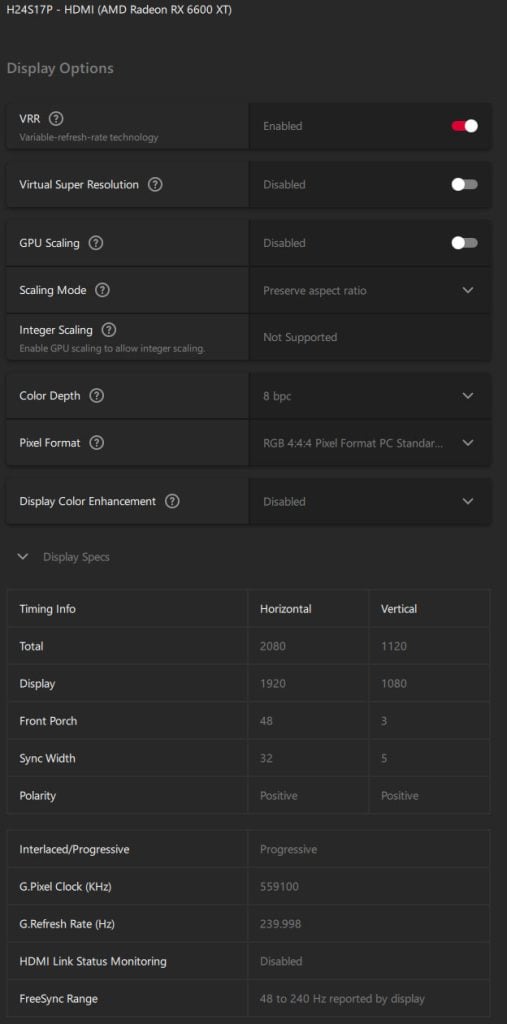
The VRR brightness flickering issue is noticeable in games with heavily fluctuating frame rates and in some in-game menus and loading screens, but this is common for high refresh rate VA and OLED panel displays.
The good news is that the VRR brightness flickering on our unit was very subtle, even in the worst-case scenarios (such as Warcraft III Reforged loading screens).
Since screen tearing is not that noticeable at 240Hz (at least in comparison to 60-75Hz), you should simply disable VRR in the affected games or use V-Sync instead.
Uniformity & Quality Control
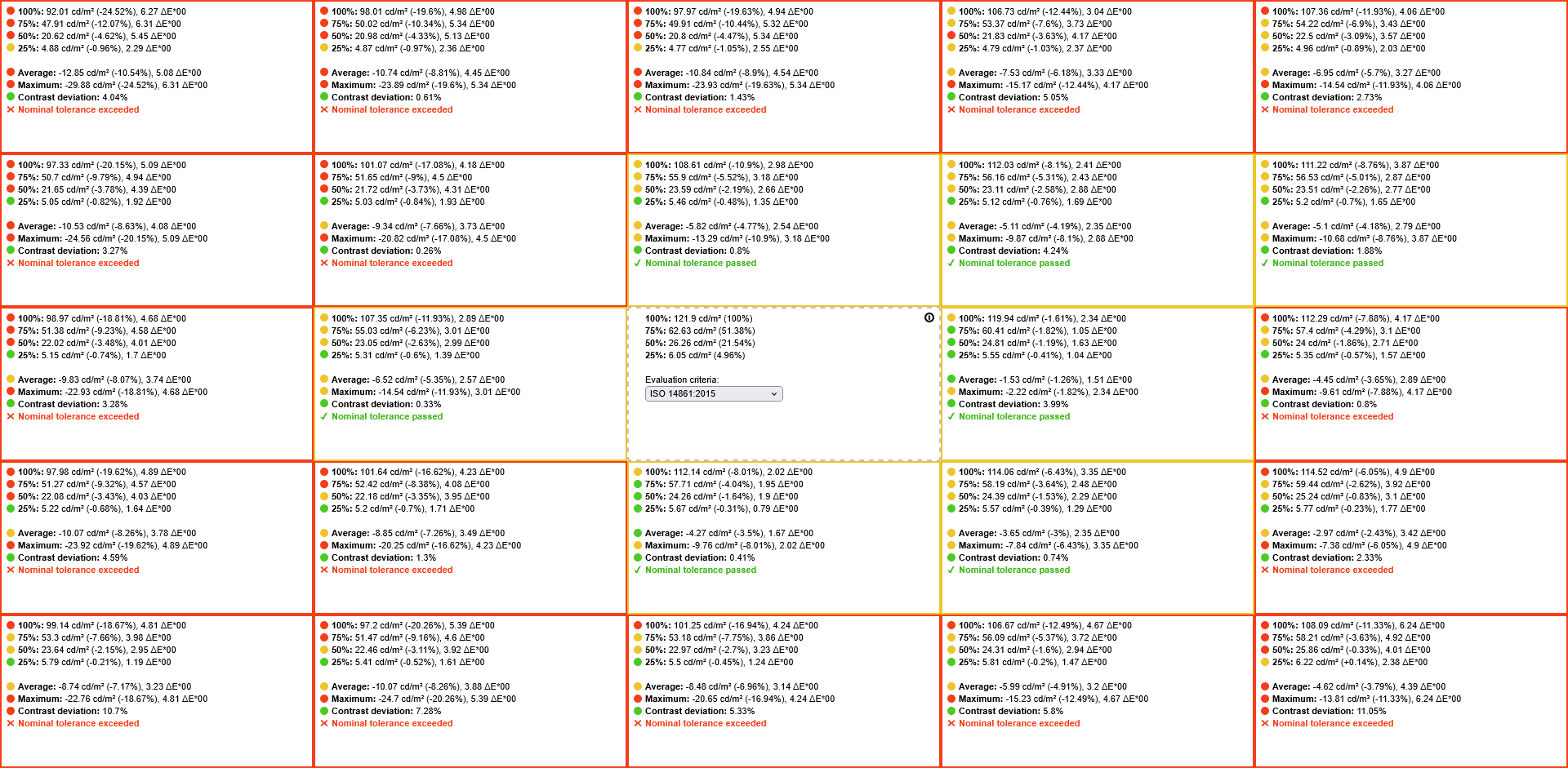
The image uniformity of the KTC H24S17P is below average.
The left part and top/bottom edges of the screen are 17% – 25% dimmer on 100% white and 10% dimmer on 75% white. The right part of the screen is up to 15% dimmer on 100% white. Luckily, this wasn’t noticeable during everyday use.
We didn’t find any dead pixels, no excessive VA glow or backlight bleeding, image retention artifacts or frame skipping.
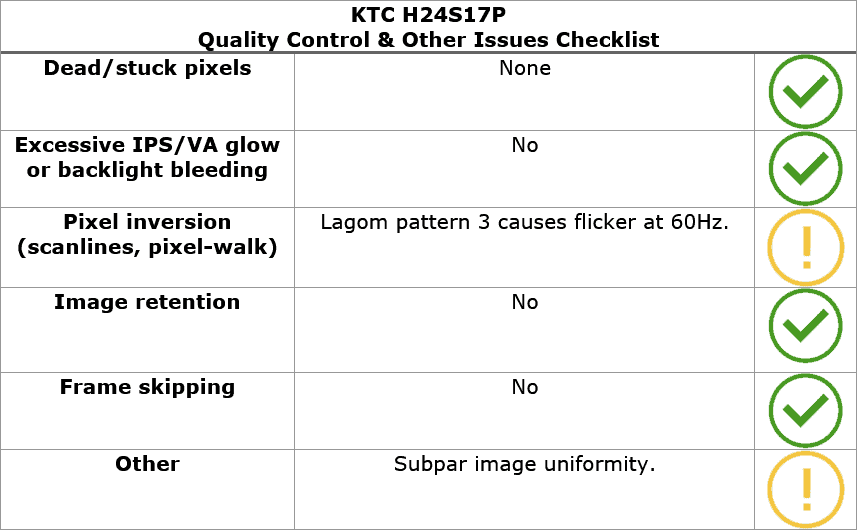
Lagom’s pixel inversion tests reveal flickering with pattern 3 at 60Hz.
This is a common drawback of VA panels, and these are rarely visible in everyday use because the test patterns are intentionally designed to align with the panel’s inversion layout.
Real-world content, such as games, videos and desktop applications, rarely produce the same conditions and can only occasionally appear on webpages or UI elements with very fine mesh or checkerboard-like backgrounds, such as this one.
This test is included mainly for completeness and to help identify the cause if you ever notice similar artifacts on your monitor.
Moving on, the monitor uses a flicker-free backlight (unless MPRT is enabled), ensuring a comfortable viewing experience without the risk of eye strain or headaches for sensitive users during extended use.
There’s also a low blue light mode with four intensity levels (we measured color temperatures of 5997K, 5581K, 5169K, and 4881K), which can be helpful if you have trouble falling asleep at night after prolonged screen time.
KTC H24S17P Best Performance Settings
For fixed 180Hz:
Overdrive: Ultra Fast
For VRR gaming:
Overdrive: Ultra Fast – around 180FPS
Overdrive: Advanced – around 120FPS
Overdrive: Standard – around 60FPS
Features
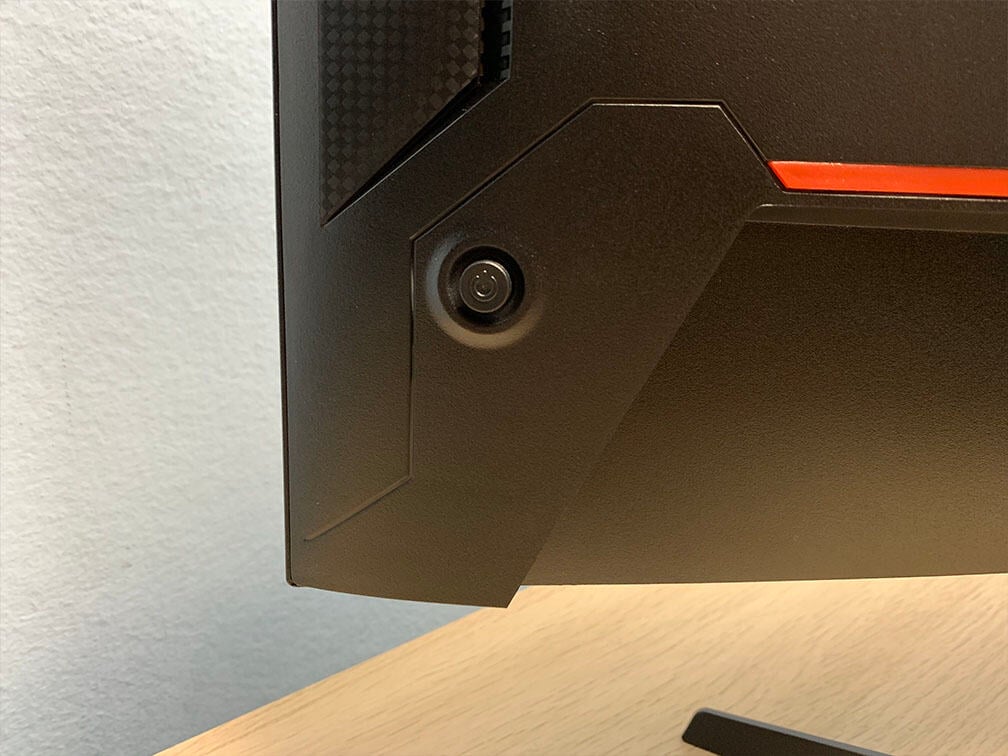
On the rear of the monitor, there’s a directional joystick for quick and easy navigation through the menu. Moving the joystick up, down, left or right also serves as a quick menu for certain functions that can be changed in the menu.
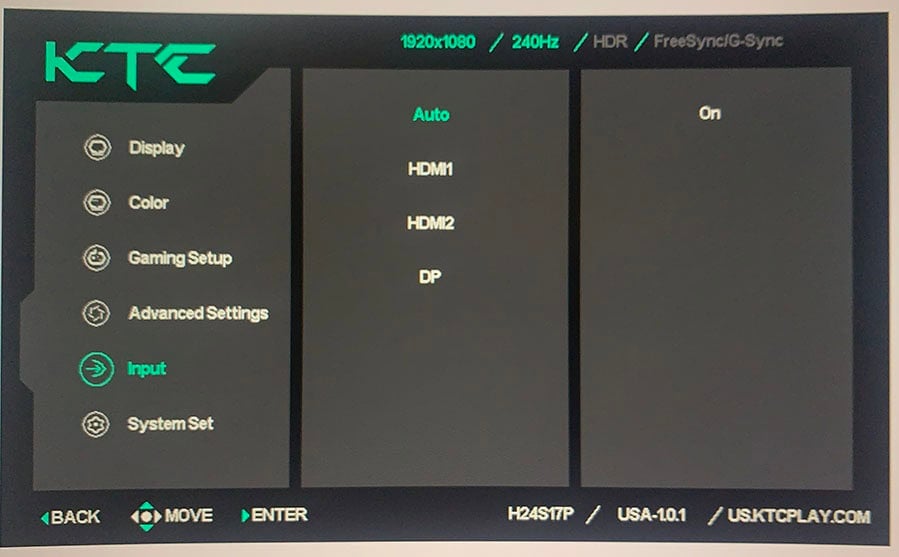
Possible hot key shortcuts include brightness, volume, mute, Game Assist, Preset, Color Temperature, Black Equalize, HDR and Aspect Ratio. Moving the joystick up is reserved for input source selection.
Besides typical image adjustment tools (brightness, contrast, color temperature), there are some advanced settings available too, including sharpness, aspect ratio (full, 16:9, 4:3), gamma (from 1.8 to 2.4), color range (auto, full, limited), hue/saturation and automatic input detection.
KTC also offers a desktop application called MMC (Monitor Management Center), which you can use to make some OSD-related adjustments, assign keyboard hotkeys for certain functions or picture modes to different applications.
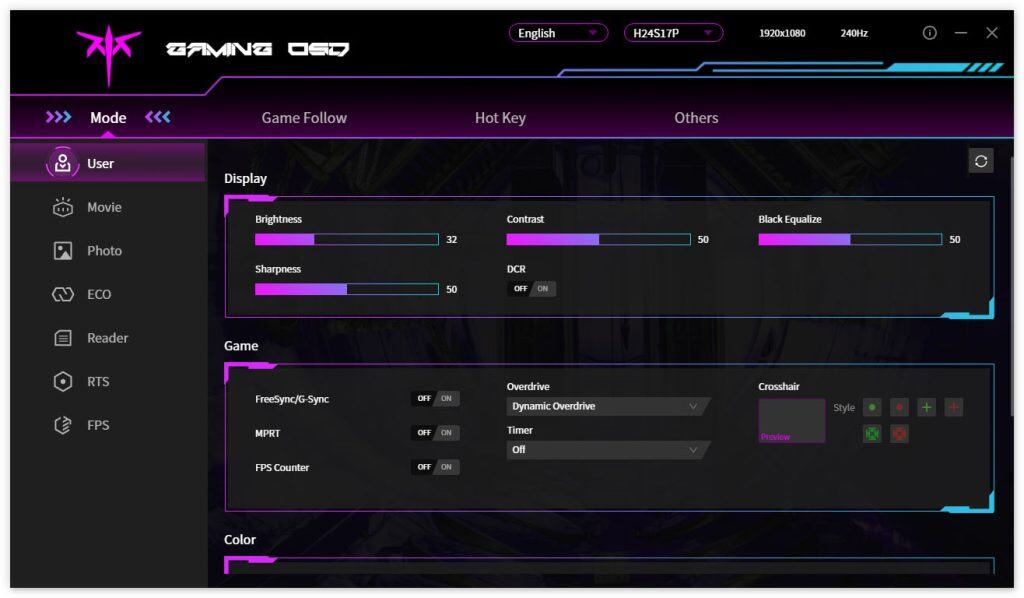
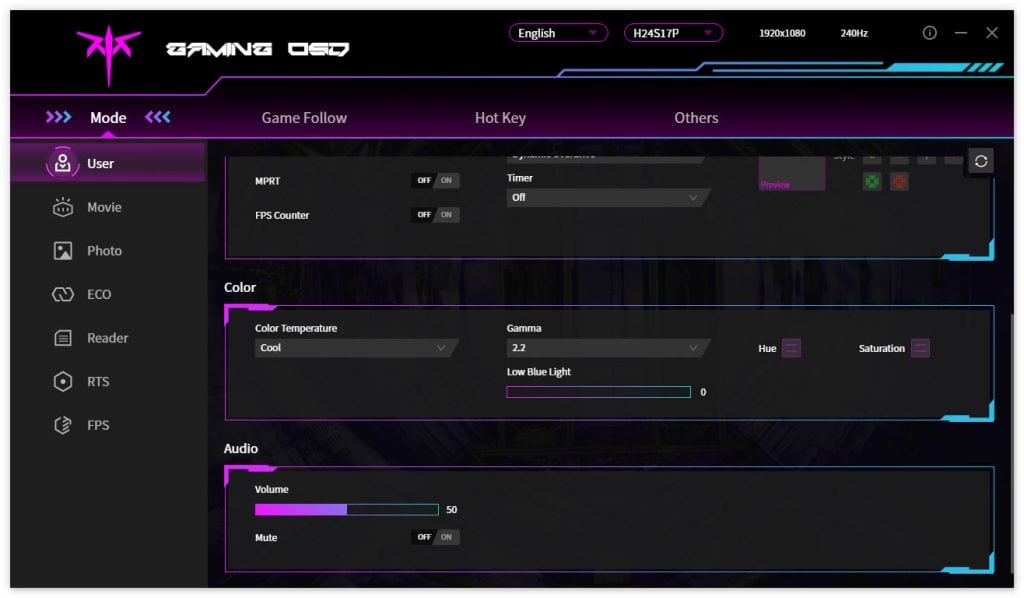
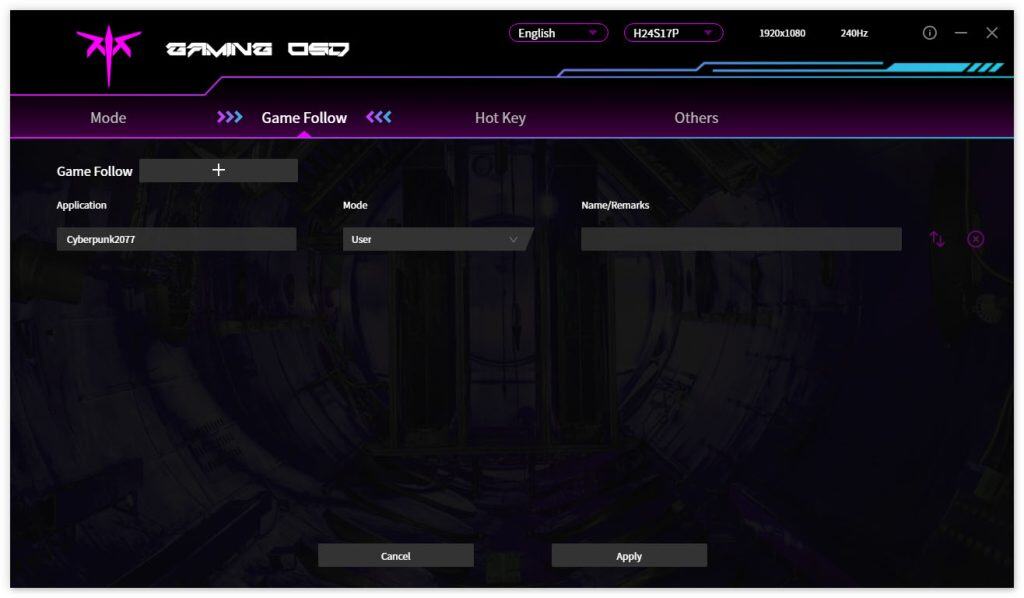
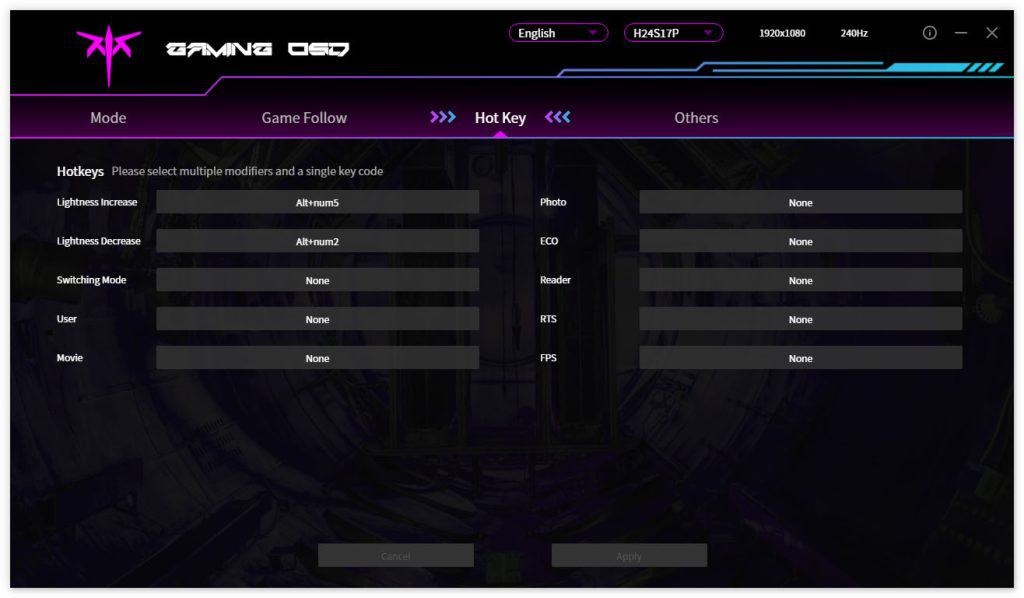
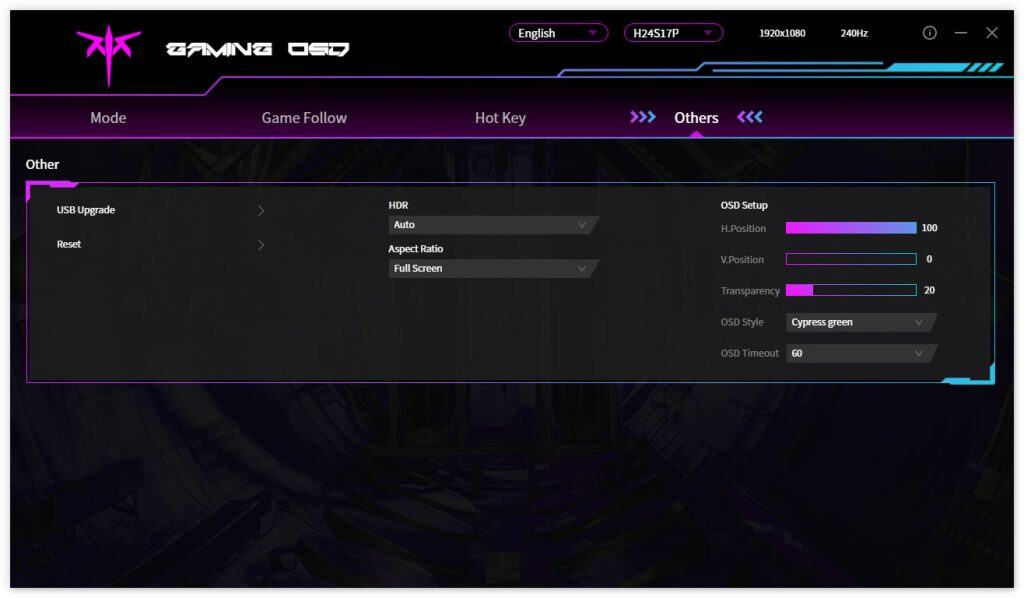
You can download the MMC app here, though you’ll need to change your browser’s preferred language to ‘Chinese (Simplified)’; otherwise, it will just take you to the English homepage. Alternatively, use this direct download link (clicking it will start the download immediately).
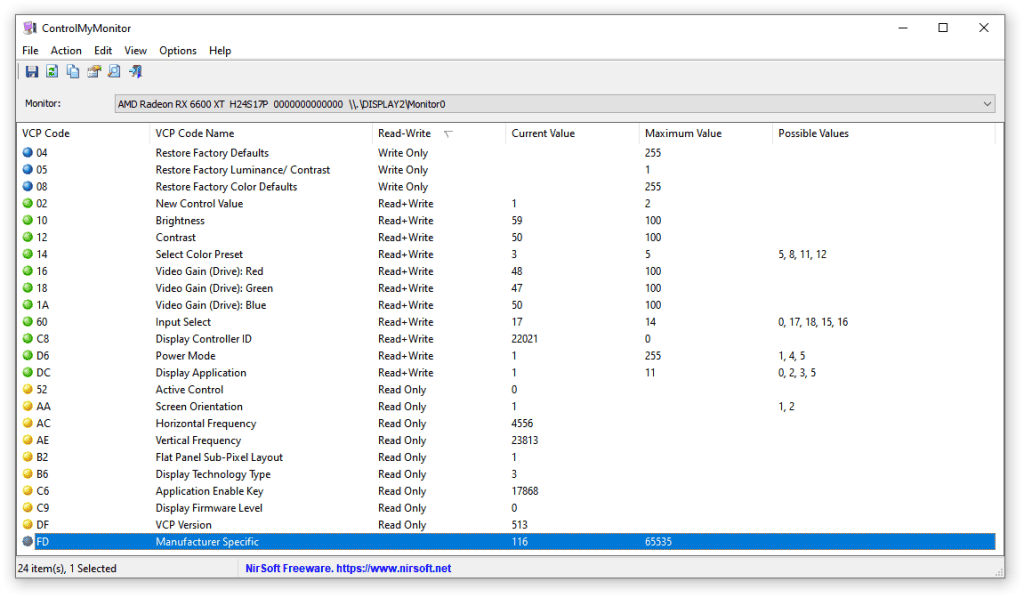
You can also use third-party apps, such as ControlMyMonitor, to make the following OSD settings:
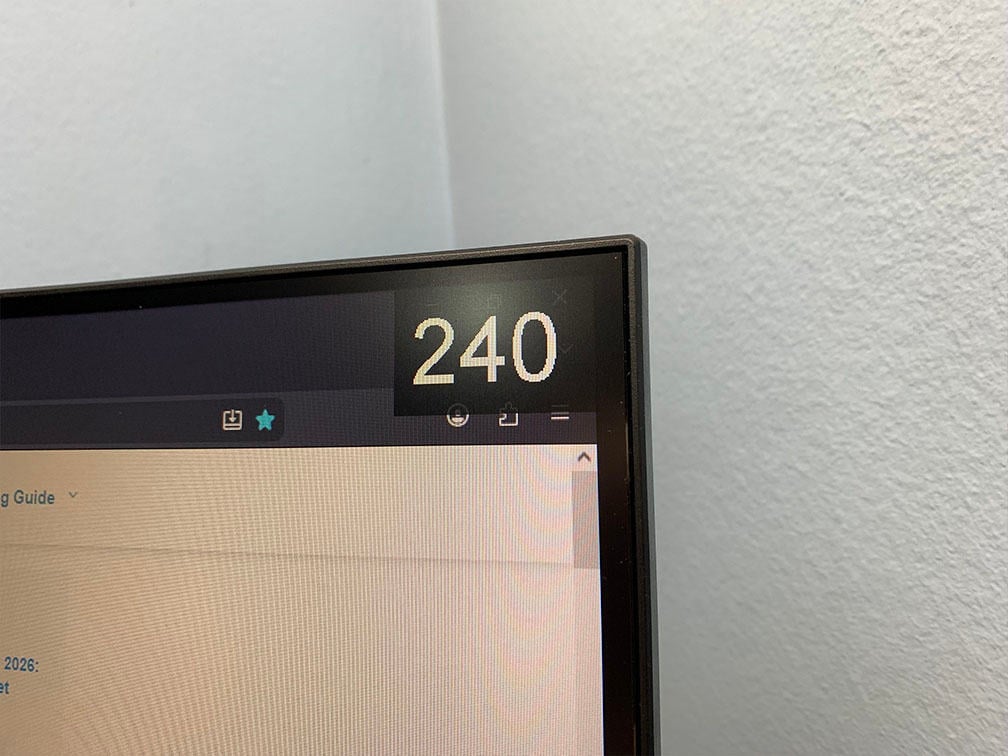
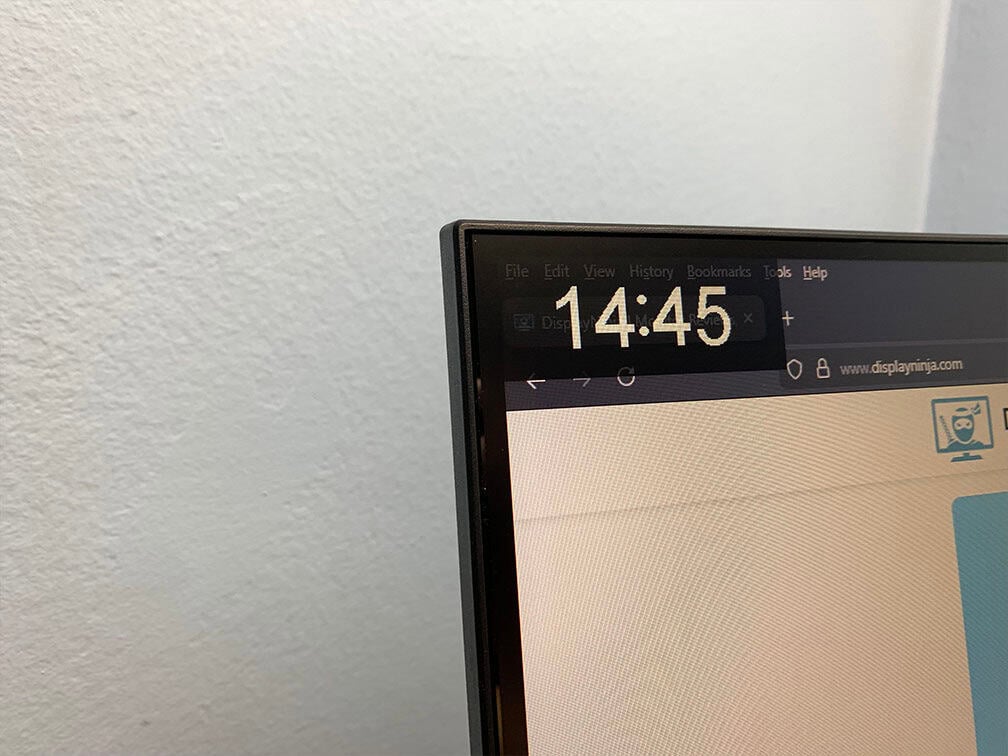
Useful gaming features include Black Equalize (improves visibility in dark scenes by altering the gamma curvature), crosshair overlays, a refresh rate tracker and an on-screen timer.
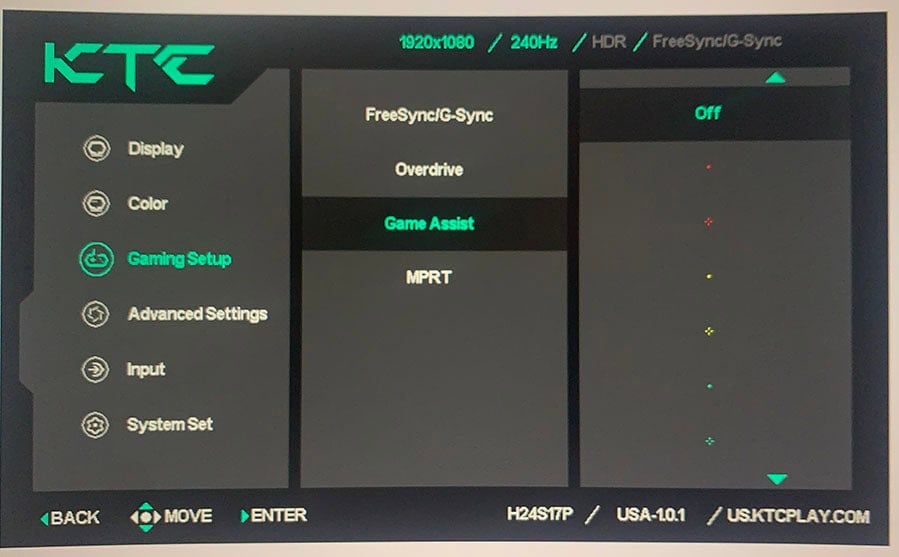
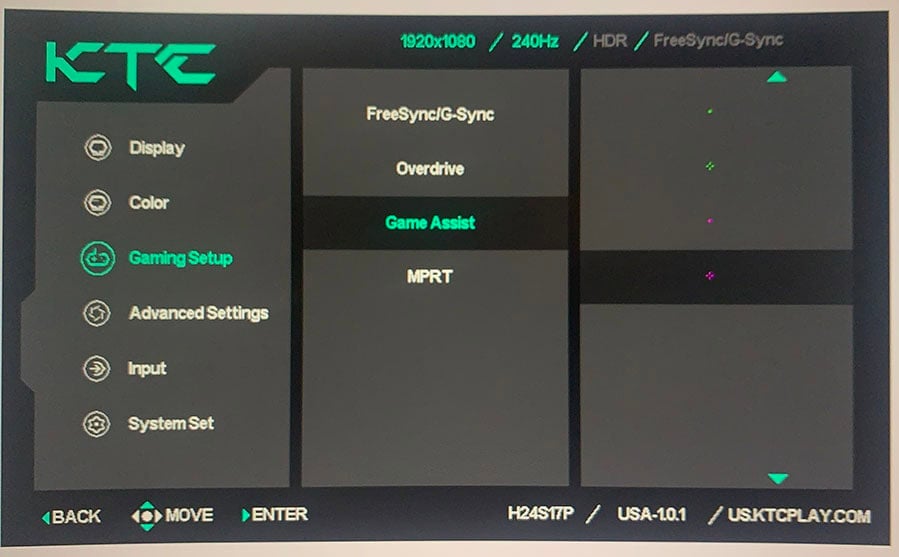
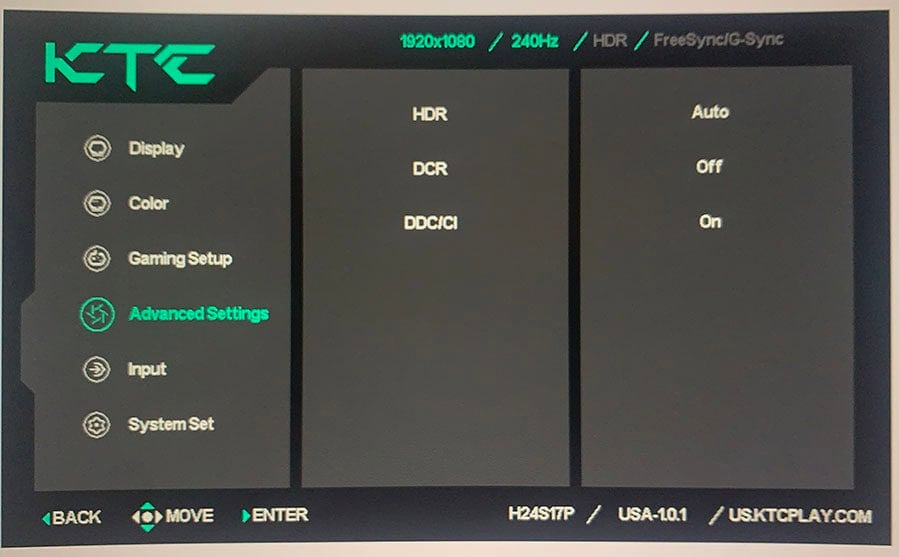
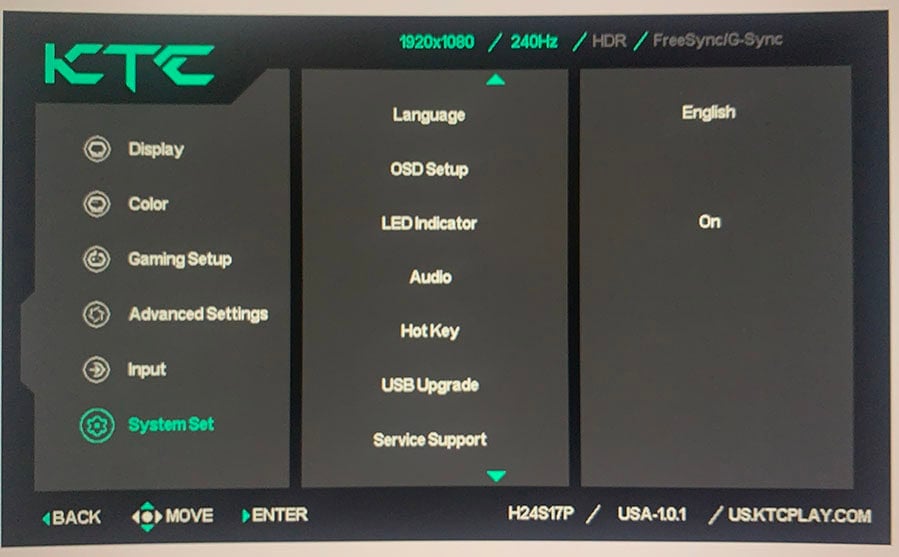
Other OSD settings include language, OSD setup (position, timeout, transparency, style), power LED indicator (on, off), audio, USB Upgrade, service support QR code and factory reset.
Design & Connectivity
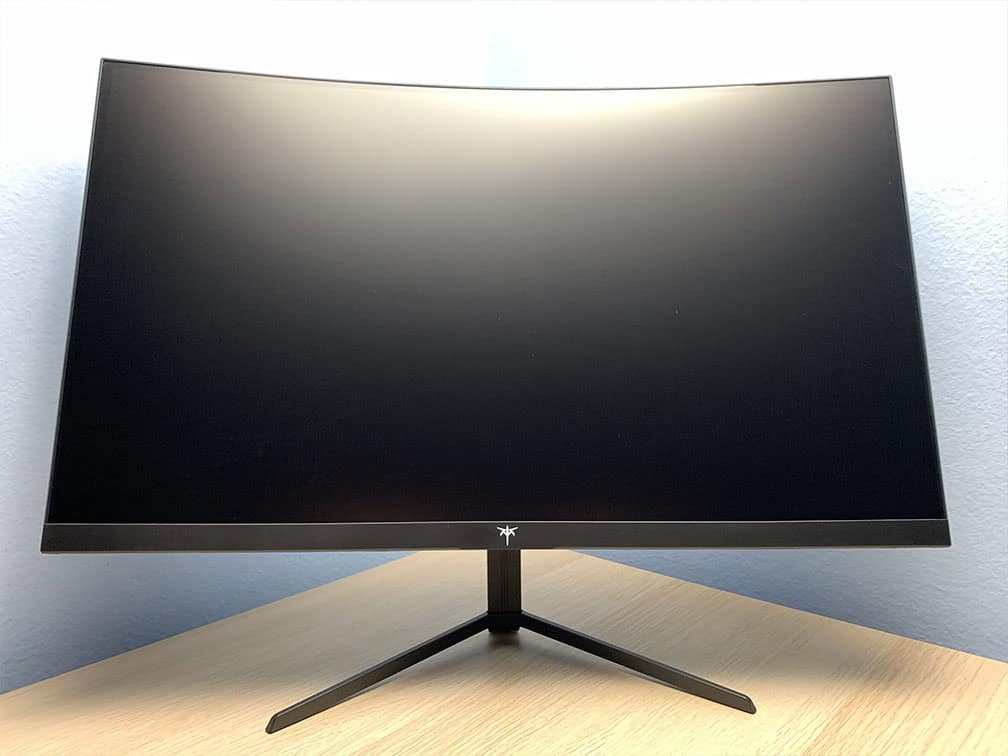
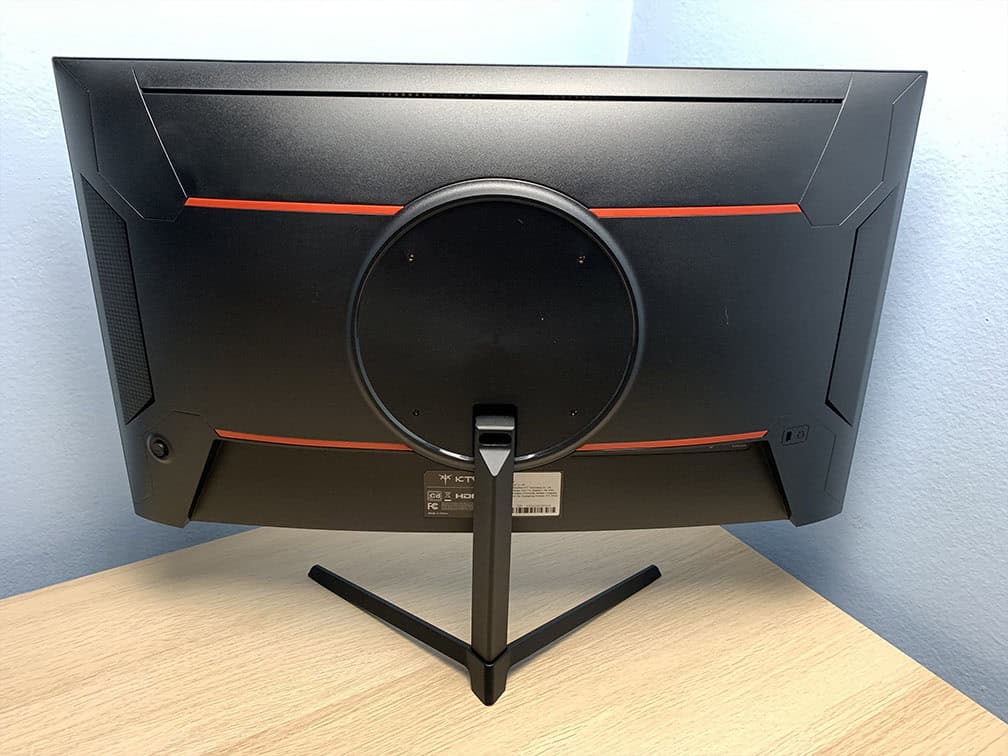
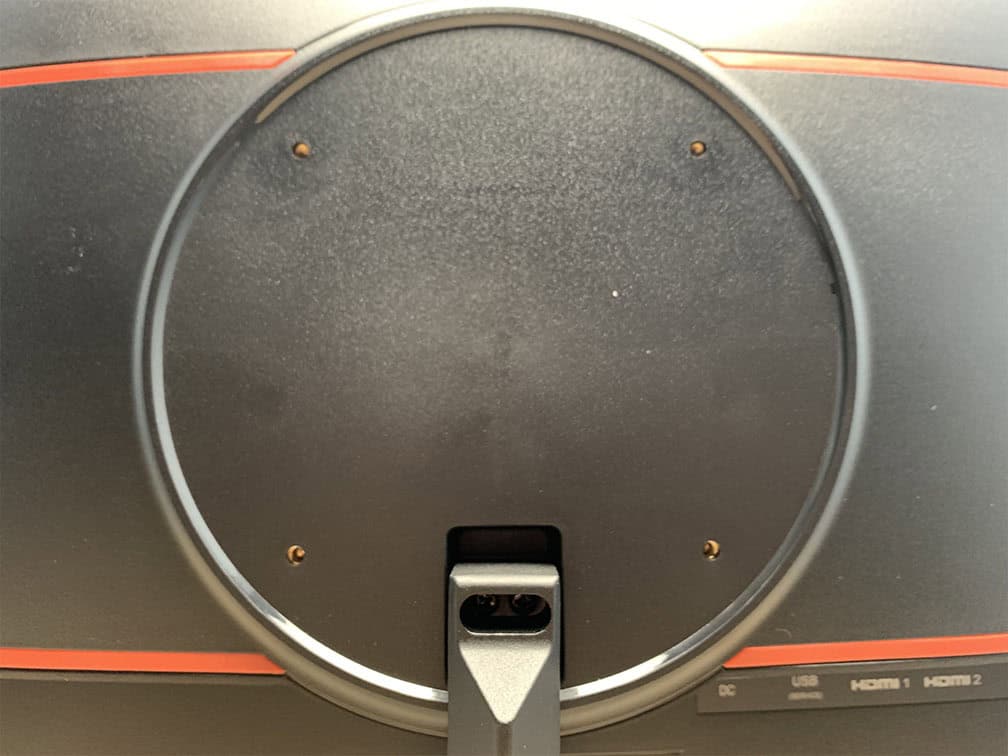
The stand of the monitor is a bit flimsy and tilt-only (-5°/15°), but you can detach it and mount it on a third-party stand via the 100x100mm VESA pattern (recommended screw size is M4x8mm).
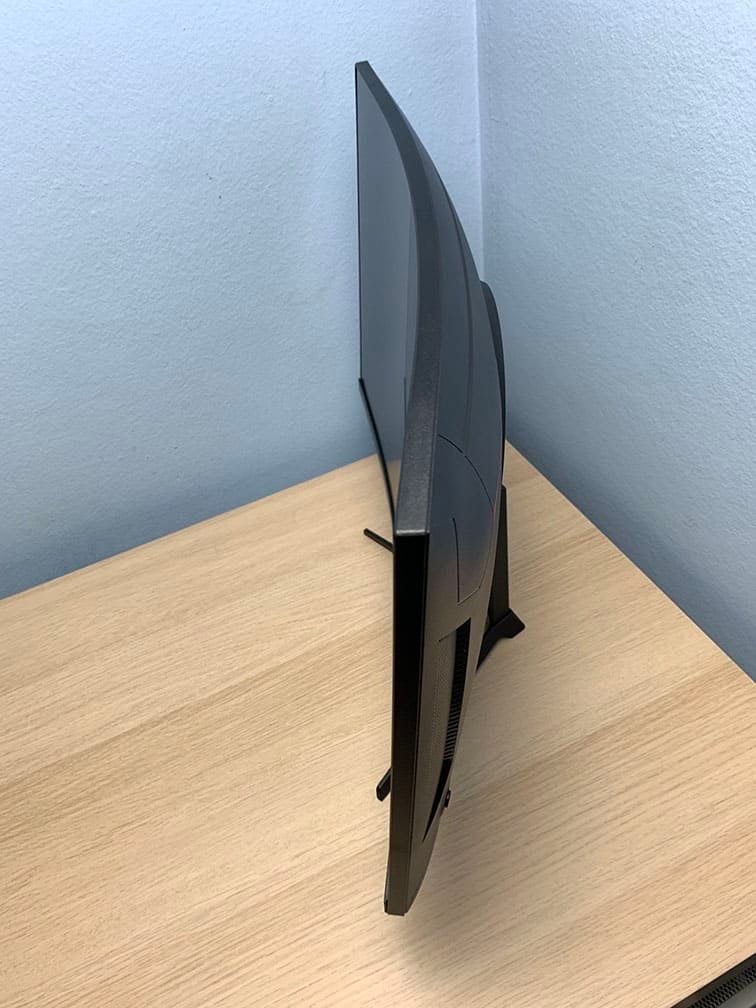
The screen has a light matte anti-glare coating, which diffuses reflections without adding too much graininess to the image. It also has a subtle 1500R screen curvature for added immersion.
Next, the bezels are ultra-thin (2mm) at the top and at the sides, while the bottom bezel is a bit thicker at 16mm. There’s also a 6mm black border at the sides (2mm at the bottom, 4mm at the top) around the screen before the image starts.
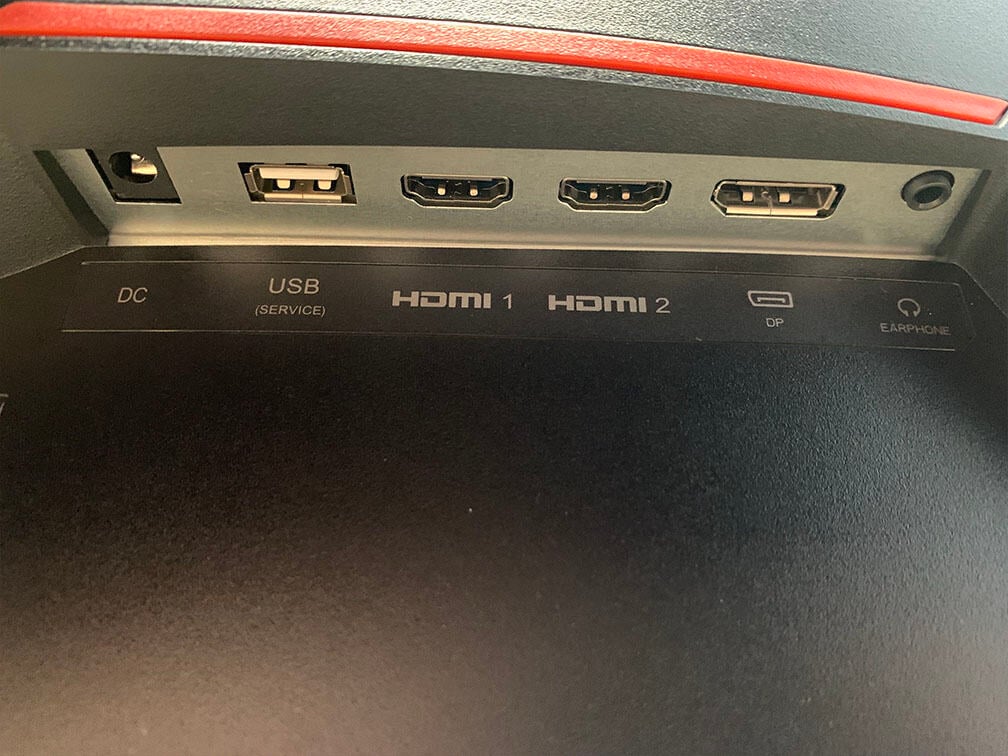
Connectivity options include two HDMI 2.0 ports, DisplayPort 1.4, a USB port (for service only), a headphone jack and an external power supply.
Note that HDMI 2.0 is limited to 8-bit color depth at 240Hz. For 10-bit, you’ll need to drop the refresh rate to 144Hz. DP 1.4, on the other hand, supports 1080p 240Hz 10-bit color.
Most SDR content is 8-bit anyway, while for HDR content, dithering is applied on the GPU side, which is virtually indistinguishable from panels with native 10-bit color depth or 8-bit with 2-bit FRC.
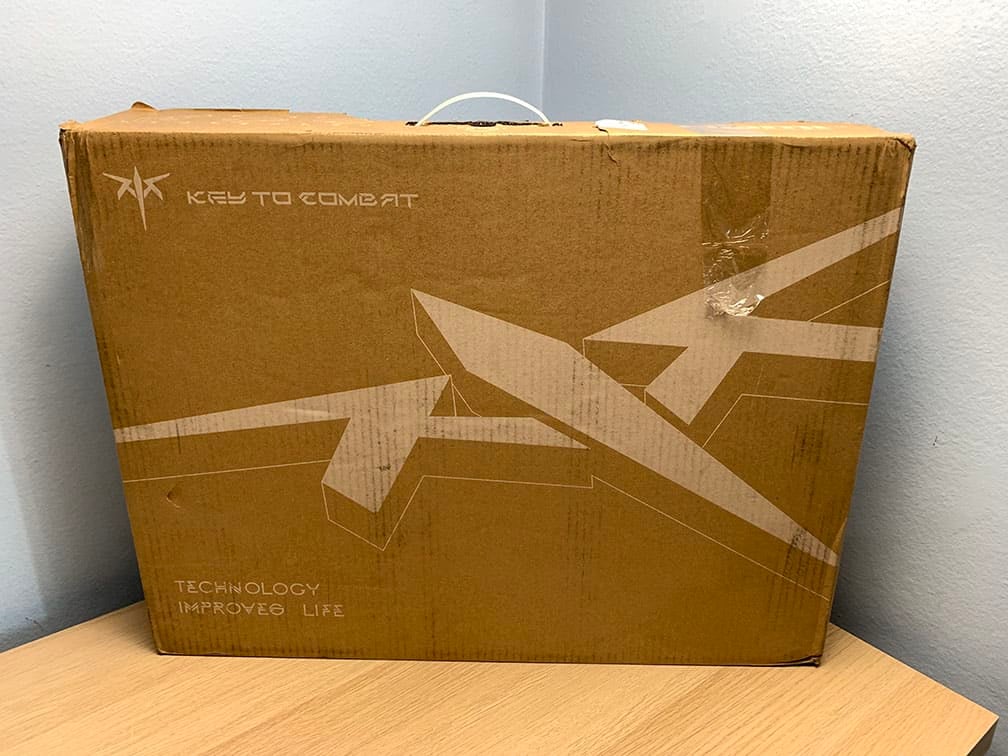
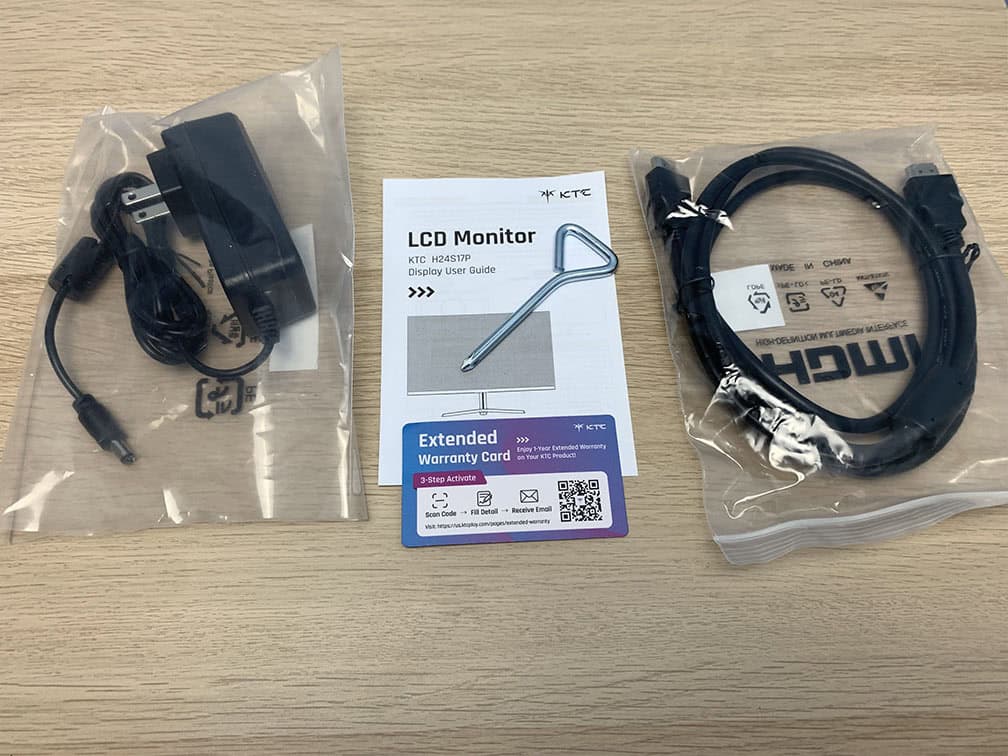
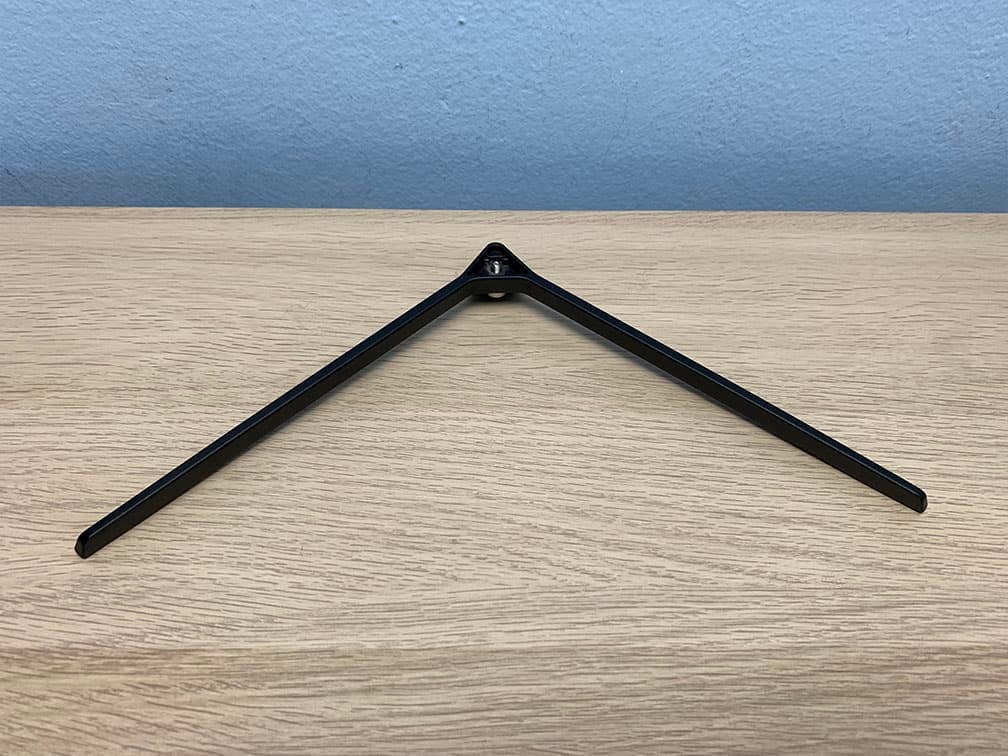
In the box, along with the monitor, you also get the external power supply, an HDMI cable and a user guide/warranty card. You’ll also get a small screwdriver to assemble the stand feet with the stand riser (which was pre-installed).
Price & Similar Monitors
The KTC H24S17P can be found for $120, which is a good price for a budget 24″ 1080p 240Hz gaming monitor.
10% off code: 10H24S17P
If you mostly play fast-paced competitive games or are sensitive to ghosting artifacts, we recommend an IPS alternative instead. In case you don’t mind some ghosting and would rather have deep blacks, the H24S17P is worth considering.
For more options and information, check out our comprehensive best gaming monitor buyer’s guide.
Conclusion
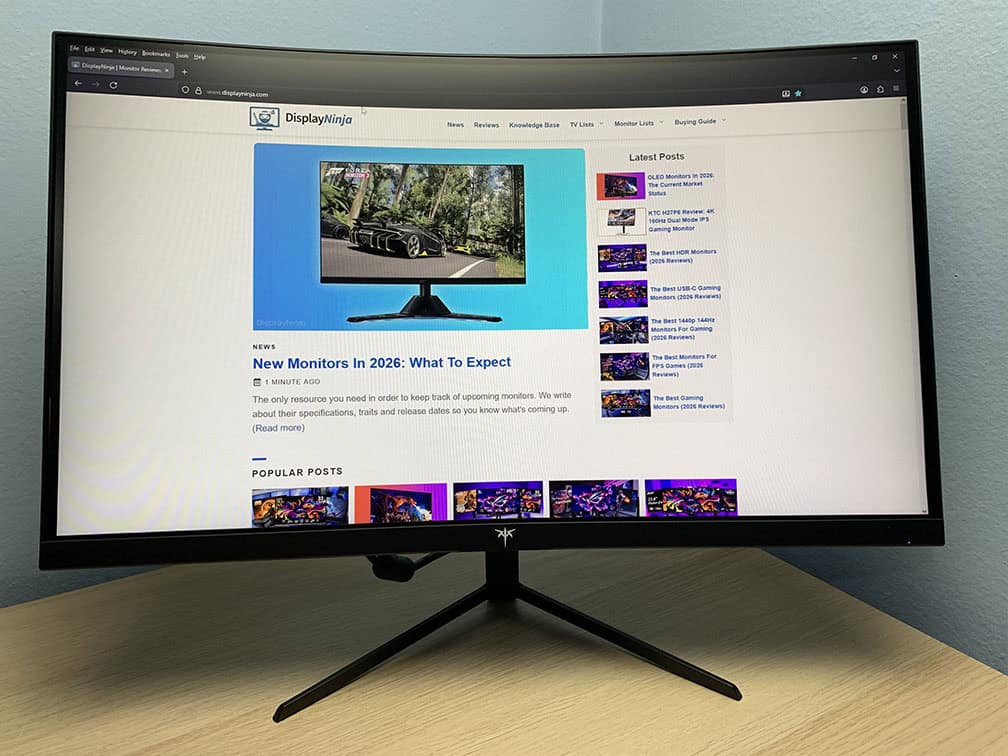
Overall, the KTC H24S17P is an excellent gaming monitor if you’re on a tight budget and want a curved display, as long as you aren’t sensitive to ghosting.
We were happy to see virtually no brightness flickering with VRR enabled, which is great if you’re sensitive to screen tearing. Other positives include a well-calibrated sRGB mode, decent peak brightness and a high contrast ratio for deep blacks.
Specifications
| Screen Size | 23.6-inch |
| Resolution | 1920×1080 (Full HD) |
| Curvature | 1500R |
| Panel Type | VA |
| Aspect Ratio | 16:9 (Widescreen) |
| Refresh Rate | 240Hz |
| Response Time (GtG) | Not specified |
| Motion Blur Reduction | MPRT |
| Adaptive-Sync | FreeSync Premium (48-240Hz) |
| Ports | DisplayPort 1.4, 2x HDMI 2.0 |
| Other Ports | Headphone Jack, USB (service only) |
| Brightness | 350 cd/m² |
| Contrast Ratio | 3000:1 |
| Colors | 1.07 billion (8-bit + FRC) 106% sRGB |
| HDR | HDR10 |
| VESA | Yes (100x100mm) |
The Pros:
- High contrast ratio
- Well-calibrated sRGB mode
- Plenty of gaming features, including VRR and MBR up to 240FPS
- VESA-mount compatible design, audio jack, three display inputs
The Cons:
- Tilt-only stand
- Ghosting behind fast-moving objects, mostly in darker scenes


