Bottom Line
The KTC 27M1 is an excellent gaming monitor for the price. You get a tried and true 27″ 1440p high refresh rate IPS experience with an eSports-focused design, dynamic overdrive, smooth VRR and MBR performance, a wide color gamut, a strong 500-peak brightness and more!
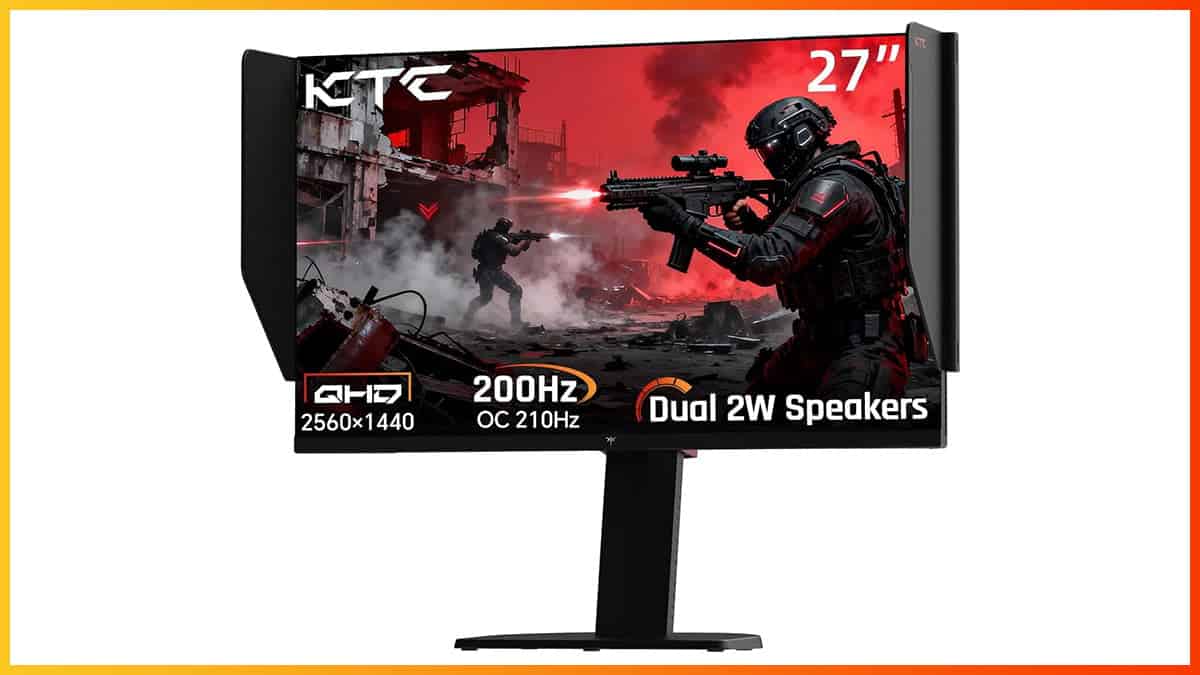
The KTC 27M1 is a 27″ 1440p 200Hz (210Hz via factory-overclock) gaming monitor based on an IPS panel with fast response time and wide color gamut. It also boasts an eSports-style design and plenty of gaming features.
Let’s see how it does in our tests!
Note that this monitor was previously called KTC H27T8.
There are two KTC stores on Amazon selling this monitor, so check them both out to ensure you’re getting the best price: Link 1, Link 2.
Image Quality
The monitor is based on a fast IPS panel with a quoted 2ms GtG (gray to gray) pixel response time, 96% DCI-P3 and 95% Adobe RGB color space coverage, 178° wide viewing angles, a 1,000:1 static contrast ratio, a 450-nits peak brightness and dithered 10-bit color depth support.
To test the display’s capabilities and accuracy, we’re using our Calibrite Display Pro HL colorimeter paired with DisplayCAL.
Note that we’re testing the USA-1.0.1 firmware version.
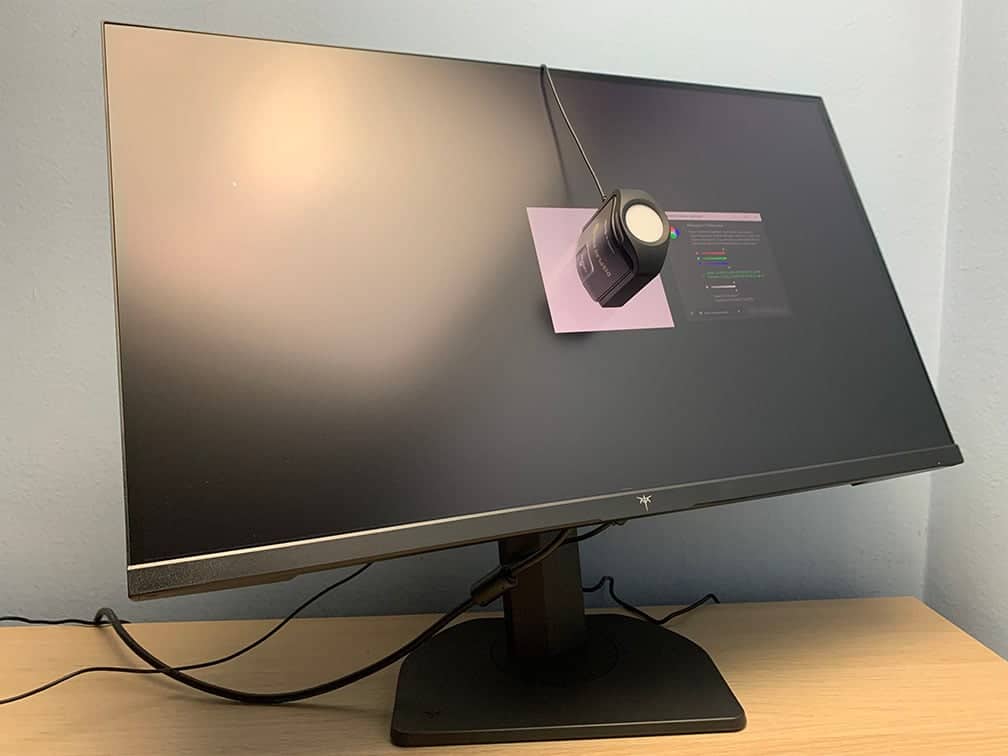
In the OSD (On-Screen Display) menu, under the ‘Display’ settings, you’ll find several ‘Preset’ options: User (Default), Movie, Photo, ECO, Reader, RTS and FPS.
Options other than ‘User’ simply apply preset brightness, contrast, hue, saturation, and Black Equalize values, which you can’t adjust. So, for full customization, we recommend using the most accurate default ‘User’ mode.
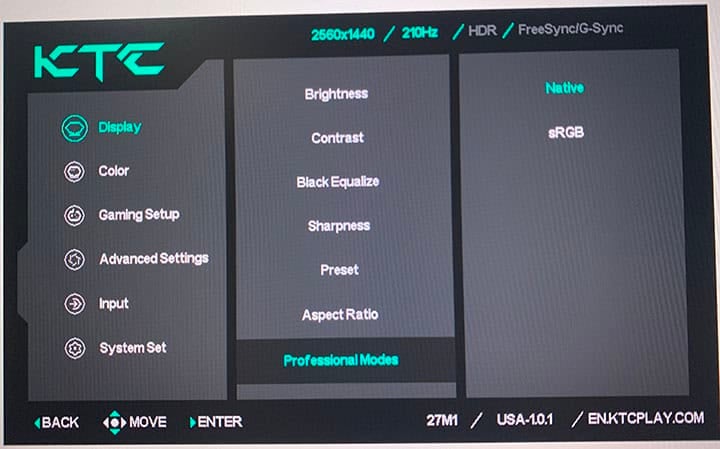
If you scroll a bit further in the ‘Display’ section, you’ll find the ‘Professional Modes’ options, including ‘Native’ and ‘sRGB’.
Color Gamut
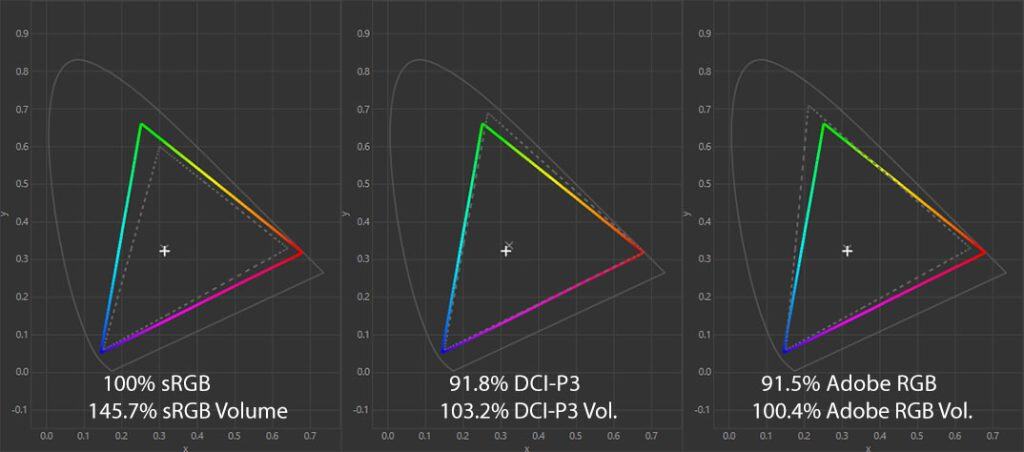
The KTC 27M1 monitor has a wide color gamut with a 145.7% sRGB volume in the ‘Native’ mode, resulting in vibrant colors.
We measured a bit lower DCI-P3 and Adobe RGB color space coverage than the specified, but this is most likely due to the different colorimeters and testing methods.
By default, Windows doesn’t do proper color management, which results in SDR colors being oversaturated. Some users might prefer this look, but if you want better accuracy, you should use the ‘sRGB’ ‘Professional Mode’ instead, which clamps the gamut down to 98.9% volume and 95.7% coverage.
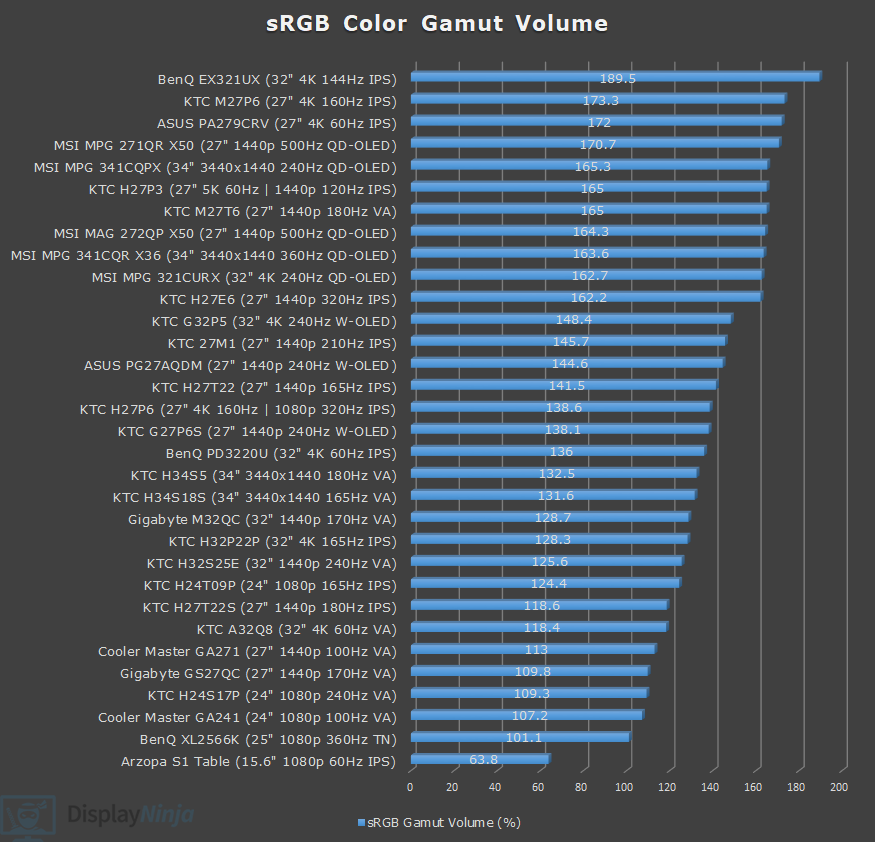
Image Accuracy
In the Native mode, due to over-saturated colors, we measured a Delta E of 2.52 average (color deviation from the target, less than 1.5 is considered good) and 8.38 maximum (target is less than 3).
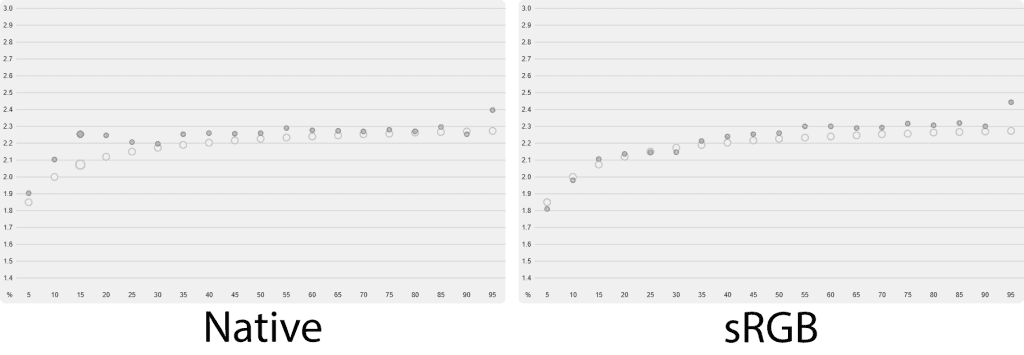
Gamma tracking was decent with a 2.24 average (target is 2.2), with some details in dark scenes (5% – 25% gray) being a bit darker than intended.
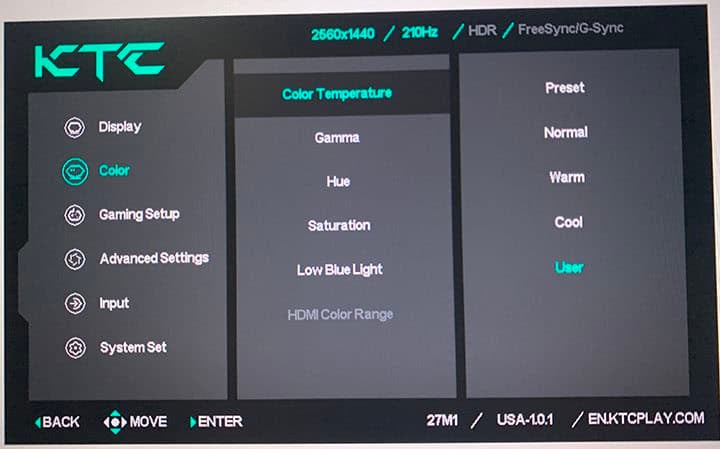
Color temperature in the default ‘Preset’ mode was 6797K (target is 6500K), which is a bit higher than ideal, but changing it to ‘Warm’ yields better results at 6623K with no noticeable tinting to the whitepoint. We also measured the color temperature of the User (7729K) and Normal (7553K) modes.
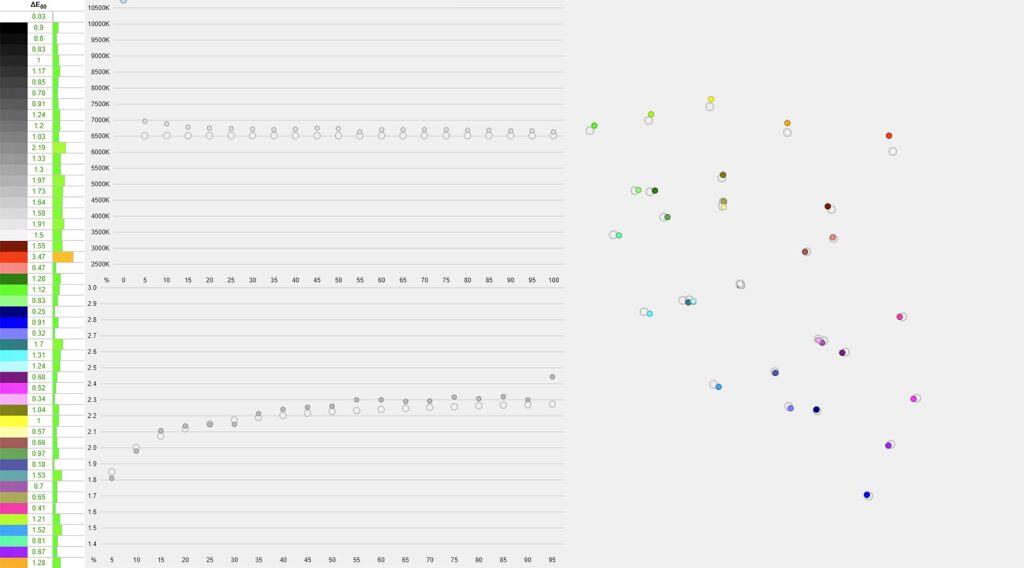
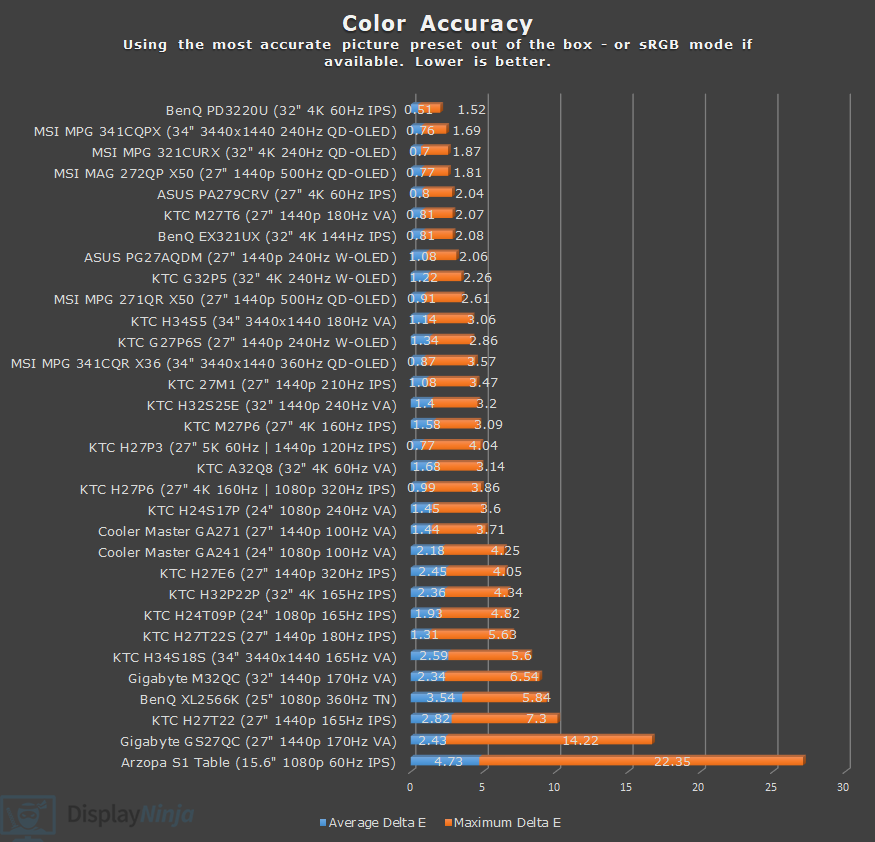
The sRGB mode offers better accuracy with a Delta E of 1.08 average and 3.47 maximum, which is still a bit higher than ideal, but good enough for basic color-critical work. Gamma tracking is also improved with a 2.22 average and a proper sRGB tone curve, while the color temperature remains the same in the Warm mode at 6625K.
You can adjust the brightness and color temperature in the sRGB mode, only contrast, gamma and hue/saturation settings are locked.
We also tested the color accuracy when using software clamp (in AMD drivers or via the novideo_sRGB tool for NVIDIA GPUs), but the results weren’t good due to incorrect EDID data with a Delta E of 1.91 average and 7.02 maximum.
Instead, if you need particularly accurate colors for photo or video editing, you can use our ICC profile to generate a 3D LUT and apply it via dwm_lut to get the best results of Delta E 0.97 average and 2.4 maximum.
Thanks to its full sRGB color space coverage, decent factory calibration and 178° wide viewing angles of the IPS panel that ensure the image remains consistent regardless of the angle you’re looking at the screen, the KTC 27M1 is suitable for entry-level color-critical work.
One thing to keep in mind with IPS monitors is IPS glow, which causes a visible glow around the corners of the screen at certain angles. The intensity can also vary from unit to unit.
It’s mainly noticeable when watching dark content in a dark room with high brightness settings, so it can be mitigated with a proper setup (lower brightness in a dark room, place ambient lighting behind the screen, etc.). Our unit of the KTC 27M1 didn’t exhibit any excessive IPS glow or backlight bleeding.
Calibration
For full calibration, we set the brightness to 8/100 for 120-nits, used the ‘Native’ color temperature mode, and ‘Custom’ color temperature with red, green and blue channels set to 50, 50, 46 to get 6498K.
Delta E improved to 0.32 average and 1.02 maximum with accurate gamma tracking (2.18 average). You can download our ICC profile here.
Brightness & Contrast
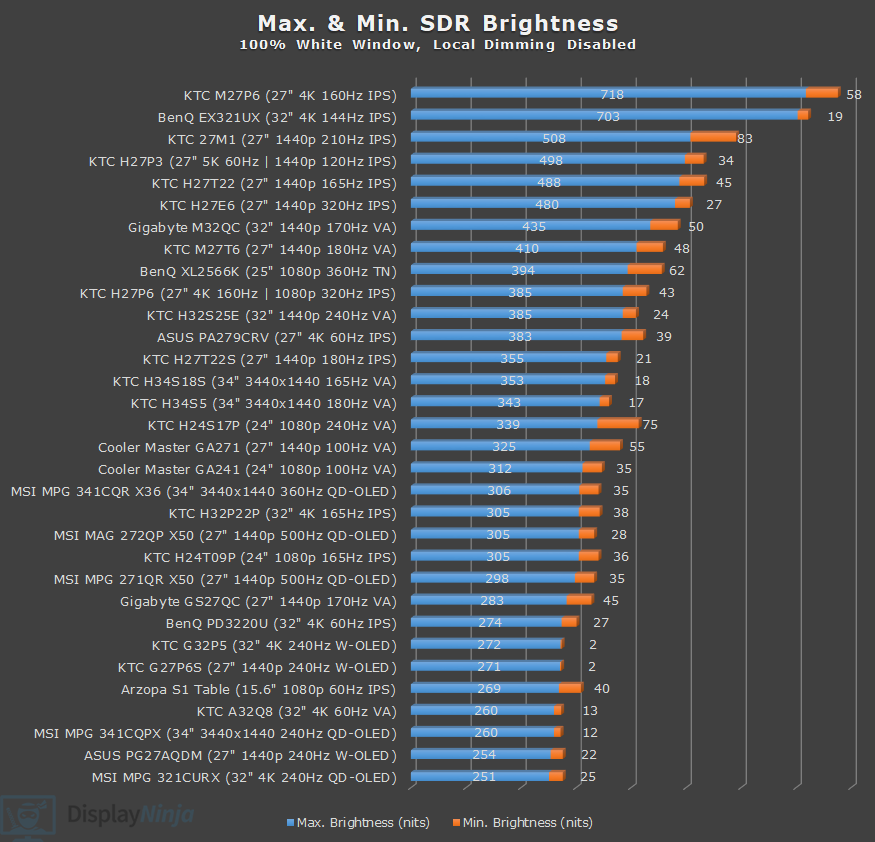
We measured a maximum brightness of 508-nits, and a minimum of 83-nits.
The monitor can get more than bright enough to cut through glare even in well-lit rooms, but if you’re in a particularly dark room, 83-nits might be too bright, though we found it to be acceptable.
At around 200-nits, we measured a contrast ratio of 1481:1, which is a good result for an IPS panel and higher than the specified 1,000:1.
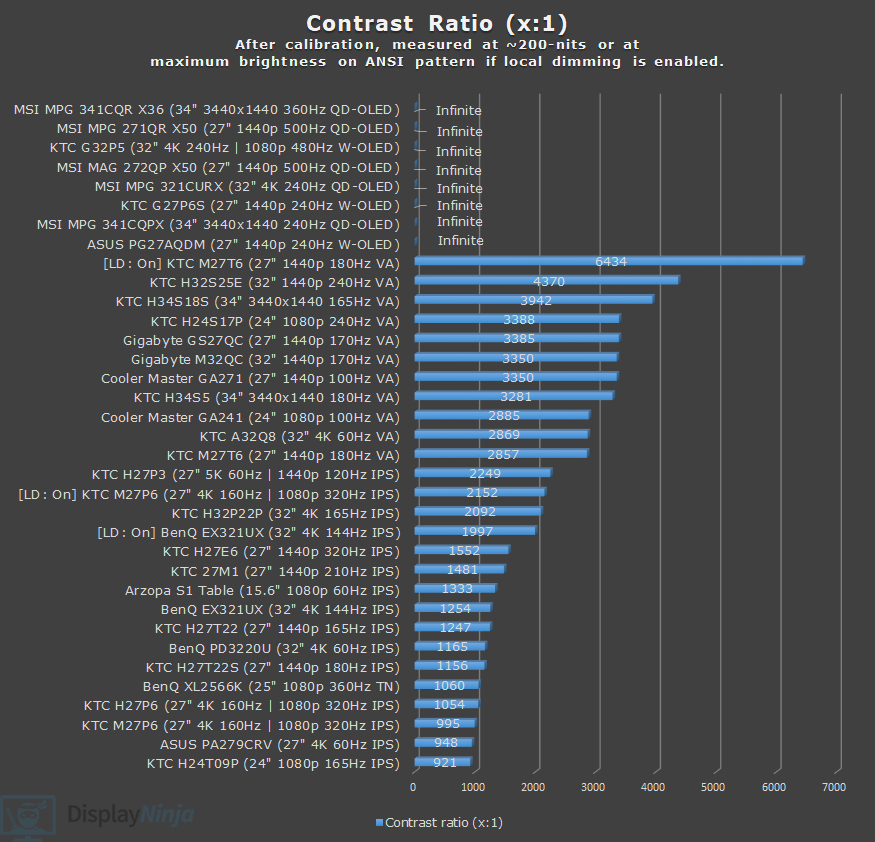
Still, blacks won’t be as deep as that of VA panels (usually around 3,000:1 contrast ratio), OLED panels, or monitors with full-array local dimming (FALD).
Of course, OLED and FALD displays are more expensive and have their own drawbacks, while VA monitors in this price range suffer from slow response time, VRR brightness flickering and narrower viewing angles.
Pixel Density & Subpixel Layout
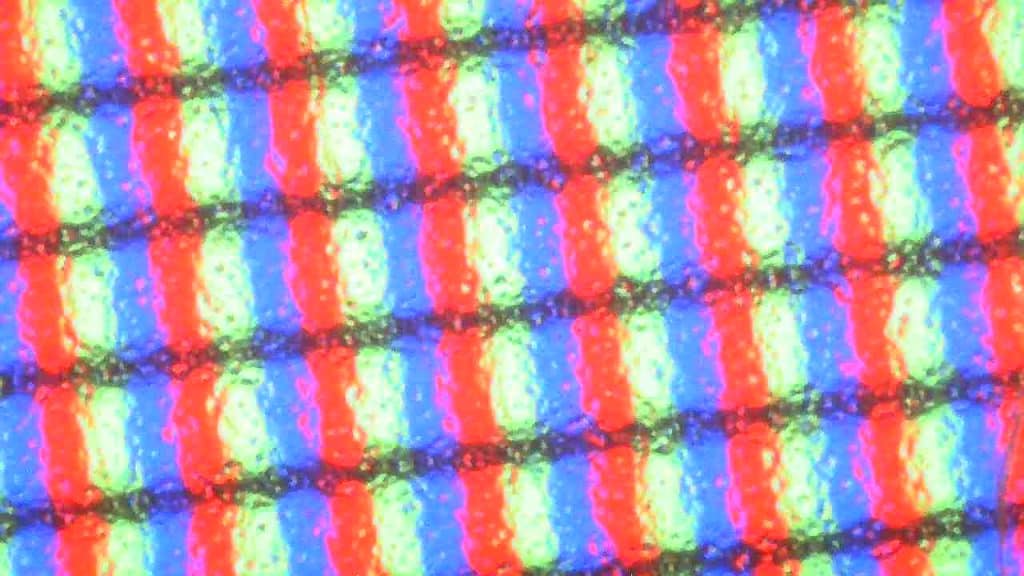
The 2560×1440 Quad HD resolution results in a pixel density of 108.79 PPI (pixels per inch) on 27″ sized screens, providing you with decent detail clarity.
It’s not as crisp as 4K UHD, but that difference is not that noticeable in video games, while 1440p is significantly less demanding on the GPU, allowing for higher frame rates.
The monitor has a regular RGB subpixel layout, so text is sharp and crisp without any colored fringing.
HDR
The KTC 27M1 supports HDR (High Dynamic Range), but while it can accept and display the HDR10 signal, it lacks proper display hardware (OLED panel or FALD) for a true HDR viewing experience.
You can still benefit from HDR content by getting proper DCI-P3 color mapping and dithered 10-bit color depth for smoother gradients with less banding, however, details in shadows and highlights of the image will be lost, and you won’t see the creator’s real intent.
In the HDR mode, the monitor clamps the gamut when viewing SDR content with Delta E of 1.26 average and 3.61 maximum, 2.19 average gamma, 6464K color temperature and 90.4% sRGB color space coverage with 92.1% volume. We measured a maximum brightness of 476-nits in HDR mode.
For a proper HDR display, you’ll need to invest closer to $300 in one of the mini LED displays or over $400 for OLED, which you can check out in our dedicated HDR monitors buyer’s guide.
KTC 27M1 Best Image Settings
If you want saturated colors:
Professional Mode: Native
Color Temperature: Warm
If you want accurate colors:
Professional Mode: sRGB
Color Temperature: Warm
Performance
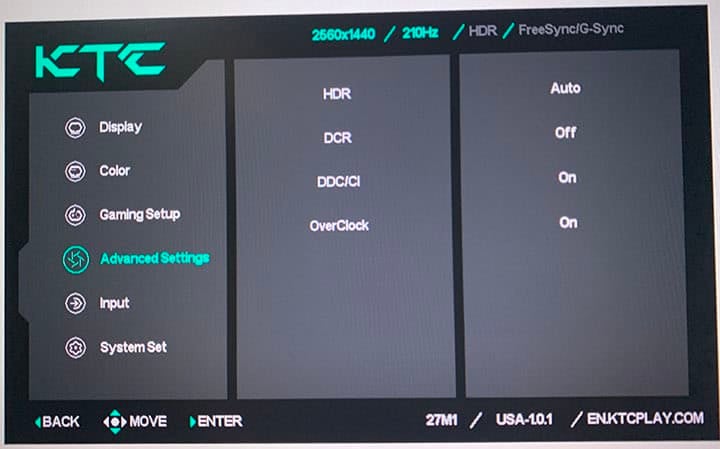
The KTC 27M1 has a maximum refresh rate of 200Hz. Once you enable the overclock option in the OSD menu, you can set it to 210Hz.
210Hz provides you with a huge boost in motion clarity in comparison to typical 60-75Hz displays. The higher refresh rate also lowers input latency and makes screen tearing less noticeable.
Now, the jump to 210Hz from the more usual 144Hz-180Hz gaming displays isn’t going to be that noticeable, but considering that 1440p 240Hz+ monitors are notably more expensive, this is an excellent in-between option.
For latency and response time testing, we’re using OSRTT.
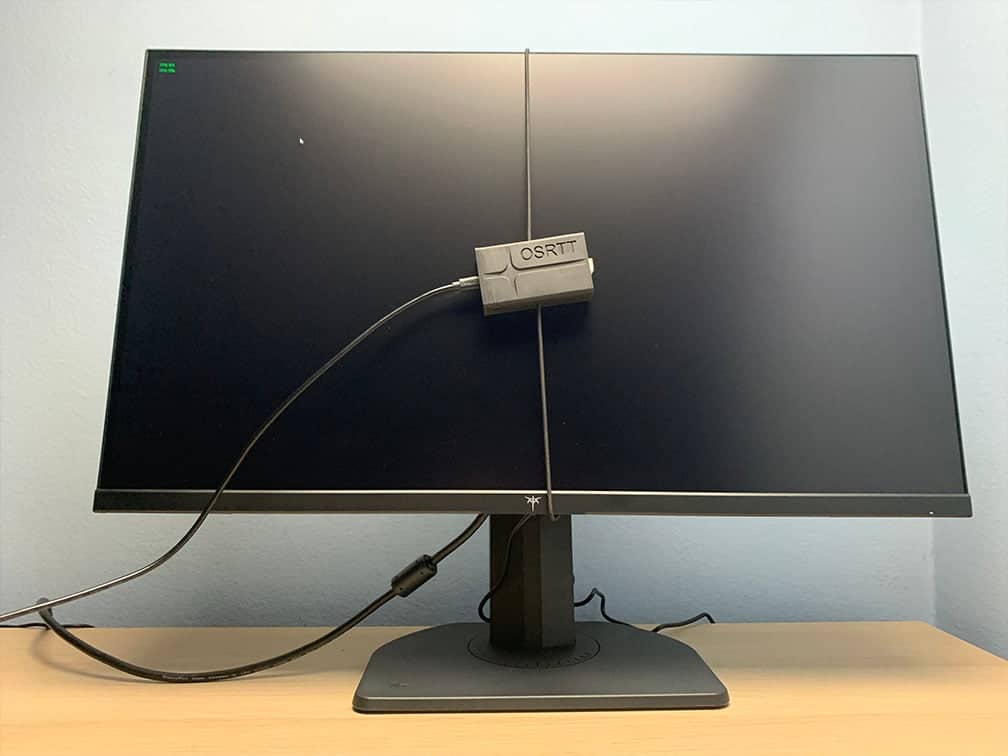
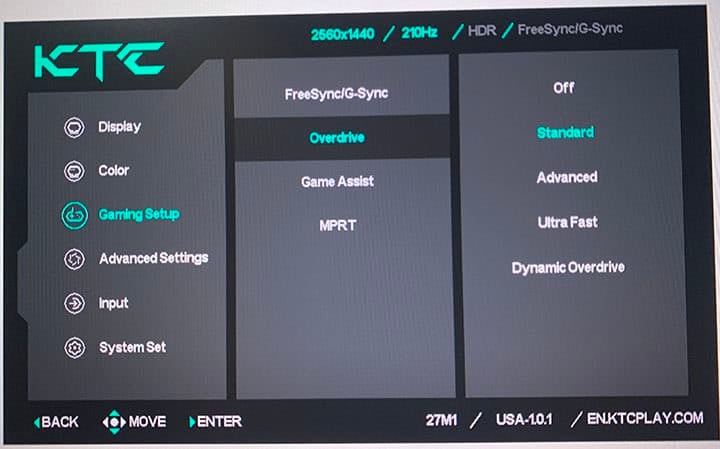
The KTC 27M1 has five response time overdrive modes: Off, Standard, Advanced, Ultra Fast and Dynamic Overdrive.
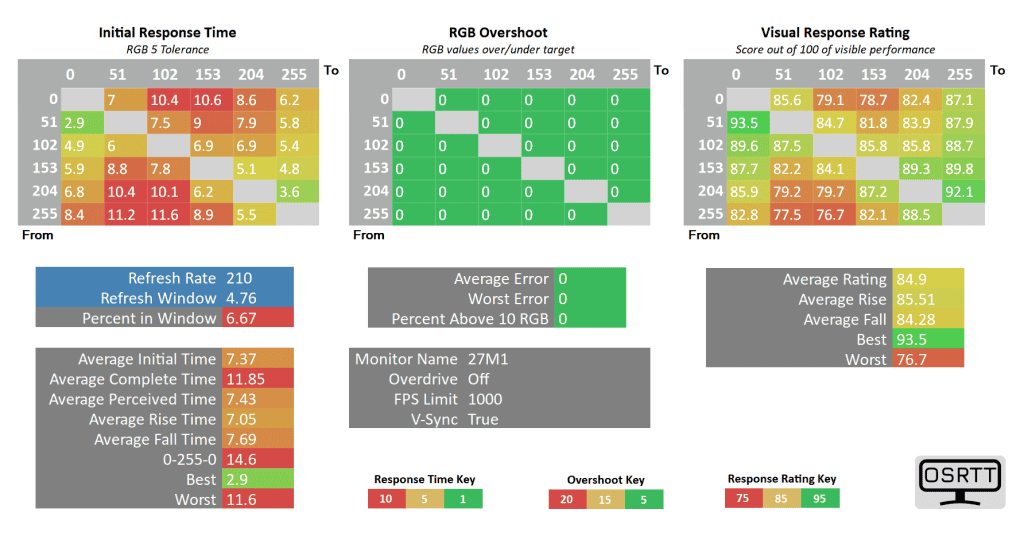
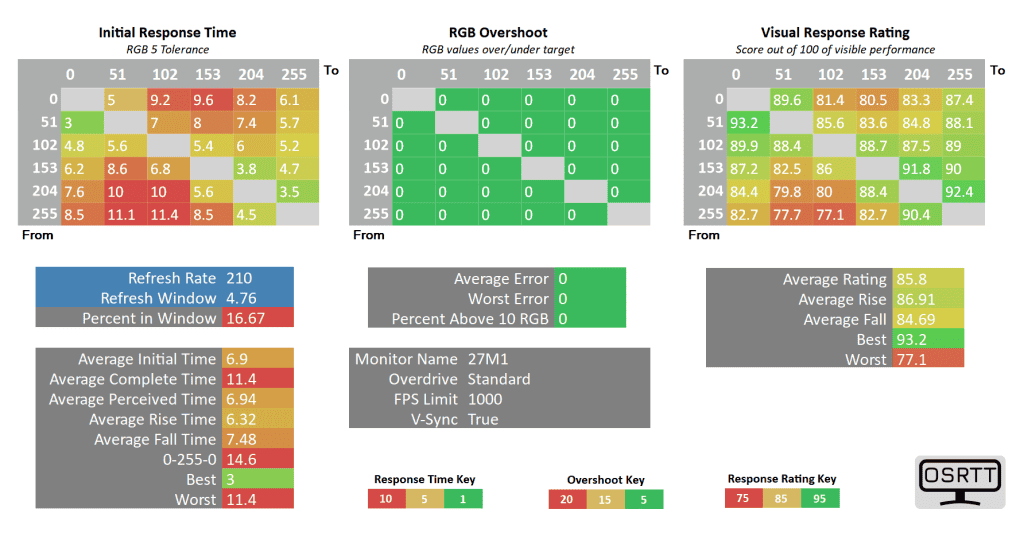
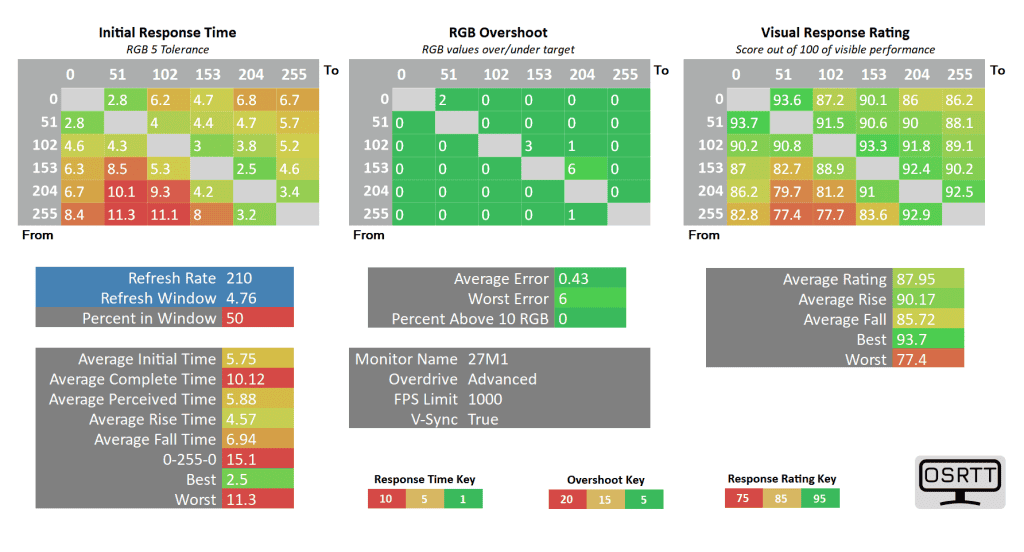
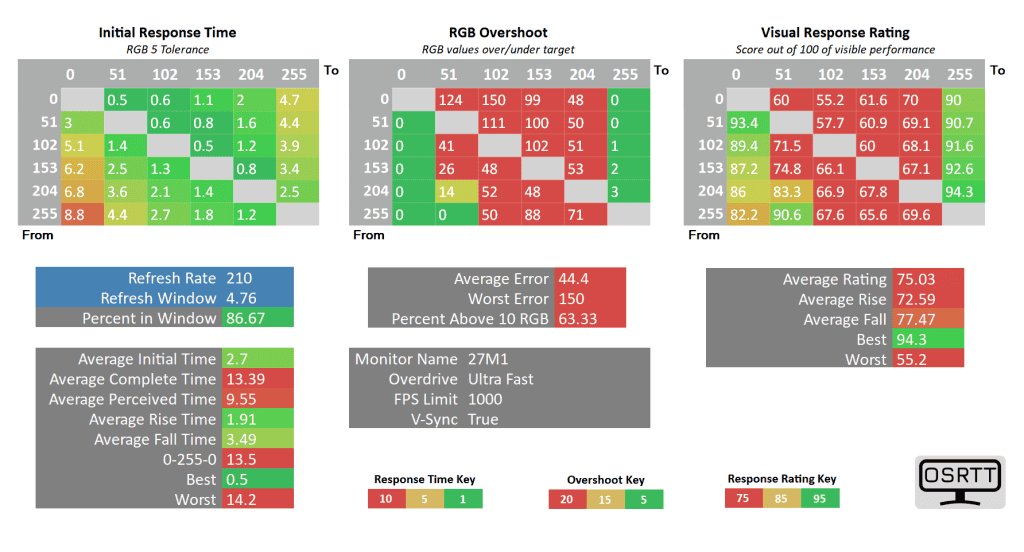
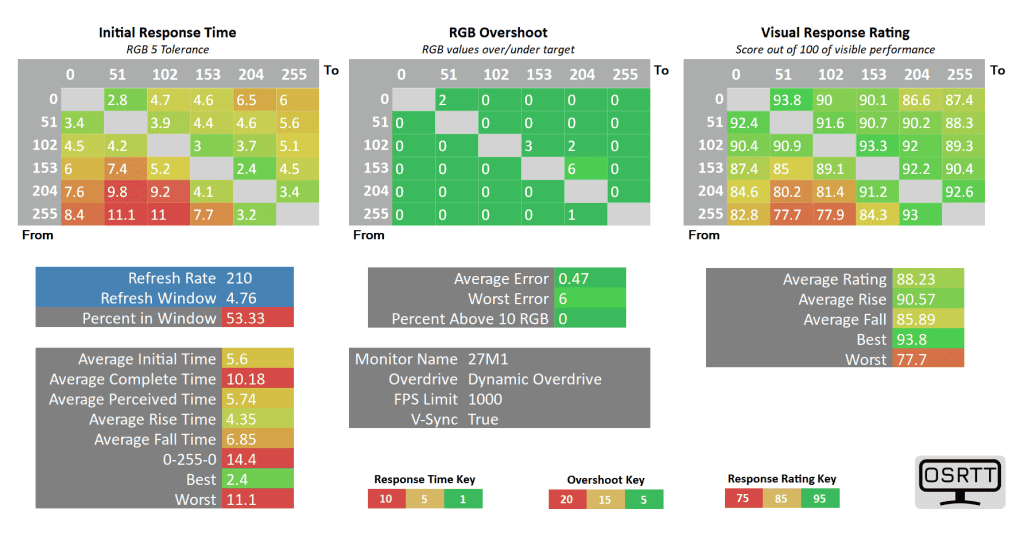
The ‘Off’ and ‘Standard’ modes are too slow at 210Hz, while the ‘Ultra Fast’ mode is too aggressive as it adds too much inverse ghosting.
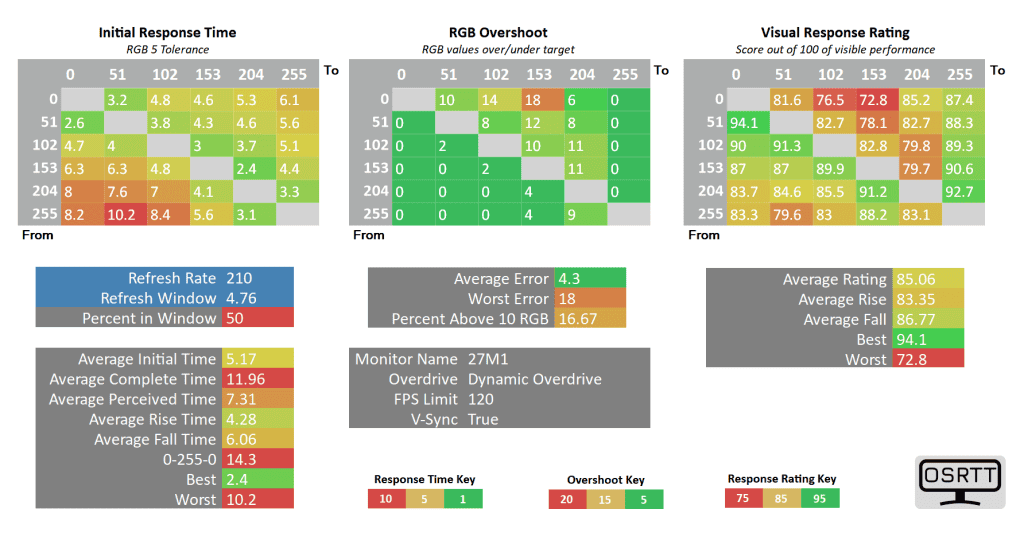
The ‘Dynamic Overdrive’ mode acts as variable overdrive, though it has similar performance as ‘Advanced’ across the entire refresh rate range.
The ‘Advanced’ mode has an average GtG (gray to gray) pixel transition time of 5.75ms, with 50% of all transitions making it in time with the 4.76ms refresh rate window at 210Hz.
There’s a low 0.43% overshoot error that’s unnoticeable in real use, meaning that there was more room to push the pixel response time speed without going overboard as with the ‘Ultra Fast’ mode, which is unusable.
Dialing back the refresh rate to 180Hz or 165Hz improves the refresh rate compliance to 57% and 63%, respectively, but while there’s a bit less ghosting, motion fluidity won’t be quite as smooth as it is at 210Hz.
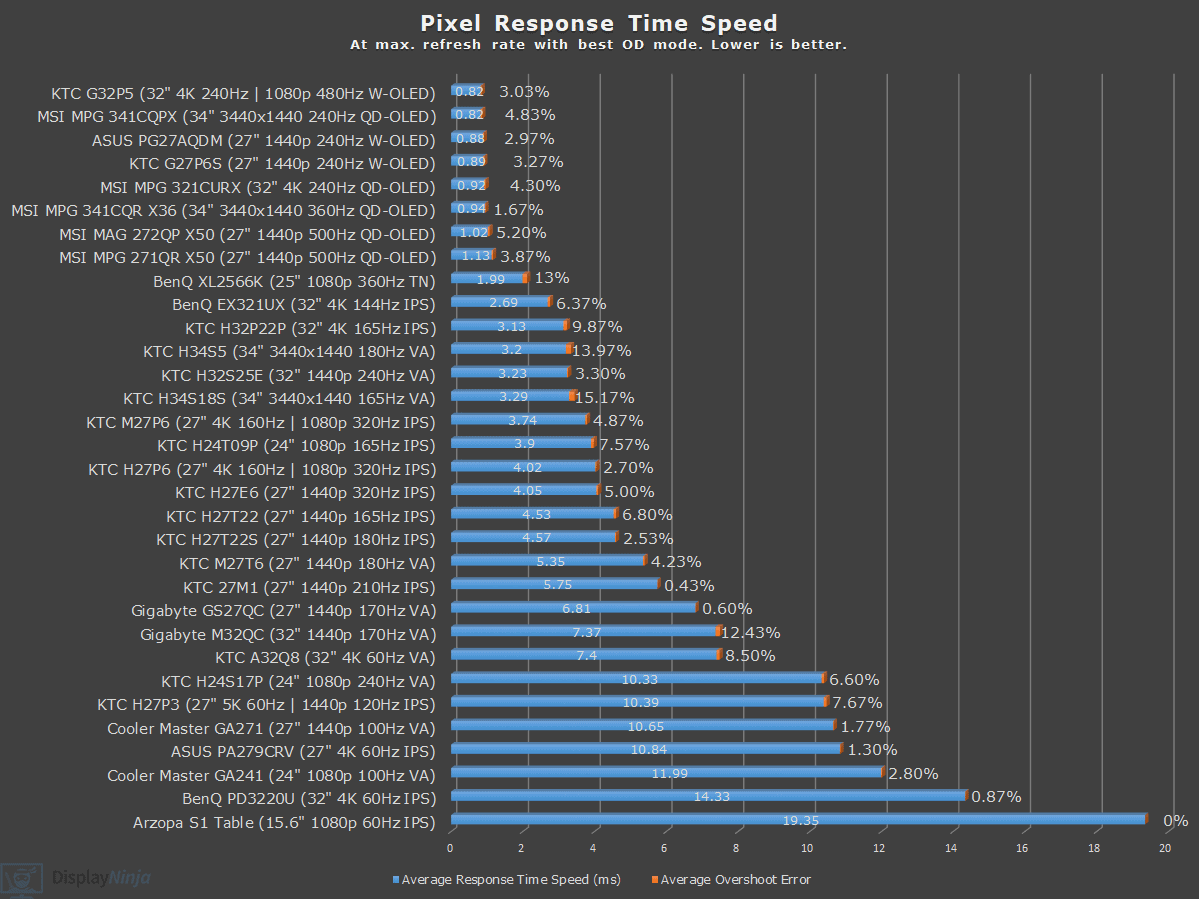
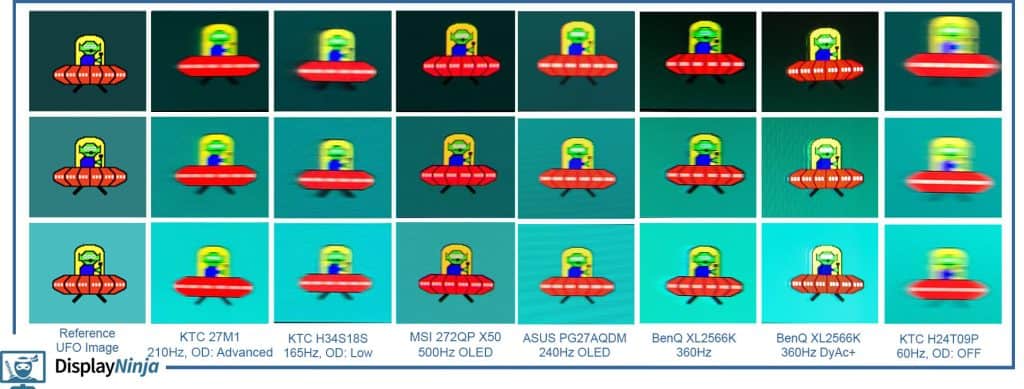
This results in some noticeable trailing behind fast-moving objects, but we find that most gamers will find the amount of ghosting to be tolerable or even negligible.
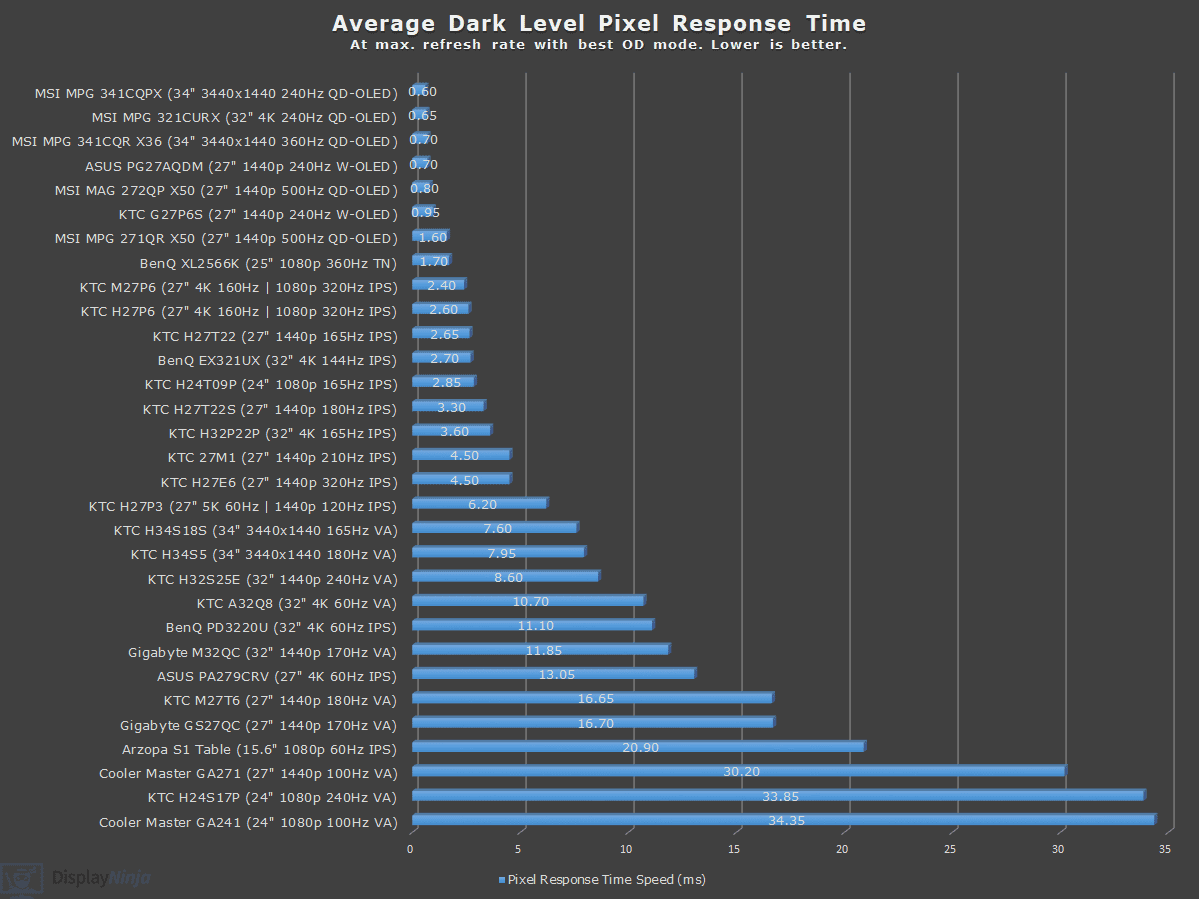
More importantly, there’s no dark-level smearing that’s usually associated with high refresh rate VA panel gaming monitors.
Here are the pixel response time speed results at 120Hz.
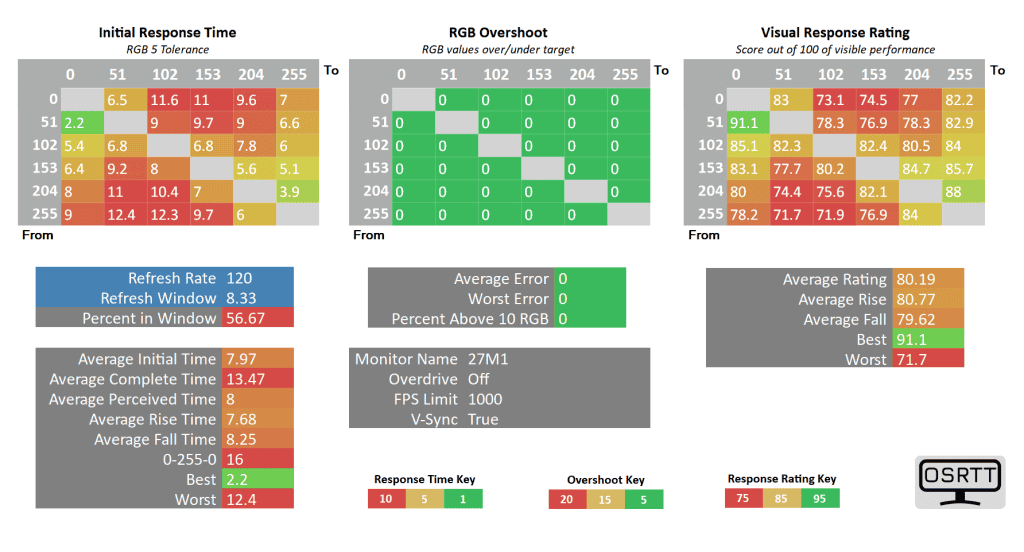
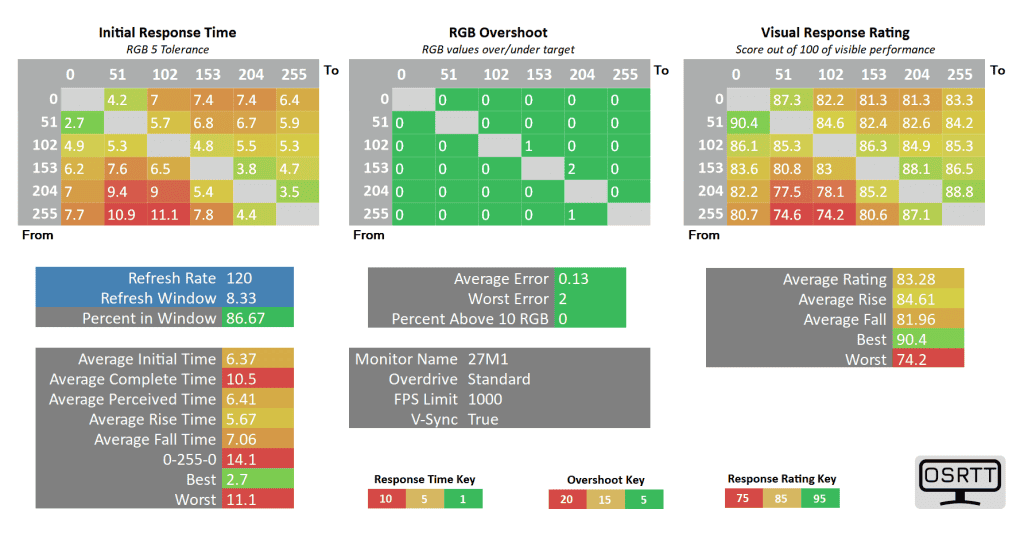
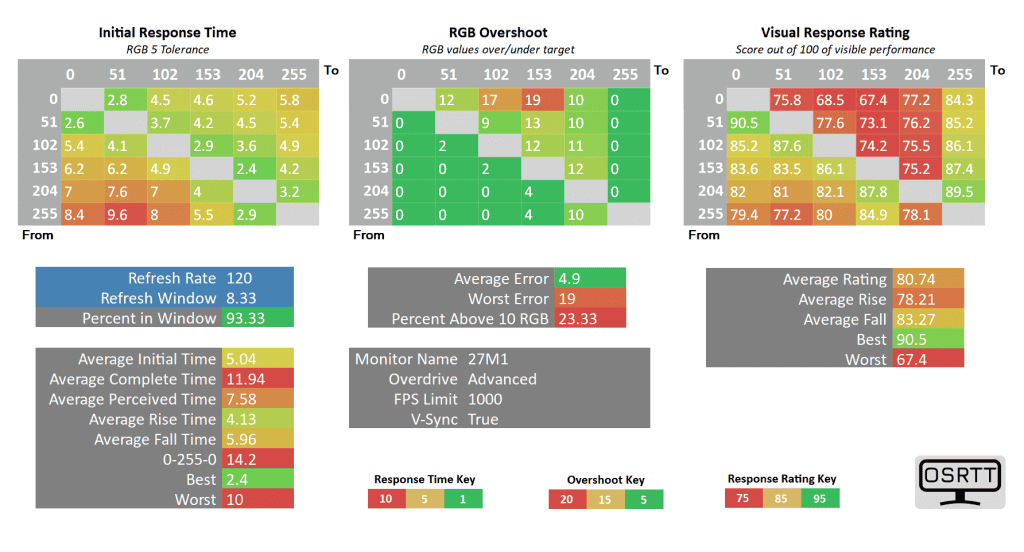
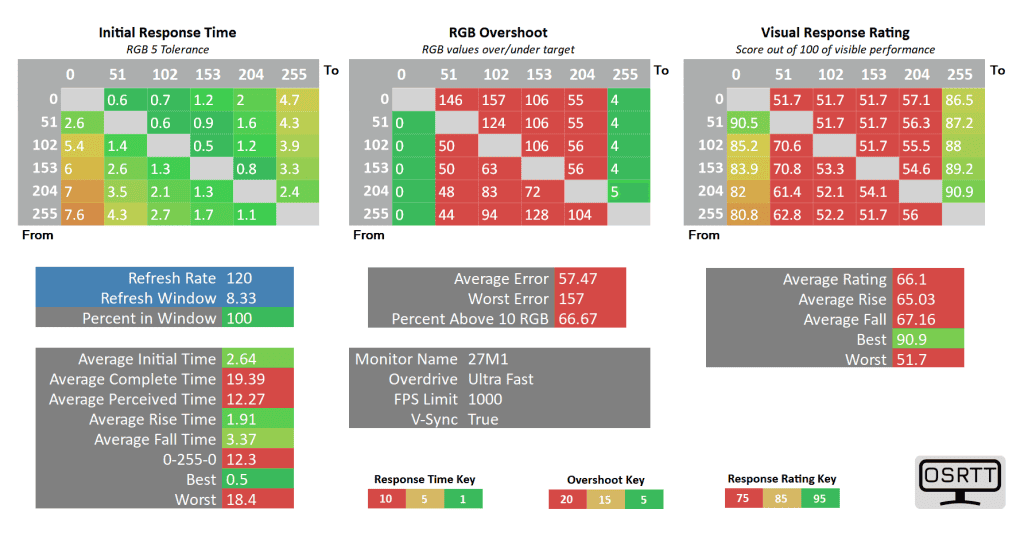
At 120Hz, the ‘Advanced’ has a bit more overshoot at 4.9% average error, which isn’t noticeable in real use, while the 5.04ms GtG pixel response time speed is fast enough to keep up with the 8.33ms refresh rate cycle, resulting in a 100% refresh rate compliance.
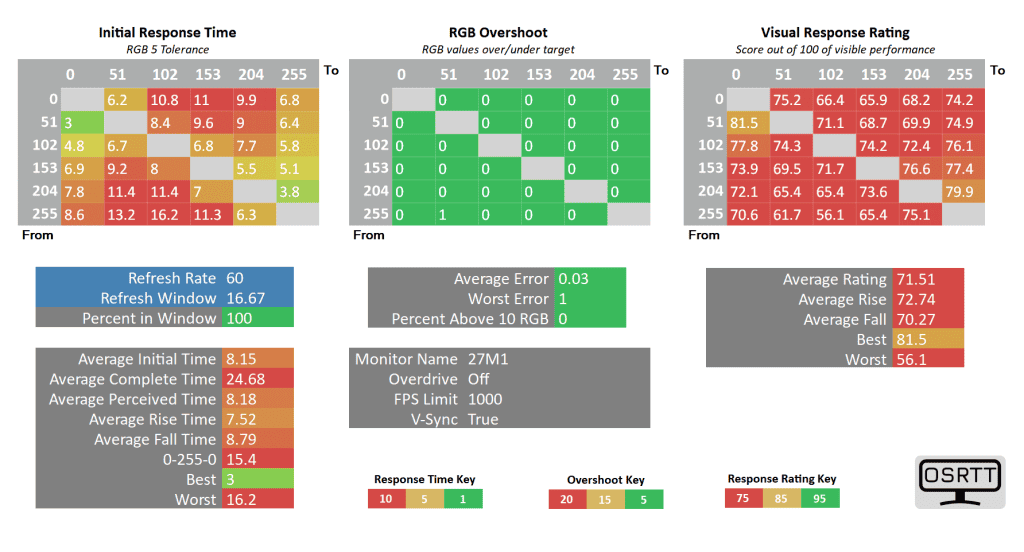
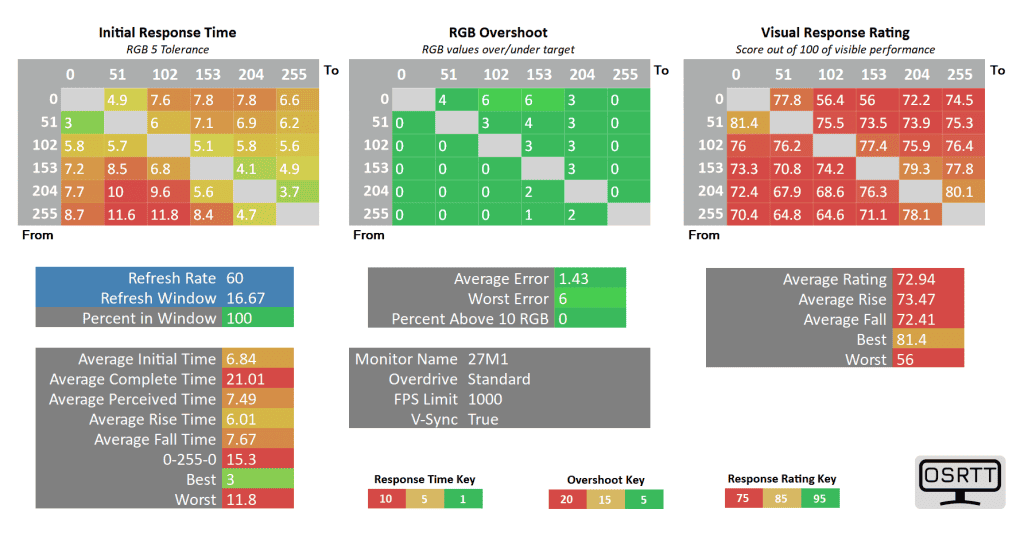
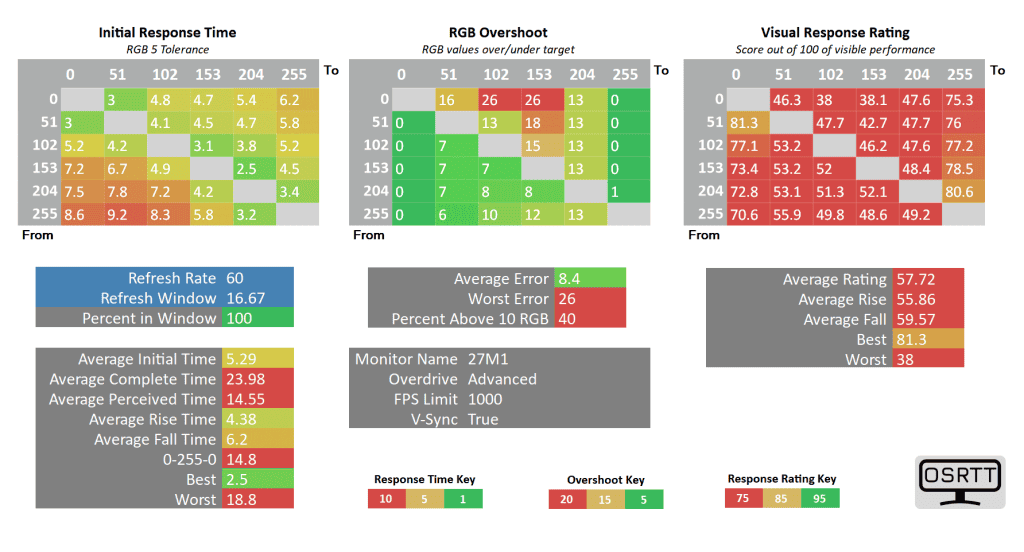
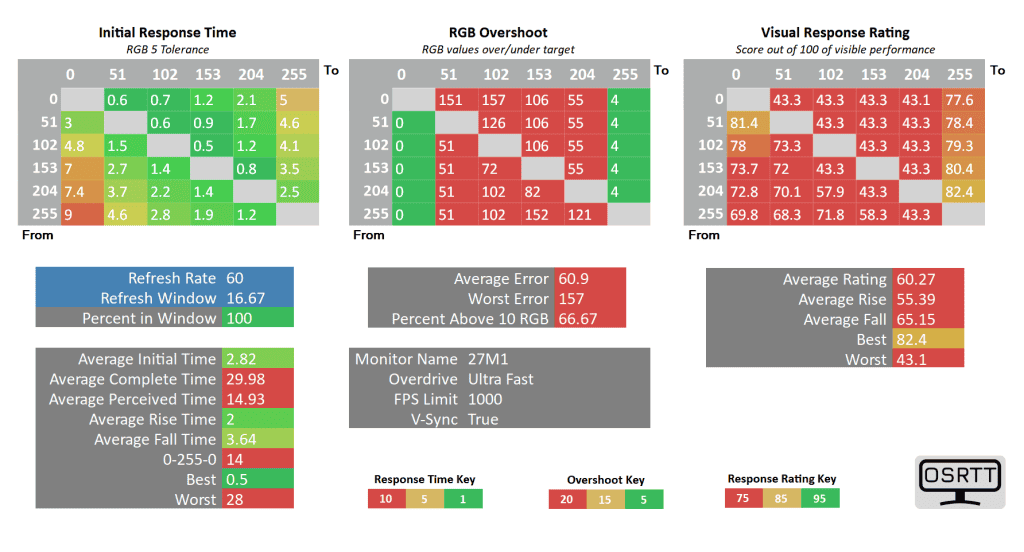
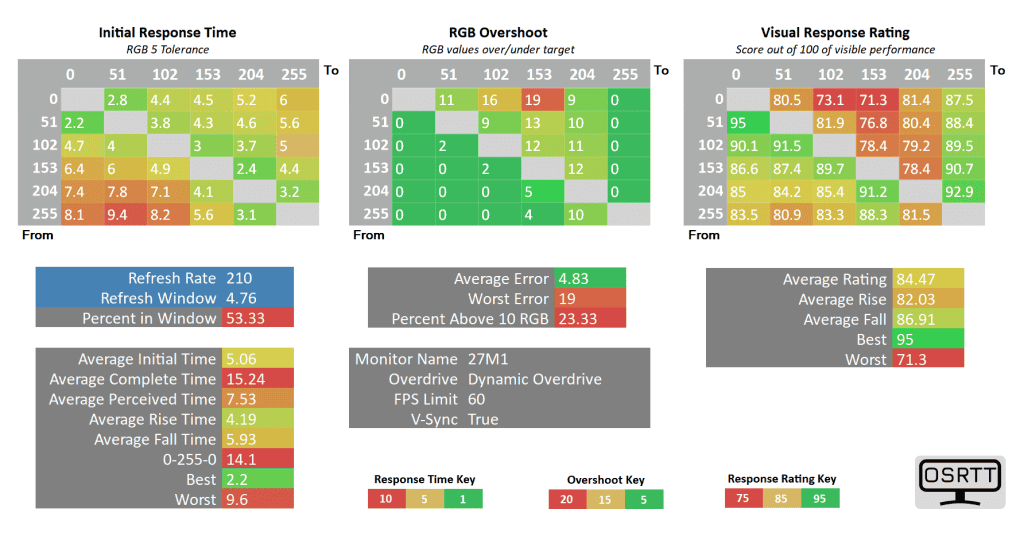
At 60Hz, overshoot can be observed in some scenes when using the ‘Advanced’ overdrive mode with 8.4% overshoot error, but it’s tolerable. In case you find it too noticeable, dial it back to ‘Standard.’
Note that the ‘Dynamic OD’ mode at 60Hz here has the same performance as ‘Dynamic OD’ or ‘Advanced’ at 120Hz, because at 60FPS, the monitor is running at 120Hz due to LFC (Low Framerate Compensation) since the monitor’s VRR range is 65-210Hz.
At around 75FPS, ‘Dynamic Overdrive’ has less overshoot than ‘Advanced’, so if you just want to set one mode for all refresh rates and VRR gaming, go with ‘Dynamic Overdrive’.
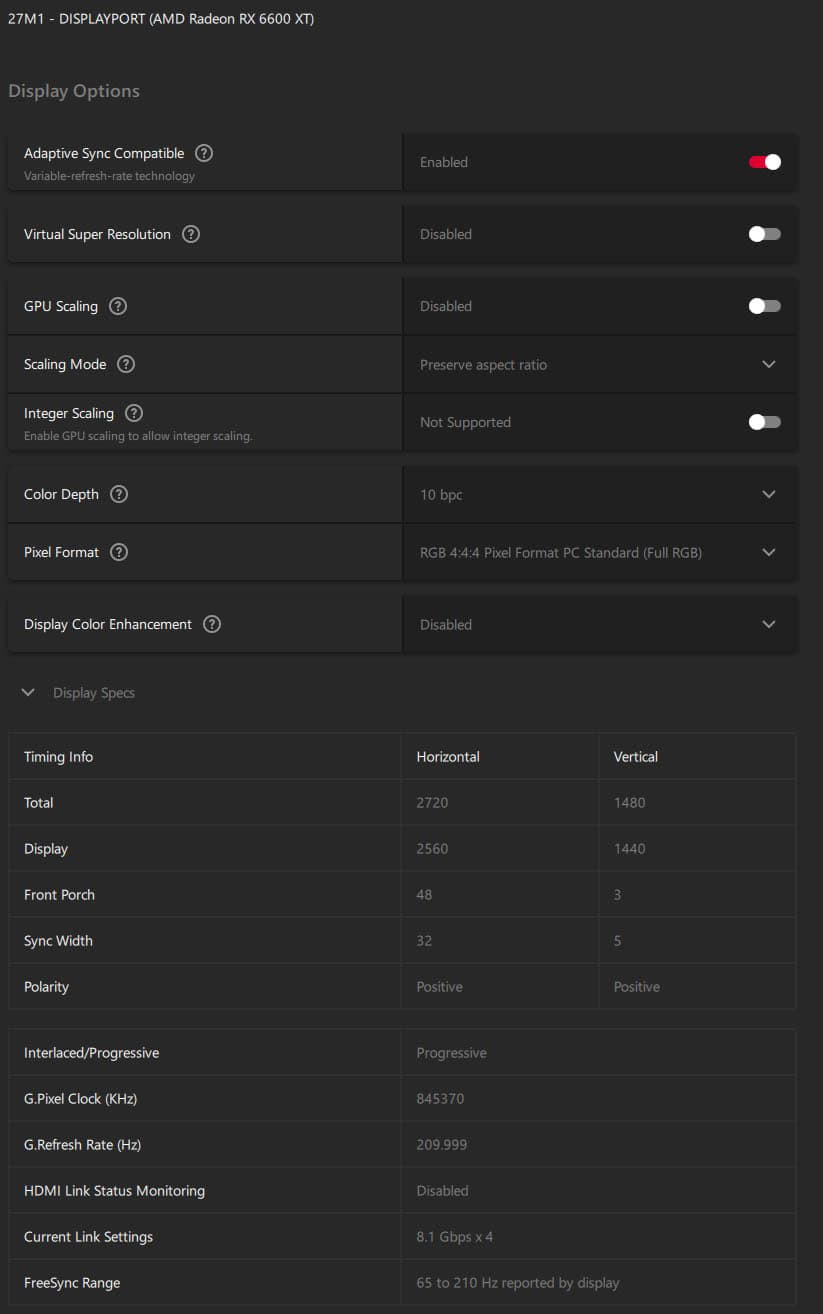
VRR allows your monitor to change its refresh rate dynamically, according to your frame rates, thus completely eliminating screen tearing without increasing input latency as V-SYNC does.
Below 65FPS, the monitor uses LFC (for instance, at 64FPS, the monitor doubles or triples its refresh rate to 128Hz or 192Hz) in order to keep tearing at bay.
The VRR performance is smooth and there’s no brightness flickering that’s usually associated with high refresh rate VA and OLED panel monitors.
Moving on, here’s how the monitor handles Blur Busters’ UFO ghosting test. We’re using the 960 Pixels Per Sec test with the camera’s shutter speed set to 1/4 of the refresh rate with fixed focus, ISO and color temperature.
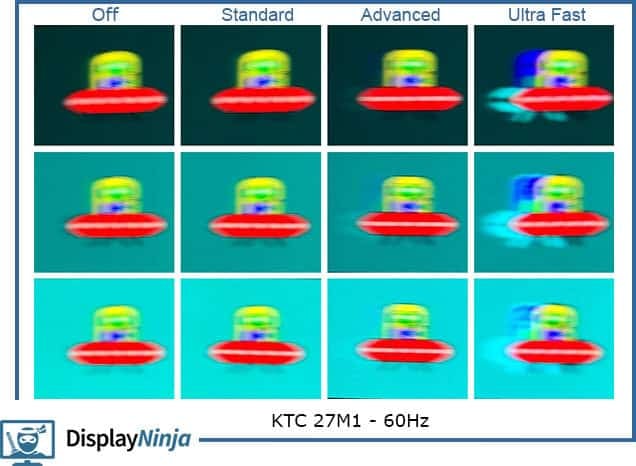
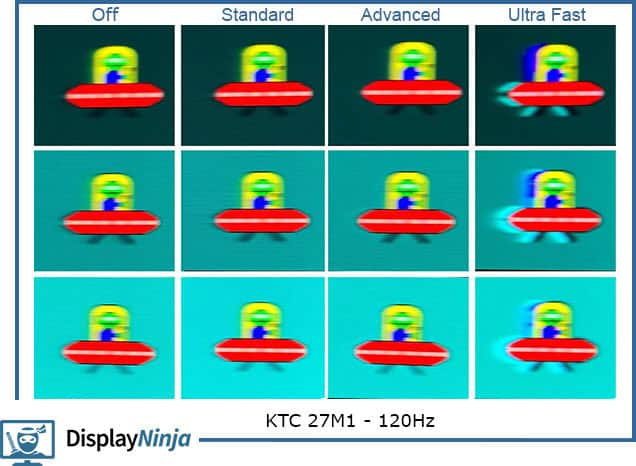

You can see how it compares to several other displays we tested here:
The KTC 27M1 also supports MPRT, which uses backlight strobing to reduce perceived motion blur. It can only be active at a fixed refresh rate of 100Hz or higher, and it decreases the maximum brightness (to 155-nits) while active.
Backlight strobing also introduces screen flickering that’s invisible to the human eye, but can cause headaches to sensitive users after prolonged use.
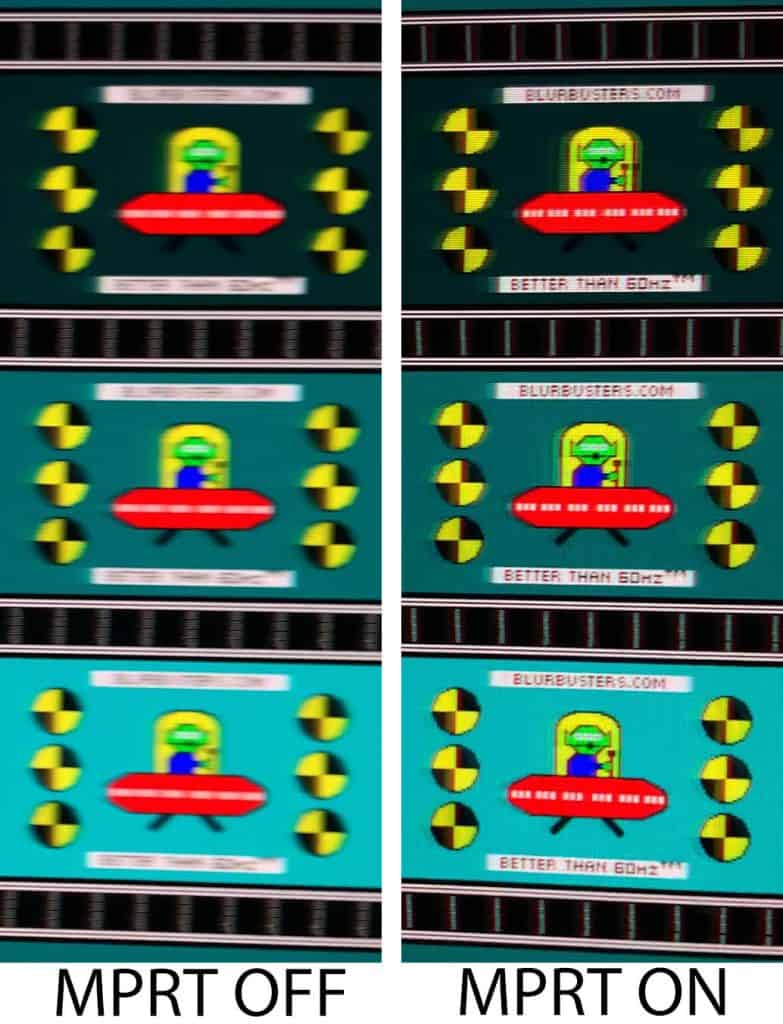
As you can see, MPRT can improve motion clarity quite a bit. Although there’s some strobe crosstalk (image duplication), it’s usable.
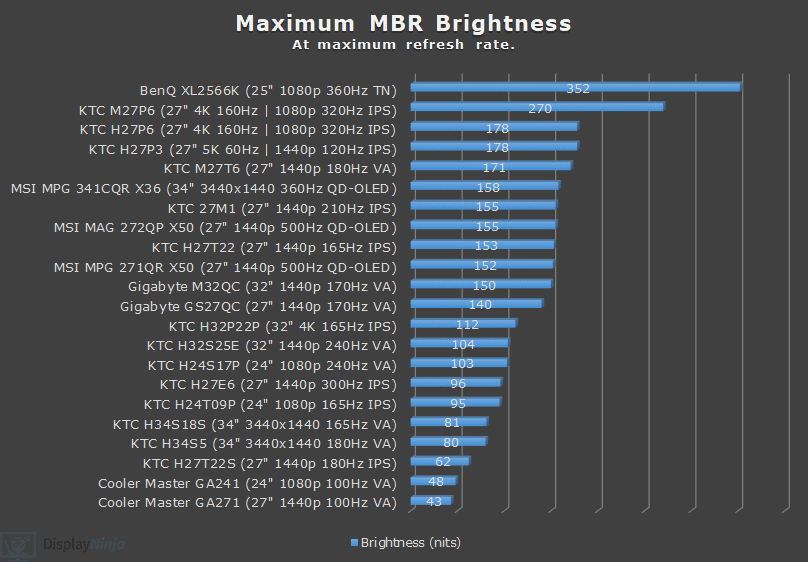
The backlight of the monitor is flicker-free (unless MPRT is enabled) and there’s a low-blue light filter mode with four intensity levels (5968K, 5520K, 5155K, 4839K).
Next, here’s a look at display latency results.
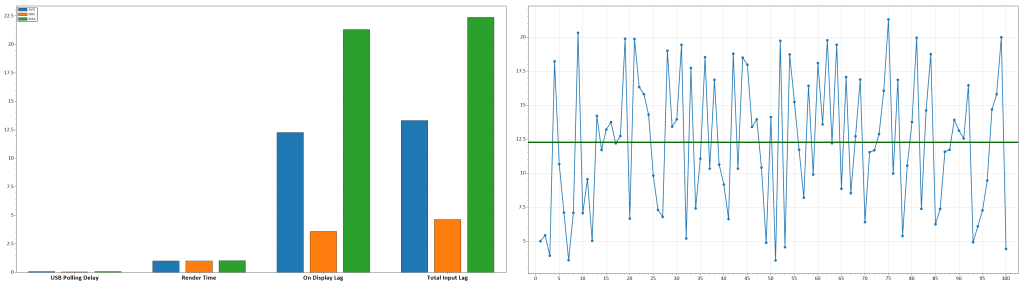
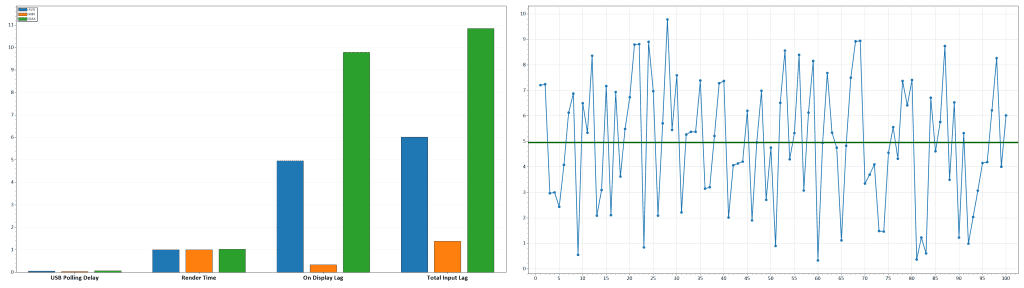
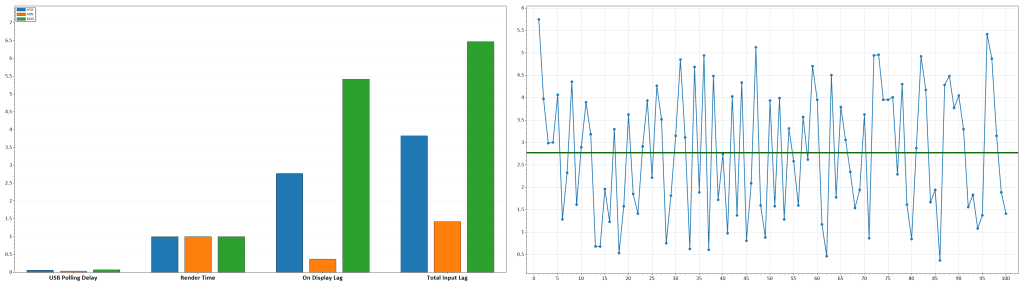
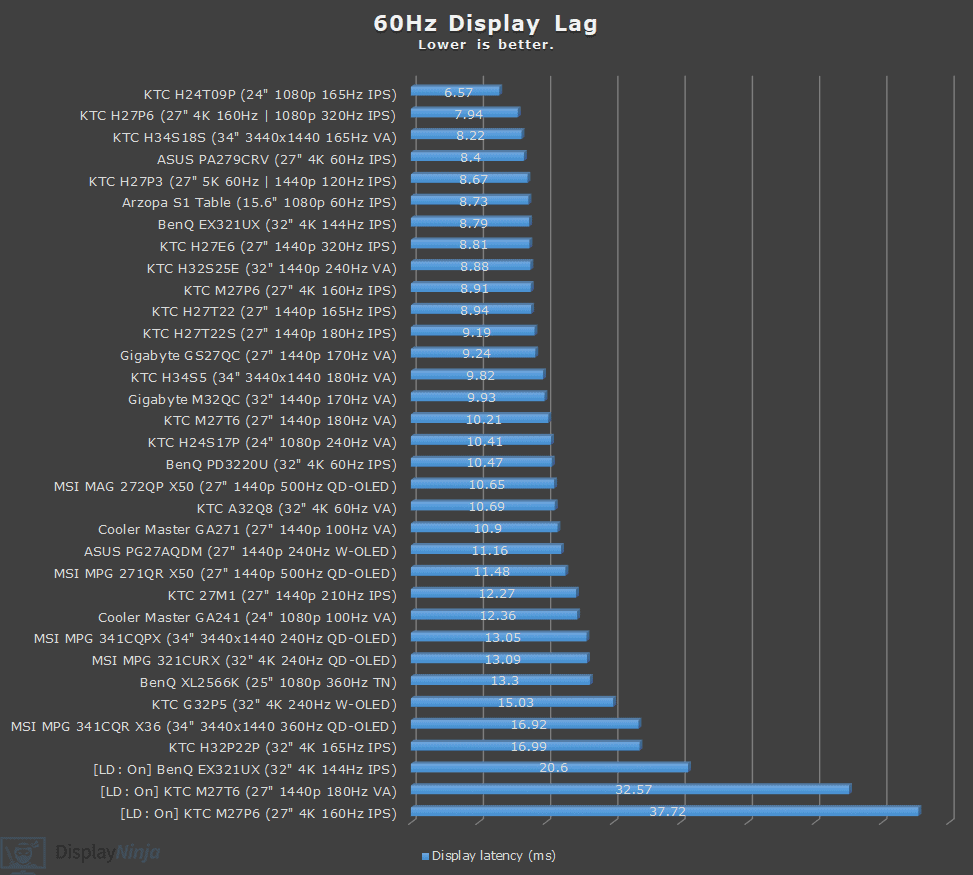
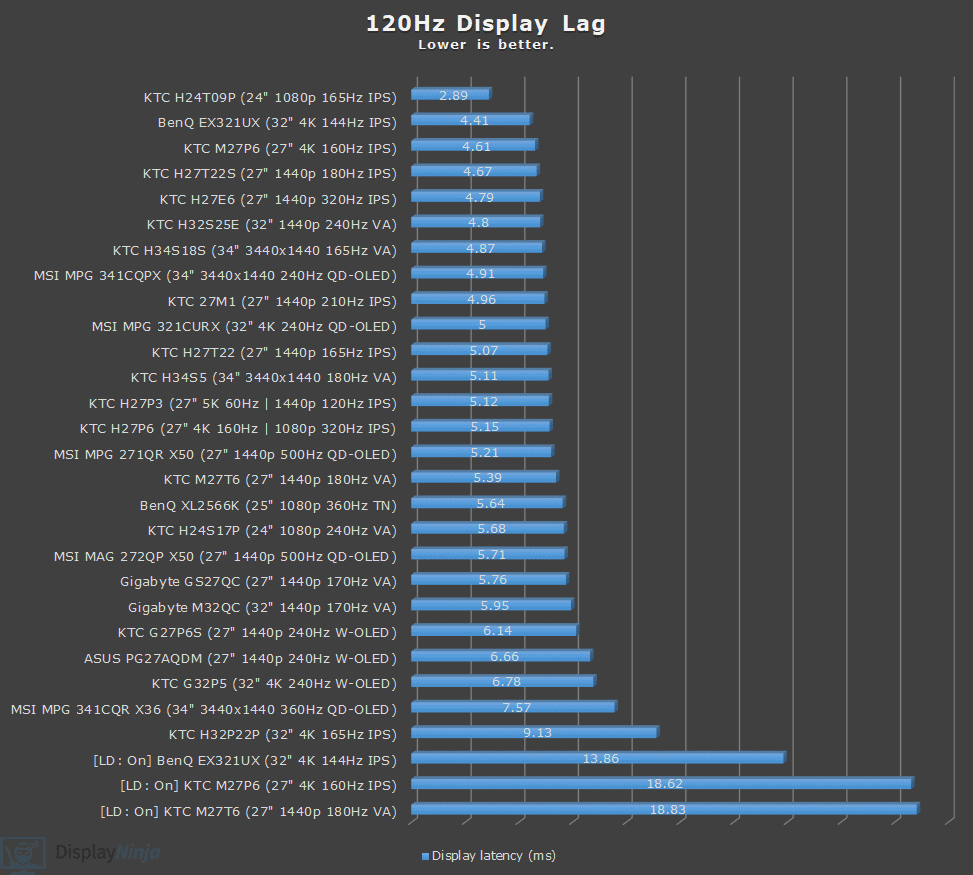
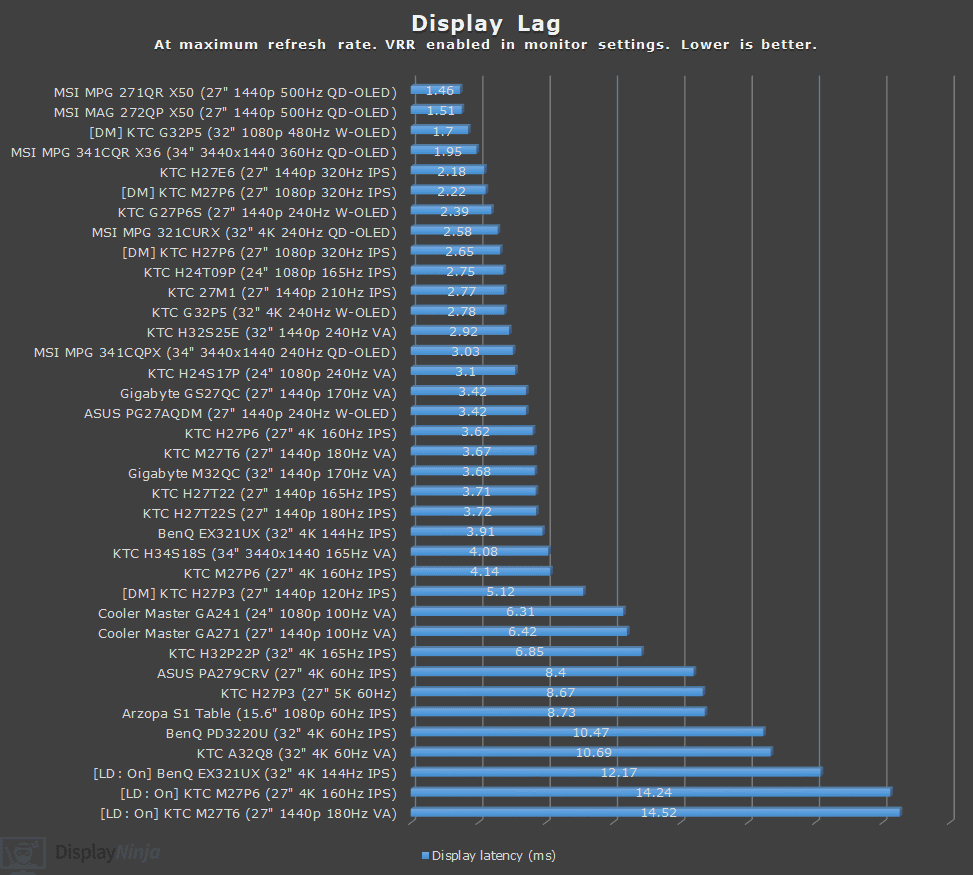
We measured low display latency of 2.77ms at 210Hz, 4.96ms at 120Hz and 12.27ms at 60Hz, which results in imperceptible delay between your actions and the result on the screen.
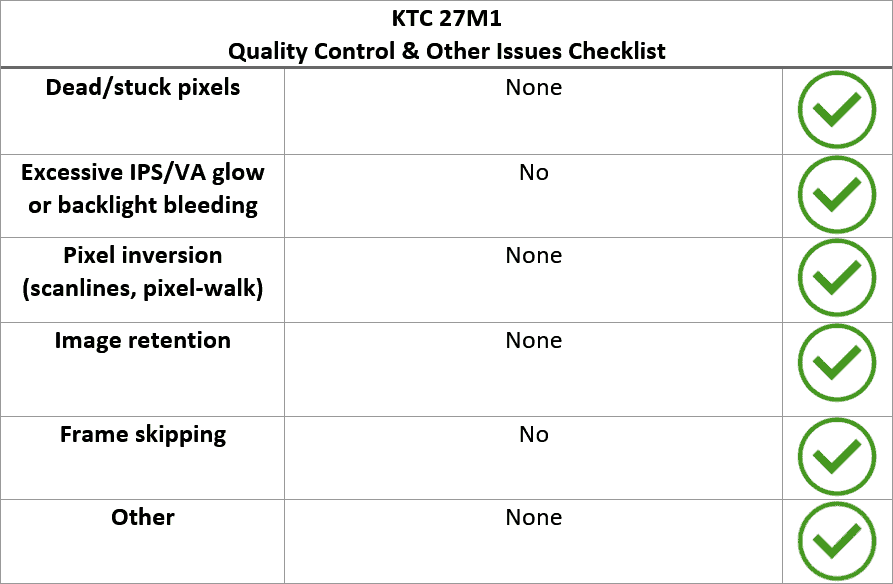
We didn’t find any dead or stuck pixels, no frame skipping, pixel inversion artifacts, image retention, excessive IPS glow or backlight bleeding, or any other quality control issues.
Lastly, here’s the image uniformity test result.
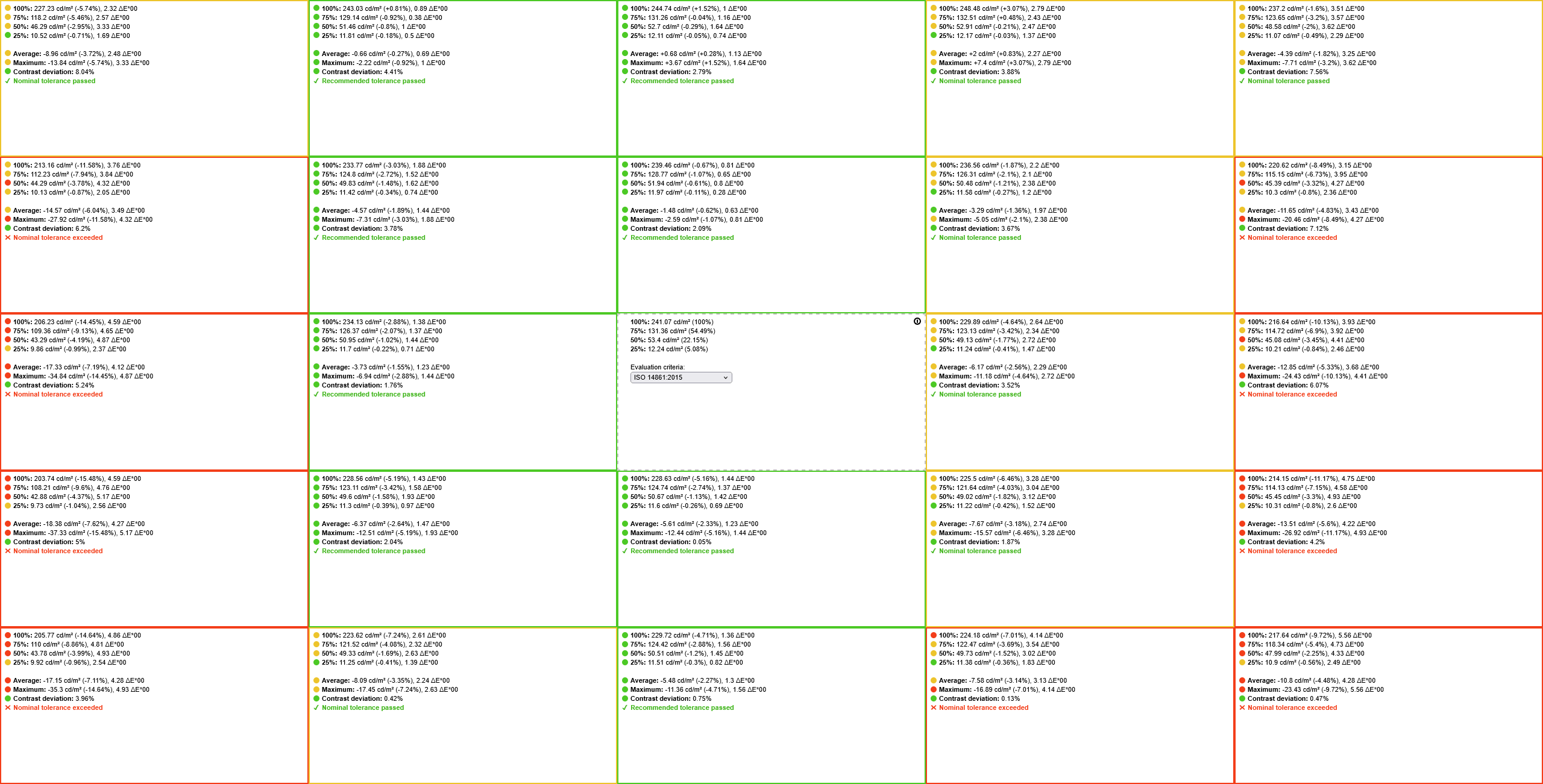
The brightness and contrast uniformity are decent. The bottom-left part of the screen is a bit darker than the rest (up to around 15%), and the bottom-right up to around 10%, but we didn’t find this to be noticeable during everyday use.
KTC 27M1 Best Performance Settings
FreeSync/G-SYNC: On
Overdrive: Dynamic Overdrive
Features
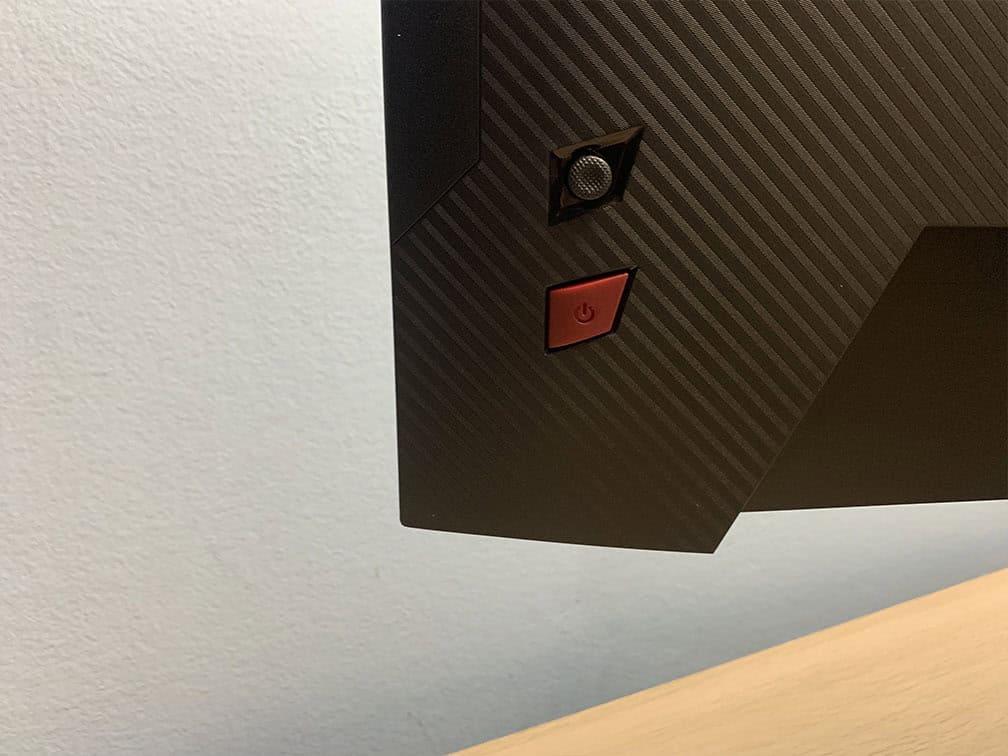
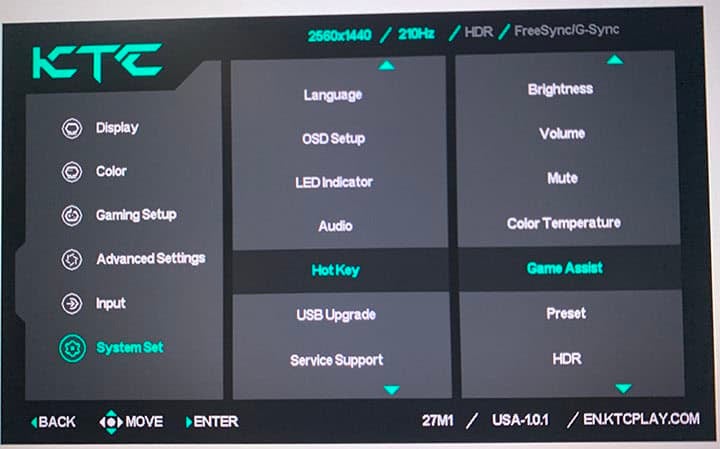
On the rear of the monitor, there’s a directional joystick for quick and easy navigation through the menu. Moving the joystick up, down, left or right also serves as a quick menu for certain functions that can be changed in the menu. Below the joystick is a dedicated power button.
Possible hot key shortcuts include brightness, volume, mute, Game Assist, Preset, Color Temperature, Black Equalize, HDR and Aspect Ratio. Moving the joystick up is reserved for input source selection.
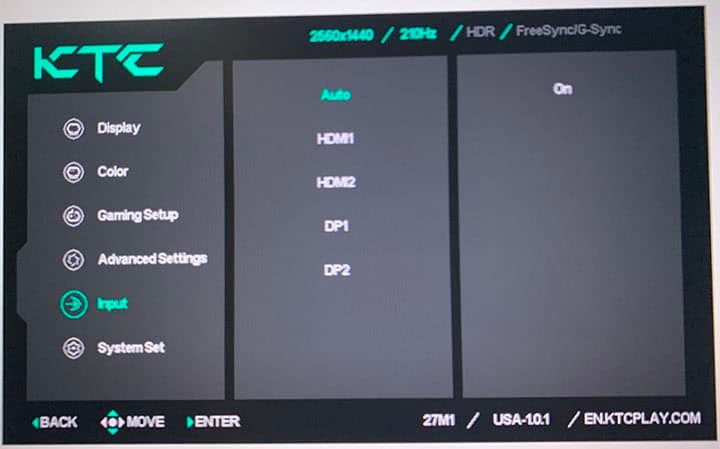
Besides typical image adjustment tools (brightness, contrast, color temperature), there are some advanced settings available too, including sharpness, aspect ratio (full, 16:9, 4:3, cannot be changed with VRR enabled), gamma (from 1.8 to 2.4), hue/saturation and automatic input detection.
KTC also offers a desktop application called MMC (Monitor Management Center), which you can use to make some OSD-related adjustments, assign keyboard hotkeys for certain functions or picture modes to different applications.
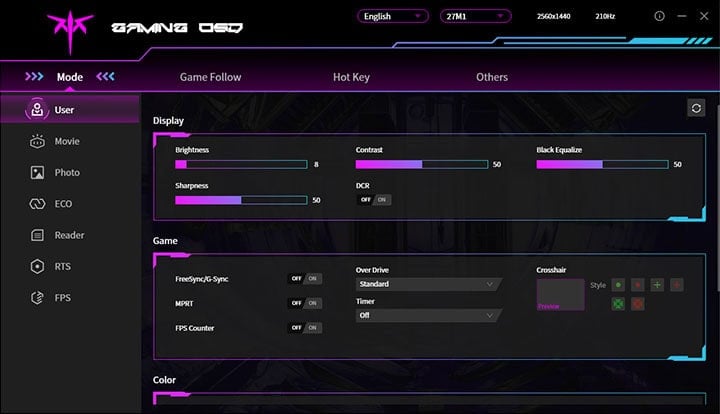
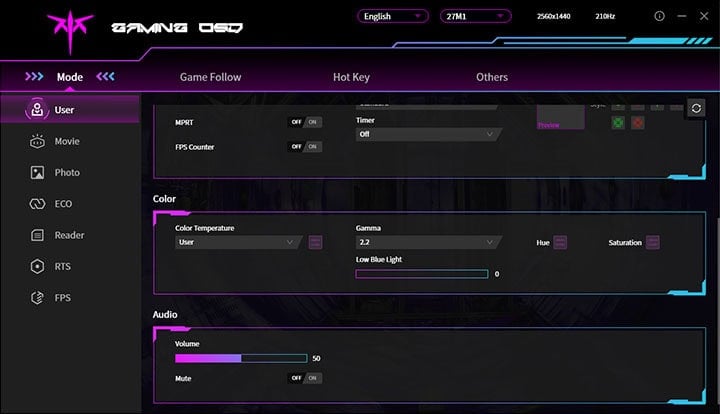
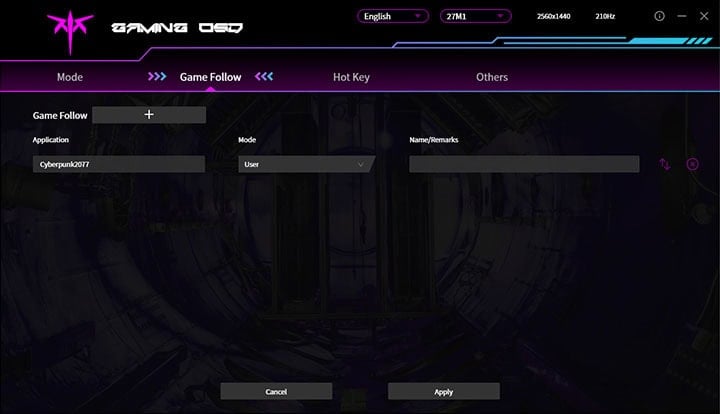
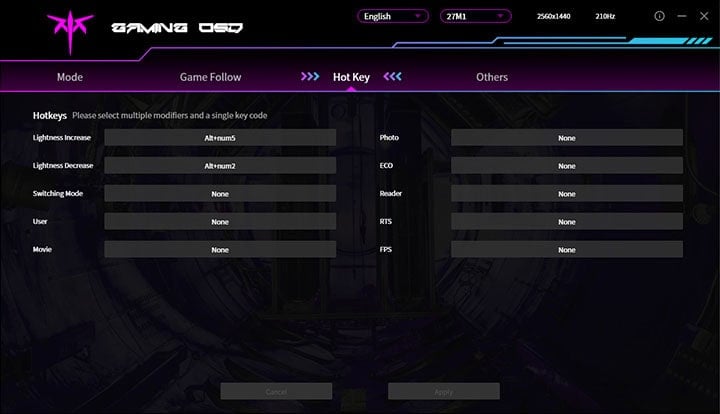
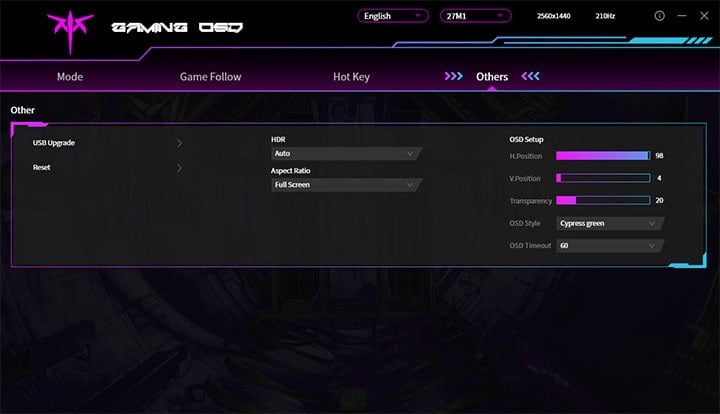
You can download the MMC app here, though you’ll need to change your browser’s preferred language to ‘Chinese (Simplified)’; otherwise, it will just take you to the English homepage. Alternatively, use this direct download link (clicking it will start the download immediately).
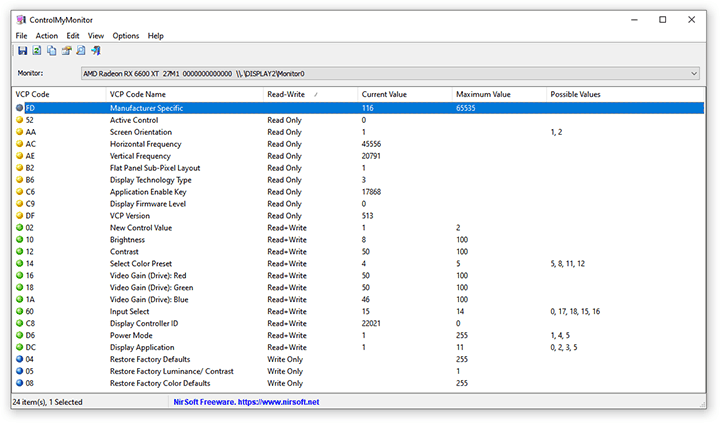
You can also use third-party apps, such as ControlMyMonitor, to make the following OSD settings:
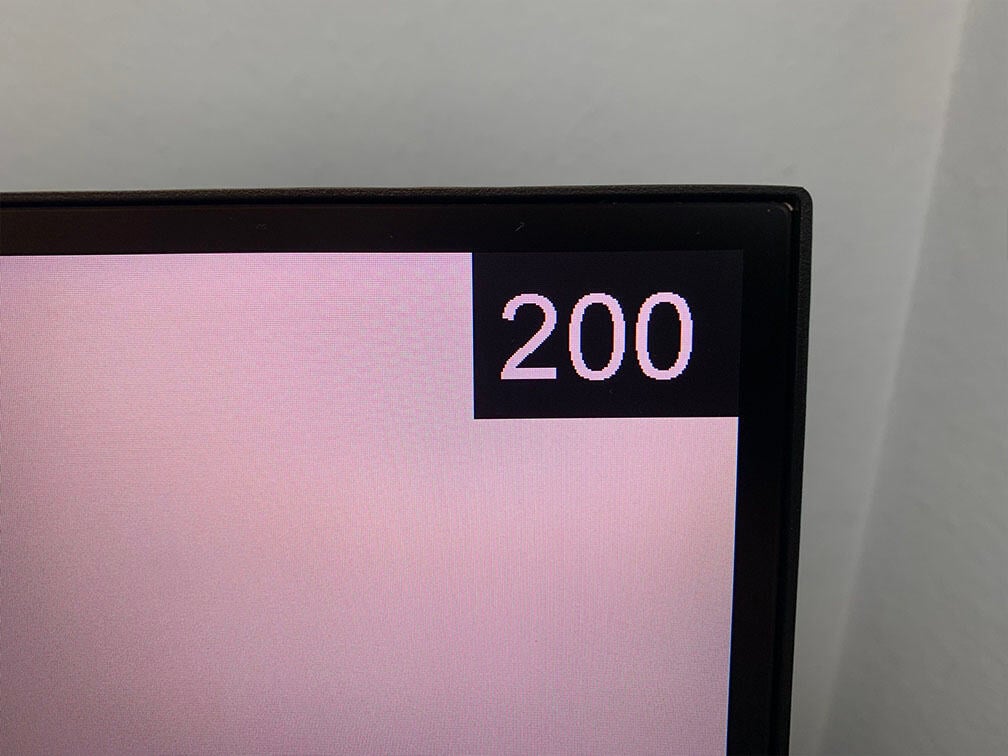
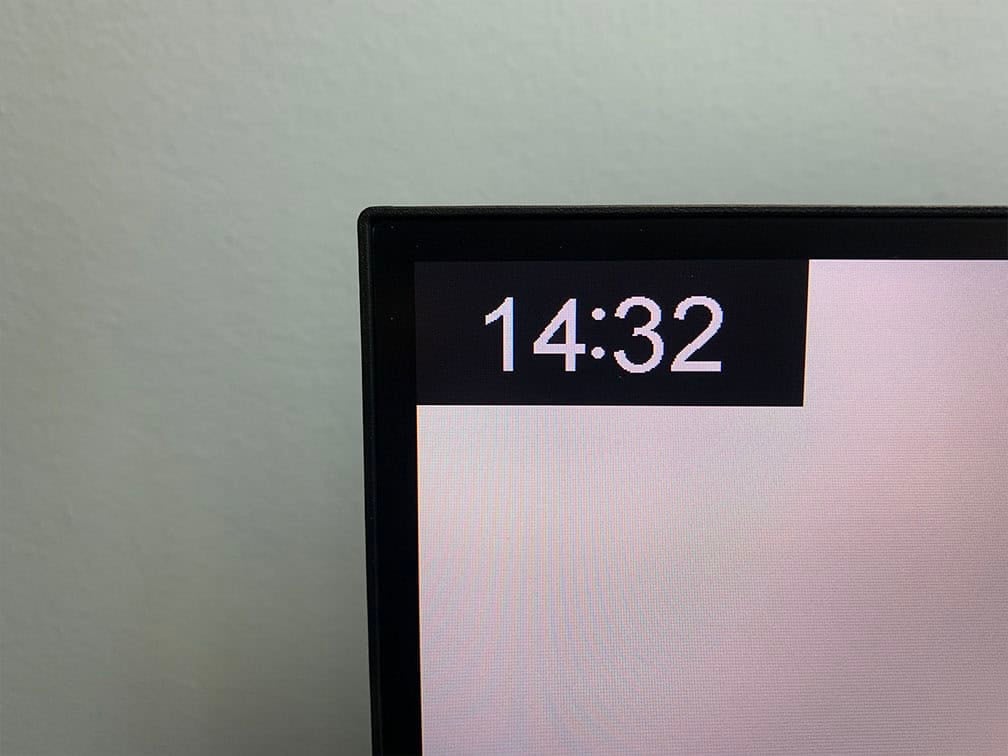
Useful gaming features include Black Equalize (improves visibility in dark scenes by altering the gamma curvature), crosshair overlays, a refresh rate tracker and an on-screen timer.

Other OSD settings include language, OSD setup (position, timeout, transparency, style), power LED indicator (on, off), audio, USB Upgrade (for firmware updates) and factory reset.
Design & Connectivity
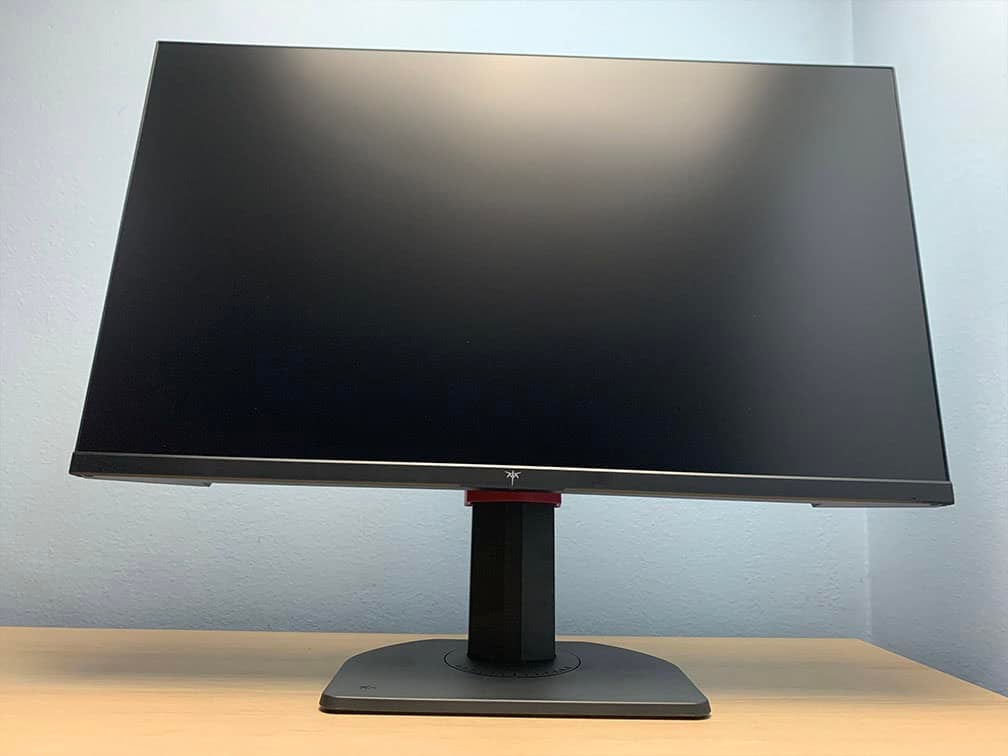
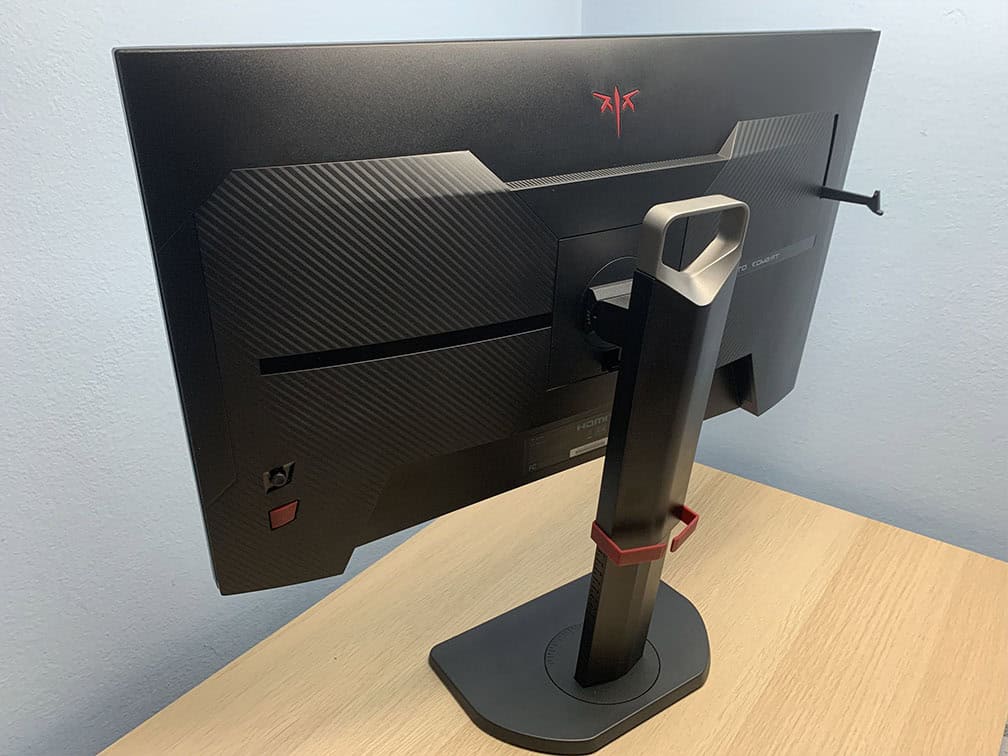
The KTC 27M1 boasts a gamer-inspired design with a fully ergonomic stand, including up to 150mm height adjustment, -5°/90° pivot, +/- 60° swivel, -5°/35° tilt and 100x100mm VESA mount compatibility (M4*10mm screw size).
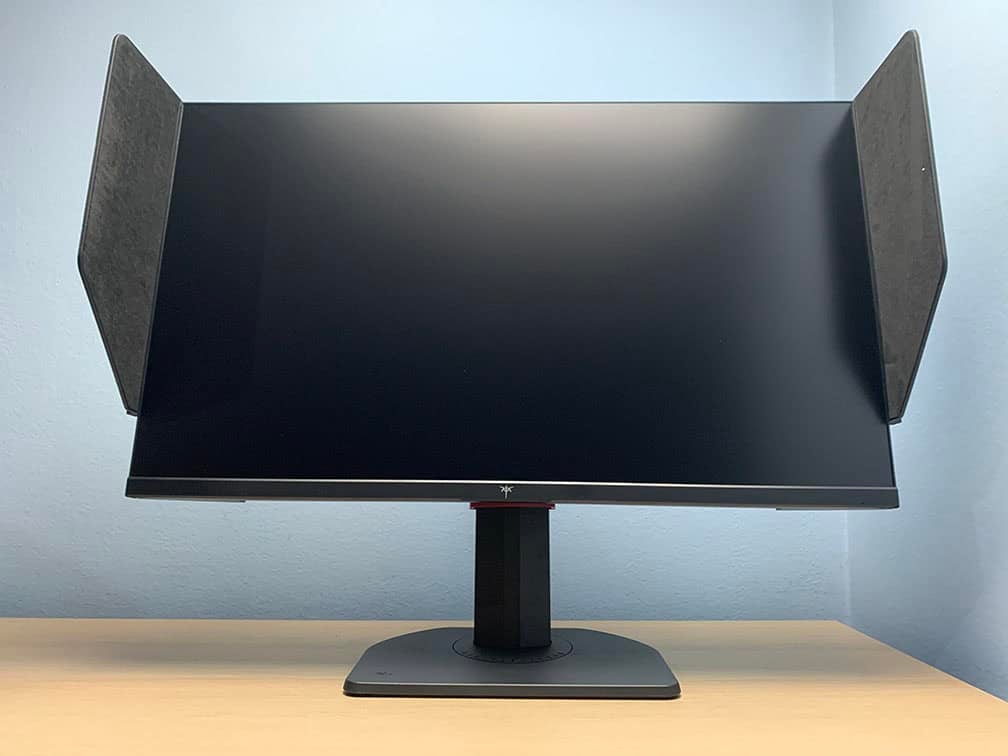
The stand of the monitor is sturdy and doesn’t take a lot of desk space, allowing you to place your keyboard close to the screen and/or place items on it. The design also involves a cable management bracket, a carrying handle, a headphone hook and a shading hood to minimize distractions.
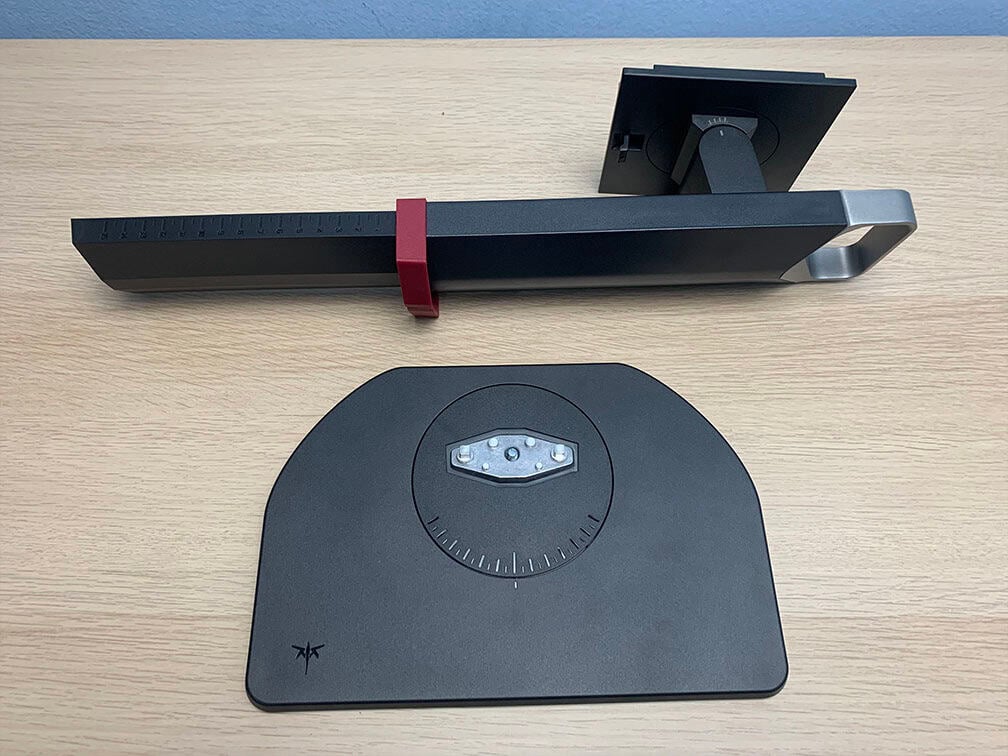
The stand and riser have markings for swivel and tilt positions, along with 30 tick marks spaced 0.5 cm apart for height adjustment, making it easy to find your ideal screen position every time.
Further, the monitor has a matte textured finish except for the ‘Key To Combat’ strip at the rear, which is glossy. There’s also the red KTC logo on the rear.
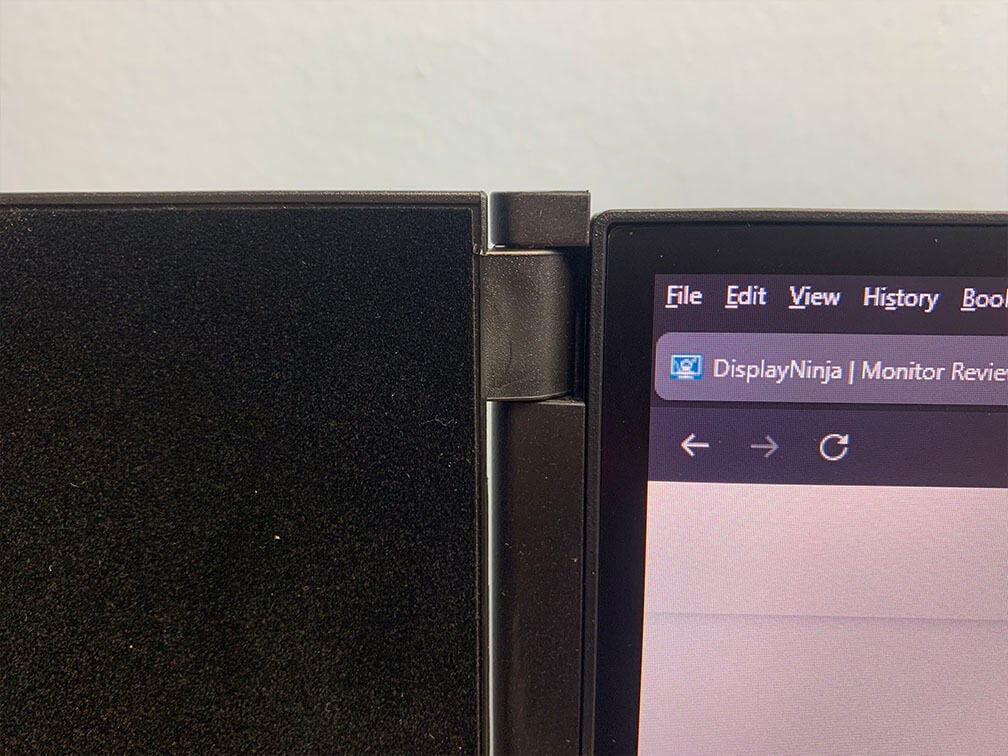
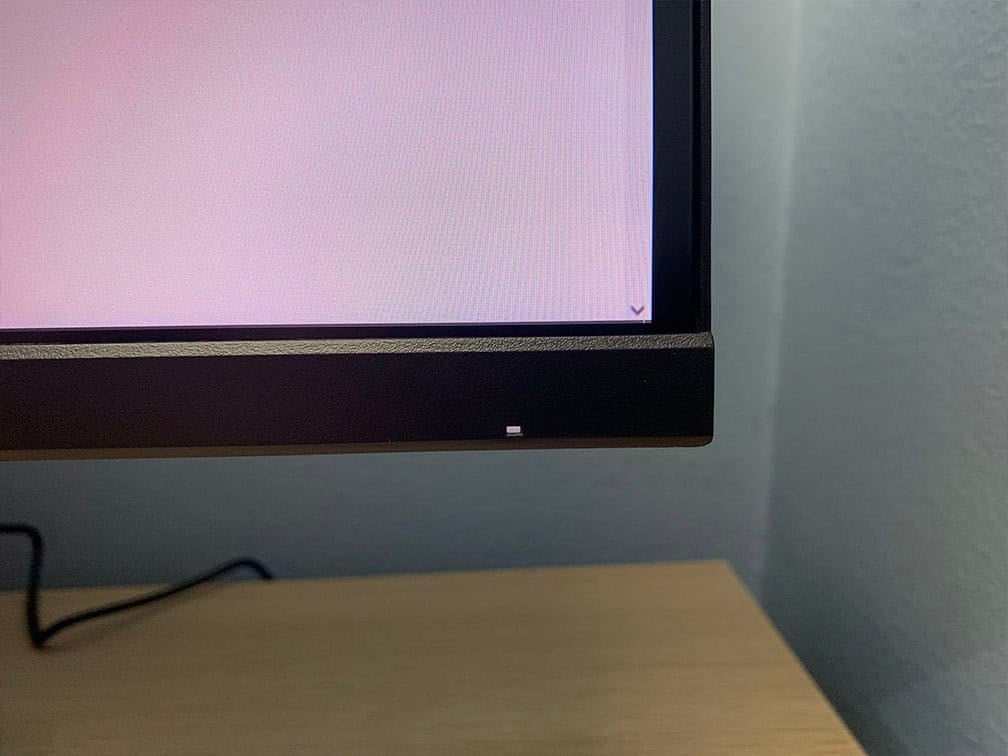
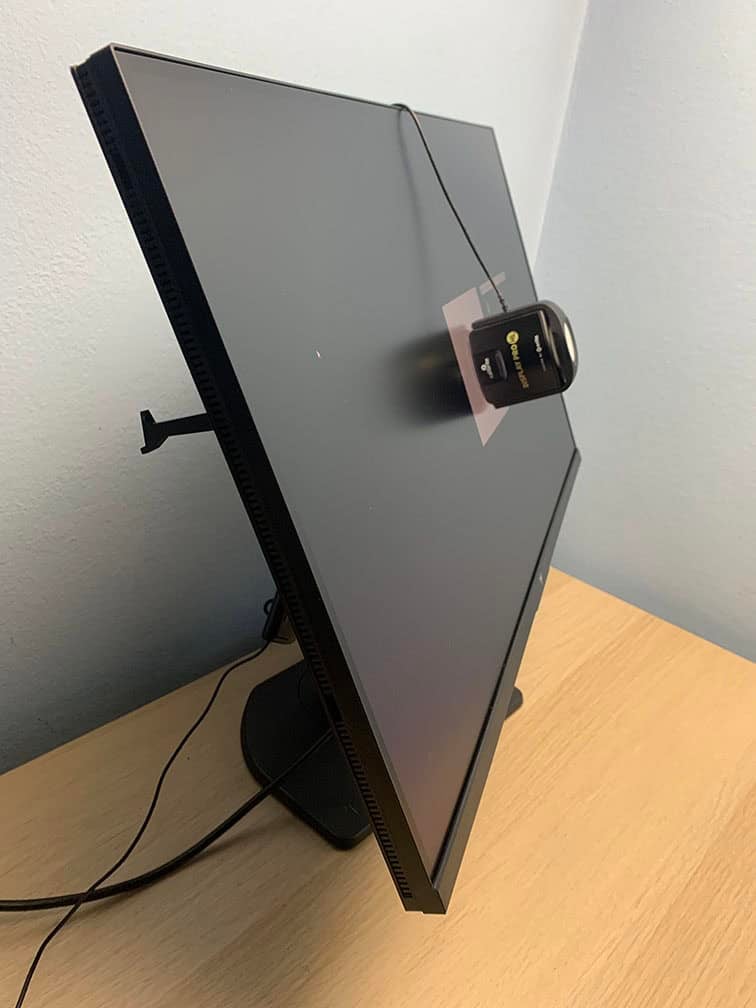
The bezels are ultra-thin (1mm) at the top and at the sides, while the bottom bezel is a bit thicker at 16mm. The screen is 18mm thick. There’s also a 5mm black border (2mm at the bottom) around the screen before the image starts.
The power LED indicator glows in white and blinks in orange when the monitor is in standby mode (the LED can be disabled in the OSD menu).
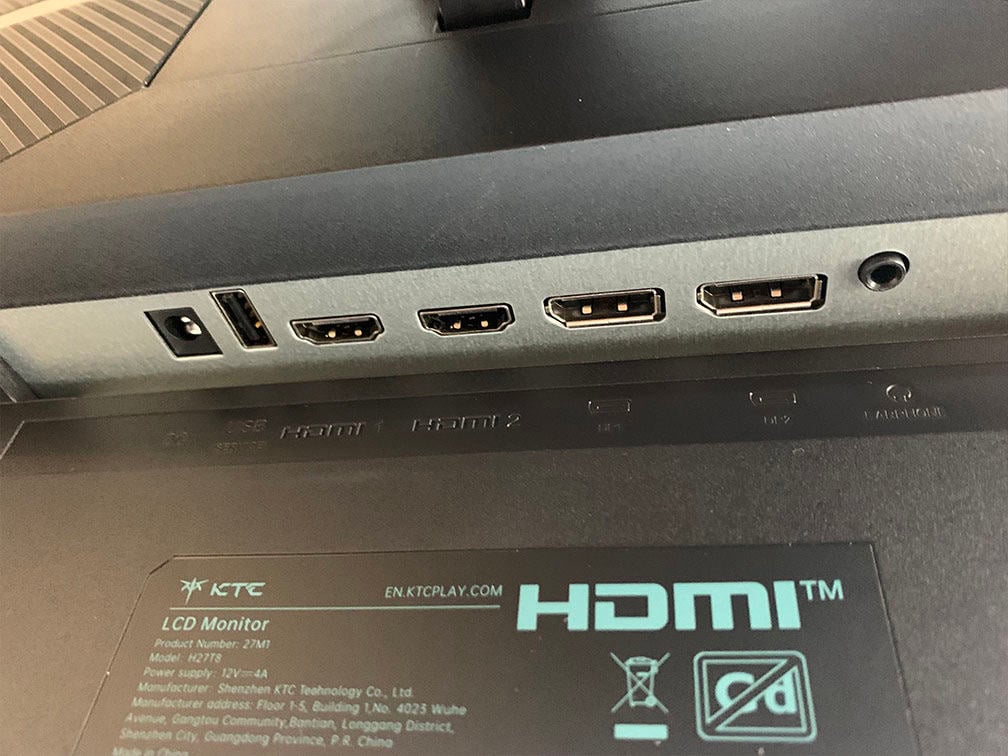
Connectivity options include two HDMI 2.0 ports (limited to 144Hz), two DisplayPort 1.4 inputs, a headphone jack, dual 2W integrated speakers for basic audio output and a USB port for firmware updates only.
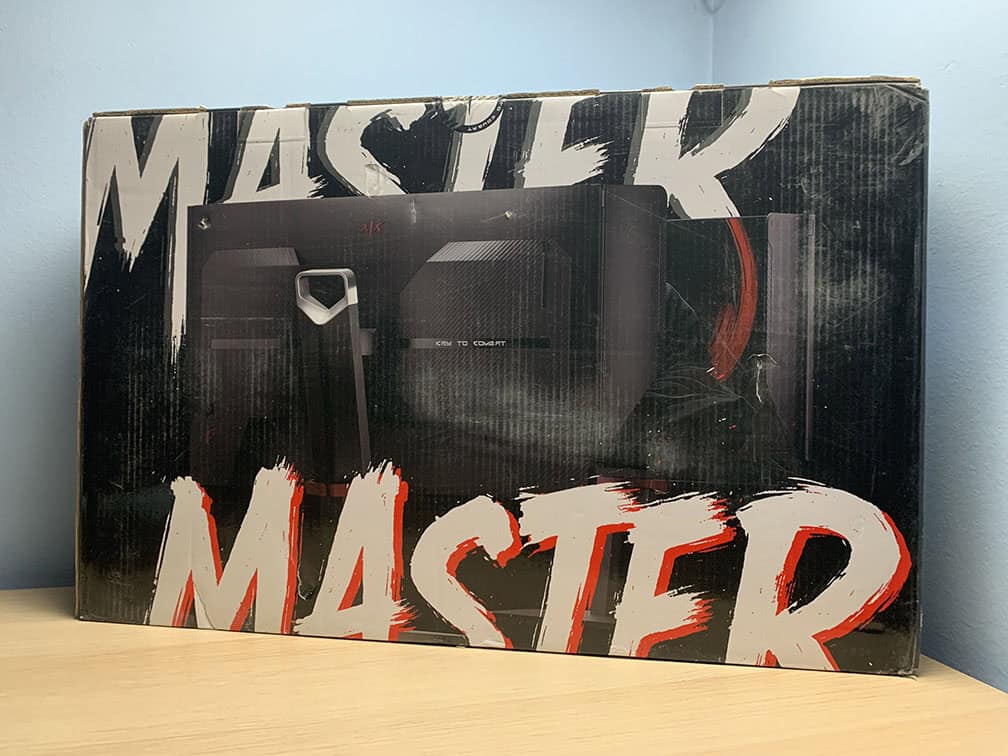
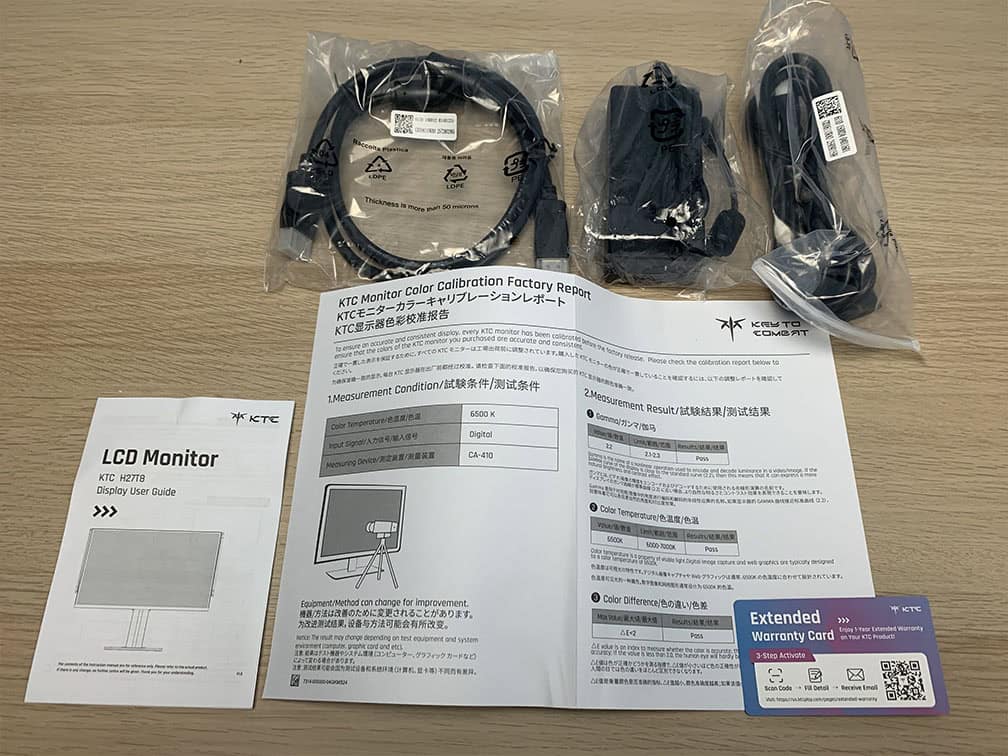
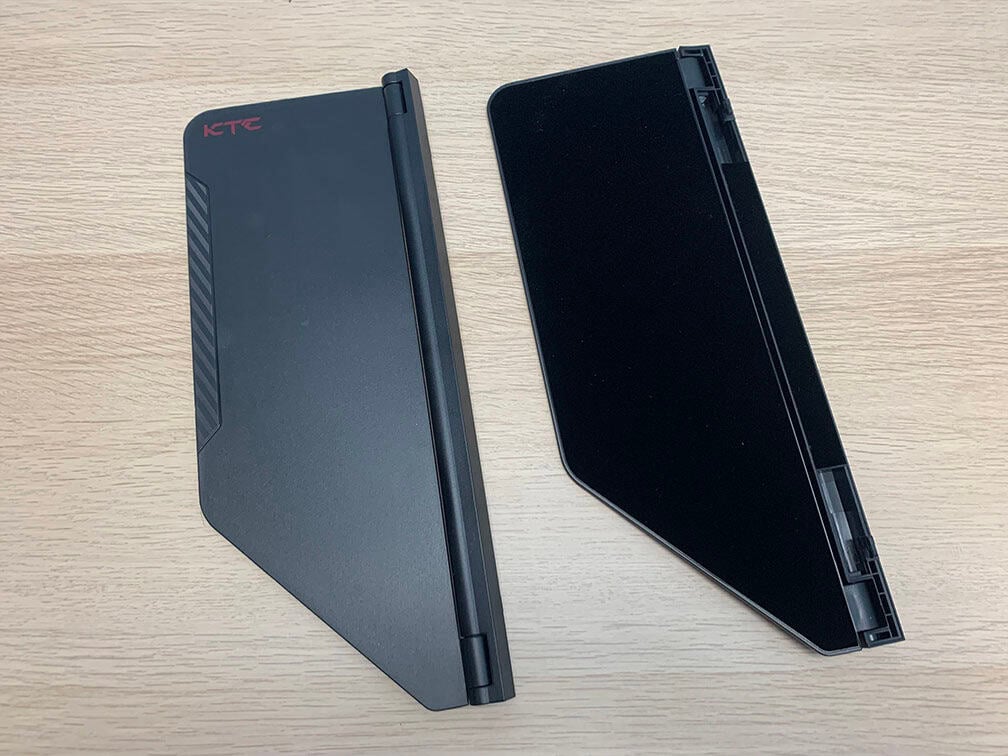
In the box, along with the monitor, its stand and shielding hood, you’ll get the 48W external power supply, a power cord, a DisplayPort cable, a quick-start guide, a warranty card and a factory calibration report.
Price & Similar Monitors
The KTC 27M1 goes for $230, but can be found for $180 with a coupon on Amazon, which is an excellent value for the price.
We still find that this combination of specifications is ideal for many gamers who aren’t interested in HDR. You get a reliable performance and decent image quality without any blooming, risk of burn-in, VRR brightness flickering, smearing, too demanding resolution, etc.
If you want an even higher refresh rate, check out the KTC H27E6 with 320Hz for $260.
In the $200 – $300 price range, you can also find good ultrawide, HDR and 4K displays, so be sure to check out our buying guides for more options.
Conclusion
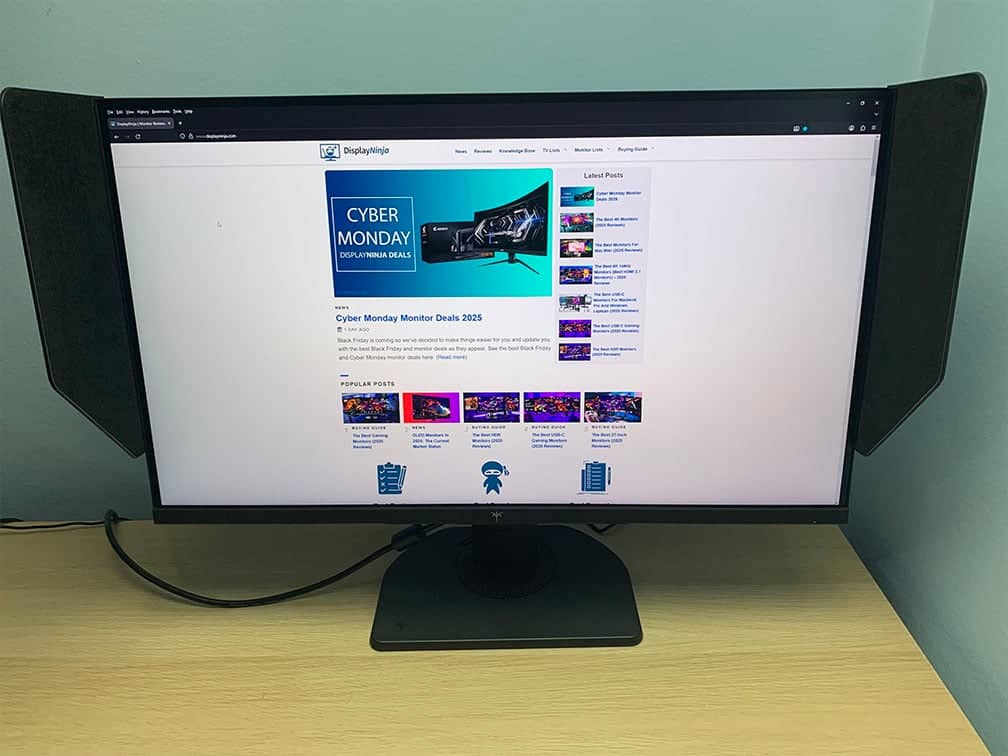
Overall, the KTC 27M1 is an excellent gaming monitor for the price.
It costs as much as a typical 27″ 1440p 144Hz – 180Hz IPS gaming monitor, yet it bumps up the refresh rate to 210Hz with a fully ergonomic eSports design, and plenty of gaming features, including dynamic overdrive and viable backlight strobing implementation.
On top of that, it has a strong 500-nit peak brightness, a good contrast ratio for an IPS panel, a wide color gamut, low display latency, smooth VRR performance and integrated speakers.
We wish the pixel response time speed were a bit faster since there was room for improvement with a more aggressive overdrive between ‘Advanced’ and ‘Ultra Fast’, but we find that the amount of ghosting will be acceptable (or even negligible) for most gamers.
So, if you’re looking for a gaming monitor with smooth performance and consistent image quality, you can’t go wrong with the KTC 27M1 for the price.
Specifications
| Screen Size | 27-inch |
| Resolution | 2560×1440 (WQHD) |
| Panel Type | IPS |
| Aspect Ratio | 16:9 (Widescreen) |
| Refresh Rate | 200Hz (210Hz OC) |
| Response Time | 2ms (GtG) |
| Motion Blur Reduction | 1ms (MPRT) |
| Speakers | 2x2W |
| Adaptive-Sync | FreeSync Premium (48-210Hz) |
| Ports | 2x DisplayPort 1.4, 2x HDMI 2.0 |
| Other Ports | Headphone Jack, USB 2.0 (for firmware updates) |
| Brightness | 450 cd/m² |
| Contrast Ratio | 1000:1 (static) |
| Colors | 1.07 billion (8-bit + FRC) 96% DCI-P3 (91.8% measured) |
| HDR | HDR10 |
| VESA | Yes (100x100mm) |
The Pros:
- Wide color gamut with sRGB mode
- Wide viewing angles
- High peak brightness, decent contrast ratio for IPS
- Decent response time, low input lag
- Plenty of features, including VRR and MBR up to 210Hz
- Fully ergonomic stand with included shielding hood
The Cons:
- IPS glow and mediocre contrast ratio (as expected from this panel technology)
- Pixel response time could’ve been a bit faster


