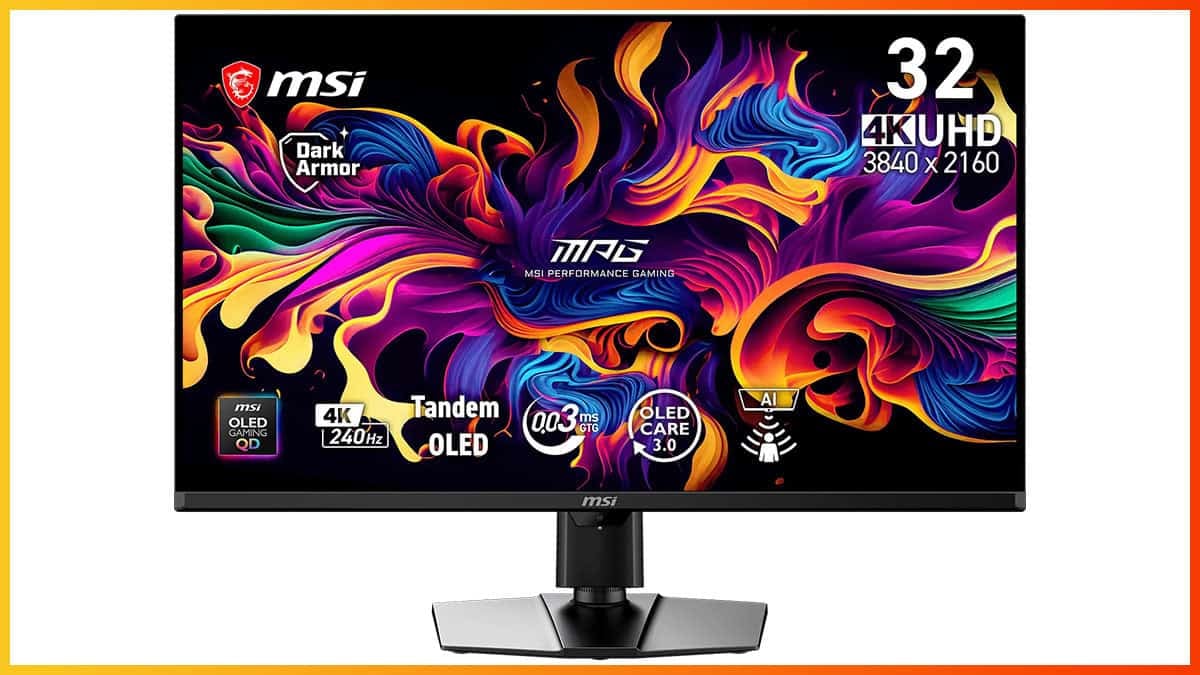
Bottom Line
The MSI MPG 322UR QD-OLED X24 improves upon the last-gen 32″ 4K 240Hz QD-OLED models by including AI Care Sensor, the DarkArmor Finish coating for better reflections handling and True Black 500 certification for around 15 – 20% higher luminance for 10 – 100% APLs.
In addition, you get plenty of premium features, such as DP 2.1 (UHBR20), USB-C (98W PD, DP Alt Mode), KVM, MPRT and more!
The MSI MPG 322UR QD-OLED is a 32″ 4K 240Hz gaming monitor, which improves upon the previous-gen panels by adding the new DarkArmor Finish that eliminates magenta tint under ambient lighting for 40% deeper blacks and better scratch resistance.
Moreover, the new panel boasts VESA’s DisplayHDR True Black 500 certification that bumps up the brightness from 250-nits to 300-nits for 100% APL and from 450-nits to 500-nits for 10% APL.
It’s also equipped with premium features, such as built-in KVM, USB-C with 98W PD, AI Care Sensor, DisplayPort 2.1 with full UHBR20 bandwidth and more!
Here’s how it handles our tests.
Image Quality
Samsung has rebranded its HyperEfficient EL Gen 3.0 panels as QD-OLED Penta Tandem to better compete with LG’s new Tandem W-OLED panel marketing.
The MPG 322UR features this Tandem QD-OLED panel, but older 27″ and 32″ 4K models are also being marketed under the same label, which can be confusing.
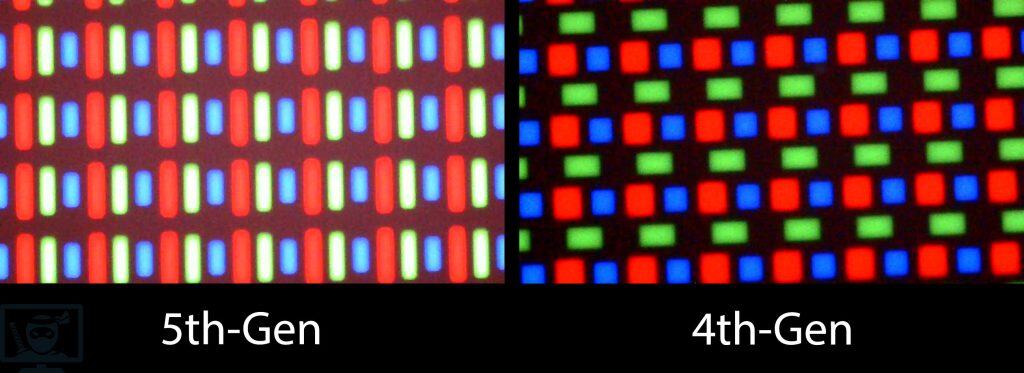
You can distinguish QD-OLED panels based on their subpixel layout and brightness performance.
| Size & Resolution | Refresh Rate(s) | Subpixel Layout | True Black | Peak Brightness (3% APL) | Coating |
| 34” 3440×1440 | 165Hz, 175Hz, 240Hz | Diamond-shaped | 400 | 1000 | Old |
| 49” 5120×1440 | 144Hz, 240Hz | Square-shaped | 400 | 1000 | Old |
| 27” 2560×1440 | 240Hz, 280Hz, 360Hz | Square-shaped | 400 | 1000 | Old |
| 27” 3840×2160 | 120Hz, 240Hz | Square-shaped | 400 | 1000 | Old |
| 32” 3840×2160 | 165Hz, 240Hz | Square-shaped | 400 | 1000 | Old |
| 32” 3840×2160 | 240Hz | Square-shaped | 500 | 1000 | New |
| 27” 2560×1440 | 500Hz | Square-shaped | 500 | 1000 | New |
| 34” 3440×1440 | 280Hz, 360Hz | RGB Stripe | 500 | 1300 | New |
OLED displays deliver exceptional image quality, with infinite contrast and per-pixel dimming that produce true blacks without the blooming often seen on mini LED backlights.
They also offer excellent brightness for punchy highlights, rich and vibrant colors with 99.3% DCI-P3 coverage, true 10-bit color depth for smooth gradients, and wide 178° viewing angles that maintain excellent consistency from virtually any position.
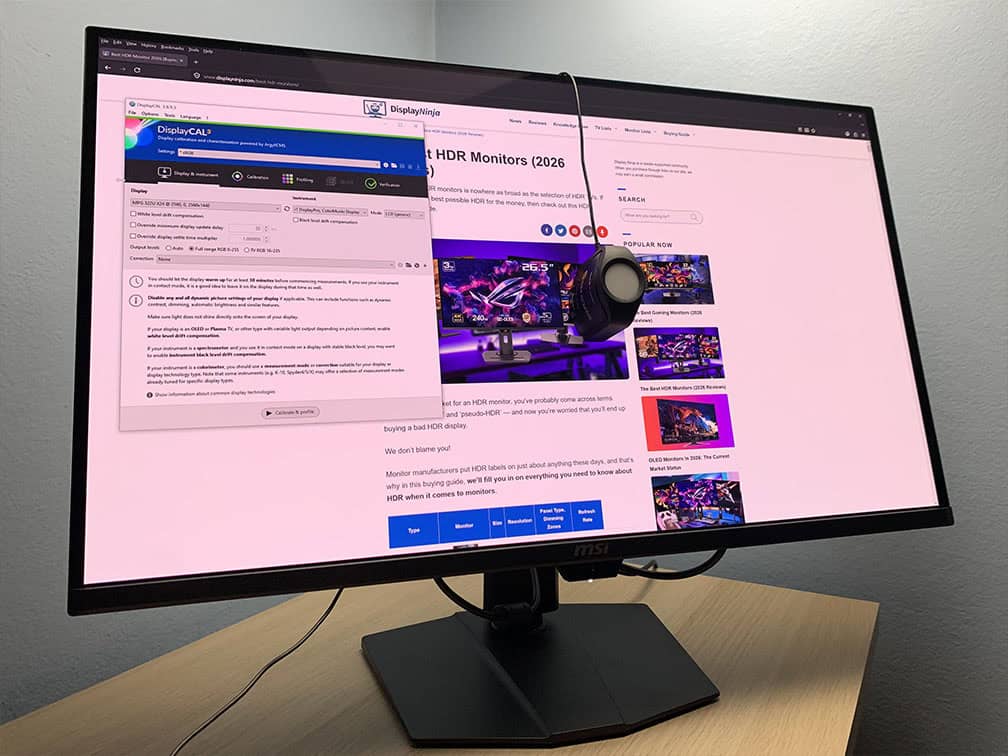
For our testing, we’re using the Calibrite Display Pro HL colorimeter paired with DisplayCAL and HCFR software. Note that our tests were done using the FW.009 monitor firmware version.
Subpixel Layout & Pixel Density
Note that the monitor isn’t using the latest 5th-gen panel technology that we tested with the MSI MPG 341CQR QD-OLED X36 model. That panel has an even higher 1300-nit peak brightness for 3% APL, as well as the new V-stripe RGB subpixel layout.
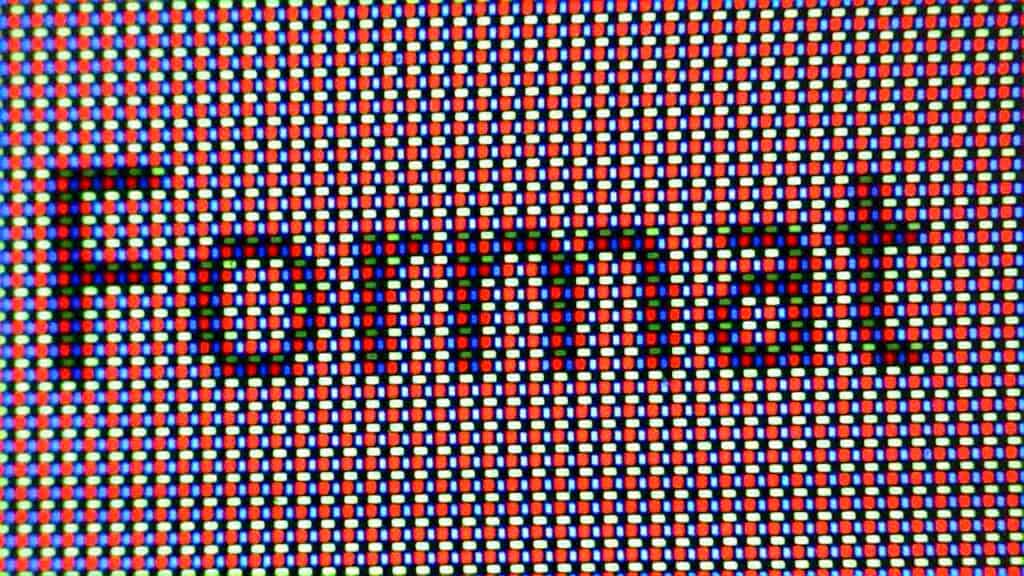
The MSI MPG 322UR QD-OLED X24 has the old triangular RGB subpixel layout, but thanks to its high pixel density of 140 PPI (pixels per inch), fringing on small text and fine details isn’t noticeable in everyday use. You may be able to spot some very thin green and magenta fringing on fine lines, but it’s completely negligible.
Below is a microscope photo of the text rendering. As you can see, there is fringing, but it isn’t noticeable at a normal viewing distance.
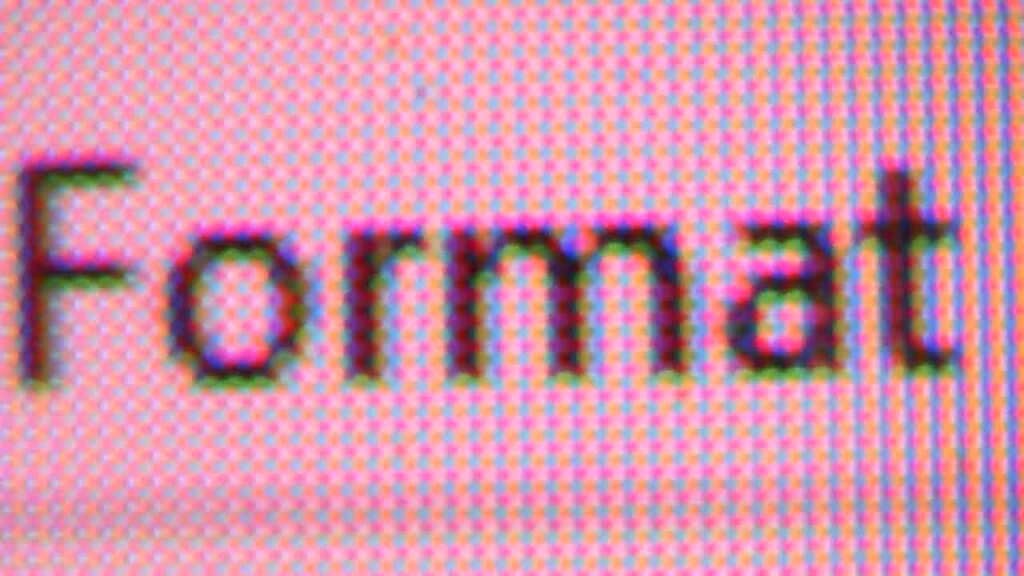
The 4K UHD resolution provides you with crystal-clear text and details, with plenty of screen real estate available. You may prefer to use scaling, which will make small text larger and easier to read, but you will have less screen space.

While 4K is quite demanding on the GPU, thanks to upscaling technologies such as FSR and DLSS, gaming at 4K is feasible nowadays even with mid-range graphics cards.
Color Gamut
We measured an impressive 164.3% sRGB color gamut volume with 99.9% sRGB, 98.3% DCI-P3 and 94.3% Adobe RGB color space coverage, resulting in rich and vibrant colors, as expected from a QD-OLED panel
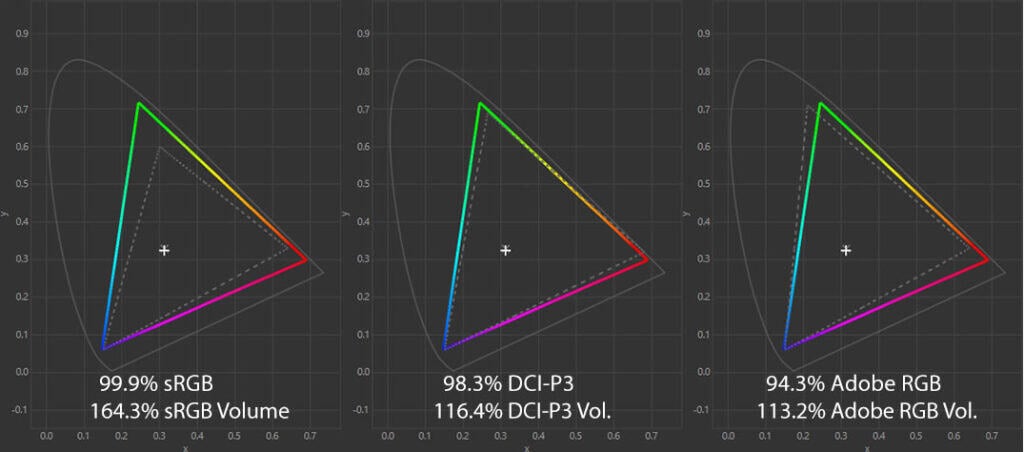
The DCI-P3 coverage here is a tad lower than the specified 99.3% DCI-P3 for QD-OLED panels, which is a result of different colorimeters and testing methods.
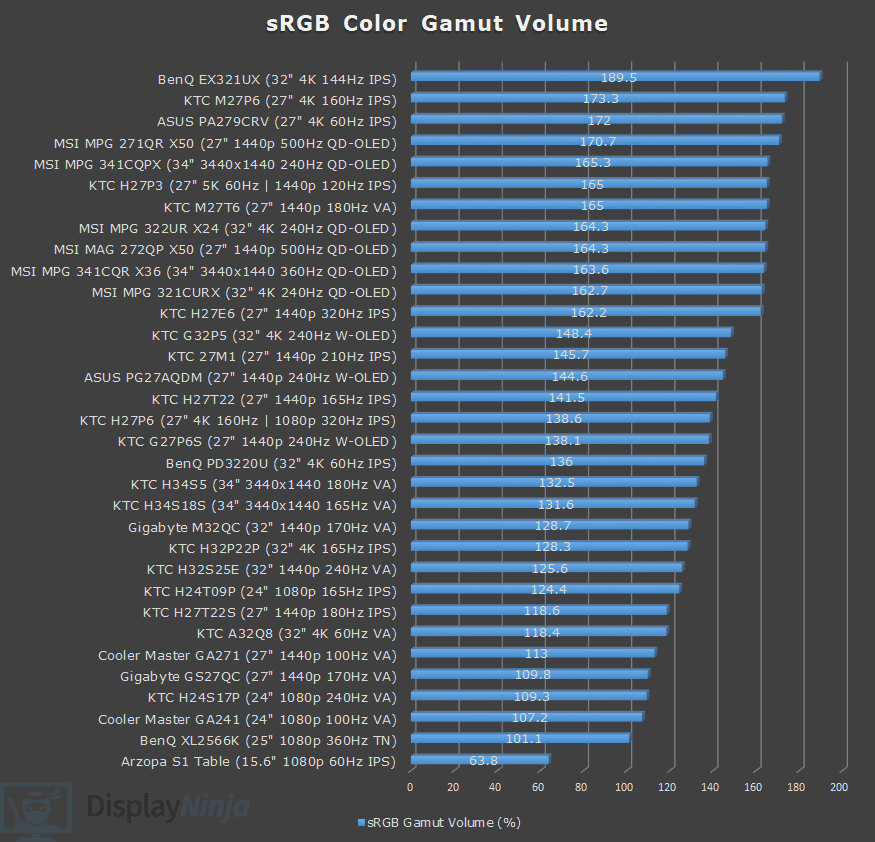
Image Accuracy
As Windows doesn’t do color management by default, the colors will be oversaturated when viewing SDR content out of the box in the ‘User’ or ‘Eco’ mode, with a Delta E of 2.79 average (color deviation from the target, less than 1.5 is considered good) and 6.81 maximum (target is less than 3).
If we compare the monitor’s out-of-the-box performance to the wider DCI-P3 color space, the accuracy is much better with a low Delta E of 0.92 average and 2.96 maximum.
Selecting the ‘sRGB’ option under ‘Mode’ in the OSD (On-Screen Display) menu will clamp the color gamut from 163.6% volume down to 95.1% with 94.4% sRGB color space coverage.
This results in a more accurate Delta E of 0.62 average and 1.9 maximum.
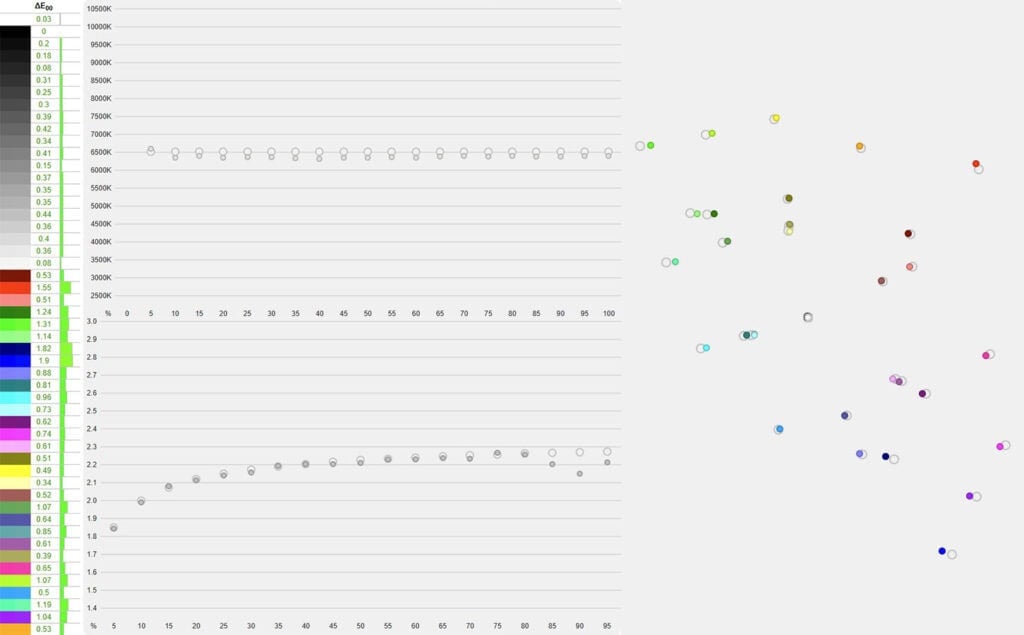
Gamma tracking is also excellent, with an average of 2.16 (target is 2.2), and it follows the sRGB tone curve properly, though some lighter shades (90% white) will be a bit brighter than intended.
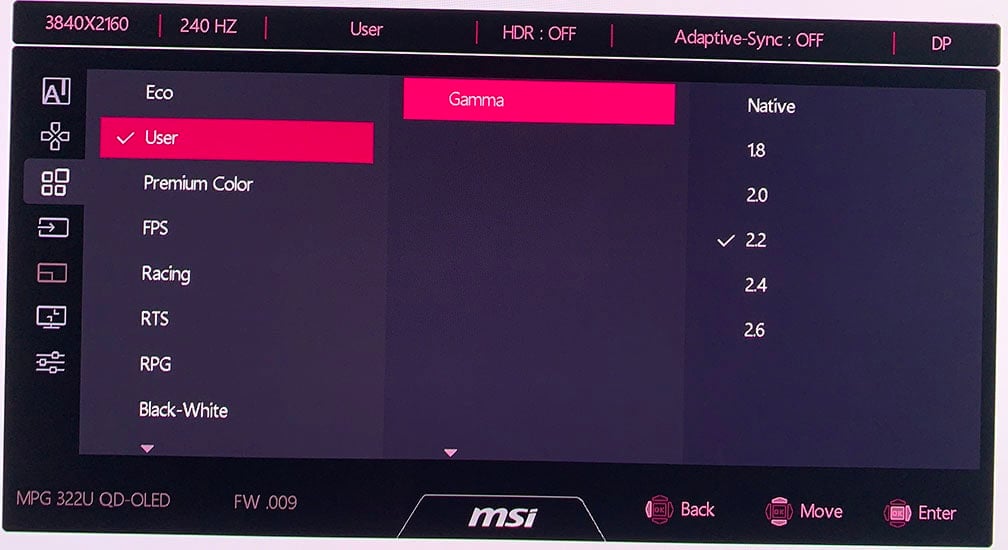
In the ‘User’ mode, the gamma average is closer to 2.2 at 2.19, but it’s targeting a flat 2.2 gamma instead, which can make details in dark scenes a bit darker than intended, in addition to some lighter shades appearing brighter than they should be.
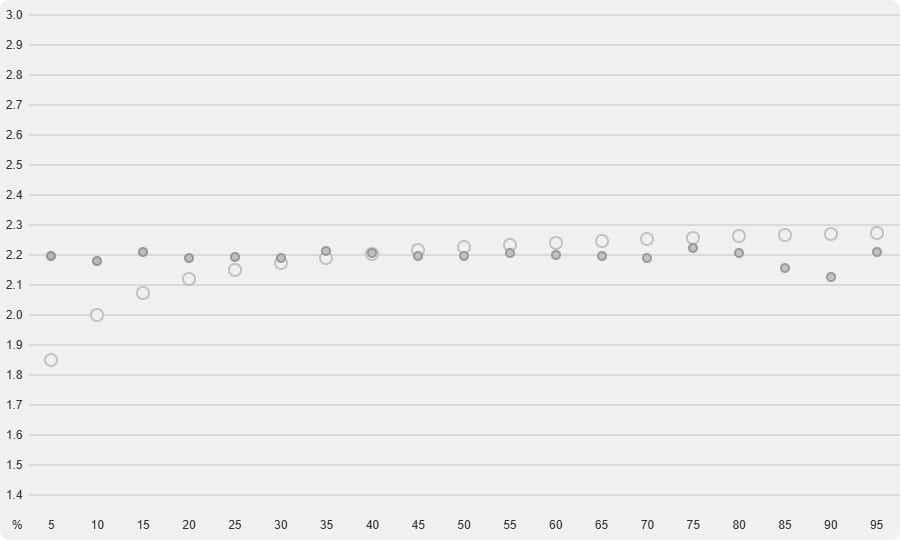
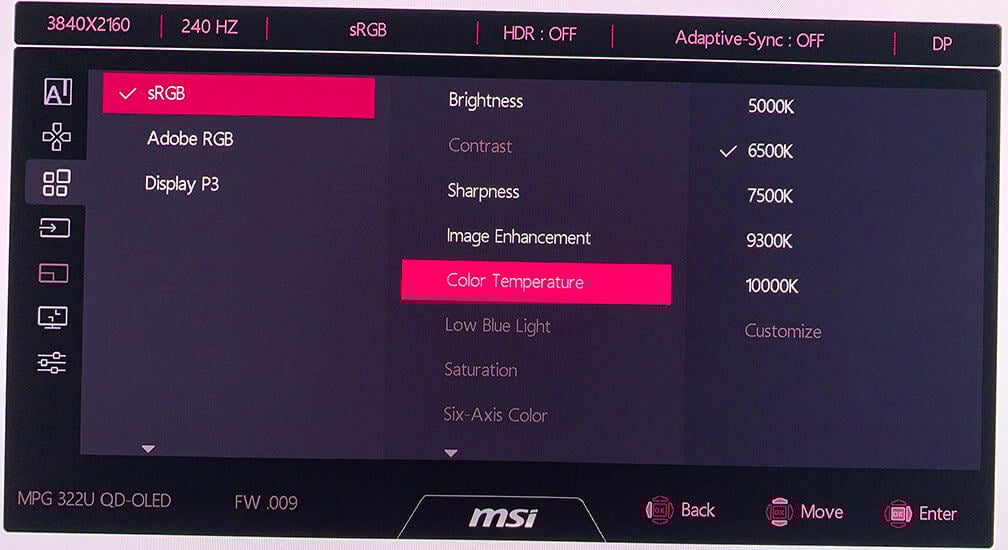
The color temperature performance is excellent at 6459K (target is 6500K) in the User mode and 6387K in the sRGB mode, meaning that there’s no noticeable tinting to the whitepoint.
There are six color temperature options:
- 5000K – we measured 4904K
- 6500K – 6459K
- 7500K – 7306K
- 9300K – 9045K
- 10000K – 9630K
- Customize – 6109K by default
You can adjust brightness, gamma and color temperature in all modes, including User, sRGB, Display P3 and Adobe RGB! This allows you to pair the sRGB color space mode with 2.4 gamma for the Rec. 709 standard.
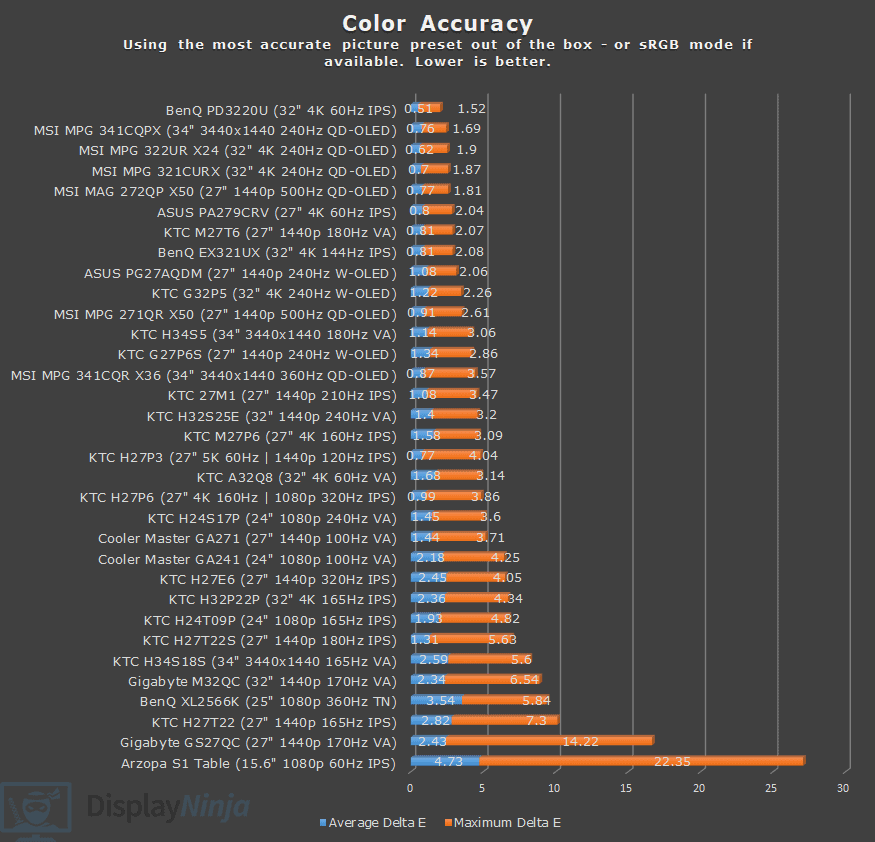
We also tested the Adobe RGB and Display P3 modes.
The Adobe RGB mode clamps the gamut to 91.5% with 90.9% coverage, a Delta E of 0.93 average and 3.72 maximum, and 2.17 gamma.
The Display P3 mode reduces the gamut volume to 100.5% with 98.2% coverage, Delta E of 0.89 average and 1.96 maximum, and flat 2.16 average gamma.
There are several other modes, including Premium Color (increases oversaturation even further), FPS, Racing, RTS, RPG, Eco and Black-White, but we don’t recommend using these as they’re inaccurate.
When you enable HDR in Windows, the monitor maps colors to sRGB with a 95.5% color volume and 94.7% covearge, low Delta E of 1.42 average and 2.91 maximum, 6393K color temperature, and a 2.06 average gamma.
We don’t recommend enabling HDR in Windows unless you’re watching HDR content anyway in order to avoid ABL (Automatic Brightness Limiter), which we’ll get into later.
We also tested the color accuracy when using Windows 11 Auto Color Management (or AMD Custom Color, novideo_srgb for NVIDIA), which resulted in a Delta E of 0.91 average and 3.8 maximum, with 101.1% sRGB volume and 97.5% coverage.
All in all, thanks to the precise factory calibration of the sRGB mode, the SDR accuracy of the MSI MPG 322UR QD-OLED X24 monitor out of the box is excellent.
Calibration
For full calibration, we set the brightness to 29/100 to get around 120-nits and used the ‘Customize’ color temperature mode with red, green and blue channels set to 95, 96 and 100, respectively, for 6492K.
We got a low Delta E of 0.41 average and 1.8 maximum, and 2.18 average gamma with proper sRGB tone curve tracking.
You can download our ICC profile here.
Brightness & Contrast
Because each pixel on an OLED display can turn off completely, it delivers true blacks and an effectively infinite contrast ratio, without the blooming artifacts often associated with mini LED full-array local dimming (FALD) displays.
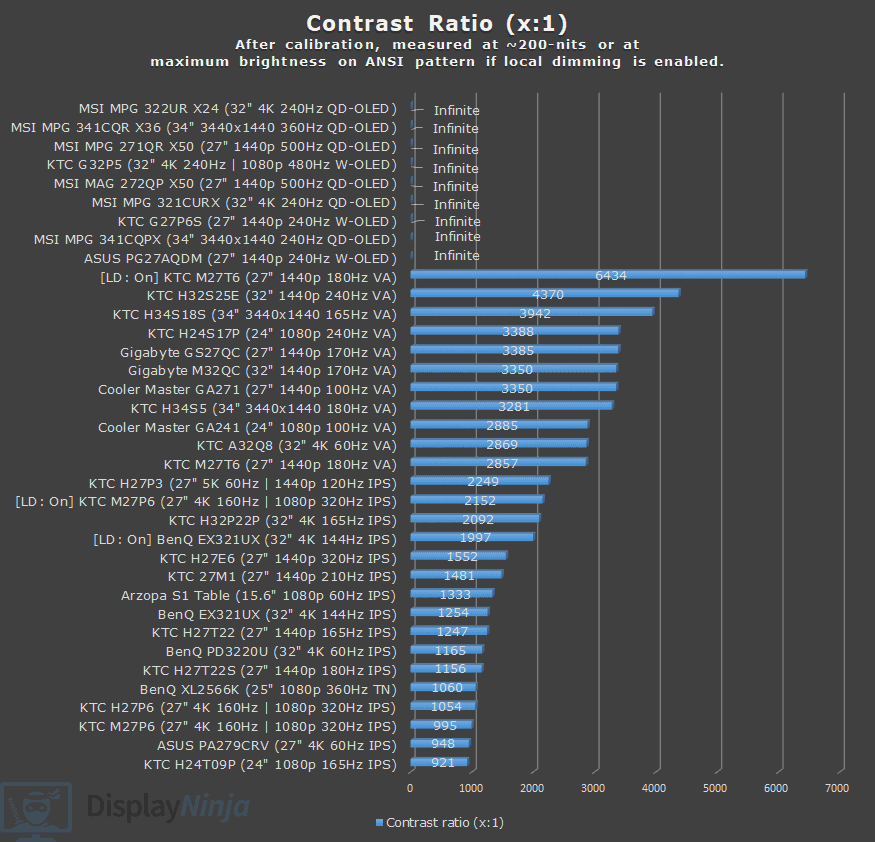
The MSI MPG 322UR X24 is certified for VESA DisplayHDR True Black 500, an upgrade over the previous True Black 400 models.
Additionally, it boasts Samsung’s new TrueBright 500 certification, which aims to rank displays based on perceived brightness by also taking contrast into account, unlike VESA DisplayHDR, which mainly focuses on brightness. According to this, a 300-nit OLED display has a brightness performance equivalent to a 510-nits LCD.
The new panel raises the specified brightness from 250 nits to 300 nits at 100% APL (Average Picture Level, white window test size) and from 450 nits to 500 nits at 10% APL.
In SDR mode, the maximum brightness reaches a consistent 301-nits, while the minimum brightness is 36-nits, making the monitor suitable for use in both dark and bright rooms.
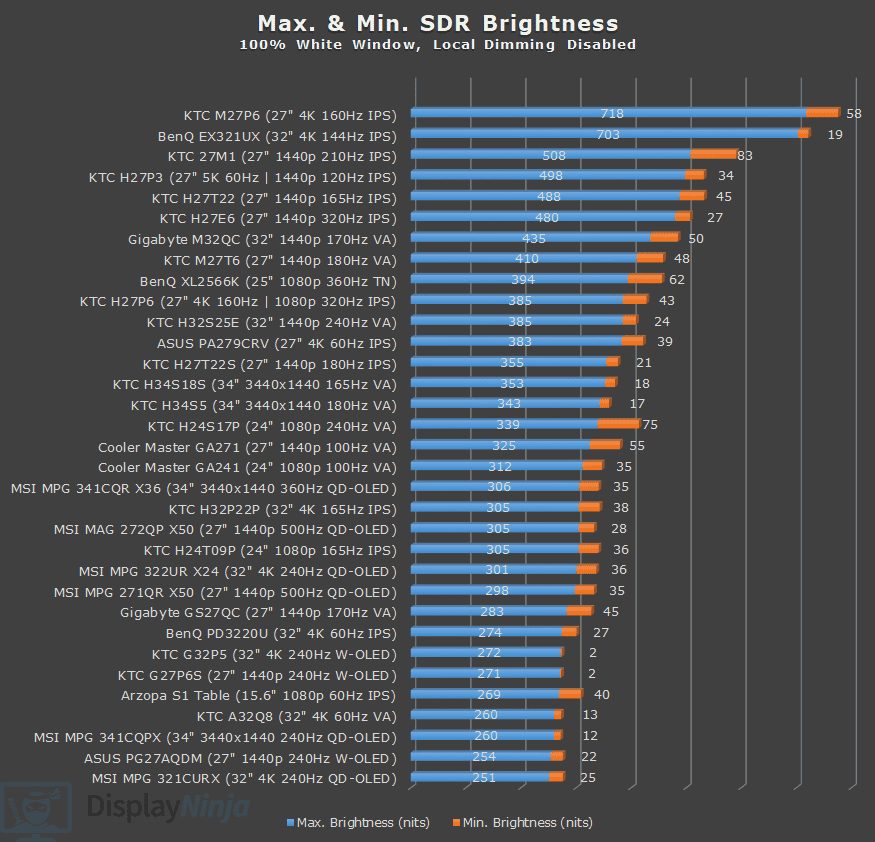
Unlike previous MSI OLED monitors we tested, the MPG 322UR offers two ‘SDR Brightness’ modes: Dynamic and Uniform.
The Uniform mode caps the brightness to 301-nits regardless of how many bright elements are on the screen in order to avoid the annoying oscillation in brightness caused by ABL (Automatic Brightness Limiter).
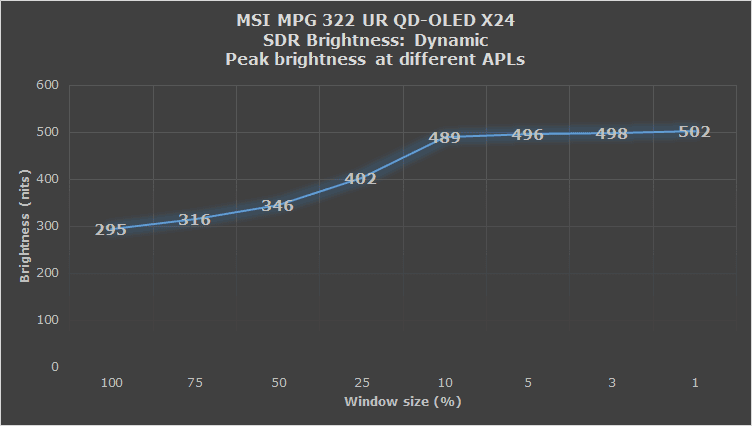
However, you can also choose the Dynamic mode, which allows the screen to reach up to 502-nits in SDR mode for a small 1% APL highlights, but it drops to 295-nits for 100% APL.
Some users may find this mode useful for a slight brightness boost when watching or playing SDR content. However, since SDR doesn’t contain metadata, proper tone mapping isn’t possible in the same way as with HDR, meaning the image won’t be fully accurate or match the creator’s intent.
HDR
The MSI MPG 322UR QD-OLED X24 has three main HDR modes: True Black 500, Peak 1000 nits and EOTF Boost.
Brightness & EOTF Tracking
In synthetic tests (white window against a black background), True Black 500 is limited to 504-nits, while the Peak 1000 nits and EOTF Boost have the same performance, reaching up to 985-nits for 1% APL.
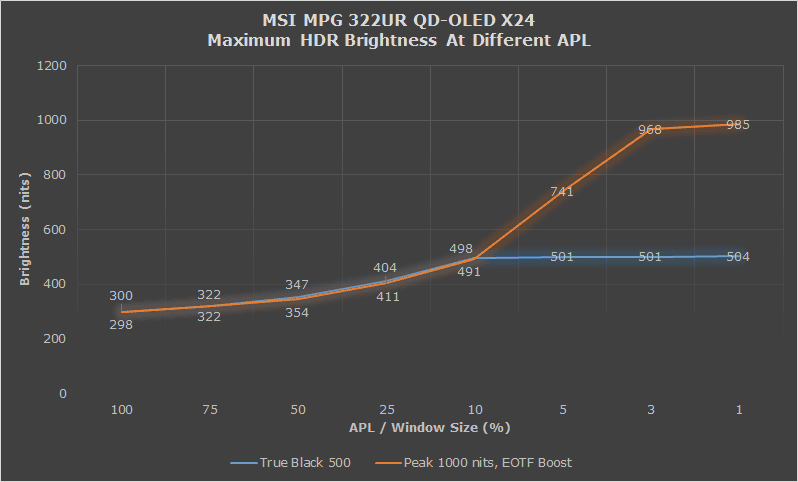
Moving on, in real-use HDR content viewing, brightness behavior changes between the three modes due to different EOTF tracking.
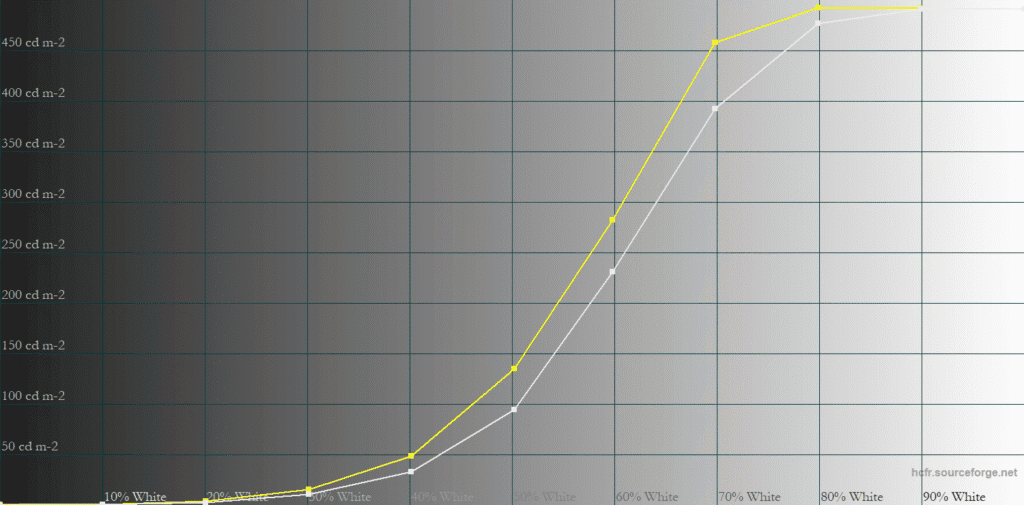
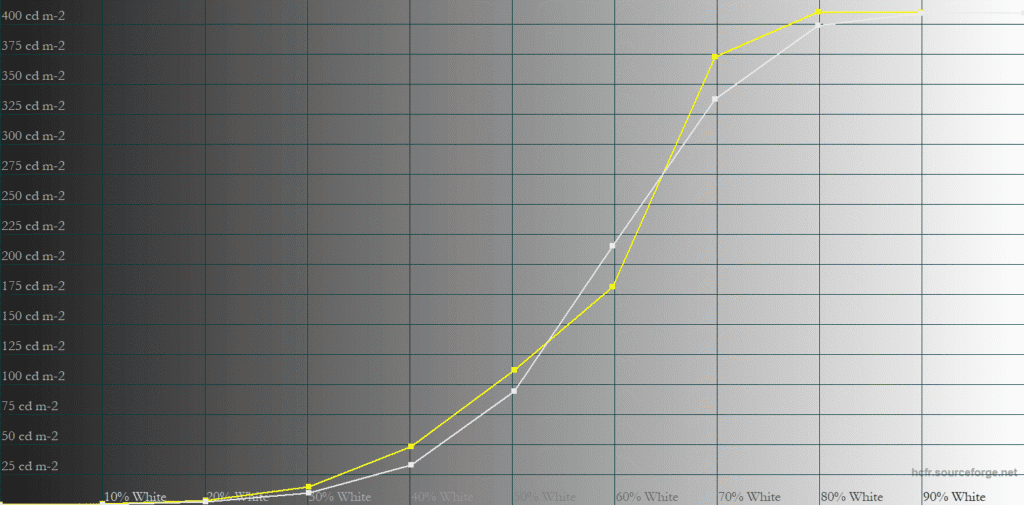
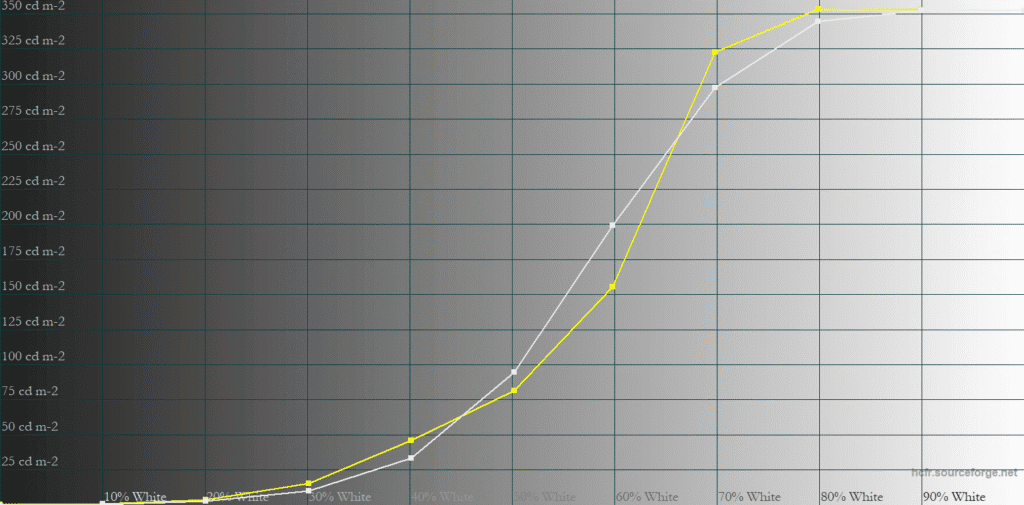
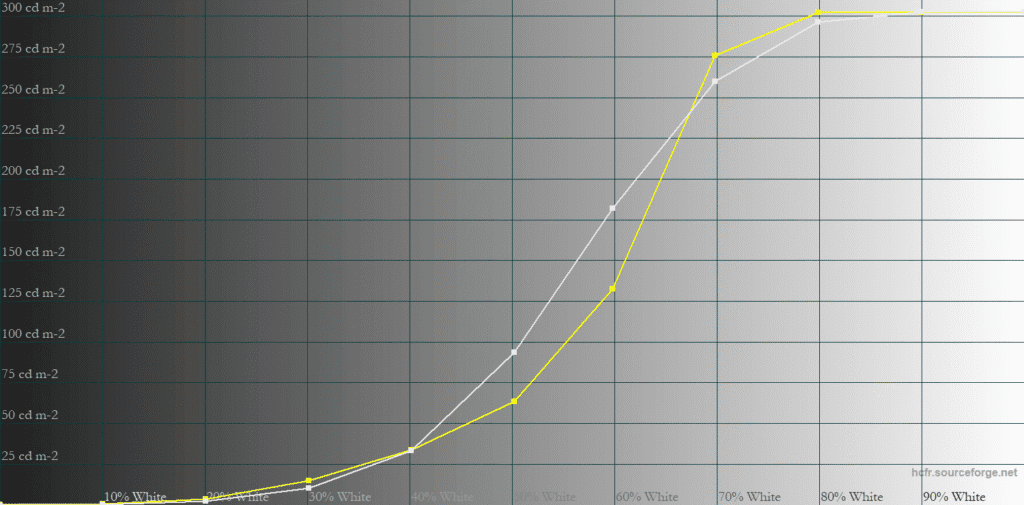
In the charts below, you can check out the accuracy of all modes. The gray line is the target brightness, and the yellow line is the monitor’s brightness.
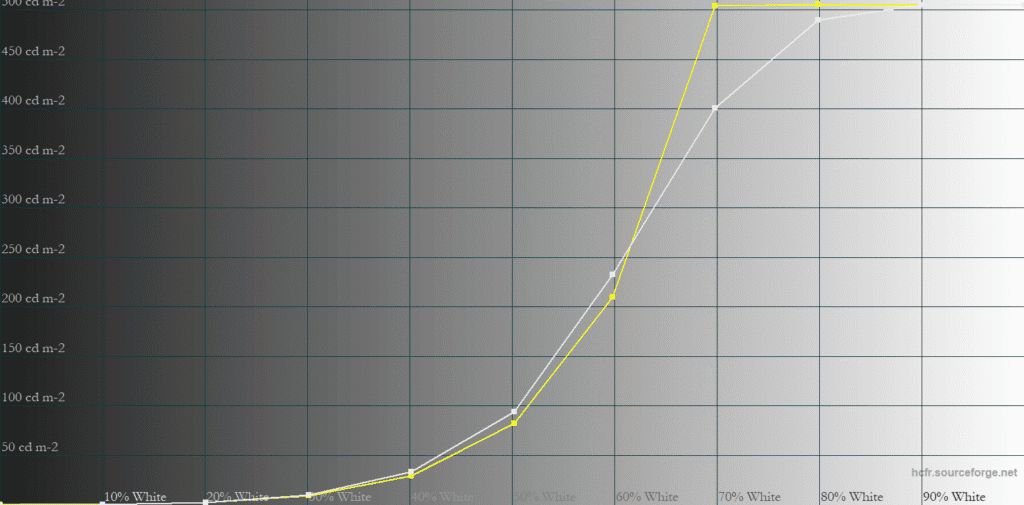
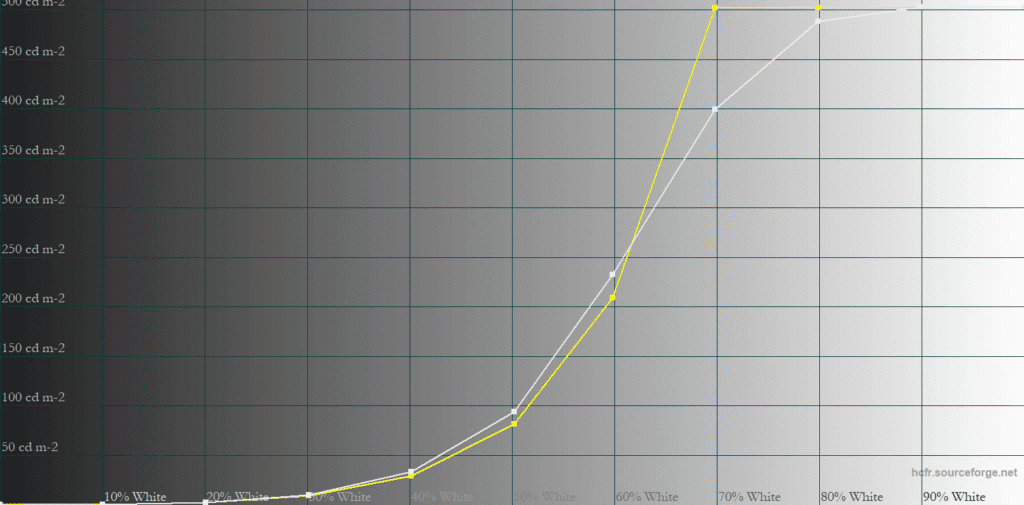
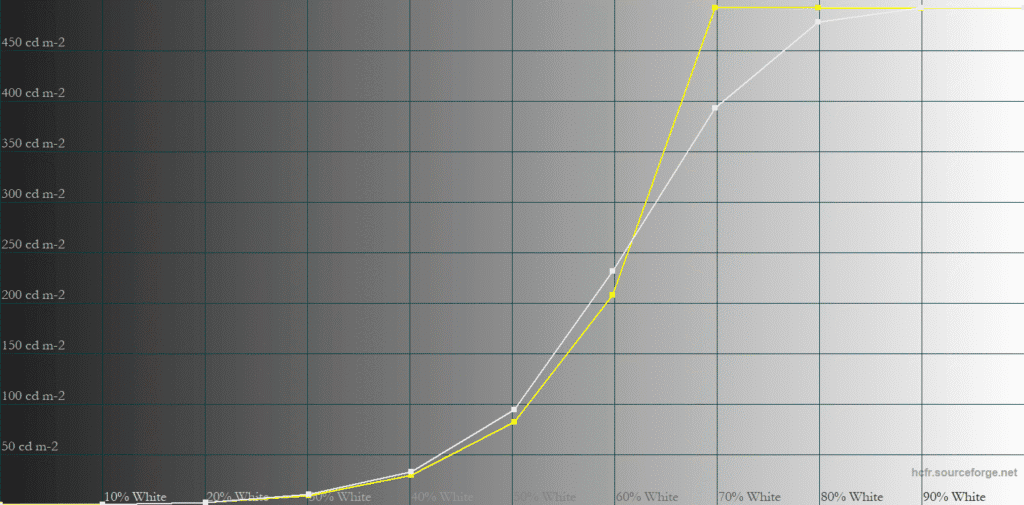
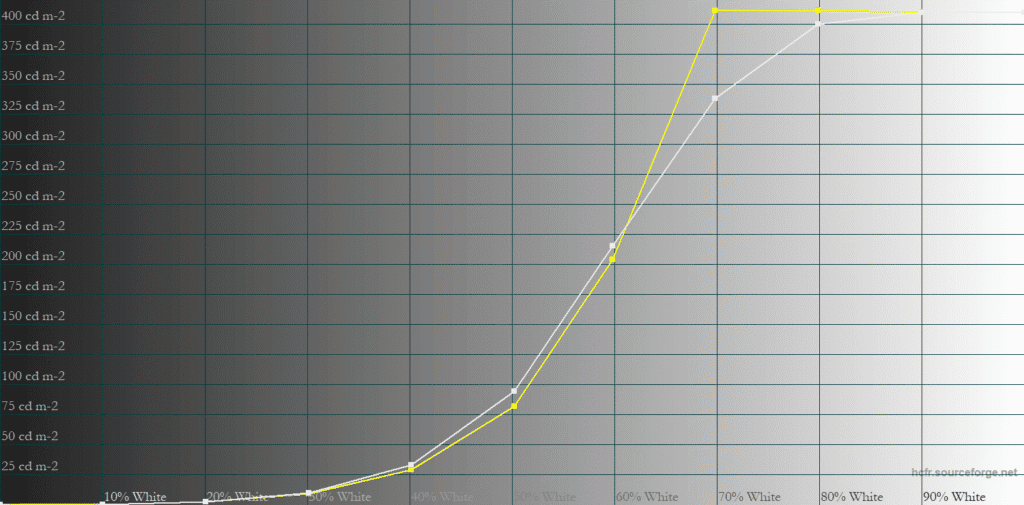
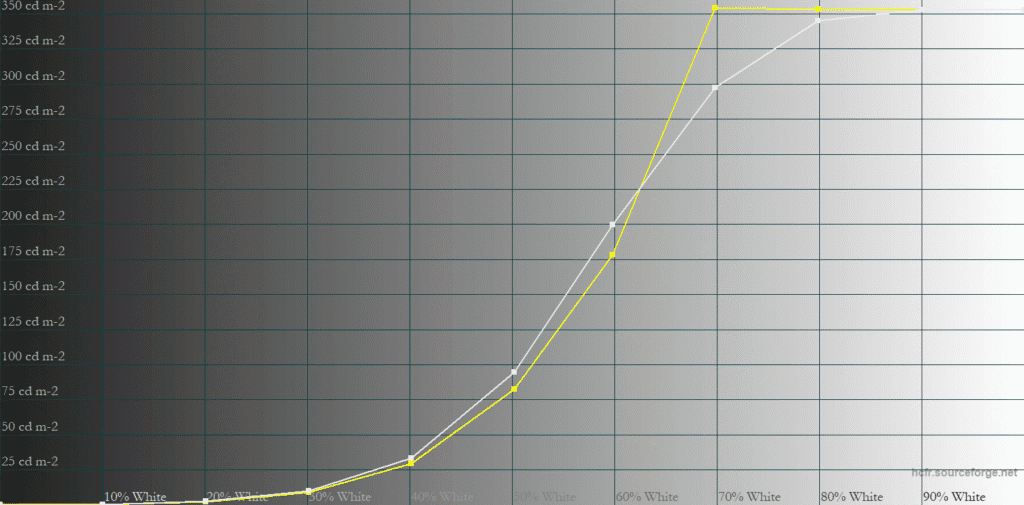
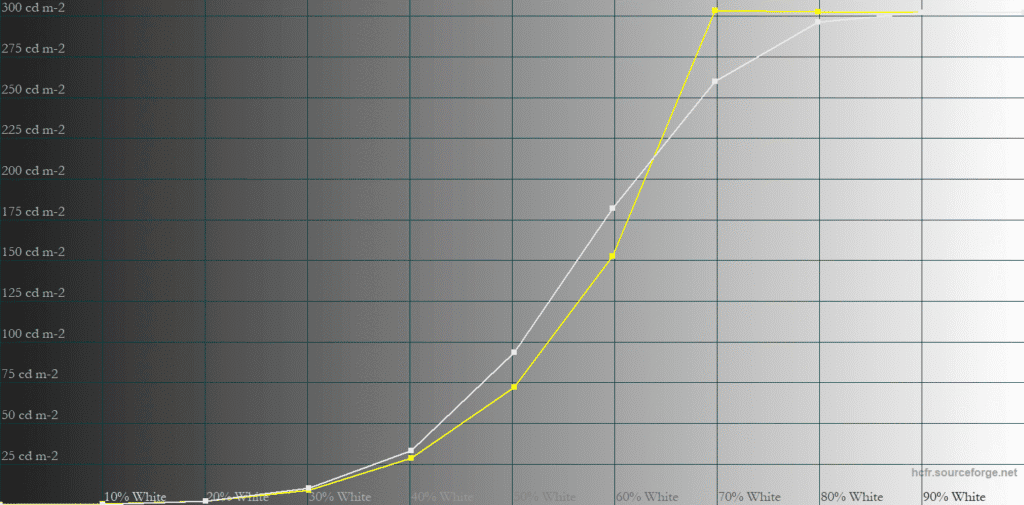
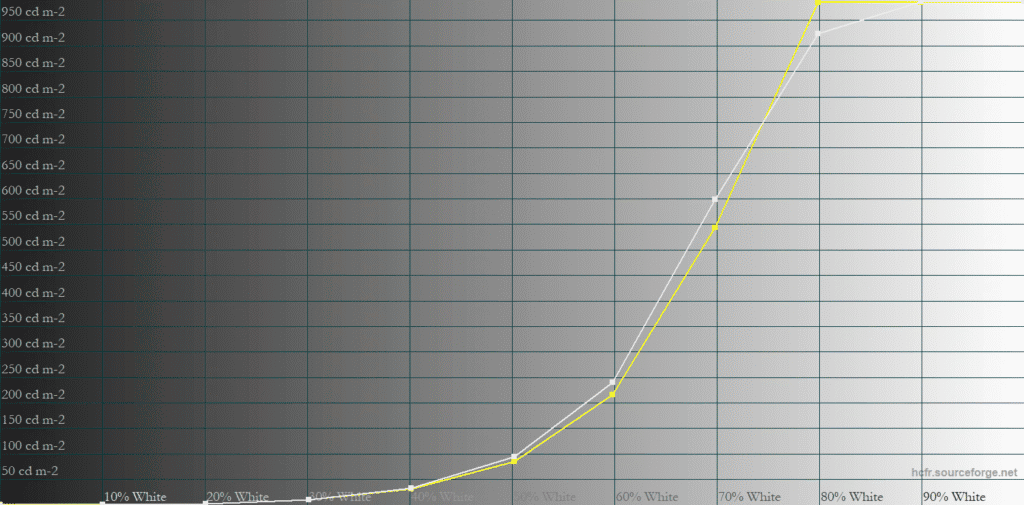
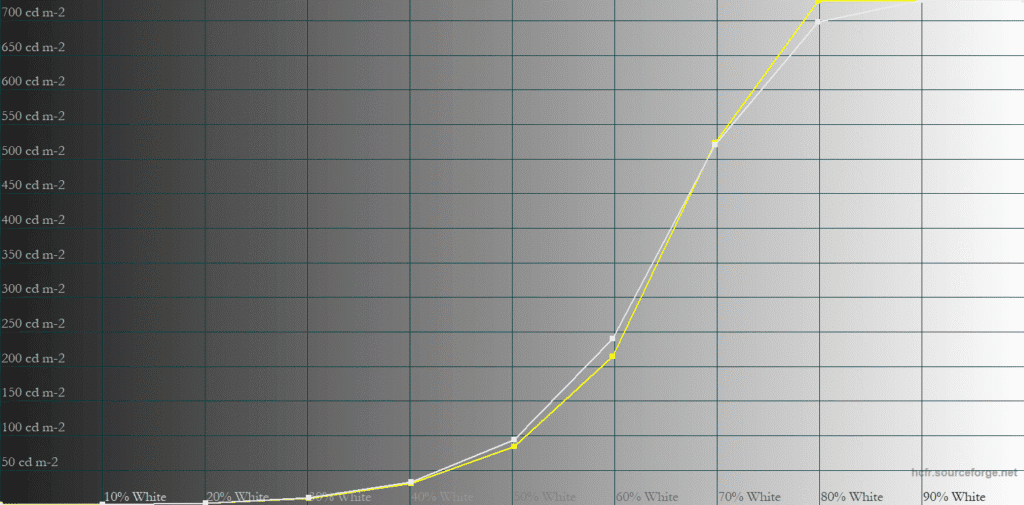
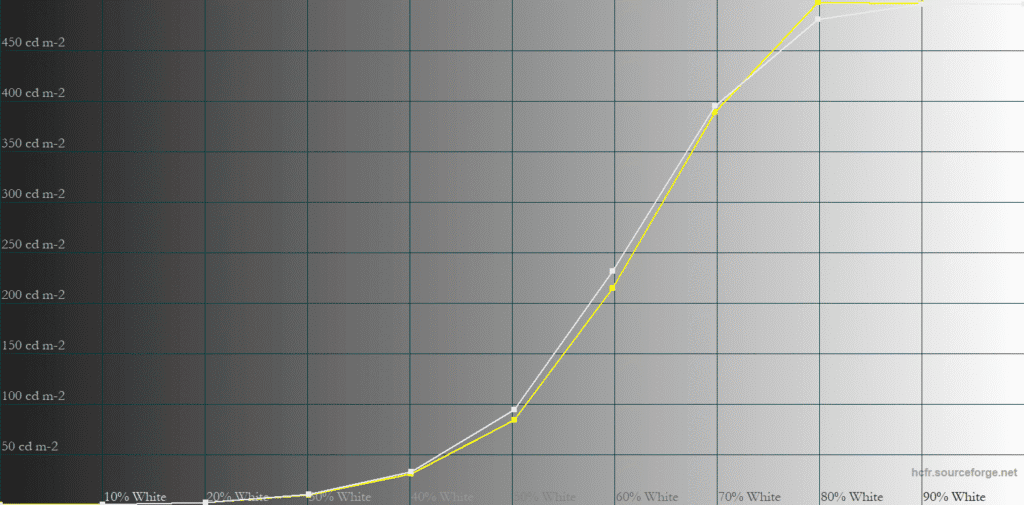
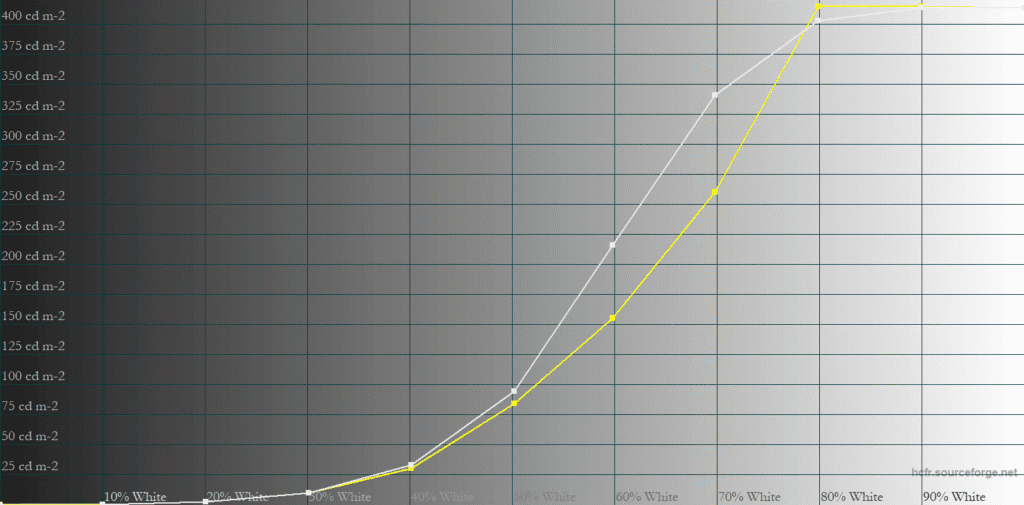
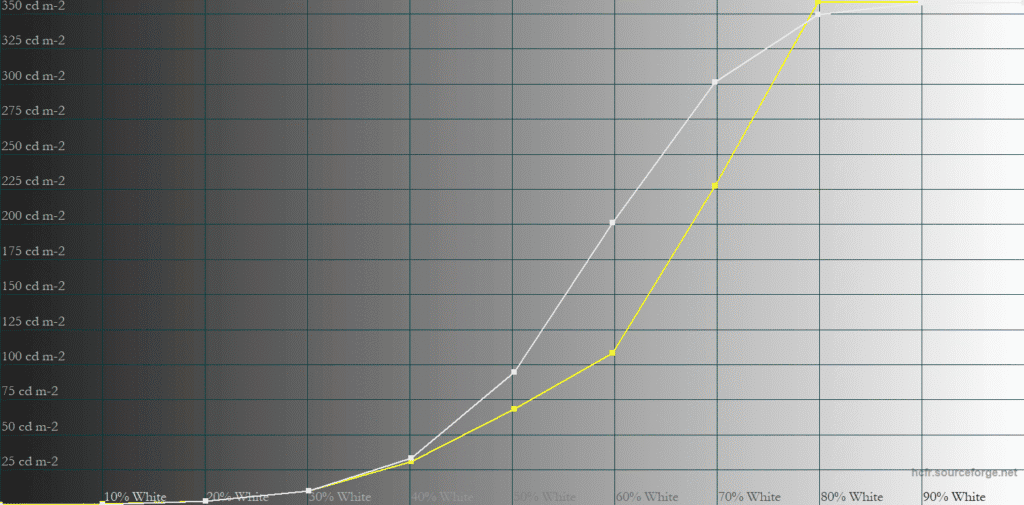
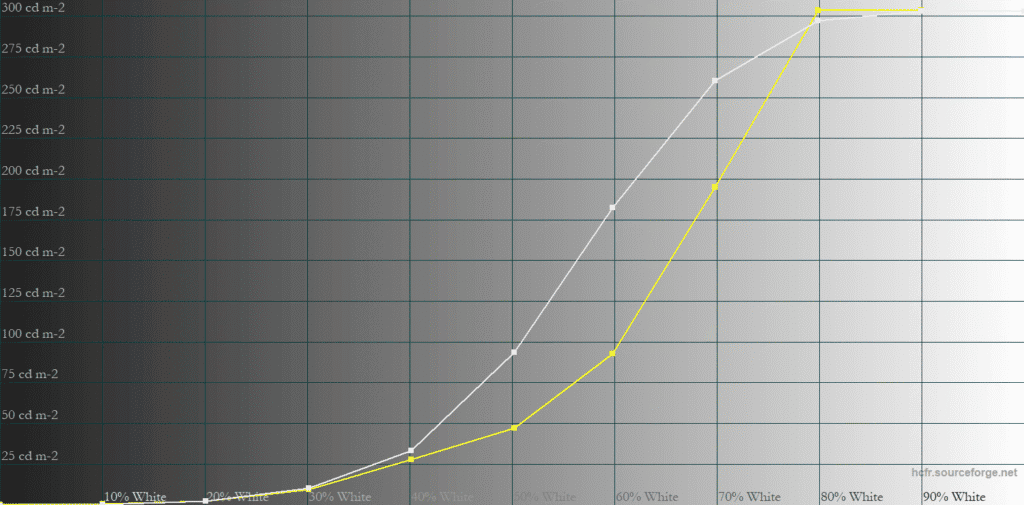
As is the case with all QD-OLED monitors, the True Black 500 mode is more accurate but limited to around 500-nits, while the Peak 1000 nits mode can achieve higher brightness levels (up to 985-nits for small highlights), but its brightness is notably lower for large APLs (25% – 100%).
This causes the screen to look brighter in True Black 500 mode when there are large bright elements on the screen, whereas the Peak 1000 nits mode offers punchier highlights with small bright elements.
This is the same behavior we’ve seen with all monitors using Samsung’s QD-OLED panels and Samsung claims this panel dimming exists due to power management.
The EOTF Boost is MSI’s attempt to circumvent QD-OLED’s limitations by combining the two modes.
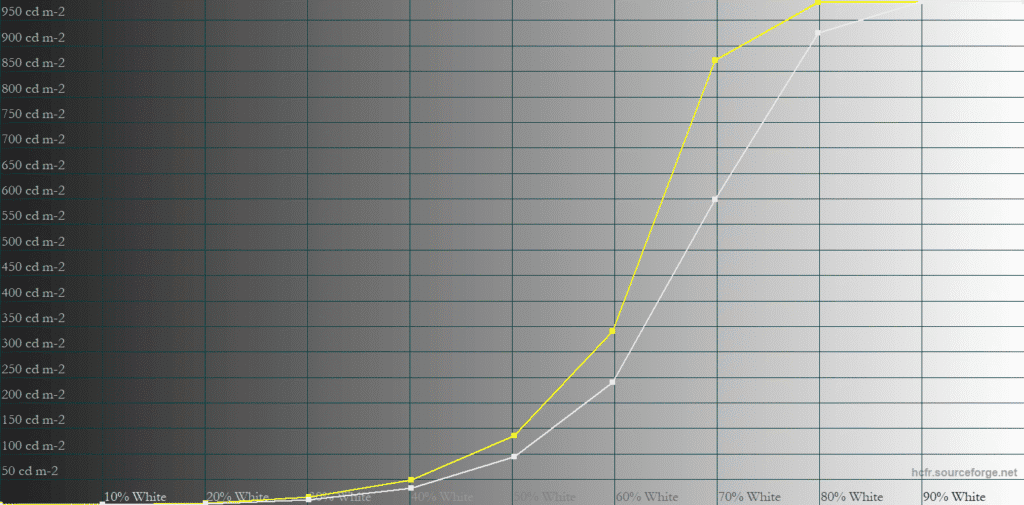
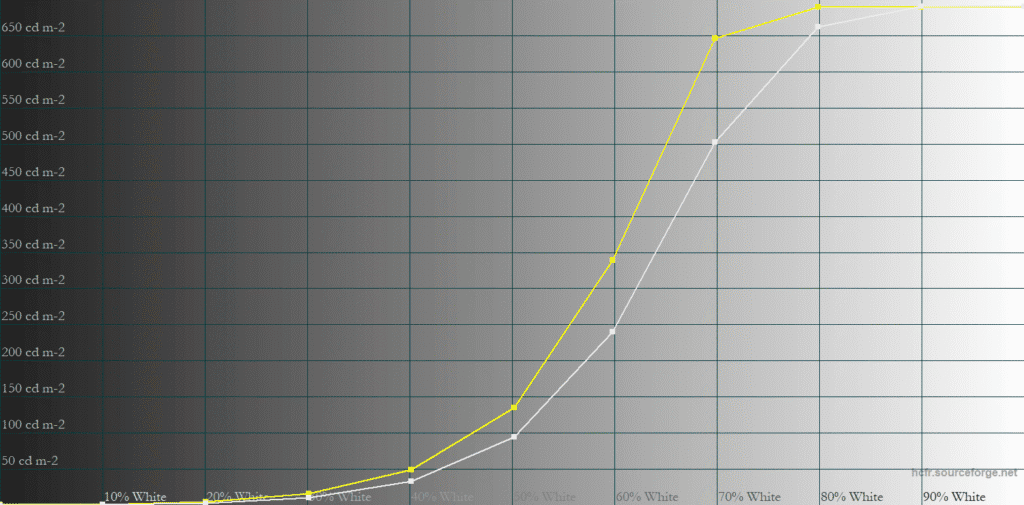
The EOTF Boost mode allows you to keep the high 1000-nit peak brightness with small 1 – 10% APL highlights, while the large 25 – 100% APL is a bit brighter than Peak 1000 nits mode, but not as bright as True Black 500.
The EOTF Boost mode is not as well-tuned as it was on the MSI MPG 341CQR X36 QD-OLED model we tested, but this might improve with a new firmware update.
The trade-offs between True Black 500 and Peak 1000 nits are typical for all QD-OLED monitors.
The True Black 500 mode is limited to 500-nits and it’s too bright with 70% white, resulting in somewhat elevated mid-high highlights, but without obvious clipping.
The Peak 1000 nits mode is accurate with 1 – 10% APL, but the brightness is lower with larger APLs.
The EOTF Boost allows you to achieve high 1000 nits for small APLs, while improving large APL performance in comparison to the Peak 1000 nits mode. However, the 1 – 10% APL is brighter than intended, so it would be great if that could be corrected in a new firmware.
In real content, this EOTF curve will make highlights pop harder and scenes look brighter and more dramatic, with a small trade-off in highlight accuracy and detail, especially in dark scenes with small bright elements.
We find that most people will prefer the Peak 1000 nits or EOTF Boost modes due to the punchier highlights, though True Black 500 will look better in scenes with more large bright elements, so there’s no single best HDR mode to use.
Real Scene Tests
Here’s how all this plays out in some real-world content.
Sunlight in ‘A Perfect Planet’ | Small flash from ‘Chasing The Light’ | Large flash from ‘Chasing The Light’ | Lightning in ‘A Perfect Planet’ | Solar flare in ‘A Perfect Planet’ | Sunlight in‘ A Perfect Planet’ | |
| MSI MPG 341QR X36 (QD-OLED) True Black 500 | 466 | 500 | 389 | 499 | 210 | 221 |
| MSI MPG 341QR X36 (QD-OLED) Peak 1300 nits | 647 | 1228 | 400 | 545 | 112 | 129 |
| MSI MPG 341QR X36 (QD-OLED) EOTF Boost FW.009 | 379 | 815 | 293 | 511 | 148 | 152 |
| MSI MPG 341QR X36 (QD-OLED) EOTF Boost FW.014 | 765 | 1295 | 409 | 760 | 129 | 137 |
| MSI MPG 322UR X24 (QD-OLED) True Black 500 | 514 | 521 | 374 | 507 | 225 | 239 |
| MSI MPG 322UR X24 (QD-OLED) Peak 1000 nits | 596 | 854 | 396 | 565 | 138 | 147 |
| MSI MPG 322UR X24 (QD-OLED) EOTF Boost | 585 | 749 | 386 | 665 | 182 | 193 |
| MSI MAG 272QP X50 (QD-OLED) True Black 500 | 497 | 525 | 377 | 514 | 209 | 224 |
| MSI MAG 272QP X50 (QD-OLED) Peak 1000 nits | 558 | 863 | 395 | 567 | 129 | 140 |
| MSI MAG 272QP X50 (QD-OLED) EOTF Boost | 580 | 845 | 366 | 556 | 319 | 322 |
| MSI MPG 271QR X50 (QD-OLED) True Black 500 | 481 | 502 | 368 | 495 | 210 | 230 |
| MSI MPG 271QR X50 (QD-OLED) Peak 1000 nits | 544 | 814 | 385 | 539 | 127 | 139 |
| MSI MPG 271QR X50 (QD-OLED) EOTF Boost | 553 | 724 | 376 | 760 | 174 | 184 |
| MSI MPG 321CURX (QD-OLED) True Black 400 | 429 | 452 | 310 | 450 | 201 | 207 |
| MSI MPG 321CURX (QD-OLED) Peak 1000 nits | 538 | 974 | 328 | 549 | 108 | 113 |
| KTC G27P6S (W-OLED MLA+) | 317 | 739 | 313 | 602 | 183 | 216 |
| KTC G32P5 (W-OLED MLA+) | 240 | 467 | 305 | 572 | 170 | 205 |
| KTC M27P6 (Mini LED IPS) VESA DisplayHDR, Low | 837 | 1224 | 1751 | 645 | 385 | 394 |
| KTC M27P6 (Mini LED IPS) HDR Cinema, Low | 745 | 1096 | 1416 | 591 | 334 | 349 |
| KTC M27T6 (Mini LED VA) Display HDR, Low | 1263 | 1298 | 1642 | 1173 | 837 | 859 |
| KTC M27T6 (Mini LED VA) HDR Game, Standard | 695 | 674 | 1316 | 615 | 536 | 542 |
| BenQ EX321UX (Mini LED IPS) | 792 | 1140 | 1440 | 579 | 309 | 317 |
As you can see, the EOTF Boost mode is ~30% brighter (182-nits, 193-nits) than the Peak 1000 mode (138-nits, 147-nits), with the last two scenes, but it isn’t as bright as True Black 500 (225-nits, 239-nits), which is ~60% brighter than Peak 1000 nits here.
When it comes to small highlights, the EOTF Boost and Peak 1000 nits modes perform similarly, while the MSI MPG 341CQR QD-OLED X36, equipped with a Peak 1300-nit panel, can achieve noticeably higher brightness.
We didn’t notice any brightness fluctuation with the EOTF Boost mode, as was the case with the MSI MAG 272QP QD-OLED X50.
Uniform Luminance
Under HDR settings, you’ll also find two Uniform Luminance modes: ‘Cust. (True Black 500)’ and ‘Cust. (Peak 1000)’, which allows you to customize brightness for specific APLs.
By default, these are at maximum values (same as True Black 500 and Peak 1000 nits) and adjusting them won’t affect EOTF tracking, so they’re mainly used to minimize ABL (Automatic Brightness Limiter).
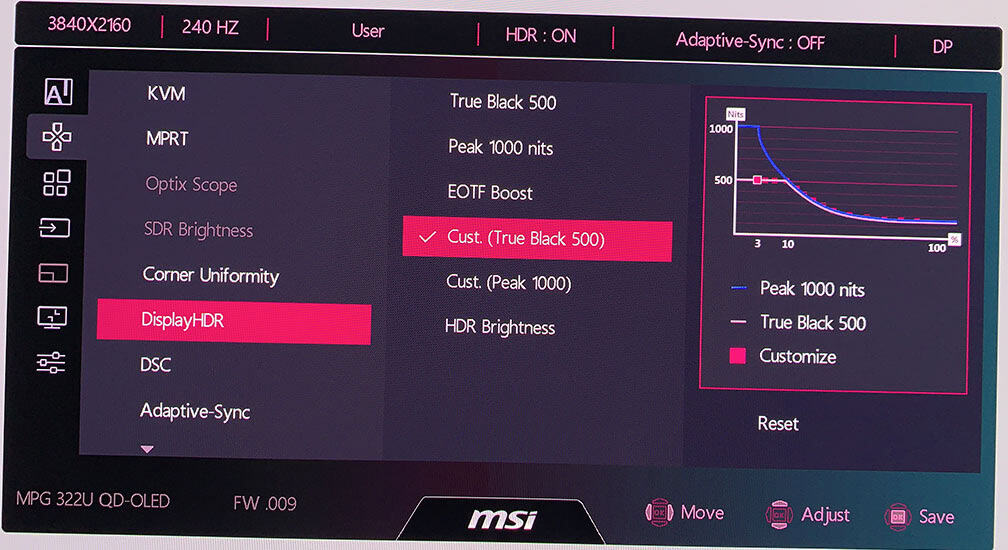
For instance, if you’re viewing a scene that’s mostly dark in a game and then move your mouse up to the sky, you can notice a minor shift in brightness due to ABL. This is more apparent in Peak 1000 nits mode, and it’s an expected behavior on all OLED panels.
With the Custom modes, you can decrease the brightness of 14 individual APL sizes to make ABL less apparent, though we find the brightness trade-off is rarely worth the occasional brightness fluctuation. Still, it’s a great option to have for those sensitive to brightness shifts caused by ABL.
MSI has also added an ‘HDR Brightness’ setting that lets you adjust the maximum brightness.
HDR Saturation & Color Temperature
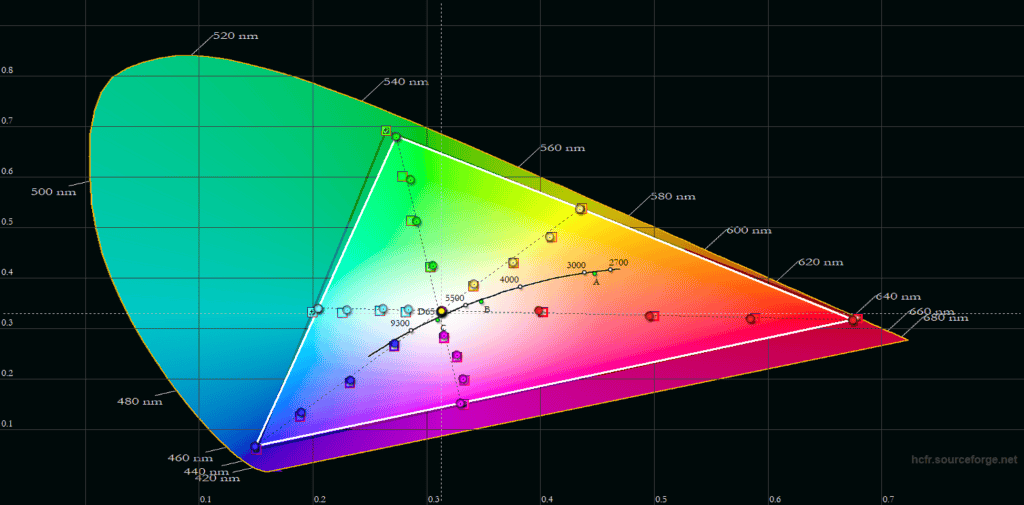
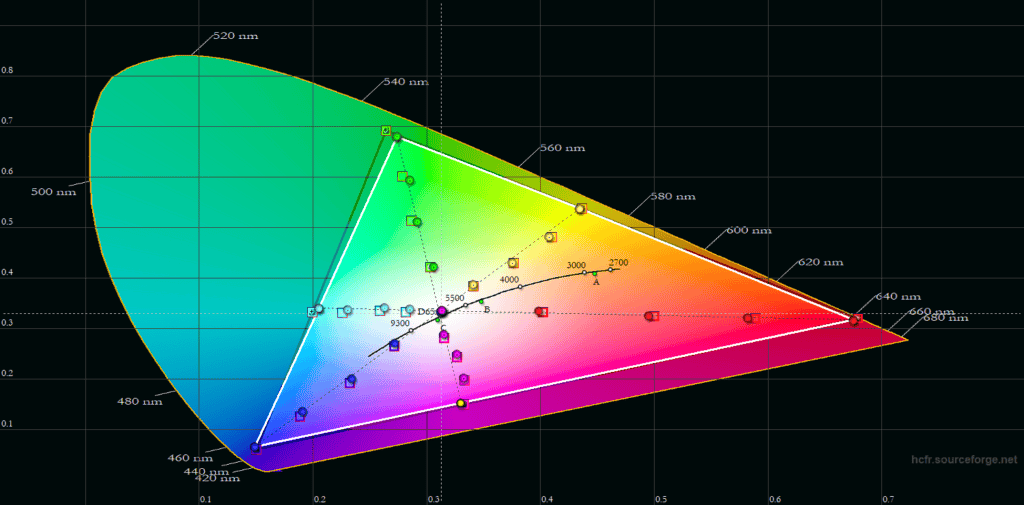
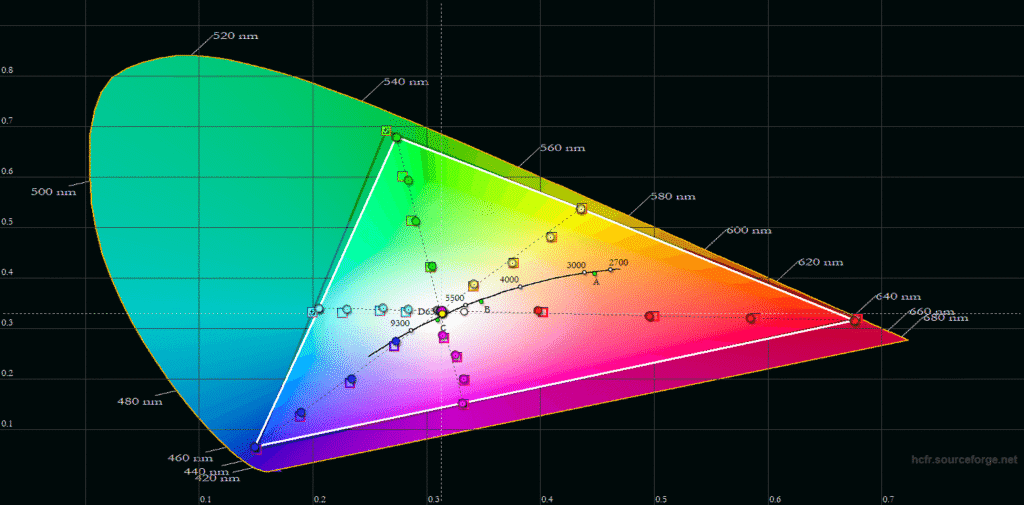
HDR color saturation accuracy is very good, with the Peak 1000 nits being the most accurate (Delta E 2.96 average and 4.26 maximum). In comparison, the True Black 500 mode has a Delta E of 3.57 average, 4.69 maximum, while the EOTF Boost mode is the least accurate with a Delta E of 5.50 average and 6.31 maximum.
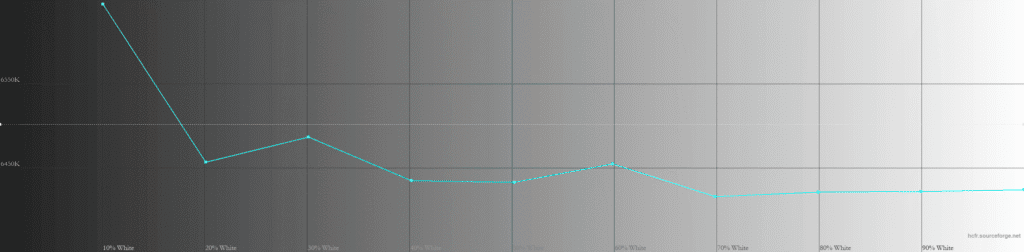
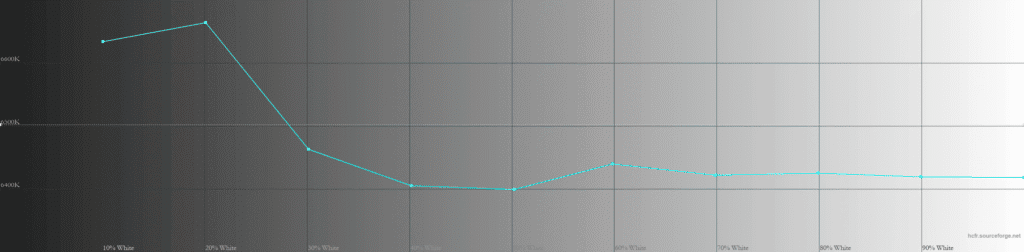
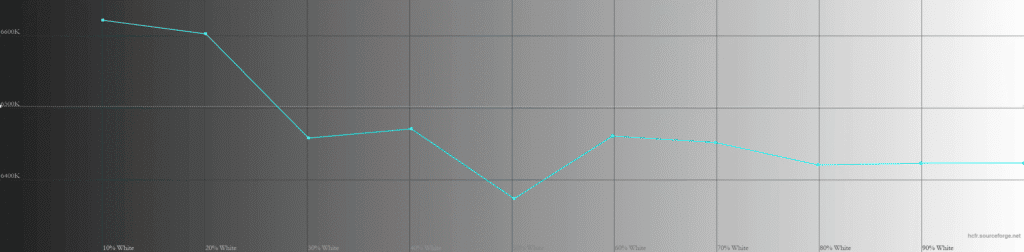
Color temperature is excellent in all three modes, averaging between 6450K and 6480K, meaning that there’s no noticeable tinting to the whitepoint.
QD-OLED vs W-OLED vs Mini LED
Here’s the 10-minute static stress test. Brightness doesn’t decrease over time.
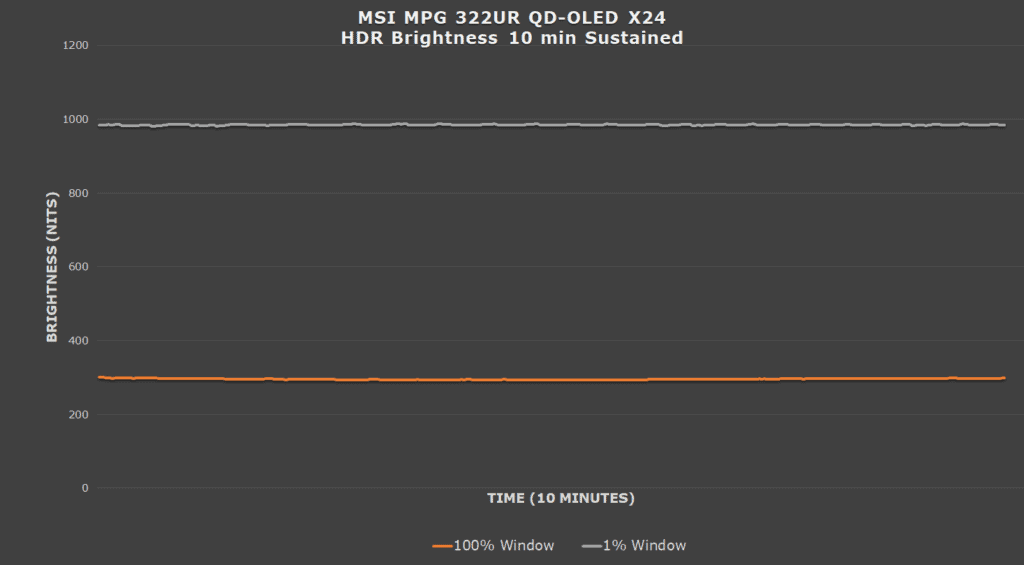
In the chart below, you can see how the brightness of the MSI MPG 322UR X24 compares to a few other HDR monitors we tested, including the MSI MPG 321CURX with a previous-gen HDR True Black 400 panel and the MSI MPG 341CQR X36 with True Black 500 and 1300-nits peak brightness.
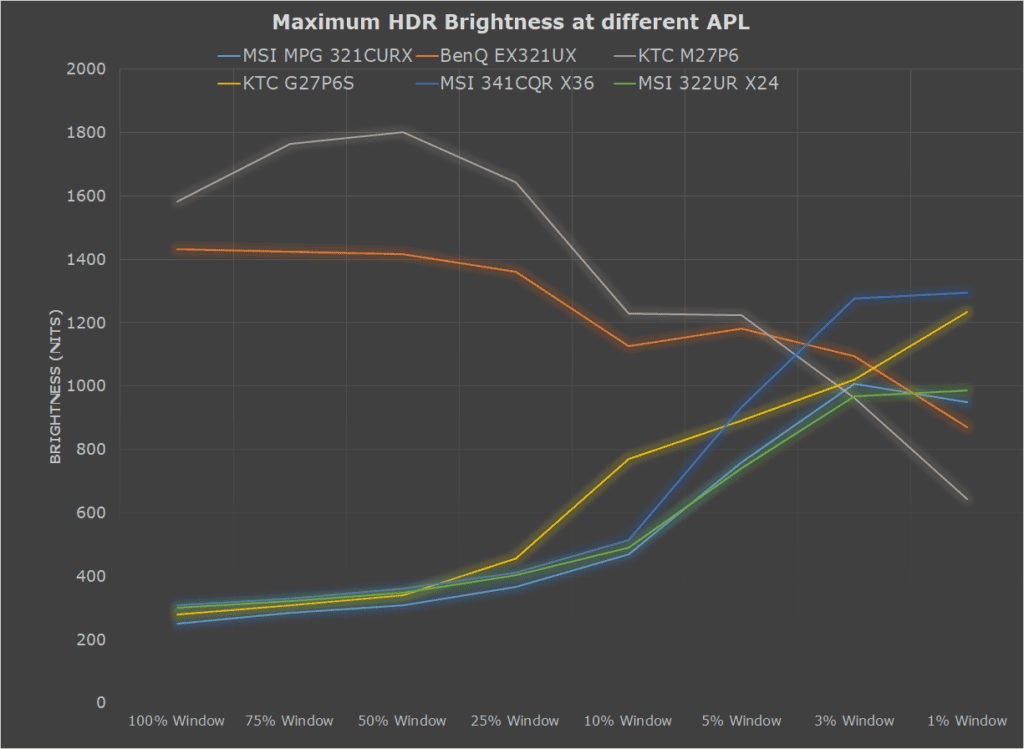
While the KTC G27P6S with LG’s W-OLED MLA+ panel, for example, has a higher 10% APL brightness in this chart, note that this refers to white luminance. When it comes to color luminance, Samsung’s QD-OLED panels are brighter, which in addition to their wider color gamut, results in a higher perceived brightness overall.
LG’s newer Tandem W-OLED panels have an even higher 1500-nit white luminance and higher color luminance than previous-gen W-OLED panels, though their color luminance is still lower than that of QD-OLED.
Here’s how color luminance compares between three QD-OLED panel generations: the MPG 321CURX with True Black 400 (1000-nits peak), the MPG 271QR X50 with True Black 500 (1000-nits peak), and the MPG 341CQR X36 with True Black 500 (1300-nits peak).
The MSI MPG 322UR X24 has the same color luminance as the MSI MPG 271QR X50, which is why only the latter is included in the charts below.
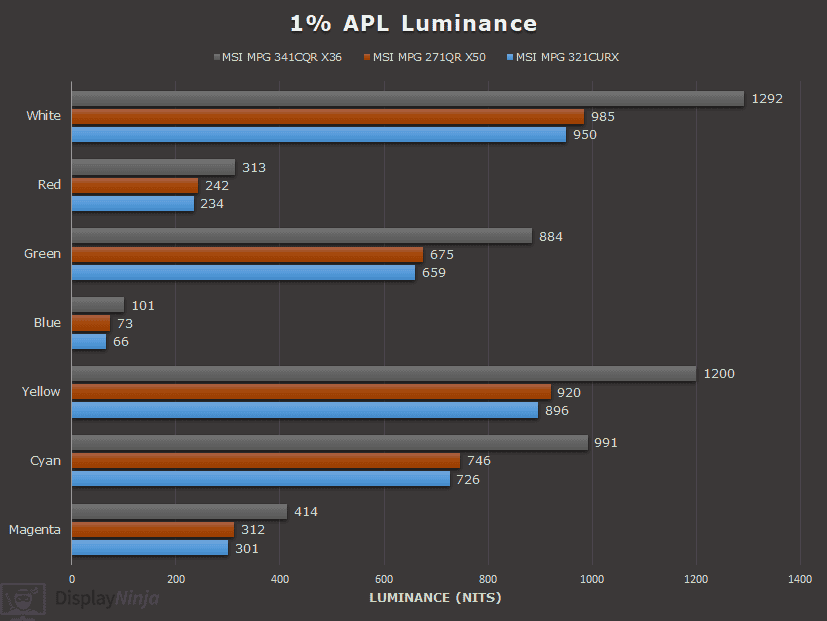
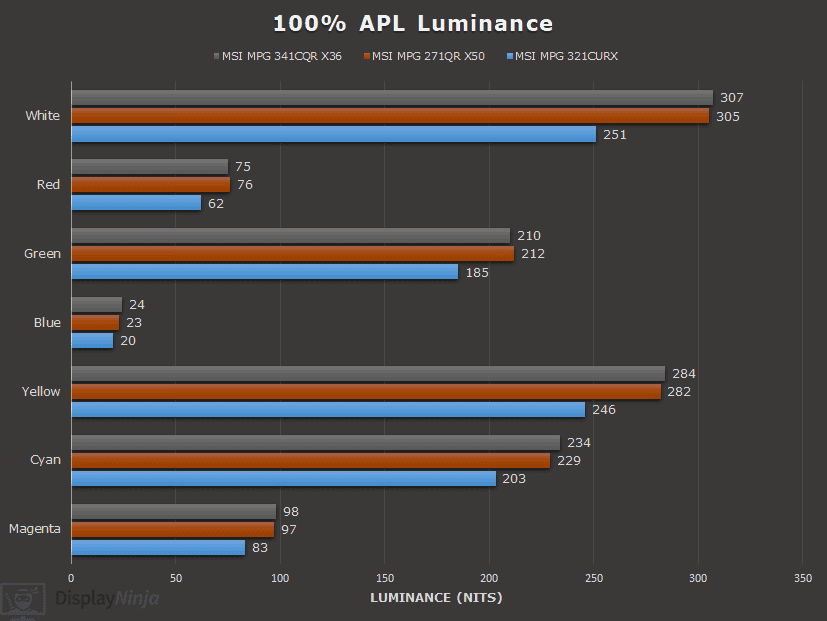
At very low APL levels (around 1 – 5%), color luminance increases in the same way as white luminance on the newest panels. At higher APLs, the last two panel generations show similar improvements compared to the earlier panel.
Next, here’s how color luminance compares between QD-OLED, W-OLED and mini LED monitors we tested. Keep in mind that we still haven’t tested the latest Tandem W-OLED panel, though.
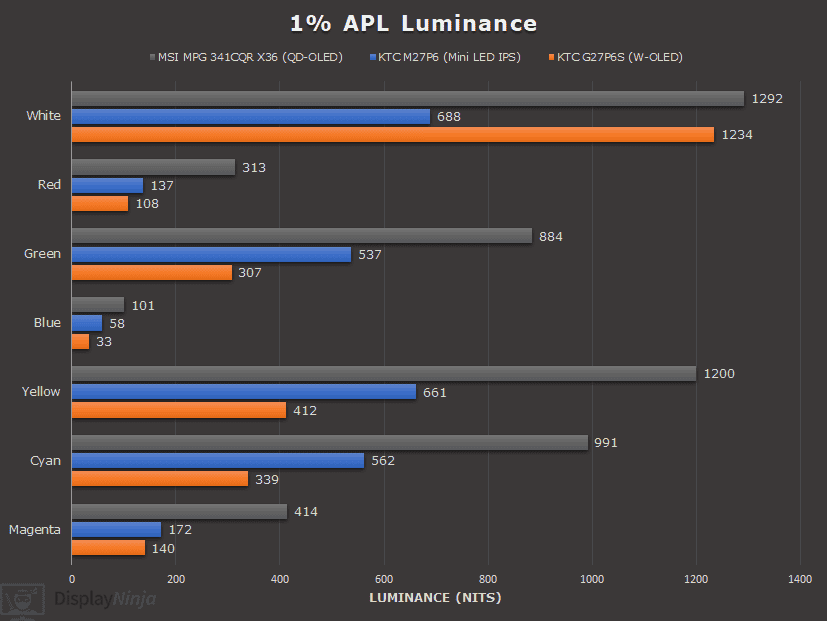
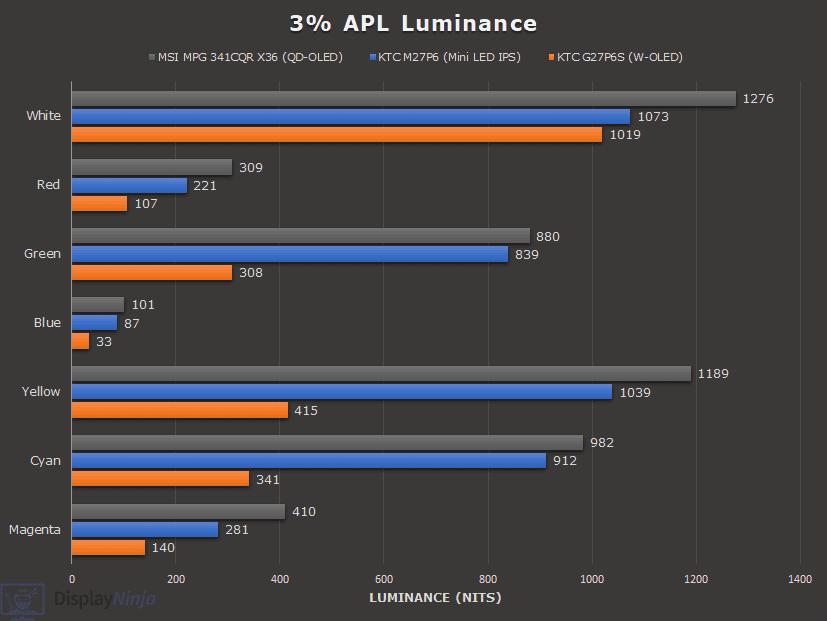
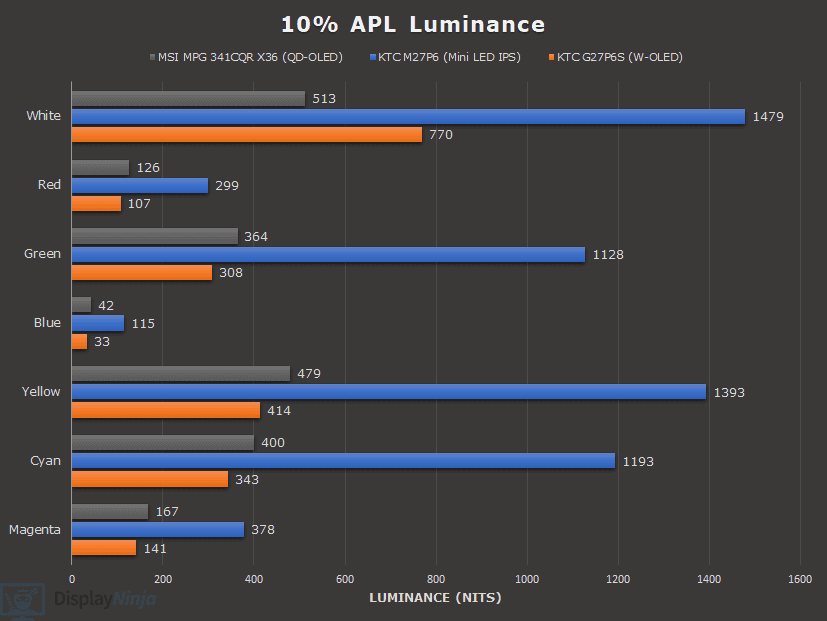
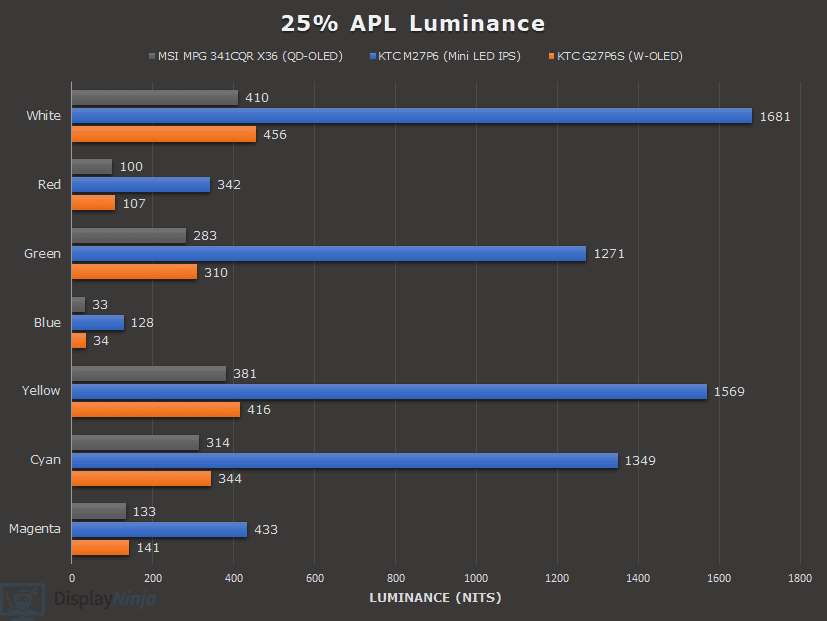
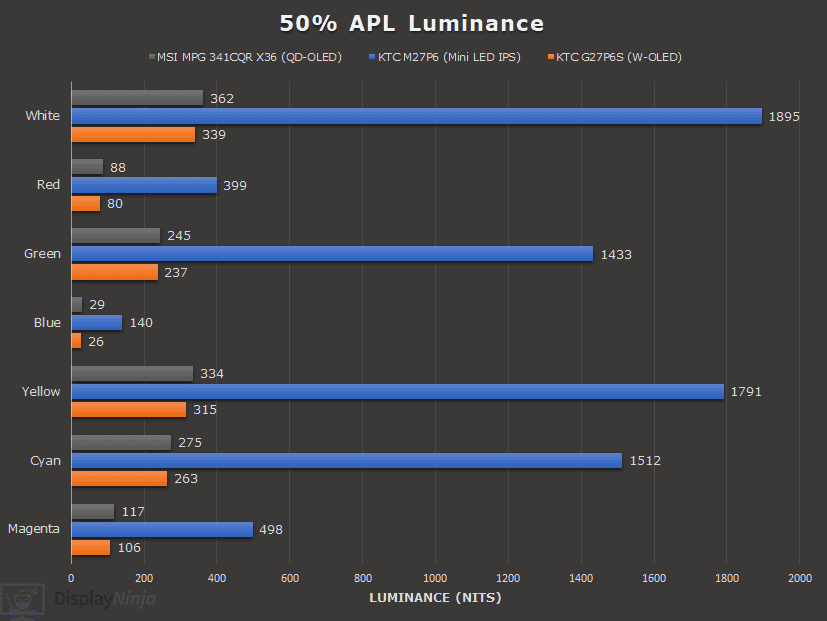
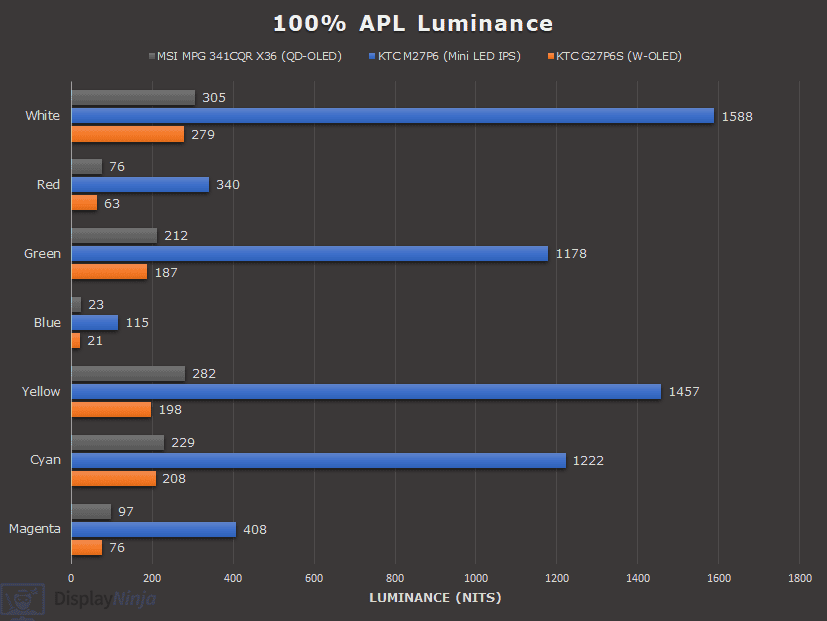
Mini LED monitors have significantly higher brightness for large APLs, but they have their own drawbacks as well, such as FALD blooming in certain scenes and they’re not as good at displaying SDR content with improved contrast.
MSI MPG 322UR QD-OLED X24 Best Image Settings
For saturated colors:
Mode: User
For accurate colors in Windows:
Mode: sRGB
DisplayHDR: EOTF Boost, Peak 1000 nits or True Black 500, depending on your preference. We prefer EOTF Boost.
Ultra Low Power: Off
Performance
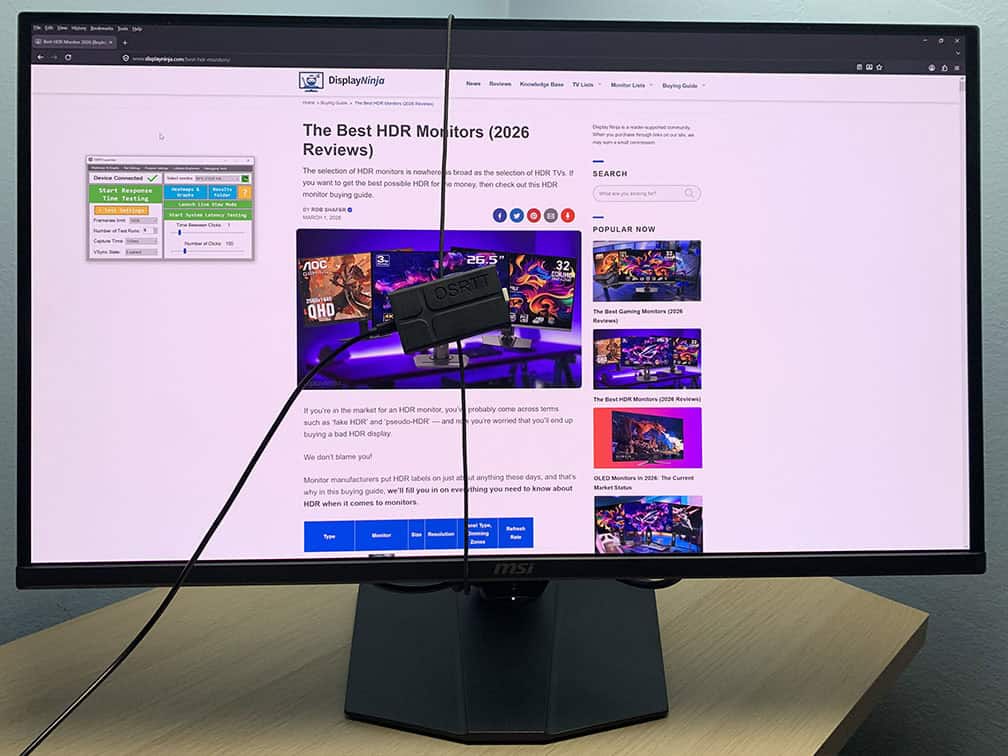
The MSI MPG 322UR QD-OLED X24 has a maximum refresh rate of 240Hz, delivering excellent motion clarity and responsiveness.
Response Time
OLED panels have virtually instantaneous pixel response times, so there’s no ghosting behind fast-moving objects, no matter the refresh rate.
For latency and response time testing, we’re using OSRTT. Before the tests, the monitor was calibrated and warmed up.
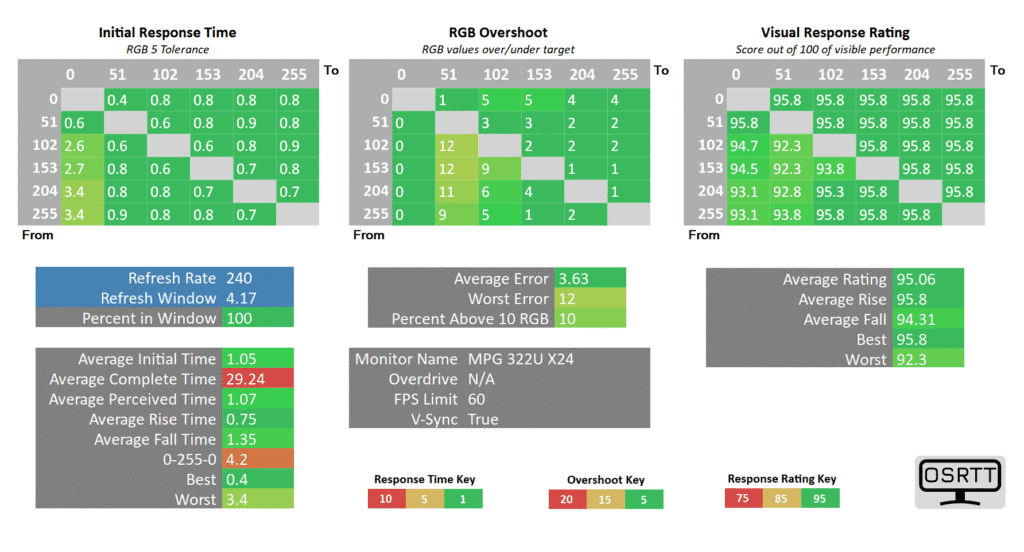
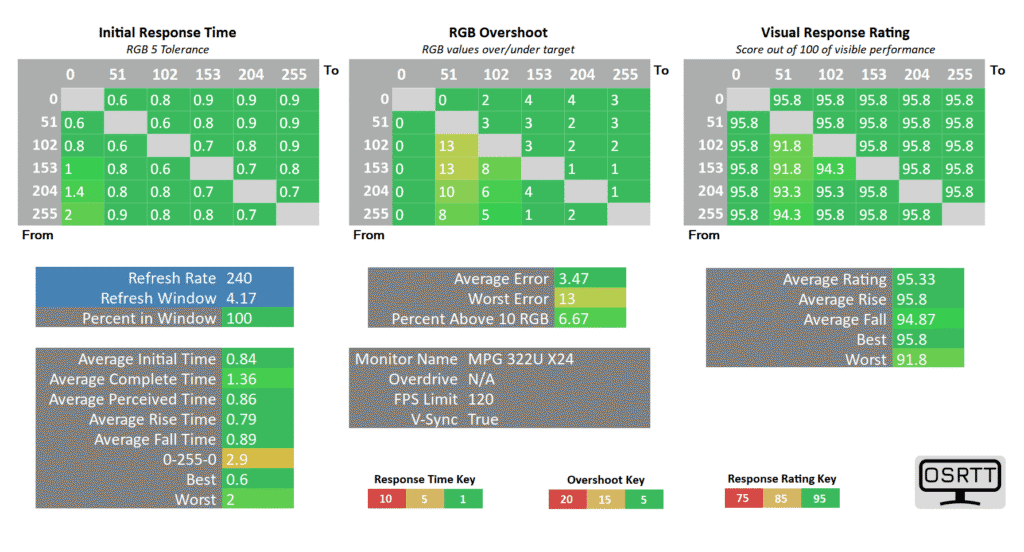
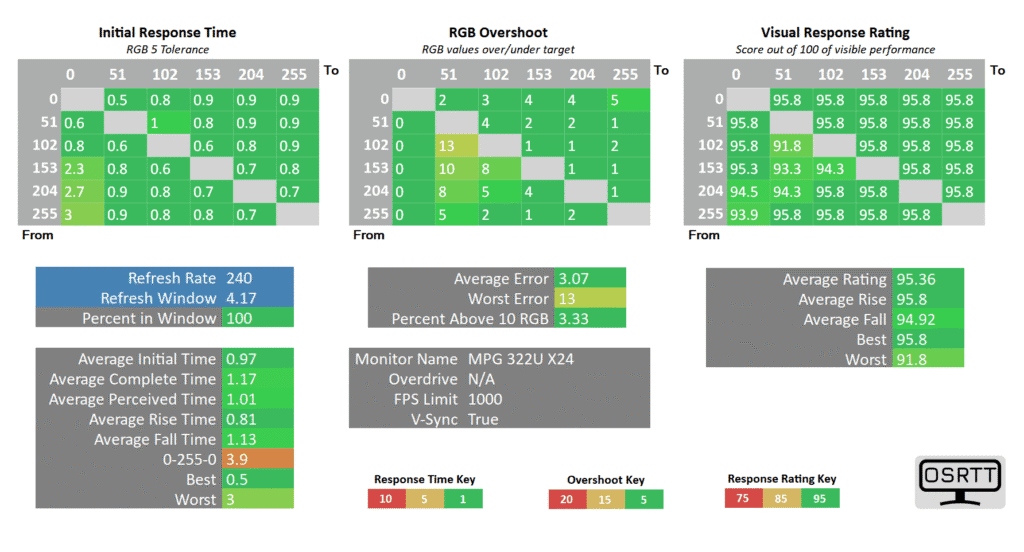
There are some slower transitions and overshoot present in the charts, but this is only due to the limitation of the OSRTT measuring device.
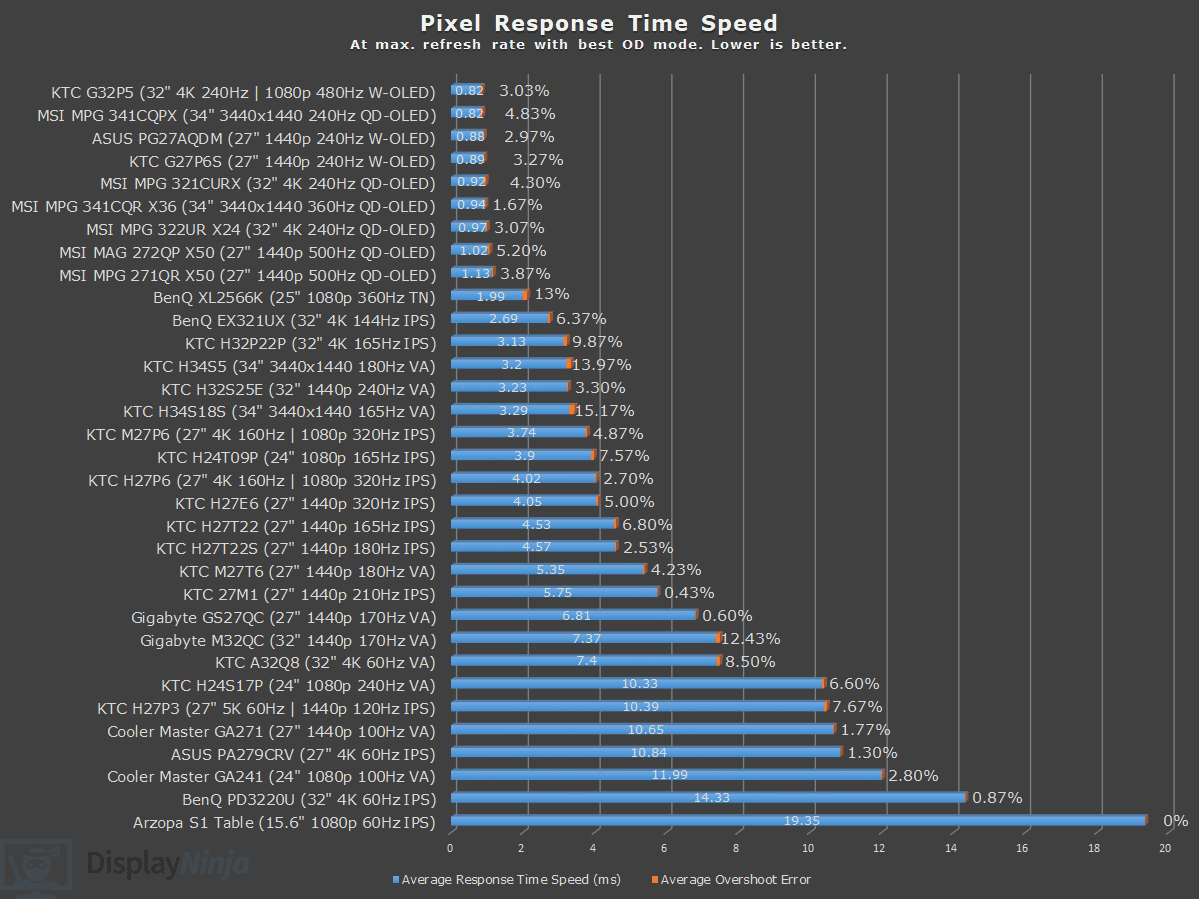
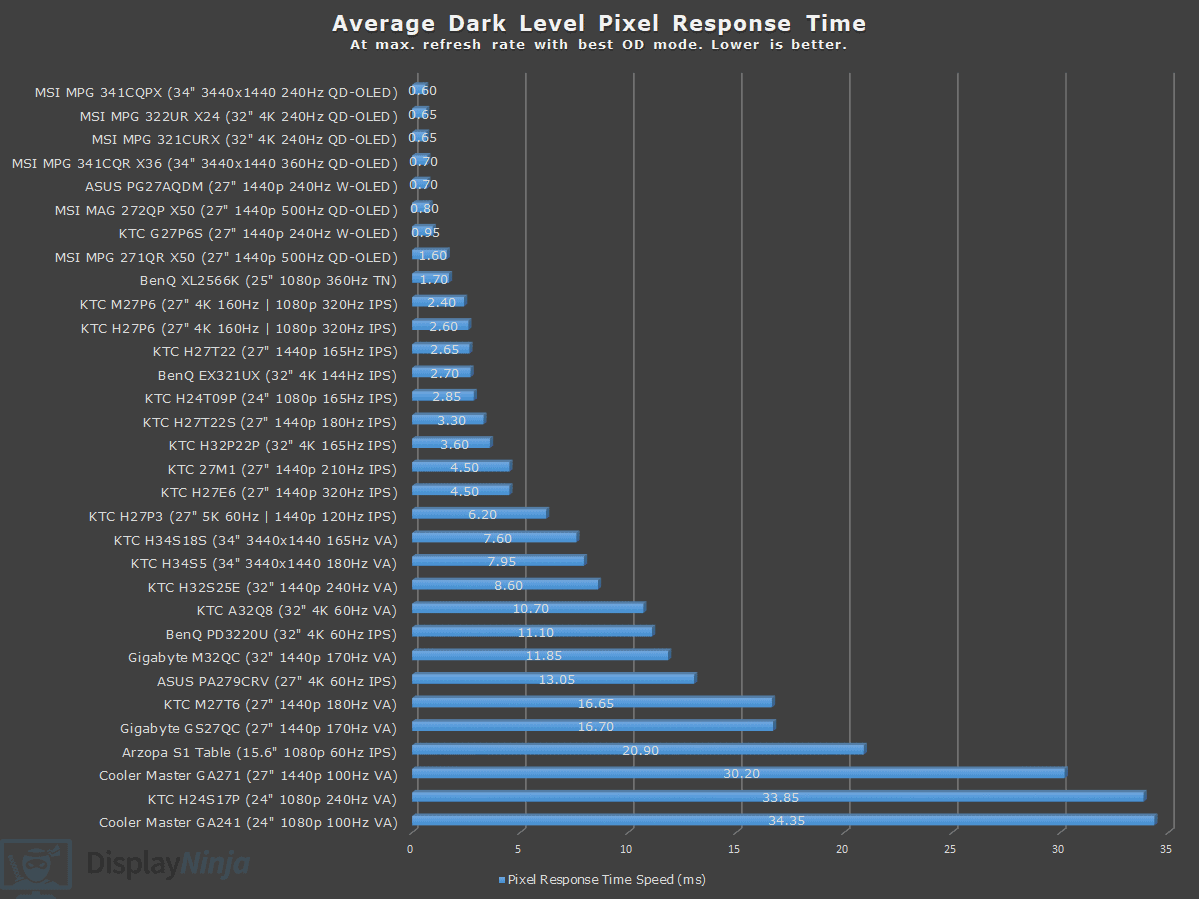
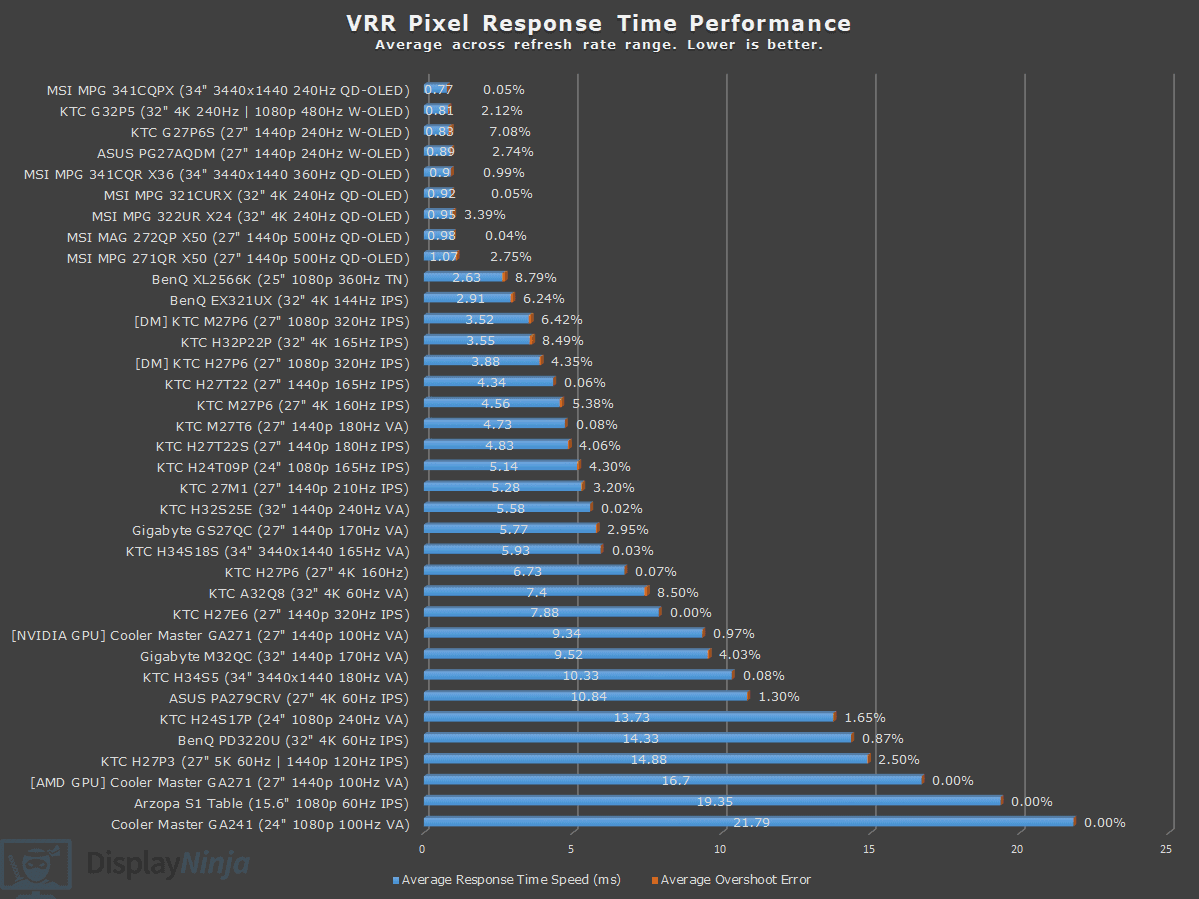
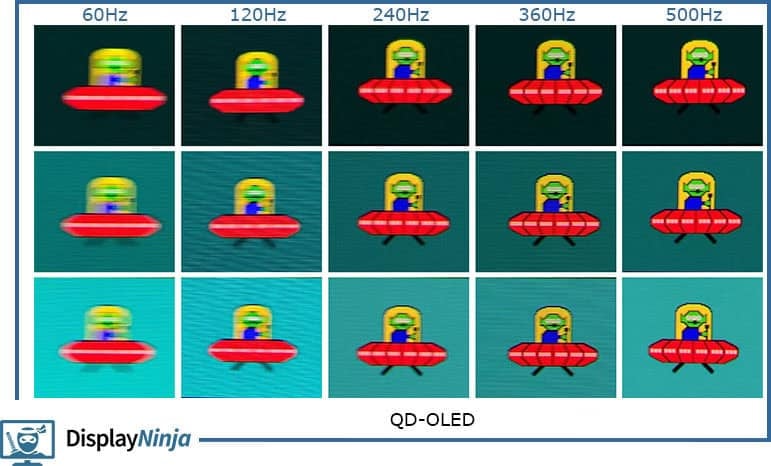
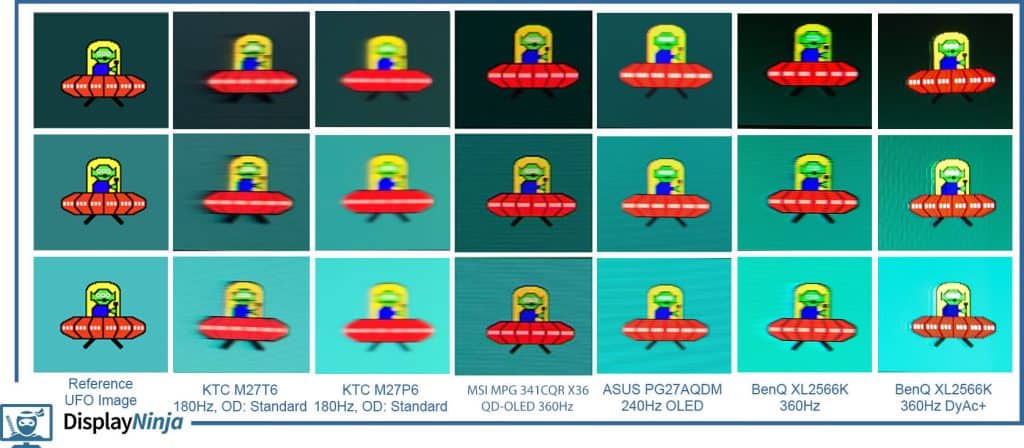
For Blur Busters’ UFO ghosting test, we used 960 Pixels Per Sec, shutter speed set to 1/4 of the refresh rate with fixed focus, ISO and color temperature (6500K).
Here’s how 240Hz on a QD-OLED compares to lower and higher refresh rates.
And here’s a comparison to several other monitors we tested.
Motion Blur Reduction
The MSI MPG 322UR QD-OLED X24 supports BFI (Black Frame Insertion) via its MPRT feature. It reduces the maximum brightness to 152-nits since it basically displays half the frames as black in order to reduce perceived motion blur at lower frame rates.
On MSI’s product page for the 322UR X24, MPRT is advertised under a new name, ‘Super Low Motion Blur’, which will probably be updated in a newer firmware version.
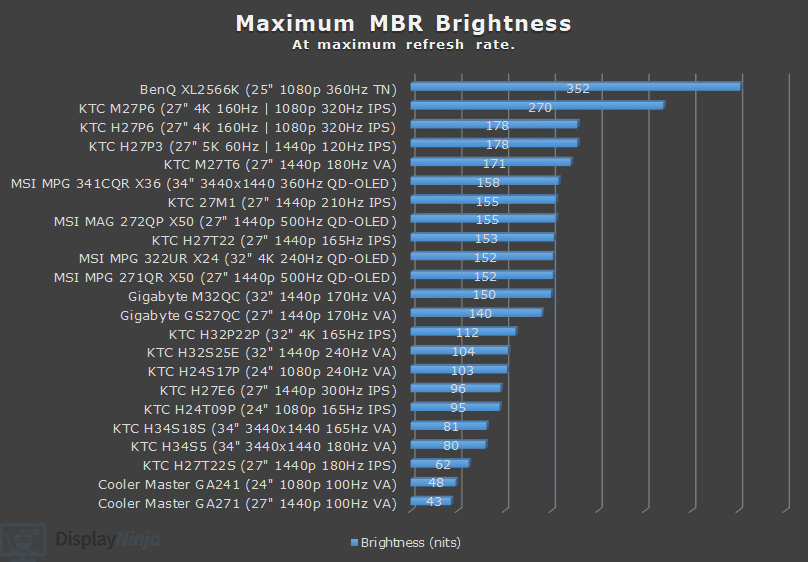
If you enable MPRT at 240Hz, you’ll need to manually cap the in-game frame rate at 120 FPS for optimal performance.
At 120 FPS BFI, you get the same motion clarity as native 240Hz (though with slightly higher input latency), which can be useful in fast-paced games where your system can’t exceed 120FPS.
You can also enable it at 180Hz and cap your frame rate to 90FPS to get the same motion clarity as native 180Hz at 90FPS.
Other OLED monitors handle BFI differently. For example, on the ASUS PG32UCDP, you first need to lower the refresh rate to 120Hz to enable MPRT, which then runs at 240Hz to provide 120 FPS BFI.
This means that you cannot use MPRT on consoles with the MSI MPG 322UR X24, since you cannot enable it at 120Hz.
Also keep in mind that MPRT cannot be used simultaneously with VRR (variable refresh rate)
Variable Refresh Rate
The monitor supports variable refresh rates via HDMI 2.1 VRR but has not yet been certified by NVIDIA as G-SYNC Compatible or by AMD as FreeSync Premium (Pro).
Regardless, VRR works with all graphics cards that support it for tear-free gameplay up to 240FPS with a 48-240Hz dynamic range.
However, as is the case with all OLED monitors, you might notice some VRR brightness flickering in games with fluctuating frame rates (mostly in darker scenes, loading screens and in-game menus).
This can be simply ‘fixed’ by disabling VRR in affected games, which isn’t much of a drawback considering that screen tearing is not that noticeable at 240Hz.
On MSI’s product page for the MPG 322UR QD-OLED X24, they are advertising ‘OLED Anti-Flicker Pro’, which is a feature we already saw on some ASUS monitors.
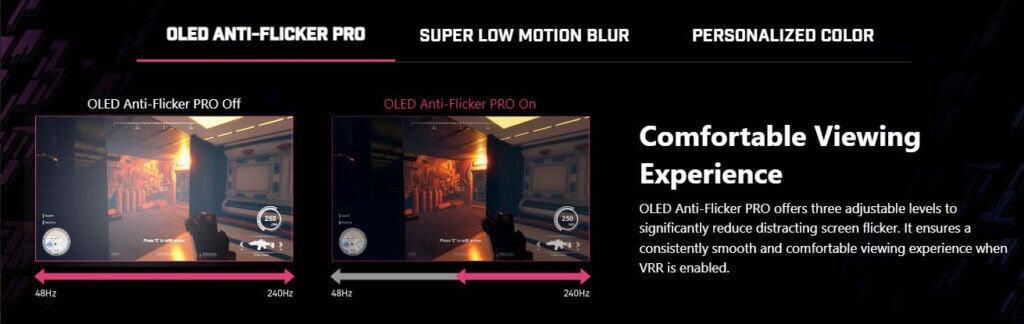
Basically, it narrows down the VRR range in order to minimize brightness flickering. You can do this manually via CRU (Custom Resolution Utility) until the feature becomes available in a newer firmware version.
Latency
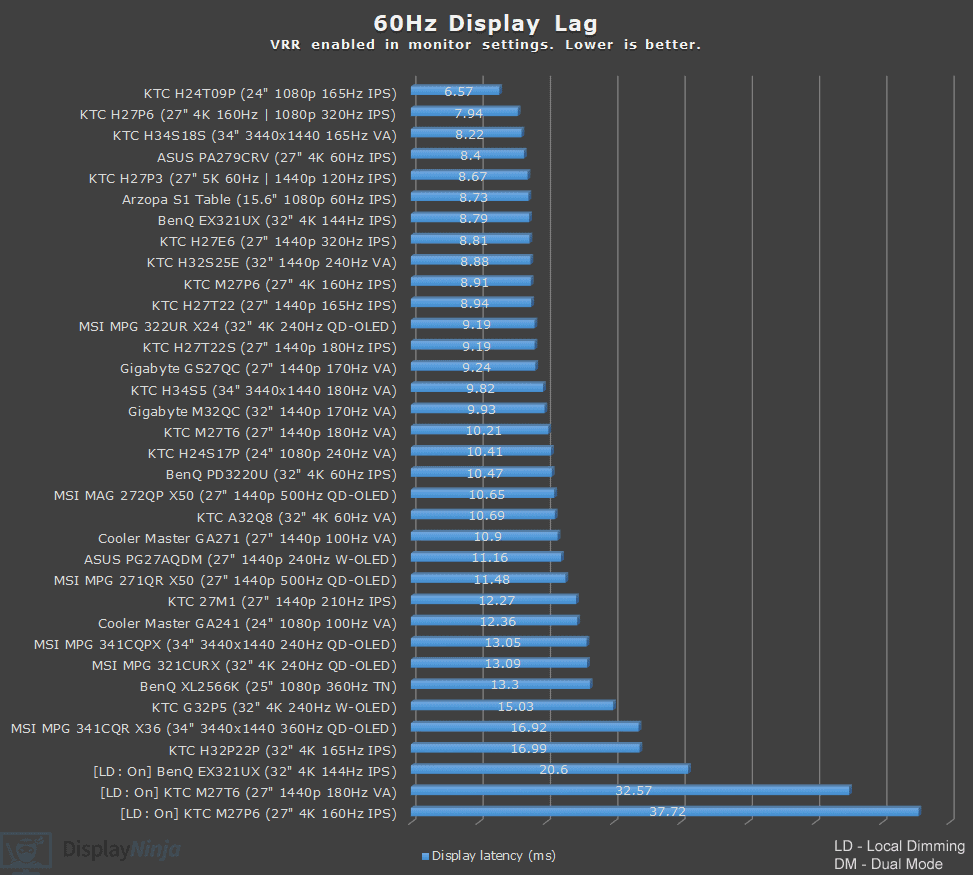
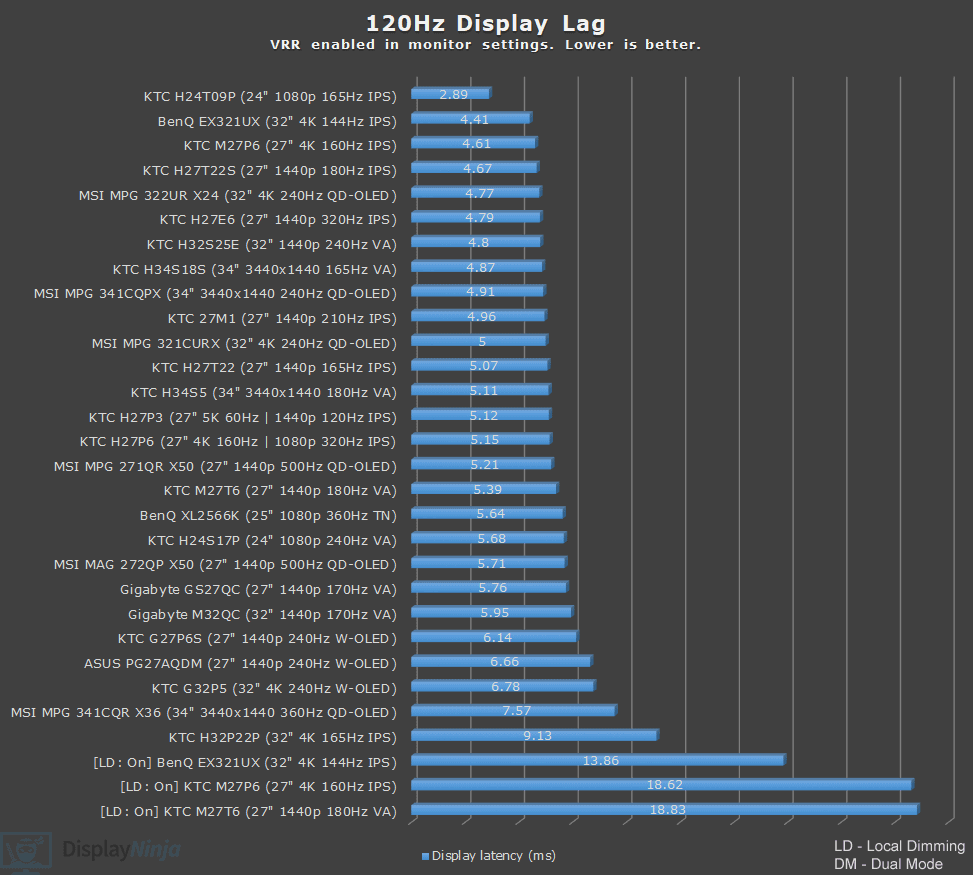
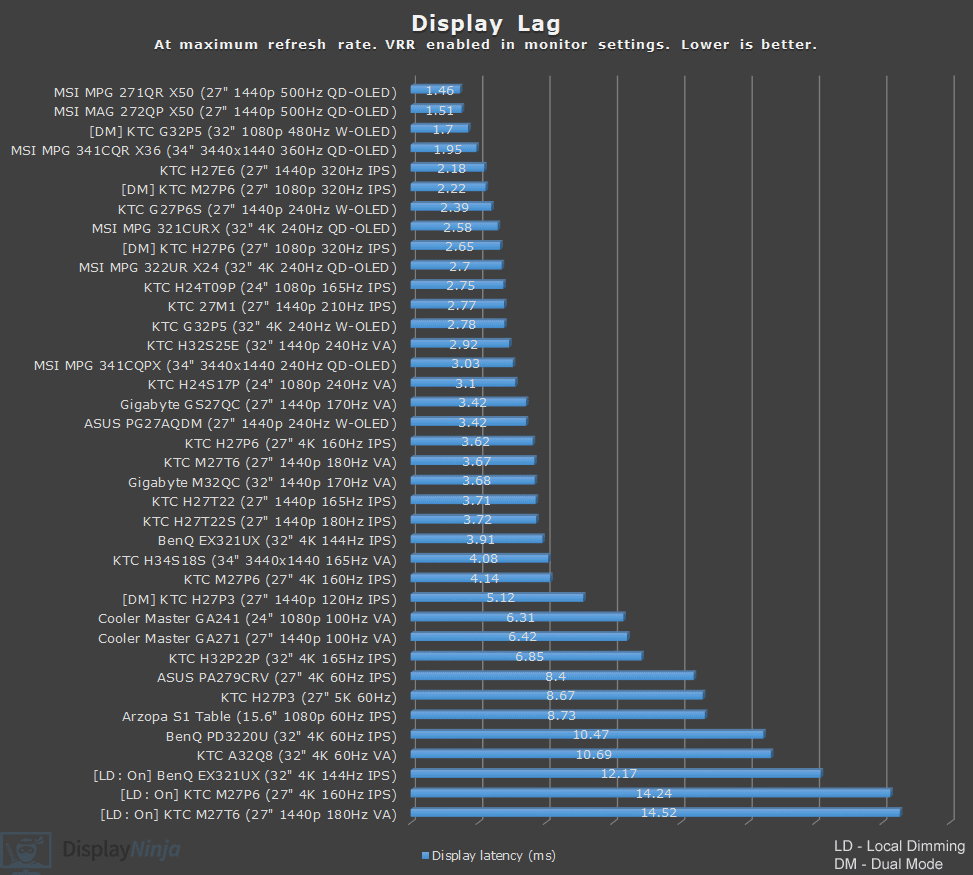
Here’s a look at display latency test results.
With ‘Adaptive-Sync’ enabled in the OSD menu, we got excellent results of 2.70ms at 240Hz, 4.77ms at 120Hz and 9.19ms at 60Hz, meaning that there’s no perceptible delay between your actions and the result on the screen.
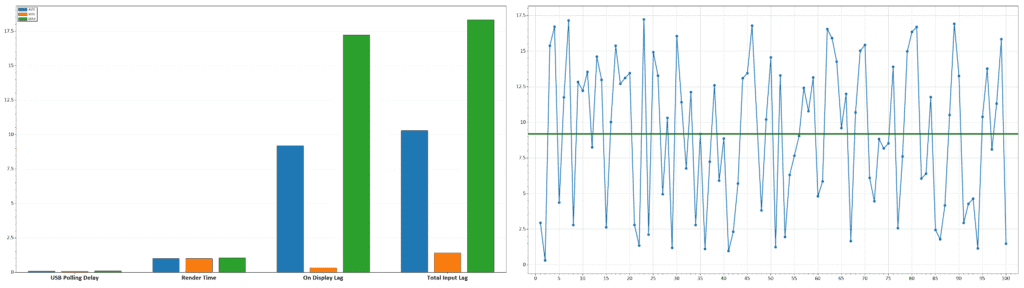
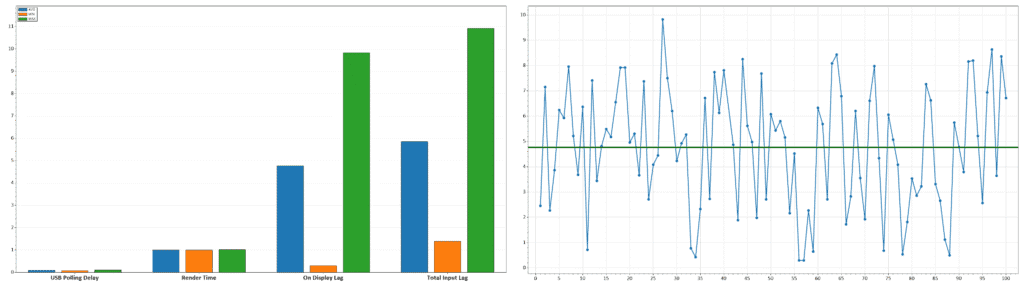
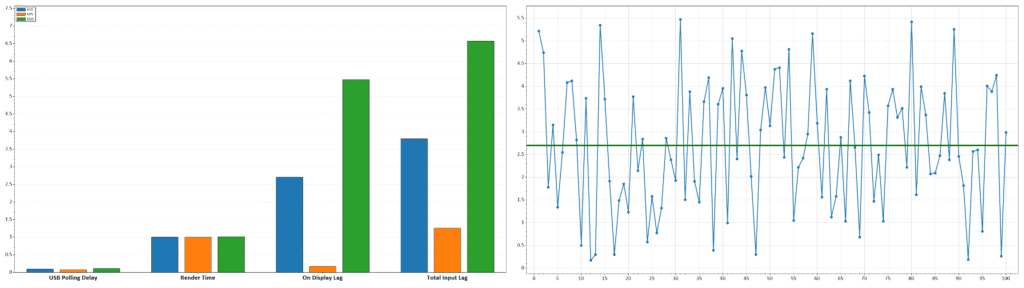
However, with ‘Adaptive-Sync’ disabled, display latency is considerably higher.
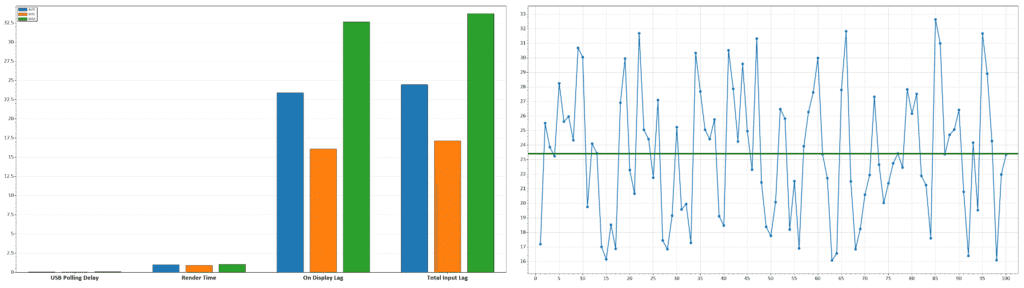
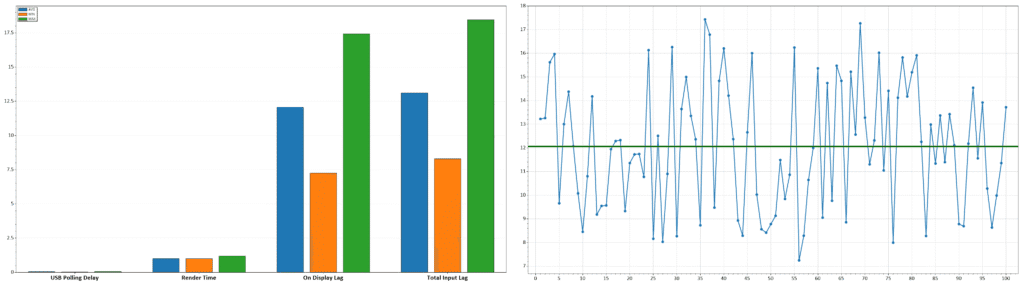
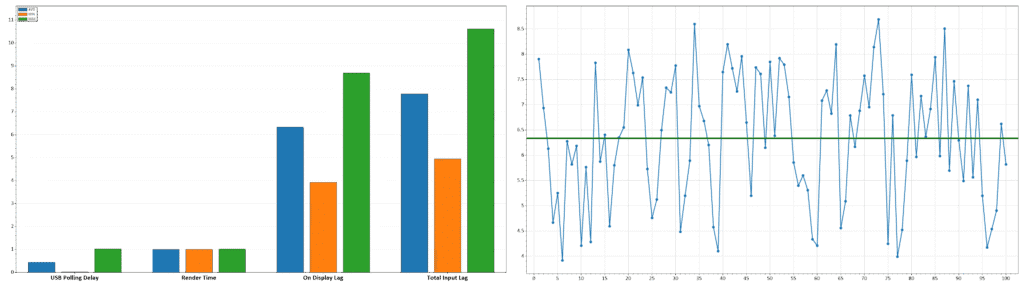
We’re now getting 6.34ms at 240Hz, 12.06ms at 120Hz and 23.41ms at 60Hz.
This is a few milliseconds higher than the refresh rate cycle, which means that there is a perceptible delay, especially at 60Hz, though a lot of users may not be able to notice it.
You can simply enable ‘Adaptive-Sync’ in the OSD menu and then disable VRR in your GPU driver settings if you don’t wish to use it to ensure the lowest latency.
However, this is an issue if you want to use MPRT, which already adds some latency itself, since it requires Adaptive-Sync to be disabled. We expect this to be addressed in a new firmware update.
Uniformity & Quality Control
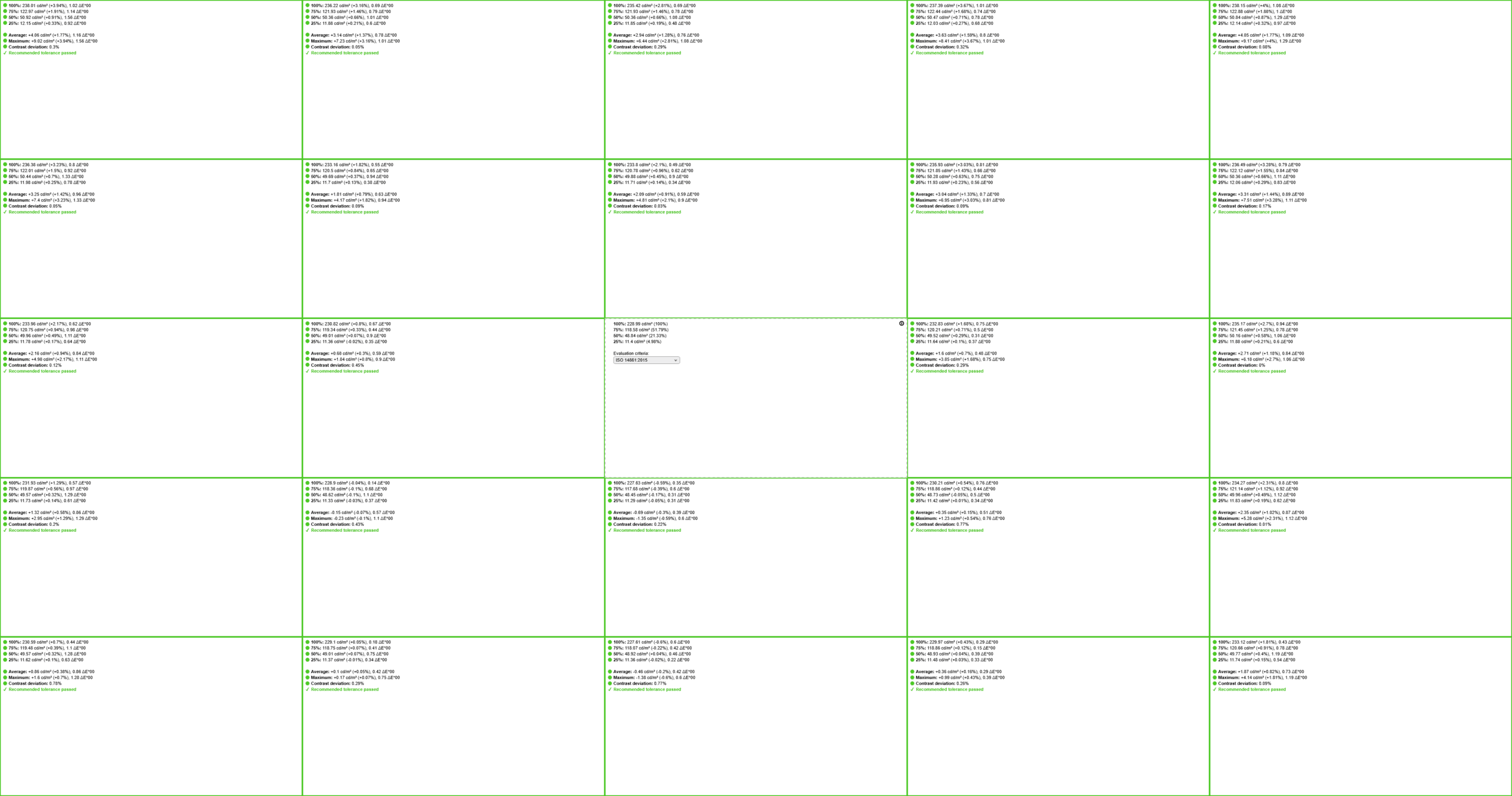
Moving on, the MSI MPG 322UR X24 has excellent image uniformity as there’s only up to 4% brightness deviation on a 100% white across the screen.
This model has a new feature called Corner Uniformity with four intensity levels. Level 4 is set by default and has the most uniform image. Lowering this feature decreases the uniformity without any benefits, so make sure it’s left at Level 4.
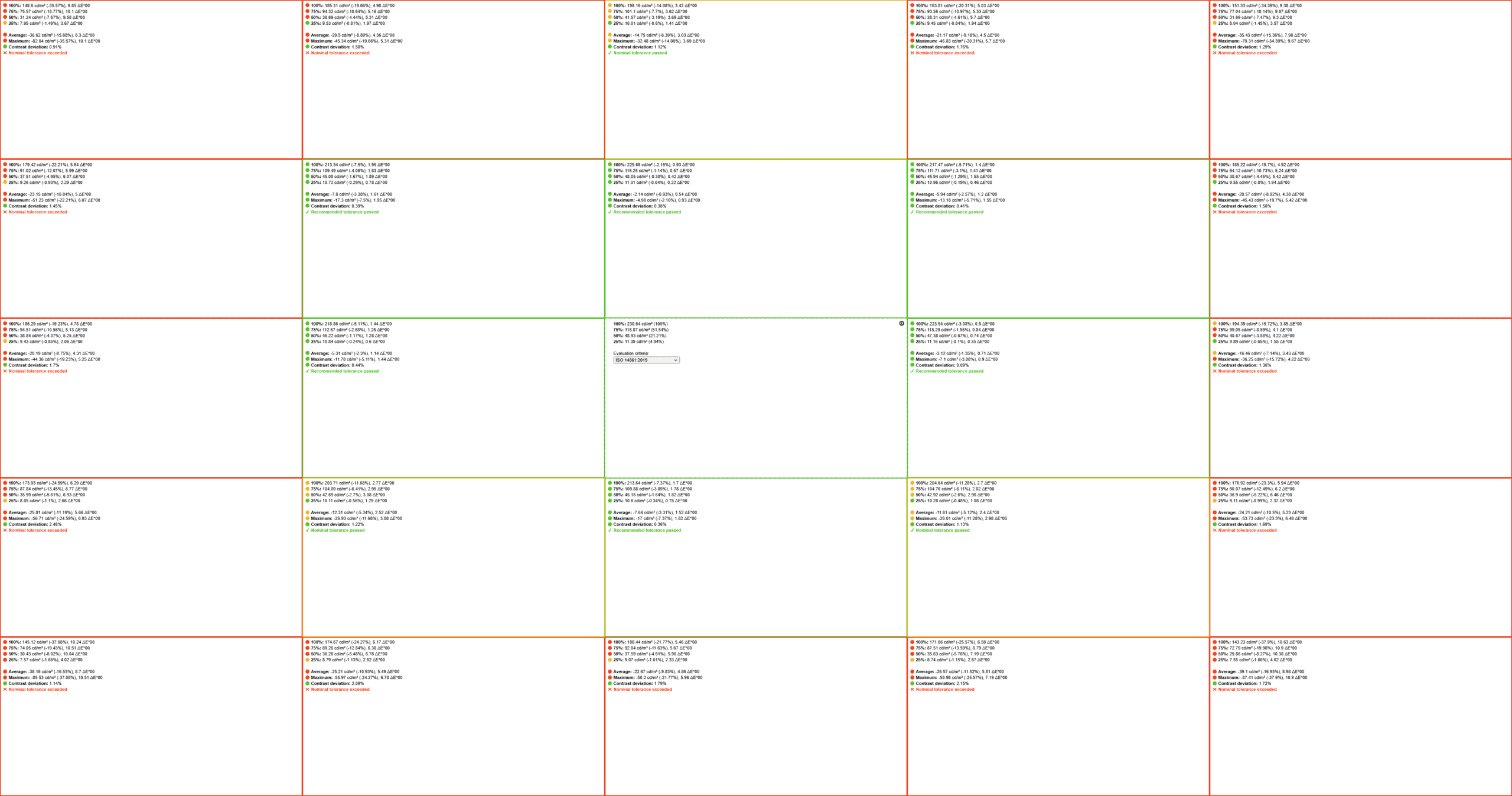
As with all QD-OLED panels, some minor vertical banding can be observed on solid dark-gray backgrounds, but it isn’t as severe as on W-OLED panels, and it’s not noticeable during regular use. Its intensity also varies between units, and our sample showed virtually no visible banding.
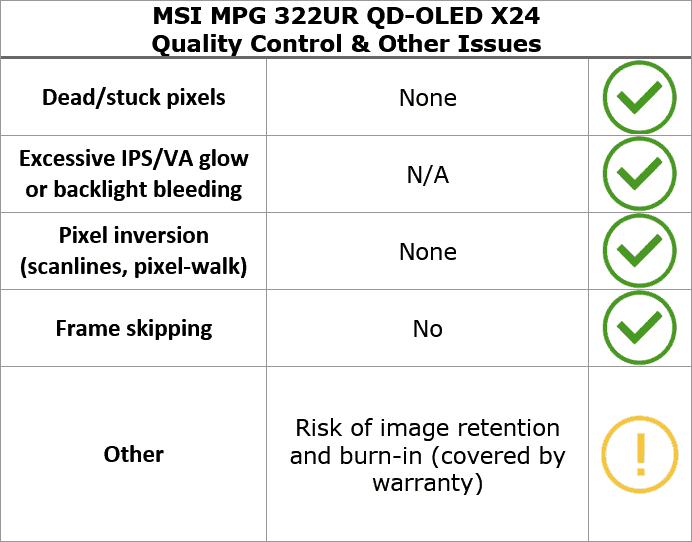
OLED panels don’t suffer from IPS/VA glow or backlight bleeding, and there were no other issues, such as frame skipping or pixel inversion. We also didn’t find any dead or stuck pixels.
Apart from the minor fluctuations in brightness due to the way OLED panels work (which is invisible to the human eye), the monitor is completely flicker-free.
There’s also a low-blue light filter mode that reduces the color temperature down to 4006K for a more comfortable viewing experience before bedtime.
Features
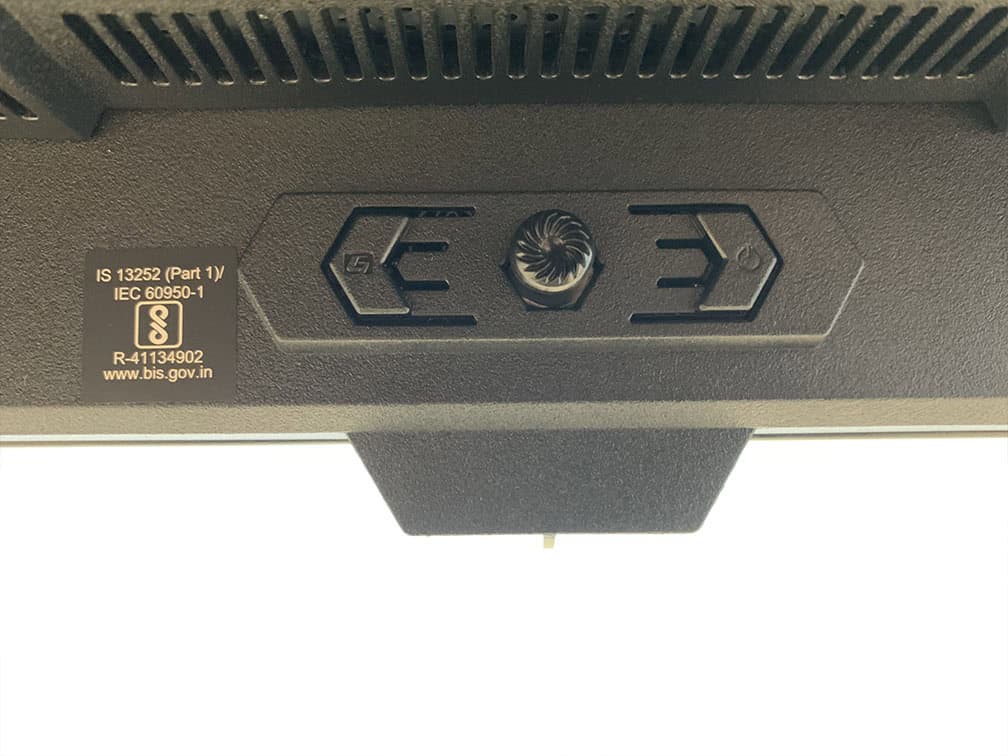
Behind the bottom bezel of the screen, there’s a directional joystick for quick and easy navigation through the OSD menu. There’s also a dedicated power button, an additional ‘G key’ button for shortcuts and a power LED indicator on the chin that houses the built-in sensor.
While the monitor is on, the power LED is white (the LED indicator can be disabled in the OSD menu) and blinks orange while the Panel Protect process is active.
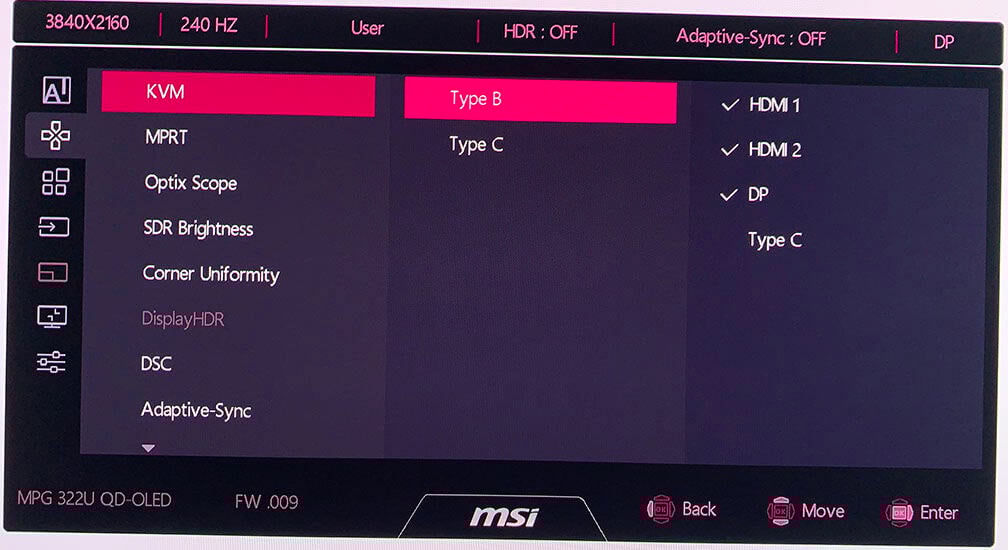
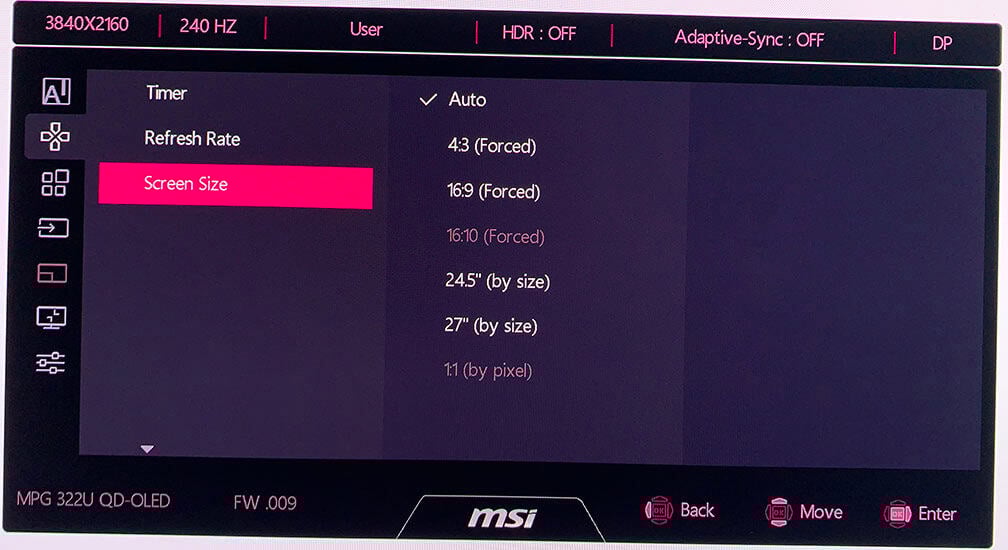
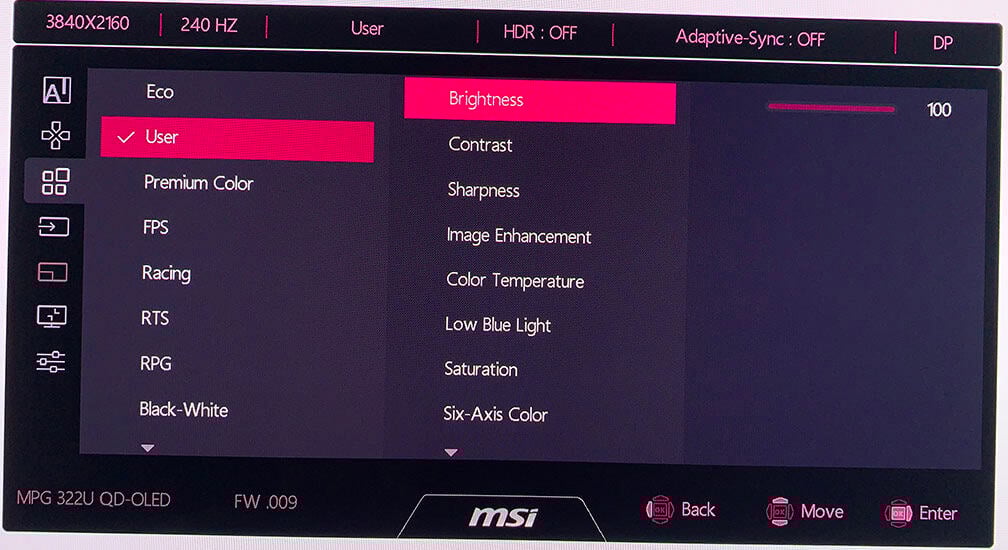
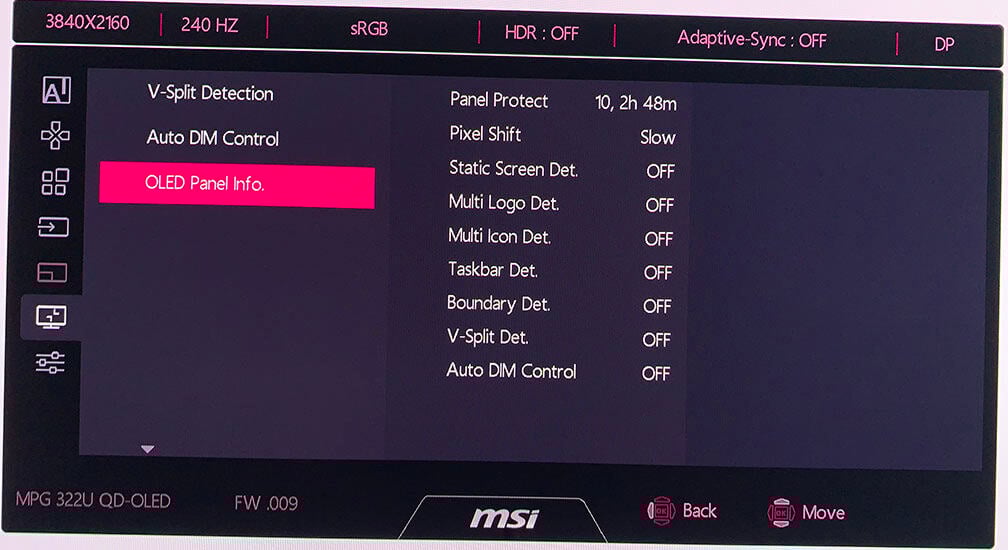
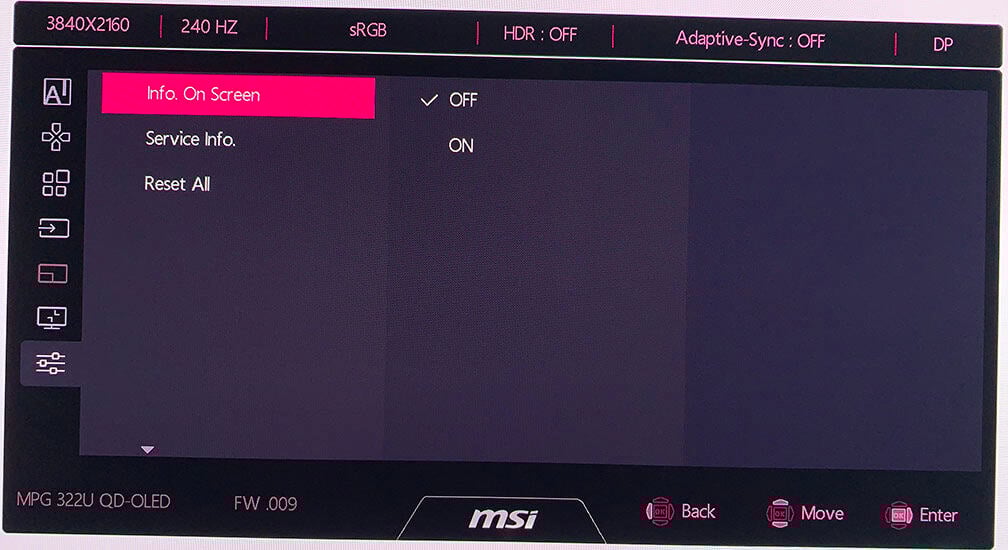
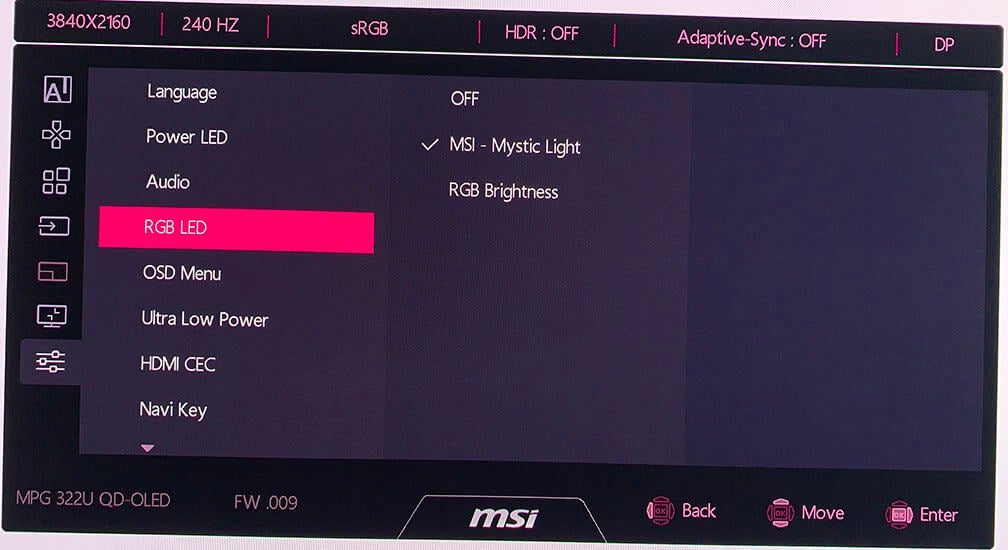
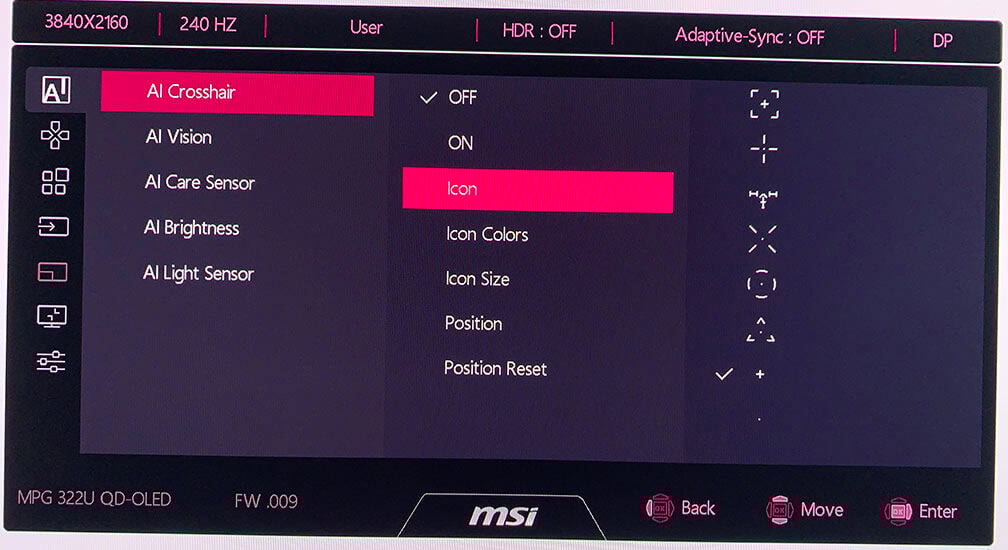
Moving the joystick up, down, left and right summons a quick menu for certain shortcuts, which can be changed to the following options: Brightness, Mode, Input Source, AI Crosshair, AI Vision, Timer, Refresh Rate, PiP/PbP, Optix Scope, Info. On Screen and Audio Volume.
The G key can be used to open the MSI Gaming Intelligence desktop application or assigned to AI Crosshair, Split Window, Split window – Action, Switch Input Source, PiP/PbP on/off or Optix Scope.
Besides the typical image adjustment tools (brightness, contrast, color temperature), the MSI MPG 332UR X24 also has some advanced settings, including DSC toggle, sharpness, automatic input detection, gamma (from 1.8 to 2.6) and 6-axis saturation.
Picture-in-Picture and Picture-by-Picture modes are supported as well.
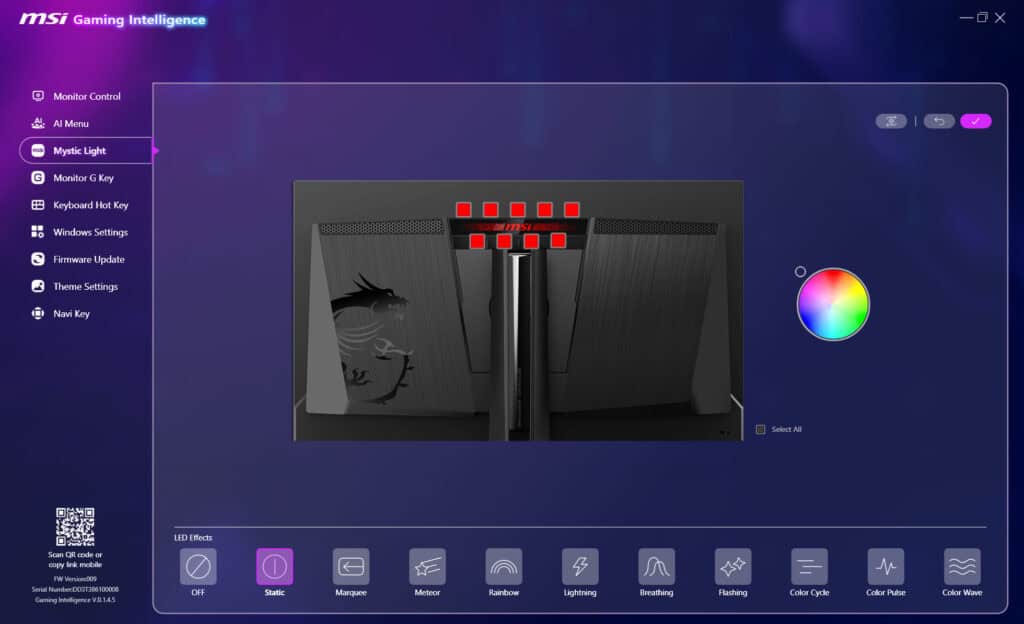
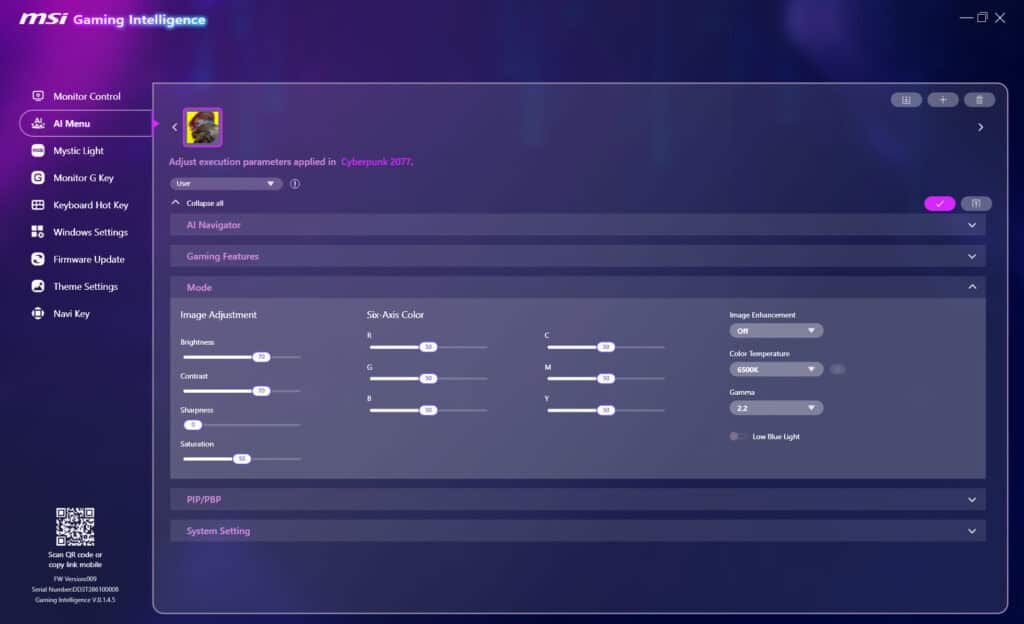
When you connect the monitor to your PC via a USB cable, you can also use MSI’s Gaming Intelligence application to make all your OSD-related adjustments using your keyboard and mouse. Alternatively, you can use the Remote Display App on Android.
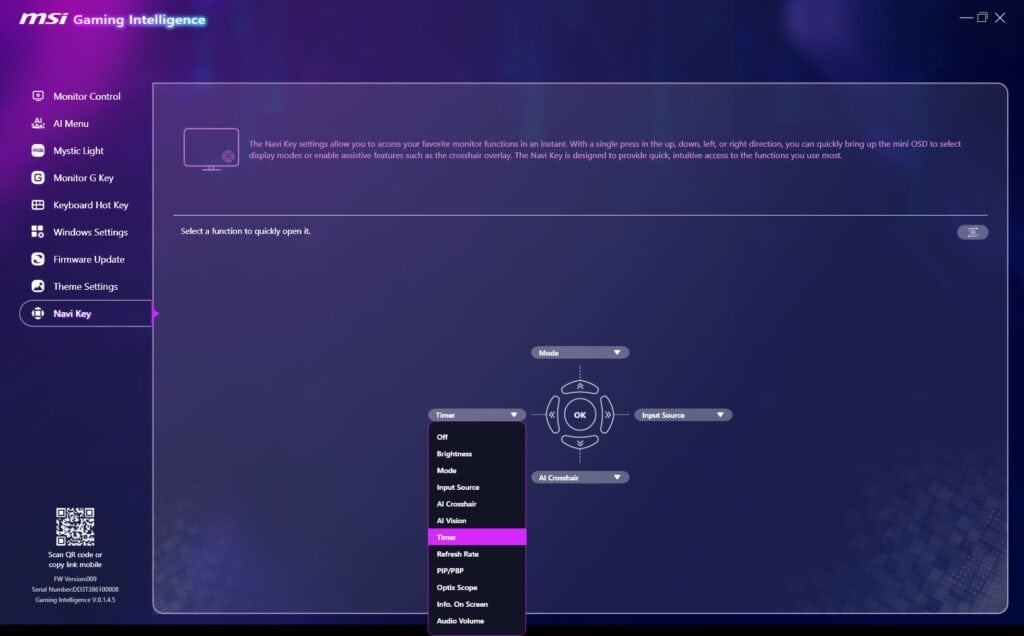
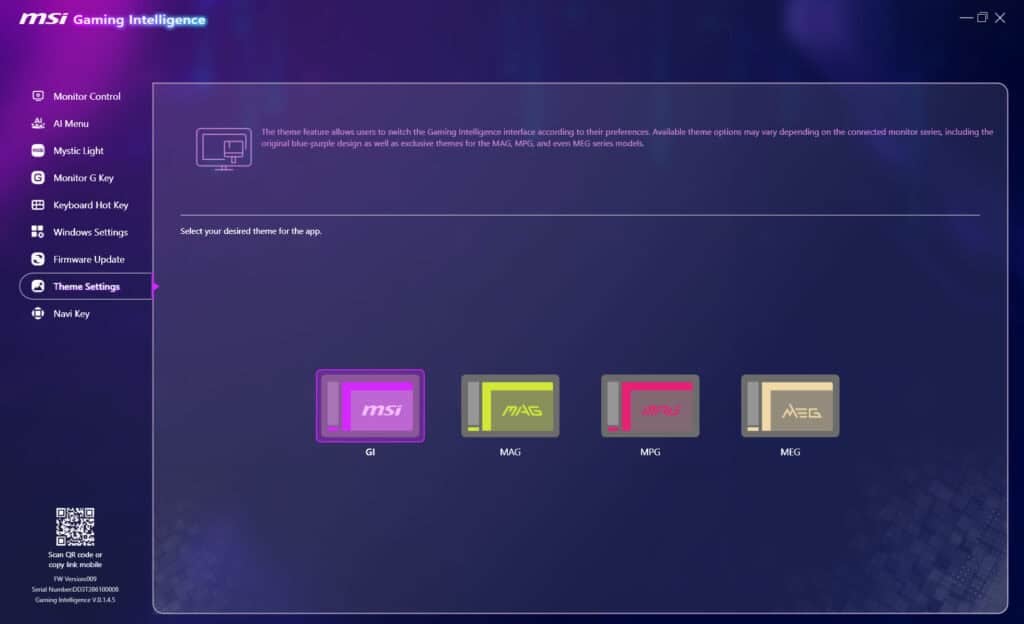
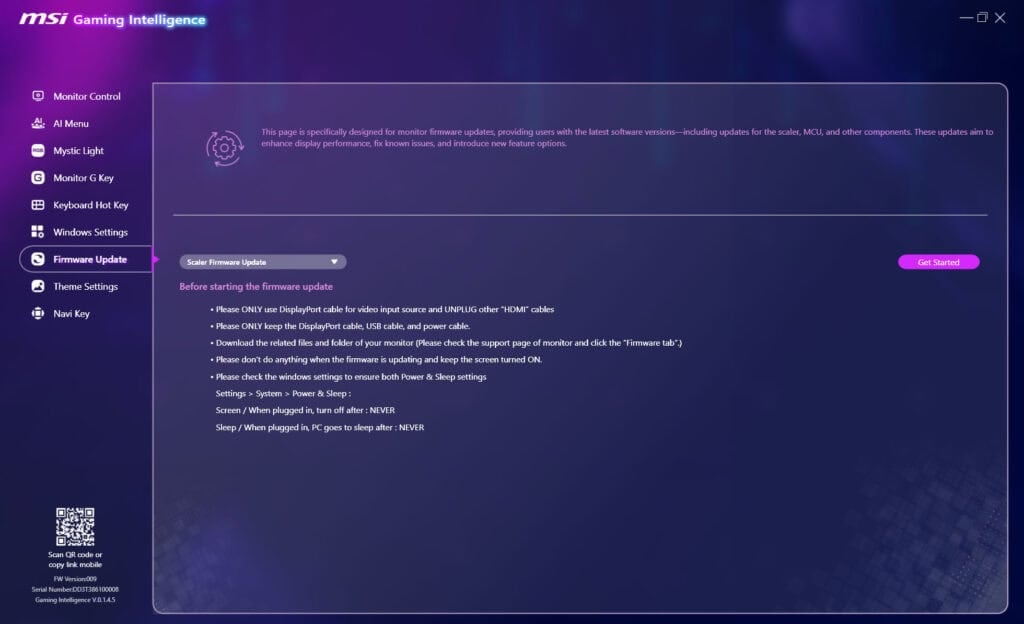
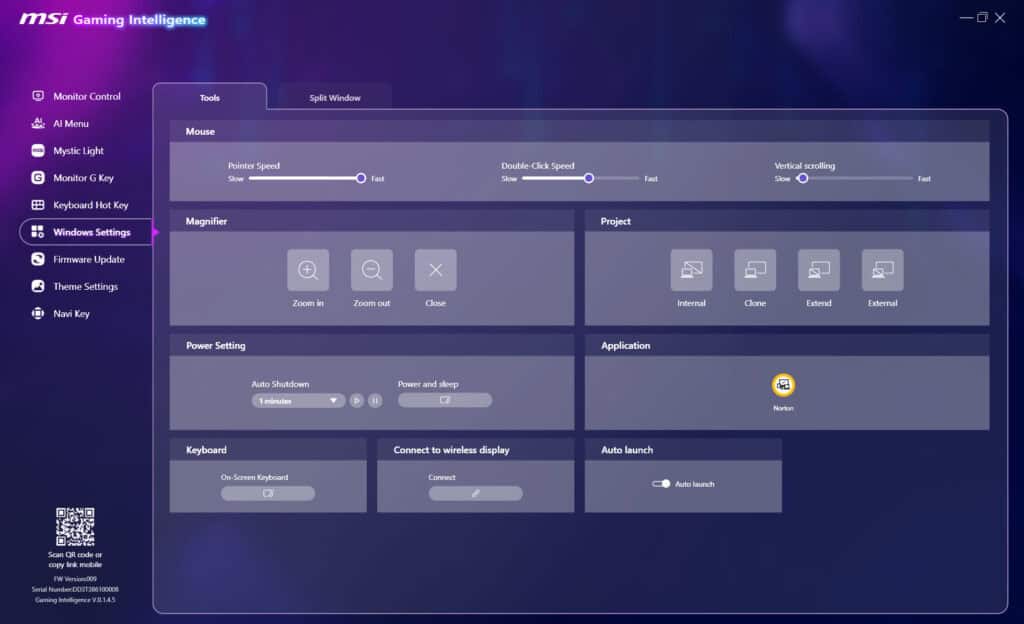
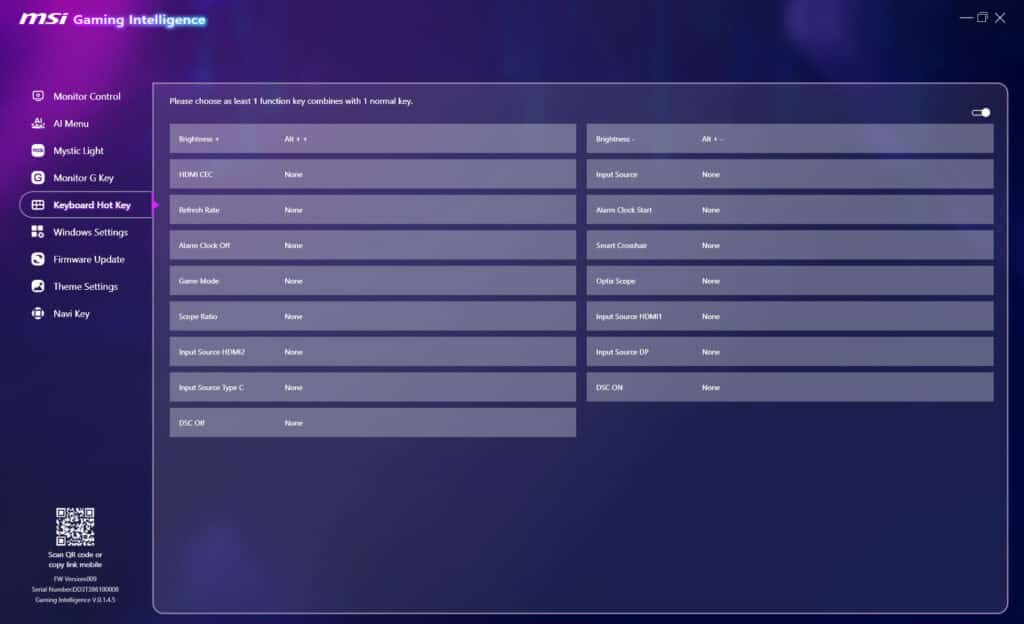
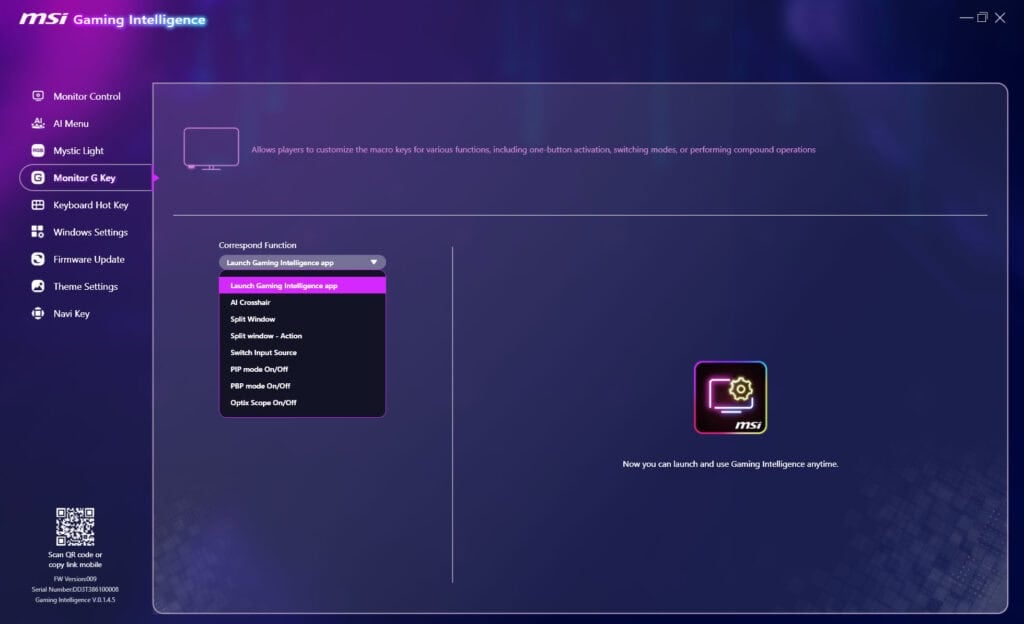
You can also have access to additional settings, such as assigning certain settings to specific applications, customizing RGB lighting, choosing what the ‘G key’ and navigation keys do, assigning keyboard shortcuts, some Windows settings, changing the theme and updating firmware.
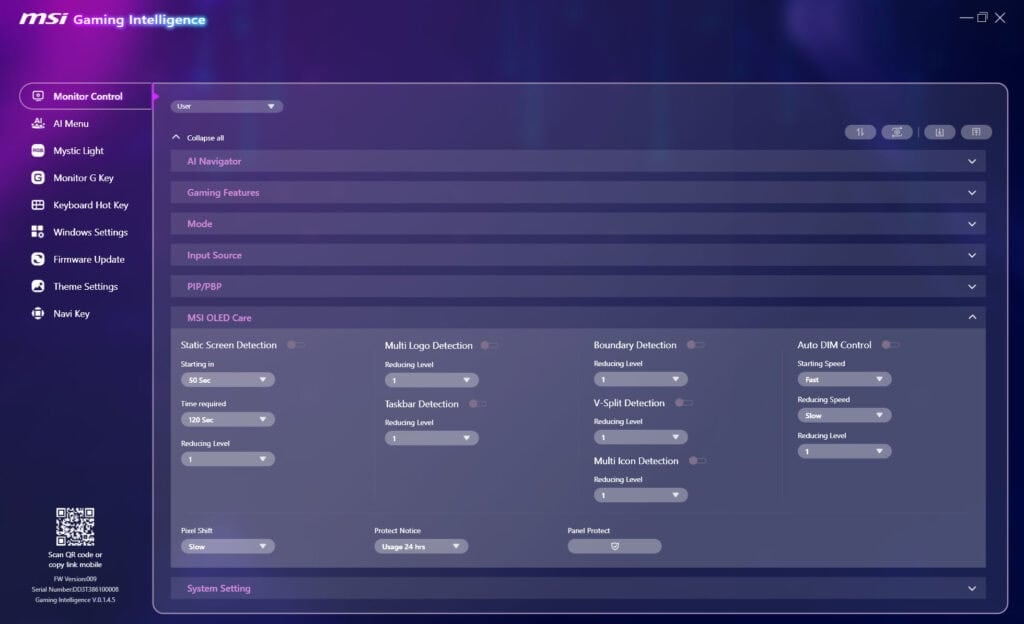
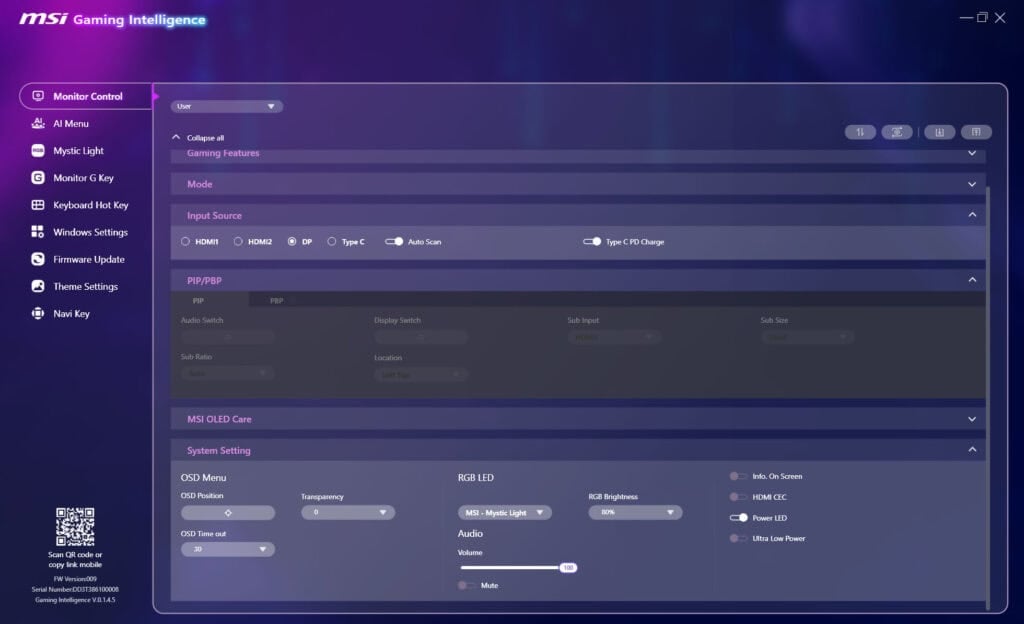
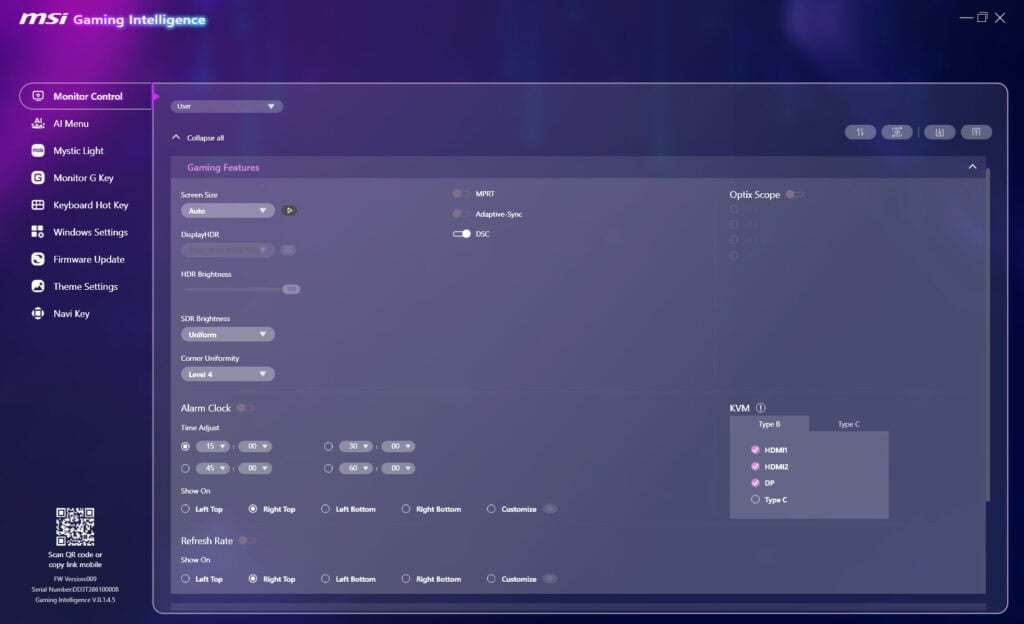
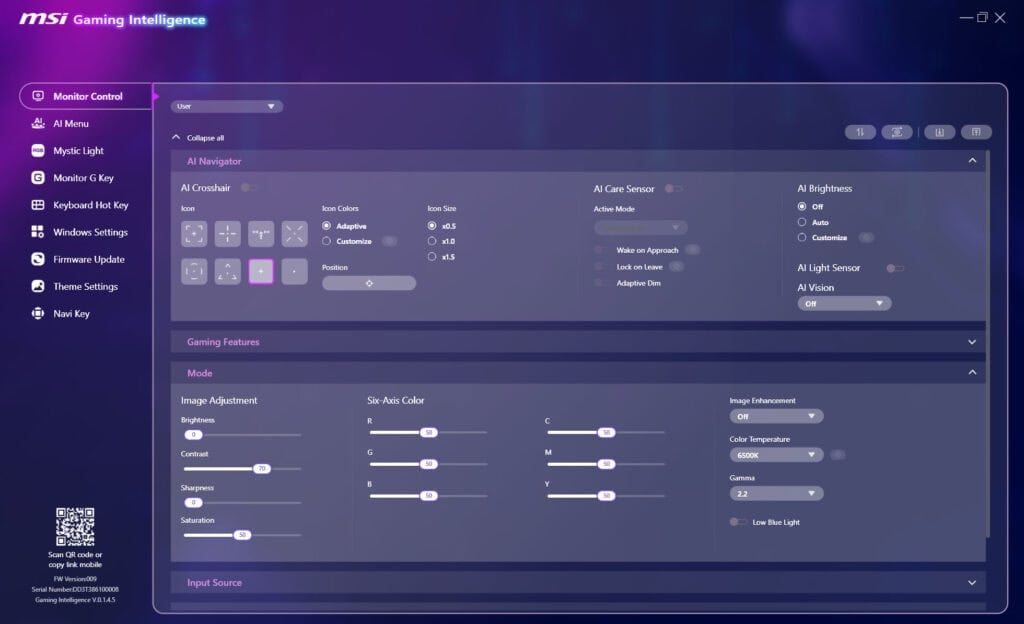
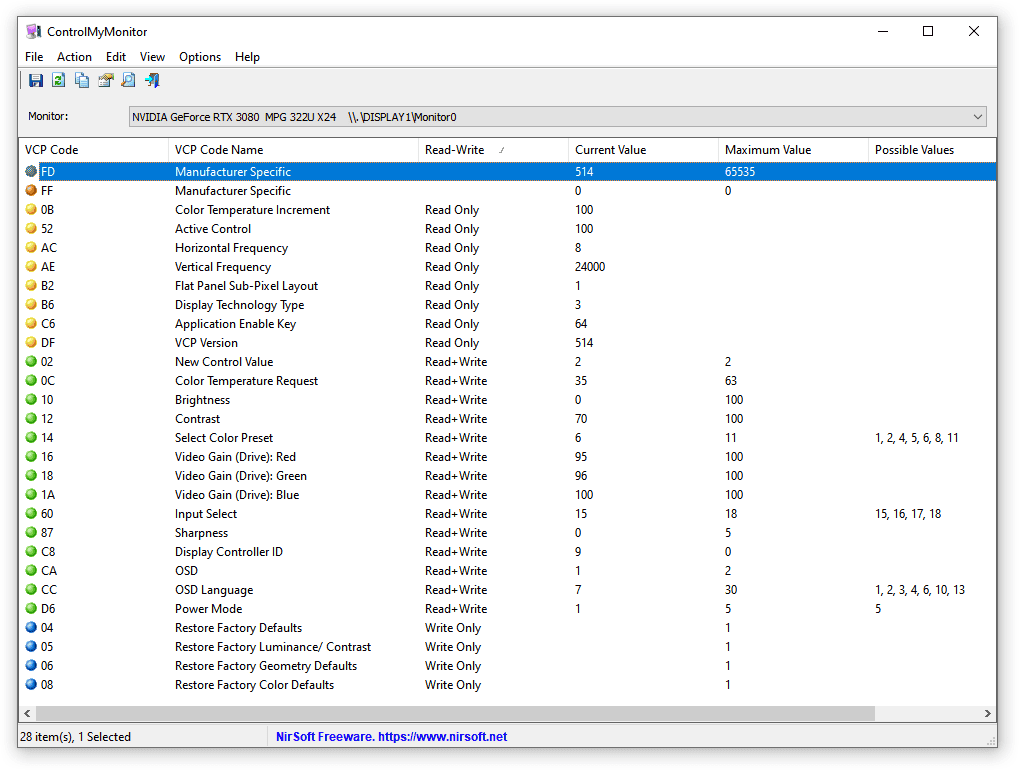
Here are the settings you can change using third-party apps, such as ControlMyMonitor.
Useful gaming features include:
- AI Crosshair – fully customizable color or adaptive (changes color depending on the background). You can also change the position and size (x0.5, x1.0, x1.5)
- AI Vision – improves visibility in dark scenes without over-brightening the bright parts
- Optix Scope – zooms in on the area around your crosshair
- Screen Size – 4:3 and 16:9 forced, 24.5″ and 27″ by size, 16:10 (forced) and 1:1 (by pixel). Adaptive-Sync must be disabled in the 1:1, 24.5″ and 27″ modes
- On-Screen Timer
- Refresh Rate Tracker
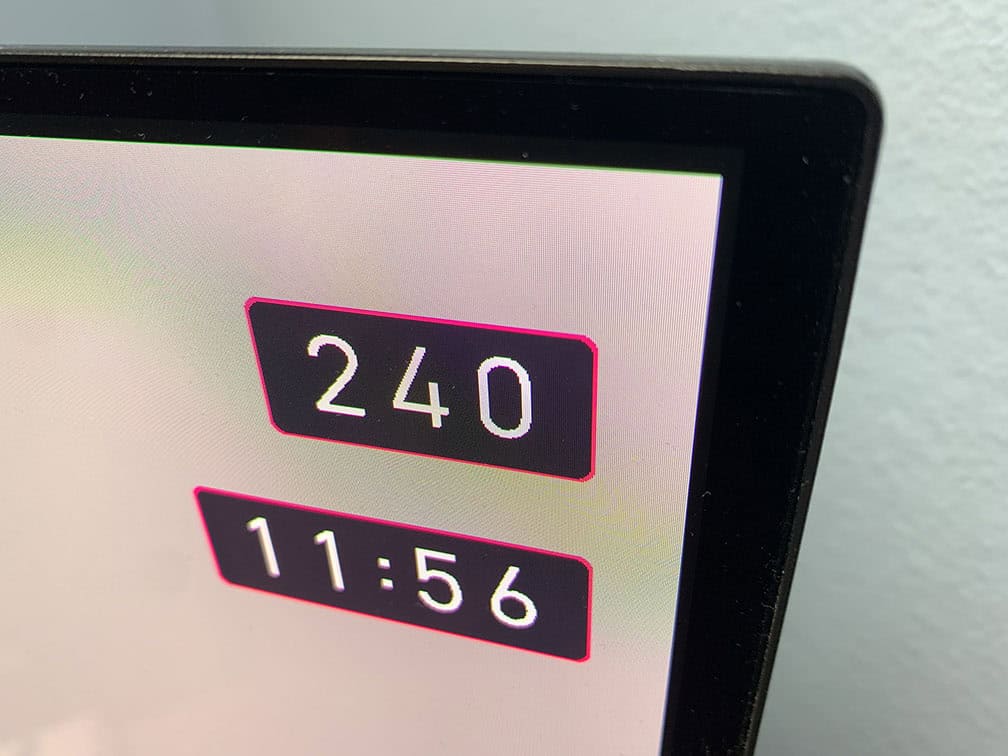
Other settings include OSD options (language, timeout, transparency and position), power LED indicator, audio, RGB lighting, and HDMI CEC, which allows the monitor to power on automatically when a console is turned on.
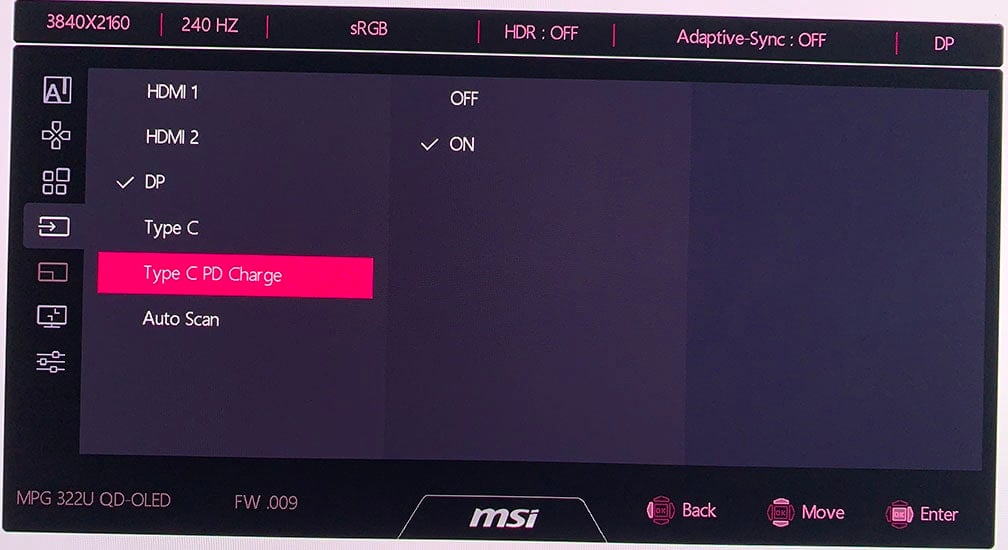
Additional options include USB-C Power Delivery charging up to 98W, Info On Screen (displays details like the current resolution and refresh rate), Ultra Low Power mode to reduce power consumption (we recommend disabling it for optimal image quality) and a factory reset option.
There’s also a built-in KVM functionality. When you connect two PCs to the MSI MPG 322UR QD-OLED X24 monitor, you can effortlessly swap control between them by connecting your keyboard and mouse to the monitor.
Burn-in Prevention

The main downside of OLED panels is the risk of image retention and permanent burn-in. If bright, static elements are left on screen for extended periods, they can sometimes leave a permanently visible afterimage.
With sensible use, varied content, and MSI’s OLED Care features enabled, this is unlikely to be a problem in everyday use.
MSI even offers a 3-year warranty that covers burn-in.
Additionally, the MSI MPG 322UR QD-OLED X24 has active cooling via its heatsink instead of using a cooling fan, which can be loud and fail over time.
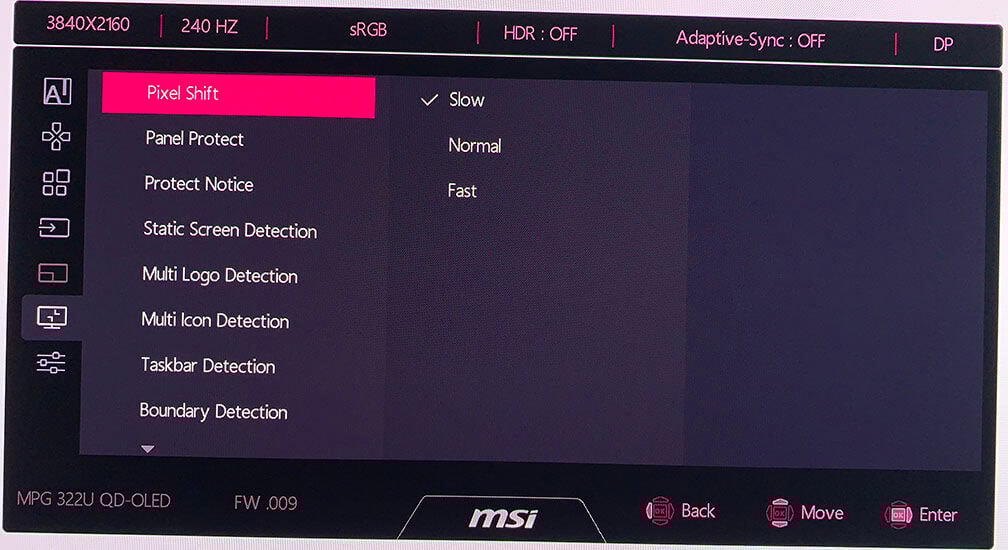
You’ll find the following OLED care features in the OSD menu:
- Pixel Shift – occasionally moves the entire image by a few pixels (three frequency levels available, cannot be disabled)
- Panel Protect – refreshes the pixels after 4 hours of cumulative use (takes around 9 minutes)
- Panel Notice – Auto or Usage 24 hrs, panel notice pops up after 4 hours of cumulative use or after 24 hours if set to ‘Usage 24 hrs’
- Static Screen Detection – lowers the brightness after detecting that a static image remains on the screen
- Multi Logo Detection – lowers the brightness of static elements
- Taskbar Detection – lowers the brightness of the taskbar area
- Boundary Detection – lower the brightness when letters, pillars, etc. are detected
- V-Split Detection – lower the brightness along vertical lines
- Auto DIM Control – gradually lowers the brightness when static images are detected
AI Sensor
The MSI MPG 322UR QD-OLED X24 also has an AI Sensor that can greatly help mitigate burn-in and image retention.
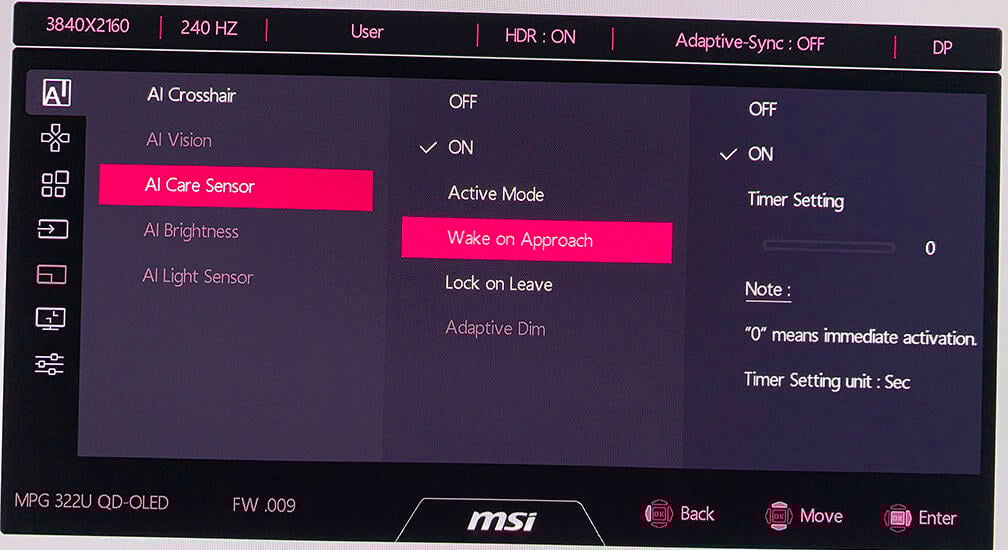
First, you’ll need to set the AI Care Sensor to ‘On’ and under the ‘Active Mode’ choose between ‘System’ or ‘Monitor’ mode. If you choose ‘System’, you’ll be able to adjust the sensor in Windows settings (requires Windows 11).
The Monitor Mode allows you to make all of the sensor adjustments in the OSD menu.
WoA (Wake on Approach) wakes the monitor when it detects a person in front of it (you can set it to immediately or after up to 30 seconds), while LoL (Lock on Leave) puts the monitor into standby when it no longer detects a person nearby (you can set the timer between 10 and 120 seconds).
The sensor can detect a user from up to 120cm and across a 75° wide area in front of the display.
There’s also the Adaptive Dim feature, which can dim the screen when it detects that the user has looked away.
The small CMOS camera sensor takes images every 0.2 seconds and processes them instantly on the monitor using an on-device AI chip. If privacy is a concern, you can rest easy knowing the images aren’t stored or uploaded anywhere.
Other AI Sensor settings include AI Brightness and AI Light Sensor, which can automatically adjust screen brightness and color temperature, respectively, according to ambient lighting.
Design & Connectivity
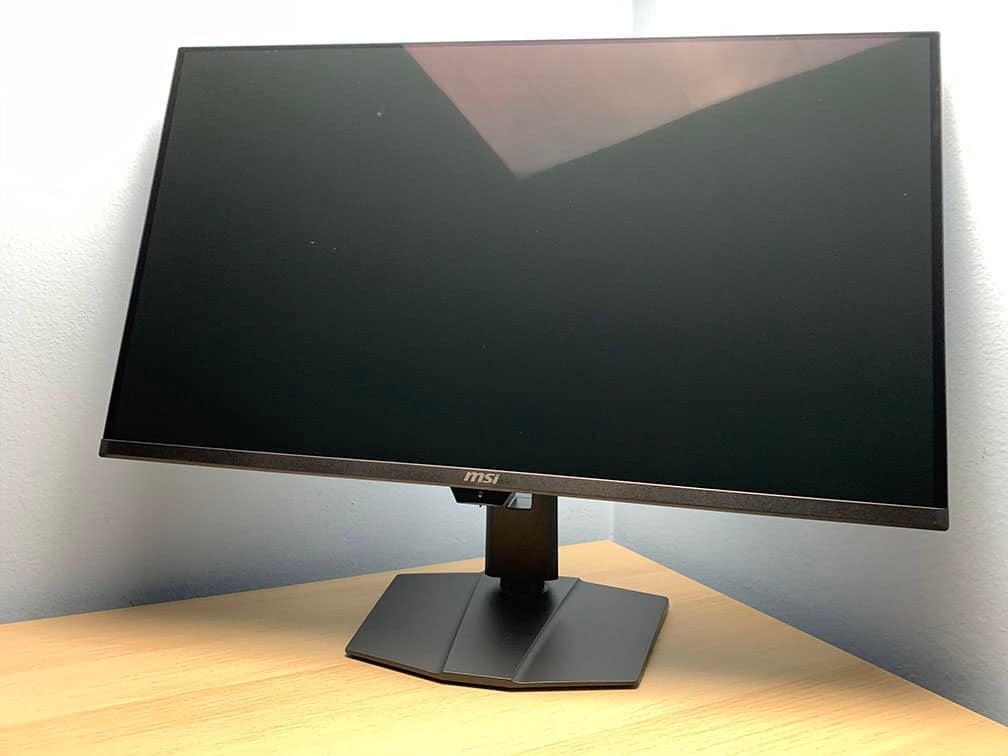
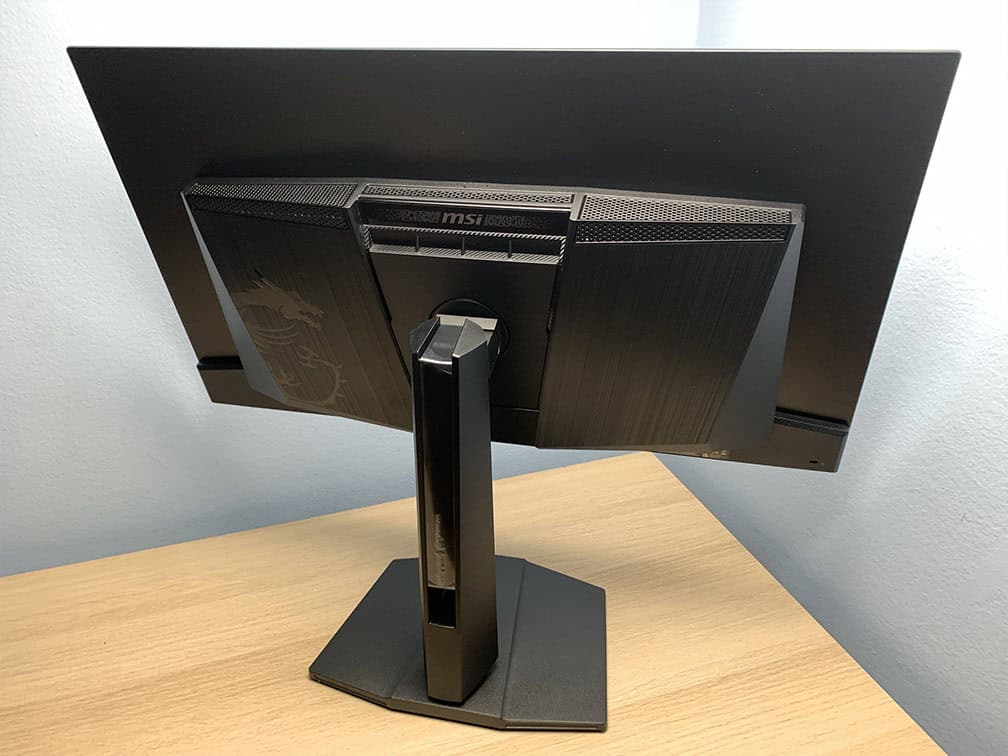
The MSI MPG 322UR QD-OLED X24 monitor has a robust design with an ergonomic stand, including -5°/15° tilt, +/- 30° swivel, +/- 10° pivot, up to 110mm height adjustment and 100x100mm VESA mount compatibility.
The display has ultra-thin 1mm bezels on the top and sides, while the bottom bezel is a bit thicker at 16mm with a 12mm protruding chin that houses the sensor. There are black borders before the image starts, about 7mm on the sides, 4mm at the top and 1mm at the bottom.
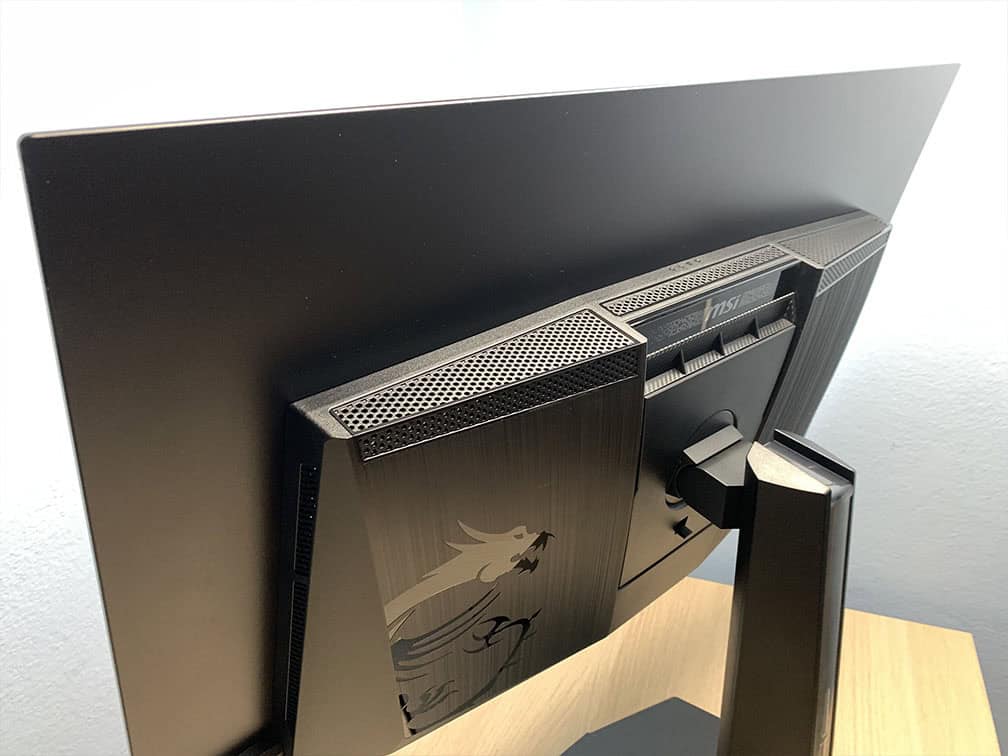
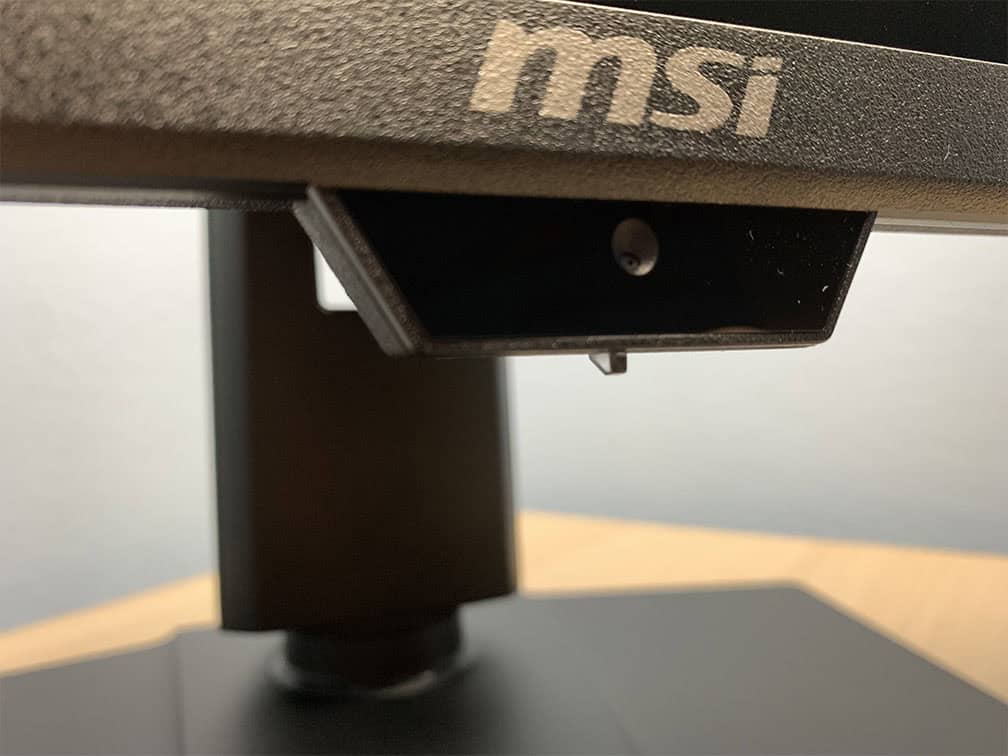
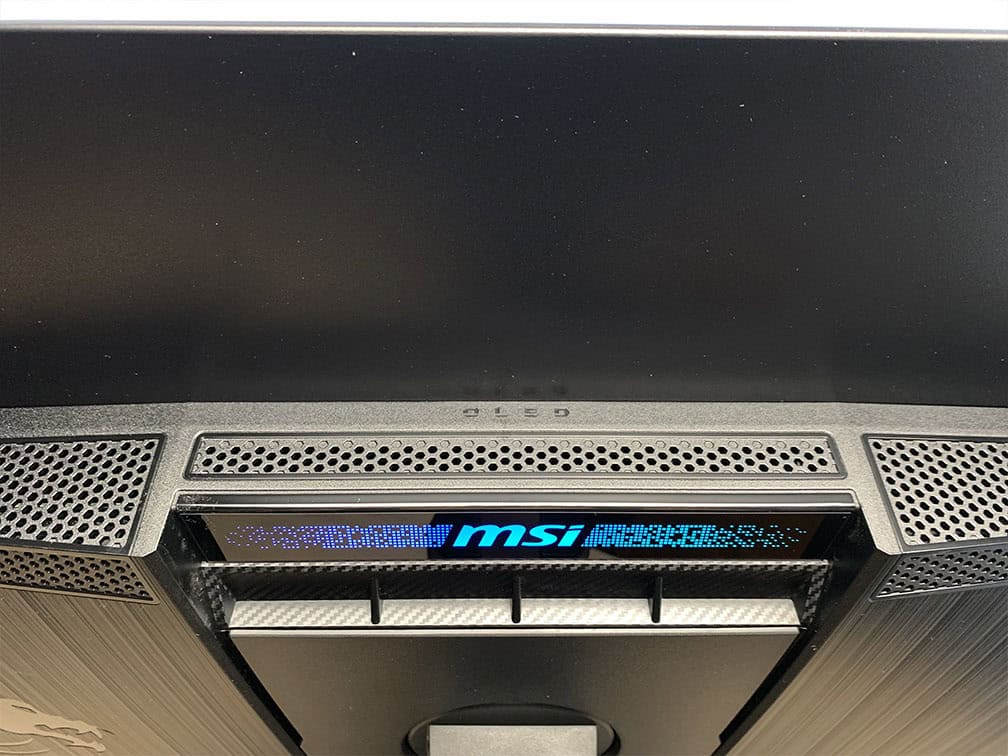
The overall design is matte and textured, with subtle glossy accents on the rear. The small strip with the MSI logo on the back also has customizable RGB lighting.
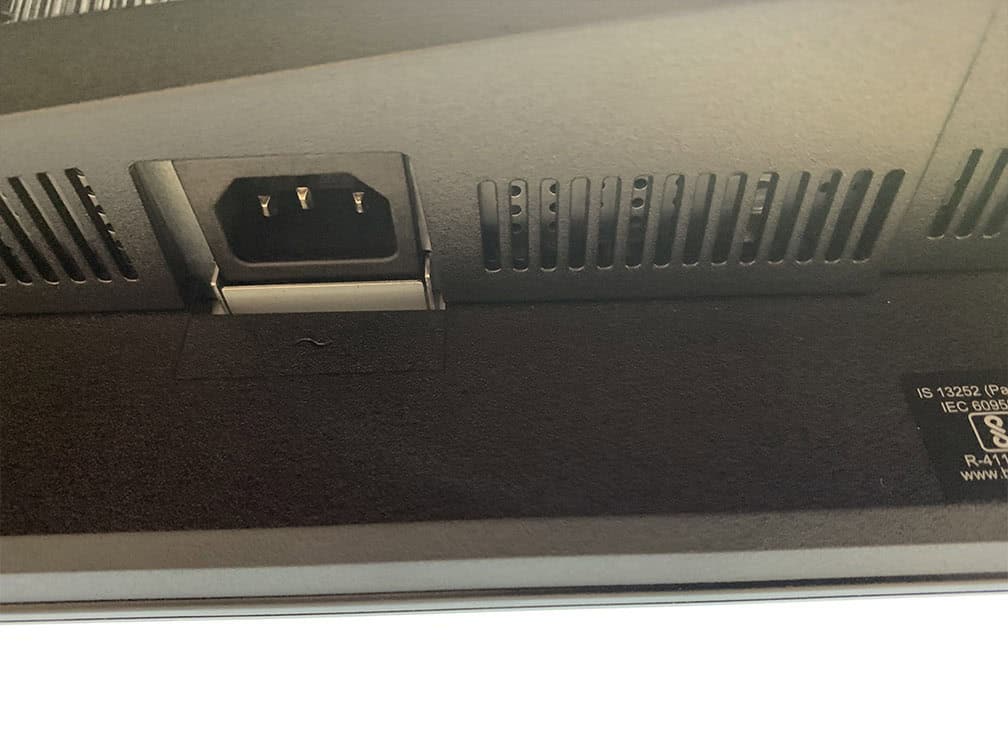
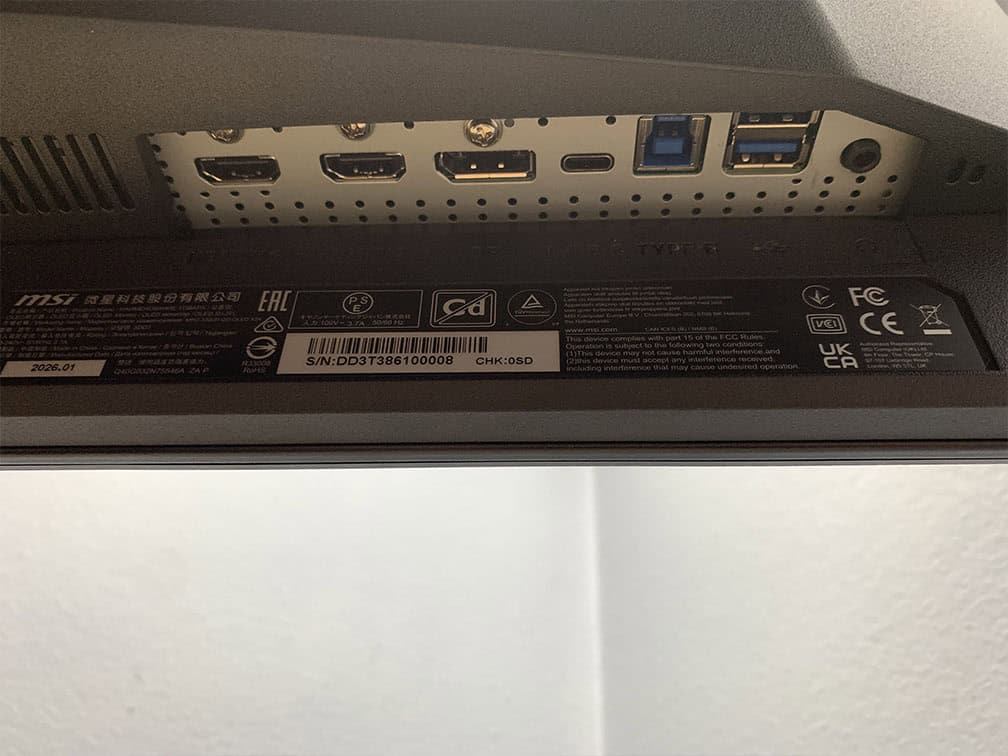
Connectivity options include two HDMI 2.1 ports with full 48 Gbps bandwidth, DisplayPort 2.1 with the fastest UHBR20 transmission mode, allowing for native 4K 240Hz 10-bit color without requiring any compression if you have a compatible GPU. You can achieve 4K 240Hz 10-bit with DP 1.4 cards thanks to DSC, which is a visually lossless compression.
There’s also a USB-C port with DP Alt Mode and up to 98W Power Delivery, a dual-USB 3.0 hub, built-in KVM and a headphone jack. The screen has an integrated power supply.
Next, the screen has a semi-glossy finish, which makes the image more vivid as there’s no graininess associated with matte anti-glare coatings.
MSI’s new DarkArmor Film removes the magenta tint seen in previous-generation QD-OLED panels under direct ambient light, boosts black level by 40% and improves surface hardness to 3H for 2.5x better scratch resistance.
Here’s how the MSI MPG 341CQP X36 (on the left) we tested, which also has this coating, compares to the MSI MPG 271QR X50 (on the right) when light is aimed directly at the screen.
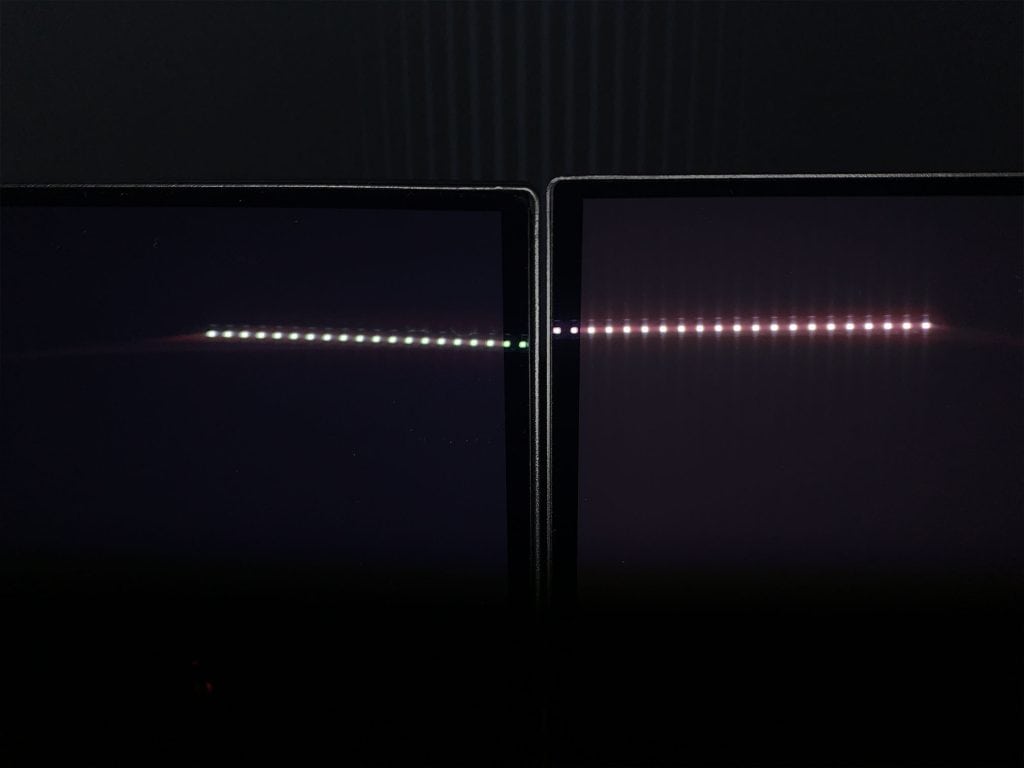
This is the same LED light bar aimed at both screens. You can see that the 271QR X50 reflects the LEDs with a purplish tint, which gives blacks that infamous magenta cast. On the 341QR X50 with DarkArmor Film, the reflected LEDs appear more greenish and closer to white, resulting in a more natural-looking reflection.
Below you can see how both screens handle an LED lamp and a softbox light aimed at the screen.
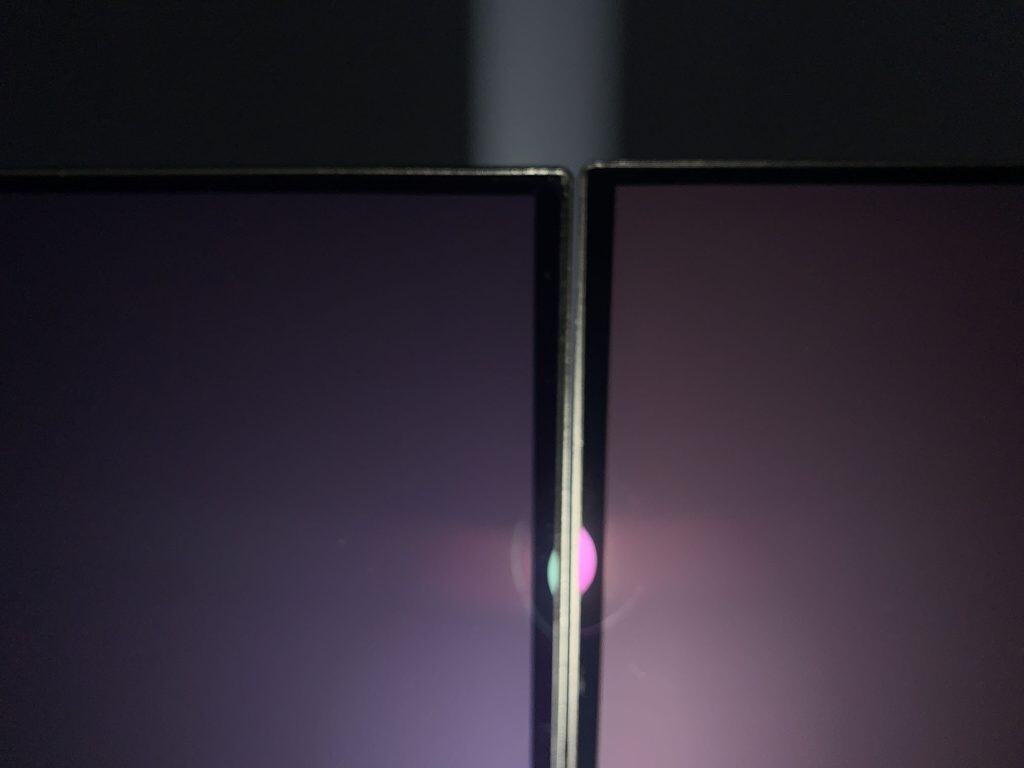
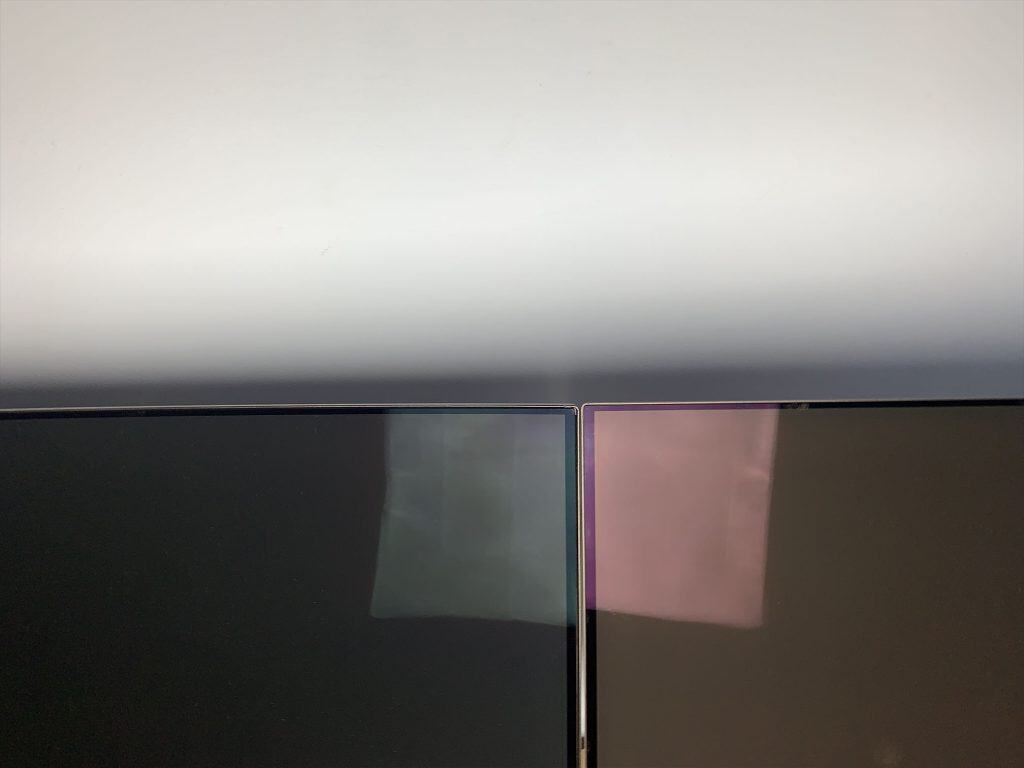
Overall, the new DarkArmor Film is a big step up from the previous-generation coating. The screen is still clearly reflective, so for the best image quality, you’ll want to avoid having any light pointed directly at it, as is the case with any glossy display.
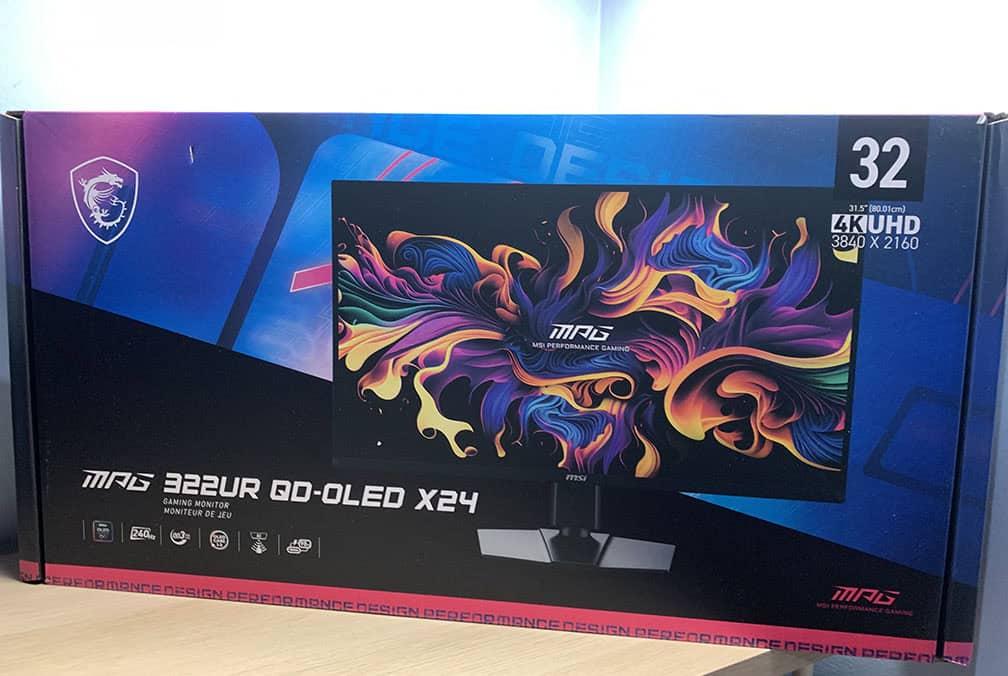
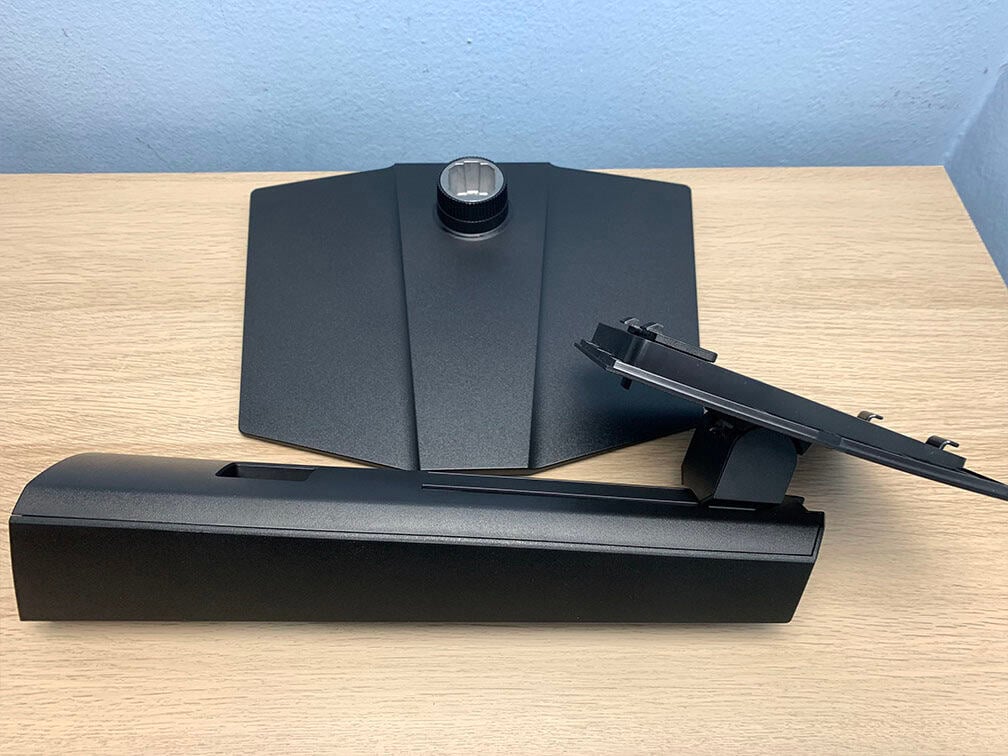
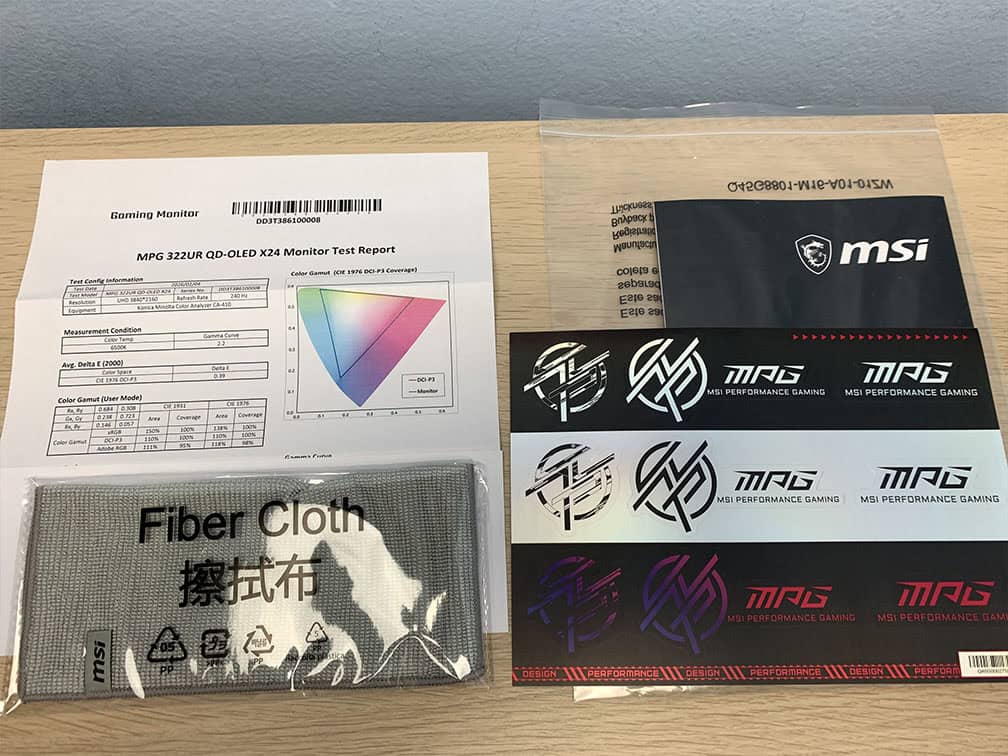
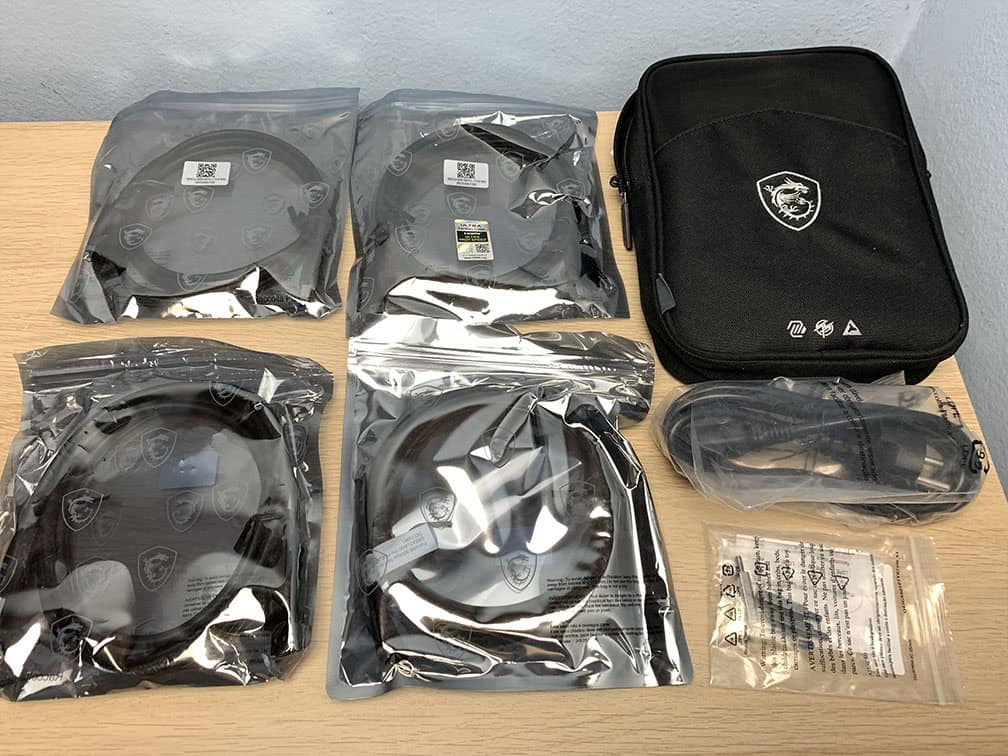
In the box, along with the monitor and its stand, you’ll get a pouch with DisplayPort 80Gbps (UHBR20), HDMI 48Gbps, USB-C, USB-A to USB-B 3.0 and power cord cables, a fiber cloth, a quick start guide, stickers, VESA mounting spacers and a factory calibration report.
Price & Similar Monitors
The MSI MPG 322UR QD-OLED X24 price amounts to $1,099 and it should be available in May / June. Overall, it’s a good price considering its smooth performance, excellent image quality and premium features.
The ASUS PG32UCDM3 model is based on the same panel with the same features (DP 2.1 UHBR20, presence sensor, BFI, USB-C 90W PD, KVM, etc.) and goes for $1,300, so we find that the MSI 322UR X24 offers better value for the money.
ASUS’ model also supports Dolby Vision and allows BFI to be used at 120Hz, so if you plan on watching movies on your monitor and/or you’re a console gamer after better motion clarity in fast-paced titles, it might be worth the extra $200 for you.
MSI also plans to release the MSI MAG 321UP QD-OLED X24 cut-down variant without the presence sensor, built-in KVM and lower 15W USB-C PD for a more affordable price, though there’s no word on the exact release date and price yet.
For more information about all upcoming and currently best available OLED monitors, be sure to visit our dedicated OLED monitors article.
The last-gen models, such as the MSI MPG 321URX and the HP Omen Transcend 32, can be found on sale for $800 – $900. The 165Hz version, the MSI MAG 321UP QD-OLED, even goes on sale for as low as $680.
These have lower-tier DisplayHDR True Black 400, the older coating and fewer features (no presence sensor, DP 2.1 UHBR20, etc.), but are still worth considering if you want to save some money. We also expect the 322UR QD-OLED X24 to drop in price over time.
So, if you already own a model like the MSI MPG 321URX, we don’t think it’s worth upgrading to the 322UR X24 solely for the new coating, AI Care Sensor, and the 15 – 20% boost in luminance across 10 – 100% APL levels. If it featured a true RGB stripe subpixel layout and a higher 1300-nit peak brightness, then the upgrade might be easier to justify.
Of course, if you’re coming from an older monitor and are due for an upgrade, the new 322UR X24 is a worthwhile investment.
As far as 32″ 4K 240Hz models with LG’s W-OLED panels and 1080p 480Hz Dual Mode go, there’s still no word on availability of the RGB stripe model (likely 2027) or the new Tandem W-OLED panel with a 1500-nit peak brightness and increased color luminance.
The older 1300-nit peak brightness models, such as the ASUS XG32UCWMG with a glossy screen surface, go for around $1,100, while the ASRock PGO32UFS model with a matte anti-glare coating and fewer features can be found for $720 on sale.
While these have a higher white luminance than the QD-OLED panel of the 322UR X24, they have lower color luminance, resulting in an overall lower perceived brightness.
Conclusion
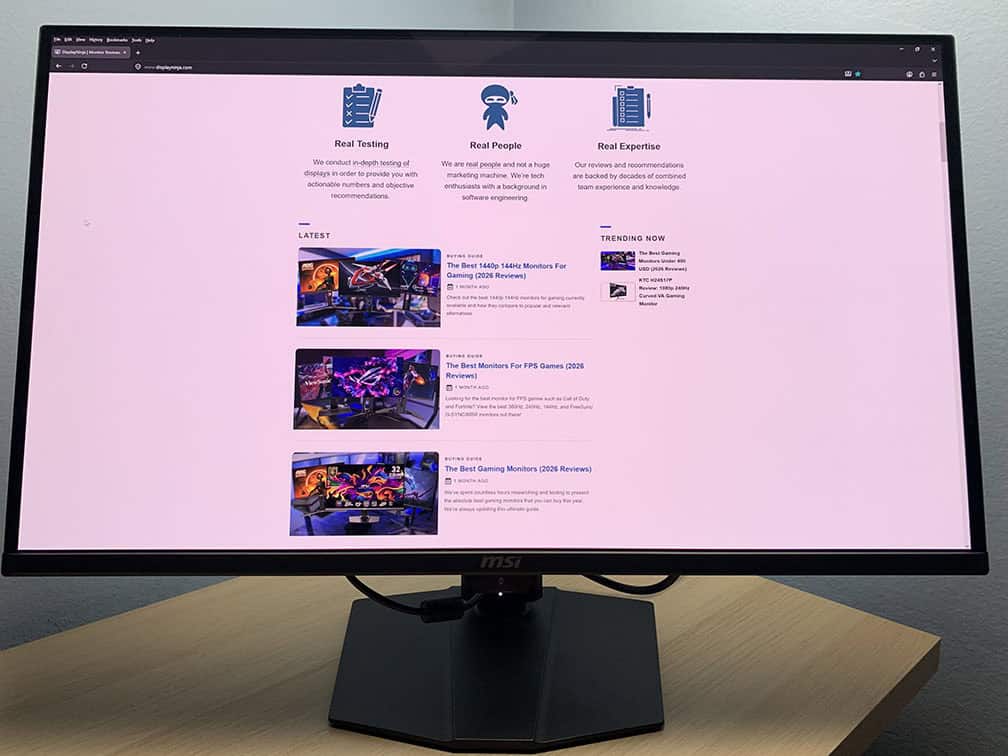
Overall, the MSI MPG 322UR QD-OLED X24 is an exceptional gaming monitor.
Thanks to its QD-OLED panel with infinite contrast ratio, 4K resolution and high color luminance, you get an immersive viewing experience, while the instantaneous pixel response time ensures buttery-smooth performance.
You also get a bunch of premium features, such as built-in KVM, DP 2.1, USB-C with high 98W Power Delivery and the AI Care Sensor, which along with MSI’s other burn-in prevention features, helps make the risk of burn-in less of a concern.
We still would like to see MSI make BFI usable at 120Hz for console gaming, but allowing it to be used at 180Hz is a step in the right direction.
Including a VRR range-limiting feature to combat the brightness flickering issue is also a welcome addition, and we hope to see and test it in a future firmware update, which should ideally also have reduced latency with Adaptive-Sync disabled to make BFI performance more responsive.
Along with 15 – 20% higher lumiance for 10 – 100% APLs, the new coating is perhaps the biggest upgrade over the previous-gen panel, though controlling ambient lighting remains important for the best viewing experience.
Finally, while the EOTF Boost mode could benefit from tighter optimization, it does a decent job of partially working around Samsung’s panel dimming caused by its power management. We expect most users will prefer it for the extra brightness in high-APL scenes while still maintaining strong peak brightness for small highlights.
Specifications
| Screen Size | 31.5-inch |
| Resolution | 3840×2160 (Ultra HD) |
| Panel Type | QD-OLED |
| Aspect Ratio | 16:9 (Widescreen) |
| Refresh Rate | 240Hz |
| Response Time | 0.03ms (GtG) |
| Motion Blur Reduction | MPRT (180Hz, 240Hz) |
| Adaptive-Sync | FreeSync Premium (48-240Hz), HDMI 2.1 VRR |
| Ports | DisplayPort 2.1 (UHBR20), 2x HDMI 2.1 (48Gbps), USB-C (DP Alt Mode, 98W PD) |
| Other Ports | Headphone Jack, 2x USB-A 3.0, USB-B |
| Brightness (1 – 3% White Window) | 1000 cd/m² |
| Brightness (10% White Window) | 500 cd/m² |
| Brightness (100% White Window) | 300 cd/m² |
| Contrast Ratio | Infinite |
| Colors | 1.07 billion (true 10-bit) 99.3% DCI-P3 |
| HDR | VESA DisplayHDR True Black 500 |
| VESA | Yes (100x100mm) |
The Pros:
- Instantaneous pixel response time, VRR up to 240Hz, BFI support for 90FPS and 120FPS
- Infinite contrast ratio, exceptional color gamut, accurate sRGB, Adobe RGB and Display P3 modes
- High pixel density, bump in brightness over previous-gen True Black 400 panels
- Plenty of useful features, including AI Care Sensor and DarkArmor Film
- Ergonomic design and rich connectivity options, including KVM, DP 2.1 and USB-C 98W PD
- 3-year warranty that covers burn-in
The Cons:
- Risk of burn-in
- Glossy screen surface causes mirror-like reflections (but makes the image more vivid)
- VRR brightness flickering in some games (expected on OLED and VA panels)
- Latency with Adaptive-Sync disabled could be lower


