Bottom Line
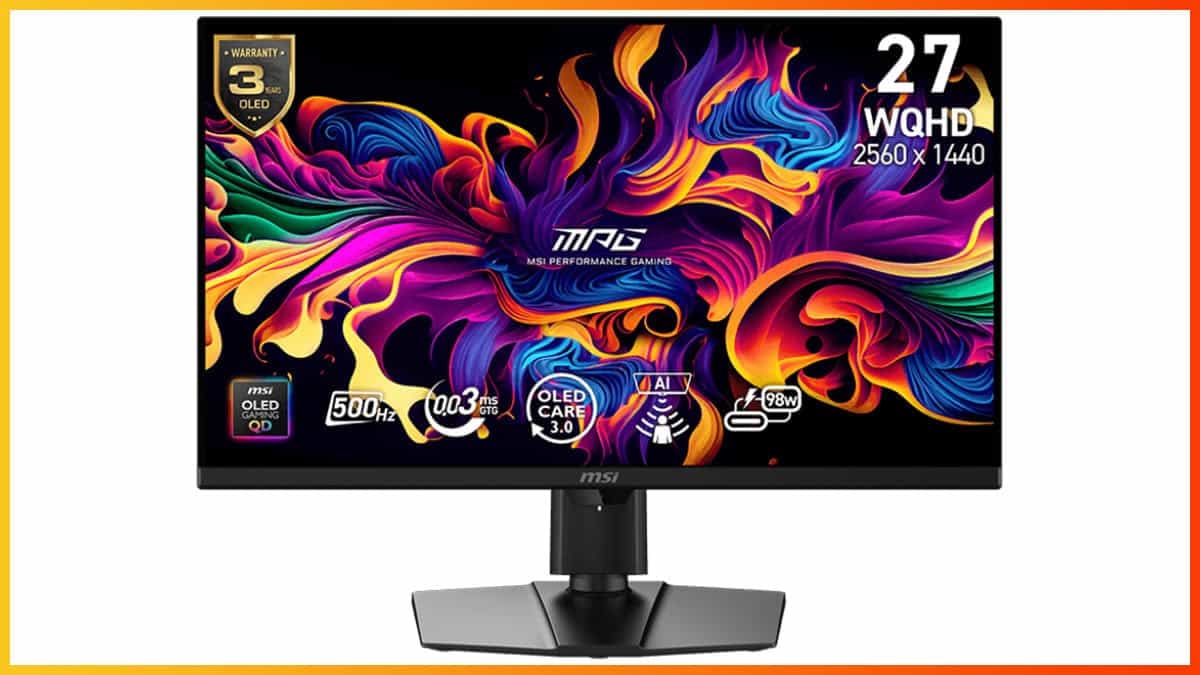
The MSI MPG 271QR QD-OLED X50 offers the best HDR performance we’ve experienced on a QD-OLED panel thanks to its EOTF Boost mode, while the 500Hz refresh rate ensures ultra-smooth gameplay.
It also comes with a fully ergonomic stand, extensive connectivity options like DP 2.1, USB-C 98W PD, and KVM, plus helpful features, such as the AI Care Sensor that reduces burn-in worries.
The MSI MPG 271QR QD-OLED X50 is a 27″ 1440p 500Hz gaming monitor with VESA DisplayHDR True Black 500 certification.
We’ve already reviewed the MSI MAG 272QP QD-OLED X50, which uses the same panel, but the MPG variant adds several extras, such as DisplayPort 2.1 (UHBR20), higher 98W USB-C power delivery, a dual USB 3.0 hub with built-in KVM support, a redesigned OSD menu, and an integrated AI sensor for human presence detection and automatic ambient light adjustment, among other features.
Regardless, we’ll run the MPG 271QR through our usual test suite to see how it performs, as well as cover its new features.
Image Quality
OLED displays deliver outstanding image quality thanks to their infinite contrast and per-pixel dimming, producing true blacks with none of the blooming artifacts commonly seen on mini-LED backlights.
They also offer excellent brightness for punchy highlights, vibrant colors with wide 99.3% DCI-P3 coverage, true 10-bit color depth for smooth gradients, and 178° viewing angles that ensure impressive consistency from any position.
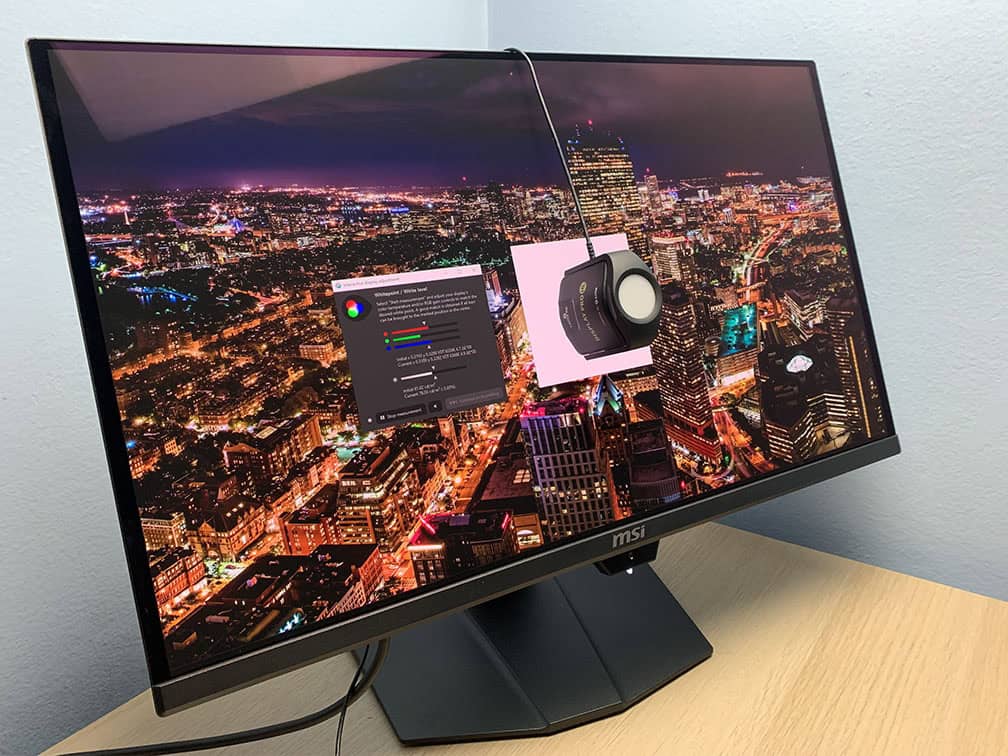
For our testing, we’re using the Calibrite Display Pro HL colorimeter paired with DisplayCAL and HCFR software. Note that our tests were done using the FW.014 monitor firmware version.
Color Gamut
We measured an impressive 170.7% sRGB color gamut volume with 100% sRGB, 97.3% DCI-P3 and 98.2% Adobe RGB color space coverage. This is a bit higher than the 164.3% sRGB color volume we measured on the MAG variant, but this is likely due to panel variance.
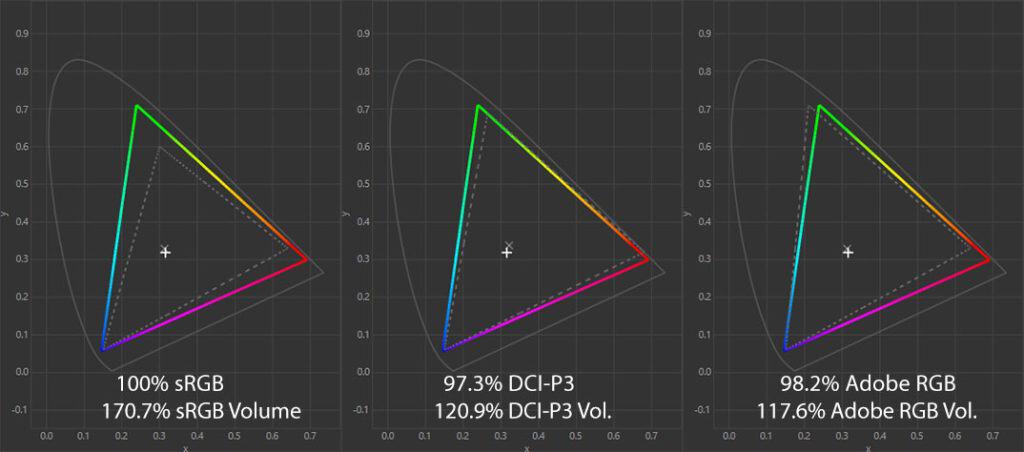
Again, the DCI-P3 coverage here is a tad lower than the specified 99.3% DCI-P3 for QD-OLED panels, which is a result of different colorimeters and testing methods.
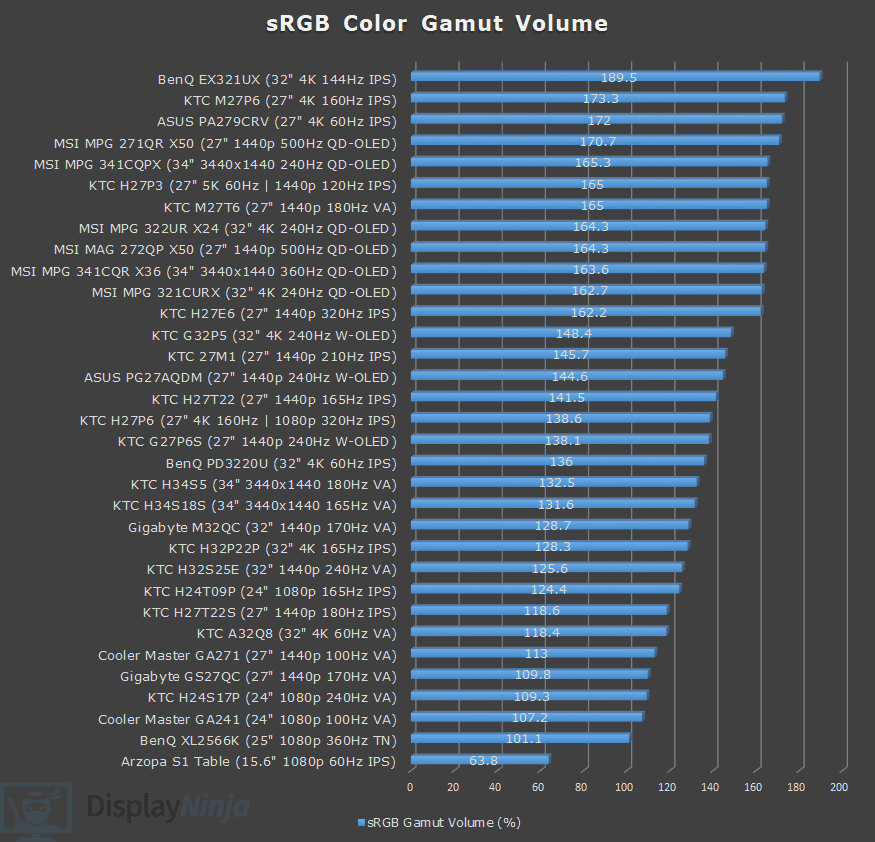
Image Accuracy
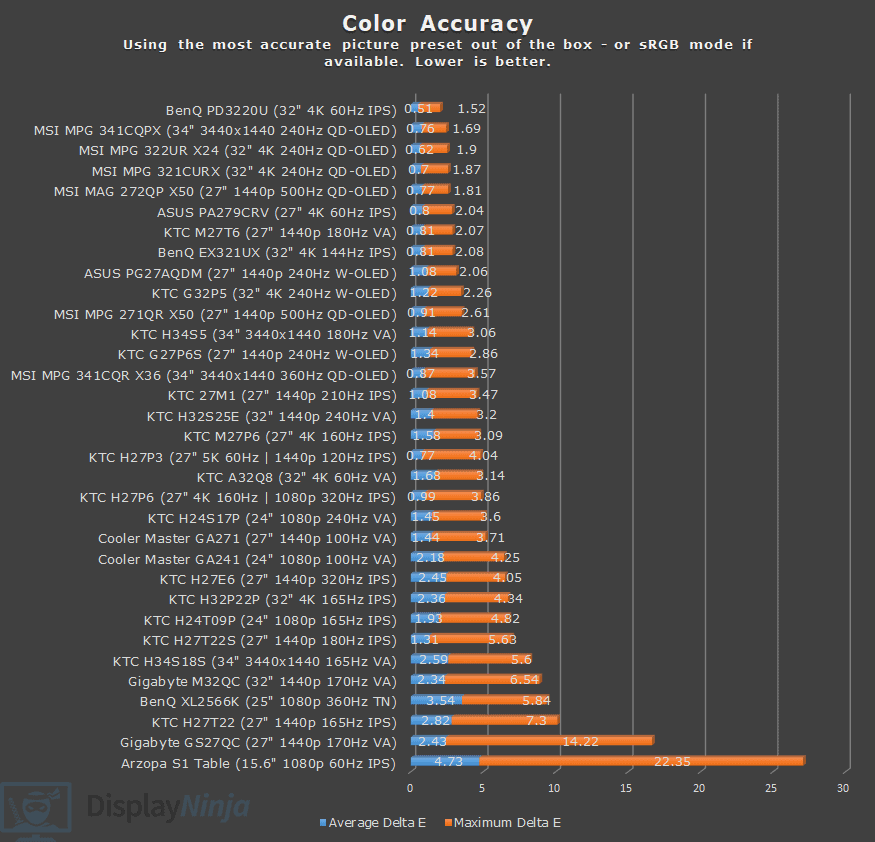
As Windows doesn’t do color management by default, the colors will be oversaturated when viewing SDR content out of the box in the ‘User’ or ‘Eco’ mode, with a Delta E of 3.11 average (color deviation from the target, less than 1.5 is considered good) and 8.03 maximum (target is less than 3).
Selecting the ‘sRGB’ option under ‘Mode’ in the OSD (On-Screen Display) menu will clamp the color gamut from 170.7% volume down to 94.5% with 94.2% sRGB color space coverage.
This results in a more accurate Delta E of 0.91 average and 2.61 maximum.
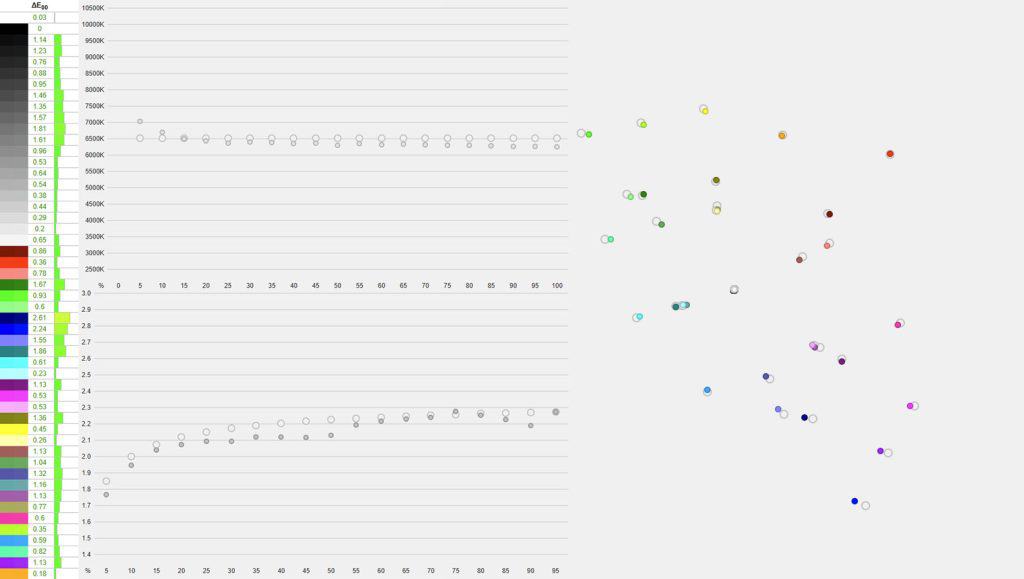
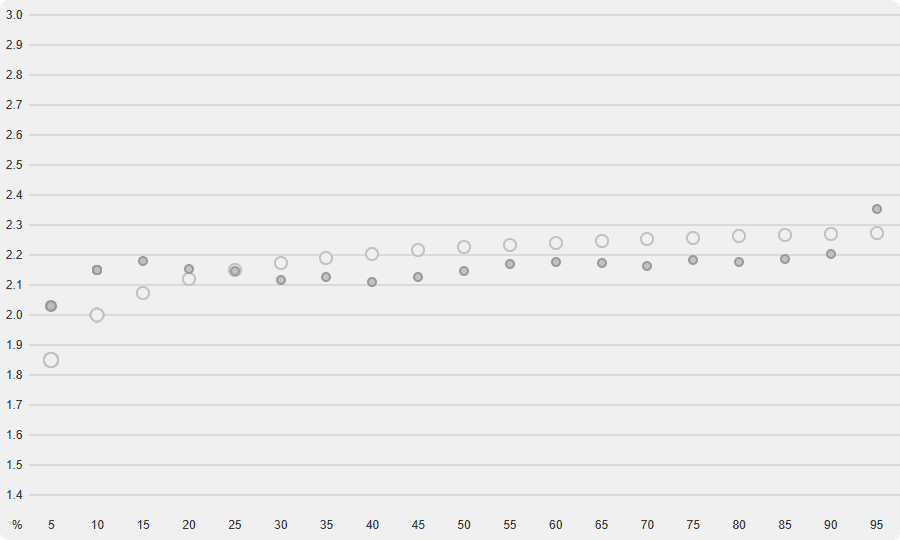
Gamma tracking is also excellent, with an average of 2.14 (target is 2.2), and it follows the sRGB tone curve properly.
In the ‘User’ mode, the gamma average is closer to 2.2 at 2.16, but it’s targeting a flat 2.2 gamma instead, which can make details in dark scenes a bit darker than intended.
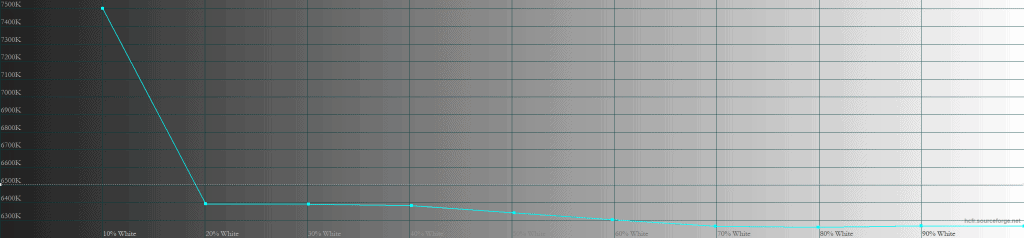
The color temperature in all modes is around 6250K, which is slightly lower than the 6500K target, but there’s no noticeable tinting to the whitepoint.
There are six color temperature options, and while they’re all slightly off in our measurements, this is likely just within the colorimeter’s margin of error.
- 5000K – we measured 4900K
- 6500K – 6250K
- 7500K – 7436K
- 9000K – 9399K
- 10000K – 10107K
- Customize – 6135K by default
Another improvement over the MAG model is that, in addition to brightness, you can also adjust color temperature in the sRGB and other color modes. There are now gamma settings in the OSD menu as well, ranging from 1.8 to 2.6.
So, for video editing, you can use the sRGB mode with a 2.4 gamma to match the Rec. 709 standard.
We also tested the Adobe RGB and DCI-P3 modes.
The Adobe RGB mode clamps the gamut from 117.6% down to 92.8% with 92.6% coverage, a Delta E of 2.06 average and 7.36 maximum, and 2.19 gamma.
The DCI-P3 mode reduces the gamut volume from 120.9% to 100.3% with 97.3% coverage, Delta E of 1.73 average and 4.15 maximum, and 2.6 gamma.
There are several other modes, including Premium Color (increases oversaturation even further), FPS, Racing, RTS, RPG, Eco, Movie and Office, but we don’t recommend using these as they’re inaccurate.
When you enable HDR in Windows, the monitor correctly maps colors to sRGB, and it delivers the most accurate SDR representation on our unit, with a Delta E of 0.6 average and 2.11 maximum, 6234K color temperature, and 2.18 average gamma with a correct sRGB tone curve.
Overall, the MSI MPG 271QR QD-OLED X50 offers excellent SDR image quality and decent calibration fit for professional color-critical work, though the Adobe RGB mode could use some improvement. The accuracy can be further improved with a colorimeter.
Calibration
For full calibration, we set the brightness to 28/100 to get around 120-nits and used the ‘Customize’ color temperature mode with red, green and blue channels set to 95, 96 and 100, respectively, for 6533K.
We got a low Delta E of 0.32 average and 1.29 maximum, and 2.23 average gamma with proper sRGB tone curve tracking.
You can download our ICC profile here.
Brightness & Contrast
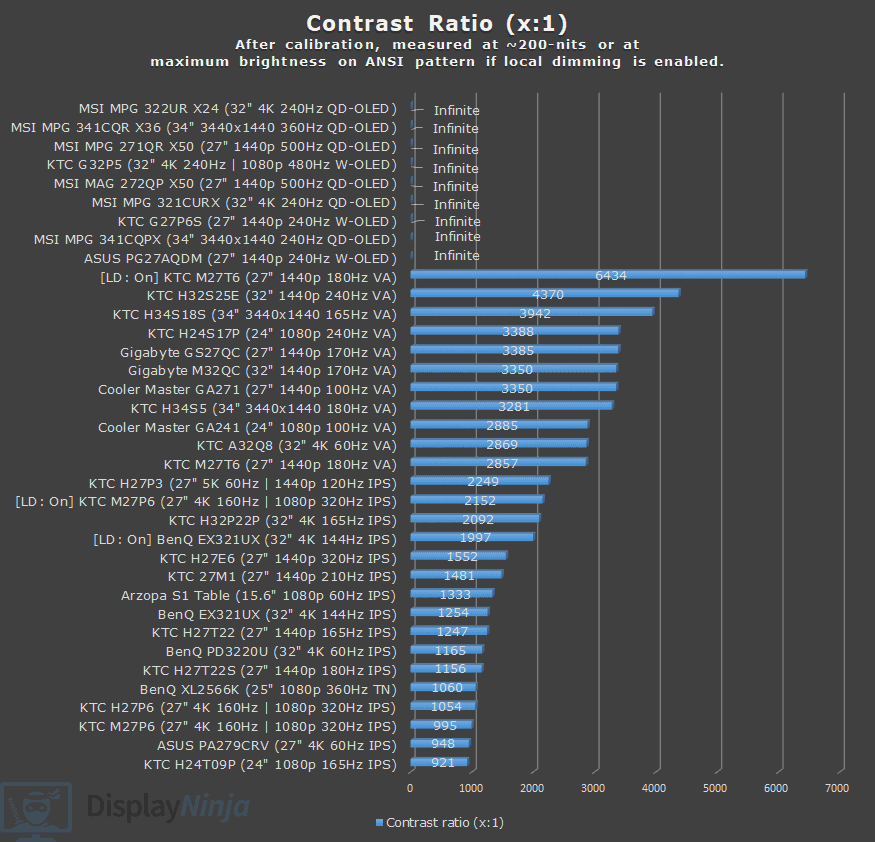
Because every pixel on an OLED display can switch off completely to produce true blacks, the contrast ratio is effectively infinite, with none of the blooming artifacts commonly associated with mini-LED FALD (full-array local dimming) displays.
In terms of brightness, the MSI MPG 271QR QD-OLED X50 is certified for VESA DisplayHDR True Black 500, an upgrade over the previous True Black 400 models.
This raises the specified brightness from 250 nits to 300 nits at 100% APL (Average Picture Level, white window test) and from 450 nits to 500 nits at 10% APL.
In SDR mode, the maximum brightness reaches a consistent 298-nits. There’s no ABL (Automatic Brightness Limiter), meaning the brightness doesn’t change based on the number of bright elements on the screen, which is a behavior most users prefer.
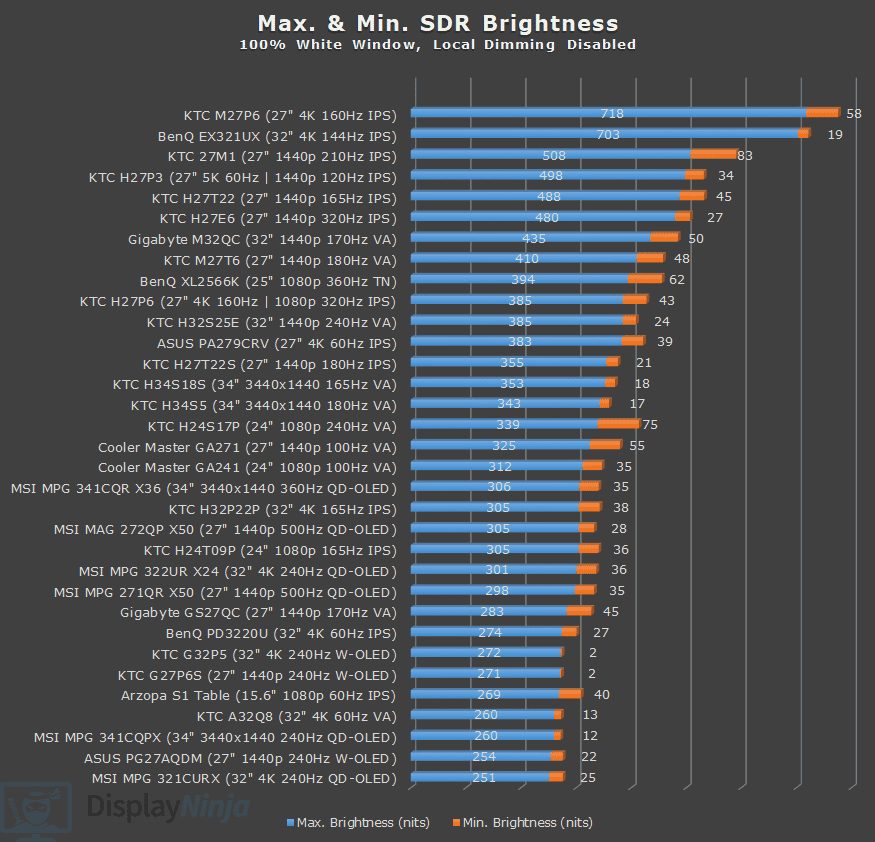
The minimum brightness is 35-nits, making the monitor suitable for use in both dark and bright rooms.
Subpixel Layout & Pixel Density
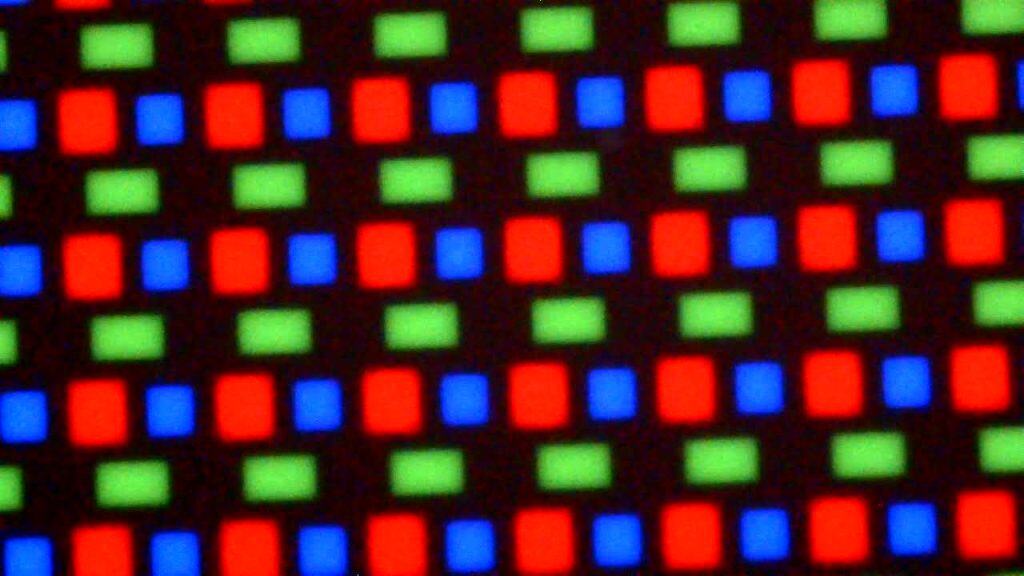
The QD-OLED panel of the MSI MPG 271QR has a triangular RGB subpixel layout. It’s more square-shaped than the first-gen panels (which were more diamond-shaped), so there isn’t as much colored fringing on small text and fine details.
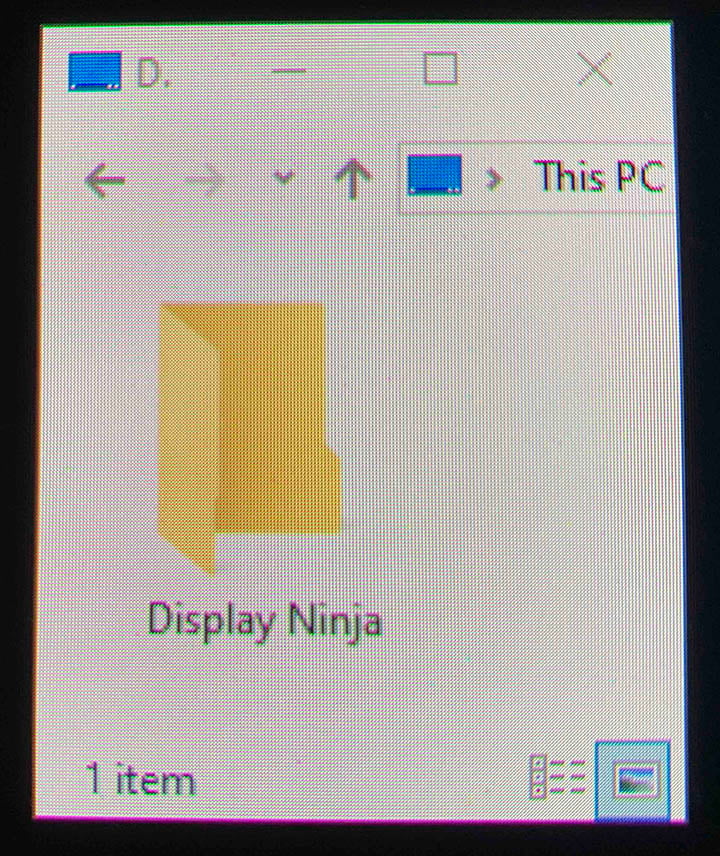
In fact, the amount of fringing is negligible as it’s only noticeable if you’re looking at the screen from up close – you won’t notice it during normal use. Note the thin magenta and green lines on the edges of text, icons and windows in the image below.
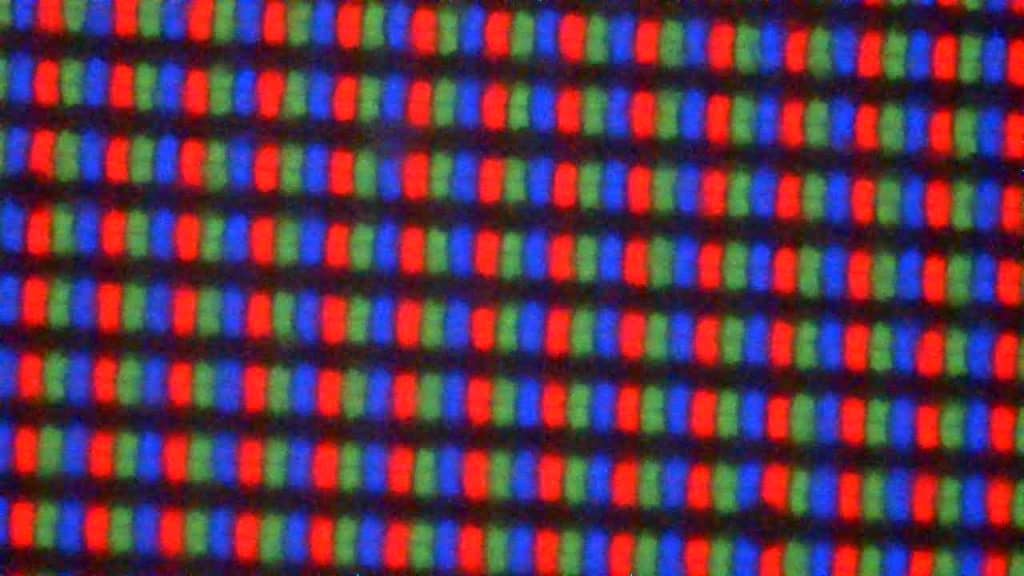
For comparison, here’s what a typical RGB subpixel layout of an IPS panel looks like.
The 2560×1440 Quad HD screen resolution on the 26.5″ viewable screen of the monitor has a decent pixel density of 110.84 PPI (pixels per inch), resulting in reasonably sharp details and text. It’s also significantly less demanding on the GPU than 4K UHD, allowing you to reach higher frame rates more easily.
HDR
Just like the MSI MAG 272QP QD-OLED X50, the MPG 271QR has three HDR modes: True Black 500, Peak 1000 nits and EOTF Boost.
In synthetic tests (white window against a black background), True Black 500 is limited to 509-nits, while the Peak 1000 nits and EOTF Boost have the same performance, reaching up to 988-nits for 3% APL.
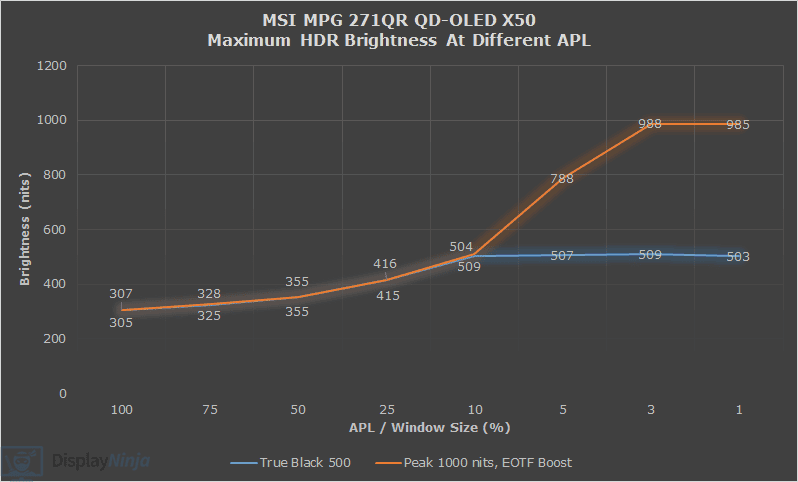
However, in real-use HDR content viewing, brightness behavior changes between the three modes due to different EOTF tracking.
In the charts below, you can check out the accuracy of all modes. The gray line is the target brightness, and the yellow line is the monitor’s brightness.
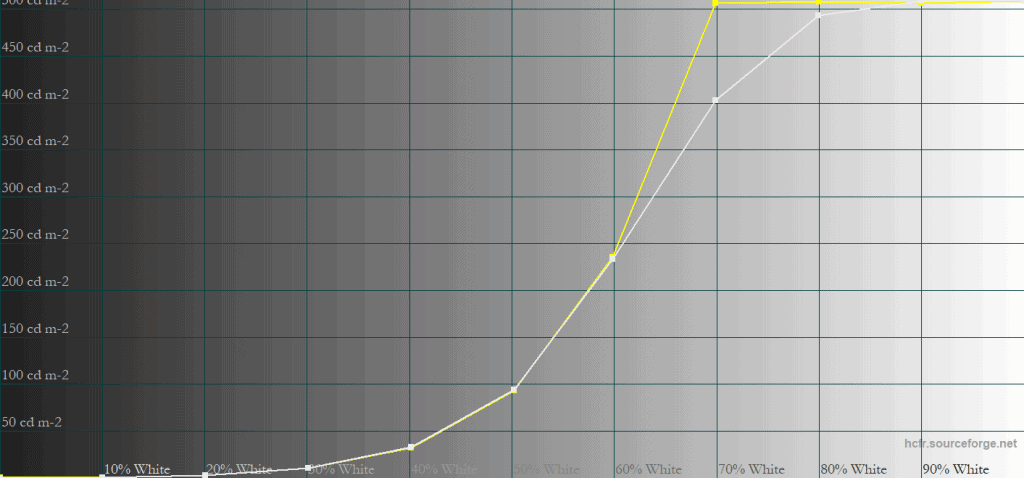
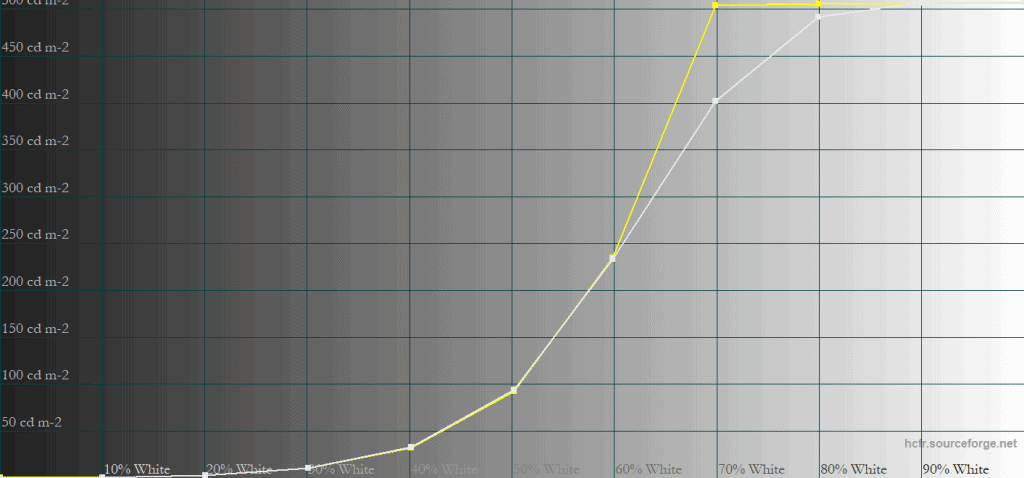
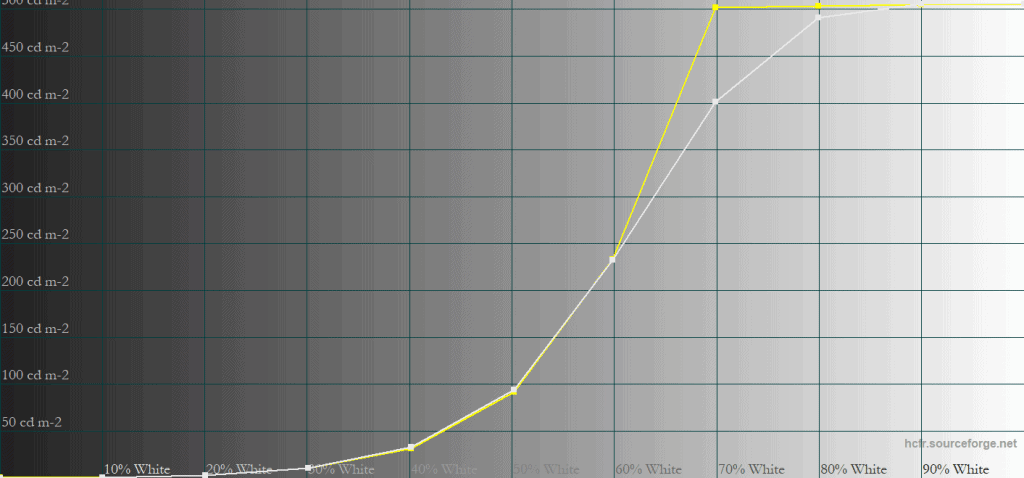
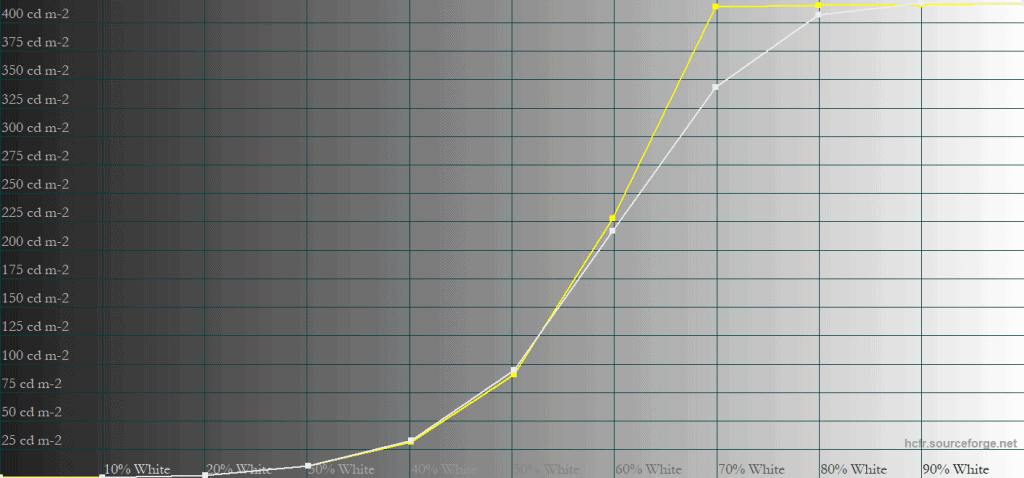
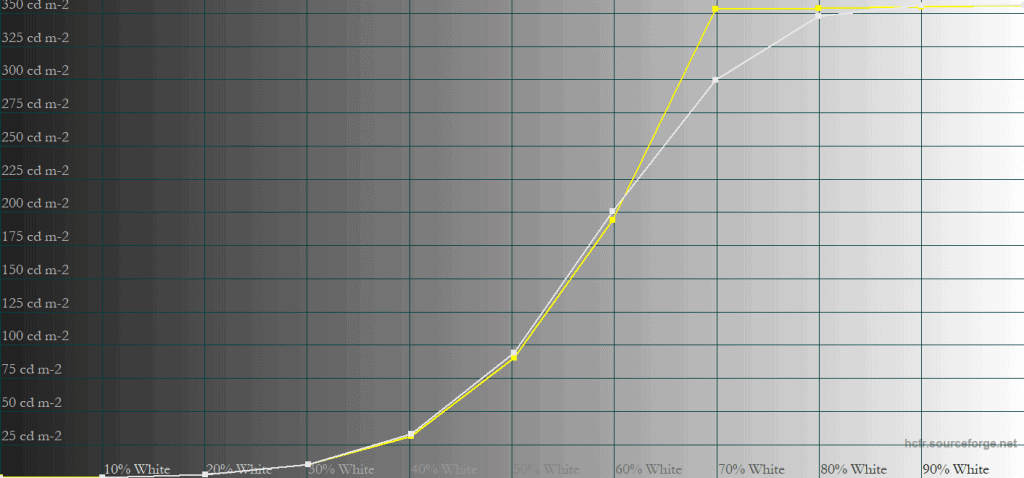
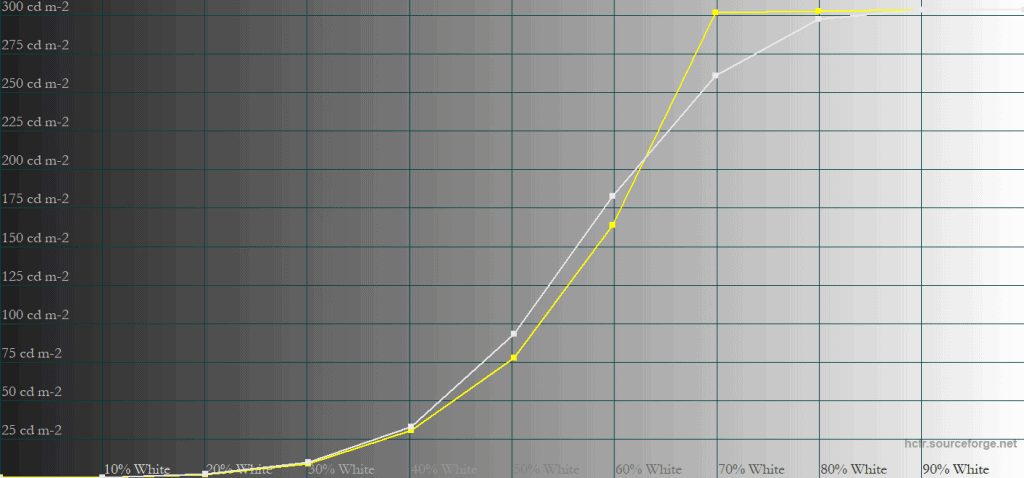
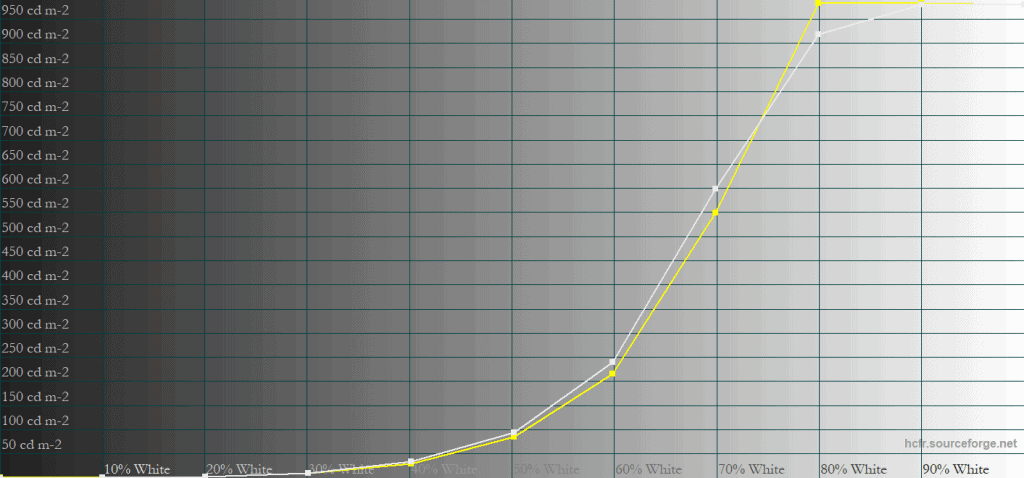
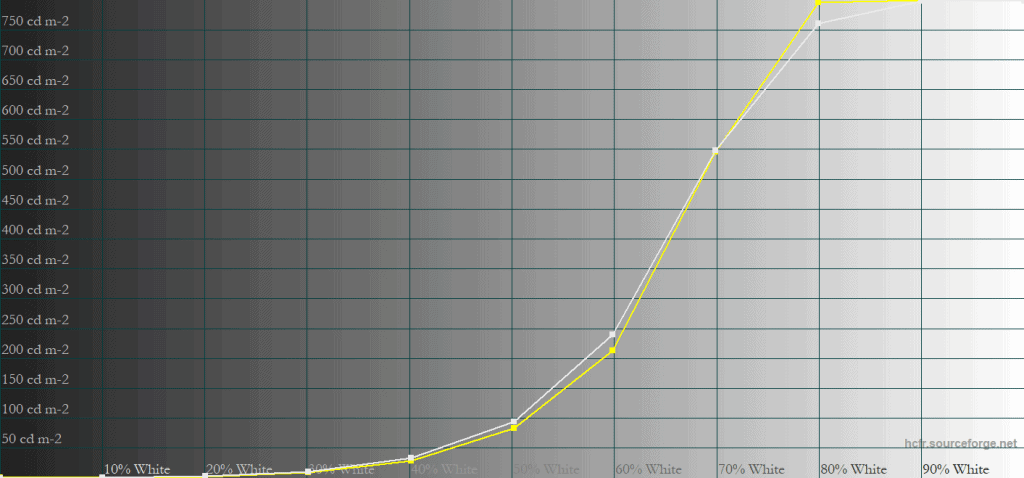
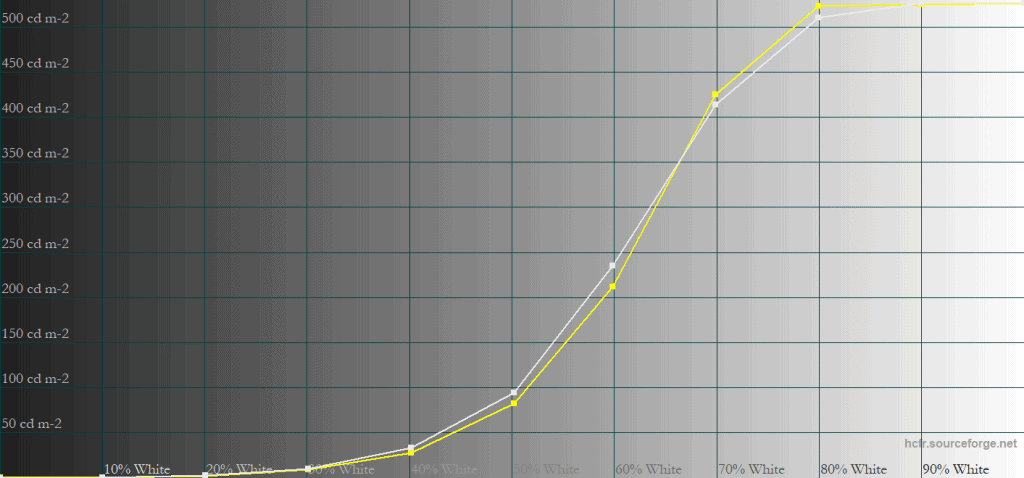
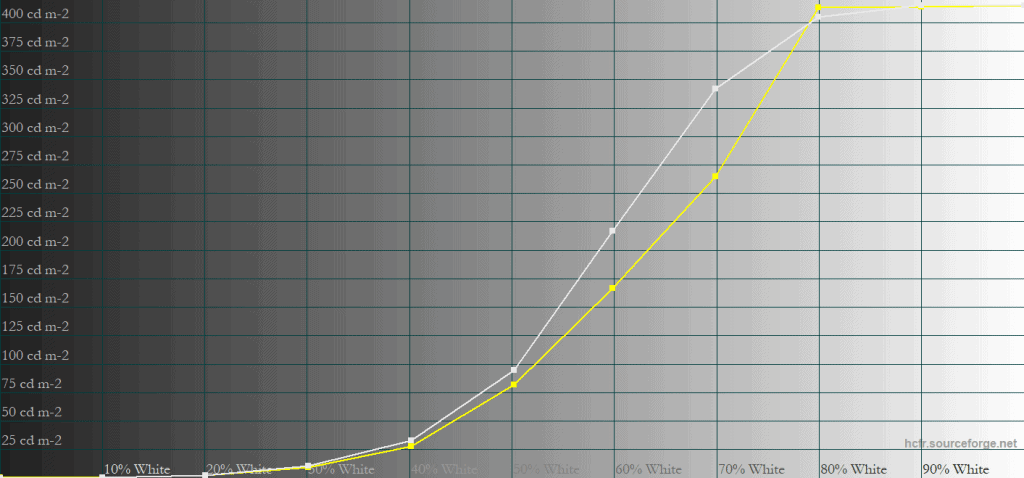
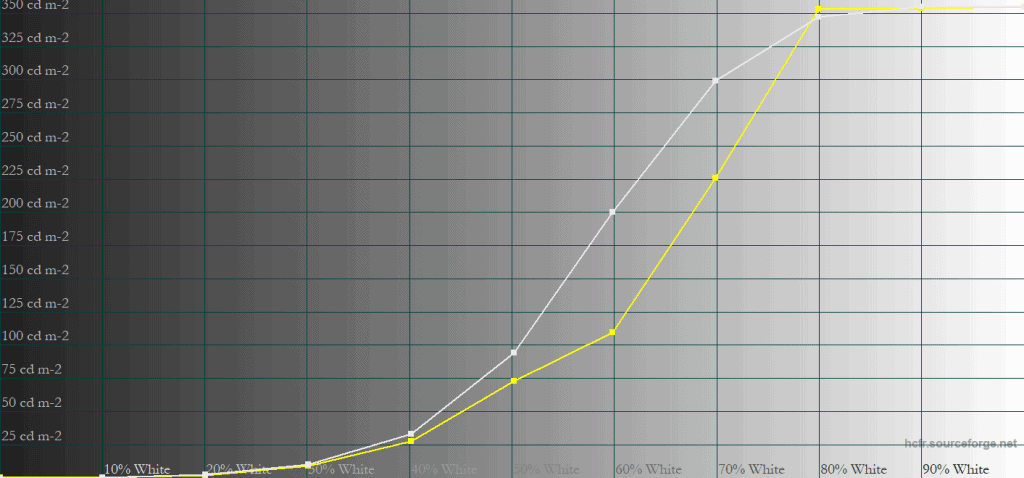
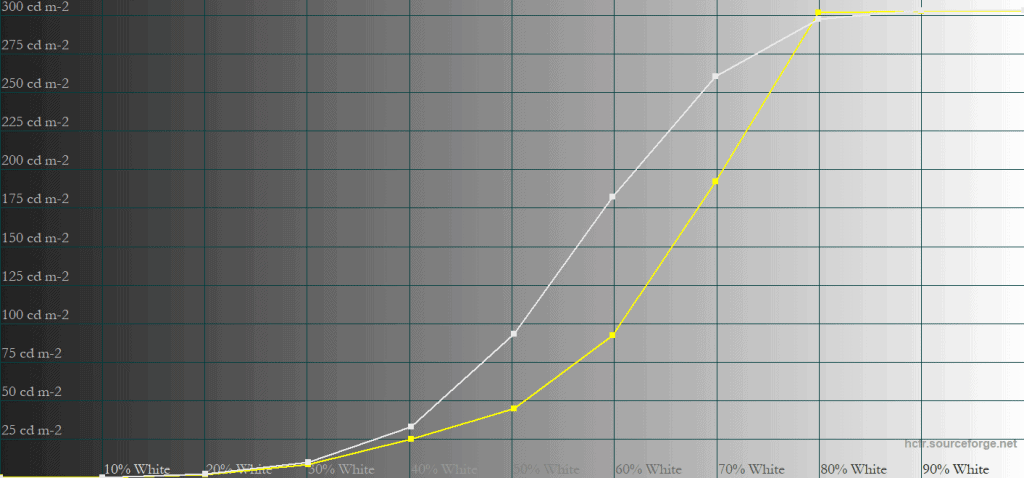
In comparison to the MAG 272QP, the True Black 500 and Peak 1000 nits modes behave largely the same, though the MPG 271QR is more accurate in the True Black 500 mode, particularly in the 5% – 50% APL range with 40% – 60% white.
The conclusion is still the same.
The Peak 1000 nits mode is brighter and more accurate with small 1% – 10% APLs, but with large 25% – 100% APLs, the brightness is drastically below the target.
The True Black 500 nits is more accurate overall, but the brightness is limited to around 500-nits.
This is the same behavior we’ve seen with all monitors using Samsung’s QD-OLED panels and Samsung claims this panel dimming exists due to power management.
The EOTF Boost is MSI’s attempt to circumvent QD-OLED’s limitations by combining the two modes.
This is where it gets interesting, as there are differences between the EOTF Boost modes on the MSI MAG 272QP and the MPG 271QR.
On the MAG 272QP, the EOTF Boost mode had the same performance as Peak 1000 nits in the 1% – 5% APL range, allowing for the high 1,000-nit peak brightness, but with larger APLs, the brightness was notably higher than intended for ~60% to 80% white, resulting in highlight clipping.
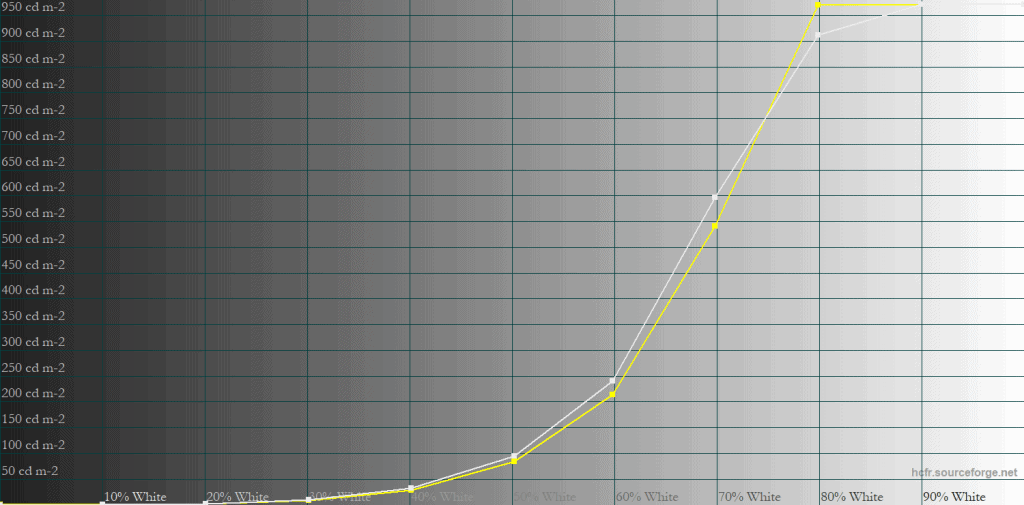
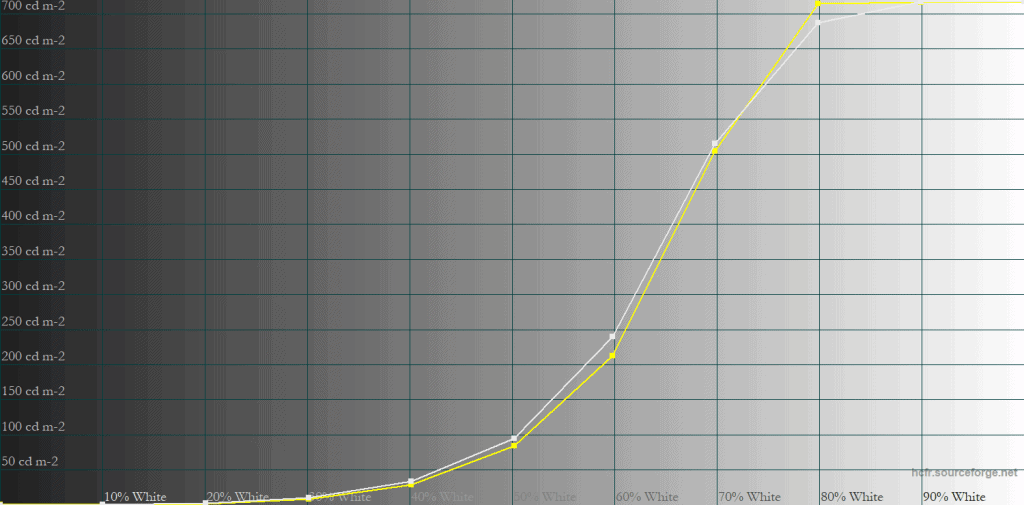
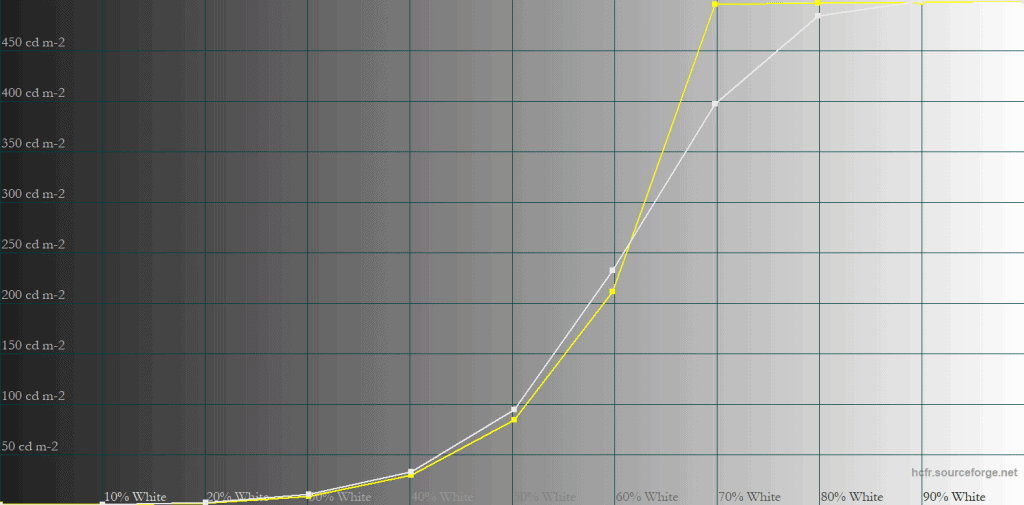
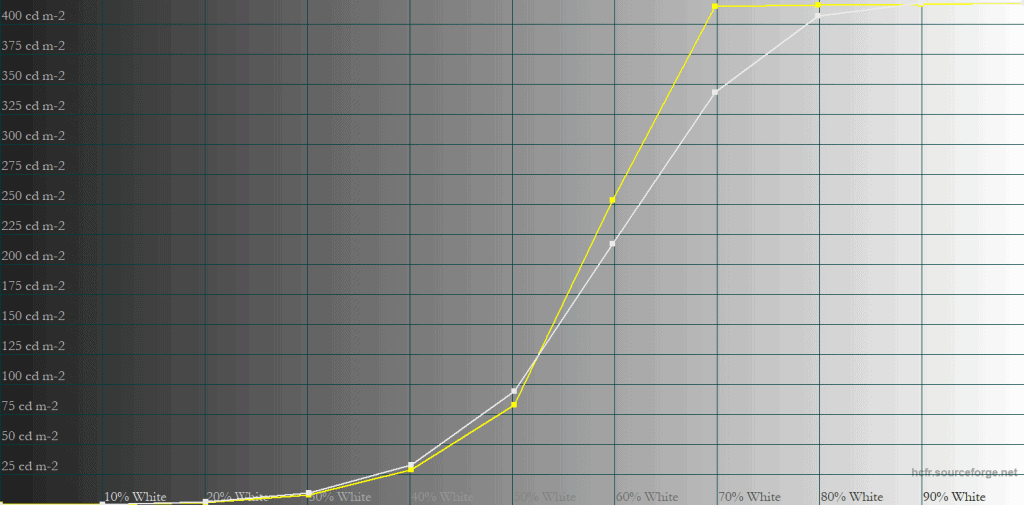
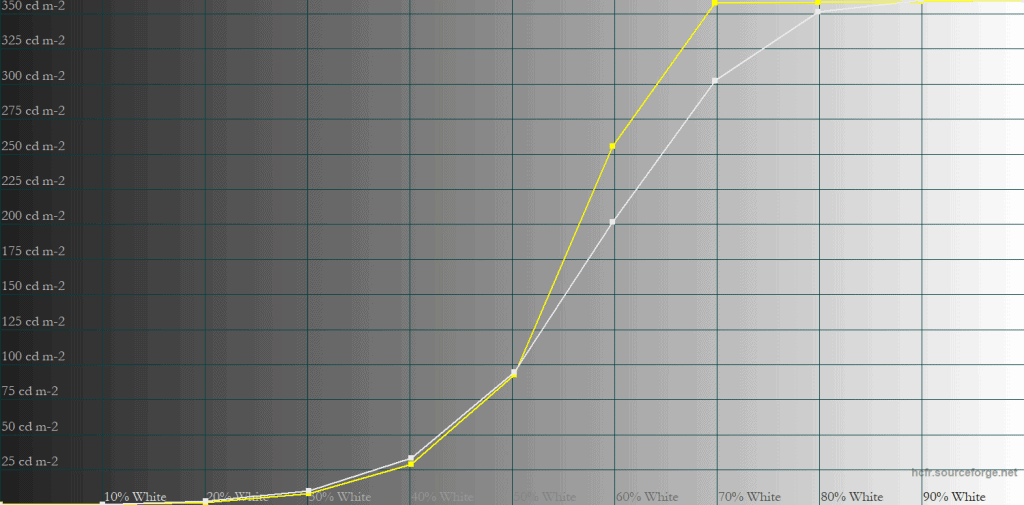
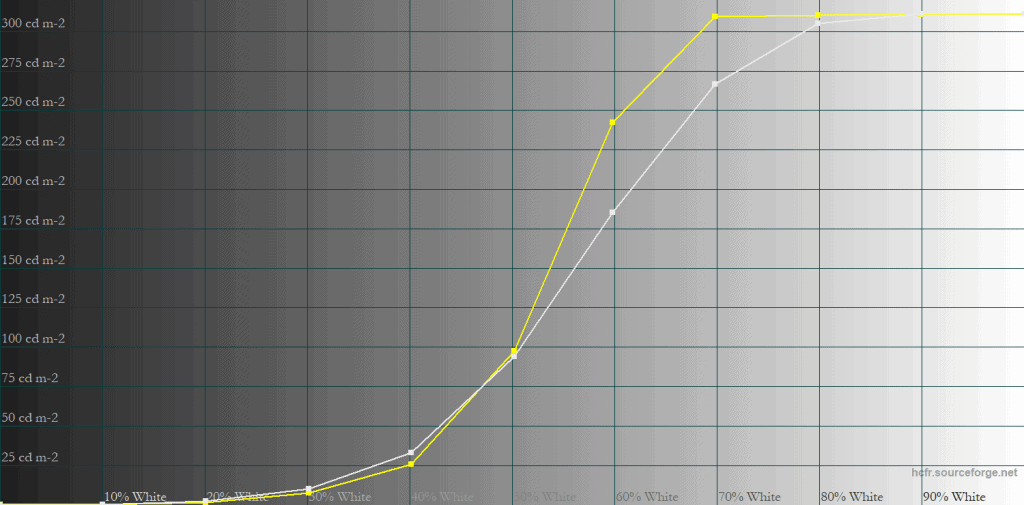
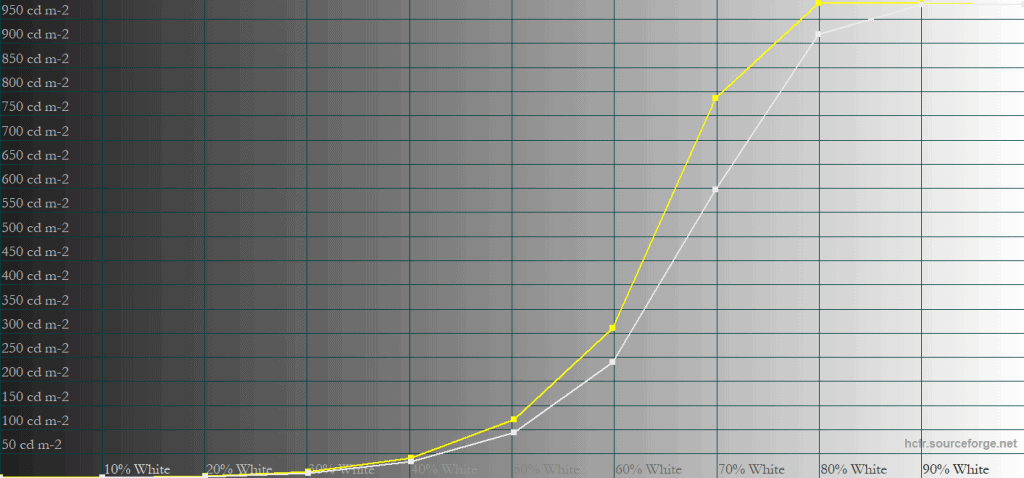
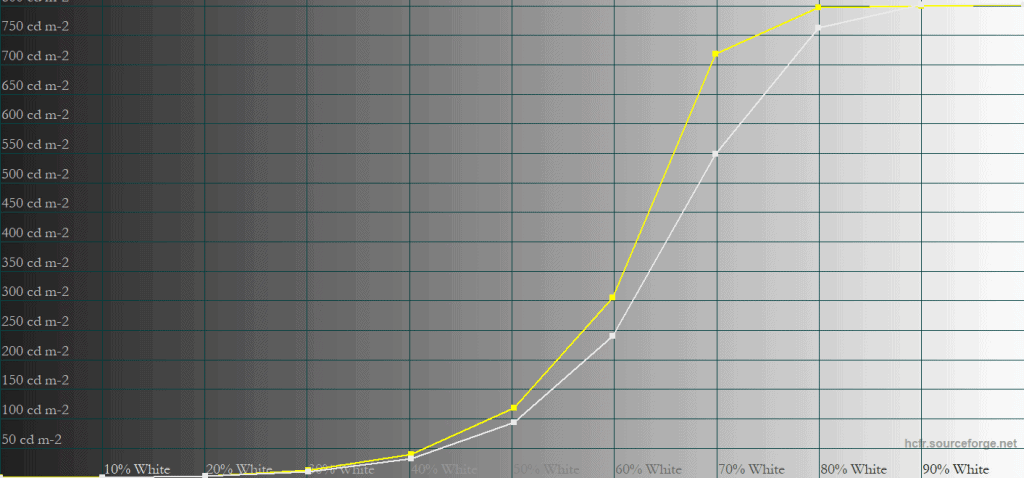
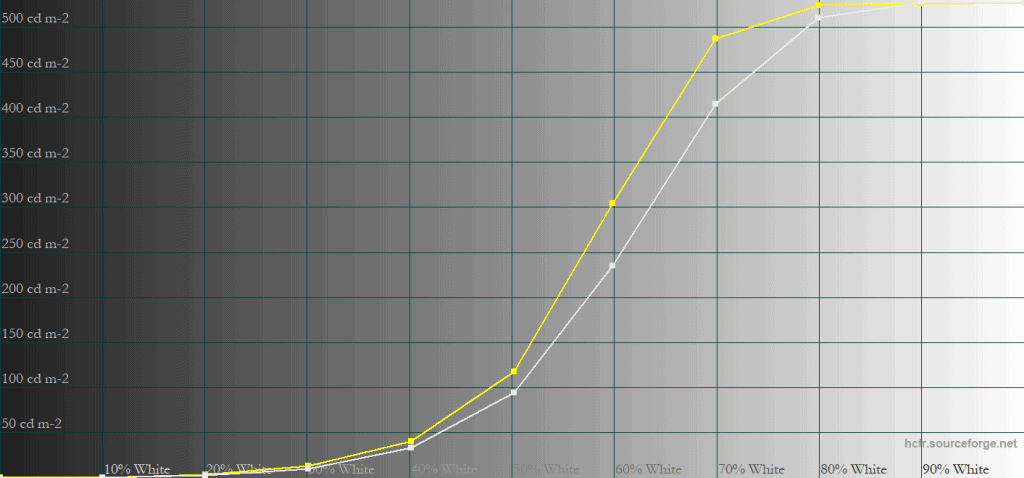
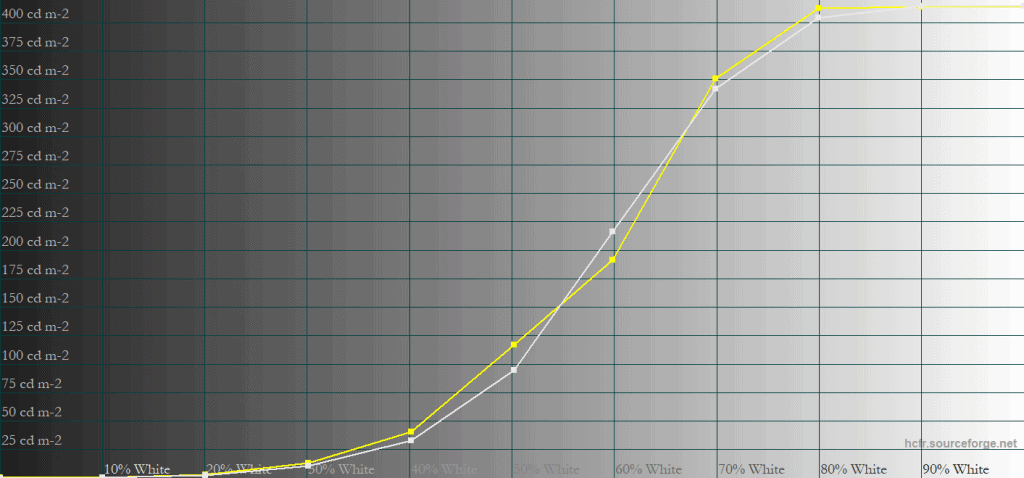
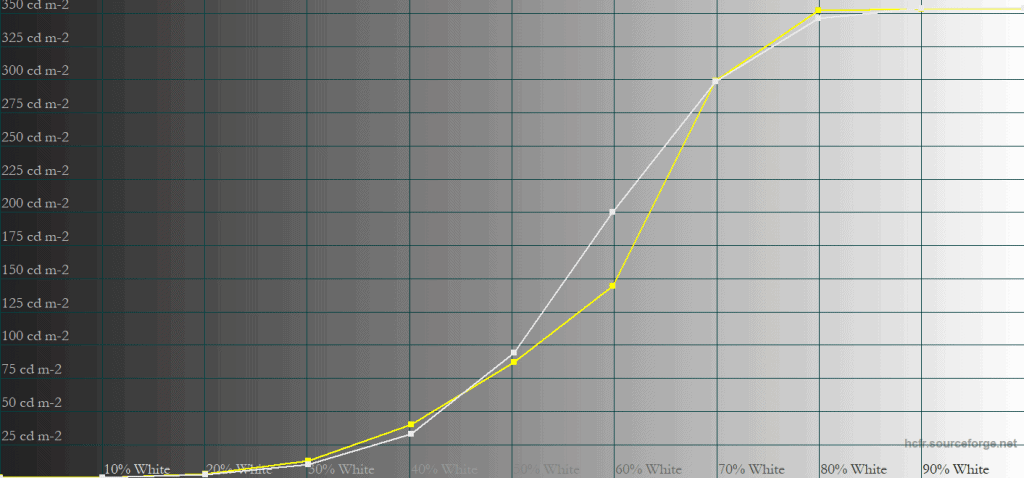
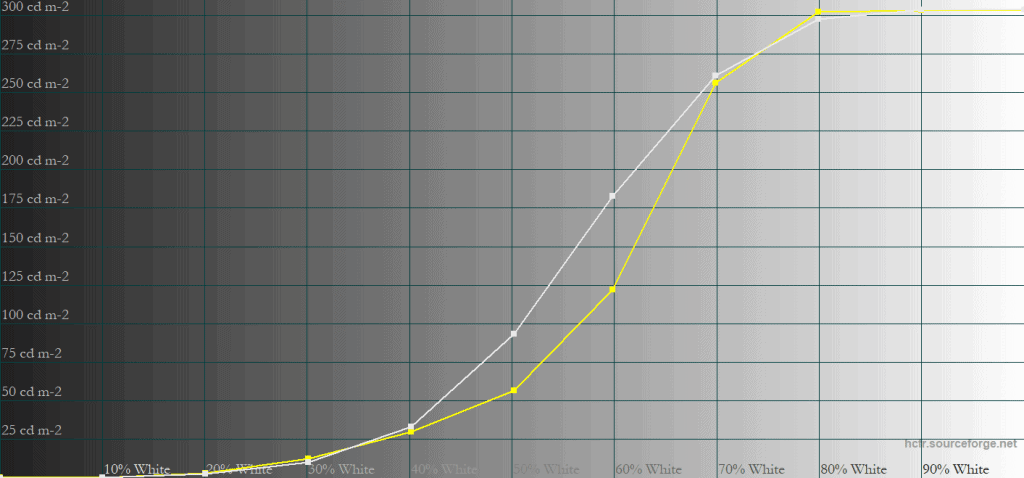
On the MPG 271QR with the EOTF Boost mode, the 1% – 10% APL range is now a bit brighter than intended, whereas the larger 50% – 100% APL range, while still being under the target like Peak 1000 nits mode, is now brighter and closer to the target brightness.
The EOTF Boost on the MAG 272QP also had an issue where the brightness would noticeably fluctuate in certain scenes, but we haven’t run into this issue on the MPG 271QR.
So, while on the MAG 272QP, all three modes had pros and cons, we can recommend sticking with the EOTF Boost mode on the MPG 271QR.
Here’s how all this plays out in some real-world content.
Sunlight in ‘A Perfect Planet’ | Small flash from ‘Chasing The Light’ | Large flash from ‘Chasing The Light’ | Lightning in ‘A Perfect Planet’ | Solar flare in ‘A Perfect Planet’ | Sunlight in‘ A Perfect Planet’ | |
| MSI MPG 341QR X36 (QD-OLED) True Black 500 | 466 | 500 | 389 | 499 | 210 | 221 |
| MSI MPG 341QR X36 (QD-OLED) Peak 1300 nits | 647 | 1228 | 400 | 545 | 112 | 129 |
| MSI MPG 341QR X36 (QD-OLED) EOTF Boost FW.009 | 379 | 815 | 293 | 511 | 148 | 152 |
| MSI MPG 341QR X36 (QD-OLED) EOTF Boost FW.014 | 765 | 1295 | 409 | 760 | 129 | 137 |
| MSI MPG 322UR X24 (QD-OLED) True Black 500 | 514 | 521 | 374 | 507 | 225 | 239 |
| MSI MPG 322UR X24 (QD-OLED) Peak 1000 nits | 596 | 854 | 396 | 565 | 138 | 147 |
| MSI MPG 322UR X24 (QD-OLED) EOTF Boost | 585 | 749 | 386 | 665 | 182 | 193 |
| MSI MAG 272QP X50 (QD-OLED) True Black 500 | 497 | 525 | 377 | 514 | 209 | 224 |
| MSI MAG 272QP X50 (QD-OLED) Peak 1000 nits | 558 | 863 | 395 | 567 | 129 | 140 |
| MSI MAG 272QP X50 (QD-OLED) EOTF Boost | 580 | 845 | 366 | 556 | 319 | 322 |
| MSI MPG 271QR X50 (QD-OLED) True Black 500 | 481 | 502 | 368 | 495 | 210 | 230 |
| MSI MPG 271QR X50 (QD-OLED) Peak 1000 nits | 544 | 814 | 385 | 539 | 127 | 139 |
| MSI MPG 271QR X50 (QD-OLED) EOTF Boost | 553 | 724 | 376 | 760 | 174 | 184 |
| MSI MPG 321CURX (QD-OLED) True Black 400 | 429 | 452 | 310 | 450 | 201 | 207 |
| MSI MPG 321CURX (QD-OLED) Peak 1000 nits | 538 | 974 | 328 | 549 | 108 | 113 |
| KTC G27P6S (W-OLED MLA+) | 317 | 739 | 313 | 602 | 183 | 216 |
| KTC G32P5 (W-OLED MLA+) | 240 | 467 | 305 | 572 | 170 | 205 |
| KTC M27P6 (Mini LED IPS) VESA DisplayHDR, Low | 837 | 1224 | 1751 | 645 | 385 | 394 |
| KTC M27P6 (Mini LED IPS) HDR Cinema, Low | 745 | 1096 | 1416 | 591 | 334 | 349 |
| KTC M27T6 (Mini LED VA) Display HDR, Low | 1263 | 1298 | 1642 | 1173 | 837 | 859 |
| KTC M27T6 (Mini LED VA) HDR Game, Standard | 695 | 674 | 1316 | 615 | 536 | 542 |
| BenQ EX321UX (Mini LED IPS) | 792 | 1140 | 1440 | 579 | 309 | 317 |
As you can see with the last image, for example, both the 272QP and the 271QR have around 230-nits and 140-nits in the True Black 500 and Peak 1000 nits modes, respectively.
The EOTF Boost mode on the 272QP increases it to 322-nits, which, as its EOTF tracking suggests, is brighter than intended, resulting in an unnatural image.
The 271QR, on the other hand, achieves 184-nits, which is exactly in-between the True Black 500 and Peak 1000 nits modes.
It’s not ideal and still needs some tuning, but it’s definitely an improvement as you get to keep the 1000-nits peak brightness for small highlights, and you get a higher brightness for large APLs than you would with the Peak 1000 nits mode!
To be fair, the firmware version of the 272QP we tested was FW.011, while the 271QR has FW.014, so hopefully, MSI can improve the EOTF Boost mode on the 272QP via a firmware update in the future.
HDR Saturation & Color Temperature
Next, here’s the HDR saturation test.
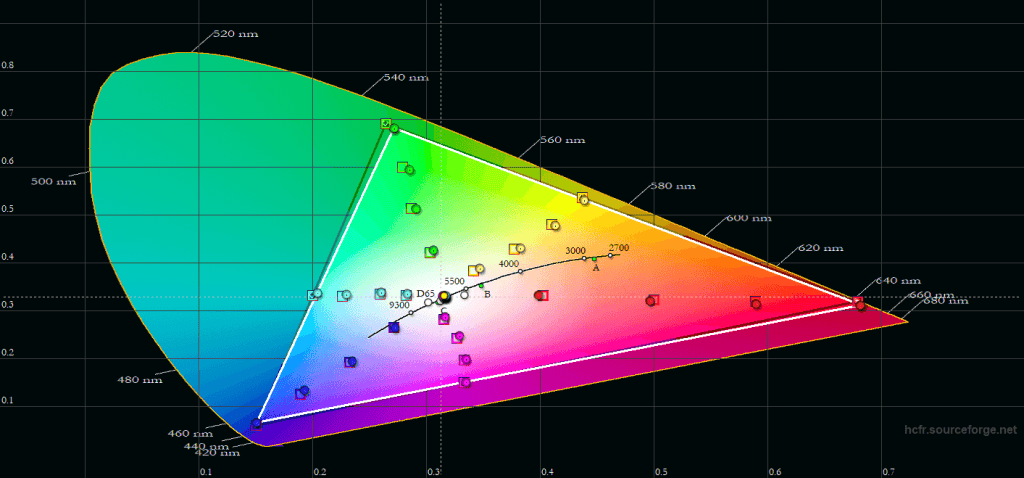
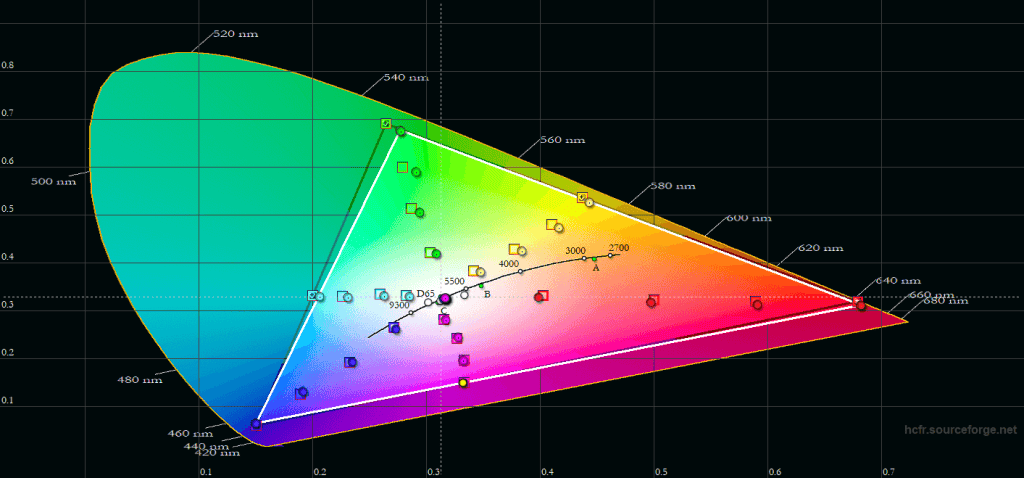
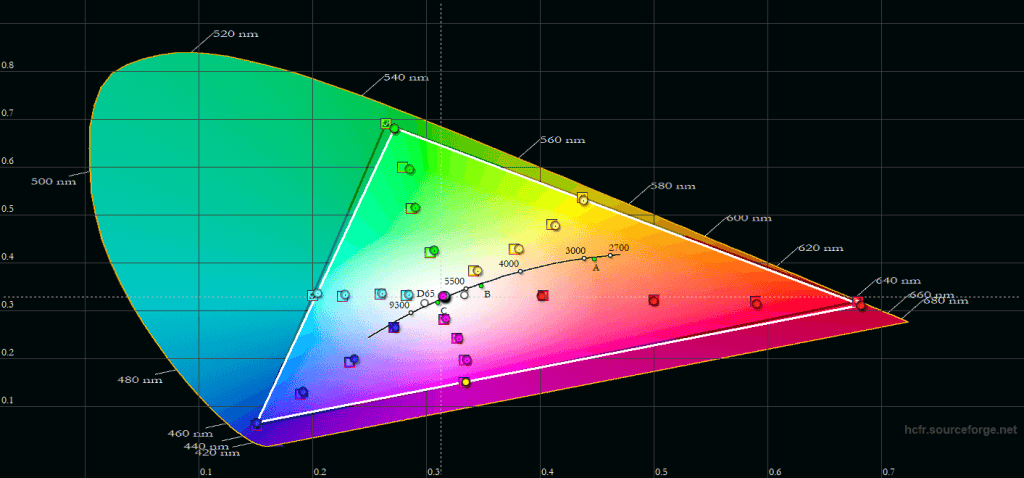
There are minor differences in HDR saturation across the three modes, with EOTF Boost being the most accurate and True Black 500 the least.
All three modes are more accurate than the HDR saturation on the MAG 272QP, which had more over-saturation as its color gamut extended beyond DCI-P3.
Average color temperature is around 6435K and there’s no noticeable tinting to the whitepoint in HDR.
QD-OLED vs W-OLED vs Mini LED
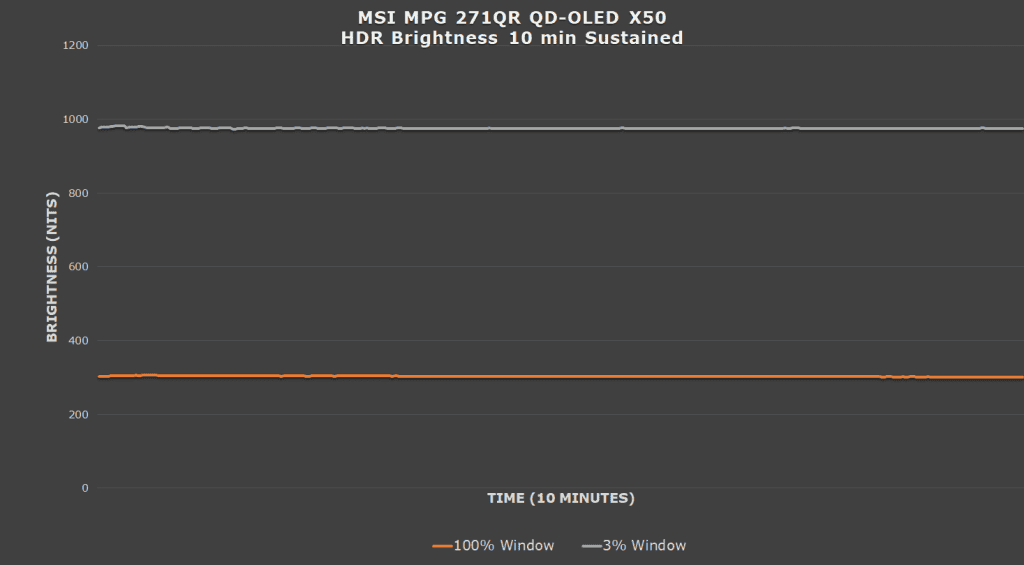
Here’s the 10-minute static stress test. Brightness doesn’t decrease over time.
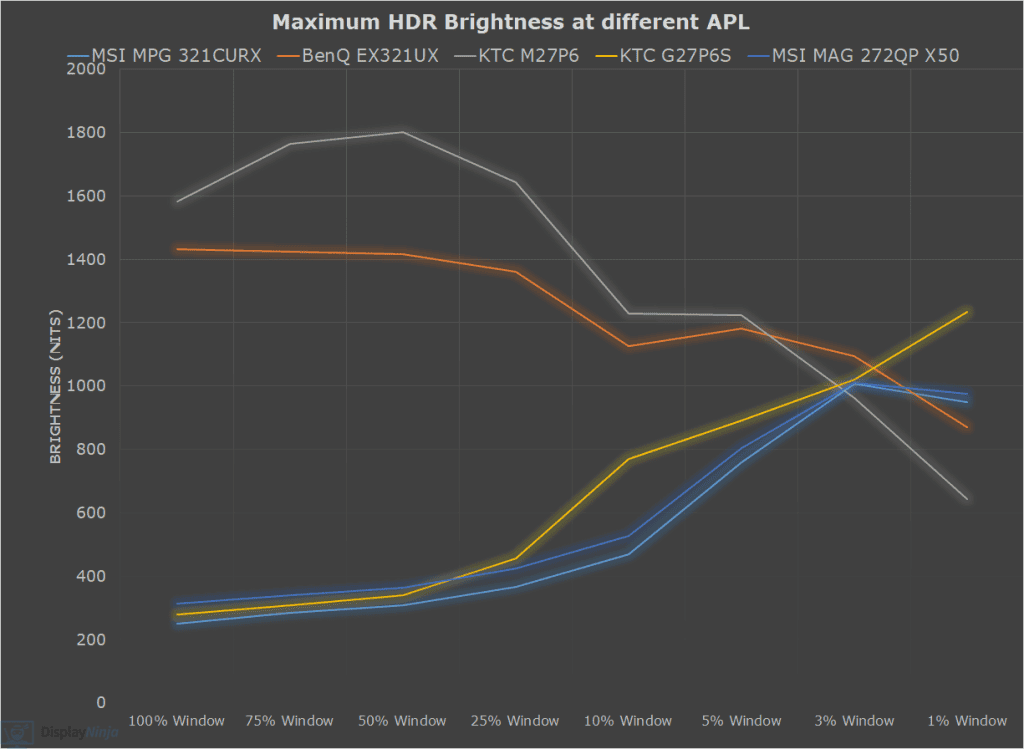
In the chart below, you can see how the brightness of the MSI MAG 272QP and the MPG 271QR compares to a few other HDR monitors we tested, including the MSI MPG 321CURX with a previous-gen HDR True Black 400 panel.
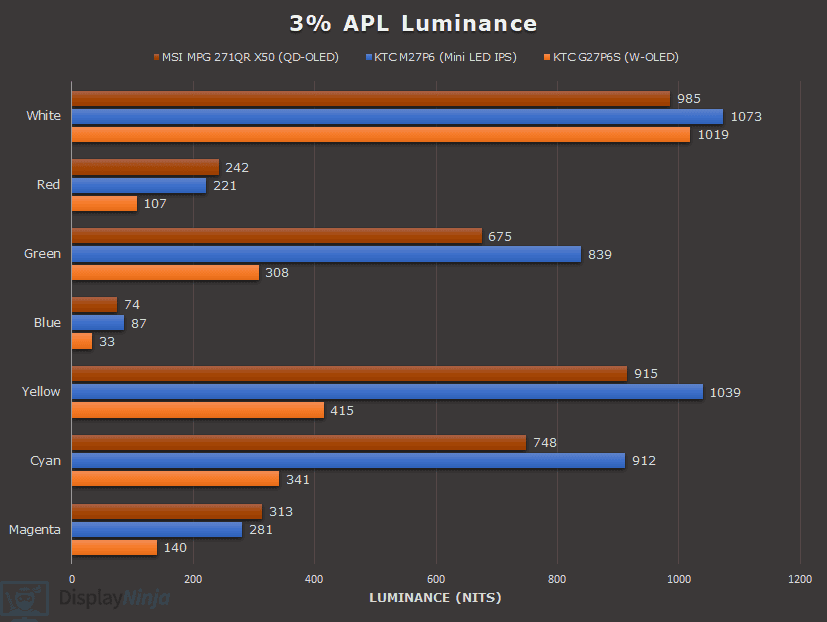
While the KTC G27P6S with LG’s W-OLED MLA+ panel, for example, has a higher brightness in this chart, note that this refers to white luminance. When it comes to color luminance, Samsung’s QD-OLED panels are brighter, which in addition to their wider color gamut, results in a higher perceived brightness overall.
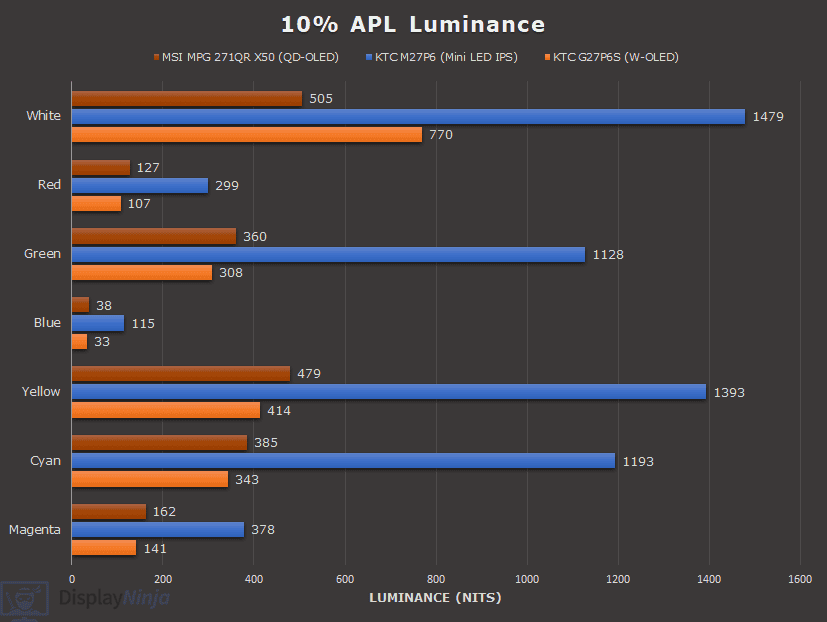
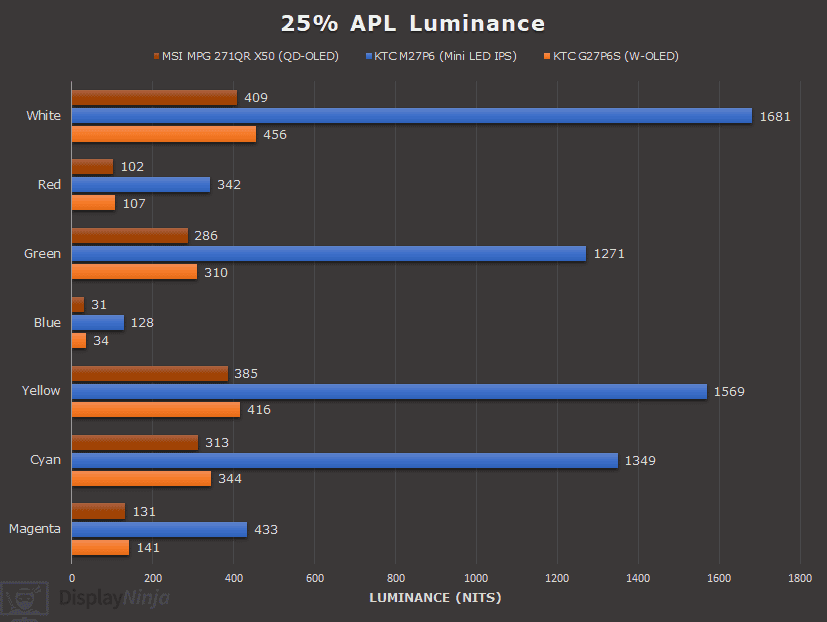
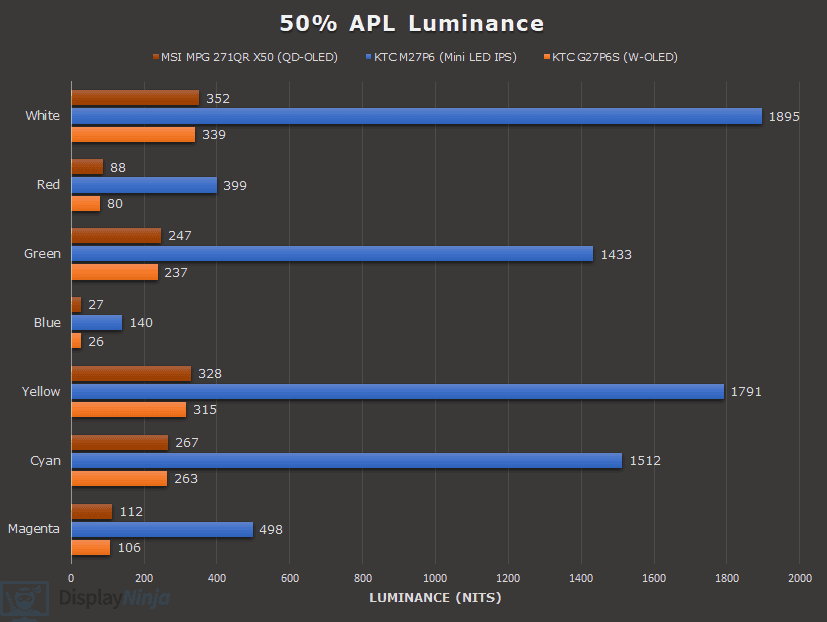
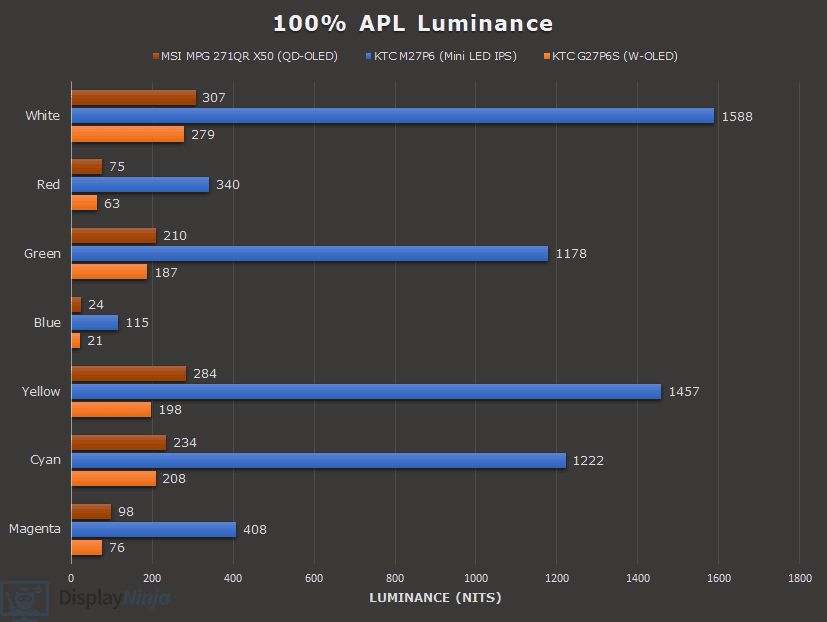
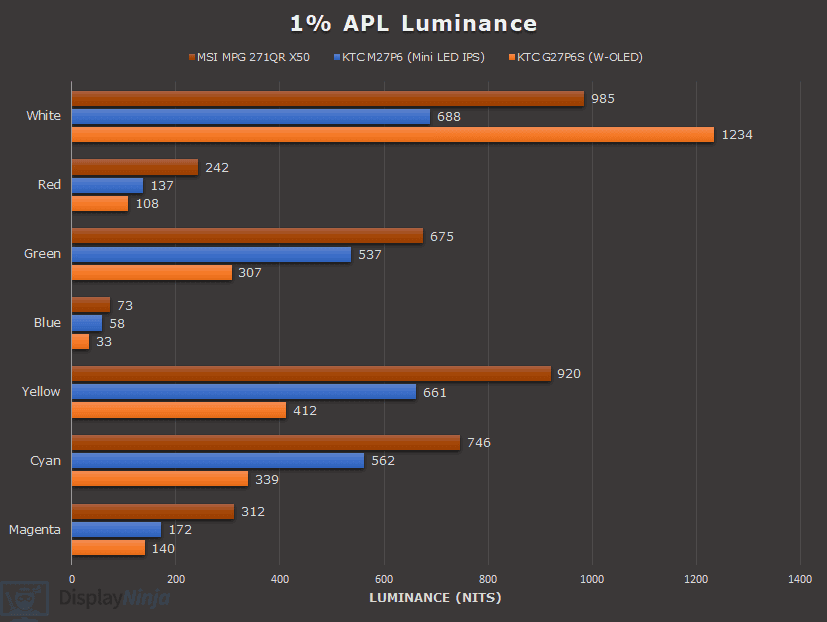
Mini LED monitors have significantly higher brightness for large APLs, but they have their own drawbacks as well, such as FALD blooming in certain scenes and they’re not as good at displaying SDR content with improved contrast.
MSI MPG 271QR QD-OLED X50 Best Image Settings
For saturated colors:
Mode: User
For accurate colors in Windows:
Mode: sRGB
DisplayHDR: EOTF Boost
DSC: Off – if you have a DisplayPort 2.1 GPU
DSC: On – if you have a DisplayPort 1.4 GPU
Ultra Low Power: Off
Performance
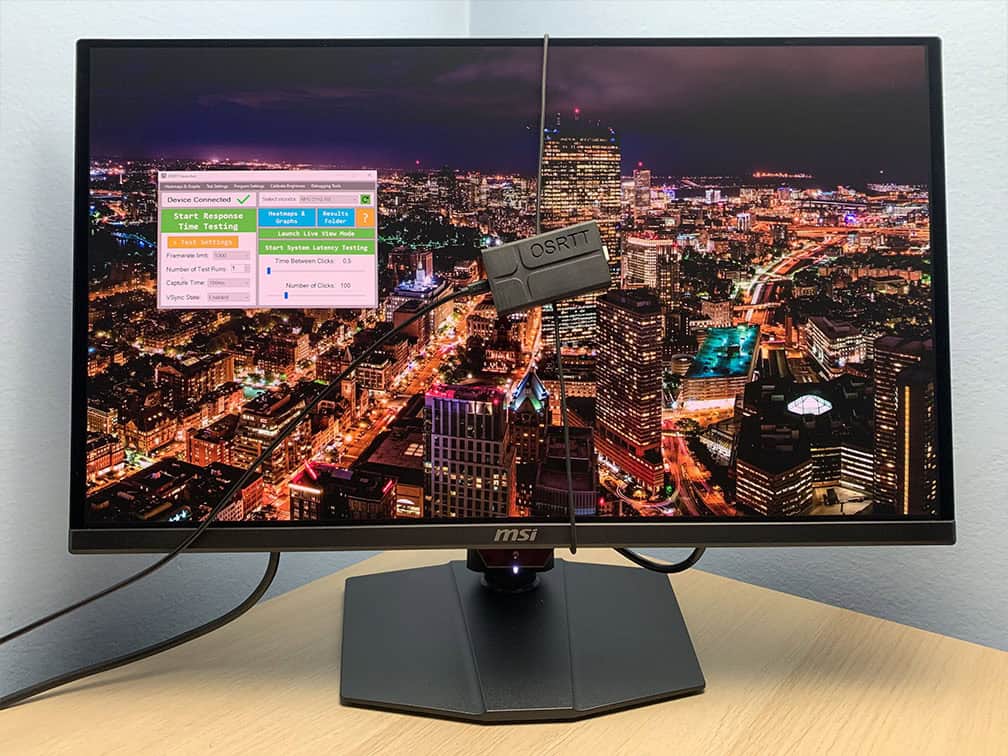
The MSI MPG 271QR QD-OLED X50 features a maximum refresh rate of 500Hz, delivering exceptional motion clarity and responsiveness.
Response Time
OLED panels have virtually instantaneous pixel response times, so there’s no ghosting behind fast-moving objects, no matter the refresh rate.
For latency and response time testing, we’re using OSRTT. Before the tests, the monitor was calibrated and warmed up.
As expected, there are no differences between the MAG and MPG models when it comes to pixel response time speed and latency test results.
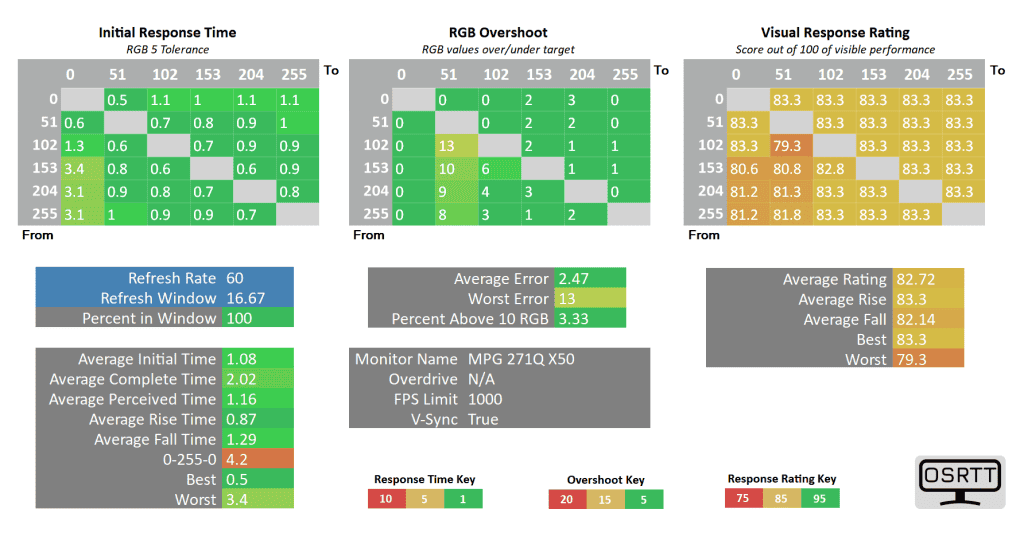
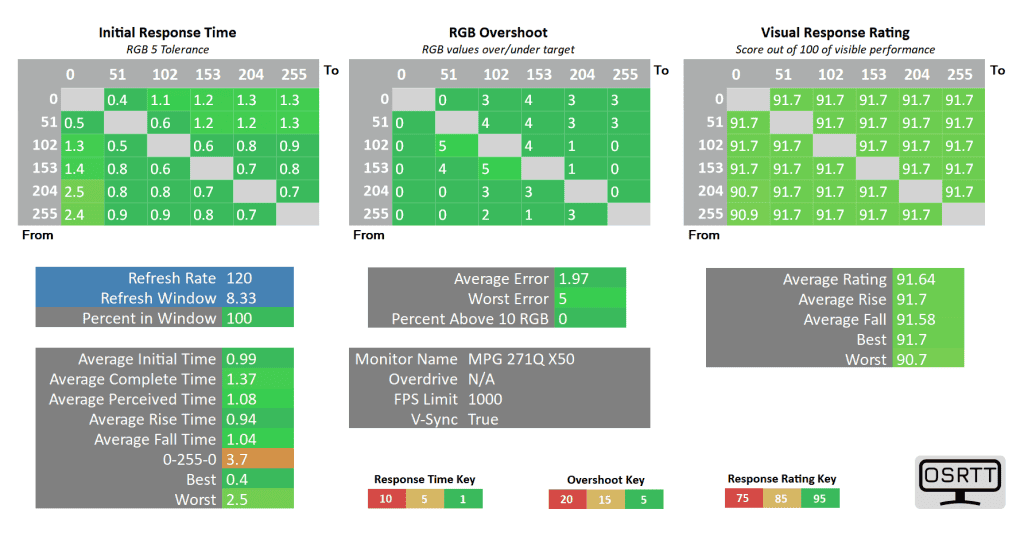
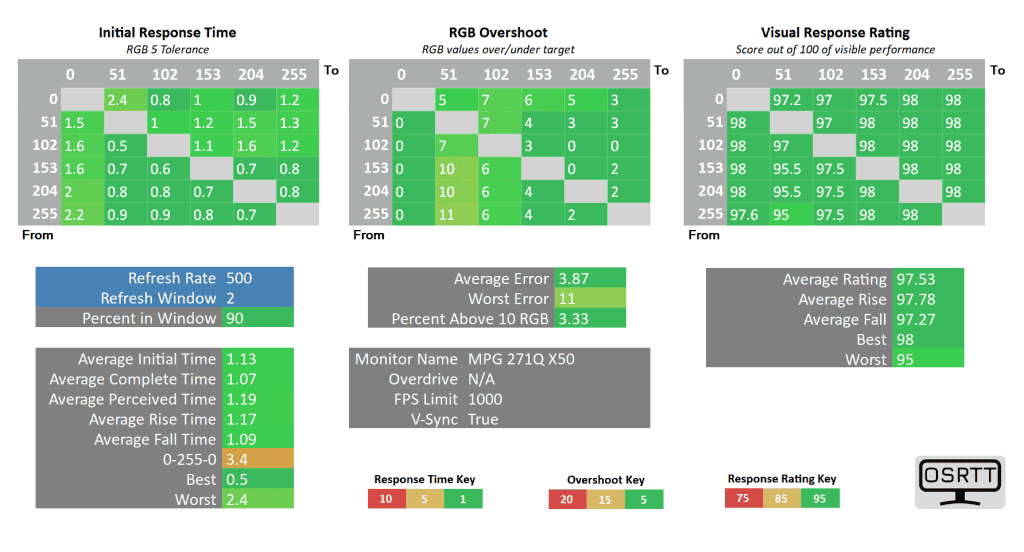
There are some slower transitions and overshoot present in the charts, but this is only due to the limitation of the OSRTT measuring device.
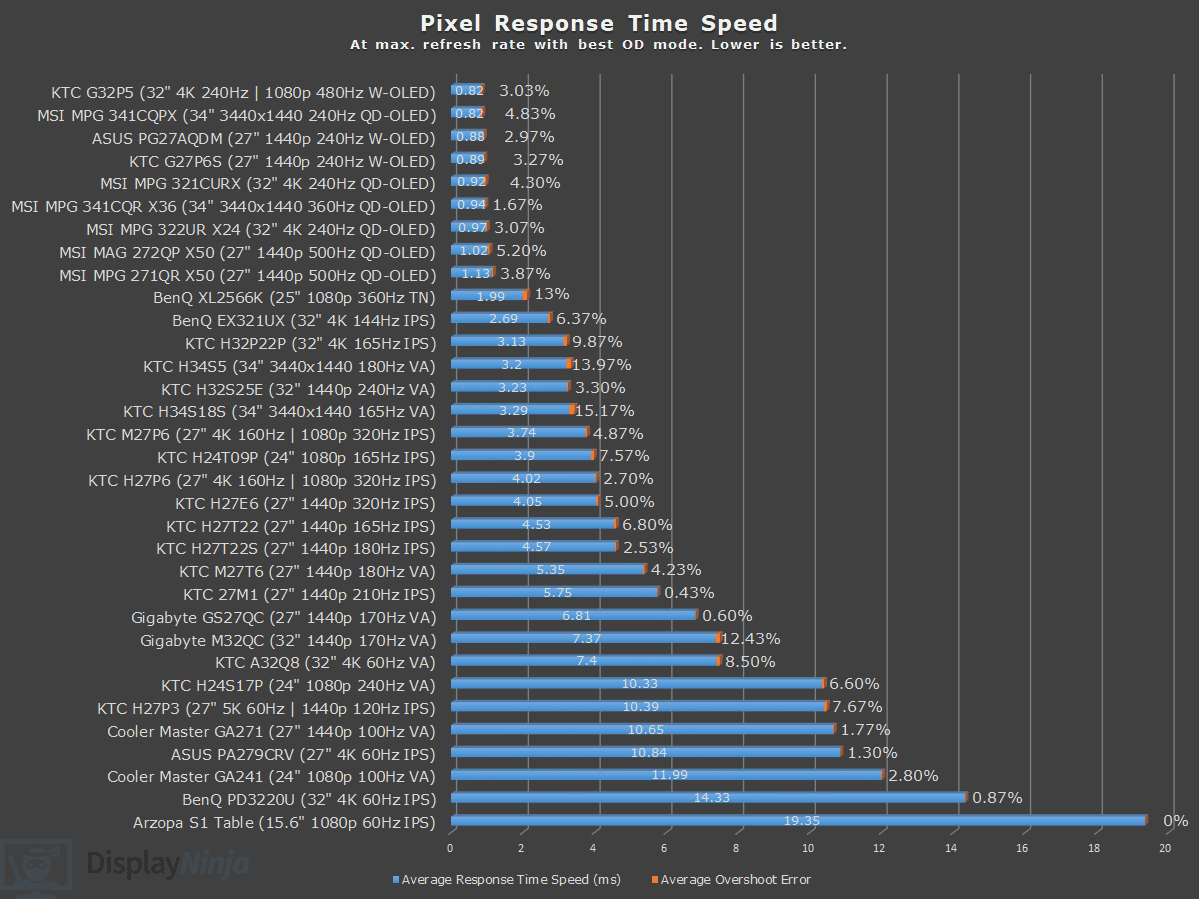
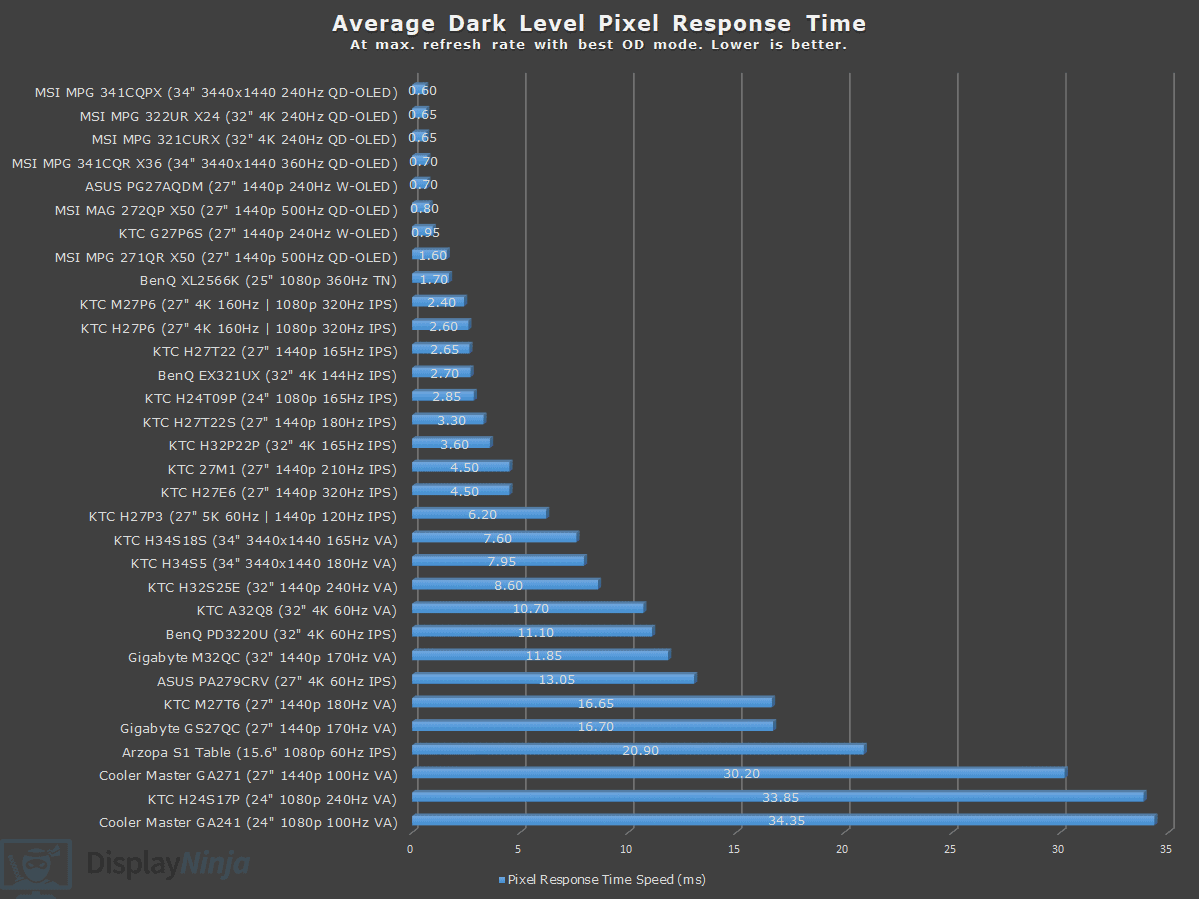
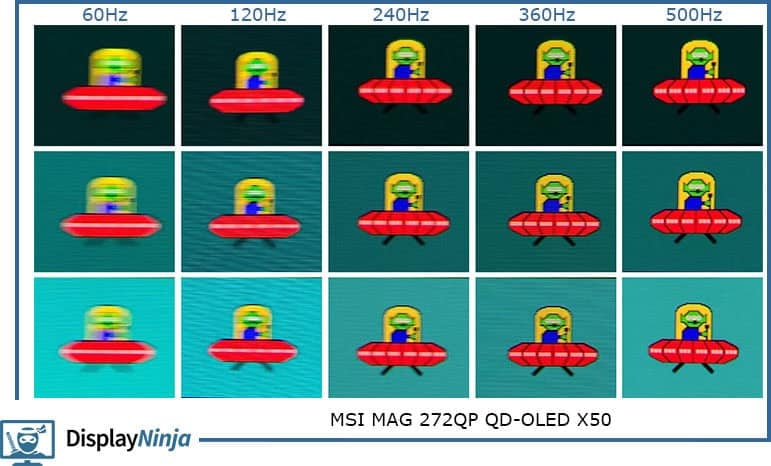
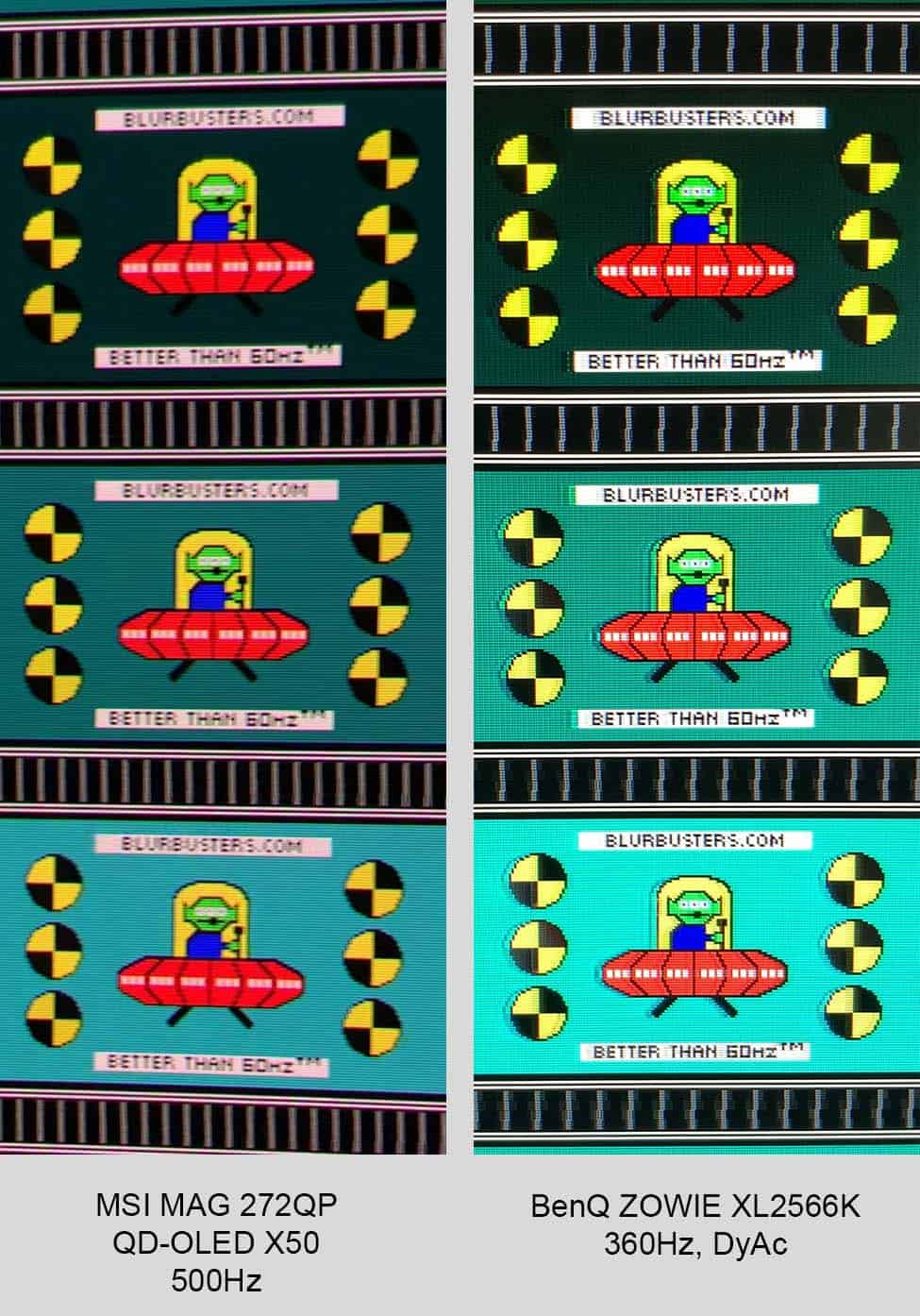
For Blur Busters’ UFO ghosting test, we’ll share the results from our MAG 272QP review, which we ran using 960 Pixels Per Sec, shutter speed set to 1/4 of the refresh rate with fixed focus, ISO and color temperature (6500K).
And here’s a comparison to several other monitors we tested.
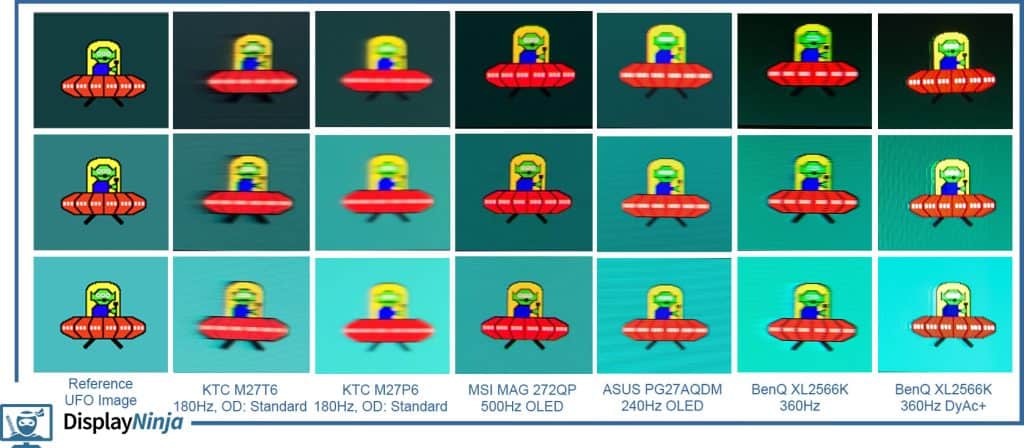
Native 500Hz on an OLED display offers incredible motion clarity, even rivaling 360Hz eSports TN models with DyAc backlight strobing.
Motion Blur Reduction
Just like the MSI MAG 272QP X50, the MPG 271QR supports BFI (Black Frame Insertion) via its MPRT feature. It reduces the maximum brightness to 152-nits since it basically displays half the frames as black in order to reduce perceived motion blur at lower frame rates.
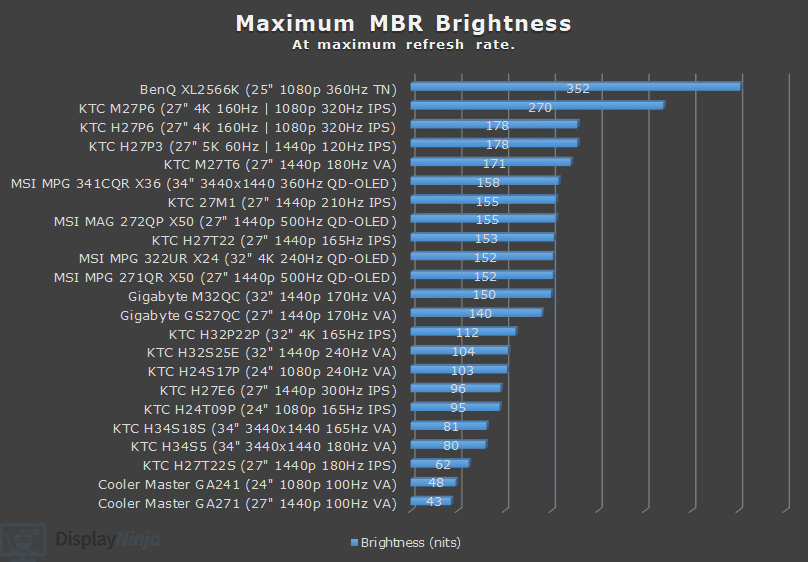
If you enable MPRT at 500Hz, you’ll need to manually cap the in-game frame rate at 250 FPS for optimal performance.
At 250 FPS BFI, you get the same motion clarity as native 500Hz (though with slightly higher input latency), which can be useful in fast-paced games where your system can’t exceed 250 FPS.
Keep in mind that MPRT cannot be used simultaneously with VRR (variable refresh rate).
Other OLED monitors handle BFI differently. For example, on the ASUS PG32UCDP, you first need to lower the refresh rate to 120Hz to enable MPRT, which then runs at 240Hz to provide 120 FPS BFI.
Since BFI only works at 120FPS minimum, this means that you cannot enable MPRT on the MSI MPG 271QR X50 on consoles that support 120Hz (it must run at 240Hz for 120FPS BFI).
Variable Refresh Rate
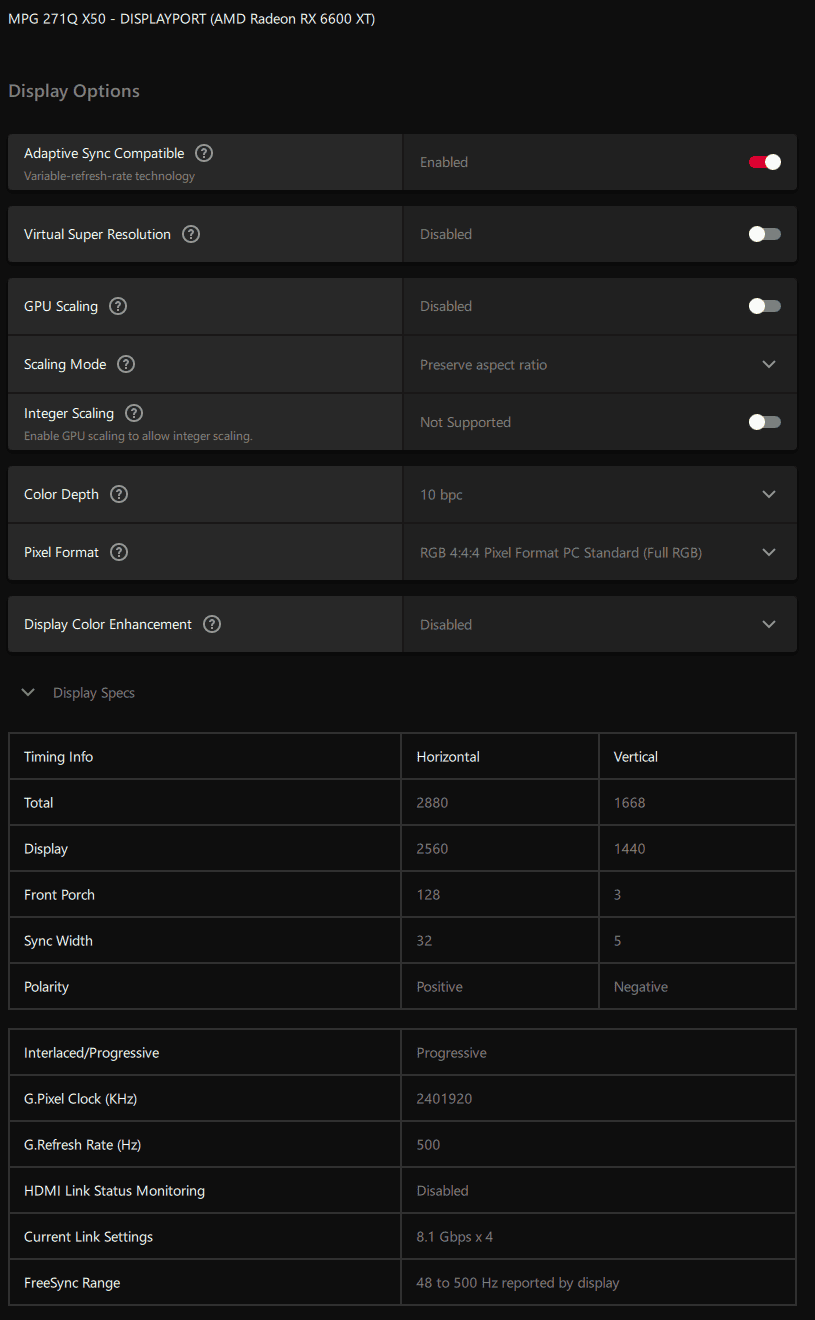
The monitor supports variable refresh rates through HDMI 2.1 VRR and is certified by NVIDIA as G-SYNC Compatible. The MAG 272QP also carries AMD FreeSync Premium Pro certification, which the MPG 271QR currently lacks. Additionally, the 271QR reports a VRR range of 48-500Hz, compared to 60-500Hz on the 272QP.
Regardless, VRR works with all graphics cards that support it for tear-free gameplay up to 500FPS. However, as it’s the case with all OLED monitors, you might notice some VRR brightness flickering in games with fluctuating frame rates (mostly in darker scenes, loading screens and in-game menus).
This can be simply ‘fixed’ by disabling VRR in affected games, which isn’t much of a drawback considering that screen tearing is basically unnoticeable at 500Hz.
Latency
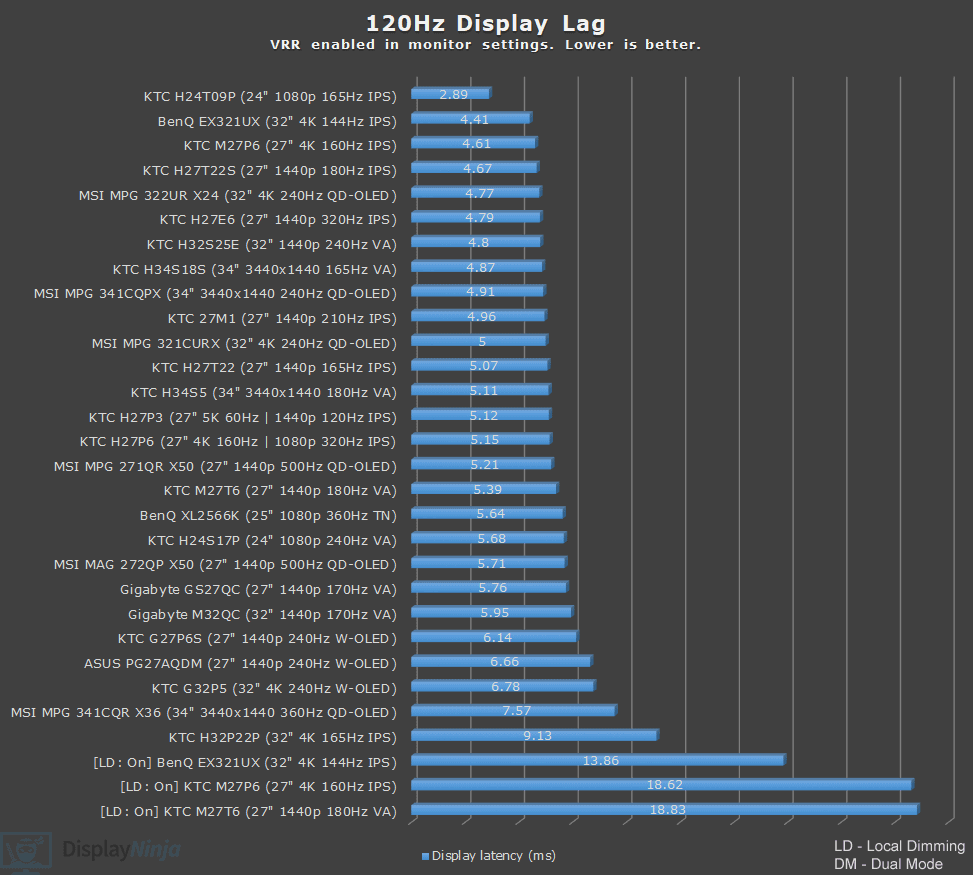
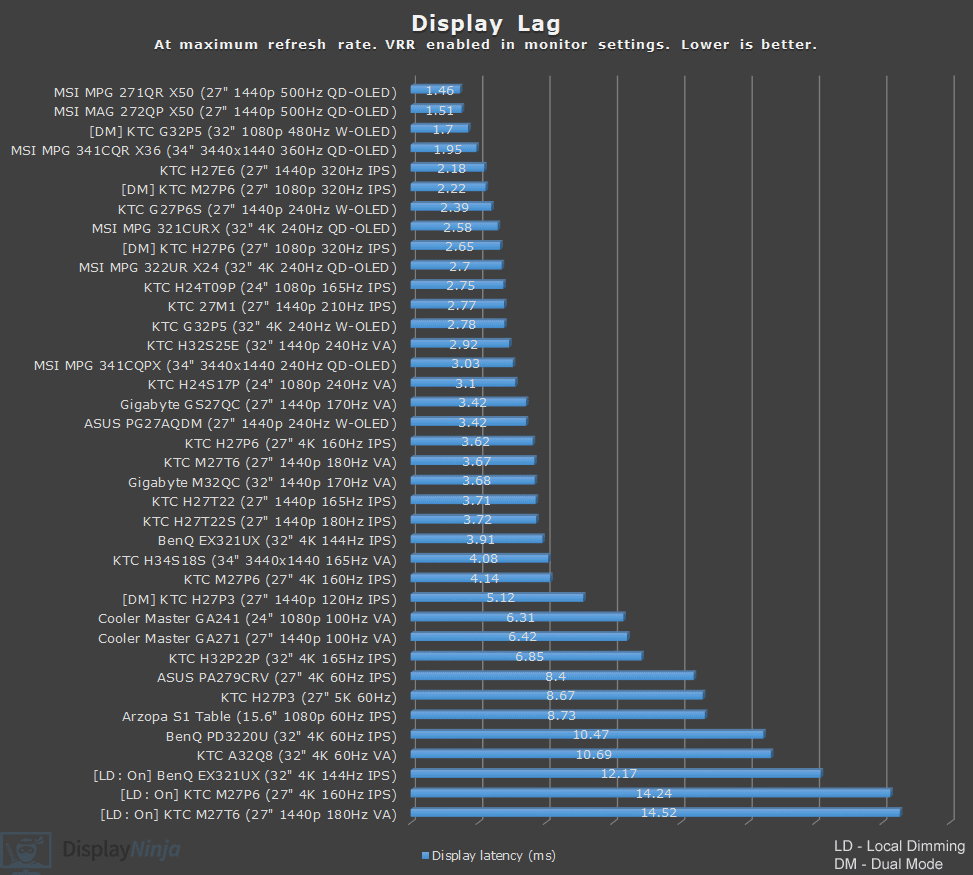
Here’s a look at display latency test results.
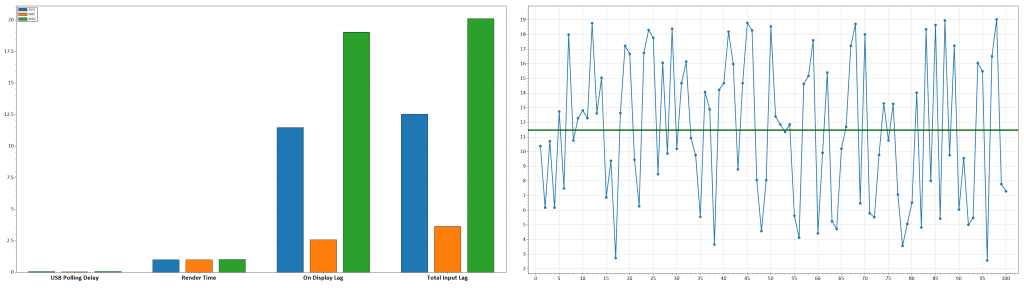
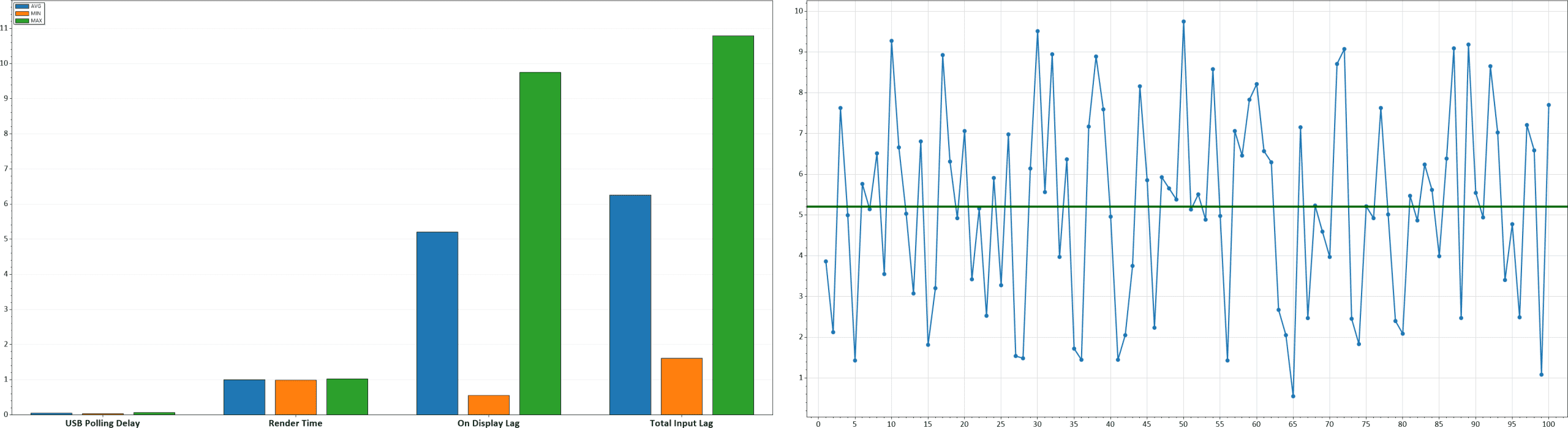
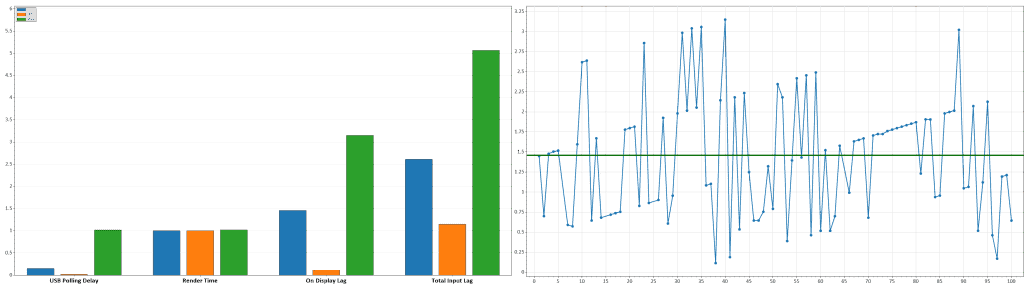
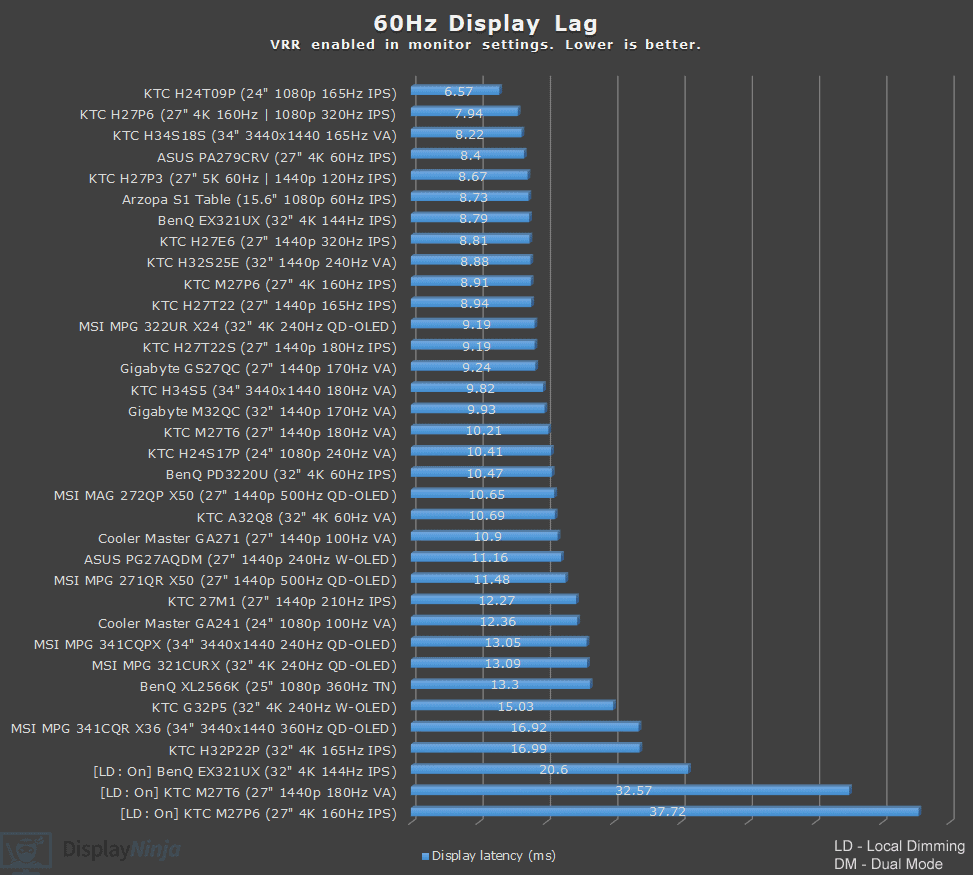
Display latency is only 1.46ms at 500Hz, 5.21ms at 120Hz and 11.48ms at 60Hz, which makes for imperceptible delay between your actions and the result on the screen.
Uniformity & Quality Control
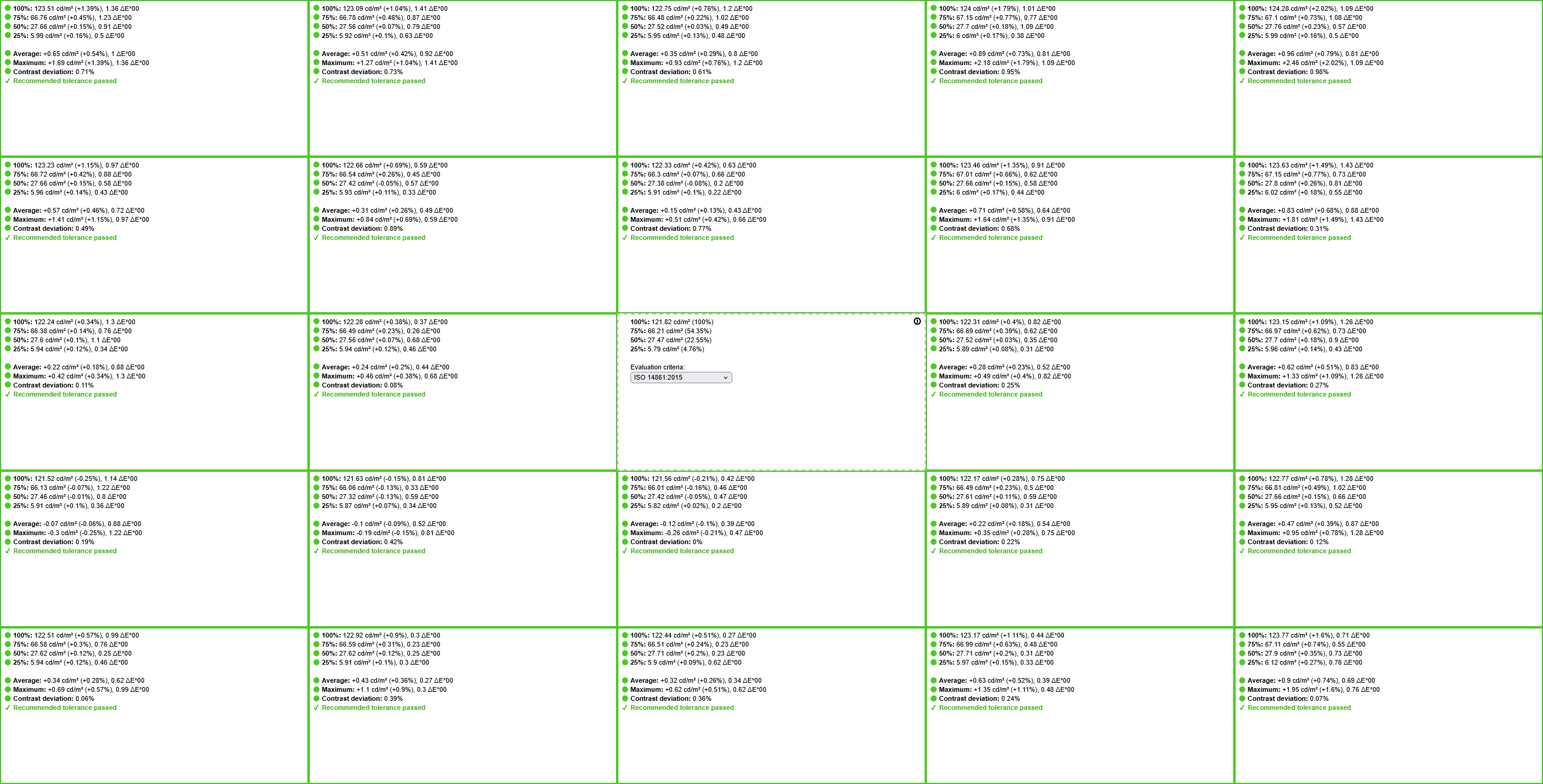
Moving on, the MSI MPG 271QR QD-OLED X50 has excellent image uniformity as there’s only up to around 2% brightness and contrast deviation across the screen.
As it’s the case with all OLED panels though, there’s some minor vertical banding on solid dark-gray backgrounds, but it isn’t noticeable during regular use. We weren’t able to capture this on camera.
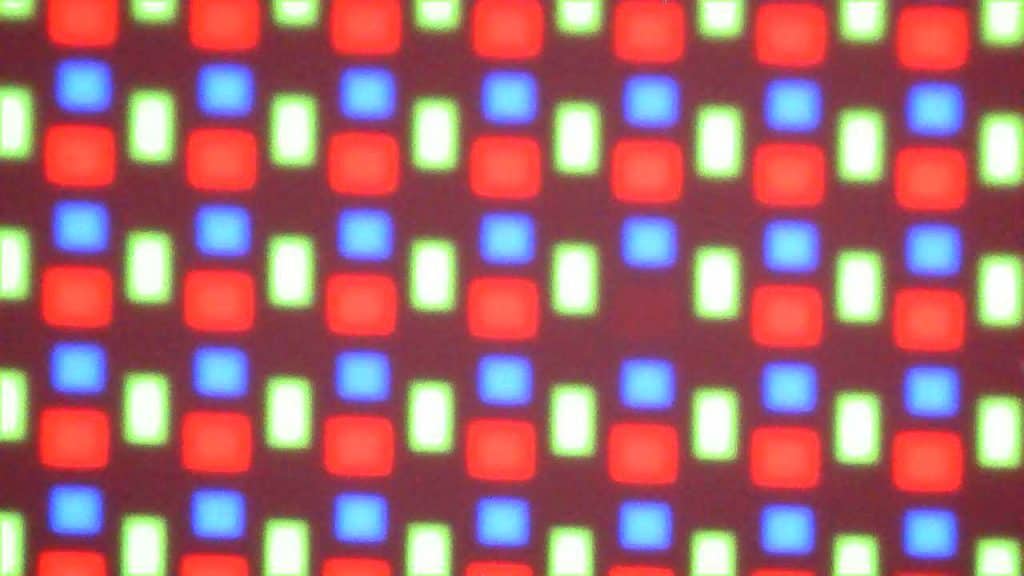
We found one dead red sub-pixel, causing the pixel to light up green instead of white/yellow or black instead of red/magenta, but it was in the upper left corner, so it wasn’t noticeable during regular use.

OLED panels don’t suffer from IPS/VA glow or backlight bleeding, and there were no other issues, such as frame skipping or pixel inversion.
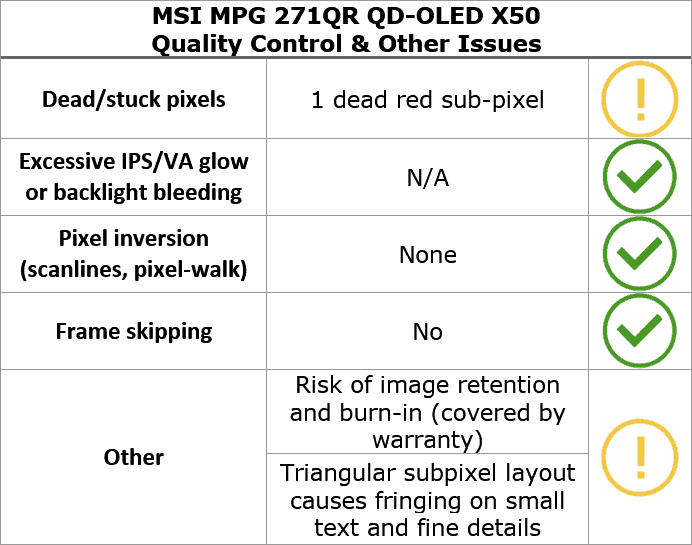
Apart from the minor fluctuations in brightness due to the way OLED panels work (which is invisible to the human eye), the monitor is completely flicker-free.
There’s also a low-blue light filter mode that reduces the color temperature down to 3970K for a more comfortable viewing experience before bedtime.
Features
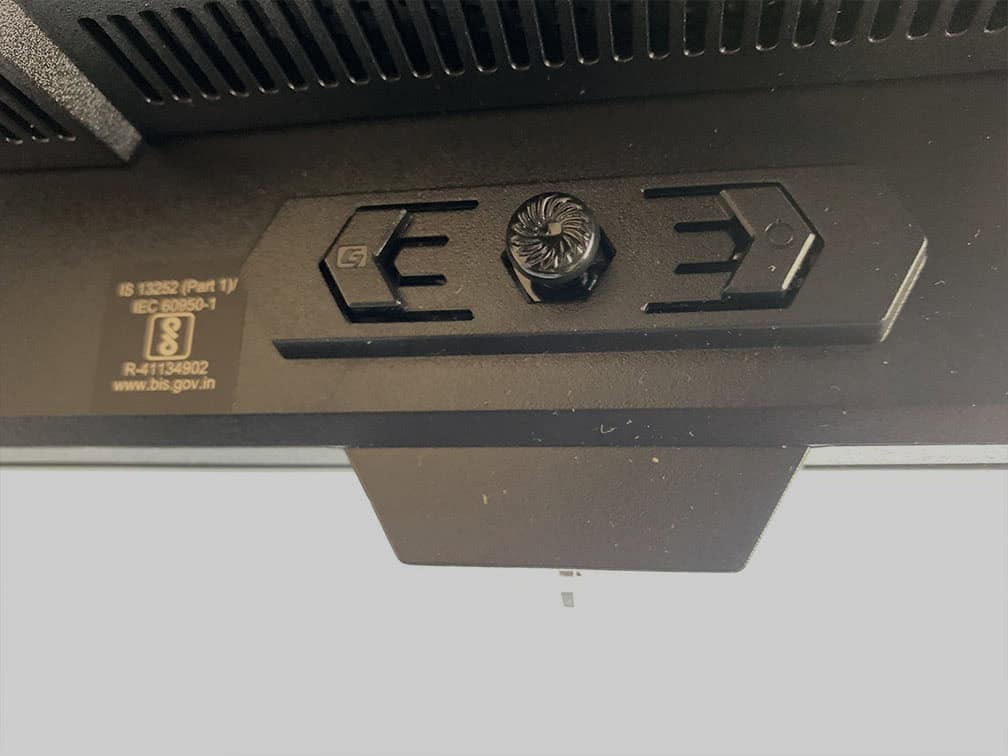
Behind the bottom bezel of the screen, there’s a directional joystick for quick and easy navigation through the OSD menu. There’s also a dedicated power button, an additional ‘G key’ button for shortcuts and a power LED indicator on the chin that houses the built-in sensor.
While the monitor is on, the power LED is white (the LED indicator can be disabled in the OSD menu) and blinks orange while the Panel Protect process is active.
Here’s the new redesigned OSD menu.
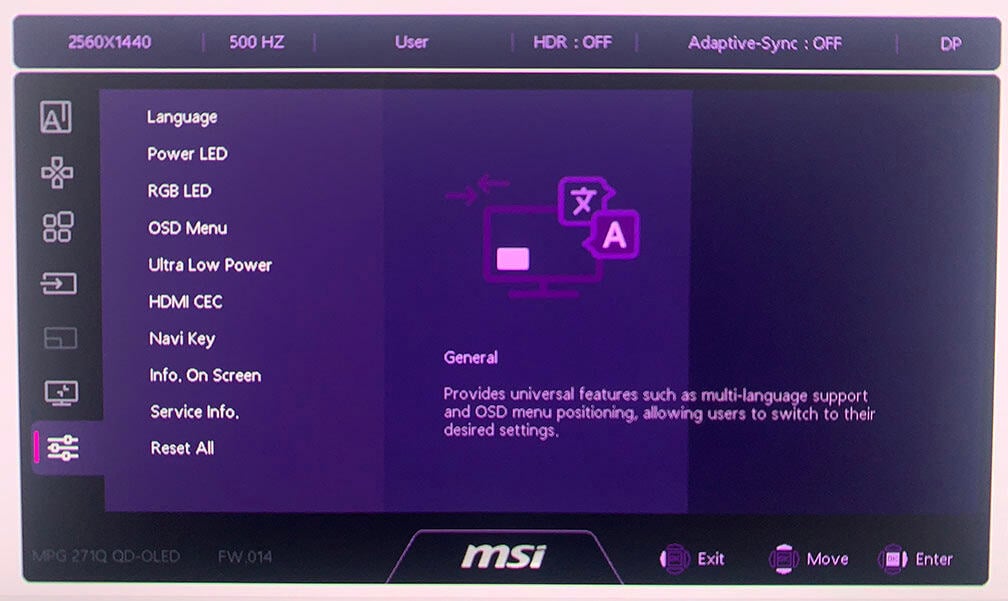
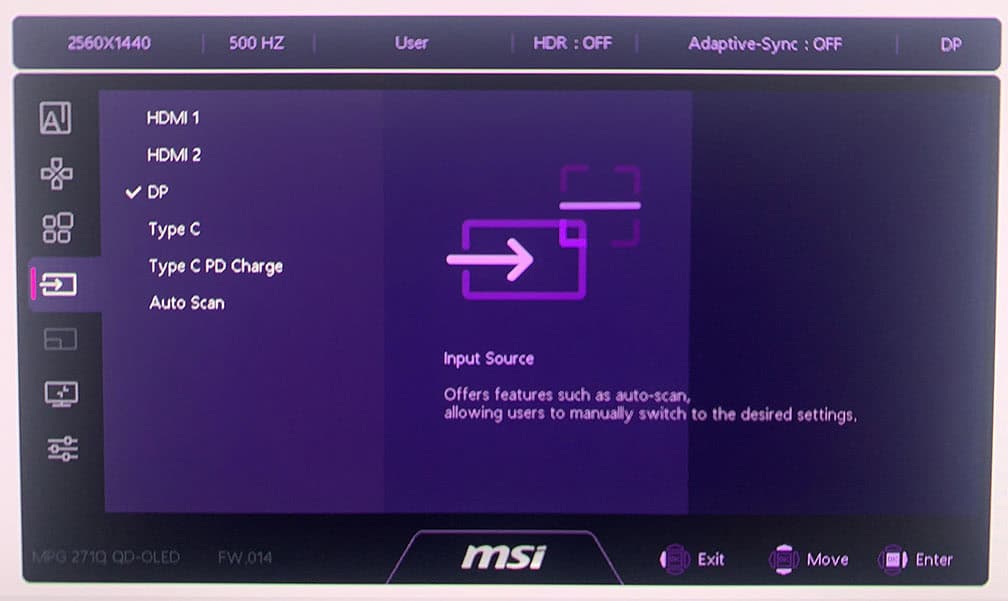
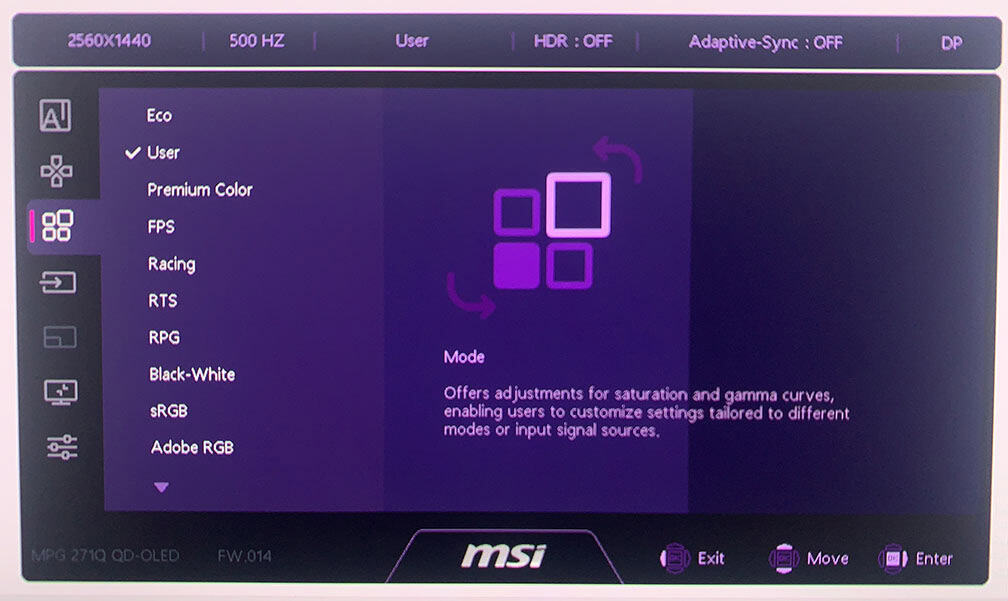
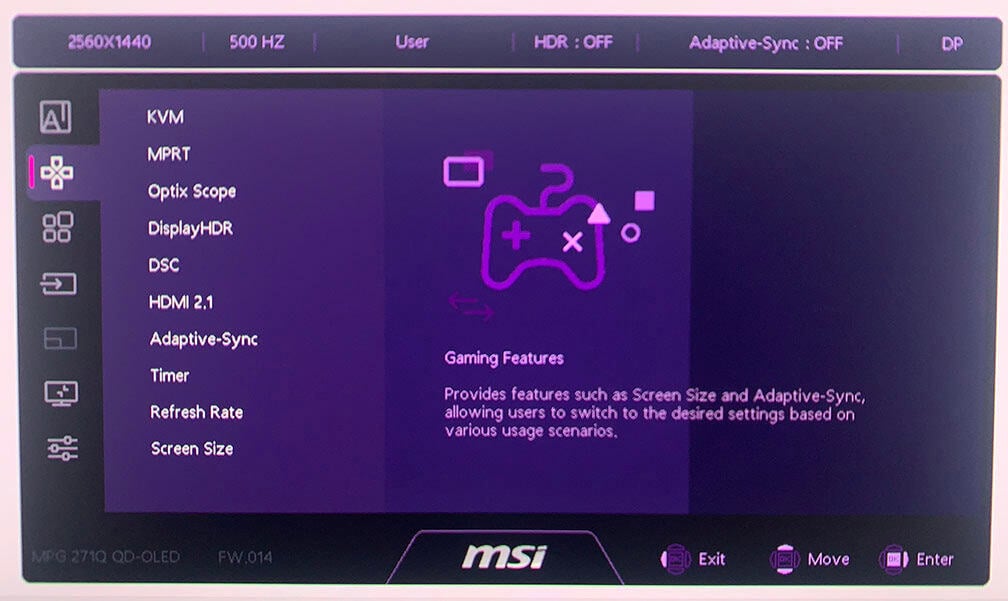
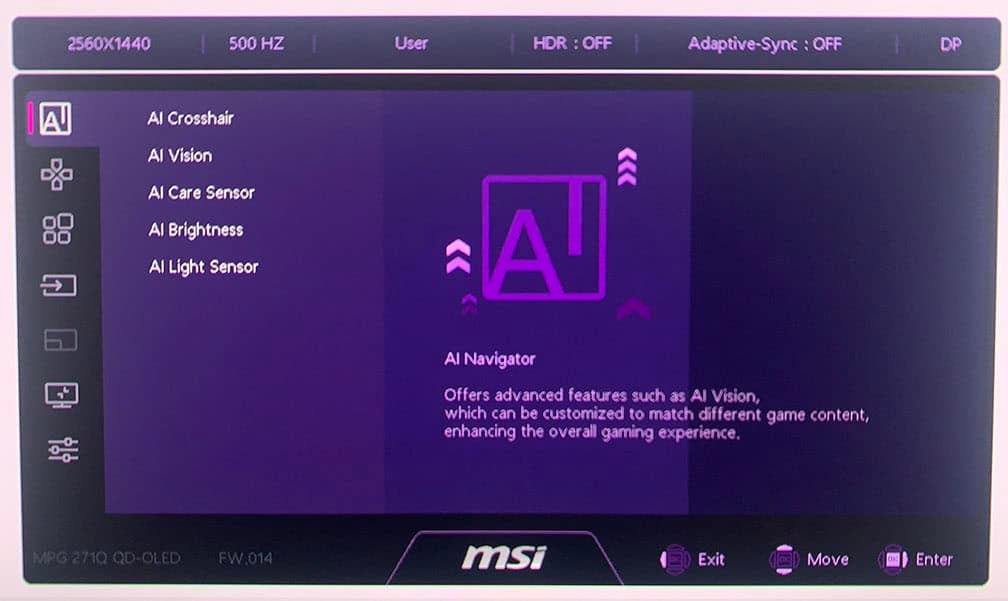
Moving the joystick up, down, left and right summons a quick menu for certain shortcuts, which can be changed to the following options: Brightness, Mode, Input Source, AI Crosshair, AI Vision, Timer, Refresh Rate, PiP/PbP, Optix Scope and Info. On Screen.
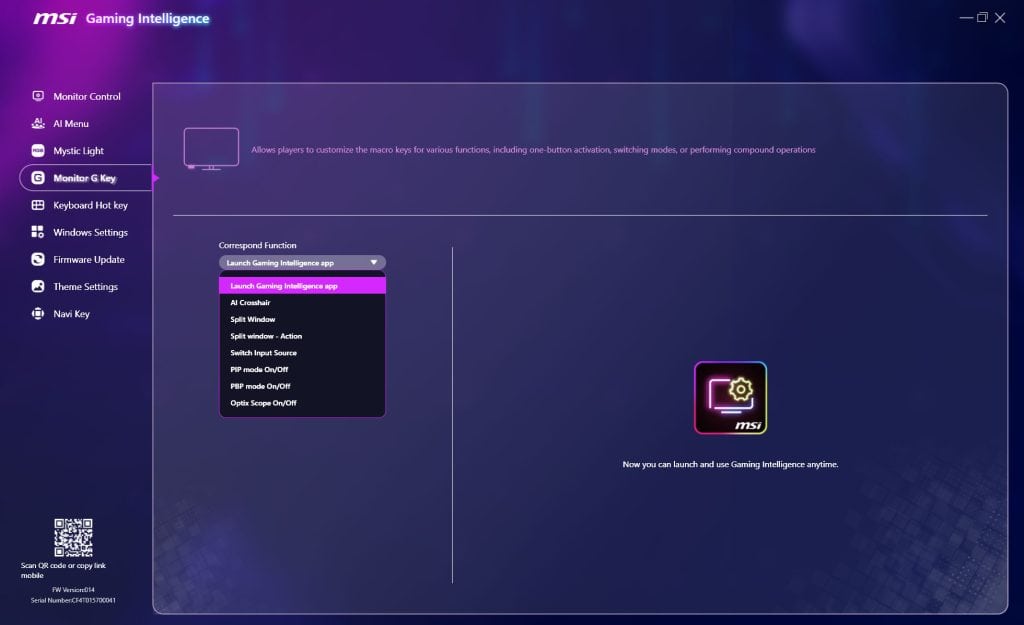
The G key can be used to open the MSI Gaming Intelligence desktop application or assigned to AI Crosshair, Split Window, Split window – Action, Switch Input Source, PiP/PbP on/off or Optix Scope.
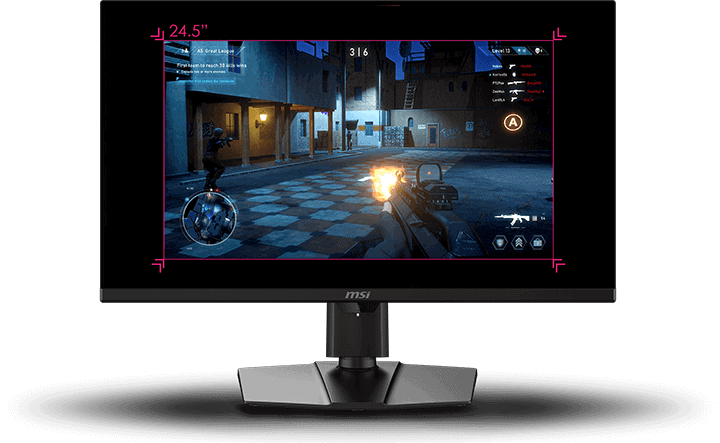
Besides the typical image adjustment tools (brightness, contrast, color temperature), the MSI MPG 271QR also has some advanced settings, including DSC toggle, sharpness, aspect ratio (auto, 4:3, 16:9, 16:10, 1:1, 24.5″) and automatic input detection. The new OSD menu now has gamma and hue/saturation adjustments too.
Further, the 24.5″ simulation mode can now be used at the same time as DSC, allowing you to run the monitor at 1440p 500Hz even if you don’t have a GPU with DisplayPort 2.1.
Picture-in-Picture and Picture-by-Picture modes are supported as well.
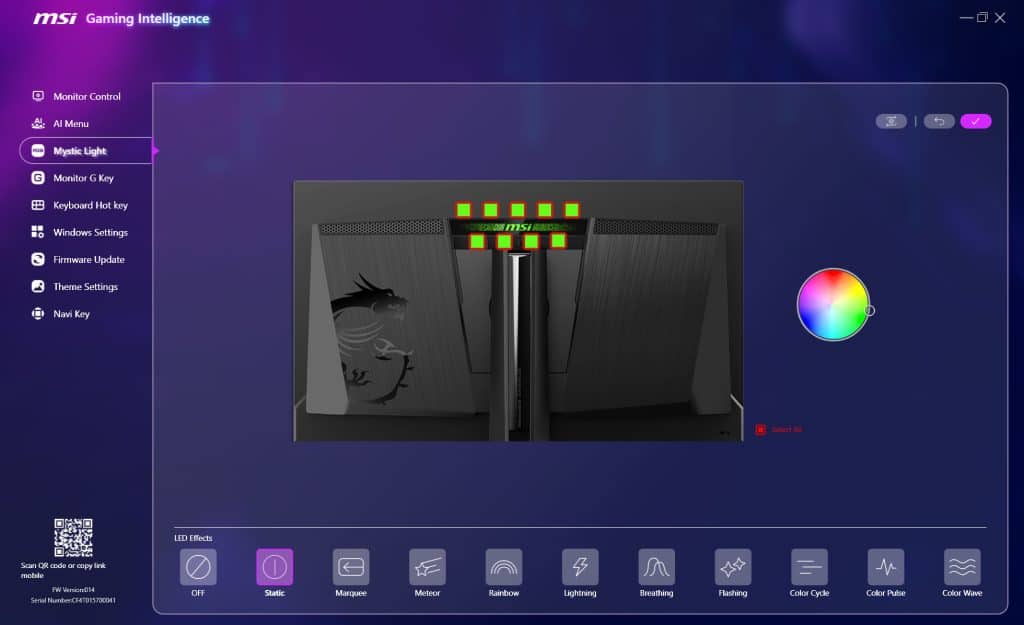
When you connect the monitor to your PC via a USB cable, you can also use MSI’s Gaming Intelligence application to make all your OSD-related adjustments using your keyboard and mouse.
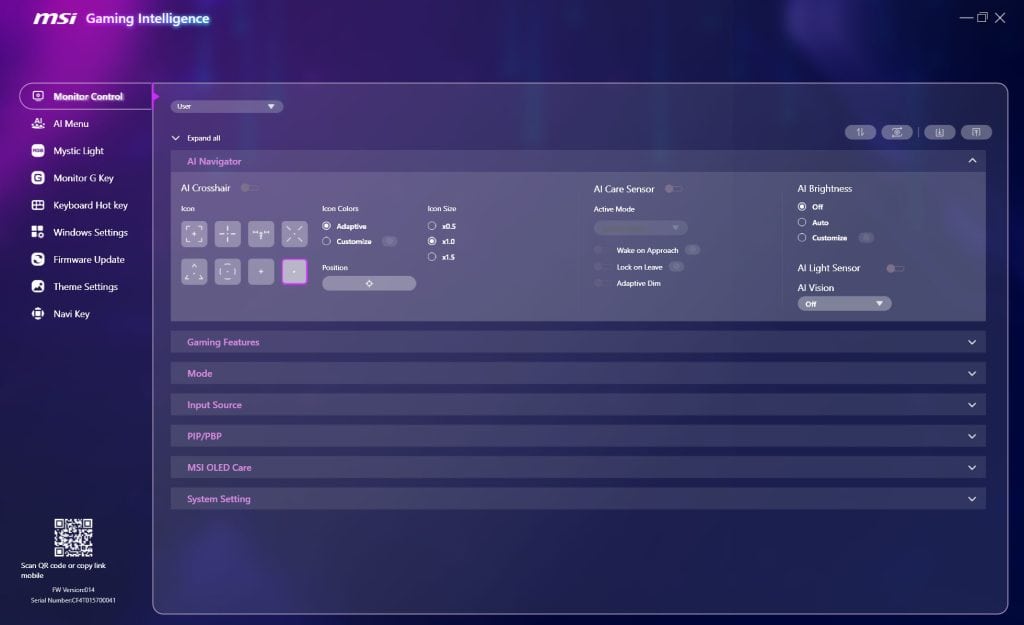
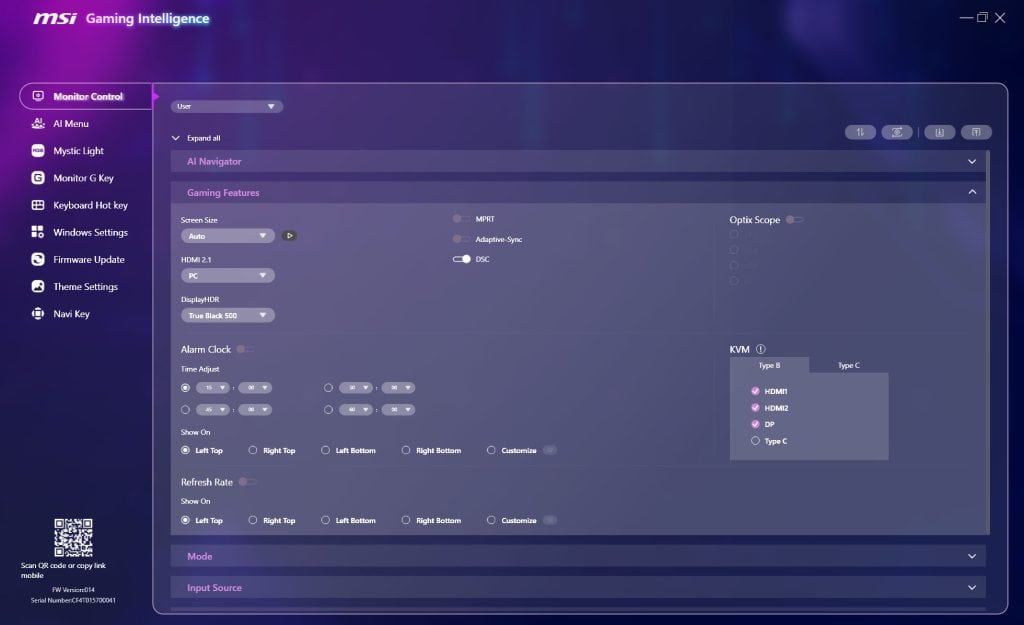
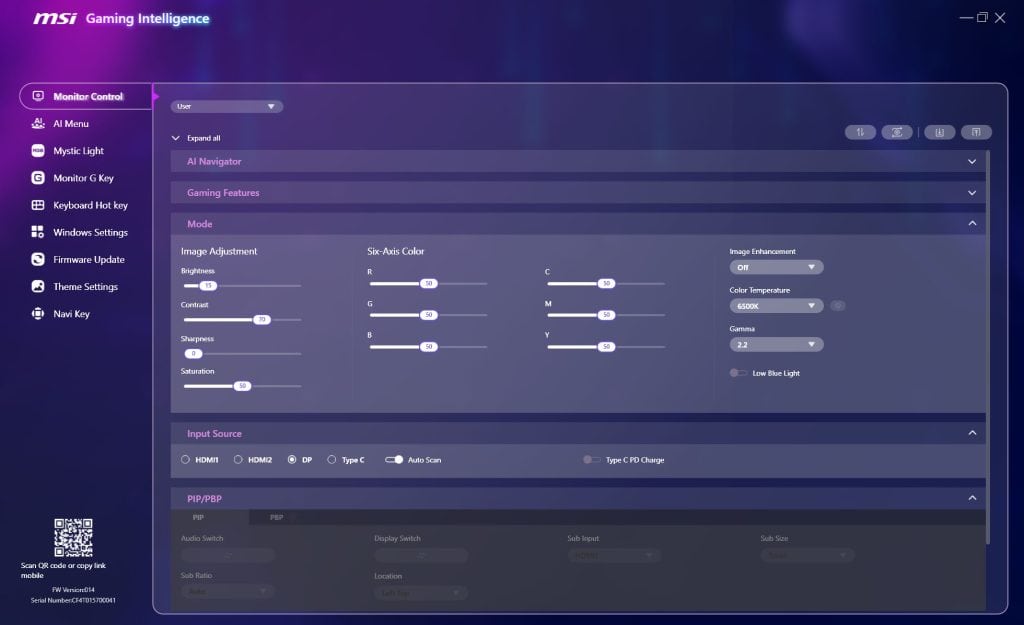
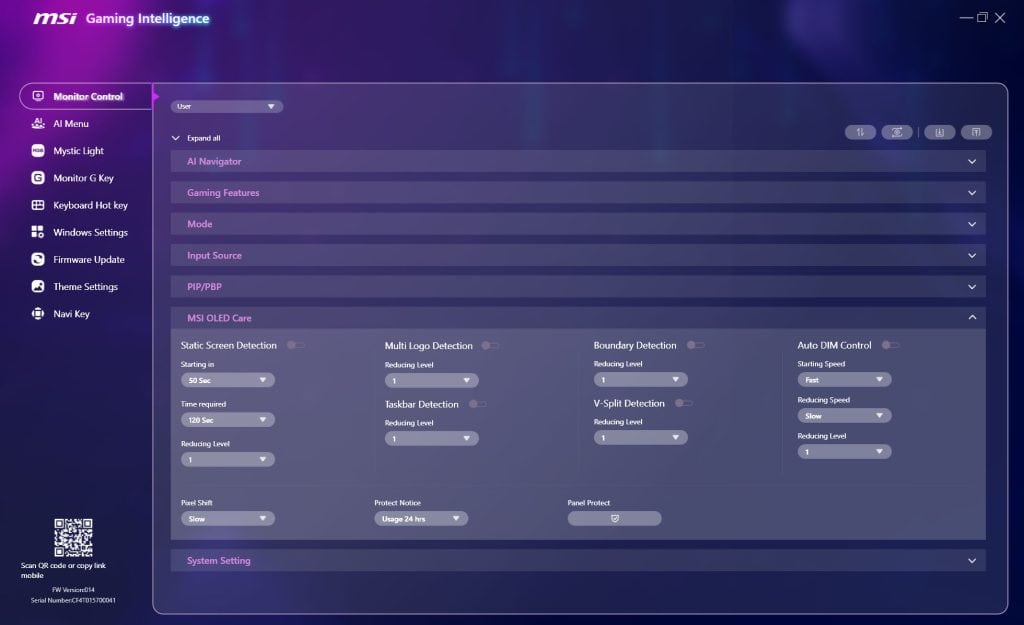
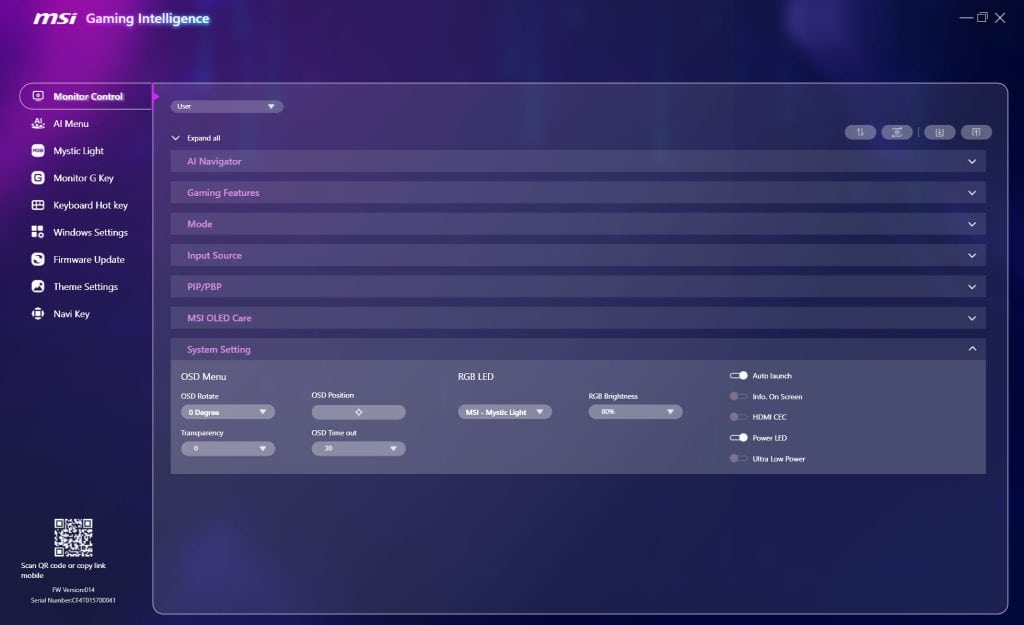
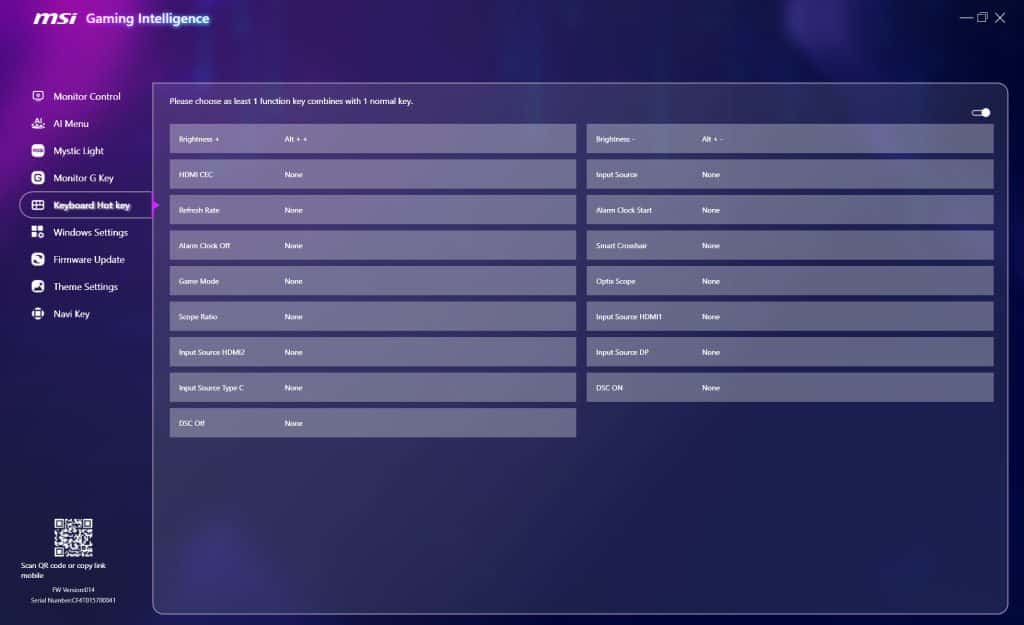
You can also have access to additional settings, such as assigning certain settings to specific applications, customizing RGB lighting, choosing what the ‘G key’ and navigation keys do, assigning keyboard shortcuts, some Windows settings, changing the theme and updating firmware.
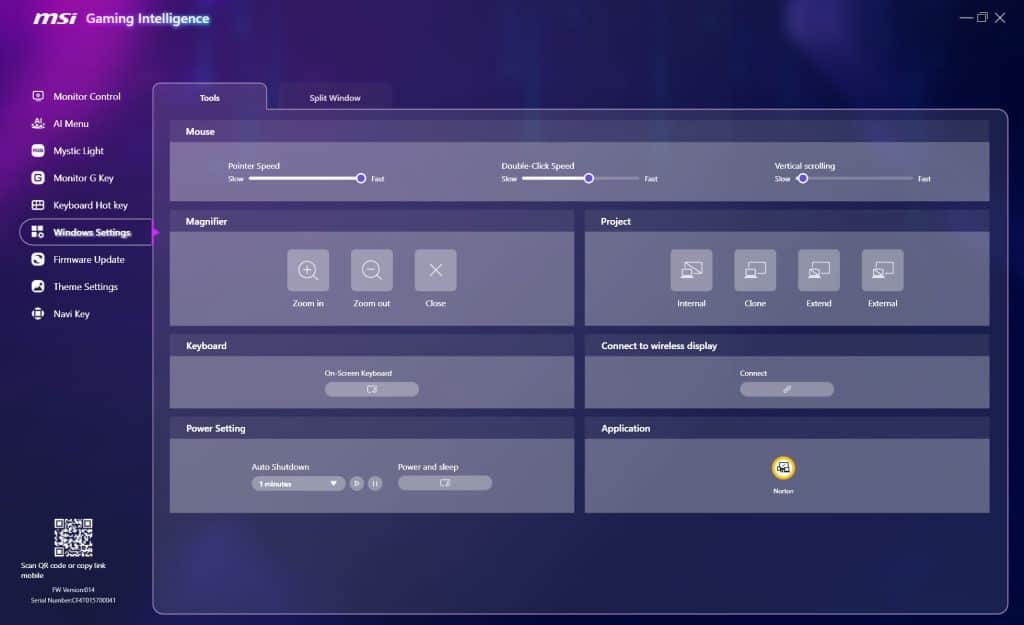
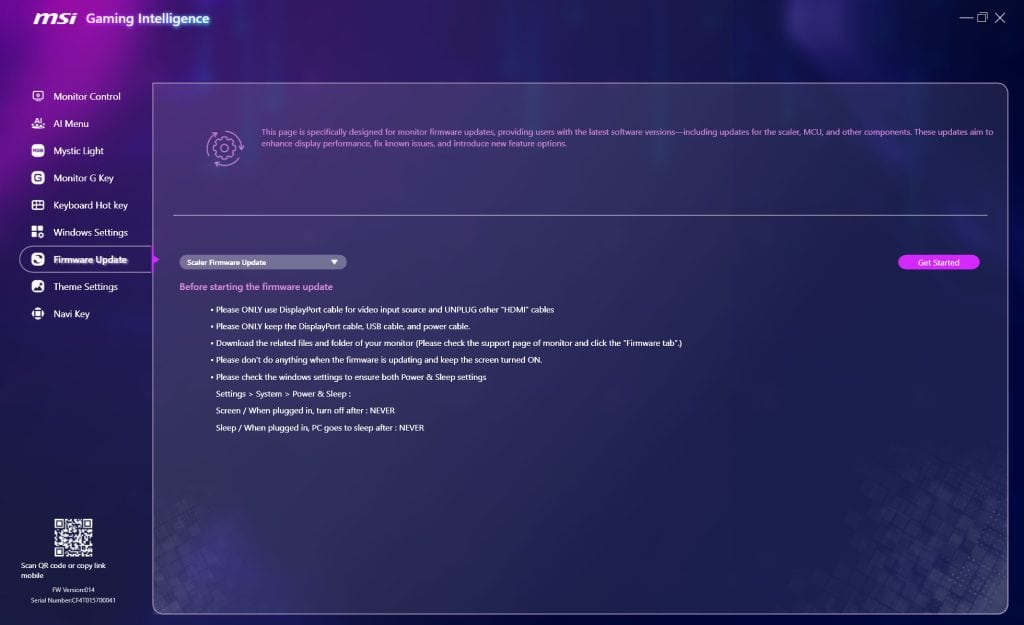
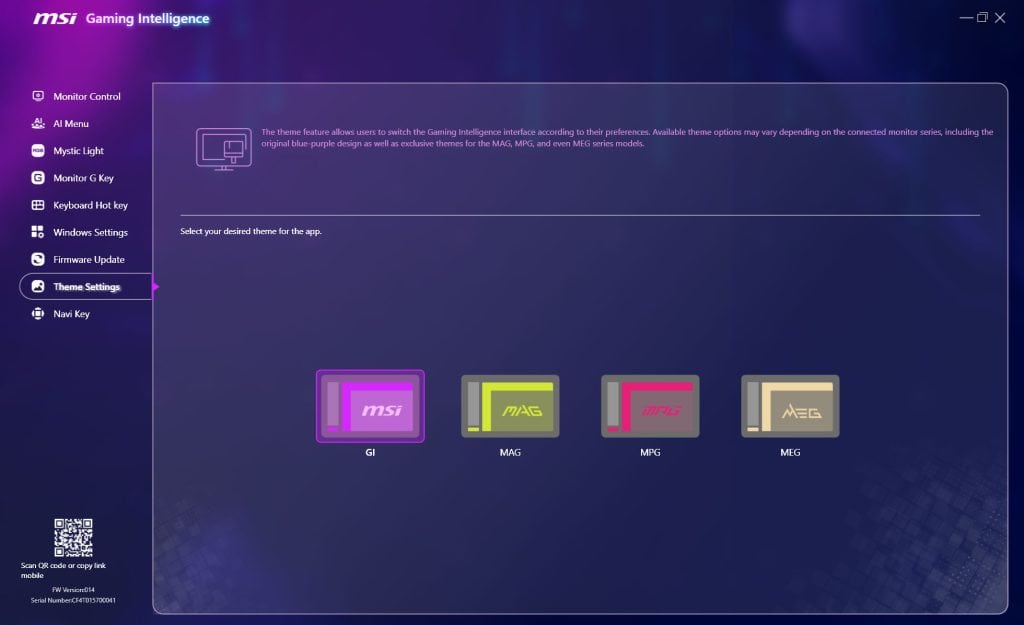
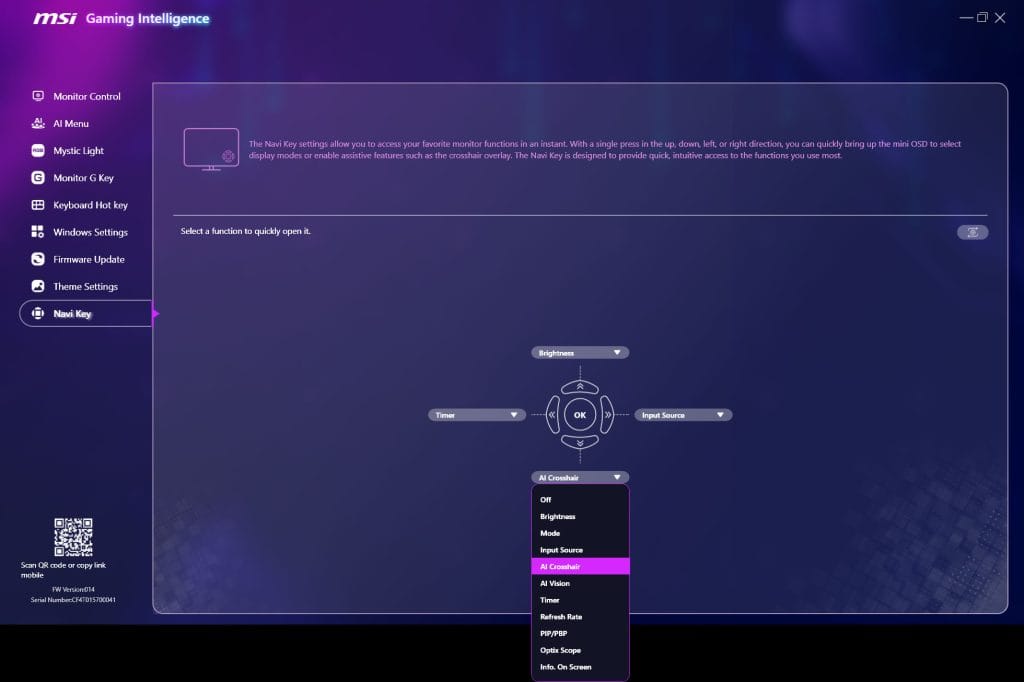
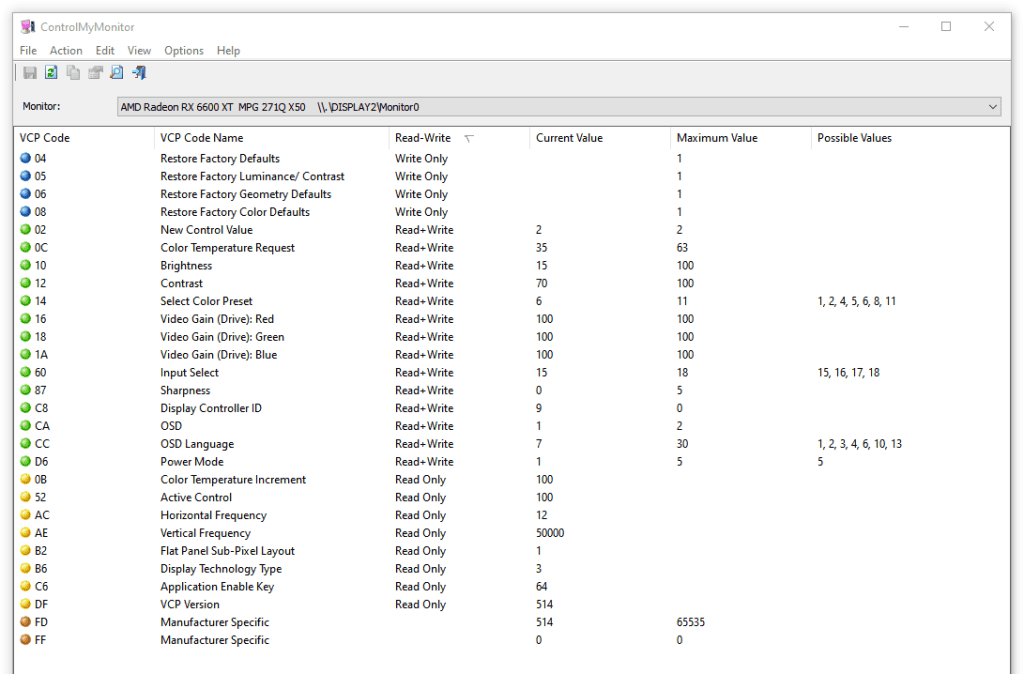
Here are the settings you can change using third-party apps, such as ControlMyMonitor.
Useful gaming features include:
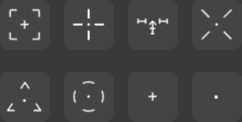
- AI Crosshair – fully customizable color or adaptive (changes color depending on the background). You can also change the position and size (x0.5, x1.0, x1.5)
- AI Vision – improves visibility in dark scenes without over-brightening the bright parts
- Optix Scope – zooms in on the area around your crosshair
- On-Screen Timer
- Refresh Rate Tracker
Other settings include HDMI 2.1 for console or PC compatibility, OSD options (language, timeout, transparency, position and rotation), power LED indicator, RGB lighting, and HDMI CEC, which allows the monitor to power on automatically when a console is turned on.
Additional options include USB-C Power Delivery charging up to 98W, Info On Screen (displays details like the current resolution and refresh rate), Ultra Low Power mode to reduce power consumption (we recommend disabling it for optimal image quality) and a factory reset option.
There’s also a built-in KVM functionality. When you connect two PCs to the MSI MPG 271QR QD-OLED X50 monitor, you can effortlessly swap control between them by connecting your keyboard and mouse to the monitor.
Burn-in Prevention
The main downside of OLED panels is the risk of image retention and permanent burn-in. If bright, static elements are left on screen for extended periods, they can sometimes leave a permanently visible afterimage.
With sensible use, varied content, and MSI’s OLED Care features enabled, this is unlikely to be a problem in everyday use.
MSI even offers a 3-year warranty that covers burn-in.
Additionally, the MSI MAG 272QP X50 has active cooling via its heatsink instead of using a cooling fan, which can be loud and fail over time.
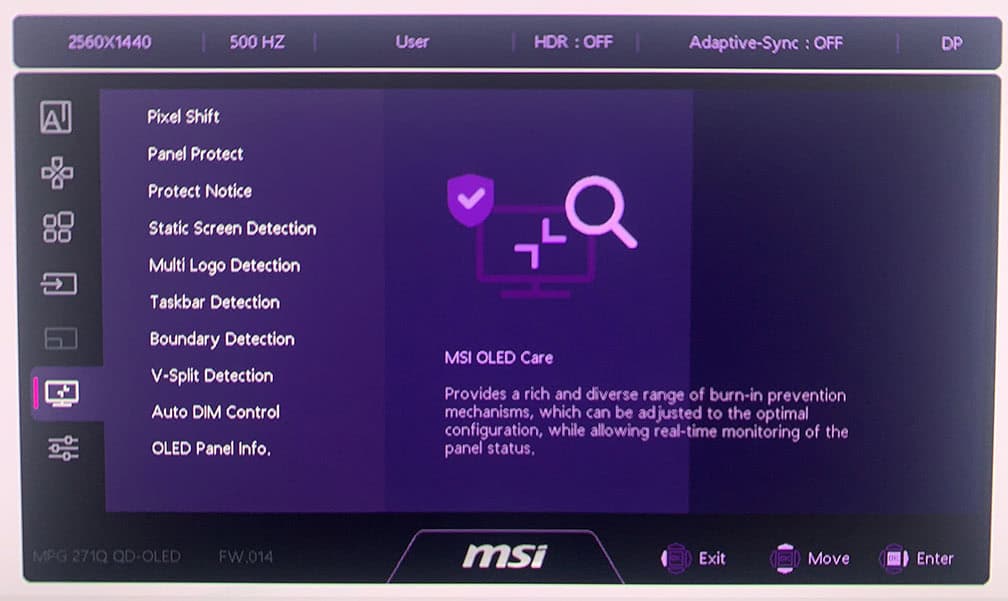
You’ll find the following OLED care features in the OSD menu:
- Pixel Shift – occasionally moves the entire image by a few pixels (three frequency levels available, cannot be disabled)
- Panel Protect – refreshes the pixels after 4 hours of cumulative use (takes around 9 minutes)
- Panel Notice – Auto or Usage 24 hrs, panel notice pops up after 4 hours of cumulative use or after 24 hours if set to ‘Usage 24 hrs’
- Static Screen Detection – lowers the brightness after detecting that a static image remains on the screen
- Multi Logo Detection – lowers the brightness of static elements
- Taskbar Detection – lowers the brightness of the taskbar area
- Boundary Detection – lower the brightness when letters, pillars, etc. are detected
- V-Split Detection – lower the brightness along vertical lines
- Auto DIM Control – gradually lowers the brightness when static images are detected
AI Sensor
The MSI MPG 271QR QD-OLED X50 also has an AI Sensor that can greatly help mitigate burn-in and image retention.
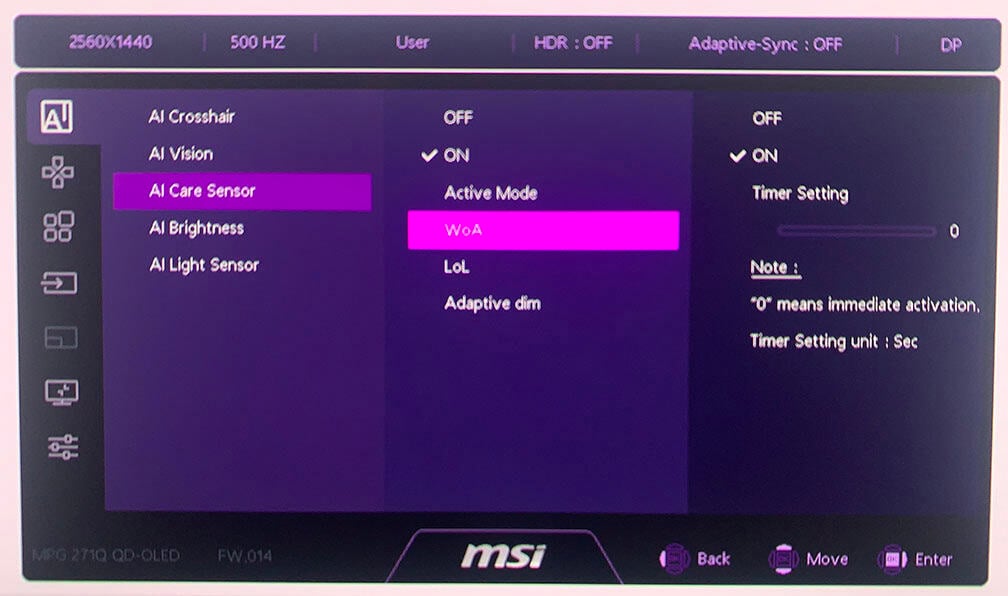
First, you’ll need to set the AI Care Sensor to ‘On’ and under the ‘Active Mode’ choose between ‘System’ or ‘Monitor’ mode. If you choose ‘System’, you’ll be able to adjust the sensor in Windows settings (requires Windows 11).
The Monitor Mode allows you to make all of the sensor adjustments in the OSD menu.
WoA (Wake on Approach) wakes the monitor when it detects a person in front of it (you can set it to immediately or after up to 30 seconds), while LoL (Lock on Leave) puts the monitor into standby when it no longer detects a person nearby (you can set the timer between 10 and 120 seconds).
The sensor can detect a user from up to 120cm and across a 75° wide area in front of the display.
There’s also the Adaptive Dim feature, which can dim the screen when it detects that the user has looked away.
The small CMOS camera sensor takes images every 0.2 seconds and processes them instantly on the monitor using an on-device AI chip. If privacy is a concern, you can rest easy knowing the images aren’t stored or uploaded anywhere.
Other AI Sensor settings include AI Brightness and AI Light Sensor, which can automatically adjust screen brightness and color temperature, respectively, according to ambient lighting.
Design & Connectivity
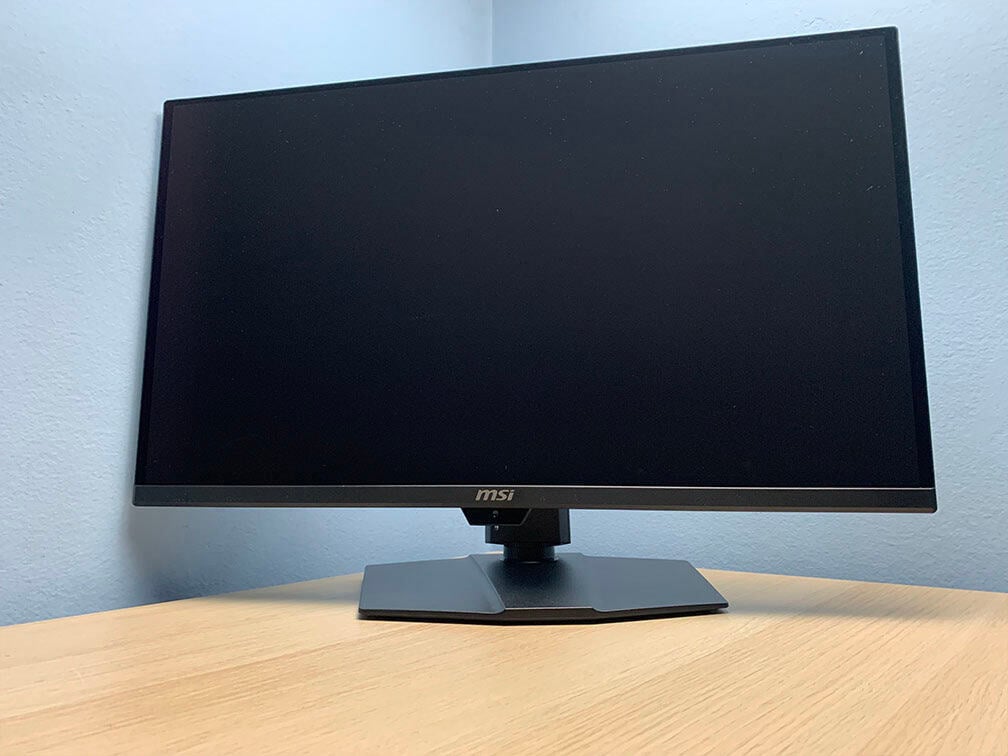
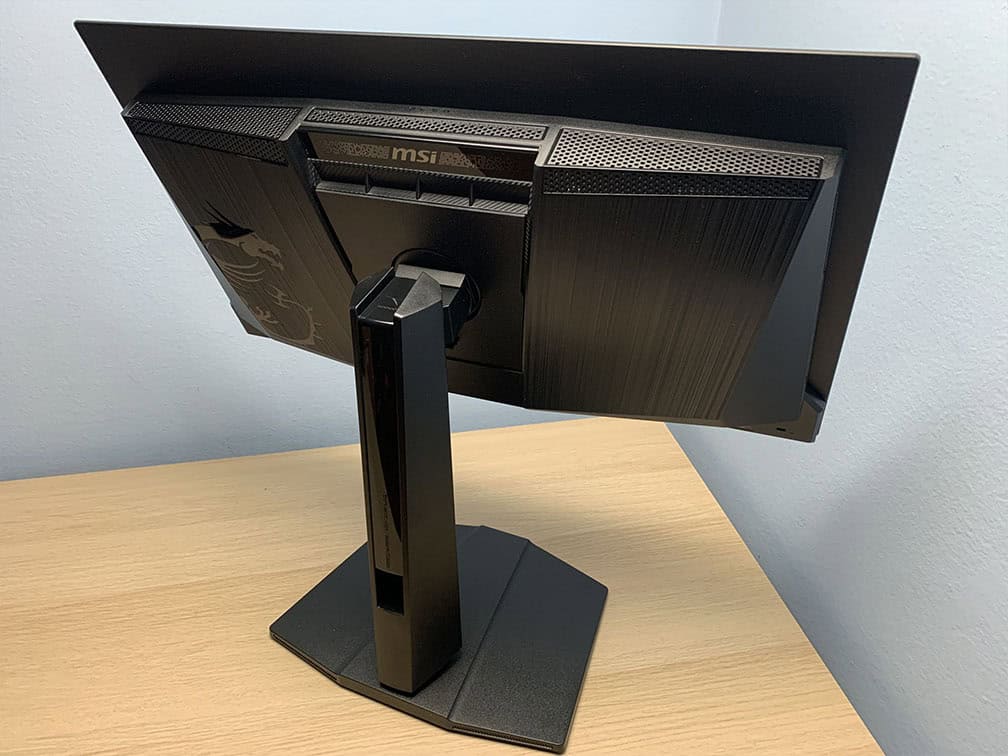
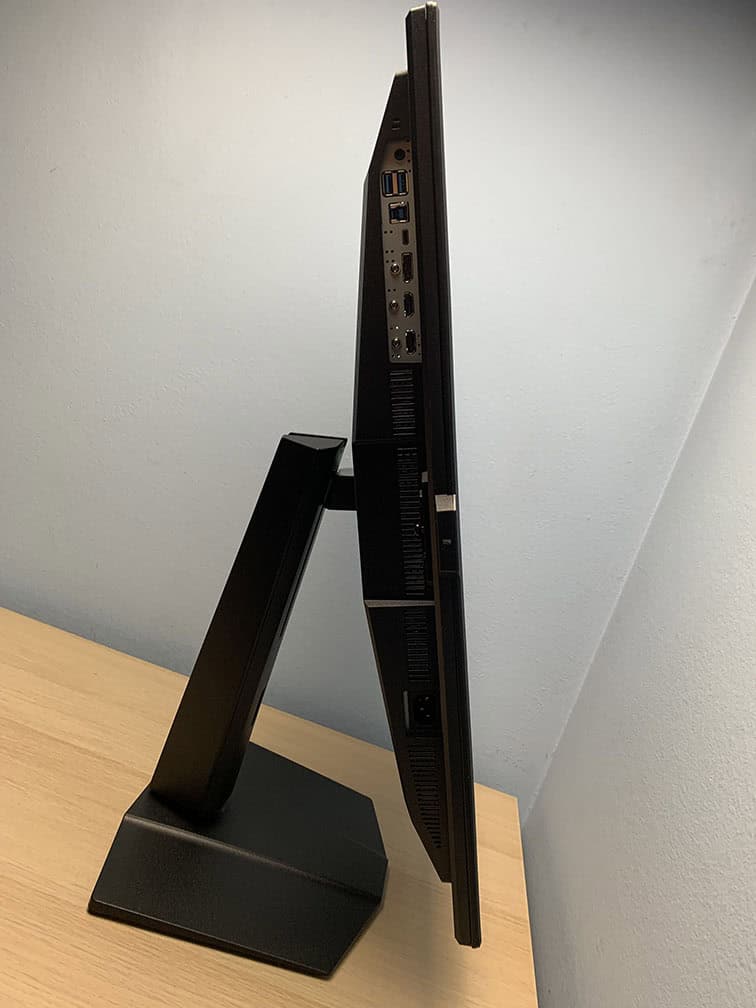
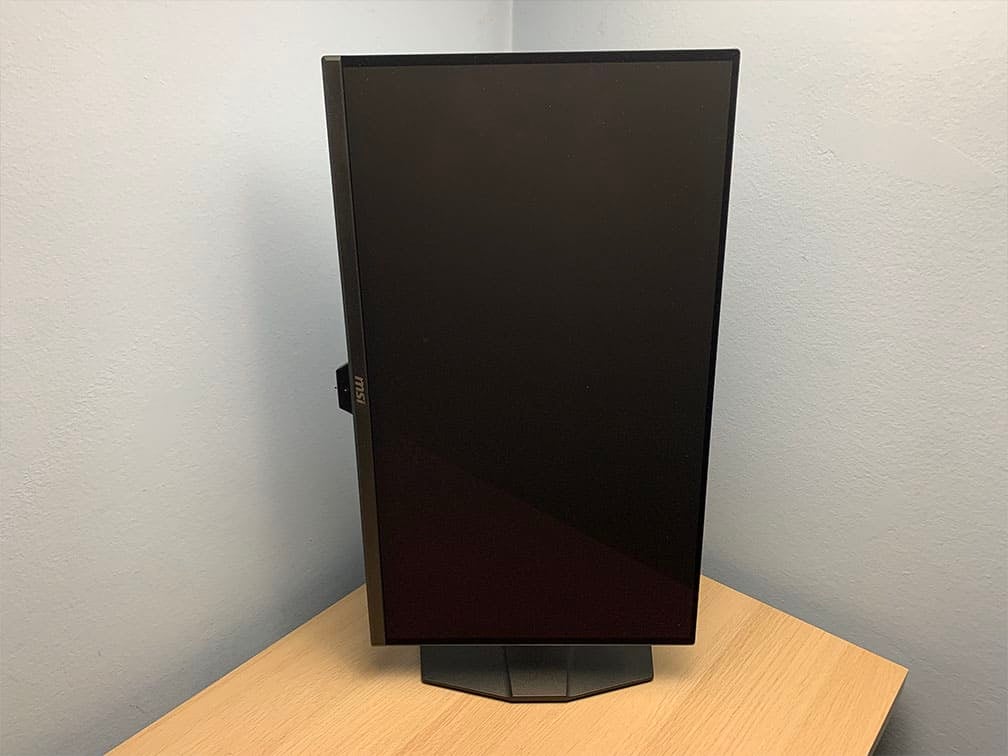
The MSI MPG 271QR QD-OLED X50 monitor has a robust design with a fully ergonomic stand, including -5°/20° tilt, +/- 30° swivel, +/- 90° pivot, up to 110mm height adjustment and 100x100mm VESA mount compatibility.
The display has ultra-thin 1mm bezels on the top and sides, but a thicker bottom bezel of around 14mm and a 12mm protruding chin that houses the sensor.
The monitor also has extra resolution for the Pixel Shift feature, so the image doesn’t clip.
There are black borders before the image starts, about 7mm on the sides, 4mm at the top and 1mm at the bottom.
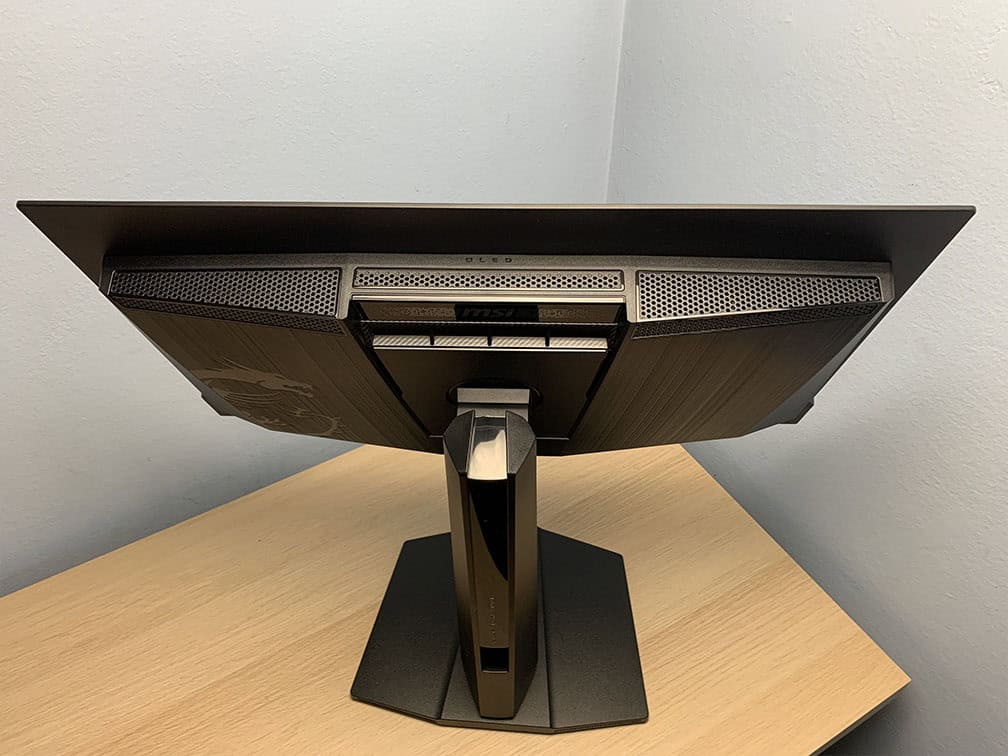
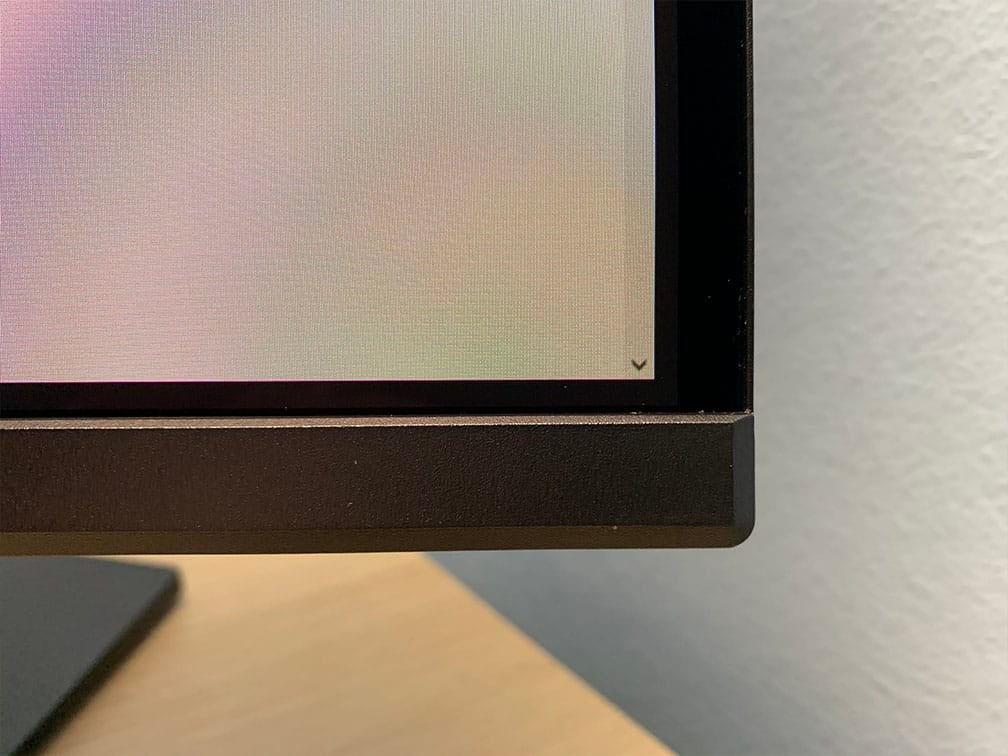
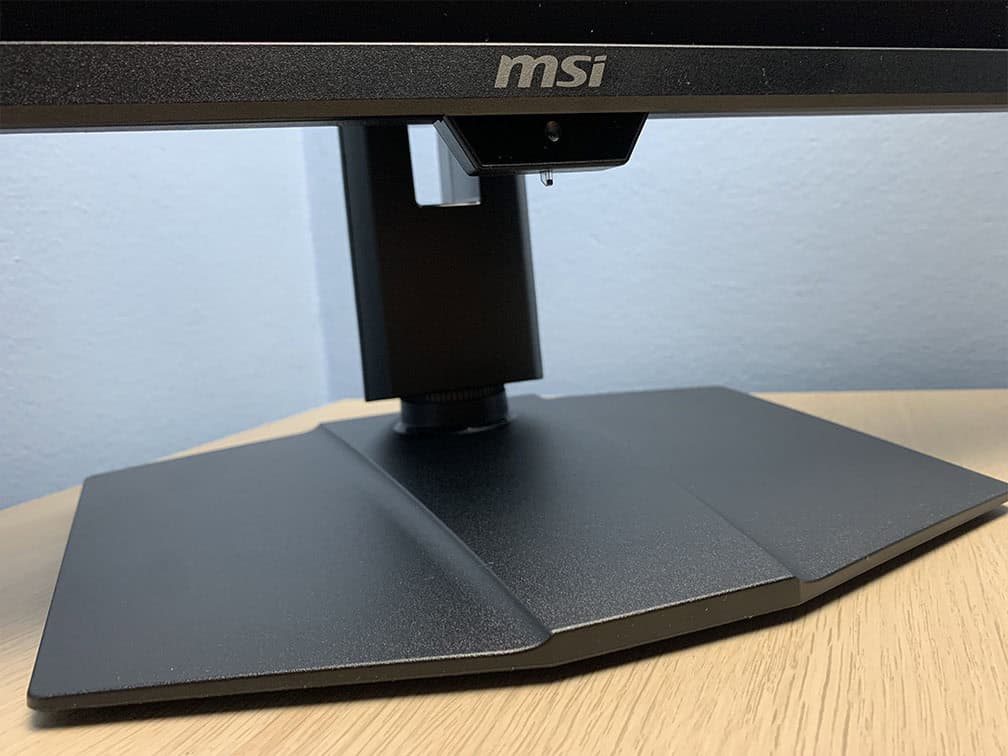
The overall design is matte and textured, with subtle glossy accents on the rear. The small strip with the MSI logo on the back also has customizable RGB lighting.
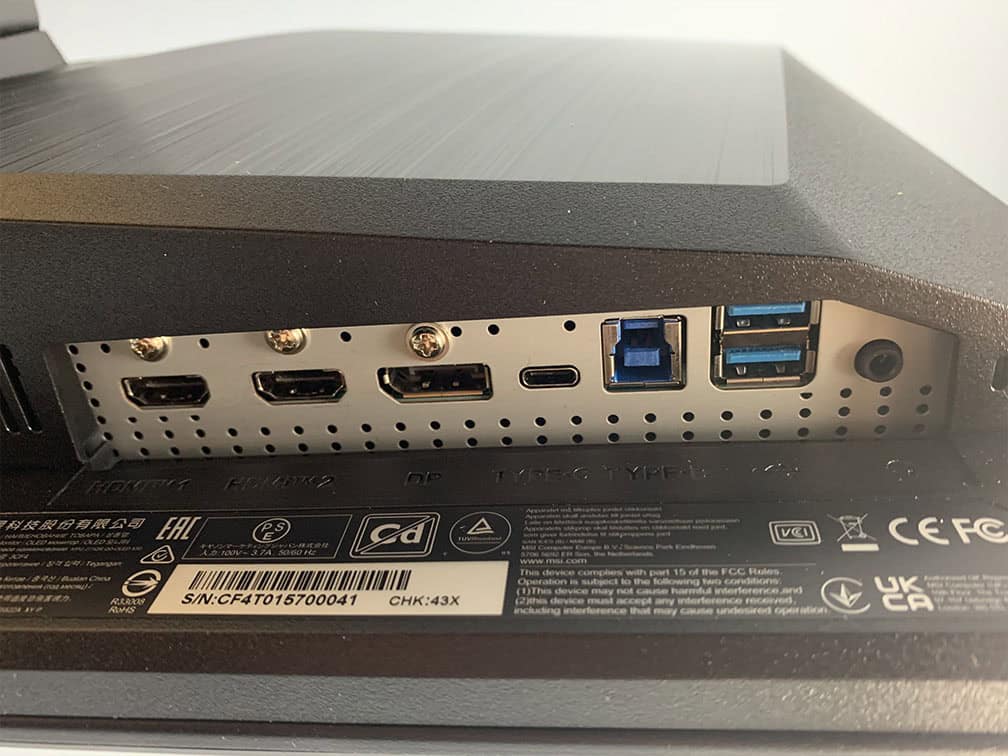
Connectivity options include two HDMI 2.1 ports with full 48 Gbps bandwidth, DisplayPort 2.1 with the highest UHBR20 transmission mode, a USB-C port with DP Alt Mode and up to 98W Power Delivery, a dual-USB 3.0 hub, KVM and a headphone jack. The screen has an integrated power supply.
If you have a DP 2.1 UHBR20 graphics card, you can get 1440p 500Hz 10-bit color without DSC (Display Stream Compression). For DP 1.4 or HDMI 2.1, DSC is required, though the compression is visually lossless.
The screen has a semi-glossy finish, which makes the image more vivid as there’s no graininess associated with matte anti-glare coatings.

However, the screen is more reflective, and without a polarizer, blacks appear raised under direct lighting. As long as no light is aimed directly at the screen, this isn’t an issue.


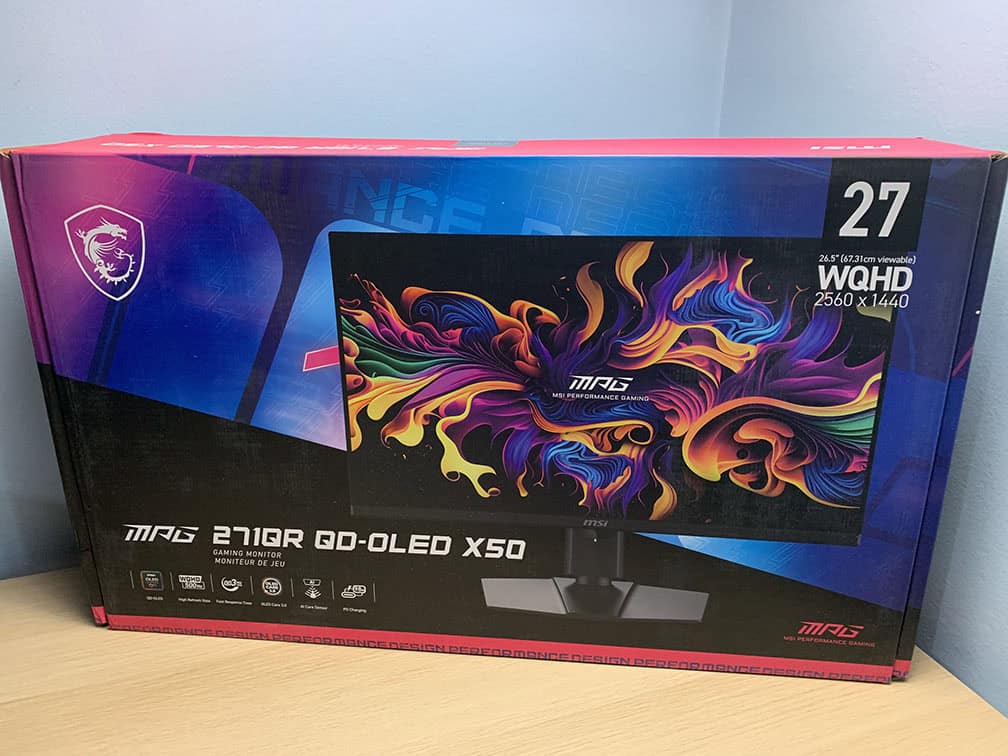
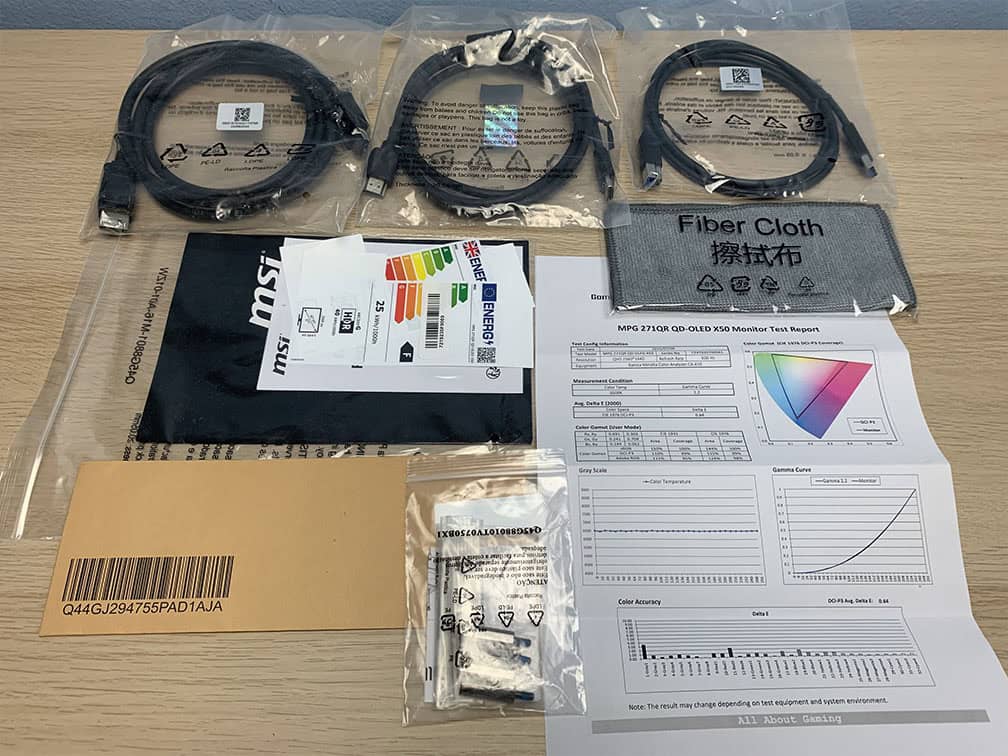
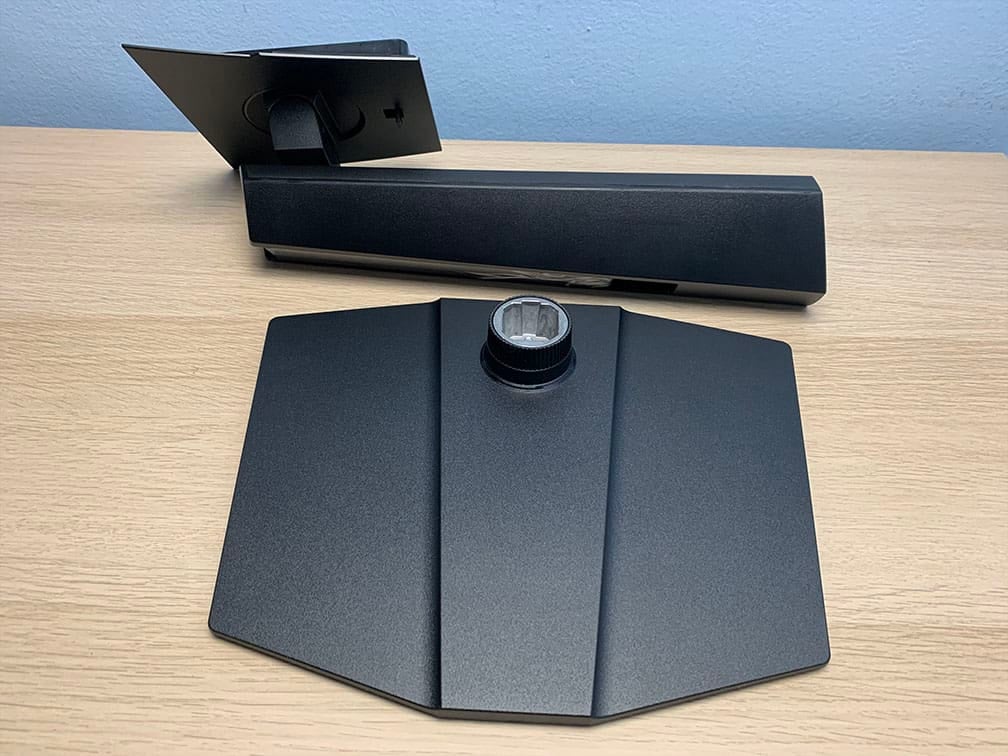
In the box, along with the monitor and its stand, you’ll get a DisplayPort 80 Gbps cable (UHBR20), an HDMI 48Gbps cable, a USB-A to USB-B 3.0 cable, a power cord, a fiber cloth, a quick start guide, VESA mounting spacers and a calibration report.
Price & Similar Monitors
The MSI MPG 271QR QD-OLED X50 is available for $768.49 – $800.
The MSI MAG 272QP QD-OLED X50 goes for $750 (was briefly on sale for $700), so you get a lot of extra features for $50 – $100, including USB-C with higher 98W Power Delivery, built-in KVM, DisplayPort 2.1 and the AI Care Sensor, among other things.
In our testing, the MAG 272QP was an average 2% brighter and had better SDR color accuracy out of the box, though the MPG 271QR had better SDR gamma calibration. These differences can be attributed to panel variance and the margin of error of our colorimeter.
More importantly, the MPG 271QR has notably better HDR saturation accuracy and EOTF tracking, especially with its EOTF Boost mode.
You also get a few extra features with the MPG 271QR, such as adjustable gamma and color temperature in all modes, a new OSD layout, the Gaming Intelligence app support, 500Hz in the 24.5″ Mode and the ambient light sensor.
There are two more 1440p 500Hz QD-OLED models currently available in the US.
The Samsung G60SF goes for $700, though it has a matte anti-glare coating that makes the image more grainy, and like with all QD-OLED panels, the lack of a polarizer means blacks can appear raised under direct lighting. It also lacks USB-C, KVM, DP 2.1 and a human detection sensor.
The ASUS ROG Strix OLED XG27AQDPG goes for $800 – $900 and has a human detection sensor, but lacks USB-C, KVM and DP 2.1.
Therefore, we find that the MSI MPG 271QR QD-OLED X50 offers the best value for the money.
Alternatively, you may be interested in one of the 27″ 1440p 540Hz W-OLED models with Tandem RGB technology and 720p 720Hz Dual Mode, such as the ASUS PG27AQWP-W and the LG 27GX790B.
However, unless you specifically need the 720p 720Hz mode, the QD-OLED models deliver better overall image quality thanks to their higher color luminance. That said, ASUS’ model features a superior glossy coating without raised black levels under direct lighting, while LG’s model uses a more typical matte anti-glare coating, which better diffuses reflections but adds some graininess.
These are also not yet available in the US and will likely be more expensive, with ASUS’ model being priced at $1,100.
For more information about the best and upcoming OLED monitors, check out our dedicated OLED Monitors article.
Around this price range, you can also get a 27″ or 32″ 4K 240Hz OLED display (though with DisplayHDR True Black 400). If you don’t need a high 500Hz refresh rate, the 240Hz – 360Hz True Black 400 models can be found for around $450 – $600.
Another popular, more budget-friendly OLED display is the Gigabyte MO27Q28G with a 27″ 1440p 280Hz Tandem RGB W-OLED panel, matte anti-glare coating, True Black 500 and KVM for $600.
For more HDR monitors, including the best mini LED options, check out our best HDR monitors buyer’s guide.
Conclusion
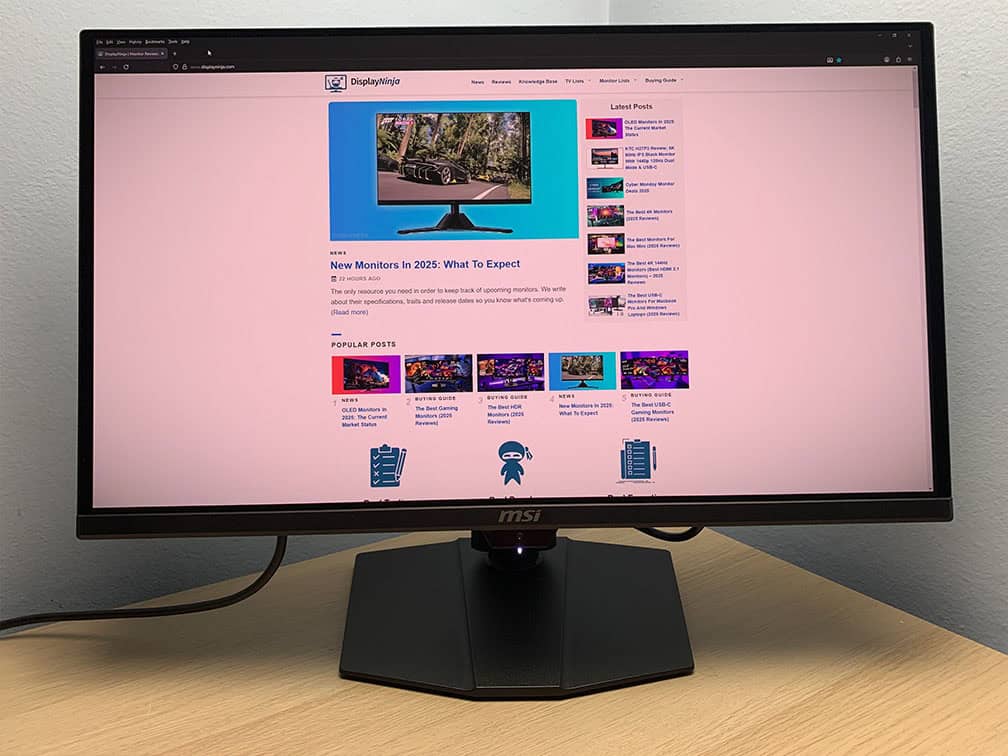
Overall, the MSI MPG 271QR QD-OLED X50 is an exceptional gaming monitor.
The only real drawbacks are those common to all OLED panels, such as VRR brightness flickering in certain scenes. We’d like to see MSI address this as well, perhaps with a VRR range-limiting feature, although this can be done manually using CRU anyway. That said, screen tearing is practically unnoticeable at 500Hz, so you can simply disable VRR in games where it becomes an issue.
The semi-glossy finish of QD-OLED panels means you need to be mindful of your room lighting. While this isn’t ideal, it’s manageable for most users.
It would also be nice if console gamers could take advantage of MPRT at 120Hz, as MSI’s current implementation only allows it to be enabled at 240Hz or higher.
And of course, OLED displays still carry the risk of burn-in and generally offer lower brightness compared to mini LED displays. However, if you choose a mini LED alternative, you’ll have to contend with FALD blooming and other drawbacks inherent to LED-backlit IPS or VA panels.
While still not perfect, the monitor’s EOTF Boost mode provides the best HDR viewing experience we’ve seen so far on any QD-OLED panel!
Additionally, its rapid 500 Hz refresh rate, along with low latency, VRR support, and an optional BFI feature, delivers buttery-smooth gameplay.
The AI Care Sensor makes the risk of burn-in less worrying by seamlessly turning off the display when unused and instantly waking it when you come near. Combined with MSI’s other burn-in prevention features and a 3-year warranty, this makes burn-in far less of a concern.
On top of that, you get a versatile design with extensive connectivity options, including DP 2.1 with UHBR20, USB-C with 98W PD, and built-in KVM, as well as plenty of additional features – all at an attractive price!
Specifications
| Screen Size | 26.5-inch |
| Resolution | 2560×1440 (WQHD) |
| Panel Type | QD-OLED |
| Aspect Ratio | 16:9 (Widescreen) |
| Refresh Rate | 500Hz |
| Response Time | 0.03ms (GtG) |
| Motion Blur Reduction | BFI |
| Adaptive-Sync | FreeSync Premium, HDMI 2.1 VRR, G-SYNC Compatible (60-500Hz) |
| Ports | DisplayPort 2.1 (UHBR20), 2x HDMI 2.1, USB-C (DP Alt Mode, 98W PD) |
| Other Ports | Headphone Jack, 2x USB-A 3.0, USB-B |
| Brightness (1 – 3% White Window) | 1000 cd/m² |
| Brightness (10% White Window) | 500 cd/m² |
| Brightness (100% White Window) | 300 cd/m² |
| Contrast Ratio | Infinite |
| Colors | 1.07 billion (true 10-bit) 99.3% DCI-P3 |
| HDR | VESA DisplayHDR True Black 500 |
| VESA | Yes (100x100mm) |
The Pros:
- Instantaneous pixel response time, low input lag, VRR up to 500Hz, BFI up to 250FPS
- Infinite contrast ratio, exceptional color gamut, accurate sRGB mode
- Noticeable brightness improvements over previous-gen True Black 400 panels
- Plenty of useful features, including an AI Care Sensor
- Fully ergonomic design and rich connectivity options, including DP 2.1, USB-C 98W PD, KVM
- 3-year warranty that covers burn-in
The Cons:
- Risk of burn-in
- Glossy screen surface causes mirror-like reflections (but makes the image more vivid)
- VRR brightness flickering in some games (expected on OLED and VA panels)


