Bottom Line
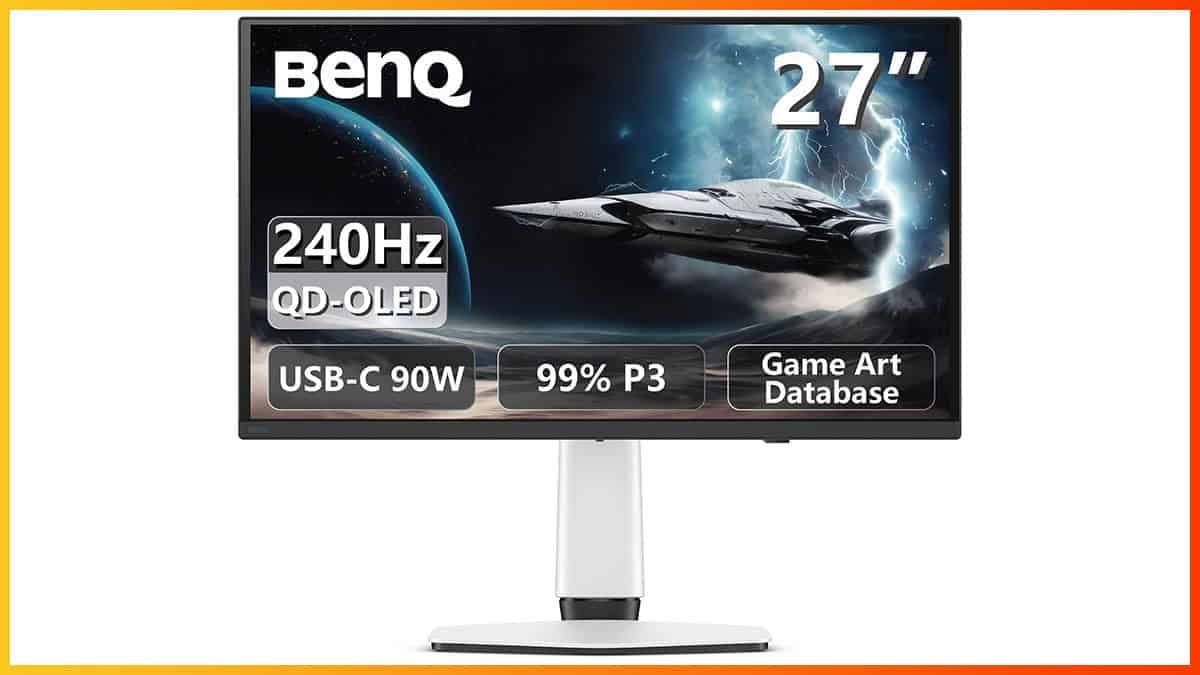
The BenQ EX271UZ is a 27″ 4K 240Hz QD-OLED gaming monitor with a premium design, USB-C (90W PD), a built-in KVM switch, BFI support, and a remote controller. Unfortunately, it lacks a traditional Peak 1000 nits mode, forcing you to choose between the more accurate (but dimmer) DisplayHDR True Black 400 mode and the brighter genre-specific presets, such as Sci-fi or Fantasy, which sacrifice accuracy for a more ‘stylized’ image.
The BenQ EX271UZ is based on Samsung’s 27″ 4K 240Hz QD-OLED panel and offers several exclusive features, including a remote control, USB-C with 90W Power Delivery, a built-in KVM switch and custom color profiles with genre- and game-specific image presets that attempt to enhance the look and feel of different games.
Let’s see how it handles our tests.
Image Quality
OLED displays deliver exceptional image quality, with infinite contrast and per-pixel dimming that produce true blacks without the blooming artifacts often seen with mini LED backlights.
They also offer excellent brightness for impactful highlights, rich and vibrant colors with 99.3% DCI-P3 coverage, true 10-bit color depth for smooth gradients, and wide 178° viewing angles that maintain excellent image consistency from virtually any position.
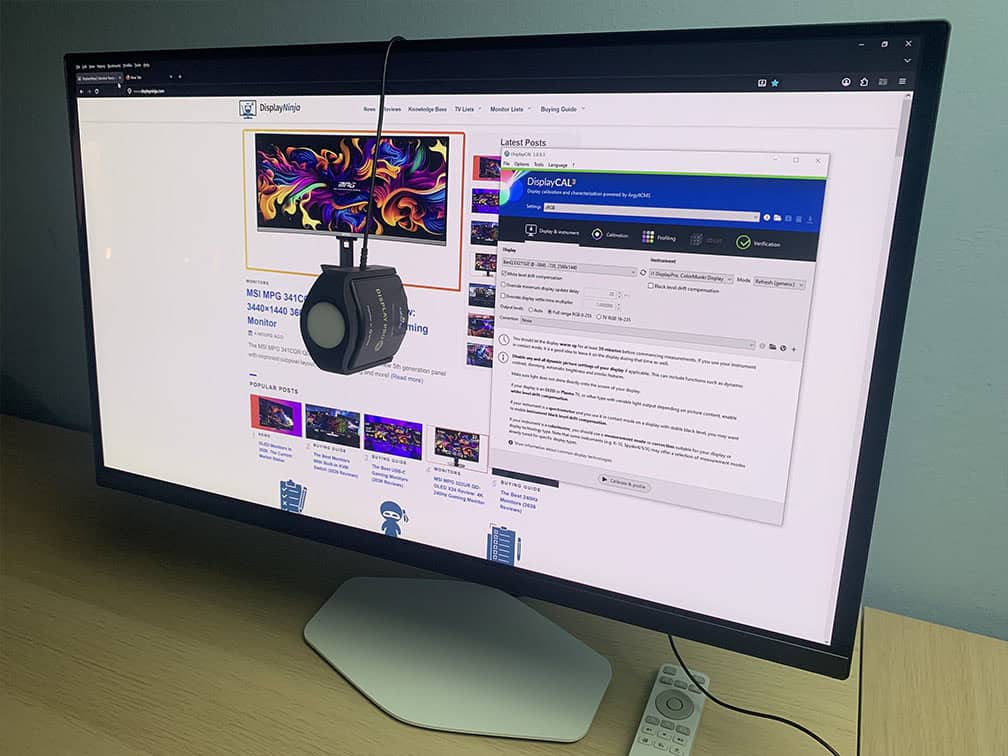
The monitor uses Samsung’s QD-OLED panel with VESA DisplayHDR True Black 400 certification, a square-shaped triangular RGB subpixel layout and the older semi-glossy coating.
| Size & Resolution | Refresh Rate(s) | Subpixel Layout | True Black | Peak Brightness (3% APL) | Coating |
| 34” 3440×1440 | 165Hz, 175Hz, 240Hz | Diamond-shaped | 400 | 1000 | Old |
| 49” 5120×1440 | 144Hz, 240Hz | Square-shaped | 400 | 1000 | Old |
| 27” 2560×1440 | 240Hz, 280Hz, 360Hz | Square-shaped | 400 | 1000 | Old |
| 27” 2560×1440 Edge | 240Hz, 180Hz | Square-shaped | 400 | 400 | Old |
| 27” 3840×2160 | 120Hz, 240Hz | Square-shaped | 400 | 1000 | Old |
| 32” 3840×2160 | 165Hz, 240Hz | Square-shaped | 400 | 1000 | Old |
| 32” 3840×2160 Edge | 180Hz | Square-shaped | 400 | 400 | Old |
| 27” 2560×1440 | 500Hz | Square-shaped | 500 | 1000 | Old |
| 32” 3840×2160 | 240Hz | Square-shaped | 500 | 1000 | New |
| 27” 2560×1440 | 320Hz | Square-shaped | 500 | 1300 | New |
| 27” 2560×1440 | 400Hz | RGB Stripe | 500 | ? | New |
| 34” 3440×1440 | 280Hz, 360Hz | RGB Stripe | 500 | 1300 | New |
| 49” 5120×1440 | 360Hz | RGB Stripe | 500 | 1300 | New |
| 32” 3840×2160 | 360Hz (1080p 680Hz, 1440p 520Hz) | RGB Stripe | 600 | 1500 | New |
| 24.5” 1920×1080 | 360Hz, 560Hz | RGB Stripe | 600 | 1800 | Anti-glare |
For our testing, we’re using the Calibrite Display Pro HL colorimeter paired with DisplayCAL and HCFR software. Note that our tests were done using the V022 monitor firmware version.
Scenarios & Color Modes
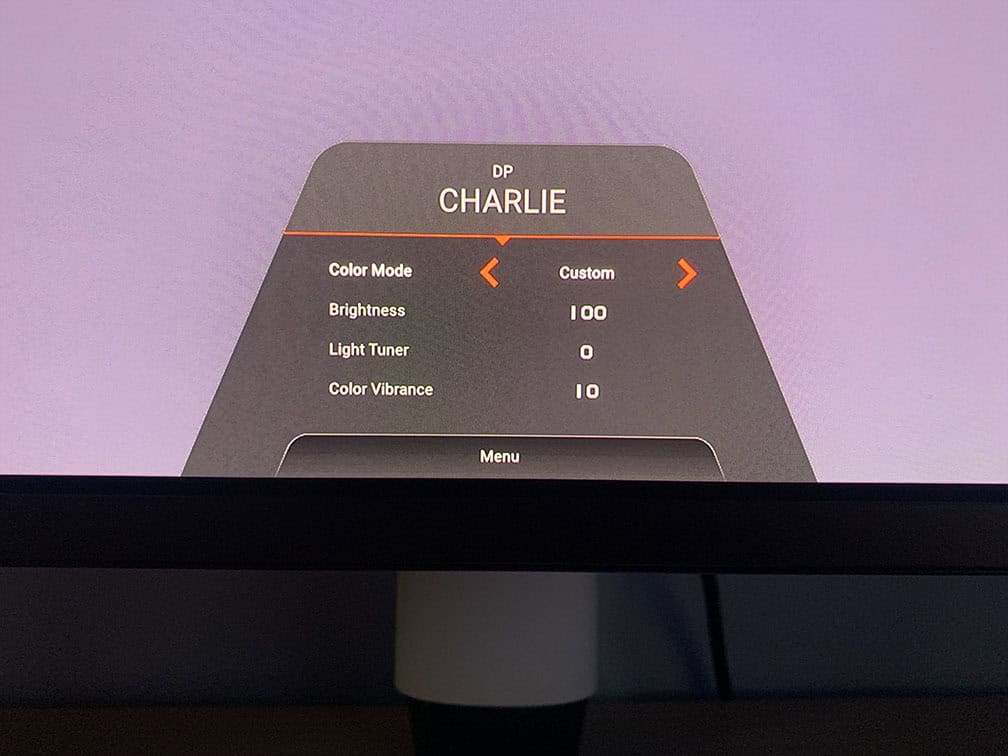
There are five ‘quick menu’ modes: Alpha, Bravo, Charlie, Delta and Echo.
These aren’t picture presets, but five customizable scenarios that let you assign up to three shortcuts (such as brightness, contrast, Color Vibrance) along with any Color Mode for quick switching. You can also link each scenario to a specific input source.
The Color Modes are traditional picture presets and include: Sci-fi, Realistic, Fantasy, Cinema, Display P3, sRGB, Custom, Gamer 1, Gamer 2, Gamer 3 and Display HDR (for HDR signal only).
Gamer 1 to 3 presets are the same as Sci-fi, Realistic and Fantasy, respectively, and you can assign customized settings to them.
You can also use the Color Shuttle desktop application to download and apply custom color modes to Gamer 1 to 3 presets made by game developers, BenQ color experts and content creators.
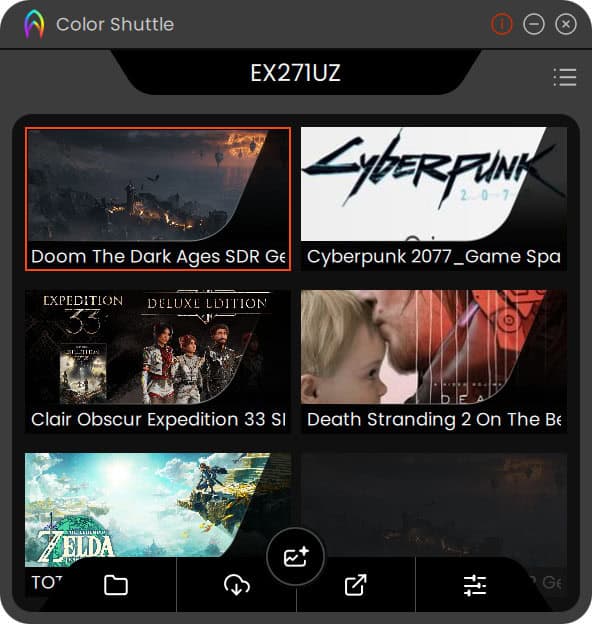
If you care about image accuracy and preserving the creators’ intent, these features may feel gimmicky and not particularly useful. However, if you enjoy tweaking image settings and experimenting with post-processing injectors like ReShade, they can be a nice addition.
We’ll get back to these color modes under the ‘Features’ section of the review. Now, let’s see how the BenQ Mobiuz EX271UZ fares in our image accuracy tests.
Color Gamut
We measured an impressive 163.4% sRGB color gamut volume with 99.4% sRGB, 95.5% DCI-P3 and 96.2% Adobe RGB color space coverage.
As expected from a QD-OLED panel, the colors are punchy and vibrant.
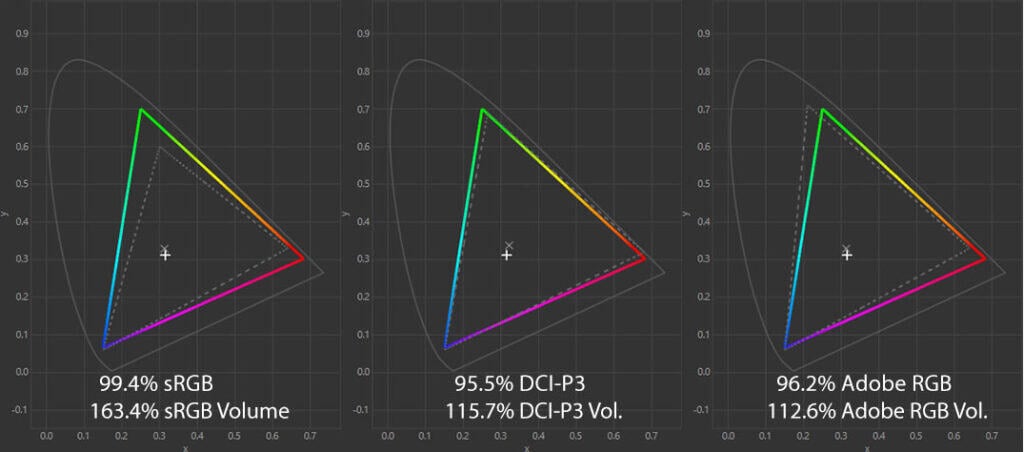
The DCI-P3 coverage here is a tad lower than the specified 99.3% DCI-P3 for QD-OLED panels, which is a result of different colorimeters and testing methods.
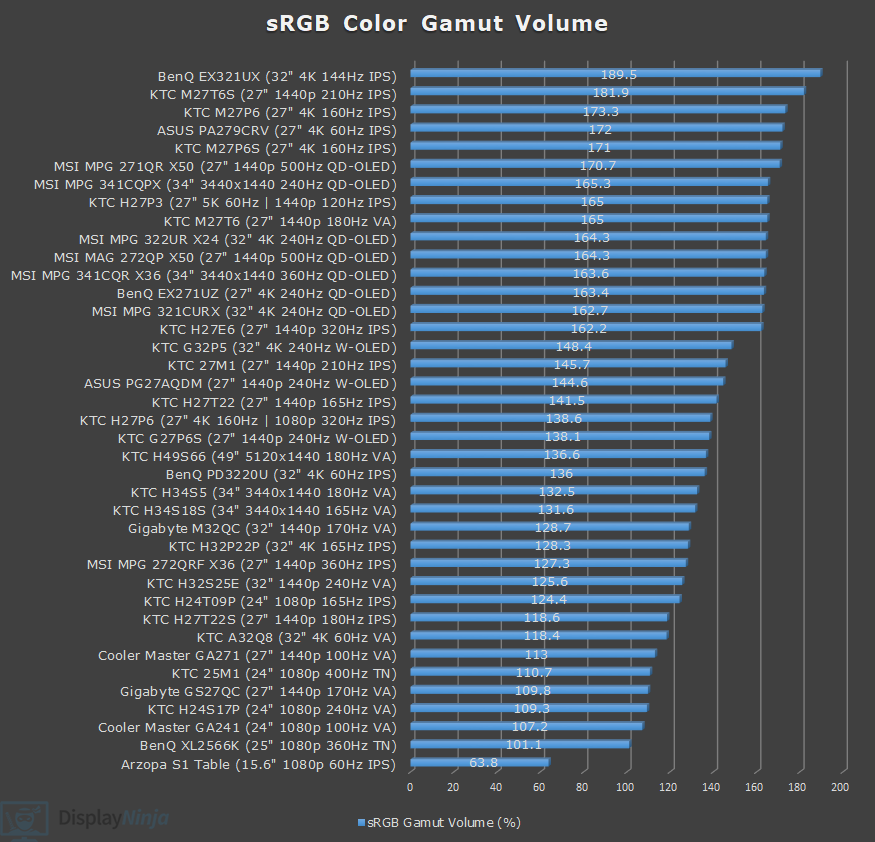
Image Accuracy
As Windows doesn’t do color management by default, the colors will be oversaturated when viewing SDR content out of the box in the ‘Fantasy’ mode, with a Delta E of 4.2 average (color deviation from the target, less than 1.5 is considered good) and 7.7 maximum (target is less than 3).
Selecting the ‘sRGB’ option under ‘Mode’ in the OSD (On-Screen Display) menu will clamp the color gamut from 163.4% volume down to 90.9% with 90.4% sRGB color space coverage. This is a bit more aggressive than we’d like to see (we generally prefer at least 95% coverage), but it’s still decent.
This results in a more accurate Delta E of 1.87 average and 3.02 maximum.
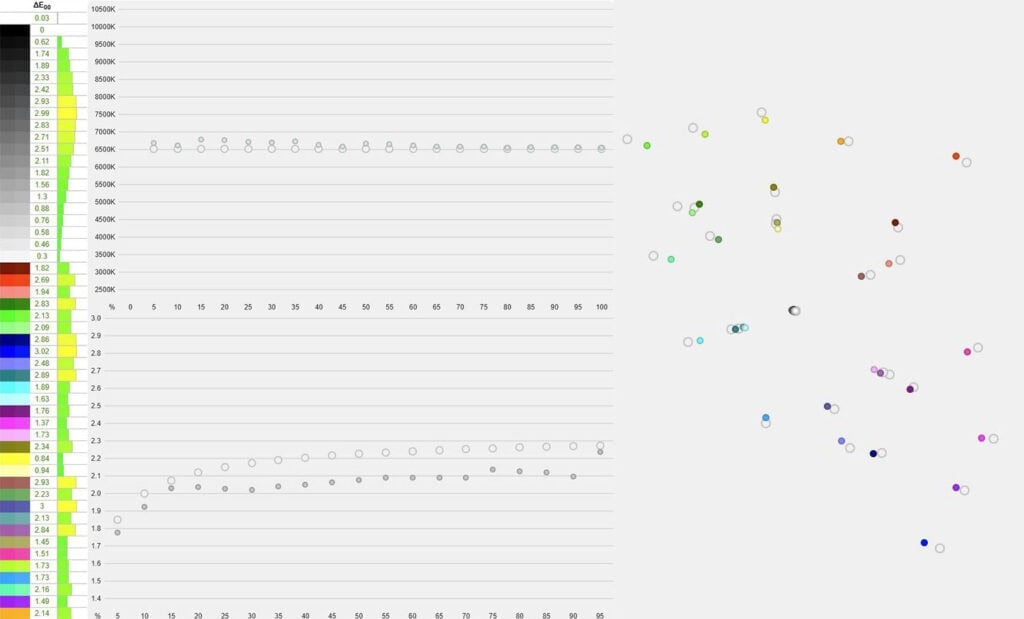
Gamma tracking is also mediocre with a 2.06 average (target is 2.2), making the image a bit brighter than intended. It’s still an improvement over the other color modes with gamma values all over the place. The default Fantasy mode, for instance, has an average gamma of 2.41.
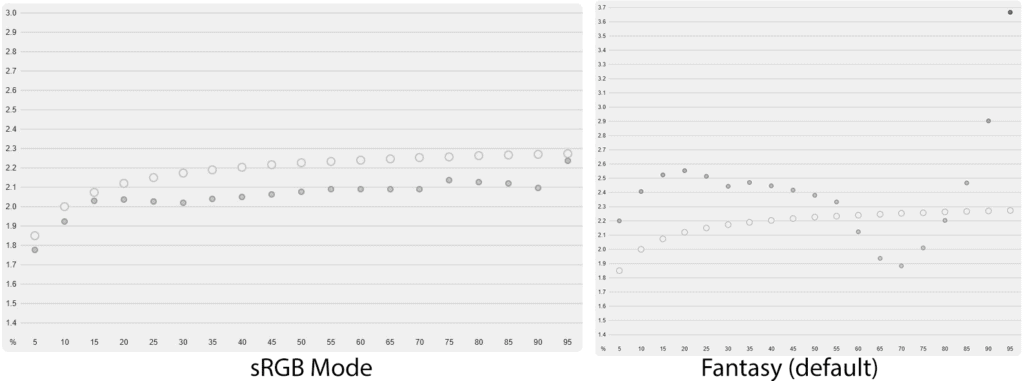
The color temperature in the sRGB mode is very good at 6539K (target is 6500K), meaning that there’s no noticeable color tinting to whitepoint.
We would’ve liked to see a color mode that has a full color gamut of the display with regular gamma, as all color modes except sRGB and Display P3 have wacky gamma that’s supposed to make objects in shadows more visible or enhance the perceived contrast.
If you want a bit of extra color saturation, you can use the Display P3 mode, which has decent accuracy with an average Delta E of 1.82 and maximum Delta E of 3.05 (compared to the Display P3 standard), the same gamma tracking and an accurate 6538K whitepoint. This is also the most accurate mode to use on macOS.
While you can adjust brightness, contrast and sharpness in sRGB and Display P3 modes, you cannot change gamma or color temperature.
When you enable HDR in Windows settings, the monitor will be mapped to the sRGB color space when viewing SDR content, with an average Delta E of 2.11, a maximum of 4.13, similar gamma tracking as with sRGB and Display P3 modes (2.04 average) and accurate 6518K color temperature.
Calibration
For full calibration, we set the brightness to 46/100 to get around 120-nits and used the ‘Custom’ color temperature mode with red, green and blue channels set to 96, 96 and 100, respectively, for 6402K.
We got a low Delta E of 0.92 average and a bit higher 3.62 maximum, and 2.2 average gamma with proper sRGB tone curve tracking.
You can download our ICC profile here.
Brightness & Contrast
Because each pixel on an OLED display can turn off completely, it delivers true blacks and an effectively infinite contrast ratio, without the blooming artifacts often associated with mini LED full-array local dimming (FALD) displays.
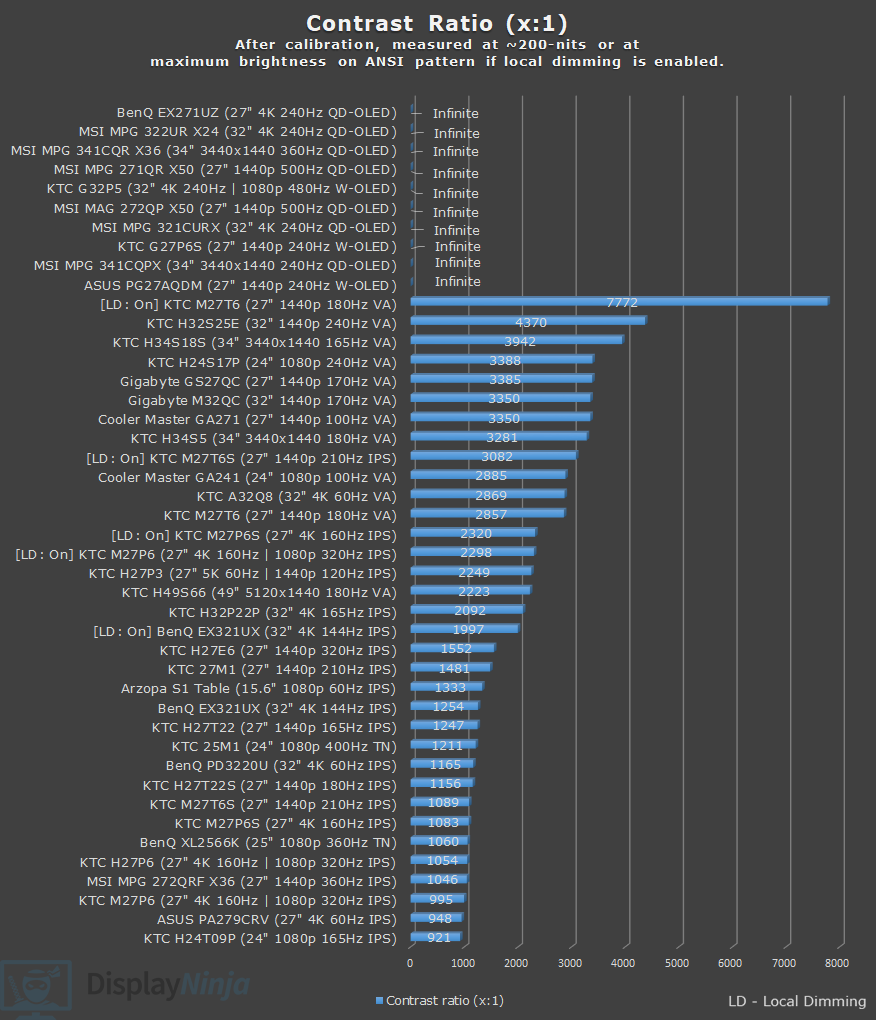
In SDR mode, the maximum brightness reaches a consistent 251-nits. There’s no ABL (Automatic Brightness Limiter) in SDR mode, meaning the brightness doesn’t change based on how many bright elements are on the screen, which is a behavior most users prefer.
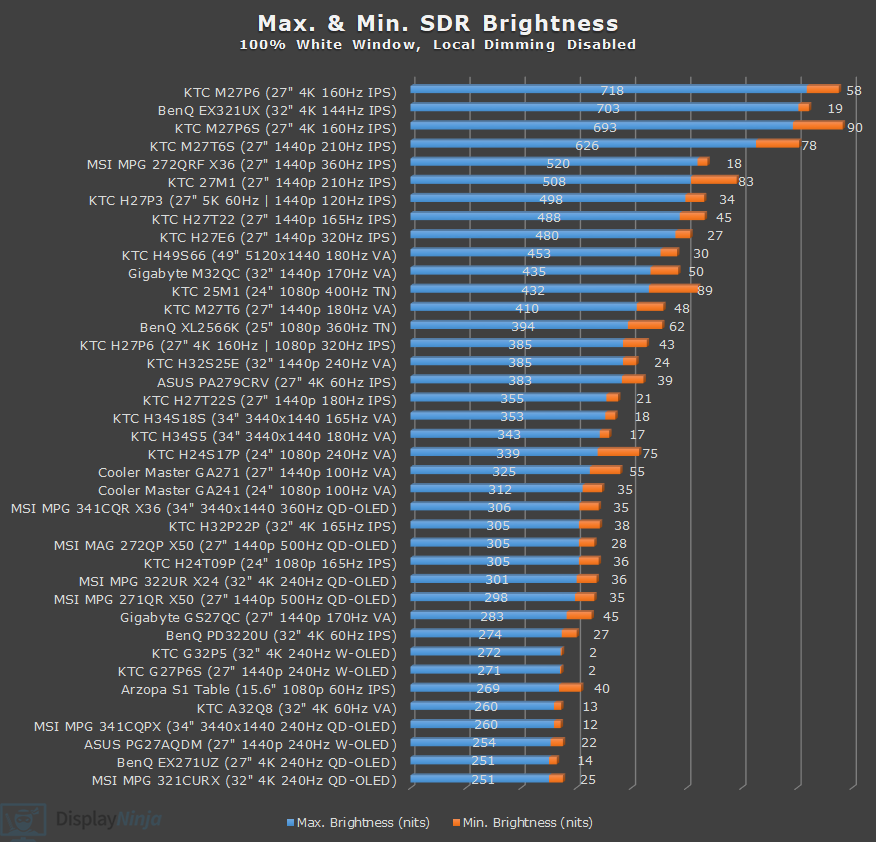
The minimum brightness is 14-nits, making the monitor suitable for use in both dark and bright rooms.
Subpixel Layout & Pixel Density
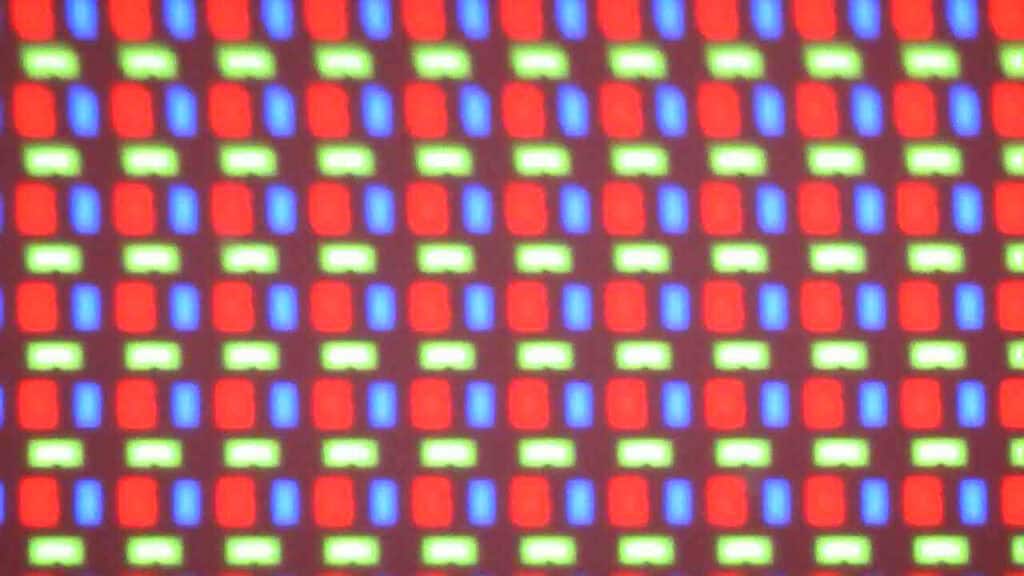
The BenQ EX271UZ has the old square-shaped triangular RGB subpixel layout, but thanks to its high pixel density of 166 PPI (pixels per inch), fringing on small text and fine details isn’t noticeable in everyday use. You may be able to spot some very thin green and magenta fringing on fine lines, but it’s completely negligible.
Below is a microscope photo of the text rendering. As you can see, there is fringing, but it isn’t noticeable at a normal viewing distance.


You may be able to notice some green fringing on top of fine lines and magenta tinting on the bottom, but during regular usage and at a normal viewing distance, text fringing is not an issue thanks to the monitor’s high pixel density.
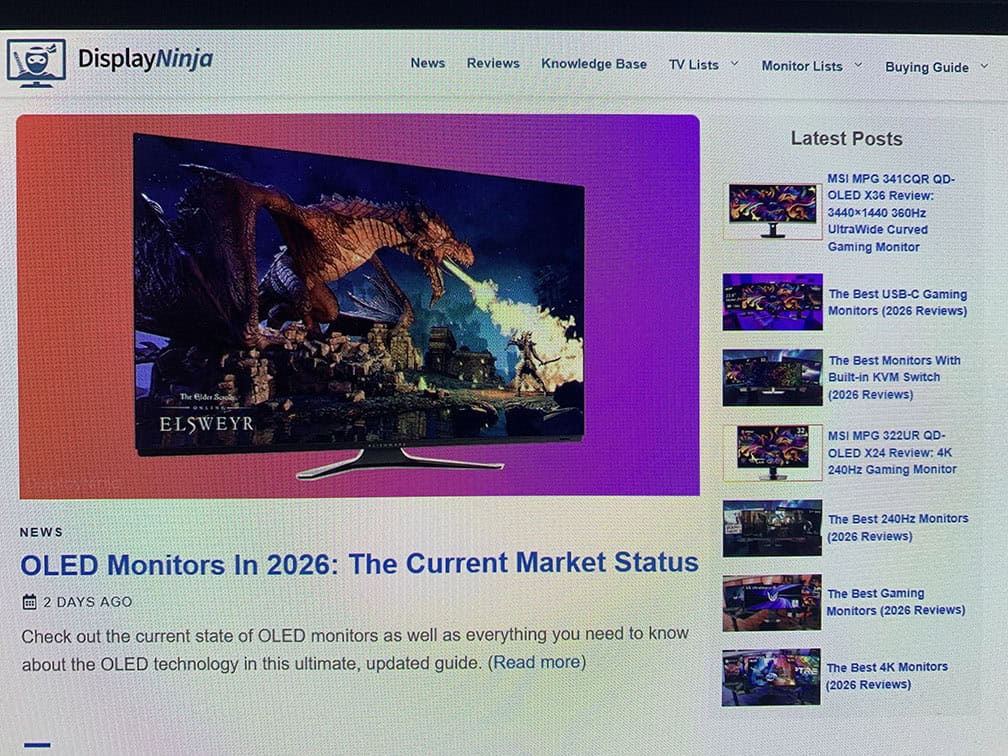
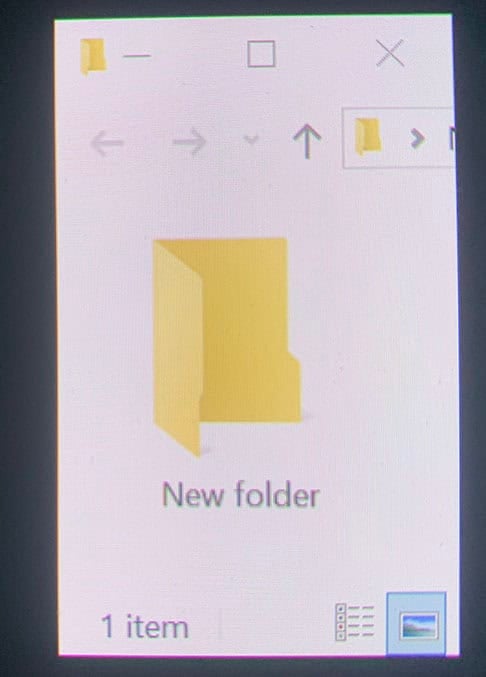
The 4K UHD resolution provides you with crystal-clear text and details, with plenty of screen real estate available. You may prefer to use scaling, which will make small text larger and easier to read, but you will have less screen space.

While 4K is quite demanding on the GPU, thanks to upscaling technologies such as FSR and DLSS, gaming at 4K is feasible nowadays even with mid-range graphics cards.
HDR
The BenQ EX271UZ has six HDR modes: Sci-fi, Realistic, Fantasy, Cinema, DisplayHDR and Smart Game Art.
Modes other than DisplayHDR and Cinema have less coverage of the DCI-P3 color space and specific Light Tuner and sharpness settings that can cause the image to have banding and other artifacts. So, if you care about accuracy, DisplayHDR is the best mode to use.
Brightness & EOTF Tracking
The DisplayHDR mode has the typical ‘True Black 400’ behavior seen on all QD-OLED panels. It’s accurate, but caps the brightness to around 450-nits.
The other modes can reach up to 885-nits, a bit shy of the expected 1,000-nits, but as previously mentioned, they make the image inaccurate, so we find that most users won’t be using them.
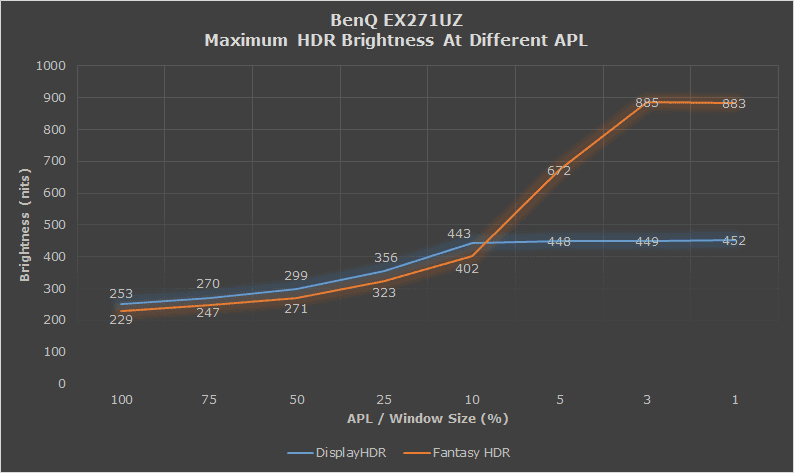
Sadly, this means that there’s no traditional ‘Peak 1000 nits’ HDR mode that can reach 1,000-nits for small APLs while being accurate, with the usual Samsung QD-OLED panel dimming caveat.
Here’s how the monitor’s Fantasy HDR mode compares to the Peak 1000 nits mode of the MSI MPG 321CURX with the same True Black 400 panel. Overall, the 321CURX is on average 12% brighter in the Peak 1000 nits mode, and around 5% brighter in its DisplayHDR True Black 400 mode.
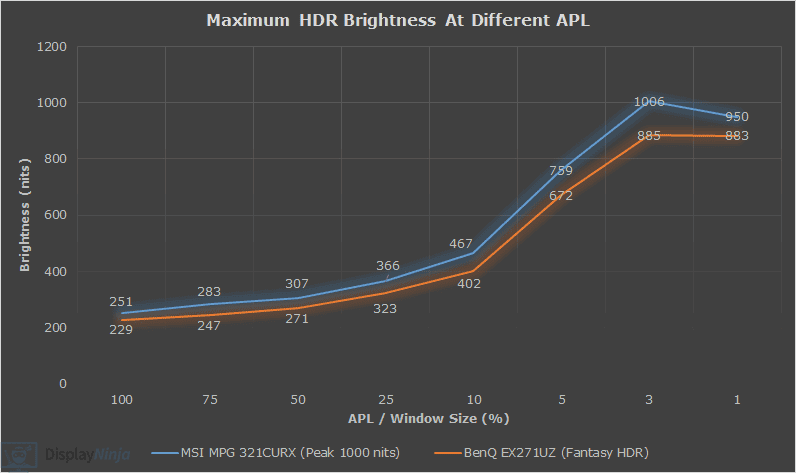
Another letdown is that there’s no attempt to circumvent this panel dimming via a mode similar to MSI’s EOTF Boost, Gigabyte’s HyperNits or ASUS’ Dynamic Brightness Boost.
Here’s the EOTF tracking of the DisplayHDR mode.
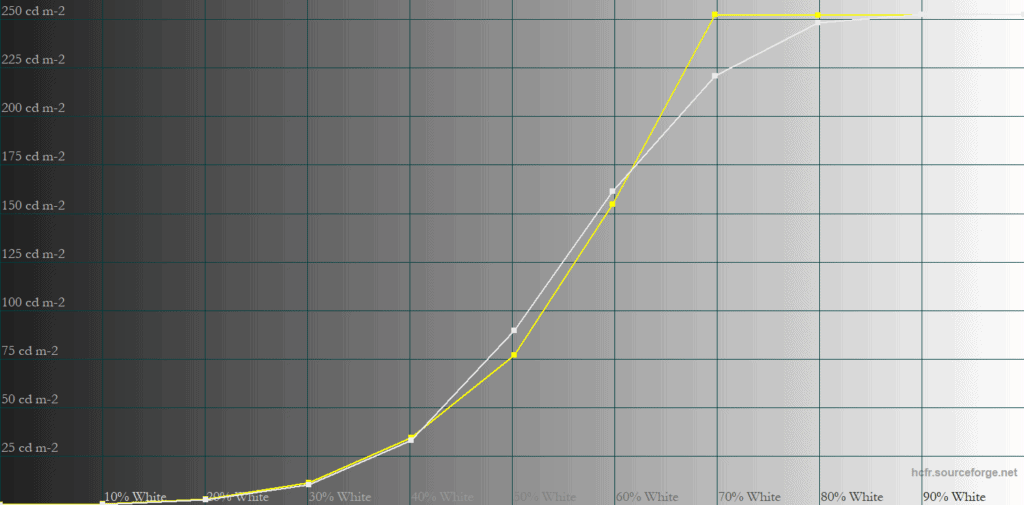
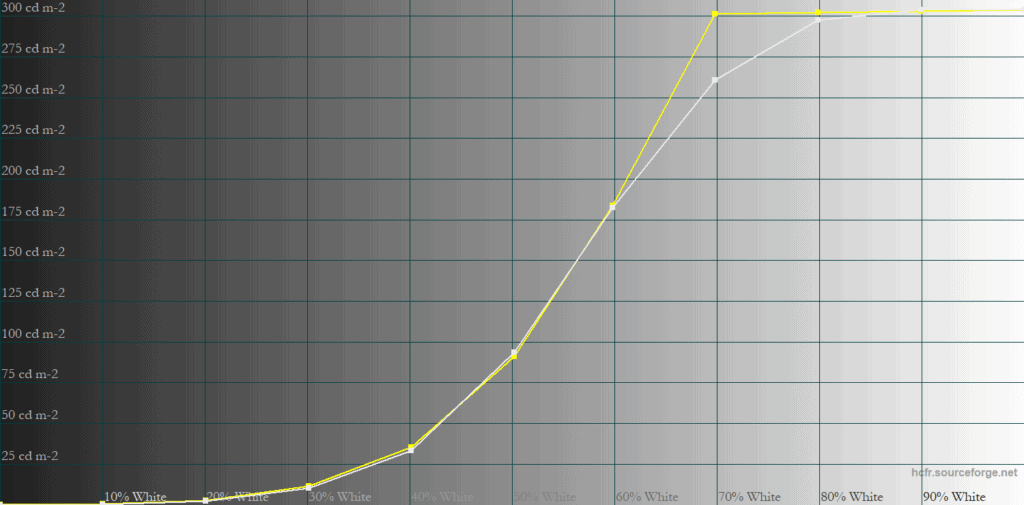
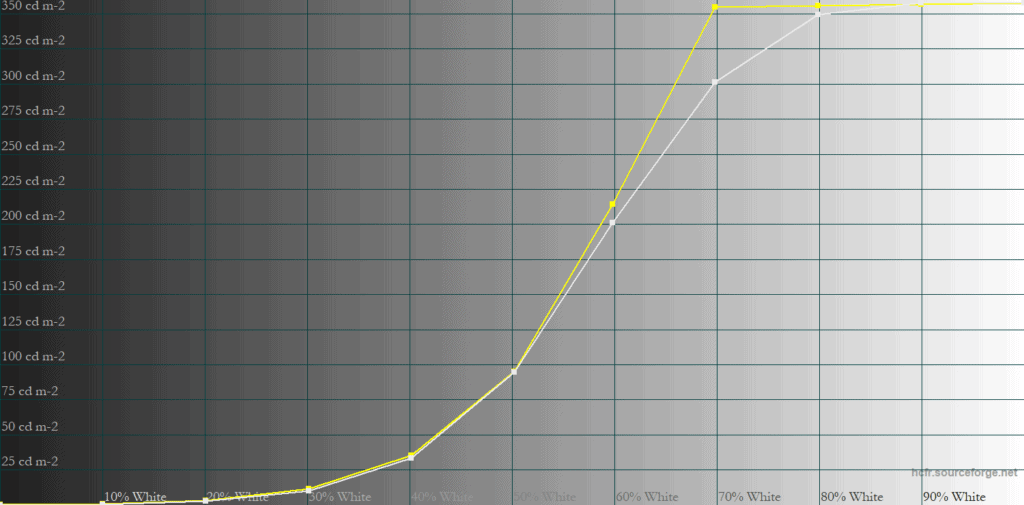
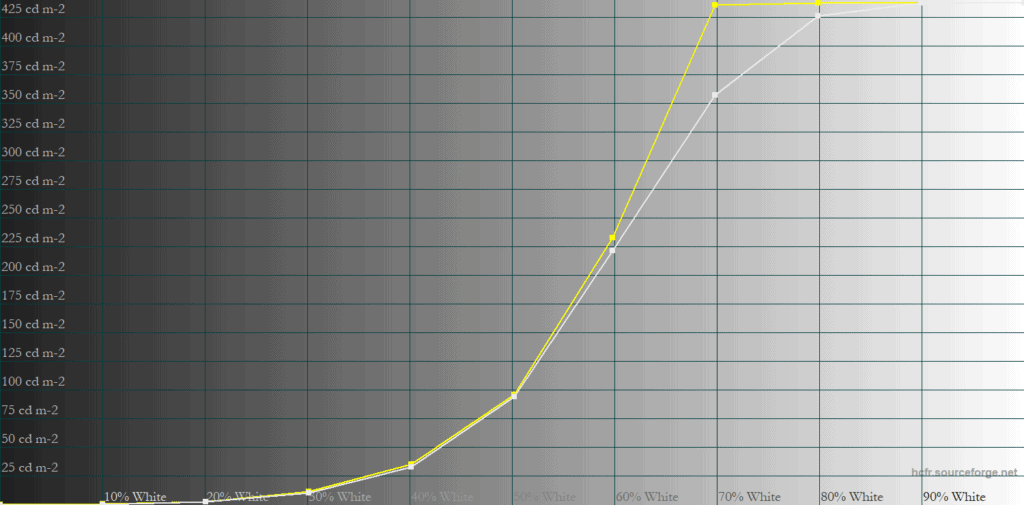
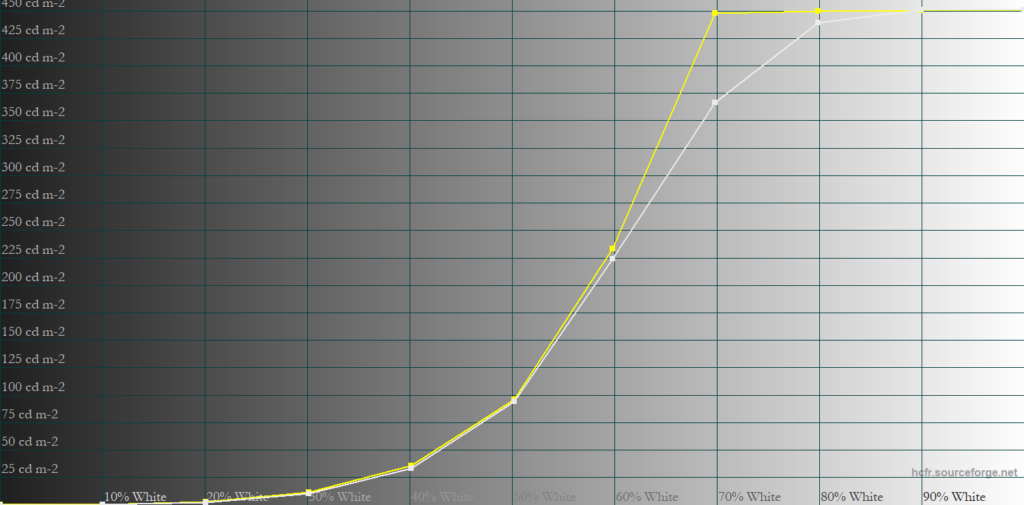
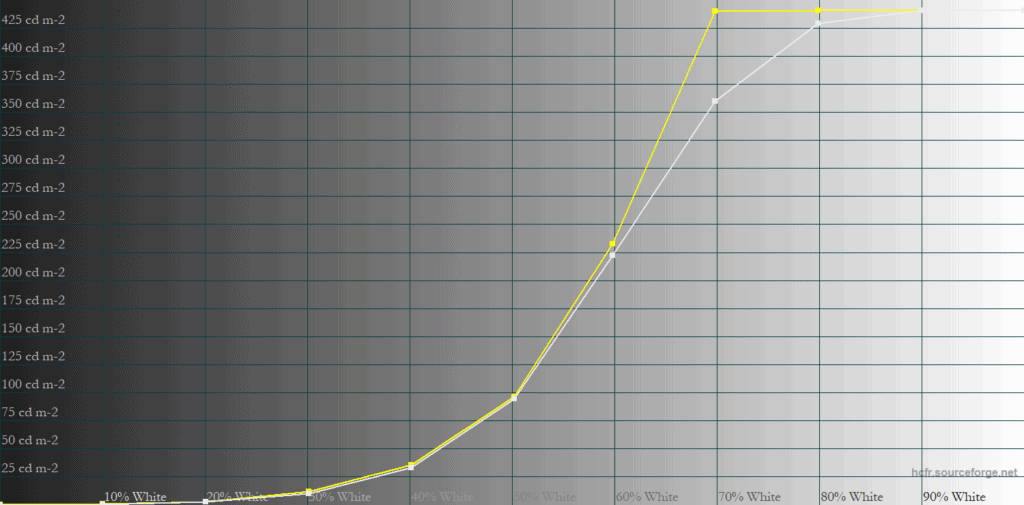
As you can see, EOTF tracking is excellent until the display approaches its peak brightness, after which it gradually rolls off to preserve highlight detail within the panel’s brightness limitations. This results in accurate midtones, though the brightest HDR highlights appear slightly compressed.
Again, this is typical for all QD-OLED monitors, but there should also be a ‘Peak 1000 nits mode’ that can reach 1,000-nits with accurate 1-10% APL and large 25-100% APLs being a bit darker than intended. You don’t have that option here.
This isn’t a QD-OLED Edge panel either (with limited brightness of 200-nits 100% APL and 400-nits 3% APL), since it can reach almost 900-nits in other modes, but those are not accurate. Here’s how the EOTF tracking looks in the Fantasy HDR mode.
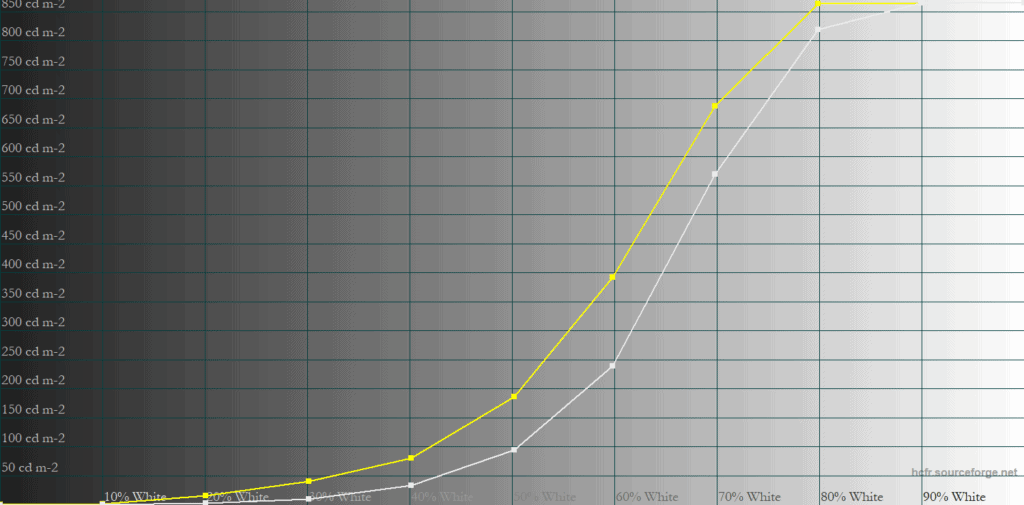
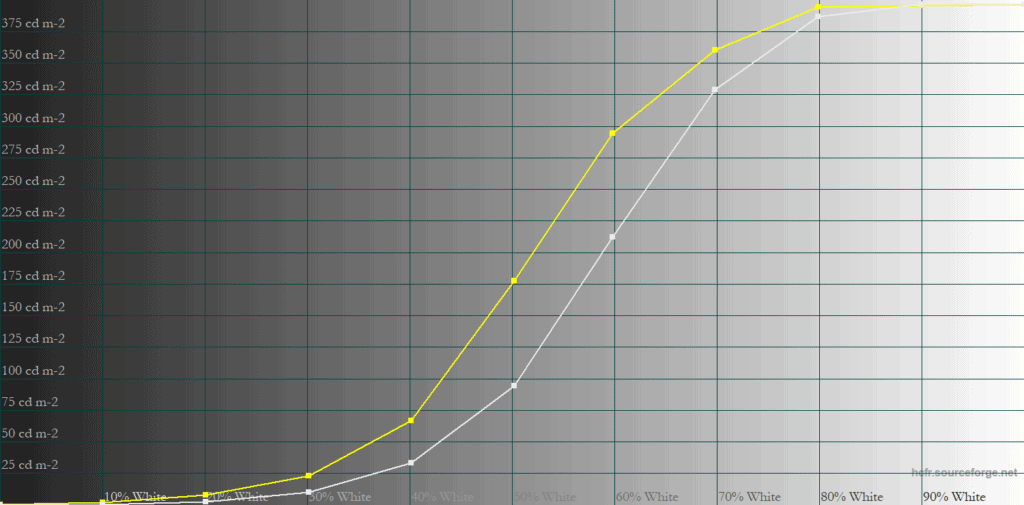
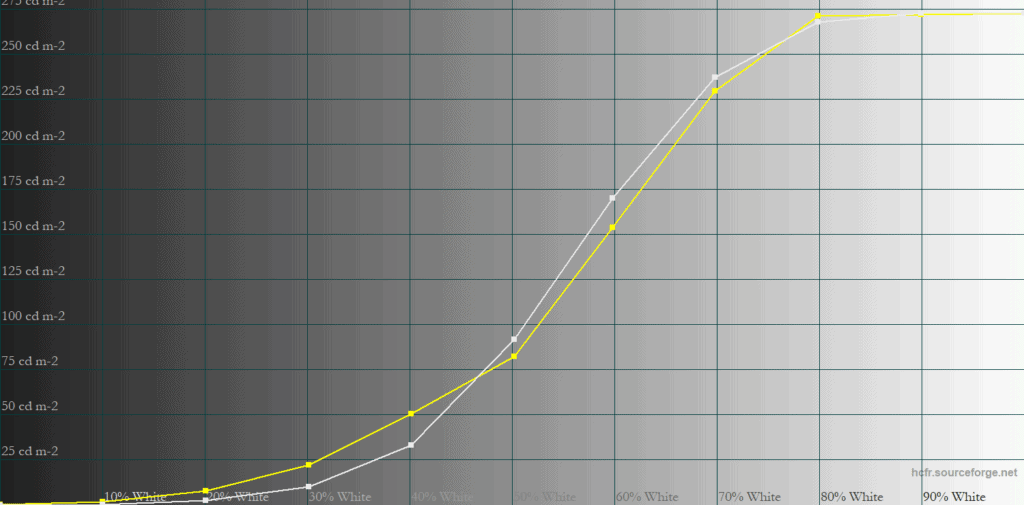
As shown in the graphs, the image will be brighter than intended with 1-10% APLs, but the bigger issue is the visual artifacts it causes, such as banding and inaccurate color output.
HDR Saturation & Color Temperature
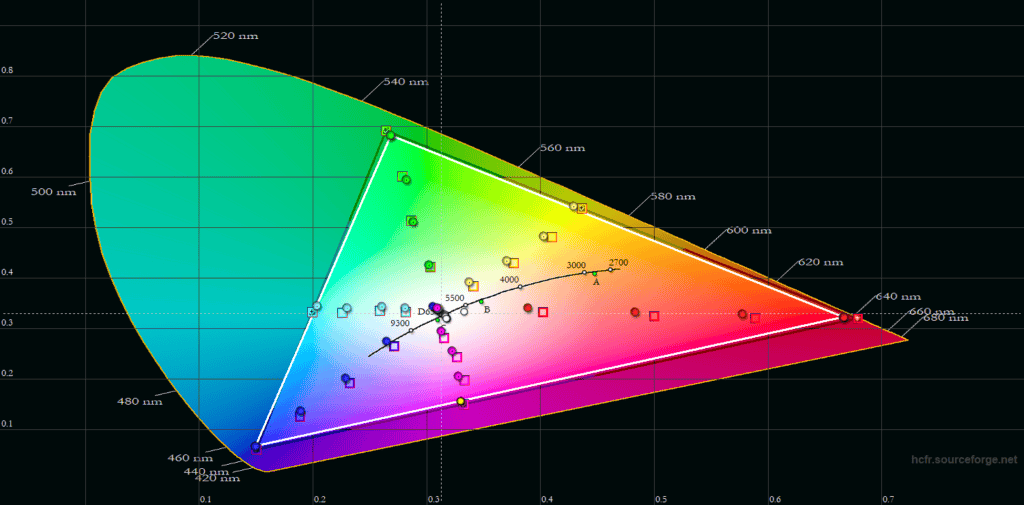
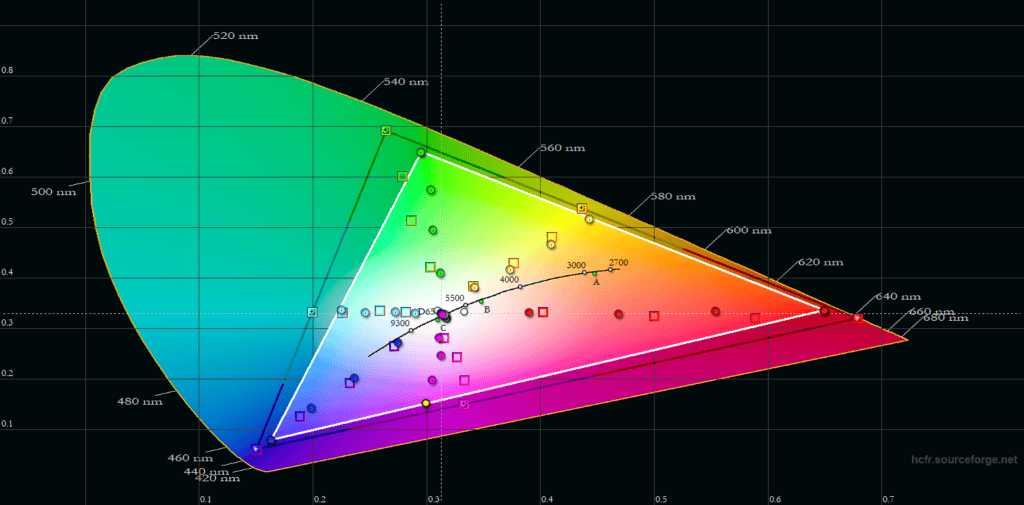
Here you can see that the DisplayHDR has accurate colors. It covers the entire DCI-P3 color space with reasonably accurate saturation. Fantasy and other HDR modes miss a significant portion of the DCI-P3 gamut, particularly in greens, and also have less accurate saturation sweeps.
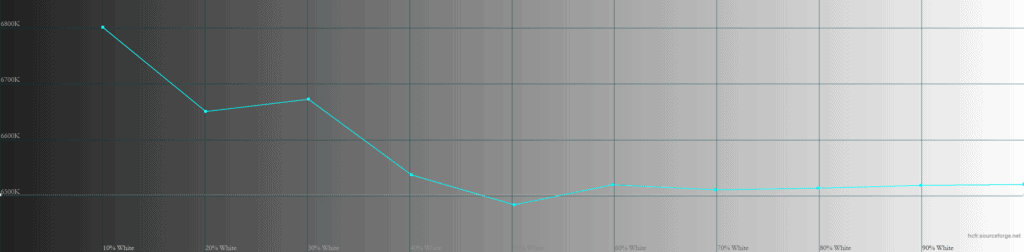
Color temperature performance is very good with a 6560K average.
Real Scene Tests
Here’s how all this plays out in some real-world content.
Sunlight in ‘A Perfect Planet’ | Small flash from ‘Chasing The Light’ | Large flash from ‘Chasing The Light’ | Lightning in ‘A Perfect Planet’ | Solar flare in ‘A Perfect Planet’ | Sunlight in‘ A Perfect Planet’ | |
| MSI MPG 341QR X36 (QD-OLED) True Black 500 | 466 | 500 | 389 | 499 | 210 | 221 |
| MSI MPG 341QR X36 (QD-OLED) Peak 1300 nits | 647 | 1228 | 400 | 545 | 112 | 129 |
| MSI MPG 341QR X36 (QD-OLED) EOTF Boost FW.009 | 379 | 815 | 293 | 511 | 148 | 152 |
| MSI MPG 341QR X36 (QD-OLED) EOTF Boost FW.014 | 765 | 1295 | 409 | 760 | 129 | 137 |
| BenQ EX271UZ (QD-OLED) DisplayHDR | 414 | 443 | 315 | 432 | 222 | 237 |
| BenQ EX271UZ (QD-OLED) Fantasy HDR | 354 | 462 | 279 | 375 | 182 | 198 |
| MSI MPG 322UR X24 (QD-OLED) True Black 500 | 514 | 521 | 374 | 507 | 225 | 239 |
| MSI MPG 322UR X24 (QD-OLED) Peak 1000 nits | 596 | 854 | 396 | 565 | 138 | 147 |
| MSI MPG 322UR X24 (QD-OLED) EOTF Boost | 585 | 749 | 386 | 665 | 182 | 193 |
| MSI MPG 321CURX (QD-OLED) True Black 400 | 429 | 452 | 310 | 450 | 201 | 207 |
| MSI MPG 321CURX (QD-OLED) Peak 1000 nits | 538 | 974 | 328 | 549 | 108 | 113 |
| KTC G27P6S (W-OLED MLA+) | 317 | 739 | 313 | 602 | 183 | 216 |
| KTC G32P5 (W-OLED MLA+) | 240 | 467 | 305 | 572 | 170 | 205 |
| KTC M27P6 (Mini LED IPS) VESA DisplayHDR, Low | 837 | 1224 | 1751 | 645 | 385 | 394 |
| KTC M27P6 (Mini LED IPS) HDR Cinema, Low | 745 | 1096 | 1416 | 591 | 334 | 349 |
| KTC M27T6 (Mini LED VA) Display HDR, Low | 1263 | 1298 | 1642 | 1173 | 837 | 859 |
| KTC M27T6 (Mini LED VA) HDR Game, Standard | 695 | 674 | 1316 | 615 | 536 | 542 |
| BenQ EX321UX (Mini LED IPS) | 792 | 1140 | 1440 | 579 | 309 | 317 |
As you can see, the BenQ EX271UZ in DisplayHDR mode has similar performance to the MSI MPG 321CURX in its True Black 400 mode.
While the Fantasy mode reached higher brightness in synthetic tests, its inaccurate EOTF tracking and various image enhancements actually made real-world HDR scenes dimmer than in the DisplayHDR mode. All other modes also had similar brightness performance.
QD-OLED vs W-OLED vs Mini LED
Here’s the 10-minute static stress test. Brightness doesn’t decrease over time.
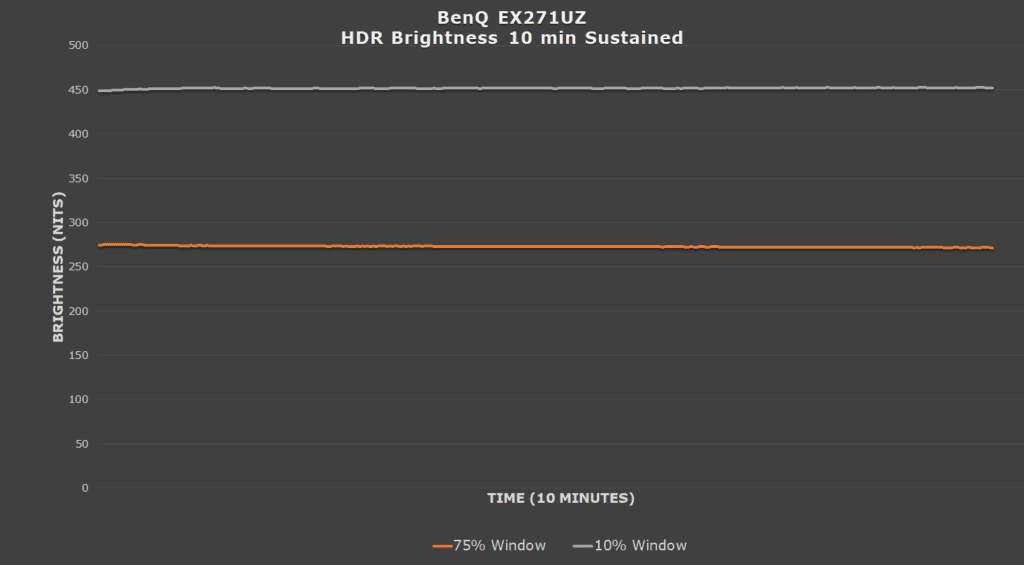
In the chart below, you can see how the brightness of the BenQ EX271UZ compares to a few other HDR monitors we tested.
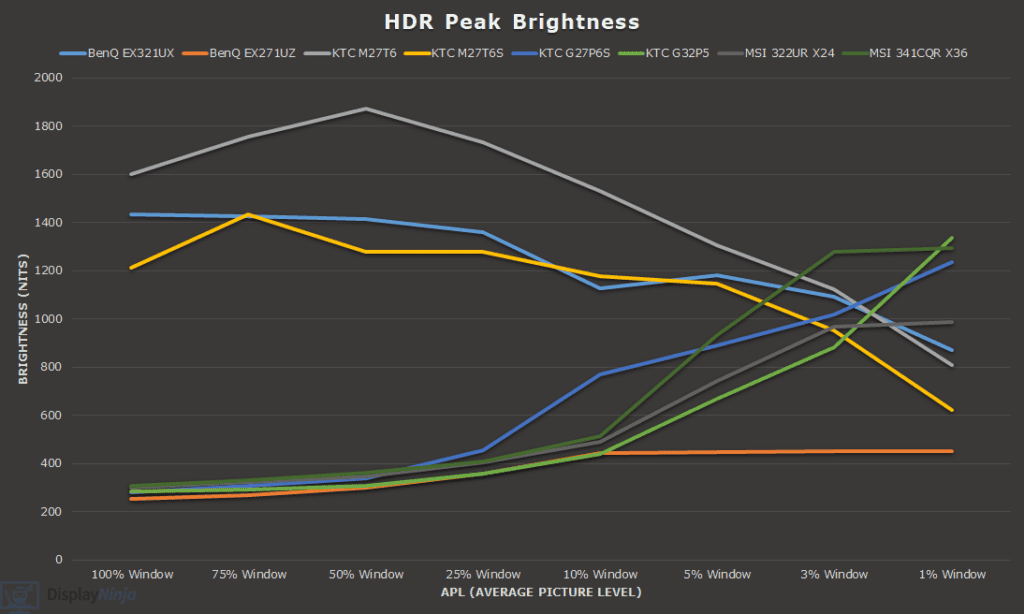
Mini LED monitors have significantly higher brightness for large APLs, but they have their own drawbacks as well, such as FALD blooming in certain scenes and they’re not as good at displaying SDR content with improved contrast.
Performance
The BenQ EX271UZ has a maximum refresh rate of 240Hz, delivering exceptional motion clarity and responsiveness in comparison to typical 60-75Hz displays and a small but noticeable boost over 120Hz.
Response Time
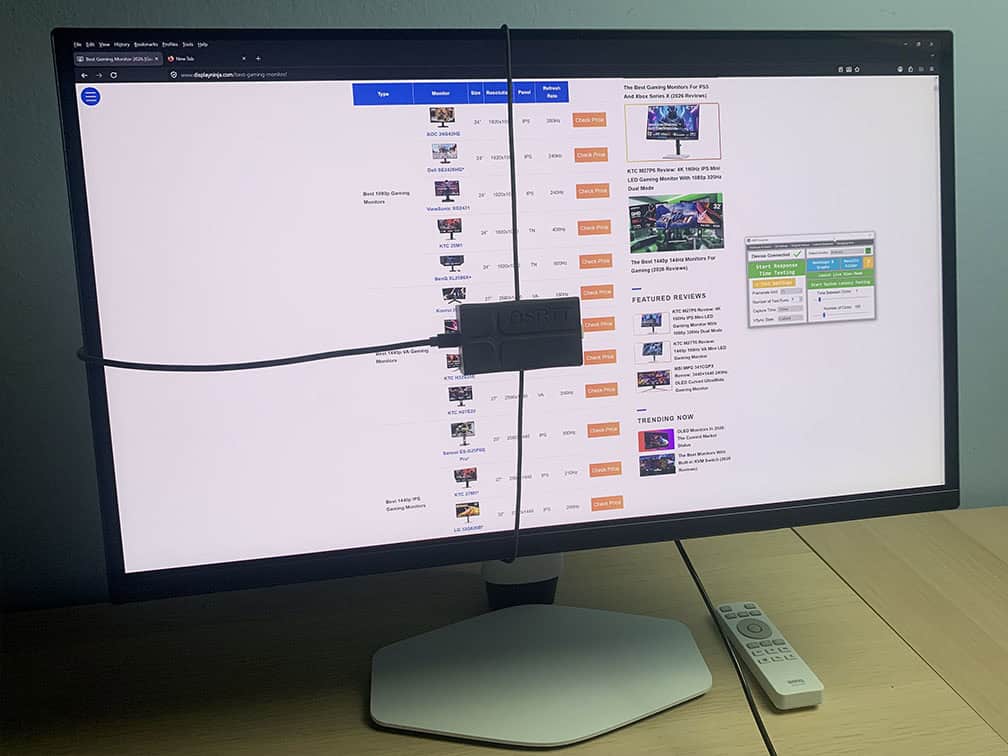
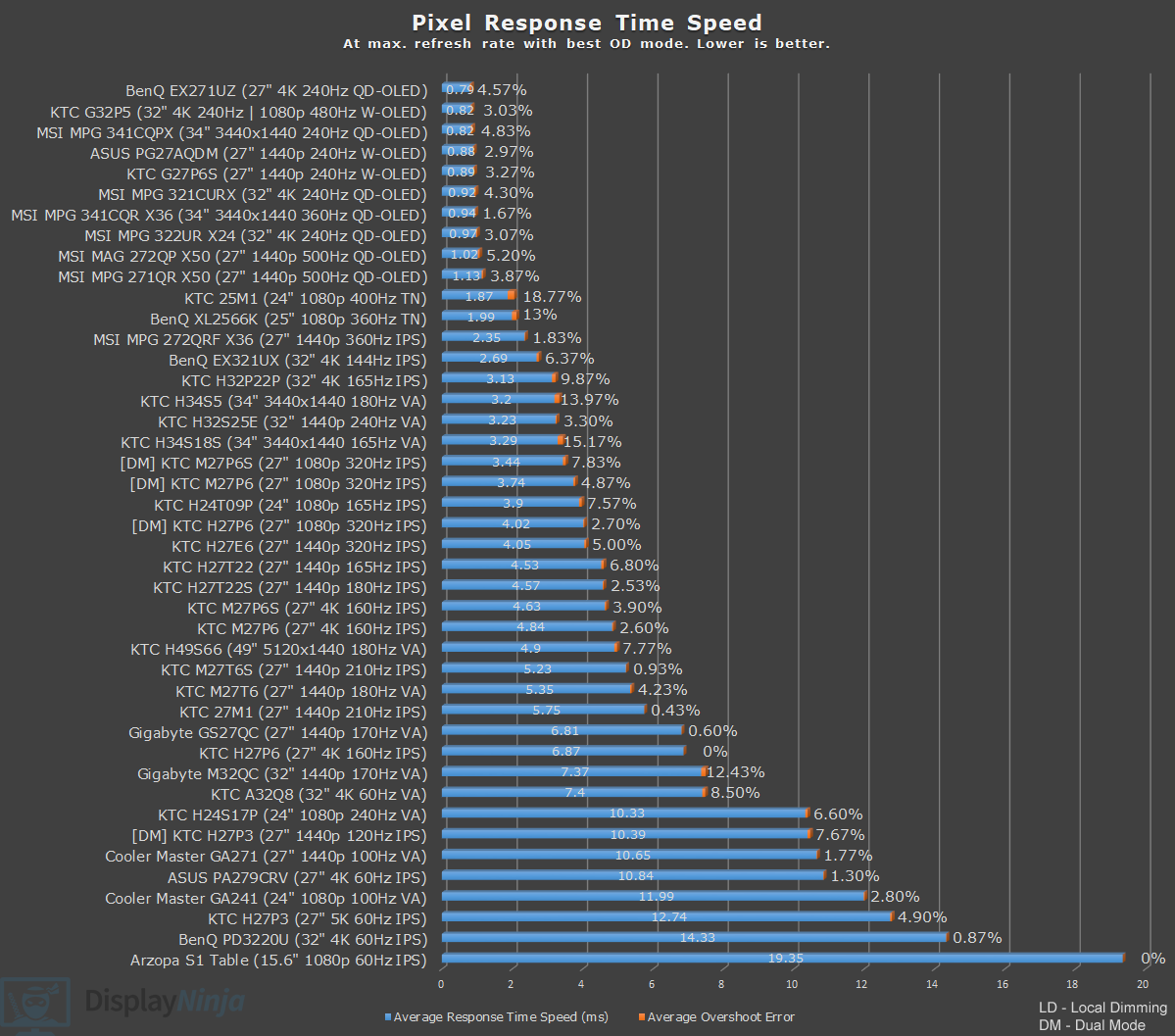
OLED panels have virtually instantaneous pixel response times, so there’s no ghosting behind fast-moving objects, no matter the refresh rate.
For latency and response time testing, we’re using OSRTT. Before the tests, the monitor was calibrated and warmed up.
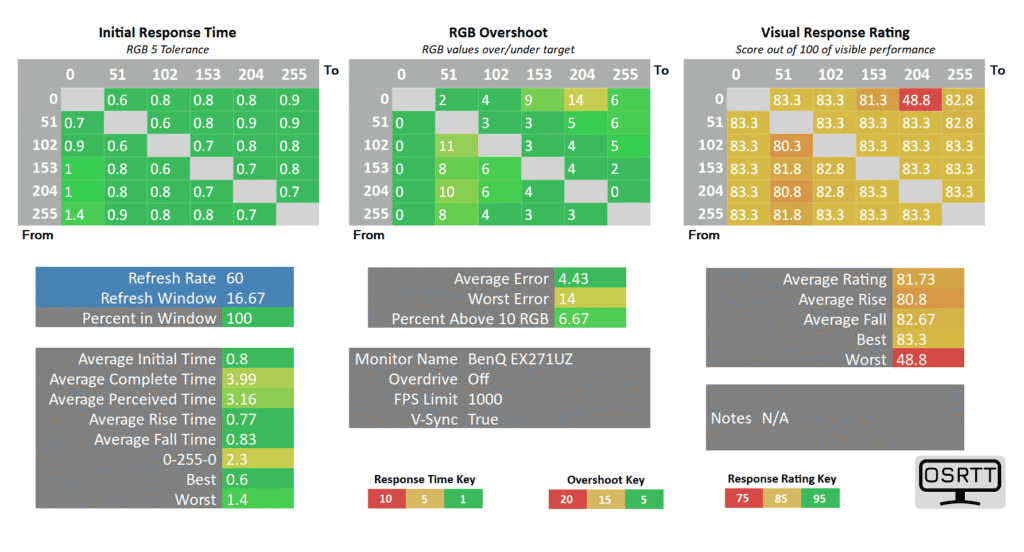
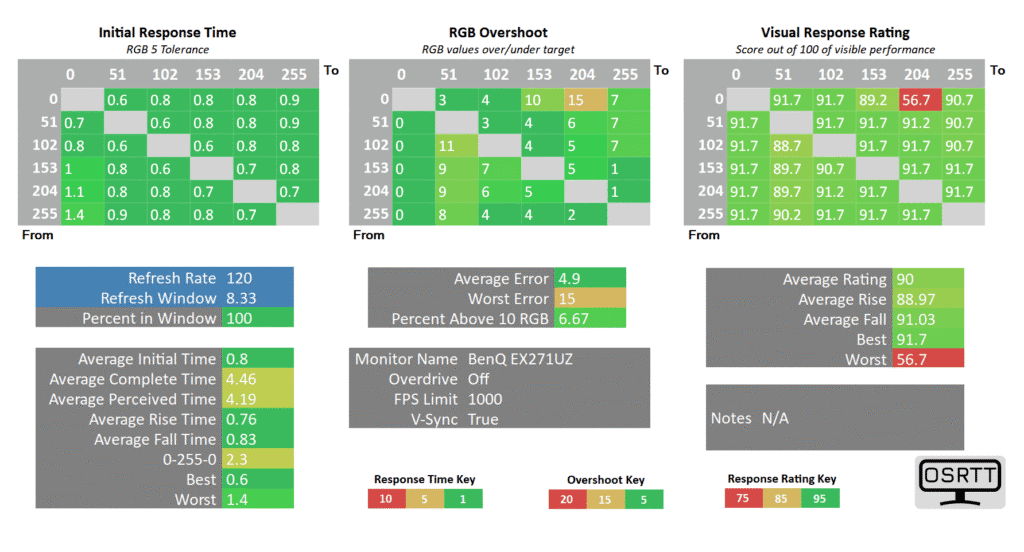
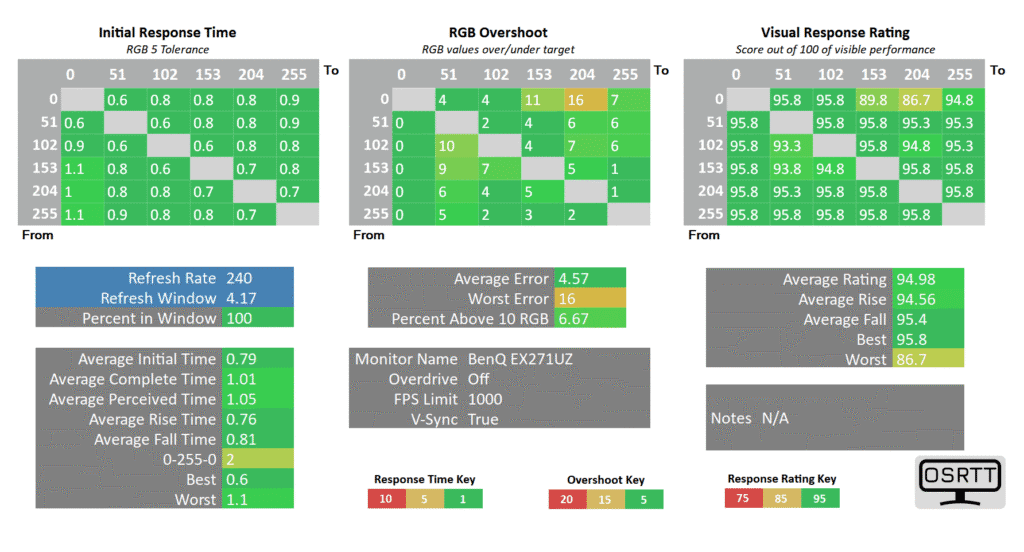
There are some slower transitions and overshoot present in the charts, but this is only due to the limitation of the OSRTT measuring device.
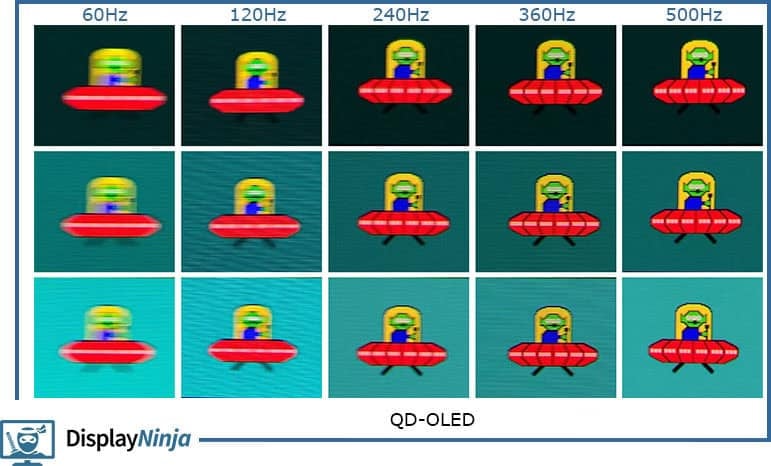
Here’s how QD-OLED motion clarity looks across different refresh rates using Blur Busters’ UFO ghosting test at 960 Pixels Per Sec with shutter speed set to 1/4 of the refresh rate, fixed focus, ISO and color temperature (6500K).
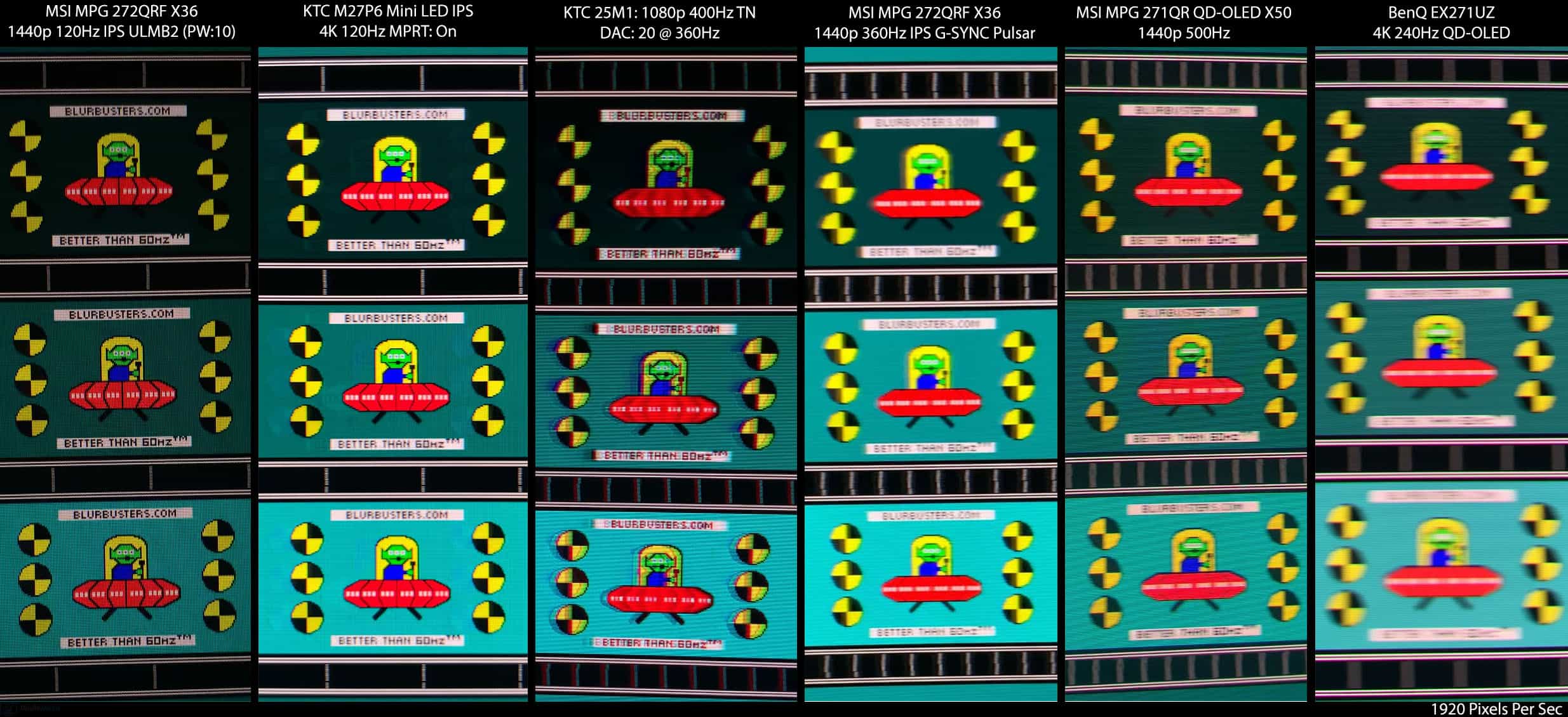
Here’s a comparison with several other monitors that delivered the best motion clarity we’ve tested at 1920 pixels per second.
Motion Blur Reduction
The BenQ EX271UZ supports BFI (Black Frame Insertion) via its Blur Reduction feature. It reduces the maximum brightness to 138-nits since it basically displays half the frames as black in order to reduce perceived motion blur at lower frame rates.
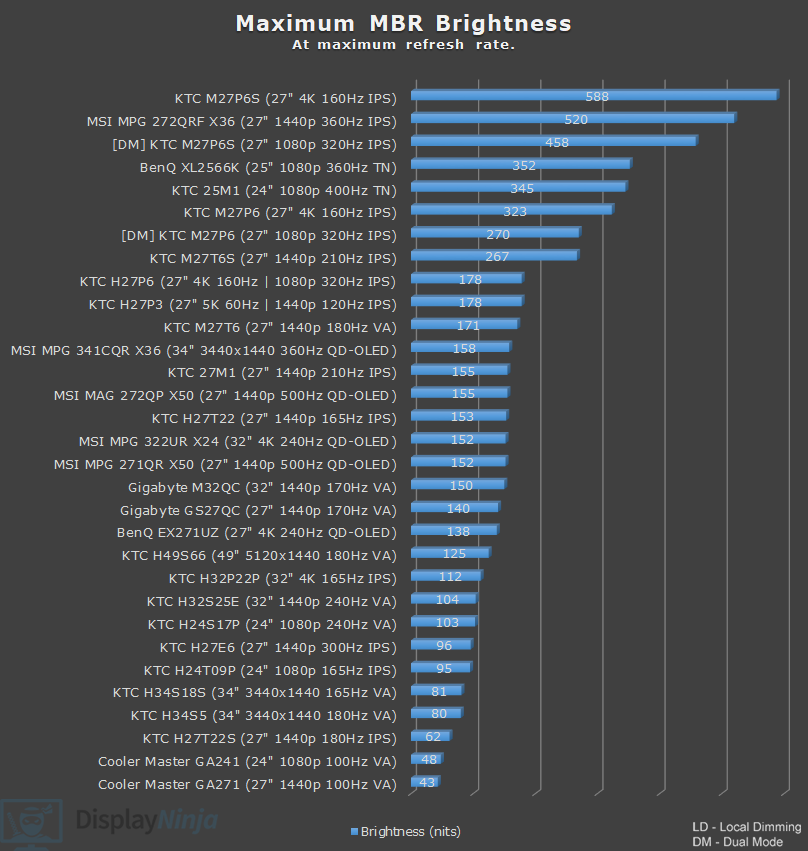
You can only enable Blur Reduction if VRR is disabled and the monitor is set to a fixed 240Hz refresh rate. This means that you cannot take advantage of this feature on consoles at 120Hz, which is a shame since BFI at 120FPS offers the same motion clarity as native 240Hz.
Using Blur Reduction at 240Hz with frame rates capped to 120FPS can still be useful in video games where you cannot maintain more than 120FPS.
Keep in mind that BFI cannot be used simultaneously with VRR (variable refresh rate) and it introduces a bit of extra latency.
Variable Refresh Rate
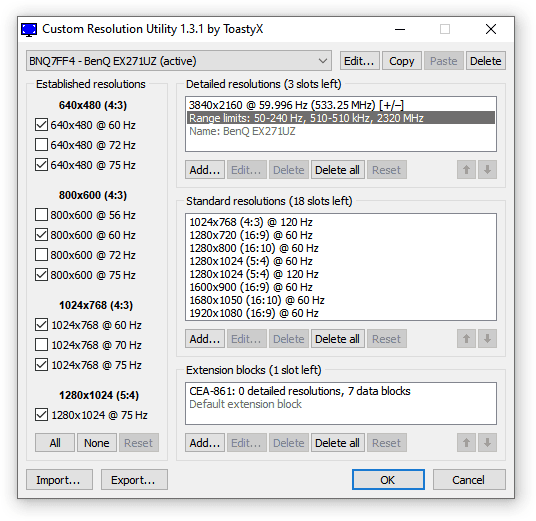
The monitor supports variable refresh rates via HDMI 2.1 VRR and AMD as FreeSync Premium, but has not (yet) been certified by NVIDIA as G-SYNC Compatible.
Regardless, VRR works with all graphics cards that support it for tear-free gameplay up to 240FPS with a 50-240Hz dynamic range.
However, as is the case with all OLED monitors, you might notice some VRR brightness flickering in games with fluctuating frame rates (mostly in darker scenes, loading screens and in-game menus).
This can be simply ‘fixed’ by disabling VRR in affected games, which isn’t much of a drawback considering that screen tearing is not that noticeable at 240Hz.
Latency
Here’s a look at display latency test results.
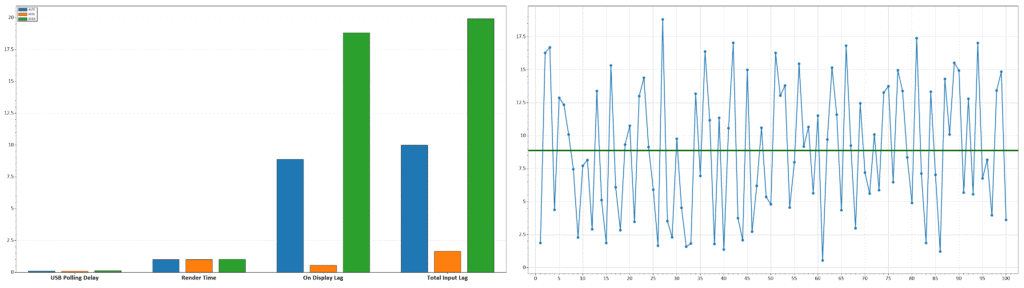
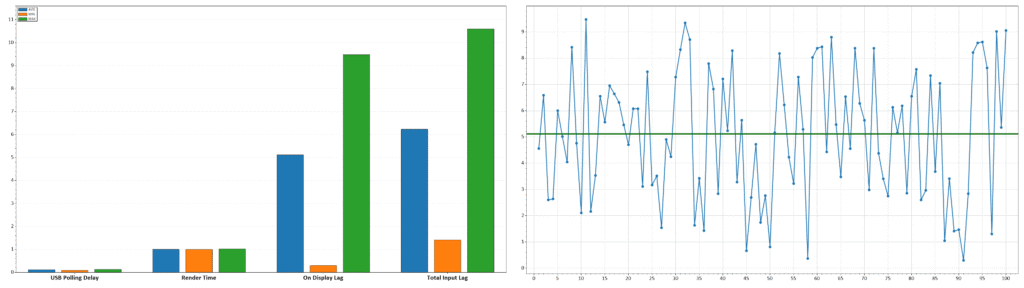
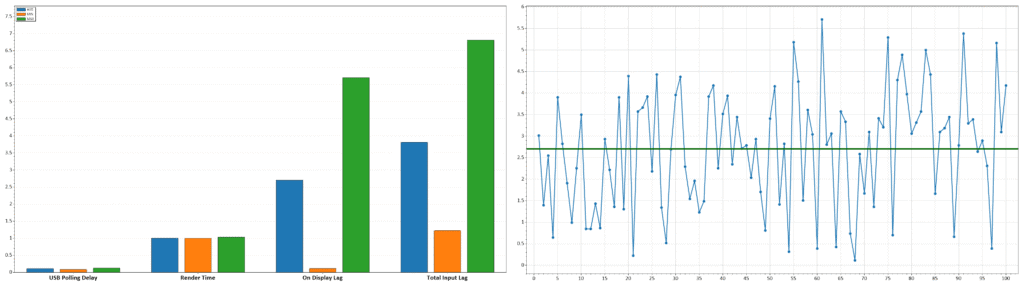
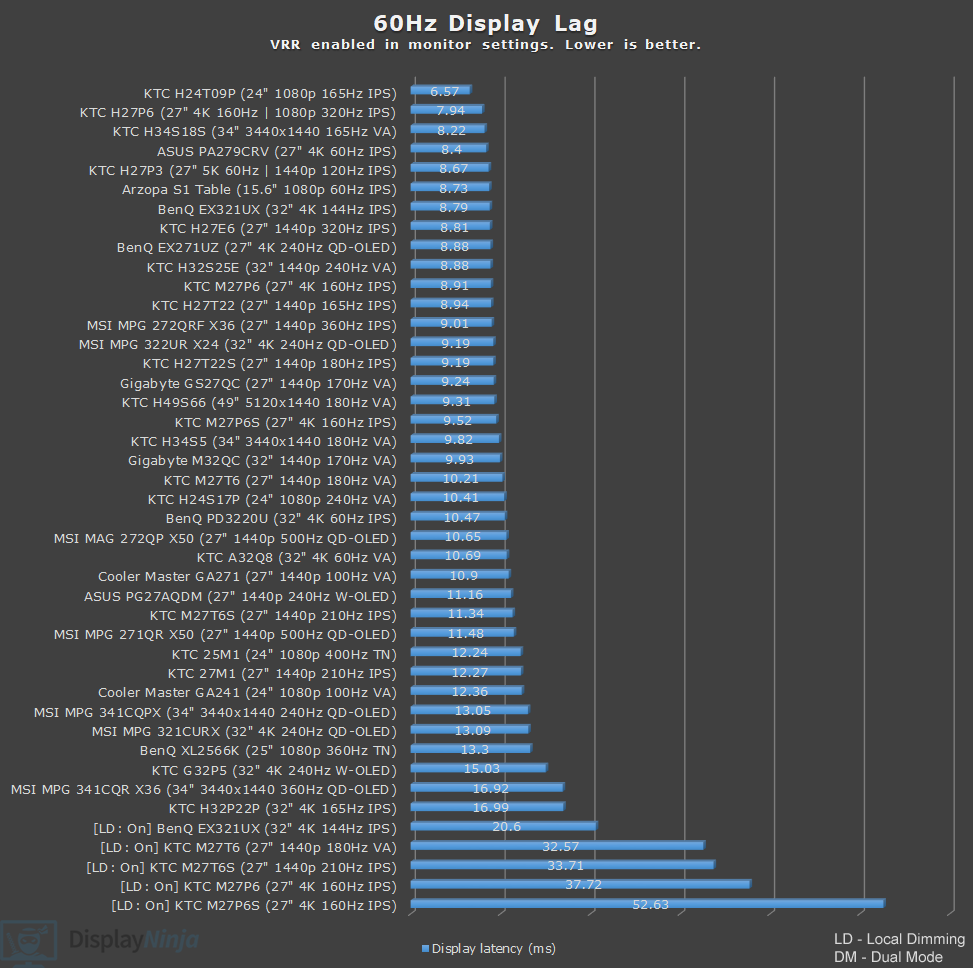
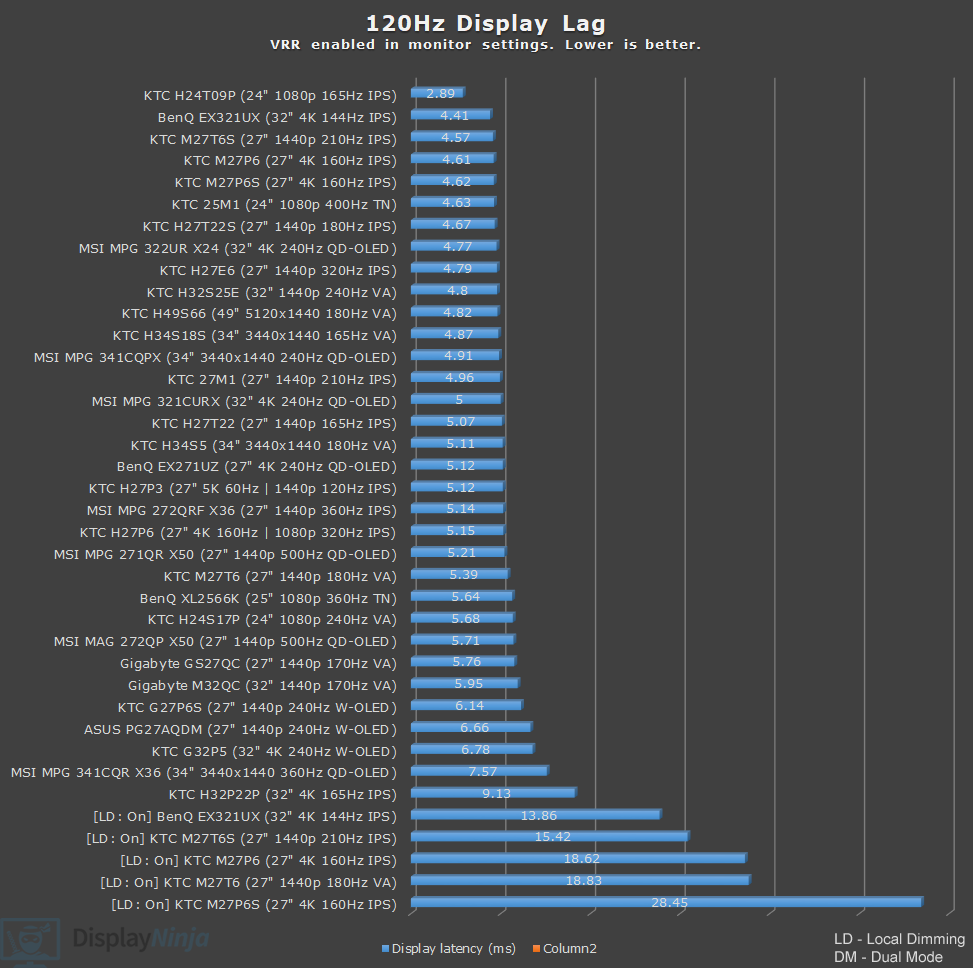
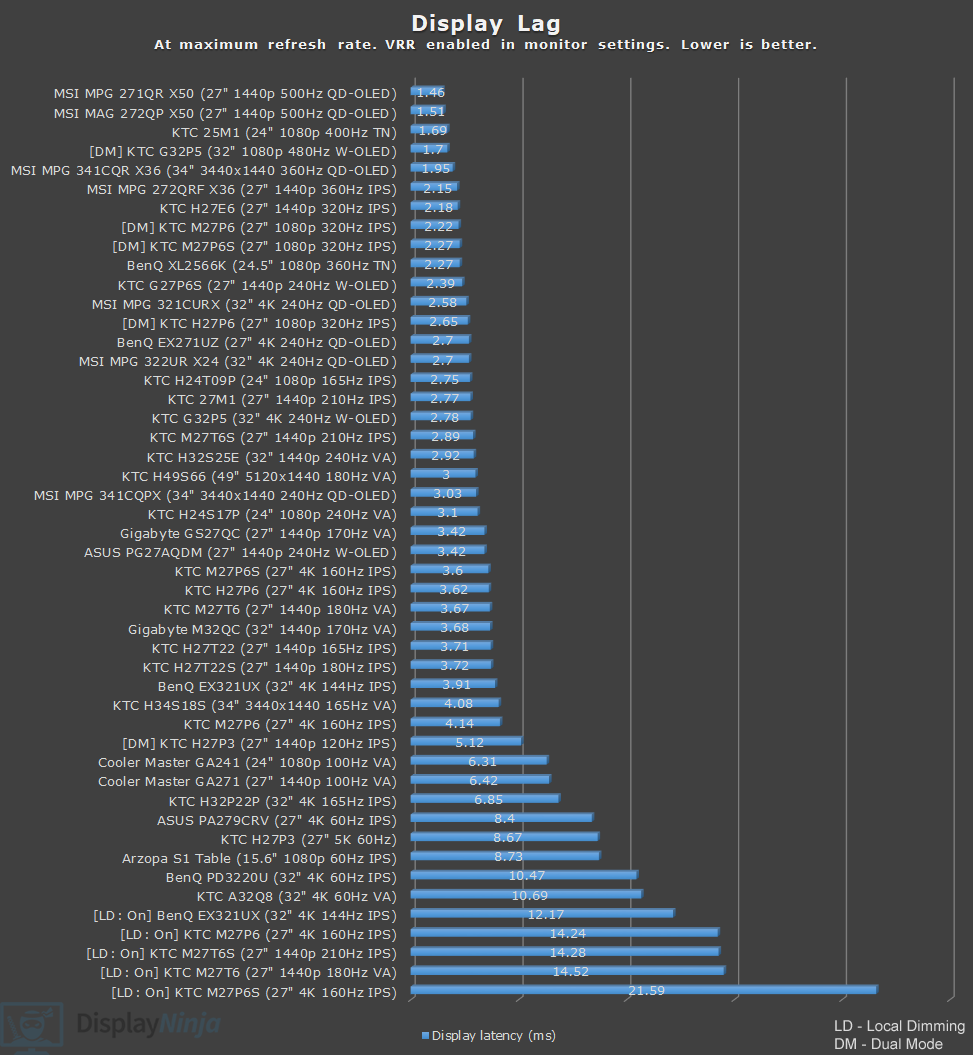
The measured display latency is low and amounts to 2.7ms at 240Hz, 5.12ms at 120Hz and 8.88ms at 60Hz.
As the display latency is lower than the refresh rate cycle, this means that you won’t be able to notice or feel any delay between your actions and the result on the screen.
Uniformity & Quality Control
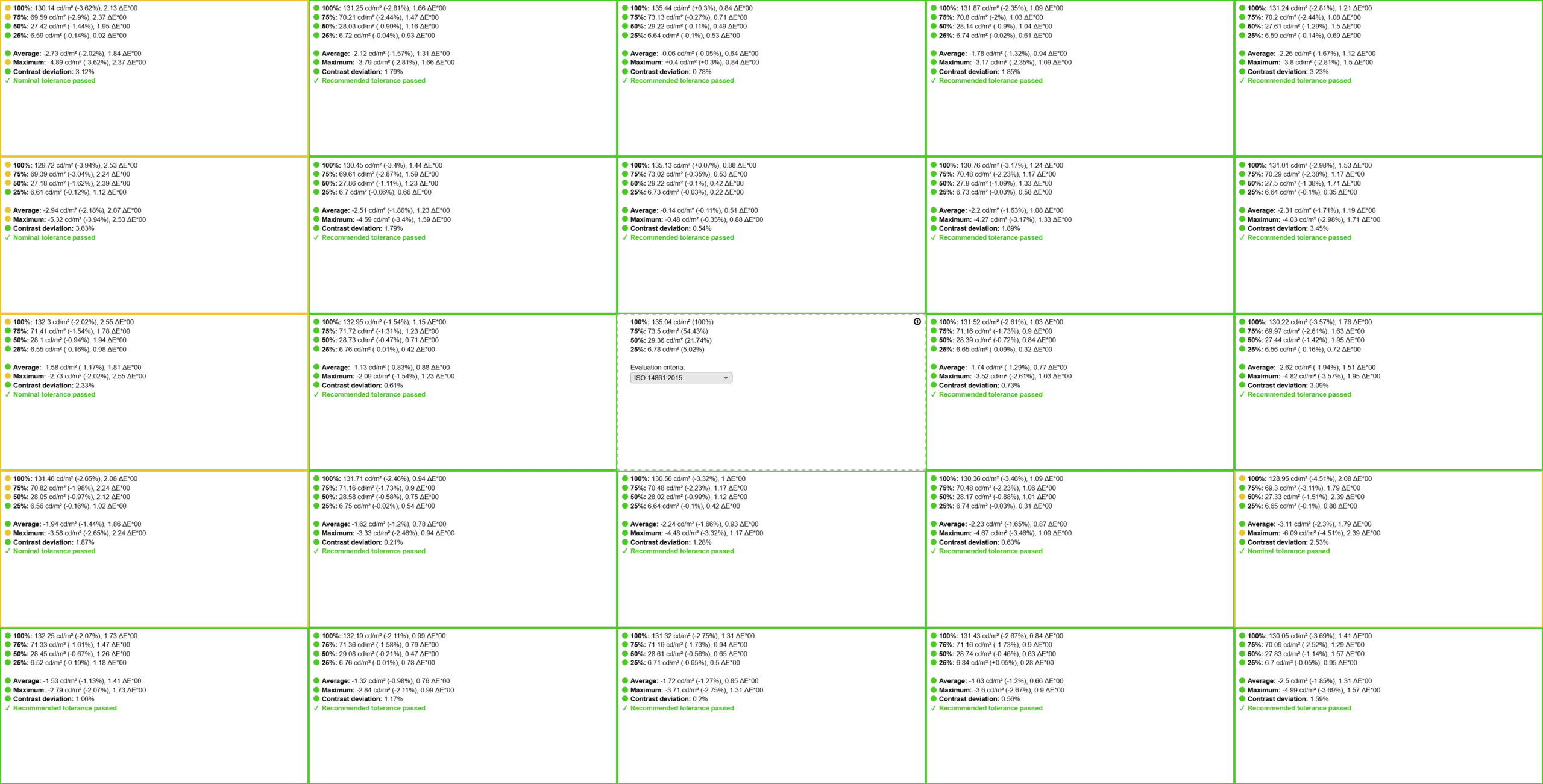
Moving on, the BenQ EX271UZ has excellent image uniformity, as expected from flat-screen QD-OLED panels. There’s only up to around 3% contrast deviation and 4% brightness deviation across the screen, which isn’t noticeable.
As is the case with all OLED panels though, there’s some minor vertical banding on solid dark-gray backgrounds, but it doesn’t affect typical usage. We weren’t able to capture this on camera.
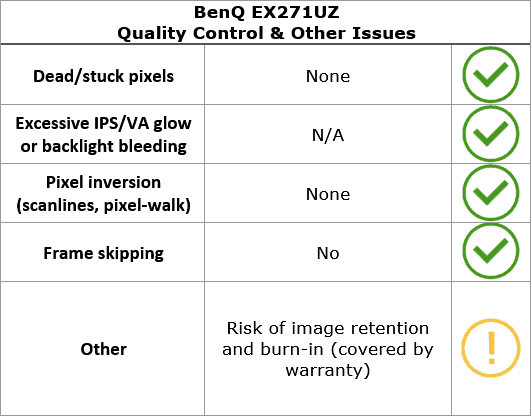
We didn’t find any stuck or dead pixels. OLED panels don’t suffer from IPS/VA glow or backlight bleeding, and there were no other issues, such as frame skipping or pixel inversion.
Apart from the minor fluctuations in brightness due to the way OLED panels work (which is invisible to the human eye), the monitor is completely flicker-free.
There’s also a low-blue light filter mode that can reduce the color temperature down to 4212K, 4510K, 4781K, 5106K or 5424K for a more comfortable viewing experience before bedtime.
Features
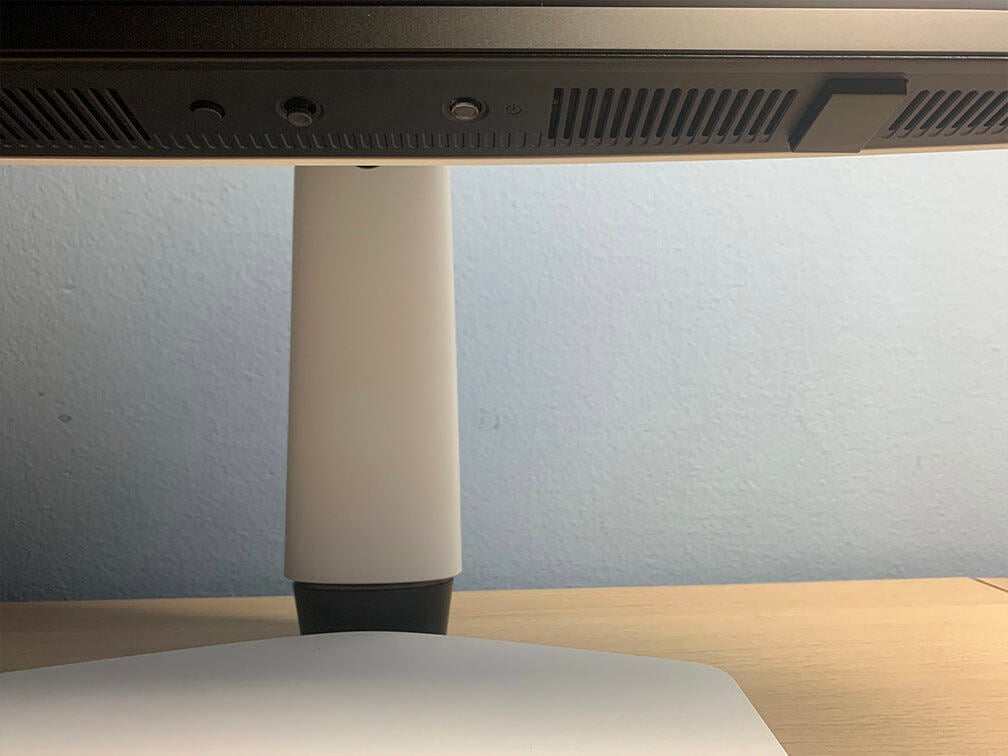
Beneath the bottom bezel of the screen, there’s a directional joystick for quick and easy navigation through the OSD (On-Screen Display) menu. Next to it, there’s a dedicated power button (with an LED power indicator) and a hotkey for input source selection. You can also see the protruding sensor housing for the remote controller.
While the monitor is on, the power LED is white (the LED indicator can be disabled in the OSD menu) and blinks orange while the Pixel Refresh process is active.
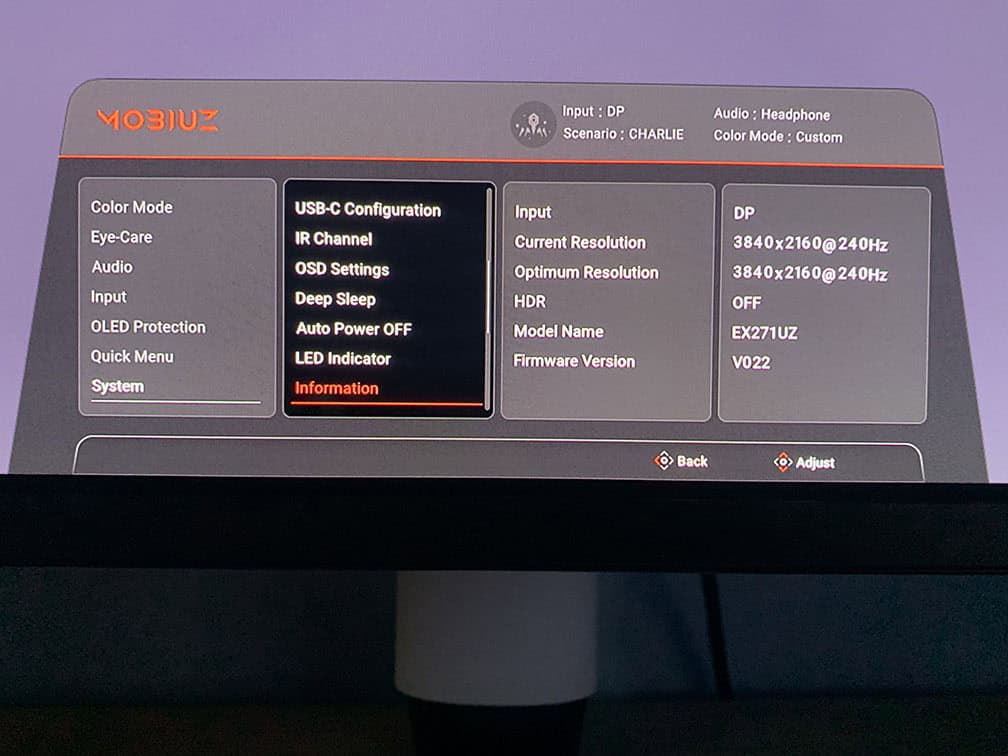
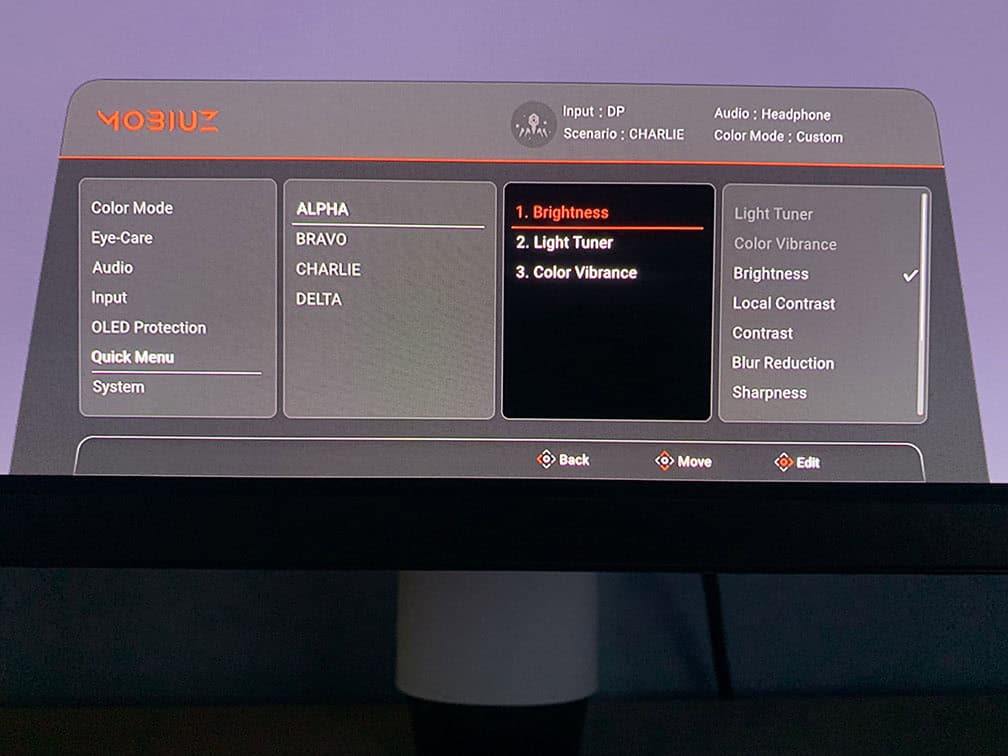
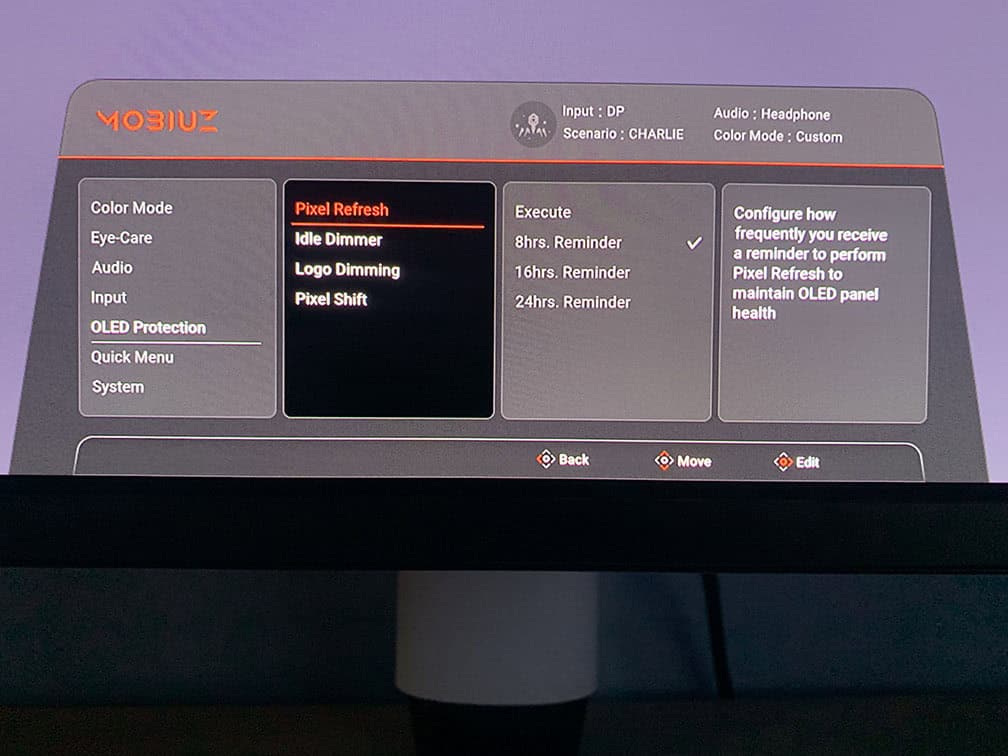
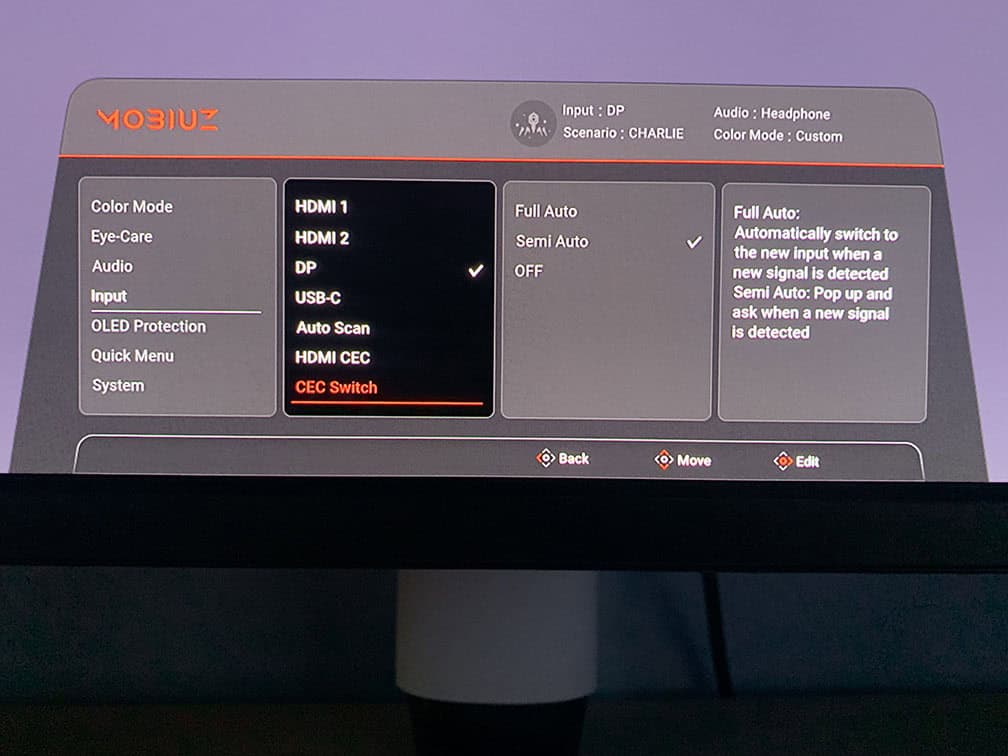
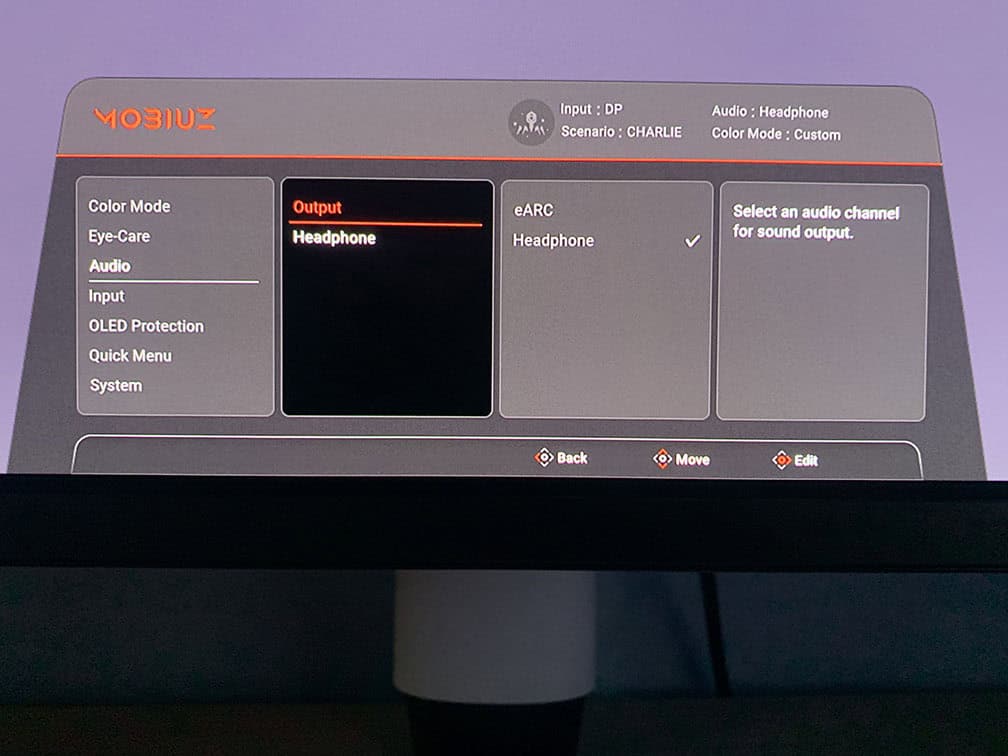
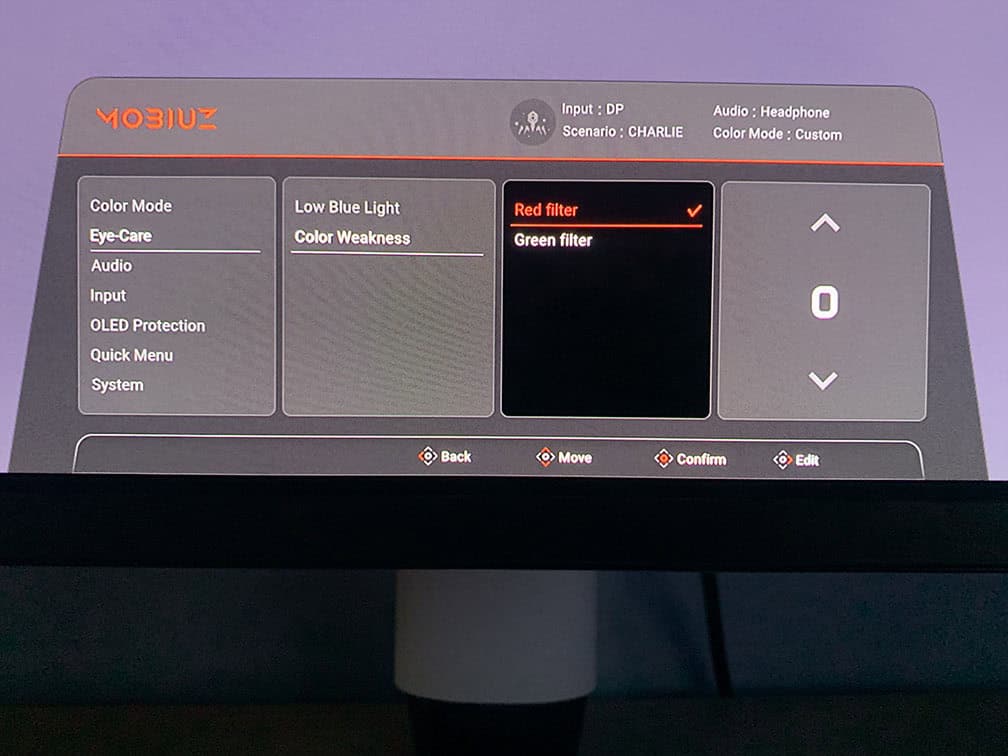
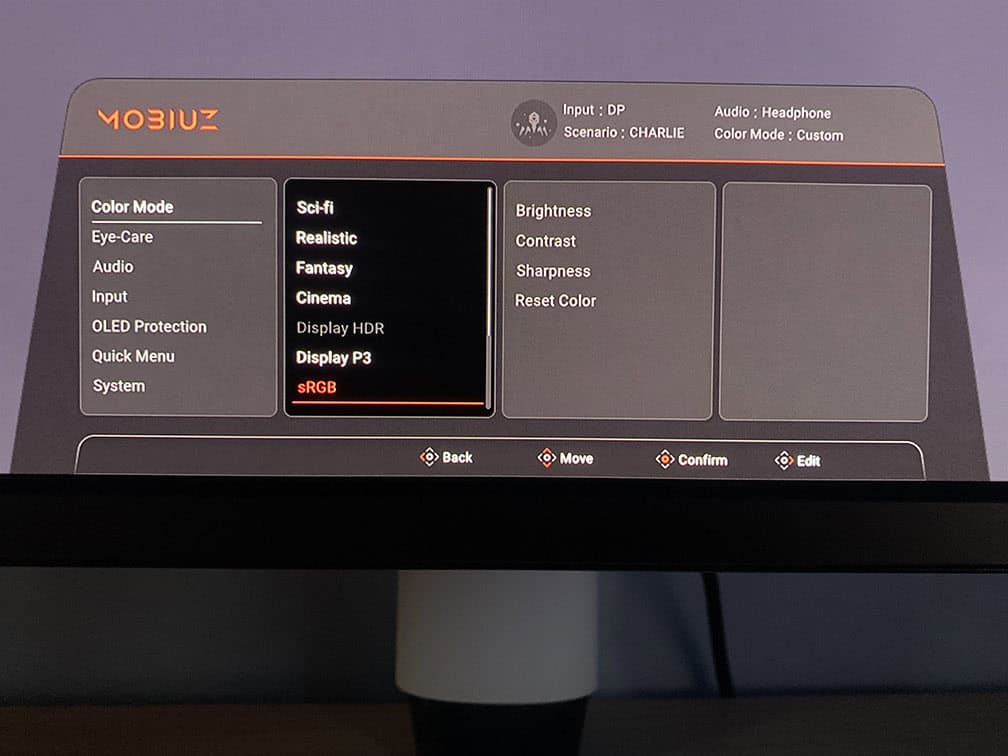
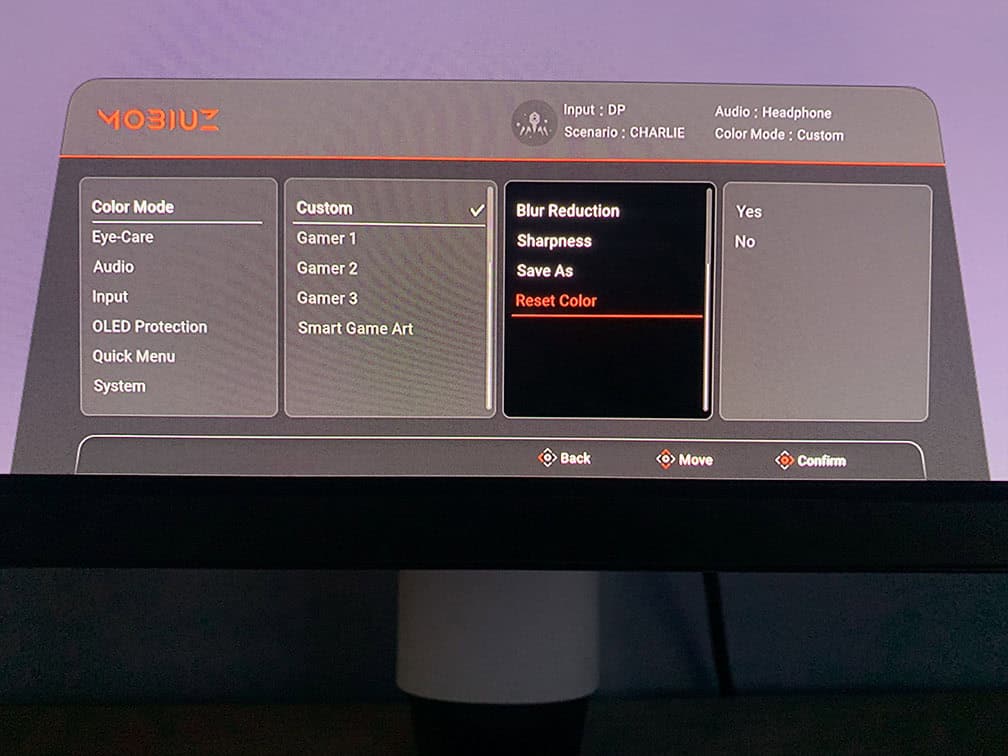
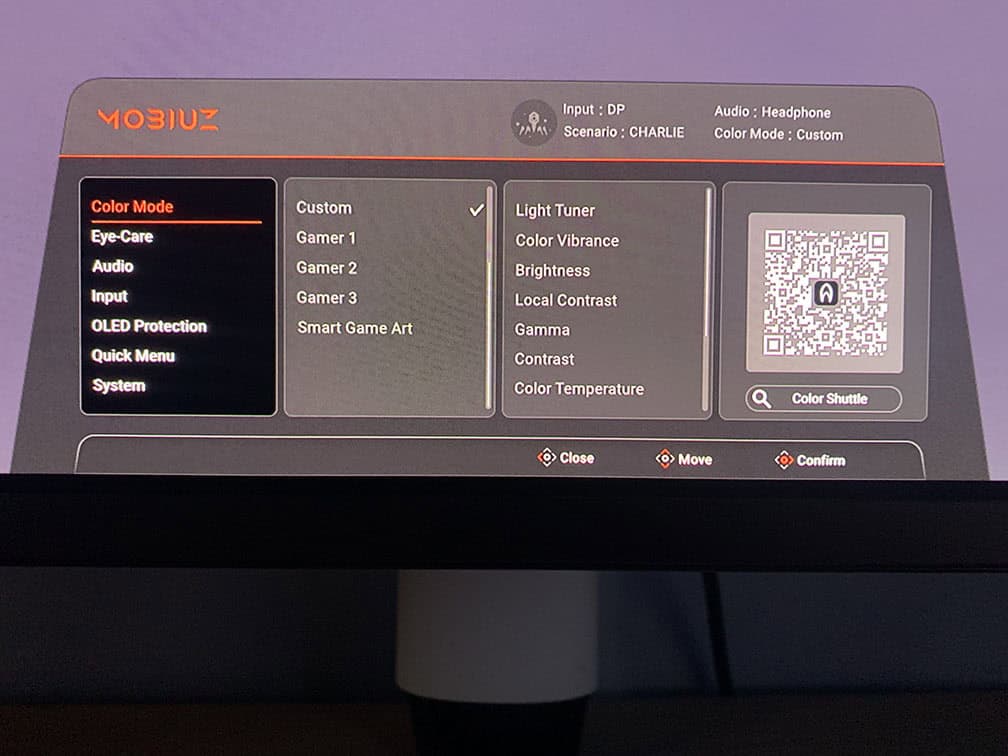
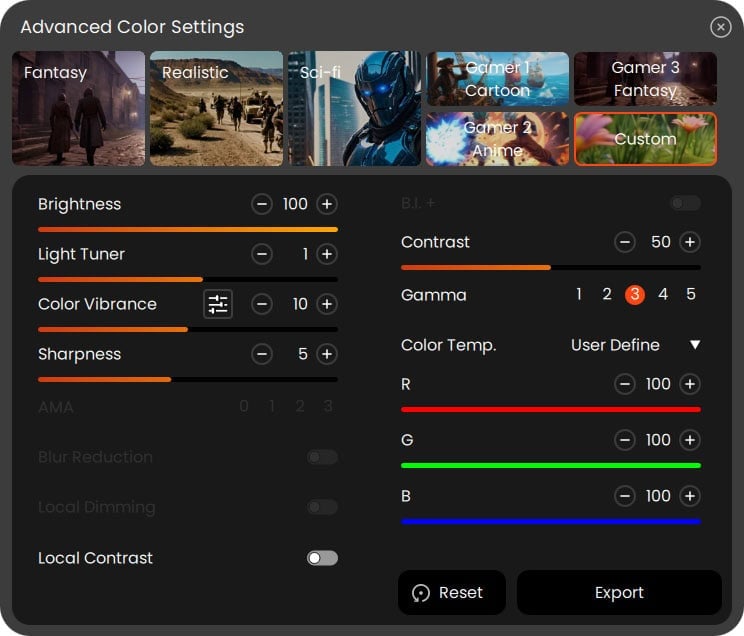
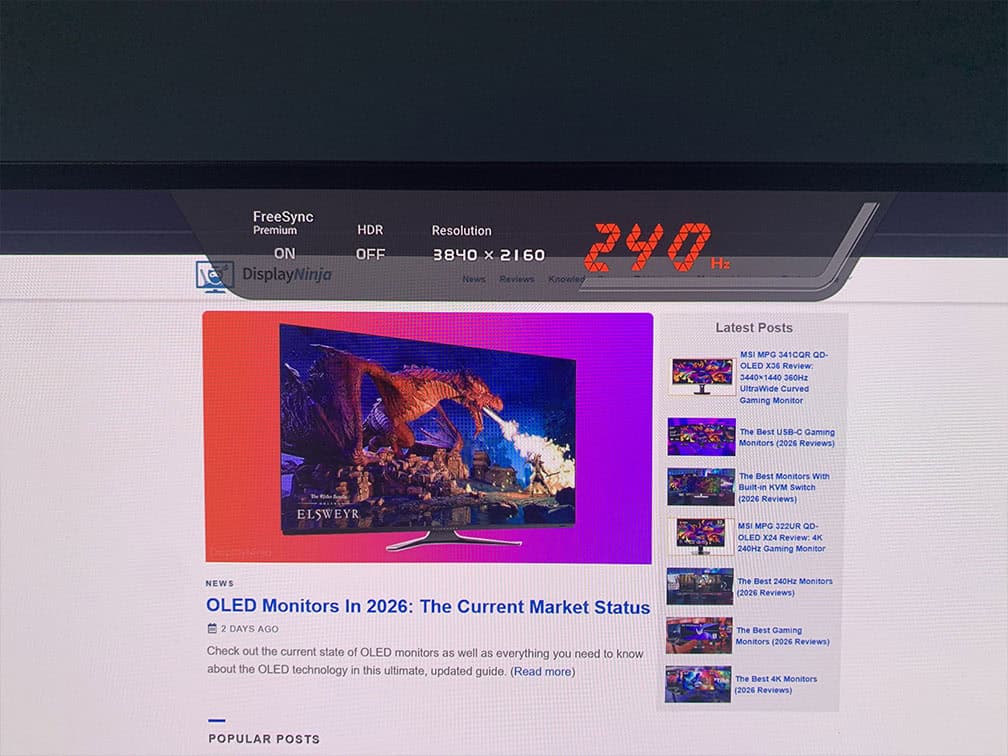
Pressing the joystick or moving it left and right summons a quick menu that shows VRR and HDR status, current resolution and refresh rate, and allows you to quickly change the scenario mode, color mode, up to three settings (Light Tuner, Color Vibrance, Brightness, Local Contrast, Contrast, Blur Reduction, Sharpness, Low Blu Light or Crosshair) and enter the main menu.
Moving the joystick up and down summons a quick menu to adjust headphone or eARC audio volume.
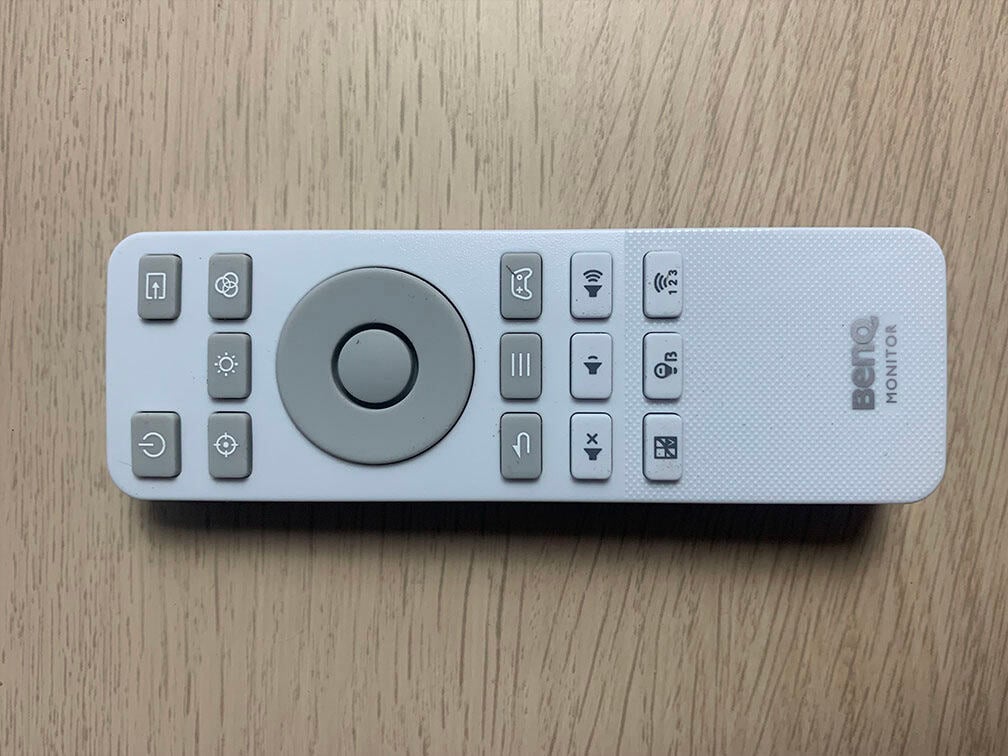
The remote controller allows you to turn on/off the monitor, change input source, add crosshair overlays, change brightness, color modes, open the menu, add refresh rate tracker or HUD, adjust volume/mute, adjust color vibrance, low-blue light and change remote control IR channel.
Besides the typical image adjustment tools (brightness, contrast, color temperature), the BenQ EX271UZ also has some advanced settings, including DSC toggle, sharpness, five gamma options, aspect ratio control (full, aspect, 1:1 and 24″ emulation), overscan and automatic input detection (disabled by default).
In BenQ’s Color Shuttle desktop application, you can also make some OSD-related adjustments using your mouse.
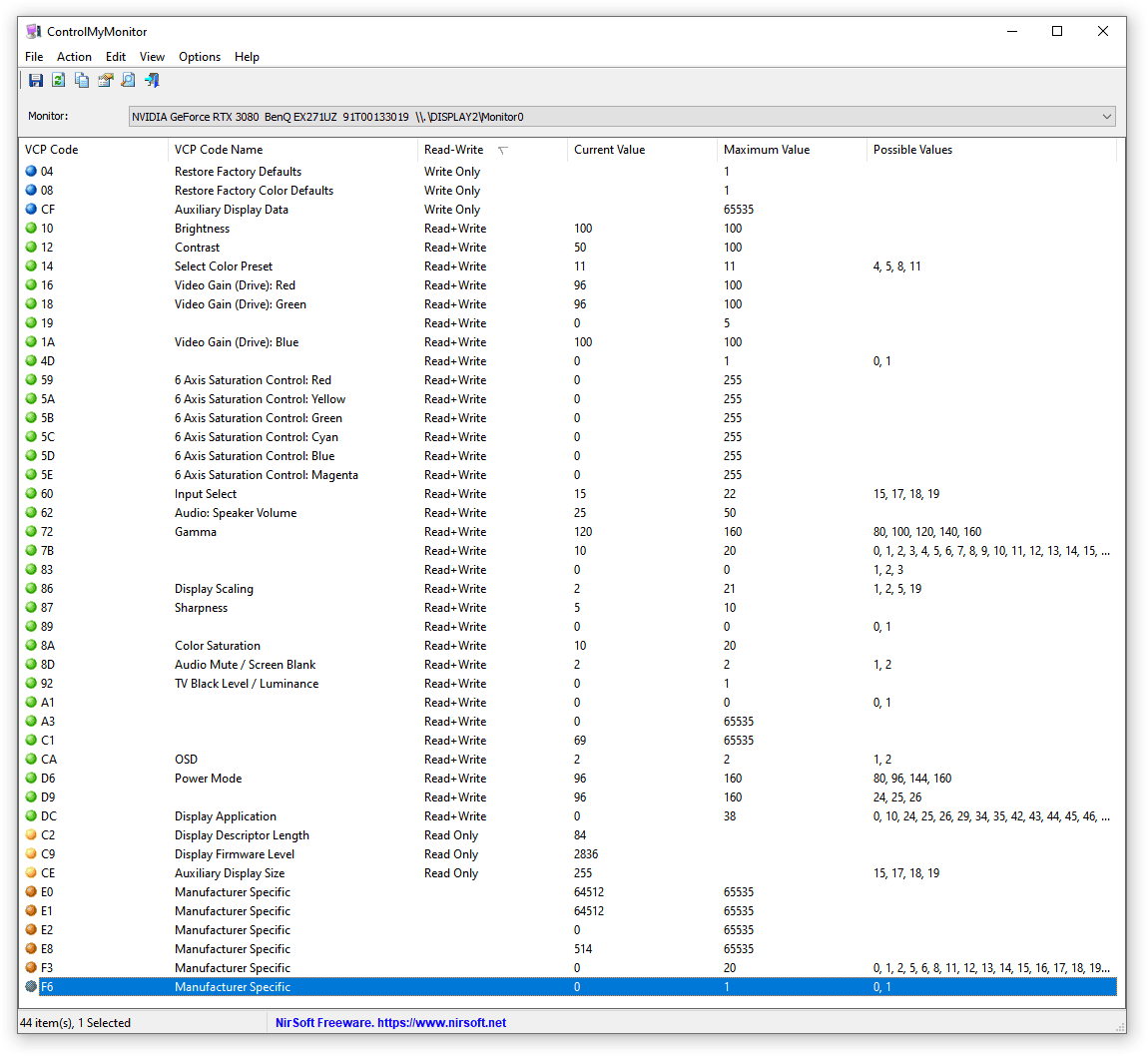
Here are the settings you can change using third-party apps, such as ControlMyMonitor.
Useful gaming features include:
- Light Tuner – fine-tune gamma adjustments
- Color Vibrance – increases or decreases color saturation
- Crosshair overlays – two red crosshair options
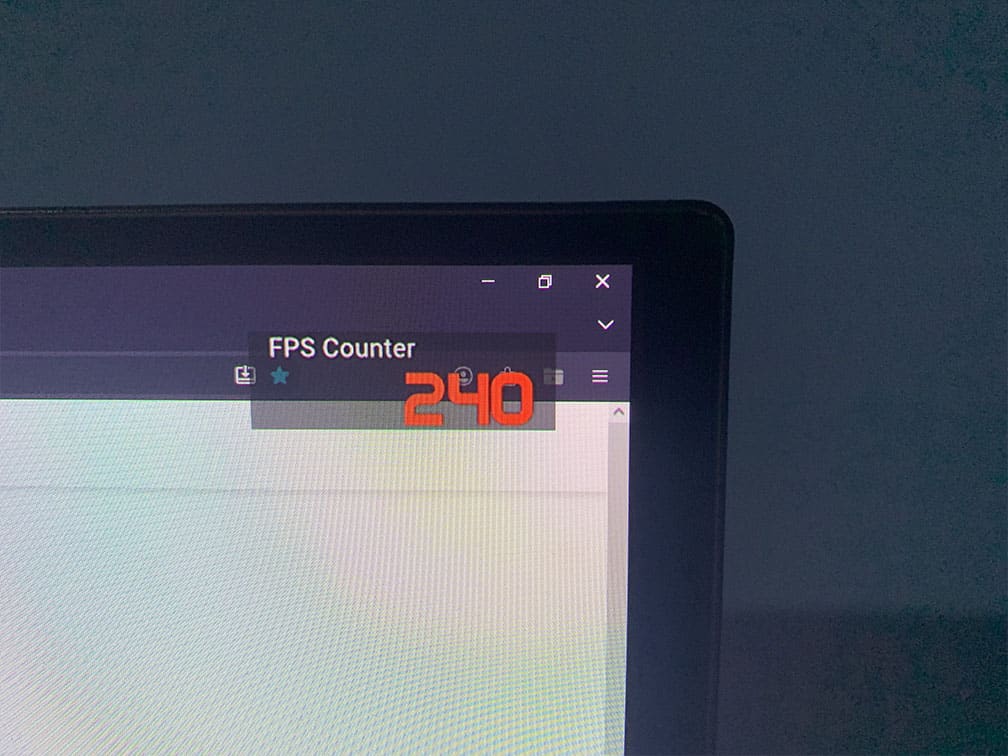
- HUD – shows current resolution, refresh rate, VRR and HDR status
- Refresh rate tracker
- 24″ Emulation Mode – emulates 24″ screen size with a selectable 2048×1536 4:3 resolution
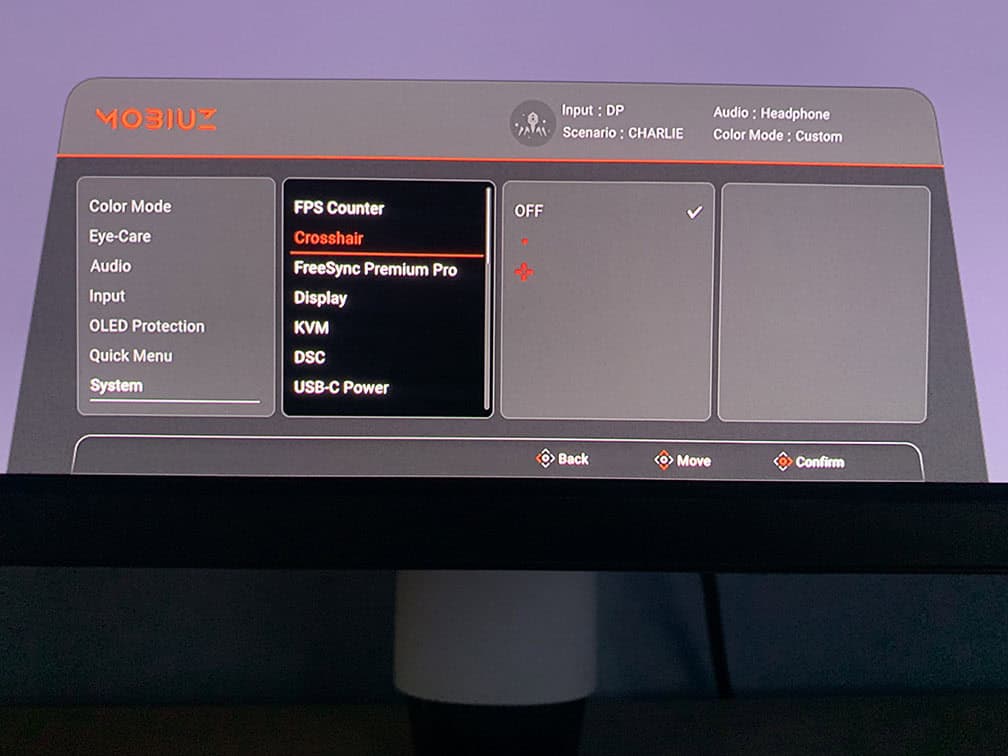
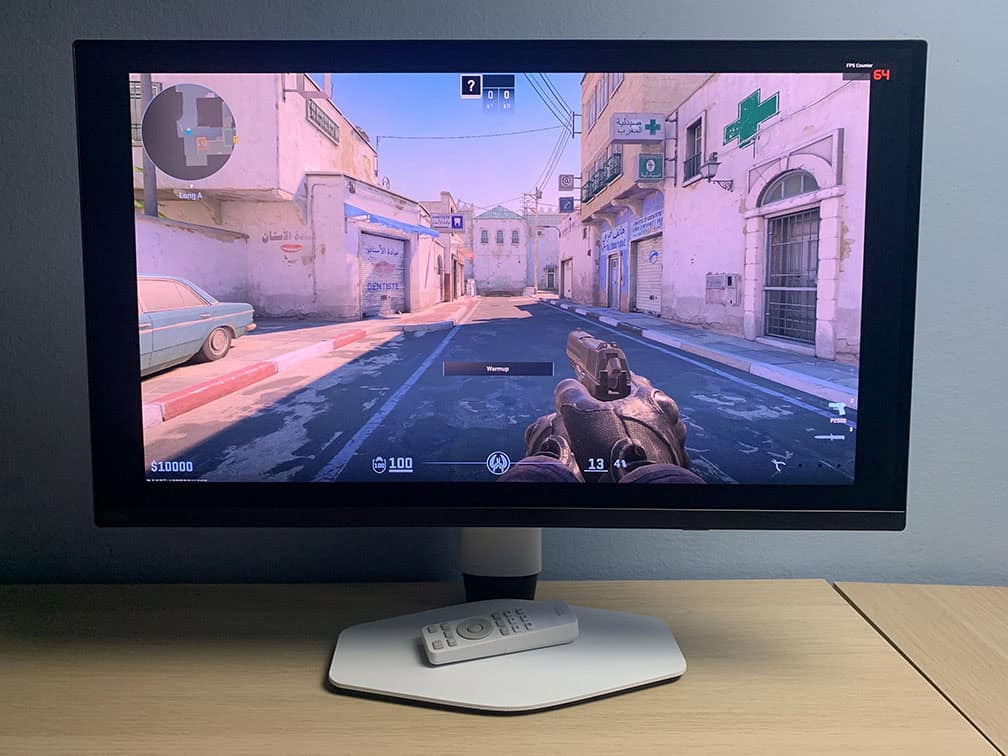
Other settings include Local Contrast (boosts perceived contrast and depth at cost of image accuracy), Color Weakness, Audio (eARC or headphone source selection, mute, volume), HDMI CEC, CEC Switch, USB-C Power (USB-C Awake on/off, Power off, 15W, 65W, 90W), USB-C Config (USB 2.0 or USB 3.1 Gen 1), IR Channel and OSD settings (language, display time, OSD lock).
If you have a console connected to the monitor, HDMI CEC allows it to automatically turn on and switch to the correct HDMI input when you power on the console.
More options include Deep Sleep (on/off), Auto Power OFF (off, 10min, 20min, 30min), information and factory reset.
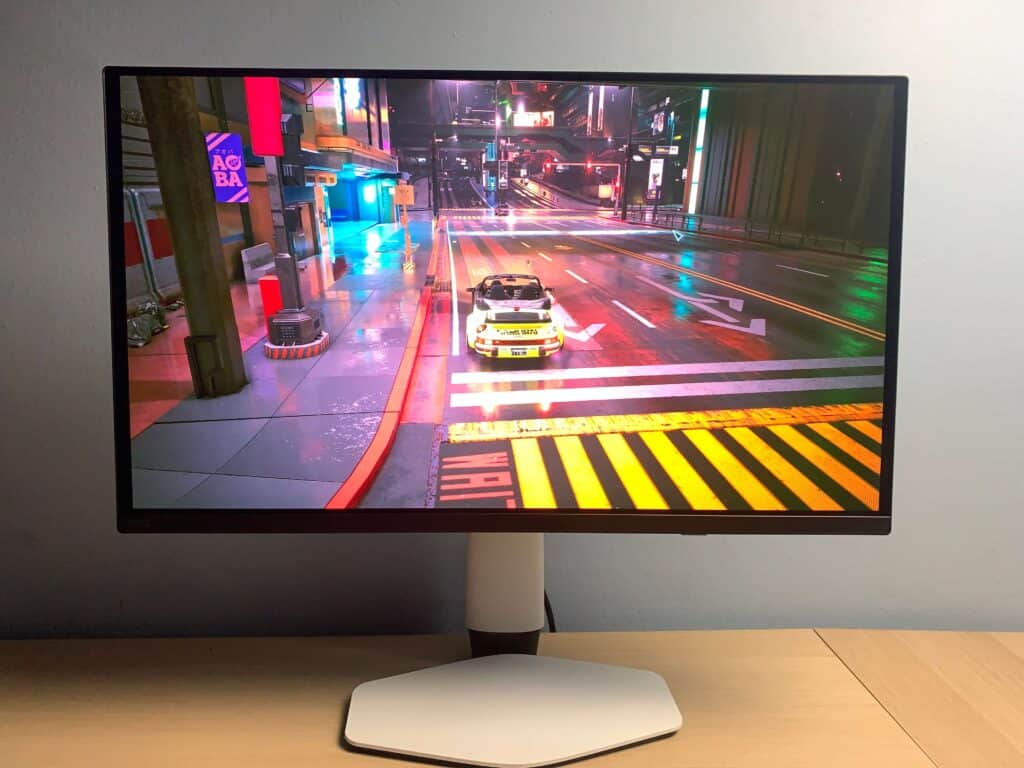
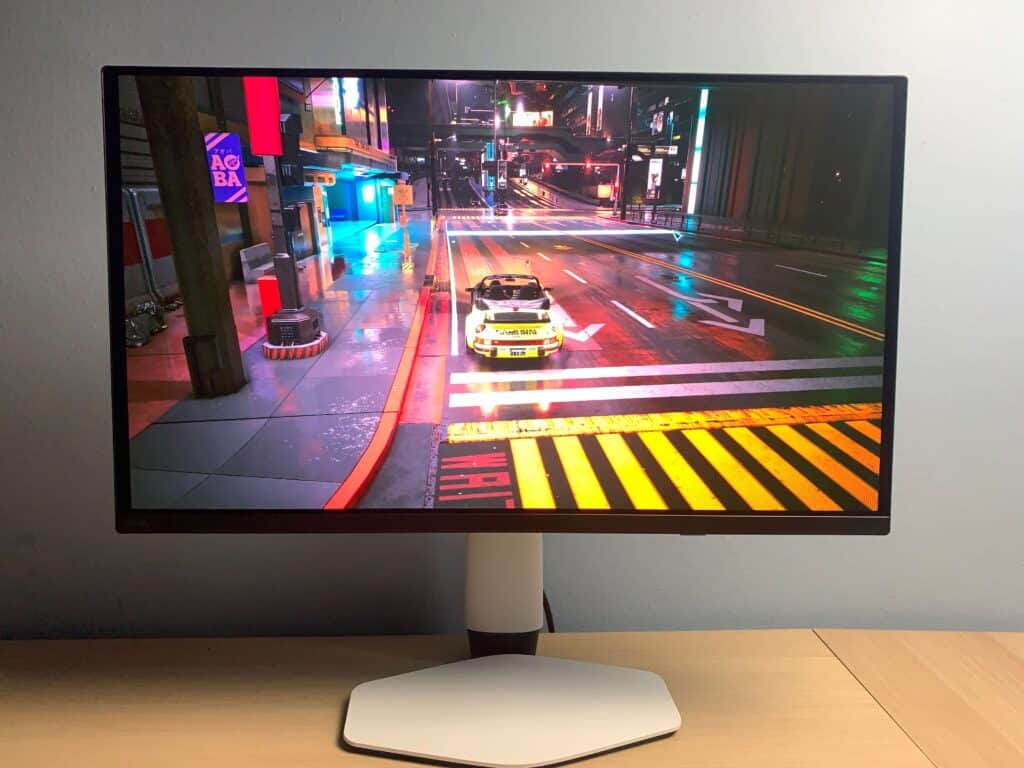
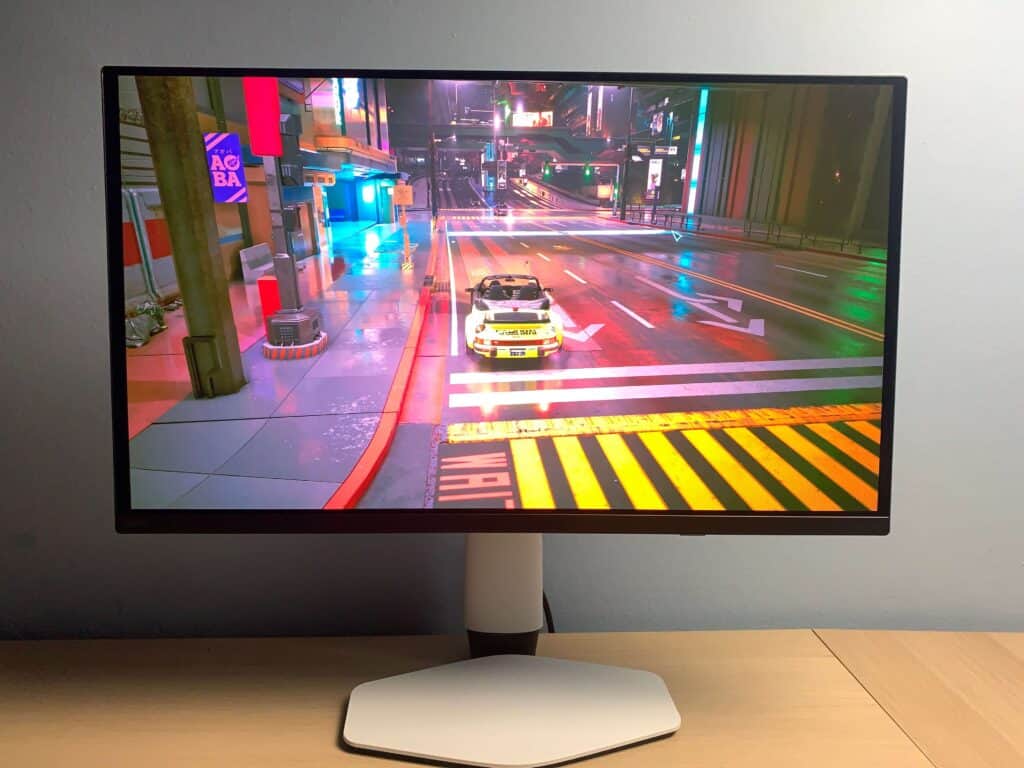
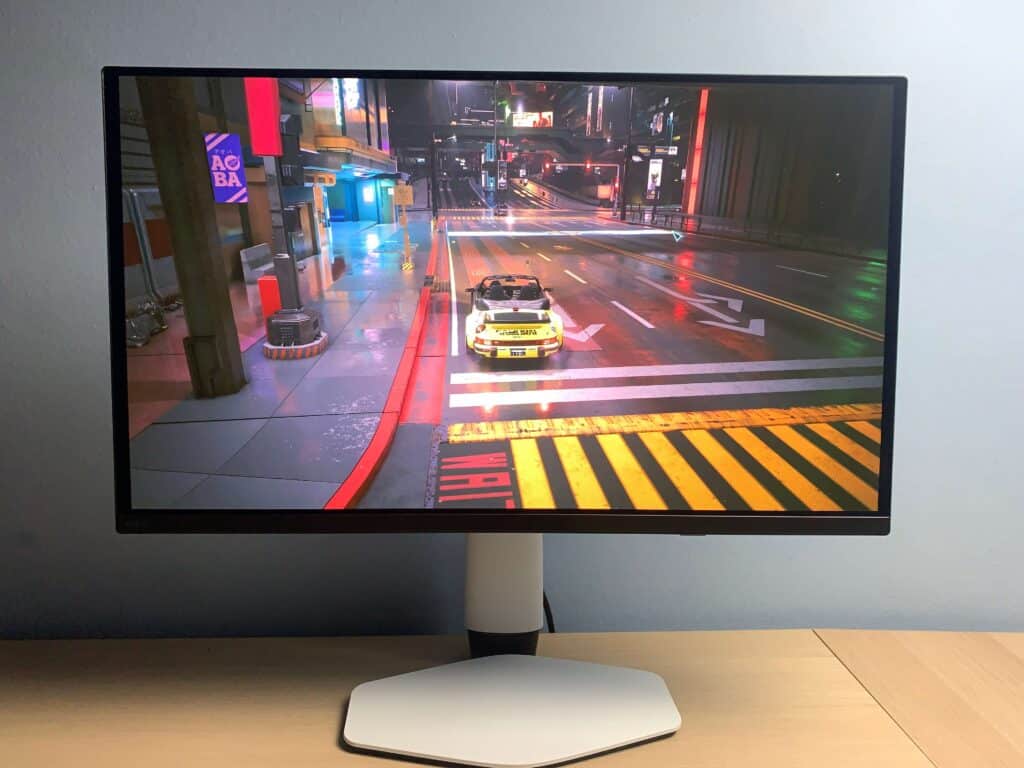
Finally, here’s how the image looks in Cyberpunk 2077 in SDR using different color modes. The sRGB mode is the most accurate, while Display P3 increases color saturation without affecting sharpness and gamma.
Other modes may look subjectively better to you, but they aren’t accurate, as they can introduce unintended changes such as clipping and over-saturation.
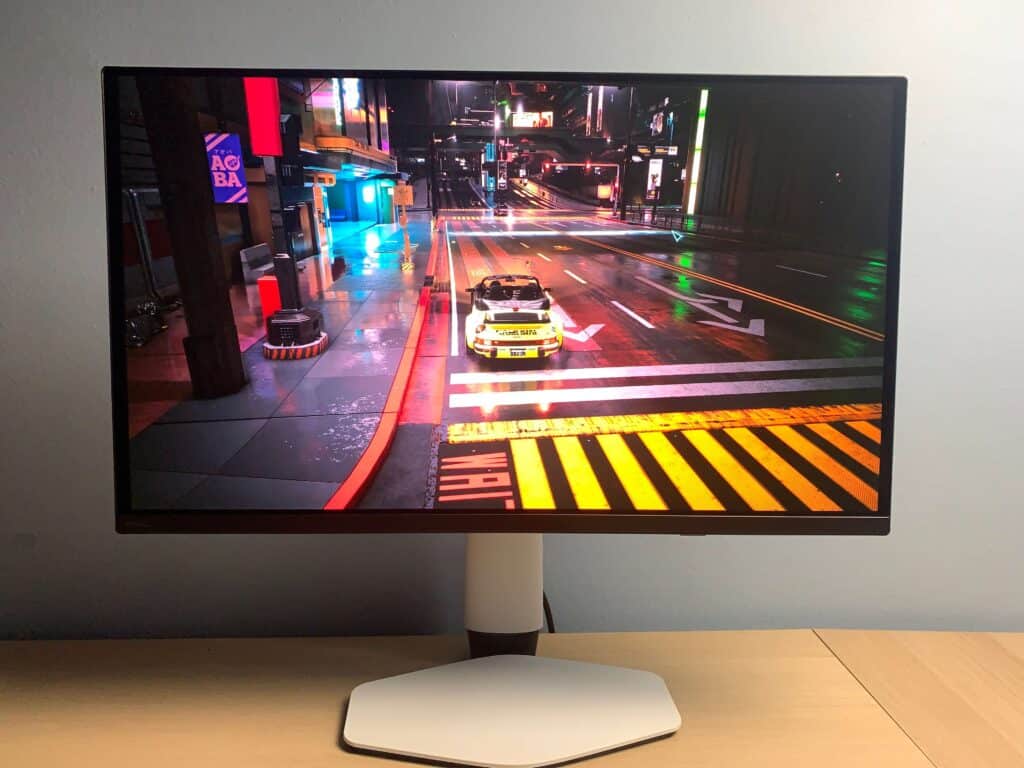
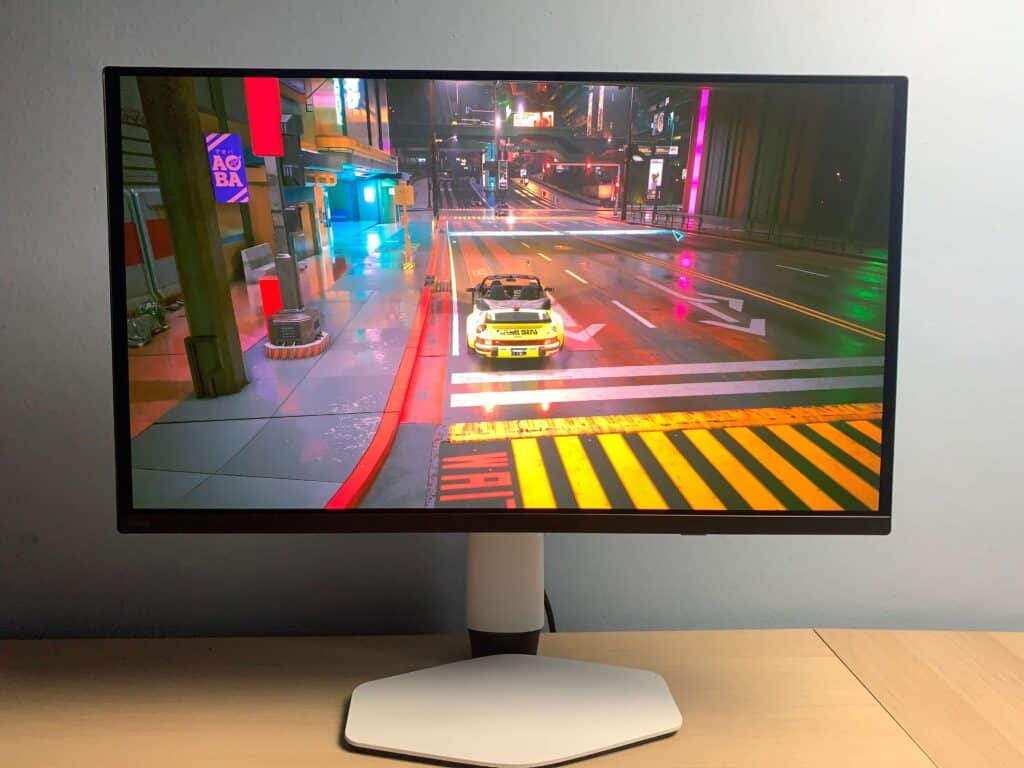
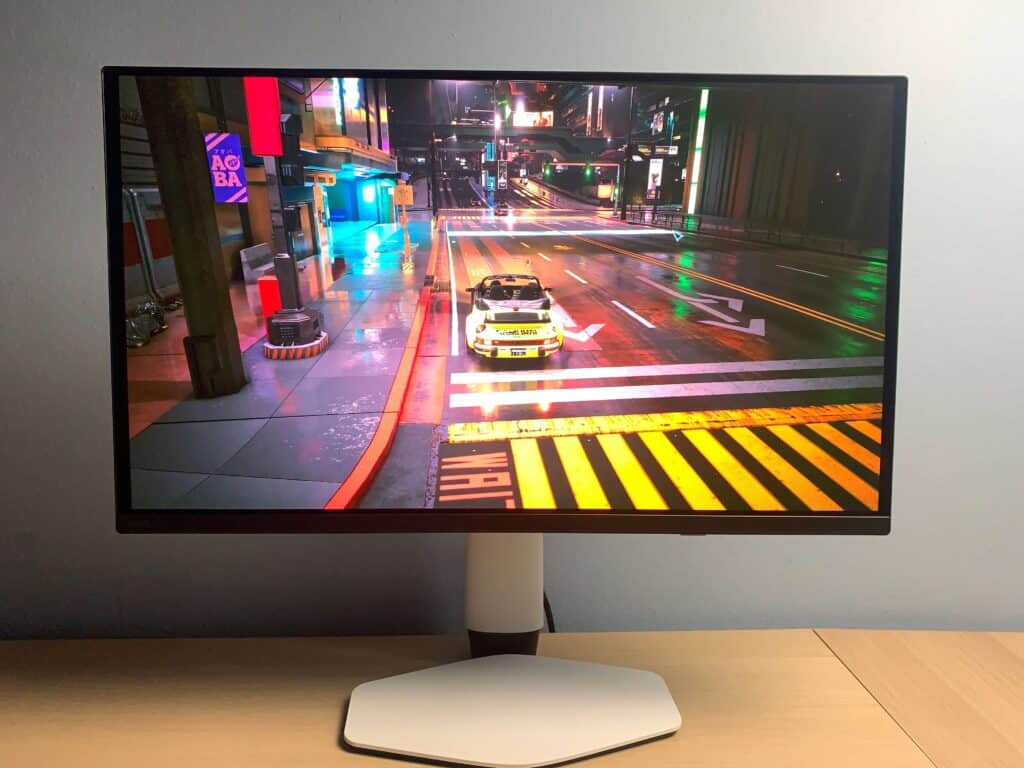
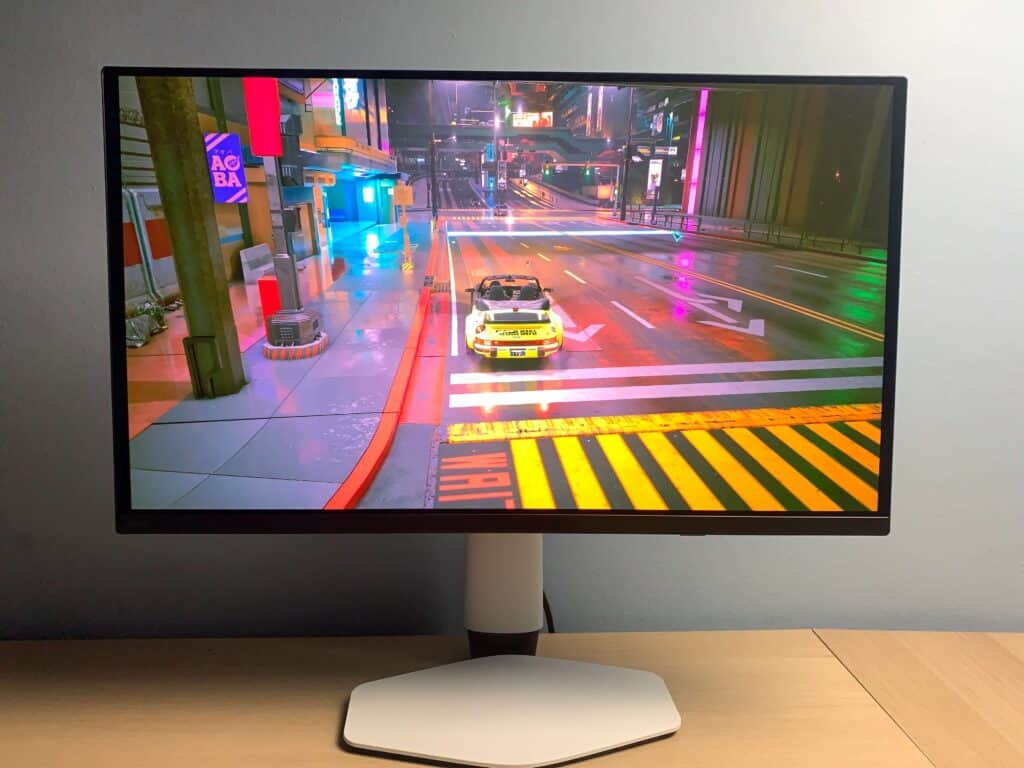
‘Spark’ custom preset)
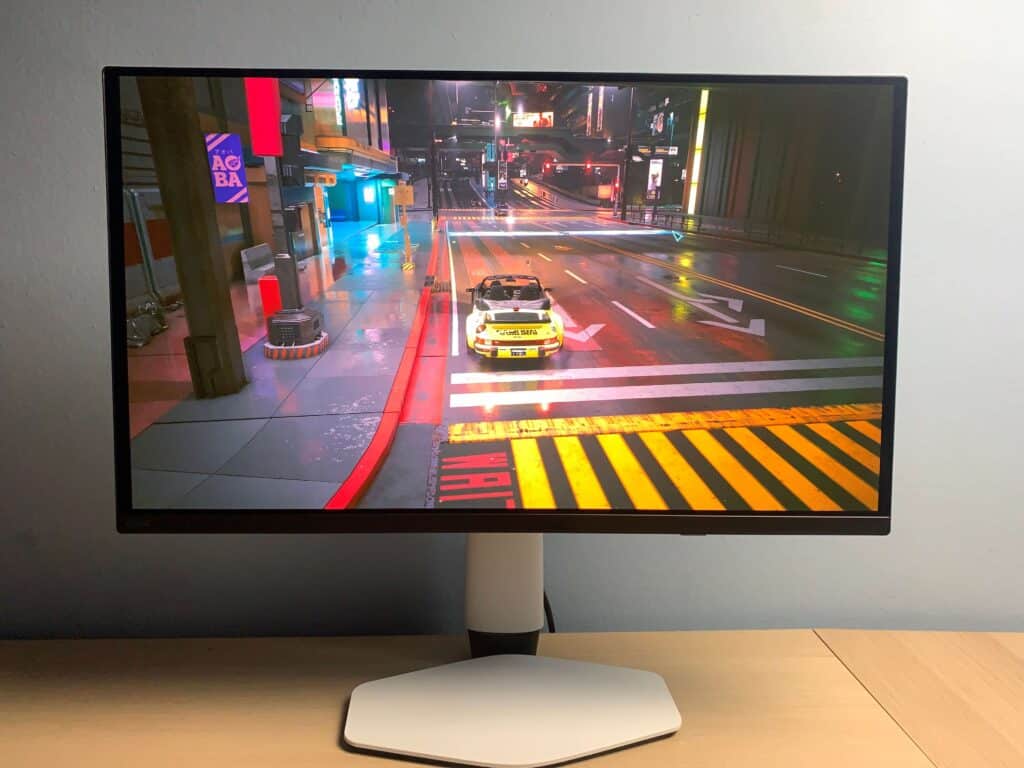
Next, here are some photos of God of War Ragnarok in different HDR modes.
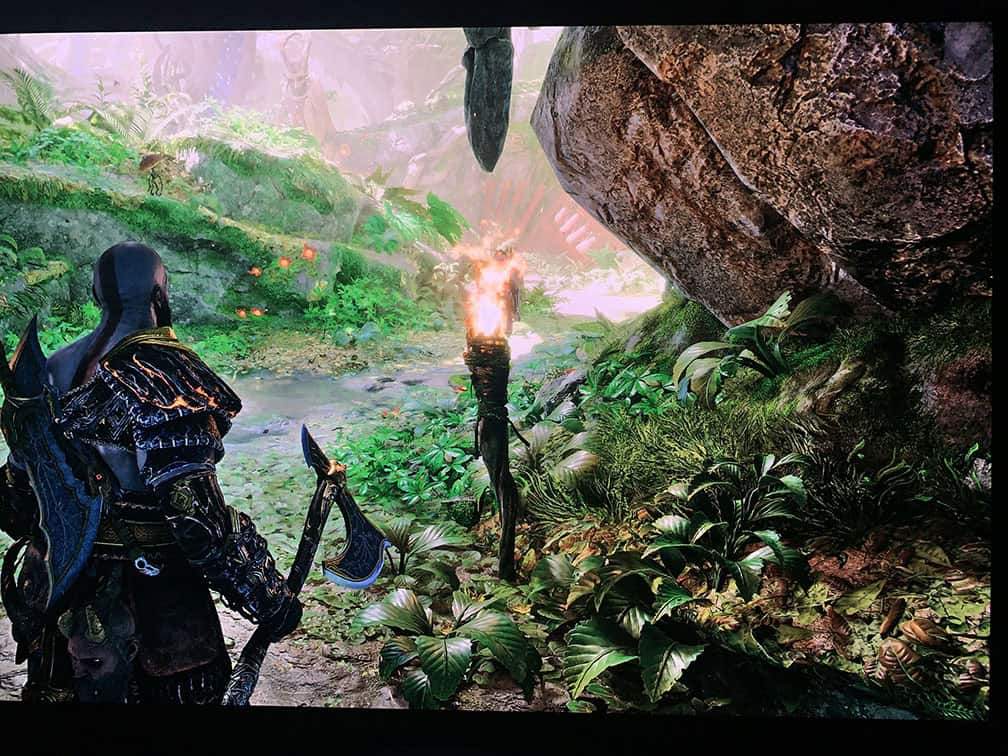
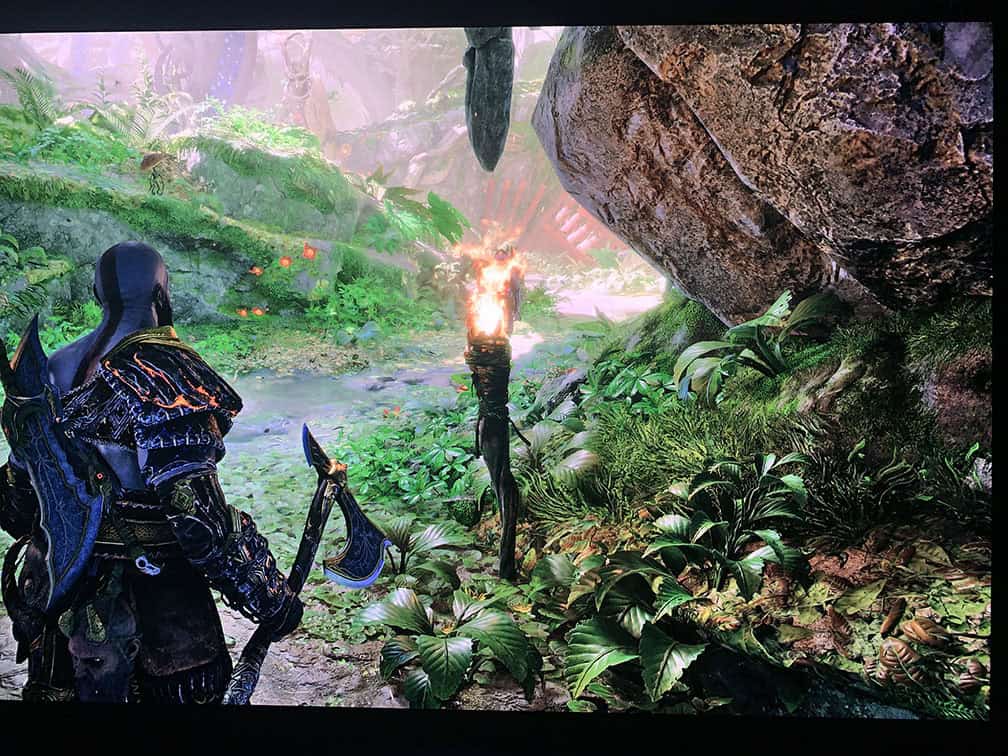
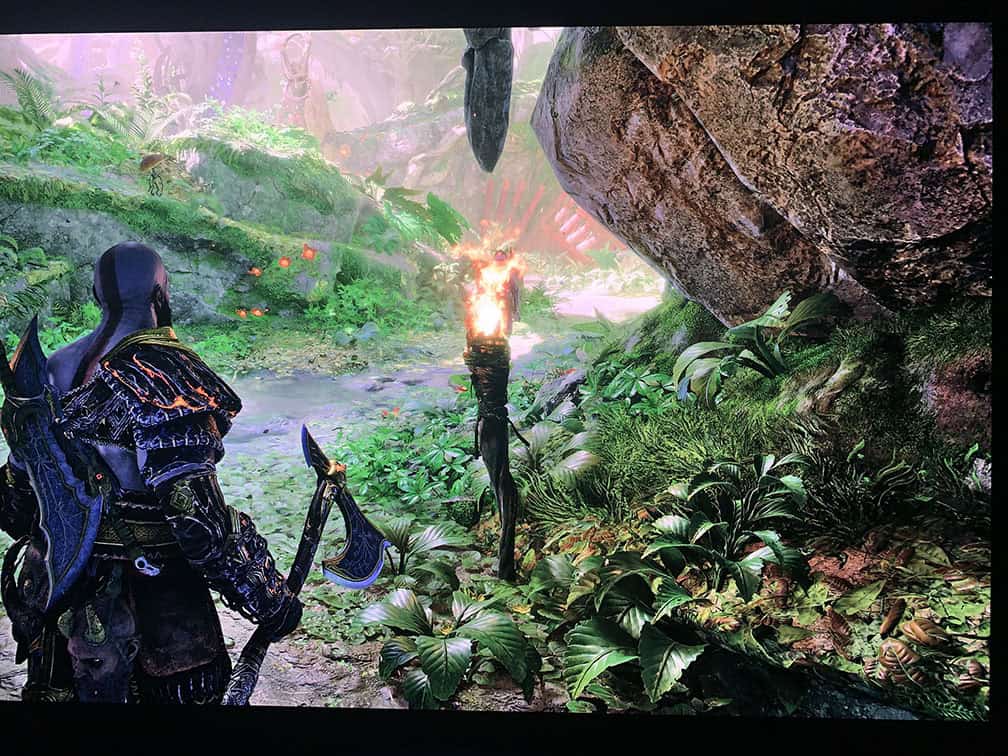
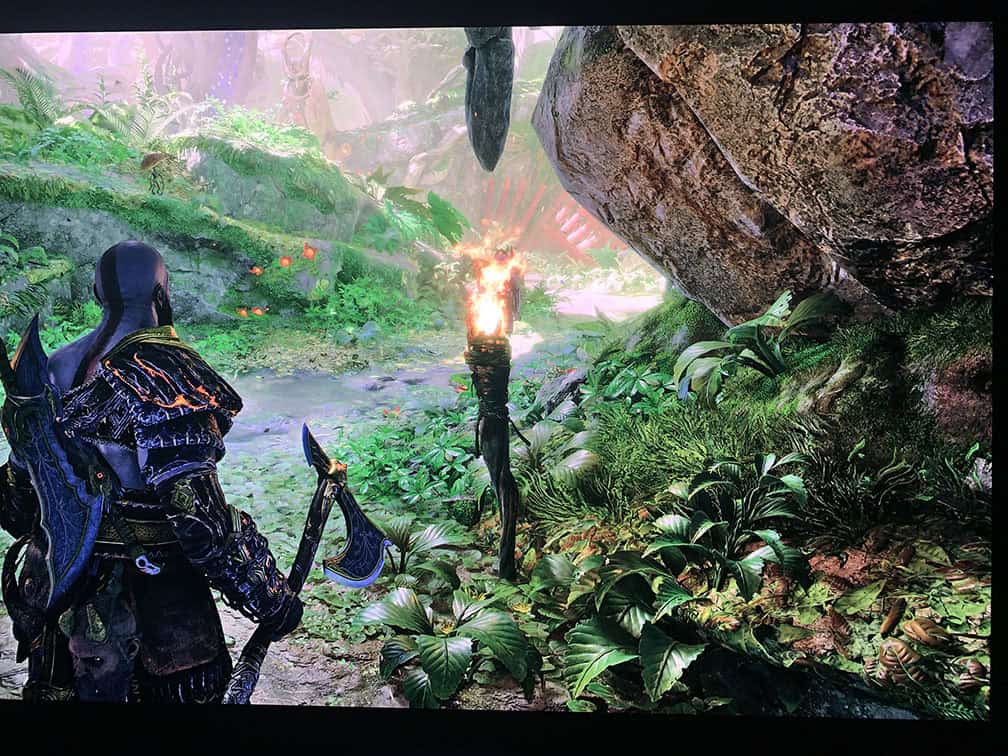
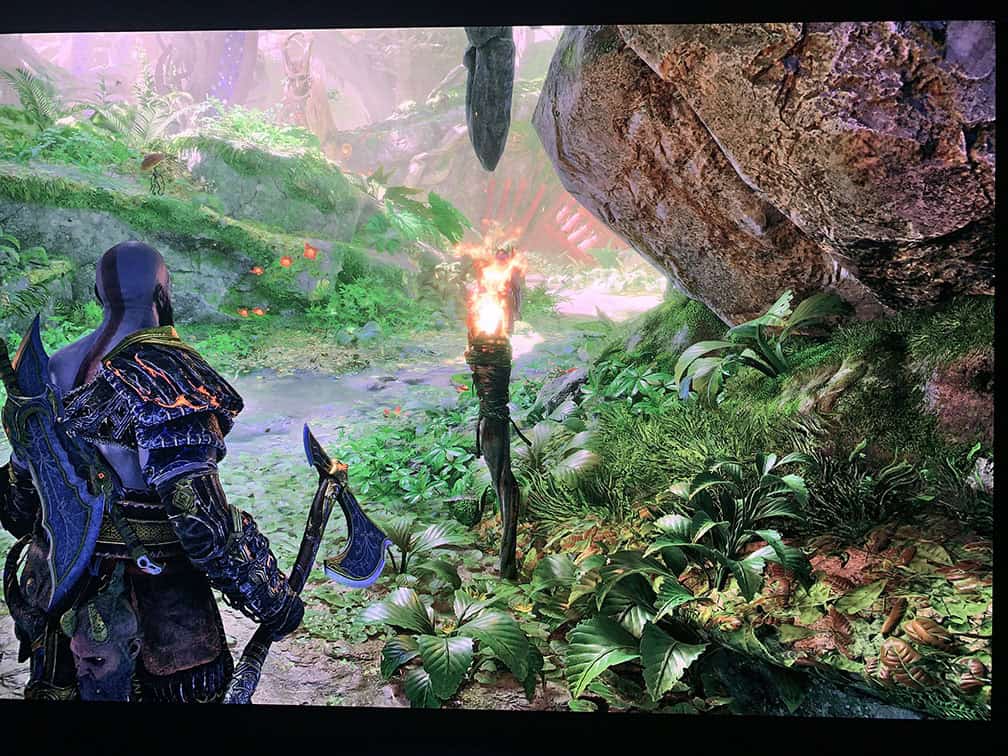
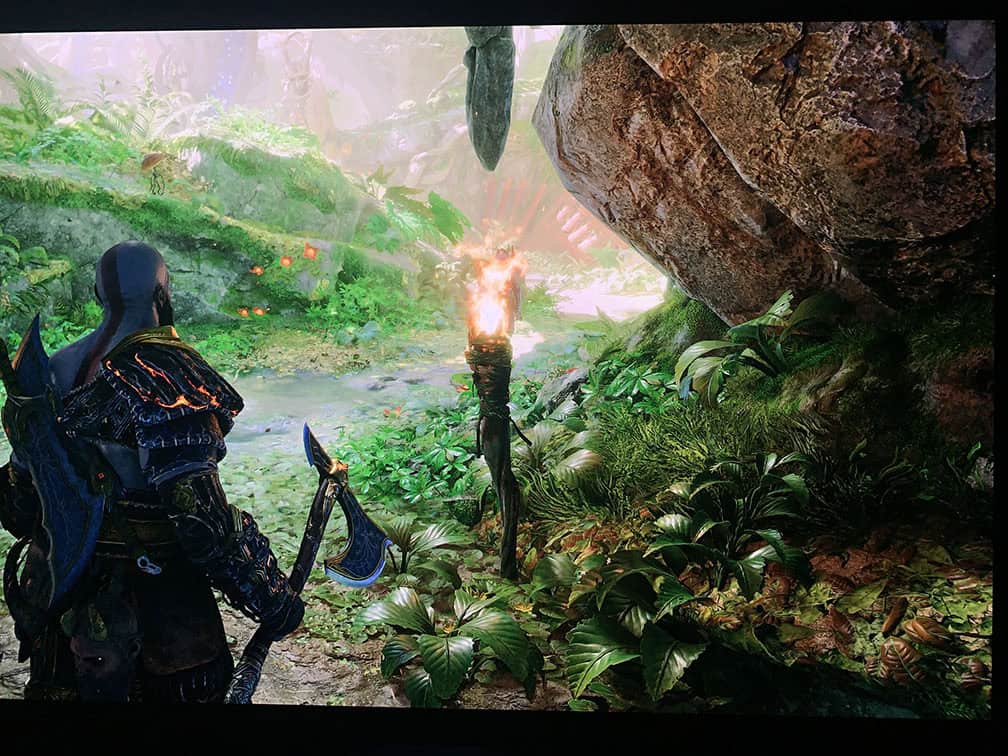
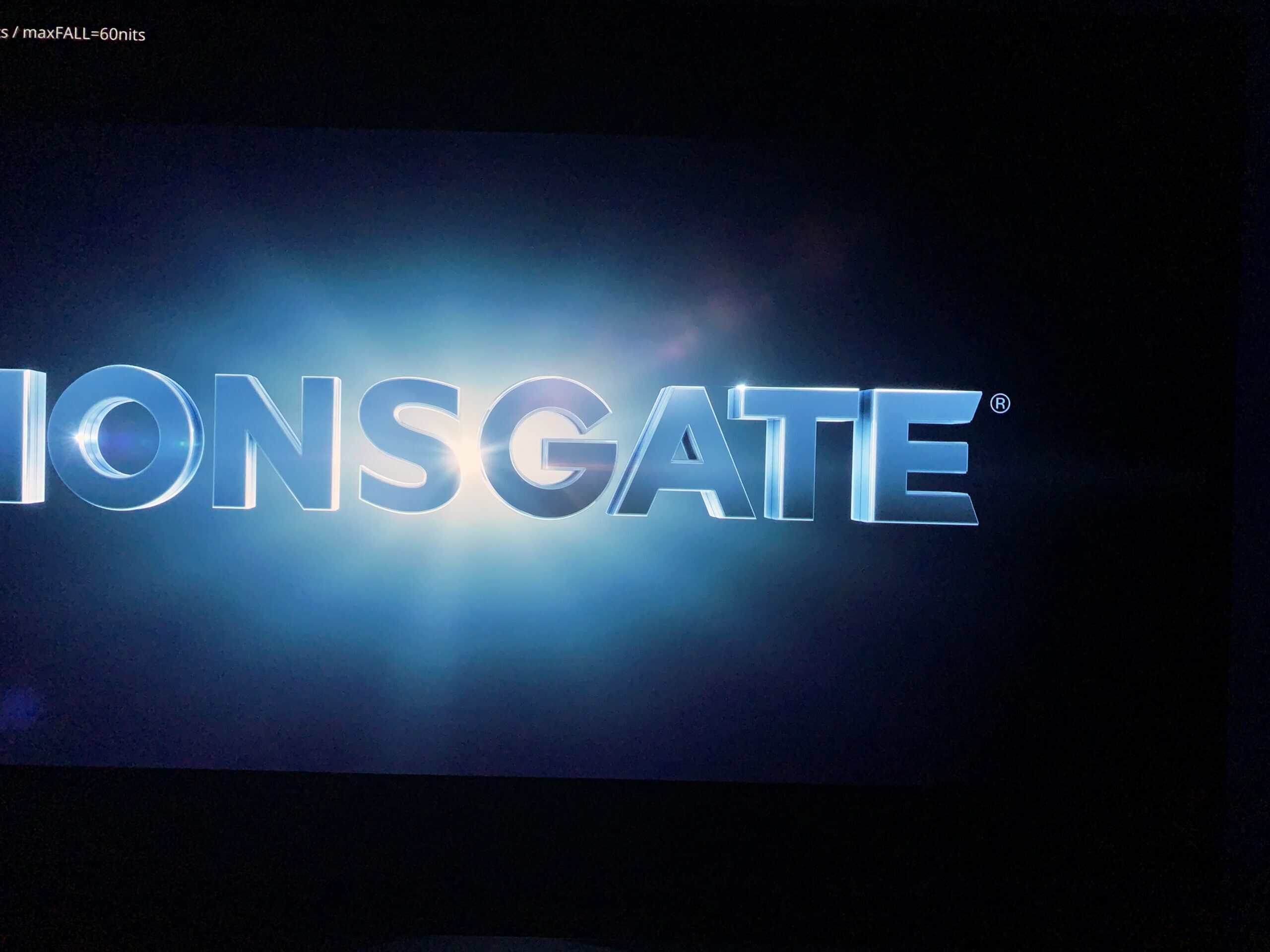
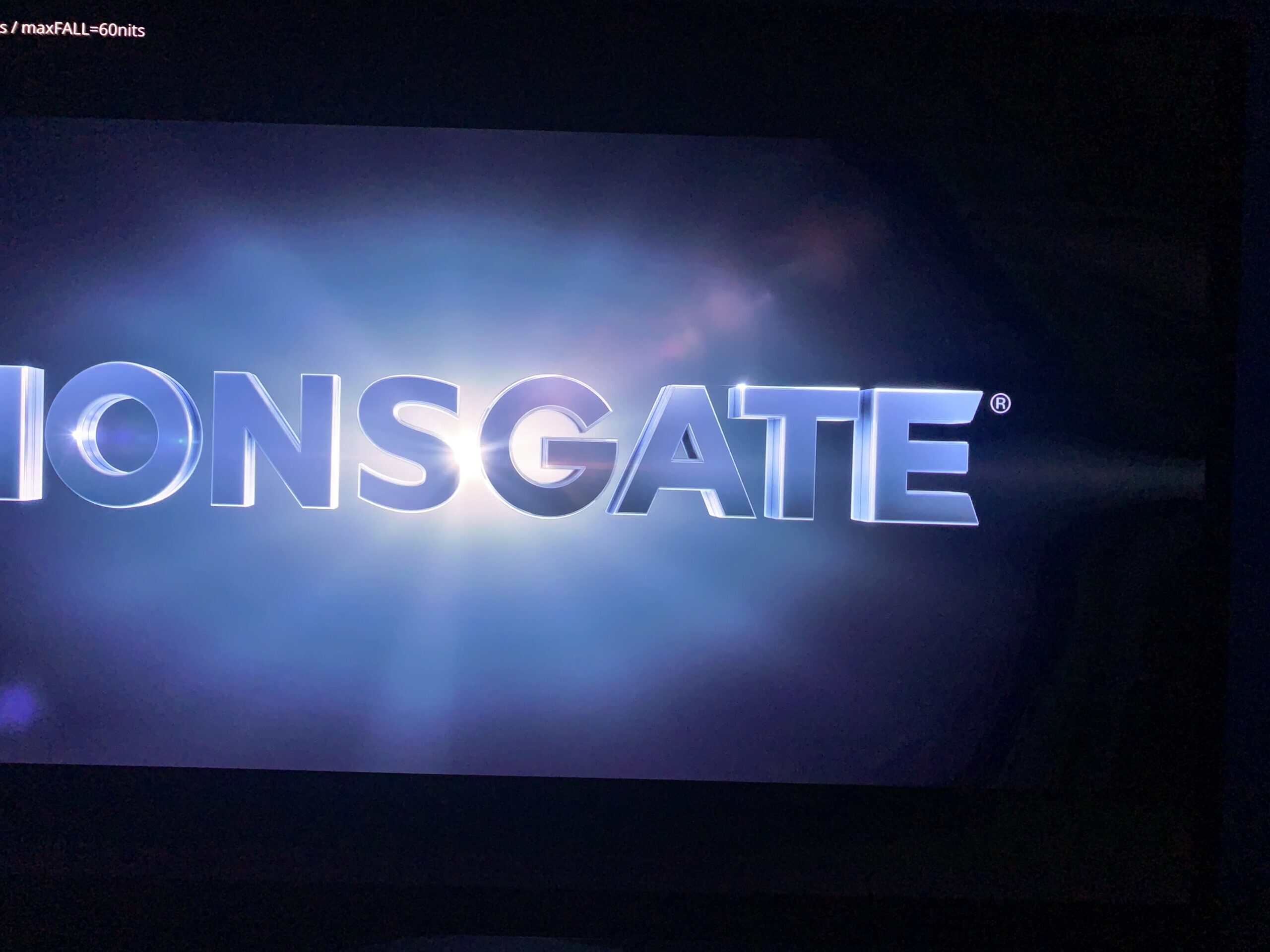
The DisplayHDR mode is the most accurate here. The other modes again introduce over-saturation, reveal unintended details, or cause clipping.
When watching low-bitrate content, such as streamed videos, HDR modes other than DisplayHDR are more likely to reveal banding and other compression artifacts. Fortunately, we didn’t notice these issues in video games.
Burn-in Prevention
The main downside of OLED panels is the risk of image retention and permanent burn-in. If bright, static elements are left on screen for extended periods, they can sometimes leave a permanently visible afterimage.
With sensible use, varied content, and BenQ’s OLED Protection features enabled, this is unlikely to be a problem in everyday use.
BenQ even offers a 3-year warranty that covers burn-in.
Additionally, the BenQ EX271UZ has active cooling via its heatsink instead of using a cooling fan, which can be loud and fail over time.
You’ll find the following OLED care features in the OSD menu:
- Pixel Refresh – maintains panel health (can be run manually, and reminder set to 8, 16 or 24 hours). The monitor automatically runs it when it goes to standby; the process takes around 6 minutes
- Idle Dimmer – dynamically dims the display when inactivity is detected
- Logo Dimming – automatically reduces the brightness of static logo areas
- Pixel Shift – occasionally moves the entire image by a few pixels (three frequency levels available, cannot be disabled)
Design & Connectivity
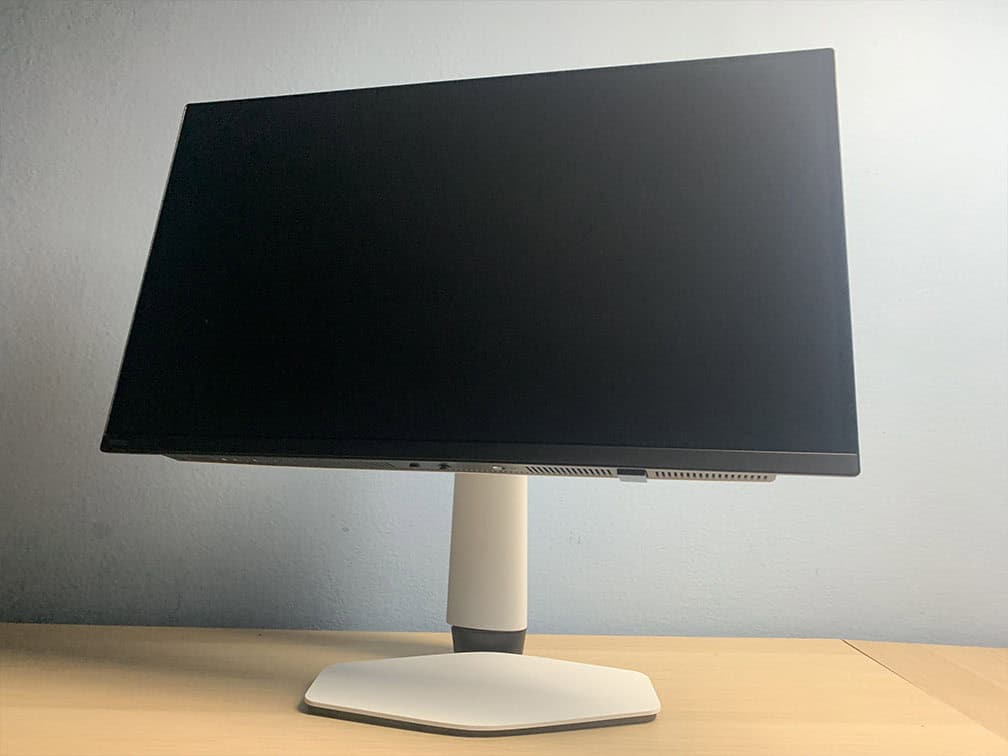
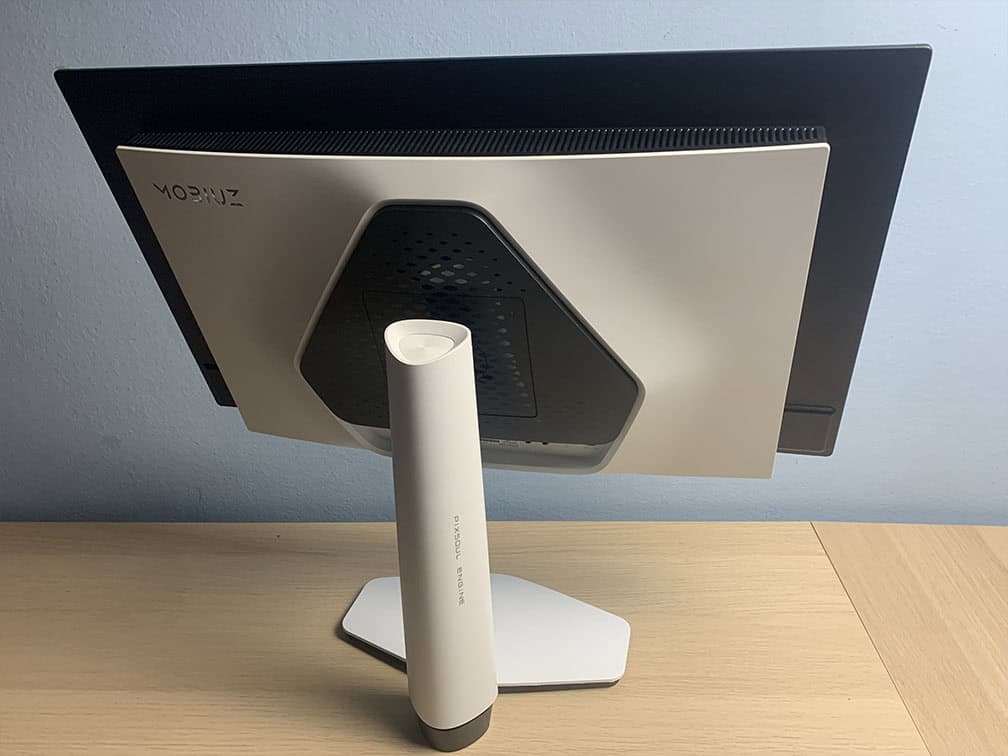
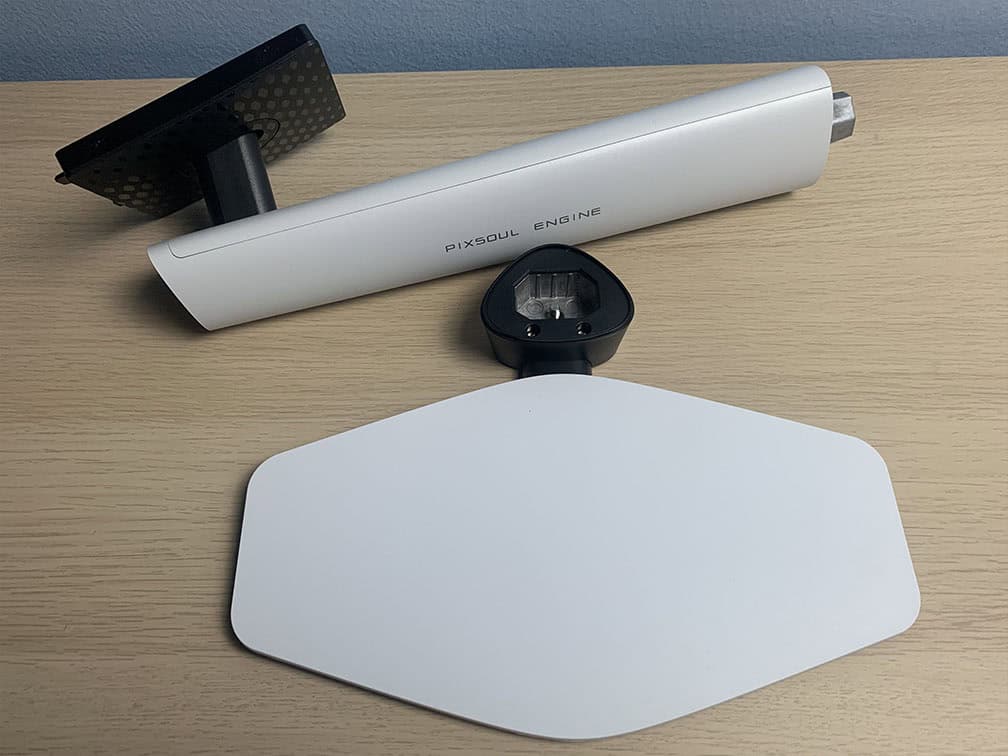
The BenQ EX271UZ monitor has a robust design with a premium feel to it and an ergonomic stand, including -5°/15° tilt, +/- 15° swivel, up to 100mm height adjustment and 100x100mm VESA mount compatibility.
The screen doesn’t support portrait orientation, while the stand has a flat surface that allows you to place items on it and keep your keyboard closer to the screen.
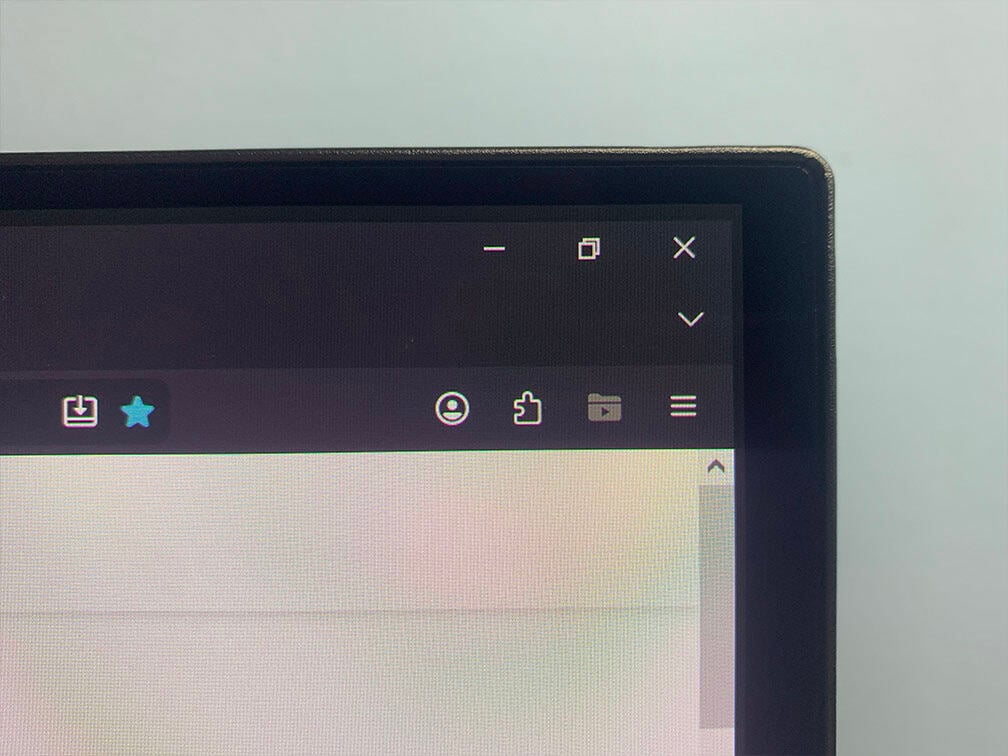
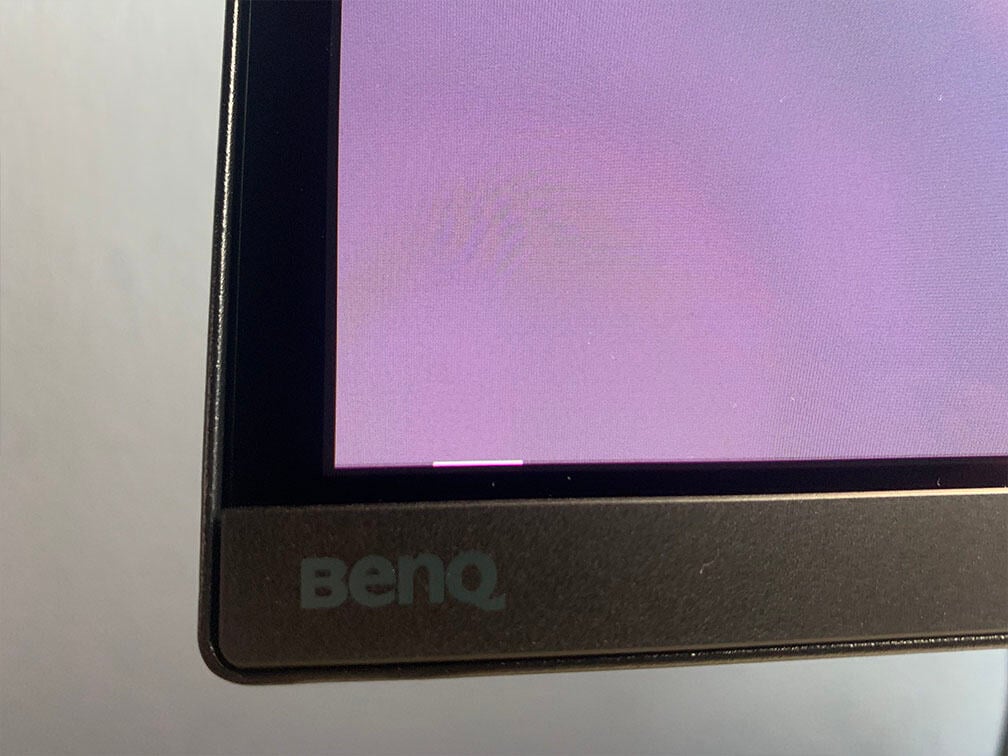
The display has ultra-thin 1mm bezels on the top and sides, while the bottom bezel is a bit thicker at 15mm. There are black borders before the image starts, about 8mm on the sides, 4mm at the top and 2mm at the bottom. There’s also a ~2mm protruding housing for the sensor.
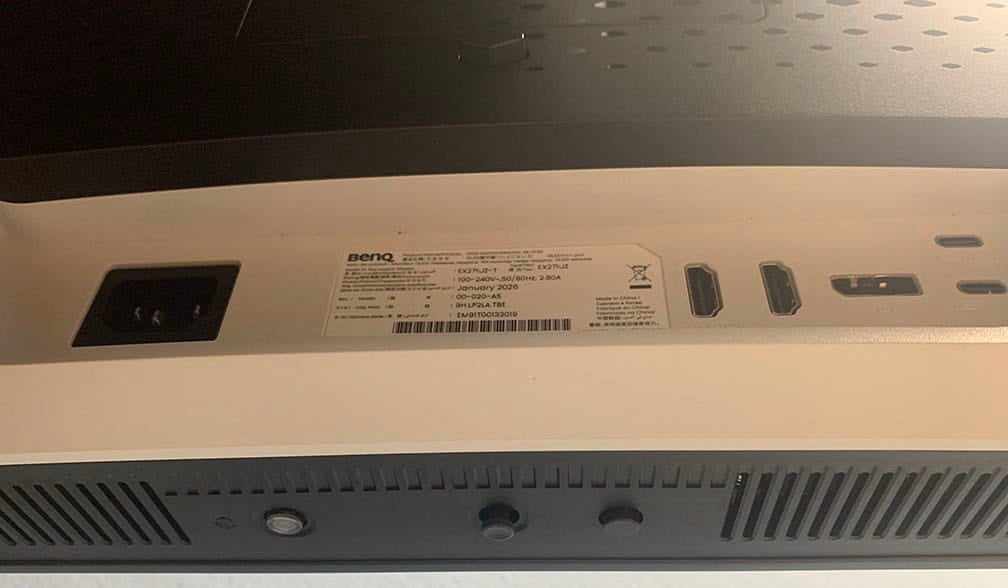
Connectivity options include two HDMI 2.1 ports with full 48 Gbps bandwidth (one with eARC), DisplayPort 1.4, a USB-C port with DP Alt Mode and up to 90W Power Delivery and a USB-C upstream port. The screen has an integrated power supply.
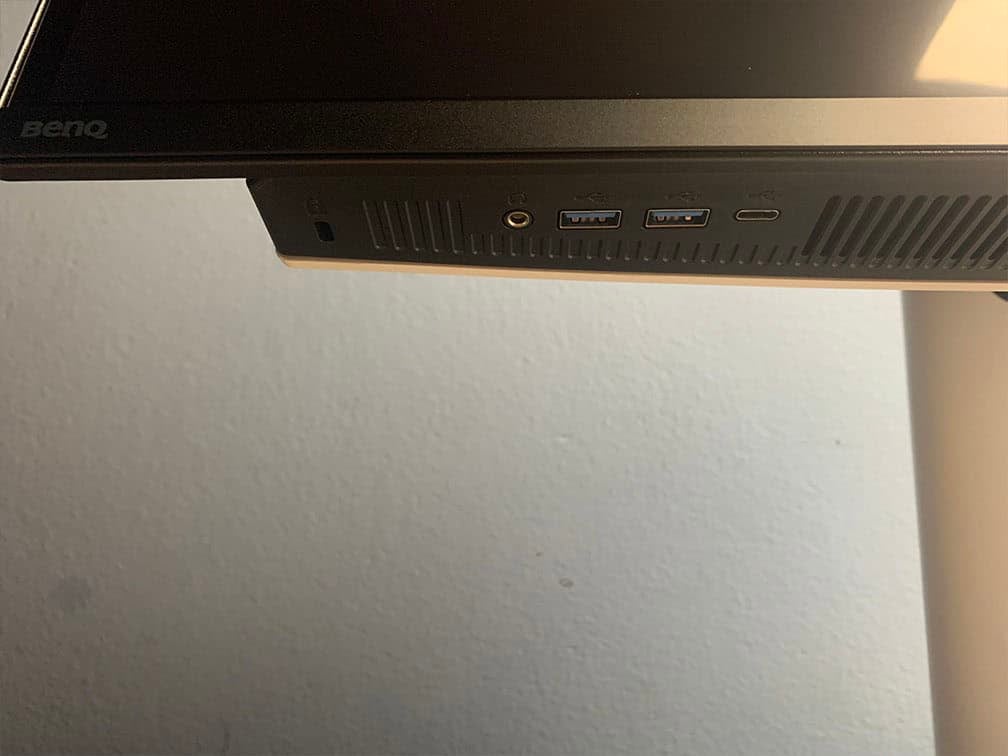
Under the bottom-right bezel, you’ll find two USB-A 3.0 ports, an additional USB-C port and a headphone jack for easy access.
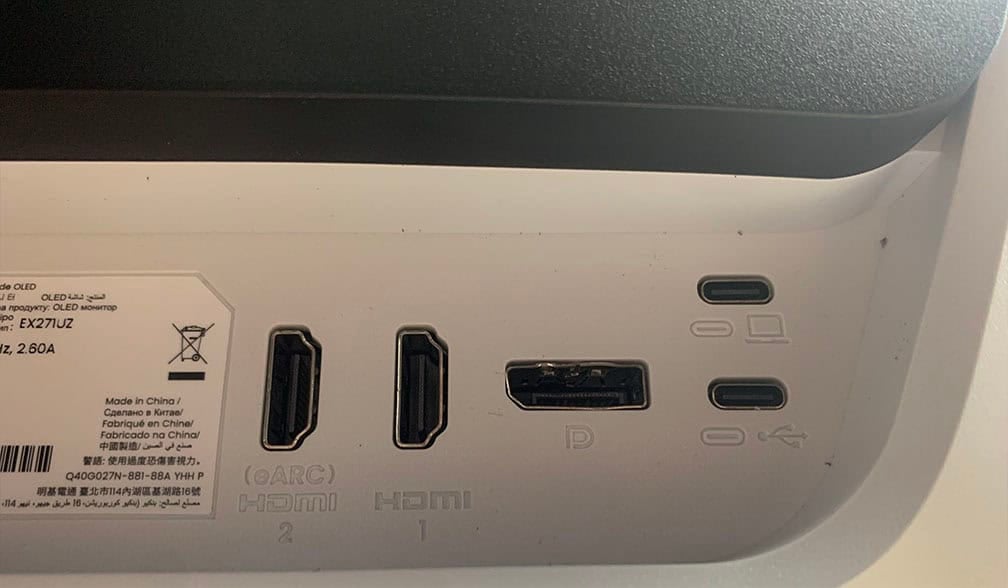
The DisplayPort connector housing on our unit was slightly bent, but it didn’t cause any issues during testing.
There’s also built-in KVM functionality. When you connect two PCs to the BenQ EX271UZ monitor, you can effortlessly swap control between them by connecting your keyboard and mouse to the monitor.
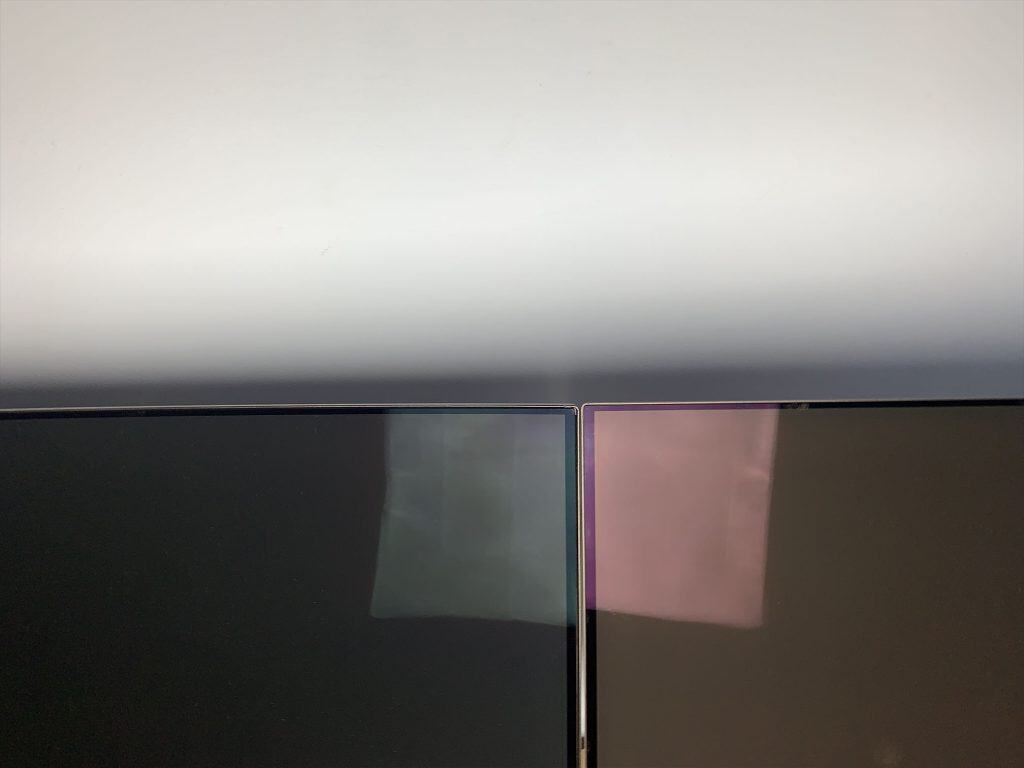
The screen has a semi-glossy finish, which makes the image more vivid as there’s no graininess associated with matte anti-glare coatings.

However, the screen is more reflective, and without a polarizer, blacks appear raised under direct lighting. As long as no light is aimed directly at the screen, this isn’t an issue.


Note that this uses the older QD-OLED coating. Newer QD-OLED panels, including the updated 32″ 4K 240Hz model and 34″ 1440p 280Hz – 360Hz ultrawides, feature an improved coating that eliminates the magenta tint (though a slight green tint remains), resulting in up to 40% deeper blacks and 2.5x better scratch resistance.
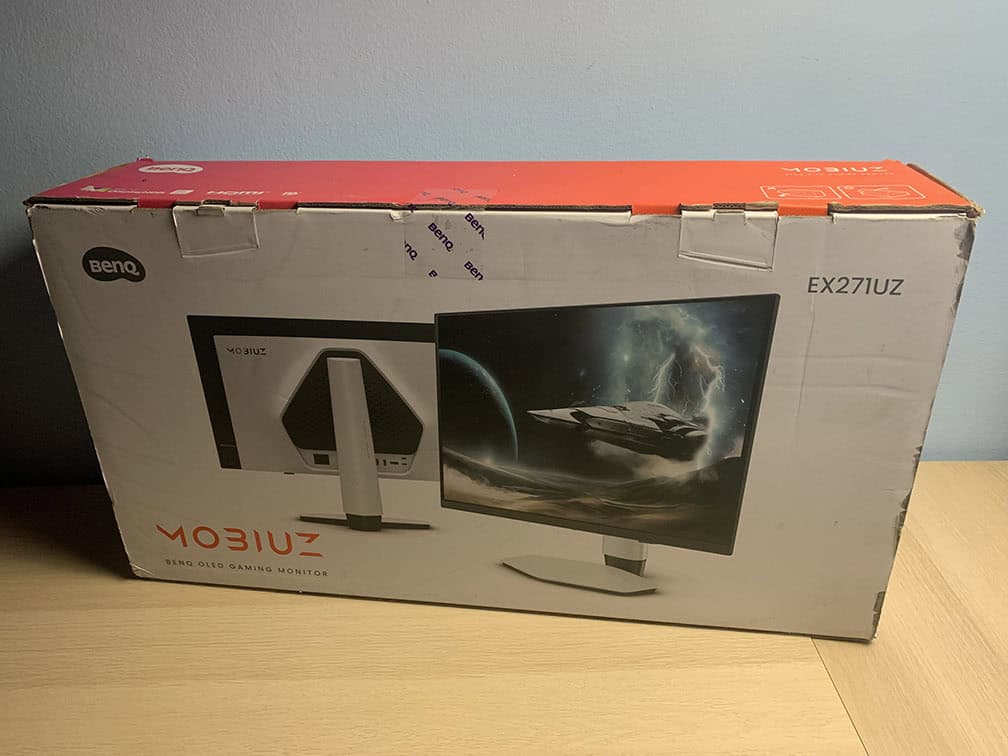
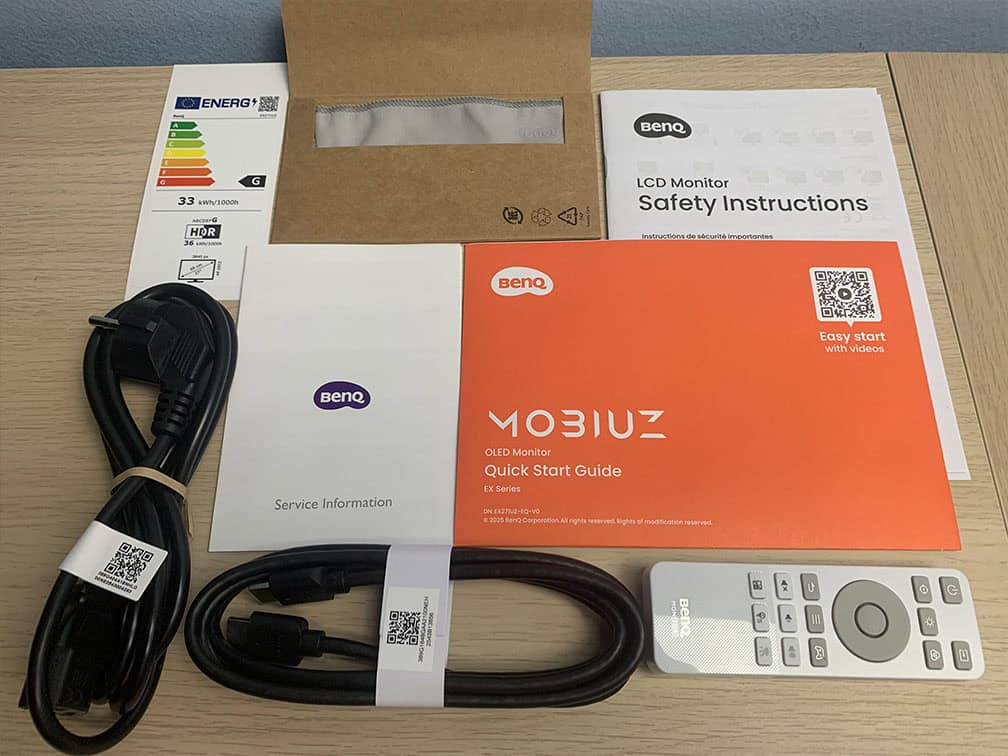
In the box, along with the monitor and its stand, you’ll get an HDMI cable, a power cord, a quick start guide, a remote controller, a warranty card and a cleaning cloth. DisplayPort and USB-C cables were not provided in the box.
Price & Similar Monitors
The BenQ EX271UZ goes for $950, which is a bit steep.
At this premium price point, we’d also expect additional features, such as a traditional Peak 1000 nits mode, a setting that attempts to circumvent Samsung’s QD-OLED panel dimming, DisplayPort 2.1 (UHBR20), DisplayPort and USB-C cables included in the box and/or a presence sensor.
The Acer Predator X27 X1 based on the same panel can be found on sale for around $600 with a traditional Peak 1000 nits mode, USB-C with 65W PD and built-in KVM.
Next, there’s the ASUS XG27UCDMG with USB-C 90W PD, KVM, Dynamic Brightness Boost mode, BFI at 120Hz (works on consoles) and Neo Proximity Sensor for $850, while the PG27UCDM model also packs DisplayPort 2.1 for $1,000.
Finally, the MSI MAG 272UP QD-OLED X24, the Gigabyte MO27U2 and the MSI MAG 272UP QD-OLED E16 (with 165Hz) can regularly be found for $600 – $700, making them the most affordable options in case the X27 X1 is not on sale.
These have the traditional Peak 1000 nits modes, but lower 15W PD over USB-C and only Gigabyte’s model has built-in KVM.
For more options and information, check out our dedicated OLED Monitors article.
Conclusion
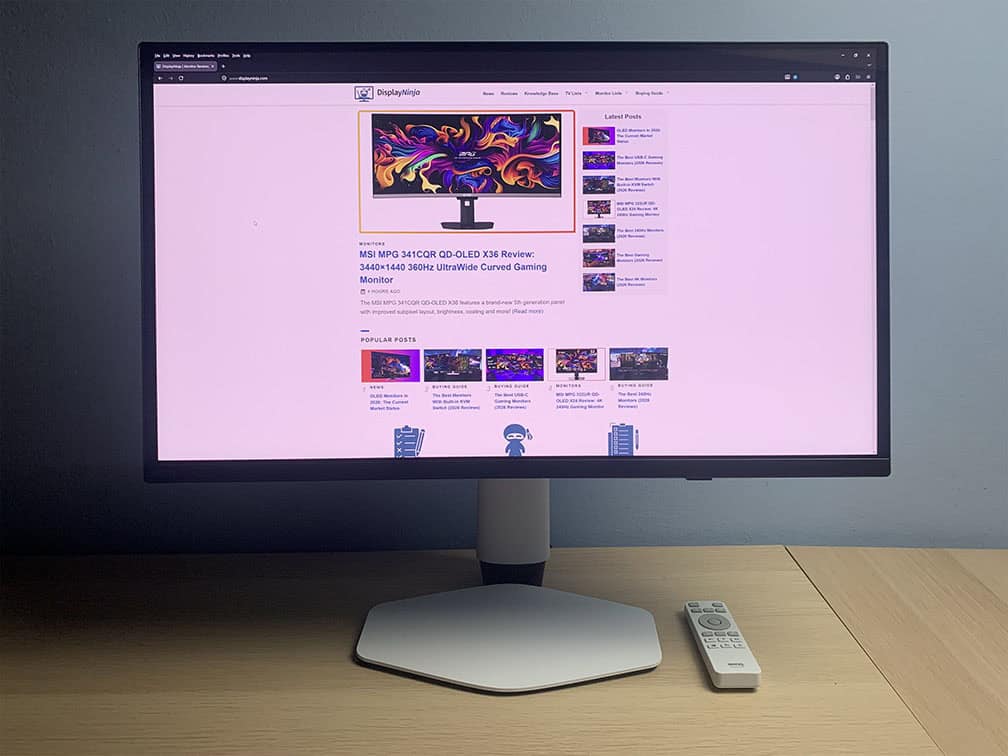
Overall, the BenQ EX271UZ is an excellent HDR gaming monitor, but given its premium price, we expected a bit more.
For starters, instead of (or alongside) the impractical Sci-fi, Fantasy and other color modes, we’d rather see a traditional Peak 1000 mode capable of reaching 1,000 nits at a 3% APL without sacrificing image accuracy beyond the inherent limitations of the panel.
An additional HDR mode similar to MSI’s EOTF Boost, ASUS’ Dynamic Brightness Boost or Gigabyte’s HyperNits would’ve also been a welcome addition. It would offer the best of both worlds by combining the brightness of a Peak 1000 mode with the more accurate EOTF tracking of the DisplayHDR True Black mode.
Finally, while the built-in KVM switch with USB-C 90W Power Delivery and the included remote controller are genuinely useful features, we’d also expect DisplayPort 2.1 (UHBR20) to eliminate the need for DSC, DisplayPort and USB-C cables included in the box, and some form of presence detection that automatically turns off the display when no one is in front of it, helping reduce concerns about OLED burn-in.
Having said all that, if you prefer to use the more accurate DisplayHDR True Black mode over the brighter Peak 1000 nits mode anyway, and don’t need DP 2.1 or a presence sensor but simply want a solid 27″ 4K 240Hz QD-OLED monitor with a premium-quality design, a remote controller, USB-C and built-in KVM, the BenQ EX271UZ is definitely worth considering.
Specifications
| Screen Size | 26.5-inch |
| Resolution | 3840×2160 (Ultra HD) |
| Panel Type | QD-OLED |
| Aspect Ratio | 16:9 (Widescreen) |
| Refresh Rate | 240Hz |
| Response Time | 0.03ms (GtG) |
| Motion Blur Reduction | Blur Reduction (240Hz) |
| Adaptive-Sync | FreeSync Premium Pro (50-240Hz), HDMI 2.1 VRR |
| Ports | DisplayPort 1.4, 2x HDMI 2.1, USB-C (DP Alt Mode, 90W PD) |
| Other Ports | Headphone Jack, 2x USB-A 3.0, 2x USB-C |
| Brightness (1 – 3% White Window) | 1000 cd/m² (we measured 883-nits) |
| Brightness (10% White Window) | 450 cd/m² (we measured 443-nits) |
| Brightness (100% White Window) | 250 cd/m² (we measured 253-nits) |
| Contrast Ratio | Infinite |
| Colors | 1.07 billion (true 10-bit) 99.3% DCI-P3 |
| HDR | VESA DisplayHDR True Black 400 |
| VESA | Yes (100x100mm) |
The Pros:
- Instantaneous pixel response time, VRR up to 240Hz, BFI support for 120FPS
- Infinite contrast ratio, exceptional color gamut, accurate sRGB and Display P3 modes
- High pixel density
- Ergonomic design and rich connectivity options, including KVM and USB-C 90W PD
- 3-year warranty that covers burn-in
The Cons:
- No traditional Peak 1000 nits mode
- Risk of burn-in (covered by warranty)
- Glossy screen surface causes mirror-like reflections (but makes the image more vivid)
- VRR brightness flickering in some games (expected on OLED and VA panels)


