
Bottom Line
The KTC G32P5 is an excellent 32″ 4K 240Hz OLED gaming monitor that offers premium features, such as integrated 5W speakers, remote controller, KVM, USB-C (65W PD) and human detection sensor at an attractive price. Even though its brightness around 10% APL is a bit lower than that of some alternatives using the same panel, it still deliver an immersive HDR viewing experience, while the high refresh rate, Dual Mode, low latency, instantaneous response time and VRR ensure smooth gameplay.
The KTC G32P5 is a 32″ 4K 240Hz gaming monitor based on LG’s W-OLED MLA+ panel with RGWB subpixel layout and 1080p 480Hz Dual Mode.
It’s also equipped with plenty of premium features, including USB-C with 65W Power Delivery and DP Alt Mode, built-in KVM, integrated speakers, a remote controller, a human detection sensor and more!
Let’s see how it handles our tests!
Image Quality
The KTC G32P5 is based on LG’s 32″ 4K 240Hz W-OLED panels with MLA+ (Micro Lens Array) technology for increased brightness performance (1300-nits for 1.5% APL and 275-nits for 100% APL) over the previous-gen panels.
Moreover, this panel has the improved RGWB subpixel layout, which in combination with the high pixel density, ensures that there’s no colored fringing on small text and fine details.
The OLED panel also delivers true 10-bit color depth for smooth gradients without banding, 178° wide viewing angles for flawless image quality regardless of the angle you’re looking at the screen and per-pixel dimming for infinite contrast ratio with true blacks and bright highlights without any blooming artifacts.
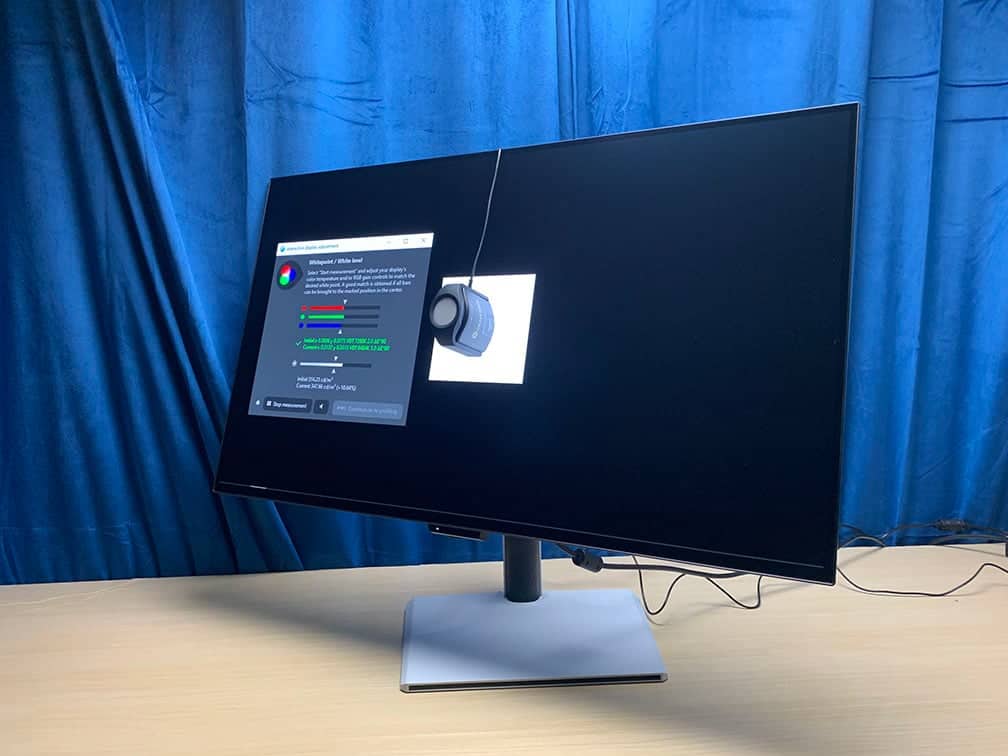
For our testing, we’re using the Calibrite Display Pro HL colorimeter paired with DisplayCAL and HCFR software. Note that our tests were done using the USA-1.0.1 monitor firmware version.
Color Gamut
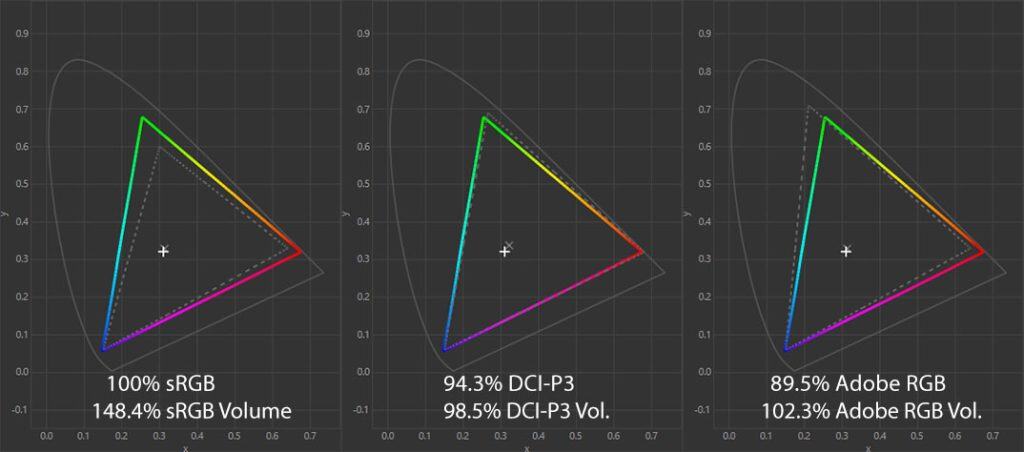
We measured a 100% sRGB color space coverage with a 148.4% volume, which results in vibrant colors, albeit not quite as that of QD-OLED and mini LED monitors we tested.
We also measured a bit lower 94.3% DCI-P3 coverage than the panel’s specification (99%), but this is due to different testing methods and colorimeters used.
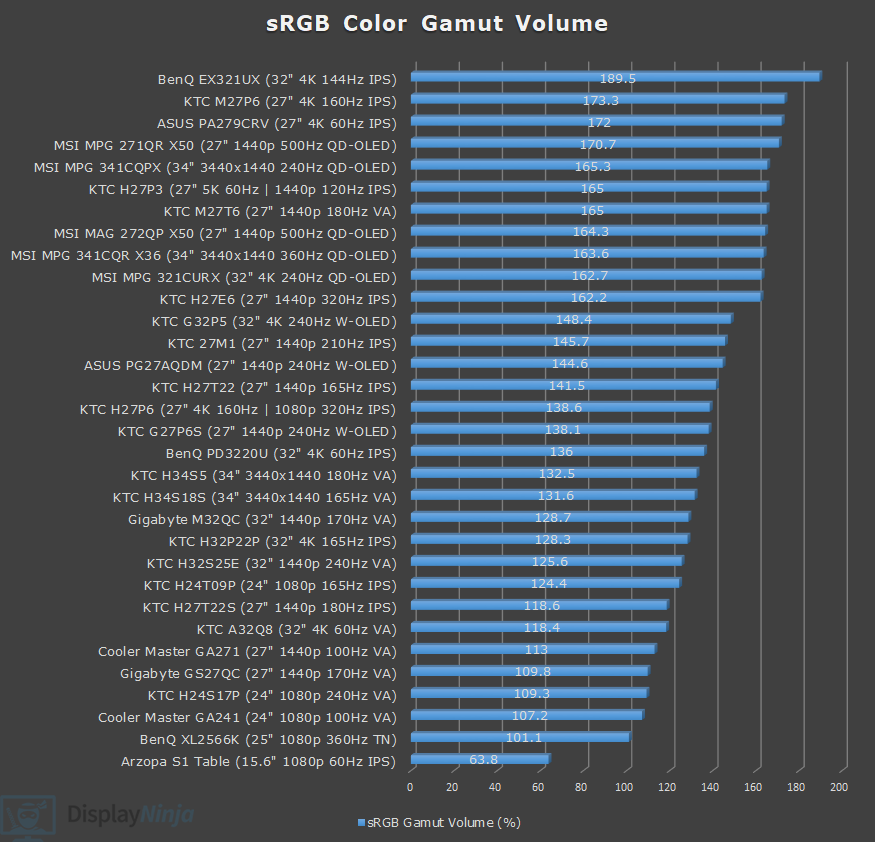
Image Accuracy
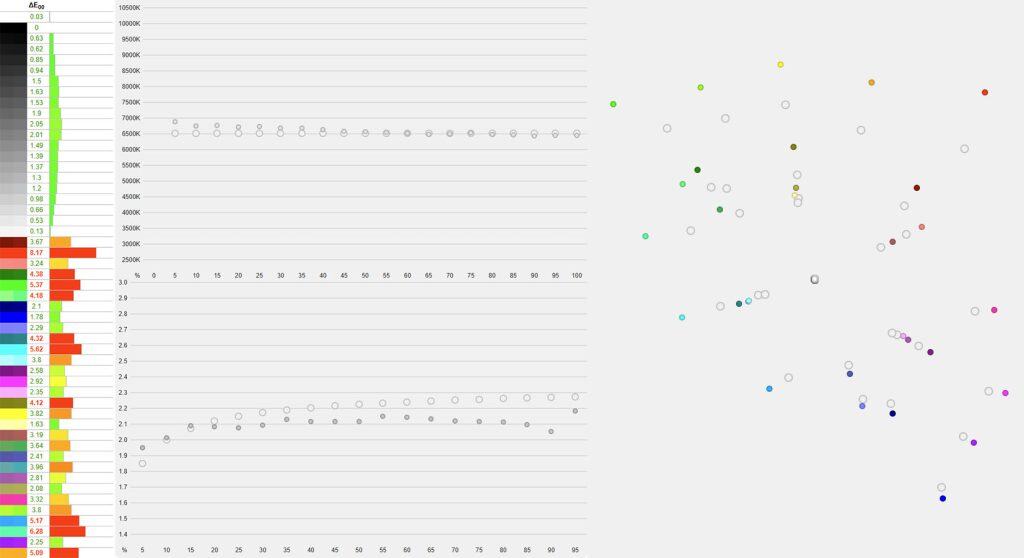
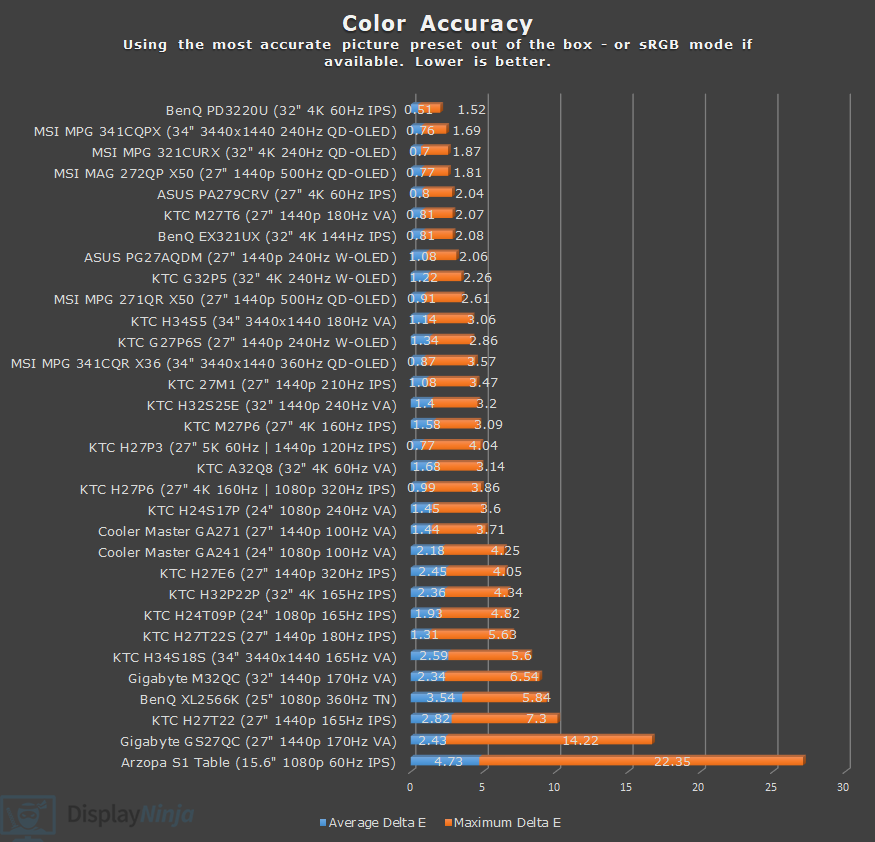
Since Windows doesn’t do color management by default, the colors on the monitor will be oversaturated when viewing SDR content with high Delta E of 2.61 (target is less than 1.5) average and 8.17 maximum (target is less than 3).
Gamma tracking is decent with a 2.1 average (target is 2.2), though brighter tones will be a bit brighter than intended.
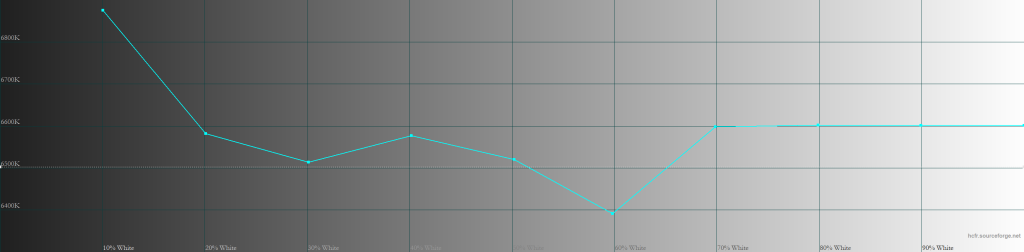
The default color temperature ‘Normal’ is 7221K (target is 6500K), which adds a bit of a blueish tint to the whitepoint, which you can get rid of by using the Custom color temperature preset instead with 6438K.
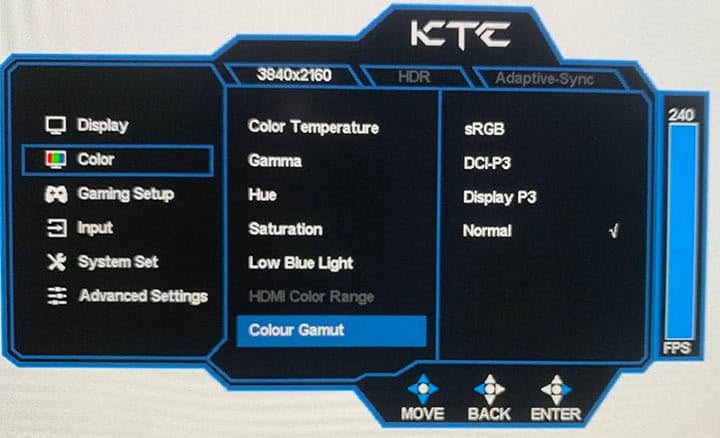
To improve the image accuracy, you can use the sRGB mode by changing the ‘Colour Gamut’ option to ‘sRGB’ in the OSD (On-Screen Display) menu.
This will clamp the gamut from the native 148.8% sRGB volume down to 97.4% with 95% coverage, thus eliminating oversaturation.
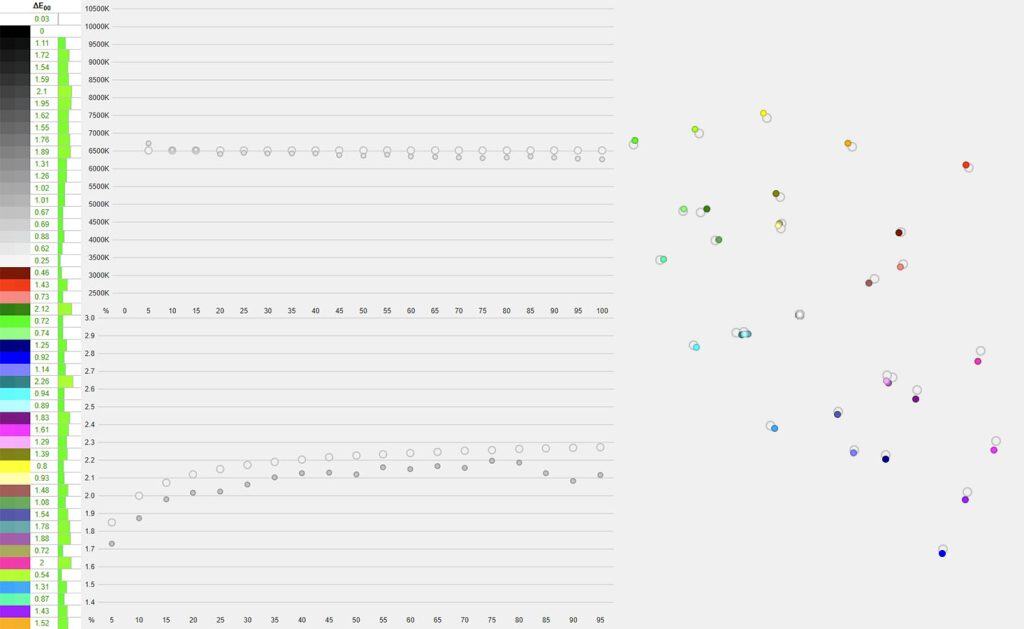
The sRGB mode improves the accuracy to 1.22 average Delta E and 2.26 maximum, though gamma is still a bit brigher than intended at 2.08 average. Color temperature is decent at 6259K, a bit lower than the 6500K target, but there’s no noticeable tinting to the whitepoint.
While you can adjust the brightness in the sRGB mode, gamma and color temperature settings are locked.
The KTC G32P5 monitor also has DCI-P3 and Display P3 ‘Color Gamut’ modes, but there’s no Adobe RGB mode. The DCI-P3 mode targets 2.6 gamma (we measured 2.55) for digital cinema mastering.
Both modes clamp the gamut to the DCI-P3 color space (same 94.3% coverage). The DCI-P3 mode has 1.24 average Delta E, 2.7 maximum and 6216K color temperature. The Display P3 mode has 1.22 delta E average, 2.33 maximum and 6364K color temperature.
Calibration
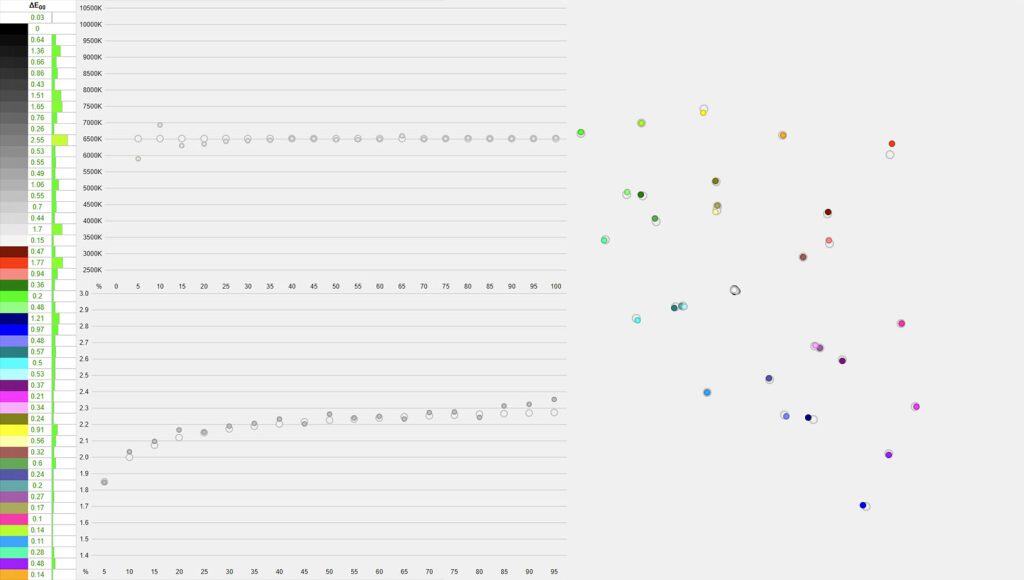
For full calibration, we set the brightness to 28/100 to get 120-nits and used the Custom color temperature mode with red, green and blue channels set to 46, 47 and 48, respectively, to get 6520K.
Average Delta E is now 0.61 and the maximum Delta E is 2.55, while the average gamma is 2.2 and accurately follows the sRGB tone curve.
You can download our ICC profile here.
Brightness & Contrast
The KTC G32P5 has 9 presets, including Standard, User, Movie, Photo, ECO, Reader, RTS, FPS and Off Image.
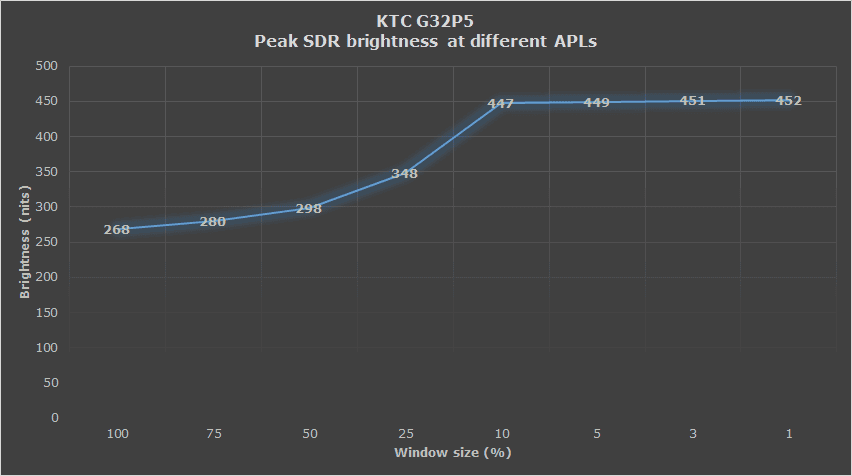
The ‘Standard’ mode limits the brightness to 272-nits regardless of the APL (Average Picture Level, white window test size). This ensures that there’s no annoying brightness fluctuation depending on how many bright elements are on the screen.
The minimum brightness is only 2-nits, so the monitor is suitable for use in dark rooms and rooms with normal lighting conditions.
If you plan on using the monitor in a particularly bright room facing a big window without curtains, it won’t be able to mitigate glare completely, in which case you’ll need a brighter LED-backlit display.
In the sRGB mode, peak brightness is a bit lower at 228-nits.
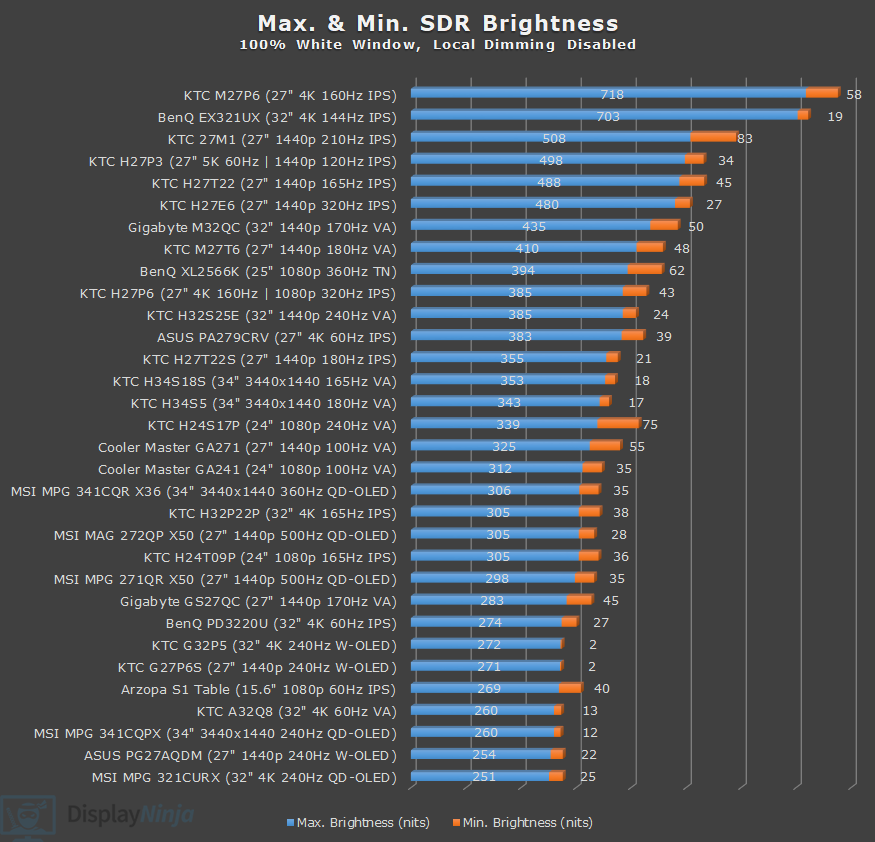
The User mode can reach up to 452-nits for 1% – 10% APL, 268-nits for 100% APL and up to 348-nits for 25% – 75% APL. Some users might prefer this mode when viewing SDR content or playing SDR games for a boost in brightness.
The other modes just have different preset settings locked to certain values, so we don’t recommend using them.
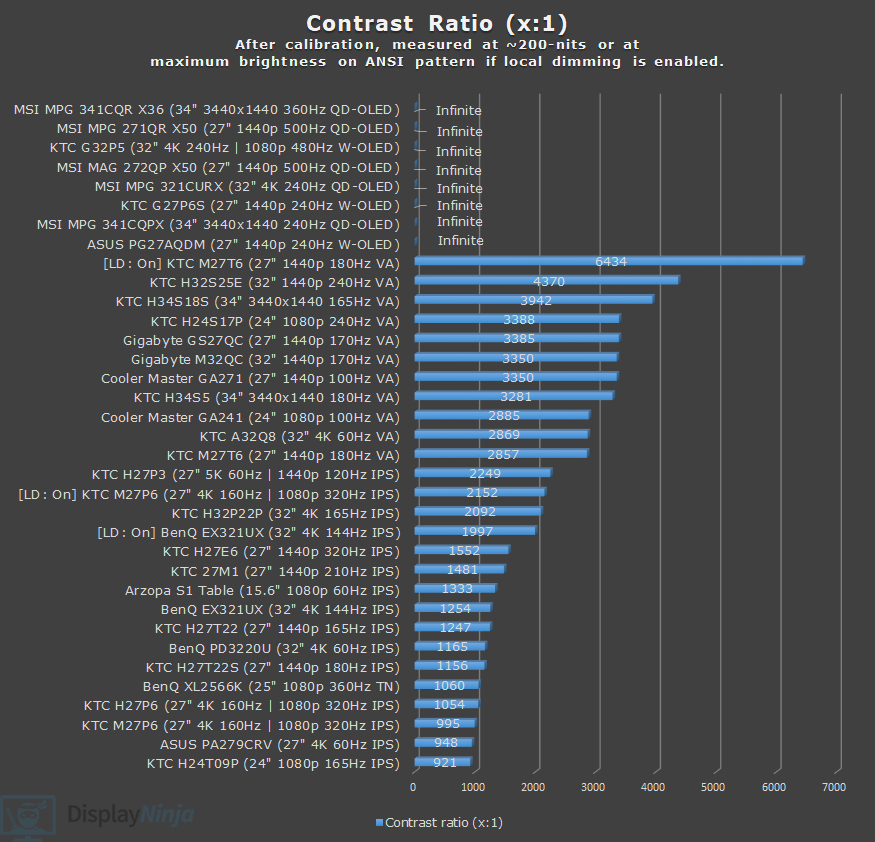
Since every pixel on an OLED display can individually turn off completely to produce true blacks, the contrast ratio is basically infinite. Moreover, there are no blooming artifacts associated with mini LED FALD (full-array local dimming) displays.
KTC G32P5 Best SDR Settings
Preset: Standard – if you want consistent brightness
Preset: User – if you want higher brightness for smaller APLs
Colour Gamut: sRGB – if you want accurate SDR colors
In case you want saturated colors, use ‘Normal’ Colour Gamut with ‘Custom’ Color Temperature
Subpixel Layout & Pixel Density
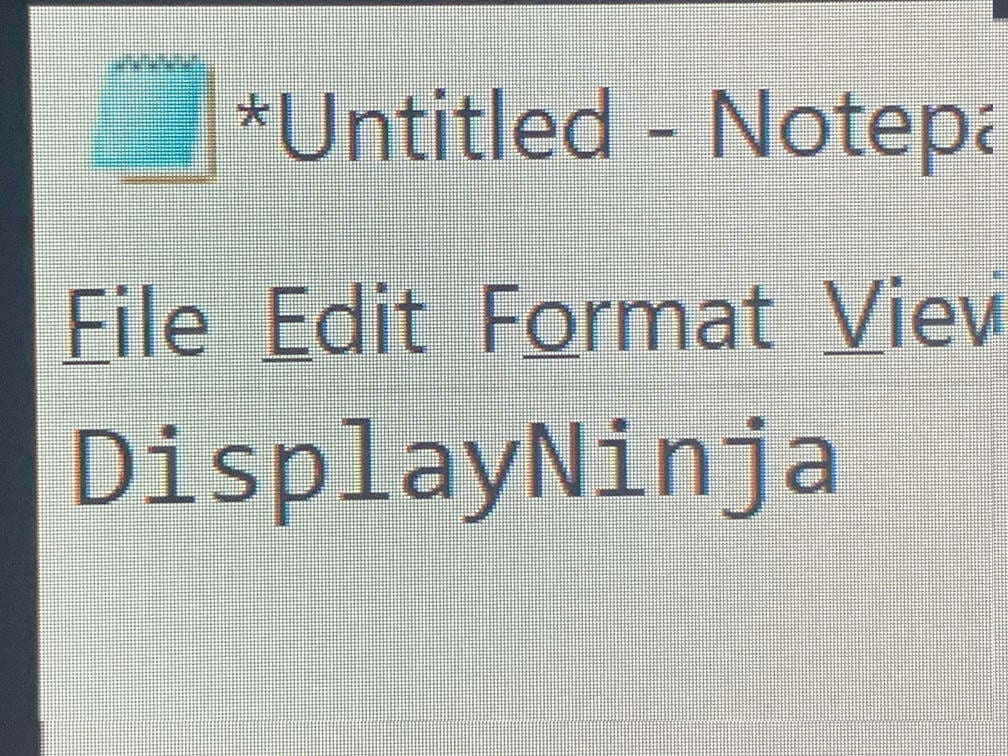
The KTC G32P5 uses a W-OLED panel with the new and improved RGWB subpixel layout, which in addition to its high pixel density, ensures no visible colored fringing on small text and fine details.
In the photo above, you can notice a subtle red line on the letter ‘D’ for instance, but this is zoomed in – you won’t notice this at a normal viewing distance.

The 4K UHD resolution on a 31.5″ sized screen provides you with a high pixel density of 140 PPI, resulting in plenty of screen real estate with sharp details and text. 4K is demanding on the GPU, but thanks to upscaling technologies, such as FSR and DLSS, you can get decent frame rates even with a good mid-range GPU.
HDR
There are two HDR modes: Standard and Cinema.
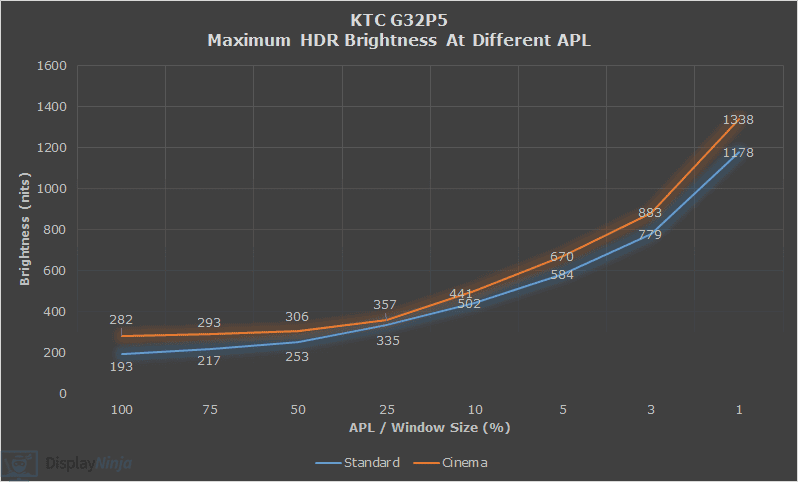
We recommend changing the default Standard mode to Cinema, since it has a higher peak brightness. By default, the Cinema mode uses ‘Bluish’ color temperature preset, which we recommend changing to Normal for more accurate white.
Both modes also have similar EOTF tracking. Gray line is the target brightness, while the yellow line is the monitor’s brightness.
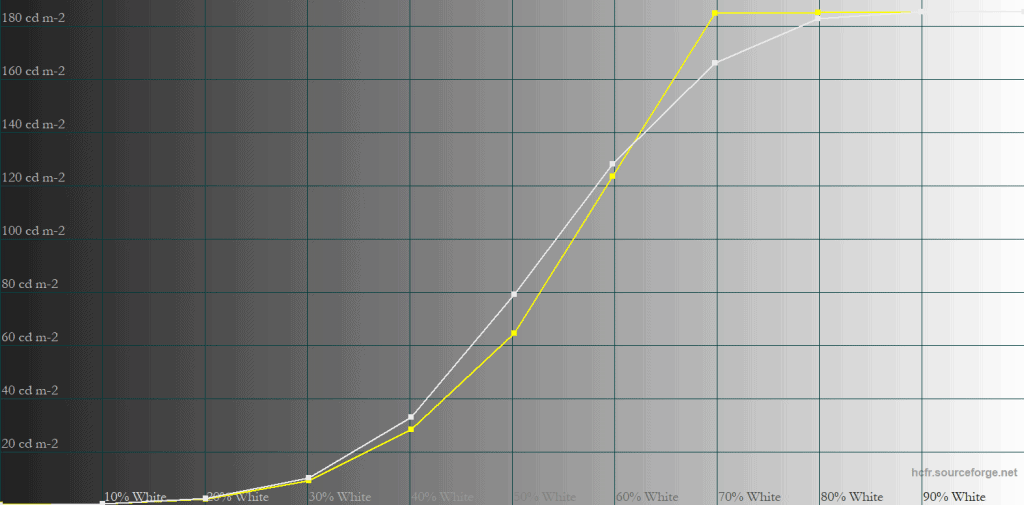
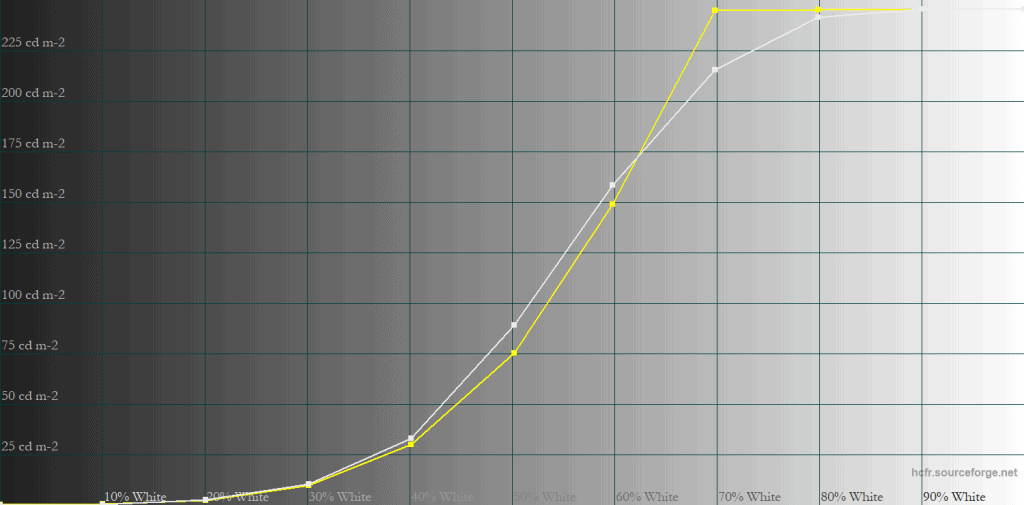
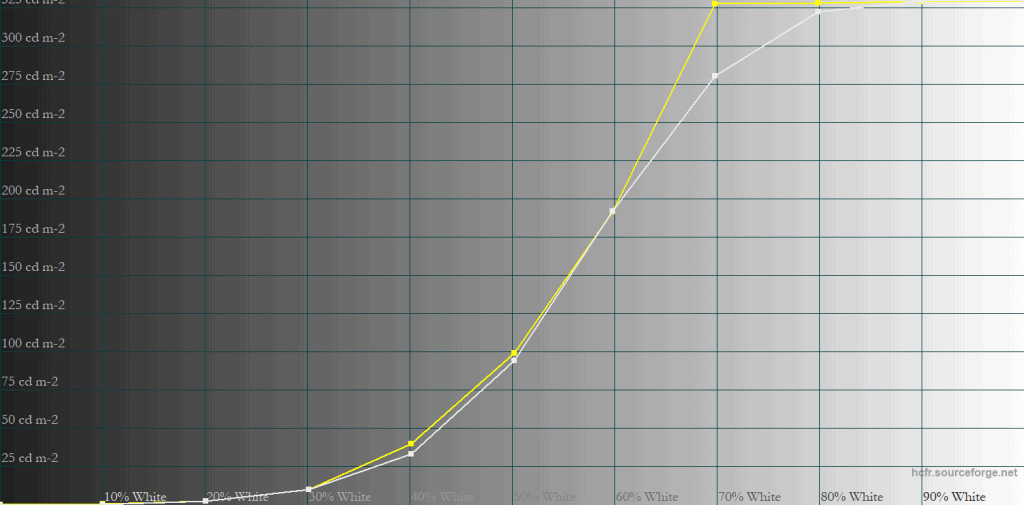
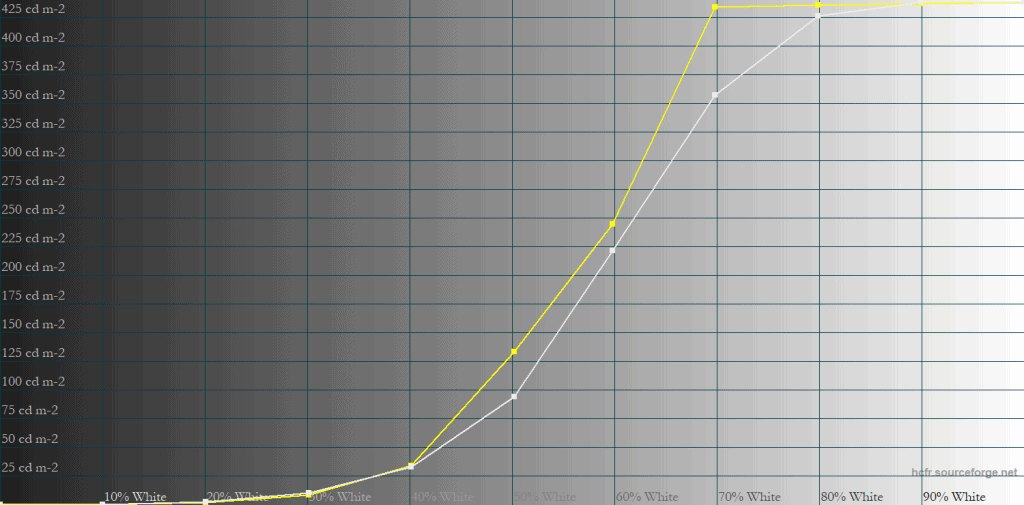
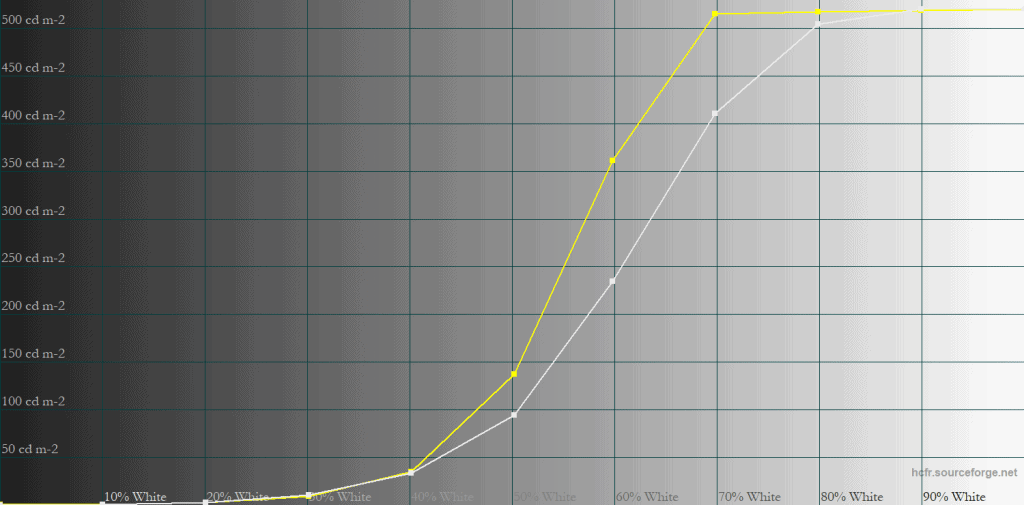
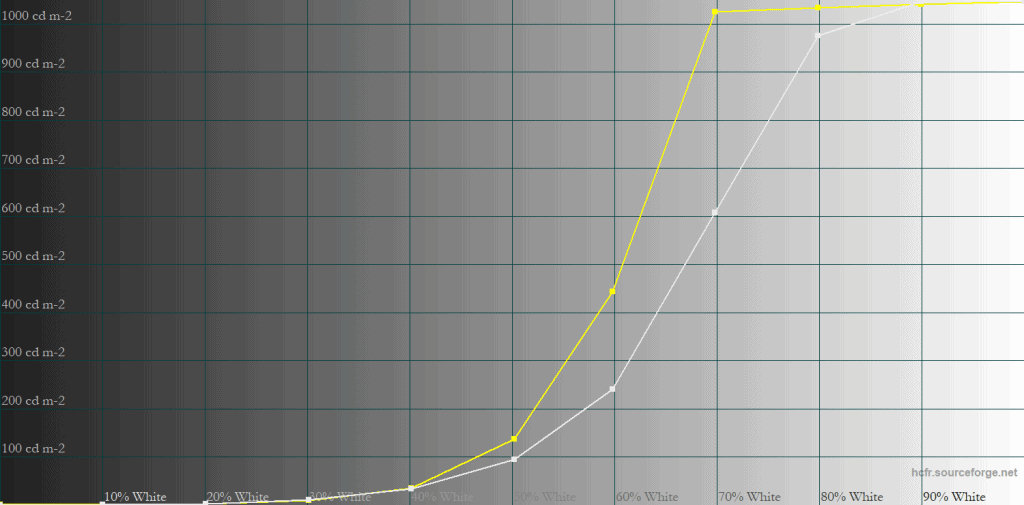
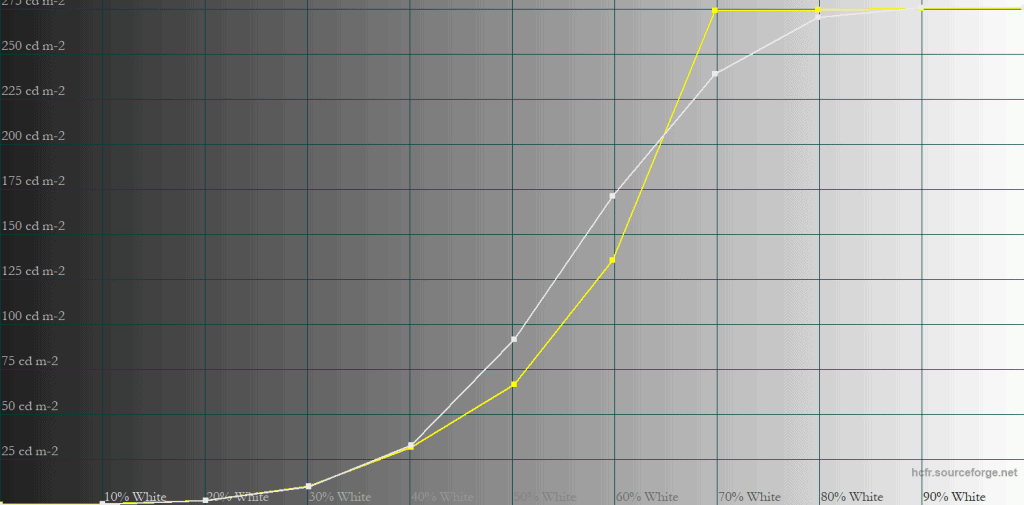
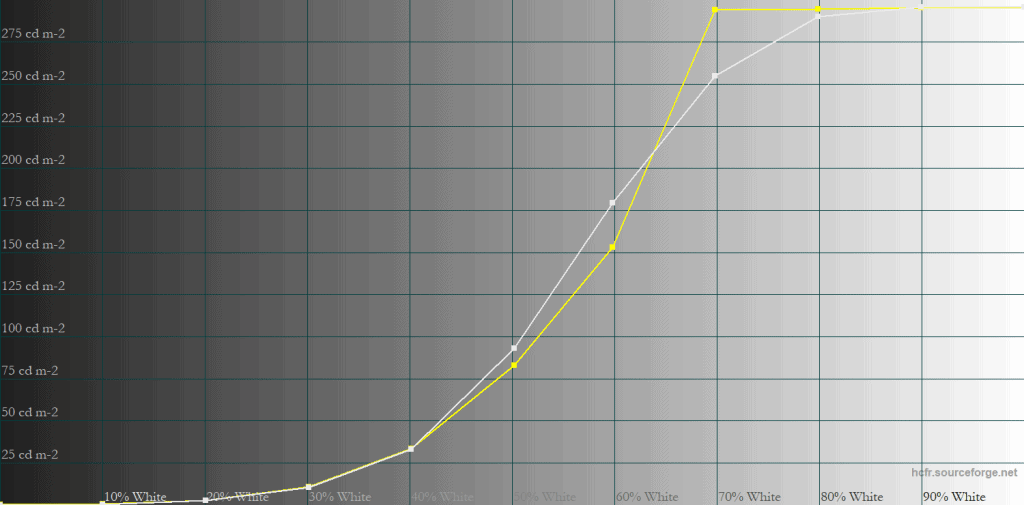
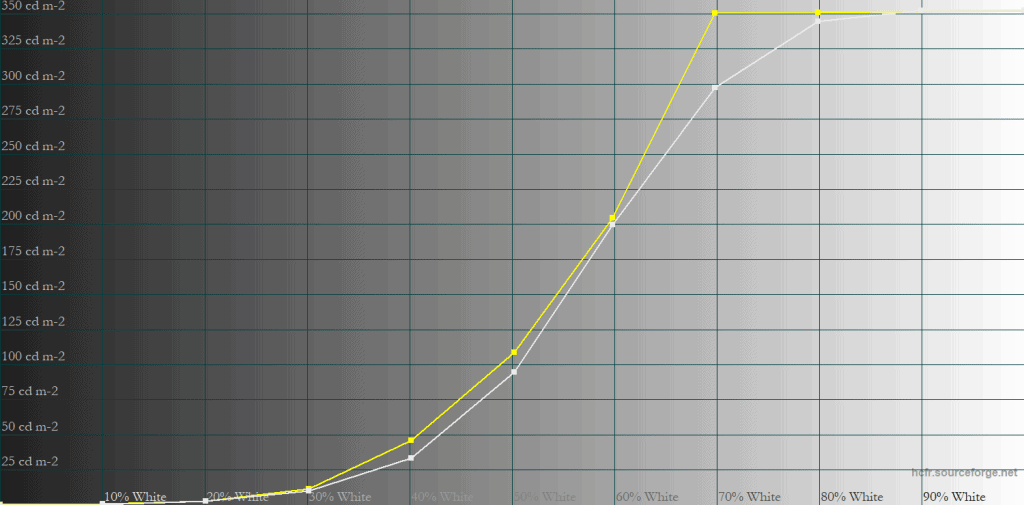
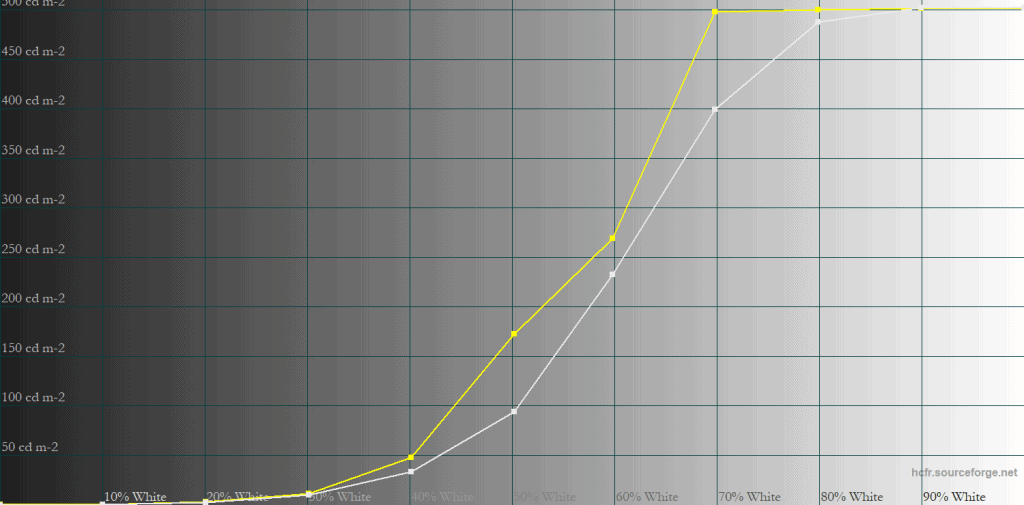
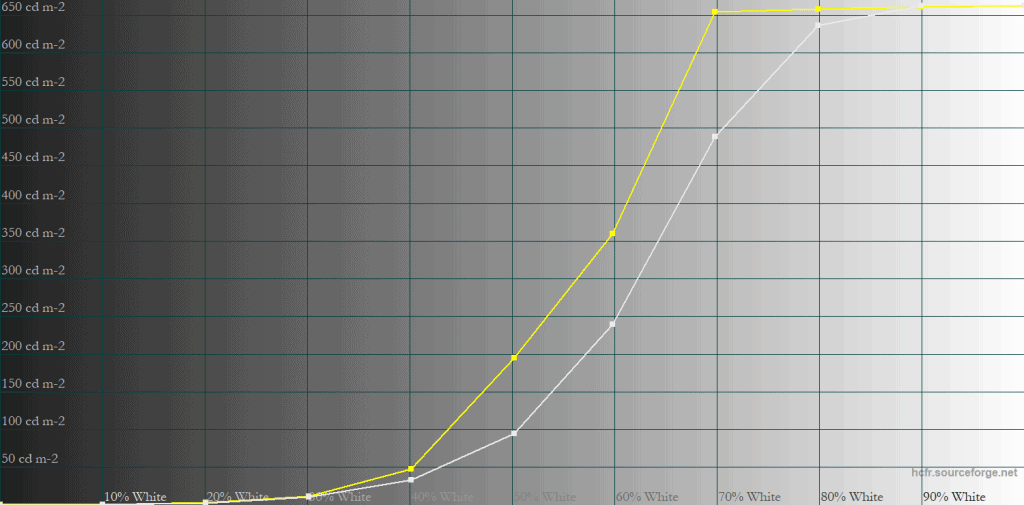
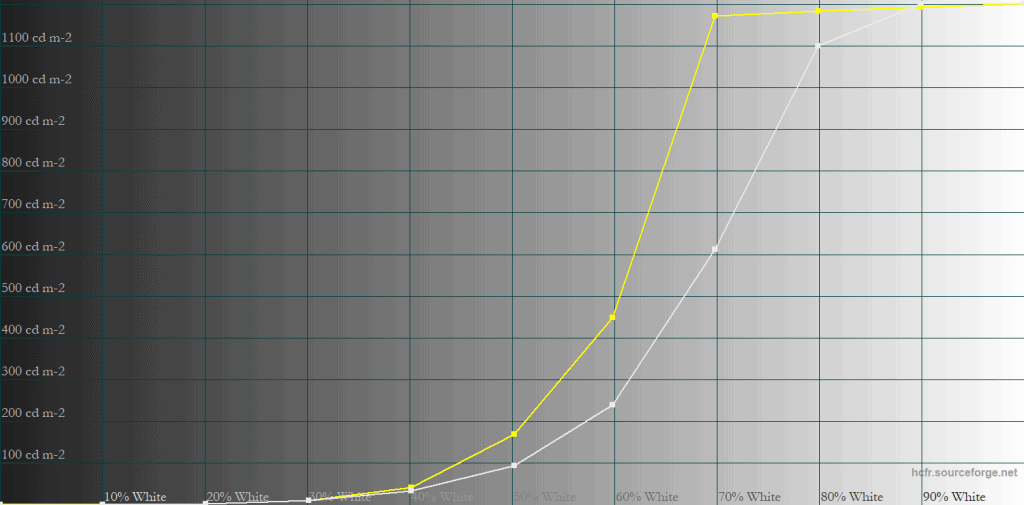
In most scenes, brightness is higher than intended between 50% and 80% white, especially with small < 10% APLs. With large 50% and higher APLs, the brightness is slightly lower than intended around 50% – 60% APLs. However, there’s no noticeable highlight clipping or loss of shadow details.
Here’s how the brightness looks in comparison to a few other HDR displays we tested.
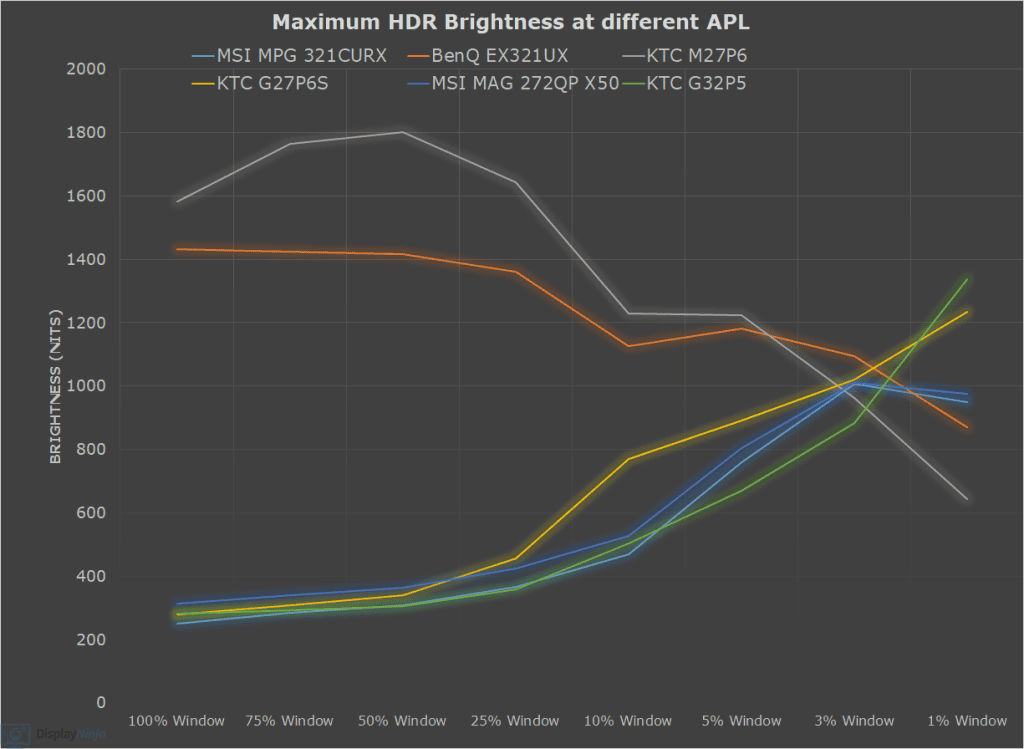
The brightness between 25% and 5% APLs is rather low, even in comparison to the KTC G27P6 with the same W-OLED MLA+ panel technology.
The 1% APL brightness is quite high, which makes some details vivid and punchy. However, keep in mind that these measures refer to white luminance.
When it comes to color luminance (brightness of colors, not just white), QD-OLED and mini LED panels are brighter.
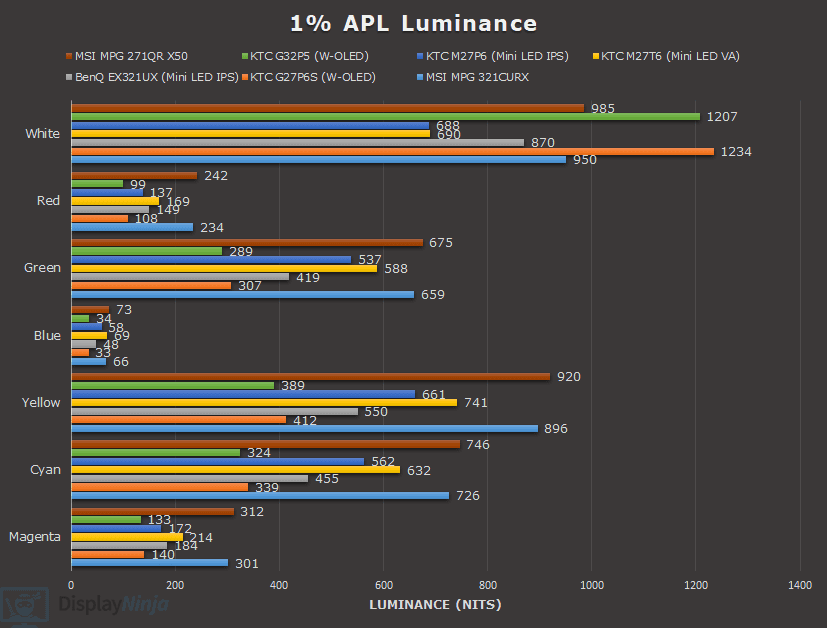
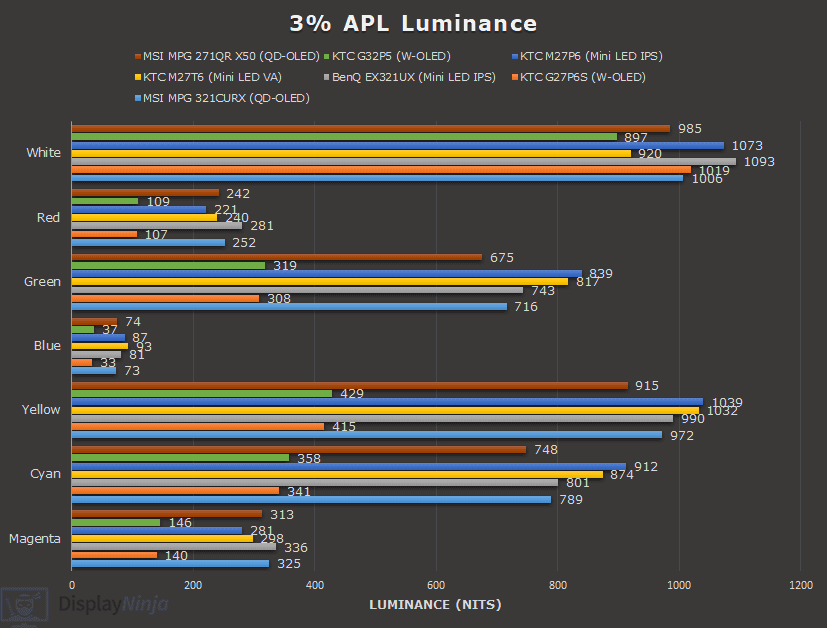
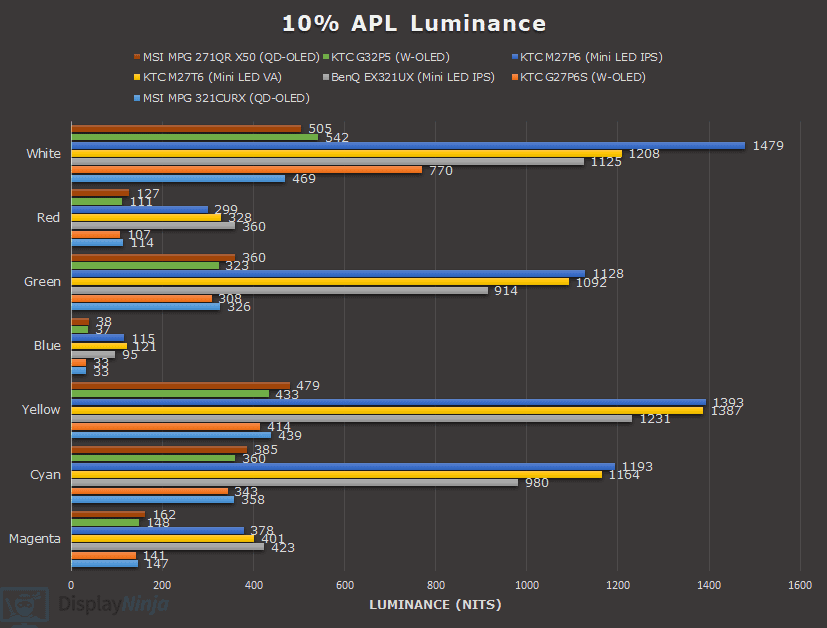
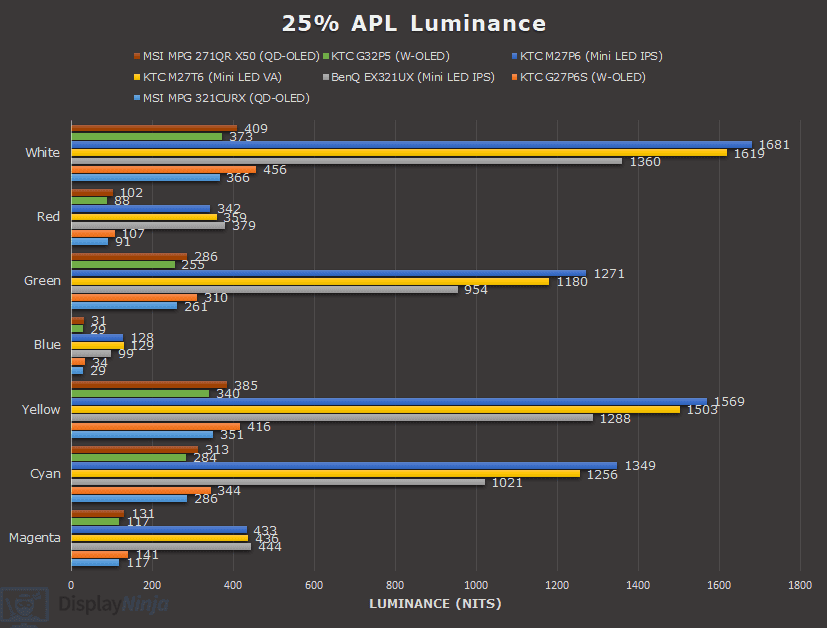
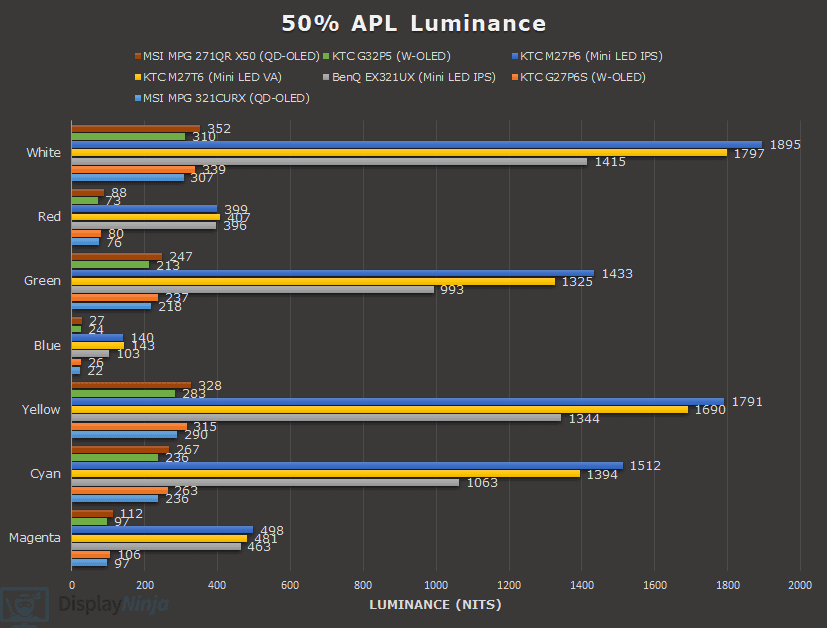
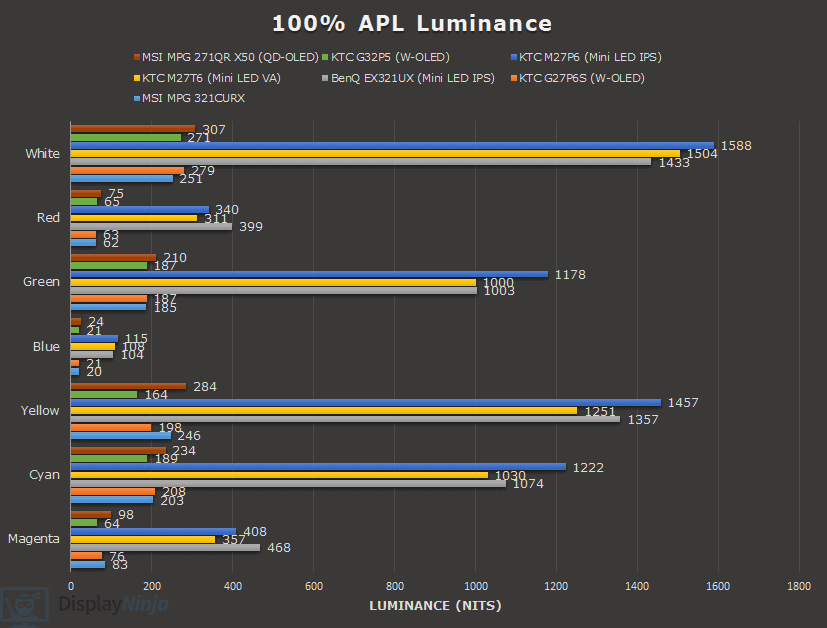
Here are some real-scene brightness measurements.
Sunlight in ‘A Perfect Planet’ | Small flash from ‘Chasing The Light’ | Large flash from ‘Chasing The Light’ | Lightning in ‘A Perfect Planet’ | Solar flare in ‘A Perfect Planet’ | Sunlight in‘ A Perfect Planet’ | |
| MSI MAG 272QP X50 (QD-OLED) True Black 500 | 497 | 525 | 377 | 514 | 209 | 224 |
| MSI MAG 272QP X50 (QD-OLED) Peak 1000 nits | 558 | 863 | 395 | 567 | 129 | 140 |
| MSI MAG 272QP X50 (QD-OLED) EOTF Boost | 580 | 845 | 366 | 556 | 319 | 322 |
| MSI MPG 321CURX (QD-OLED) True Black 400 | 429 | 452 | 310 | 450 | 201 | 207 |
| MSI MPG 321CURX (QD-OLED) Peak 1000 nits | 538 | 974 | 328 | 549 | 108 | 113 |
| KTC G27P6S (W-OLED MLA+) | 317 | 739 | 313 | 602 | 183 | 216 |
| KTC G32P5 (W-OLED MLA+) | 240 | 467 | 305 | 572 | 170 | 205 |
| KTC M27P6 (Mini LED IPS) VESA DisplayHDR, Low | 837 | 1224 | 1751 | 645 | 385 | 394 |
| KTC M27P6 (Mini LED IPS) HDR Cinema, Low | 745 | 1096 | 1416 | 591 | 334 | 349 |
| KTC M27T6 (Mini LED VA) Display HDR, Low | 1263 | 1298 | 1642 | 1173 | 837 | 859 |
| KTC M27T6 (Mini LED VA) HDR Game, Standard | 695 | 674 | 1316 | 615 | 536 | 542 |
| BenQ EX321UX (Mini LED IPS) | 792 | 1140 | 1440 | 579 | 309 | 317 |
Next, we have the 10-minute brightness sustain stress-test.
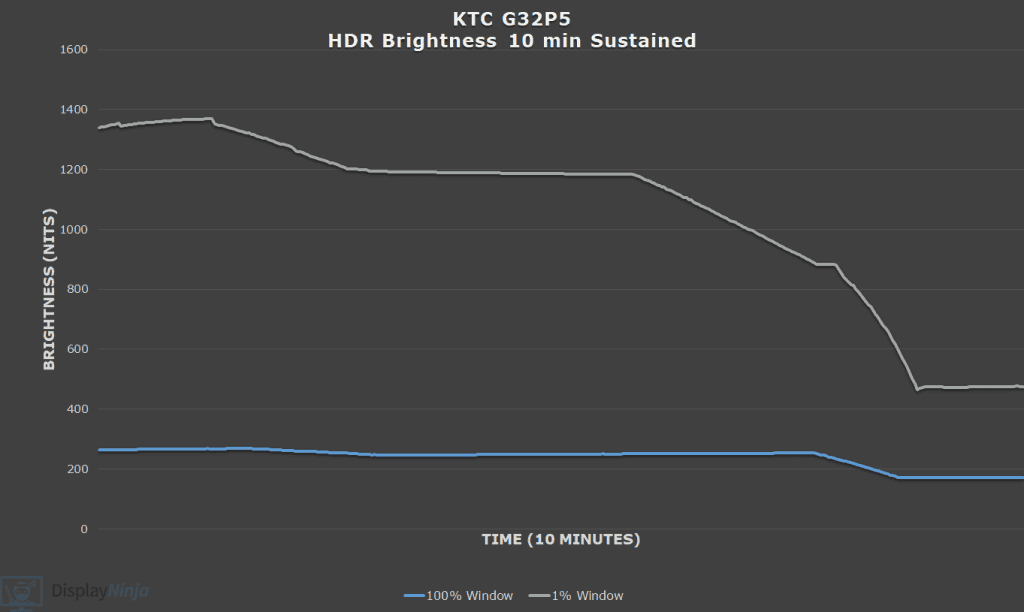
Even with OLED Care features such as Auto Brightness disabled, the brightness decreases over time in order to preserve power and thermals and/or to increase the lifespan of the panel and reduce the chance of burn-in.
This only occurs when static content is detected and the brightness goes back to normal as soon as the image moves.
Finally, here’s a look at color saturation performance.
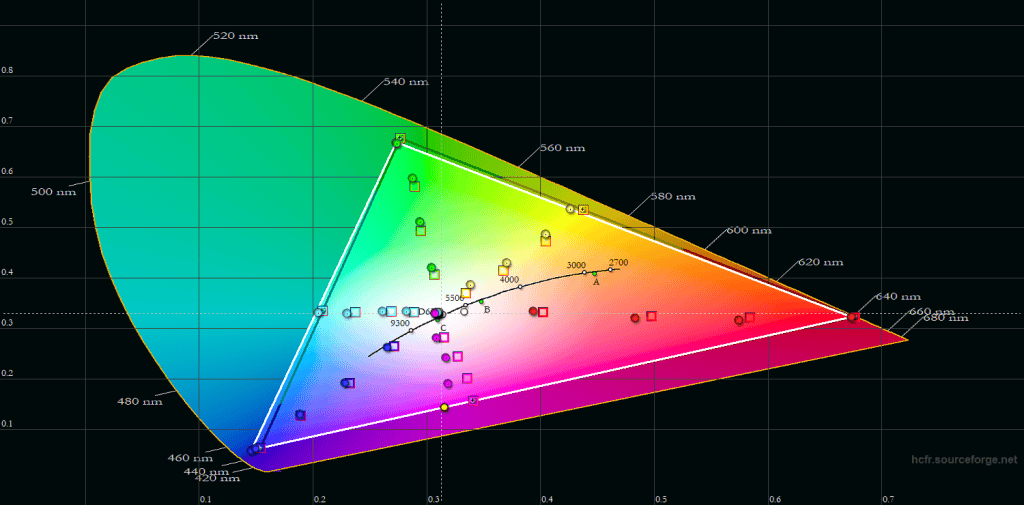
There’s some minor undersaturation in reds and purples are a bit skewed towards blues, but the overall accuracy is decent.
All in all, despite having a lower brightness than expected, the KTC G32P5 still manages to deliver an immersive HDR viewing experience thanks to its OLED panel with infinite contrast ratio and wide color gamut.
The 1% and 100% APL brightness is as specified, but 25% APL falls short of the specified 425-nits, and we’ve seen monitors using the same panel reach around 700-nits for 10% APL. Hopefully, a firmware update could improve the brightness performance a bit.
KTC G32P5 Best HDR Settings
HDR Mode: HDR Cinema
Color Temperature: Normal
Performance
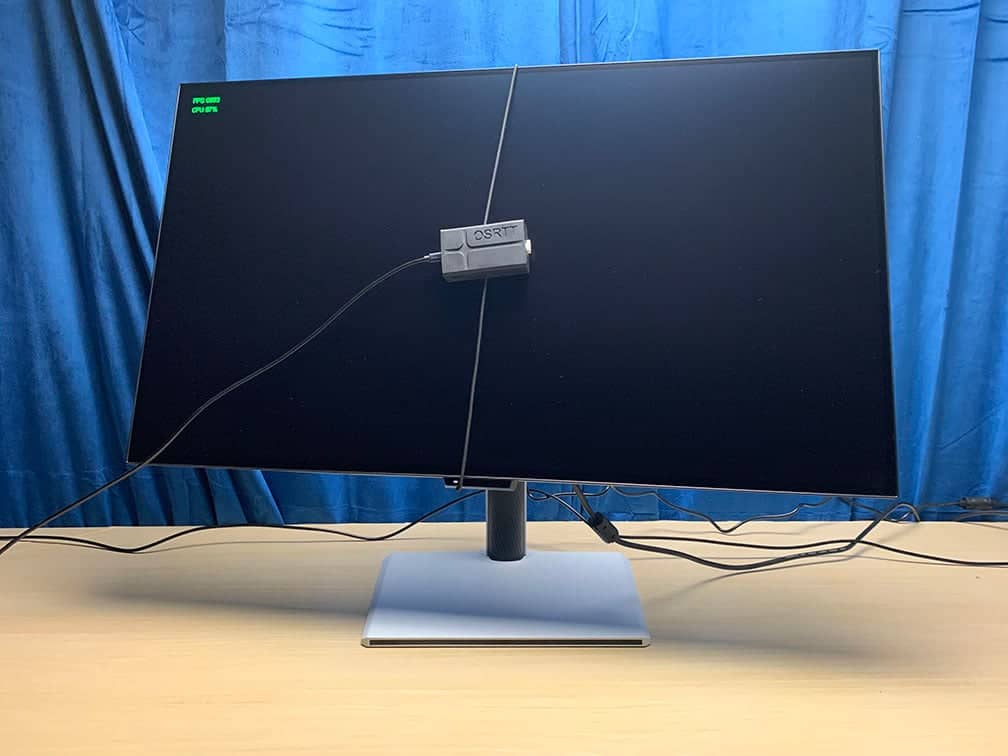
OLED panels have instantaneous pixel response time speed, resulting in zero ghosting behind fast-moving objects. In combination with the monitor’s high refresh rate, you get incredibly motion clarity, especially at 480Hz.
For latency and response time testing, we’re using OSRTT. Before the tests, the monitor was calibrated and warmed up.
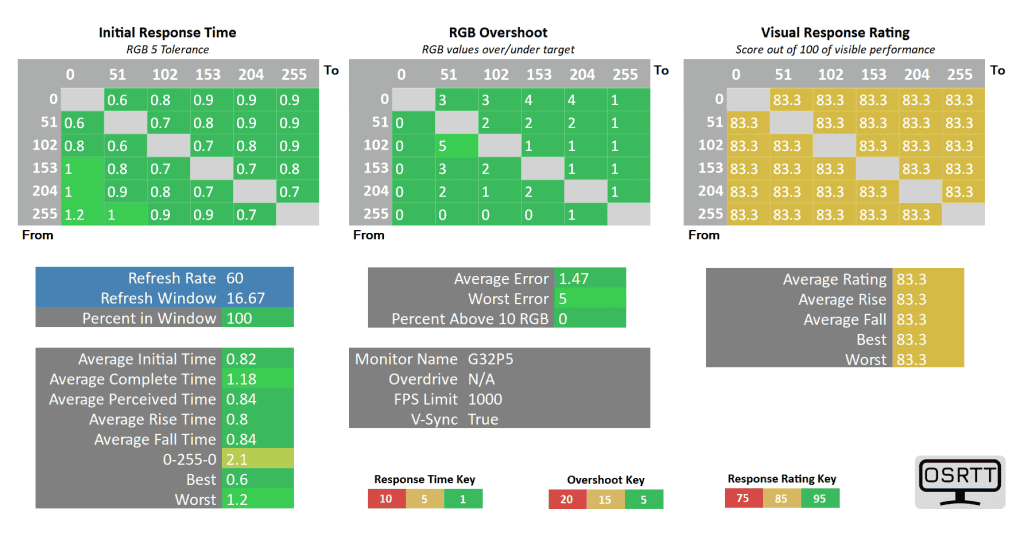
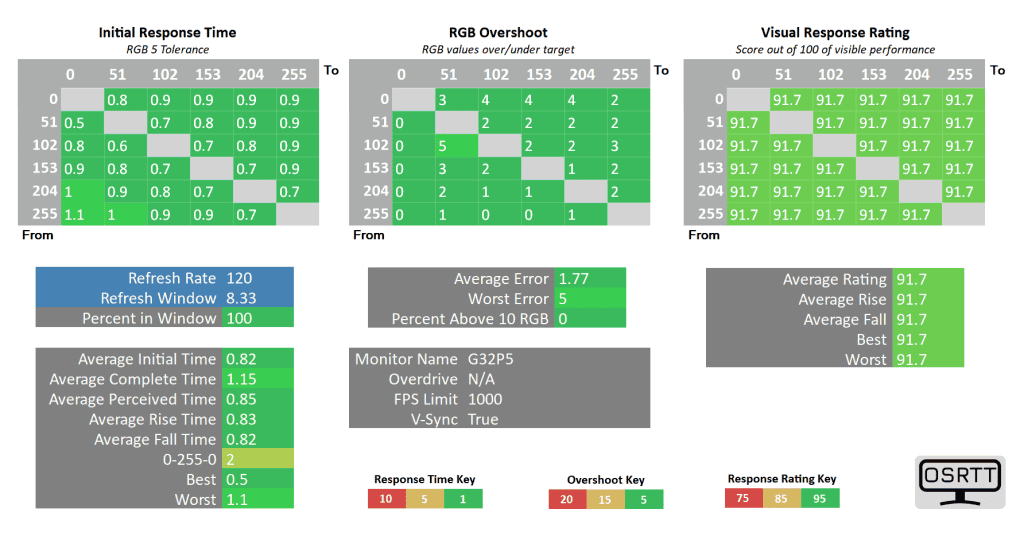
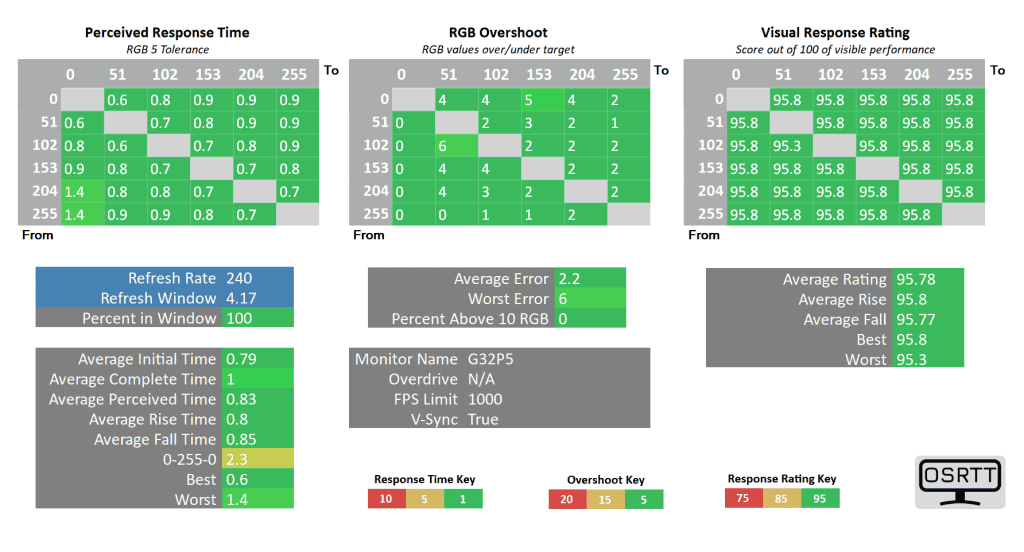
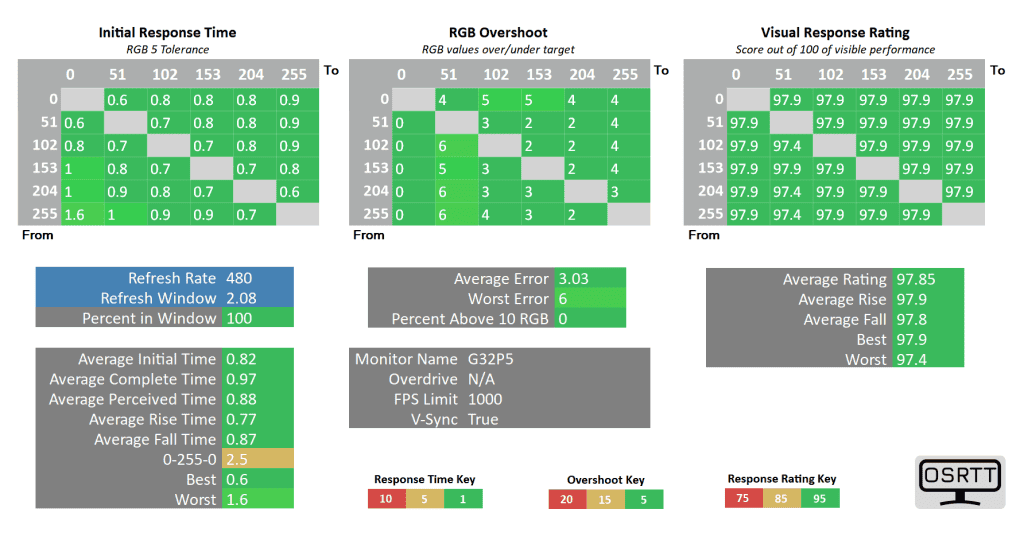
There are some slower transitions and overshoot present in the charts, but this is only due to the limitation of the OSRTT measuring device.
You can see how the monitor does in Blur Busters’ UFO ghosting test, which we ran using 960 Pixels Per Sec, shutter speed set to 1/4 of the refresh rate with fixed focus, ISO and color temperature (6500K).
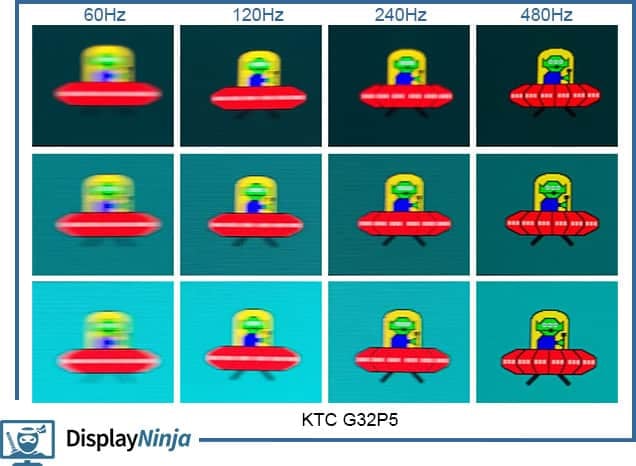
As you can see, 480Hz offers incredibly motion clarity and a noticeable upgrade over 240Hz, so it’s definitely worth switching to the 1080p 480Hz mode for fast-paced competitive games.
Naturally, 1920×1080 on a 32″ monitor looks a bit blurry in comparison to 4K UHD, and there’s also additional blurriness since the monitor isn’t displaying its native resolution.
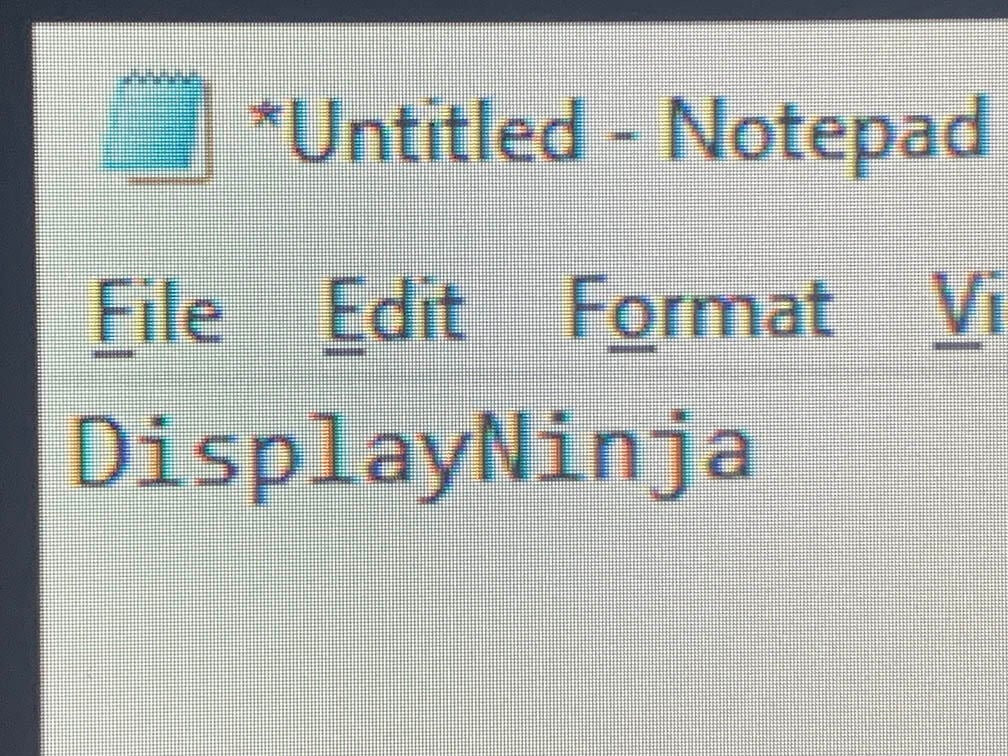
However, the picture blurriness isn’t that noticeable in games, unlike the improved motion clarity.
An OLED monitor with 480Hz basically matches an e-Sports 360Hz display with backlight strobing when it comes to motion clarity.
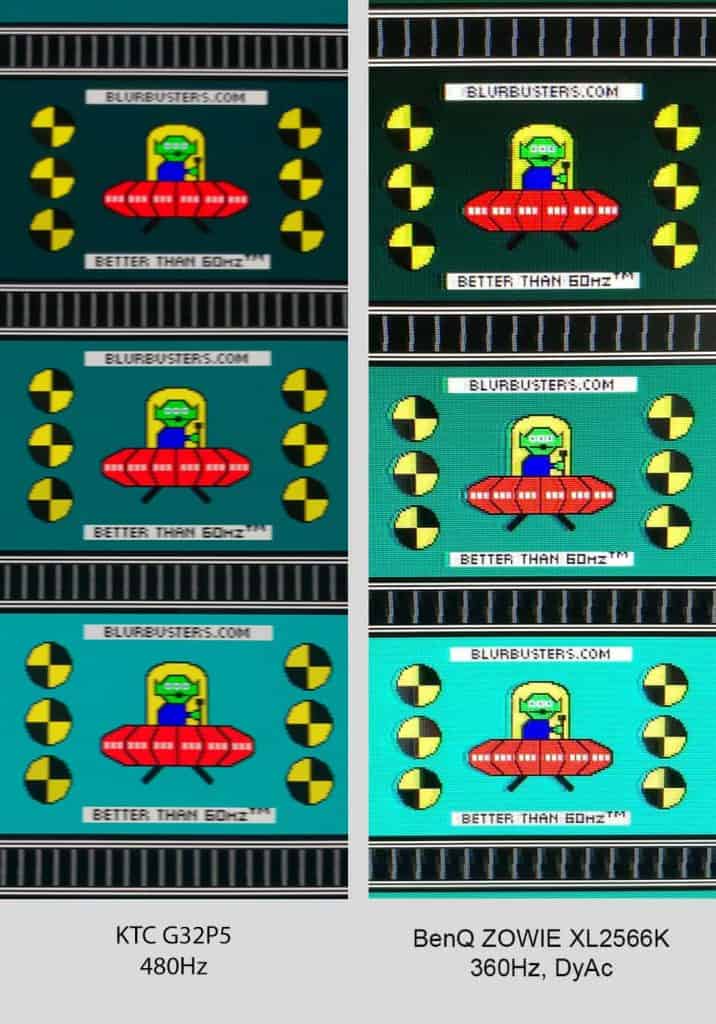
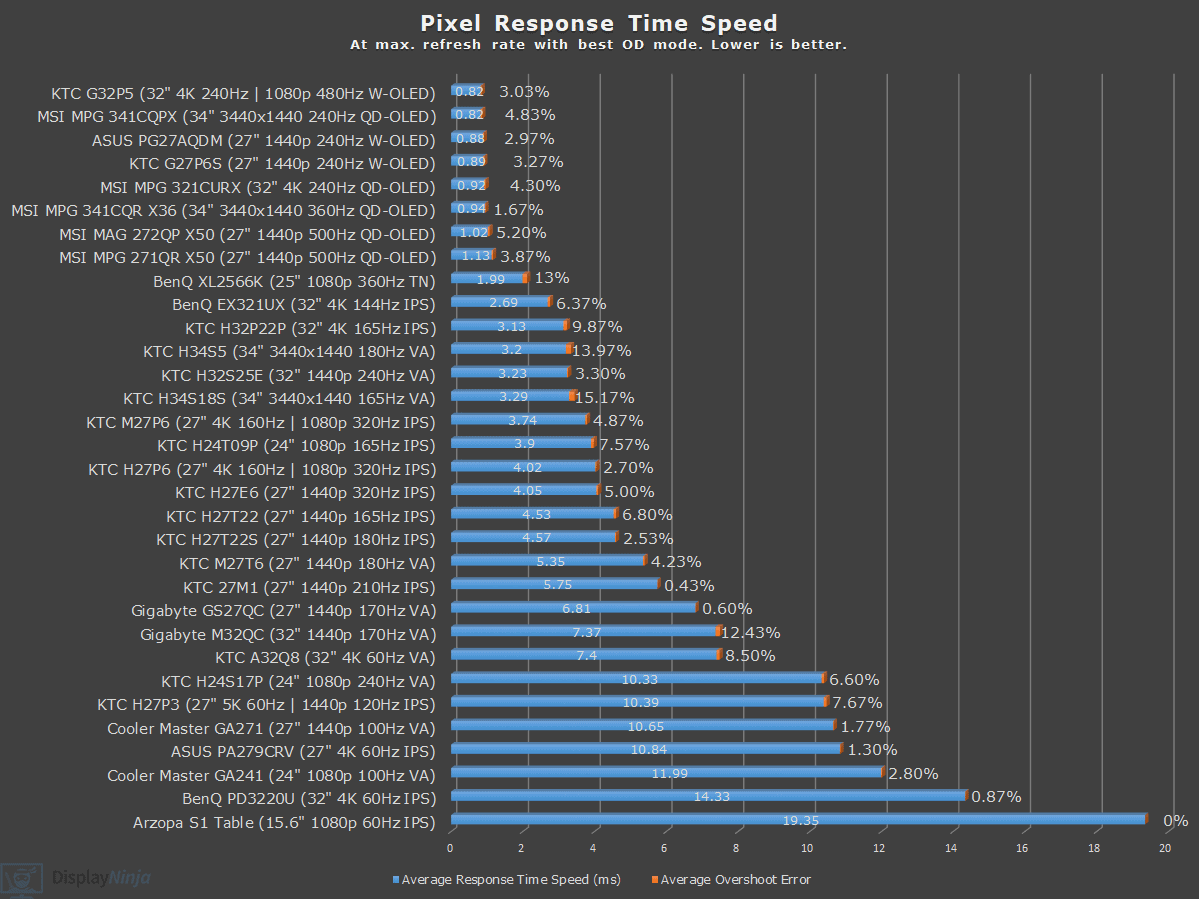
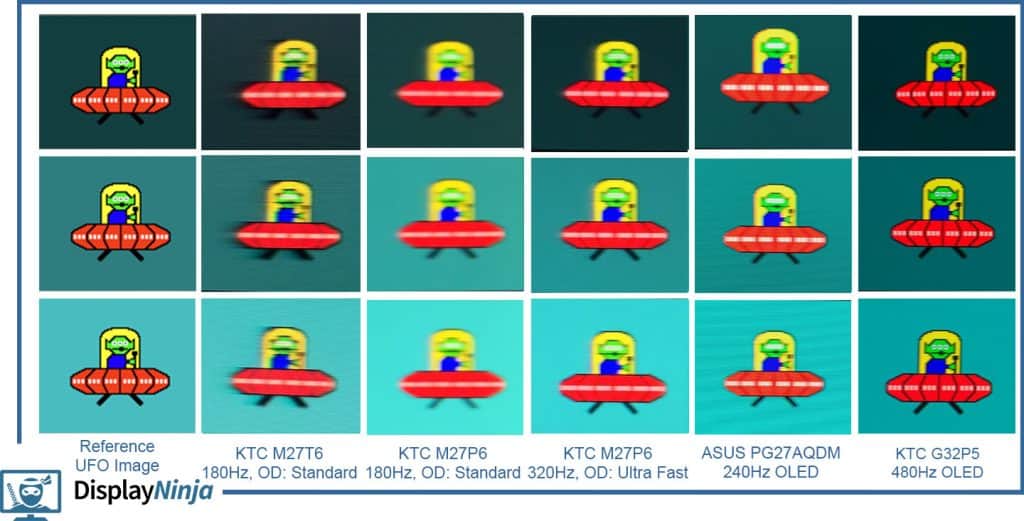
Here’s how the KTC G32P5 compares to several other displays we tested.
Moving on, the KTC G32P5 supports variable refresh rate (VRR) for tear-free gameplay up to 240FPS at 4K or 480FPS at 1080p. While there are no official certifications by AMD or NVIDIA, VRR works with compatible cards.
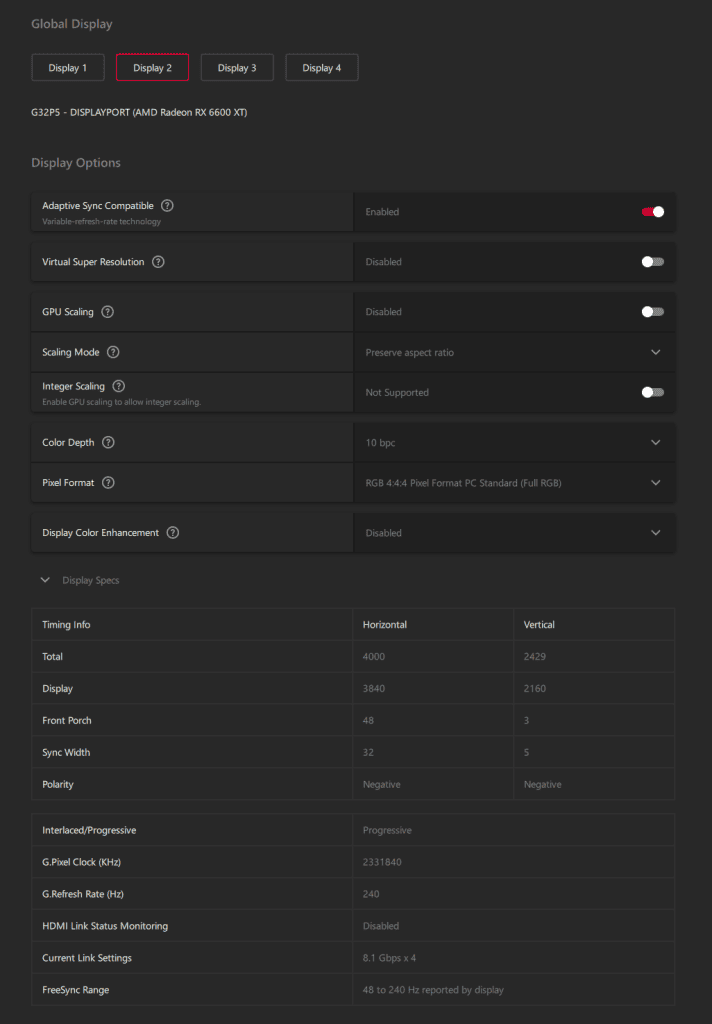
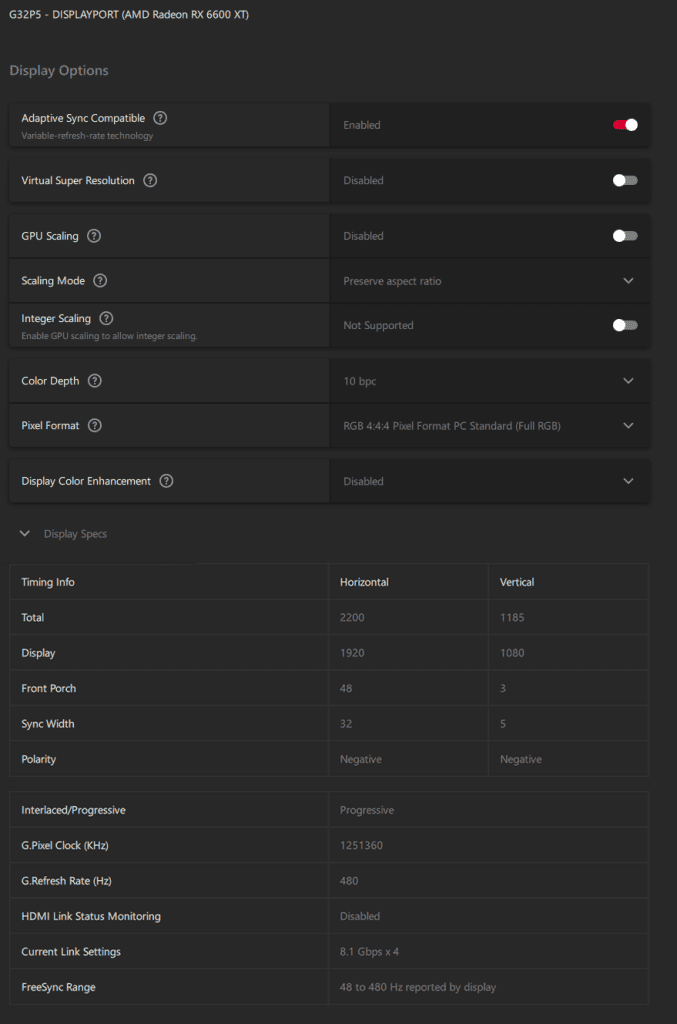
As it’s the case with all OLED panels, you might notice some VRR brightness flickering, mainly in darker scenes of games with fluctuating frame rates or in loading screens and in-game menus. Since tearing isn’t that noticeable at 240Hz (even less so at 480Hz), we recommend simply disabling VRR in affected titles.
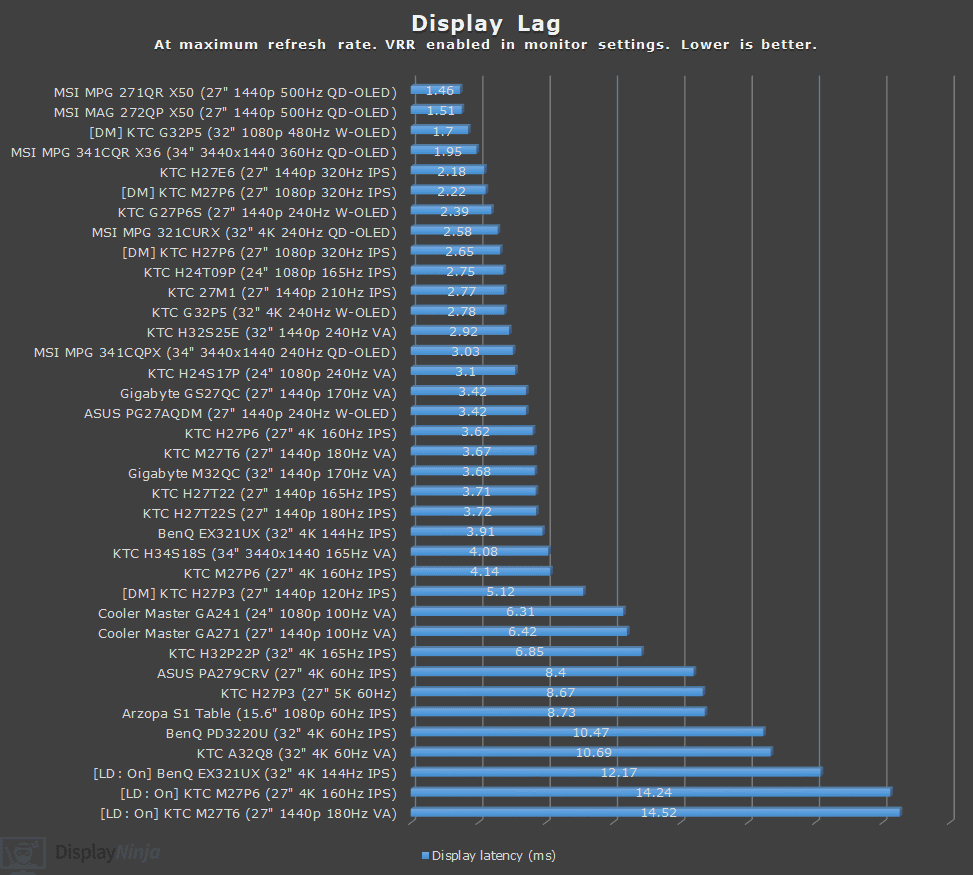
Next, here’s a look at display latency.
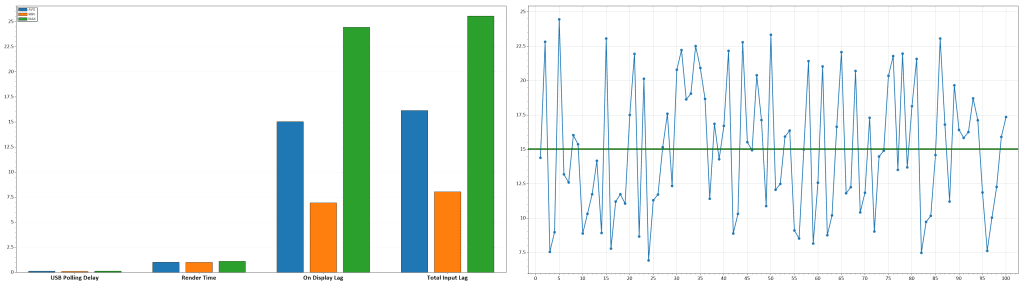
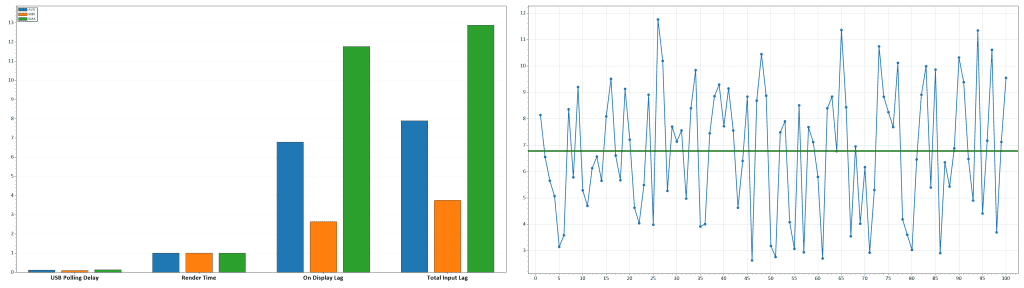
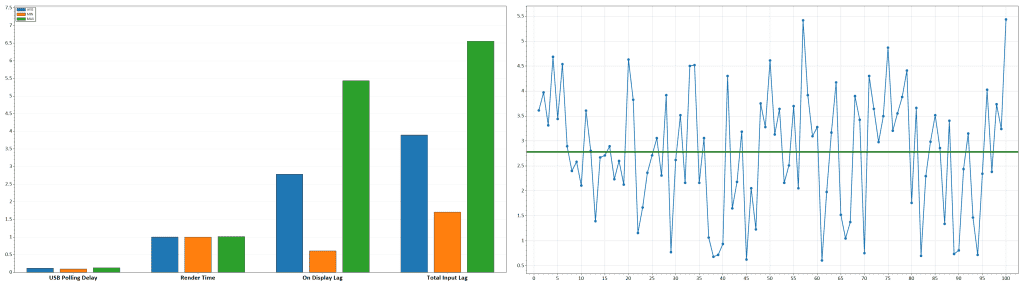
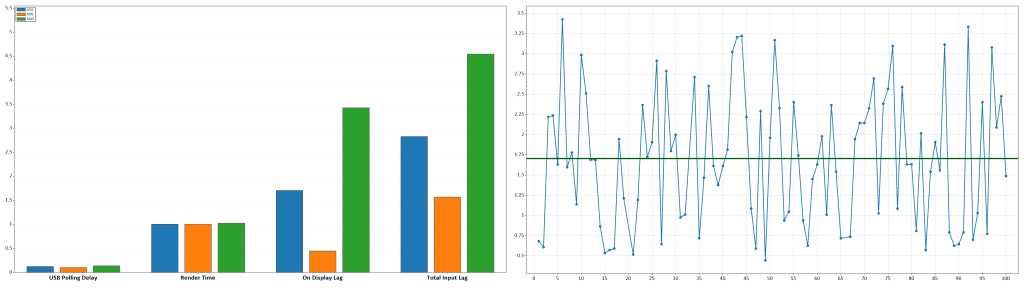
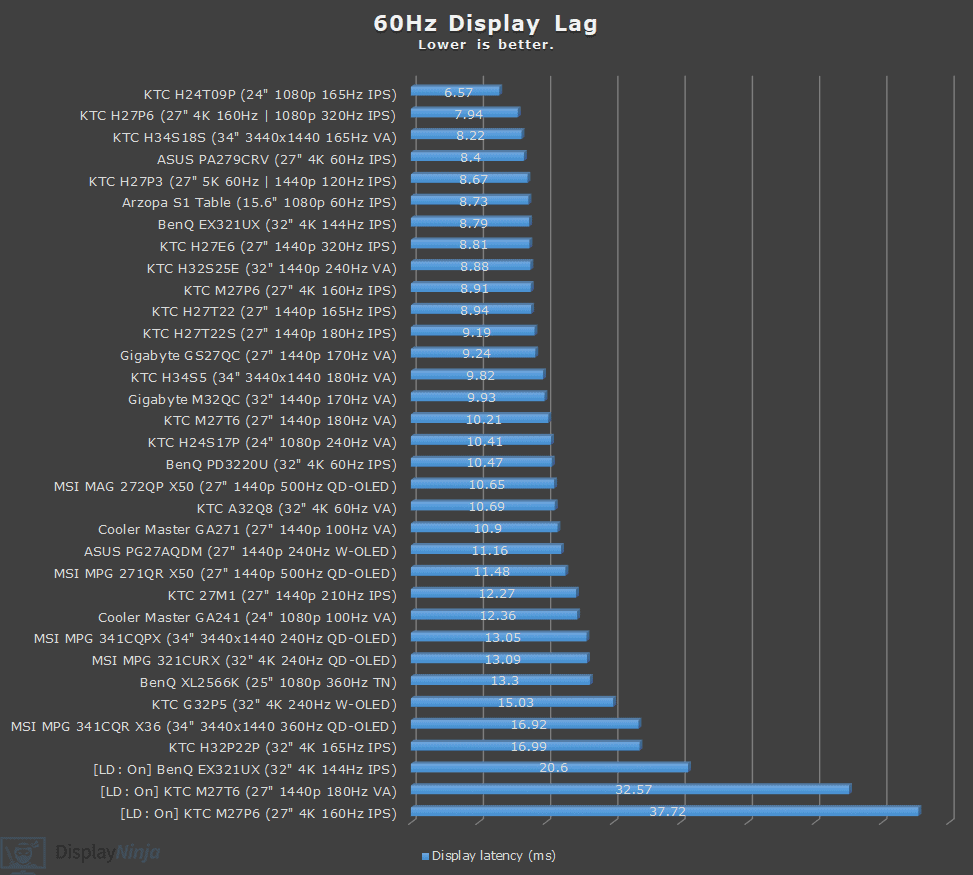
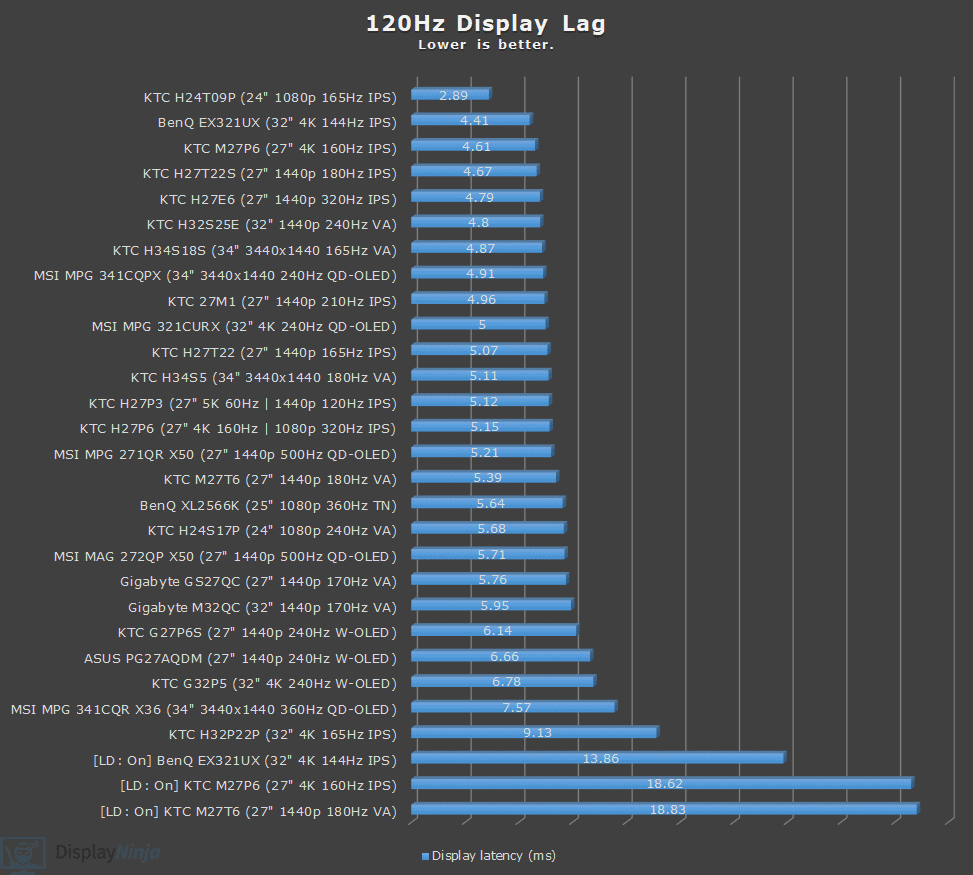
We measured very low display latency of just 1.70ms at 480Hz, 2.78ms at 240Hz, 6.78ms at 120Hz and 15.03ms at 60Hz, which means there’s no perceptible delay between your actions and the result on the screen.
The monitor also has 24.5″, 21″, 26″ and 27″ emulation modes, and we found that these don’t add any perceptible additional latency. We measured 1.85ms at 480Hz and 2.86ms at 240Hz.
When running the monitor at 120Hz in the 1080p Mode, latency is a bit higher at 11.86ms since the refresh rate cycle is 8.33ms, so if you plan on running the monitor on a console at 120Hz, we recommend doing so at 4K UHD (though most users wouldn’t notice the increased latency).
The image below (click to enlarge) depicts brightness and contrast uniformity.
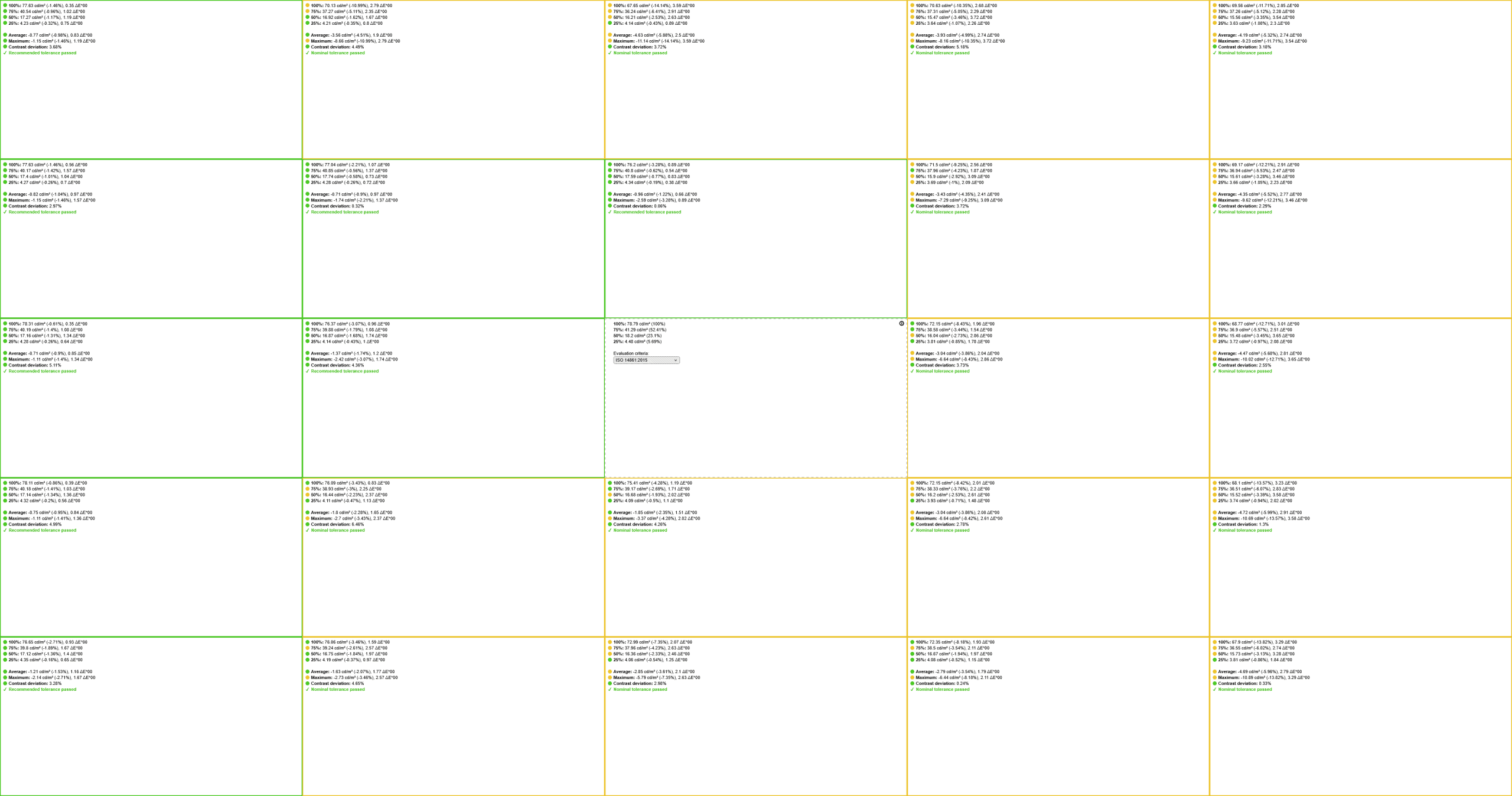
There’s up to 15% brightness deviation from the center, which is a typical result and not noticeable during everyday use. However, all OLED panels have bad gray uniformity, where you can notice some banding on solid dark gray colors. This is mainly noticeable on test patterns, so it won’t bother most users.
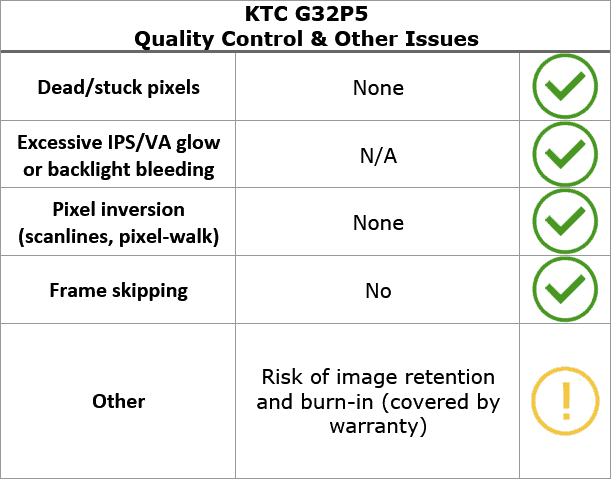
We didn’t find any dead or stuck pixels, no pixel inversion or frame skipping, and since the monitor has an OLED panel, there’s no backlight bleeding or IPS/VA glow.
Apart from the minor fluctuations in brightness due to the way OLED panels work (which is invisible to the human eye), the monitor is completely flicker-free.
There’s also a low-blue light filter mode with four intensity levels, which we measured to reduce the color temperature to 6140K, 5887K, 5662K and 5437K for a more comfortable viewing experience before bedtime.
Burn-in
As is the case with all OLED monitors, there’s a risk of temporary image retention and permanent image burn-in. If you leave an image with bright static elements on the screen for too long, there’s a chance those elements can become permanently visible as an afterimage.
However, if you use the monitor sensibly, play varied content and use its OLED Care features, it shouldn’t be an issue. KTC also claims to offer a 3-year warranty that covers burn-in, though this isn’t specifically noted on their website.
The KTC G32P5 offers several burn-in prevention features:
- OLED Pixel Refresher – refreshes the panel to equalize pixel wear, can be run manually, at shutdown or automatically (after certain hours of use). The process takes up to 10 minutes and the power LED indicator blinks white until finished
- OLED Expert – shorter panel refresh that takes around 1 minute, which you can run manually when you notice uniformity issues or image retention
- Screensaver – off, 5, 10, 20 or 30 minutes
- Screen movement – moves the image by a few pixels to minimize the chance of burn-in, can be disabled
- Distance sensor – the monitor goes into standby mode when the sensor detects that there’s no human in front of it for around 25 seconds (Off, Standard and Far options)
- Auto Brightness – automatically dims the brightness when static content is detected
Features
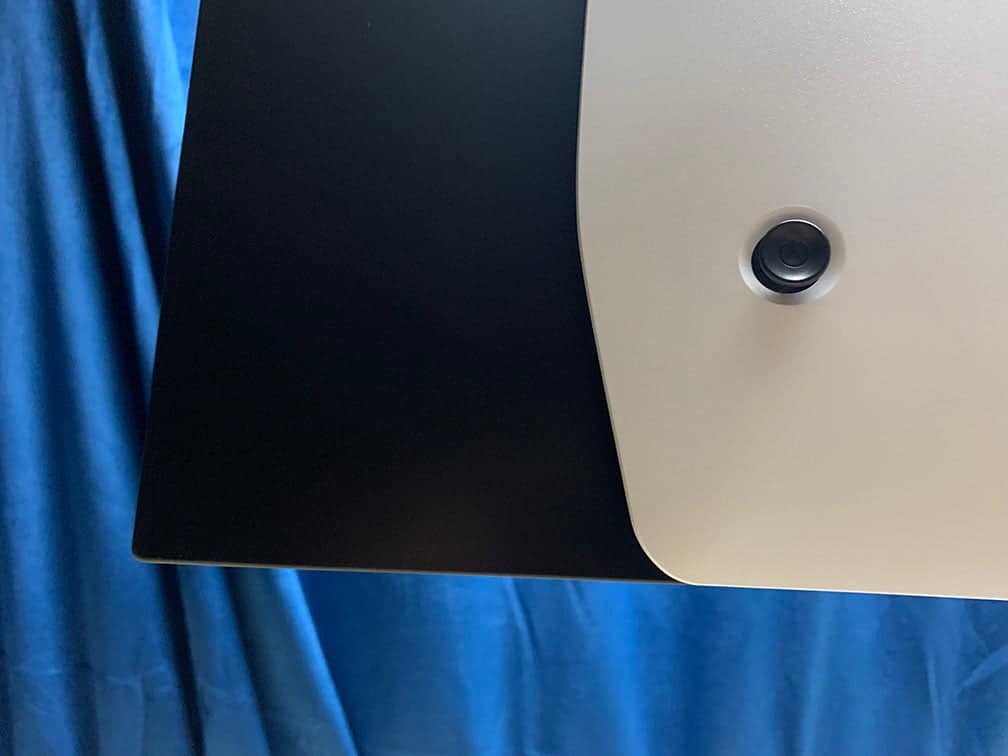
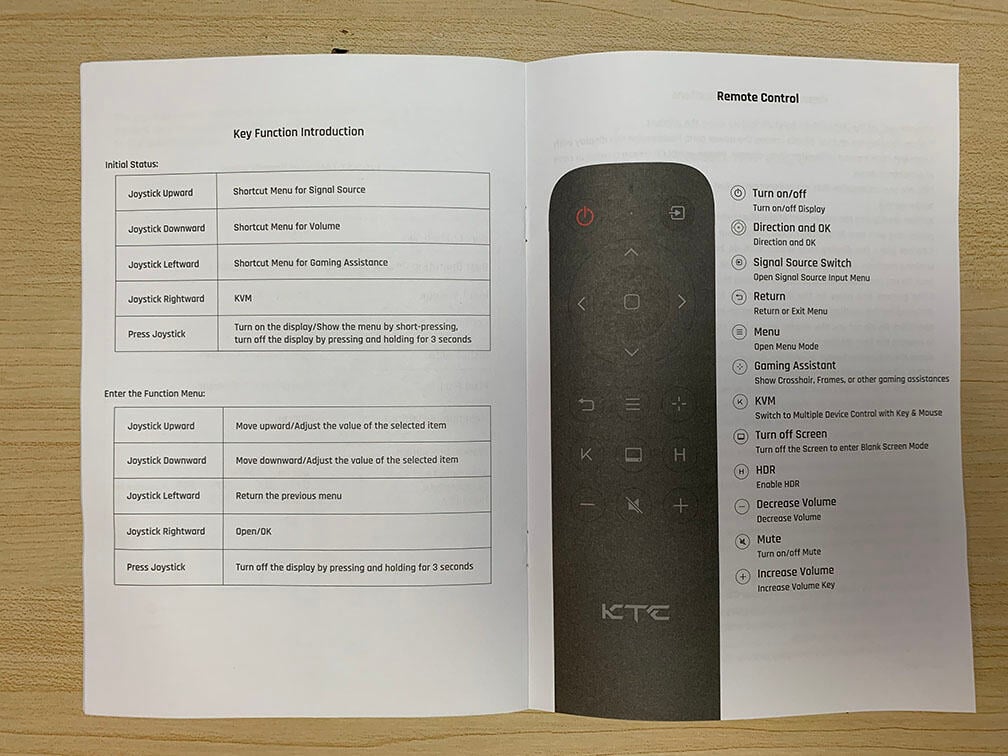
On the rear of the monitor, there’s a directional joystick for quick and easy navigation through the OSD (On-Screen Display) menu.
Pressing the joystick opens up the OSD menu, while holding it powers off the display.
Moving the joystick to left, right and down acts as a shortcut for certain functions (can be re-assigned in the menu to: Brightness, Contrast, Volume, Mute, Gaming Setup (timer, crosshair, refresh rate tracker), KVM, Preset, HDR, RGB Light and Dual Mode, while moving it up is reserved for input source selection.
KTC also offers their MCC (Multi Command Centre) desktop application, which allows you to do make most of OSD adjustments using your keyboard and mouse. You also have some additional options in this software, such as being able to assign certain shortcuts for some OSD functions and presets to certain apps.
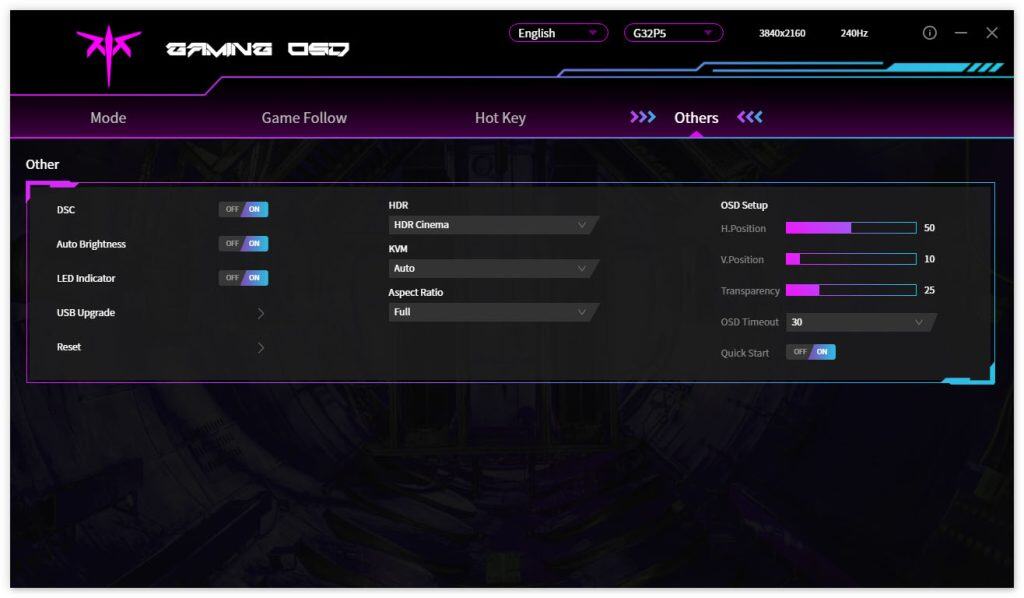
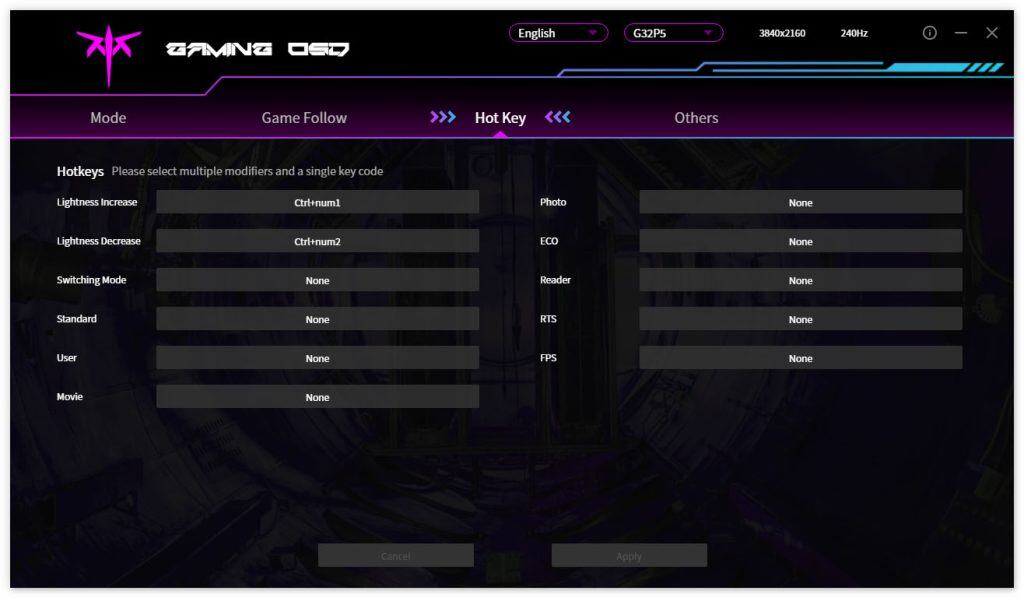
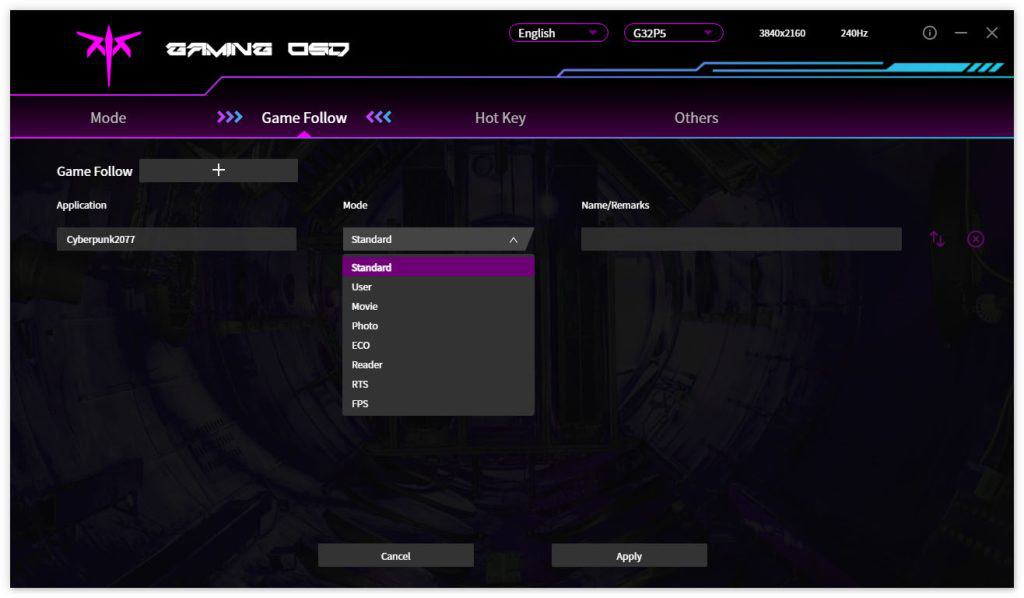
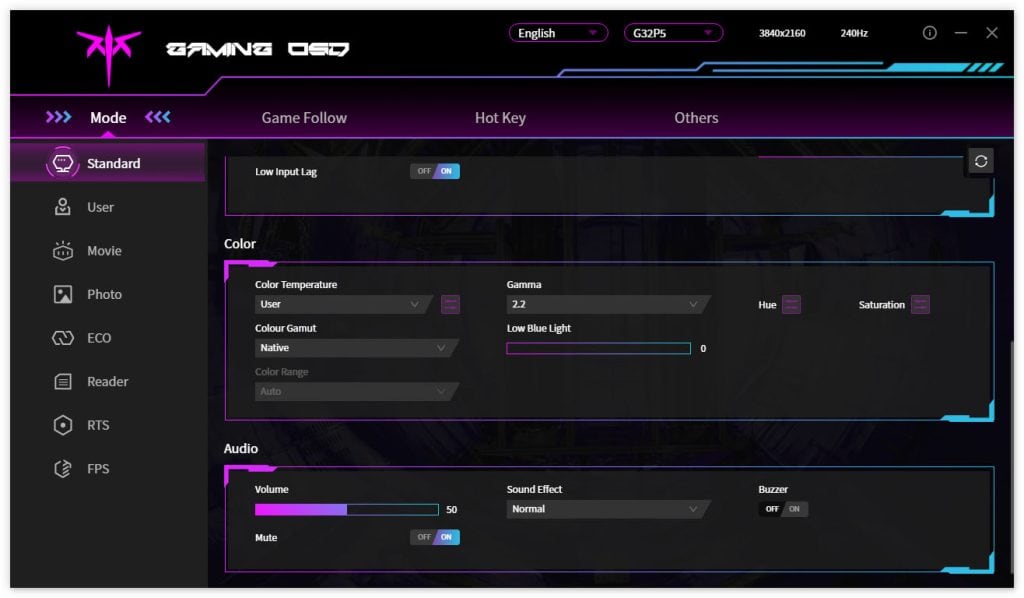
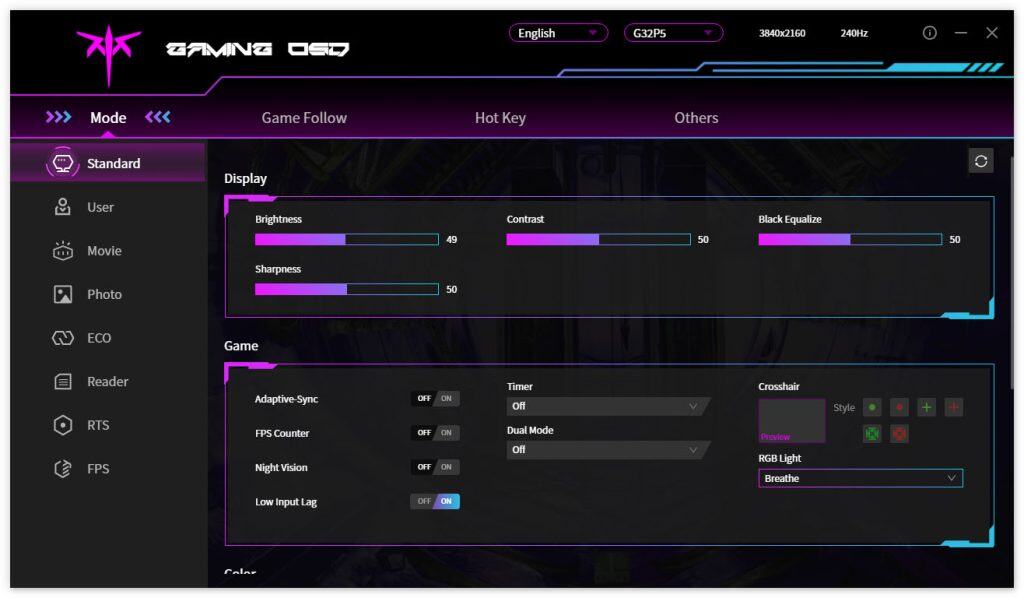
You can download the MMC app here, though you’ll need to change your browser’s preferred language to ‘Chinese (Simplified)’; otherwise, it will just take you to the English homepage. Alternatively, use this direct download link (clicking it will start the download immediately).
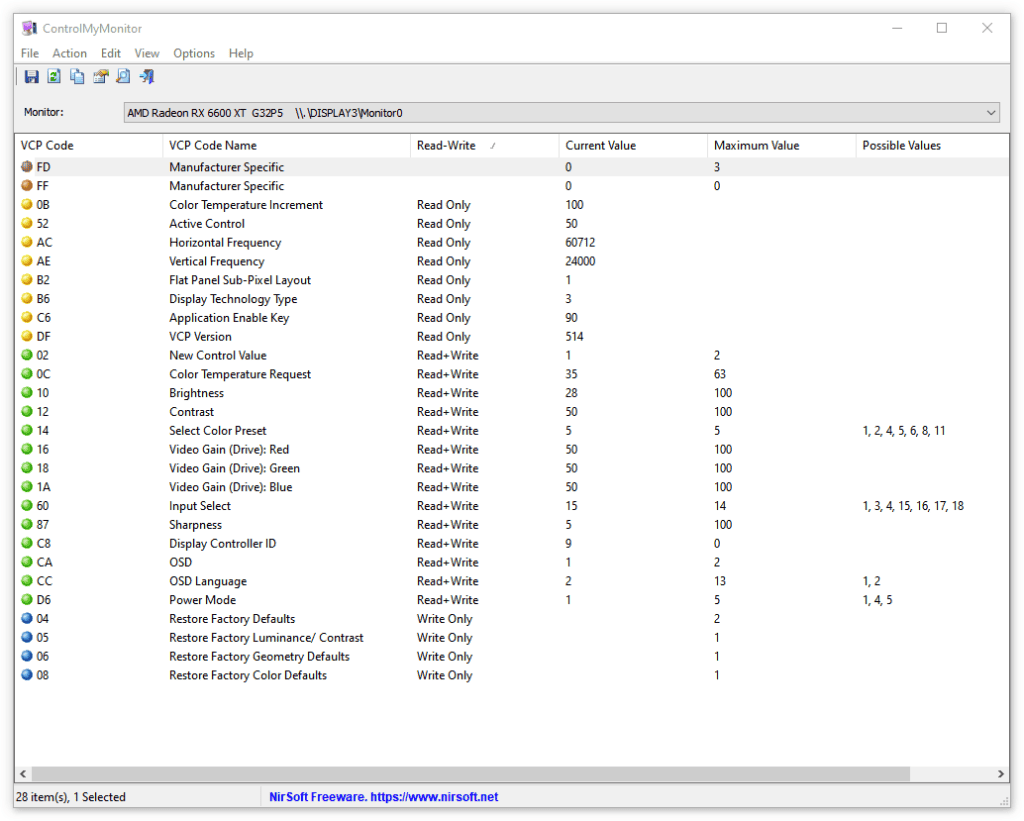
You can also use third-party apps, such as ControlMyMonitor, to make the following OSD settings:
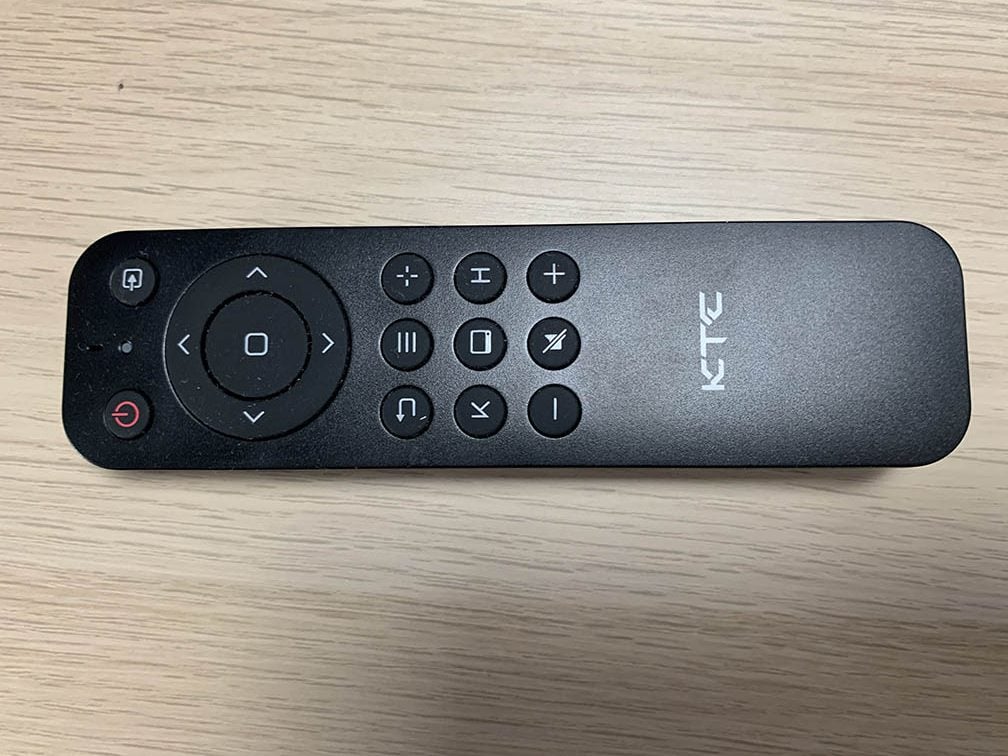
You also get a remote controller with the monitor, which can be used to navigate the menu and use certain shortcuts.
Besides the typical image adjustment tools, such as brightness, contrast, color temperature, etc., the KTC G32P5 also has some advanced settings, including sharpness, five gamma presets (from 1.8 to 2.6), 6-axis hue/saturation, DSC toggle, and automatic input detection.
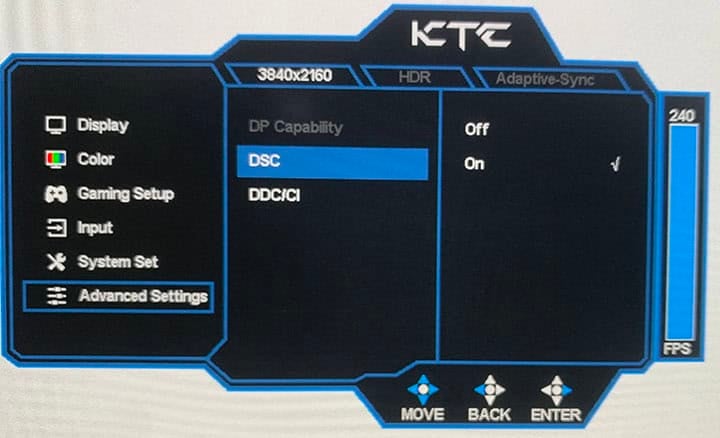
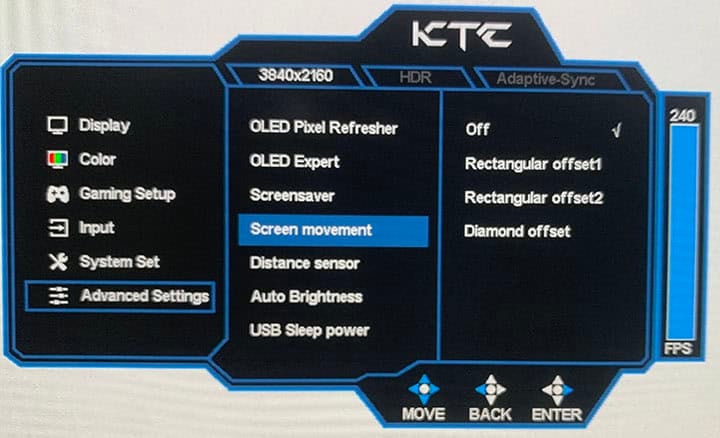
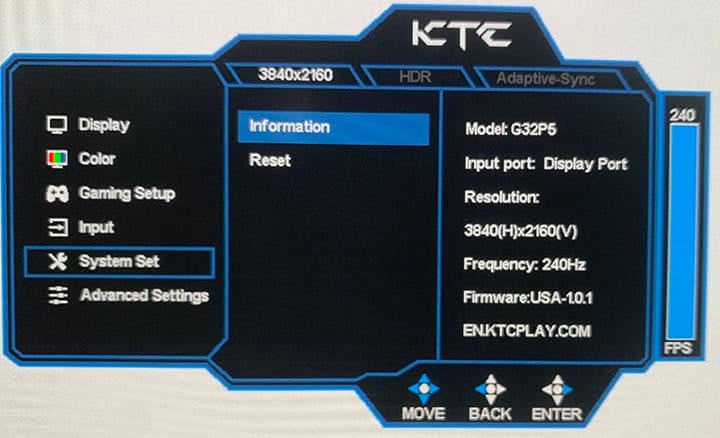
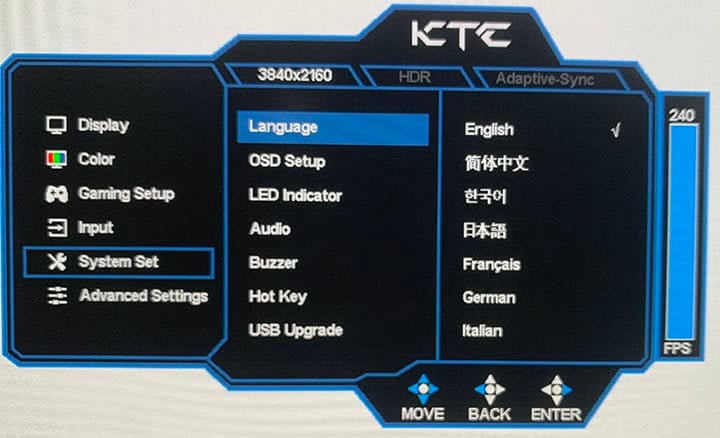

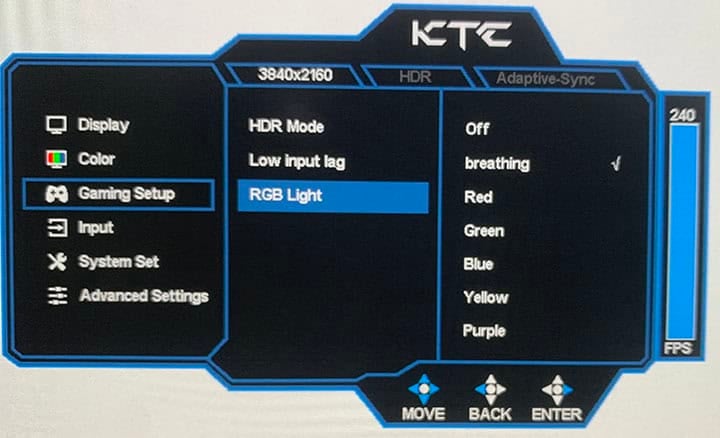
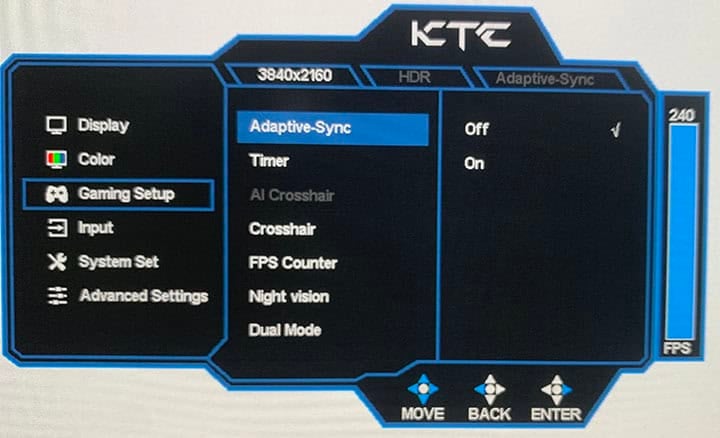
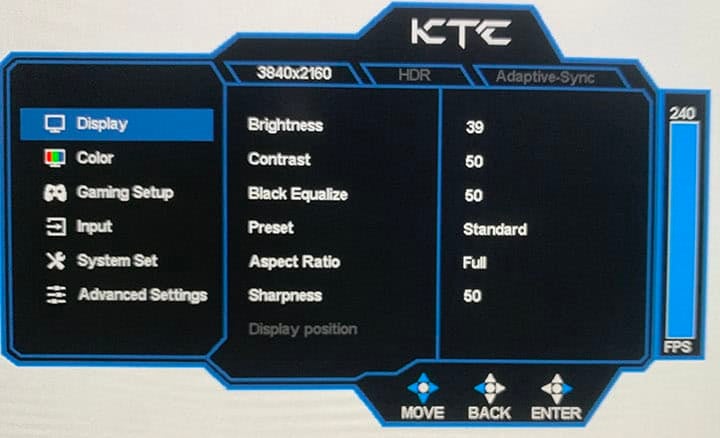
Useful gaming features include:
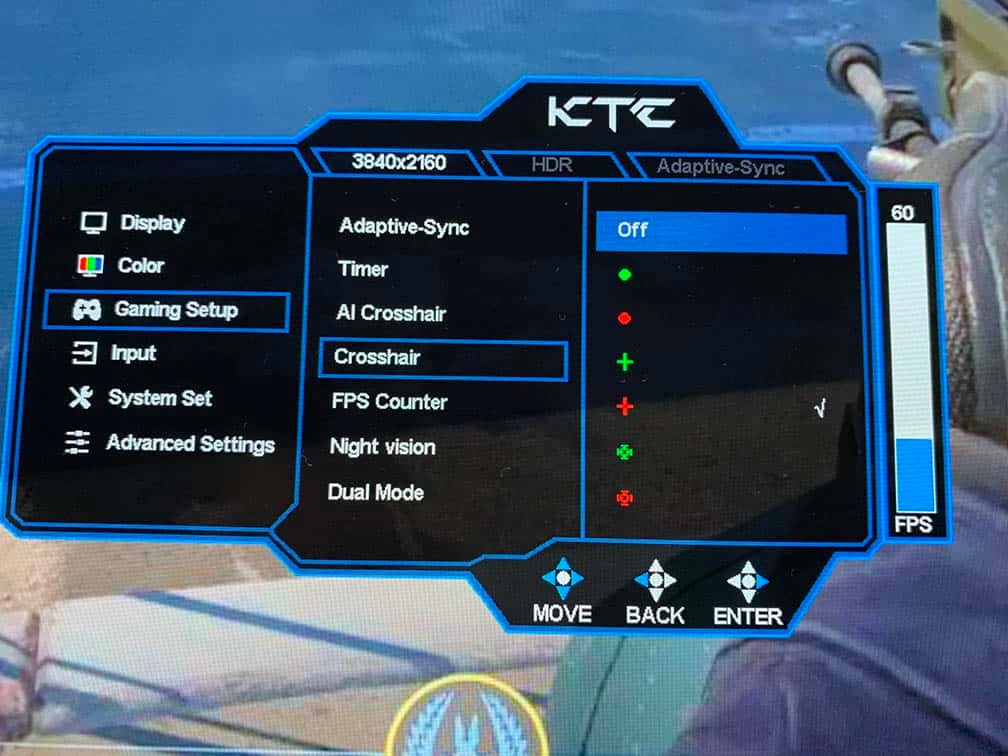
- Black Equalizer – improves visibility in dark scenes
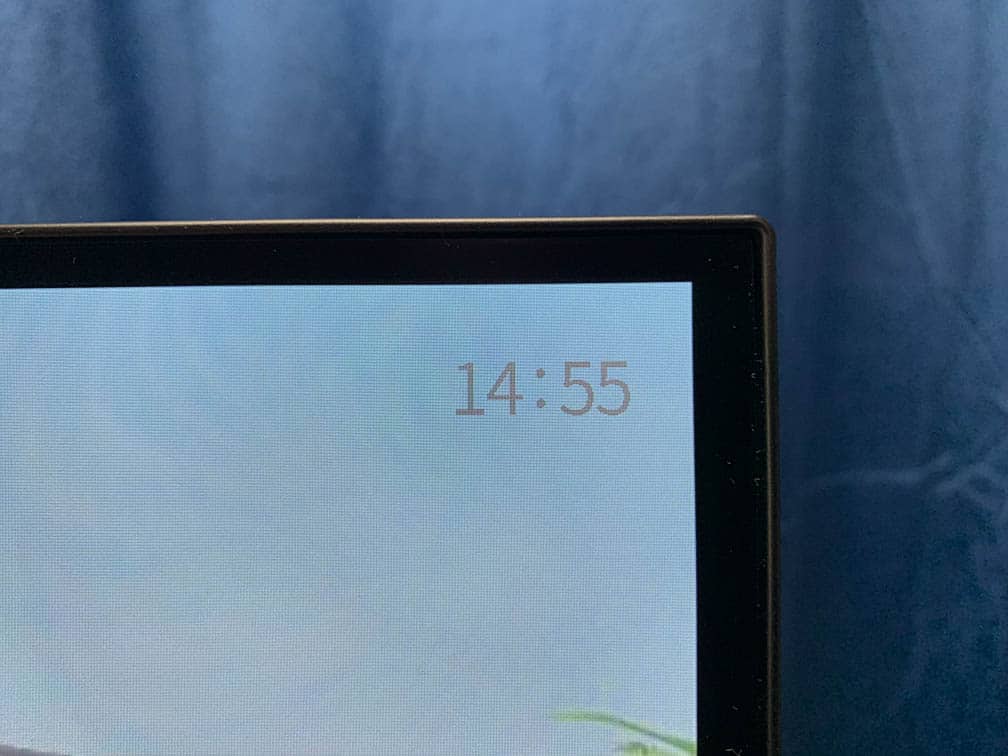
- On-screen timer
- Crosshair overlays
- AI Crosshair – changes color depending on the background
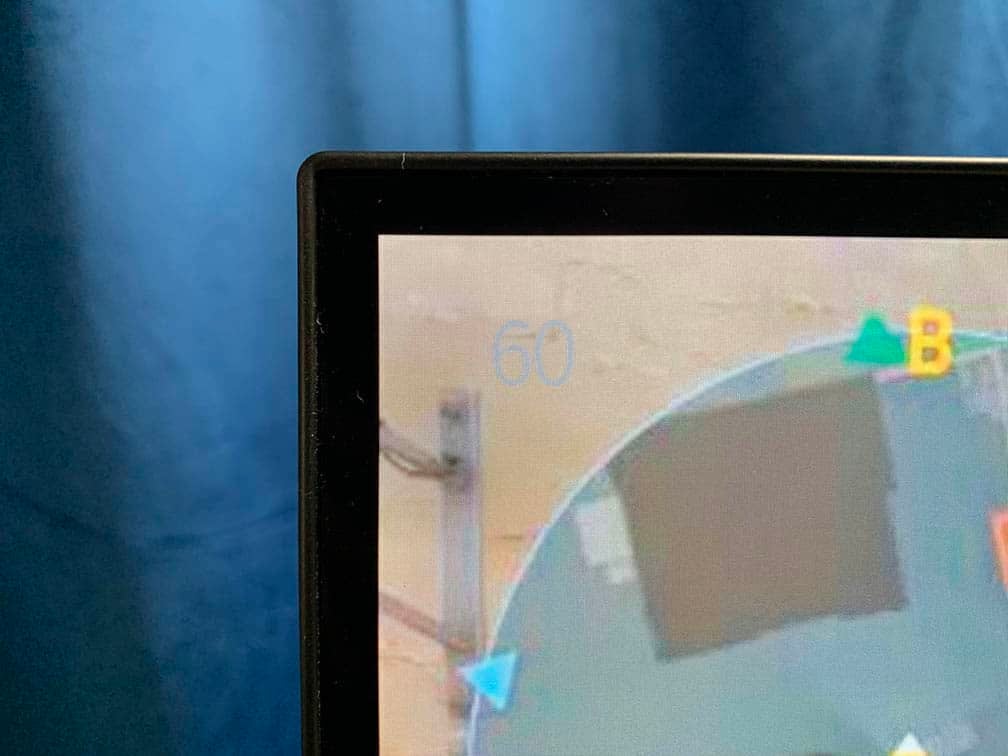
- A refresh rate tracker
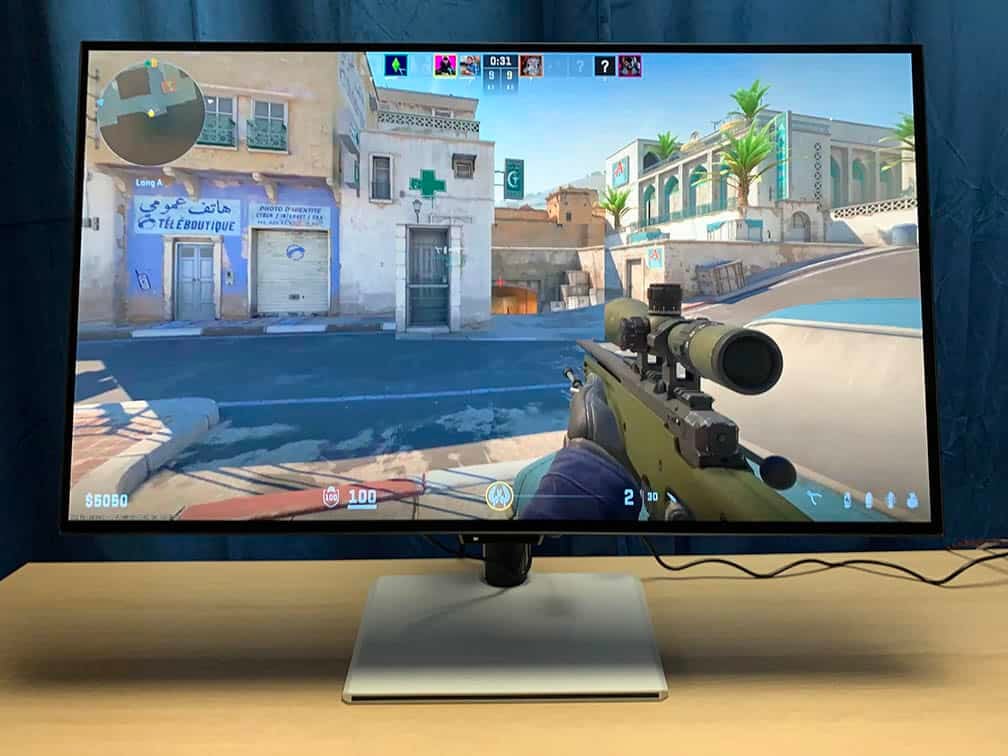
- “Night Vision” – seems to be a translation error since it zooms in the area around your crosshair, like the Sniper Scope feature on other monitors


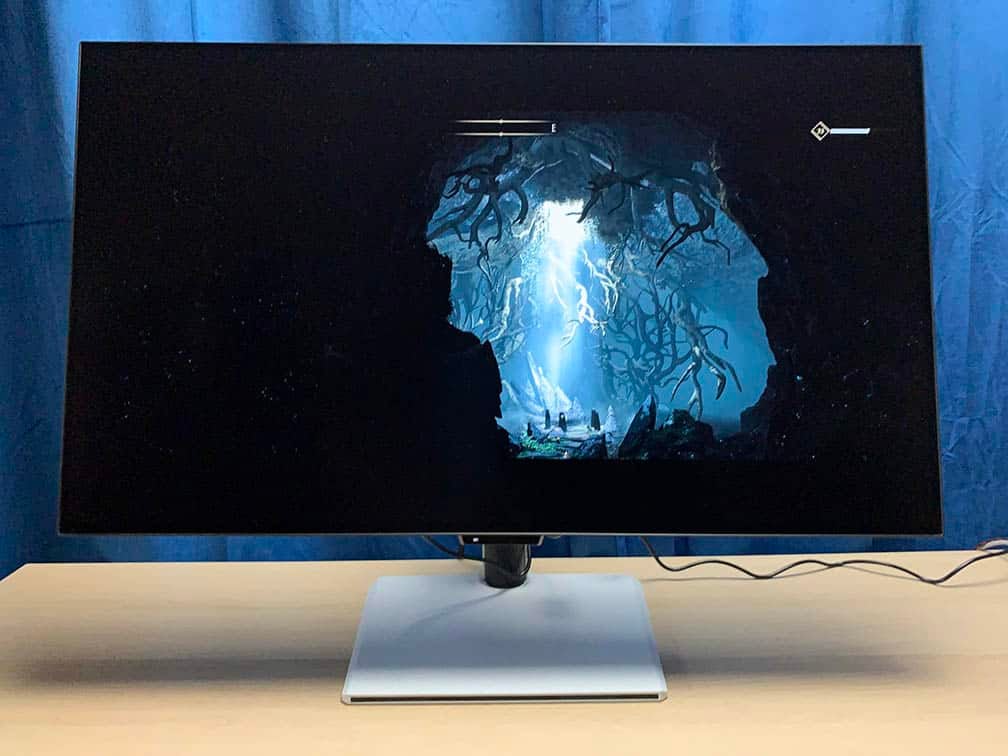
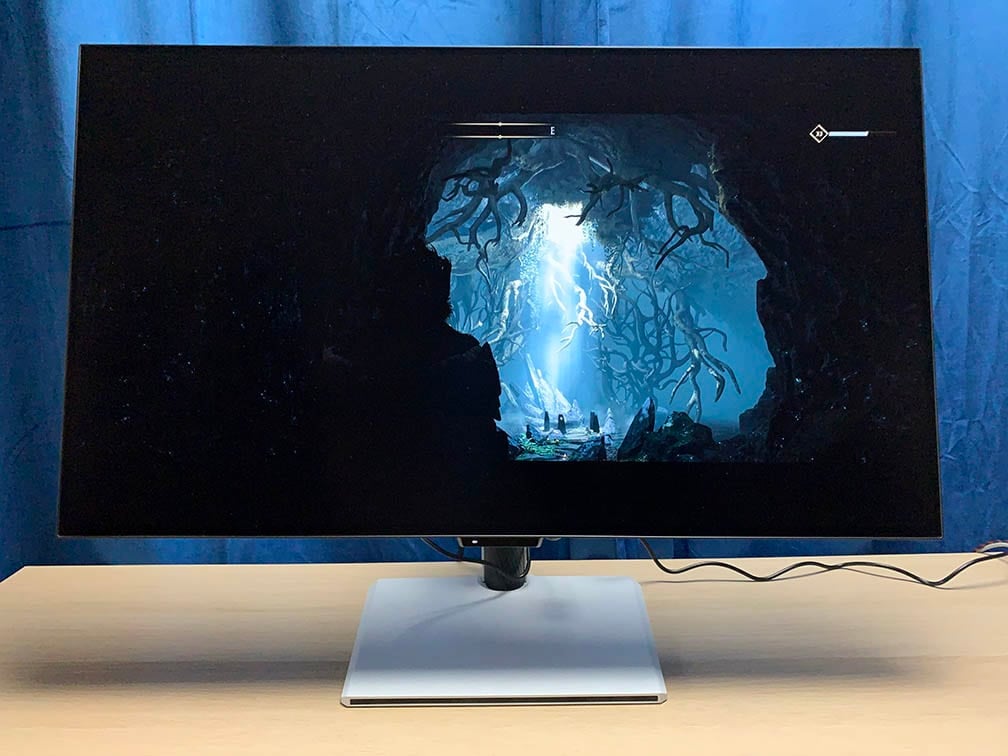
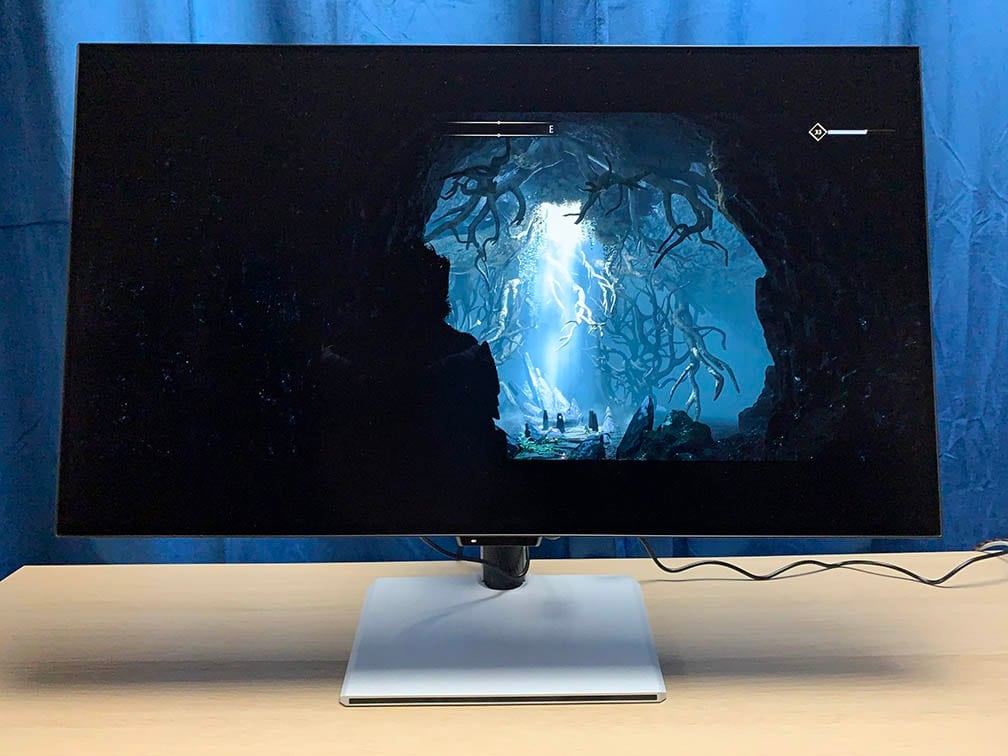
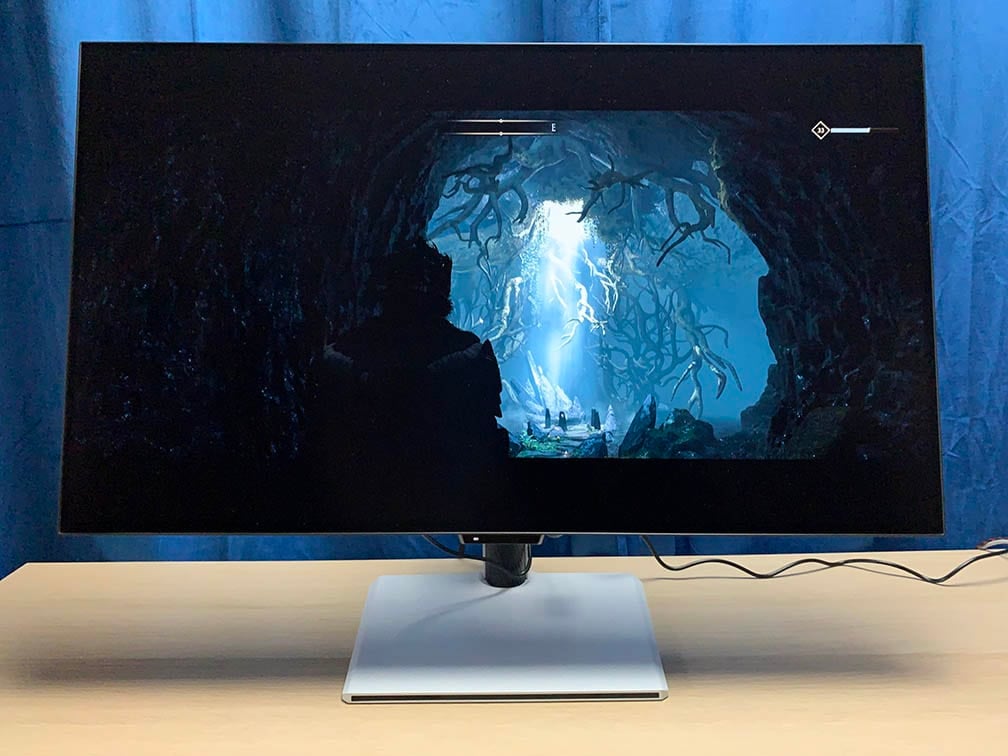
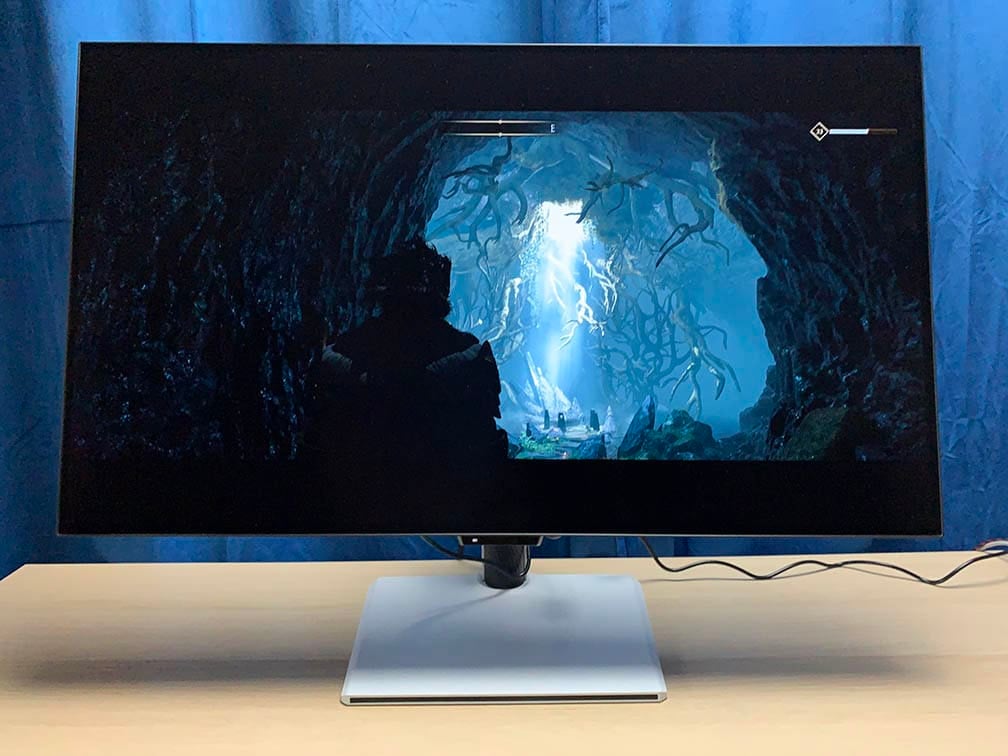
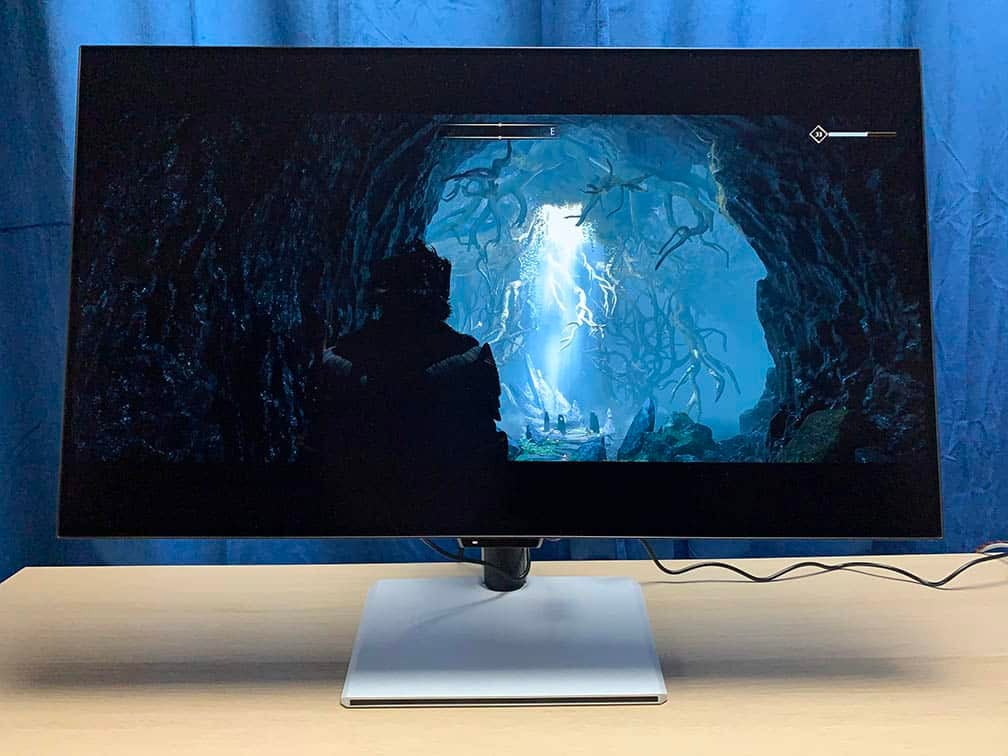
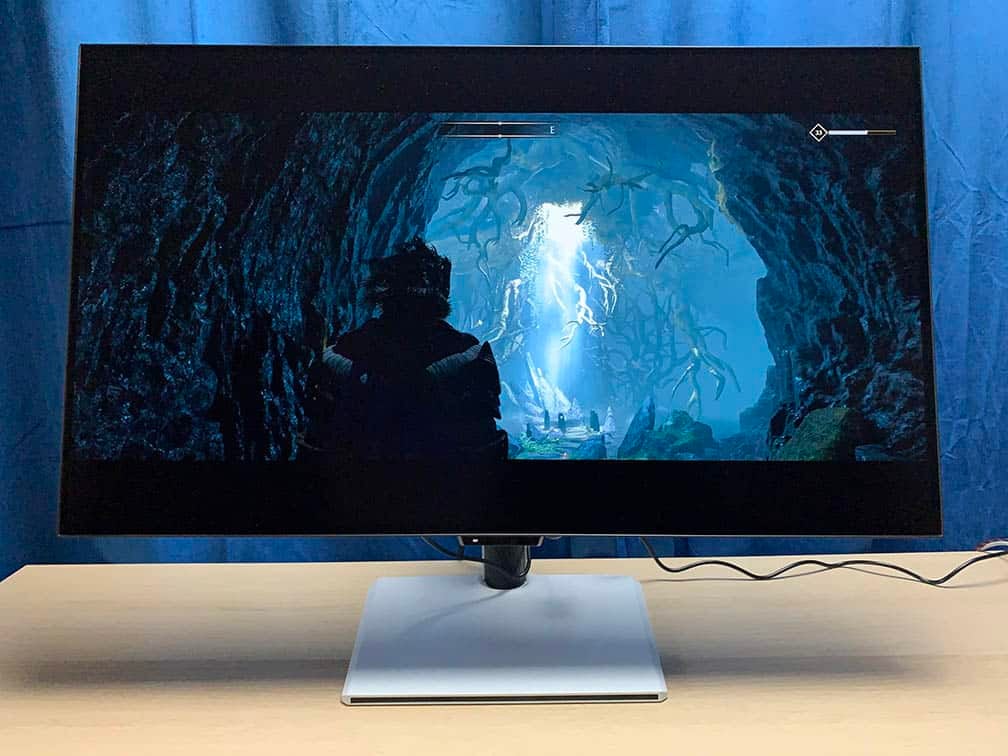
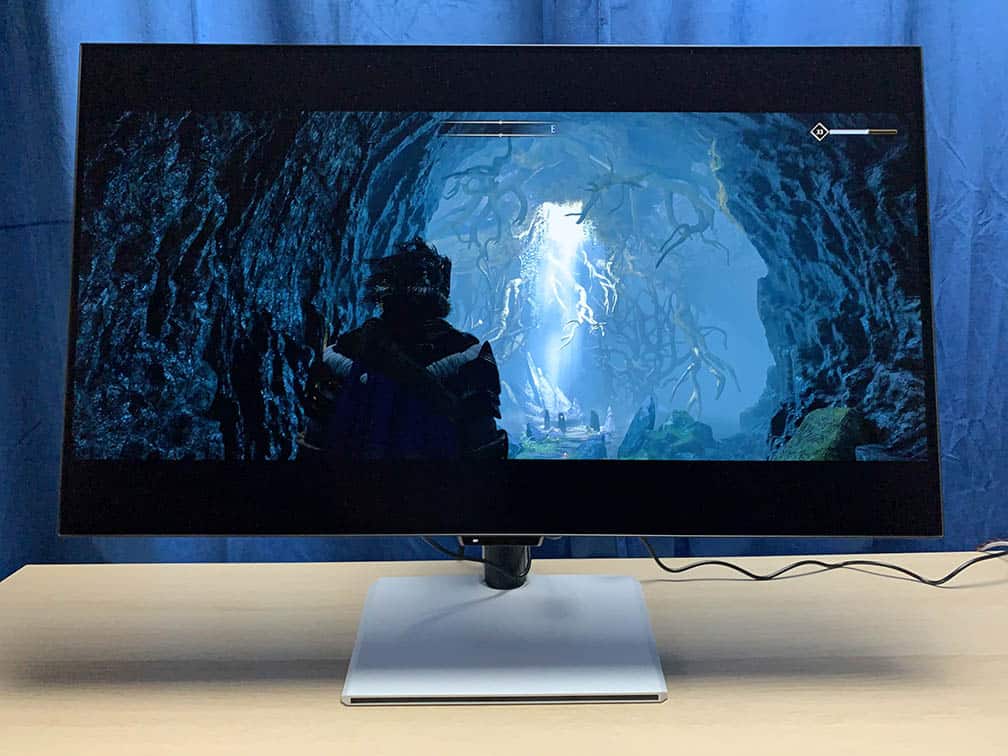
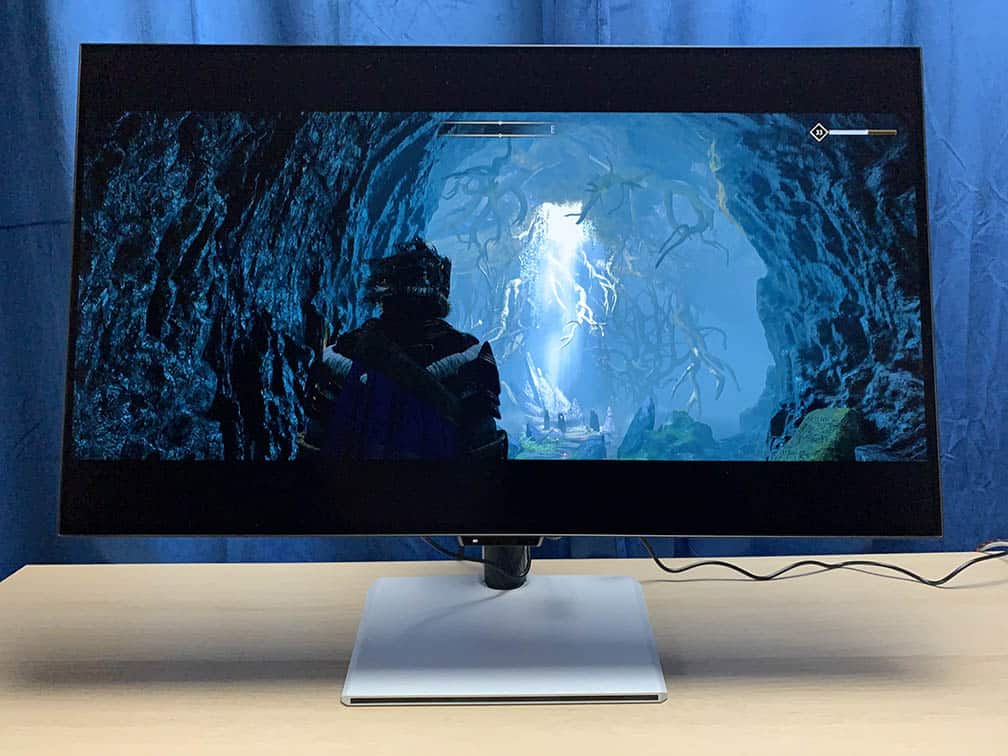
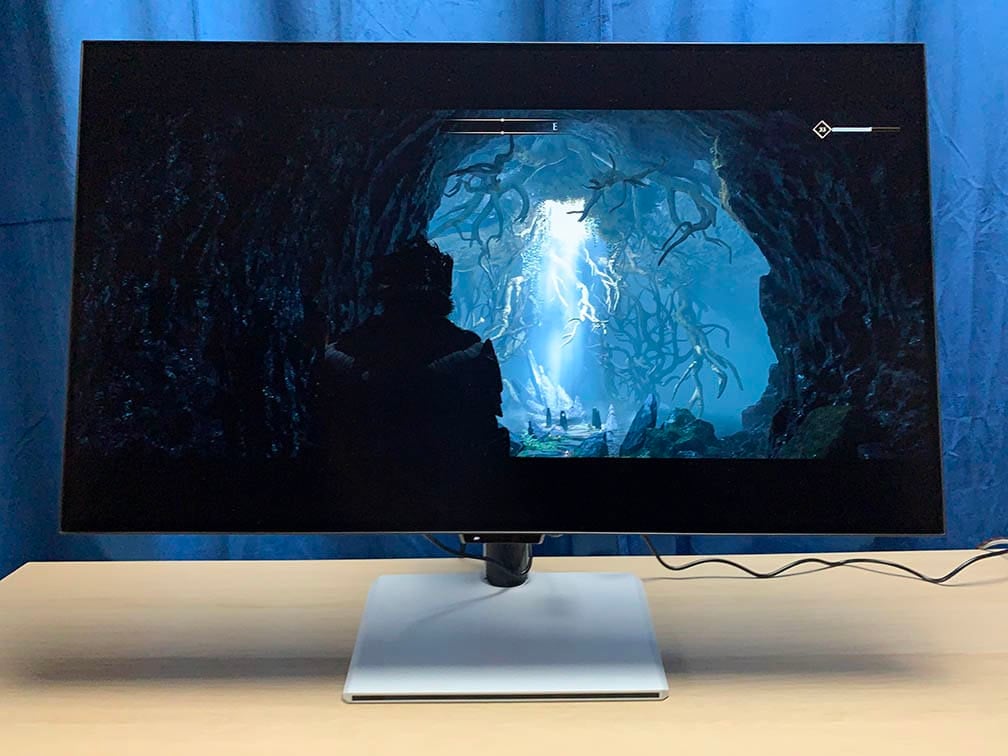
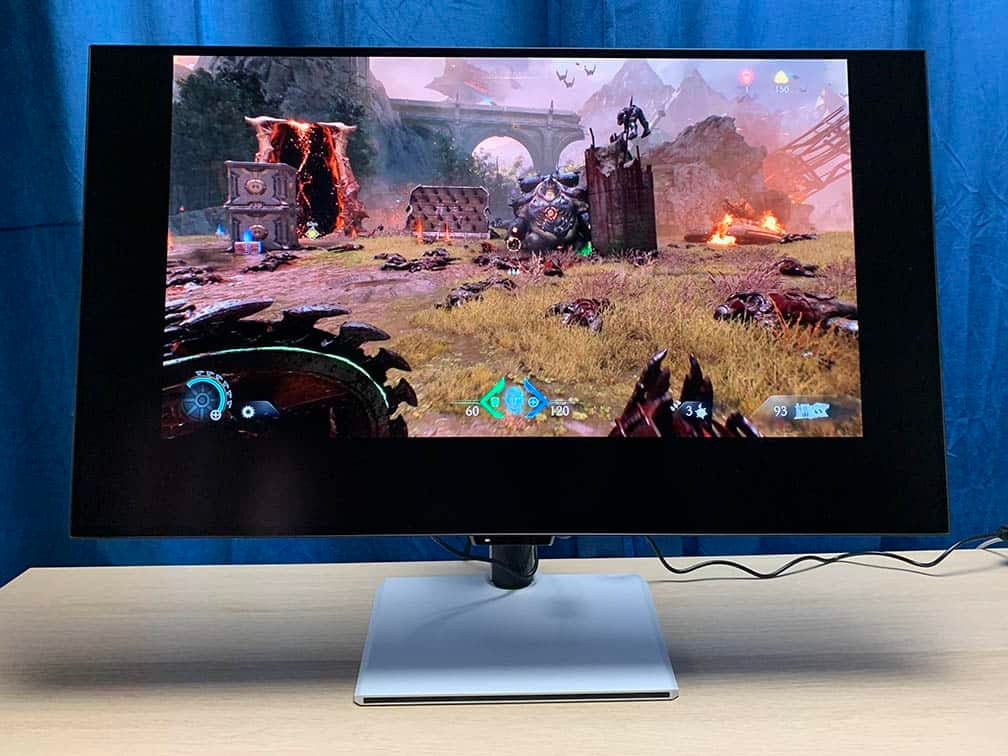
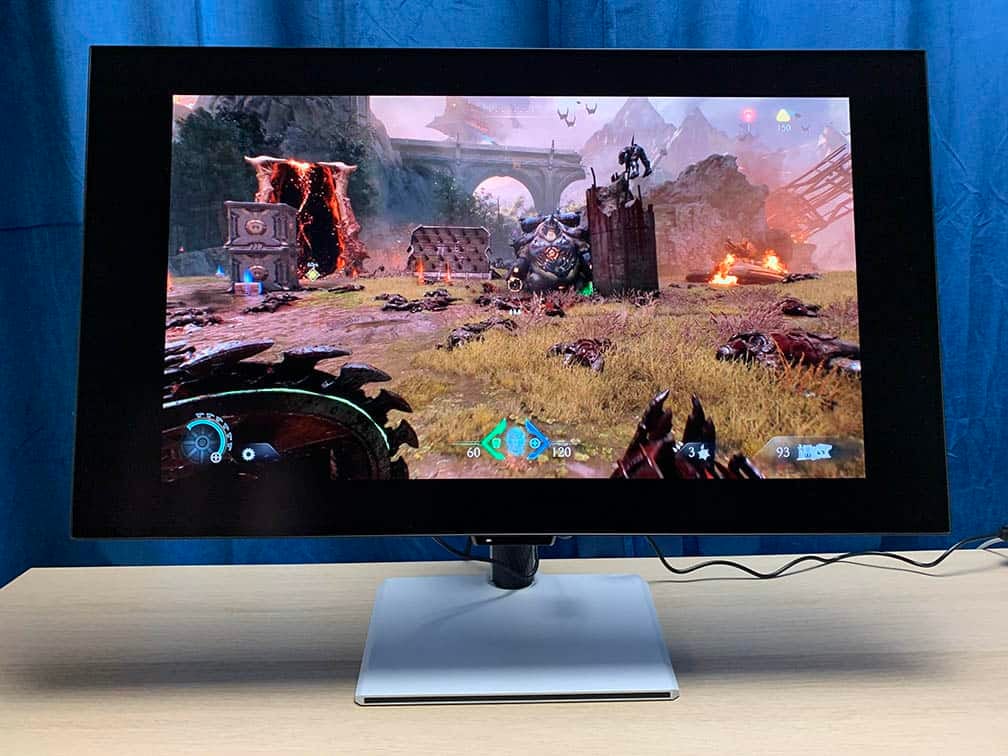
It also supports the Aspect Ratio feature, which emulates a different screen size by putting black bars around the image. Each size has a custom resolution for 1:1 pixel mapping in order to eliminate blurring. To enable Aspect Ratio, VRR must be disabled. The supported ratios include:
- 21″ – 2560×1440 (1280×720 in 1080p Mode)
- 24.5″ – 3168×1782 (1496×848)
- 27″ – 3288×1850 (1648×928)
- 26″ 21:9 – 3344×1434 (1672×718)
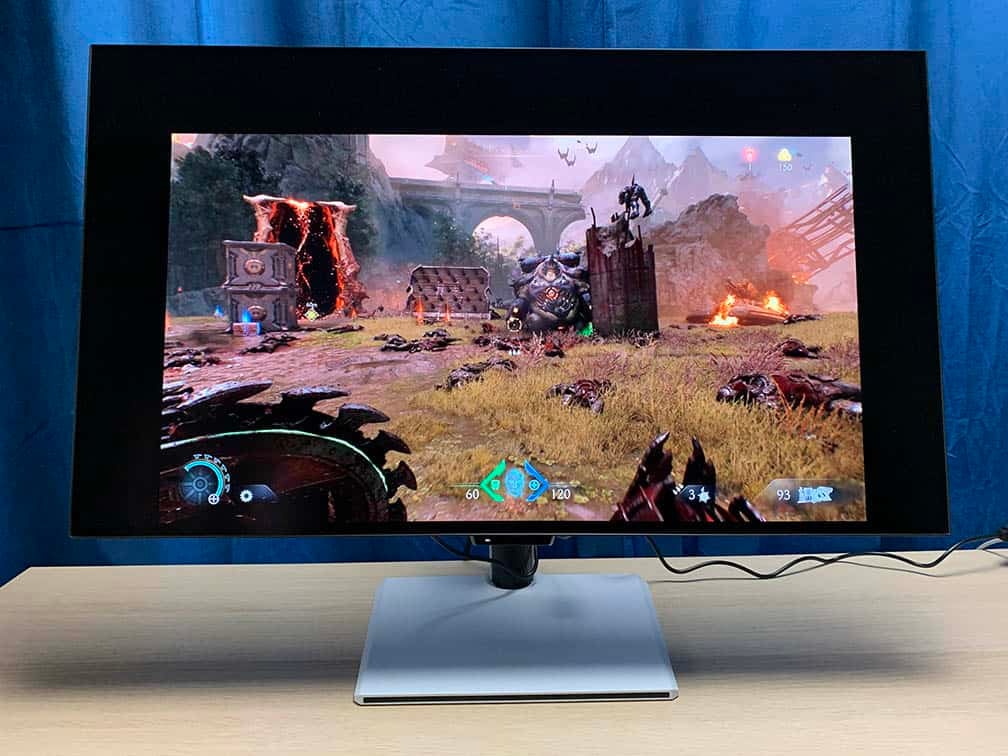
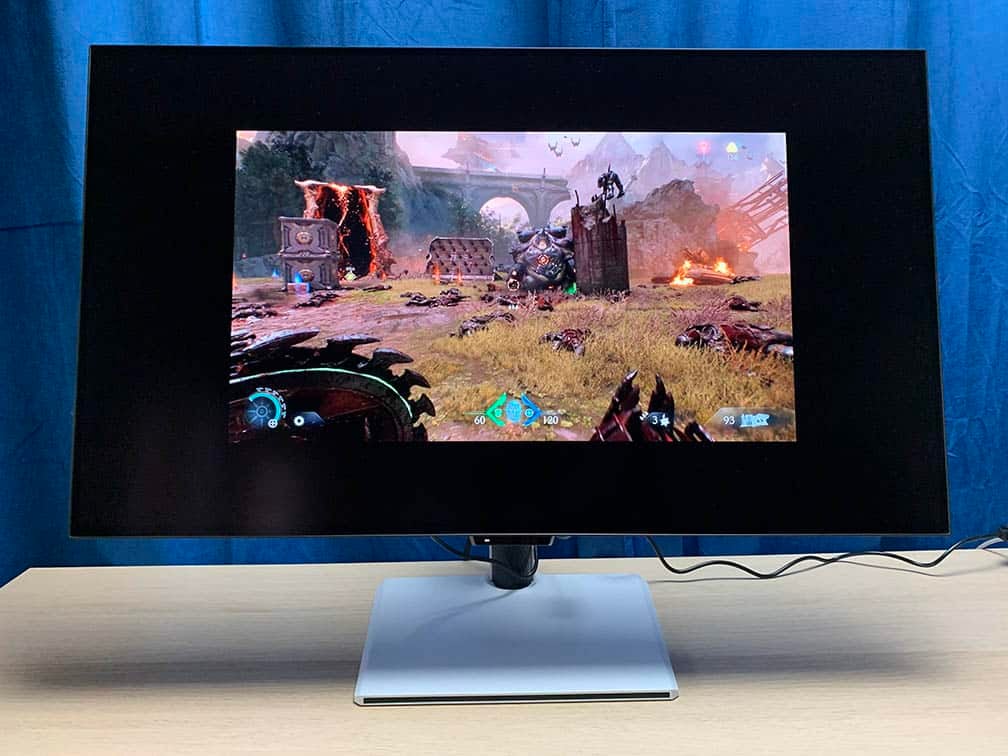
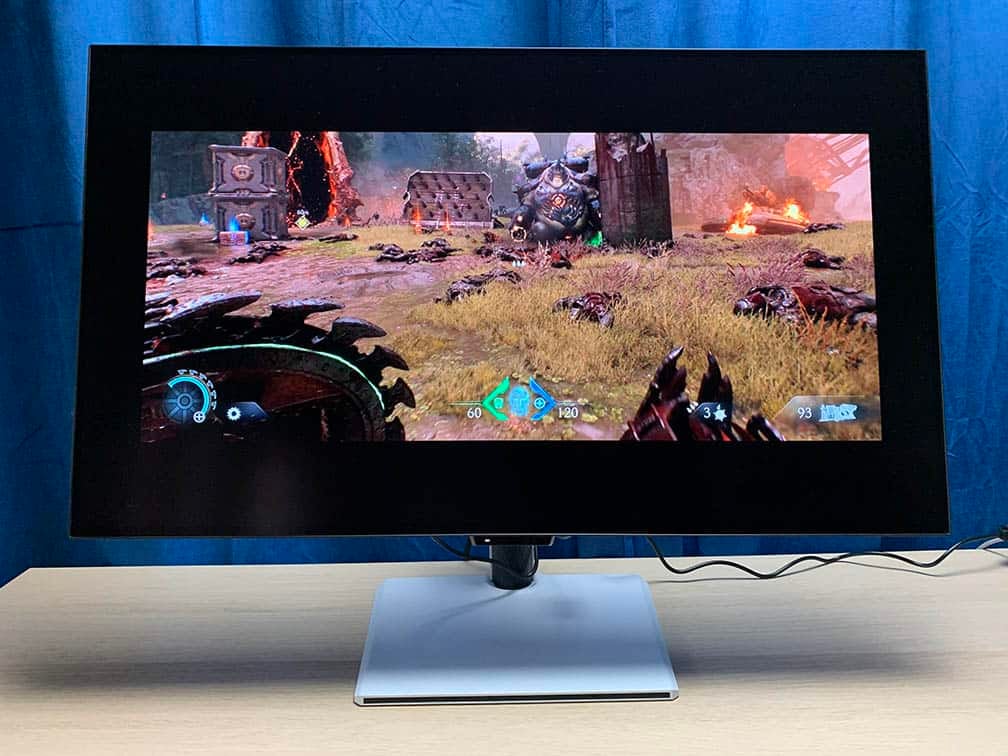
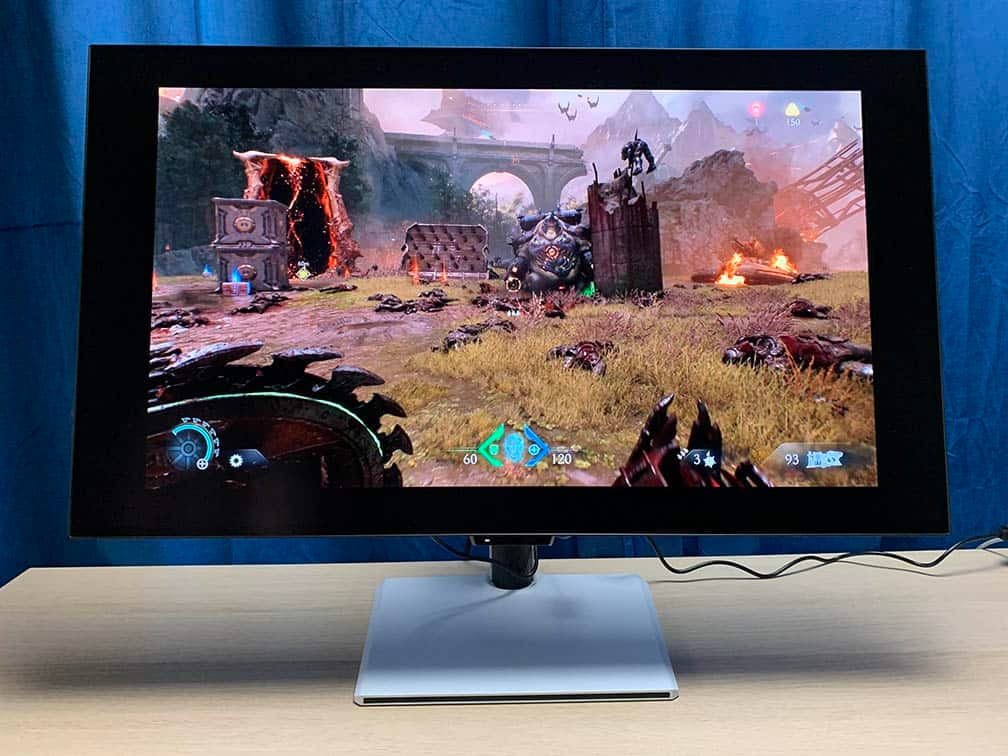
The monitor is flicker-free and there’s a low-blue light filter mode with four intensity levels (we measured 6140K, 5887K, 5662K and 5437K).
Design & Connectivity
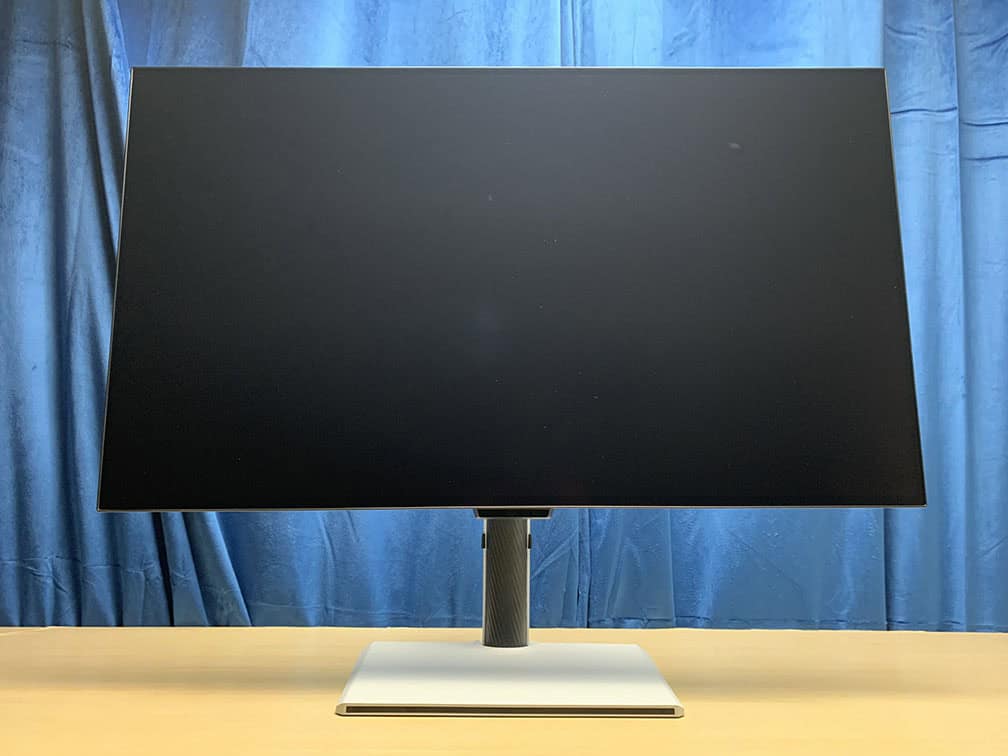
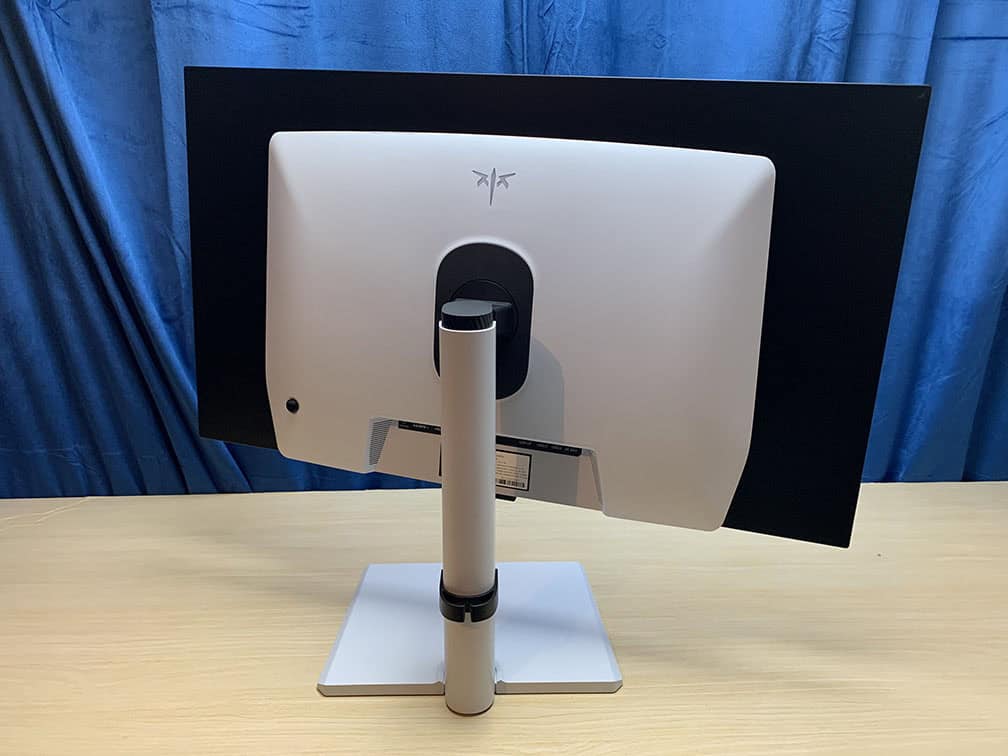
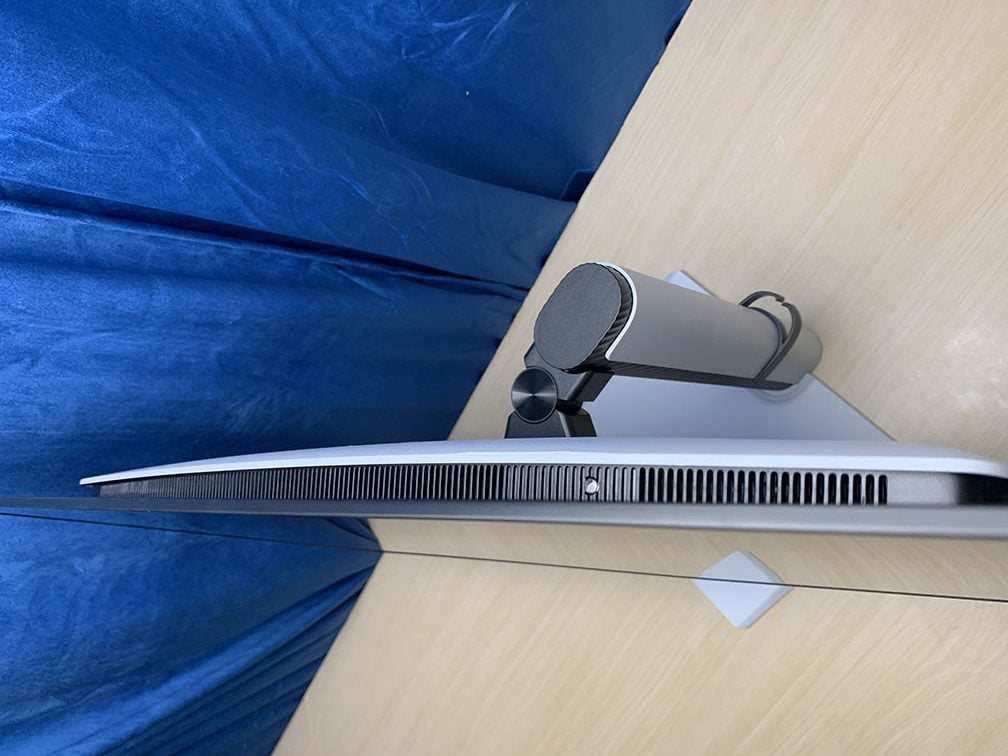
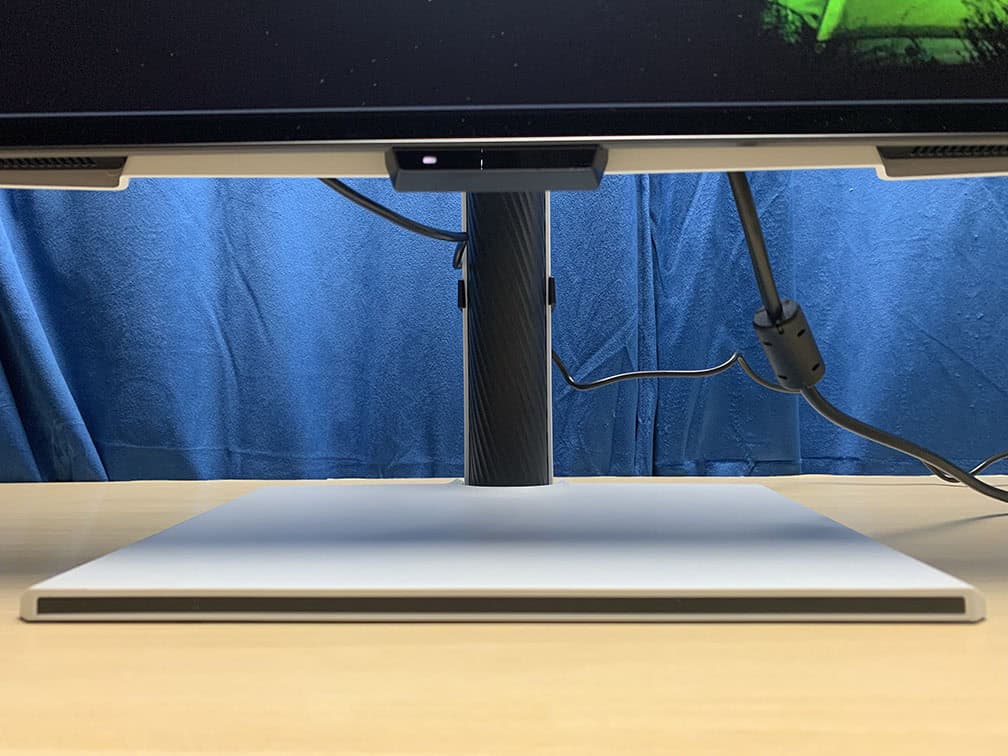
The stand of the monitor is robust and offers height adjustment up to 130mm, +/- 45° swivel, -5°/20° tilt and 75x75mm VESA mount compatibility. There’s no pivot option, except for a few degrees for balancing.
The screen has a bit heavier matte anti-glare coating (typical for LG’s W-OLED panels), which is very efficient at diffusing reflections but adds some graininess to the image (only noticeable on solid colors).
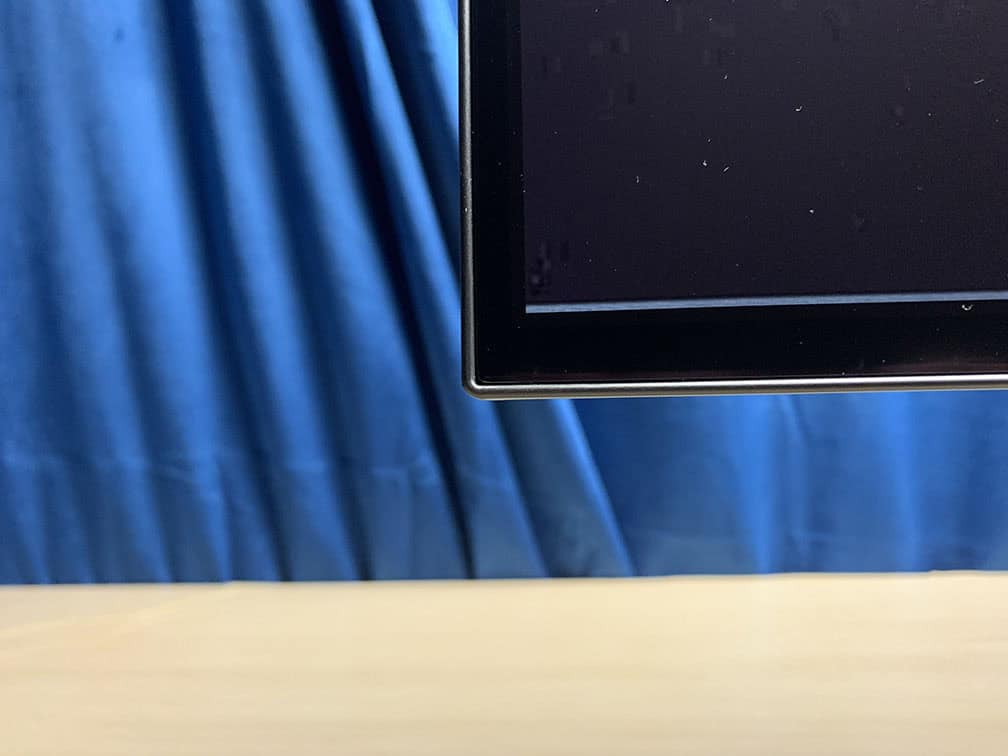
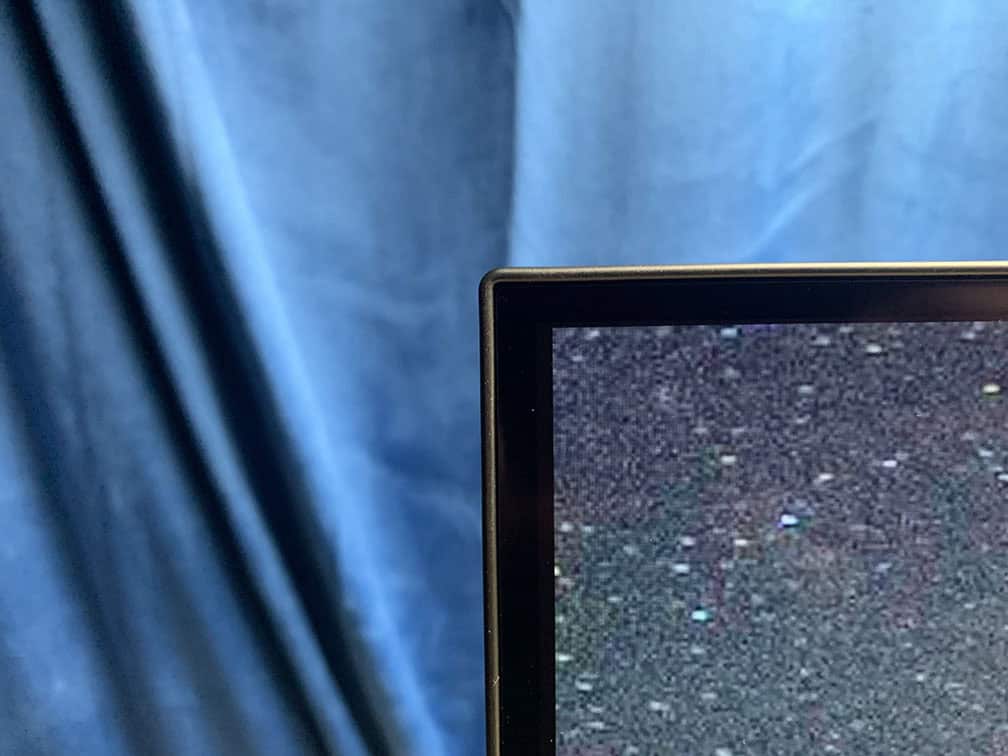
The bezels are 1mm ultra-thin at all four sides of the display, but there’s a 7mm chin protruding below the bottom bezel, which houses the built-in sensors and LED power indicator. There’s a ~6mm black border before the image starts (~9mm at the bottom).
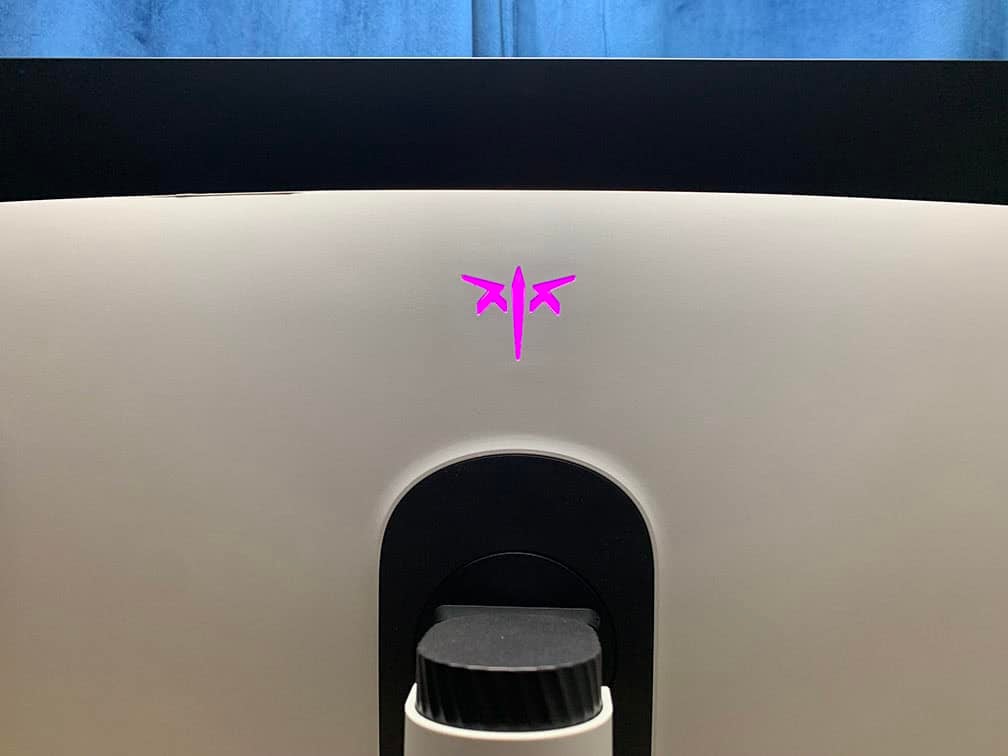
The KTC logo on the rear of the monitor has customizable RGB lighting (off, breathing, red, green, blue, yellow, purple, cyan and white). There’s no audible fan, so we assume that it’s using a heatsink for cooling.
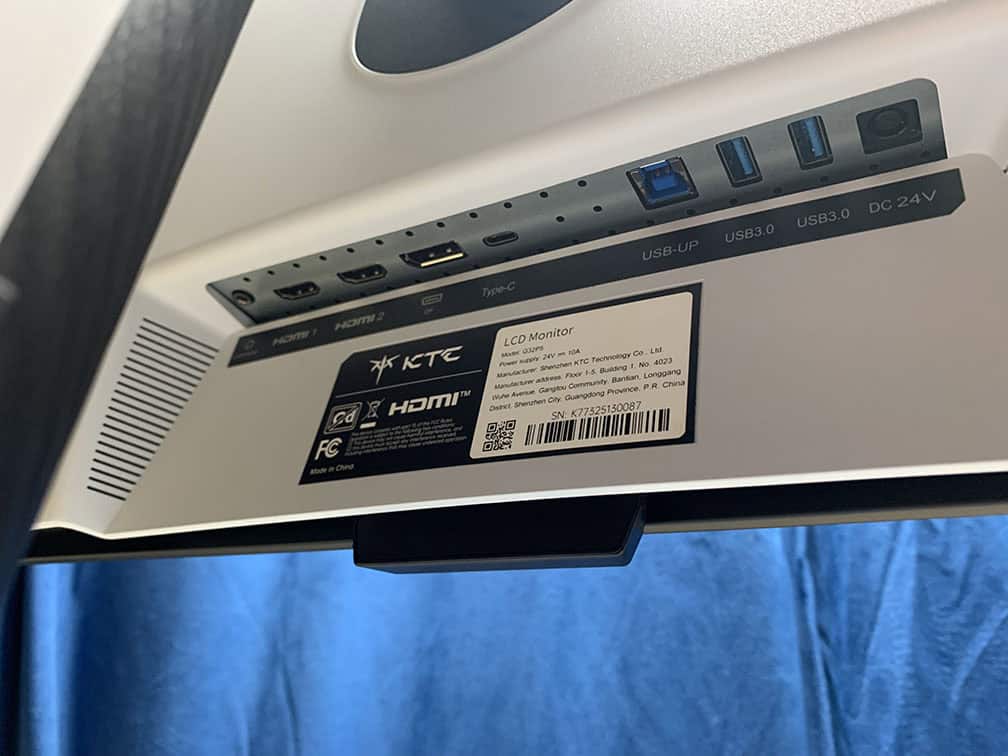
Connectivity options are abundant and include DisplayPort 1.4 with DSC, two HDMI 2.1 ports, a USB-C port with DP Alt Mode and 65W Power Delivery, two downstream USB-A 3.0 ports, USB-B, a headphone jack and dual 5W integrated speakers.
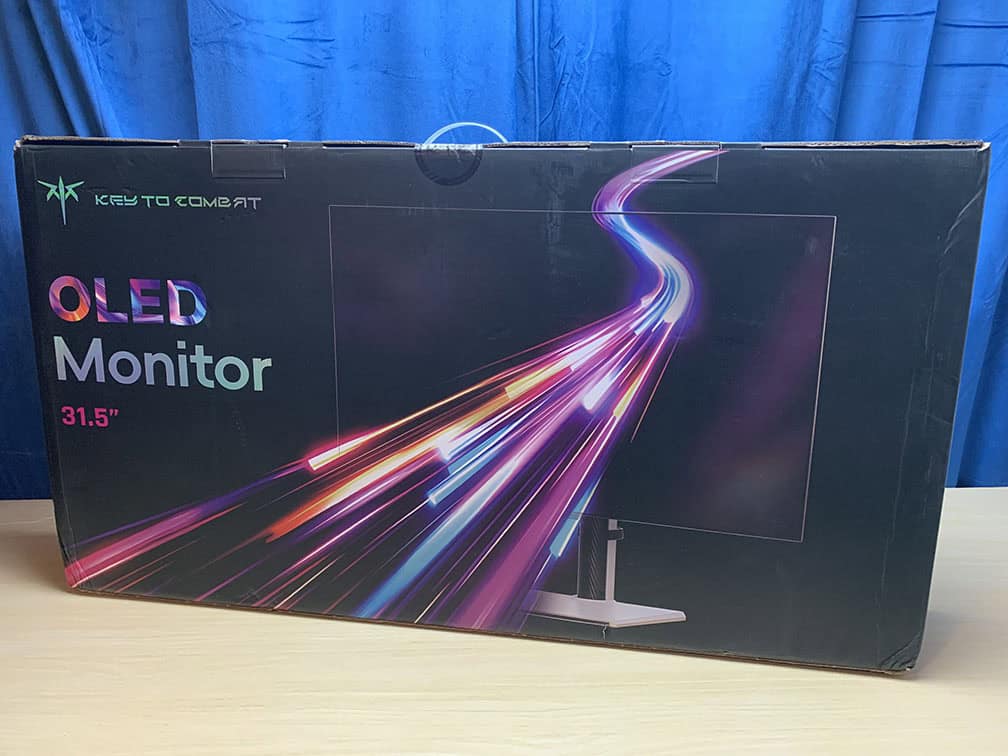
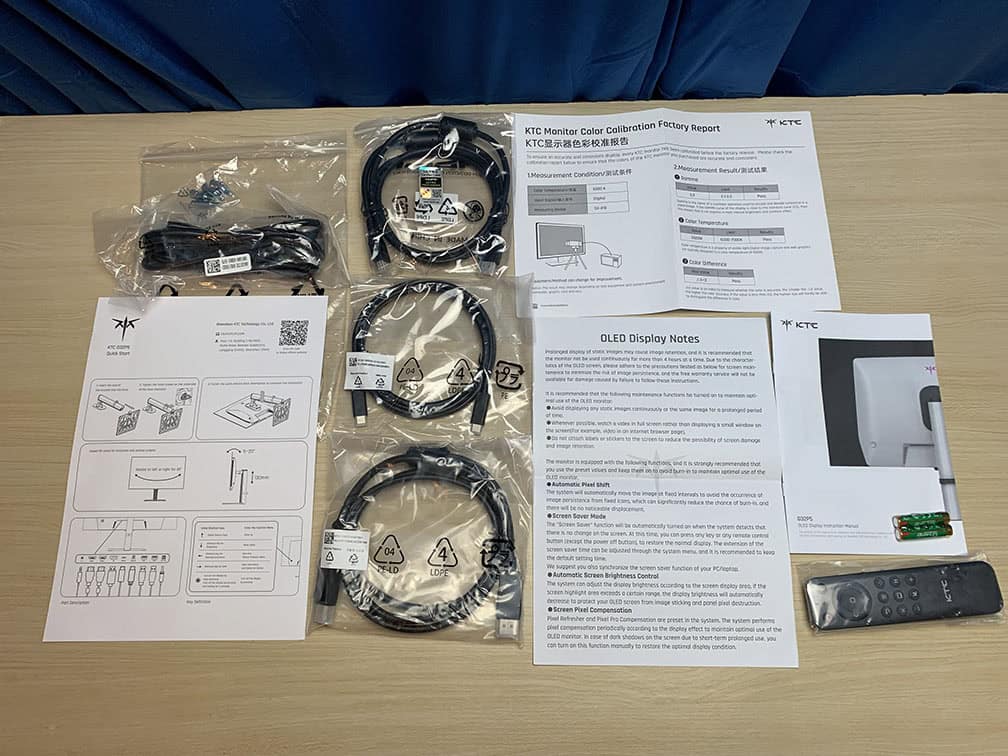
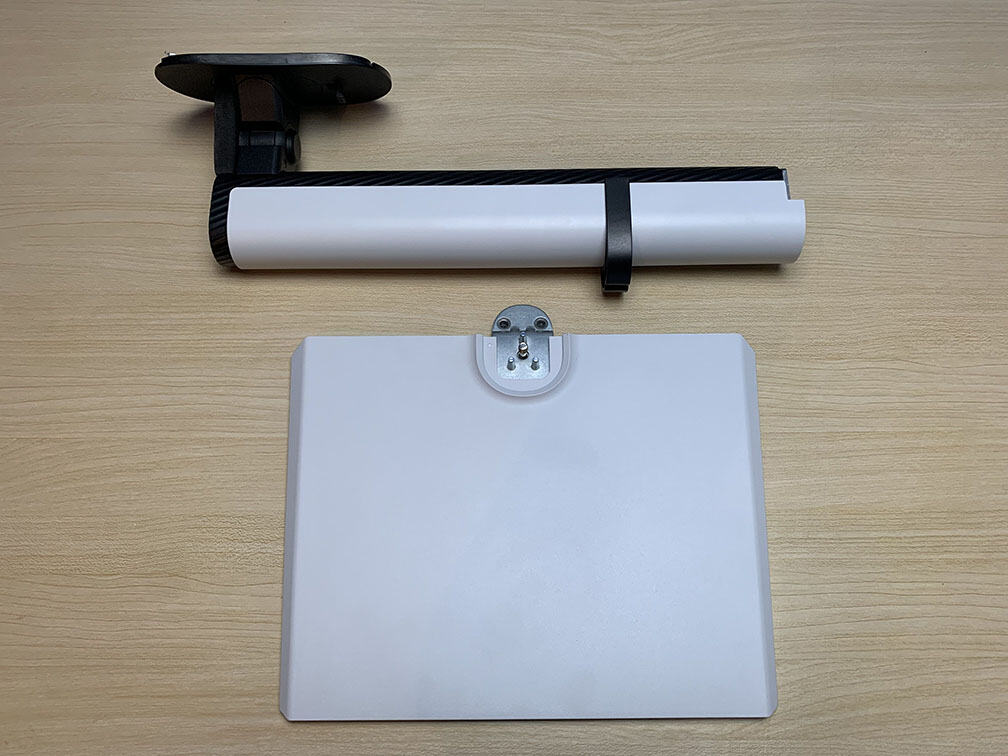
In the box, along with the monitor and its stand, you get a quick start guide, a remote controller, notes about burn-in prevention, a factory calibration report, a user guide, VESA mounting adapters, a DisplayPort cable, an HDMI cable, a USB-C to USB-C cable, a power cord and an external power supply.
Price & Similar Monitors
At the moment, there are no plans to bring the KTC G32P5 to the US.
It’s available on Amazon UK for £700 (£665 with a 5% off coupon) and on Amazon DE for €850 (€765 with a voucher). This makes the KTC G32P5 the most affordable 32″ 4K 240Hz W-OLED variant, as the other models, such as the LG 32GS95UE and the ASUS PG32UCDP, go for around £900 / €900 or more.
Even the 32″ 4K 240Hz QD-OLED models go for over €850, so the KTC G32P5 is definitely an alluring option in Europe.
The new ASUS XG32UCWMG 32″ 4K 240Hz W-OLED model with TrueBlack glossy coating goes for €1,000, while the XG32UCWG 165Hz model is €900.
For more OLED options, check out our dedicated OLED monitors article, while in our HDR monitor buyer’s guide, you’ll also find some mini LED alternatives.
Conclusion
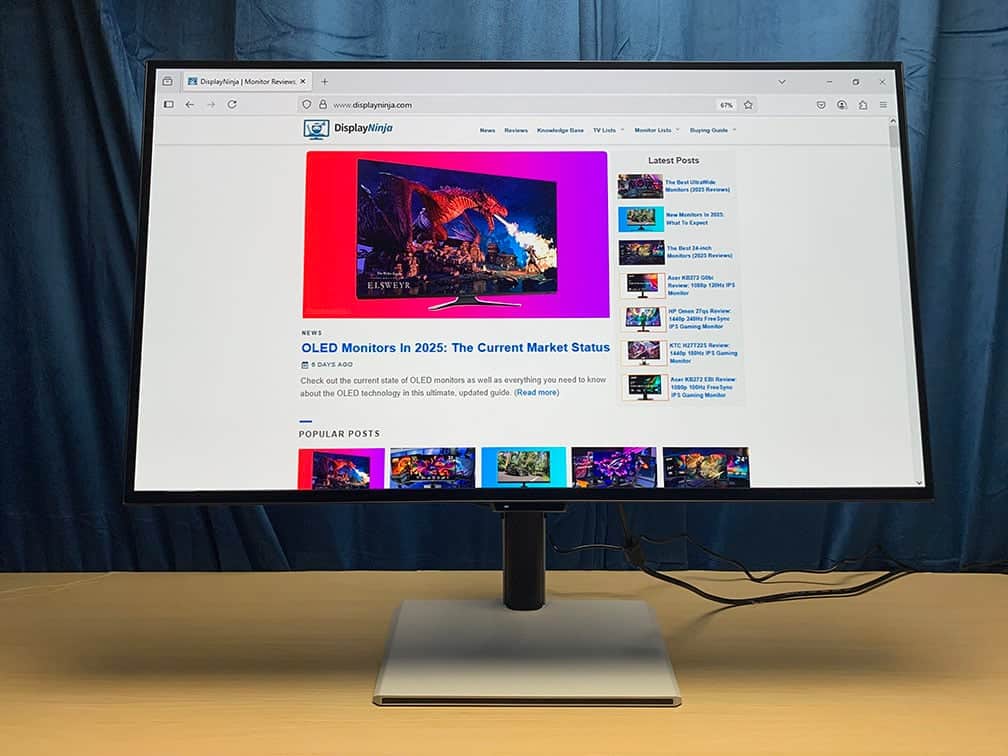
The KTC G32P5 is an excellent 32″ 4K 240Hz W-OLED gaming monitor, as it can save you up to €135 or up to £235 in comparison to alternatives yet it offers premium features, such as integrated speakers, remote controller, built-in KVM, USB-C with 65W PD and the human detection sensor.
Its only downside is the weaker brightness performance around 10% APL where it reaches 502-nits, while other W-OLED models can achieve over 700-nits here. Still, thanks to the decent brightness overall paired with an infinite contrast ratio, high pixel density and wide color gamut, the HDR viewing experience is incredible.
Specifications
| Screen Size | 31.5-inch |
| Resolution | 3840×2160 (Ultra HD) |
| Panel Type | OLED |
| Aspect Ratio | 16:9 (Widescreen) |
| Refresh Rate | 4K 240Hz 1080p 480Hz |
| Response Time | 0.03ms (GtG) |
| Speakers | 2x5W |
| Adaptive-Sync | FreeSync Premium (48-480Hz), HDMI 2.1 VRR |
| Ports | DisplayPort 1.4, 2x HDMI 2.1, USB-C (DP Alt Mode, 65W PD) |
| Other Ports | Headphone Jack, USB-B, 2x USB-A 3.0 |
| Brightness (1 – 3% White Window) | 1338 cd/m² |
| Brightness (10% White Window) | 502 cd/m² |
| Brightness (100% White Window) | 282 cd/m² |
| Contrast Ratio | Infinite |
| Colors | 1.07 billion (true 10-bit) 99% DCI-P3, 96% Adobe RGB |
| HDR | VESA DisplayHDR 400 True Black |
| VESA | Yes (75x75mm) |
The Pros:
- Self-emissive pixels for true blacks
- Decent peak brightness
- Wide color gamut with accurate sRGB and Display P3 modes
- Instantaneous pixel response time speed, low input lag
- Plenty of features, including VRR support up to 480Hz
- Ergonomic stand and rich connectivity options, including KVM and USB-C with 65W PD
The Cons:
- 5% – 10% APL brightness a bit lower than expected
- Risk of permanent image burn-in
- VRR brightness flickering in some games (expected on OLED and VA panels)


